GitHub Copilot Adds Eight Verified MCP Connectors Including Supabase, Box and Calendly
GitHub added eight verified MCP connectors to Copilot in public preview, letting coding agents search Box, inspect Supabase schemas, debug Buildkite builds and manage Calendly, ClickUp, Mixpanel, Webflow and Wix from one connection.
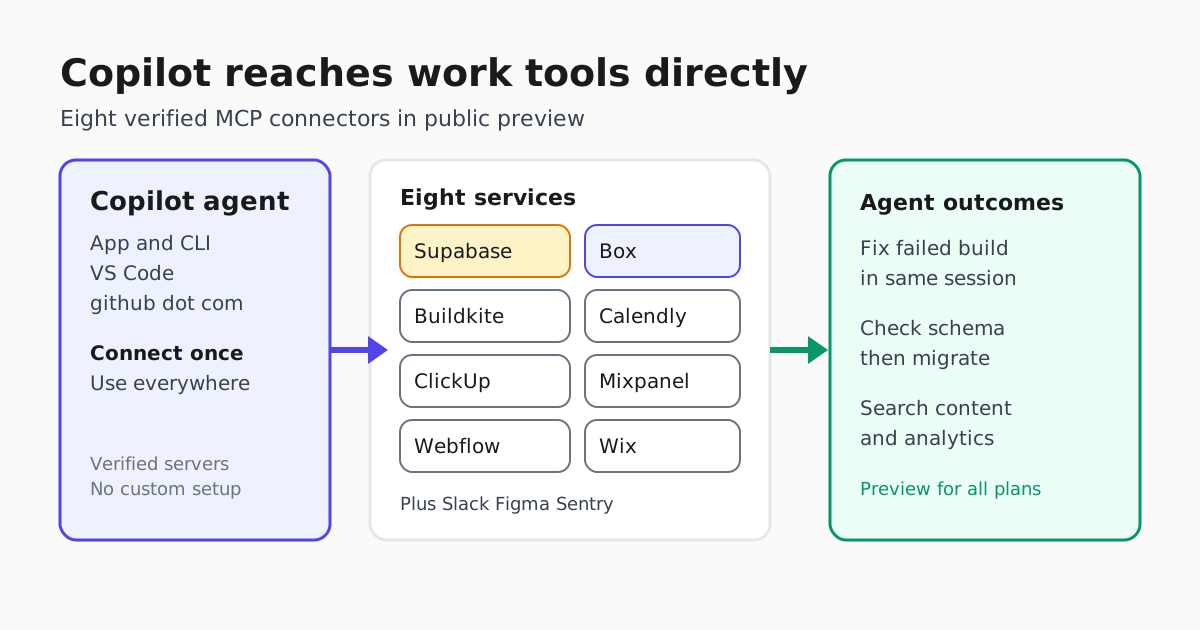
GitHub Copilot can now reach directly into eight everyday work tools without a custom MCP setup. On Nov. 18 GitHub announced eight GitHub-verified MCP servers, called connectors, in public preview, covering Box, Buildkite, Calendly, ClickUp, Mixpanel, Supabase, Webflow and Wix.
For developers using coding agents, this is a practical expansion rather than a model swap: the same agent that edits code can now check a database schema before it writes a migration, or read a failed build log before it proposes a fix.
What changed
The connector announcement lists eight new services as GitHub-verified MCP servers:
| Service | What Copilot can do | Example coding task |
|---|---|---|
| Box | Search and manage content, use Box AI | Find the spec document, then implement against it |
| Buildkite | Work with pipelines and builds | Explain a failed build, then fix code in the same session |
| Calendly | Manage scheduling and meetings | Check availability before proposing a rollout window |
| ClickUp | Track tasks and projects | Turn open tasks into a branch plan and checklist |
| Mixpanel | Explore product analytics | Verify which funnel step regressed before changing events |
| Supabase | Work with projects and databases | Inspect schema before writing a migration |
| Webflow | Manage sites and content | Update CMS content alongside front-end changes |
| Wix | Manage sites and business tools | Sync site changes with business records |
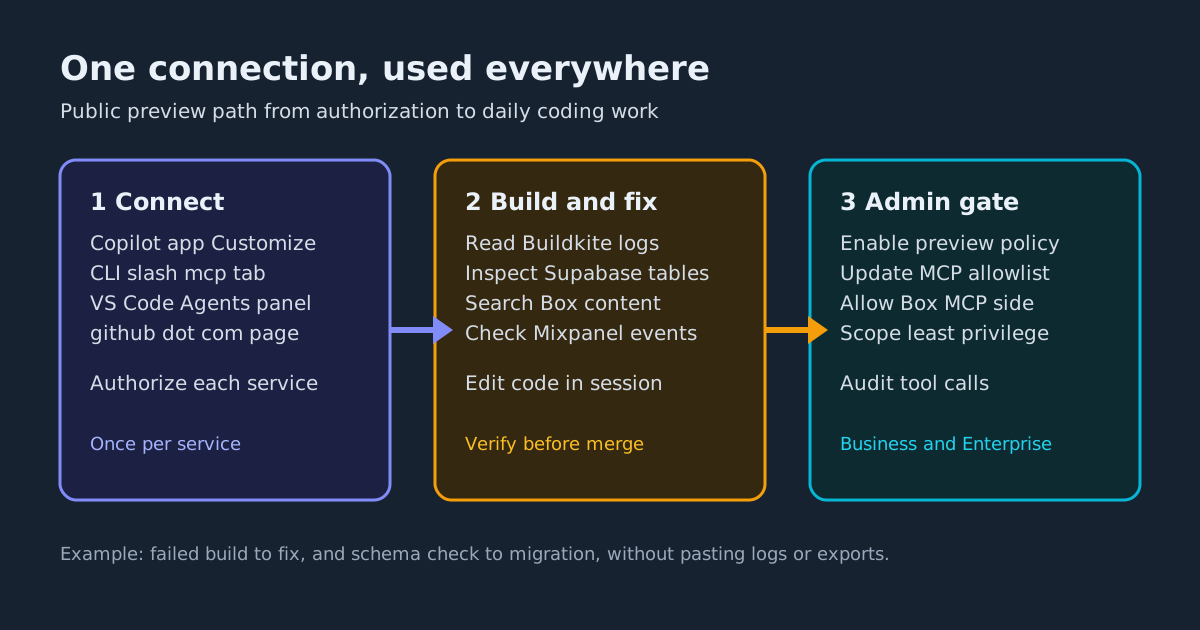
GitHub gives two concrete examples: ask Copilot why a Buildkite build failed and have it fix the code in the same session, or have it check a Supabase schema before it writes a migration. Existing connectors such as Slack, Figma and Sentry remain available.
Why it matters for coding agents
The audience here is developers running Copilot as an agent across the CLI, VS Code, the Copilot app and github.com. Before this change, reaching Box files, analytics events, schedules or hosted databases from an agent usually meant finding a third-party MCP server, hosting it, configuring credentials and maintaining it.
Verified connectors remove that middle layer. GitHub maintains the server definition, the user authorizes once, and the connection follows them across Copilot surfaces. That pattern matters because agent work often crosses system boundaries: a bug is in code, its evidence is in a pipeline log, its specification is in Box, its rollout depends on a calendar and its verification depends on product data. Keeping those steps in one session reduces copy-paste context loss.
For practical setup guidance on Copilot CLI trust, MCP servers, instructions and model choice, see Copilot CLI Setup.
How to connect
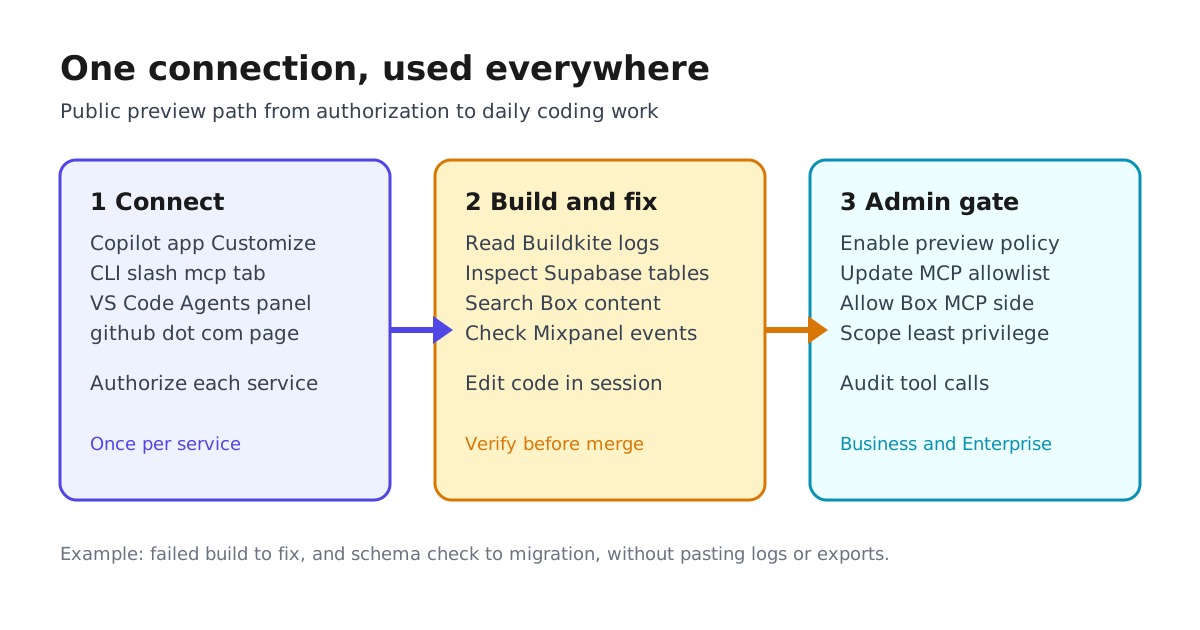
Connect these services the same way as any other connector. Connect once and use them across Copilot:
- Copilot app: Open Customize and select Connect on the service you want.
- Copilot CLI: Run
/mcp, switch to the Connectors tab, and select Connect. - VS Code: Open the Agents window, go to Customizations, and connect the service.
- github.com: Browse services on the Copilot customization page and select the service.
A typical CLI flow looks like this:
# in Copilot CLI
/mcp
# Connectors tab > find Supabase > Connect
# authorize Supabase project access
# ask: check my schema before drafting the migration
After authorization, the agent can call tools from that service during planning, editing and verification, rather than asking the developer to paste exports manually.
Enterprise controls to check first
Availability is public preview for all Copilot plans, but enterprise setup has two gates. With Copilot Business or Copilot Enterprise, an admin needs to enable the Editor preview features policy. If an enterprise MCP allowlist lists connectors individually rather than with a wildcard, an admin also needs to add the new connectors to it. Some services also need to be enabled on their own side, such as allowing Box MCP access.
That allowlist detail is worth checking before a team demo. If Copilot does not offer one of the eight services, the likely cause is policy rather than plan eligibility. Related background on permission pre-approval is in GitHub Copilot Assisted Permissions Is GA.
Same-week Copilot context
This connector release landed alongside two other Copilot changes that affect daily agent work.
First, Gemini 4 Neon is now generally available in GitHub Copilot. Google positions it for agentic coding, multistep tool use and knowledge work, reporting quality close to Gemini 4 Carbon at lower token cost per task, faster first response, fewer unrequested code changes and fewer unsupported claims about tool results. It is available to Copilot Pro Plus, Max, Business and Enterprise users through the model picker across VS Code, Visual Studio, CLI, coding agent, app, github.com, mobile, JetBrains, Xcode and Eclipse, subject to gradual rollout and admin model policy.
Second, Copilot code review added Adaptive effort, secret detection and more. Adaptive selects Lite, Balanced or Max review depth per pull request based on complexity and risk, while respecting the maximum configured for the enterprise, organization or repository. Cross-repository context can read related public repositories, and secret detection flags exposed credentials using deterministic detectors and model-based detection. Repository Insights can track how review feedback is addressed, and Copilot code review for Azure Repos is now generally available with billing through GitHub AI credits.
Together, the three releases point in one direction: connect to more context, pick models more deliberately, and review with effort matched to risk.
Two workflows to try now
1. Diagnose a Buildkite failure and fix it in place
Open the failing pipeline run, then ask Copilot to summarize why the latest Buildkite build failed, point to the suspect files, and propose a code change in the same session. Because the agent reads pipeline and build state directly, it is less likely to guess at log contents. Keep the human check: require a local test or CI run before merging.
2. Schema-aware Supabase migration
Before asking for a migration, ask Copilot to list the relevant Supabase tables, foreign keys and policies, then draft the migration against that exact schema. Review the generated SQL for destructive operations, run it against a preview branch, and only then apply it. The practical win is avoiding migrations written against a stale mental model of the schema.
Limits and what to watch
Features in public preview are subject to change. Verified does not mean unlimited: repository permissions, Box sharing rules, Supabase roles, Buildkite scopes and enterprise allowlists still bound what the agent can see and change. Treat connector output like any other agent context. Verify file citations from Box, confirm schema objects before running migrations, and keep secrets out of prompts even with secret detection enabled in review.
Start with one read-heavy connector, confirm the authorization scope, test it in a low-risk repository, then expand to write operations. That sequence gives you the cross-tool benefit without widening blast radius on day one.