Cursor Trouble Connecting to the Model Provider: Find the Cause, Resume or Switch Models, and Fix Network, CLI and MCP Failures
Cursor trouble connecting to the model provider? Classify it as a route limit, proxy, CLI or MCP failure, apply Cursor's documented fix and keep your work.

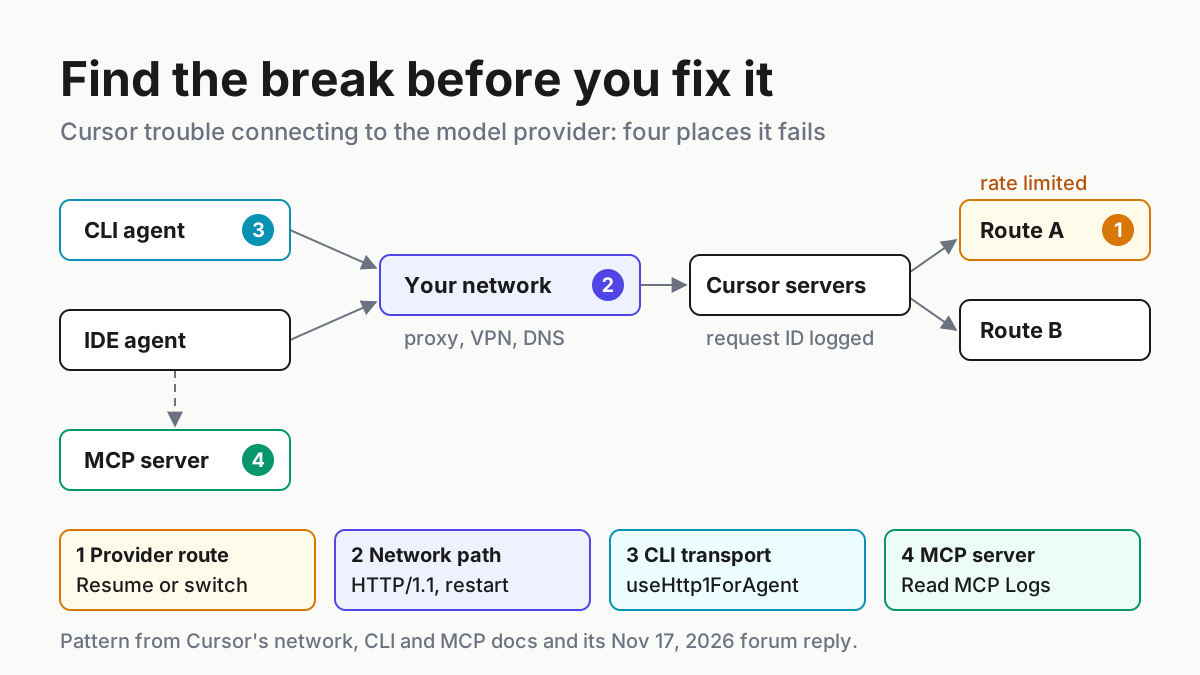
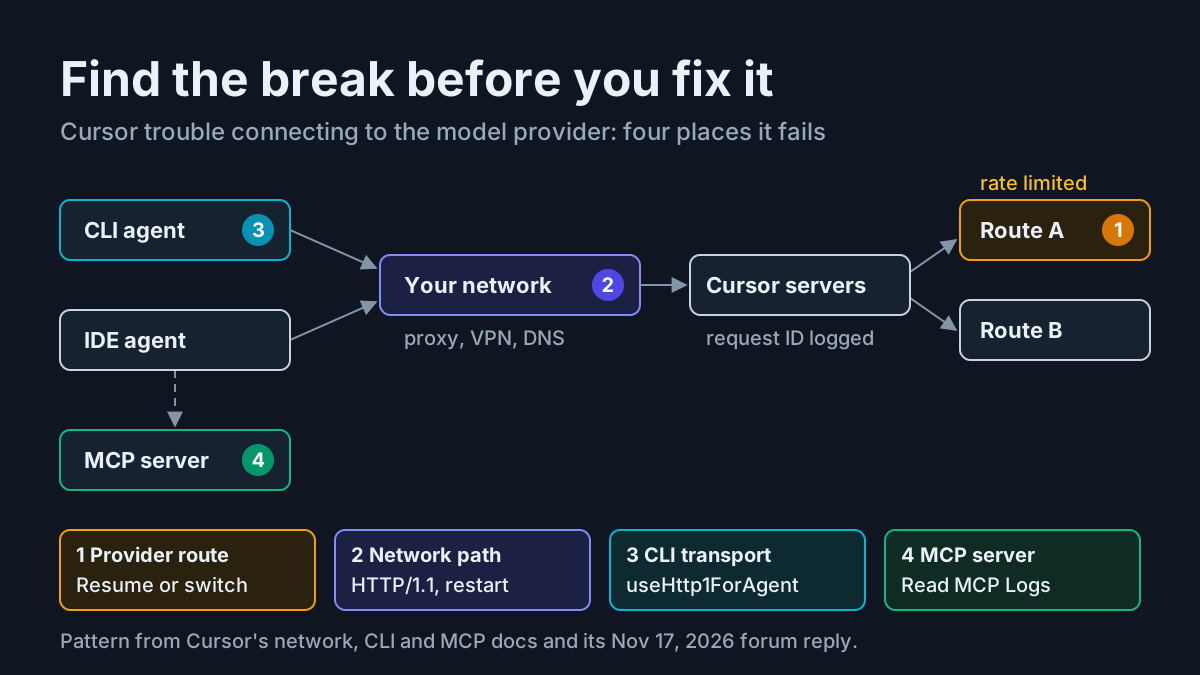
Your Cursor agent is twenty minutes into a refactor when the chat stops on a familiar line: “We’re having trouble connecting to the model provider. This might be temporary - please try again in a moment.” You click Resume, the run carries on, and ten minutes later the message is back. This guide treats Cursor trouble connecting to the model provider as a sorting problem, not a reinstall problem. The same sentence can come from a model route that is rate limited on Cursor’s side, from a corporate proxy that breaks HTTP/2 streaming, from the Cursor CLI’s connection through that proxy, or, according to Cursor’s support staff, from an MCP server loaded into the session. Each cause has its own documented fix, and every local fix is wasted effort when the fault sits on the provider route.
The guide is for developers who run Cursor’s IDE agent, the Cursor CLI, or both, and who want the agent working again without losing its work or leaving their settings in an odd state. You need a current Cursor build, access to Cursor Settings > Network, the chat’s context menu, the Output panel and, if you use the CLI, write access to ~/.cursor/cli-config.json. You will leave with four things: a check order that separates the four causes, a filled triage table for five concrete cases, a complete cli-config.json for proxied machines, and a bug-report packet Cursor can match to its logs.
Settings names, file paths and menu locations come from the Cursor documentation pages listed under Sources. Two forum threads supply the exact error text and what Cursor staff said about real incidents. We did not reproduce these failures. Every expected result below is what the documentation or Cursor staff say should happen, labelled as an illustrative expectation, and the case labels, host names and request IDs are made up for the example.
What Cursor said about the November 17 Opus 5.5 errors
On November 17, 2026, a user filed Model provider flakiness / Anthropic in Cursor’s Bug Reports forum. They were seeing “quite a few” of the provider messages that morning on Opus 5.5, attached a request ID, and noted that the run picked up after they clicked Resume but the error kept coming back. The forum’s system account moved the post into Bug Reports and asked for the template details: product area, version, operating system, model and request ID.
The reply came the same evening from Colin, answering for Cursor. The interruption was not on the user’s end. One of the routes Cursor serves Opus 5.5 through was rate limited at that moment; it had been hitting a share of Opus 5.5 requests for the past few days and was still happening. Resume was the right move, he wrote, because it picks up where the run stopped and nothing is lost. If the interruptions kept coming, switching to another model for a while would avoid them, since the problem was specific to Opus 5.5. He passed the request ID to the team.
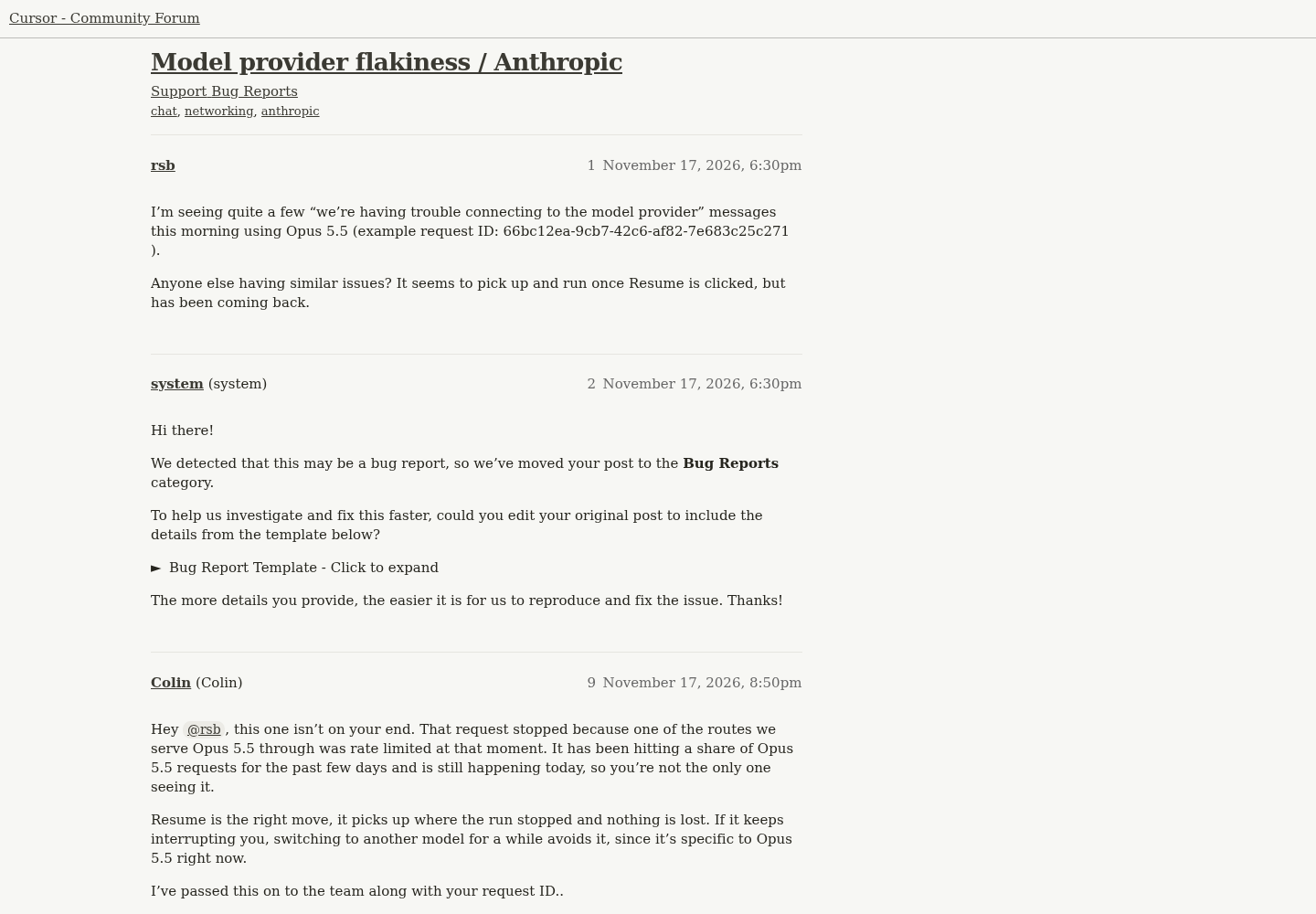
Three points from that exchange outlast the incident. The error text alone does not say whose side failed. A provider-side limit can hit one model and leave others alone, so “does another model work?” is the cheapest test that tells the causes apart. And the request ID is the only part of your report that lets Cursor find your request in its own systems. If your team worries about how much one vendor’s routing can stall a day’s work, Cursor after SpaceX covers that risk; this guide stays with the error on your screen.
Before you change anything: capture the evidence
Every local fix below changes a setting, and a provider-side limit can clear on its own while you are busy changing things. Capture the state first, so you can later tell whether your change worked or the route simply recovered. Cursor’s guide to reporting a bug lists what support needs; this checklist puts it in the order you should collect it.
- [ ] Request ID. Open the conversation in the Chat sidebar, click the context menu (“…”), and choose Copy Request ID. Cursor describes request IDs as lookup keys with no value outside its backend, so you do not need to treat them as secret. Copy one per failure, not one per session.
- [ ] Model, mode and time. Write down the model in the picker, whether you were in Agent, Ask or Plan mode, and the local time with its time zone.
- [ ] Version. In the IDE, open About Cursor and use its Copy button; the forum’s bug template gives the path as Menu → About Cursor → Copy. For the CLI, run
agent aboutin a terminal. - [ ] Operating system and its version.
- [ ] Console errors. Open Help > Toggle Developer Tools and copy any red errors around the time of the failure.
- [ ] Privacy setting. Privacy Mode applies per request, and switching to Share Data afterwards does not reveal requests made earlier. For connectivity problems, Cursor says the team can often debug with Privacy Mode left on, because they do not need your code or conversation.
- [ ] Current values of anything you plan to change: the HTTP Compatibility Mode under Settings > Network, and a copy of
~/.cursor/cli-config.json.
For a sense of what the console shows, the January 2026 thread SOLUTION NEEDED: We’re having trouble connecting to the model provider includes a user’s capture. Beside transport lines reading ConnectError: [unavailable], the composer logged the failure as JSON with the code ERROR_OPENAI, the title “Unable to reach the model provider” and the same detail sentence. In that thread, network diagnostics passed, the user had no proxy or VPN, MCP servers were switched off, and a mobile hotspot gave the same result. A Cursor staff member eventually called it an infrastructure issue on Cursor’s side and a known issue the team was working on. Treat the console text as evidence to attach, not as a diagnosis.
Four causes behind one message
The four causes look identical in the chat panel and behave differently everywhere else. Keep this table open while you work; the triage order in the next section tells you which row to test first.
| Cause | Typical pattern | First check | Documented fix |
|---|---|---|---|
| Provider route | One model fails while others run; Resume continues the turn | Same task on another model | Click Resume; switch models while it lasts; file the request ID |
| Network path | Every model fails in the IDE, often on a corporate network or VPN | Settings > Network > Run Diagnostics | Set HTTP Compatibility Mode to HTTP/1.1, restart; allowlist Cursor’s domains |
| CLI transport | The Cursor CLI fails behind a proxy | Proxy variables and CA certificate in the CLI’s shell | network.useHttp1ForAgent: true in cli-config.json |
| MCP server | A tool call fails, or the error began after adding or updating a server | Output panel > MCP Logs | Toggle the server off, fix its config, or remove and re-add it |
The first row comes from the November 17 staff reply. The second follows Cursor’s network, proxy and remote connections page, which says Cursor uses HTTP/2 for streaming responses and that some corporate proxies, Zscaler among them, block HTTP/2. The third follows the CLI configuration reference. The fourth rests on Cursor’s MCP documentation for the log location and on the January thread, where a Cursor staff member wrote that this error “is commonly caused by MCP servers or network settings” and suggested disabling MCP servers temporarily as the first quick test.
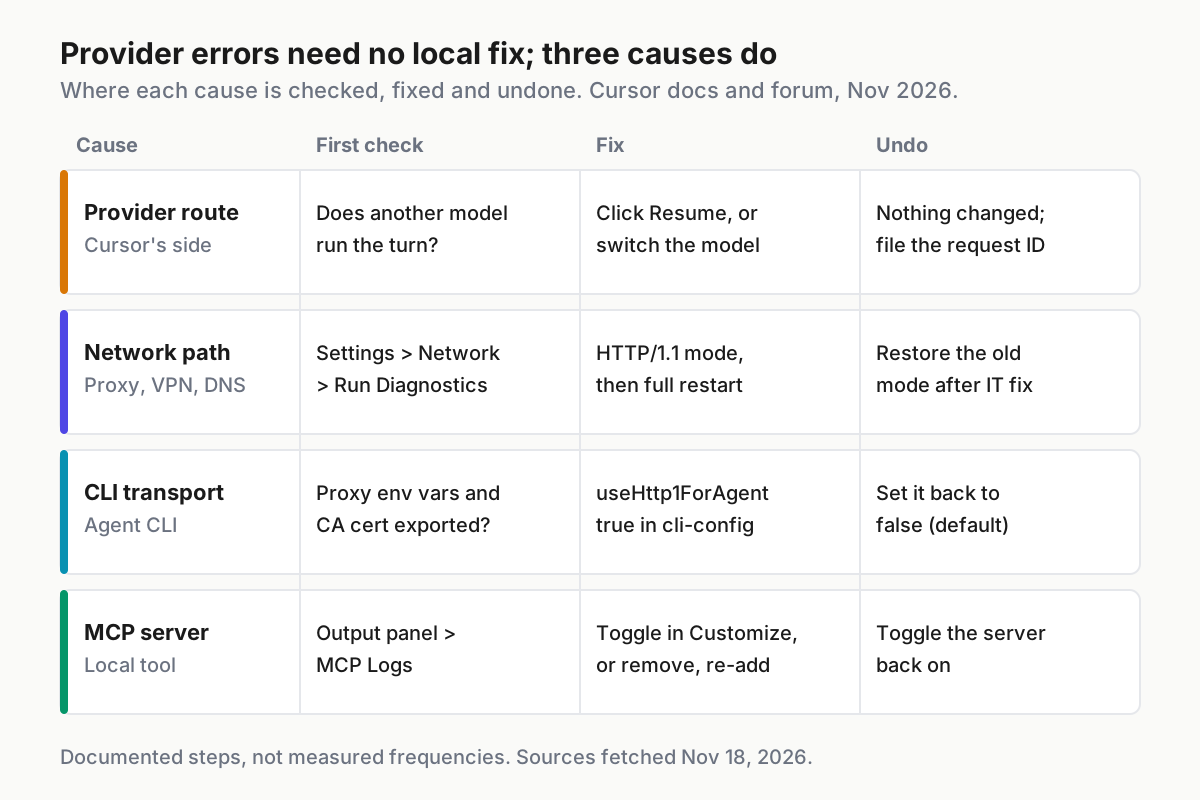
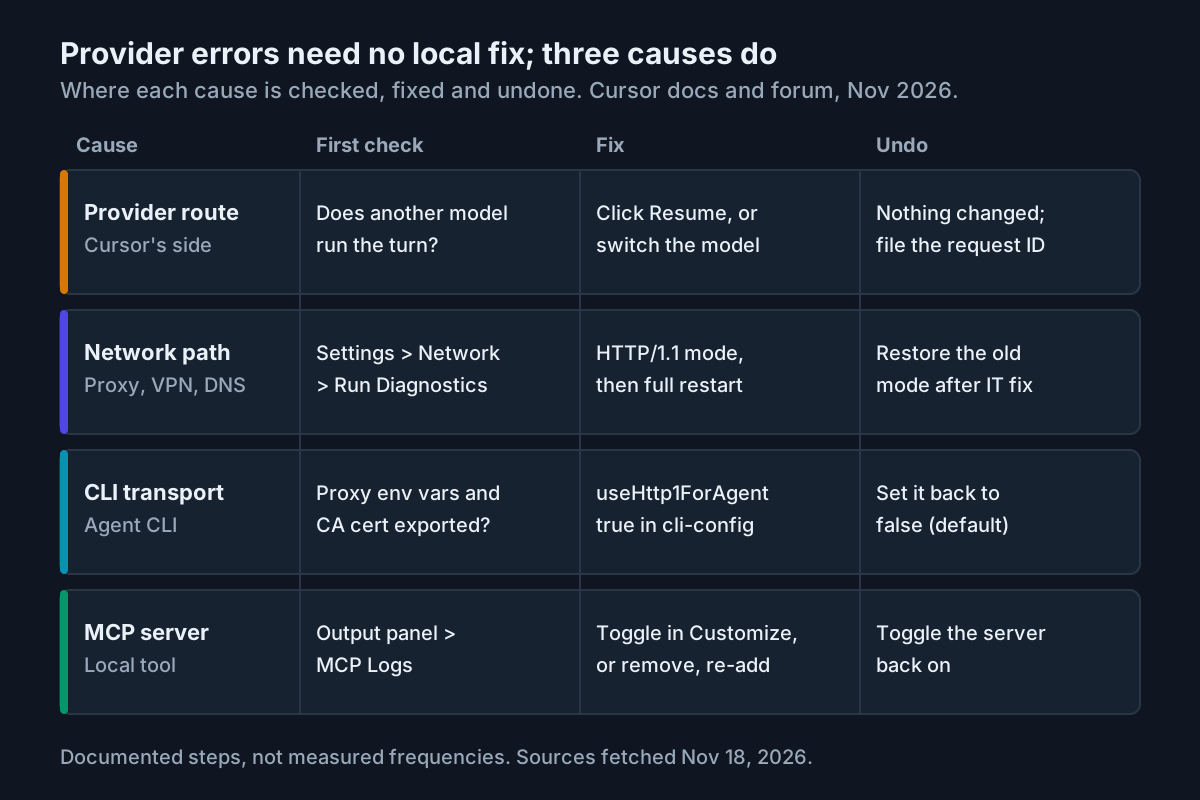
One nuance on the MCP row. Cursor’s documentation says a crashed or timed-out MCP server produces an error message in chat, the tool call is marked as failed, and other servers keep working. So an MCP fault usually announces itself as a failed tool call. The staff advice in January is the reason to test it anyway when the provider message appears with no obvious cause: disabling servers costs one click and is fully reversible.
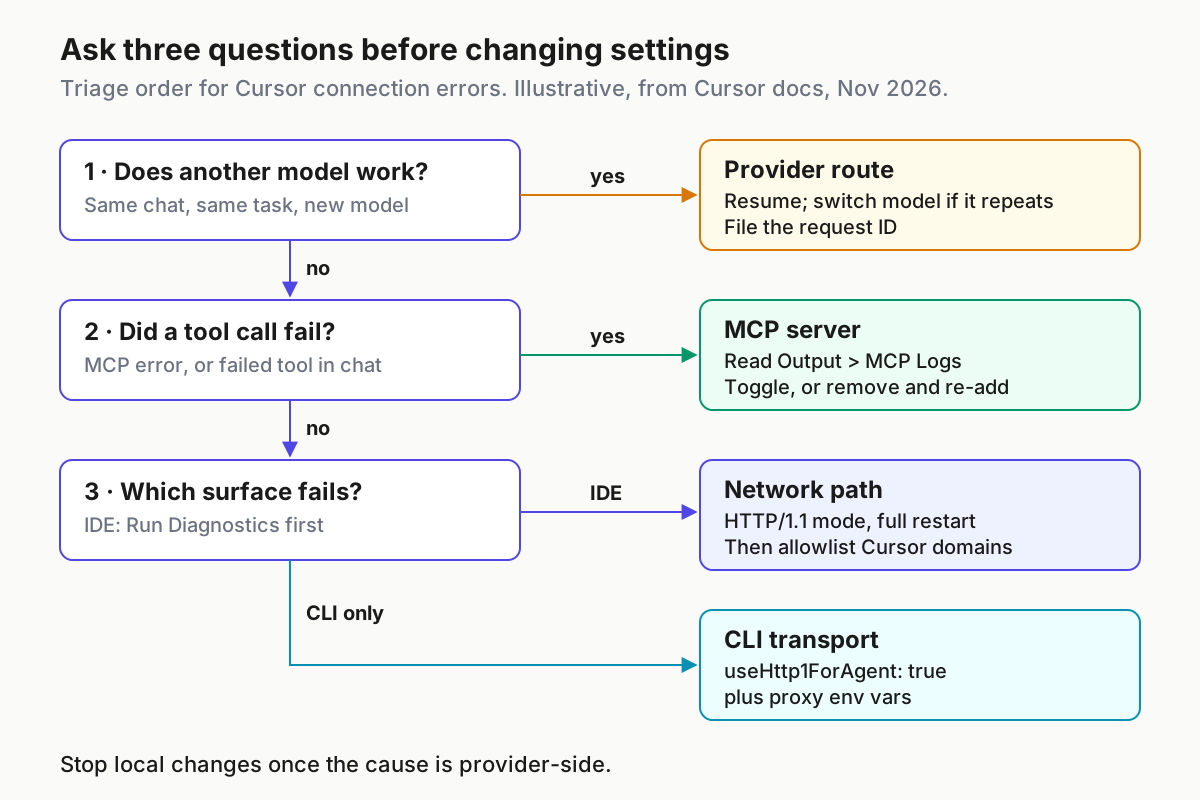
The triage order
Run the checks in this order. The early ones are free, change nothing on your machine, and rule out the cause that makes every later fix pointless.
- Capture the request ID and versions as in the previous section. It takes a minute, and you cannot recover that exact request later.
- Look at Cursor’s status page (status.cursor.com, linked from the footer of Cursor’s help pages) for an incident that matches your model. Do not treat a clean page as proof the problem is local: the November 17 route limit was confirmed in a forum reply.
- Click Resume once. Per Cursor’s staff reply, Resume continues the run from where it stopped and nothing is lost. If the turn completes, you have lost nothing and changed nothing.
- If the message returns, run the same task on another model. Pick a different model in the picker and continue. If it runs clean, you are looking at the Provider route row: keep working on the other model, file the request ID, and stop making local changes.
- If every model fails in the IDE, run Settings > Network > Run Diagnostics. Cursor says this tests the connection to its servers and identifies issues affecting AI features or updates. Failures here put you in the Network path row.
- If the IDE works and only the CLI fails, you are in the CLI transport row. The CLI reads its own config file and environment, so an IDE fix does not carry over.
- If chat shows a failed tool call, or the trouble began after you added or updated an MCP server, open the Output panel and select MCP Logs, then follow the MCP section below.
There is one failure pattern that the order above does not fix. In the January thread, the user reported that clicking Resume or Try Again did nothing at all; they had to send a fresh message and ask the agent to review where it had left off, and switching models did not help either. If Resume is dead and every model fails while diagnostics pass, you have done your part. Collect two or three request IDs, file them, and stop changing settings, because the evidence points at Cursor’s side.
If you run several agents at once and the hard part is noticing that one has stopped, stall flags and keepalive covers that layer.
Worked example: five failures, one table
The table below follows five illustrative cases through the triage order. Each row names one machine and one symptom, the exact documented action, and the observation that tells you the fix worked. None of these rows is a recorded run; the expected results come from Cursor’s documentation and staff replies.
| Input | Action | Expected result (illustrative) |
|---|---|---|
case:provider-ratelimit-01. IDE agent on Opus 5.5, renaming InvoiceTotal across src/billing/; chat shows “We’re having trouble connecting to the model provider”; Resume works but the error returns twice in 30 minutes; another model in the same project answers normally |
Copy Request ID from the chat context menu; click Resume; on the second recurrence switch the picker to another model and continue; post the request ID in a forum bug report | Resume finishes the interrupted turn with the earlier edits still in place; the other model completes the remaining steps without the message; no setting was changed, so there is nothing to roll back |
| case:proxy-http2-02. Corporate Windows laptop whose traffic passes through Zscaler; every model fails in Agent and Ask; Settings > Network > Run Diagnostics reports failures | Record the current HTTP Compatibility Mode; set it to HTTP/1.1; quit Cursor completely and reopen it; run Run Diagnostics again; send a one-line prompt | Diagnostics pass and responses stream after the restart; if they still fail, IT allowlists *.cursor.sh, *.cursor-cdn.com, *.cursorapi.com, cursor.com and *.cursor.com |
case:cli-reconnect-03. Cursor CLI on Linux build host build-07, routed through http://proxy.corp.example:8080 with SSL inspection; the IDE on the same network works after case 02; CLI turns stop partway through streaming |
Export HTTP_PROXY, HTTPS_PROXY, NODE_USE_ENV_PROXY=1 and NODE_EXTRA_CA_CERTS; back up ~/.cursor/cli-config.json; set network.useHttp1ForAgent to true; start a new agent session |
The CLI’s agent connection switches to HTTP/1.1 with Server-Sent Events and turns stream to completion; the IDE is unaffected because this file configures only the CLI |
case:mcp-npx-04. Project .cursor/mcp.json runs an npx-based issue-tracker server whose key comes from ISSUE_TRACKER_KEY set in ~/.zshrc; after a reboot its tool calls fail in chat |
Open the Output panel (Cmd+Shift+U or Ctrl+Shift+U), select MCP Logs, read the start-up error; confirm the variable is set; restart Cursor; toggle the server off and on in Customize | MCP Logs show the server initializing and its tool calls arriving; the next call to the tool succeeds; other MCP servers keep working throughout |
| case:vpn-dns-05. macOS laptop just disconnected from a VPN; every agent request fails with DNS errors | Quit and relaunch Cursor rather than reloading the window; if it persists, run scutil --dns and compare the resolvers with your normal ones |
The full restart clears environment inherited from the VPN session and requests resolve; scutil --dns lists your usual resolver again |
Why those choices. In case 01 the cheap discriminating test, another model on the same task, settles the question before you touch anything, which matches what Cursor’s staff told the November 17 reporter. Switching models is not a fix for the route; it is a way to keep working while Cursor fixes it, and the request ID is how you hand them the evidence. If a model you depend on can disappear for days, rehearse the provider cutoff before the next one.
In case 02 the change targets the documented mechanism: Cursor streams over HTTP/2, some proxies block it, and the compatibility mode drops to HTTP/1.1. The restart matters. Cursor’s network page tells you to restart after the change, and for the VPN DNS case it is explicit that a full restart, not a window reload, is what clears inherited settings. Recording the previous value first is what makes the rollback section possible.
Case 03 exists because the CLI does not read the IDE’s settings. Its configuration reference documents its own HTTP/1.1 fallback for enterprise proxies that do not support HTTP/2 bidirectional streaming, plus proxy variables and an extra CA bundle for proxies that inspect TLS. In case 04 the decisive step is reading the log: it says whether the server failed to start, failed to authenticate or crashed, and each has a different repair. Case 05 is in the table because it produces the same “every model fails” pattern as case 02 while needing a different fix.
Fix the network path in the IDE
Use this section when every model fails in the IDE, or when Run Diagnostics reports failures. The steps follow Cursor’s network, proxy and remote connections page.
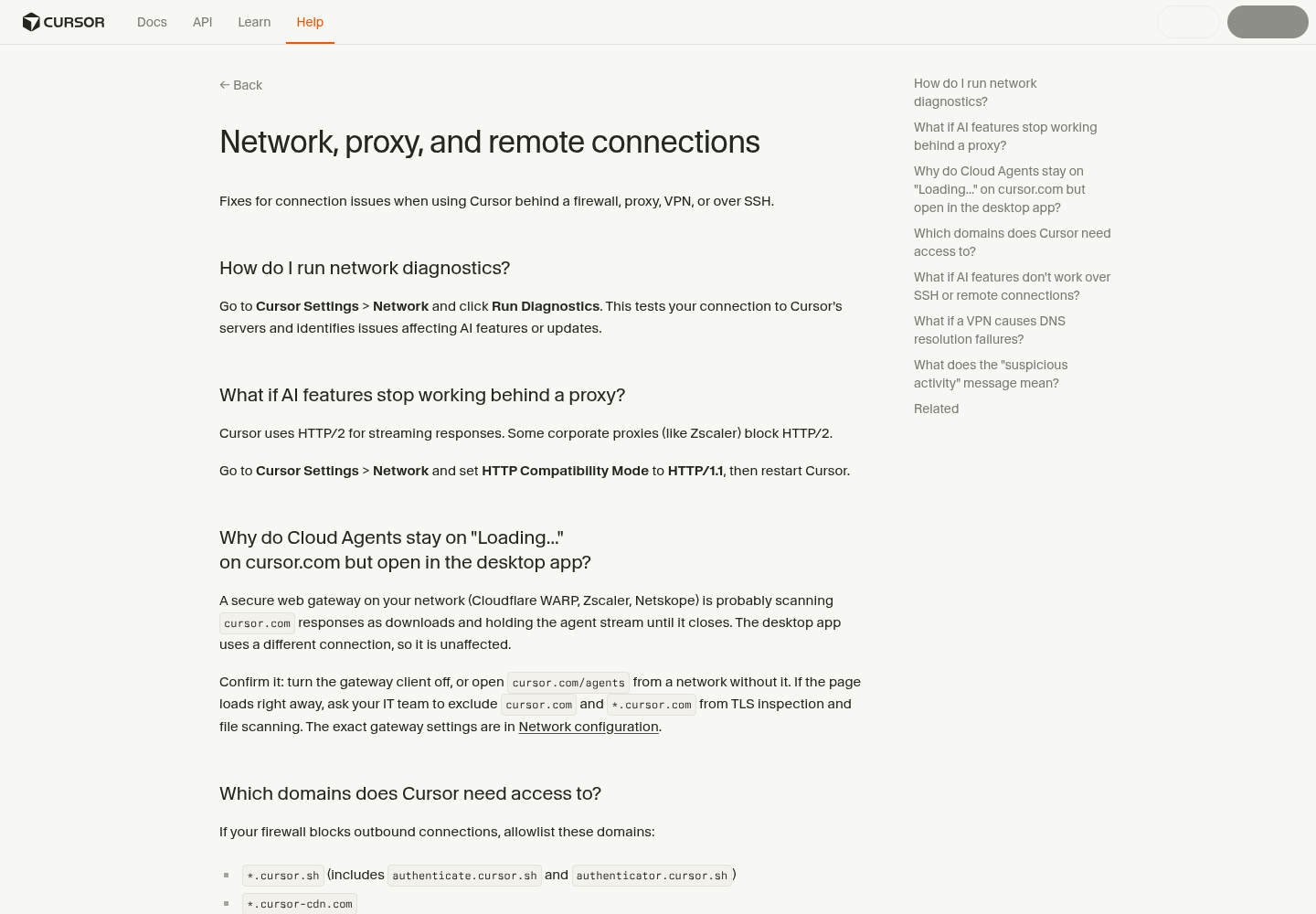
- Open Cursor Settings > Network and click Run Diagnostics. Note which checks fail, and screenshot the result for your bug report.
- Write down the current value of HTTP Compatibility Mode before changing it.
- Set HTTP Compatibility Mode to HTTP/1.1. Older builds exposed this differently: in January 2026 a Cursor staff member told a user to search Settings for “HTTP/2” and enable “Disable HTTP/2”. Current documentation uses the HTTP Compatibility Mode name.
- Quit Cursor completely and reopen it. A window reload is not the restart the documentation describes.
- Run Diagnostics again, then send a one-line prompt on the model that failed.
- If the checks still fail, ask your network team to allowlist the domains Cursor lists:
*.cursor.sh(includingauthenticate.cursor.shandauthenticator.cursor.sh),*.cursor-cdn.com,*.cursorapi.com(includingmarketplace.cursorapi.com), andcursor.complus*.cursor.com. The*.cursorvm.comand*.*.cursorvm.compatterns are for the Grok Bot hosted computer, so add them only if you use it. - If your company runs a secure web gateway such as Cloudflare WARP, Zscaler or Netskope, show IT Cursor’s advice for gateways: exclude
cursor.comand*.cursor.comfrom TLS inspection and file scanning. The page gives that advice for Cloud Agents stuck on “Loading…” in the browser, and points to its separate network configuration page for exact gateway settings and connectivity tests. Ask IT to apply the guidance from that page rather than guessing at an exclusion list.
How to read what you see:
| You see | It means | Next move |
|---|---|---|
| Diagnostics fail, then pass after HTTP/1.1 and a restart | The proxy was blocking HTTP/2 streaming | Keep the setting until the network changes; note it in your machine records |
| Diagnostics fail before and after the change | Something blocks the connection outright | Domain allowlist and gateway settings with IT |
| Diagnostics pass, every model still fails | The network path is probably fine | Return to the triage order; file request IDs |
| DNS errors right after leaving a VPN | Cursor inherited the VPN’s DNS settings | Full restart; check scutil --dns on macOS or /etc/resolv.conf on Linux |
| A “suspicious activity” message | The request was blocked as a security measure, which VPNs can trigger | Turn off the VPN; start a new chat; wait a few minutes; try another sign-in method |
Remote SSH users get one more rule from the same page. AI requests go from your local machine to Cursor’s servers, not from the remote host, so check your local internet connection first. Then check that the remote server is not out of memory or CPU, raise ServerAliveInterval in your SSH config if sessions drop, and restart Cursor after reconnecting to clear stale processes.
Fix the CLI transport with cli-config.json
Use this section when the Cursor CLI fails behind a proxy, whether or not the IDE works. The CLI has its own settings file, and the configuration reference says only permissions can be set per project; everything else, the network setting included, is global.
- Find the file. On macOS and Linux it is
~/.cursor/cli-config.json; on Windows it is$env:USERPROFILE\.cursor\cli-config.json. IfCURSOR_CONFIG_DIRis set, the file lives in that directory instead, and on Linux and BSDXDG_CONFIG_HOMEmoves it to$XDG_CONFIG_HOME/cursor/cli-config.json. - Back up the current file, so the rollback is a copy rather than a memory exercise.
- Export the proxy variables in the shell that will run the CLI. If the proxy inspects TLS, point
NODE_EXTRA_CA_CERTSat your organization’s CA certificate. - Add the
networkblock to the file, keeping your existingpermissionslists as they are. - Check that the file is valid JSON. The reference says the format is pure JSON with no comments.
- Start a new CLI session, run
agent aboutto confirm the version, and send a short prompt.
The shell part, for bash or zsh on the illustrative host build-07:
# Back up the current CLI config before editing it
cp ~/.cursor/cli-config.json ~/.cursor/cli-config.json.before-http1

# Proxy settings documented in Cursor's CLI configuration reference
export HTTP_PROXY=http://proxy.corp.example:8080
export HTTPS_PROXY=http://proxy.corp.example:8080
export NODE_USE_ENV_PROXY=1
# Only if the proxy performs SSL inspection
export NODE_EXTRA_CA_CERTS=/etc/ssl/certs/corp-root-ca.pem

# Any JSON validator works; this one ships with Python
python3 -m json.tool ~/.cursor/cli-config.json > /dev/null && echo "valid JSON"

agent about
The complete cli-config.json, in the shape the reference uses for its HTTP/1.1 fallback example. The four required fields are version, editor.vimMode, permissions.allow and permissions.deny; if your file already lists permissions, keep them and add only the network block.
{
  "version": 1,
  "editor": { "vimMode": false },
  "permissions": { "allow": [], "deny": [] },
  "network": { "useHttp1ForAgent": true }
}
What useHttp1ForAgent does, per the reference: it switches agent connections from HTTP/2 to HTTP/1.1 with Server-Sent Events, which works with most corporate proxies. Its default is false. The expected observation (illustrative) is that turns which previously stopped partway now stream to completion.
If the CLI refuses to start or complains about its configuration, the reference gives a recovery: move the file aside with mv ~/.cursor/cli-config.json ~/.cursor/cli-config.json.bad and restart, and the CLI recreates it. It also notes the CLI repairs missing fields itself, backs up corrupted files as .bad, and manages some fields on its own, so a change that does not persist may have been overwritten. If the cause turns out to be the provider route after all, the CLI’s /model slash command switches models, for example /model auto.
Fix an MCP server that won’t connect
Use this section when a tool call fails in chat, when the trouble began after you added or updated an MCP server, or when disabling MCP servers made the provider message go away. The steps combine Cursor’s MCP reference and its MCP help page.
- Open the Output panel with Cmd+Shift+U on macOS or Ctrl+Shift+U on Windows and Linux, and select MCP Logs from the dropdown.
- Read the lines for the failing server. Cursor says the logs show server initialization, tool calls and error messages, and that you should look for connection errors, authentication issues or server crashes.
- Match the log to a fix. If the server needs variables from your shell profile, make sure Cursor can see them and restart Cursor after editing the profile. If the command is not found, the
commandfield must be on your path or use a full path. On Windows with MCP Network Controls enabled, a log saying the server requires sandboxing means Windows cannot run that sandbox; ask your admin for a Command entry with the No sandbox network mode. - Isolate it. In Customize > MCPs, toggle the suspect server off. Disabled servers do not load or appear in chat, so if the errors stop, you have found the cause.
- Restart the server cleanly. Remove it from Customize > MCPs and re-add it. For an npm-based server that needs updating, Cursor’s sequence is remove the server, run
npm cache clean --force, then re-add it. - Turn it back on and repeat the tool call. The expected observation (illustrative) is an initialization entry for the server in MCP Logs, then a tool call that completes.
The project file for case:mcp-npx-04, using Cursor’s documented ${env:NAME} interpolation so the key never sits in the repository. The package name is the placeholder from Cursor’s own example:
{
  "mcpServers": {
    "issue-tracker": {
      "type": "stdio",
      "command": "npx",
      "args": ["-y", "mcp-server"],
      "env": { "API_KEY": "${env:ISSUE_TRACKER_KEY}" }
    }
  }
}
Two details save time. Cursor merges .cursor/mcp.json in the project with ~/.cursor/mcp.json in your home directory, and when the same server name appears in both, the project file wins, so check both before deciding which config is live. And Cloud Agents keep their own MCP sign-ins on Cursor’s servers, separate from your machine, so signing out locally does not fix a Cloud Agent’s connection. If you also run Claude Code, its scope rules differ; Claude Code MCP setup covers that side.
Roll back once the cause is gone
Every change in this guide is reversible, and some should be reversed. HTTP/1.1 is a workaround for a network that blocks HTTP/2, not a better default. Undo it once IT changes the network, so the next person debugging that machine is not working from a hidden setting.
| Change you made | Undo it when | How | Check afterwards |
|---|---|---|---|
| Switched away from a rate-limited model | Cursor says the route is fixed, or a test prompt on the original model completes | Pick the original model again | One short task completes without the provider message |
| HTTP Compatibility Mode set to HTTP/1.1 | IT confirms the proxy or gateway no longer blocks HTTP/2 | Restore the value you recorded, then fully restart | Run Diagnostics passes; a prompt streams |
network.useHttp1ForAgent: true |
Same network change as above | Set it to false (the default) or copy back cli-config.json.before-http1 |
A new agent session completes a turn |
| Proxy variables exported for the CLI | You leave the proxied network | Unset them or remove them from your shell profile | agent about and a short prompt work off the proxy |
| MCP server toggled off | Its log shows a clean start, or you have fixed its config | Toggle it on in Customize > MCPs | MCP Logs show initialization; the tool call succeeds |
If a rollback brings the error back, the original diagnosis was right and the network still needs the workaround. Put the setting back, and record why on the machine’s notes so the next upgrade does not undo it.
File a bug report packet Cursor can act on
When the cause is provider-side, or you cannot pin it down, a good report is the only lever left. Cursor’s guidance says to post on the forum for community help and visibility. Fill the forum template completely; the request IDs are what let the team look up your requests.
- [ ] Product area from the template, for example “Editor, Tab & Chat” or “Cursor CLI”
- [ ] One-sentence description quoting the exact error text
- [ ] Steps to reproduce, with the model and mode
- [ ] Expected and actual behaviour
- [ ] Version text from About Cursor, and
agent aboutoutput if the CLI is involved - [ ] Operating system and version
- [ ] Two or three request IDs with local times and the privacy setting in effect
- [ ] What you ruled out: diagnostics result, proxy or VPN, MCP servers disabled
- [ ] Local changes you made, so staff do not suggest them again
A filled packet for case:provider-ratelimit-01. The IDs and times are illustrative; paste the version text from your own About Cursor dialog rather than typing a version number.
Where does the bug appear: Editor, Tab & Chat (in-editor agent)
Describe the bug: Agent turns stop with "We're having trouble connecting to the
  model provider. This might be temporary - please try again in a moment."
  Resume continues the run; the message returned twice in 30 minutes.
Steps to reproduce:
  1. Open project billing-service, Agent mode, model Opus 5.5
  2. Ask the agent to rename InvoiceTotal across src/billing/
  3. The error appears after about ten minutes of tool calls
Expected behavior: The turn completes without interruption.
Operating system: macOS (version from About This Mac)
Version information: <pasted from Menu > About Cursor > Copy>
Model: Opus 5.5. Another model in the same project ran the same task cleanly.
Request IDs (Privacy Mode on when sent):
  3f6c2a91-5b7e-4d0a-9e21-7c84d2b1f0a3  2026-11-18 09:14 EST  (illustrative)
  b2d917e4-0c3a-4f6b-a8d5-19e6f47c2b80  2026-11-18 09:41 EST  (illustrative)
Network: no proxy or VPN; Settings > Network > Run Diagnostics passed
MCP servers: two configured; disabling both did not change the result
Local changes made: none
Does this stop you from using Cursor: Sometimes - I can sometimes use Cursor
The last two lines carry more weight than they look. “Local changes made: none” tells staff you have not muddied the evidence, and “another model ran the same task cleanly” points them straight at the route. The same capture-first, log-first habit works for other editors too; the Codex VS Code extension guide applies it to a different failure.
For teams, one more habit is worth adopting. Keep a short record of which machines carry HTTP/1.1 or useHttp1ForAgent, which MCP servers each project loads, and which model each long run used. When the next provider message lands, that record turns a guessing session into a lookup, which is the point of having one place that oversees every agent. If the error keeps recurring on one vendor’s routes, comparing Claude Code and Cursor for the affected workload is a reasonable next question, but answer the triage questions first.
Sources
- Cursor Community Forum, Model provider flakiness / Anthropic, bug report and staff reply, November 17, 2026
- Cursor Docs, Network, proxy, and remote connections
- Cursor Docs, Reporting a bug
- Cursor Docs, CLI Configuration
- Cursor Docs, Model Context Protocol (MCP)
- Cursor Docs, MCP integrations
- Cursor Community Forum, SOLUTION NEEDED: We’re having trouble connecting to the model provider, January 2026