MATLAB MCP Server Setup for Claude Code and Codex: Register the Binary, Fix Startup and Timeout Errors, and Run matlab.unittest From the Agent
Set up the MATLAB MCP Server in Claude Code and Codex, fix startup and timeout errors, attach to an open session, and let the agent run matlab.unittest files.

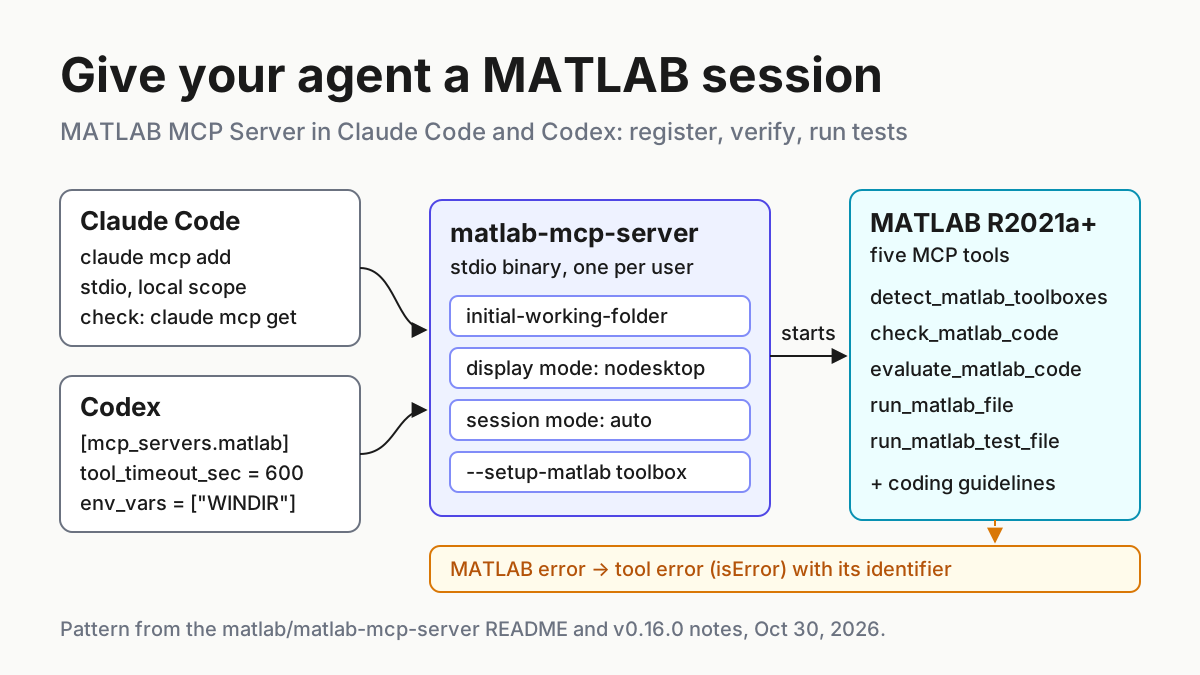
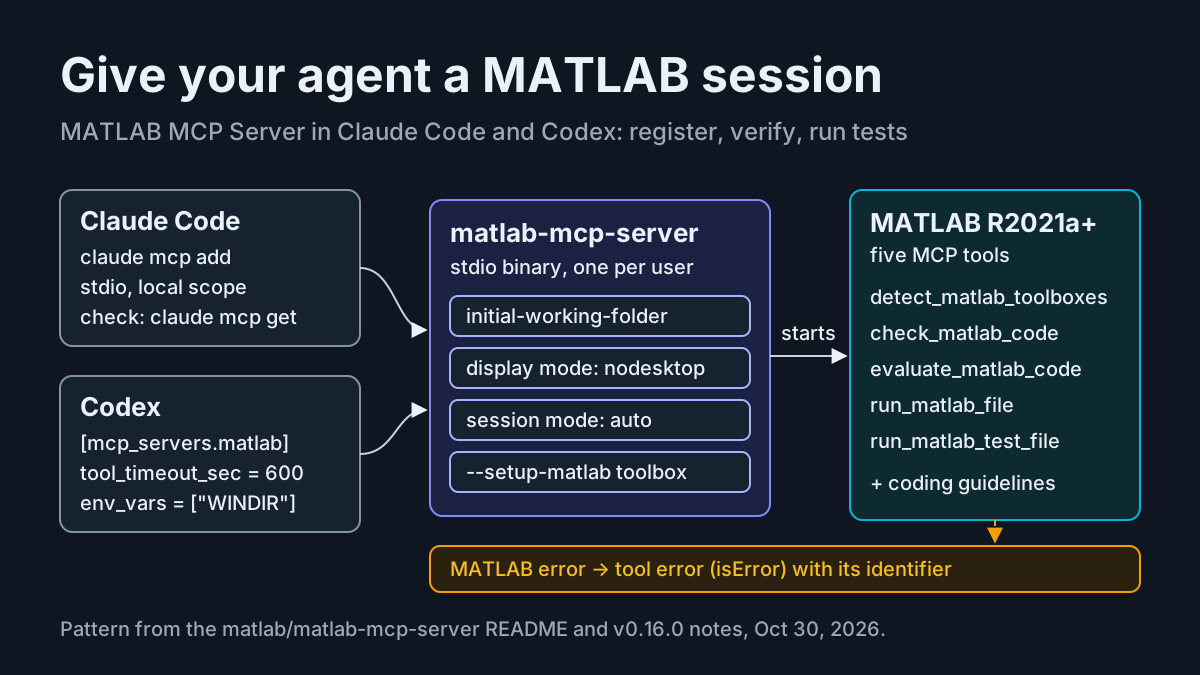
Claude Code and Codex will write MATLAB all afternoon, but until they can reach a real MATLAB they are guessing what the code does. The official MATLAB MCP Server from MathWorks fixes that. It is a single binary your agent launches over stdio, and it gives the agent tools to start MATLAB, evaluate code, run script and test files, check style and report which toolboxes you have installed. When it is registered badly, the symptoms are always the same few: the server failed to start, the binary was not found, or the first tool call timed out while MATLAB was still loading.
This tutorial is for an engineer, researcher or student with a licensed MATLAB install who works in Claude Code, Codex or both. You will register the server in each agent and prove the connection with a first call that lists your installed toolboxes. Then you will work through one case, task:matlab-unittest-01. The agent runs a matlab.unittest file against a function with a planted bug, reads the failures and the error identifier, fixes the function and reruns the tests until they pass. Each step says what you should see and what to change when you see something else.
The interest is recent. On Nov 12, 2026, the MATLAB blogger @nonlinopt wrote on X, in Japanese, that implementing algorithms from published papers with Codex and MATLAB had gone from painstaking to nearly instant. The same day MathWorks shipped MATLAB MCP Server v0.16.1, which updated the localized documentation and updated dependencies to address known CVEs. The behavior this guide relies on arrived earlier, in v0.16.0 on Oct 30. In nodesktop mode, MATLAB errors from evaluate_matlab_code, run_matlab_file and run_matlab_test_file now come back as MCP tool errors (isError) that carry the MATLAB error identifier. That change lets an agent react to a failure instead of talking around it.
One decision first. The project README recommends the Agentic Toolkit Installer as the easiest way to configure Claude Code, GitHub Copilot CLI and Codex. If you want a single setup command, use it. This guide takes the manual route so that you have watched each layer work: the binary, the client registration, MATLAB’s own startup and the timeout. When an update or a new laptop breaks one of them, you will know which one to repair. For Claude Code scopes in general, see Claude Code MCP setup. This article stays on what MATLAB changes.
What to have in place before the first command
The checklist is short, but each line removes a failure you would otherwise debug through an agent, which is the slowest place to debug anything.
- [ ] MATLAB R2021a or later, added to the system PATH. The README names this as the manual-setup requirement. If you keep several releases side by side, write down the full folder of the one you want, such as /usr/local/MATLAB/R2026a.
- [ ] MATLAB R2023a or later if you want the agent to attach to a MATLAB window you already have open. Older releases can still be driven, but only in a session the server starts itself.
- [ ] Claude Code, the Codex CLI or both, plus terminal access on Windows, macOS or Linux.
- [ ] A license you use alone. The README says MCP servers may only be used with MATLAB under the MathWorks Software License Agreement and must not be shared by multiple users, so one server feeding a whole team is out of scope here.
- [ ] One project folder with an absolute path. The worked example uses /home/ana/matlab-smoothing; replace it everywhere with your own.
Absolute paths matter more than usual with this server. The file and test tools take an absolute script_path, and the initial-working-folder argument decides where MATLAB starts. Leave that argument out and MATLAB starts at the path of your client’s first MCP root. If no root is defined, it falls back to /home/username on Linux and the Documents folder on Windows and macOS. Neither is usually where your project’s functions live, and a function MATLAB cannot find looks, from the agent’s side, exactly like a broken setup.
Download the binary and prove it runs on its own
Test the binary before any agent is involved. If it will not print a version from your own shell, nothing you change in Claude Code or Codex will help.
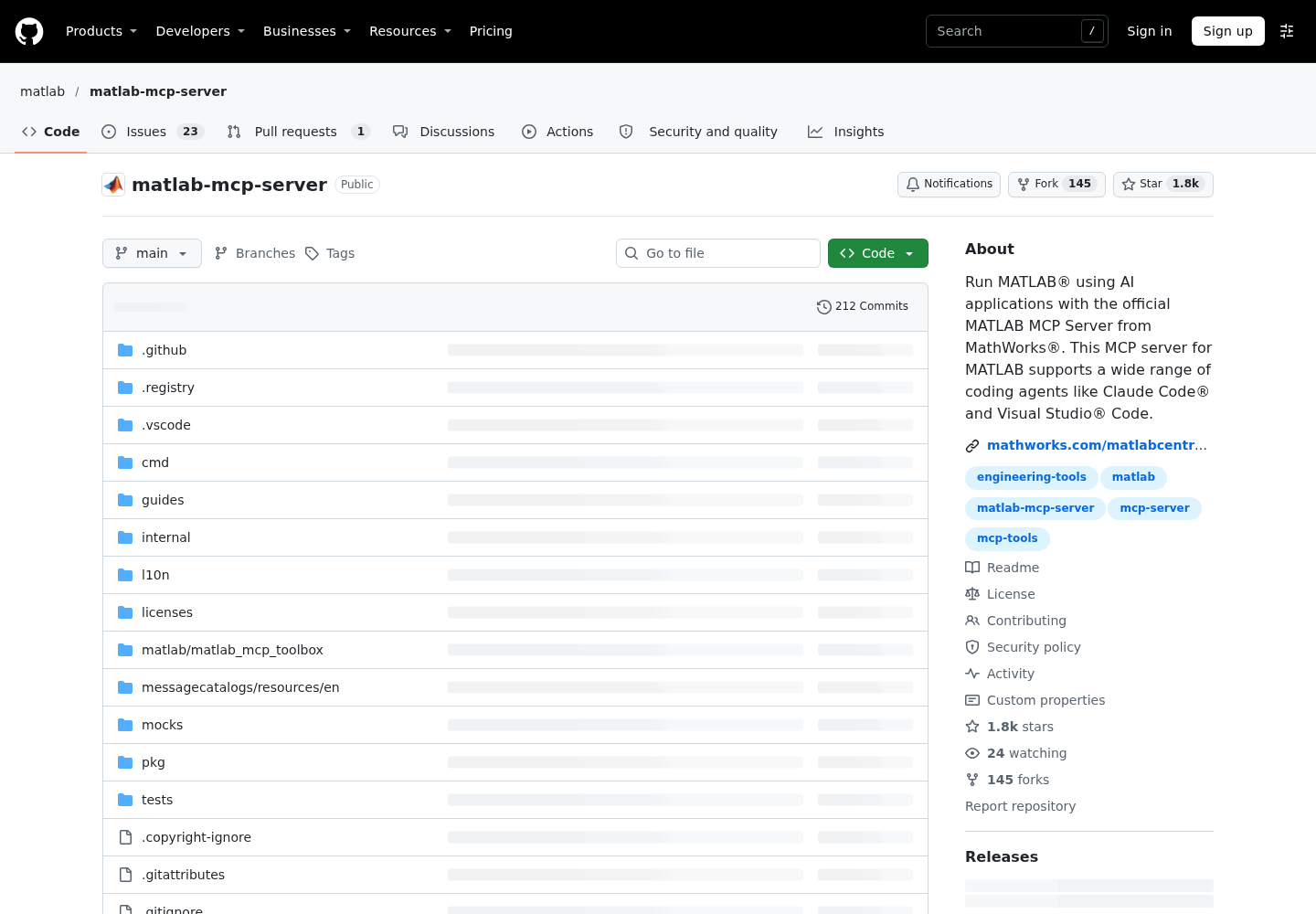
- On Windows or Linux, download the asset for your platform from the latest release. The MATLAB Agentic Toolkit’s configuration and troubleshooting page names the platform binaries, for example matlab-mcp-server-windows-x64.exe, and its own offline example uses matlab-mcp-server-linux-x64. The README also gives a Go command if you prefer to build from source.
- On macOS, download with curl, choosing the Apple silicon or the Intel asset.
- Mark the file executable on macOS and Linux.
- Move it to a stable folder and record the full path. Every registration below points at that path, so moving the file later breaks both agents at once.
- Ask the binary for its version and its argument list.
- Prove MATLAB starts without the server, using the check from the toolkit’s troubleshooting table.
# Optional: build from source instead of downloading (README)
go install github.com/matlab/matlab-mcp-server/cmd/matlab-mcp-server@latest

# macOS, Apple silicon (README)
curl -L -o ~/Downloads/matlab-mcp-server https://github.com/matlab/matlab-mcp-server/releases/latest/download/matlab-mcp-server-macos-arm64
# macOS, Intel (README)
curl -L -o ~/Downloads/matlab-mcp-server https://github.com/matlab/matlab-mcp-server/releases/latest/download/matlab-mcp-server-macos-x64
chmod +x ~/Downloads/matlab-mcp-server

# Linux example after downloading matlab-mcp-server-linux-x64
mkdir -p ~/bin
mv ~/Downloads/matlab-mcp-server-linux-x64 ~/bin/matlab-mcp-server
chmod +x ~/bin/matlab-mcp-server

~/bin/matlab-mcp-server --version
~/bin/matlab-mcp-server --help

# Toolkit troubleshooting check: can MATLAB start at all?
/usr/local/MATLAB/R2026a/bin/matlab -nodesktop -r "disp('ok'),quit"
What you should see: --version prints a version number, --help lists the arguments, and the MATLAB one-liner prints ok and exits. If the shell says the file is missing or not executable, the path or the permission bit is wrong. On macOS, Gatekeeper can quarantine a downloaded binary. When a managed device still blocks it, the troubleshooting table’s fix is System Settings, Privacy & Security, Allow Anyway. If the MATLAB one-liner fails, stop here. The problem is MATLAB’s install or license, and an agent cannot fix either.
A note on names. Configs copied from older blog posts or a colleague’s dotfiles sometimes point at a binary name that no longer matches the current release assets. The sources cited here do not document the history of earlier binary names, so do not trust an old snippet. Trust the asset list on the current release page and what --version prints.
Register the server in Claude Code
Claude Code adds a local stdio server with claude mcp add. According to the Claude Code MCP documentation, the double dash separates Claude Code’s own options from the command and arguments that launch the server, and everything after it is passed to the server untouched. Forget it and Claude Code tries to parse --initial-working-folder as one of its own flags.
- Add the server at local scope, the default, passing the project folder and nodesktop mode.
- Confirm that the command printed an Added line, which means the configuration was written.
- Check the connection with claude mcp get matlab and claude mcp list.
- Start Claude Code in the project and run /mcp to see the server’s tools.
- Optional: replace the entry with an add-json version that sets a per-server timeout.
# Linux or macOS, local scope (default)
claude mcp add --transport stdio matlab -- /home/ana/bin/matlab-mcp-server \
  --initial-working-folder=/home/ana/matlab-smoothing \
  --matlab-display-mode=nodesktop

claude mcp get matlab
claude mcp list

# Optional: same server with a 10-minute wall-clock cap per tool call
claude mcp remove matlab
claude mcp add-json matlab '{"type":"stdio","command":"/home/ana/bin/matlab-mcp-server","args":["--initial-working-folder=/home/ana/matlab-smoothing","--matlab-display-mode=nodesktop"],"timeout":600000}'
# Windows
claude mcp add --transport stdio matlab -- C:\Users\ana\bin\matlab-mcp-server-windows-x64.exe --initial-working-folder=C:\Users\ana\matlab-smoothing --matlab-display-mode=nodesktop
Why nodesktop: the v0.16.0 tool-error behavior is documented for nodesktop mode, and it is what makes the failing-test loop later in this guide legible to the agent. The README warns that nodesktop does not suppress everything. Commands that need a graphical interface, such as edit, open, open_system, uifigure and appdesigner, still open MATLAB windows on your desktop. If you want to opt out of the server’s anonymized usage collection, which is on by default, add --disable-telemetry=true after the other arguments.
Reading the status: claude mcp list shows a health status such as ✔ Connected or ✘ Failed to connect next to each server, and appends failure detail; claude mcp get matlab shows the same detail on an Issue line. Be precise about what Connected proves. By default the server starts MATLAB only when the first tool is called, so Connected means Claude Code launched the binary and finished the handshake. It says nothing yet about MATLAB. That is why the first real tool call, later in this guide, is part of setup and not an afterthought.
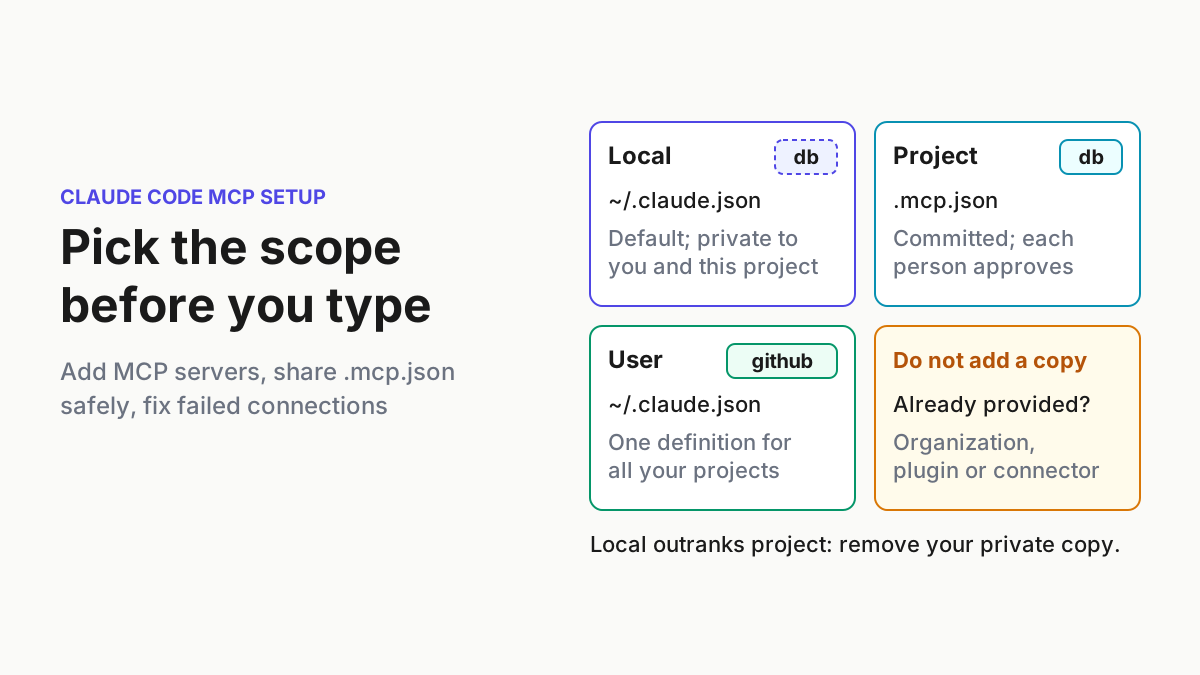
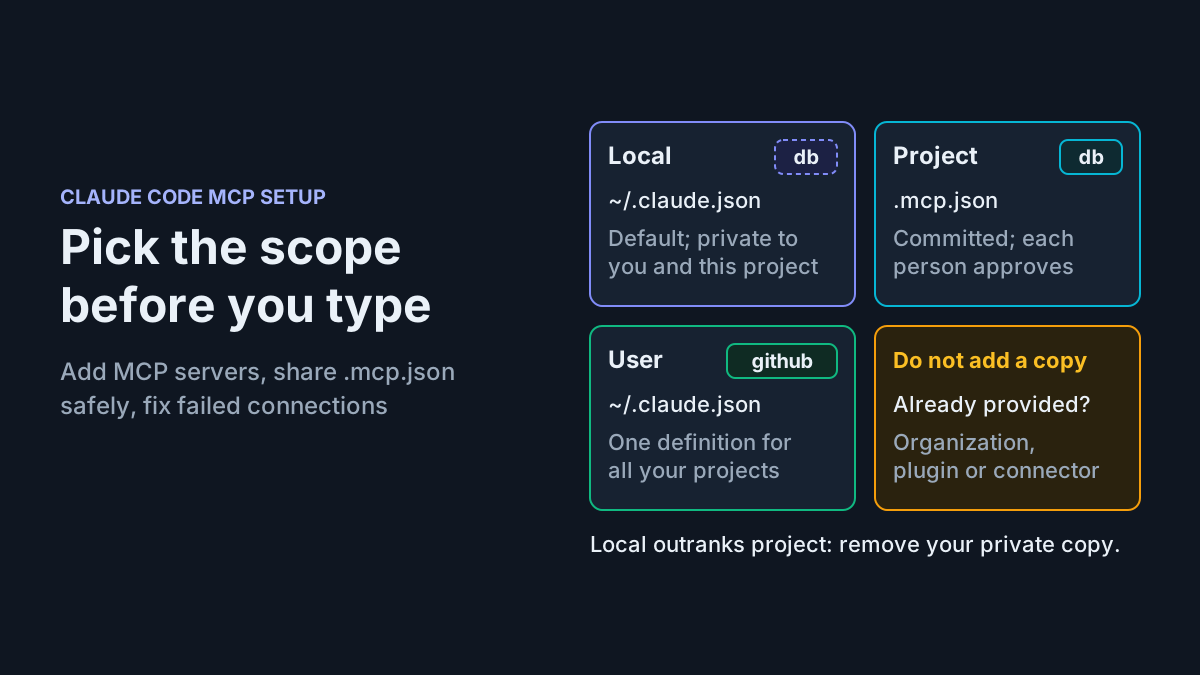
Scope is the other decision. Adding --scope project before the double dash writes the entry to .mcp.json in the repository root so collaborators receive it, and Claude Code asks each person to approve project-scoped servers before it uses them. The toolkit’s per-project notes add the catch: such files hold absolute paths to the binary and MATLAB root, which differ between machines and operating systems. With a single-user MATLAB license, local or user scope is the natural fit.
The optional timeout field is in milliseconds and, per the Claude Code docs, acts as a hard wall-clock limit for each tool call on that server. When MCP_TOOL_TIMEOUT is unset, the default limit is about 28 hours, so Claude Code rarely kills a slow MATLAB call on its own. Use the cap to stop a runaway simulation, not to rescue a slow start.
Register the same server in Codex
Codex keeps MCP servers in ~/.codex/config.toml, and per OpenAI’s Codex MCP documentation the CLI, the IDE extension and the ChatGPT desktop app share that configuration. You can add the server from the terminal, then finish the table it creates by hand. If you have not yet decided how much Codex may do without asking, read Codex approval modes and sandbox first.
- Add the server from the terminal with codex mcp add.
- Open ~/.codex/config.toml and complete the [mcp_servers.matlab] table as shown below.
- On Windows, add env_vars = [“WINDIR”] to the same table.
- Run codex mcp list, then start codex and type /mcp to see the active servers.
- Optional: put the table in a project-scoped .codex/config.toml instead, which Codex reads for trusted projects only.
codex mcp add matlab -- /home/ana/bin/matlab-mcp-server --initial-working-folder=/home/ana/matlab-smoothing --matlab-display-mode=nodesktop
codex mcp list
# ~/.codex/config.toml (Linux or macOS)
[mcp_servers.matlab]
command = "/home/ana/bin/matlab-mcp-server"
args = [
  "--initial-working-folder=/home/ana/matlab-smoothing",
  "--matlab-display-mode=nodesktop",
]
startup_timeout_sec = 30
tool_timeout_sec = 600
default_tools_approval_mode = "prompt"
# enabled_tools = ["detect_matlab_toolboxes", "check_matlab_code"]
# C:\Users\ana\.codex\config.toml (Windows)
[mcp_servers.matlab]
command = 'C:\Users\ana\bin\matlab-mcp-server-windows-x64.exe'
args = ['--initial-working-folder=C:\Users\ana\matlab-smoothing', '--matlab-display-mode=nodesktop']
env_vars = ["WINDIR"]
startup_timeout_sec = 30
tool_timeout_sec = 600
default_tools_approval_mode = "prompt"
| Key | Value here | Why it is set |
|---|---|---|
| startup_timeout_sec | 30 | The Codex default is 10 seconds. MATLAB starts on the first tool call by default, so the server itself should start quickly; 30 is an illustrative margin, not a documented requirement. |
| tool_timeout_sec | 600 | The Codex default is 60 seconds. The toolkit’s troubleshooting table recommends 600 for longer MATLAB operations such as test suites and simulations, and higher for very long tasks. |
| default_tools_approval_mode | “prompt” | Codex supports auto, prompt, writes and approve. The writes mode depends on which tools the server marks read-only, which the README does not document, so prompt is the predictable choice. |
| env_vars | [“WINDIR”], Windows only | The README says Codex does not forward WINDIR, which MATLAB and Simulink need; the toolkit adds that Codex strips environment variables from MCP server subprocesses by default. |
| enabled_tools | commented out | An allow list. Uncommenting it for a first session limits Codex to the toolbox report and static analysis, with no code execution. |
Windows paths go in single-quoted TOML literal strings, as the README’s own example does, so the backslashes are not read as escapes. If Codex refuses to start after you edit the file, check quoting first, then check each key against the configuration reference the Codex docs link to. The sources cited here do not say which Codex release introduced each key, so an older Codex that rejects a key such as env_vars or tool_timeout_sec should be updated rather than worked around.
Attach the agent to a MATLAB session you already have open
By default the server runs in auto mode: it looks for an existing MATLAB session that you have prepared for sharing, and starts a new one if it finds none. Attaching is useful when you are already debugging in the MATLAB desktop and want the agent to work on the same workspace. It needs a toolbox install, a share command, and MATLAB R2023a or later.
| matlab-session-mode | What the server does | Choose it when |
|---|---|---|
| new | Always starts a new MATLAB session | You want a clean, repeatable session for the nodesktop test loop in this guide |
| auto (default) | Tries a prepared existing session, then starts a new one if none is found | Daily use, where attaching is welcome but not required |
| existing | Only connects to a prepared session; do not combine it with matlab-root, initial-working-folder or matlab-display-mode | The agent must act inside the window you are debugging |
- Install the MATLAB MCP Server Toolbox add-on once by running the binary with --setup-matlab. Add --matlab-root to choose which MATLAB receives it.
- In the command window of the running MATLAB, run shareMATLABSession().
- Register the server with --matlab-session-mode=existing, or leave the default auto. If several MATLAB sessions are open, the server connects to the one where you most recently ran shareMATLABSession().
- Optional: add shareMATLABSession() to your MATLAB startup script so every session is shareable.
- Verify by setting a variable in the MATLAB window, for example probe = 42, and asking the agent to display it with evaluate_matlab_code.
~/bin/matlab-mcp-server --setup-matlab --matlab-root=/usr/local/MATLAB/R2026a
% In the MATLAB command window you want the agent to use
shareMATLABSession()
probe = 42;
If the agent cannot see probe in auto mode, the attach did not happen and auto quietly started a fresh session instead. The usual causes are a skipped --setup-matlab or a share command that never ran. Know the tradeoff, too. An attached desktop session is not the nodesktop mode that v0.16.0 documents for returning MATLAB errors as tool errors, although the same release improved input prompts and the debugger in desktop mode. For an unattended test loop, a server-started nodesktop session is the documented path. Attach when a human is watching.
Set up the worked example project
The example is small on purpose: one function, one test file, and a raw data folder the agent must never touch. It mirrors the loop in the Claude Code Python setup with pytest, transposed to matlab.unittest. Both files sit in the project root, which is also the initial working folder, so MATLAB finds movingMean.m without any path changes.
- Create /home/ana/matlab-smoothing and a data/raw subfolder holding one CSV, for example sensor_2026-11-01.csv.
- Save movingMean.m with the planted bug shown below.
- Save testMovingMean.m next to it.
- Make data/raw read-only at the operating-system level, so the rule you write in the next section has a backstop.
- Commit everything to git so the agent’s changes show up as a clean diff.
% movingMean.m  (Illustrative. The planted bug is on the line marked BUG.)
function y = movingMean(x, k)
%MOVINGMEAN Trailing moving mean of a vector with window length k.
    if ~isscalar(k) || k < 1 || k ~= fix(k)
        error("movingMean:badWindow", ...
            "Window length must be a positive integer, got %g.", k);
    end
    y = zeros(size(x));
    for n = 1:numel(x)
        first = max(1, n - k);   % BUG: should be n - k + 1
        y(n) = mean(x(first:n));
    end
end
% testMovingMean.m  (Illustrative function-based matlab.unittest file)
function tests = testMovingMean
    tests = functiontests(localfunctions);
end

function testTrailingWindow(testCase)
    verifyEqual(testCase, movingMean([2 4 6 8], 2), [2 3 5 7]);
end

function testWindowOfOneIsIdentity(testCase)
    verifyEqual(testCase, movingMean([5 1 9], 1), [5 1 9]);
end

function testRejectsZeroWindow(testCase)
    verifyError(testCase, @() movingMean([1 2 3], 0), "movingMean:badWindow");
end
chmod -R a-w /home/ana/matlab-smoothing/data/raw
The MATLAB code is illustrative and follows the standard function-based pattern of the MATLAB unit testing framework. The MCP Server documentation describes run_matlab_test_file only as running test files that follow MATLAB testing framework conventions, so confirm the syntax against MathWorks’ testing documentation for your release.
The bug is easy to compute by hand, which is the point. With the window start at n - k, a window of 2 actually averages three samples, so movingMean([2 4 6 8], 2) returns [2 3 4 6] instead of [2 3 5 7]. A window of 1 averages two samples and returns [5 3 5] instead of [5 1 9]. The zero-window test still passes, because the input check runs before the loop. Two failures and one pass is a distinctive result, and you will recognize it when the agent reports it.
Pin the rules the agent works under
Instructions are cheap to write and stop the most common wasted runs: functions from a newer release, toolbox calls you do not have a license for, and tests edited to pass. Put this block in the project instructions file you already use, CLAUDE.md for Claude Code or AGENTS.md for Codex. It is plain text the model reads, not an enforcement layer. The enforcement comes from approval prompts, the read-only folder, and the review the README asks for: it recommends reviewing and validating every tool call and keeping a human in the loop for important actions. Restricted mode as fleet policy covers how to make that consistent across machines.
# MATLAB rules for matlab-smoothing

- MATLAB release: R2026a. Do not use functions introduced after R2026a.
- Allowed toolboxes: base MATLAB only. Before calling any toolbox function,
  run detect_matlab_toolboxes and confirm the toolbox is installed AND listed here.
- Never create, edit, move or delete anything under data/raw/. Read it with readmatrix only.
- Run tests with run_matlab_test_file on /home/ana/matlab-smoothing/testMovingMean.m.
- Never edit a test to make it pass. Change the code under test instead.
- Run check_matlab_code on every .m file you change before running tests.
- When a tool call returns an error, quote the MATLAB error identifier before proposing a fix.
- Do not run commands that open windows: edit, open, open_system, uifigure, appdesigner.
- The release line matters because the agent cannot see which release you pinned for a paper’s reproducibility; it only sees what the toolbox report says is installed.
- The toolbox line turns detect_matlab_toolboxes into a gate the agent runs before it writes code that depends on a license.
- The identifier line uses the v0.16.0 behavior directly. An identifier such as movingMean:badWindow is far less ambiguous than a paraphrased message.
- The window line exists because nodesktop mode still opens windows for graphical commands, and a stray App Designer window on your desktop is a confusing way to learn that.
Run task:matlab-unittest-01 from the agent
Start Claude Code or Codex in /home/ana/matlab-smoothing and give it one prompt that names every step. Splitting the steps tells you exactly which layer failed if something goes wrong.
Run task:matlab-unittest-01. First report the MATLAB version and installed toolboxes.
Then run check_matlab_code on movingMean.m and run testMovingMean.m with
run_matlab_test_file. Report each failing test with expected and actual values.
Then evaluate movingMean([1 2 3], 0) and quote the error identifier.
Fix movingMean.m only, rerun the tests, and stop when all three pass.
Every result below is an illustrative expected observation derived from the files above and the documented tool behavior. It is not a transcript of a run, and the server’s exact output wording is not documented.
| Input | Action | Expected result |
|---|---|---|
| task:matlab-unittest-01, step 1: prompt “What version of MATLAB is running? List the installed toolboxes.” with no MATLAB started yet | The agent calls detect_matlab_toolboxes; because it is the first tool call, the server starts MATLAB | Illustrative: the release (R2026a here) and installed toolboxes with version numbers. This is the slow call; later calls reuse the session |
| task:matlab-unittest-01, step 2: script_path /home/ana/matlab-smoothing/movingMean.m with the planted n - k line | check_matlab_code, a read-only static analysis | Illustrative: style or correctness warnings, or none, with the file unmodified. Static analysis will not catch the off-by-one; that is the tests’ job |
| task:matlab-unittest-01, step 3: script_path /home/ana/matlab-smoothing/testMovingMean.m | run_matlab_test_file | Illustrative: 3 tests, 2 failed (testTrailingWindow got [2 3 4 6], expected [2 3 5 7]; testWindowOfOneIsIdentity got [5 3 5], expected [5 1 9]), 1 passed |
| task:matlab-unittest-01, step 4: code movingMean([1 2 3], 0) with project_path /home/ana/matlab-smoothing | evaluate_matlab_code | Illustrative: in nodesktop mode on v0.16.0 or later, a tool error (isError) carrying identifier movingMean:badWindow, which the agent quotes |
| task:matlab-unittest-01, step 5: the agent changes first = max(1, n - k) to max(1, n - k + 1) in movingMean.m | run_matlab_test_file on the same absolute path | Illustrative: 3 tests, 3 passed, 0 failed; git diff shows a one-line change to movingMean.m and no change to testMovingMean.m |
| Failure check for task:matlab-unittest-01: Codex with tool_timeout_sec left at the 60-second default and MATLAB not yet started | The first detect_matlab_toolboxes call | Illustrative failure: the call times out while MATLAB is still starting. Set tool_timeout_sec = 600, start a new Codex session and retry |
| Failure check for task:matlab-unittest-01: the configured command points at a moved or misnamed binary | claude mcp list or codex mcp list, then any tool call | Illustrative failure: Claude Code shows ✘ Failed to connect with detail, and no MATLAB starts. Fix the path and rerun --version |
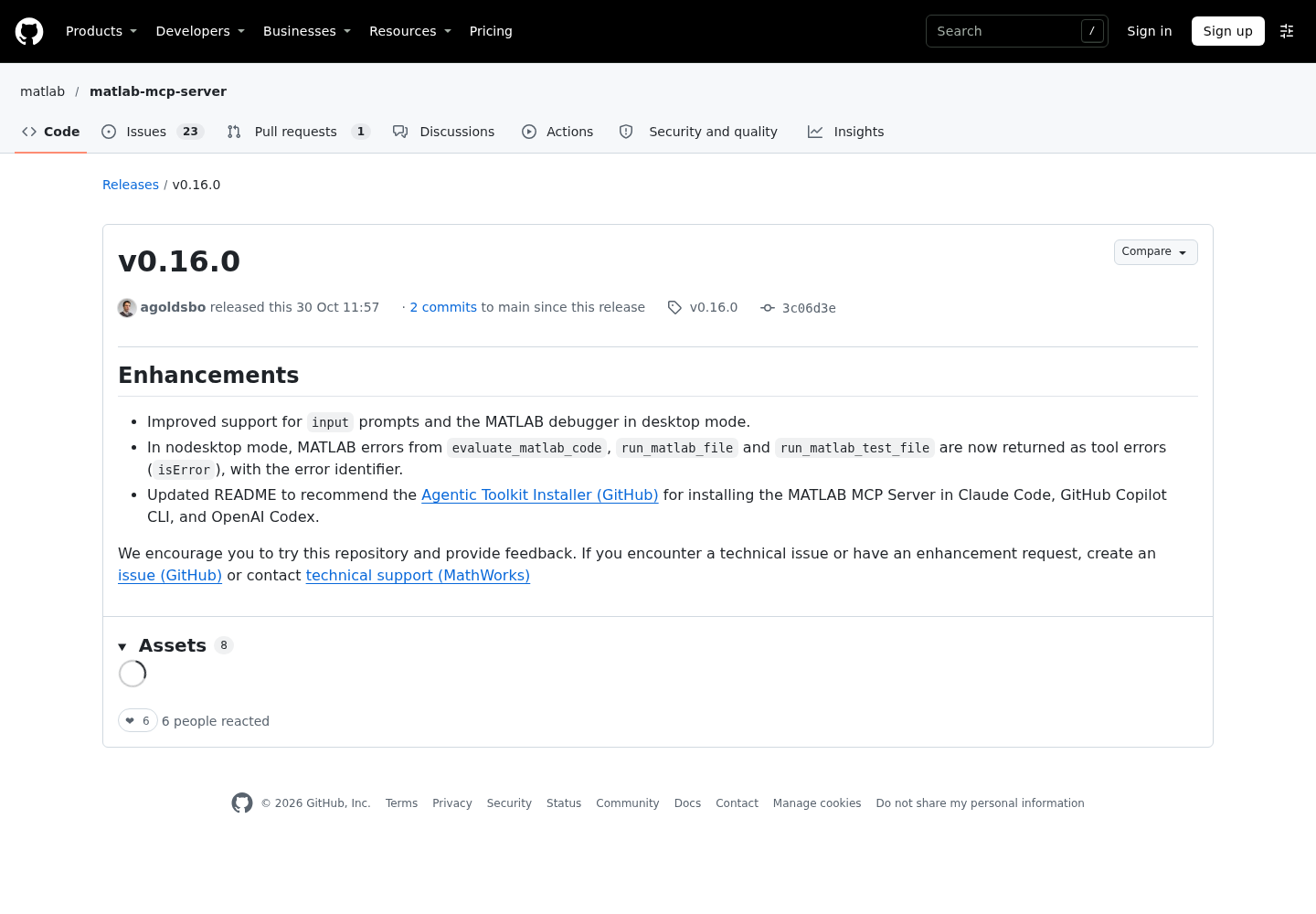
Two details explain why step 4 is the most useful row. First, Claude Code’s documentation says that when a tool returns a result marked isError: true, Claude receives the result’s text as the tool’s error message. An error message longer than about 11,000 characters keeps only its first 5,000 and last 5,000 characters, which matters for long MATLAB stack traces. Second, the release notes document the error path: MATLAB errors are returned as tool errors with the identifier. They do not say whether a failed verification inside a test run counts as such an error or comes back as an ordinary result listing failures. Either way the agent gets the failure text. Step 3 tells you what was wrong; step 4 shows that the error contract works end to end.
After step 5, check the diff yourself. If testMovingMean.m changed, the agent broke the most important rule in your instructions file, and the passing result means nothing. Revert the test, restate the rule and rerun.
Fix the right layer when the first call fails
Most failure reports blur four different layers together. Check them in order, because each fix only makes sense once the layer below it works. Raising a timeout cannot fix a missing binary, and reinstalling MATLAB cannot fix a missing double dash.
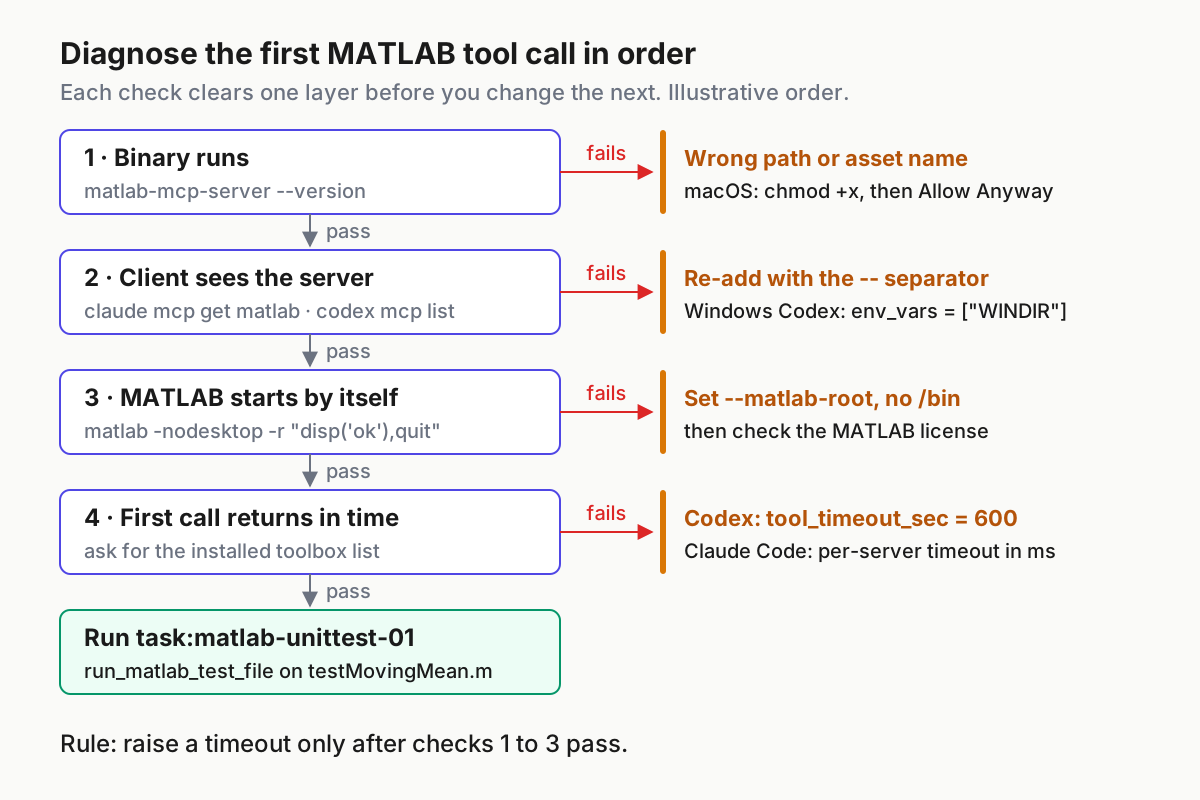
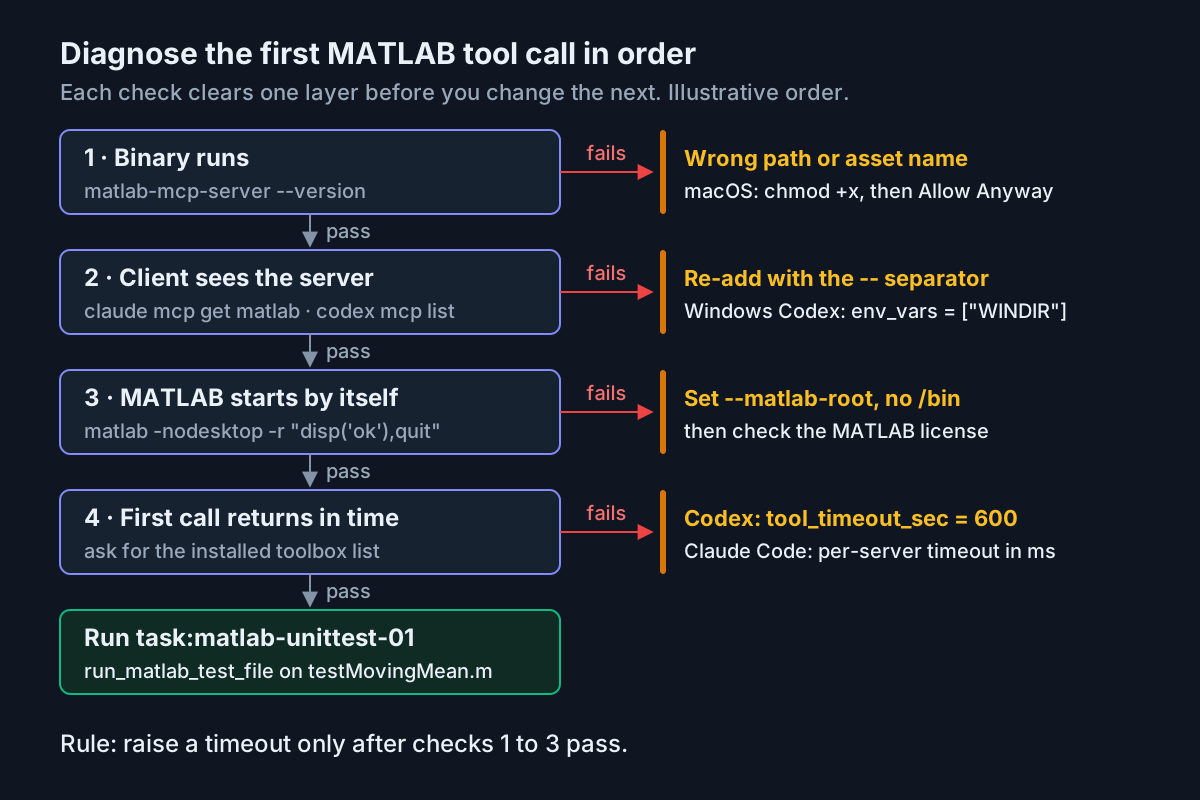
| Symptom | Likely cause | Fix |
|---|---|---|
| Shell says matlab-mcp-server is not found or not executable | Wrong path, a renamed download, or a missing execute bit | Correct the path in the registration, run chmod +x on macOS and Linux, rerun --version |
| macOS refuses to open the binary | Gatekeeper quarantine | Per the toolkit table: System Settings, Privacy & Security, Allow Anyway |
| claude mcp list shows ✘ Failed to connect | Bad command path, or server flags placed before the double dash | Read the Issue line from claude mcp get matlab, remove the server and add it again with – before the binary |
| Codex will not start after editing config.toml | A TOML quoting error, or a key your Codex version does not recognize | Use single-quoted literal strings for Windows paths, compare keys with the configuration reference, update Codex |
| Configuration copied from an older setup points at a name not in the current release | Asset names changed over time | Match the command to the current release asset list and confirm with --version |
| evaluate_matlab_code returns errors on every call | Wrong --matlab-root, a license problem, or MATLAB failing to start | Run the MATLAB one-liner from the toolkit table, check the license, and pass --matlab-root without the trailing /bin |
| Codex tool calls time out | The 60-second default tool timeout | Set tool_timeout_sec = 600 or higher in [mcp_servers.matlab] |
| MATLAB or Simulink fails only under Codex on Windows | Codex does not forward WINDIR | Add env_vars = [“WINDIR”] to [mcp_servers.matlab] |
| Existing-session mode cannot find MATLAB | Toolbox not installed, share command not run, or MATLAB older than R2023a | Run --setup-matlab, then shareMATLABSession() in the target session |
When the cause is still unclear, make the server talk. Add --log-level=debug and --log-folder=/tmp/matlab-mcp-logs to the arguments, reproduce the failure once, and read the newest log. Every argument also has an environment-variable form: add the prefix MW_MCP_SERVER_, uppercase the flag and turn hyphens into underscores, so --matlab-root becomes MW_MCP_SERVER_MATLAB_ROOT. A CLI flag wins if you set both. If you want to see the raw tool result without either agent in between, the MCP Inspector guide shows how to call one tool by hand.
Choose timeouts that fit MATLAB, not chat
The two agents treat slow tools very differently, and the difference explains why the timeout complaint comes mostly from Codex users.
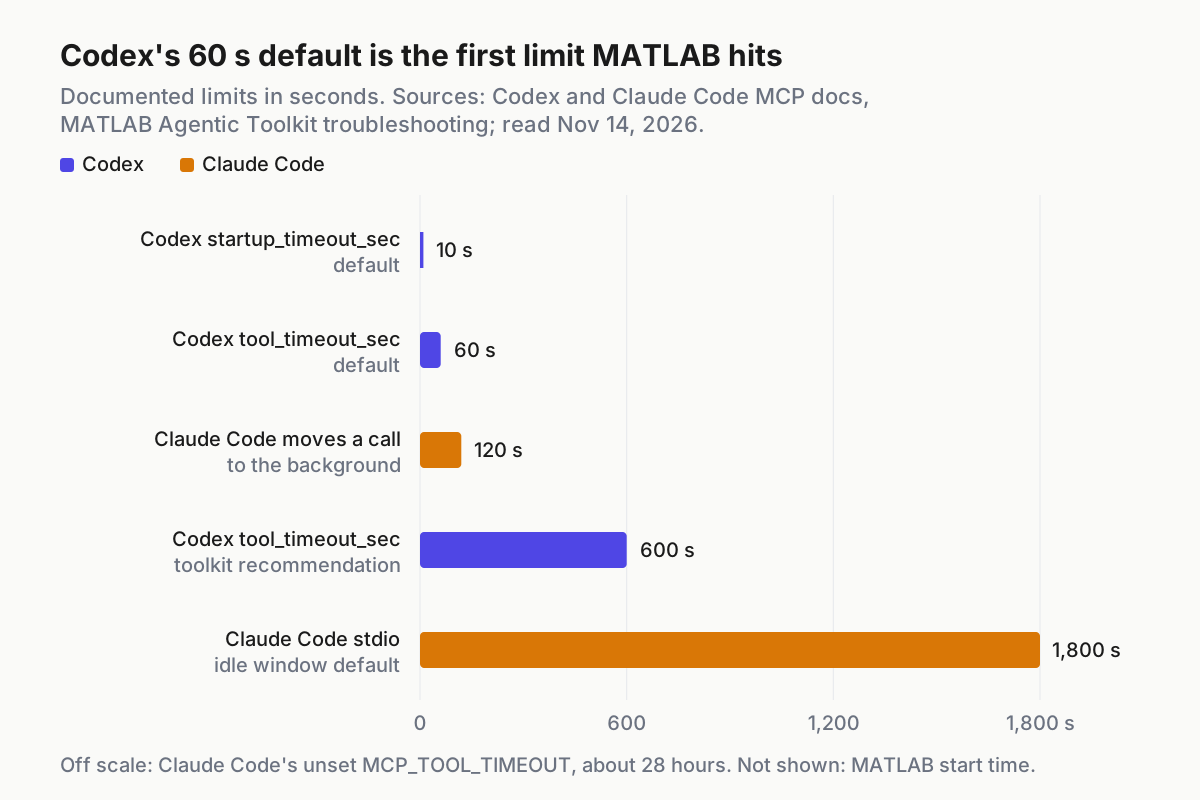
- In Codex, set tool_timeout_sec before your first real session. The default is 60 seconds, which a first call has to share with MATLAB’s own startup. The toolkit’s 600 covers test suites and simulations; go higher for long batch runs.
- In Codex, if you add --initialize-matlab-on-startup=true so MATLAB starts with the server, MATLAB’s startup moves from the first tool call to server startup. If Codex then reports that the server did not start, raise startup_timeout_sec from its 10-second default.
- In Claude Code, a tool call is effectively unbounded by default: an unset MCP_TOOL_TIMEOUT means about 28 hours. A call in the main conversation that runs past two minutes moves to a background task, and a stdio server that sends no response or progress for 30 minutes trips the idle timeout. CLAUDE_CODE_MCP_TOOL_IDLE_TIMEOUT changes that window, and MCP_TIMEOUT sets the server startup timeout. The Claude Code environment variables guide covers where to set them.
- Measure your own cold start instead of guessing. On Linux or macOS, time the toolkit’s one-liner, then set Codex’s tool timeout to several times that value plus the length of your slowest test file.
time /usr/local/MATLAB/R2026a/bin/matlab -nodesktop -r "disp('ok'),quit"
| Setting | Client | Documented default | Value for this project |
|---|---|---|---|
| tool_timeout_sec | Codex | 60 seconds | 600 |
| startup_timeout_sec | Codex | 10 seconds | 30 (illustrative margin) |
| per-server timeout (ms) | Claude Code | none; MCP_TOOL_TIMEOUT unset means about 28 hours | 600000 only if you want a cap |
| stdio idle window | Claude Code | 30 minutes | leave as is |
Roll back cleanly
Removing the server takes a minute, and doing it fully means a later reinstall starts from a known state rather than from half of an old configuration.
- In Claude Code, run claude mcp remove matlab. If you added it at another scope, run claude mcp remove matlab --scope project or --scope user, and for project scope commit the updated .mcp.json.
- In Codex, delete the [mcp_servers.matlab] table from ~/.codex/config.toml, or set enabled = false to keep it for later without Codex starting it.
- If you added shareMATLABSession() to your MATLAB startup script, delete that line.
- If you no longer want the MATLAB MCP Server Toolbox add-on, remove it with MATLAB’s add-on management. The server documentation does not describe an uninstall command.
- Delete the binary from ~/bin and any log folder you created.
- Verify: claude mcp list and codex mcp list no longer show matlab, and asking either agent for the MATLAB version produces no MATLAB tool call.
If you are rolling back only because of a bad release, the reverse path is shorter: download the earlier asset from the releases page, point the same registration at it, and run --version to confirm which build is active. Everything else in this guide, the arguments, the timeouts and the instructions file, carries over unchanged.
Sources
- @nonlinopt on X, Nov 12, 2026: Codex with MATLAB for implementing published algorithms
- MathWorks, MATLAB MCP Server release v0.16.1, Nov 12, 2026
- MathWorks, matlab/matlab-mcp-server README: manual setup, arguments, tools and licensing
- MathWorks, MATLAB MCP Server release v0.16.0, Oct 30, 2026
- MathWorks, MATLAB Agentic Toolkit: Configuration and Troubleshooting
- Anthropic, Connect Claude Code to tools via MCP
- OpenAI, Codex Model Context Protocol documentation