Positron MCP Setup for Claude Code and Codex: Enable It per Project, Gate the R Console Tools, and Hand-Check the Model
Positron MCP setup for Claude Code and Codex: register the server per project, gate execute_code with mcp__ permission rules, and hand-check an R model fit.

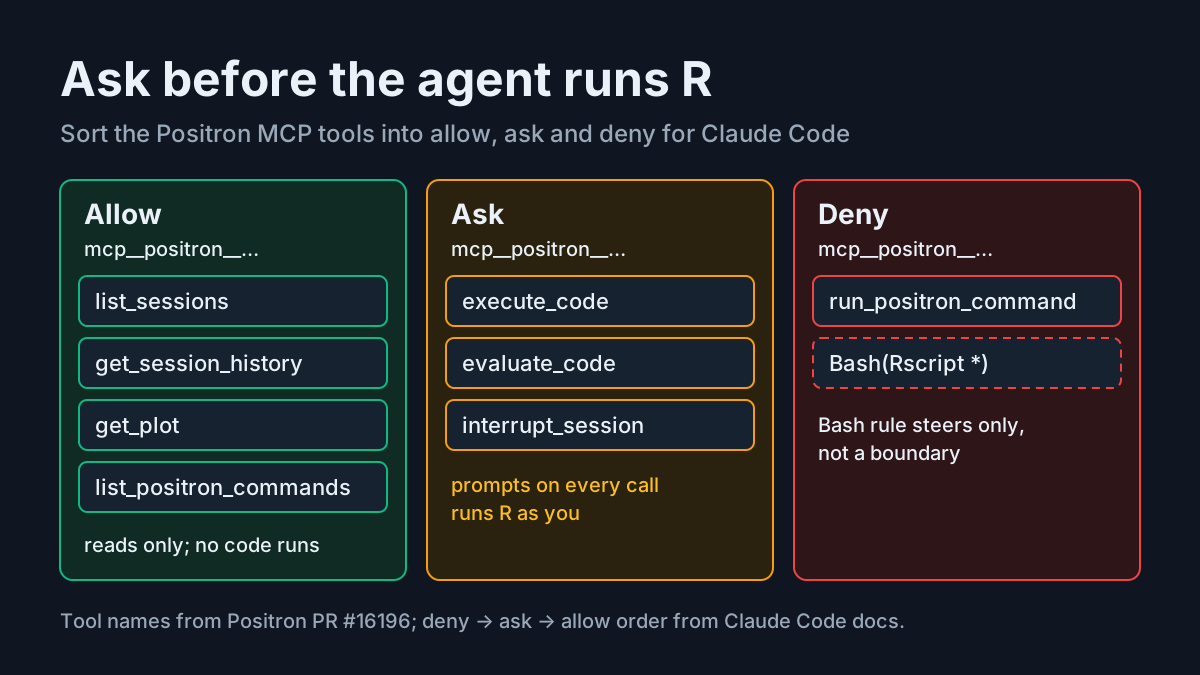
You already let Claude Code or Codex edit your R scripts. The friction shows up when the agent wants to run them: it shells out to Rscript, the model it fits lives in a process you never see, and your Environment pane stays empty. The Positron MCP removes that friction. Turn it on and the agent works inside the same live R console you use, inspects the data you already loaded and looks at your plots. It also gives the agent a way to execute code that your existing Bash permission rules were never written to catch.
This tutorial sets up the Positron MCP for one project folder, writes Claude Code permission rules that name its tools explicitly, adds R project rules the agent reads, and walks through a small analysis (import, clean, model, plot) that you then re-run by hand to confirm the agent’s coefficients. Codex users get the registration steps; the permission section is specific to Claude Code.
Background, once: Posit’s Jonathan McPherson documented the server in Bring your own agent to Positron with the Positron MCP on Nov 4, 2026. It shipped as an experimental feature in Positron 2026.10, whose release notes say agents “can run code, look at plots, and run Positron commands, and the Console labels the code that an agent runs.” The Posit post carries the warning this guide is built around: “Exposing the Positron MCP to an agent is therefore equivalent to giving it unrestricted shell access.” An early reaction on X put the consequence plainly: turning it on is a security decision.
Who this is for: an R or Python analyst (a statistician, an academic, someone in biostatistics or pharma) who already runs Claude Code or Codex and has Positron installed. The worked example uses R; the same setup applies to Python consoles.
What you end with: the agent reaching the live R console in one project only, permission rules that make every code execution ask first, and one model you have checked by hand.
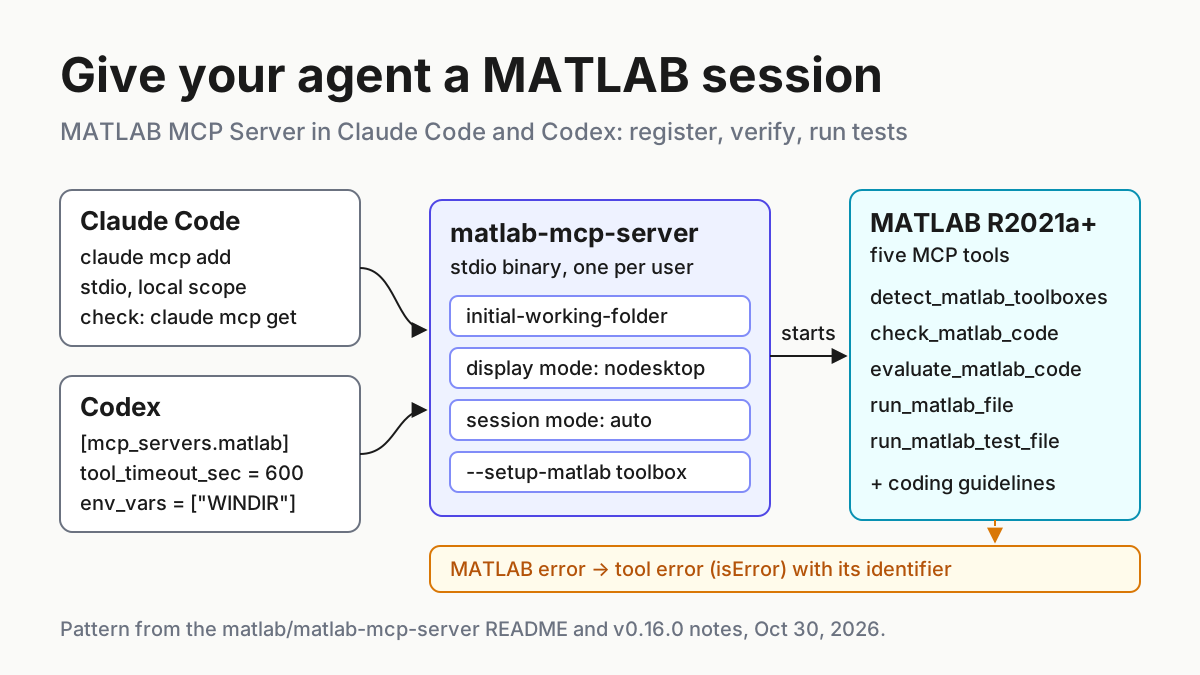
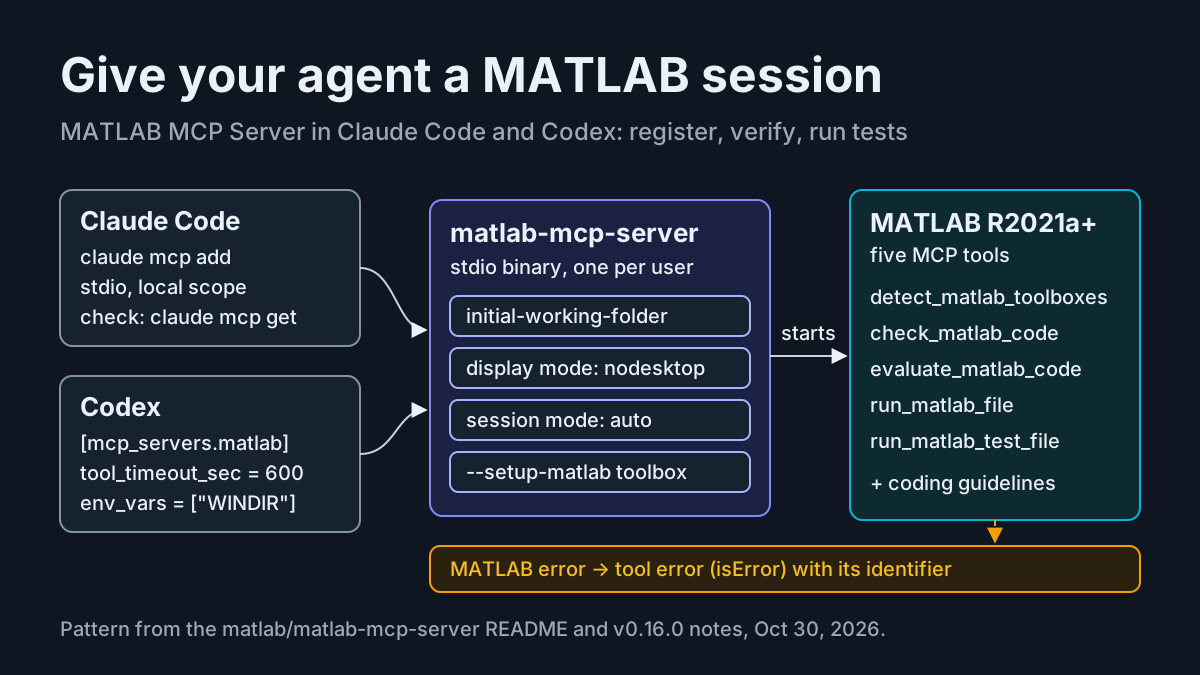
If claude mcp add and MCP scopes are new to you, our Claude Code MCP setup and scopes guide covers the basics. The shape is similar to MATLAB MCP server setup, with two differences that drive everything below: Positron registers itself with Claude Code, and the code it runs lands in a session you are sitting in.
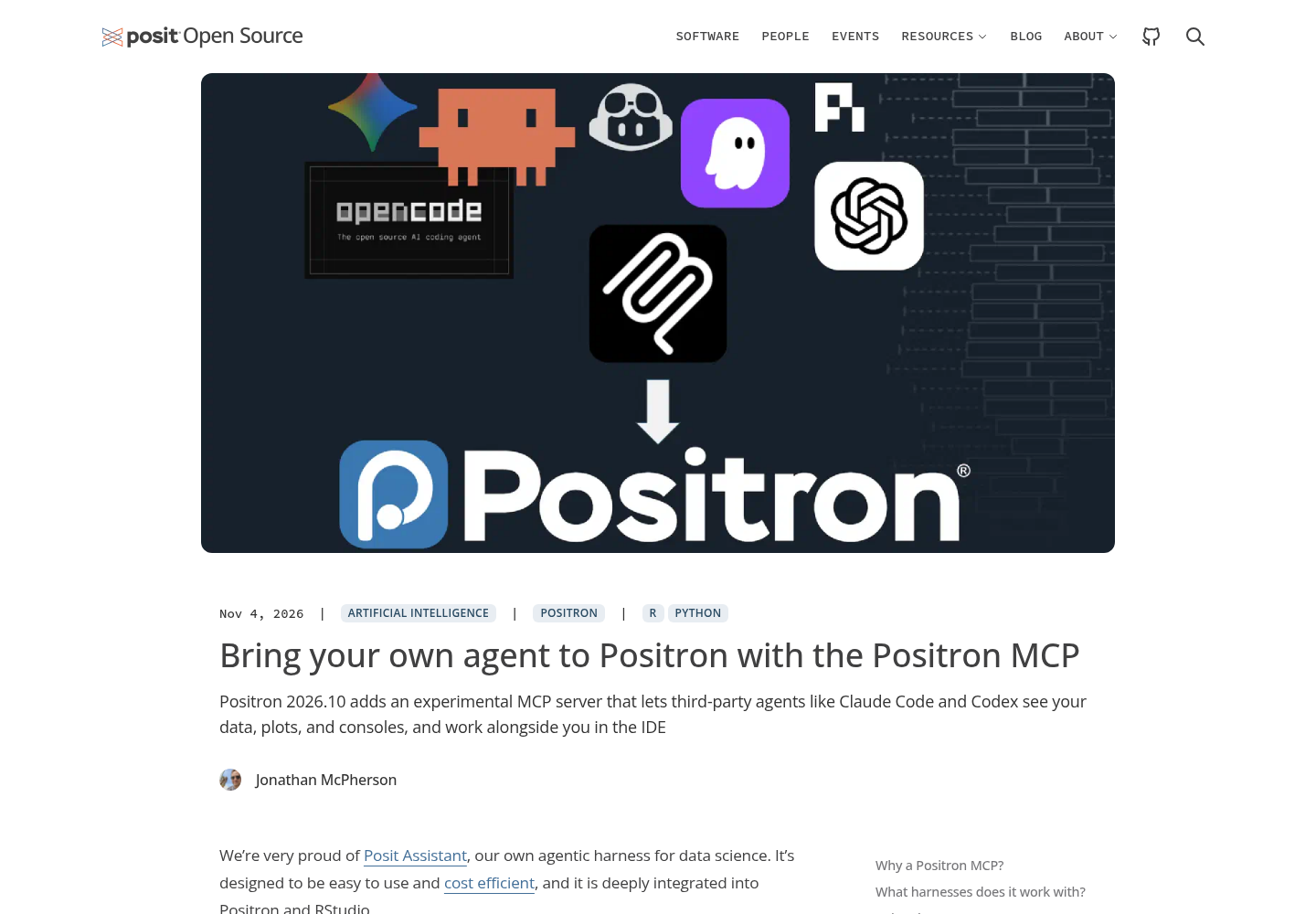
Posit’s Nov 4, 2026 post documents setup, connection and the security trade-off. Source: Posit Open Source blog.
What you need before you start
- [ ] Positron 2026.10 or later. Check Help > About. The MCP setting does not exist in earlier builds.
- [ ] R with readr, dplyr, ggplot2, here and palmerpenguins installed. If you manage packages with renv, initialise it before you connect the agent so the lockfile reflects your choices, not the agent’s.
- [ ] Claude Code installed and signed in, as the CLI or the extension. Codex is optional.
- [ ] A dedicated project folder. This guide uses
penguins-analysis. - [ ] A dataset with no sensitive rows. The Palmer penguins data is public, which makes it a good first run: if something ends up in a transcript, nothing is exposed.
- [ ] Version control or a backup of the folder. The agent will run code as you, and nothing in this setup can undo a deleted file.
The folder layout used throughout:
penguins-analysis/
├── CLAUDE.md
├── .claude/
│   └── settings.local.json
├── R/
├── data/
│   ├── raw/        # written once, by you
│   └── derived/    # agent output goes here
└── figures/
Seed the raw data yourself, in Positron’s R console, before any agent is connected. That file is the one thing the agent must never overwrite, so the agent should not be the one that creates it.
dir.create("data/raw", recursive = TRUE, showWarnings = FALSE)
dir.create("data/derived", recursive = TRUE, showWarnings = FALSE)
dir.create("figures", showWarnings = FALSE)
dir.create("R", showWarnings = FALSE)
readr::write_csv(palmerpenguins::penguins, "data/raw/penguins.csv")
How the Positron MCP reaches your R console
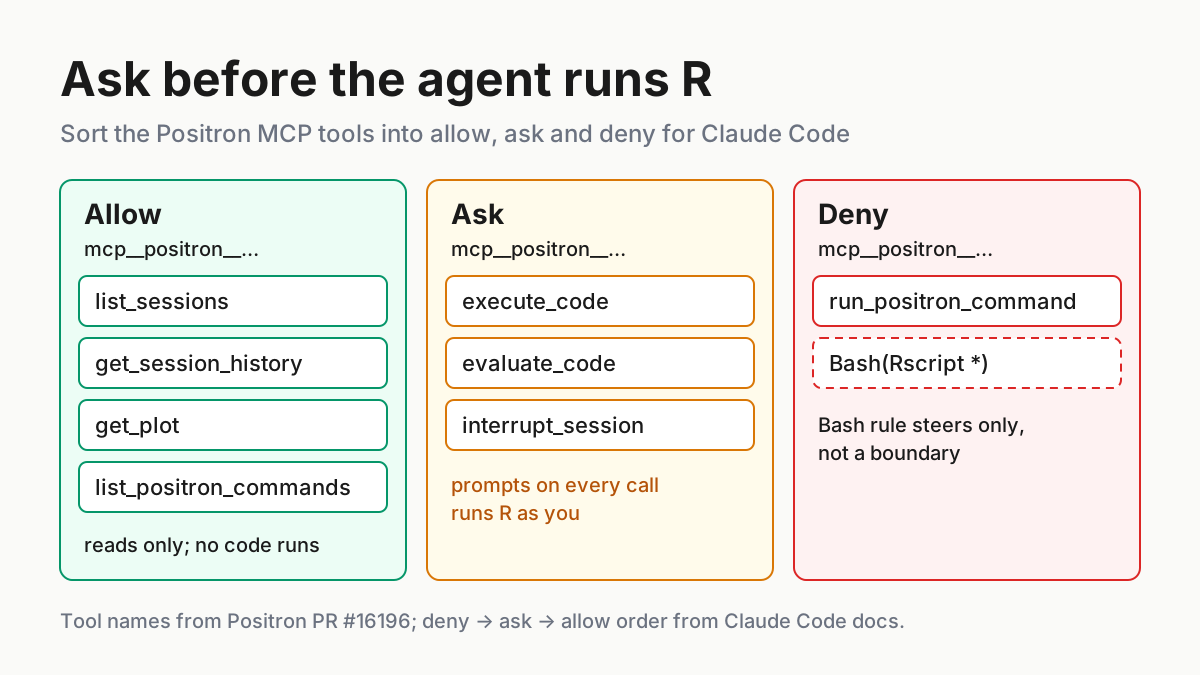
Before changing settings, know what you are switching on. According to the pull request that added it, merged Sep 30, the MCP server lives in Positron’s kernel supervisor (a component called Kallichore), not in the editor itself. It binds to 127.0.0.1 only, each workspace gets its own 32-byte bearer token, and a token reaches one workspace’s sessions plus the commands Positron marks as agent-allowed. Posit’s October release highlights describe the same toolset in plain terms: list sessions, run code, inspect objects without cluttering history, read recent history, interrupt, look at the plot, and search for and run Positron commands. The PR names eight tools:
| Tool | What it does (per PR #16196) | Rule in this guide |
|---|---|---|
list_sessions |
Lists sessions in this workspace and their state | allow |
execute_code |
Runs code visibly: echoed in the Console, added to history | ask |
evaluate_code |
Runs code for inspection: shown in the Console, kept out of history | ask |
interrupt_session |
Stops a running cell | ask |
get_session_history |
Last 100 executions: input, output, errors, who ran them | allow |
list_positron_commands |
Searches the agent-allowed Positron commands | allow |
run_positron_command |
Runs one Positron command | deny |
get_plot |
Returns the current plot as an image | allow |
Two details matter for safety. First, evaluate_code sounds read-only, but it still executes whatever R it is given; it only stays out of your history. Second, Positron adds no approval dialog of its own. The PR says so directly: Claude Code and Codex already prompt before tool calls, so Console attribution plus logs are the audit trail. Posit’s blog describes the same thing as delegating trust decisions to your agent harness. In this setup, Claude Code’s permission rules are the only gate in front of your R session.
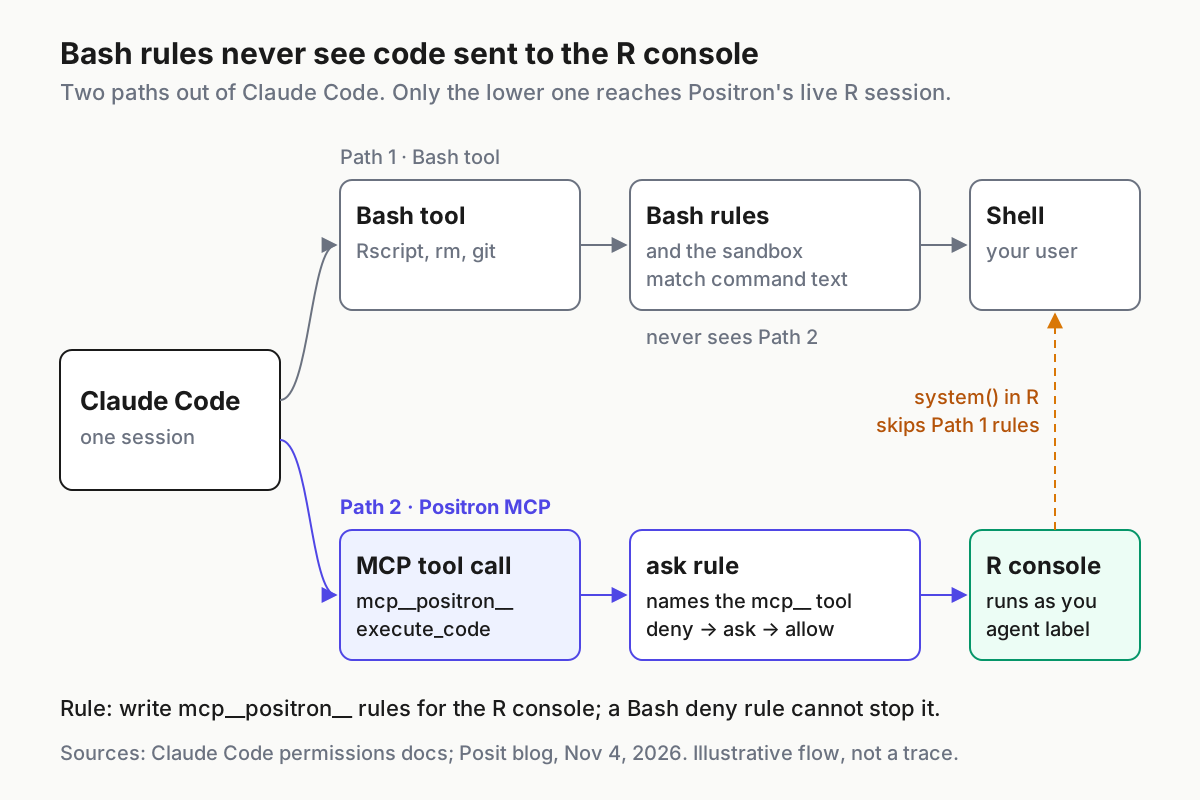
That gate has a gap people miss. Claude Code’s permission docs describe Bash rules as matching the command text Claude writes, and describe sandboxing as applying to Bash, PowerShell and Monitor tool commands and their child processes. A call to execute_code is neither. It is an MCP tool call, matched only by rules written in mcp__<server>__<tool> form. A deny rule such as Bash(rm *) never sees R code sent to the console, and R can reach the shell on its own through system(). If you rely on Bash rules or the Claude Code sandbox to contain your agent today, neither covers this path.
Step 1: Open penguins-analysis as a folder and turn the server on
- Open the project with File > Open Folder and choose
penguins-analysis. Posit’s post notes that MCPs are started inside projects, and a window with no project or folder open does not currently run one. Each window with a different project gets its own server. - Start an R console in that window. The PR is explicit that the tools never start an interpreter, so an agent connected to a window with no running session has nothing to execute in.
- Open Settings and search for
MCP: Enabled. Its ID isai.mcp.enabled; it is off by default and tagged experimental. Turn it on. - In the same search, confirm
ai.enabledis on. The PR says the server runs only when both settings are on, so withai.enabledoff nothing registers. - Optional: search Settings for the MCP Status Bar setting and enable it. Connected agents then get a status bar icon that lists them on hover.
If you prefer editing settings JSON, the two keys are:
{
  "ai.enabled": true,
  "ai.mcp.enabled": true
}
Toggling takes effect without a window reload. Whether Positron lets you set ai.mcp.enabled at workspace scope rather than user scope is not stated in Posit’s documentation, so check the scope tabs in the Settings editor before you rely on it. Either way the server behaves per project: it runs only in windows with a folder open, and Claude Code’s registration is written for one workspace at a time, which Step 2 verifies.
Two things you may run into. If a supported agent is installed, Positron offers once per user to enable the feature, and it never offers when AI is off. In a managed environment, an administrator can force either setting off with POSITRON_ENFORCED_SETTINGS; if the toggle will not stay on, ask about that first.
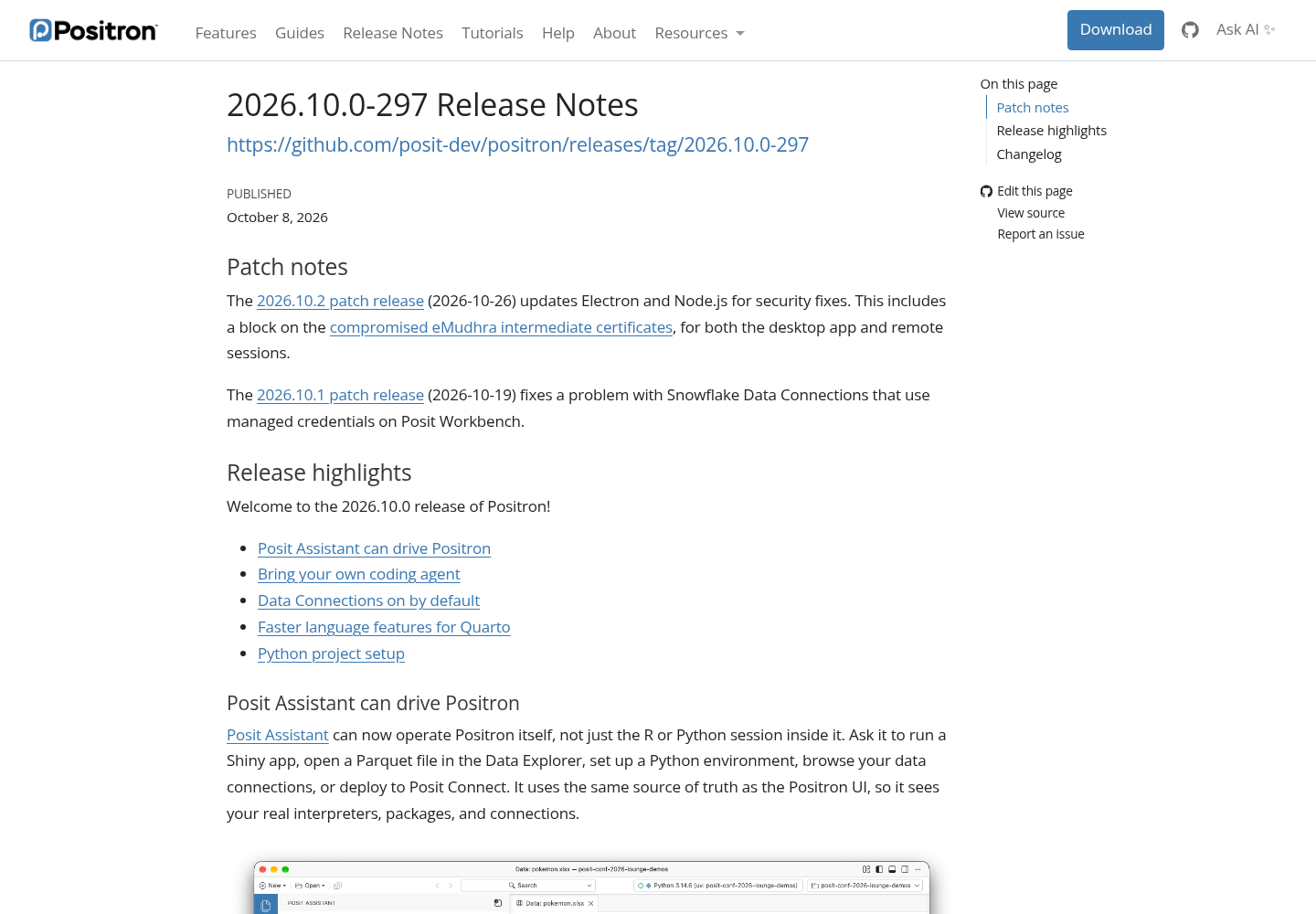
Positron’s 2026.10 release notes, captured at the top of the page. The release lists the built-in MCP server under “Bring your own coding agent.” Source: Posit.
Step 2: Confirm Claude Code registered the server (and wire up Codex)
For Claude Code there is no command to run. The release notes say Positron configures Claude Code for you, and the PR spells out how: once per workspace, in Claude Code’s local scope, which keeps the entry out of the repository. Claude Code’s MCP documentation explains what local scope means: the entry is stored in ~/.claude.json under that project’s path and loads only in that project. That is the per-project boundary you want.
Verify it:
- Open a new terminal inside Positron. It starts in the project folder and, per the PR, carries
POSITRON_MCP_URLandPOSITRON_MCP_TOKENin its environment. - Run the three commands below.
- Start a fresh
claudesession in the same folder and run/mcp. A session started before you enabled the setting may not have loaded the new entry, so restarting is the safe habit. - In Positron’s Command Palette run
Kernel Supervisor: Show Kernel Supervisor.
# in a Positron terminal, inside penguins-analysis
claude mcp list
claude mcp get positron
echo "$POSITRON_MCP_URL"
What to expect (an illustrative description, not captured output): claude mcp list shows a positron entry with the ✔ Connected status the Claude Code docs describe; claude mcp get positron reports local scope; the echo prints a loopback URL. In /mcp, the server shows a tool count. After the agent connects, the Kernel Supervisor view lists Claude Code under Coding Agents, which is the check the PR’s own validation steps use.
The server name positron comes from the PRs; the Windows fix tells testers that “positron should be listed and connected.” Use whatever name claude mcp list actually shows, because every permission rule in Step 3 depends on it.
Then run the same claude mcp list from a folder you have never opened in Positron. The entry should be absent. That is local scope doing its job, and it is your evidence that the agent cannot reach this R console from unrelated projects.
Codex. Run Positron MCP: Add to Coding Agent from the Command Palette and pick Codex. The PR’s validation notes say ~/.codex/config.toml then gets a positron stdio entry. PR #16757, merged Oct 22, changed what that entry runs: a small positron-mcp launcher at a stable path, started with /bin/sh on macOS and Linux or cmd.exe on Windows, so the entry keeps working across Positron upgrades. This guide does not cover Codex’s approval controls. Set them deliberately before connecting, using our Codex approval modes guide, because the same “unrestricted shell access” warning applies.
Any other MCP client. Run Positron MCP: Show Connected Agents and choose Copy Connection Details for a URL and token. After PR #16757, Positron terminals also carry POSITRON_MCP_PATH, the launcher path, which works as a hand-written stdio entry.
Step 3: Write permission rules that name the Positron tools
Create .claude/settings.local.json in the project:
{
  "permissions": {
    "allow": [
      "mcp__positron__list_sessions",
      "mcp__positron__get_session_history",
      "mcp__positron__get_plot",
      "mcp__positron__list_positron_commands"
    ],
    "ask": [
      "mcp__positron__execute_code",
      "mcp__positron__evaluate_code",
      "mcp__positron__interrupt_session"
    ],
    "deny": [
      "mcp__positron__run_positron_command",
      "Bash(Rscript *)"
    ]
  }
}
Why each choice:
| Rule | Tools | Reasoning |
|---|---|---|
| allow | list_sessions, get_session_history, get_plot, list_positron_commands | They read state; none executes code. Prompting on these trains you to click Yes without reading. |
| ask | execute_code, evaluate_code | Both run arbitrary R as you. An ask rule keeps prompting even if a narrower allow rule is saved later. |
| ask | interrupt_session | Harmless to data, but it can stop a long fit you started yourself. |
| deny | run_positron_command | Positron commands are a broad surface this analysis does not need; the PR thread agreed it should be labelled destructive. |
| deny | Bash(Rscript *) | Steers the agent to the visible console instead of a hidden shell process. It is not a security boundary. |
The order matters. Claude Code evaluates deny, then ask, then allow, and the first match wins regardless of how specific a rule is. That is why an explicit ask rule beats relying on the default first-use prompt: if you answer “Yes, and don’t ask again” in a hurry, the saved allow rule still loses to the ask rule, so execute_code keeps prompting.
The Bash(Rscript *) deny is there for visibility, not containment. The permissions docs warn that a Bash rule does not match the same program run by its full path or inside sh -c. Its only job is to push the agent onto the console path, where Positron labels its code.
Three more decisions follow from the docs:
- [ ] Do not run this project in
bypassPermissionsmode. The docs say it skips permission prompts, which removes the only gate onexecute_code. - [ ] Do not expect
dontAskmode to work here. It auto-denies every call that would otherwise prompt, so every code execution would fail. - [ ] Keep
settings.local.jsonout of git. Claude Code treats a tracked local settings file as repository-supplied and holds its rules until you trust the folder.
Open /permissions in a Claude Code session to confirm the rules loaded and to see which file each came from. If you want the same posture on every machine in a team, our restricted-mode fleet policy guide covers treating permission modes as policy rather than personal preference.
One more limitation, stated honestly. Read and Edit deny rules apply to Claude’s file tools and to shell commands Claude Code recognises, not to arbitrary processes that open files themselves. An R session running write_csv() is exactly that kind of process. Nothing in Claude Code’s rule language can stop approved R code from overwriting data/raw. Your defence is reading each prompt before you approve it, plus the backup from the checklist.
Step 4: Give the agent R project rules in CLAUDE.md
Permission rules decide what can run. Project rules shape what the agent proposes, which means fewer prompts you have to reject. Save this as CLAUDE.md at the project root:
# penguins-analysis: rules for coding agents

## Where to run code
- Use the Positron MCP to run R in the live console. Do not run Rscript in a shell.
- Use evaluate_code for quick inspection (str, head, summary) and execute_code
  for steps that create objects I need to keep.
- Never start, restart or interrupt a session unless I ask.

## Data
- data/raw/ is read-only. Never write, move or delete anything in it.
- Write cleaned data to data/derived/ and figures to figures/.
- Build every path with here::here(); never use setwd() or absolute paths.
- Print summaries, not whole data frames. Use head() and nrow().

## Style and packages
- tidyverse style: snake_case, the native pipe |>, one step per line.
- If renv.lock exists, do not install or update packages; tell me what is missing.
- Keep each step in a script under R/ and run the script, so I can re-run it.

## Models
- After fitting a model, print coef() and nobs() and save the fit as fit_agent.
- Do not drop rows silently; report how many rows each filter removed.
What each block is for:
| Rule | Why it is there |
|---|---|
| “Use the Positron MCP” | Posit’s post recommends mentioning Positron or the MCP explicitly when you ask for a task. |
| data/raw is read-only | Backs up the one thing Step 3 admits permissions cannot enforce. |
| here::here() paths | Paths resolve from the project root whichever script runs them. |
| Print summaries | The PR caps tool output at 32 KB and marks anything longer as truncated. |
| renv stays untouched | Package changes are your decision, not a side effect of an analysis request. |
| Save the fit as fit_agent | Gives Step 6 a fixed object to compare against. |
Keep the boundary from the Claude Code docs in mind: CLAUDE.md shapes what Claude tries to do; it does not change what Claude Code allows. If Codex also works in this folder, the same text works as an AGENTS.md, and our guide to AGENTS.md run contracts and stop rules covers that file. For the Python side of the same project, the conventions in our Claude Code Python setup carry over.
Step 5: Run the analysis and watch the Console
Start a fresh claude session in a Positron terminal and give it one bounded request:
Use the Positron MCP and the R console in this window.
1. Write R/01-import-clean.R: read data/raw/penguins.csv, drop rows missing
   body_mass_g, flipper_length_mm or species, save data/derived/penguins_clean.csv,
   and report rows removed. Run it.
2. Write R/02-model.R: fit lm(body_mass_g ~ flipper_length_mm + species) on
   penguins_clean, save it as fit_agent, print coef() and nobs(). Run it.
3. Draw a scatter of body mass against flipper length coloured by species,
   save it to figures/mass-vs-flipper.png, then look at the plot and describe it.
What should happen, in order:
- The agent calls
list_sessionsto find the R console. No prompt, because it is allowed. - It writes the script with its file tools, which prompt under your normal edit settings.
- It calls
execute_codeto run the script. Claude Code shows a permission prompt naming the tool. Read the code in the prompt. Approve only if it writes todata/derived/and nothing touchesdata/raw/. - The code appears in Positron’s Console with the agent’s name beside it; the PR describes “a sparkle and the agent’s name.” If you are looking at a different console tab, that tab shows a dot (release note #16336).
- The model step repeats the prompt-and-label cycle.
fit_agentappears in your Variables pane, because it lives in your session, not in a process the agent owns. - The plot lands in the Plots pane. The agent calls
get_plotwithout a prompt and describes what it sees.
The scripts you should expect look roughly like this. This is an illustrative reference, not the agent’s exact output:
# R/01-import-clean.R
library(readr); library(dplyr); library(here)
raw <- read_csv(here("data", "raw", "penguins.csv"), show_col_types = FALSE)
penguins_clean <- raw |>
  filter(!is.na(body_mass_g), !is.na(flipper_length_mm), !is.na(species)) |>
  mutate(species = factor(species))
message("rows removed: ", nrow(raw) - nrow(penguins_clean))
write_csv(penguins_clean, here("data", "derived", "penguins_clean.csv"))

# R/02-model.R
fit_agent <- lm(body_mass_g ~ flipper_length_mm + species, data = penguins_clean)
print(coef(fit_agent)); print(nobs(fit_agent))
Watch for one documented quirk. In the PR thread a reviewer noted that when asked about a data frame, the agent “still opted to execute_code instead of evaluate_code.” Both sit behind the ask rule, so you see a prompt either way; the only difference is whether the call lands in your history.
For an audit record, open the Kernel Supervisor output channel. Per the PR it logs, at info level, registration, agent connects and every tool call with the tool, agent, outcome and duration. Full code is logged only at debug level, and tokens are never logged.
Step 6: Re-run the model by hand and compare
The agent’s coefficients are a claim until you reproduce them. Check them with code you type, in the same console. Save this as R/check-by-hand.R and run it yourself with the Source button:
# R/check-by-hand.R: written and run by a person, not the agent
library(readr); library(dplyr); library(here)
raw_hand <- read_csv(here("data", "raw", "penguins.csv"), show_col_types = FALSE)
clean_hand <- raw_hand |>
  filter(!is.na(body_mass_g), !is.na(flipper_length_mm), !is.na(species)) |>
  mutate(species = factor(species))
fit_hand <- lm(body_mass_g ~ flipper_length_mm + species, data = clean_hand)

stopifnot(nrow(clean_hand) == nobs(fit_agent))
all.equal(coef(fit_agent), coef(fit_hand))
summary(fit_hand)$r.squared
Two lines do the work. stopifnot() fails loudly if the agent’s model used a different number of rows, which is the most common silent difference in a cleaning step. all.equal() compares the coefficient vectors with a numerical tolerance and returns TRUE when they agree, or a description of the mismatch when they do not. Your own lines in the Console carry no agent label, which is how you tell the two runs apart later. It is the same verify-before-you-trust habit our academic citation checks guide applies to references.
Reading the outcome:
TRUEand the row check passes: the agent’s model is reproducible from the raw file. Keep both scripts in the project.- The row check fails: the cleaning differs. Compare
nrow(penguins_clean)withnrow(clean_hand)and read the agent’s script for an extra or missing filter. - Rows match but coefficients differ: the formula, factor levels or contrasts differ. Print
formula(fit_agent)andlevels(penguins_clean$species).
The whole setup as checks you can tick off. Expected results are illustrative observations to look for, not captured test results:
| Input | Action | Expected result |
|---|---|---|
| task:positron-mcp-01: folder penguins-analysis open, ai.enabled and ai.mcp.enabled on, R console running | In a Positron terminal run claude mcp list |
positron is listed as connected; the same command run from an unrelated folder does not list it |
task:positron-mcp-02: ask rule on mcp__positron__execute_code; request “use the Positron MCP to print nrow(penguins_clean)” |
Read the code in the prompt, then approve | A permission prompt names execute_code before anything runs; the code then appears in the Console labelled with the agent’s name |
task:positron-mcp-03: allow rule on mcp__positron__get_plot; the scatter plot is in the Plots pane |
Ask the agent to look at the current plot | No prompt appears; the agent describes the species groups it sees in the image |
task:positron-mcp-04: deny rule on mcp__positron__run_positron_command |
Ask the agent to open penguins_clean in the Data Explorer with a Positron command | The call is refused by the deny rule, the agent reports it was not permitted, and nothing opens |
task:positron-mcp-05: fit_agent in the session plus R/check-by-hand.R |
Source the script yourself | stopifnot passes, all.equal returns TRUE, and your lines show no agent label |
| task:positron-mcp-06: rollback, ai.mcp.enabled turned off | Run claude mcp list again in the project folder |
positron is no longer listed, and new Positron terminals lack the POSITRON_MCP_ variables |
Troubleshooting the connection
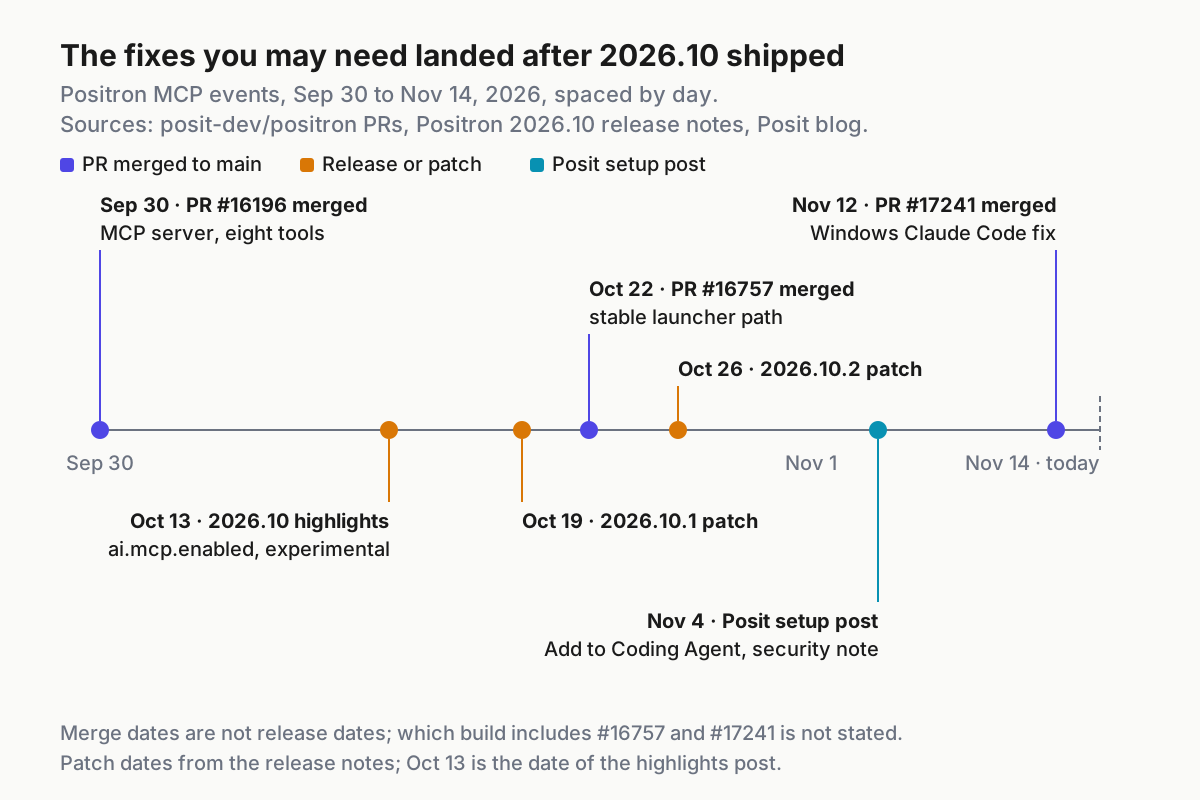
Several fixes you may need landed after 2026.10 first shipped. A merge date is not a release date, and neither Posit page states which build contains PR #16757 or PR #17241, so check your version before assuming a fix applies.
| Symptom | Likely cause | Fix |
|---|---|---|
No positron entry anywhere |
No folder open, or ai.enabled off |
Open the folder (Step 1) and confirm both settings are on |
| Entry exists but the agent finds no session | No interpreter running | Start an R console; the tools never start one |
| Windows: Add to Coding Agent reports success, Claude Code never sees the server | Positron wrote the local-scope entry under c:\... while terminals start Claude Code in C:\... |
Update Positron once a build carries PR #17241; until then, run cd /d c:\<folder> in cmd and start claude from there |
| Codex or a custom agent breaks after a Positron upgrade | The config points at a versioned kcserver path | A build with PR #16757 rewrites entries to the stable launcher on the next registration; toggle the setting off and on, then rerun Add to Coding Agent |
The agent runs Rscript in Bash |
It is not using the MCP | Keep the Bash(Rscript *) deny and say “use the Positron MCP” in the request |
| Output stops mid-print | The 32 KB output cap | Ask for head() and summaries instead |
| Rules never match, prompts behave oddly | The server registered under a different name | Copy the exact name from claude mcp list into every rule |
The Windows case deserves one more sentence, because the cause is subtle. PR #17241, merged Nov 12, explains that Claude Code keys local-scope entries by the exact text of its working directory, so drive-letter case matters. After the fix, Positron writes the entry under both spellings, adds the missing copy once for entries written by earlier builds, and removes both when you turn the setting off. The PR also notes that macOS and Linux entries are not rewritten, so an entry you removed by hand stays removed.
Roll back or turn it off
- Turn off
ai.mcp.enabled. Per PR #16196, this deregisters the workspace, closes the port once nothing else is registered, clears the environment variables and removes Positron from every agent config it wrote. - In a new Positron terminal, run
claude mcp listand confirmpositronis gone. If you used Codex, check~/.codex/config.tomlfor a leftoverpositronentry. - If a Claude Code entry survives, remove it by hand from the project folder with the commands below. The Claude Code docs use
claude mcp remove <name> --scope <scope>to clear one scope’s definition. - Remove the
mcp__positron__rules from.claude/settings.local.json, or keep them; they do nothing without the server, and they will apply again if you re-enable it. - For a temporary pause instead of a removal, toggle the server off in
/mcp. Claude Code records that choice per project in~/.claude.jsonand keeps the configuration.
claude mcp remove positron --scope local
claude mcp list
Re-enabling is the same path in reverse: turn the setting back on, confirm the entry with claude mcp list, and rerun Add to Coding Agent for Codex. Your permission rules and CLAUDE.md stay in the project, so the second connection starts with the gates already in place.
Sources
- Bring your own agent to Positron with the Positron MCP, Posit Open Source blog, Jonathan McPherson, Nov 4, 2026
- Positron 2026.10 release notes, Posit, October 2026
- Positron October Release Highlights, Posit Open Source blog, Julia Silge, Oct 13, 2026
- PR #16196: Add an MCP to Positron for integrating third-party coding agents, posit-dev/positron, merged Sep 30, 2026
- PR #16757: Add a stable path to MCP stdio proxy, posit-dev/positron, merged Oct 22, 2026
- PR #17241: Fix Claude Code not finding Positron’s MCP server on Windows, posit-dev/positron, merged Nov 12, 2026
- Connect Claude Code to tools via MCP, Claude Code Docs
- Configure permissions, Claude Code Docs
- Kawnium on X: Positron 2026.10, bring your own agent, Nov 9, 2026