Codex VS Code Extension Not Working? Fix 'Codex Could Not Start', Roll Back to a Known-Good Version, Pin It and Read the Logs
Codex VS Code extension not working? Match the log line, roll back to a known-good build, pin it, reset ~/.codex safely and file a useful, complete bug report.

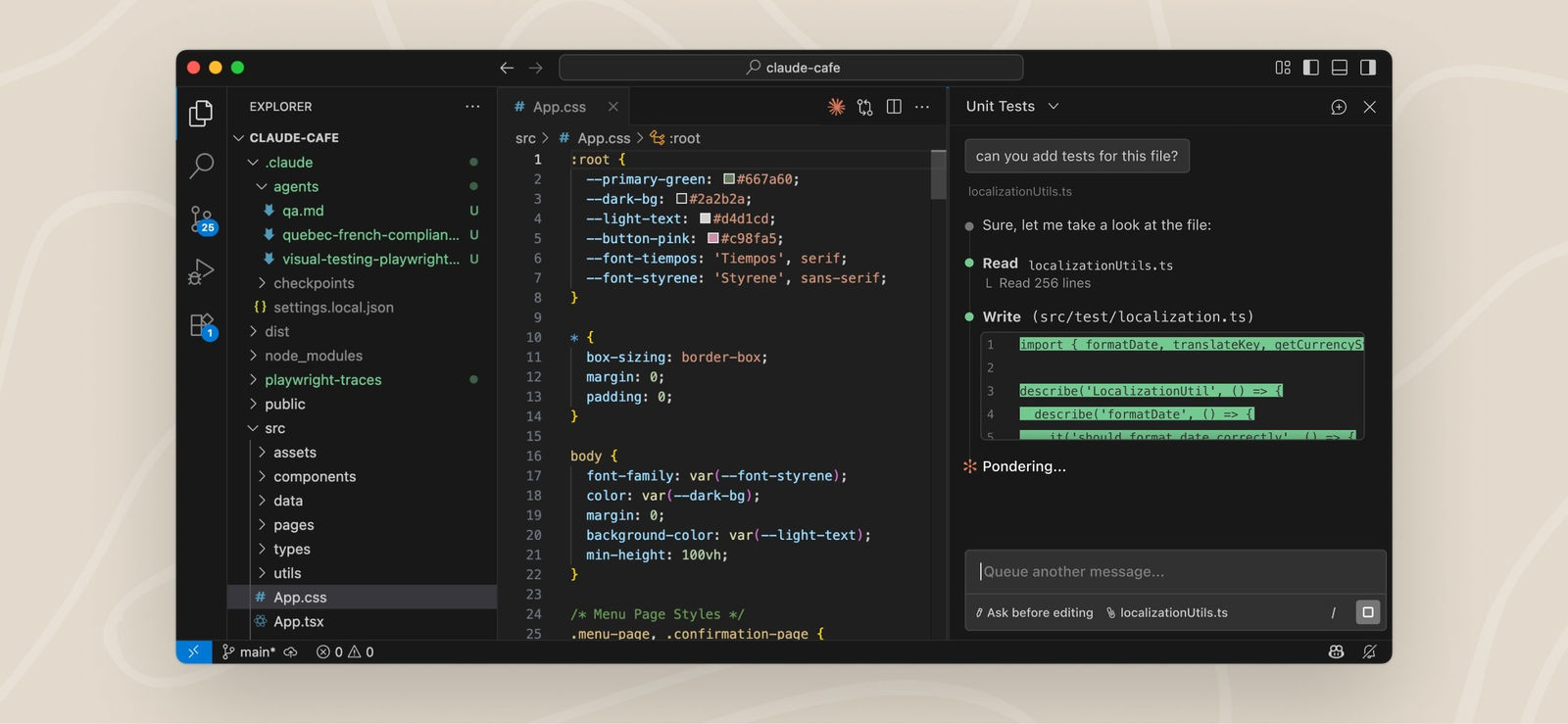
Codex VS Code extension not working after an update? You click the Codex icon and the sidebar sits on a loading logo for half a minute. Then a gray panel says “Codex could not start. The extension could not start its user interface.” Reloading does nothing, and neither does reinstalling. This guide is for developers who run OpenAI’s Codex IDE extension in VS Code, Cursor or Windsurf, locally or over WSL and Remote-SSH, and who want it working again today without guessing.
By the end you will have done five things. You will have classified the failure from its own log line, installed a known-good version and stopped VS Code from quietly updating it again. You will have reset local state only if the evidence called for it, and filed a bug report that adds information rather than noise. The trigger is the extension build that broke in late October 2026, but the same procedure works for the next bad build.
Where the instructions come from: commands and settings are taken from OpenAI’s Codex documentation, Microsoft’s VS Code documentation and reproductions posted to the openai/codex issue tracker. When a step comes from a user report rather than official documentation, the text says so. We did not run these commands for this guide. The expected observations are the ones the documentation or the reporters describe.
What broke in October 2026, and what is still unknown
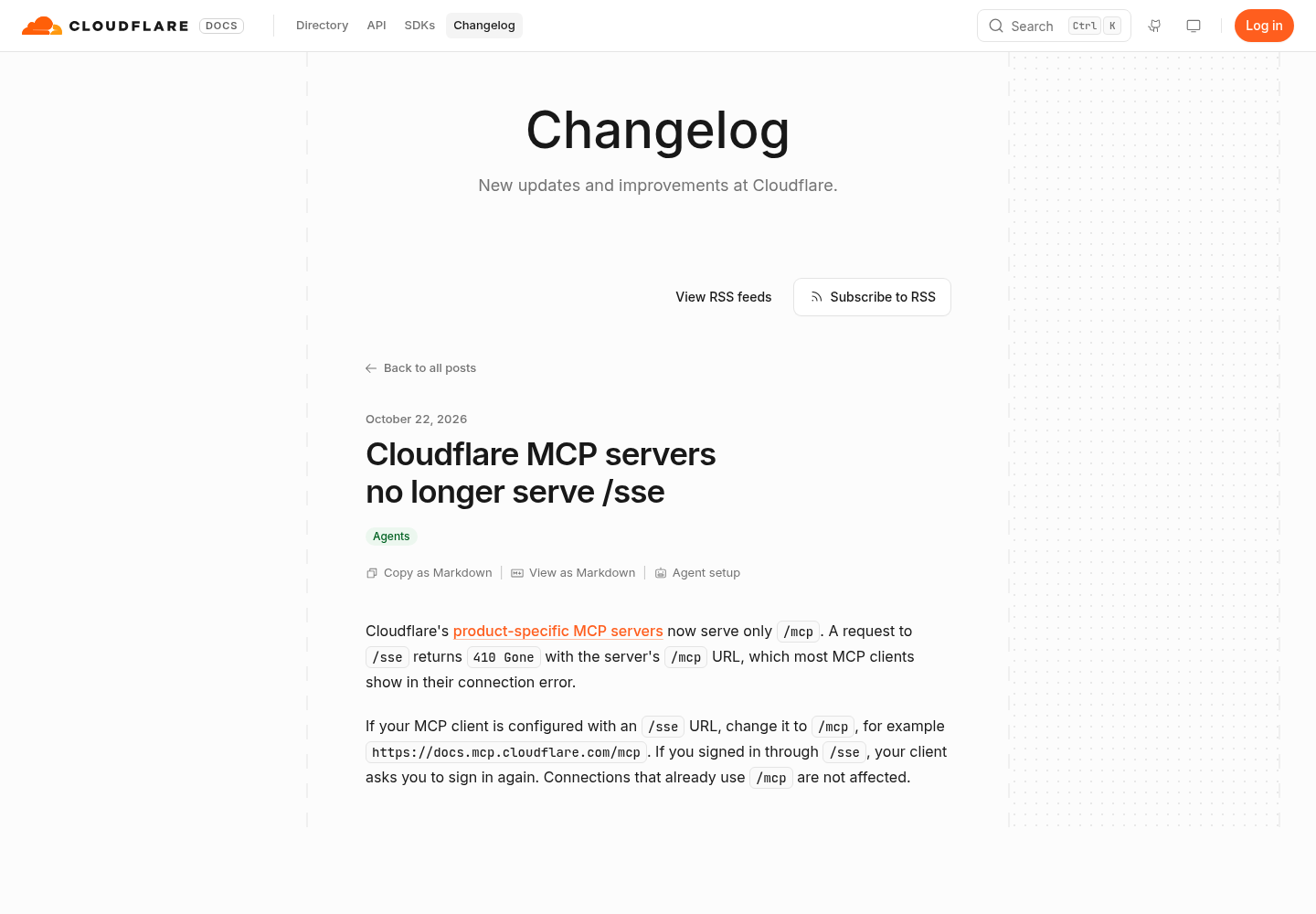
On October 25, 2026, the @CodexUpdate account on X posted a summary of the failure. The current extension was failing to load its sidebar for many users on Windows and Linux, and two GitHub issues had more than 40 comments between them. Some people got it working by rolling the extension back and pausing auto-update, by trying a fresh VS Code profile, or, on Debian, by rolling VS Code itself back to 1.142. The post also warned that the downgrade was not a sure fix.
One correction to the version numbers in that post. The failing stable build is 26.1021.22027, and the stable build users rolled back to is 26.1007.21434. The post’s “26.51021” and “26.51007” strings have an extra 5. In issue #56682 the original poster confirmed this was a typo, after another commenter could find only 26.1007.21434 in the version list. The 26.5xxxx numbers are real pre-release builds, though: one reporter tested pre-release 26.51021.22027 and saw the same failure. When you roll back, choose the stable 26.1007.21434.
The reports share a signature. In issue #56691 (Windows, VS Code 1.143.1) and issue #56992 (Linux, VS Code 1.143.1), the extension activates, starts the Codex app-server and receives its initialize response. The webview then never reports that it is ready. After 30 seconds the extension logs renderer_ready_timeout and replaces the sidebar with the error page. Downgrading only the extension to 26.1007.21434 brought the sidebar back for the #56992 reporter and for many commenters on both threads.
The root cause has not been established. Commenters who inspected the installed bundle describe a hard-coded 30-second watchdog in the extension. One of them measured that the 26.1021 webview preloads more than 3,000 files, where 26.1007 loaded about 16. Others saw the same timeout on 26.1007.21434 while running VS Code 1.143.1, and fixed it only by moving VS Code back to 1.142.0. The #56682 reporter was still failing after a downgrade, in an isolated profile with no other extensions. None of the three issue threads fetched for this guide on October 31 had a reply from an OpenAI maintainer. Treat every fix below as a workaround and confirm it on your own machine.
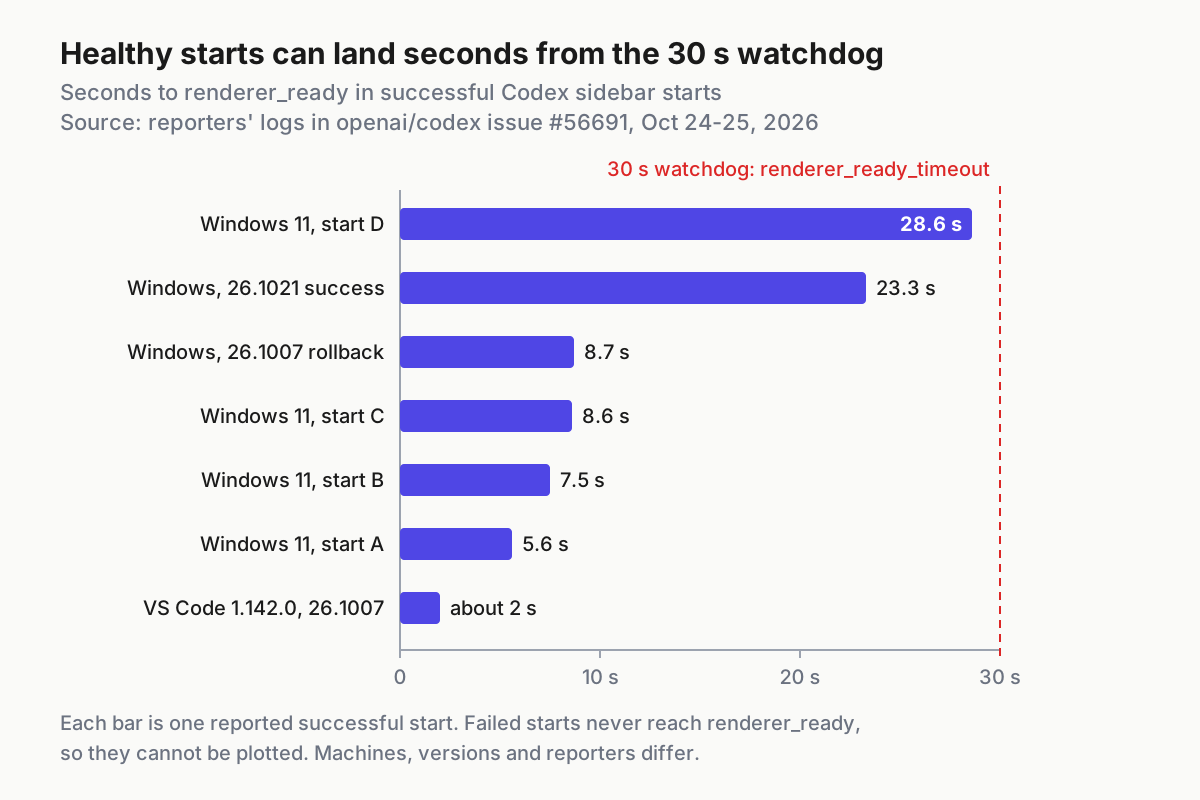
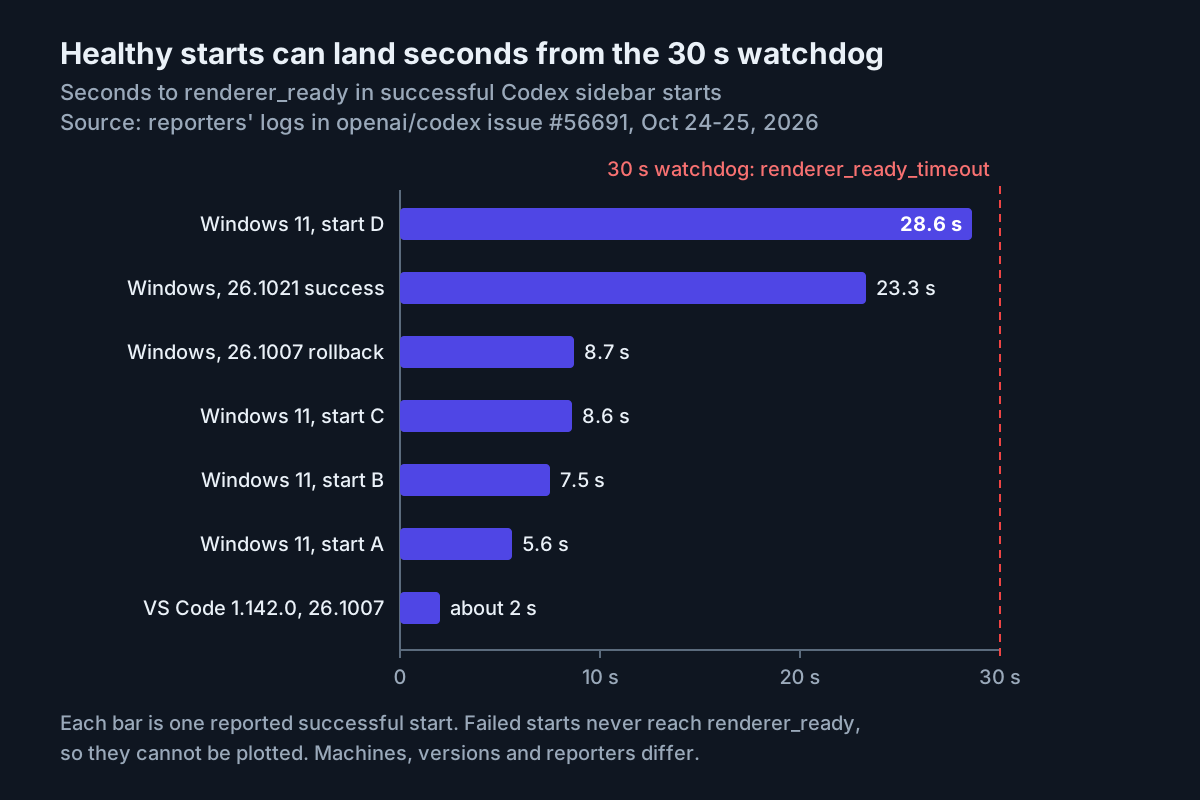
Even successful starts varied from about 2 to 28.6 seconds before the webview reported ready, and the limit is 30 seconds. Failed starts never reach renderer_ready, so they cannot appear here. Source: reporters’ logs in openai/codex issue #56691, Oct 24-25, 2026.
The chart shows why the evidence is messy. Successful starts vary widely, so a slow machine, a second VS Code window or a busy CPU can push even a working build past the limit.
Before you start: what to have on hand
- [ ] The extension ID. OpenAI’s Codex IDE extension page installs the same extension,
openai.chatgpt, in VS Code, Cursor and Windsurf, and documents Codex: Open Codex Sidebar in the Command Palette if the icon is missing. Some installs also include a companionopenai.codex-audioextension. Reporters left it alone. - [ ] The
codecommand on your PATH. VS Code’s Extension Marketplace documentation covers listing, installing and uninstalling extensions from the command line. Cursor and Windsurf ship their own launchers. If you are not sure which one you have, use the Extensions view instead of the CLI examples. - [ ] Shell access to
~/.codex. OpenAI’s Config basics page puts your user configuration at~/.codex/config.toml, and the CLI and IDE extension share it. - [ ] A clean Git checkpoint in the project you have open, so closing windows and reloading cannot lose uncommitted work.
- [ ] A working Codex CLI, if you use one. Our Codex CLI install, update and uninstall guide covers that side. This guide stays inside the editor.
- [ ] Fifteen minutes with no running Codex task you care about.
Five-minute triage: versions first, then the right log
Do these steps in order. Each one either classifies the failure or rules something out, and none of them changes your setup permanently.
-
Record the installed versions. In a terminal, run the documented listing command and filter for OpenAI’s extensions:
# macOS / Linux
code --list-extensions --show-versions | grep -i openai

# Windows PowerShell
code --list-extensions --show-versions | Select-String openai
Expected: one line per extension, each with its version. Write down the
openai.chatgptversion, and theopenai.codex-audioversion if you have it. Then note your VS Code version from its About dialog. Every later decision depends on these two numbers. -
Read the Codex log, not just the error page. Open the Output panel and select the Codex extension’s channel. The #56691 reporters copied their “Codex output logs” from there. A failed start on the bad build looks like this (lines quoted from #56691, timestamps removed):
[info] Activating Codex extension
[info] [CodexMcpConnection] Spawning codex app-server
[info] [CodexMcpConnection] Initialize received id=1
[error] [CodexWebviewProvider] Webview renderer did not become ready elapsedMs=30024 extensionVersion=26.1021.22027 reason=renderer_ready_timeout receivedWebviewMessage=false role=sidebar stage=renderer timeoutMs=30000
A healthy start on 26.1007.21434, from the same thread, includes
[startup][renderer] app routes mounted after 12983msand aclient.performance.spanline withname=app_start outcome=success. How to read it: if you seeInitialize received id=1, the app-server backend started. The problem is in the webview, not your CLI install or your sign-in. -
Check the Developer Tools console for a second error. Reporters found
Error loading webview provided by 'openai.chatgpt': Could not register service worker: InvalidStateErrorin #56691, and repeatedExtension host ... is unresponsivemessages in #56682. Copy whatever appears near “Codex could not start its user interface” for the bug report. The #56682 reporter also noticed that another assistant’s extension, Claude Code, worked normally in the same installation. That is a useful control: if another webview-based assistant loads, VS Code’s webview handling is basically working. Our Claude Code VS Code extension guide covers that one. -
Try one cheap remount. A commenter on #56682 reported that right-clicking the Codex tab and choosing Move to > Primary Side Bar or Panel made the UI start again and keep working, even after it was moved back. Expected: the panel either loads within about 30 seconds or shows the same error. If it loads, you are probably looking at a startup race. If it fails again, suspect the build.
-
Test a clean profile. The #56691 reporter launched VS Code with throwaway user data and extension folders (PowerShell, as reported):
code --disable-gpu --user-data-dir "$env:TEMP\vscode-codex-isolado" --extensions-dir "$env:TEMP\vscode-ext-isoladas"On macOS or Linux the same pattern is
code --user-data-dir /tmp/vscode-codex-test --extensions-dir /tmp/vscode-ext-test. Microsoft documents--extensions-dir;--user-data-dirand--disable-gpucome from the report. Install only Codex in that profile. If it works there, something in your regular profile is involved, as the X post noted for one user. If it fails there too, your profile is not the cause. -
Check whether the CLI works. If you use the Codex CLI, start it in a terminal and send one short prompt. If the CLI answers while the sidebar times out, focus on the extension. The #56992 reporter reinstalled Codex CLI v0.164.0 and still saw the same error until the extension itself was downgraded.
Match the symptom to a cause
Use the first row that matches your log, not your guess.
| What you see | Clue in the log or console | Likely cause | First fix | Expected after the fix |
|---|---|---|---|---|
| “Codex could not start” right after an auto-update to 26.1021.22027 | Initialize received id=1, then renderer_ready_timeout with receivedWebviewMessage=false |
Regression in that build’s webview startup, widely reported, root cause unconfirmed | Roll back to 26.1007.21434 and turn Auto Update off for it | Sidebar loads; log shows app routes mounted and outcome=success |
| Same timeout on 26.1007.21434 with VS Code 1.143.x | extensionVersion=26.1007.21434 reason=renderer_ready_timeout |
Slow startup under VS Code 1.143.1 or resource contention, according to reports | Close the Codex desktop app, restart fully, test a clean profile; reporters then rolled VS Code back to 1.142.0 | Renderer ready in a few seconds, not close to 30 |
| Service worker error in Developer Tools | Could not register service worker: InvalidStateError |
Webview start-up on the same bad build; clearing caches did not help the reporter | Treat it as the first row | Same as the first row |
| Blank gray panel and “The window is not responding” | potential listener LEAK detected in the console (#56992 comment) |
Observed symptom, cause not established | Roll back, then report the console text | Panel loads after rollback |
| Fails only in a Remote-SSH or WSL window | Timeout in the remote extension-host log; Webview.loadLocalResource - Error using fileReader |
The remote host has its own copy of the extension | Roll back the remote copy | Remote window loads; local window unaffected |
| Fails behind a proxy on a remote host after about 30 seconds | React root render requested, but no [chatgpt-account-lookup] completed and no app routes mounted |
Proxy accepts the connection but leaves CONNECT requests pending | Fix the proxy, or remove it so requests fail fast | Normal start, or a degraded offline start with a network warning |
| Works in the CLI, not in the IDE, after you changed settings | chatgpt.cliExecutable is set |
The bundled executable is overridden | Remove the setting | Normal start |
| Sidebar loads but requests fail with a model error | The '...' model is not supported when using Codex with a ChatGPT account. |
model in config.toml is not available with your sign-in |
Change or remove model in ~/.codex/config.toml |
Requests complete |
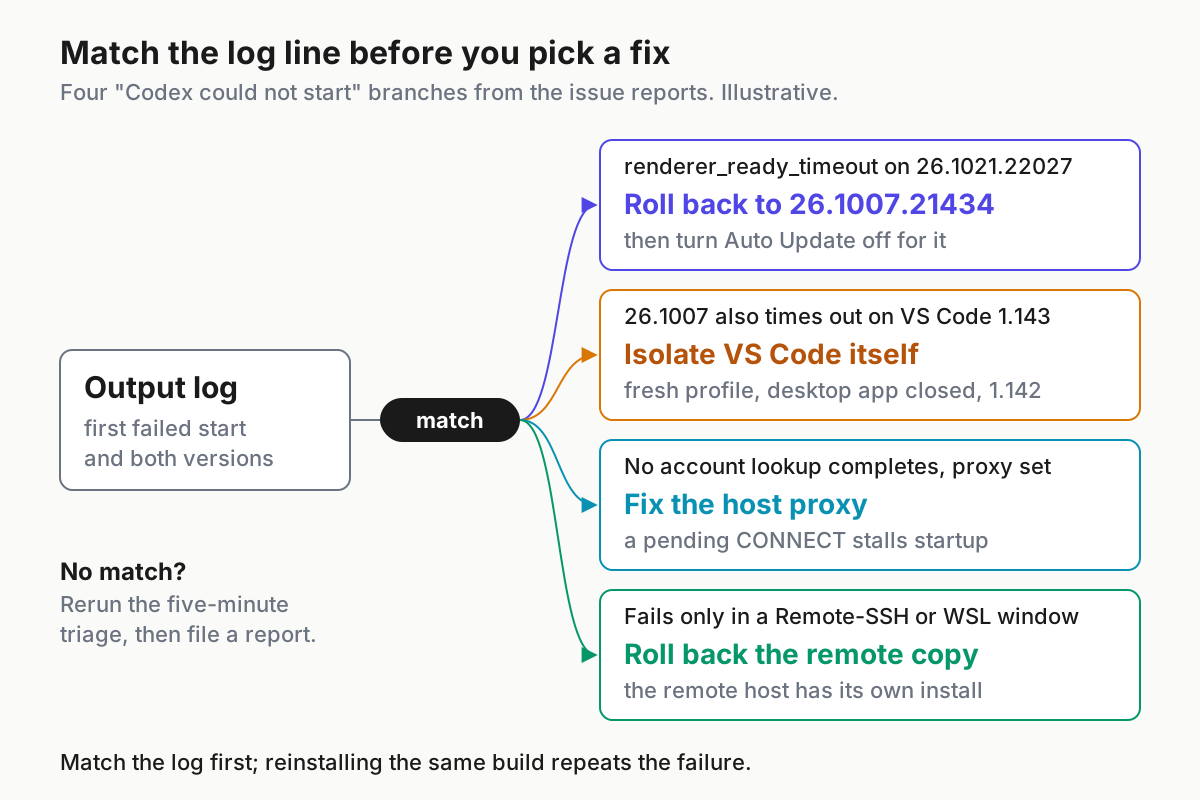
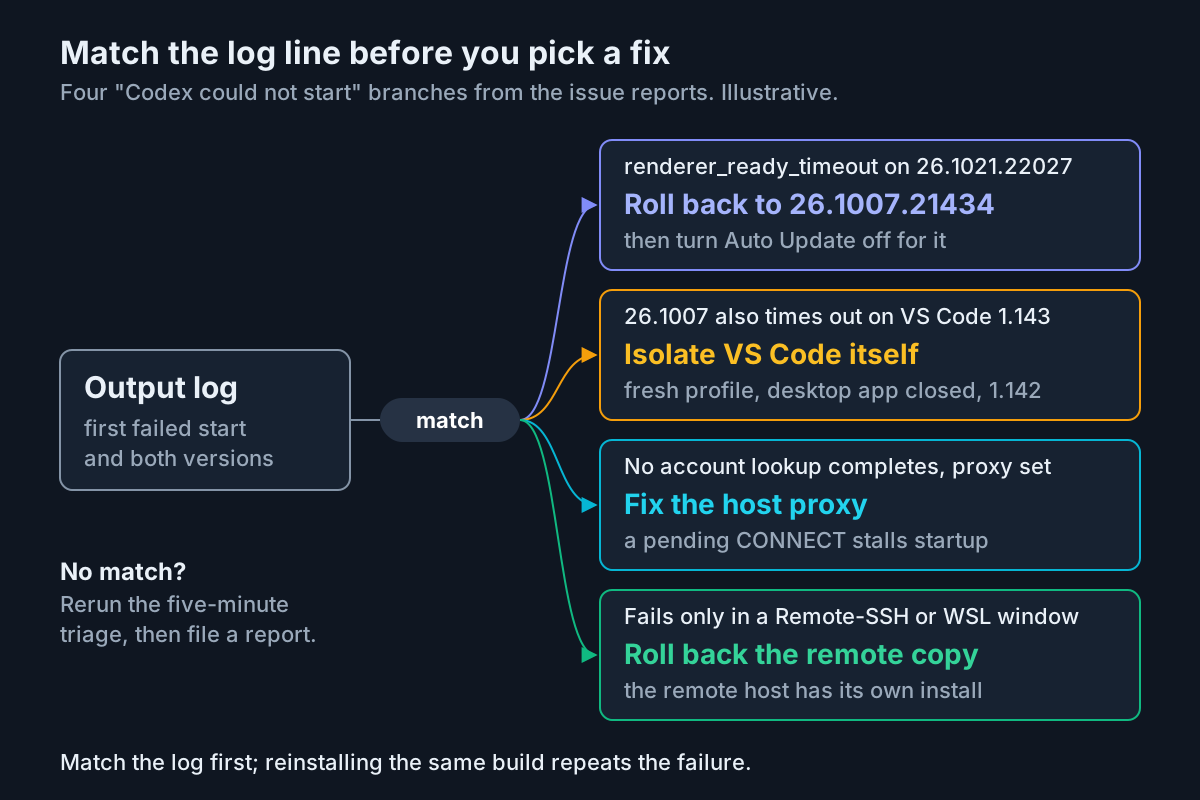
Match the log line before you choose a fix. Each branch corresponds to a pattern reported in the openai/codex issues, and the fix sits on its card. Illustrative triage based on issues #56691, #56682, #56992 and #37521.
The first row is the October incident. The proxy row is older. Issue #37521, opened August 8, 2026, shows a remote extension host behind a proxy that accepts TCP but never completes CONNECT to the ChatGPT and OpenAI endpoints. Account lookup stays pending until the same 30-second watchdog fires. A network that rejects the requests quickly instead lets the sidebar open in degraded mode. An OpenAI contributor replied in that thread that a separate watchdog bug, tracked in #37458, had been fixed. They left #37521 open because pending account requests still have no deadline.
Roll back to a known-good build and pin it
Rolling back is safe. It changes only the extension, and your ~/.codex configuration and sessions stay where they are. Choose one of the three install paths, then pin the version.
The opening of Microsoft’s VS Code Extension Marketplace documentation. Further down, the page covers Install Another Version, per-extension Auto Update and command-line management, which the steps below rely on. Source: Visual Studio Code documentation.
-
From the Extensions view. Search for
@id:openai.chatgpt; the Marketplace docs support the@id:prefix. Right-click the Codex entry and choose Install Another Version, the label in Microsoft’s documentation. Users in the issue threads describe the same action as Install Specific Version from the gear icon. Choose 26.1007.21434, not a 26.5xxxx pre-release. -
Or from the command line. Reporters in #56691 and #56992 used this command, typing the extension ID with a capital O:
code --install-extension OpenAI.chatgpt@26.1007.21434 --forceOpenAI’s IDE page writes the same ID in lowercase,
openai.chatgpt, which is the form the listing command and the rest of this guide use. Microsoft documents--install-extensionand thepublisher.extensionform. The@versionsuffix and--forcecome from those reports. Afterwards, quit VS Code completely and start it again, as the reporters did. -
Or uninstall first. A commenter in a WSL2 Ubuntu container got it working only by uninstalling the current version and then installing the previous one. Use this route if switching in place leaves you on the bad build.
-
Restart the extension host. Accept the Restart Extensions prompt if VS Code shows one, then reload the window. One Windows reporter had to reboot before 26.1007.21434 worked fully.
-
Turn off Auto Update for this extension only. Right-click the Codex entry and clear Auto Update. The Marketplace documentation describes this per-extension toggle. Without it, VS Code reinstalls the newest build once its update delay passes. The delay defaults to 12 hours (
extensions.autoUpdateDelay), which explains why some machines broke later than others. -
Confirm the pin. Run the listing command from triage again and check that
openai.chatgptreports 26.1007.21434. Open the Codex log and check forextensionVersion=26.1007.21434on the startup lines. Right-click the entry again and check that Auto Update is still off. -
Complete one real prompt. Open a file, ask Codex to explain it and wait for the reply. A sidebar that loads but cannot answer is not fixed.
Pinning a single extension is deliberately narrower than the global switches. The Disable Auto Update for Extensions command, the extensions.autoUpdate setting and extensions.autoCheckUpdates set to false all exist, but they freeze every extension you have, security fixes included. Our Claude Code update, downgrade and uninstall guide applies the same approach, pinning one thing, to a different tool.
Cursor and Windsurf. OpenAI’s IDE page lists both as installing the same openai.chatgpt extension. If your fork’s Extensions view has a version picker, use it. If it doesn’t, the VS Code docs describe Download Specific Version VSIX from the Marketplace listing and Install from VSIX in the Extensions view. In VS Code, auto-update is off by default for VSIX installs. These pages do not say whether a fork’s menus behave the same way, so check the Auto Update state yourself after installing.
When rollback alone does not fix it
Several reporters rolled back and still saw “Codex could not start.” Don’t keep reinstalling. Work down this list and stop as soon as the sidebar loads.
- Confirm the rollback applied. If the log still says
extensionVersion=26.1021.22027, the old build is still running. Restart the extension host or quit VS Code completely. - Close the Codex desktop app. A commenter on #56691 found that the desktop app and the VS Code extension each start their own app-server against the same
~/.codexSQLite databases. They logged very slow database statements with both running, and suggested closing the desktop app before opening VS Code as a cheap workaround for some users. - Test more than one window. A commenter on #56682 found that 26.1007.21434 worked in the first window but failed in the next. A Remote-SSH user saw the timeout come back in a second window connected to the same server. Include a second window in your test.
- Run the clean-profile test on the old build. If 26.1007.21434 works in a clean profile but fails in yours, disable your other extensions one at a time. The Extension Bisect utility, in the Extensions view’s More Actions menu, automates that search.
- Consider the VS Code version. A Windows 11 reporter on #56691 found 26.1007.21434 timing out on VS Code 1.143.1. After returning to VS Code 1.142.0, it loaded in about 2 seconds, and they set
"update.mode": "manual"so VS Code would not update itself again. A Linux user confirmed the same fix. This is a bigger change than an extension rollback, so record that you made it and revisit it when you un-pin. - Stop and branch. If none of these help, go to the Remote-SSH, WSL and proxy branches below, then file a report. A fourth reinstall will not tell you anything the third did not.
Remote-SSH, WSL and proxy branches
Remote windows run extensions on the remote machine. VS Code’s documentation says it does not sync extensions to or from remote windows such as SSH, dev containers and WSL. Each remote host therefore keeps its own copy of the extension, at its own version.
| Setup | Where Codex runs | How to roll back | What to check |
|---|---|---|---|
| Remote-SSH from Windows to Linux | The Linux host, under .vscode-server/extensions |
In the remote window, install 26.1007.21434 on the remote copy and reload | A #56691 commenter downgraded only the remote copy and the remote window recovered |
| WSL remote window | The WSL distribution | As for Remote-SSH, from the WSL window | Reports include WSL2 Ubuntu inside a container |
| Windows window with the WSL setting on | Codex runs in WSL via chatgpt.runCodexInWindowsSubsystemForLinux |
Roll back in the Windows window | Changing the setting reloads VS Code |
| Any remote host behind a proxy | The remote extension host inherits the proxy environment | Not a version problem | Proxy variables, and whether CONNECT completes |
The controlled comparison in #56691 helps here. With VS Code running natively on Ubuntu, the same Ubuntu host worked with both extension versions. Through a Windows Remote-SSH client it failed with 26.1021.22027, and it worked again once only the remote copy was downgraded. If the problem appears only in remote windows, change the remote copy first.
For the proxy branch, work through these steps on the remote host:
- Open a terminal in the remote window and list the proxy variables with
env | grep -i proxy. Expected: either nothing, orHTTP_PROXY,HTTPS_PROXYorALL_PROXYpointing at a proxy host and port. - In the Codex log, look for
React root render requestedfollowed by nothing: no[chatgpt-account-lookup] completedline and noapp routes mounted. That is the hanging-proxy pattern from #37521. - Fix the proxy so it completes connections to chatgpt.com and api.openai.com, or remove the variables from the environment that starts the remote server. Then restart the remote VS Code server, because the extension host picks up its environment at start.
- Expected: a normal start through a working proxy, or a degraded start when requests fail quickly. Either is better than a stall.
Two cautions from the #37521 thread. A commenter found that the extension host did not use the proxy configured for Codex’s sandbox (network_proxy), so setting it in config.toml does not route the sidebar’s requests. The same commenter pointed out that Node’s built-in fetch ignores HTTP_PROXY by default, so a variable being set does not prove the requests use it.
Extension settings that matter, and one to leave alone
OpenAI’s Developer settings page for the IDE describes two settings layers. Codex settings such as model, reasoning effort, permissions and sandbox live in config.toml and are shared with the CLI. Editor settings use chatgpt.* keys in VS Code’s own settings and do not belong in config.toml. To find them, open the editor settings and search for @ext:openai.chatgpt.
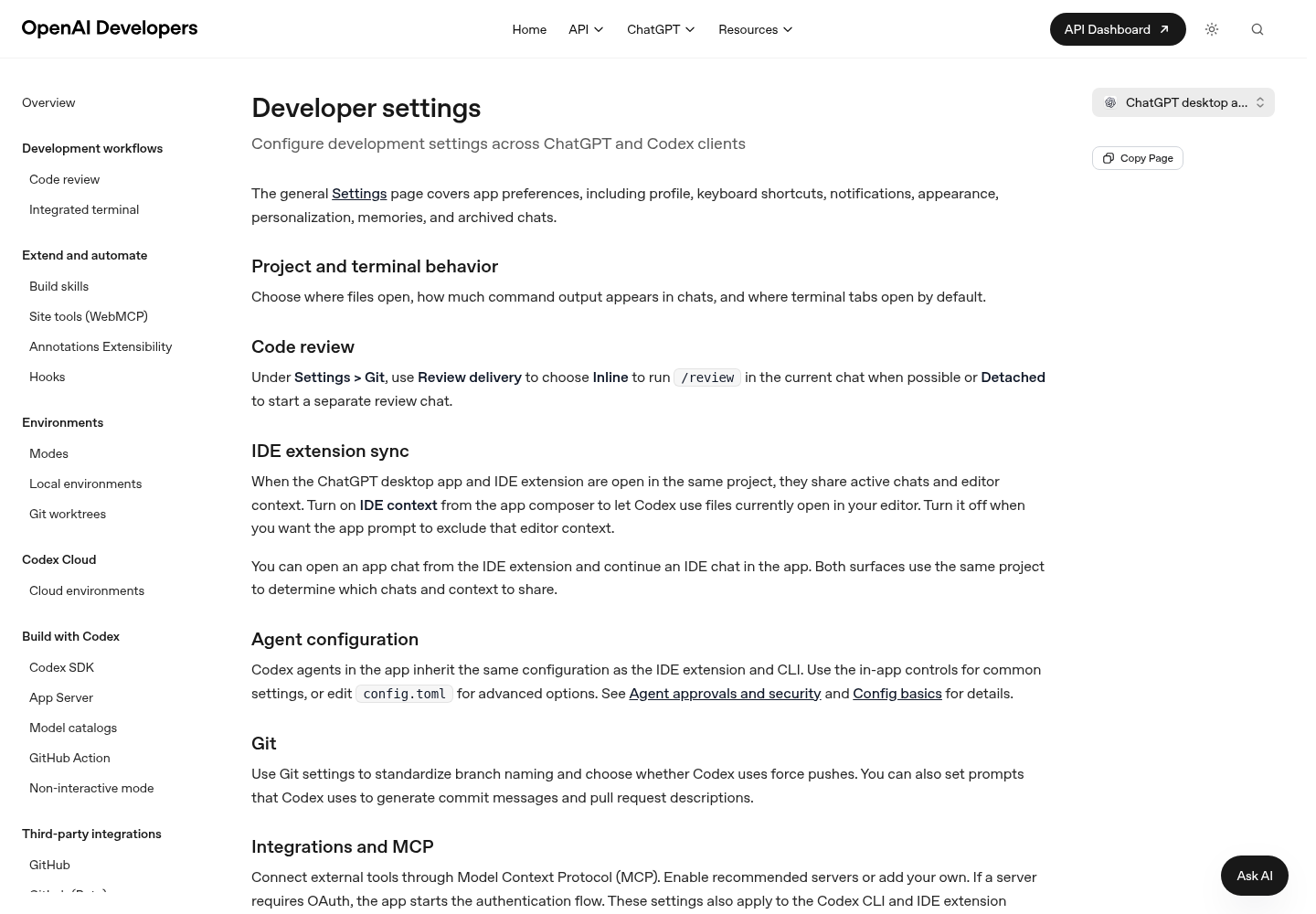
OpenAI’s Developer settings page, captured on its default ChatGPT desktop app view. Its Agent configuration section says Codex agents inherit the same configuration as the IDE extension and CLI, with advanced options in config.toml. The IDE view of the same page holds the chatgpt.* settings table summarized below. Source: OpenAI.
| Setting | Default | When it matters for startup |
|---|---|---|
chatgpt.runCodexInWindowsSubsystemForLinux |
false |
Windows only. Runs Codex in WSL when WSL is available; changing it reloads VS Code. If startup broke right after you toggled it, toggle it back to isolate the change. |
chatgpt.cliExecutable |
Unset | Development only. OpenAI warns that overriding the bundled executable can stop parts of the extension from working. If you set it, remove it before any other troubleshooting. |
chatgpt.openOnStartup |
false |
Focuses the sidebar when the extension finishes starting. Leave it off while troubleshooting so you control when the webview loads. |
Here is a settings.json fragment suited to troubleshooting. It is an example, not a required configuration:
{
  // Windows only. Set true only if your repos and tools live in WSL2.
  "chatgpt.runCodexInWindowsSubsystemForLinux": false,
  // Leave unset unless you are developing the Codex CLI.
  // "chatgpt.cliExecutable": "...",
  "chatgpt.openOnStartup": false
}
The agent settings need their own workaround. The documented way to open config.toml is the gear icon in the Codex sidebar, then Codex Settings > Open config.toml, and you cannot get there while the sidebar fails to load. Open ~/.codex/config.toml directly in the editor instead. Two documented keys are worth knowing:
# Default model for the CLI and IDE. Remove the line to fall back to the default.
model = "gpt-6.1-sol"

# Where Codex writes local log files; setting it also enables codex-tui.log.
log_dir = "/absolute/path/to/codex-logs"
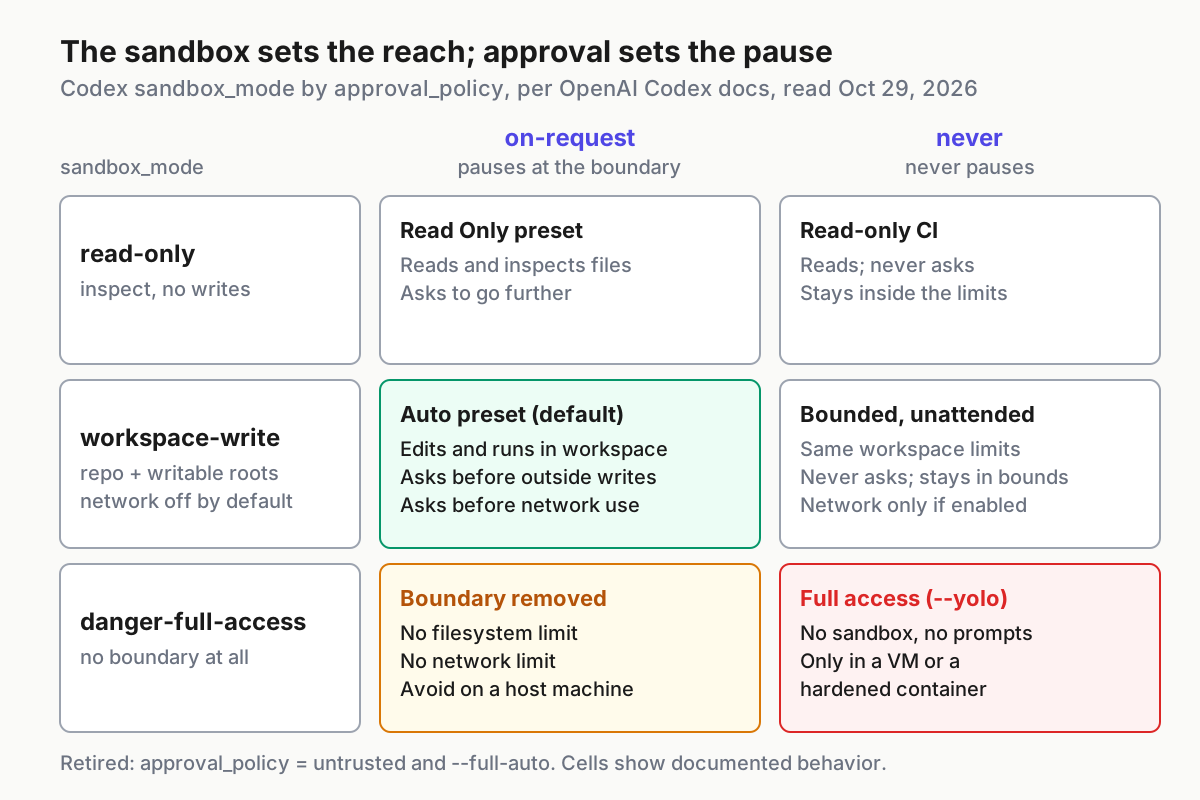
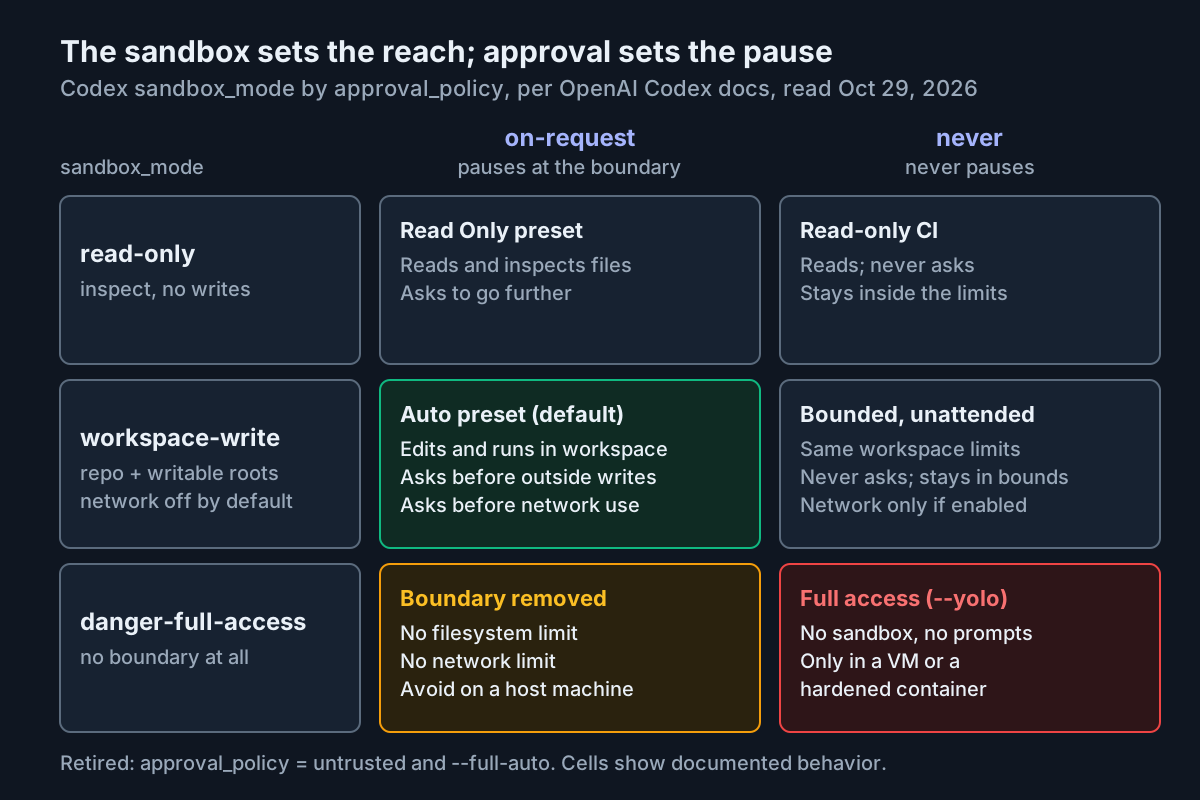
The model value is the example from OpenAI’s Config basics page. Before a clean install, the #56992 reporter saw that same model rejected with a ChatGPT-account error, and said explicitly that it was unrelated to the UI failure. If you get that error once the sidebar loads, change or remove model. Approval and sandbox keys live in the same file. Our Codex approval modes and sandbox guide explains them, and our Codex startup and configuration diagnosis guide covers the CLI side of a bad config.toml. Check precedence too: in trusted projects, a project-level .codex/config.toml overrides your user file.
Reset ~/.codex without losing your sessions
Resetting local state is the last branch, not the first. It did not help in the October incident. A commenter on #56691 moved the .codex data directory aside and still timed out. The #56992 reporter backed up ~/.codex, reinstalled the CLI cleanly and still failed until the extension was downgraded. Reset only if the failure continues on a known-good build in a clean VS Code profile. One reporter on #56691 also tested with a separate Codex home directory; if a test like that works when your own home does not, a reset is justified too.
-
Quit everything that uses
~/.codex. Close VS Code, the Codex desktop app and any CLI sessions so no app-server has the databases open. -
Back up the whole directory.
# macOS / Linux
cp -a ~/.codex ~/codex-backup-2026-10-31
# Windows PowerShell Copy-Item -Recurse -Path "$HOME\.codex" -Destination "$HOME\codex-backup-2026-10-31"Expected: a second directory of about the same size. Treat it as sensitive. It holds your configuration and local session databases, and may hold sign-in state.
-
Move the directory, don’t delete it. Run
mv ~/.codex ~/.codex.aside, orRename-Item "$HOME\.codex" ".codex.aside"in PowerShell. -
Start VS Code and open Codex. Expected: the sidebar loads and asks you to sign in. Sign in and send one prompt.
-
Decide. If the fresh state works, quit again, copy
config.tomlback from~/.codex.asideand test. Then bring back the remaining items a few at a time, testing after each, until either the failure returns or everything is restored. If the fresh state fails the same way, local state was not the cause. Quit and restore the original:rm -rf ~/.codex && mv ~/.codex.aside ~/.codex -
Keep the backup for a week. Delete
~/codex-backup-2026-10-31only after normal use shows that your sessions and settings are intact.
Worked example: one Windows laptop from failure to pinned fix
The case below is an illustrative composite built from observations reported in #56691 and #56682. We did not run it. It shows how the steps above connect, and what each observation should lead you to decide.
The setup: a Windows 11 laptop running VS Code 1.143.1. The Codex extension auto-updated overnight, and the Codex desktop app is also open. The sidebar shows “Codex could not start.”
| Step | Action | Observation | Decision |
|---|---|---|---|
| 1 | code --list-extensions --show-versions |
openai.chatgpt at 26.1021.22027; openai.codex-audio at 26.1021.22027 |
Matches the reported bad build |
| 2 | Read the Codex output log | Initialize received id=1, then renderer_ready_timeout, elapsedMs=30024, receivedWebviewMessage=false |
Backend fine, webview stalled: first row of the symptom table |
| 3 | Move the Codex view to the Panel | Loads once; the error returns after a restart | Not a lasting fix; continue |
| 4 | Right-click Codex > Install Another Version > 26.1007.21434, then Restart Extensions | Log shows extensionVersion=26.1007.21434, app routes mounted, outcome=success |
Candidate fix |
| 5 | Right-click Codex and clear Auto Update | Toggle is still cleared when the menu is reopened | Pinned |
| 6 | Open a second VS Code window | The second window times out | Close the desktop app, quit VS Code fully, reopen both windows |
| 7 | Reopen both windows | Both sidebars load | Contention or a startup race, not the build |
| 8 | Ask Codex to explain an open file | A reply arrives | Success check passed |
| 9 | Comment on #56691 with versions, OS and log lines | Comment posted with secrets removed | Done; watch the thread |
If step 4 had failed, the next branch would have been the VS Code version (step 5 of the rollback-not-enough list). If step 6 had kept failing with the desktop app closed, the next move would have been the clean-profile test.
File a bug report that maintainers can use
The issue threads show what helps: exact versions, a matching log line, a controlled comparison and a list of what did not work. They also show what doesn’t help, such as one-line “same here” comments.
- Search first. The repository’s bot flags likely duplicates on new issues, as it did on #56682 and #56992. If your log matches an open issue, add new environment details there instead of opening another.
- Remove secrets. Reporters replaced usernames in paths, request IDs and account IDs with placeholders such as
[USERNAME]. Do the same, and never paste tokens or full logs that include account data. Don’t take up offers in the threads to troubleshoot privately by email. - Include a comparison. “26.1021.22027 fails, 26.1007.21434 works, same machine” is worth more than a paragraph of description.
- Fill in the template.
**Extension:** openai.chatgpt 26.1021.22027 (fails) / 26.1007.21434 (works)
**Companion:** openai.codex-audio 26.1021.22027
**Editor:** VS Code 1.143.1 (user setup)
**OS:** Windows 11 x64
**Window type:** local | Remote-SSH (client OS -> host OS) | WSL | dev container
**Codex desktop app running at the same time:** yes | no
**Proxy variables in the extension host environment:** none | HTTP_PROXY set

**Symptom:** "Codex could not start. The extension could not start its user interface."

**Log (Output > Codex, secrets removed):**
[CodexMcpConnection] Initialize received id=1
[CodexWebviewProvider] Webview renderer did not become ready elapsedMs=30024
extensionVersion=26.1021.22027 reason=renderer_ready_timeout
receivedWebviewMessage=false role=sidebar stage=renderer timeoutMs=30000

**Developer Tools console:** (paste errors near the failure, or "none")

**Tried, did not help:** reload window; reinstall; clean profile via --extensions-dir
**Tried, helped:** rollback to 26.1007.21434 with Auto Update off
**Reproducible:** every start | intermittent | second window only
If the problem is in VS Code itself rather than the extension, Microsoft’s documentation suggests reporting it with the shared log, which you open from Open View… > Shared in the Command Palette.
Un-pin when a fixed build ships
A pin is a temporary decision with a date to revisit it. A frozen extension misses fixes and features, and so does a VS Code version you held back.
- Watch the issue, not the Marketplace. Subscribe to the thread you commented on. A version newer than 26.1021.22027 is worth trying only once maintainers or reporters say it fixes startup.
- Read the extension’s Changelog tab on its details page in the Extensions view, which the VS Code docs describe, before you install anything.
- Update on purpose. Use the Update button on the Codex entry, which skips the auto-update delay, or install the specific new version as in the rollback section.
- Check it the way you checked the rollback. Confirm the version, look for
outcome=successand norenderer_ready_timeoutin the log, open a second window and complete one prompt. - Turn Auto Update back on for the extension only after the new build passes.
- Undo the rest. If you rolled VS Code back and set
"update.mode": "manual", return to your normal update mode and test again. Remove any temporary settings changes. Delete the~/.codexbackup once you are sure you won’t need it.
If the new build fails, recover with the rollback you have already done once: install 26.1007.21434 again and clear Auto Update. For teams running several agent tools, this is worth making routine. Our guide to canarying CLI upgrades describes testing on one machine first, and our AgentOps overview covers keeping the rest of a multi-agent setup visible while one tool is pinned.
Sources
- Codex Update on X: “Codex in VS Code stuck on ‘Codex could not start’?”, @CodexUpdate, October 25, 2026
- Issue #56682: Codex VS Code Extension Fails to Initialize UI Even in an Isolated Profile, openai/codex on GitHub, opened October 24, 2026
- Issue #56691: Codex 26.1021.22027 fails to start UI in VS Code 1.143.1 on Windows, openai/codex on GitHub, opened October 24, 2026
- Issue #56992: Codex VS Code Extension Fails to Start User Interface on Linux, openai/codex on GitHub, opened October 26, 2026
- Issue #37521: Codex extension startup deadlocks when account identity requests remain pending, openai/codex on GitHub, opened August 8, 2026
- Codex IDE extension, OpenAI, read October 31, 2026
- Developer settings (Codex IDE extension), OpenAI, read October 31, 2026
- Config basics, OpenAI, read October 31, 2026
- Extension Marketplace, Visual Studio Code documentation, updated October 28, 2026