How to Update Claude Code by Install Method: Fix 'Up to Date', Pin, Roll Back and Uninstall Cleanly
Update Claude Code through the install method that owns the binary, fix claude update saying up to date, pin or roll back a version, and uninstall cleanly.

Go deeper. Build your own.
You want to update Claude Code because a release fixed the bug you keep hitting. You run claude update, and it tells you that you are already current. Or a notice says an update installed and Claude Code needs a restart, while a long session is open. Or the newest build broke something and you want yesterday’s version back. All three problems start with the same question: which install method owns the claude binary your shell actually runs?
Native installs update themselves in the background. Homebrew, WinGet, apt, dnf and apk installs don’t, and each of them picks a release channel in its own way. Until you know which one you have, every fix is a guess.
This troubleshooting guide is for a developer on macOS, Linux, WSL or Windows who uses Claude Code every day. You need a working install by any method, a terminal, and permission to edit ~/.claude/settings.json. By the end you will have:
- identified the binary on your PATH and the method that installed it;
- updated through that method instead of fighting it;
- picked the stable or latest channel deliberately;
- pinned or rolled back a version along a documented path;
- controlled auto-updates with one settings block you can verify;
- uninstalled cleanly, with a keep-or-remove decision for every config file.
The commands, settings and messages come from Anthropic’s Advanced setup page, its installation troubleshooting page, the environment variables reference and the CLI reference. We did not run them for this guide. Every “you should see” line describes documented behavior, and the worked example’s paths and version numbers are illustrative.
The prompt for writing it now: on Oct 28, 2026, developer Scott McIntosh posted a five-step update checklist on X: check claude --version, run claude update, use brew upgrade claude-code or winget upgrade Anthropic.ClaudeCode for those installs, npm install -g @anthropic-ai/claude-code@latest for npm, then restart and run claude doctor. The list is correct. What it can’t fit in a post is why step 3 exists at all, why the Homebrew command depends on which cask you have, and what to do when step 2 says there is nothing to update. That is the rest of this guide.
Before you touch anything: prerequisites and a settings snapshot
Most update problems are easy to undo, but only if you wrote down where you started. Spend two minutes on this list first.
- [ ] Record the version you have now. Run
claude --version. A working install prints a version number in the documented form2.1.211 (Claude Code). Write it down; it is your rollback target. - [ ] Snapshot your user settings. On macOS, Linux or WSL:
cp ~/.claude/settings.json ~/.claude/settings.json.before-update. On Windows, copy%USERPROFILE%\.claude\settings.jsonthe same way. If the file doesn’t exist yet, note that instead. - [ ] Know whether managed settings apply. In an organization, an admin can enforce a release channel and a
minimumVersionfloor that user and project settings cannot override. If you are on a company machine, ask before you fight a channel that keeps coming back. - [ ] Know your shell. On Windows, your prompt starts with
PS C:\in PowerShell andC:\withoutPSin CMD. The install commands differ. - [ ] Note your open sessions. Updates install in the background and take effect the next time Claude Code starts, so a running session keeps the old binary until you relaunch.
To undo a settings change later, copy the snapshot back over settings.json. Settings saved in the env block are reapplied to a running session when the file changes, but removing a variable only takes effect at the next launch, so restart after a restore.
Find the binary your shell actually runs
Two installs on one machine are common: an old npm install from last year and a native or Homebrew install from last month. Your shell runs whichever comes first on PATH, and that one may not be the one you keep upgrading. Work through these checks in order.
- Print the version:
claude --version. - List every
claudeon PATH. On macOS, Linux and WSL runwhich -a claude. On Windows runwhere.exe claude. More than one line means more than one install, and the first line wins. - Check the native launcher. Run
ls -la ~/.local/bin/claude. A native install shows a symlink into~/.local/share/claude/versions/. On Windows, runTest-Path "$env:USERPROFILE\.local\bin\claude.exe"in PowerShell;Truemeans a native install exists. - Check npm. Run
npm -g ls @anthropic-ai/claude-code 2>/dev/nullfor a global install, andls -la ~/.claude/local/for the legacy local npm install that older versions of Claude Code created. - Check Homebrew. Run
brew list --cask | grep claude-code. It printsclaude-codeorclaude-code@latest, or nothing if neither cask is installed. - Check the Linux repositories. Look for
/etc/apt/sources.list.d/claude-code.list,/etc/yum.repos.d/claude-code.repo, or adownloads.claude.ai/claude-code/apkline in/etc/apk/repositories. The URL inside containsstableorlatest, which is also your channel. - Run
claude doctor. It prints read-only installation and settings diagnostics without starting a session: install health, settings-file validation errors, the Auto-updates state, the result of the last recorded update attempt, and a warning when~/.local/bin/claudeis a launcher the native installer didn’t create.
How to read what you see:
| You see | It means | Next move |
|---|---|---|
One path from which -a, a symlink into ~/.local/share/claude/versions/ |
A single native install | Use claude update and the channel setting |
| Two or more paths | Two installs shadow each other | Keep one, remove the others (uninstall section) |
~/.local/bin/claude is a script or a symlink you made |
A custom launcher | Auto-update leaves it in place; remove it and run claude update to hand control back |
npm -g ls lists the package |
An npm global install | Upgrade with npm, not npm update -g |
brew list --cask prints a cask name |
Homebrew owns the binary | Upgrade that exact cask |
A Claude Code repository file under /etc |
apt, dnf or apk owns the binary | Upgrade through your system package manager |
which -a claude prints nothing |
No claude on PATH |
See the PATH fix on the troubleshooting page |
Worked example: a laptop with two installs
This filled case is illustrative, not a captured run. A developer on a Mac installed Claude Code with npm months ago, later added the Homebrew stable cask, and now claude update keeps reporting an old version.
| Check | Illustrative observation | Decision |
|---|---|---|
claude --version |
2.1.270 (Claude Code) |
Older than either Homebrew cask; suspect the wrong binary |
which -a claude |
npm global path first, $HOMEBREW_PREFIX/bin/claude second |
The npm copy wins on PATH |
npm -g ls @anthropic-ai/claude-code |
Package listed | Confirms the npm install |
brew list --cask | grep claude-code |
claude-code |
Homebrew stable cask is also installed |
| Choice | Keep Homebrew stable, remove npm | Team standardizes on Homebrew |
npm uninstall -g @anthropic-ai/claude-code |
npm reports the package removed | One install left |
New terminal, which -a claude |
Only $HOMEBREW_PREFIX/bin/claude |
Success: one binary on PATH |
claude --version |
The version the claude-code cask serves |
Matches the formula page |
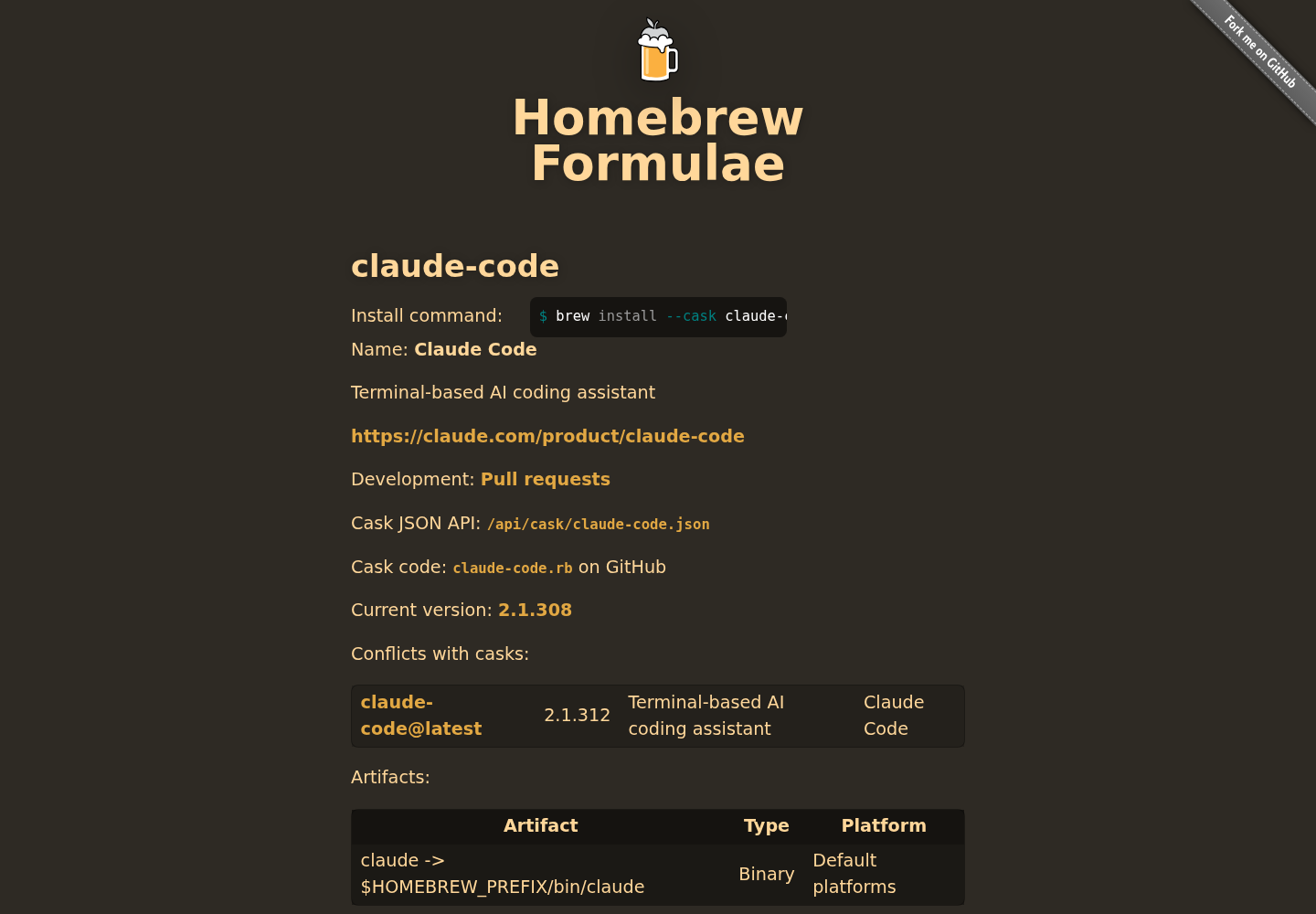
When we fetched Homebrew’s claude-code formula page on Oct 29, 2026, it listed the claude-code cask at 2.1.308 and the conflicting claude-code@latest cask at 2.1.312. That gap is the stable channel doing its job, and it explains the next two sections.
Which install method owns the update
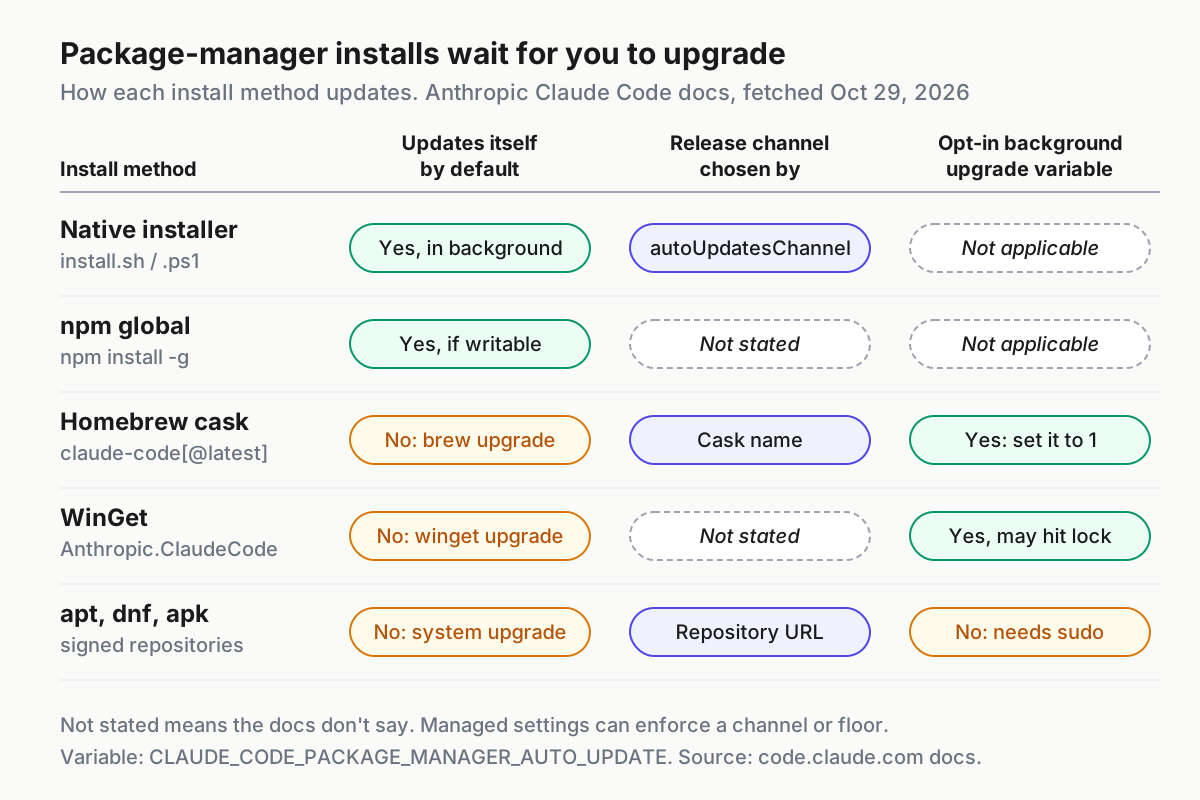
Once you know the method, the update command and the channel control follow from it. This table is filled from the Advanced setup page. Anthropic’s Claude Code overview states the same split in its install tabs: native installations update automatically in the background, while Homebrew and WinGet installations do not and need brew upgrade or winget upgrade.
| Method | Updates itself? | Channel chosen by | Update command | How to switch channel |
|---|---|---|---|---|
| Native installer | Yes, in the background; applies at next start | autoUpdatesChannel (latest by default, or stable), set at install time or later |
claude update |
/config or settings.json |
| npm global | Yes, when the npm global directory is writable; otherwise a one-time notice | Not stated in the docs | npm install -g @anthropic-ai/claude-code@latest |
Not stated |
| Homebrew | No; opt in with CLAUDE_CODE_PACKAGE_MANAGER_AUTO_UPDATE=1 |
Cask name: claude-code is stable, claude-code@latest is latest |
brew upgrade claude-code or brew upgrade claude-code@latest |
Uninstall one cask, install the other |
| WinGet | No; same opt-in, which can fail while Claude Code runs | Not stated | winget upgrade Anthropic.ClaudeCode |
Not stated |
| apt | No; arrives with system upgrades | Repository URL and suite | sudo apt update && sudo apt upgrade claude-code |
Rewrite the deb line |
| dnf | No | baseurl in the repo file |
sudo dnf upgrade claude-code |
Change baseurl |
| apk | No | Repository line | apk update && apk upgrade claude-code |
Swap the repository line |
Three method-specific rules prevent most self-inflicted problems:
- Don’t use
npm update -g. The docs warn that it respects the semver range from your original install and may not move you to the newest release. Usenpm install -g @anthropic-ai/claude-code@latest. - Never
sudo npm install -g. Anthropic calls it a source of permission issues and security risks. If the npm global directory isn’t writable, Claude Code shows a one-time notice andclaude doctorlists the fixes, or you can move to the native installer. - Run
brew cleanupnow and then. Homebrew keeps old versions on disk after upgrades.
The opt-in for Homebrew and WinGet is worth knowing. With CLAUDE_CODE_PACKAGE_MANAGER_AUTO_UPDATE set to 1, Claude Code runs the upgrade command for the Claude Code package only, in the background, and shows a restart prompt on success. On WinGet the upgrade may fail while Claude Code is running because Windows locks the executable, and Claude Code then shows the manual command instead. apt, dnf and apk never get this, because their upgrade commands need elevated privileges.
Why claude update says up to date when a fix is out
Start by reading the exact message. Per the setup docs, a successful run prints Successfully updated from <old version> to version <new version>. A native install that is already current prints Claude Code is up to date (<version>). Installs managed by Homebrew, WinGet or apk print Claude is up to date! instead. If you see that last form, Claude Code has deferred to the package manager, and claude update was never going to move you.
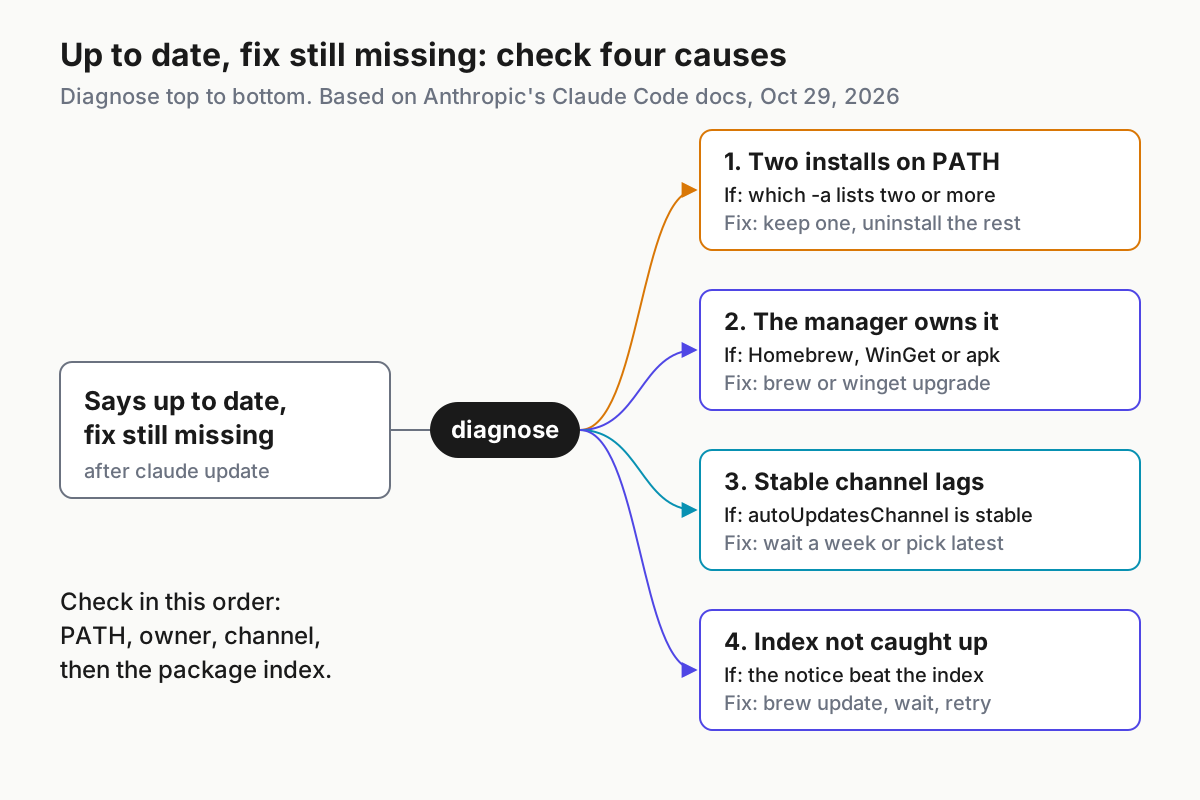
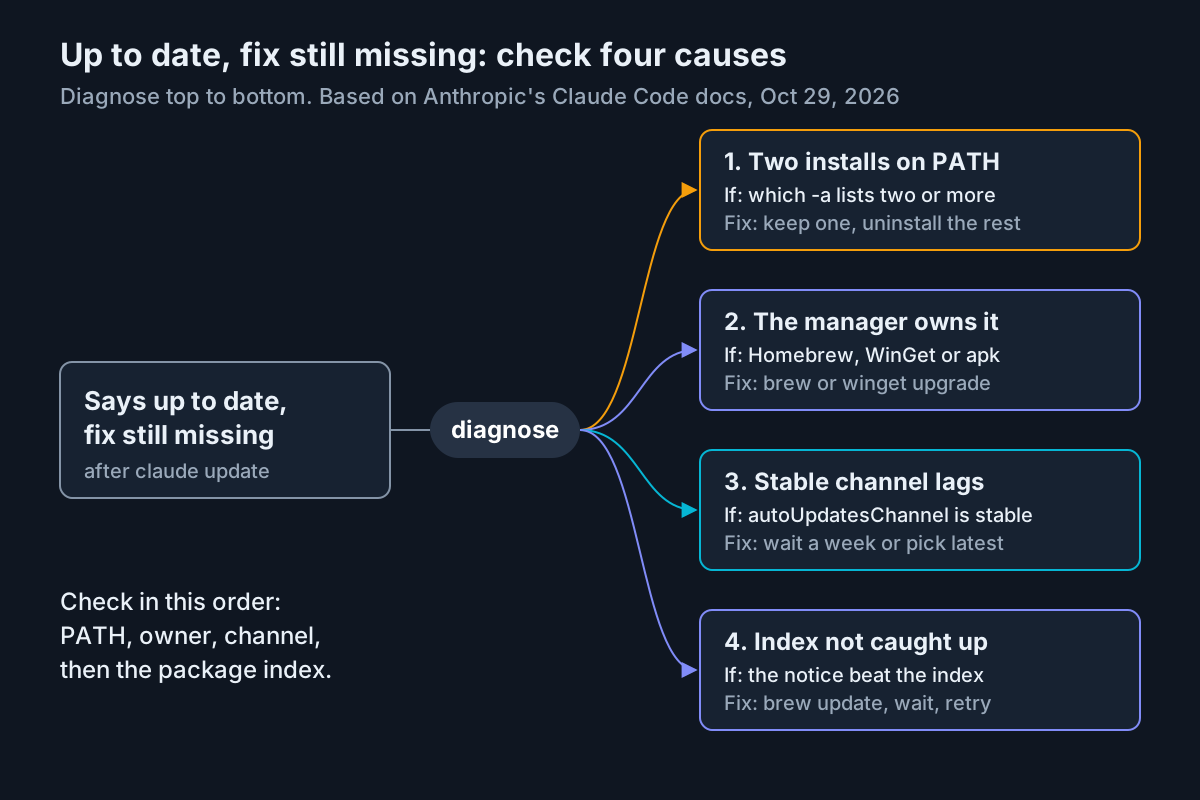
Check the causes in this order, because each one hides the next:
- Two installs on PATH. You updated one binary and run the other.
which -a claude(orwhere.exe claude) shows two or more lines. Keep one and uninstall the rest; the troubleshooting page recommends keeping the native install. - A package manager owns the binary. Homebrew installs choose a channel by cask name and ignore
autoUpdatesChannel. Ifbrew list --caskprintsclaude-code, you are on stable, andbrew upgrade claude-codeonly moves you as far as the stable cask goes. Runbrew upgrade --cask claude-code@latestagainst a cask you didn’t install and Homebrew printsError: Cask 'claude-code@latest' is not installed. - You are on the stable channel. Stable serves a version that is typically about one week old and skips releases with major regressions. A fix shipped yesterday is on latest, not stable. The docs add one consequence that catches people: a newly launched model can require a version newer than stable serves, and the fix is to move to latest.
- The package index hasn’t caught up. Anthropic lists a known issue: Claude Code may notify you of an update before the new version reaches Homebrew, WinGet, apt, dnf or apk. Wait and retry. If Homebrew installs an older version than you expect, a stale local index is the usual cause, and
brew updaterefreshes it.
Two settings explain related surprises. minimumVersion is a floor: background updates and claude update refuse to install anything below it, so moving from latest to stable doesn’t silently downgrade you. And if your organization deploys managed settings, it can enforce the channel for everyone, which means your own autoUpdatesChannel edit has no effect. Note also what DISABLE_UPDATES does: it blocks claude update and claude install entirely, so you get a refusal rather than an “up to date” message.
Choose the stable or latest channel on purpose
The channel decides how quickly you see fixes and how often you see regressions. Use this decision table, then follow the steps for your method.
| Your situation | Pick | Why |
|---|---|---|
| You need a fix or model support that shipped this week | latest | Stable typically trails by about a week |
| You want fewer surprises and can wait a week for fixes | stable | Stable skips releases with major regressions |
| You test changes for a team before rolling them out | latest on one machine, stable elsewhere | One canary catches what stable would skip |
| Your admin enforces a channel | Whatever managed settings say | User settings can’t override it |
Switching steps by method:
- Native: open
/configand change Auto-update channel, or set"autoUpdatesChannel": "stable"or"latest"insettings.json. When you move from latest to stable through/config, Claude Code asks whether to stay on your current version or allow the downgrade. Staying setsminimumVersionto that version; switching back to latest clears it. - Native, at install time: run
claude install stableorclaude install latest. The channel you choose at install time becomes your default for auto-updates. - Homebrew: the two casks conflict, so remove one before installing the other:
brew uninstall --cask claude-code, thenbrew install --cask claude-code@latest. Reverse the names to go back to stable. - apt, dnf, apk: change the repository, then upgrade, using the commands below.
# apt: both the URL path and the suite name change for latest
echo "deb [signed-by=/etc/apt/keyrings/claude-code.asc] https://downloads.claude.ai/claude-code/apt/latest latest main" \
  | sudo tee /etc/apt/sources.list.d/claude-code.list
sudo apt update && sudo apt upgrade claude-code

# dnf: edit /etc/yum.repos.d/claude-code.repo so it reads
# baseurl=https://downloads.claude.ai/claude-code/rpm/latest
sudo dnf upgrade claude-code

# apk: drop the stable line, add the latest line
sed -i '\|downloads.claude.ai/claude-code/apk/stable|d' /etc/apk/repositories
echo "https://downloads.claude.ai/claude-code/apk/latest" >> /etc/apk/repositories
apk update && apk upgrade claude-code
If you manage several machines, don’t flip the whole fleet at once. Our guide to canarying CLI upgrades for default and compaction drift covers that rollout; this guide stays on the single machine in front of you.
Control auto-updates with one settings.json block
Auto-update control lives in two places: the autoUpdatesChannel and minimumVersion keys, and variables in the env block. Here is a complete user settings file for a native install that follows stable, refuses to drop below a known-good version, stops background checks, and still keeps plugins current. The values are the docs’ own examples.
{
  "autoUpdatesChannel": "stable",
  "minimumVersion": "2.1.100",
  "env": {
    "DISABLE_AUTOUPDATER": "1",
    "FORCE_AUTOUPDATE_PLUGINS": "1"
  }
}
For a Homebrew or WinGet install where you want Claude Code to run the upgrade for you, the block is one line:
{
  "env": {
    "CLAUDE_CODE_PACKAGE_MANAGER_AUTO_UPDATE": "1"
  }
}
What each control stops, and what it leaves working:
| Control | Stops | Still works |
|---|---|---|
DISABLE_AUTOUPDATER=1 |
Background update checks | claude update, claude install |
DISABLE_UPDATES=1 |
Every update path, including manual | Nothing updates until you remove it |
FORCE_AUTOUPDATE_PLUGINS=1 |
Nothing; it forces plugin auto-updates while DISABLE_AUTOUPDATER is set |
Plugin updates |
CLAUDE_CODE_PACKAGE_MANAGER_AUTO_UPDATE=1 |
Nothing; it lets Claude Code run brew or winget upgrades |
Homebrew and WinGet only |
CLAUDE_CODE_DISABLE_NONESSENTIAL_TRAFFIC (any non-empty value) |
Auto-updates, plus telemetry, release notes and more | Manual updates |
minimumVersion |
Updates below the floor | Updates above it |
Choose DISABLE_AUTOUPDATER for a personal pin, because you can still update by hand. Choose DISABLE_UPDATES only when you distribute Claude Code through your own channel and users must stay on the version you provide; the setup docs recommend it for installs on network storage shared by several machines, where an in-place npm upgrade on one machine would delete the binary that sessions on the others are still running. The last row is the one people forget: CLAUDE_CODE_DISABLE_NONESSENTIAL_TRAFFIC also turns off auto-updates, and setting it to 0 or false still counts as set.
Verify the result. On a native or npm install, run claude doctor and read the Auto-updates line. With the block above it should show disabled (set by env: DISABLE_AUTOUPDATER) instead of enabled. If claude doctor reports a settings validation error instead, your JSON has a typo, and the file’s other keys may not have loaded.
Pin a version and roll back a regression
A rollback has two halves: install the old version, and stop the updater from replacing it at the next startup. Do the second half first. This worked example rolls a native install back to 2.1.89, the version number Anthropic’s docs use in their own examples.
- Write down the bad version from
claude --version. - Freeze background updates. Add
"DISABLE_AUTOUPDATER": "1"to theenvblock. IfDISABLE_UPDATESis set, remove it for now, because it also blocksclaude install. - Clear any floor above your target. If
minimumVersionis higher than 2.1.89, lower or remove it so it doesn’t fight the rollback. If your organization setsrequiredMinimumVersionin managed settings, Claude Code refuses to start below that floor at all; stop and talk to your admin. - Install the target version with one of the documented commands below.
- Verify.
claude --versionshould print exactly the version you passed,2.1.89 (Claude Code). - Restart open sessions so they stop running the newer binary.
- Unpin when the fix lands. Remove
DISABLE_AUTOUPDATER, runclaude update, and restore your settings snapshot.
# Any working native install
claude install 2.1.89

# macOS, Linux, WSL: the installer accepts a version or a channel
curl -fsSL https://claude.ai/install.sh | bash -s 2.1.89
# Windows PowerShell
& ([scriptblock]::Create((irm https://claude.ai/install.ps1))) 2.1.89
REM Windows CMD
curl -fsSL https://claude.ai/install.cmd -o install.cmd && install.cmd 2.1.89 && del install.cmd
If you want proof that the binary is genuine, each release from 2.1.89 onward publishes a manifest.json signed with Anthropic’s release key, and the setup page walks through checking a binary under ~/.local/share/claude/versions/ against it. One storage detail matters for rollbacks: the native installer keeps the version its launcher points to, any version a local session is running, and the two newest versions, and deletes the rest. Rolling back further than that downloads the old build again.
The other methods have narrower paths:
| Method | Documented rollback path | Notes |
|---|---|---|
| Native | claude install <version> or the installer with a version |
Freeze with DISABLE_AUTOUPDATER first |
| Homebrew | Switch casks (latest to stable); no older-version command is documented | For an exact old version, move to the native installer |
| WinGet | None documented | Same: native installer with a version |
| apt, dnf, apk | Switch the repository channel | Exact versions aren’t covered in the docs |
| npm | @latest is the documented tag |
npm also accepts an exact version such as @2.1.89 in place of the tag; this is standard npm syntax, not shown in Anthropic’s docs |
For a container image, you can pin with the same documented pieces. This Dockerfile is illustrative: it sets WORKDIR /tmp because the troubleshooting page warns that running the installer from / scans the whole filesystem and can hang, installs one exact version, and blocks updates inside the image.
WORKDIR /tmp
RUN curl -fsSL https://claude.ai/install.sh | bash -s 2.1.89
ENV PATH="/root/.local/bin:${PATH}"
ENV DISABLE_UPDATES=1
Rebuild the image to move the pin. The PATH line assumes the build runs as root, so the launcher lands in /root/.local/bin; adjust it for another user.
Finish a restart-to-apply update without losing your session
Claude Code checks for updates at startup and periodically while it runs. Updates download and install in the background, then take effect the next time you start it. With CLAUDE_CODE_PACKAGE_MANAGER_AUTO_UPDATE on, a successful Homebrew or WinGet upgrade shows a restart prompt. Either way, the running session is still on the old binary, and nothing is lost by finishing your turn first.
- Let the current turn finish. There is no rush; the old binary keeps working.
- Exit the session from the directory you were working in.
- Reopen the same conversation.
claude -ccontinues the most recent conversation in the current directory. For a named session, useclaude -r "<session name>". - Confirm the new version with
claude --version. - Restart background sessions too.
claude respawn --allrestarts every running background session with its conversation intact, which the CLI reference names as the way to pick up an updated binary. - If the WinGet upgrade failed because the executable was locked, close Claude Code and run
winget upgrade Anthropic.ClaudeCodeyourself.
A red Auto-update failed · Run claude doctor line in the session footer means the background update didn’t install. You can keep working. claude doctor will show Last update attempt: failed (install_failed) with a date but no cause, so run claude update from your shell instead; its error message matches an entry on the troubleshooting page. On Windows, if claude is “not recognized” right after an update, the swap of claude.exe failed and a claude.exe.old.<timestamp> backup is sitting in %USERPROFILE%\.local\bin; the troubleshooting table below has the one-line restore.
Editor integrations add a wrinkle. The VS Code extension bundles its own private copy of the CLI and updates through the Extensions view, as our VS Code extension setup guide explains. The JetBrains plugin runs whatever claude it finds, so an outdated binary on PATH looks like a plugin bug; our JetBrains plugin guide shows how to point it at a specific path.
Uninstall cleanly, method by method
Uninstall the way you installed. The commands below are from the setup page.
| Method | Commands |
|---|---|
| Native, macOS/Linux/WSL | rm -f ~/.local/bin/claude then rm -rf ~/.local/share/claude |
| Native, Windows PowerShell | Remove-Item -Path "$env:USERPROFILE\.local\bin\claude.exe" -Force then Remove-Item -Path "$env:USERPROFILE\.local\share\claude" -Recurse -Force |
| Homebrew stable | brew uninstall --cask claude-code |
| Homebrew latest | brew uninstall --cask claude-code@latest |
| WinGet | winget uninstall Anthropic.ClaudeCode |
| apt | sudo apt remove claude-code then sudo rm /etc/apt/sources.list.d/claude-code.list /etc/apt/keyrings/claude-code.asc |
| dnf | sudo dnf remove claude-code then sudo rm /etc/yum.repos.d/claude-code.repo |
| apk | apk del claude-code, then remove the repository line with sed and delete /etc/apk/keys/claude-code.rsa.pub |
| npm global | npm uninstall -g @anthropic-ai/claude-code |
| Legacy local npm | rm -rf ~/.claude/local |
Then check your work:
- Open a new terminal, because the old one keeps its PATH.
- Run
which -a claudeorwhere.exe claude. No output, orINFO: Could not find files for the given pattern(s).on Windows, means noclaudeis left on PATH. - If
claudestill runs, the docs name two causes: a second installation, or a leftover shell alias from an older installer. Repeat the binary checks above to find which.
If you are switching methods rather than leaving, install the new method before you delete config. Your settings, MCP servers and history live outside the binary and carry over.
Keep or remove: the config decision table
Removing the binary leaves your configuration behind on purpose. Anthropic warns that deleting the config directories removes all your settings, allowed tools, MCP server configurations and session history. Decide per path.
| Path | What it holds | Keep when | Remove when |
|---|---|---|---|
~/.claude/settings.json |
Your user settings, including channel and update controls | Switching methods or reinstalling | Starting completely fresh |
~/.claude/ (rest of the directory) |
Session history, plugins under ~/.claude/plugins, MCP configuration, downloads |
You may come back, or want old transcripts | Leaving Claude Code for good |
~/.claude.json |
Global config, including the recorded install method and per-project entries | Switching methods | Leaving for good |
~/.claude/.credentials.json (macOS Keychain normally) |
Your login when the Keychain rejected the write | Never needed after leaving | Run /logout first; it removes stored credentials, MCP server logins and plugin secrets |
Project .claude/ |
Shared or local project settings | Teammates still use it, or it’s committed | Only your local copy, and only if nobody else relies on it |
Project .mcp.json |
Project-scoped MCP servers | It’s committed for the team | It’s yours alone |
A clean exit, in order:
- Run
/logoutinside a session so credentials don’t linger. - Optionally run
claude purge ~/path/to/repo --dry-runto preview what Claude Code would delete for one project, then run it without--dry-run. - Uninstall the VS Code extension, the JetBrains plugin and the Desktop app if you have them. They also write to
~/.claude/and will recreate it the next time they run. - Remove the binary with the table in the previous section.
- Delete config:
rm -rf ~/.claudeandrm ~/.claude.json, then, from each project directory,rm -rf .claudeandrm -f .mcp.json. On Windows, the documented equivalents useRemove-Itemon$env:USERPROFILE\.claudeand$env:USERPROFILE\.claude.json.
If you set CLAUDE_CONFIG_DIR, your settings, history and plugins live under that directory instead of ~/.claude, so delete that path.
Troubleshooting: symptom, cause, fix, expected observation
| Symptom | Likely cause | Fix | What you should see after |
|---|---|---|---|
| Version never moves | Stable channel, about a week behind | Wait, or switch to latest | Newer version from claude --version after the switch |
| Version wrong after switching methods | Old install first on PATH | which -a claude, uninstall the extra |
One path listed |
Claude is up to date! but a fix is out |
Homebrew, WinGet or apk owns the binary | Upgrade through that manager, or switch cask | Package manager reports the upgrade |
Cask 'claude-code@latest' is not installed |
Upgrading a cask you don’t have | brew list --cask | grep claude-code, upgrade what it prints |
Upgrade runs |
Cask 'claude-code' is unavailable |
Stale Homebrew index | brew update, then install again |
Cask installs |
| npm permission error on update | npm global directory not writable | Follow the fixes claude doctor lists, or use the native installer; never sudo npm |
Update completes as your user |
npm error code ENOTEMPTY |
Leftover package directory from an interrupted run | Delete the directory the npm error path line names, then reinstall |
claude --version prints a version |
| Updates silently stopped | DISABLE_AUTOUPDATER or CLAUDE_CODE_DISABLE_NONESSENTIAL_TRAFFIC set somewhere |
Read the Auto-updates line in claude doctor; remove the variable from shell or settings |
Auto-updates shows enabled |
| Channel keeps reverting | Managed settings enforce it | Ask your admin; user settings can’t override | Matches policy |
claude update hangs after Checking for updates |
Before v2.1.214, a directory at a shell config path | Move the directory aside or rerun the install script | Command completes |
Release verification failed |
The release couldn’t be confirmed genuine; nothing installed | Rerun claude update or claude install |
Successfully updated from line |
The connection dropped while downloading the update |
Proxy or network cut a large download | Rerun; set HTTPS_PROXY if your network needs one |
Download completes |
Auto-update and claude update ignore your launcher |
Custom script or symlink at ~/.local/bin/claude |
Remove it and run claude update |
claude doctor stops flagging the launcher |
'claude' is not recognized right after an update on Windows |
Swap failed; backup left behind | Run the restore below | claude --version prints a version |
claude still runs after uninstall |
Second install or an old shell alias | Repeat the binary checks | Nothing on PATH |
The Windows restore command from the troubleshooting page renames the newest backup:
Get-ChildItem "$env:USERPROFILE\.local\bin\claude.exe.old.*" | Sort-Object Name | Select-Object -Last 1 | Rename-Item -NewName claude.exe
If there’s no claude.exe.old.* file, reinstall with irm https://claude.ai/install.ps1 | iex.
Success and failure checks
You’re done when every box in the first list is ticked and none in the second applies.
- [ ]
which -a claudeorwhere.exe claudelists exactly one binary. - [ ]
claude --versionprints the version you intended. - [ ]
claude doctorshows no settings errors and an Auto-updates state that matches your choice. - [ ] The channel you meant to use is the one in force: the
autoUpdatesChannelvalue, the Homebrew cask name, or the repository URL. - [ ] Open and background sessions were restarted after the change.
- [ ] Your settings snapshot is saved until you are sure you won’t roll back.
Failure signals worth catching early:
- [ ] Two paths appear on PATH after a method switch.
- [ ] A pin moves on its own, which means
DISABLE_AUTOUPDATERdidn’t load or managed settings override you. - [ ]
claude doctorlists a launcher the native installer didn’t create. - [ ] The version jumps back after a restart, which means a second install is winning again.
Version floors matter elsewhere too. Our Claude Code sandbox setup guide starts with a version check because sandbox fixes reach latest before stable, and the Remote Control troubleshooting guide lists the versions its flags need. If you are writing these update controls into policy for many machines rather than one, read Claude Code permission modes as fleet policy next, and keep the power user’s field guide for everything that happens after the binary is right.
Sources
- Scott McIntosh (@NashvilleTech), “How to update Claude Code” post on X, Oct 28, 2026.
- Anthropic, Advanced setup: Claude Code Docs, fetched Oct 29, 2026.
- Anthropic, Troubleshoot installation and login: Claude Code Docs, fetched Oct 29, 2026.
- Anthropic, Environment variables: Claude Code Docs, fetched Oct 29, 2026.
- Anthropic, CLI reference: Claude Code Docs, fetched Oct 29, 2026.
- Anthropic, Overview: Claude Code Docs, fetched Oct 29, 2026.
- Homebrew, claude-code cask formula page, fetched Oct 29, 2026.