Claude Code Remote Control: Set It Up From Your Phone and Fix Disconnects
Set up Claude Code Remote Control in server mode under tmux, connect from your phone, read the saved spawn-mode messages and fix each documented error.

Go deeper. Build your own.
You started a refactor at your desk. Now you want to answer Claude’s next permission prompt from your phone on the way to a meeting. Claude Code Remote Control is built for that: the Claude app or claude.ai/code becomes a window onto a session that keeps running on your own machine, with your filesystem, MCP servers and project configuration still in place. When it works, the phone lists the session with a computer icon and a green dot. When it doesn’t, you get one of about twenty specific messages, and each one points at a different layer.
This tutorial is for an individual developer on a claude.ai Pro, Max, Team or Enterprise plan who wants a setup that keeps working away from the desk and a quick way to diagnose it when it stops. You will finish with three things. The first is a server-mode session running inside tmux in a git repository, where every session you start from the phone gets its own worktree and is checked from the phone. The second is a filled error-to-fix table built only from messages in Anthropic’s Remote Control documentation. The third is a rollback that returns the machine to local-only use.
The commands follow that documentation. Where this guide says what you should see, it quotes or paraphrases the docs. We did not record a run for this guide, and the repository and host names are illustrative.
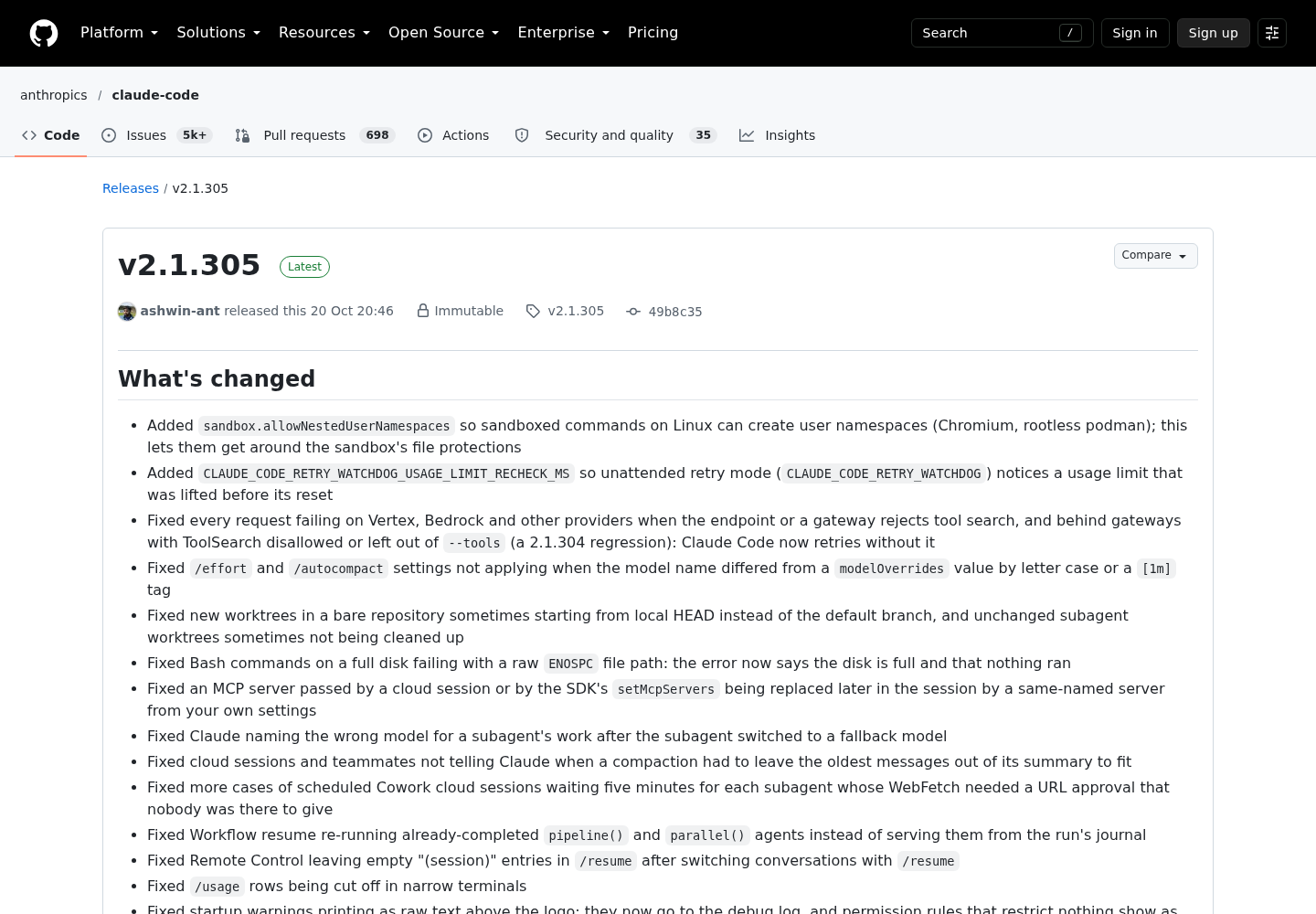
One paragraph of background. Anthropic announced Remote Control on X on Feb 24, 2026 as a way to start a task in your terminal and pick it up from your phone while Claude keeps running on your machine. The latest change arrived in Claude Code v2.1.305, published on GitHub on Oct 20, 2026. Pressing w in server mode now says the new spawn mode is saved for the folder. A later claude remote-control start that uses the saved mode says where the mode came from. Remote Control also stopped leaving empty “(session)” entries in /resume after you switch conversations. The day before, v2.1.304 fixed two Desktop bugs. Remote Control could fail to start from Claude Desktop when DISABLE_TELEMETRY or DO_NOT_TRACK was set on a paid plan, and it could permanently withhold a desktop conversation’s history when a different account was signed in to the terminal. Those fixes matter in two places below. Everything else applies to any recent version.
Two related questions are out of scope here. Runs Locally Is Not Stays Local covers what the relay stores while you are connected. Never From a 6-Inch Screen covers which approvals are safe to grant on a phone.
Four checks before the first command
Remote Control can refuse to start for reasons unrelated to your network. A minute of checking avoids a confusing loop of retries. Version, login type, API endpoint and organization policy decide whether it can run at all. Run these from the project directory you plan to control. The script in the worked example below automates the same checks.
# Preflight (illustrative): run in the repository you will control remotely
claude --version     # 2.1.305 or later for the spawn-mode messages in this guide
claude doctor        # reports which individual eligibility check failed, if any
env | grep -E 'ANTHROPIC_(API_KEY|AUTH_TOKEN|BASE_URL)|CLAUDE_CODE_(USE_BEDROCK|OAUTH_TOKEN|DISABLE_NONESSENTIAL_TRAFFIC)|DISABLE_GROWTHBOOK|DISABLE_TELEMETRY|DO_NOT_TRACK'
git rev-parse --is-inside-work-tree   # prints true inside a git work tree
claude --version and claude doctor come from Anthropic’s documentation. The last two lines are ordinary shell and git. You want the grep to print nothing. Any line it does print is a candidate blocker, and the checklist below says which one. The same variables can also live in the env block of a settings file, so check ~/.claude/settings.json and the project’s .claude/settings.json too.
- [ ] The version is current.
claude --versionprints a version number. The Claude Code overview says native installs update in the background. Homebrew installs don’t. Theclaude-codecask tracks the stable channel, typically about a week behind, so a fresh release such as 2.1.305 may not be there yet. Theclaude-code@latestcask gets new versions as soon as they ship, andbrew upgrademoves either cask forward. WinGet installs needwinget upgrade Anthropic.ClaudeCode. Older versions still run Remote Control, but some behaviour has its own minimum version: v2.1.200 for--continueand--session-id, v2.1.238 for recovering crashed server-mode sessions, and v2.1.283 for running withDISABLE_TELEMETRYorDO_NOT_TRACKset. - [ ] You are signed in through claude.ai with a full-scope login. Remote Control is available on Pro, Max, Team and Enterprise plans, and API keys are not supported. A long-lived token from
claude setup-tokenorCLAUDE_CODE_OAUTH_TOKENcan only make model requests, so it can’t start a session either. If the grep printedANTHROPIC_API_KEYorANTHROPIC_AUTH_TOKEN, remove it from your shell and from any settingsenvblock. AnapiKeyHelpersetting counts as well. Then runclaude auth loginand pick the claude.ai option. - [ ] Traffic goes to api.anthropic.com. Remote Control is unavailable on Amazon Bedrock, Google Cloud’s Agent Platform and Microsoft Foundry. It is also unavailable when you sign in through an enterprise Claude apps gateway, and whenever
ANTHROPIC_BASE_URLpoints at another host, such as an LLM gateway or proxy. Unset the variable for Remote Control work. - [ ] Feature flags can be evaluated. Setting
CLAUDE_CODE_DISABLE_NONESSENTIAL_TRAFFICorDISABLE_GROWTHBOOKmakes Remote Control unavailable. Setting onlyDISABLE_TELEMETRYorDO_NOT_TRACKis fine unless your organization requires Trusted Devices. - [ ] Your organization allows it. On Team and Enterprise, Remote Control stays off until an Owner turns on its toggle at claude.ai/admin-settings/claude-code. Organizations with Zero Data Retention or the HIPAA configuration can’t enable it. Inside any session,
/statusshows which plan and organization your sign-in uses. - [ ] The phone is ready. The Claude Code mobile docs say to install the Claude app for iOS or Android and sign in with the same claude.ai account and organization you use in the terminal. If you don’t have the app,
/mobileinside Claude Code shows a QR code for claude.ai/mobile, which opens the right app store. - [ ] The host can keep a process running. On a remote machine, install tmux or screen. For worktree spawning, the project must be a git repository or have a
WorktreeCreatehook.
Choose server mode, an --rc session or /remote-control
The CLI offers three ways to start, and they suit different situations. Pick by where your work is right now.
| Your situation | Use | Command | What you get | What you give up |
|---|---|---|---|---|
| You want to start and switch between several sessions from the phone, possibly on a box you reach over SSH | Server mode | claude remote-control |
One process serving many sessions (up to 32 by default), spawn modes, a session URL and a QR code on spacebar | The terminal shows connection status and tool activity, not a prompt you type into |
| You are starting fresh and want to type at the desk too | Interactive session | claude --remote-control "My Project" or claude --rc |
A normal interactive session that you can also drive from claude.ai or the app | One remote session per process |
| You are mid-conversation and about to leave | In-session command | /remote-control or /rc, optionally followed by a name |
The current conversation, history included | --verbose isn’t available |
| You work in VS Code | Extension command | /remote-control in the prompt box |
A footer indicator that links to the session | No name argument and no QR code |
| You work in Claude Desktop’s Code tab | App command | /remote-control in a local session |
The session in your list at claude.ai/code | The Desktop fixes need v2.1.304 or later |
Server mode is the right default for the worked example for three reasons. Inside tmux, it keeps running when you disconnect from SSH. It can give each phone-started session its own git worktree, so two sessions can’t edit the same files at once. And when you stop it with Ctrl+C, restarting in the same directory brings its sessions back for about four hours.
Watch out for this if you wrap claude in an alias. Claude Code doesn’t pass a global flag placed before remote-control (whether you typed it or a wrapper script added it) to the sessions the server creates. It lets through flags that are known not to change what those sessions can do, such as --verbose or --model. For anything else, such as --settings, it refuses to start and names the flag to remove. Put server flags after remote-control. claude remote-control --help prints the full list.
Worked example: server mode in tmux with worktree spawning
The scenario is a repository called billing-api at ~/src/billing-api on a Linux box called build-01 that you reach over SSH (illustrative names). You want to start two or three sessions from your phone during the afternoon without them editing the same checkout, and you want to approve every action manually at first.
The script below is the complete artifact for this setup. It runs the preflight checks from the first section, stops before anything starts if a blocker is set, and launches the server inside a tmux session that survives SSH drops. Save it as rc-start.sh, make it executable with chmod +x rc-start.sh, and run ./rc-start.sh ~/src/billing-api billing-api. It uses only documented claude commands and flags plus standard bash, git and tmux. We have not run it for this guide, so read each check before you rely on it.
#!/usr/bin/env bash
# rc-start.sh: preflight checks, then Claude Code Remote Control server mode inside tmux.
# Usage: ./rc-start.sh <repo-path> [session-name]
# Illustrative: documented claude commands and flags, plus standard bash, git and tmux.
set -euo pipefail

REPO="$(cd "${1:?usage: rc-start.sh <repo-path> [session-name]}" && pwd)"
NAME="${2:-$(basename "$REPO")}"
MIN_VERSION="2.1.305"   # first version with the saved spawn-mode messages
TMUX_SESSION="rc"
cd "$REPO"

# 1. Version check
current="$(claude --version | grep -Eo '[0-9]+\.[0-9]+\.[0-9]+' | head -n1 || true)"
oldest="$(printf '%s\n%s\n' "$MIN_VERSION" "$current" | sort -V | head -n1)"
if [ -z "$current" ] || [ "$oldest" != "$MIN_VERSION" ]; then
  echo "Claude Code '${current:-unknown}' is older than $MIN_VERSION. Update first." >&2
  exit 1
fi

# 2. Variables that make Remote Control unavailable or override the claude.ai login
found=0
for v in ANTHROPIC_API_KEY ANTHROPIC_AUTH_TOKEN CLAUDE_CODE_OAUTH_TOKEN \
         CLAUDE_CODE_USE_BEDROCK CLAUDE_CODE_DISABLE_NONESSENTIAL_TRAFFIC DISABLE_GROWTHBOOK; do
  if [ -n "${!v:-}" ]; then echo "Blocker: $v is set in this shell." >&2; found=1; fi
done
if [ -n "${ANTHROPIC_BASE_URL:-}" ] && [[ "$ANTHROPIC_BASE_URL" != *api.anthropic.com* ]]; then
  echo "Blocker: ANTHROPIC_BASE_URL points at $ANTHROPIC_BASE_URL." >&2; found=1
fi
for v in DISABLE_TELEMETRY DO_NOT_TRACK; do
  if [ -n "${!v:-}" ]; then echo "Note: $v is set; fine unless Trusted Devices is required." >&2; fi
done

# 3. The same names inside settings files (env block or apiKeyHelper)
for f in "$HOME/.claude/settings.json" .claude/settings.json .claude/settings.local.json; do
  if [ -f "$f" ] && grep -nE '"(ANTHROPIC_API_KEY|ANTHROPIC_AUTH_TOKEN|ANTHROPIC_BASE_URL|CLAUDE_CODE_USE_BEDROCK|CLAUDE_CODE_DISABLE_NONESSENTIAL_TRAFFIC|DISABLE_GROWTHBOOK|apiKeyHelper)"' "$f" >&2; then
    echo "Check the lines above in $f." >&2; found=1
  fi
done
if [ "$found" -ne 0 ]; then echo "Fix the blockers, then rerun." >&2; exit 1; fi

# 4. Worktree spawning needs git; surviving an SSH drop needs tmux
if ! git rev-parse --is-inside-work-tree >/dev/null 2>&1; then
  echo "$REPO is not a git work tree; --spawn worktree needs git or a WorktreeCreate hook." >&2; exit 1
fi
if ! command -v tmux >/dev/null; then echo "Install tmux (or use screen) first." >&2; exit 1; fi

# 5. Start the server detached, keep the pane open if it exits, then attach for first-run prompts
if ! tmux has-session -t "$TMUX_SESSION" 2>/dev/null; then
  tmux new-session -d -s "$TMUX_SESSION" -c "$REPO" \
    "claude remote-control --name '$NAME' --spawn worktree --capacity 4 --permission-mode manual; echo \"Remote Control server exited with status \$?\"; exec \$SHELL"
fi
exec tmux attach -t "$TMUX_SESSION"
Three choices in the script are deliberate. It collects every blocker before exiting, so you fix them in one pass instead of meeting one refusal per retry. It starts the server detached and then attaches, because a first run asks questions (workspace trust, the one-time confirmation, possibly the spawn mode) and they need a real terminal, which a tmux pane is. And the pane falls back to a shell when claude exits, so an error message stays on screen instead of vanishing with the tmux session. It doesn’t call claude doctor. Run that yourself if the server refuses to start.
If you’d rather type it, this is the manual equivalent:
tmux new -s rc
cd ~/src/billing-api
claude remote-control --name "billing-api" --spawn worktree --capacity 4 --permission-mode manual
# later, after detaching (Ctrl-b, then d) and reconnecting over SSH:
tmux attach -t rc
Each server flag does a specific job:
| Flag | Value | Why this value |
|---|---|---|
--name |
"billing-api" |
Sets the title you look for in the session list. Without it, the server uses an auto-generated name such as myhost-graceful-unicorn |
--spawn |
worktree |
Gives each on-demand session its own git worktree. The default same-dir mode makes every session share the working directory, which the docs warn can cause conflicts when two sessions edit the same files |
--capacity |
4 |
Caps concurrent sessions well below the default of 32. Every session uses the same plan, so a low limit protects against an accidental tap on the phone. It can’t be combined with --spawn session |
--permission-mode |
manual |
manual is an accepted alias for the default mode. An unrecognised value stops the server at startup and lists the valid modes, so typos show up immediately |
If you standardise permission modes across machines, Claude Code permission modes are fleet policy explains how.
Now run it step by step:
- Run the script, or open the tmux session yourself first. Remote Control is a local process, and if its terminal closes, the session goes offline until you bring it back.
- Work from the repository. Don’t run the server from your home directory. Claude Code never saves trust there, so the trust question comes back on every run.
- In a directory you haven’t trusted yet, the server prints what trusting it turns on and asks
Trust <directory>? [y/N]. Answery. - Until you have accepted Remote Control once, the command also asks
Enable Remote Control? (y/n). Declining exits without starting the server. - If it asks
Spawn mode for this project:, answer2for worktree.1is same-dir. - Read the startup screen. The process stays in the foreground and shows a session URL. Press spacebar to show or hide a QR code for your phone.
- Notice that one session already exists, because
--create-session-in-diris on by default. In worktree mode, that pre-created session stays in the repository’s own directory. Only on-demand sessions get their own worktrees. Treat the pre-created session as the one that works on your main checkout. - Press Ctrl-b, then d, to detach from tmux, then close SSH. The server keeps running.
What each startup observation tells you:
| You see | It means | If you don’t, or see something else |
|---|---|---|
Trust <directory>? [y/N] |
First run in this folder | Workspace not trusted means stdin or stdout isn’t a terminal. Run the command interactively once |
| A session URL, and a QR code when you press spacebar | The server registered with the Anthropic API and is waiting for connections | Go to the first error table below |
Spawn mode: <mode> (saved for this folder; press w to change) |
A spawn mode was saved for this project earlier | No such line means no saved mode, so your --spawn flag applies |
| The server exits and names a flag | A global flag came before remote-control |
Remove the flag or move it after the subcommand |
Remote Control server exited with status in the pane |
claude stopped. The error is printed just above that line |
Match the error against the tables below |
The host needs no inbound firewall rule. Your local Claude Code session makes outbound HTTPS requests to the Anthropic API and never opens inbound ports, and all traffic travels over TLS.
The filled run sheet for billing-api
This is the whole afternoon for the example repository, one row per action. The expected observations come from the documentation. The host name, paths and session labels are illustrative, and the sheet is not a recorded run.
| Step | Where | Input or action | Expected observation | If you see something else |
|---|---|---|---|---|
| 1 | SSH on build-01 | ./rc-start.sh ~/src/billing-api billing-api |
No Blocker lines; the terminal switches into the rc tmux session |
A Blocker line: unset that variable or remove it from the named settings file |
| 2 | tmux pane | Answer y to Trust /home/dev/src/billing-api? [y/N] |
The prompt doesn’t come back on later runs | It asks every time: you are in your home directory |
| 3 | tmux pane | Answer y to Enable Remote Control? (y/n) |
The server starts and waits for connections | It exits: you answered n, so rerun the script |
| 4 | tmux pane | Answer 2 to Spawn mode for this project: if asked |
Worktree mode is saved for this folder | No question: a mode was already saved, so read the Spawn mode: line |
| 5 | tmux pane | Press spacebar | A QR code appears beside the session URL | An error instead of a URL: use the first error table |
| 6 | Phone | Scan the QR code, or open the Claude app, tap Code, find billing-api |
Computer icon with a green dot | Session missing: the phone is signed in to a different account or organization |
| 7 | Phone, pre-created session | “Run hostname and pwd and tell me both outputs”, then approve the prompt | A permission prompt, then a reply naming build-01 and /home/dev/src/billing-api |
No prompt and a cloud host name: you opened a cloud session |
| 8 | Phone | Start a new session and ask it to run pwd |
A path that differs from the repository root | The root path: the saved mode is same-dir |
| 9 | SSH | Ctrl-b then d, exit, reconnect, tmux attach -t rc |
The server still shows connection status; the dot stayed green | The pane is gone: the server was started outside tmux |
| 10 | tmux pane | Press w |
A message that the new mode is saved for the folder (2.1.305 or later) | No message: Claude Code is older than 2.1.305 |
| 11 | tmux pane, then SSH | Press w again to return to worktree, then Ctrl+C. At the shell the pane falls back to, type exit to end the rc tmux session, then rerun the script from the SSH prompt |
Spawn mode: worktree (saved for this folder; press w to change) and the earlier sessions return |
same-dir in that line: the last w was skipped. A bare shell instead of the server: the old rc session was still open, so exit it and rerun. Don’t run the script from inside the pane |
Row 11 matters. The script passes --spawn worktree, but a w press during any run still overwrites the saved default, as the next sections explain. The exit step matters too. Because the pane falls back to a shell when the server stops, the rc tmux session outlives the server, and rerunning the script while that session exists only reattaches to the leftover shell. If you’d rather keep the session, type the restart command from the next section at that shell instead.
Connect the phone and prove the work runs locally
A green dot proves the session is registered. It doesn’t prove that a prompt from the phone reaches the right directory. These steps check both.
- Find the session. Open the Claude app, tap Code, and look for
billing-api. You can also scan the QR code or open the session URL in any browser. Remote Control sessions show a computer icon with a green status dot while they are online. - Ask something only your machine can answer. In the pre-created session, send: “Run
hostnameandpwdand tell me both outputs.” Because the server runs in manual mode, the phone should show a permission prompt for the shell command first, unless your settings already allow it. Approve it. The reply should name your host and the repository path. - Start a second session from the phone and ask it to run
pwd. This one was started on demand in worktree mode, so its path should differ from the repository root. If it matches the root, the server is in same-dir mode. The next section explains why. - Turn on push. In a terminal session on the machine, run
/config. Enable “Push when actions required” for permission prompts and questions, “Push when Claude decides” for proactive notifications, or both. Claude typically sends a push when a long-running task finishes or needs a decision. - Test an SSH drop. Reconnect over SSH and run
tmux attach -t rc. The server should still show connection status, and the dot on the phone should have stayed green throughout.
| Check | Pass | What a failure points to |
|---|---|---|
| Session listed with a green dot | Server registered and online | Sign-in, endpoint or policy. Use the gate diagram below |
hostname reply names your machine |
The prompt ran locally | You may have opened a cloud session, not Remote Control |
The second session’s pwd differs from the root |
Worktree spawning works | The saved mode is same-dir, or the folder isn’t a git repository |
| A push arrives on the phone | The notification path works | If /config shows No mobile registered, open the app so it refreshes its push token |
| The dot stays green after SSH drops | tmux kept the process alive | The server was started outside tmux |
A few phone-side details are worth knowing. Claude Code skips pushes while you are typing in or focused on the connected terminal. On iOS, Focus modes and notification summaries can suppress or delay pushes. On Android, aggressive battery optimisation can delay them. From the app, Remote Control sessions offer Manual, Accept edits, Plan and Auto permission modes, but you can’t select Bypass permissions. Commands that only run in the terminal interface, such as /plugin and /resume, don’t work from the phone. /model and /effort work there when you pass the value as an argument, for example /model sonnet.
Running several sessions at once makes them harder to keep track of. Ten Assistants, One Boss is the broader guide to keeping parallel agents visible.
Switch spawn modes with w and read where the mode came from
v2.1.305 changed this part. It’s easy to get wrong because the choice persists. Re-attach to the server first.
tmux attach -t rc
# press w in the server pane; then stop with Ctrl+C and restart without --spawn:
claude remote-control --name "billing-api" --capacity 4 --permission-mode manual
- Press
win the server’s terminal. The server switches between same-dir and worktree. Switching requires a git repository or aWorktreeCreatehook. On 2.1.305 and later, the server’s message tells you the new mode is saved for the folder. - Understand what you just saved. The mode you switch to becomes this project’s default, even on a run you started with
--spawn same-diror--spawn worktree. Pressingwonce to see what it does would make same-dir the default next time, with no other sign. - Stop the server with Ctrl+C. Its sessions stop responding on the phone. Claude Code doesn’t archive them, provided you didn’t start the server with
--no-create-session-in-dirand weren’t running another server in the same directory. - Restart without
--spawn. The startup line now readsSpawn mode: <mode> (saved for this folder; press w to change). That line tells you where the mode came from: a choice saved in this folder, either your answer toSpawn mode for this project:or your lastw. The plain restart also brings back every session the previous server was serving. - To use a different mode for one run without changing the default, pass
--spawn <mode>on that run and don’t presswduring it.
Two related commands bring back fewer sessions. Both work for about four hours after the server stops. claude remote-control --continue brings back only the session the last server started with. claude remote-control --session-id <id> brings back one session, using the part of its claude.ai/code URL between /code/ and any ?. Neither can be combined with --spawn, --capacity or --create-session-in-dir. After four hours, run claude remote-control to start a new session.
If you work in an interactive --rc session instead, the other 2.1.305 fix applies to you. When you switch conversations with /resume, the connected device doesn’t receive the switched-to conversation’s title or earlier history. New messages go to whichever conversation is open in the terminal. Before 2.1.305, that switch could leave empty “(session)” entries in /resume. To work on the original conversation from the phone again, run /resume in the terminal and switch back.
Worktrees pile up, and someone has to own them. One Checkout, One Owner sets ownership rules for when both a CLI and a runner create worktrees in the same repository.
Turn on auto-connect and push notifications
Remote Control only starts when you run one of the three commands, unless auto-connect is on. Decide deliberately, because with auto-connect each interactive Claude Code process registers its own remote session. If you want several concurrent sessions from one process, use server mode instead.
| Setting | Where | Values | Effect |
|---|---|---|---|
| Enable Remote Control for all sessions | /config in the CLI |
true, false, default |
true connects every interactive session at start. default follows your organization’s admin default if there is one |
remoteControlAtStartup |
~/.claude/settings.json or managed settings |
true or false |
The same switch, set from a file |
remoteControlAtStartup |
A repository’s .claude/settings.json or .claude/settings.local.json |
false only |
Turns auto-connect off for that repository, even over a managed true. A checked-in true is ignored |
| Connect new sessions to Remote Control | Desktop: Settings > Claude Code | on or off | Auto-connect for Desktop sessions |
| Enable Remote Control for all sessions | VS Code command menu, Settings section | on or off | Auto-connect for extension sessions |
| Push when Claude decides, Push when actions required | /config |
on or off | The only two push controls. There is no per-event configuration |
CLAUDE_CLIENT_PRESENCE_FILE |
Environment variable | a marker file path | Skips pushes while the file exists |
disableRemoteControl |
Settings | true |
Turns Remote Control off entirely |
The user-level file that turns on auto-connect for every interactive session:
{
  "remoteControlAtStartup": true
}
The repository opt-out, checked into .claude/settings.json:
{
  "remoteControlAtStartup": false
}
Auto-connect signs in with your own claude.ai account. A session it starts appears only in your own account’s Claude apps and gives no one else access. One case is easy to miss. With only DISABLE_TELEMETRY or DO_NOT_TRACK set, sessions don’t auto-connect through the admin default or Claude Code’s own default. If your organization doesn’t require Trusted Devices, set the toggle to true yourself (v2.1.283 or later). If it does, unset the variable.
The presence file is useful if pushes reach your phone while you are sitting at the machine. Point CLAUDE_CLIENT_PRESENCE_FILE at a marker path and have a screen-lock listener create the file when the screen unlocks and delete it when the screen locks. Pushes are skipped while the file exists.
When you want --cloud instead
The two flags look alike but do different things. The cloud sessions docs state that --cloud creates a session on cloud infrastructure, while --remote-control is unrelated: it lets you monitor and steer a local CLI session. Choosing the wrong one is a common reason a prompt from the phone can’t see your local edits.
| Question | Remote Control | Cloud session |
|---|---|---|
| Where Claude runs | Your machine | Cloud infrastructure, Anthropic-managed by default |
| Must your computer stay on? | Yes, with the claude process running |
No |
| Local MCP servers and tools | Available | Not your local ones |
| Code it works on | Your working tree, including uncommitted edits | Your GitHub remote at the current branch, so push first |
| How you start it | claude remote-control, claude --rc or /rc |
claude --cloud "task", the app, or claude.ai/code |
| Moving between them | No handoff needed | claude --teleport pulls a cloud session into your terminal. Run /remote-control there to keep steering from the phone |
The docs’ guidance is to use Remote Control when you are in the middle of local work and want to continue from another device. Use a cloud session when you want to start without local setup, work on a repository you haven’t cloned, or run several tasks in parallel with the laptop closed. Anthropic’s projects coordinator combines the two: its threads run in the cloud and use Remote Control when you ask for a thread on your own computer.
Error-to-fix table: messages before the session comes online
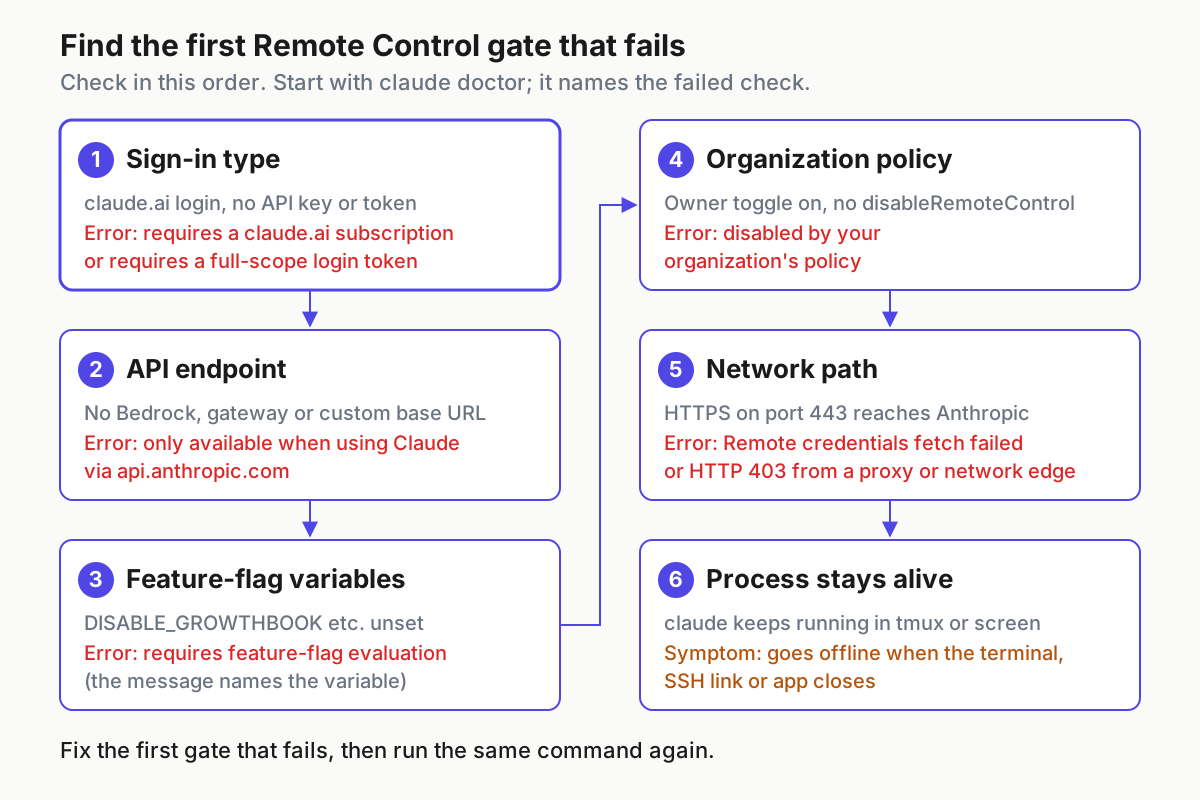
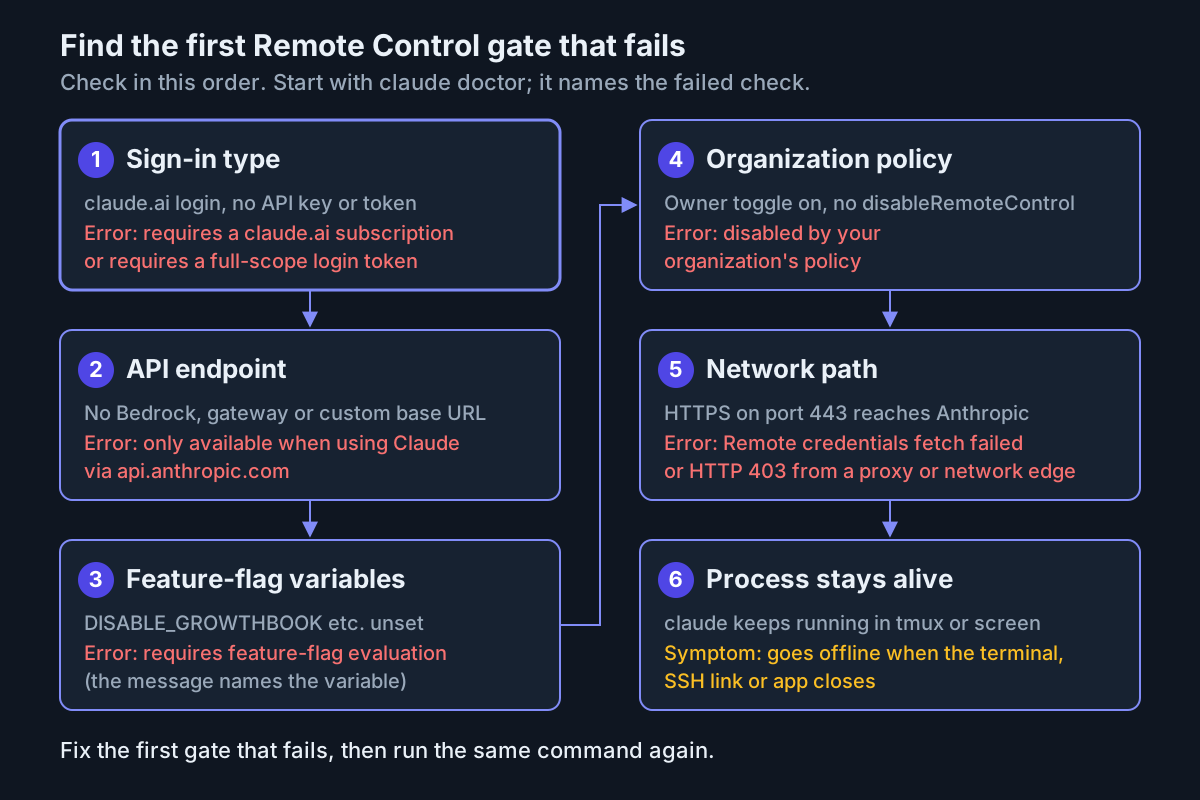
First-day failures often stack, and a credential problem can hide an endpoint problem. Check the layers in order, starting with claude doctor, which reports which individual eligibility check failed. The diagram gives the order. The table maps each documented message to its fix.
| Message (as documented) | Cause | Fix |
|---|---|---|
Remote Control requires a claude.ai subscription. or You must be logged in to use Remote Control. |
Signed out | claude auth login, then choose the claude.ai option |
Remote Control requires claude.ai subscription auth. followed by the credential in use, such as ANTHROPIC_API_KEY is set |
An API key, ANTHROPIC_AUTH_TOKEN or apiKeyHelper takes precedence over your login |
Remove it from the shell and from any settings env block, then sign in |
Remote Control requires a full-scope login token |
A token from claude setup-token or CLAUDE_CODE_OAUTH_TOKEN |
claude auth login to get a full-scope session token |
Unable to determine your organization for Remote Control eligibility |
Stale or incomplete cached account information | claude auth login |
Remote Control isn't enabled for this account |
Entitlements cached before a plan change | claude auth logout, then claude auth login. Update Claude Code if it’s old |
Couldn't verify Remote Control eligibility |
You are offline, or a proxy blocks the feature-flag check | Retry with network access, or run claude doctor |
Remote Control requires feature-flag evaluation |
A variable that turns off flag evaluation is set. The message names it | Unset CLAUDE_CODE_DISABLE_NONESSENTIAL_TRAFFIC or DISABLE_GROWTHBOOK. For DISABLE_TELEMETRY or DO_NOT_TRACK, update to 2.1.283 or later |
Remote Control is only available when using Claude via api.anthropic.com |
Bedrock, Agent Platform, Foundry, or a custom ANTHROPIC_BASE_URL |
Unset the variable the message names, including in settings env, then restart the session |
Remote Control is disabled by your organization's policy |
One of four policy causes (see below) | Read the full message, then check /status |
Couldn't verify your organization's policy for remote control |
Started offline or before a VPN connected, or a proxy interfered | Restore the network and rerun. If it persists, read the Organization policy line in claude doctor |
Remote credentials fetch failed |
Not signed in, port 443 blocked, or session creation failed | Rerun with claude remote-control --verbose to see the full error |
Remote Control got an unexpected server response |
A server reply this version can’t read. Retrying on the same version fails the same way | claude update, then /remote-control |
Your organization requires Trusted Devices for Remote Control, but this device is not enrolled |
Trusted Devices is on and this machine hasn’t enrolled | /login. Enrollment happens during sign-in |
session expired for trusted-device check |
Your sign-in is more than 18 hours old | /login, or confirm with Face ID, Touch ID, Windows Hello or a passkey |
Workspace not trusted |
The command couldn’t ask its trust question because it wasn’t run from a terminal | Run it once interactively and answer y |
Desktop won’t start Remote Control with DISABLE_TELEMETRY or DO_NOT_TRACK set on a paid plan |
Bug fixed in v2.1.304 | Update Claude Code |
Three rows need more than a table cell.
The organization-policy message has four causes, and the docs say to check them in this order:
- If the message mentions
disableRemoteControl, your IT administrator turned Remote Control off on this device through managed settings, regardless of the organization toggle. - If your claude.ai plan is Pro or Max, Claude Code may still be signed in under a Team or Enterprise organization from an earlier login. Run
/status, thenclaude auth logoutandclaude auth login. - If the message doesn’t tell you to contact your organization admin, the HIPAA configuration may be applied.
/statusshows HIPAA on the Organization configuration line. - Otherwise an Owner hasn’t turned on the Remote Control toggle at claude.ai/admin-settings/claude-code.
The api.anthropic.com message often affects developers who route everyday work through a gateway. The message names what routed the session away from the Anthropic API, such as CLAUDE_CODE_USE_BEDROCK or a custom ANTHROPIC_BASE_URL. A practical arrangement (our suggestion, not Anthropic’s) is to keep the gateway variables in a separate shell profile and start the Remote Control server from a shell that doesn’t load it.
Finally, claude doctor reports environment-variable conflicts, unreachable checks and your organization’s Remote Control setting as separate messages. So if you see Remote Control isn't enabled for this account, the account-level check itself returned off, and refreshing your login is the right fix.
Error-to-fix table: disconnects after it was online
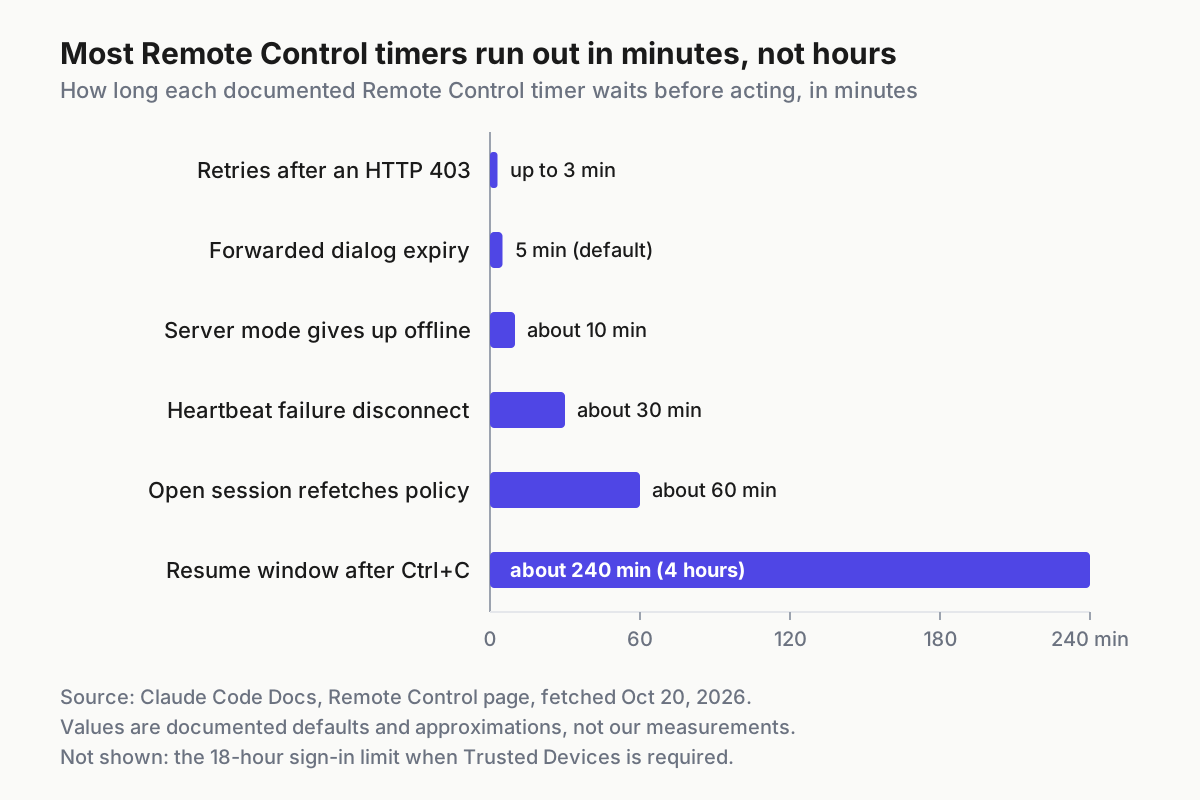
Once a session has been online, failures look different. Some fix themselves, some need one command, and one ends the server process. The chart shows how long each documented timer waits before it acts, which tells you how long to wait before you do anything.
| What you see | Cause | What to do |
|---|---|---|
| The phone shows the session offline after you closed the terminal or SSH | The local claude process stopped |
Run it inside tmux or screen next time. claude remote-control in the same directory brings sessions back within about four hours |
| Laptop slept or the network dropped briefly | An ordinary interruption | Nothing. Claude Code reconnects when the machine is back online |
| The server-mode process exited during a long outage | Server mode gives up after roughly 10 minutes without network | Run claude remote-control again |
| An interactive session lost the network | It keeps retrying for as long as the outage lasts | Keep working locally |
| A disconnect that names a network edge, or a proxy, VPN or firewall on your network | HTTP 403 refusals lasting longer than the three minutes Claude Code keeps retrying, often after a VPN or network change | Fix the layer it names, then run /remote-control |
could not reach the Remote Control server |
Presence heartbeats failed for about 30 minutes | /remote-control |
Another connection took over this session |
Another device or session has it now | Run /remote-control only if you want it back |
This session was ended or archived from another device or app |
It was ended elsewhere | /remote-control reopens it if you want it back |
The server no longer reports this session |
It may have been deleted elsewhere | Start a new session |
Remote Control was turned off by your organization's policy |
Policy changed while you were connected | Once allowed again, rerun. An open session fetches policy about once an hour |
Couldn't reconnect to your Remote Control session after claude --resume or --continue |
A possibly temporary failure | /remote-control, or claude --remote-control for a new session |
Previous session is unavailable — run /remote-control to start a new one |
The previous session couldn’t be restored | /remote-control |
Remote Control not started here in a second terminal |
The first terminal still has Remote Control on for that conversation | Run /remote-control in the second terminal to move it there |
| A session served by the server crashed | A crash in server mode | Send it a message from the phone and Claude Code serves it again (v2.1.238 or later) |
| A dialog on the phone closed on its own | Forwarded dialogs other than permission prompts and questions wait five minutes by default | Adjust or disable the deadline with dialogExpiry |
| A desktop conversation’s history never reaches the device | Withheld when a different account was signed in to the terminal. Fixed in v2.1.304 | Update, and sign in with the same account everywhere |
Remote Control session expired or Access denied when using --teleport |
Teleport uses the same infrastructure, and its short-lived token expired or belongs to another account | /login, then confirm you are signed in to the account that owns the session |
Two behaviours explain most of the “where did my session go” questions. When you reconnect after a failure with /remote-control, and compaction rewrote the conversation or you switched conversations with /resume in the meantime, Claude Code archives the server session it was using instead of leaving it in the list. Filter for archived sessions to find it. And in server mode, a long outage ends the process itself, while an interactive session waits out the outage. On flaky hotel Wi-Fi, an --rc session reconnects by itself and a server needs a restart. With the script above, the pane stays open after the server exits, so rerunning ./rc-start.sh from a fresh SSH login reattaches if the session still exists.
The /remote-control status panel helps with every row above. In an interactive session, a connected Remote Control session shows an /rc active indicator linking to it. Running /remote-control again opens a panel with the URL, a QR code and a disconnect option. If the connection fails, the indicator changes and the reason appears as a notification and in the conversation.
Roll back to local-only use
You can switch everything off in a few minutes. Here is the order, with the reason for each step:
- Stop the server. Run
tmux attach -t rcand press Ctrl+C. Its sessions stop responding on the phone but aren’t archived, so they can come back within about four hours. To clear them from the list, hover over each one in the claude.ai/code sidebar and select the archive icon. - Disconnect interactive sessions. In each
--rcor/rcsession, run/remote-controlto open the status panel and disconnect. The local session keeps running. In VS Code and Desktop, running/remote-controlagain disconnects. - Turn off auto-connect. In
/config, set Enable Remote Control for all sessions tofalse, or todefaultto follow your organization’s setting. Remember that a managedtrueoutranks a user-levelfalse, while a project-levelfalseturns it off even over a managedtrue. - Turn off both push toggles in
/configif you don’t want notifications from future sessions. - Clean up spawned worktrees. Claude Code’s docs don’t say where spawned worktrees are created, so use git to find them.
git worktree listshows every worktree. For each one the server created, rungit -C <path> statusand commit or discard what you want to keep beforegit worktree remove <path>. These are standard git commands, not Claude Code commands. - End tmux with
tmux kill-session -t rc. - Switch it off completely if you need to. Set
disableRemoteControlin settings. An administrator who places it in managed settings disables Remote Control on that device regardless of the organization toggle. - Verify. The session list should show no green dot for the machine. A new
claude remote-controlrun should be refused if you set the off switch.
{
  "disableRemoteControl": true
}
To resume later, rerun ./rc-start.sh from the worked example. The workspace trust and the one-time confirmation are saved, so only the saved spawn mode appears at startup. To check it, read the Spawn mode: line before your first phone session. For the rest of Claude Code’s flags and habits beyond Remote Control, see Claude Code: The Power User’s Field Guide.
Sources
- Anthropic, Claude Code v2.1.305 release notes, GitHub, Oct 20, 2026.
- Anthropic, Continue local sessions from any device with Remote Control, Claude Code Docs, fetched Oct 20, 2026.
- Anthropic, Claude Code on mobile, Claude Code Docs, fetched Oct 20, 2026.
- Anthropic, Claude Code v2.1.304 release notes, GitHub, Oct 19, 2026.
- Anthropic, Claude Code overview, Claude Code Docs, fetched Oct 20, 2026.
- Anthropic, Use Claude Code in the cloud, Claude Code Docs, fetched Oct 20, 2026.
- Claude (@claudeai), New in Claude Code: Remote Control, X, Feb 24, 2026.