Never From a 6-Inch Screen: Write a Remote-Approval Policy
A remote approval policy for coding agents: what a phone may approve, what never goes remote, and a presence-marker hook plus a monthly drill to hold the line.

Go deeper. Build your own.
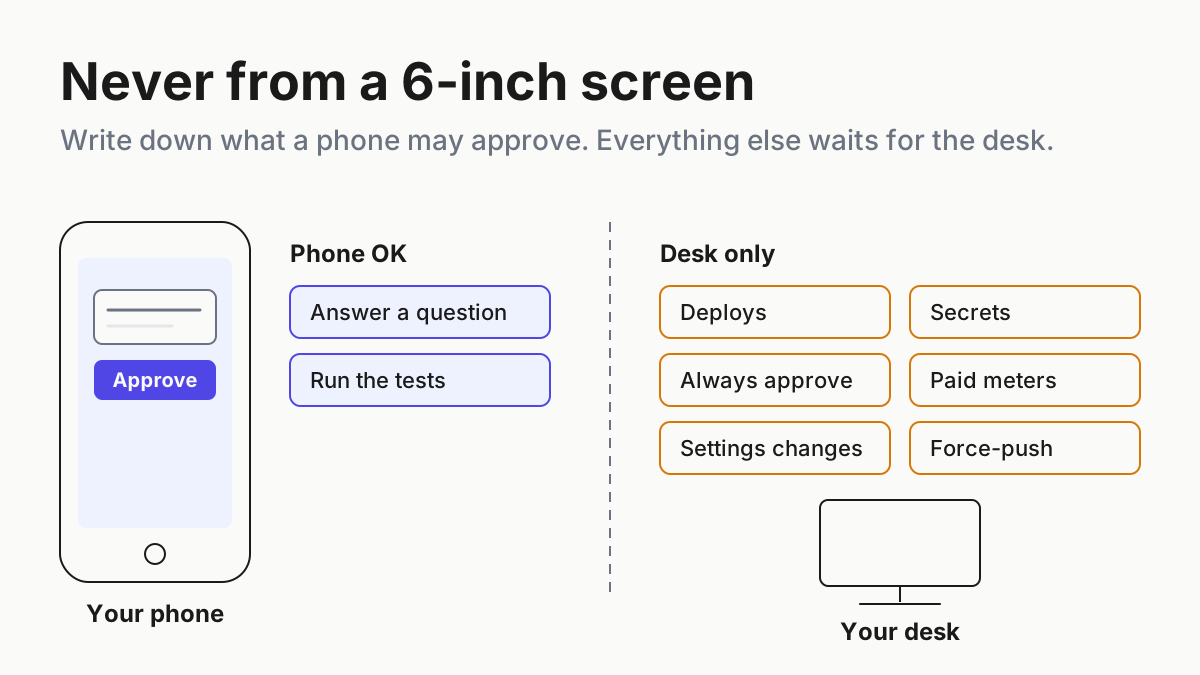
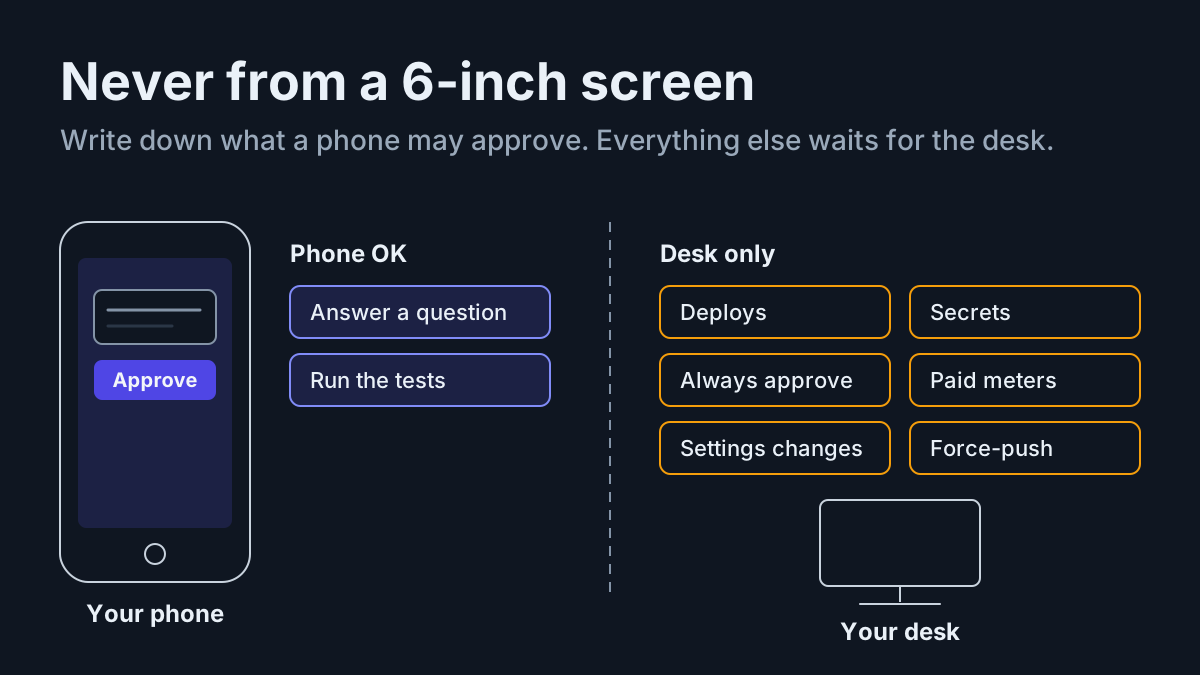
An Approve button on a lock screen carries the same authority as the Enter key at your desk, with a fraction of the context. The agent is waiting on a shell command longer than the screen is wide, and every coding agent with remote control will let you tap that button from wherever you are.
That is the feature working as designed, and it is why you need a remote approval policy. Claude Code forwards permission prompts to your phone and keeps them open until you answer, and Codex, Antigravity and Kimi Code all accept approvals from a phone or a browser. What none of them documents is a way for an admin to say which actions may be approved from a small screen and which must wait for the desk. That line is yours to draw.
By Tuesday you want three things. A small-screen matrix that sorts every action class into allowed remotely or never remote. Three enforcement layers, each written on the assumption that the other two failed. And a monthly drill in which you try to break the policy from your own phone.
Where the transcript of those approvals ends up is a separate question with its own runbook: what each vendor’s remote control stores.
Four vendors now forward agent approvals to a phone or a browser
Anthropic’s Remote Control docs are the most detailed. “Claude Code keeps permission prompts and AskUserQuestion questions open until you answer them.” From the phone or the web you can also run /model, /effort, /fast, /color and /rename with a value; from the Claude phone app, /config takes key=value to change a setting. /mcp can reconnect, enable or disable servers, while /plugin and /resume stay local.
Anthropic also keeps two money prompts off the phone on purpose. “On Team and Enterprise, /usage-credits from mobile or web doesn’t send a usage-credits request to your admin. Sending requires a confirmation that appears only in the interactive CLI.” The Fable usage-credits consent prompt isn’t forwarded at all, and the turn ends unsent if nobody answers at the machine. Remote Control itself “is off by default on Team and Enterprise plans.”
OpenAI’s Codex Remote page opens with “Follow progress, approve actions, and send instructions from your phone.” Its prose lists “Approve commands and other actions.” The page’s illustration of an approval shows two buttons, Approve and Always approve, and nothing on the page says what the second one persists, for how long, or where. The remote connections page adds the reassuring half: “The sandboxing settings, security controls, and action approvals still apply to the connected session.”
Google’s Antigravity docs cover Antigravity 2.0 and the CLI. Tool confirmations (y/n) and clarifying questions can be answered “from either your local terminal or the remote UI.” Then comes a line Anthropic doesn’t draw: “You cannot toggle settings in the settings panel from the remote web interface; to change settings, use the CLI.”
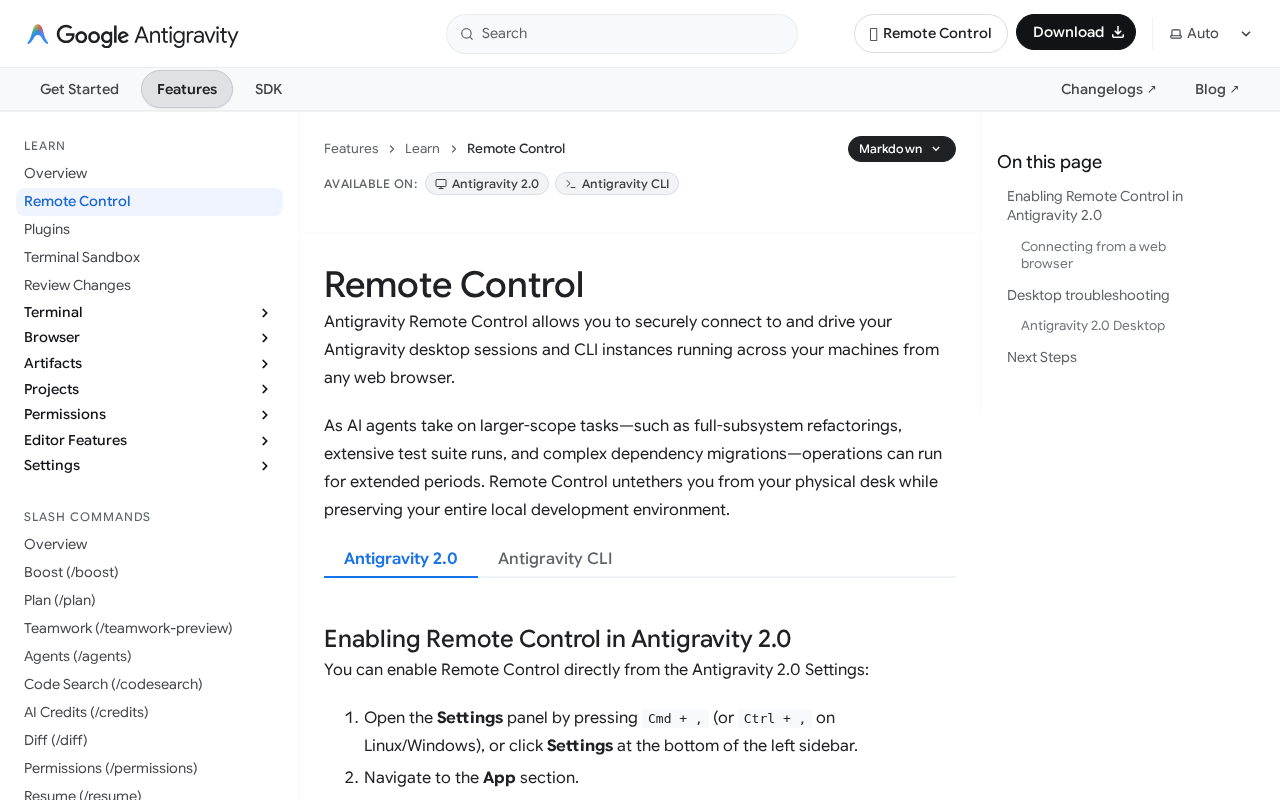 Screenshot: Google Antigravity Docs, “Remote Control | Google Antigravity Docs” (undated page), captured Sep 28, 2026.
Kimi Code went furthest in the other direction. Its 0.42.0 release on Sep 9 removed the experimental flag, and its Remote Control guide lets a remote page “approve or deny file edits, Shell execution, and other confirmation requests right in the web page”. The guide shows no setting that restricts what may be approved there, and it warns that anyone who has the link “may control your sessions and files.”
Put the four pages side by side and one row is empty everywhere. No vendor documents a way for an admin to choose which actions may be approved remotely. The documented levers are surface switches: on or off for an org, a workspace, a device or an account. Not documented is not the same as impossible, but it means the per-action line has to live somewhere you control.
Why a tap on a phone is a different approval from a keypress at the desk
At the desk, an approval arrives with context: the whole command, the diff, the scrollback, the other terminal where the tests just failed. On a phone it arrives as a summary and a button, usually while you are doing something else. The action is identical. The decision is not, because the evidence you decide on has shrunk to whatever fits.
Some remote taps also outlive the moment. A /model <name> sent from a device to an interactive session “also sets your default for new sessions” in Claude Code v2.1.238 and later, while a model picked from the device’s own model control is session-only. Codex’s Always approve button, going by its label, covers more than one action, and its docs don’t say how much more. Forwarded dialogs that aren’t approvals expire after five minutes by default (dialogExpiry, v2.1.224 and later) and continue with the no-action default, so a missed buzz can make a choice for you.
Chatbots suggest; agents act, and an approval is the moment an agent’s action gets your name on it. A remote approval policy decides how much evidence your name requires.
Step 1: Keep your consequence tiers, and add a surface column
You probably already tier agent actions by consequence, from read-only up to production and secrets. Keep those tiers exactly as they are; approval queue hygiene covers how to build them. The remote approval policy adds one column to that table, headed “from a phone?”, and one test for filling it in.
An action may be approved remotely only if it passes all four checks:
- One-shot. It grants this action once, not a class of actions from now on.
- Fully visible. The whole command, the whole diff or the whole question fits on the small screen without truncation.
- Reversible. A revert, a re-run or a branch delete undoes it.
- Lower tier. It sits below whatever tier you reserve for production, money and credentials.
Fail any one and the action is never remote. The checks are deliberately blunt, because the moment you apply them is the moment you have the least context. Permission-mode switches fail check 1 by design; unified permission modes explains why a mode is a standing approval with a friendlier name.
Step 2: Write the small-screen matrix
Run every action class through the four checks and write the result down. This is the matrix most fleets end up with; adjust the examples, not the logic.
| Action class | Examples | From a phone | Check it fails |
|---|---|---|---|
| Answer a clarifying question | AskUserQuestion, Antigravity clarifying questions |
Allowed | None; the agent still acts at its own tier |
| One-shot read or test command | git status, the test suite inside the sandbox |
Allowed | None |
| One-shot edit on a feature branch | A single file edit whose diff fits the screen | Allowed | None, if the diff fits |
| Session cosmetics | /rename, /color |
Allowed | None |
| Standing approvals | Always approve, allowlist edits, permission-mode changes | Never | One-shot |
| Mode and settings changes | /config key=value, /effort, /model <name> |
Never | One-shot; /model sets the default for new sessions |
| Paid meters | /fast, usage-credit requests, model upgrades |
Never | Lower tier: spends money you can’t see from the phone |
| Deploys and production | Deploy scripts, production database commands | Never | Reversible, lower tier |
| Secrets | Reading or writing credentials and key files | Never | Lower tier |
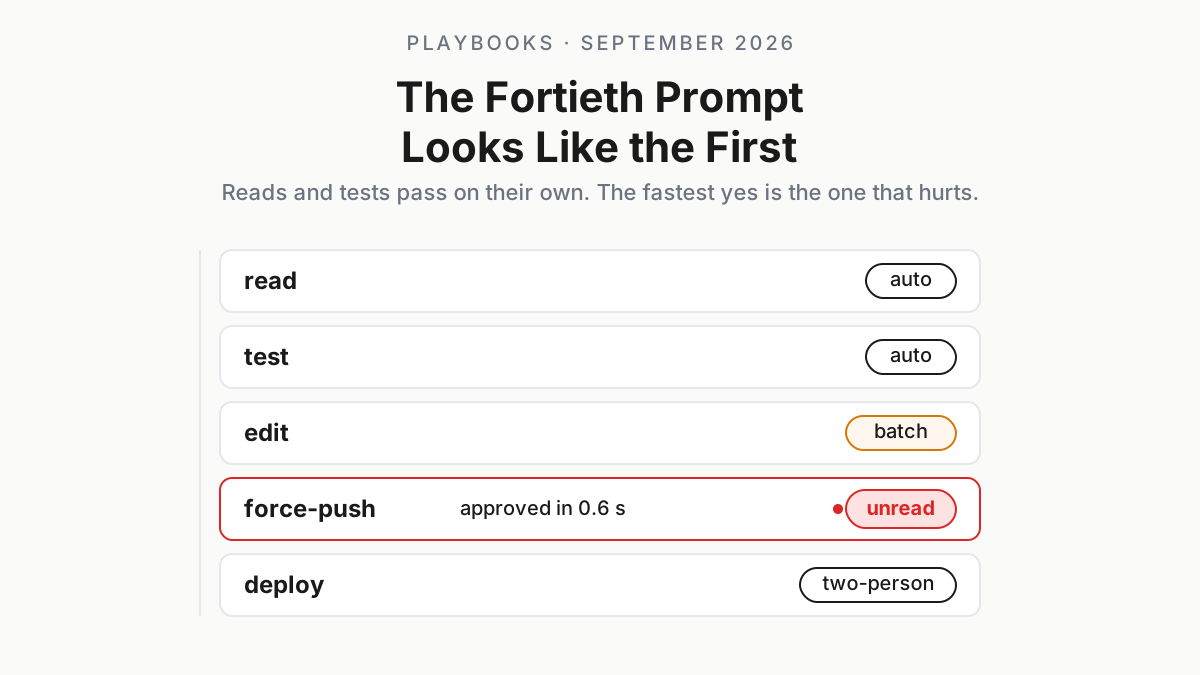
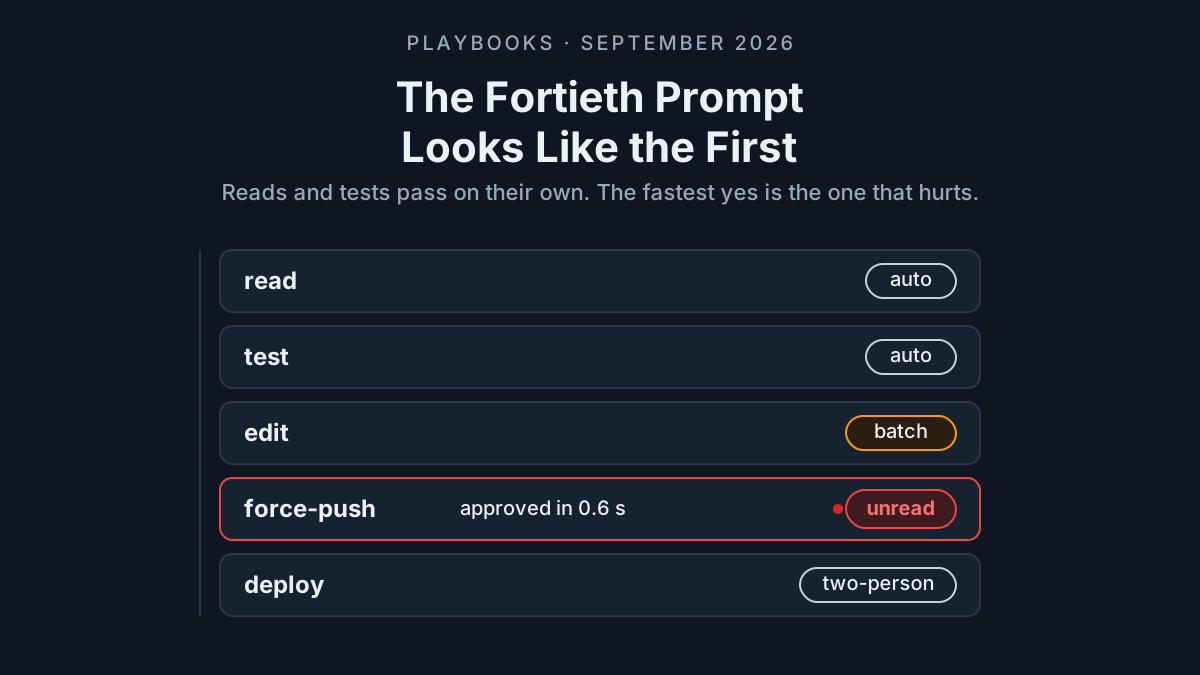
| Force-push | Rewriting shared branch history | Never | Reversible |
| MCP auth | Authorizing or enabling an MCP server, /mcp enable |
Never | One-shot: new tools and new credentials in one tap |
The paid-meter row has vendor precedent. Anthropic already refuses to send a Team or Enterprise usage-credits request from a phone, and it keeps the Fable consent prompt at the machine. It still lets /fast run from the phone, and per its fast mode docs that speed tier draws on usage credits.
The vendor drew half the line. Your matrix draws the rest, and the speed budget runbook sets what /fast may cost when it is approved at the desk.
Step 3: Map the matrix onto what each vendor actually lets a phone do
The matrix is your policy. Each vendor’s remote surface is what that policy has to survive. Line them up, using only what the docs say today, and the gaps you need to close yourself become obvious.
| From a phone or browser | Claude Code | Codex | Antigravity | Kimi Code |
|---|---|---|---|---|
| Approve tool or permission prompts | Yes; prompts wait until answered | Yes: “Approve commands and other actions” | Yes: y/n confirmations |
Yes: file edits, shell and other confirmations |
| Standing approval | Not documented | Always approve button shown; what it persists is not documented | Not documented | Not documented |
| Change settings | Yes: /config key=value from the phone app |
Not documented | No: settings are CLI-only | Not documented |
| Paid meters | /fast works; the Team and Enterprise /usage-credits send is CLI-only |
Not documented | Not documented | Not documented |
| Switch the model | /model <name> also sets the default for new sessions |
Not documented | Not documented | Not documented |
| Admin scoping of remote-approvable actions | Not documented | Not documented | Not documented | Not documented |
| Surface off-switch | Org toggle, off by default on Team and Enterprise; disableRemoteControl per device |
Workspace admin enablement; sign-out | Account or organization policy flag | None documented |
| Device binding | Trusted Devices (beta): enrolled device, sign-in under 18 hours old | QR pairing per phone, per host | The same Google Account | About three devices; the link itself grants control |
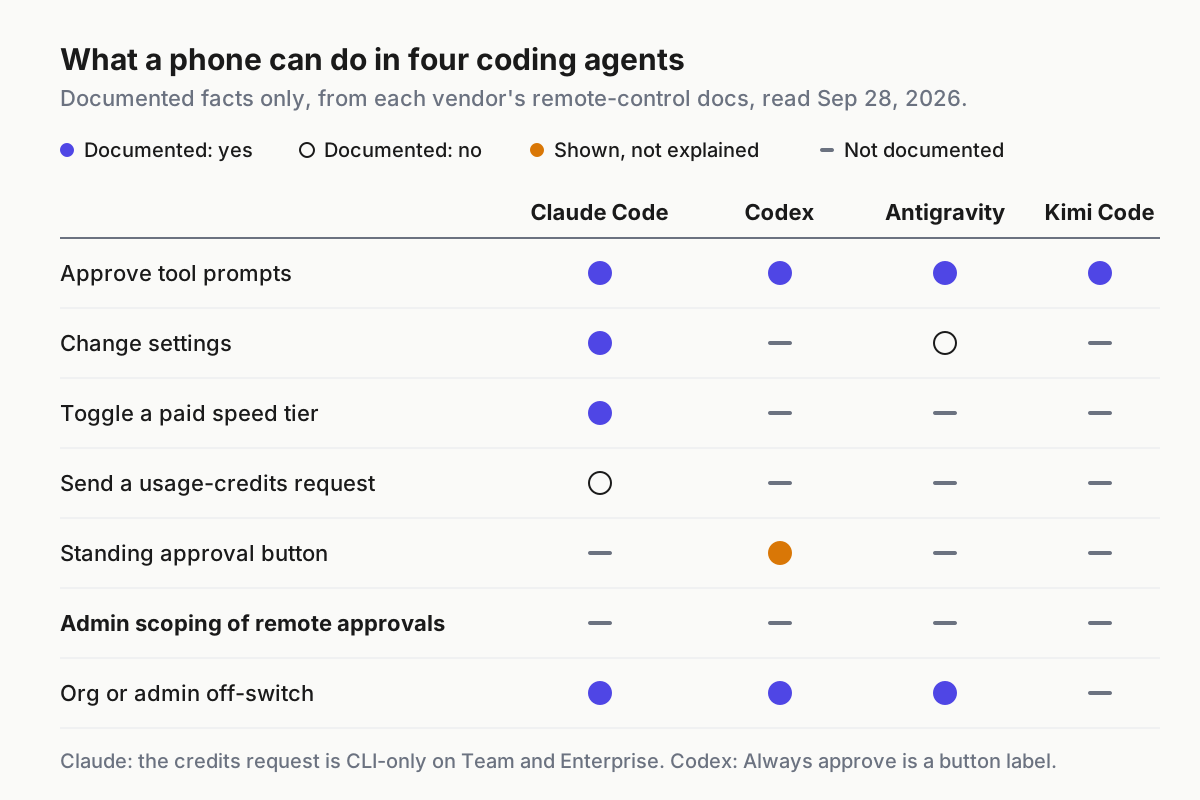
 Documented capabilities only, read Sep 28, 2026. The bold row is the one this policy exists to fill.
Three patterns fall out. Claude Code gives the phone the most power and the most controls, including the only requirement in the group for a recent sign-in on a known device. Antigravity is the one vendor that keeps settings off the remote surface by design. Codex and Kimi Code document approvals and little else: Codex adds admin enablement on top of its existing sandbox and approval settings, and Kimi Code documents no admin controls.
Step 4: Enforce the line in three layers, each assuming the others failed
No single control covers the matrix. The vendors’ switches work at the level of the surface (on or off), and your matrix works at the level of the action. You need both, plus a check that lives on the desk where the phone can’t reach it.
Layer 1: turn remote control off on top-tier lanes
Some lanes exist to do never-remote work: the one with deploy keys, the one attached to the production database, the one that manages secrets. On those lanes the phone should not connect at all. In Claude Code that is disableRemoteControl in managed settings, applied per device and independent of the organization toggle; the residency runbook has the managed-setting shape and what it misses. For the other vendors, use their surface switches from the table and keep top-tier work off lanes that have none.
This layer fails open in one predictable way: a personal device outside your management. The wall behind it is where the credentials live. A lane that never holds deploy keys can’t deploy, whoever approves.
Layer 2: bind remote access to known devices
Codex pairs each phone to each host, and Kimi Code caps you at about three devices, but only Claude Code’s Trusted Devices setting adds a recent sign-in to the device check. Per the Trusted Devices docs, “It ties Remote Control access to a known device and a recent authentication, not just a signed-in account.” A Team or Enterprise Owner turns on Require trusted devices under Organization settings, Capabilities, Remote sessions; Pro and Max users turn it on for themselves. The member’s sign-in “must be no more than 18 hours old,” refreshed by Face ID, Touch ID, Windows Hello or a passkey, and enrolled devices can be listed and revoked.
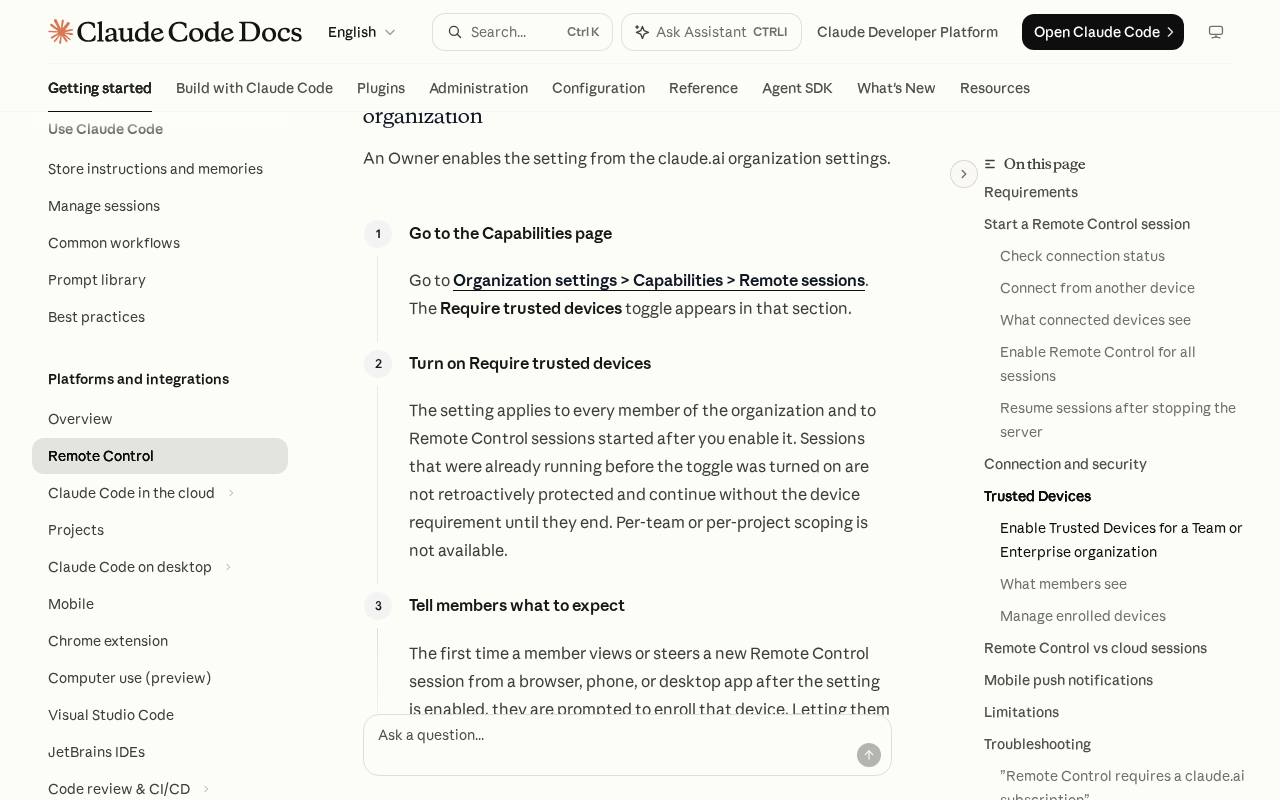 Screenshot: Claude Code Docs, “Continue local sessions from any device with Remote Control - Claude Code Docs” (undated page), captured Sep 28, 2026.
Read the limits before you rely on it. Trusted Devices is in beta and off by default on every plan. It applies to every member of the organization: “Per-team or per-project scoping is not available.”
That sentence is about the Trusted Devices setting, not about remote permissions, and it means you can’t require stricter devices for the payments team alone. And sessions already running when you flip it “are not retroactively protected and continue without the device requirement until they end.” Turn it on, then restart the long-running sessions.
Layer 3: a desk-presence check before top-tier tool calls
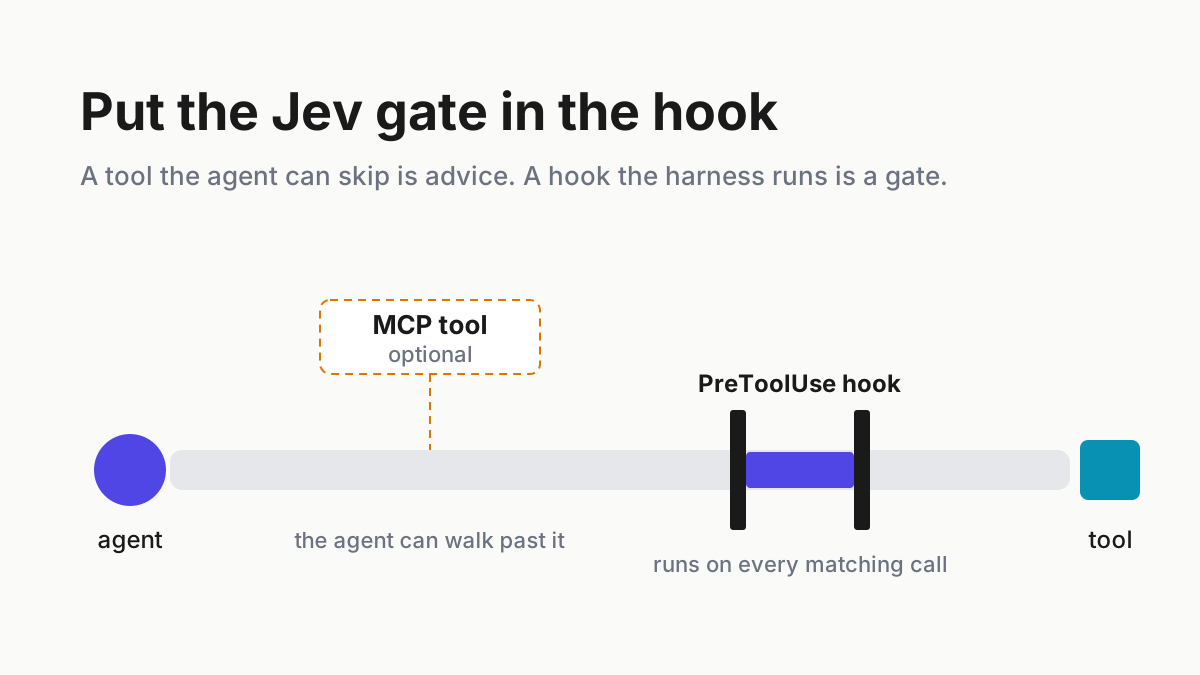
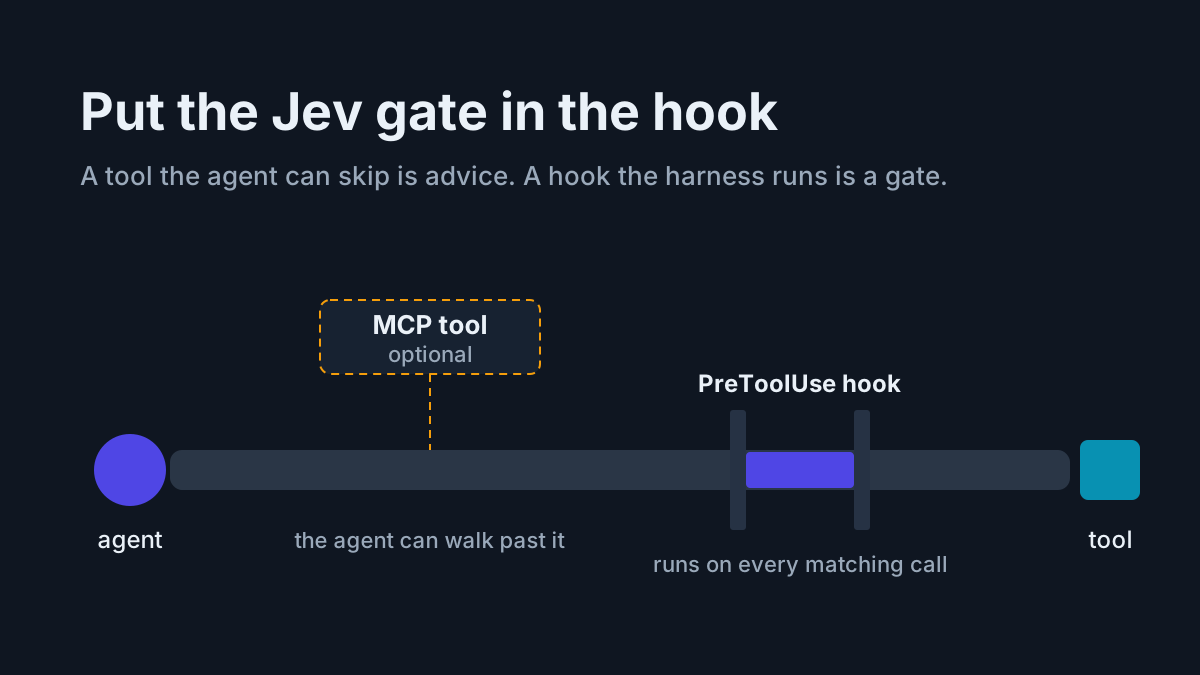
The last layer is ours, not a vendor’s. A local PreToolUse hook runs before each tool call, classifies it against the matrix, and refuses a top-tier call unless a presence marker on the desk machine was touched in the last few minutes. The marker is a file that only a desk-side action updates, such as a keyboard shortcut or a screen-unlock script, and never a command the agent can run. Approve a deploy from the train and the hook blocks it with a message; approve it at the desk and it runs.
Don’t confuse this with Claude Code’s own CLAUDE_CLIENT_PRESENCE_FILE. That variable points at a real vendor presence marker, but it only suppresses push notifications while the file exists. It does not gate approvals.
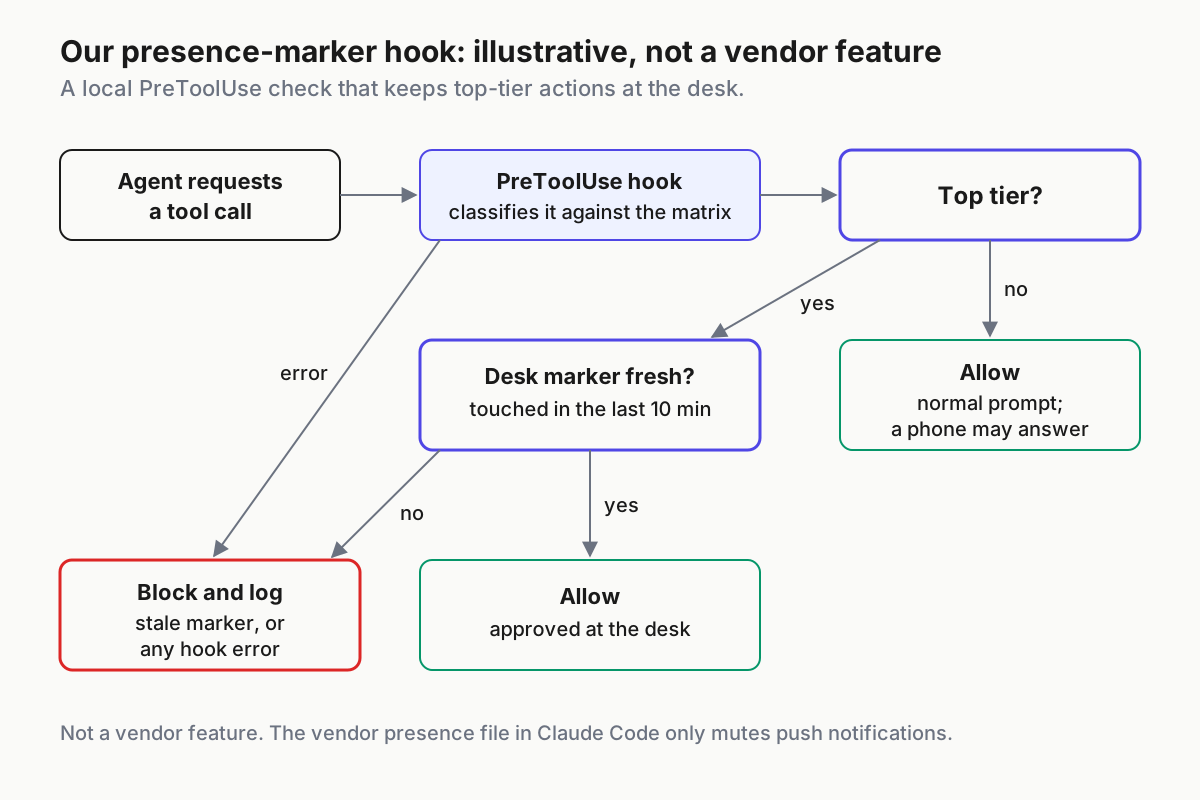
 Our pattern, illustrative only. The hook fails closed: an error blocks the call rather than waving it through.
The config and script below are an illustrative sketch of that pattern, not vendor documentation; check your harness’s hook contract for the exact settings shape and blocking exit code before you rely on it.
// settings (illustrative): run the presence check before shell and file tools
{
  "hooks": {
    "PreToolUse": [
      {
        "matcher": "Bash|Edit|Write",
        "hooks": [{ "type": "command", "command": "~/.fleet/hooks/require-presence.sh" }]
      }
    ]
  }
}
#!/usr/bin/env bash
# require-presence.sh: illustrative sketch of our pattern, not a vendor feature
set -u
MARKER="$HOME/.fleet/at-desk" # touched only by a desk-side shortcut; deny the agent write access to it
MAX_AGE=600 # seconds since the last touch
TOP_TIER='deploy|terraform apply|kubectl|prod|push (-f|--force)|\.env|secret|mcp (add|auth|enable)'
input="$(cat)" || exit 2 # unreadable input: fail closed
target="$(printf '%s' "$input" | jq -r '.tool_input.command // .tool_input.file_path // empty')" || exit 2
printf '%s' "$target" | grep -q 'at-desk' && { echo "The presence marker is desk-only." >&2; exit 2; }
printf '%s' "$target" | grep -Eq "$TOP_TIER" || exit 0 # lower tier: normal approval, phone allowed
touched=$(stat -c %Y "$MARKER" 2>/dev/null || echo 0) # GNU stat; use stat -f %m on macOS
age=$(( $(date +%s) - touched ))
printf '%s\t%s\t%s\n' "$(date -u +%FT%TZ)" "$age" "$target" >> "$HOME/.fleet/top-tier.log"
[ "$age" -le "$MAX_AGE" ] && exit 0
echo "Top-tier action: approve it at the desk. Presence marker is ${age}s old." >&2
exit 2 # blockThree honest limits. First, a PreToolUse hook sees tool calls, not slash commands, so it cannot stop /config, /fast or /model sent from a phone; on lanes where those matter, only Layer 1 helps. Second, a pattern list is a guardrail, not a boundary: a determined command can dodge a regex, which is why top-tier credentials stay off lanes that allow remote control at all. Third, the log line is the only record of whether an approval happened with someone at the desk, because no vendor documents an audit field for which surface answered a prompt.
Step 5: Drill it monthly from your own phone
A policy nobody has tried to break is a hope with a heading. Once a month, leave the desk, pick up the phone, and attempt one never-remote action per lane. Use canaries rather than real deploys: a harmless command that matches your top-tier pattern, such as an echo that contains the word “deploy”, exercises the hook without touching anything.
| Attempt from the phone | Expected result | If it succeeds |
|---|---|---|
| Approve a top-tier canary command with the marker stale | Hook blocks it with the desk message | Fix the pattern list or the hook’s exit path |
| Connect to a top-tier lane at all | No connection: remote control is disabled there | Push the managed setting again; find the device that lacks it |
| Connect from a phone that isn’t enrolled | Refused under Trusted Devices | Check the org setting and restart sessions older than it |
Send /fast on or a /config change to an ordinary lane |
It works; that is the documented gap | Move the lane’s paid or sensitive work behind Layer 1 |
| Tap Always approve where offered | Your runbook says never; the product won’t stop you | Revoke the standing grant, then retrain the habit |
Break the hook on purpose, such as a missing jq |
Top-tier calls block | Make every error path exit as a block |
Write the results into the same log the hook writes, with the date and the phone used. Then revoke what the drill turns up: devices belonging to people who left, stale pairings, and any Kimi Code link that has travelled further than you meant it to.
Remote approval policy failure modes, and the signal for each
The standing grant from the train. Someone taps Always approve or approves an allowlist edit from the phone, and a class of actions stops asking. Signal: a prompt you used to see on that lane no longer appears. Fix: review standing grants on a schedule, and make the matrix row “never” in the runbook, not just in your head.
The default that moved. A /model <name> sent from the phone changed the default for every new session. Signal: new sessions start on a model nobody configured. Fix: put /model in the never-remote row, and check the default as part of the drill.
The session older than the rule. Trusted Devices went on last Tuesday, and a session started last Monday is still running without it. Signal: long-lived sessions whose start time predates the setting. Fix: restart them.
The dialog that answered itself. A forwarded dialog that isn’t an approval expired after five minutes and took its no-action default. Signal: a choice in the transcript nobody remembers making. Fix: learn each dialog’s no-action default, and keep decisions that matter in permission prompts, which wait.
The hook that fails open. A missing dependency or a parse error lets the script exit cleanly. Signal: the drill’s broken-hook row succeeds. Fix: every error path exits as a block, and the credentials stay off lanes where the hook is the only wall.
The link that is a key. A Kimi Code remote link pasted into a ticket gives its reader control of the sessions and files behind it. Signal: link strings in chat exports. Fix: stop Remote Control on that machine and treat the link as leaked until Kimi ships its revocation UI.
A remote approval policy is fleet policy, not a phone setting
Every vendor now ships the approval surface, and none ships the line. So the line gets written once, in the matrix, and enforced per lane with whatever each vendor allows: a managed setting here, a policy flag there, a device check where one exists, and the same desk-side hook wherever the harness runs hooks. That is fleet policy in the sense of restricted mode as fleet policy: one rule, many harnesses, checked on a schedule rather than trusted.
It also sits beside the other rules a user can’t override from wherever they happen to be. Non-overridable agent permissions covers the deny rules that should hold no matter who approves, and the admin-toggle sweep keeps the vendors’ own remote switches from flipping under you. The phone is a fine place to answer a question. It is a bad place to change what the fleet is allowed to do.
FAQ
Is it safe to approve agent actions from my phone?
For one-shot, fully visible, reversible, low-tier actions, yes: answering a question or approving a test run is fine. Never approve standing grants, settings or mode changes, paid meters, deploys, secrets, force-pushes or MCP authorization from a phone. Enforce that with off-switches on top-tier lanes, device binding and a desk-presence check.
Can admins restrict which actions are approved remotely in Claude Code?
Not per action. Anthropic documents an organization toggle, the per-device disableRemoteControl setting and Trusted Devices, which applies to every member and can’t be scoped per team or project. As of Sep 28, 2026, no vendor documents admin scoping of remote-approvable actions, so the per-action line needs your own hook.
What does Claude Code’s Trusted Devices setting require?
An enrolled device and a sign-in no more than 18 hours old, refreshed with Face ID, Touch ID, Windows Hello or a passkey. It is in beta and off by default on every plan. Owners enable it for Team and Enterprise; Pro and Max users enable it themselves. Running sessions aren’t retroactively protected.
Sources
- Claude Code Docs: Remote Control — forwarded approvals, phone commands, org toggle
- Claude Code Docs: Trusted Devices — 18-hour sign-in, no per-team scoping
- Claude Code Docs: fast mode — usage credits
- Codex docs: Remote — approve from the phone
- Codex docs: Remote connections — approvals still apply; admin enablement
- Antigravity Docs: Remote Control — remote confirmations; settings CLI-only
- Kimi Code Docs: Remote Control — web-page approvals; link warning
- Kimi Code 0.42.0 release — flag removed, Sep 9, 2026