Claude Code VS Code Extension vs the Terminal CLI: Set It Up, Share Settings, and Fix Sessions That Won't Start
Install the Claude Code VS Code extension, decide when to use the panel or the terminal CLI, share one settings file, and fix sessions that won't start.

Go deeper. Build your own.
You have lines 40 to 52 of src/billing/invoice.ts selected, you know exactly what should change, and you want the result as a diff you can accept or reject one change at a time. That is where the Claude Code VS Code extension earns its place. A developer put it plainly in a post on X on Oct 21, 2026: for targeted edits, Haiku 5.5 in the VS Code extension (not the Claude Code CLI) is enough, as long as you know what you want changed and tag it. The catch is that the extension and the terminal CLI are two front ends to one engine. They install differently, they expose different commands, and they share more files than most people expect. When claude is “not found” in the terminal right after you installed the extension, or a session never finishes starting, that split is usually the cause.
This tutorial is for one developer on a paid Claude plan (Pro, Max, Team or Enterprise) or a Claude Console account who works in VS Code, Cursor or another VS Code fork. You will finish with four things:
- A working extension, verified by a first reviewed edit.
- A rule for when to use the chat panel and when to run
claudein the integrated terminal. - One user settings file and one project settings file that both surfaces honor, plus a check that proves it.
- A troubleshooting table with fixes, expected observations and a rollback.
Everything here follows Anthropic’s Use Claude Code in VS Code documentation and the settings and permissions references it links to. Commands and settings keys are documented syntax. We did not record a run for this guide, so every “you should see” line describes documented behavior rather than captured output. The file names in the worked example are illustrative.
One paragraph of news context. Claude Code v2.1.304, released on GitHub on Oct 19, 2026, fixed three VS Code problems. It removed one cause of sessions failing with “Subprocess initialization did not complete within 60000ms”: time a SessionStart command hook spends running no longer counts toward the limit, up to 10 minutes in total. It stopped a session closed while starting from keeping its process alive. And it fixed Past conversations hiding sessions when claudeCode.claudeProcessWrapper is set. Those fixes matter in the troubleshooting sections. The rest of the guide applies to any recent version.
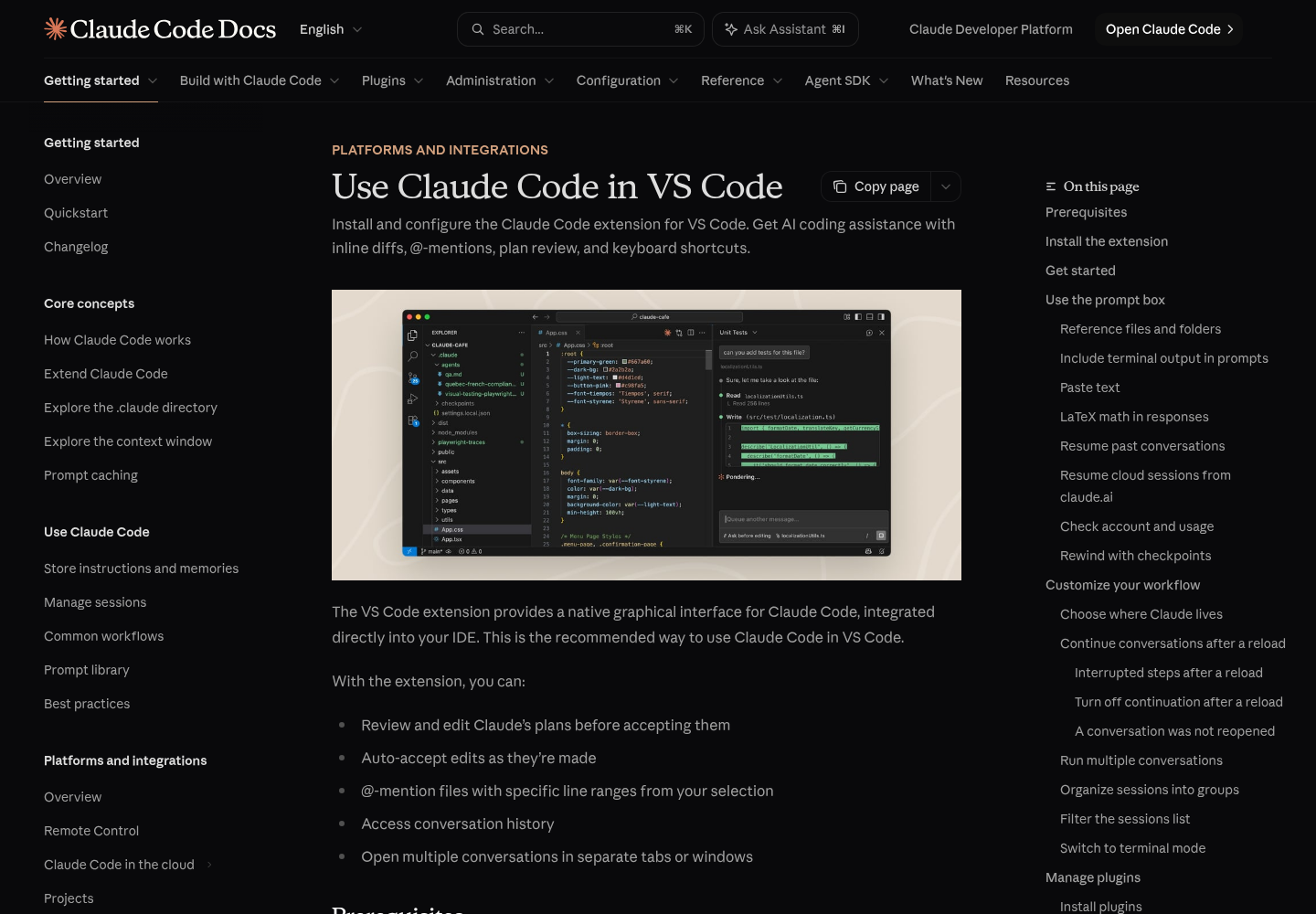
What you need before installing
The requirement list is short, but two items catch people: the VS Code version, and the difference between the extension’s private CLI and the one on your PATH.
- [ ] VS Code 1.94.0 or later. Check under Help > About. An older build is the first thing the docs list when the extension won’t install or the Spark icon is missing.
- [ ] An Anthropic account. Any paid Claude subscription or a Claude Console account works, and no API key is required. If you reach Claude through Amazon Bedrock, Google Cloud’s Agent Platform or Microsoft Foundry, you check Disable Login Prompt in the extension settings and configure the provider in
~/.claude/settings.jsoninstead of signing in. - [ ] A test git repository you can make throwaway edits in. The worked example edits one function and shows how to rewind it.
- [ ] A trusted workspace. The extension doesn’t work in VS Code’s Restricted Mode.
- [ ] Optional: the standalone CLI. The extension bundles its own copy of the CLI for the chat panel. If you also want to type
claudein the integrated terminal, you need the separate install covered in the next section. - [ ] Cursor or another fork? The docs offer a direct install link for Cursor, and the extension installs in forks such as Devin Desktop or Kiro from their Extensions view or the Open VSX registry. Editors that can’t install it can run the CLI in their integrated terminal instead. If you’re still choosing an editor, Claude Code vs Cursor compares the two; this guide assumes the editor is settled.
Install the extension and confirm the bundled version
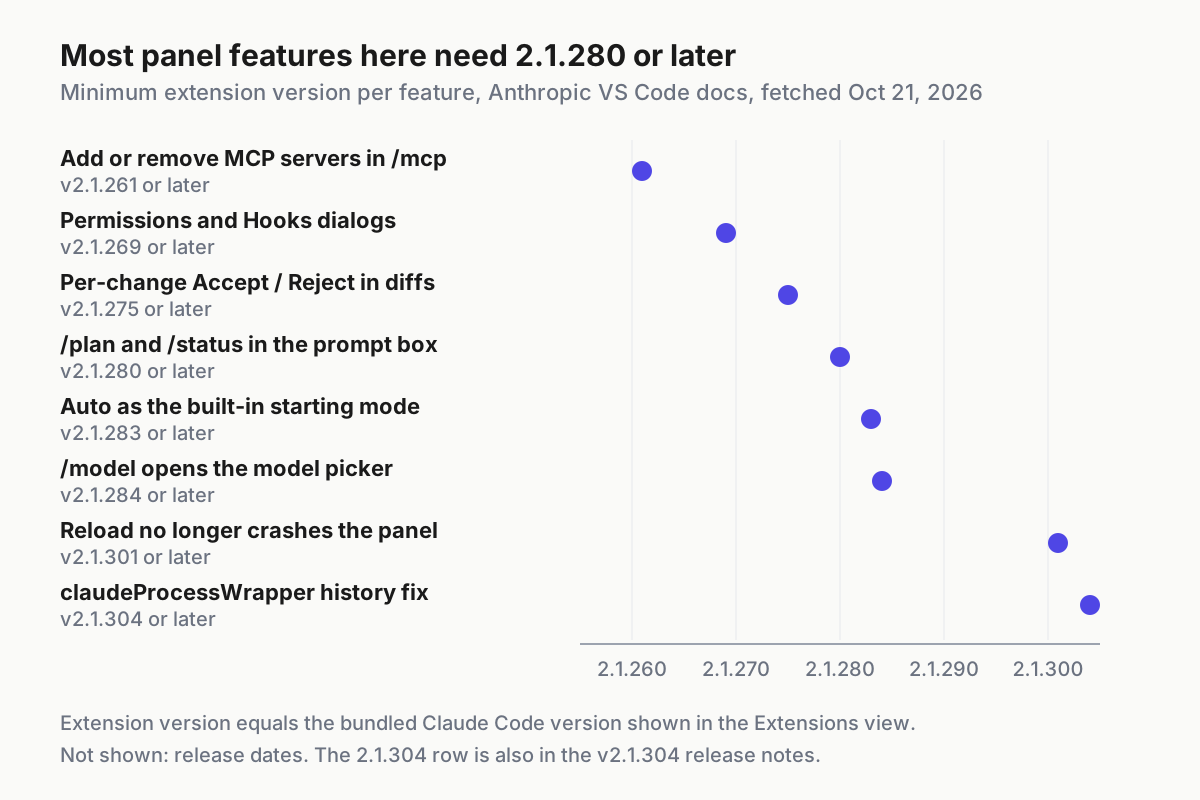
Install from inside the editor so you see the version number straight away. The extension’s version number is the Claude Code version it bundles, so a feature that needs Claude Code v2.1.286 needs extension 2.1.286 or later.
- Press Cmd+Shift+X (Mac) or Ctrl+Shift+X (Windows/Linux) to open the Extensions view, search for “Claude Code”, and click Install.
- Read the version on the extension’s entry and write it down. This is the bundled CLI version the chat panel will run.
- Open any file in the repository. The Spark icon appears in the Editor Toolbar (top-right of the editor) only when a file is open; a folder alone isn’t enough. The ✻ Claude Code item in the Status Bar and the Spark icon in the Activity Bar work without a file.
- Click the Spark icon. The first time, a sign-in screen appears. Click Sign in and finish authorization in the browser.
- Work through or dismiss the Learn Claude Code checklist that appears after sign-in.
- Type
/statusin the prompt box. With Claude Code v2.1.280 or later it shows the session’s Claude Code version, account, model and MCP server details. The version should match what you wrote down in step 2. - If you want
claudein the terminal too, install the standalone CLI with one of the documented methods from Anthropic’s Claude Code overview, then open a new terminal window and check it.
# macOS, Linux, WSL (native installer; updates itself in the background)
curl -fsSL https://claude.ai/install.sh | bash

# Windows PowerShell
irm https://claude.ai/install.ps1 | iex

# Homebrew (stable channel; no auto-update: run brew upgrade claude-code)
brew install --cask claude-code

# WinGet (no auto-update: run winget upgrade Anthropic.ClaudeCode)
winget install Anthropic.ClaudeCode

# Then, in a NEW integrated terminal (Ctrl+` or Cmd+`)
claude --version
What each observation tells you:
| You see | It means | Next move |
|---|---|---|
| The extension isn’t listed after install | VS Code hasn’t loaded it yet | Restart VS Code or run Developer: Reload Window |
| No Spark icon in the editor toolbar | No file is open, or one of the causes in the troubleshooting table | Open a file, or use ✻ Claude Code in the Status Bar |
Not logged in · Please run /login |
Sign-in didn’t complete | The extension reopens the sign-in screen; if it doesn’t, run Developer: Reload Window |
A sign-in prompt although ANTHROPIC_API_KEY is set in your shell |
VS Code didn’t inherit your shell environment | Launch VS Code from a terminal with code ., or sign in with your Claude account |
claude --version prints a version number |
The standalone CLI is on PATH | Note it; it can differ from the extension’s bundled version |
claude not found in the terminal |
Only the bundled copy exists, or the shell hasn’t picked up the new PATH | Install the standalone CLI, open a new terminal, then verify PATH |
Two Claude Code versions now live on the machine, and they update separately. The extension updates through the Extensions view. A native CLI install updates itself in the background; Homebrew and WinGet installs don’t, and the Homebrew claude-code cask tracks a stable channel that typically runs about a week behind. When a specific fix such as v2.1.304 matters, check the version of the surface you’re actually using, not the other one.
Panel or integrated terminal: a decision table
Both surfaces run the same engine. Anthropic’s platforms comparison frames the difference as fit: the CLI is the full feature set for terminal workflows and scripting, while VS Code is for working inside the editor without switching to a terminal, with inline diffs and file context. These are the documented differences that matter day to day.
| Question | Chat panel (extension) | claude in the integrated terminal |
|---|---|---|
| What runs it | The extension’s bundled private CLI | The standalone CLI install on your PATH |
| How it updates | Extensions view; version equals the bundled Claude Code version | Native installer auto-updates; Homebrew and WinGet need an upgrade command |
| Commands and skills | A subset; type / to see what’s available |
All |
! Bash shortcut and tab completion |
No | Yes |
/config menu |
Not available; edit settings files or VS Code’s extension settings | Available |
| Reviewing edits | Side-by-side diff with Accept this change and Reject this change under each change (v2.1.275+) | Diffs open in VS Code’s native diff viewer through the built-in ide server |
| Referencing code | Option+K / Alt+K inserts a reference such as @file.ts#5-10 from your selection |
The current selection and active file path go with each prompt while connected |
| Selected text from excluded or gitignored files | Withheld; Claude gets at most the path | Sent whatever the file; block it with a Read deny rule |
| Plan review | Plan opens as a Markdown document you can comment on inline | Plan mode in the terminal interface |
| Checkpoints | Yes | Yes |
| MCP servers | Add and manage with /mcp (adding and removing needs v2.1.261+) |
claude mcp add; both save to the same configuration |
| Settings, plugins, history | Shared | Shared |
The rule that falls out of the table: use the panel when the output is an edit you want to review, and the terminal when the output is a command, a script or a CLI-only feature. Targeted refactors, plan review with inline comments and change-by-change acceptance belong in the panel. claude -p pipelines, the ! shortcut, /config and anything the panel’s / menu doesn’t list belong in the terminal. The terminal’s deeper features are covered in the Claude Code power user’s field guide.
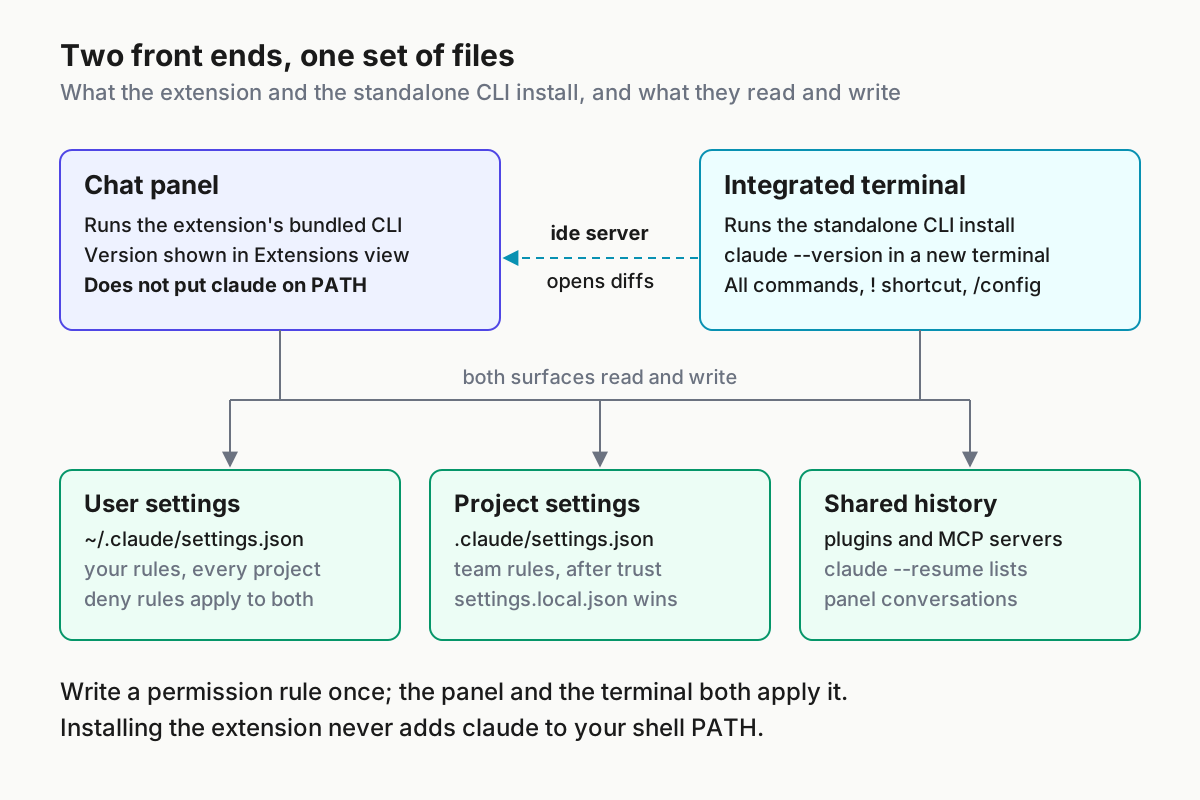
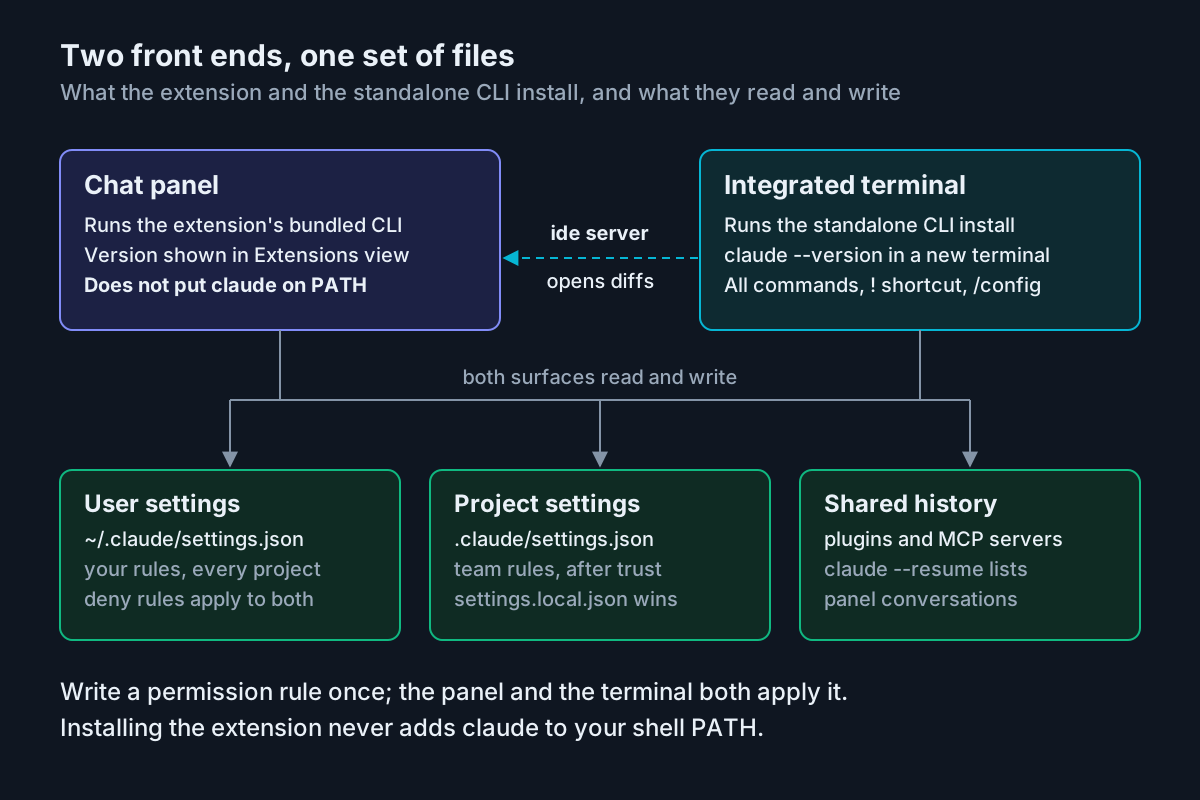
The selection row is the one with security weight. In the panel, selected text from a file that matches files.exclude or search.exclude, or that git ignores (with the default search.useIgnoreFiles and respectGitIgnore settings), never reaches Claude. That filter covers the chat panel only. The CLI in the terminal sends your selected text whatever the file, so a .env you highlight there goes to Claude unless a Read deny rule stops it. The settings files below add that rule once, for both surfaces.
One settings file for both surfaces
The extension has two configuration places, and mixing them up is the most common reason a setting “doesn’t work”. VS Code’s extension settings (Extensions > Claude Code) control panel behavior such as useTerminal, initialPermissionMode and claudeProcessWrapper. Claude Code’s own settings files control allowed commands, environment variables, hooks, MCP servers and the model, and those files are read by the terminal, the VS Code and JetBrains extensions and the desktop app alike.
Here is a complete pair for the example repository. The user file is Anthropic’s documented example; the project file uses only documented keys and rule shapes from the permissions reference.
~/.claude/settings.json (you, in every project on this machine):
{
  "$schema": "https://json.schemastore.org/claude-code-settings.json",
  "permissions": {
    "allow": [
      "Bash(npm run lint)",
      "Bash(npm run test *)"
    ],
    "deny": [
      "Read(./.env)",
      "Read(./.env.*)"
    ]
  }
}
.claude/settings.json committed in the repository (everyone who clones it, once they trust the folder):
{
  "$schema": "https://json.schemastore.org/claude-code-settings.json",
  "model": "claude-sonnet-5",
  "permissions": {
    "allow": [
      "Bash(npm run *)",
      "Bash(git commit *)"
    ],
    "deny": [
      "Bash(git push *)",
      "Read(./secrets/**)"
    ]
  }
}
Why each choice works:
- The
$schemaline gives autocomplete and inline validation in VS Code and Cursor. The schema can lag behind the newest releases, so a warning on a recently documented key isn’t proof the key is invalid. - The
.envandsecrets/**deny rules close the gap from the decision table. They stop Claude’s file tools, and a matching deny rule also keeps the selected text and the open-file notice for that file out of what the connected terminal CLI sends. They’reReadrules because aReaddeny also blocksEditandWriteon the same path. Bash(git push *)in deny means neither surface pushes for you. Deny is checked before ask and allow, so a narrower allow rule can’t carve an exception out of it. It isn’t a hard boundary: the docs note that a form likegit -C . pushisn’t matched, so keep your branch protection.- Lists merge across files. The project allow list adds to your user list instead of replacing it, and a deny from any scope beats an allow from any other.
- Project allow rules wait for trust. Allow rules in
.claude/settings.jsonapply only after you accept the workspace trust dialog for the folder; deny and ask rules apply immediately. modelis read at session start. Change it mid-session with the model picker or/model, not by editing the file.
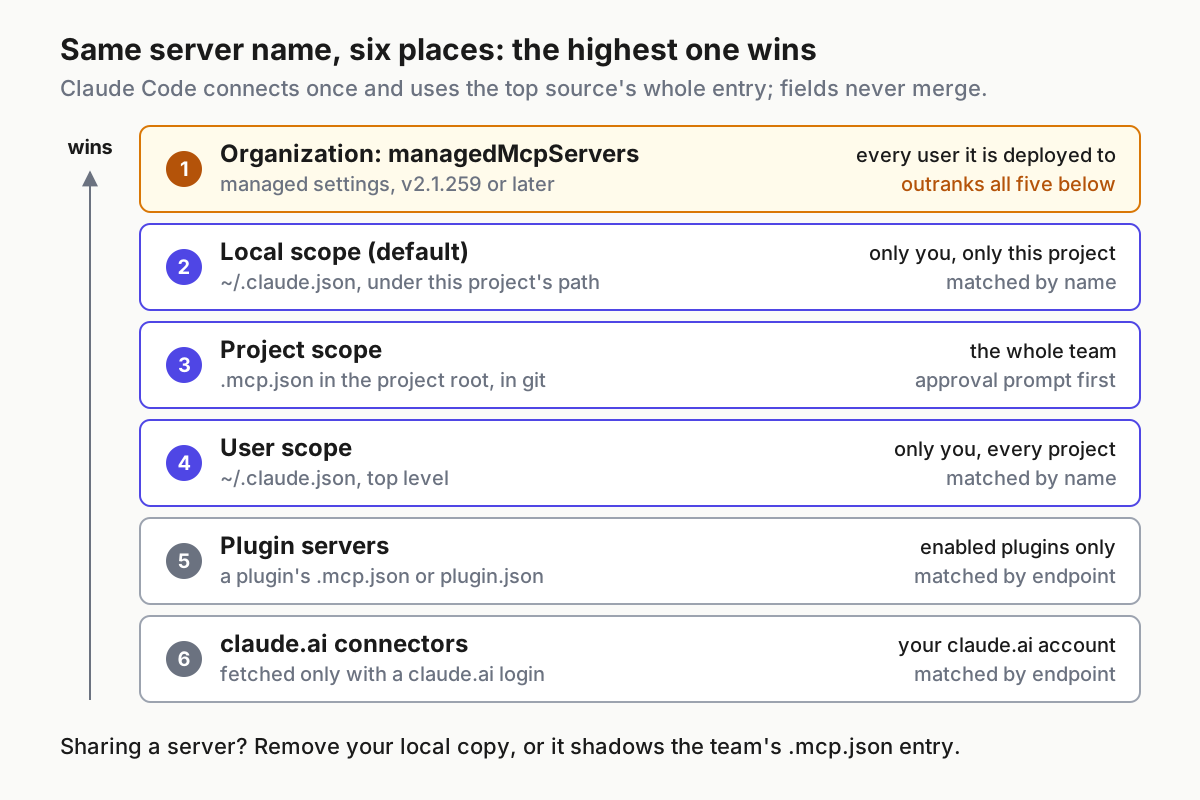
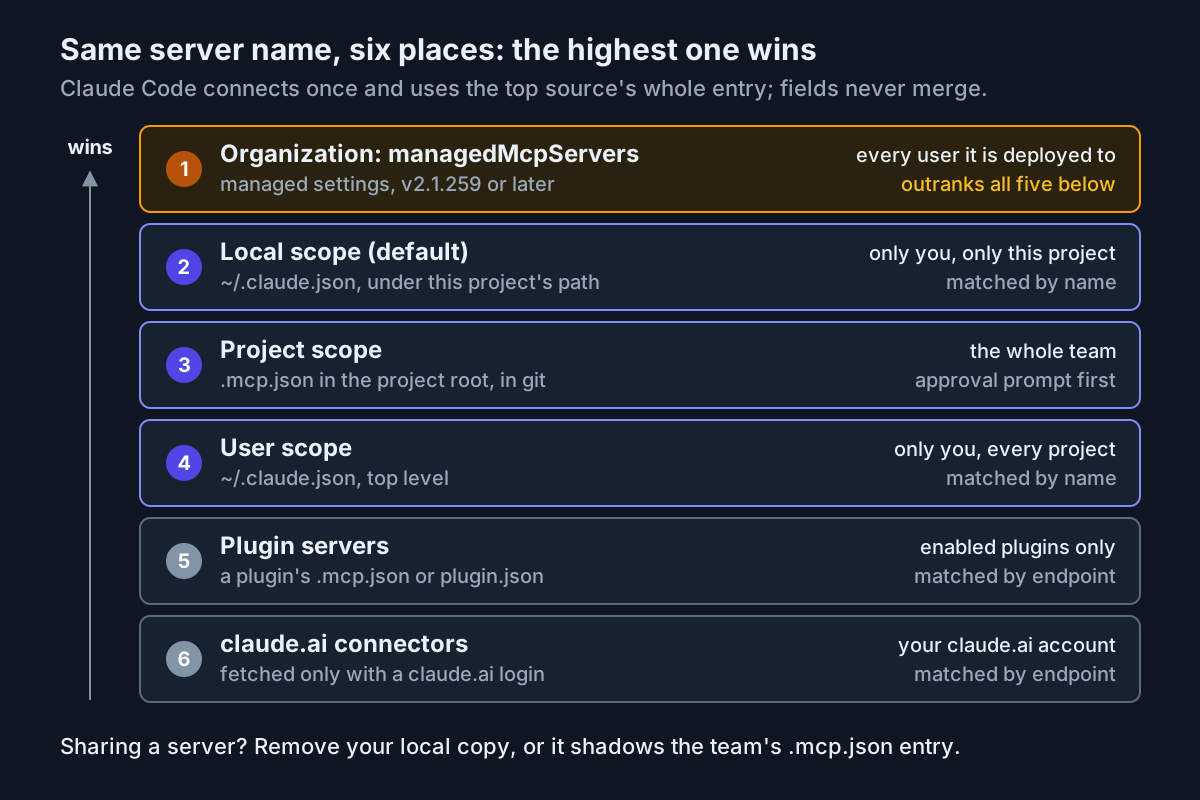
For a personal exception in one repository, such as a different model, use .claude/settings.local.json. It sits above the shared project file, and Claude Code keeps it out of git when it creates the file. MCP servers follow their own scope rules; Claude Code MCP setup explains which one wins. If these permission choices need to become policy across many machines, Claude Code permission modes are fleet policy covers that next step.
Prove both surfaces apply it
- Save both files. Claude Code watches settings files and applies most edits, including permissions, to running sessions without a restart.
- In the panel, type
/and open Permissions in the Customize section (v2.1.269 or later). You should see your rules grouped under Allow, Ask and Deny. You can add or remove rules there, saved to your user, project or local settings file. - In the integrated terminal, run
claudeat the repository root, then/permissions. The dialog lists every rule and the settings file it comes from. The same deny rules should appear. - In that terminal session, run
/statusand read the Setting sources line. It should list User settings and Project settings. If Project settings is missing, you startedclaudein a subdirectory: Claude Code reads.claude/settings.jsonfrom the session’s working directory. - Ask each surface to run
git push --dry-run. Both should refuse because of the deny rule instead of prompting you. - If anything is off, run
claude doctorfrom your shell. It lists entries Claude Code rejected, and a file with invalid JSON shows a Settings Error at the next interactive start.
Worked example: a targeted edit with a small model
The scenario: src/billing/invoice.ts has a formatTotal function on lines 40 to 52 that builds a currency string by hand. You want it to use Intl.NumberFormat, and nothing else in the file should change. That is the shape of task the X post describes, and the steps below use only documented panel controls.
- Open the file and select lines 40 to 52. The prompt box footer shows how many lines are selected, and Claude sees the selected text automatically.
- Press Option+K (Mac) or Alt+K (Windows/Linux) with the editor focused. The prompt gets an
@src/billing/invoice.ts#40-52reference, so the instruction names the exact range even if your selection changes later. Cmd+Esc / Ctrl+Esc toggles focus between the editor and the prompt box. - Pick a model. Click the model name at the bottom of the prompt box, or select Switch model… from the
/menu; typing/modelalone opens the same picker in v2.1.284 or later. For a scoped edit, choose a smaller, faster model; the post’s author uses Haiku 5.5. When the model supports effort levels, the picker also shows an Effort row, and a level other than max is saved as your default for that model. - Set the permission mode to Manual. Click the mode indicator at the bottom of the prompt box. In Manual mode Claude shows a side-by-side comparison before each file edit and asks for permission. Auto and Edit automatically let it edit most files without asking, which defeats the point of a reviewed first edit. To start new conversations in Manual, set
initialPermissionModetodefault(or its aliasmanual) in your VS Code user settings; workspace values are ignored. - Send the instruction shown in the block below.
- Review the diff. Under each change are Accept this change and Reject this change buttons (v2.1.275 or later). Rejecting a change reverts it in the proposed content; accepting marks it reviewed. Accepting or rejecting the whole file finishes the review. A diff with more than 100 changes opens without per-change buttons.
- Edit before accepting if needed. If you change the proposed content directly in the diff view, Claude is told you modified it, so it won’t assume the file matches its proposal.
- Run your check. Ask Claude to run
npm run test -- invoice. Your user file allowsBash(npm run test *), so it runs without a prompt. - Undo cleanly if it went wrong. Hover over the message and use the rewind button; Rewind code to here reverts file changes and keeps the conversation.
@src/billing/invoice.ts#40-52 Rewrite formatTotal to use Intl.NumberFormat
with the currency from the invoice object. Keep the function signature and
return type. Do not change anything outside these lines.
The instruction works because it carries three constraints a small model can check against: the exact range, the API to use and what must stay the same. Expected observations:
| Step | Success looks like | Failure looks like | What to do |
|---|---|---|---|
| 2 | An @…#40-52 reference in the prompt |
Nothing inserted | Focus the editor first; the shortcut needs it |
| 4 | The mode indicator reads Manual | Edits land without a diff | You were in Auto or Edit automatically; switch modes and rewind |
| 6 | One diff for invoice.ts, changes only inside the selected range |
Changes outside lines 40 to 52 | Reject those changes, or tell Claude what to do instead |
| 8 | The test command runs without a prompt | A permission prompt appears | The allow rule didn’t load; check Permissions in Customize |
For larger changes, switch to Plan mode first, or type /plan migrate invoice formatting to Intl (v2.1.280 or later). VS Code opens the plan as a full Markdown document where you add inline comments before Claude starts editing. If you juggle permission modes across several tools, one house dialect for permission modes maps the panel’s names onto other harnesses.
Resume a conversation on the other surface
The extension and the CLI share the same conversation history, so a session started in the panel can continue in the terminal, and the reverse.
- Panel to panel: click the Session history button at the top of the Claude Code panel, search by keyword or browse by time, and click the conversation. If it’s already open in another tab of the window, the panel switches to that tab.
- Panel to terminal: in the integrated terminal at the same repository, run
claude --resume. An interactive picker opens; search for and select the conversation. - Terminal to panel: open Session history and pick the conversation the terminal used.
- Respect the double-open notice. If the conversation is still open in another Claude Code process, the panel shows “This conversation is still open somewhere else” in place of the prompt box. Close it in the other place, then click Open here anyway. Clicking without closing leaves it open in both places, which can mix up its messages. With
claudeProcessWrapperset, the extension skips this check, so be stricter about closing first. - Open a tab from a script: the extension registers a URI handler. The
promptparameter pre-fills the prompt box without sending it, and asessionparameter resumes a session that belongs to the open workspace.
# macOS (use xdg-open on Linux, Start-Process in PowerShell)
open "vscode://anthropic.claude-code/open?prompt=review%20my%20changes"
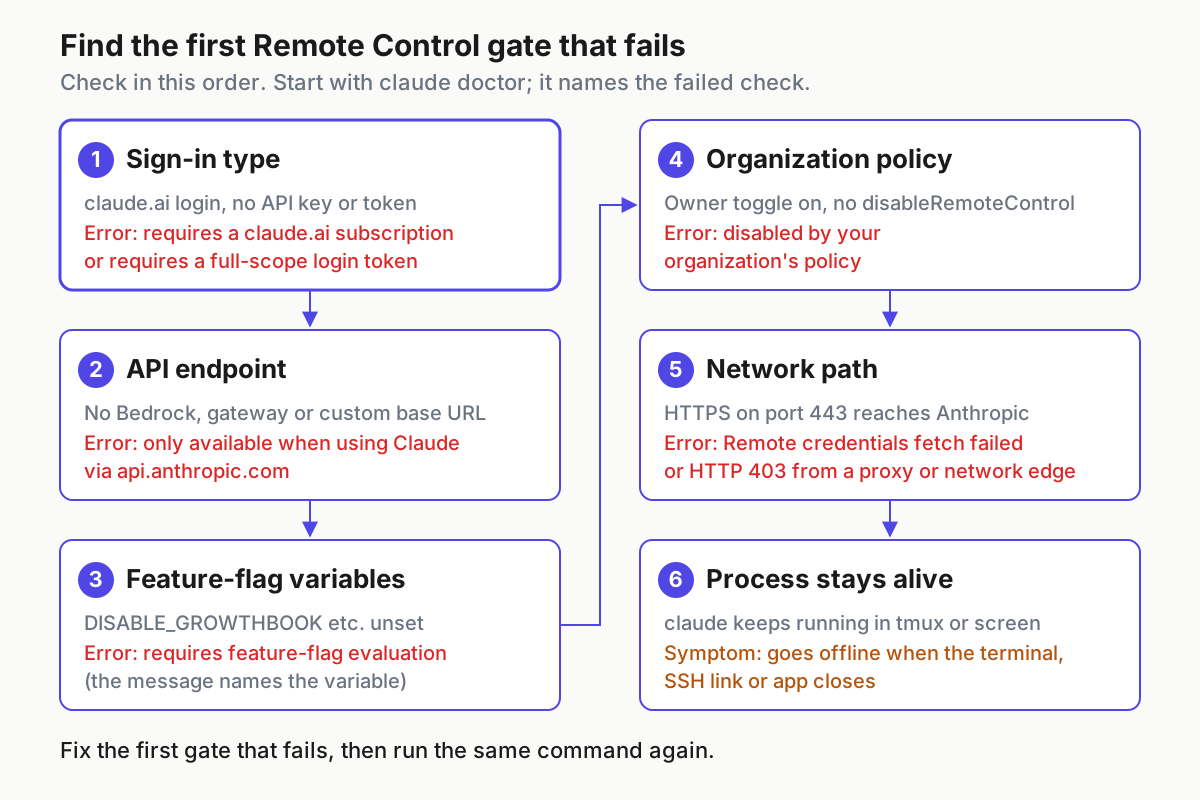
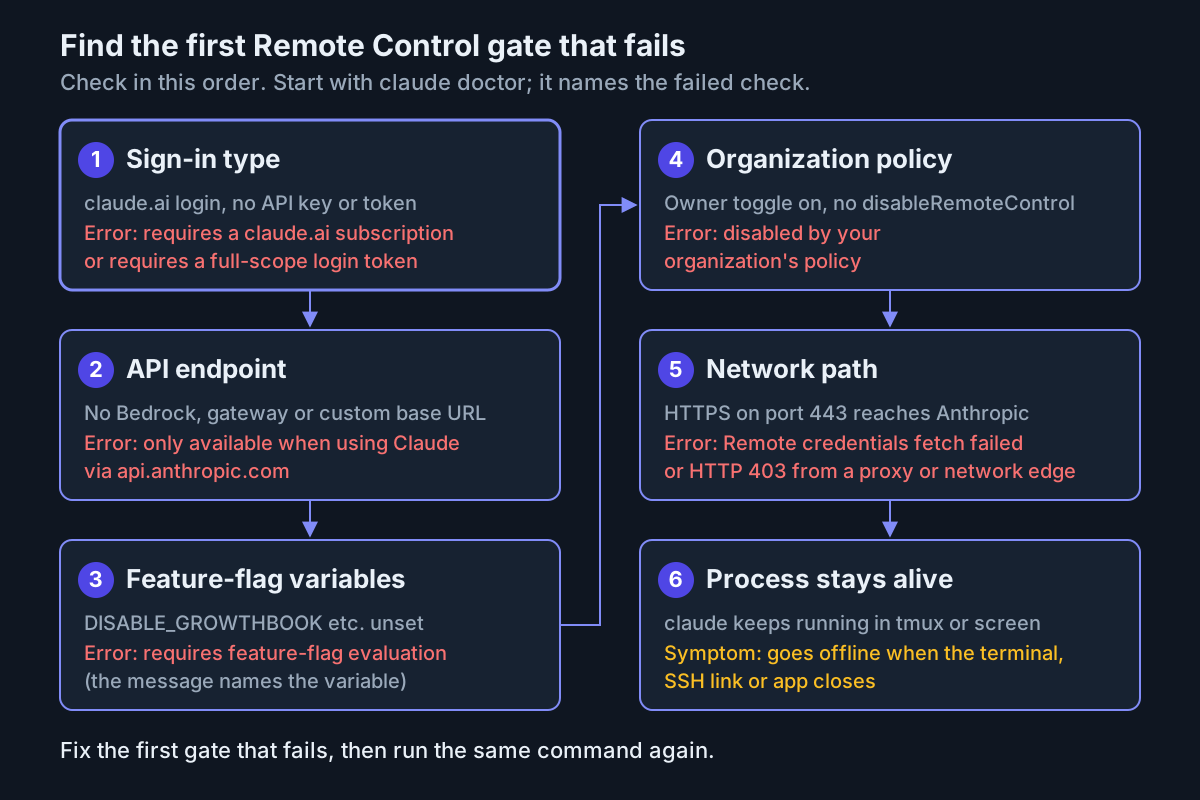
Cloud sessions from claude.ai show on the Web tab of Session history when you’re signed in with a Claude.ai subscription; resuming downloads a copy, and changes don’t sync back. If you’d rather steer the same local session from your phone, the Settings section of the / menu has an Enable Remote Control for all sessions toggle, and the Remote Control setup guide covers the rest.
Troubleshooting table: symptom, cause, fix, observation
Start with the version. Many panel features and fixes in this guide have a minimum extension version, and the chart shows where each one starts.
| Symptom | Likely cause | Fix | You should then see |
|---|---|---|---|
| Spark icon missing | No file open; VS Code older than 1.94.0; Restricted Mode; a conflicting AI extension | Open a file; update VS Code; trust the workspace; temporarily disable Cline, Continue or similar; run Developer: Reload Window | The Spark icon in the Editor Toolbar; meanwhile ✻ Claude Code in the Status Bar works |
claude not found in the integrated terminal |
The extension bundles a private CLI and never adds claude to PATH |
Install the standalone CLI, open a new terminal, verify PATH | claude --version prints a version |
| Session fails with “Subprocess initialization did not complete within 60000ms” | A slow SessionStart hook on builds before 2.1.304, or another startup problem | Update the extension to 2.1.304 or later, then follow the next section | The session starts; hook time no longer counts, up to 10 minutes |
| A session closed while starting keeps its Claude Code process running | Fixed in 2.1.304 | Update the extension | The process no longer lingers after you close a starting session |
Conversations missing from Session history with claudeProcessWrapper set |
Fixed in 2.1.304 | Update the extension to 2.1.304 or later | The missing conversations appear, with sessions claude -p or the Agent SDK started in this workspace |
| The panel crashes or freezes each time a reload reopens a conversation | Fixed in 2.1.301 | Update, then reload or restart | After two failed opens in a row, a new chat replaces it with a “was not reopened” notice |
| A resumed conversation is blank | Its Claude Code process is still starting | Wait; “Waiting for your plugins…” appears after about a second | Messages appear, after 20 seconds at most |
| A setting seems ignored | Wrong layer: extension setting versus settings file, a higher level overriding it, a project allow waiting for trust, or a key read only at start | Check Setting sources in the terminal’s /status and run claude doctor; move the key to the right file |
The rule shows in Permissions and /permissions with the expected source |
initialPermissionMode ignored |
It was set in workspace settings | Set it in VS Code user settings | New conversations start in the chosen mode |
| Cmd+Esc does nothing on macOS | On macOS Tahoe and later, the system Game Overlay shortcut is bound to Cmd+Esc by default and intercepts it before VS Code; on earlier macOS, look for another app or binding using the key | Clear Game Overlay under Keyboard Shortcuts > Game Controllers, or rebind Claude Code: Focus input | Focus toggles between editor and prompt |
Garbled characters when running claude in the integrated terminal |
The terminal’s GPU renderer | Run /terminal-setup, or set terminal.integrated.gpuAcceleration to off and reload |
Clean text |
The last row comes from Anthropic’s troubleshooting page, which also routes sign-in loops, 403 errors and “process exited with code N” messages to the installation and error references.
Fix a session that fails with the 60000ms subprocess message
This error means the panel’s Claude Code process didn’t finish starting within 60 seconds. Work through these steps in order and stop as soon as the session starts.
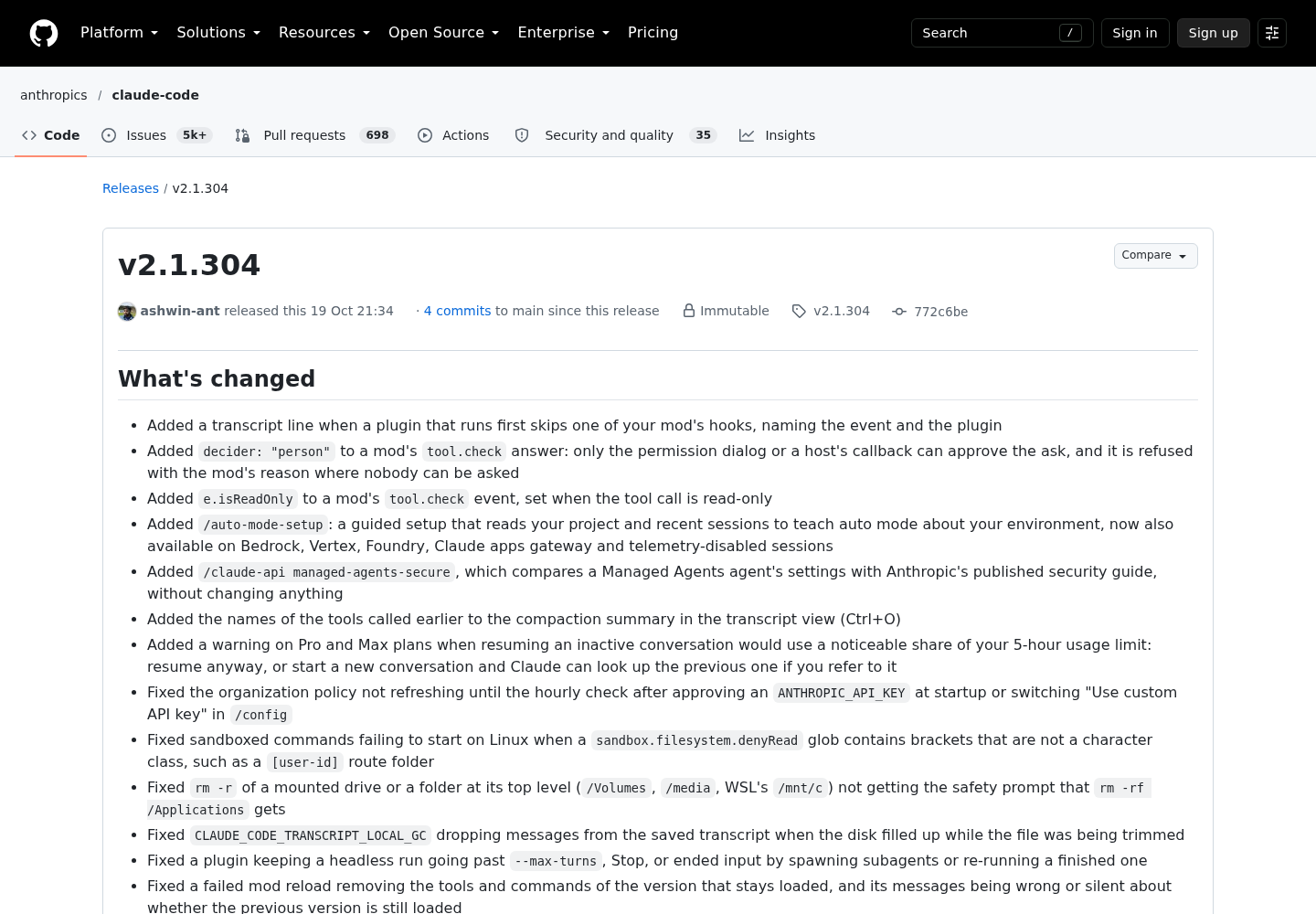
- Check the version. In the Extensions view, confirm 2.1.304 or later. Before that release, a SessionStart command hook’s running time counted toward the 60-second limit; from 2.1.304 it doesn’t, up to 10 minutes in total. Update and reload the window.
- Read the logs. Type “Claude Code” in the Command Palette and run Show Logs to view the extension’s debug logs. Look at what startup was doing when it stopped.
- List the hooks. In the panel’s
/menu, Hooks in the Customize section (v2.1.269 or later) shows the hooks loaded for the session, grouped by event. A SessionStart hook that installs dependencies or calls the network is the usual suspect. You can edit or remove hooks saved in user, project and local settings there; hooks from managed settings or plugins are read-only. - Isolate customizations from the terminal. Run
claude --safe-modein the integrated terminal. It disables all customizations for that session. If it starts promptly while the panel doesn’t, a plugin, MCP server or hook is the cause. - Get a fuller error. When the panel never responds, the docs suggest running
claudefrom the terminal, which can print more detailed error messages. Ifclaudewon’t start at all, runclaude doctorfrom your shell. - Fix the slow hook, not the timeout. Move heavy work out of SessionStart or make it conditional, then start a new conversation and confirm it opens.
If the extension build doesn’t include a CLI for your platform, the claudeProcessWrapper extension setting can point at a separately installed claude binary. Know the trade-offs: with it set, the double-open check is skipped, and a resumed conversation that ended in plan mode doesn’t restore plan mode.
Roll back without losing the CLI
Removing the extension doesn’t touch ~/.claude/settings.json, the project’s .claude/ folder or the standalone CLI. VS Code’s own Disable action on the extension page is the lighter option if you only want a pause; the steps below are the documented full uninstall.
- Open the Extensions view (Cmd+Shift+X / Ctrl+Shift+X), search for “Claude Code” and click Uninstall.
- Stop the CLI reinstalling it. Running
claudein a VS Code integrated terminal reinstalls the extension automatically. Turn off Auto-install IDE extension in/config, setautoInstallIdeExtensiontofalse, or set theCLAUDE_CODE_IDE_SKIP_AUTO_INSTALLenvironment variable to1. - Optional: remove extension data and reset its settings by deleting its storage directory, using the command for your platform below. This removes extension state only; read the path before you run it, because
rm -rfdoesn’t ask. - Confirm the CLI still works: open a new terminal, run
claude --version, startclaudeat the repository root and run/permissions. Your rules should still be listed with their source files. - To come back later, repeat the install section. Settings, plugins and history are already in place.
# macOS
rm -rf ~/Library/"Application Support"/Code/User/globalStorage/anthropic.claude-code
# Linux
rm -rf ~/.config/Code/User/globalStorage/anthropic.claude-code
# Windows PowerShell
Remove-Item -Recurse -Force "$env:APPDATA\Code\User\globalStorage\anthropic.claude-code"
The success checklist for the whole guide:
- [ ] The panel completed one edit you reviewed change by change.
- [ ]
claude --versionprints a version in the integrated terminal, if you installed the CLI. - [ ] A deny rule written once shows in the panel’s Permissions dialog and in the terminal’s
/permissions. - [ ]
claude --resumefinds a conversation started in the panel. - [ ] You know which extension version you run, and it is 2.1.304 or later.
Sources
- @vanillamuffn on X, Oct 21, 2026: the Claude VS Code extension with Haiku 5.5 for targeted edits
- Anthropic, Use Claude Code in VS Code
- Anthropic, Claude Code overview and install commands
- Anthropic, Configure permissions
- Anthropic, Settings files and precedence
- Anthropic, Claude Code troubleshooting
- Anthropic, Platforms and integrations
- GitHub, anthropics/claude-code release v2.1.304, Oct 19, 2026