Claude Code JetBrains Setup: Install the Plugin, Point It at the CLI, and Fix Launch, Diff and Shift+Enter Problems
Claude Code JetBrains setup for IntelliJ and PyCharm: install the plugin and CLI, set the Claude command, confirm /ide, route diffs and fix Shift+Enter.

Go deeper. Build your own.
Getting Claude Code JetBrains integration working takes two installs, and most broken setups are missing the second one. The Claude Code plugin from the JetBrains Marketplace does not contain Claude Code. According to Anthropic’s JetBrains documentation, the plugin runs the claude command in your IDE’s integrated terminal, connects to it, and does not bundle its own copy of the CLI. If the CLI is missing, sits on a PATH the IDE never sees, or is an old build, the plugin has nothing useful to attach to.
This guide is for developers who live in IntelliJ IDEA, PyCharm, WebStorm, GoLand, PhpStorm or Android Studio, the IDEs Anthropic names among those the plugin supports, and who want Claude Code inside the editor rather than in a separate window. Three symptoms bring most people here: a “Cannot launch Claude Code” notification, Shift+Enter sending a half-written prompt, and proposed edits that render as text diffs in the terminal instead of in the IDE’s diff viewer. Each has a specific cause. The worked example below is built to surface all three on a throwaway repository before they interrupt real work.
You will finish with the plugin installed and pointing at a CLI binary you chose, a connection you have verified rather than assumed, diffs opening in the IDE, inspection diagnostics reaching Claude when you ask for them, and a newline key that works in your build of the terminal.
One piece of timing explains why this matters now. JetBrains announced on its Platform blog on October 27, 2026 that the built-in terminal runs on libghostty starting with 2026.3, replacing the JediTerm emulator it used for years; our news report on the libghostty switch covers the announcement itself. For this guide the change matters mainly for keyboard input. Everything else applies to older IDE builds too, and the sections that differ say so.
How the plugin and the CLI connect
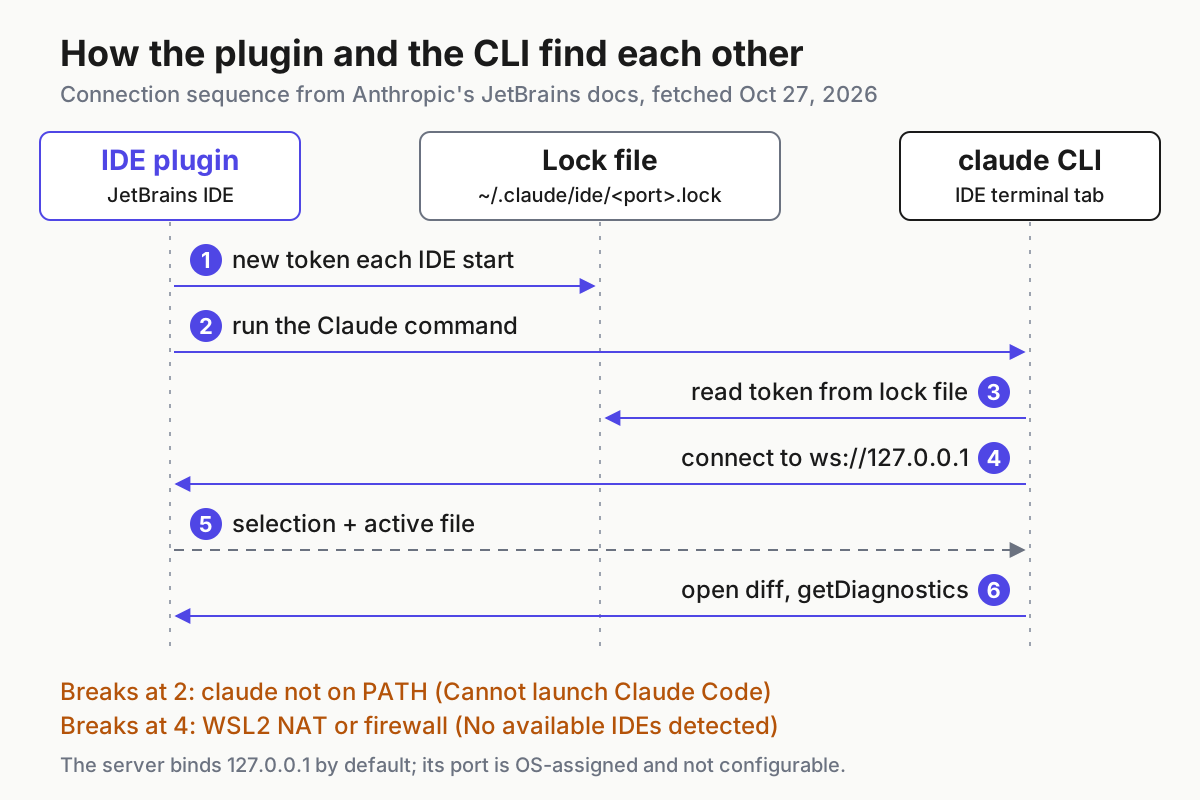
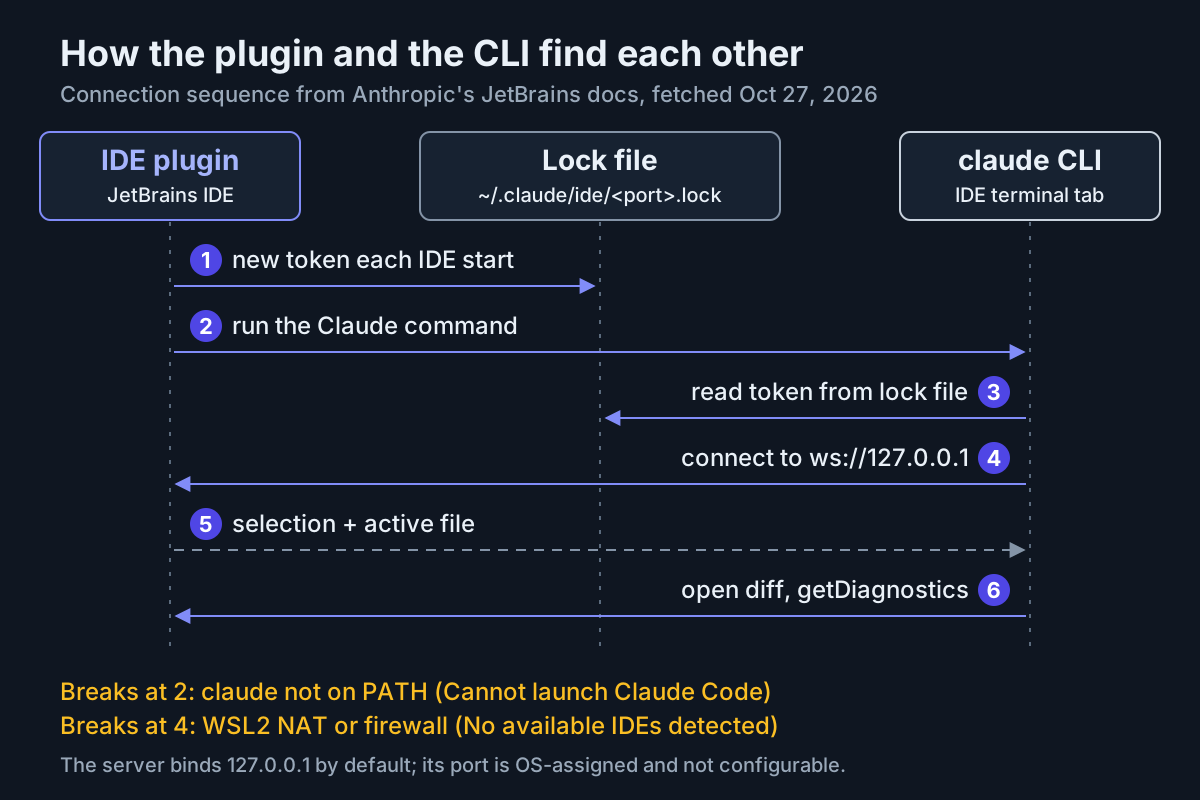
Before installing anything, it helps to know which piece owns which job, because every failure in the troubleshooting table later maps to one link in this chain.
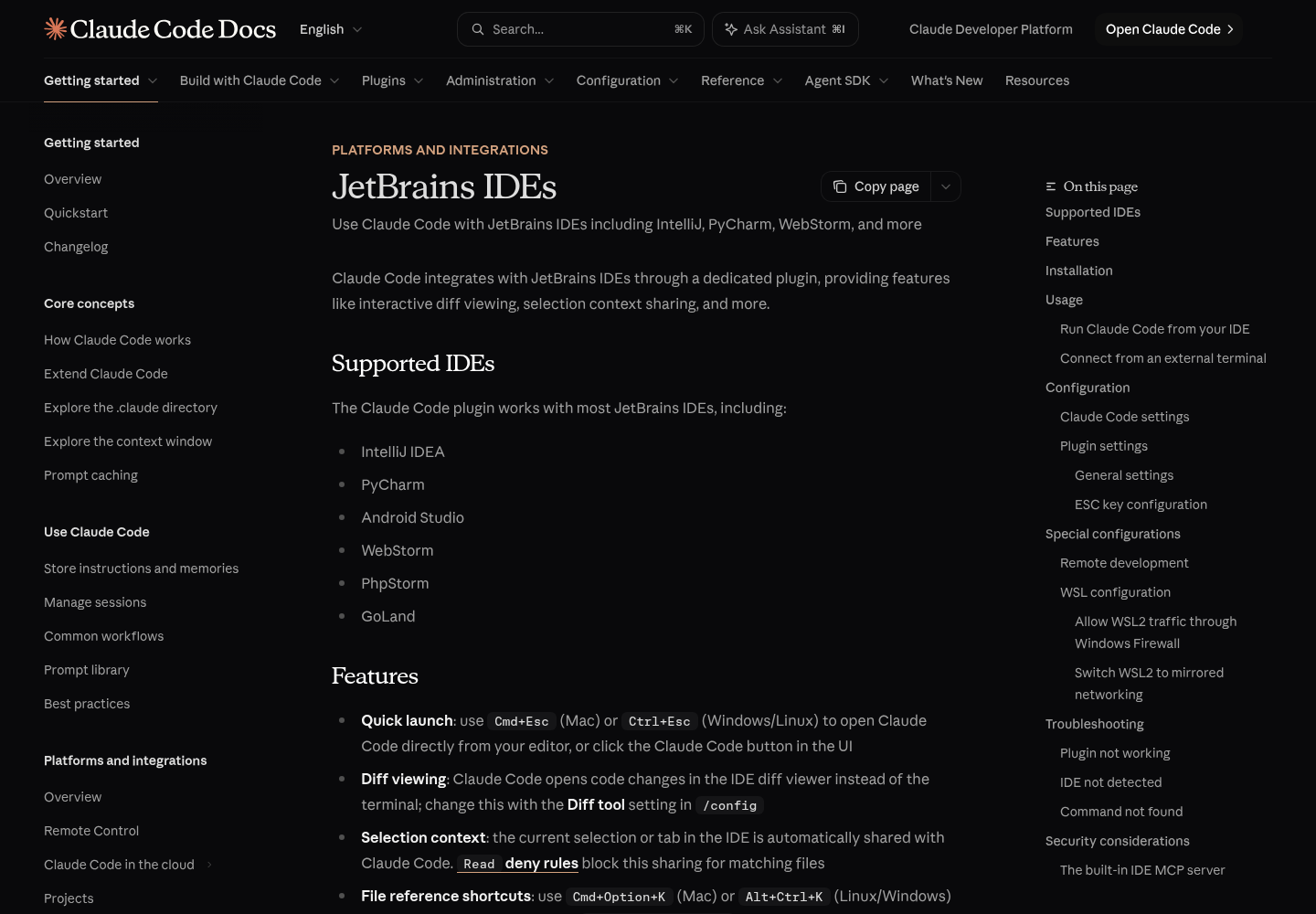
When the plugin is active, it starts a small local MCP server inside the IDE. Anthropic names it ide and hides it from the /mcp list because there is nothing to configure, which is why it never appears next to the servers you add yourself with the commands in our Claude Code MCP setup guide. The server listens on a port the operating system assigns, and you cannot change it. Each time the IDE starts, the plugin generates a fresh random token and writes it to a lock file at ~/.claude/ide/<port>.lock, or under $CLAUDE_CONFIG_DIR/ide/ if you set that variable. The CLI reads the token and must present it in an X-Claude-Code-Ide-Authorization header to connect over ws:// on loopback.
Once connected, three things travel over that link:
- Selection and active file. With each prompt you send, the CLI includes your current editor selection and the path of the active file. The transcript shows a
⧉ Selected N lines from <file>line when this happens. - Diffs. The CLI asks the IDE to open proposed changes in its native diff viewer.
- Diagnostics. The model can call one tool,
mcp__ide__getDiagnostics, which returns the inspection errors and warnings for one file: the file Claude names, or your active editor file. It is read-only, and Anthropic states the plugin exposes no code-execution tool to the model.
| Piece | Where it lives | What you see when it is missing or broken |
|---|---|---|
Claude Code CLI (claude) |
Your PATH, or the full path in plugin settings | “Cannot launch Claude Code” notification, or “command not found” |
| Claude Code [Beta] plugin | Installed in the IDE, or on the host for Remote Development | No Claude Code button, no quick launch, /ide finds no IDE |
ide MCP server and lock file |
Inside the running IDE, with the token under ~/.claude/ide/ |
“No available IDEs detected”; no Diff tool entry in /config |
| Account | Paid Claude plan or Console account | Login prompt the first time you run claude |
The practical consequence: a working plugin with a broken CLI looks broken, and a working CLI started outside the IDE looks like a plugin problem. Test them separately, CLI first.
Before you start: prerequisites checklist
- [ ] A JetBrains IDE where the Marketplace shows the Claude Code plugin as compatible. Use 2026.3 or later if you want the libghostty terminal; earlier builds work with a different newline key.
- [ ] A paid Claude subscription (Pro, Max, Team or Enterprise) or a Claude Console account. Anthropic’s advanced setup page says the free claude.ai plan does not include Claude Code, and its overview notes that the JetBrains surface also supports third-party providers.
- [ ] A supported OS: macOS 13.0+, Windows 10 1809+ or Windows Server 2019+, Ubuntu 20.04+, Debian 10+ or Alpine Linux 3.19+, with 4 GB of RAM or more.
- [ ] Git. On native Windows, Git for Windows is recommended so Claude Code can use its Bash tool; without it, Claude Code uses PowerShell as the shell tool.
- [ ] The
invoice-demosample project from Step 3. It is supplied in full below, so you do not need to prepare anything in advance. - [ ] If relevant: your WSL distribution name (for example
Ubuntu) or access to the Remote Development host.
The first session in Step 3 is deliberately thorough. Treat it as your acceptance test: when every check in it passes, the setup is done.
Step 1: Install the CLI where the IDE can find it
Install the CLI first and confirm it from inside the IDE’s own terminal, not from a separate terminal app. An IDE launched from the Dock or Start menu can start with a different environment than your login shell, which is the most common reason the plugin reports that it cannot launch Claude Code.
These are Anthropic’s documented native installers. Pick the one for your platform.
macOS, Linux, or inside a WSL distribution:
curl -fsSL https://claude.ai/install.sh | bash
Windows PowerShell (your prompt starts with PS C:\):
irm https://claude.ai/install.ps1 | iex
Windows CMD (your prompt starts with C:\ and no PS):
curl -fsSL https://claude.ai/install.cmd -o install.cmd && install.cmd && del install.cmd
Package-manager installs are documented too: brew install --cask claude-code on macOS, winget install Anthropic.ClaudeCode on Windows, and signed apt, dnf and apk repositories on Linux. Know the trade-off before you choose. Native installs update themselves in the background; Homebrew, WinGet and Linux package installs do not unless you opt in. That difference resurfaces later as “the plugin launched an old version.”
Then verify from the IDE:
- Quit the IDE completely and reopen it, so its terminal starts with the PATH the installer just changed. Anthropic tells you to open a new terminal window after installing; a full IDE restart is the equivalent for the integrated terminal.
- Open your project and the IDE’s Terminal tool window.
- Run
claude --version. - Run
claude doctor. It prints read-only installation and settings diagnostics without starting a session, including install health, settings-file validation errors and the result of the last update attempt. - Record the binary’s absolute path. On macOS, Linux and WSL the standard shell command
which claudeprints it; on Windows,where.exe claudedoes. You may need it in Step 2.
| Platform | Where to run the installer | Check in the IDE terminal | Expected observation |
|---|---|---|---|
| macOS | Any terminal, then restart the IDE | claude --version |
A version number such as 2.1.211 (Claude Code) |
| Windows, native | PowerShell or CMD; Administrator is not needed | claude --version |
A version number; native installs live under %USERPROFILE%\.local\bin |
| Windows with WSL | Inside the WSL distribution, never PowerShell or CMD | wsl -d Ubuntu -- bash -lic "claude --version" |
The version installed inside WSL |
| Linux | Any terminal, then restart the IDE | claude --version |
A version number; native installs manage the launcher at ~/.local/bin/claude |
If the shell says claude is not found or not recognized, the install directory is not on that PATH yet. Anthropic’s setup page links a Fix your PATH procedure, and the quicker workaround for the plugin is the full path in Step 2. If the version is older than you expect, you probably have two installs. Compare the path from which claude with what claude doctor reports; it flags a launcher the native installer did not create.
Step 2: Install the plugin and set the Claude command
- Open Settings, then Plugins, then the Marketplace tab, and search for “Claude Code”. Install the Claude Code [Beta] plugin and restart the IDE when prompted.
- Open Settings → Tools → Claude Code [Beta].
- Fill in Claude command using the table below. Leave it as
claudeonly if Step 1 showedclaude --versionworking inside the IDE terminal. - Leave Suppress notification for when Claude Command is not found unchecked while you set up. That notification is your fastest signal that step 3 is wrong.
- On macOS, decide on Enable using Option+Enter for multi-line prompts. Turn it on if you want Option+Enter as a newline key; leave it off if the Option key is being captured unexpectedly. Changing it requires a terminal restart.
- Decide on Enable automatic updates. It checks for and installs plugin updates, applied on restart. It covers the plugin, not the CLI.
- Click Apply, then press Cmd+Esc on macOS or Ctrl+Esc on Windows and Linux, or click the Claude Code button.
| Your situation | Claude command value | Why this value |
|---|---|---|
claude --version works in the IDE terminal |
claude |
The default; resolved on the IDE’s PATH |
| Works in your shell but not from the IDE | The absolute path from Step 1, for example /usr/local/bin/claude or /Users/you/.local/bin/claude |
Skips PATH lookup; the plugin runs exactly that binary |
| Native Windows, PATH not picked up | C:\Users\you\.local\bin\claude.exe |
The native installer’s location (replace you) |
| You run Claude Code through npm | npx @anthropic-ai/claude-code |
Anthropic’s documented example; the npm package requires Node.js 22 or later |
| Your project lives in WSL | wsl -d Ubuntu -- bash -lic "claude" |
Anthropic’s documented WSL form; replace Ubuntu with your distribution |
Why the WSL form looks like that: wsl -d Ubuntu -- runs the rest of the line inside that distribution, and bash -lic starts a login, interactive Bash so your profile scripts run and the directory holding claude is on PATH before the command is looked up. Without it, the Windows side either finds no claude at all or finds a Windows install that is not the one living next to your Linux toolchain.
Expected observation: a terminal tab opens and Claude Code starts. The first run sends you through a browser login. If you see “Cannot launch Claude Code” instead, the Claude command value does not resolve. Paste the same value into the IDE terminal with --version appended to see the underlying error.
When to prefer a full path even though claude works: if you keep two installs on purpose, say a Homebrew stable cask and a native latest build, pinning the path decides which one the IDE launches regardless of PATH order. It is also the cleanest fix for the plugin launching an outdated binary.
Step 3: A first session in a sample repo, with expected observations
The example below is a worked script, not a transcript we recorded. Each “look for” line describes behavior that Anthropic’s JetBrains page documents; exact wording can differ between versions.
The fixture is a tiny Python project with two planted problems, a missing colon and an unused import, so the IDE has something to report. Copy the whole block into a macOS, Linux or WSL shell; on native Windows, run it in Git Bash.
mkdir invoice-demo && cd invoice-demo
git init
mkdir src
cat > src/totals.py <<'EOF'
import os


def subtotal(items):
    return sum(item["price"] * item["qty"] for item in items)


def total_with_tax(items, rate):
    return subtotal(items) * (1 + rate)


def format_total(amount)
    return f"${amount:.2f}"
EOF
git add -A && git commit -m "baseline with two planted problems"
The commit is your rollback point. Open invoice-demo as a project in PyCharm, or in IntelliJ IDEA with Python support, and open src/totals.py. The editor should mark the def format_total(amount) line as an error and grey out or flag the unused import os. For reference, subtotal is lines 4–5, total_with_tax is lines 8–9 and format_total is lines 12–13.
These are the four prompts the session uses, in order, so you can copy them one at a time:
What does this function assume about each item?
Is tax applied before or after rounding here?
Read the IDE diagnostics for src/totals.py and fix every error and warning they report. Do not change behavior.
Check the diagnostics for src/totals.py again.
- Launch inside the IDE. Open the Terminal tool window at the project root and run
claude, or press Cmd+Esc / Ctrl+Esc. Look for: an interactive session in the terminal tab. Anthropic says runningclaudefrom the integrated terminal activates all integration features without further commands. - Prove the connection. Type
/configand find Diff tool. Look for: the entry exists. Anthropic says it appears only when Claude Code is connected to the IDE, so a missing entry is a reliable failure signal. Set it toautoso diffs open in the IDE;terminalkeeps them in the terminal. - Share a selection. In the editor, select lines 4–5. Click back into the terminal and send the first prompt. Look for: a
⧉ Selected 2 lines from …line namingtotals.pyin the transcript, and an answer about thepriceandqtykeys. - Insert a file reference. Select lines 8–9, put the cursor in Claude’s prompt and press Cmd+Option+K on a Mac or Alt+Ctrl+K on Windows and Linux. Look for: a reference in the shape of Anthropic’s example
@src/auth.ts#L1-99, here something like@src/totals.py#L8-9. Complete the prompt with the second line from the block above. - Ask for diagnostics by name. Send the third prompt. Look for: a
getDiagnosticscall (hooks see it asmcp__ide__getDiagnostics) before any edit is proposed. - Review in the IDE diff viewer. Look for: the proposed change opening in the IDE’s diff viewer rather than as text in the terminal, with the colon added and
import osremoved. Approve it when Claude asks. - Re-check after the edit. Send the fourth prompt. This step exists because Claude Code does not request diagnostics from the plugin on its own after edits. Look for: no remaining errors reported.
- Enter a multi-line prompt. Type
Write pytest tests for total_with_tax covering:, press your newline key from the next section, type- a zero rate, newline again, then- an empty list. Look for: three lines in the input box and nothing sent until you press Enter. - Close out. Run
git diffin a second terminal tab to see exactly what changed, then commit it or restore the baseline withgit checkout -- .. Claude Code’s own undo is covered in our checkpoints and /rewind guide; git remains the safety net for everything checkpoints do not track.
After step 6, src/totals.py should match the minimal correct fix below. This is the expected end state, not captured output; Claude’s edit may differ in blank lines, but any behavioral change beyond these two fixes is a reason to reject the diff.
def subtotal(items):
    return sum(item["price"] * item["qty"] for item in items)


def total_with_tax(items, rate):
    return subtotal(items) * (1 + rate)


def format_total(amount):
    return f"${amount:.2f}"
In git diff, that appears as exactly two changes: the import os line and the two blank lines that followed it removed, and def format_total(amount) gaining its colon.
If you prefer an external terminal, the same session works with one extra command. From the project root, run claude, then /ide. Anthropic documents a confirmation such as Connected to IntelliJ IDEA. Starting from the IDE’s project root matters, because that is how Claude sees the same files the IDE does.
| Check | Pass | Fail, and where to go next |
|---|---|---|
| Launch | Session starts in an IDE terminal tab | “Cannot launch Claude Code”: revisit the Claude command in Step 2 |
| Connection | Diff tool listed in /config, or Connected to … after /ide |
“No available IDEs detected”: troubleshooting table |
| Selection | A ⧉ Selected N lines line appears |
No line: not connected, or a Read deny rule matches the file |
| Diff | Edit opens in the IDE diff viewer | Text diff in the terminal: Diff tool is terminal, or the session is not connected |
| Diagnostics | Claude cites the planted syntax error before fixing it | Claude guesses: ask it to read the diagnostics by file name |
| End state | git diff shows only the colon and the removed import |
Extra changes: reject the diff and re-ask with “Do not change behavior” |
| Newline | Multi-line input stays unsent | Prompt submits early: use the newline table below |
Multi-line prompts: pick the newline key for your terminal build
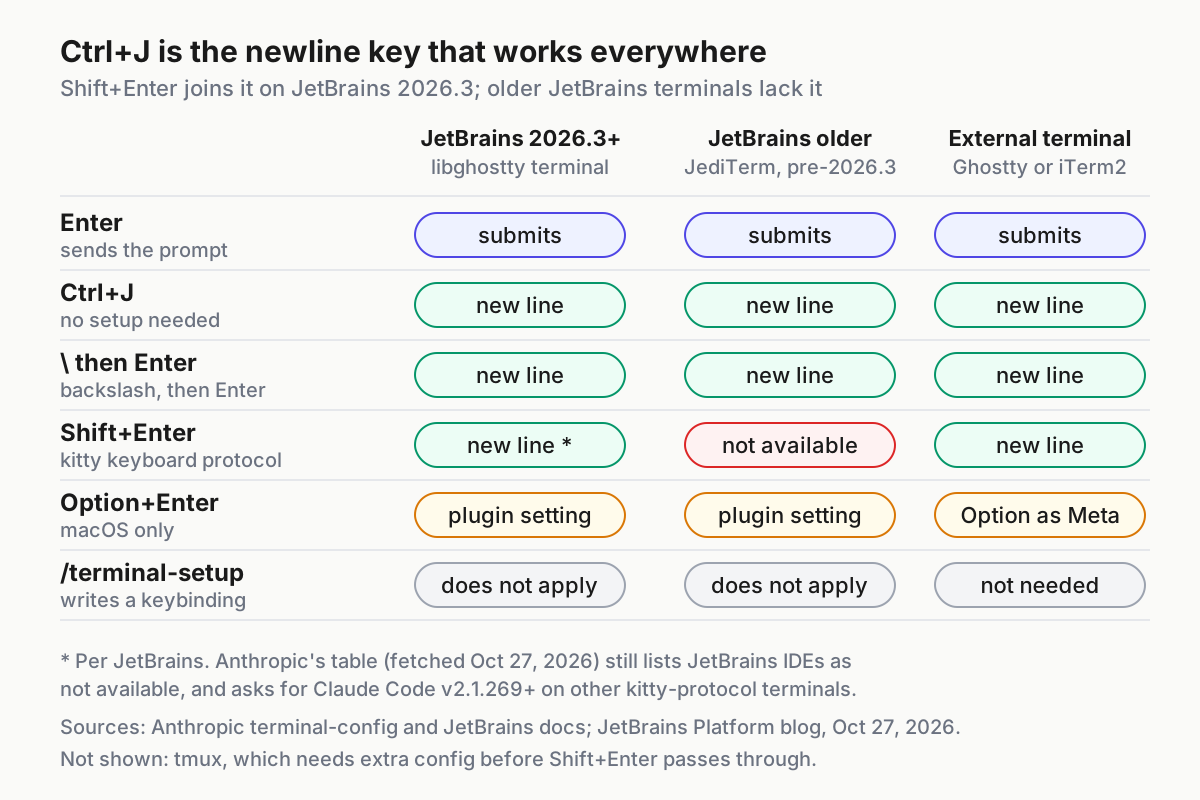
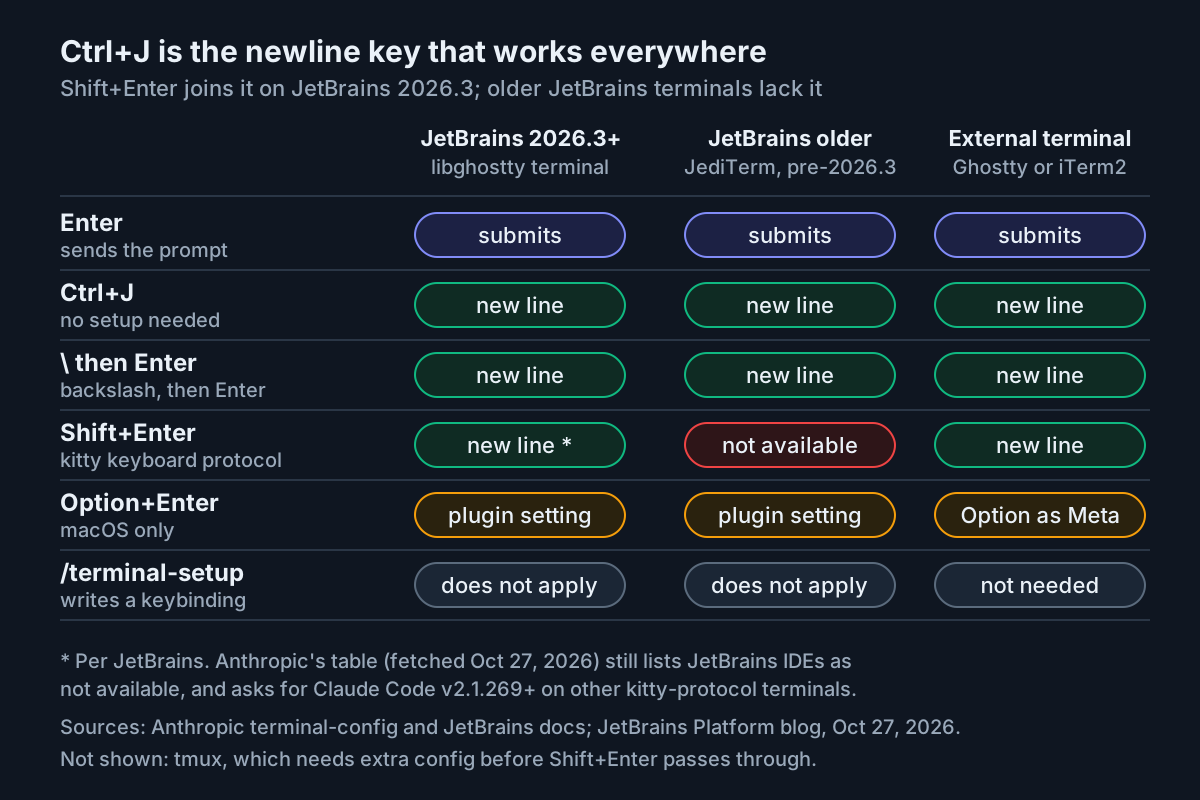
Enter always submits. The question is which key adds a line break without sending, and the answer depends on which terminal engine your IDE build runs.
Anthropic’s terminal configuration page documents two keys that work in every terminal with no setup: Ctrl+J, and typing \ followed by Enter. Those are your baseline on any IDE version. Shift+Enter depends on the terminal, and this is where JetBrains 2026.3 changes the answer.
JetBrains says the libghostty-based terminal supports the Kitty keyboard protocol, so terminal apps can tell Enter, Shift+Enter and Ctrl+Enter apart, and that Shift+Enter now starts a new line in your prompt instead of sending a half-written message, with no IDE settings to adjust. It also says the old setting that sent Esc+CR on Shift+Enter is no longer needed and is ignored. Anthropic’s table, as fetched on October 27, 2026, still lists JetBrains IDEs such as PyCharm and Android Studio under “Not available; use Ctrl+J or \ then Enter.” The two documents describe different terminal engines. Anthropic also says other terminals that support the kitty keyboard protocol need Claude Code v2.1.269 or later for Shift+Enter. Our reading of both pages: on 2026.3, treat v2.1.269 as the floor, and trust step 8 of the worked example over either document.
| Your setup | Use this newline key | What to check if it fails |
|---|---|---|
| JetBrains 2026.3+, default terminal, Claude Code v2.1.269+ | Shift+Enter, or Ctrl+J | claude --version; the Registry key terminal.use.ghostty.emulator is still on |
| JetBrains before 2026.3 | Ctrl+J, or \ then Enter |
Shift+Enter is not expected to work; do not chase it |
| 2026.3 with libghostty switched off in the Registry | Ctrl+J, or \ then Enter |
You are back on JediTerm behavior |
| macOS, you prefer Option+Enter | Option+Enter after enabling the plugin setting | Restart the terminal; disable the setting if Option is captured unexpectedly |
| tmux running inside the IDE terminal | Ctrl+J; Shift+Enter only after the tmux config below | tmux does not pass the distinction through by default |
Do not run /terminal-setup to fix this in JetBrains. Anthropic documents that command for VS Code, Cursor, Devin Desktop, Alacritty before 0.16 and Zed, where it writes a Shift+Enter keybinding into that editor’s configuration. JetBrains IDEs are not on that list, so there is no binding for it to write.
If you run tmux inside the IDE terminal, add Anthropic’s documented lines to ~/.tmux.conf, then apply them to the running server with tmux source-file ~/.tmux.conf:
set -g allow-passthrough on
set -g focus-events on
set -s extended-keys on
set -as terminal-features 'xterm*:extkeys'
To move newline or submit to different keys altogether, remap the chat:newline and chat:submit actions in your keybindings file; our Claude Code keyboard shortcuts and keybindings.json guide walks through that file.
Fix Escape, theme and notifications in the IDE terminal
Three smaller terminal behaviors cause most of the remaining friction after the newline key.
Escape does not interrupt Claude. JetBrains terminals can use Escape to move focus back to the editor, so the key never reaches Claude Code. Anthropic’s fix:
- Open Settings → Tools → Terminal.
- Either uncheck “Move focus to the editor with Escape”, or click “Configure terminal keybindings” and delete the “Switch focus to Editor” shortcut.
- Apply the change.
- Test it: start a long request, press Escape, and look for the operation stopping while focus stays in the terminal.
Colors fight the IDE theme. On 2026.3, JetBrains says the terminal answers the dark/light query from the current IDE theme and notifies apps when you switch, and names Claude Code among the tools that subscribe to those notifications. In Claude Code, run /theme and pick the auto option, which detects the terminal’s light or dark background. On older builds, pick a fixed Claude Code theme that matches your IDE.
No alert when Claude finishes. JetBrains says libghostty already parses desktop notification sequences (OSC 9 and 777), but the IDE does not act on them yet. Anthropic says Claude Code sends desktop notifications by default only in Ghostty, Kitty and iTerm2. Until the IDE side ships, a Notification hook is the dependable option. This documented example plays a macOS system sound; Anthropic’s hooks guide has Linux and Windows commands. Add it to ~/.claude/settings.json:
{
  "hooks": {
    "Notification": [
      {
        "hooks": [{ "type": "command", "command": "afplay /System/Library/Sounds/Glass.aiff" }]
      }
    ]
  }
}
Hooks run alongside the built-in notification rather than replacing it, so nothing is lost if the IDE later starts surfacing notifications natively.
WSL and Remote Development setups
Windows developers with projects in WSL hit two separate problems: the plugin launching the wrong claude, and the CLI being unable to reach the IDE across the WSL2 network boundary. Fix them in that order.
- Install the CLI inside the WSL distribution with the Linux installer. Anthropic is explicit that you install and launch
claudeinside WSL, not from PowerShell or CMD. - Set Claude command to
wsl -d Ubuntu -- bash -lic "claude", with your distribution’s name. - Launch, and run
/ideif the connection is not automatic. If you see “No available IDEs detected”, the usual cause is WSL2’s NAT networking or Windows Firewall blocking traffic between WSL2 and the IDE on the Windows host. WSL1 uses the host’s network directly and is not affected. - Apply the recommended fix, which keeps your current networking mode. Inside WSL, run
hostname -I, take the first two segments of the address and append.0.0/16; for172.21.123.45the subnet is172.21.0.0/16. Then, in PowerShell opened as Administrator, adjust and run:
New-NetFirewallRule -DisplayName "Allow WSL2 Internal Traffic" -Direction Inbound -Protocol TCP -Action Allow -RemoteAddress 172.21.0.0/16 -LocalAddress 172.21.0.0/16
- Close and reopen both the IDE and Claude Code so the rule takes effect.
- Alternatively, on Windows 11 22H2 or later, switch WSL2 to mirrored networking. Add the block below to
.wslconfigin your Windows user directory, then runwsl --shutdownfrom PowerShell. On Windows 10, use the firewall rule instead.
[wsl2]
networkingMode=mirrored
Here is the whole WSL path filled in for one machine. The values are illustrative, built on Anthropic’s own example address; substitute your distribution name and the address hostname -I prints.
| Input or step | Value in this example | Decision and expected observation |
|---|---|---|
| Windows version | Windows 10 22H2 | Mirrored networking is not available, so use the firewall rule |
| WSL distribution | Ubuntu on WSL2 |
WSL2 is affected by NAT; WSL1 would not be |
| CLI install | curl -fsSL https://claude.ai/install.sh | bash inside Ubuntu |
wsl -d Ubuntu -- bash -lic "claude --version" prints a version |
| Claude command setting | wsl -d Ubuntu -- bash -lic "claude" |
The plugin opens a tab running the WSL install, not a Windows one |
| Symptom before the network fix | /ide reports “No available IDEs detected” |
Plugin is fine; the WSL2 link is blocked |
hostname -I output |
172.21.123.45 |
Subnet is 172.21.0.0/16 |
| Firewall rule | The New-NetFirewallRule command above, unchanged |
Run once in an Administrator PowerShell |
| Restart | Close and reopen the IDE and Claude Code | /ide now reports Connected to … and Diff tool appears in /config |
Avoid the plugin’s Accept connections from all network interfaces option, under Settings → Tools → Claude Code [Beta] → Networking (Advanced), unless loopback genuinely cannot work. With it on, the IDE’s MCP port is reachable from your local network, and because the transport is unencrypted ws://, both session traffic and the auth token cross that network in cleartext. Anthropic recommends mirrored networking over this option for WSL2, so the socket can stay on loopback.
For JetBrains Remote Development, install the plugin on the remote host through Settings → Plugin (Host), not on your local client. If integration features are missing in a remote session, check that first.
Troubleshooting table: symptom, cause, fix, expected observation
| Symptom | Likely cause | Fix | Expected after the fix |
|---|---|---|---|
| “Cannot launch Claude Code” notification | claude is not on the IDE’s PATH |
Restart the IDE after installing, or set the full path in Claude command | Claude Code starts in a terminal tab |
| Clicking the Claude icon shows “command not found” | Same cause, or a WSL project using the Windows default | Run claude --version in a terminal; set the path; use the WSL command form |
Version prints and the session starts |
/ide shows “No available IDEs detected” |
Plugin disabled, IDE not fully restarted, CLI launched outside the IDE, or WSL2 networking | Enable the plugin; restart the IDE completely; launch from the integrated terminal; apply the WSL fixes | A Connected to … message |
| Plugin installed but features missing | Not started from the project root; plugin disabled; Remote Development plugin on the client | Start from the root; check Plugins; restart, possibly more than once; install on the host | Diff tool entry appears in /config |
| Diffs show as text in the terminal | Diff tool set to terminal, or the session is not connected |
Connect first, then /config → Diff tool → auto |
Next edit opens in the IDE diff viewer |
| Shift+Enter submits the prompt | Pre-2026.3 terminal, libghostty switched off, or a CLI older than v2.1.269 | Use Ctrl+J or \ then Enter; update the IDE; run claude update |
Multi-line input stays unsent |
| Selection never reaches Claude | A Read deny rule matches the file, or the session is not connected | Expected for denied files; otherwise reconnect | A ⧉ Selected N lines line appears |
| Escape does not stop Claude | The terminal moves focus to the editor on Escape | Uncheck “Move focus to the editor with Escape” | Escape interrupts the operation |
WSL project runs the wrong claude |
Claude command resolves to a Windows install | Set wsl -d <distro> -- bash -lic "claude" |
Version in the session matches the WSL install |
| Plugin launches an outdated CLI | Homebrew, WinGet or a package install without upgrades, or an older binary earlier on PATH | Compare which claude with claude doctor; run brew upgrade claude-code, winget upgrade Anthropic.ClaudeCode or claude update; or pin a full path |
claude --version in the IDE terminal shows the build you intended |
| Claude misses new errors after editing | Claude Code does not request diagnostics on its own after edits | Ask it to read the diagnostics again | Fresh diagnostics in the transcript |
| Terminal misbehaves after moving to 2026.3 | A libghostty regression | Help → Find Action, open Registry…, turn off terminal.use.ghostty.emulator; report it on IJPL-218849 |
JediTerm behavior returns; use Ctrl+J for newlines |
Keep edits reviewable: permissions and sensitive files
Anthropic’s JetBrains page carries a specific warning. In acceptEdits permission mode, Claude Code may be able to modify IDE configuration files that the IDE executes automatically, which can bypass Claude Code’s permission prompts for Bash execution. Anthropic notes that acceptEdits and auto mode both approve edits inside your working directory without asking, except in protected paths.
- [ ] Use manual approval for edits in JetBrains projects. The IDE diff viewer makes reviewing each edit cheap, which is half the reason to use the plugin.
- [ ] Add a Read deny rule for secrets such as
.env. A matching rule stops both the selected text and the open-file notice for that file from reaching Claude, even while it is open in the editor. - [ ] Remember that a message you queue while Claude works keeps the selection you had when you pressed Enter, not whatever you select afterwards.
- [ ] If your organization uses a PreToolUse hook to allowlist MCP tools, include
mcp__ide__getDiagnostics, or diagnostics will stop reaching Claude. - [ ] Use Claude only with trusted prompts, and know which files it can modify.
For stronger isolation of the commands Claude runs, pair this with our Claude Code sandbox setup guide. For teams standardizing these choices across many machines, our thesis on permission modes as fleet policy explains why the mode belongs in policy rather than in each developer’s habits.
Plugin, external terminal or another surface
The plugin is not the only way to run Claude Code next to a JetBrains project. Choose by what you need from the editor.
| Option | What you get | Pick it when |
|---|---|---|
| Plugin, with Claude in the IDE terminal | Automatic connection, IDE diffs, selection sharing, diagnostics, quick launch, file-reference shortcut | You want Claude to see what you see in the editor |
External terminal plus /ide |
The same integration once connected | You prefer a standalone terminal; start it from the project root |
| CLI with no plugin | The full CLI in any terminal, without IDE diffs or selection | You only need the agent, or the plugin is unavailable in your setup |
| VS Code extension | Inline diffs, @-mentions and plan review in VS Code | Your team splits across editors; see our VS Code extension guide |
| Remote Control | Continue a local session from your phone or another device | You step away mid-task; see our Remote Control setup guide |
All of these surfaces connect to the same underlying engine, so a repository’s CLAUDE.md files, settings and MCP servers work across them, according to Anthropic’s overview. JetBrains’ own agent tooling is a separate product line: the JetBrains post mentions Junie CLI as another terminal app that benefits from the new engine, but this guide’s sources do not compare it with the Anthropic plugin, so we do not either.
Not everyone needs a large agent setup. One developer joked on X about booting up IntelliJ with a single Claude Code tab in front of new coworkers running elaborate agent rigs. If one well-connected tab covers your work, this guide is the whole setup.
Roll back cleanly
Every change in this guide is reversible, and the CLI keeps working in any terminal after the plugin is gone.
- To keep diffs in the terminal without removing anything:
/config→ Diff tool →terminal. - To pause the integration: Settings → Plugins, disable Claude Code [Beta], and restart the IDE. Run
claudein any terminal as before. - To remove the plugin: uninstall it on the same screen and restart.
- To return the terminal engine to JediTerm on 2026.3: Help → Find Action, open Registry…, and turn off
terminal.use.ghostty.emulator. Expect Shift+Enter to stop inserting newlines; switch to Ctrl+J. - To undo the WSL changes: delete the firewall rule you created, or remove the
networkingModeline from.wslconfigand runwsl --shutdown. - To remove Claude Code entirely: uninstall the JetBrains plugin, plus any VS Code extension or Desktop app, first, because they write to
~/.claude/and recreate it. Then use the uninstall for your install method, for examplerm -f ~/.local/bin/claudeandrm -rf ~/.local/share/claudefor a native install on macOS, Linux or WSL. Deleting~/.claudealso deletes your settings, allowed tools, MCP server configurations and session history, so make it the last step, not the first.
Sources
- JetBrains: The Terminal in JetBrains IDEs Now Runs on libghostty (JetBrains Platform blog, October 27, 2026)
- Anthropic: JetBrains IDEs, Claude Code Docs
- Anthropic: Configure your terminal for Claude Code
- Anthropic: Advanced setup, Claude Code Docs
- Anthropic: Claude Code overview
- ein (@stylishdawg) on X: IntelliJ with a single Claude Code tab (October 21, 2026)