Claude Code Keyboard Shortcuts: The Defaults Worth Knowing and How to Rebind Them in keybindings.json
Claude Code keyboard shortcuts that matter, plus a keybindings.json that fixes tmux clashes, swaps Enter and newline, adds a chord and rolls back cleanly.

Go deeper. Build your own.
Claude Code keyboard shortcuts are tuned for a plain terminal, and plenty of real setups are not plain. Inside tmux, Ctrl+B belongs to the multiplexer before Claude Code ever sees it. On a Mac, Option+P does nothing until the terminal sends Option as Meta. And the habit that costs the most: pressing Enter to start a new line and watching a half-written prompt go to the model, which then starts work on a request you had not finished writing.
This guide is for a developer who runs Claude Code in a terminal, inside tmux or in the VS Code extension and wants those collisions gone. You will learn which defaults are worth keeping, then build one ~/.claude/keybindings.json that makes Enter insert a newline, moves submit to Shift+Enter, puts /compact on a key, hides stash behind a chord and switches off a default that misfires under tmux. Each change comes with a check you run in a live session and a way to undo it.
The prompt for this guide was a post from developer account @aiparabellum on X on 24 October 2026 about shortcuts that clash with tmux or get hit by accident, and about fixing them in one JSON file with no restart. That is a fair summary of how the system works. Everything below comes from Anthropic’s Claude Code documentation. The JSON is documented syntax assembled into a worked example, not output we captured, so test it on your own machine before you rely on it. For a wider tour of the CLI beyond keys, see the Claude Code power guide.
Before you edit anything
The file is small, but a few facts about your setup decide which of its lines you need. Settle them first.
- [ ] Know your version. Run
claude --versionin a shell. Several defaults in this guide have version floors: Ctrl+X Enter needs v2.1.247 and Ctrl+X Ctrl+S needs v2.1.275. Version 2.1.309 is where the VS Code extension began honoring a nulled Ctrl+J and where key-bound slash commands stopped running in the shell from!mode, according to the v2.1.309 release notes. - [ ] Find your config directory. It is
~/.claudeon macOS, Linux and WSL and%USERPROFILE%\.claudeon Windows. If you setCLAUDE_CONFIG_DIR, every~/.claudepath moves under that directory, including this file. - [ ] Name your terminal and multiplexer. Write down Terminal.app, iTerm2, Ghostty, gnome-terminal, Windows Terminal or whatever you run, and whether tmux or GNU screen sits in between. That decides whether Shift+Enter and Option shortcuts can arrive at all.
- [ ] Note your VS Code mode. If you use the extension, check whether you work in the graphical chat panel or have its Use Terminal setting turned on. The two behave differently.
- [ ] Pick a home for the file. A dotfiles repository works well. You will copy a known-good version there once every check passes.
One fact shapes the whole exercise. Anthropic’s .claude directory reference lists keybindings.json as global-only configuration. There is no project-level keybindings file, so a repository you clone cannot change what Enter does in your session, and you cannot ship team keys through a repo’s .claude/ folder either. Share them the way you share shell configuration.
The default Claude Code keyboard shortcuts worth knowing
Before rebinding anything, learn what you would be giving up. The table below is drawn only from Anthropic’s keybindings reference and its interactive mode reference. The context column matters more than it looks: a binding applies only while its context is active.
| Job | Default key | Context | Action name | Worth knowing |
|---|---|---|---|---|
| Interrupt a running operation | Ctrl+C | Global | app:interrupt |
Reserved; cannot be rebound |
| Exit Claude Code | Ctrl+D | Global | app:exit |
Press twice within 800 ms; reserved |
| Cancel the current input | Esc | Chat | chat:cancel |
Also interrupts a running turn; Claude keeps the work done so far |
| Clear the draft, or open rewind | Esc Esc | Prompt input | No action listed | On an empty prompt it opens the rewind menu |
| Cycle permission modes | Shift+Tab | Chat | chat:cycleMode |
Meta+M on Windows without VT mode |
| Submit the prompt | Enter | Chat | chat:submit |
The key this guide moves |
| New line without submitting | Ctrl+J | Chat | chat:newline |
Works in any terminal with no setup |
| Submit that never interrupts | Ctrl+X Enter | Chat | chat:queueSubmit |
v2.1.247 or later |
| Send queued messages now | Ctrl+Enter, Ctrl+X Ctrl+S | Chat | chat:sendNow |
Ctrl+Enter can arrive as plain Enter |
| Edit the prompt in your editor | Ctrl+G, Ctrl+X Ctrl+E | Chat | chat:externalEditor |
Opens your default text editor |
| Switch model | Meta+P | Chat | chat:modelPicker |
Needs Option as Meta on macOS |
| Toggle fast mode, thinking | Meta+O, Meta+T | Chat | chat:fastMode, chat:thinkingToggle |
Option+T works without Meta setup |
| Stash or restore the prompt | Ctrl+S | Chat | chat:stash |
Clears the input when it stashes |
| Search prompt history | Ctrl+R | Not named | history:search |
Fullscreen rendering opens a dialog instead |
| Previous or next prompt | Up, Down | Not named | history:previous, history:next |
Moves within multiline input first |
| Paste an image | Ctrl+V, or Alt+V on Windows and WSL | Chat | chat:imagePaste |
WSL binds both |
| Background a running task | Ctrl+B, Ctrl+X Ctrl+B | Task | task:background |
Tmux users press Ctrl+B twice |
| Open the transcript viewer | Ctrl+O | Global | app:toggleTranscript |
Shows tool detail and timestamps |
| Show Claude’s to-do checklist | Ctrl+T | Global | app:toggleTodos |
Not the /tasks view |
| Undo the last input edit | Ctrl+_ | Chat | chat:undo |
Ctrl+Shift+- also works |
| Stop all background subagents | Ctrl+X Ctrl+K | Chat | chat:killAgents |
Press twice within 3 seconds |
Three rows deserve a habit of their own. Shift+Tab changes how much Claude may do without asking, which is a policy decision more than a convenience, and Claude Code permission modes are fleet policy explains why that key deserves care. Esc Esc on an empty prompt opens the rewind menu, which the checkpoints and /rewind guide covers in depth. Ctrl+X Ctrl+K stops every background subagent in the session, which matters once you run helpers like those in creating custom subagents. If you forget any of these mid-session, typing ? on an empty prompt toggles the built-in shortcut help panel.
How a keypress reaches an action
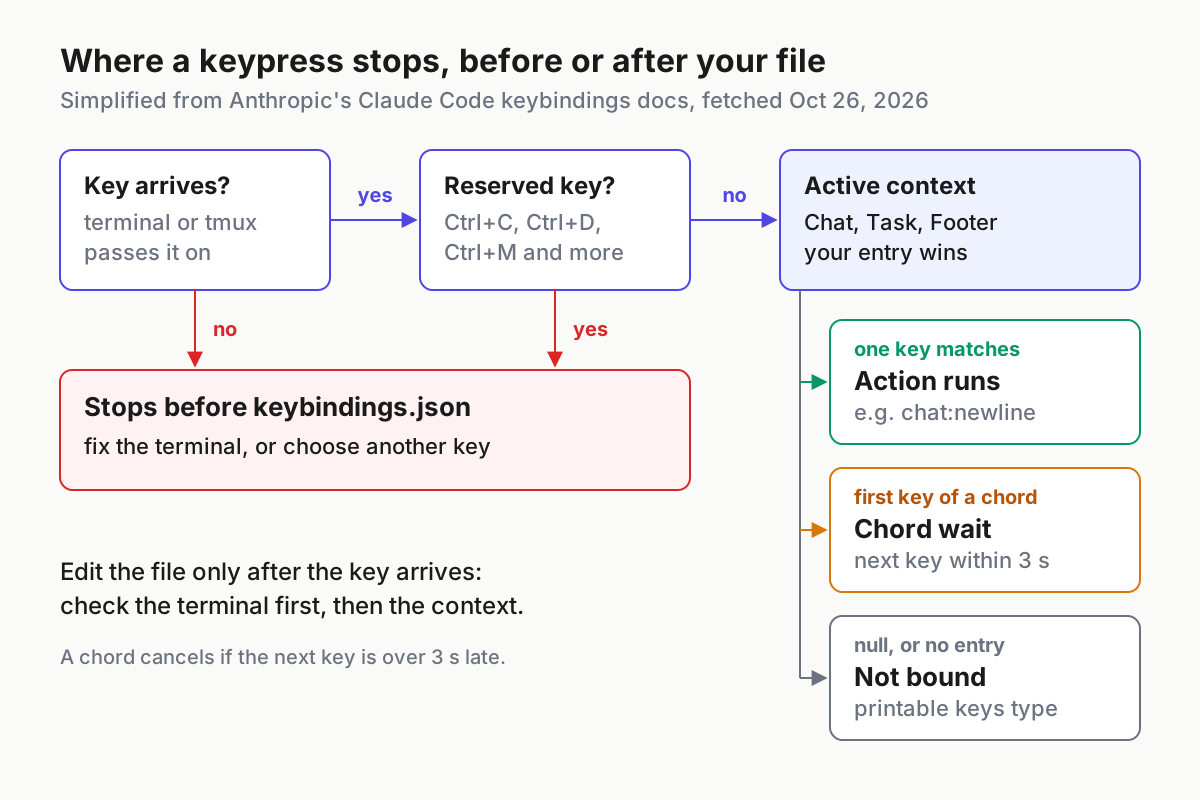
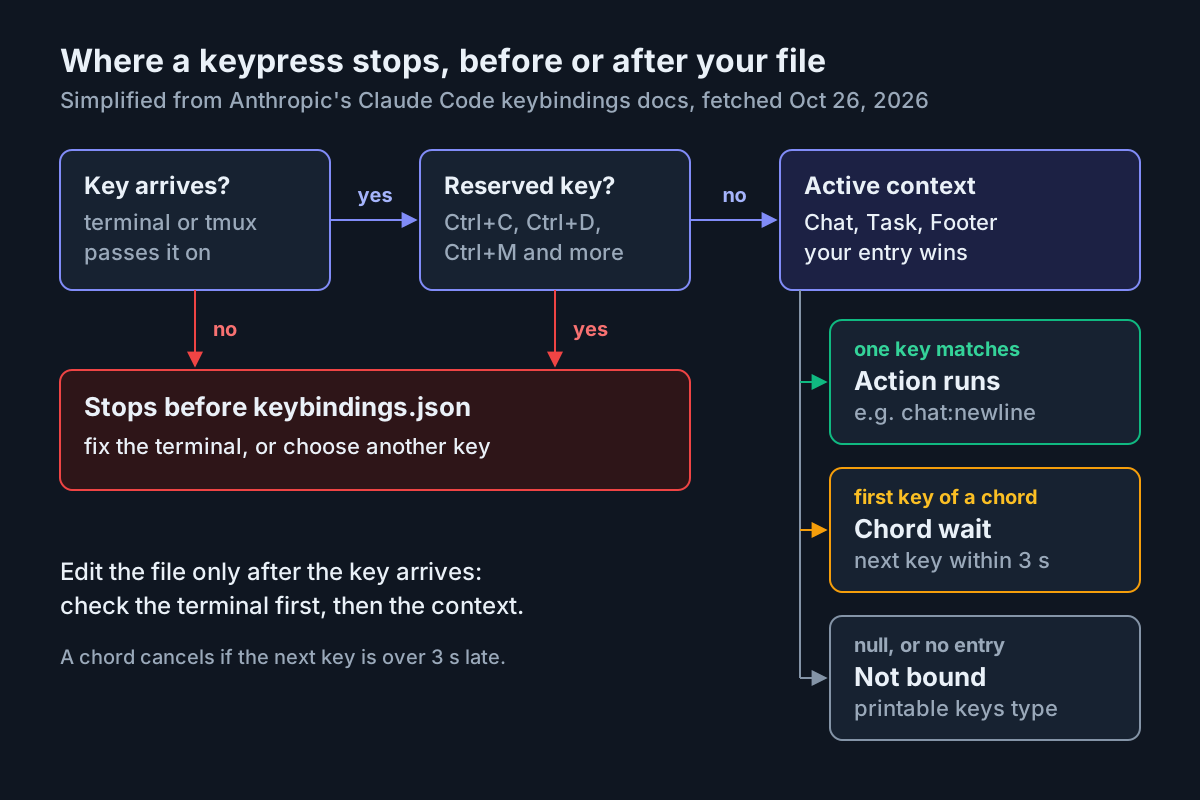
A keystroke has to clear two gates before your file has any say, and most failed rebinds stop at the first one. The diagram traces that path from left to right.
Does the key arrive? Claude Code can only react to what the terminal delivers. Caps Lock is never delivered to terminal applications. The cmd modifier group is only detected in terminals that report the Super modifier, such as those using the Kitty keyboard protocol or xterm’s modifyOtherKeys mode, so Anthropic advises ctrl or meta for bindings you want to work everywhere. On macOS, Option shortcuts need the terminal to send Option as Meta. Inside tmux, Ctrl+B is the tmux prefix and has to be pressed twice before the application receives it.
Is the key reserved? Ctrl+C and Ctrl+D are hardcoded. Ctrl+M always arrives as Enter, Ctrl+[ as Escape and Ctrl+I as Tab, and Ctrl+H sends the ASCII backspace byte. None of them can be rebound, and a binding that names one only earns a warning in the debug log.
Which context is active? Each block in the file names a context: Chat for the main prompt, Confirmation for permission dialogs, Task while a task runs in the foreground, Footer while you navigate the indicators below the prompt, and about two dozen more. Your entry for a key replaces the default for that key in that context only. Changing Enter in Chat leaves Enter in permission dialogs alone, which is exactly what you want. Two documented exceptions surprise people. While a footer item is selected, Enter opens it even if you rebound Enter in Chat. In agent view, the Agents context wins over Chat and Global bindings on the same key.
Chords add the diagram’s Chord wait card. A key string with a space, such as ctrl+k ctrl+s, means press the first keystroke, release, then press the second. Each keystroke must follow the previous one within 3 seconds, or Claude Code cancels the chord and shows a brief notice. A prefix stays reserved while any chord starting with it is bound in an active context, so a brand-new chord prefix can take away a key you were using on its own. That is why the worked file below reuses Ctrl+X, which is already a chord prefix.
A key that no binding takes, because you set it to null or nothing ever claimed it, lands in the Not bound card. At the main prompt, Claude Code types it if it is a printable character.
A few syntax rules round this out. Modifiers are written ctrl or control, shift, alt, opt, option or meta, and cmd, command, super or win. Key names are case-insensitive, so K is the same as k; write shift+k when you mean Shift and K. Special keys include enter, escape, tab, space, the arrows, pageup, home and backspace. On non-US layouts, write Ctrl shortcuts with Latin key names.
Create the file with /keybindings
The file has a fixed shape: an optional $schema URL that gives editors autocompletion, an optional $docs URL, and a bindings array of blocks. Each block has a context and a map of keystrokes to actions. Actions are written namespace:action, a slash command is written command:<name>, and null unbinds a default.
- If a file already exists, copy it before touching it:
cp ~/.claude/keybindings.json ~/.claude/keybindings.json.bak. On Windows, copy the file in%USERPROFILE%\.claudethe same way. - In any Claude Code session, run
/keybindings. It creates~/.claude/keybindings.jsonif the file is missing and opens it either way. - Read what is already there. If you created the file with
/keybindingsbefore v2.1.280, it listsybound toconfirm:yesandnbound toconfirm:noin a Confirmation block. Those were defaults then, and they stay in effect until you delete the two lines. Keep them only if you want bare letters to act on dialogs, including dialogs that never show those letters as keys. - Leave the session running. Anthropic documents that changes to the file are detected and applied without restarting Claude Code, so every later check happens in place.
Expected observation: the file opens and nothing about your keys changes yet. If /keybindings opens a file somewhere you did not expect, check whether CLAUDE_CONFIG_DIR is set in your shell.
The worked keybindings.json
This is the complete file. It is documented syntax arranged for the problems in the introduction; swap any key you dislike, but read why each one was chosen before you do.
{
  "$schema": "https://www.schemastore.org/claude-code-keybindings.json",
  "$docs": "https://code.claude.com/docs/en/keybindings",
  "bindings": [
    {
      "context": "Chat",
      "bindings": {
        "enter": "chat:newline",
        "shift+enter": "chat:submit",
        "meta+g": "command:compact",
        "ctrl+s": null,
        "ctrl+x s": "chat:stash"
      }
    },
    {
      "context": "Task",
      "bindings": {
        "ctrl+b": null
      }
    }
  ]
}
| Line | What it does | Why this choice | What you should see after saving |
|---|---|---|---|
$schema |
Points your editor at the published schema | Autocomplete and validation while you edit | No behavior change |
$docs |
Links the reference page | Helps whoever inherits the file | No behavior change |
enter to chat:newline |
Enter inserts a line break | Stops half-written prompts going out | Enter adds a line and Claude does not start; permission dialogs still confirm with Enter |
shift+enter to chat:submit |
Shift+Enter sends the prompt | The exact swap Anthropic’s terminal guide names; sending takes a deliberate two-key gesture | The prompt sends, where the terminal can tell Shift+Enter from Enter |
meta+g to command:compact |
Option+G or Alt+G runs /compact | Copied from the documented command: example |
/compact runs; on macOS this needs Option as Meta |
ctrl+s to null |
Unbinds stash at the prompt | A save-reflex Ctrl+S no longer clears your draft | Ctrl+S does nothing at the prompt; agent view and fullscreen history search keep their own Ctrl+S |
ctrl+x s to chat:stash |
Stash sits behind a chord | Ctrl+X is already a chord prefix, so nothing new is reserved | Ctrl+X, then s within 3 seconds, stashes or restores the draft |
Task block, ctrl+b to null |
Unbinds Ctrl+B while a task runs | A doubled tmux prefix passes a literal Ctrl+B through | Ctrl+B Ctrl+B in tmux no longer backgrounds; Ctrl+X Ctrl+B still does |
Two omissions are deliberate. First, the file leaves Ctrl+J alone. With Enter now inserting a newline, Ctrl+J becomes a second newline key, which is harmless in a terminal and leaves you free to null it for the VS Code panel later. Second, the file does not invent an emergency submit key, because one already exists. Ctrl+X Enter runs chat:queueSubmit, which works in any terminal and, unlike chat:submit, sends the draft even while an autocomplete suggestion is highlighted. If Claude is busy when you press it, the message waits its turn instead of interrupting.
The stash move reuses Ctrl+X because Claude Code already binds Chat chords on that prefix, including Ctrl+X Ctrl+K, Ctrl+X Ctrl+E and Ctrl+X Enter. Pressing Ctrl+X already starts a chord wait, so adding ctrl+x s changes nothing about how Ctrl+X behaves. A fresh prefix such as Ctrl+K would be riskier: a bound chord keeps its prefix reserved, and Ctrl+K is the delete-to-end-of-line key you probably use daily.
The Task block is about accidents, not access. Tmux owns Ctrl+B as its prefix, and pressing it twice sends a literal Ctrl+B to the application. If you fumble the prefix while a long build runs, that literal keystroke would background the build. Nulling it in the Task context removes the accident, and the default Ctrl+X Ctrl+B chord stays available for when you mean it.
Verify each change in a live session
Run these checks in a scratch directory, so a stray submit costs nothing. Each step names what you should see; anything else points to a row in the troubleshooting table further down.
- Start a session with
claude --debug. Keybinding validation warnings go to the debug log, one file per session under~/.claude/debug/. - Save the worked file. Expected: no restart prompt and no visible change on screen.
- Type
line oneand press Enter. Expected: the cursor moves to a second line and Claude does not start working. - Type
line twoand press Shift+Enter. Expected: both lines go out as one prompt. If Shift+Enter inserts a line instead, your terminal or tmux delivers it as plain Enter; use Ctrl+X Enter to submit for now and fix the terminal in the next section. - Type some text and press Ctrl+S. Expected: nothing happens and the text stays. Now press Ctrl+X, release, and press s. Expected: the input clears because the text was stashed. Press Ctrl+X then s on the empty prompt. Expected: the text comes back with the cursor where it was.
- Press Ctrl+X, wait longer than 3 seconds, then press s. Expected: a brief notice that the chord was cancelled.
- In a session with some conversation in it, press Option+G on macOS or Alt+G elsewhere. Expected:
/compactruns as if you had typed it. Compaction summarizes the conversation to free context, so read the Claude Code context window guide before turning it into a reflex. - Inside tmux, run
! sleep 30and press Ctrl+B twice while it runs. Expected: the command keeps running in the foreground. Then press Ctrl+X Ctrl+B. Expected: the command moves to the background. Shell mode supports the same backgrounding as commands Claude runs. Outside tmux, a single Ctrl+B should now do nothing during the run. - Open the newest file in
~/.claude/debug/. Expected: no keybinding warnings. Parse errors, unknown actions, invalid contexts and reserved-key conflicts all show up here.
When all nine steps match, the file does what it claims in this terminal. Repeat steps 3, 4 and 7 in each other terminal you use, because those three depend on what the terminal delivers.
Make Meta and Shift+Enter reach Claude Code
Two lines in the worked file depend on the terminal rather than on Claude Code: meta+g needs Option to arrive as Meta on a Mac, and shift+enter needs a terminal that can tell Shift+Enter from plain Enter. Anthropic’s terminal configuration guide is organized around these exact symptoms, and it is explicit that it covers getting the terminal to send the right signals, while the keybindings file covers what Claude Code does with them.
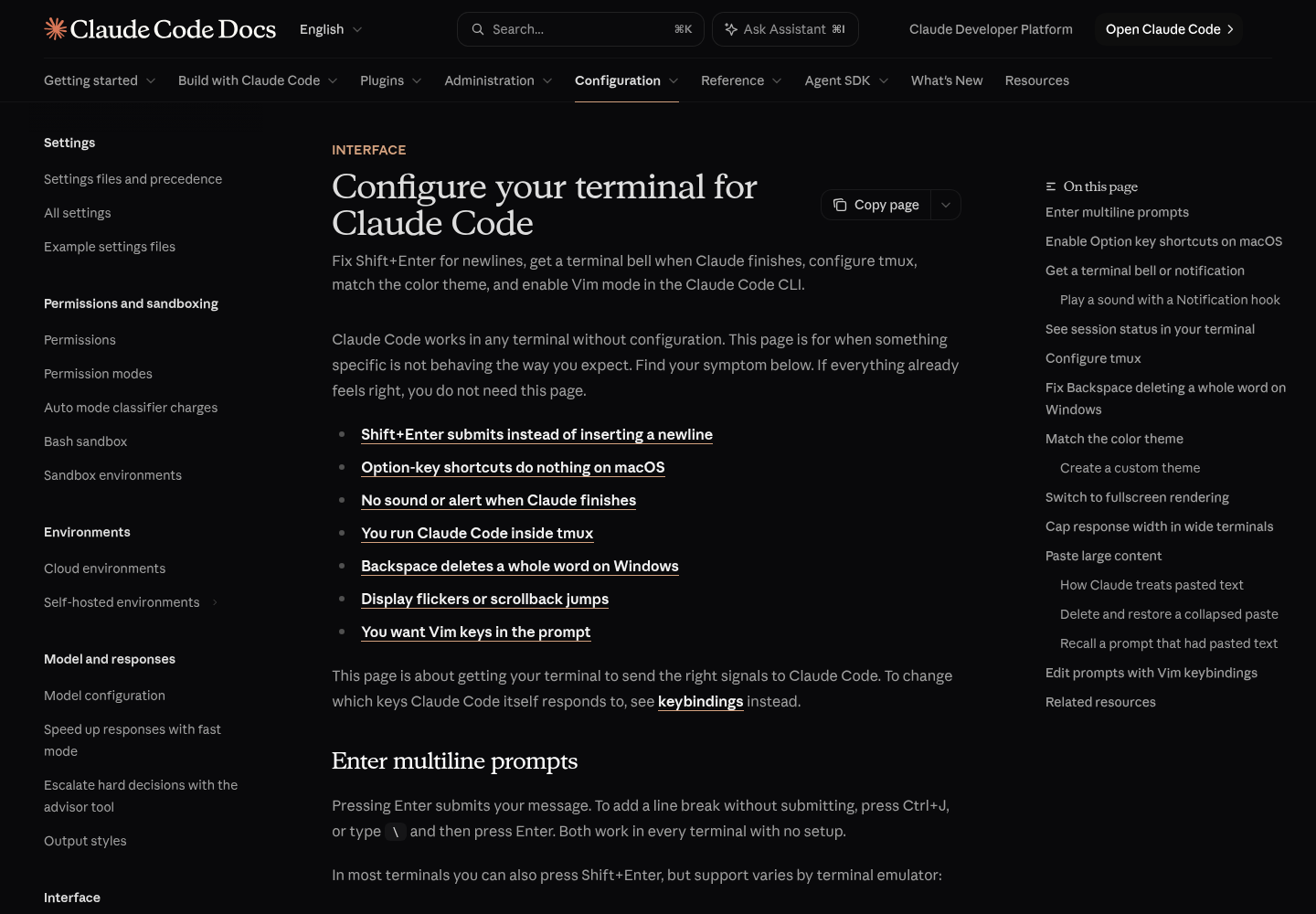
Option as Meta on macOS, per terminal:
| Terminal | Setting | Note |
|---|---|---|
| Apple Terminal | Settings, Profiles, Keyboard: check Use Option as Meta Key | Already done if you accepted Claude Code’s first-run terminal setup prompt |
| iTerm2 | Settings, Profiles, Keys, General: set Left and Right Option key to Esc+ | Applies per profile |
| VS Code integrated terminal | Add terminal.integrated.macOptionIsMeta set to true in VS Code settings |
Affects the integrated terminal, not the chat panel |
| Ghostty, Kitty and others | Find the Option-as-Alt or Option-as-Meta setting in the config file | The name varies by terminal |
Shift+Enter as its own key, per terminal:
| Terminal | Shift+Enter for newline or submit | What to do |
|---|---|---|
| Ghostty, Kitty, iTerm2, WezTerm, Warp, Apple Terminal, Windows Terminal | Works without setup | Nothing |
| foot, Alacritty 0.16 or later, other Kitty-protocol terminals | Works without setup | Needs Claude Code v2.1.269 or later |
| VS Code, Cursor, Devin Desktop, Alacritty before 0.16, Zed | Works after setup | Run /terminal-setup once, in the host terminal rather than inside tmux |
| gnome-terminal, JetBrains IDEs such as PyCharm | Not available | Drop the shift+enter line and submit with Ctrl+X Enter, or keep Enter as submit |
Inside tmux, Shift+Enter submits like plain Enter by default, even when the outer terminal supports it. Add these four lines from Anthropic’s guide to ~/.tmux.conf:
set -g allow-passthrough on
set -g focus-events on
set -s extended-keys on
set -as terminal-features 'xterm*:extkeys'
- Save
~/.tmux.confand runtmux source-file ~/.tmux.confto apply it to the running server. - Repeat verification step 4. Expected: Shift+Enter now submits under your swapped file.
- If it still inserts a line, confirm the outer terminal appears in the first two rows of the Shift+Enter table, then detach and reattach the tmux session and try again.
The extended-keys lines are the ones that matter for this guide, because they let tmux distinguish Shift+Enter from Enter. The passthrough and focus lines let notifications and progress updates reach the outer terminal. If you keep long-lived sessions in tmux for remote work, the Remote Control troubleshooting guide covers that side of the setup. Two other multiplexer and shell conflicts are documented: Ctrl+A is the GNU screen prefix, and Ctrl+Z suspends Claude Code on Unix until you run fg.
The VS Code extension: what the file changes there
The extension shares keybindings.json with the CLI, but Anthropic’s VS Code extension documentation describes one specific behavior for the graphical panel: stopping Ctrl+J from inserting a newline in the prompt box.
- Open the Extensions view and read the Claude Code extension’s version. The extension’s version is the Claude Code version it bundles, so you need 2.1.309 or later. Update first if it is older.
- Decide which surface you mean. With the Use Terminal setting on, or with
clauderunning in the integrated terminal, the CLI rules above apply in full, including/terminal-setupfor Shift+Enter and the macOS Option setting. - For the graphical panel, add
ctrl+jset tonullto your existing Chat block, as below. Anthropic’s steps cover every starting point: create the file if none exists, add a Chat block if there is none, add the line if the block lacks it, or change an existingctrl+jvalue tonull. - Save the file and press Ctrl+J in the prompt box. Expected: no new line appears. Per the release notes, the key is left to VS Code and the operating system.
- If Ctrl+J still adds a line, run Developer: Reload Window from the Command Palette and press Ctrl+J again.
- If it persists, run Claude Code: Show Logs and look for a warning that includes the phrase Ctrl+J in the chat input still inserts a newline. Correct the problem it reports in the file it names, save, and test again.
{
  "context": "Chat",
  "bindings": {
    "enter": "chat:newline",
    "shift+enter": "chat:submit",
    "meta+g": "command:compact",
    "ctrl+s": null,
    "ctrl+x s": "chat:stash",
    "ctrl+j": null
  }
}
Because the file is shared, that line also removes chat:newline from Ctrl+J in the CLI. With Enter already inserting a newline in the worked file, you lose nothing there.
Keep expectations narrow for the panel. It already uses Shift+Enter for a new line without sending, and it has its own useCtrlEnterToSend setting if you want Ctrl+Enter or Cmd+Enter to send instead of Enter. The documentation does not describe the panel applying the rest of your file, such as the Enter swap, so treat any such effect as something to test rather than assume. For installing the extension and sharing settings between the panel and the CLI, see the VS Code extension setup guide.
What keybindings.json cannot change
Some frustrations are out of the file’s reach, and knowing them saves an evening of edits that never take effect.
| Limit | What it covers | What to use instead |
|---|---|---|
| Reserved keys | Ctrl+C, Ctrl+D, Ctrl+M, Ctrl+[, Ctrl+I, Ctrl+H and Caps Lock | Pick another key; these keep their fixed meaning |
| Readline word shortcuts | Alt+B, Alt+F, Alt+D, Option+Delete and Ctrl+Backspace; the file has no actions for them | Use them as they are; on macOS the Alt ones need Option as Meta |
| Vim mode keys | Motions and modes are handled below the keybindings system | The vimInsertModeRemaps setting in your user settings, for two-key sequences such as jj to Escape |
| Fixed dialog keys | Enter, Tab and Esc in the fullscreen Ctrl+R search dialog; Enter and Escape in the /effort slider | No rebinding; use them as documented |
| Keys the terminal never sends | cmd without Super reporting; Ctrl+Enter in terminals without extended keys, which arrives as Enter |
Use ctrl or meta, or Ctrl+X Ctrl+S instead of Ctrl+Enter |
| Typing in dialog text fields | Bare letters, digits and Space go to a focused field, not to your bindings | Bind with Ctrl or Alt if a key must work inside fields |
| Windows Backspace deleting a word | The terminal sends ^H for plain Backspace | Set CLAUDE_CODE_BS_AS_CTRL_BACKSPACE=0 in the environment |
The vim remap setting is read only from your user settings, the --settings flag and managed settings. Anthropic ignores it in a project’s settings files, for the same reason a project cannot ship keybindings: a checked-out repository should not be able to remap your keystrokes. The documented example looks like this in ~/.claude/settings.json:
{
  "editorMode": "vim",
  "vimInsertModeRemaps": { "jj": "<Esc>" }
}
One more caution belongs here rather than in troubleshooting. Binding bare letters in the Confirmation context, as the pre-2.1.280 y and n defaults did, makes those letters act on every dialog that uses confirm:yes and confirm:no, including dialogs that never display them. That is a fast way to approve something you did not read.
When a binding does not work
Work down this table from the top; the first rows catch most failures. Every validation case below is listed in Anthropic’s keybindings reference and is reported in the debug log when you start with claude --debug.
| Symptom | Likely cause | Fix | What you should see after the fix |
|---|---|---|---|
| Nothing in the file takes effect | Invalid JSON or structure, such as a trailing comma | Read the parse warning in the debug log and correct the file | Warning gone; bindings apply on save |
| One binding is ignored, the rest work | Wrong context name, or an unknown or misspelled action, which Claude Code skips while keeping the key’s default | Match the context and action against the reference tables | The key runs the new action in that context |
| A plain letter suddenly triggers your action | Misspelled modifier such as ctl+k; Claude Code drops the unknown part and binds k |
Spell the modifier ctrl |
The letter types normally again |
| The binding never fires | A space next to the plus sign, as in ctrl+ k, read as a two-step chord that cannot match |
Remove the space | The binding fires on the first press |
| A chord cancels with a brief notice | More than 3 seconds between keystrokes | Press the second key sooner | The action runs |
| A freed prefix still waits for a second key | Another chord on that prefix is still bound in some context | Null every chord on the prefix in the context that defines it | The prefix acts as a single key |
| Shift+Enter inserts a line instead of sending | The key arrives as plain Enter: tmux without extended keys, or an unsupported terminal | Add the tmux lines, run /terminal-setup, or submit with Ctrl+X Enter |
The prompt sends |
| Option+G does nothing on macOS | The terminal does not send Option as Meta | Turn on the terminal’s Option as Meta setting | /compact runs |
A cmd+ binding does nothing |
The terminal does not report the Super modifier | Rebind with ctrl or meta |
The new key fires |
| Enter opens a footer item instead of adding a line | A footer item is selected, and Footer handles Enter first | Press Esc to clear the selection | Enter inserts a newline |
| Ctrl+S switches session grouping | You are in agent view, where the Agents context owns Ctrl+S | Expected; the Chat unbind does not apply there | Ctrl+S at the normal prompt still does nothing |
| VS Code panel still adds a line on Ctrl+J | Extension older than 2.1.309, or the file is outside your config directory | Update, reload the window, check Show Logs | No new line on Ctrl+J |
A key-bound slash command ran as a shell command in ! mode |
Claude Code older than 2.1.309 | Update Claude Code | The command no longer reaches the shell |
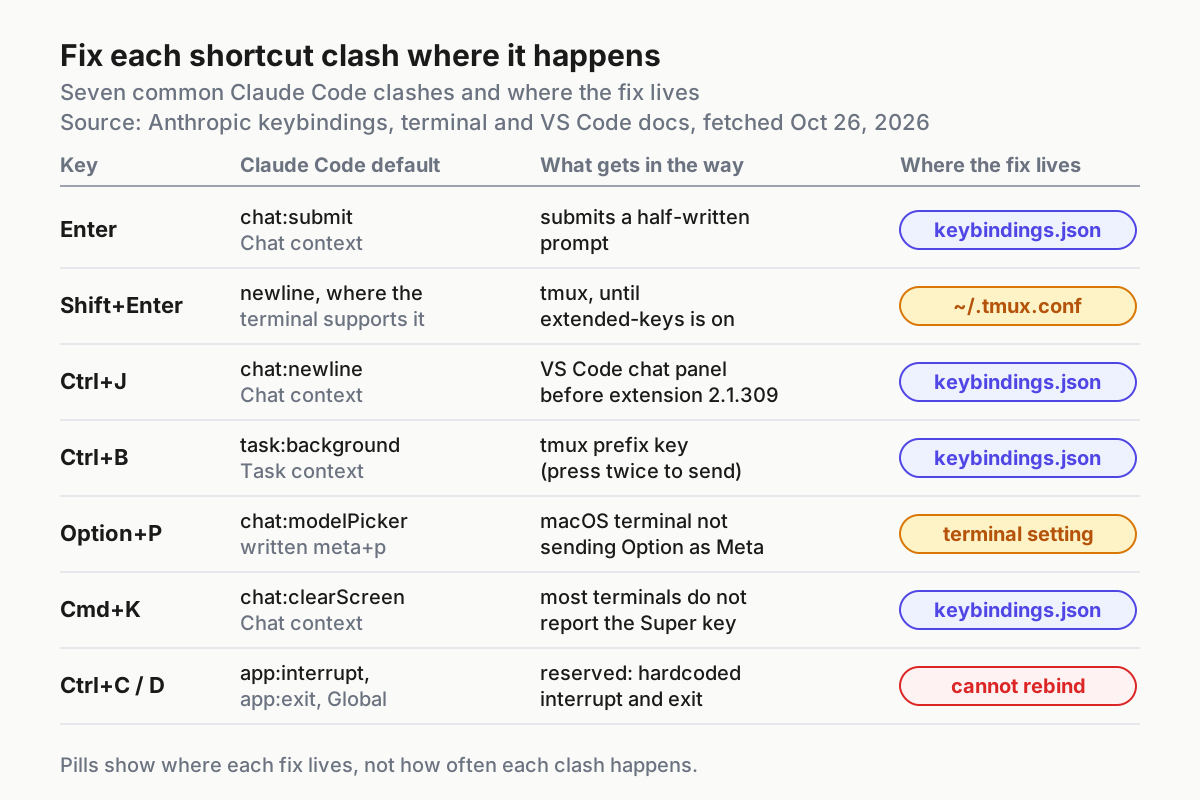
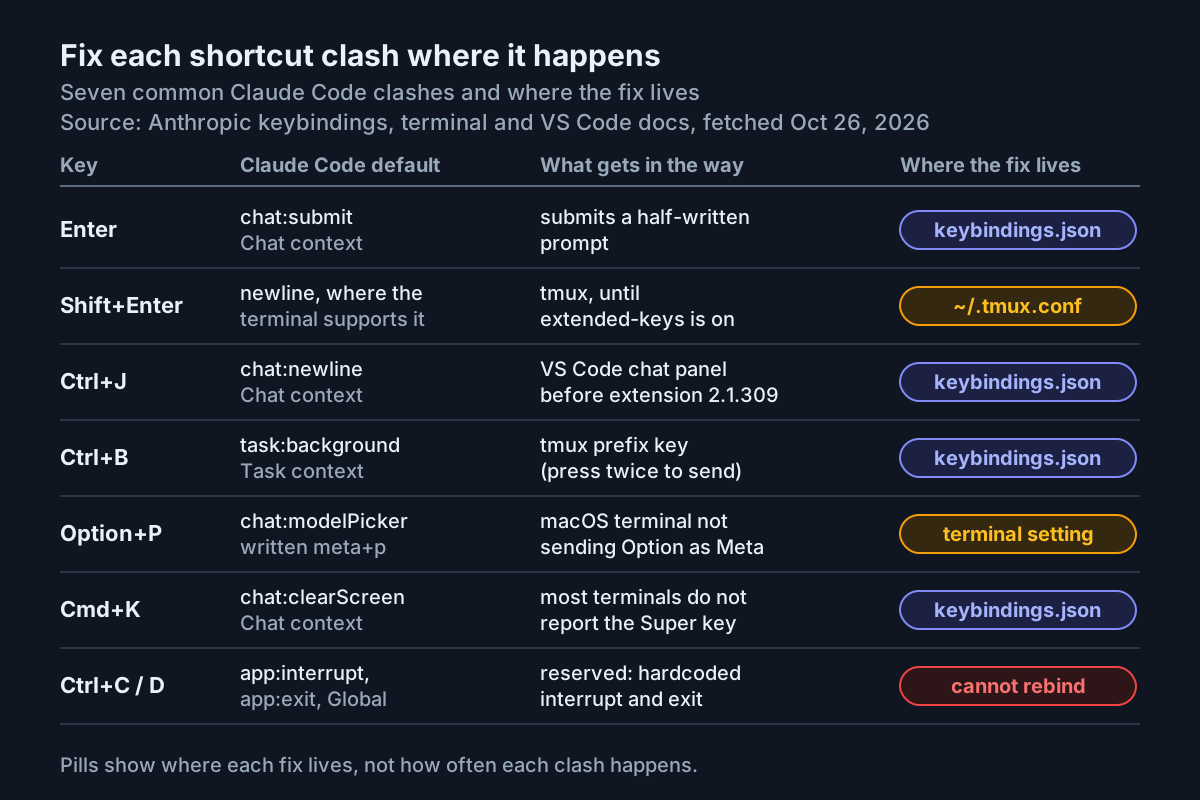
The matrix condenses the table into one question: where does the fix live? Four of these clashes are solved inside keybindings.json. Shift+Enter under tmux and Option shortcuts on a Mac are solved outside it, and Ctrl+C and Ctrl+D are not solvable at all. If you are about to edit the file for an amber row, stop and fix the terminal first.
Roll back one block or the whole file
Every change in the worked file is independent, so you can remove exactly the part that misbehaves and keep the rest.
- Undo one line. Delete it and save. Expected: that key’s default returns. Removing the
ctrl+snull line, for example, makes Ctrl+S stash again at the prompt. - Undo one block. Delete the whole Task object, including its comma, and save. Expected: Ctrl+B backgrounds a running task again. Recheck the JSON for a stray trailing comma, which is the most common way a rollback breaks the whole file.
- Turn the file off entirely. Run
mv ~/.claude/keybindings.json ~/.claude/keybindings.json.off. Expected: Enter submits again, Ctrl+S stashes and Ctrl+B backgrounds, all with documented defaults. Anthropic documents that file changes are detected without a restart; if a running session still shows the old behavior, start a new session, which reads the file’s current state. - Bring it back. Rename the
.offfile back tokeybindings.json, or restore your earlier copy withcp ~/.claude/keybindings.json.bak ~/.claude/keybindings.json. Expected: your custom keys return. - Version the good copy. Once every check passes, copy the file into your dotfiles repository and commit it with a note naming the terminals you verified. On a new machine, copy it into place and rerun the verification steps, because the Shift+Enter and Meta lines depend on that machine’s terminal.
Before you call the work done, confirm each of these in the terminals you actually use:
- [ ] Enter inserts a newline at the prompt, and no unfinished prompt goes out.
- [ ] Shift+Enter sends the prompt, or Ctrl+X Enter does where Shift+Enter cannot arrive.
- [ ] The tmux prefix behaves normally, and a doubled Ctrl+B no longer backgrounds a running task.
- [ ] Option+G or Alt+G runs /compact.
- [ ] Ctrl+X then s stashes and restores a draft; Ctrl+S alone does nothing at the prompt.
- [ ] The newest debug log shows no keybinding warnings.
- [ ] In the VS Code panel, if you use it, Ctrl+J adds no line on extension 2.1.309 or later.
The result is a file you understand line by line: each key does its new job in the context you meant, the terminal delivers what the file expects, and any line can come out without taking the rest with it.
Sources
- aiparabellum on X: post on rebinding Claude Code shortcuts, adding chords and switching off defaults, Oct 24, 2026
- Anthropic, Claude Code Docs: Customize keyboard shortcuts
- Anthropic, Claude Code Docs: Interactive mode
- Anthropic, Claude Code Docs: Configure your terminal for Claude Code
- Anthropic, Claude Code Docs: Use Claude Code in VS Code
- Anthropic, Claude Code Docs: Explore the .claude directory
- Anthropic, GitHub: Claude Code release v2.1.309, Oct 22, 2026