Cursor's Design Mode Adds Annotate: Point and Draw Instead of Describing UI Changes to Agents
Cursor's Annotate lets developers click, draw, or narrate on a live page so Design Mode agents get spatial UI context instead of written descriptions.
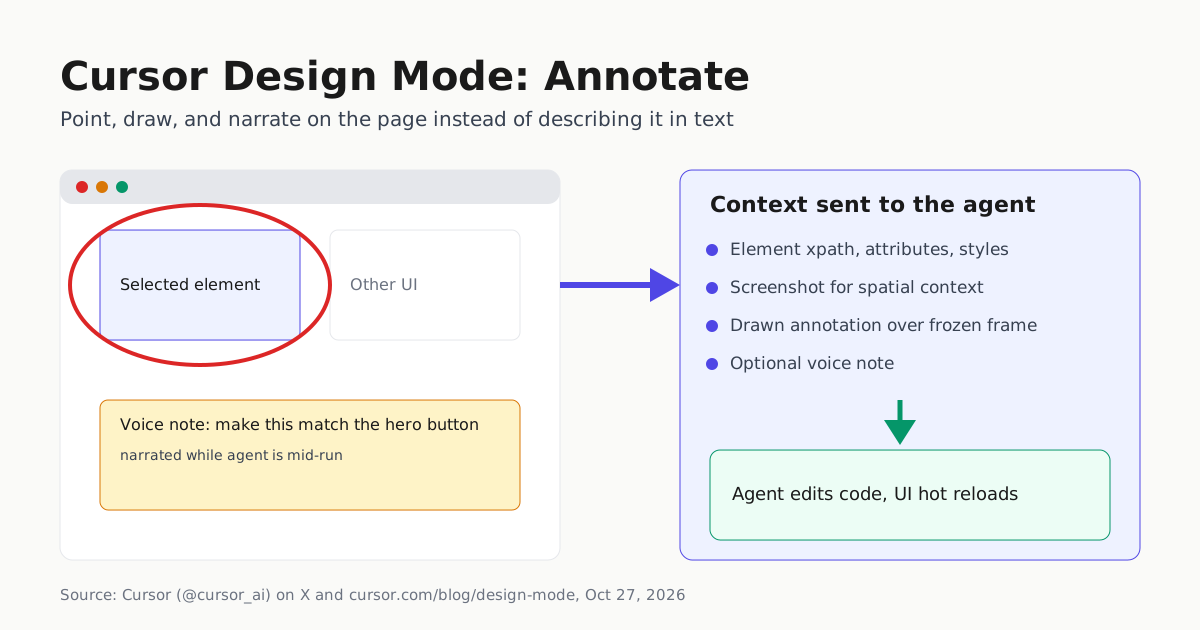
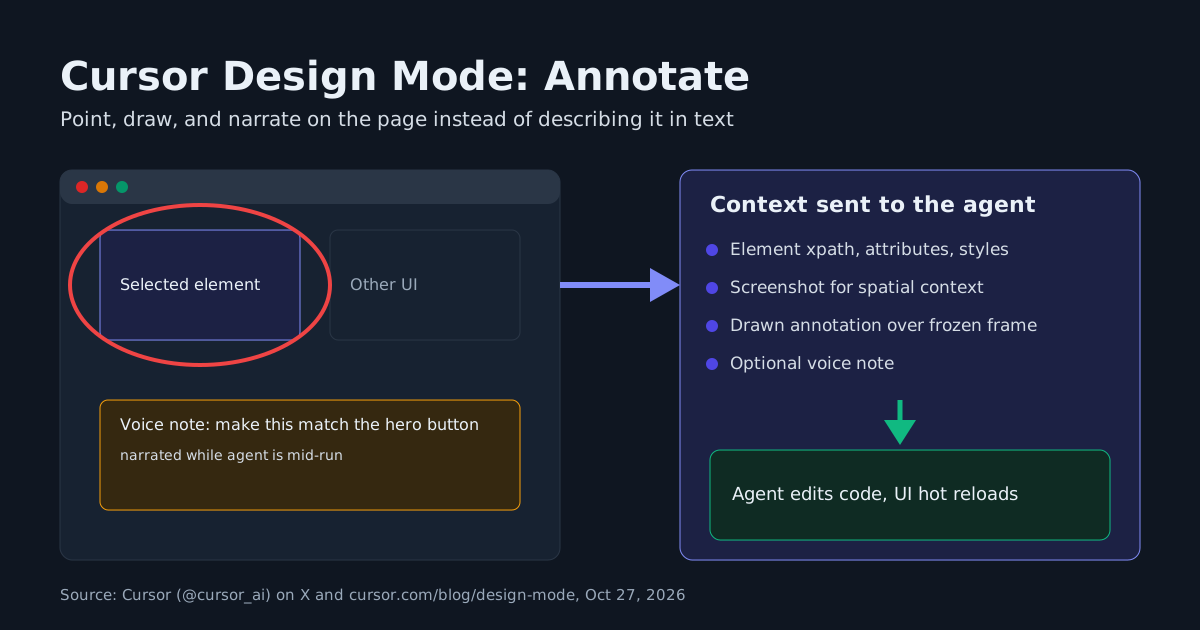
Cursor announced a new tool called Annotate inside Design Mode on October 27, 2026, letting developers click page elements, draw directly over a running interface, or narrate a change by voice so a coding agent gets the same spatial context a human teammate would get from a shoulder tap instead of a paragraph of text. In an announcement on X, the official Cursor account put it plainly: “New in Cursor design mode: Annotate. Give agents visual prompts: edit elements, draw on the page, and review your designs at different screen sizes.”
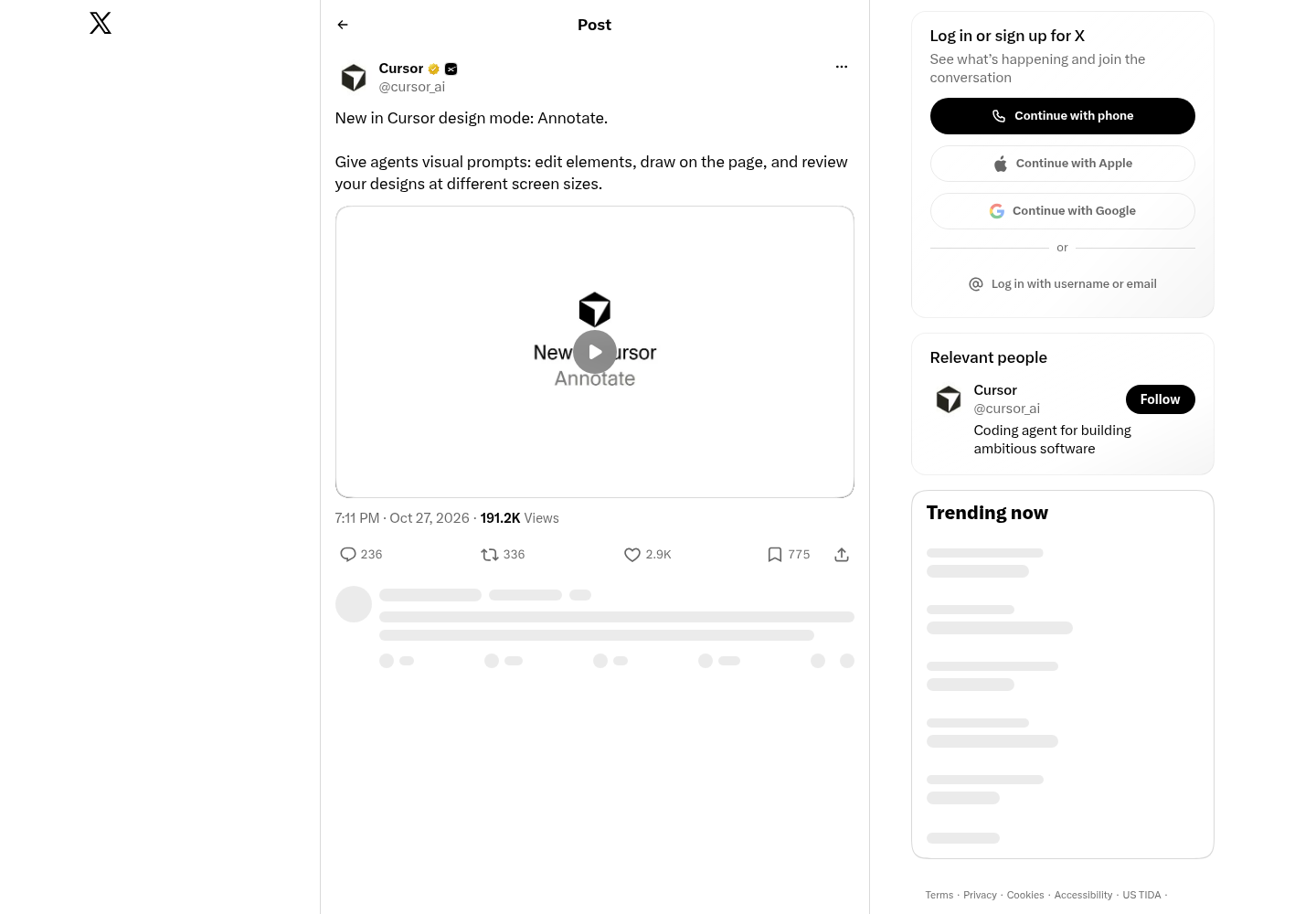
Cursor’s October 27, 2026 post on X (@cursor_ai) announcing Annotate inside Design Mode, as captured from the publisher’s page.
What Annotate actually changes
Cursor’s own product post on Design Mode frames the problem this update targets: “Chat is one interface for working with agents, but UI work tends to be spatial. Designers, PMs, and frontend developers often communicate through annotations that point to elements, regions, or the state of the page.” Design Mode runs inside Cursor’s Agents Window browser, and the update gives three ways to convey intent without typing a full description:
- Click an element in the running app and prompt against that specific selection. Multi-select works too — reference two or more components and ask the agent to make one match the other, remove duplicated content, or adjust a group together.
- Draw over the interface to mark the region an instruction applies to — circle a crowded section, box in an area, or mark part of an animated page. The annotation sits over a frozen frame of the viewport, so the agent sees the exact page state the developer was reacting to.
- Narrate by voice while an agent is mid-run, queuing the next instruction without waiting for the current edit to finish.
Under the hood, picking an element sends two signals into the agent’s context at once: the element’s identity — xpath, component name, attributes, computed styles, and props pulled from the framework’s fiber tree — plus a screenshot for spatial context covering layout and surrounding elements. That combination is what lets the agent locate the right line of code instead of guessing from a plain-English description.
Old workflow versus Annotate
The diagram below lays out the practical difference. Before Annotate, a developer typed a sentence, the agent guessed at which element it referred to, and mismatches needed a manual follow-up fix. With Annotate, the click, drawing, or voice note carries the element’s identity and a screenshot straight into the agent’s context, so the first edit is more likely to land correctly and hot-reload into the running app.
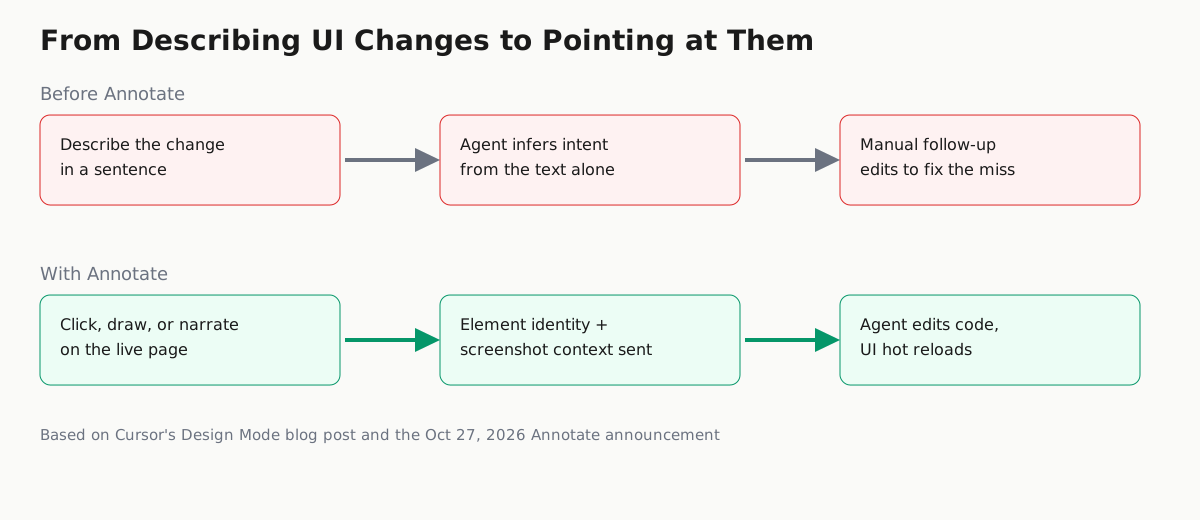
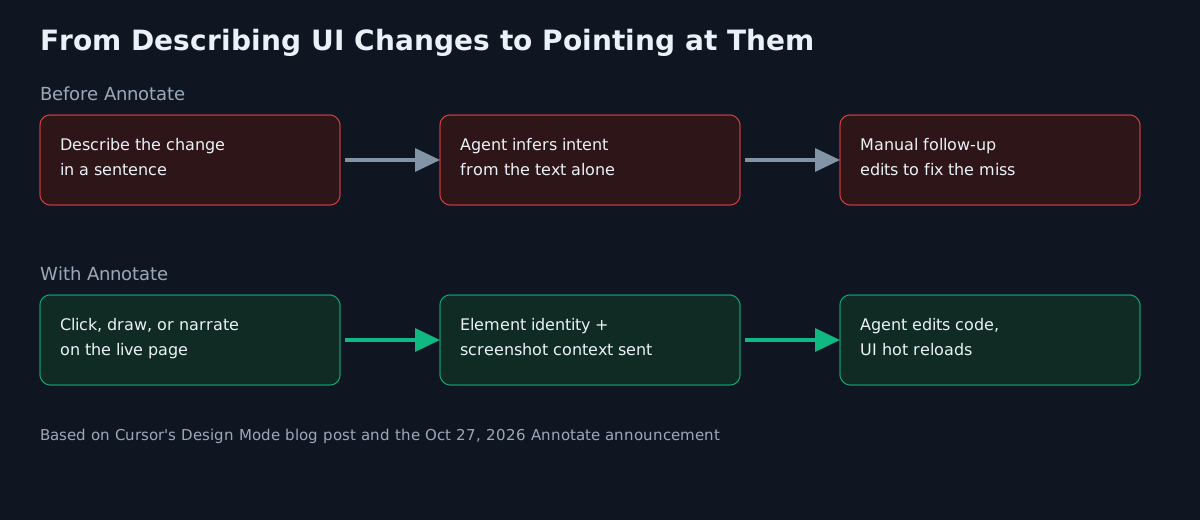
How Cursor’s Annotate tool replaces a typed description with element identity, a screenshot, and an optional drawn or spoken annotation sent directly to the agent, based on Cursor’s Design Mode blog post.
Why this isn’t Cursor’s first pass at this
This is not a from-scratch feature. A dated June 5, 2026 changelog entry shows Cursor already added multi-select and voice input to Design Mode months earlier, describing a browser overlay where “you can click, draw, or describe changes by voice to help agents update your UI.” The October 27 announcement is an iteration on that same surface: Annotate is the branded name for that same point, draw, and narrate loop, and Cursor’s own blog post credits this specific release with adding voice narration and making targeting “more precise” and the experience “faster” — not a new drawing capability, since drawing was already part of Design Mode as of that June changelog.
One claim from the announcement is worth flagging precisely because it’s attributed, not independently verified: the X post says Annotate lets you “review your designs at different screen sizes,” but neither the blog post nor the dated changelog entries available at publication time described a responsive-preview capability in those words. Treat that specific claim as Cursor’s own announcement copy until it shows up in a dated release note.
What changes for the person doing the work
For a frontend developer or designer pairing with an agent, the practical shift is in what has to be typed. Instead of writing “the card on the pricing page needs more padding and the button should match the hero CTA,” you select the card, multi-select the button next to the CTA you mean, and send that as the prompt — the agent receives the actual DOM nodes, computed styles, and a screenshot rather than your paraphrase of them. Cursor pairs this with its Composer 2.5 model specifically because, per the blog post, it is “both fast and strong at interface work,” so edits land and the app hot-reloads quickly enough to keep making the next annotation while the previous one is still being applied.
That loop — point, send, keep moving, watch it hot-reload — is the actual product change here, and it’s a reasonable template for how other agentic IDEs will need to handle visual UI context, a workflow this site has covered from the model-comparison side in Claude Code vs Cursor in 2026 and from the collaborative-canvas side in Cursor’s cloud agent canvases.
Before you turn it on
Annotate runs inside Cursor’s Agents Window browser, so it only applies to projects you’re already previewing through that browser — it doesn’t add visual context to agents working against a terminal-only workflow or a remote deployment you haven’t opened in Cursor’s preview. If your team relies on Design Mode for UI iteration, worth checking: whether your current Cursor build actually includes the updated targeting Cursor describes in its changelog (that dated entry predates this announcement by months), and whether the responsive-preview claim from the X post shows up in your own session before you plan a workflow around it.