How to Install Codex CLI on Mac, Windows and Linux: Pick an Install Method, Sign In, Update, Uninstall and Fix Common Errors
Install Codex CLI the right way: choose native script, npm, Homebrew or WSL2, verify one binary on PATH, sign in, update, uninstall and fix common errors.

You need to install Codex CLI on a new laptop, on a build server you reach over SSH, or on a CI runner, and every page you find uses a different command. One says npm. One says Homebrew. OpenAI’s own README now leads with a shell script, and some posts still show a Homebrew command without --cask. Run two of them on the same machine and you end up with two codex binaries on PATH. You update one and keep running the other.
This tutorial is for a developer installing Codex CLI for the first time, or reinstalling after a broken install, on macOS, Linux or Windows (native PowerShell or WSL2). By the end you will have:
- one install method per machine, chosen on purpose;
- exactly one
codexon PATH, with a version you can check; - a sign-in mode you chose, confirmed by
codex login status; - a first read-only question answered in a throwaway repo;
- the update, pin, uninstall and rollback path for your method.
A note on evidence. The commands come from OpenAI’s openai/codex README, its Authentication page, the Codex CLI command reference, and the Windows and WSL pages. We did not run them for this guide. Lines that say what you should see describe documented behavior. The worked example’s machines, host names, paths and version strings are illustrative. Where a command is npm’s, Homebrew’s or the shell’s own syntax and not something OpenAI documents, the guide says so.
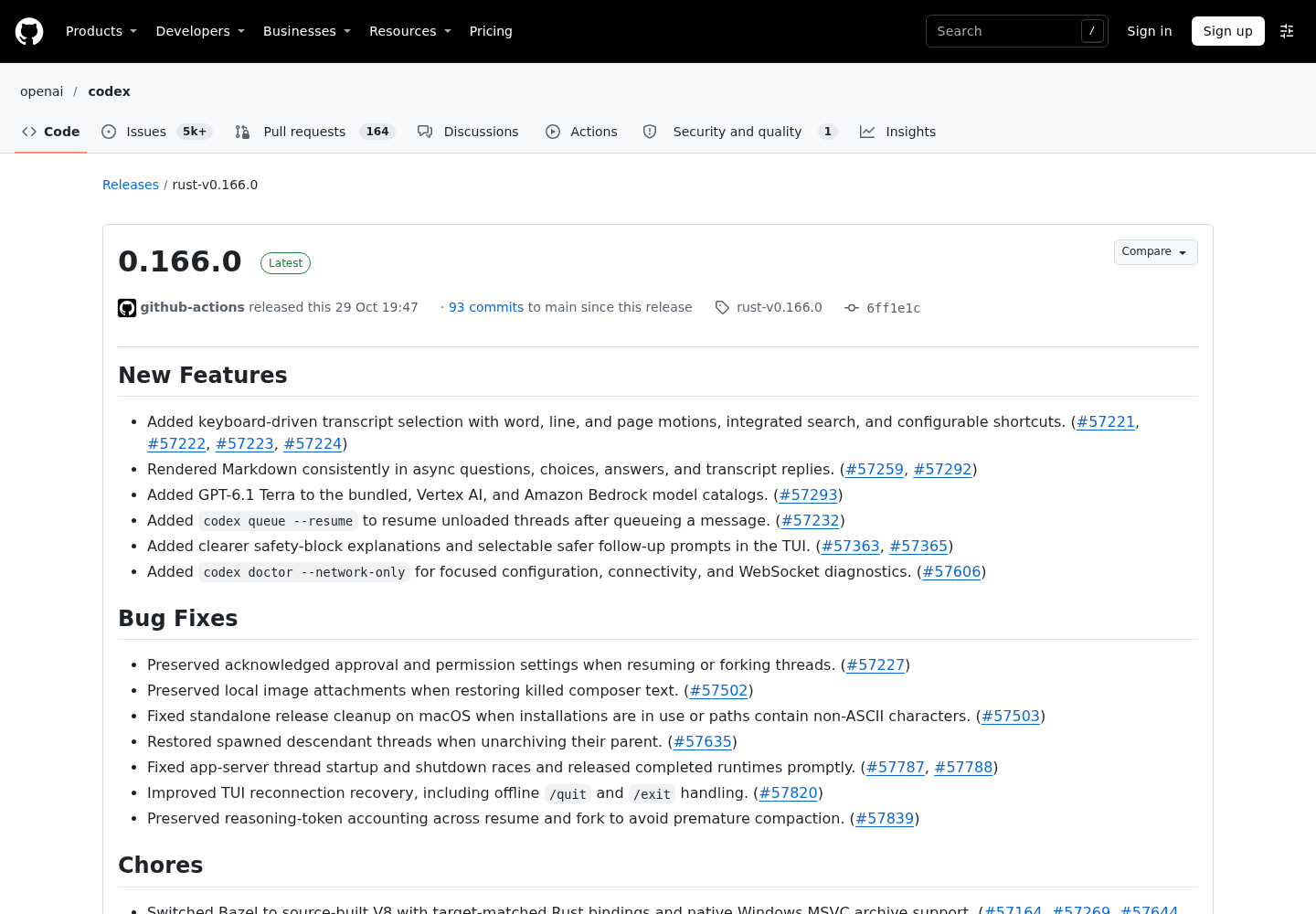
The prompt for writing it now is small. On Oct 25, 2026, the @CodexUpdate account posted a two-line install check: npm i -g @openai/codex@latest, then codex --version, which printed codex-cli 0.164.0 for them. It added a tip: if the first run right after installing fails with spawn ETXTBSY, run it again. On Oct 29, OpenAI published Codex 0.166.0. Its notes include several install-adjacent fixes: standalone release cleanup on macOS when installs are in use, installer download failures now passed through during standalone Unix updates, longer GitHub release read retries with jitter, and an npm wrapper that hands off to the native binary with execve. None of that changes the procedure below. It’s a reminder that your install method decides how updates reach you.
Before you start: what you need and the test repo
Five minutes here saves guesswork later. Work through the list on each machine you plan to set up.
- [ ] A terminal. On macOS or Linux, any shell with
curl. On Windows, PowerShell. OpenAI’s Windows page recommends Windows 11. A recent, fully updated Windows 10 is “best effort” and needs version 1809 or newer, because Codex depends on modern console support including ConPTY. The same page sayswingetshould be available. - [ ] An account. A ChatGPT plan that includes Codex (the README lists Plus, Pro, Business, Edu and Enterprise), or an OpenAI API key. The two bill differently, which matters in the sign-in section.
- [ ] Optional tools. Node.js and npm only if you choose the npm package. Homebrew only if you choose the cask.
- [ ] What’s already installed. Run
which -a codexon macOS, Linux or WSL, orwhere.exe codexon Windows. If anything prints, also runcodex --version. Write both down. That’s your starting point and your rollback target. - [ ] A throwaway git repo. Codex’s first job will be reading one, so give it something small and harmless.
On macOS, Linux or WSL2, this creates the test repo. On WSL2 it also puts the repo under your Linux home, which the WSL page recommends for speed.
mkdir -p ~/code/codex-smoke && cd ~/code/codex-smoke
git init
echo "# codex smoke test" > README.md
echo "A throwaway repo for checking a Codex CLI install." >> README.md
git add README.md
git commit -m "smoke test repo"
Why a separate repo: the verification step asks Codex a question about the files it can see. A one-file repo makes the expected answer obvious, keeps your real code out of the first session, and gives you a clean place to test a reinstall later.
Pick one install method per machine
The README documents four ways to get the binary: the standalone installer scripts, the npm package, a Homebrew cask, and prebuilt archives on GitHub Releases. On Windows, the WSL page adds a fifth situation: running the Linux installer inside a WSL2 distribution. Each method comes with its own update path, so choose with updates in mind.
| Method | Install command | Needs | Updates through | Choose it when |
|---|---|---|---|---|
| Native script, macOS or Linux | curl -fsSL https://chatgpt.com/codex/install.sh | sh |
curl |
codex update, or rerun the script |
Default for a personal Mac or Linux machine |
| Native script, Windows | powershell -ExecutionPolicy ByPass -c "irm https://chatgpt.com/codex/install.ps1 | iex" |
PowerShell | codex update, or rerun the script |
Windows-native work under the Windows sandbox |
| WSL2 | The macOS/Linux script, run inside the distro | A WSL2 distro; WSL1 isn’t supported from Codex 0.115 | Same as native Linux, inside the distro | Linux toolchains, or repos that already live in WSL2 |
| npm | npm install -g @openai/codex |
Node.js and a writable global prefix | npm install -g @openai/codex@latest |
Node is already managed on the box and you want npm-style version pins |
| Homebrew cask | brew install --cask codex |
Homebrew | brew upgrade --cask codex (Homebrew’s own command) |
A Mac where Homebrew already owns your tools |
| GitHub Release binary | Download the archive, extract it, rename the file to codex |
tar |
Replace the file yourself | Exact version pins, CI images, locked-down networks |
Three rules keep this table honest on a real machine:
- One method per machine. Mixing npm with the native script is the most common cause of “I updated but nothing changed.” If
which -aprinted something during the prerequisites, decide now whether you keep that install or replace it. - Use the cask form. The README’s Homebrew line is
brew install --cask codex. A guide that showsbrew install codexwithout--caskdoesn’t match OpenAI’s current instructions. - Treat WSL2 and Windows as two computers. A Codex install inside your distro and one in PowerShell have separate binaries, separate PATHs and, by default, separate
~/.codexfolders.
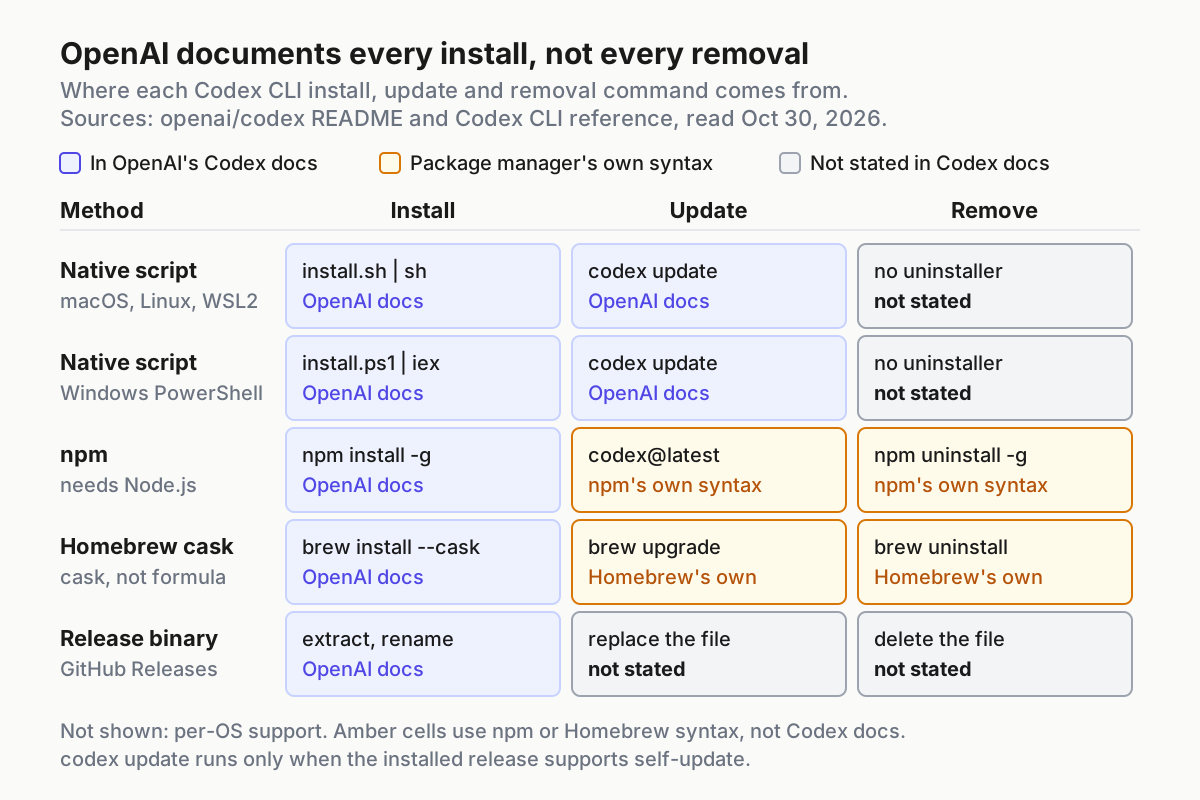
The CLI reference describes codex update as checking for and applying an update when the installed release supports self-update, so it’s the first thing to try on a native install. On npm and Homebrew, let the package manager perform updates so its own records stay correct.
Run the installer for your platform
Run only the block for the method you picked.
- macOS, Linux or a WSL2 shell. Run the standalone installer:
curl -fsSL https://chatgpt.com/codex/install.sh | sh
If you prefer to read a script before running it, save it to a file, read it, then run that file with sh. This is ordinary shell practice, not an OpenAI requirement.
curl -fsSL https://chatgpt.com/codex/install.sh -o codex-install-script.sh
less codex-install-script.sh
sh codex-install-script.sh
- Windows PowerShell. Run the Windows installer exactly as the README shows it. The
-ExecutionPolicy ByPasssetting applies only to that one PowerShell process.
powershell -ExecutionPolicy ByPass -c "irm https://chatgpt.com/codex/install.ps1 | iex"
- If downloads fail. Both installers fetch from
https://releases.openai.com/codexby default and fall back to GitHub Releases when a metadata or asset download is unavailable. To skip releases.openai.com entirely, for example when a corporate firewall allows github.com but not that host, setCODEX_INSTALLER_USE_RELEASES_OPENAI_COMtofalse. The README says0andnoare also accepted.
curl -fsSL https://chatgpt.com/codex/install.sh | CODEX_INSTALLER_USE_RELEASES_OPENAI_COM=false sh
$env:CODEX_INSTALLER_USE_RELEASES_OPENAI_COM='false'; irm https://chatgpt.com/codex/install.ps1 | iex
Look at where the variable sits in the shell version. It’s set for sh, the process that runs the installer, not for curl. Put it in front of curl instead and the installer never sees it.
- Package managers instead. Use one of these only if you chose that row in the table:
# npm (needs Node.js)
npm install -g @openai/codex

# Homebrew
brew install --cask codex
- A prebuilt binary. On the latest GitHub Release, the README points most people to four archives:
codex-aarch64-apple-darwin.tar.gzfor Apple Silicon,codex-x86_64-apple-darwin.tar.gzfor older Intel Macs, andcodex-x86_64-unknown-linux-musl.tar.gzorcodex-aarch64-unknown-linux-musl.tar.gzfor Linux. Each archive holds a single file with the platform in its name, which you rename tocodex. Themkdir,mvandchmodlines below are standard Unix steps, and~/.local/binis only an example directory that must already be on your PATH.
tar -xzf codex-aarch64-apple-darwin.tar.gz
mkdir -p ~/.local/bin
mv codex-aarch64-apple-darwin ~/.local/bin/codex
chmod +x ~/.local/bin/codex   # only needed if the file isn't already executable
The README then says to simply run codex to get started. Hold off for one more section and verify first.
Prove the shell runs the binary you just installed
A success message from an installer tells you a file landed somewhere. It doesn’t tell you that file is the one your shell will run. These checks do.
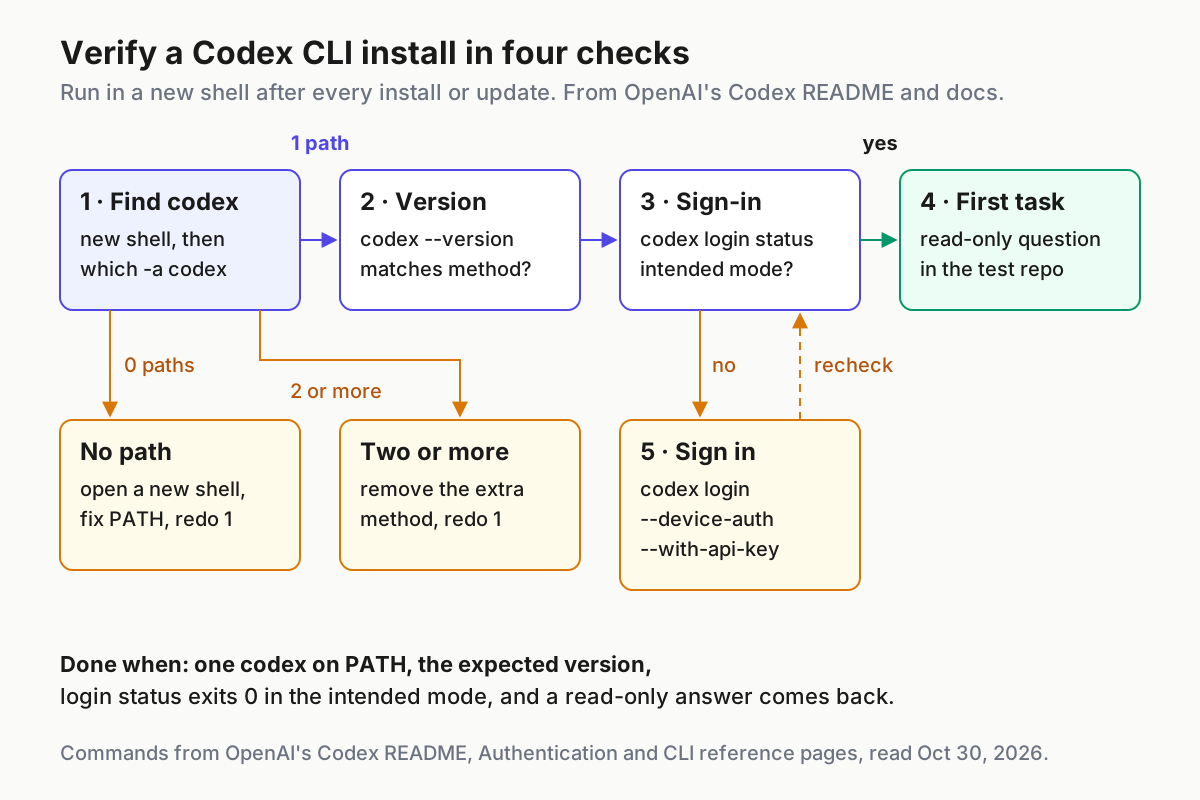
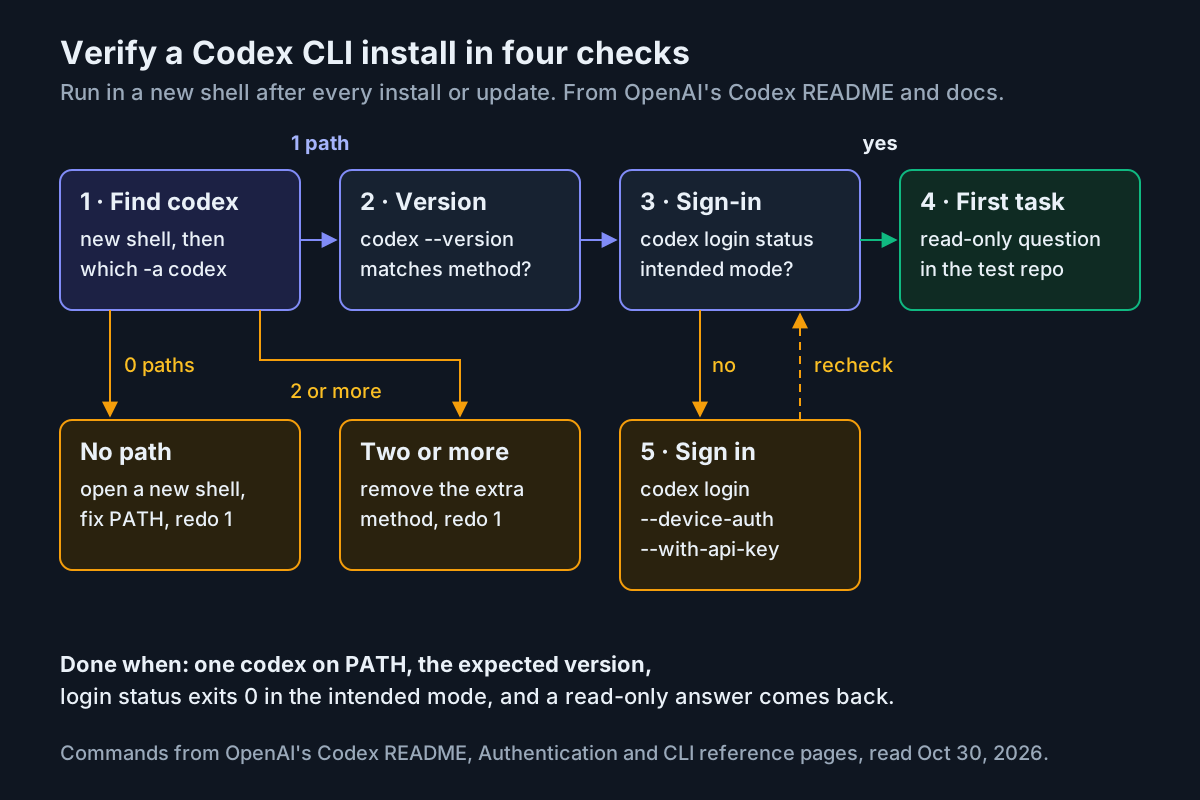
- Open a new terminal window or tab. PATH changes made by an installer usually reach only new shells.
- List every
codexon PATH. On macOS, Linux and WSL2 runwhich -a codex. On Windows runwhere.exe codex. Paths print in PATH order, and the first one wins. - Print the version. Run
codex --version. In the X post, an npm install printedcodex-cli 0.164.0. Your number will be whatever your method serves today, so compare it with the release page if you expected the newest build. - Run the diagnostic report if anything looks off. The CLI reference describes
codex doctoras a local report for investigating a broken installation. It checks installation, configuration, authentication, runtime, Git, terminal, app-server and thread inventory health. - Ask a read-only question in the test repo. After you sign in (next section),
cd ~/code/codex-smoke, runcodex, and ask: “What does README.md say this repo is for? Don’t change any files.” The answer should mention a throwaway repo for checking a Codex CLI install, andgit statusafterwards should report a clean working tree. - Optional: shell completion. The CLI reference shows
codex completion zsh > "${fpath[1]}/_codex"for zsh.
Read the output of step 2 with this table:
| You see | It means | Next move |
|---|---|---|
| One path | One install, and it’s the one your shell runs | Continue to the version check |
| Two or more paths | Two methods are installed, and the first one wins | Keep one, uninstall the others (see the uninstall section), then repeat from step 1 |
Nothing, or codex not found |
The install directory isn’t on PATH in this shell, or the install failed | Open another new shell; if it’s still empty, rerun the installer and read its output |
| A path under an npm or Homebrew prefix you didn’t expect | An older package-manager install is shadowing the new one | Remove the older copy, or switch your plan to that method |
| A version older than the one you just installed | You updated a different copy | Go back to step 2 |
Sign in with the method that matches the machine
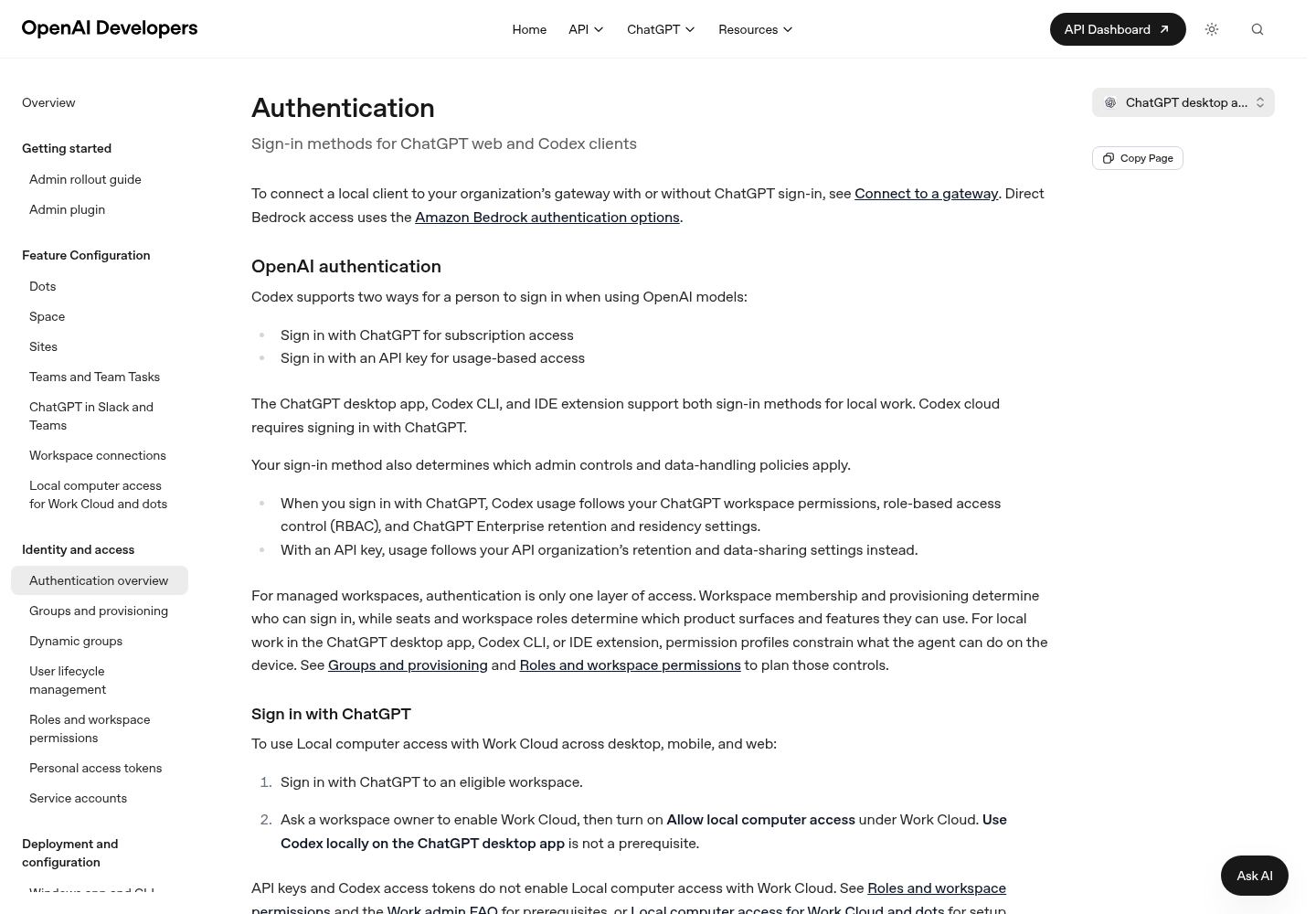
Codex CLI supports two personal sign-in methods: ChatGPT, for plan access, and an API key, for usage-based access. The choice decides more than billing. According to the Authentication page, ChatGPT sign-in makes usage follow your ChatGPT workspace permissions, role-based access control, and Enterprise retention and residency settings. With an API key, usage follows your API organization’s retention and data-sharing settings, and you pay standard API rates instead of using included plan credits.
Pick the row for the machine in front of you. The host name dev@build-box is this guide’s example; use your own SSH login.
| Machine | Sign-in method | Command | Notes |
|---|---|---|---|
| Laptop with a browser | ChatGPT, browser flow | codex login, or run codex and choose Sign in with ChatGPT |
The default when no valid session exists |
| SSH session or headless server | ChatGPT, device code (beta) | codex login --device-auth |
First enable device code login in your ChatGPT security settings, or ask a workspace admin |
| Remote host where device code isn’t available | ChatGPT, forwarded callback | ssh -L 1455:localhost:1455 dev@build-box, then codex login in that session |
Tunnels the default localhost:1455 callback to your local browser |
| Private CI runner | API key | printenv OPENAI_API_KEY | codex login --with-api-key |
Billed at API rates; OpenAI says not to expose Codex execution in untrusted or public environments |
| ChatGPT Enterprise automation | Codex access token | printenv CODEX_ACCESS_TOKEN | codex login --with-access-token |
Needs an admin to grant the access token permission |
The API key and the access token travel through stdin, not as a command-line argument, so they stay out of shell history.
Then confirm the result. The Authentication page says codex login status shows the active authentication method, and the CLI reference says it exits 0 when credentials are present. That makes it a clean gate for scripts:
if codex login status; then
  echo "codex: credentials present"
else
  echo "codex: not signed in" >&2
  exit 1
fi
Exit code 0 only proves that credentials exist. Read the printed method too. A laptop that should use your plan but reports an API key will bill at API rates.
To stop that from happening by accident, pin the method in ~/.codex/config.toml. The Authentication page presents these keys for admin-managed environments; the same config keys also work as a guardrail in your own file.
# ~/.codex/config.toml
# Only allow ChatGPT sign-in on this machine ("api" would allow only API keys).
forced_login_method = "chatgpt"

# Keep cached credentials in the OS credential store instead of auth.json.
# Options: file | keyring | auto | ephemeral
cli_auth_credentials_store = "keyring"
What to expect from each choice:
- With
forced_login_methodset, credentials that don’t match make Codex log you out and exit. That’s the intended failure, not a crash. Aforced_chatgpt_workspace_idkey does the same for one specific workspace. keyringfails if no OS credential store is available, which is common on minimal Linux servers. Useautothere; it uses the credential store when one exists and falls back toauth.jsonotherwise.- With
filestorage, credentials live inauth.jsonunderCODEX_HOME, which defaults to~/.codex. OpenAI says to treat that file like a password, because it contains access tokens. Don’t commit it, paste it into tickets or share it in chat.
Two behaviors surprise people. First, the CLI and the IDE extension share the same cached login, so logging out of one means signing in again in both. Second, ChatGPT sessions refresh their tokens during use, so a machine you use every day rarely needs another browser login.
If the browser flow fails, read codex-login.log in your configured log directory; direct codex login runs write it. Behind a corporate TLS proxy, set CODEX_CA_CERTIFICATE to your PEM bundle before logging in. When it’s unset, Codex falls back to SSL_CERT_FILE.
Codex CLI on Windows: native PowerShell or WSL2
OpenAI’s Windows guidance is direct: use the native Windows sandbox by default, and choose WSL when you need Linux-native tooling, your workflow already lives in WSL2, or the native sandbox implementations don’t meet your needs. Decide with this table:
| If this is true | Install in |
|---|---|
| Your repos, editors and build tools are Windows-native | PowerShell, with the Windows installer |
| Your build needs Linux tools such as bash scripts or Linux-only compilers | A WSL2 distro |
Your repos already live under /home/... in WSL2 |
A WSL2 distro |
| You are still on WSL1 | Move to a WSL2 distro first; WSL1 stopped being supported in Codex 0.115, when the Linux sandbox moved to bubblewrap |
For the WSL2 path, follow these steps in order:
- Open PowerShell or Windows Terminal as an administrator and run
wsl --install. Ubuntu is a common default distribution. - Run
wslto start a shell inside the distribution. - Inside that shell, run the Linux installer and start Codex:
curl -fsSL https://chatgpt.com/codex/install.sh | sh, thencodex. - Keep repositories under your Linux home, for example
~/code/codex-smoke, not under/mnt/c/.... The WSL page says Windows-mounted paths can be slower and cause more symlink and permission issues. - Verify the binary inside WSL with
which codex || echo "codex not found". It’s the same check the docs suggest when VS Code in WSL can’t find Codex. - If large repos still feel slow, run
wsl --updateand thenwsl --shutdownfrom PowerShell, and restart the distribution.
From Windows Explorer you can reach your WSL files by typing \\wsl$ and opening your distribution’s home directory.
About CODEX_HOME: the docs use it as the directory for Codex’s state, defaulting to ~/.codex. They don’t describe sharing one CODEX_HOME between Windows and a WSL distribution, so don’t build a setup that depends on it. Sign in separately in each environment and keep each config.toml on purpose.
On native Windows, the sandbox is its own topic. Codex supports mxc, elevated and unelevated implementations, and the TUI’s /setup-default-sandbox command appears when Codex is using the degraded restricted-token sandbox. Our Codex approval modes and sandbox guide covers what each mode permits once Codex is installed.
Worked example: a laptop, an SSH build box and a CI job
This filled case is illustrative, not a captured run. One developer sets up Codex CLI on three machines in an afternoon: a MacBook that already carries an old npm install, an Ubuntu build box reached only over SSH, and a private Linux CI runner with Node.js. The table records every decision. After it come the complete, copyable commands and scripts for each machine, and the observations to expect from each line, both when it works and when it doesn’t.
| Machine | Starting state | Decision | Commands | Expected observation |
|---|---|---|---|---|
| MacBook (Apple Silicon) | Homebrew manages most tools; which -a codex prints an npm path from an old install |
Keep Homebrew, remove npm | npm uninstall -g @openai/codex, then brew install --cask codex |
New shell: which -a codex prints one Homebrew path |
| MacBook, sign-in | No session | ChatGPT browser flow, pinned | codex login, then add forced_login_method = "chatgpt" |
codex login status exits 0 and reports ChatGPT |
| Ubuntu build box over SSH | Nothing installed, no browser | Native script, device code | sh codex-install.sh, new shell, codex login --device-auth, sh codex-verify.sh |
A link and a one-time code for a laptop browser, then the OK lines |
| Build box, credentials | Minimal server, no keyring | auto credential storage |
Written by codex-install.sh |
Login falls back to auth.json in ~/.codex |
| Private CI runner (Linux, Node.js) | Fresh container per job | npm pinned to 0.164.0, API key | sh codex-ci.sh |
codex --version prints codex-cli 0.164.0; status exits 0 |
| All three | Signed in | Read-only smoke test | Ask about README.md in codex-smoke |
The answer describes the throwaway repo; git status is clean |
The MacBook row is the mixed-methods trap. Because the npm path came first on PATH, every brew upgrade would have changed a binary the shell never ran. Removing the npm copy, rather than reordering PATH, leaves one owner for updates. npm uninstall -g is npm’s own command; OpenAI’s pages don’t document removal for any method.
The build box gets the native script because nothing else on it needs Node or Homebrew, and codex update gives it a self-update path. Device code is the documented choice for headless sign-in.
MacBook: replace the npm install with the Homebrew cask
Run these in Terminal, in order. The npm, brew, grep and printf lines are npm’s, Homebrew’s and the shell’s own syntax; the Codex commands are from OpenAI’s docs.
# 1. Record what is there now (expect the old npm path)
which -a codex
codex --version

# 2. Clear the old session, then remove the npm copy
codex logout
npm uninstall -g @openai/codex

# 3. Install the Homebrew cask (note --cask)
brew install --cask codex
Open a new terminal window, then finish the setup:
# 4. Exactly one path, under Homebrew's prefix
which -a codex
codex --version

# 5. Pin ChatGPT sign-in, without duplicating the key if it already exists
mkdir -p ~/.codex
grep -q '^forced_login_method' ~/.codex/config.toml 2>/dev/null \
  || printf '%s\n' 'forced_login_method = "chatgpt"' >> ~/.codex/config.toml

# 6. Browser sign-in, then confirm the mode
codex login
codex login status
What each step should show:
- Step 1 prints the npm path and an old version. That version is your rollback target, so note it.
- Step 2 clears saved credentials, and npm reports the package removed. If npm says the package isn’t installed, the path came from a different npm prefix; run
npm uninstall -g @openai/codexwith that Node version active. - Step 4 must print one path. If the npm path still appears, a second npm prefix is on PATH; remove that copy before you continue.
- Step 6 opens a browser. After you sign in,
codex login statusexits 0 and reports ChatGPT. If it reports an API key, runcodex logoutandcodex loginagain.
The MacBook then runs the same codex-verify.sh script shown below.
Build box, step 1: install and write the config
Save this as codex-install.sh on the build box and run it as your normal user with sh codex-install.sh. Every Codex command in it is from OpenAI’s docs; the if, cp and heredoc lines are plain shell.
#!/usr/bin/env sh
# codex-install.sh: install Codex CLI with the native script and write a config.
# Run as your normal user, not with sudo.
set -eu

echo "== Codex binaries already on PATH =="
which -a codex || echo "(none)"

echo "== Installing with the standalone installer =="
curl -fsSL https://chatgpt.com/codex/install.sh | sh

CODEX_DIR="${CODEX_HOME:-$HOME/.codex}"
mkdir -p "$CODEX_DIR"

if [ -f "$CODEX_DIR/config.toml" ]; then
  cp "$CODEX_DIR/config.toml" "$CODEX_DIR/config.toml.before-install"
  echo "Existing config.toml backed up; add the two settings below by hand."
else
  cat > "$CODEX_DIR/config.toml" <<'EOF'
# Only ChatGPT sign-in on this machine.
forced_login_method = "chatgpt"
# OS credential store when available, otherwise auth.json in CODEX_HOME.
cli_auth_credentials_store = "auto"
EOF
  echo "Wrote $CODEX_DIR/config.toml"
fi

echo "Next: open a new shell, run codex login --device-auth, then sh codex-verify.sh"
What each part should show:
- The PATH listing prints
(none)on a clean box. If it prints a path, stop and decide which install you keep before going further, because the script would add a second one. - The installer prints its own progress. If the download fails, rerun only that line with
CODEX_INSTALLER_USE_RELEASES_OPENAI_COM=falsein front ofsh, as shown in the installer section. - The config step prints
Wrote /home/dev/.codex/config.toml(path illustrative). If a config already existed, the script backs it up instead of overwriting it, so nothing you wrote earlier is lost. - The last line reminds you to open a new shell. The installer’s PATH change usually doesn’t reach the shell that ran it.
Build box, step 2: sign in, then verify
In a new SSH session, sign in with a device code:
codex login --device-auth
Expect a link and a one-time code. Open the link in your laptop’s browser, sign in, and enter the code. If the flow refuses to start, device code login probably isn’t enabled for the account yet. The documented fallbacks are forwarding localhost:1455 over SSH, or copying ~/.codex/auth.json from a machine that signed in through a browser, which only works with file-based credential storage.
Then run the four checks from this guide as one script. Save it as codex-verify.sh; it’s reusable after every update or reinstall, on any macOS, Linux or WSL2 machine that has the codex-smoke repo.
#!/usr/bin/env sh
# codex-verify.sh: one codex on PATH, a version, a sign-in, a read-only task.
set -eu

paths=$(which -a codex 2>/dev/null || true)
count=$(printf '%s\n' "$paths" | grep -c . || true)
if [ "$count" -ne 1 ]; then
  echo "FAIL: expected exactly one codex on PATH, found $count" >&2
  printf '%s\n' "$paths" >&2
  exit 1
fi
echo "OK: codex at $paths"

codex --version

if ! codex login status; then
  echo "FAIL: not signed in; run codex login --device-auth" >&2
  exit 1
fi

cd "$HOME/code/codex-smoke"
codex exec "What does README.md say this repo is for? Do not modify any files."

if [ -n "$(git status --porcelain)" ]; then
  echo "FAIL: the smoke test changed files" >&2
  git status --short >&2
  exit 1
fi
echo "OK: working tree clean"
Read its output with this table:
| Check | Healthy observation | Failure observation | Next move |
|---|---|---|---|
| PATH count | OK: codex at /home/dev/.local/bin/codex (path illustrative) |
FAIL: expected exactly one codex on PATH, found 2, then both paths |
Uninstall the copy you don’t want, open a new shell, rerun |
| PATH count, empty | Not applicable | found 0 |
Open a new shell; if still 0, rerun the installer and read its output |
| Version | A version line such as codex-cli 0.166.0 (illustrative) |
Older than the release page shows | You updated a different copy; recheck the PATH line |
| Sign-in | The active method, reporting ChatGPT, and exit 0 | FAIL: not signed in |
Run codex login --device-auth again |
| Read-only task | A short answer mentioning a throwaway repo for checking a Codex CLI install | A sign-in, network or certificate error | Run codex doctor --network-only (0.166.0 and later) |
| Working tree | OK: working tree clean |
FAIL: the smoke test changed files, plus the file list |
Review the change, restore it with git, and tighten the sandbox before real use |
The script exits non-zero at the first failed check, so you can also drop it into a provisioning job and let the job fail loudly.
The CI job: a pinned npm install and an API key
The CI runner is the only machine here where an API key belongs, and the job pins an exact version so builds don’t change underneath it. The runner already has Node.js, so the npm package@version form gives a one-line pin; 0.164.0 is the version the X post reported as npm stable on Oct 25. The pin syntax is npm’s own. OPENAI_API_KEY comes from the runner’s secret store. Save this as codex-ci.sh:
#!/usr/bin/env sh
# codex-ci.sh: pinned Codex CLI on a private CI runner, API key sign-in, read-only check.
set -eu

CODEX_VERSION="0.164.0"

npm install -g "@openai/codex@${CODEX_VERSION}"
codex --version                        # expect: codex-cli 0.164.0

# API key via stdin, never as an argument
printenv OPENAI_API_KEY | codex login --with-api-key
codex login status                     # non-zero exit stops the job here (set -e)

# Non-interactive, read-only question about the checked-out repo
codex exec "Summarize what README.md says this repository is for. Do not modify files."

# Fail the job if the run touched the working tree
test -z "$(git status --porcelain)"
Expected observations: npm prints its install summary; codex --version prints the pinned version; codex login status reports an API key and exits 0; codex exec prints a summary; the final test passes silently. If npm fails with a permission error, the runner’s global prefix isn’t writable by the job user; fix the image rather than running npm as root. If printenv prints nothing, the secret isn’t exposed to this step and login will fail, which set -e turns into a failed job. To roll the pin forward, change CODEX_VERSION in one place and rerun.
codex exec is the documented command for scripted runs that finish without a human. The prompt asks for no changes, but a prompt is not a permission boundary. Set the sandbox and approval policy for unattended runs as described in our headless trust tier guide, and keep the job on a private runner.
Update and pin Codex CLI by install method
Update through the method that installed the binary. Then rerun the verification checks, because an update is when a second copy usually appears.
| Method | Update | Pin a version | Where the command comes from |
|---|---|---|---|
| Native script (macOS, Linux, WSL2, Windows) | codex update, or rerun the install command |
No pin documented; use a release binary for an exact version | OpenAI README and CLI reference |
| npm | npm install -g @openai/codex@latest |
npm install -g @openai/codex@0.164.0 |
npm’s own package@version syntax; @latest as used in the X post |
| Homebrew cask | brew upgrade --cask codex |
Not stated | Homebrew’s own command |
| GitHub Release binary | Download the newer archive and replace the file | Keep the archive from a specific tag such as rust-v0.166.0 |
OpenAI README |
After any update, run sh codex-verify.sh in a new shell, or check by hand:
- [ ]
which -a codexstill prints exactly one path. - [ ]
codex --versionprints the version you meant to get. - [ ]
codex login statusexits 0 and shows the method you chose. - [ ] The read-only question in
codex-smokestill gets an answer.
Two details from recent releases are worth knowing. The X post reported codex-cli 0.164.0 as the current npm stable on Oct 25, while the GitHub release page lists 0.166.0 as the latest release on Oct 29. Check the release page before assuming that npm’s @latest and GitHub’s latest release match on a given day. And the 0.166.0 changelog includes “Propagate installer download failures in standalone Unix updates” (#57208), so a native update on macOS or Linux that can’t download should now report the failure.
If several people or machines depend on the same Codex build, don’t update them all at once. Our guide to canarying CLI upgrades covers that rollout. When Codex is one of several agent CLIs on a machine, the multi-agent command center guide covers keeping track of which tool runs where.
Uninstall cleanly and roll back
Uninstall in this order so neither credentials nor a second copy are left behind.
- Sign out first. Run
codex logout. The CLI reference says it removes saved credentials for both API key and ChatGPT sign-in. If you chose keyring storage, those credentials live in the OS credential store, not in~/.codex, so deleting the folder alone wouldn’t remove them. - Back up your config if you might come back. Run
cp ~/.codex/config.toml ~/codex-config.backup.toml. - Remove the binary through the method that installed it.
- npm:
npm uninstall -g @openai/codex(npm’s own command). - Homebrew:
brew uninstall --cask codex(Homebrew’s own command). - Release binary: delete the file you placed, for example
rm ~/.local/bin/codex. - Native script: OpenAI’s pages don’t document an uninstaller. Run
which -a codex, thenls -laon that path to see whether it’s a plain file or a link into a larger directory. The 0.166.0 notes mention pruning standalone releases on macOS, so the installer can manage more than one file. Remove only what you’ve confirmed belongs to Codex.
- npm:
- Optionally remove Codex’s state.
~/.codex, or yourCODEX_HOME, holdsconfig.tomland, with file storage,auth.json. Deleting it returns Codex to a first-run state. - Verify in a new shell.
which -a codexshould print nothing. On Windows,where.exe codexshould report that it found no match.
Rollback uses the same steps. Say an update to 0.166.0 broke something you rely on, and 0.164.0 was the last build that worked for you:
- Find which copy you’re running with
which -a codex. - Install the earlier version through a method that can pin:
npm install -g @openai/codex@0.164.0, or the release archive from therust-v0.164.0tag. - Remove the other copy so the pinned one is the only
codexon PATH. - Run
codex logout, sign in again with your chosen method, and recheckcodex login status. - Rerun
sh codex-verify.shand confirm the version line now shows 0.164.0.
Write down the version you rolled back to and why. When a later release fixes the problem, you’ll want to know what to move forward to and which pinned install to undo.
Fix common Codex CLI install errors
Start with the symptom you can see. The last column is the healthy result to look for after the fix.
| Symptom | Likely cause | Fix | You should see |
|---|---|---|---|
codex: command not found right after install |
The shell started before PATH changed, or the install directory isn’t on PATH | Open a new shell, run which -a codex, and if needed rerun the installer and read its output |
One path |
| An update reports success but the version doesn’t change | Two install methods; you updated the one that isn’t first on PATH | Run which -a codex and remove the extra method |
One path and the new version |
| The install script fails while downloading | releases.openai.com is unreachable from your network | Rerun with CODEX_INSTALLER_USE_RELEASES_OPENAI_COM=false, or use npm, Homebrew or a release binary |
The install completes from GitHub Releases |
| npm reports a permission error on a global install | npm’s global directory isn’t writable by your user | Switch to the native installer rather than running npm as root (our recommendation) | A native install and one path |
spawn ETXTBSY on the first run after an npm install |
Reported by one user right after installing | Run the command again, as the X post suggests; treat this as an anecdote | Codex starts normally |
| Browser sign-in never completes on a remote host | The localhost callback can’t reach the CLI | codex login --device-auth, or ssh -L 1455:localhost:1455 dev@build-box and then codex login |
codex login status exits 0 |
| Sign-in fails on a corporate network | A TLS proxy with a private root CA | export CODEX_CA_CERTIFICATE="$HOME/certs/corp-root-ca.pem", then codex login |
Sign-in completes |
| Usage bills at API rates on a laptop | You signed in with an API key | codex logout, codex login, then set forced_login_method = "chatgpt" |
Status reports ChatGPT |
| Codex logs you out and exits at start | Active credentials don’t match forced_login_method or the workspace ID |
Sign in with the allowed method or workspace | A normal start |
| Slow file access or permission errors in WSL | The repo sits under /mnt/c |
Move it under ~/code, then wsl --update and wsl --shutdown |
Normal speed and fewer permission errors |
| Codex won’t run on WSL1 | Not supported from Codex 0.115 | Use a WSL2 distribution | The install completes inside WSL2 |
If none of these match, collect evidence before reinstalling. Run codex doctor for a full local report. On 0.166.0 or later, codex doctor --network-only narrows it to configuration, connectivity and WebSocket checks, which is the right scope when downloads or sign-in time out. For sign-in problems, share codex-login.log when support asks for it, but never auth.json.
Our OpenAI Codex startup and configuration diagnosis guide picks up from here for installs that start but misbehave, and the Codex skills setup guide is a sensible next step once the smoke test passes. If you also run Claude Code, its update, downgrade and uninstall guide covers the same lifecycle with a different set of channels and commands.
Sources
- Codex Update (@CodexUpdate) on X: install and check the version, with the spawn ETXTBSY tip, Oct 25, 2026
- OpenAI, openai/codex README on GitHub: installers, package managers, release binaries and sign-in
- OpenAI, Codex Authentication: ChatGPT, API key, device code, login status, credential storage and forced login method
- OpenAI, Codex CLI developer commands reference: codex login, logout, doctor, update, exec and completion
- OpenAI, Codex Windows sandbox: version matrix, sandbox implementations and when to choose WSL
- OpenAI, Codex on WSL: installing inside WSL2, repo placement and troubleshooting
- OpenAI, Codex release 0.166.0 (rust-v0.166.0) on GitHub, Oct 29, 2026