Stall Flags and Keepalive: AgentOps From the System Tray
AI agent monitoring from the Windows tray: what a stall flag means, amber vs. green, what keepalive prevents, and what a tray honestly can't fix.

Go deeper. Build your own.
An agent can finish useful work and then sit in a background terminal on one unanswered approval prompt. Until an operator looks, that completed run and a hung process are equally quiet.
That ambiguity is the case for AI agent monitoring at personal scale. Not dashboards, hosted traces, or a new observability contract — a flag in the Windows system tray that turns amber when a supported session appears to need attention. In Automater Lite, the attention surface is meant to behave like infrastructure: quiet during routine work and visible when the operator needs to inspect something.
The agentic-ops guide on this site defined the five-layer AgentOps stack — tracing, evals, cost metering, guardrails, incident response. The tray is the personal-scale slice of that stack: a heartbeat monitor and a doorbell. Lite is a companion, not a harness; it does not run agents, route their prompts, or wrap their models. It watches recognized activity and surfaces supported sessions that may need a human. The workflow below is representative, not an incident history: it shows what amber means, what evidence to inspect, where PRO’s integration-health views may help, and what keepalive prevents after a restart. Exact fields and actions depend on the installed build and provider adapter.
The quiet states an operator must distinguish
Quiet agent states generally fall into four buckets.
- Finished and waiting. The run completed; the agent printed a summary and a follow-up question into a terminal nobody was looking at.
- Blocked on approval. Mid-plan, the agent hit a permission gate — a file outside the allowlist, a command that needs a yes — and parked. It will wait forever, politely.
- Rate-limited. The session hit a usage ceiling and is either backing off or sitting on an error. Providers expose limits differently, so silence alone cannot prove this diagnosis; inspect the terminal and the provider’s current usage state.
- Genuinely hung. A wedged MCP server, a network call that never returned, a subprocess that ate the loop. This is the bucket that may need a deliberate stop.
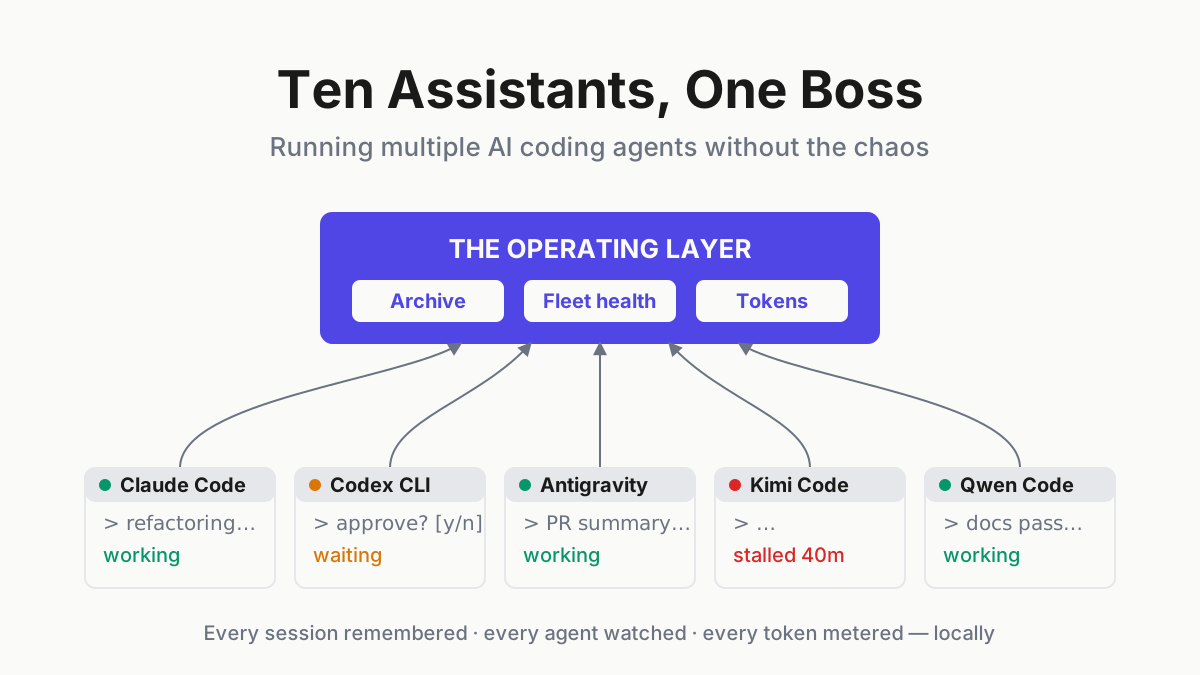
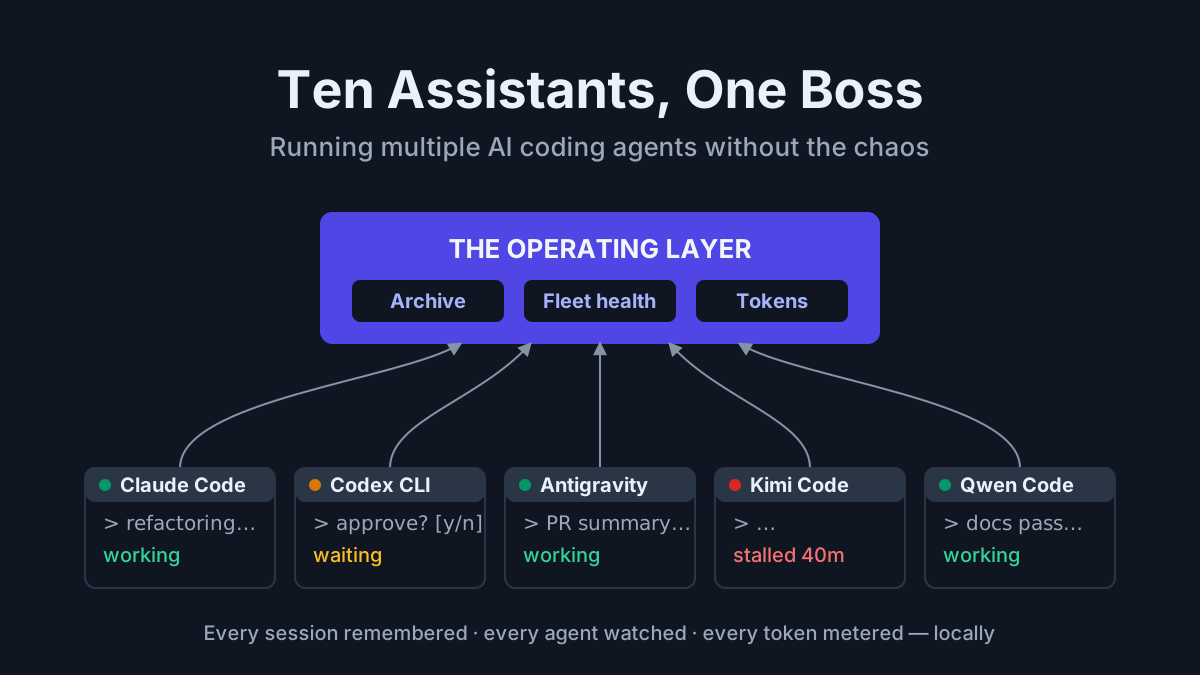
Here is the operator problem underneath all four: background terminals look identical when quiet. A terminal holding a finished agent, a blocked agent, and a dead agent renders the same pixels on the taskbar. Several autonomous processes can share one human scheduler, and “remember to check” does not scale with the fleet. Grok Bot belongs in the broader roster conversation, but its workers run on cloud computers rather than as another local terminal process.
Every unnoticed stall consumes wall-clock capacity, and the cost compounds as the number of parallel sessions grows. AI fleet health at this scale is not an enterprise abstraction; it determines whether autonomous sessions keep moving or quietly wait for an operator who does not know to look.
Why the fleet needs one visible surface
Why write this now. Claude Code’s current CLI reference includes parallel background sessions, agent monitoring, attach, logs, stop, and respawn commands. That is primary-source evidence that a coding CLI is becoming a fleet surface rather than a single chat. More autonomous sessions create more quiet states a human must distinguish.
Open-source projects point in the same direction. Apache Maka records model, tool, permission, and termination events in an append-only workspace log. AgentTrail maps sessions from Claude Code, Codex, and Cursor on a local canvas. They solve different problems, but both treat the session record as an operational surface. A vendor tool can show its own sessions; the machine-level question is what shows the whole desk. Seeing it live is this article; seeing it after the fact is replay.
What the tray actually watches: AI fleet health, locally
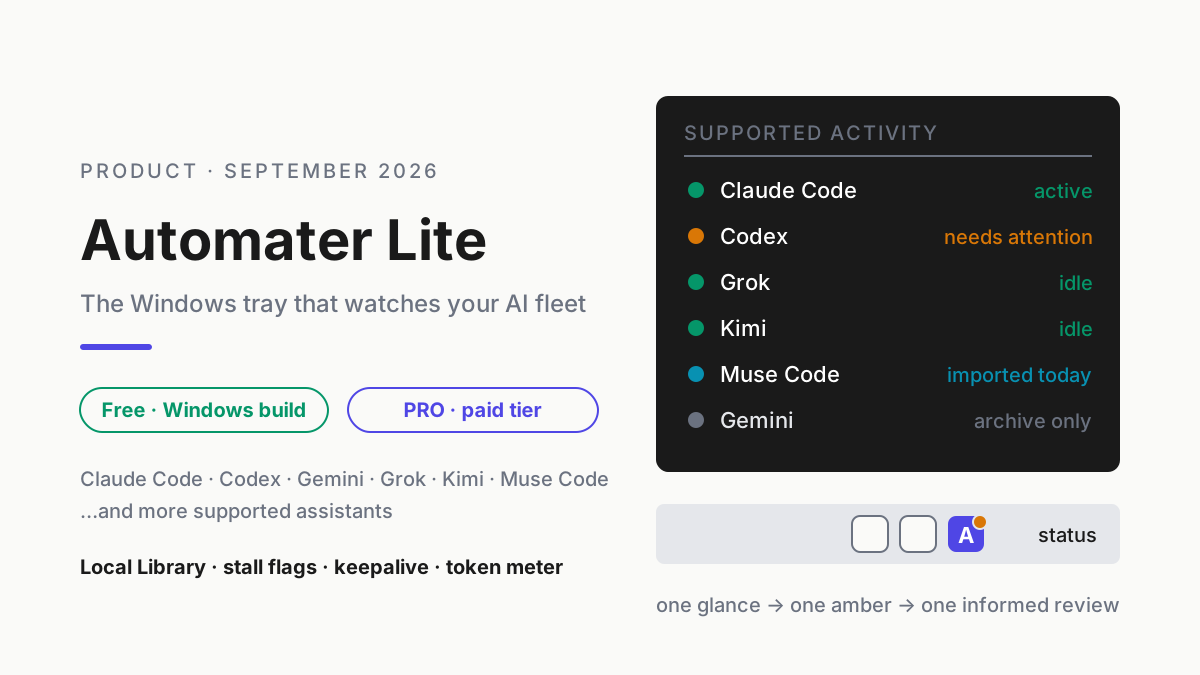
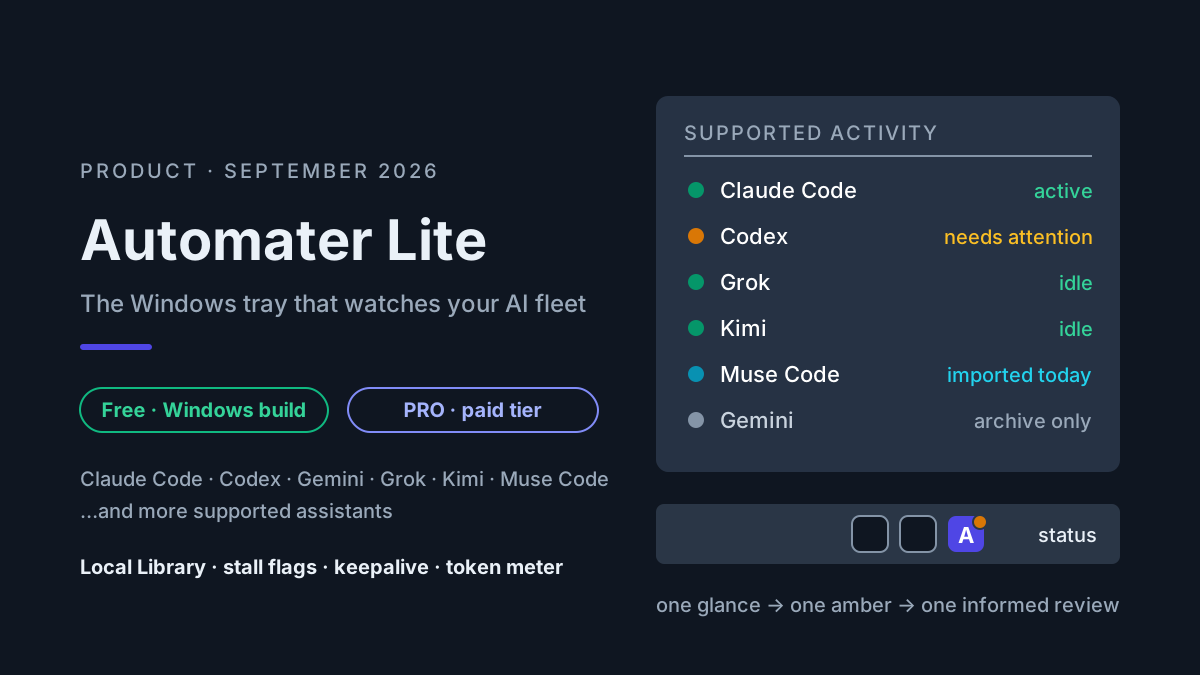
The product behavior, plainly. Automater Lite is a free tray companion whose current homepage lists Claude Code, Codex, Gemini, Grok, Kimi, Antigravity, Qwen Code, Z.ai GLM, OpenCode, Copilot, and more, plus a “Now works with GrokBot” notice. It detects supported AI apps and watches recognized session activity locally. There is no reason to turn that into a universal claim: provider adapters differ, cloud-first products may expose different state, and import/resume should be tested with the exact version you run. If you want one operating view for the roster, that argument gets its own piece.
The health model is deliberately small:
- Green means the supported session currently presents as working in the product’s live-activity model. It is not proof that the output is correct or the process will finish.
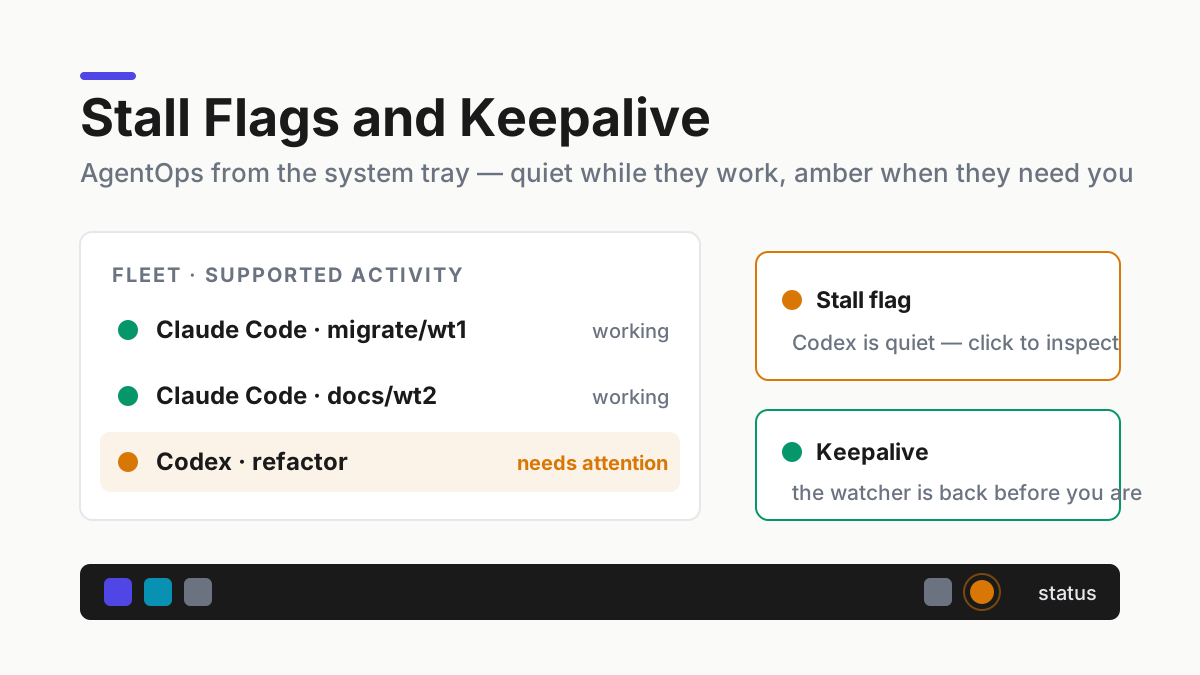
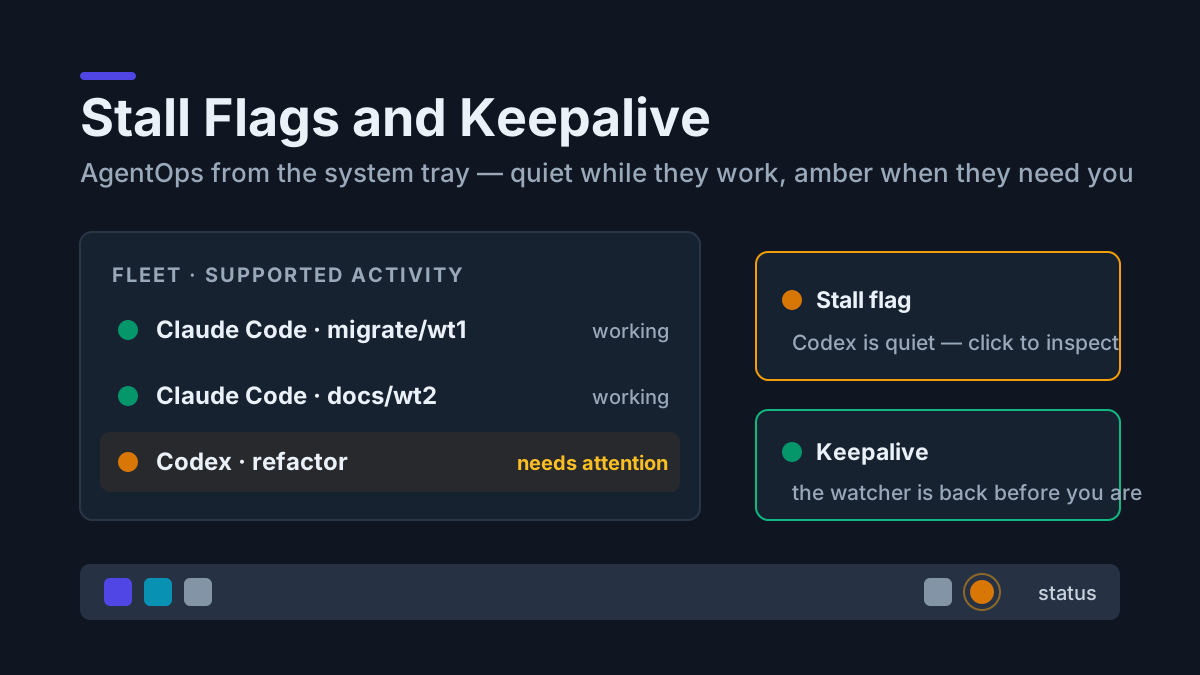
- Amber means the product believes human attention is needed. It does not prove the cause. The right follow-up is to inspect the identified session, its last activity, and the provider’s own state.
Two behaviors make this livable rather than annoying. First, the tray stays quiet while agents work. The current product copy promises to stay out of the way while work continues and flag a supported session when it needs attention. That is the right notification contract: alert on attention, not routine progress. Second, the supported archive and search index stay on local disk. Model calls and any optional connected features keep their own data paths, but fleet history does not need an automatic cloud copy just to become searchable.
Verify the monitor before trusting the color
A monitoring surface earns trust when its signal can be compared with the underlying session. Treat every provider adapter as a separate observation path; success with one CLI does not establish coverage for another. Recheck that path after changing the companion, provider CLI, transcript settings, terminal host, or operating-system integration.
Use a non-sensitive repository for an acceptance check. Start a recognized session and confirm that the tray identity maps to the terminal you can inspect. Let the session perform an ordinary, bounded task, then have it reach a benign approval prompt or finish normally. Compare the tray state with the terminal text and the provider’s own session controls. The purpose is not to manufacture a dramatic hang. It is to establish which visible states the current adapter can distinguish and which ones still require operator interpretation.
Record six things for each supported lane:
| Check | Evidence to retain |
|---|---|
| Companion availability | Installed build and confirmation that monitoring is running |
| Session identity | Provider, project, and the terminal or app that owns the work |
| Working signal | The source activity that corresponds with a green state |
| Attention signal | The source state that corresponds with amber, if the adapter exposes it |
| Diagnostic handoff | The terminal, provider view, or session record used to determine the cause |
| Recovery boundary | Which action requires the operator and which state the companion can restore |
The useful result is a coverage matrix, not a pass badge. Mark a lane verified only for the states you observed on that exact setup. Mark uncertain states unverified rather than inferring behavior from another adapter. Mark missing integrations unsupported so an absent flag cannot be read as healthy activity.
Review both error directions. A false positive sends the operator to a session that is still making valid progress; inspect before stopping it. A false negative leaves a waiting session quiet; compare the tray with source sessions during periodic checks until the adapter has earned confidence. Also test the observer itself after restart: no visible companion means no monitoring evidence, not an all-clear fleet.
A representative operator workflow
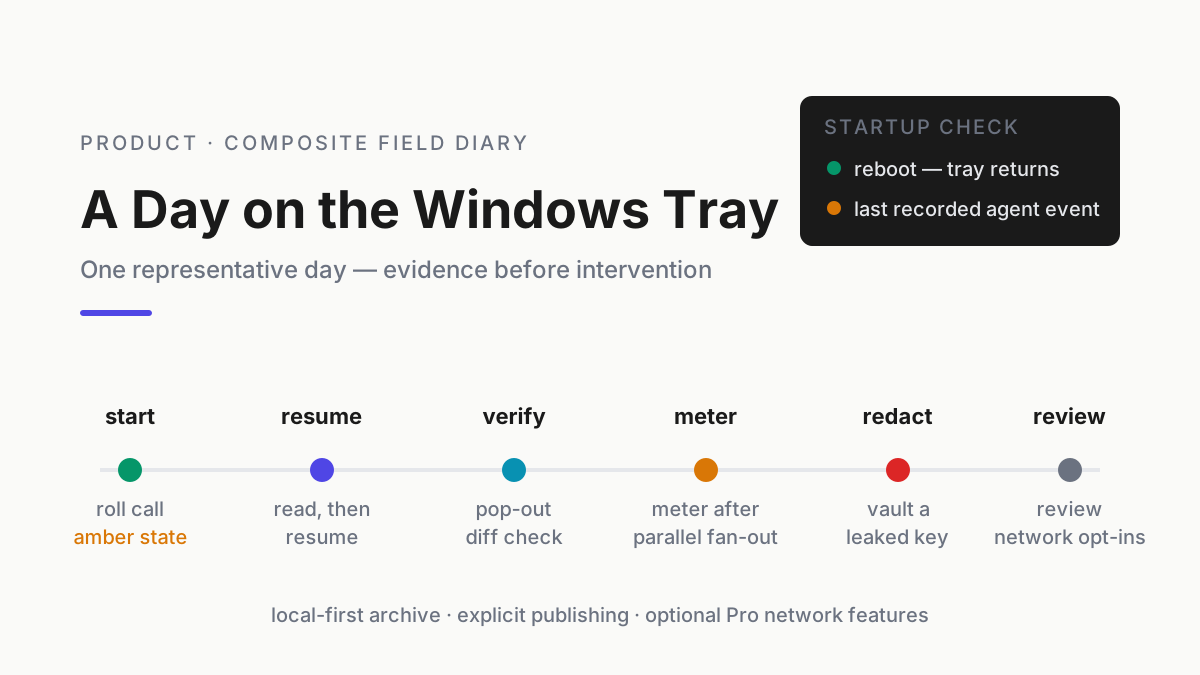
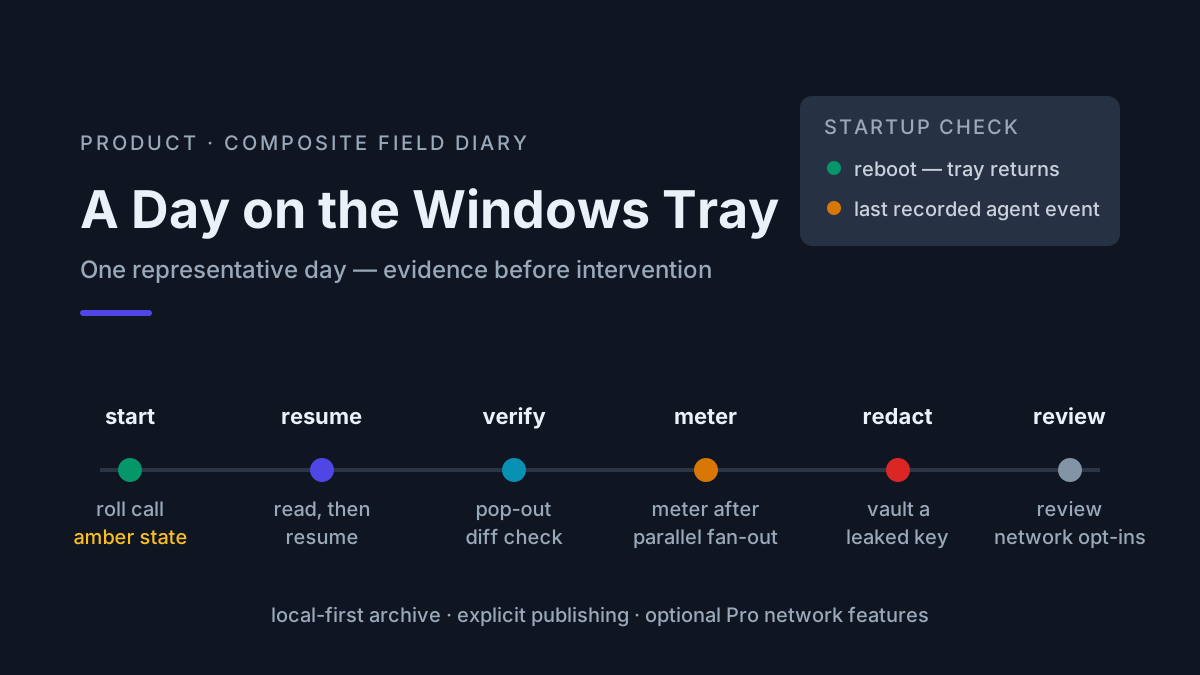
The sequence below is a representative workflow, not a measured incident. It shows the decisions each signal should trigger without attaching invented dates, durations, or outcomes. (The full day-log piece walks the whole tray surface; this is just the monitoring lane.)
At startup. The tray icon appears after sign-in because keepalive restored the companion. The fleet list can now show recognized idle sessions and new work as supported activity begins.
When amber appears. The attention surface identifies the supported session that needs inspection; exact notification settings and fields vary by build. The operator opens the terminal and checks whether it is parked on a shell-command approval, finished, rate-limited, or still working.
When a completed run waits. The flag may not distinguish “done” from “stuck.” “Quiet while holding a terminal” is the honest signal; the operator diagnoses the cause from the terminal and provider evidence.
After a subagent fan-out. No flag is required to inspect the local usage view. Fan-out multiplies model calls, but there is no universal token multiplier: worker count, context, retries, and output decide the total. Metering is the stack’s cost layer; the tray is where it lives on one machine.
When the cause is not obvious. This is where the attention signal hands off to evidence. The current Pro material advertises managed sessions, integration health, advanced control, and pop-outs, but it does not justify inventing provider-neutral diagnostic fields. Inspect what the build actually exposes, then decide whether to wait, stop, or resume. That intervention remains an operator decision.
Automater Lite is a free download for Windows, macOS and Linux at automater.ai/downloads.
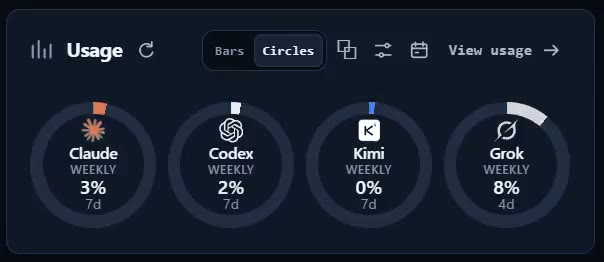
When provider evidence shows a usage ceiling. Nothing in the tray can raise that limit; the signal is useful because “rate-limited” leads to a different choice than “still working.” The diagnosis comes from the provider and terminal evidence, not the color alone.
Before leaving the desk. A quiet tray while recognized sessions continue working is the intended behavior. Silence is useful only when monitoring is active and an amber appears when the product detects a supported attention state.
What keepalive actually prevents
Keepalive sounds like the boring line item on the feature list. It is the one that saves Mondays.
The failure it targets is simple: a Windows restart ends the companion process. Without keepalive, the operator can glance at the corner of the screen, see no flags, and read that as “all green.” It is not all green. It is nothing — the watcher is absent, and the absence of alarms can look like the absence of problems. That is the dead-companion problem, and it is the worst failure mode monitoring can have because it turns “no flag means fine” into a false assumption.
Keepalive means the companion registers itself to come back after a reboot, so monitoring can be available again after sign-in. To keep the claim honest: keepalive resurrects the companion, not the agents. Processes ended by the reboot stay ended. The relaunched companion can rebuild the supported state it observes, show the local archive, and offer provider-specific resume paths where available; it cannot prove or repair every remote session state.
What a tray cannot do
The limits fit in one paragraph, because a monitoring pitch without them is a lie by omission. A tray cannot un-stall an agent. It should not answer an approval prompt automatically; that is an autonomy decision, not a monitoring feature. It cannot raise a rate limit, unwedge a remote MCP server, or make a model think faster. An amber can resolve to “the agent was still working,” which is why the operator verifies the identified session before intervening. What the tray changes is time-to-notice. Everything after noticing remains an operator decision, which is the correct division of labor between a human and a system tray.
FAQ: AI agent monitoring
What is AI agent monitoring?
AI agent monitoring is watching the live health of autonomous AI sessions — running, stalled, waiting on approval, or dead — so a human can intervene sooner. At personal scale it means one view across supported installed CLIs, not a separate dashboard for each vendor.
How does agent stall detection work?
Stall detection watches whether a session that holds a terminal is still producing — transcript activity, process state — and flags it when it goes quiet. The flag does not diagnose the cause; it identifies which session stopped moving and how long ago, so you look at the right terminal immediately.
Can a monitoring tool restart a stalled AI agent?
It should not. A stall usually means the agent needs a human decision — an approval, a review, a kill — and auto-restarting would blow through the very gates that keep agents safe to run. Monitoring shrinks time-to-notice; the intervention itself stays deliberate and stays yours.
Sources
- Automater — Automater Lite fleet awareness, stall flags, keepalive, and PRO integration health
- Claude Code CLI reference — background agents and session controls
- Apache Maka — append-only agent workspace events
- AgentTrail — local multi-agent session map