Ollama Keep Alive, OLLAMA_MODELS and OLLAMA_HOST: Stop Cold Starts, Move the Model Store and Make Server Settings Stick on Windows, macOS and Linux
Set ollama keep alive, move OLLAMA_MODELS to a second drive and keep OLLAMA_HOST on loopback, with Windows, macOS and Linux steps verified by ollama ps.

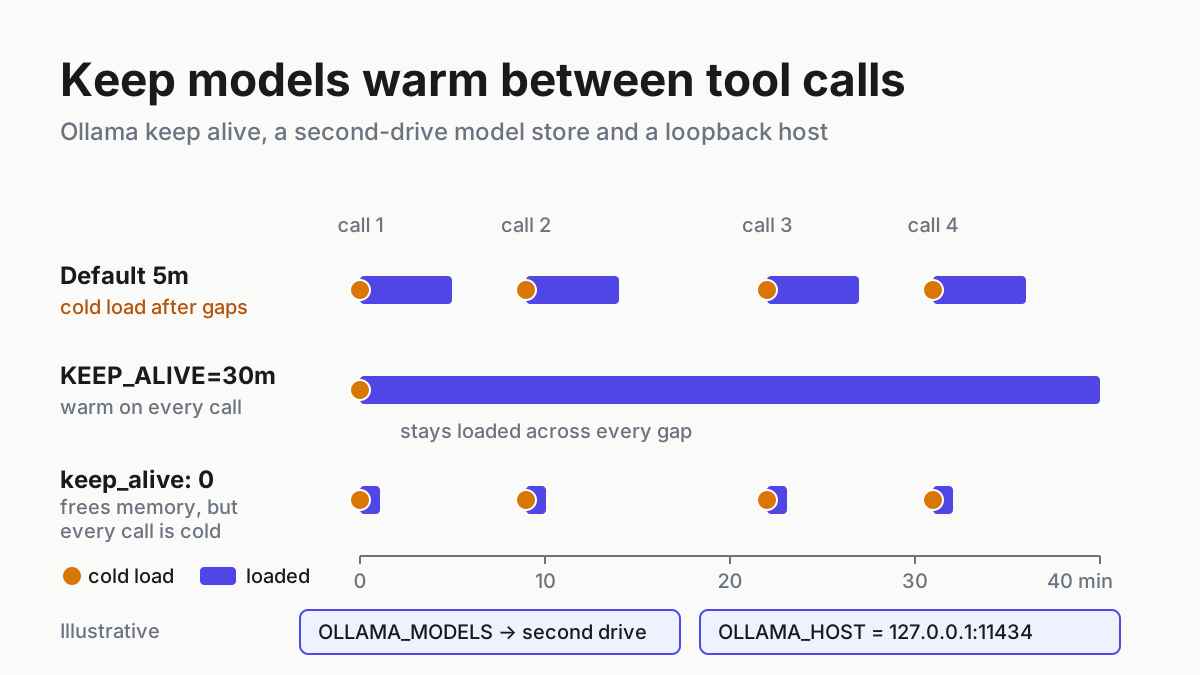
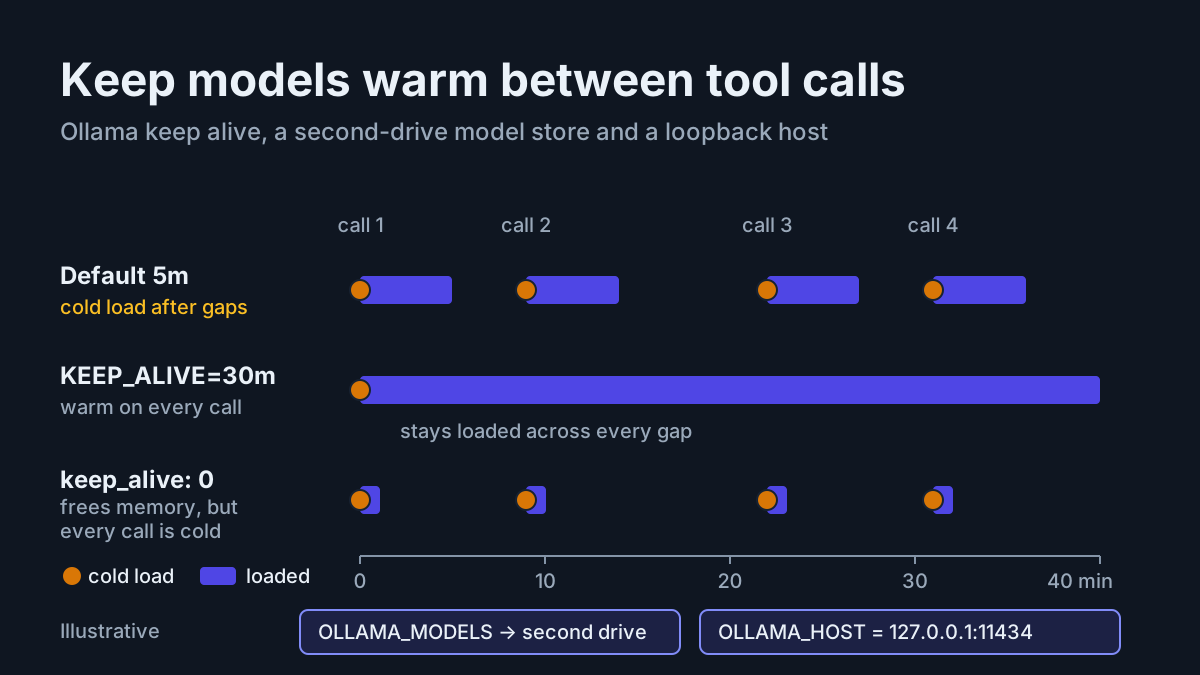
Your coding agent runs the test suite, reads three hundred lines of output, plans for a few minutes, then calls the local model again, and that call hangs while Ollama loads weights it dropped a moment earlier. Or the reverse happens: you closed Claude Code, Codex or OpenCode an hour ago and the GPU is still holding a model nobody is using. Both problems come from one setting, Ollama keep alive, and from whether the server process ever saw the value you typed. This tutorial sets a 30-minute keep-alive, moves the model store to a second drive without pulling every model again, keeps the API on loopback, and shows how to override all of it per request.
The prompt for writing it was small. On November 18, 2026, CM Davidson replied on X to someone whose machine was short on memory: “For Ollama, a short OLLAMA_KEEP_ALIVE unloads models when idle.” The advice is right. What it leaves out is the part that sends people to forums: the variable has to land in the environment of the process that actually serves requests, it has to be written in a form the server parses, and a single field in an API request can quietly override it. The rest of this guide is about those three conditions, with the official Ollama FAQ and the server’s own configuration code as the reference.
Before you start: prerequisites and the result you will check
You need one machine running Ollama the way the official installers set it up: the tray application on Windows or macOS, or the ollama.service systemd unit that the Linux install script creates. Everything below assumes a single local server on the default port.
- [ ] Ollama installed and running as the tray app (Windows, macOS) or as
ollama.service(Linux) - [ ] At least one pulled model; the examples use
llama3.2because the official docs do, so substitute the coding model your agent actually calls - [ ] Administrator rights:
sudoon Linux, an account that can edit its own environment variables on Windows - [ ]
curlon Linux and macOS, PowerShell on Windows - [ ] For the storage move, a second drive or partition already mounted with enough free space for your current models
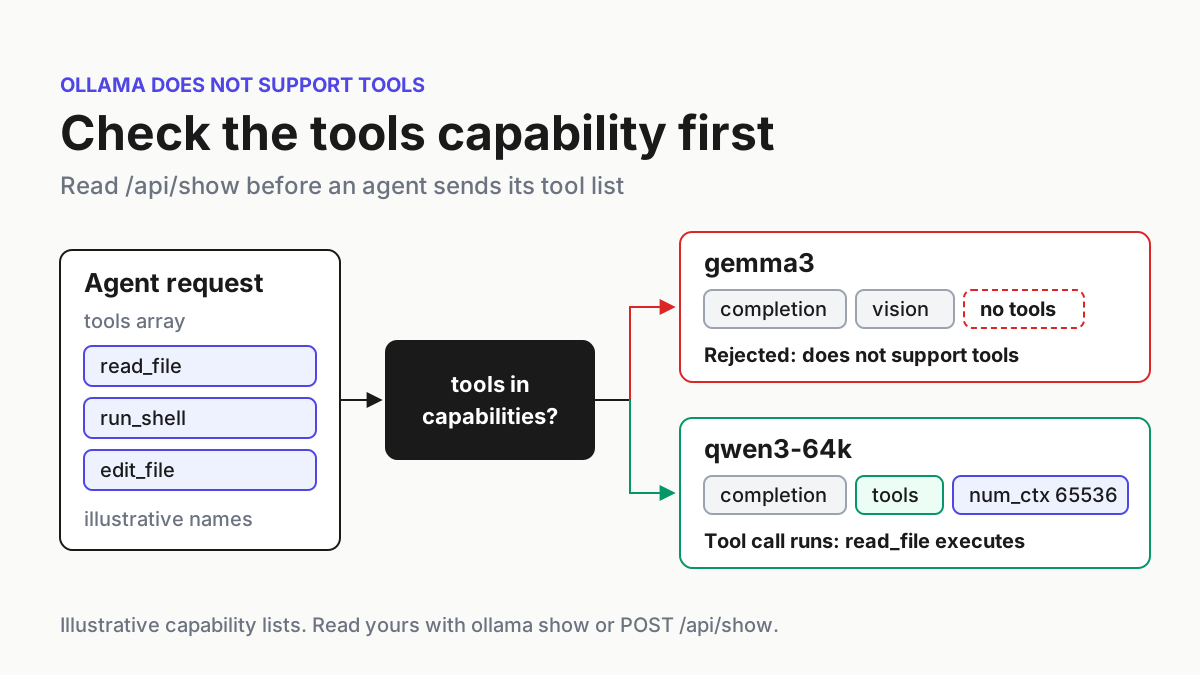
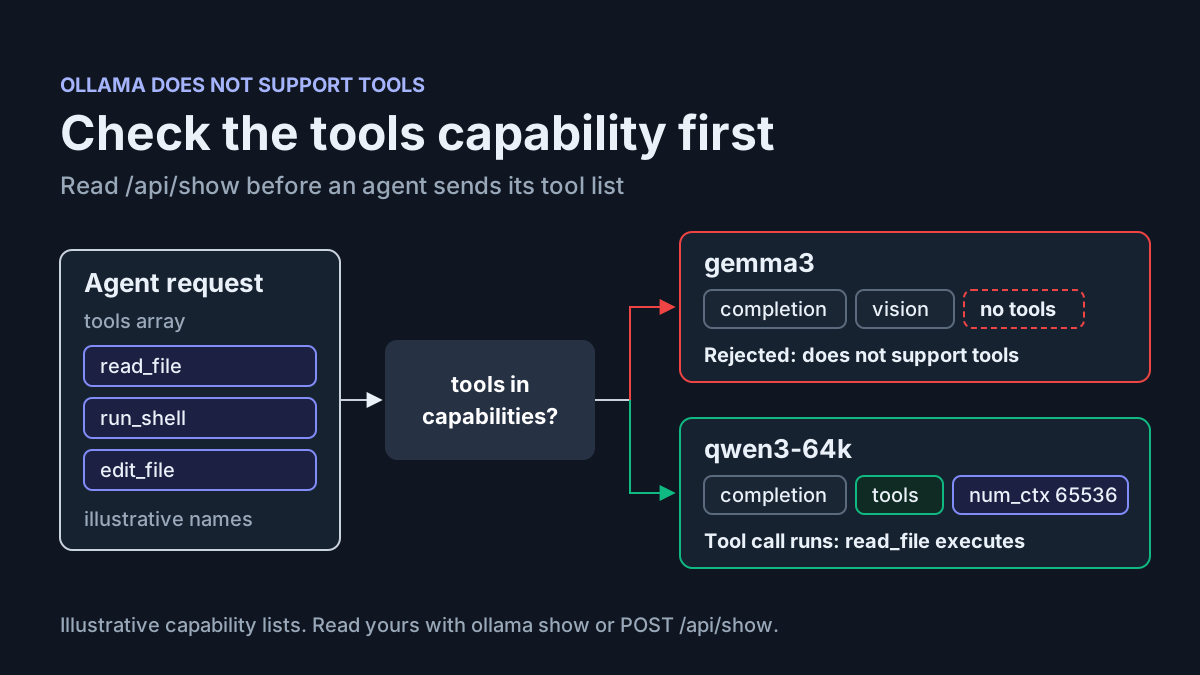
If your agent fails before memory is even a question, fix that first. A model that cannot accept tool definitions is covered in the Ollama “does not support tools” guide, and cloud-hosted models, which this guide does not touch, have their own limits explained in the Ollama Cloud usage guide.
When you finish, three observations should hold. ollama ps lists your model with an UNTIL time about 30 minutes out after a request, instead of about five. ollama list shows the same models after the move, now read from the new drive. And the API answers on 127.0.0.1:11434 but not from another machine on your network.
How Ollama decides when to unload a model
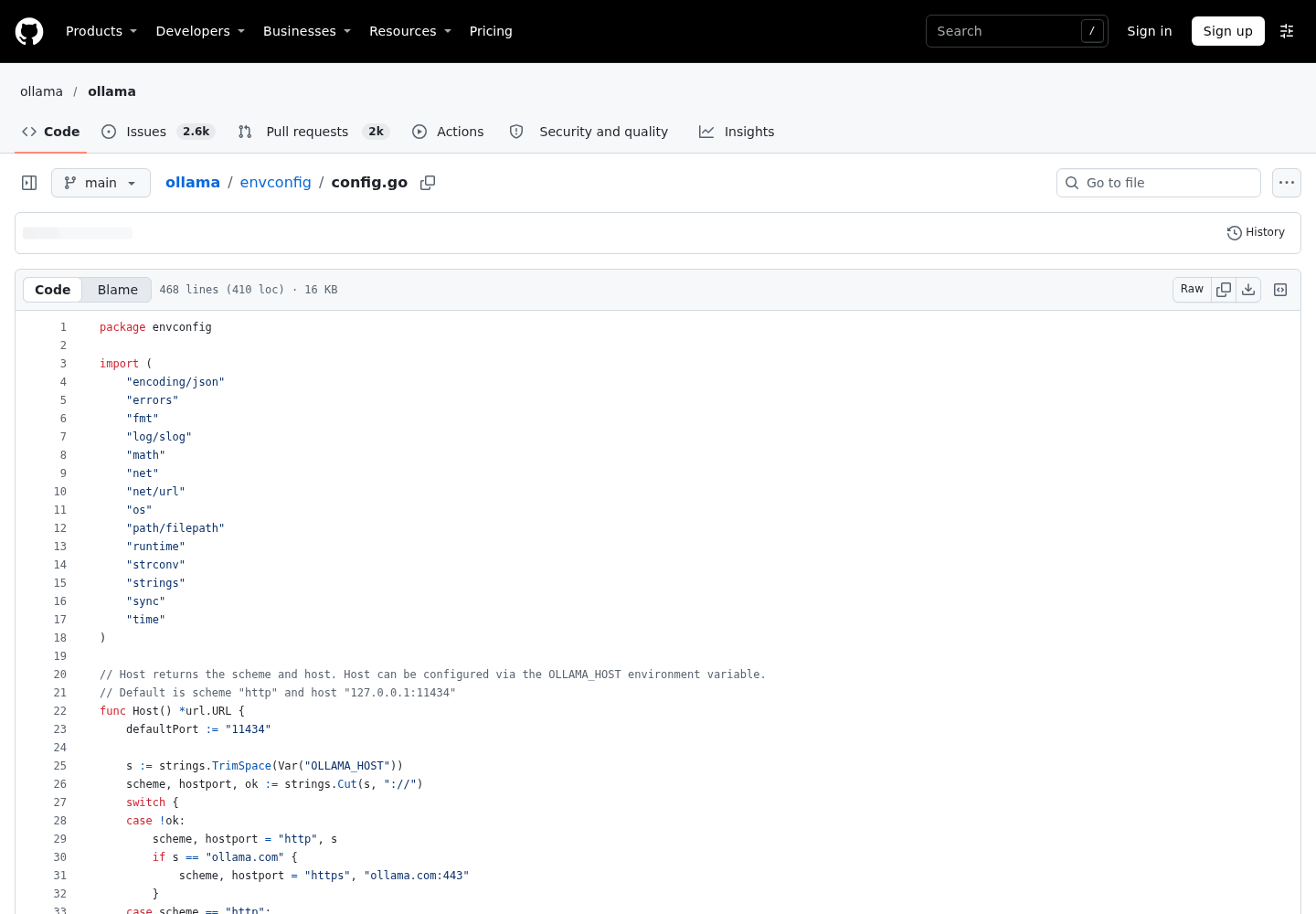
By default a model stays in memory for five minutes after it is used, then unloads. The FAQ gives the reason plainly: keeping it around makes repeated requests faster. The server configuration source hard-codes the same five-minute default and describes OLLAMA_KEEP_ALIVE as the duration that models stay loaded in memory.
You can change that window in two places. The server-wide OLLAMA_KEEP_ALIVE environment variable sets it for every model. The per-request keep_alive field on the native /api/generate and /api/chat endpoints sets it for the model named in that request; both API references describe it as the model keep-alive duration, with 5m and 0 as examples. The FAQ is explicit about precedence: the request field overrides the server variable.
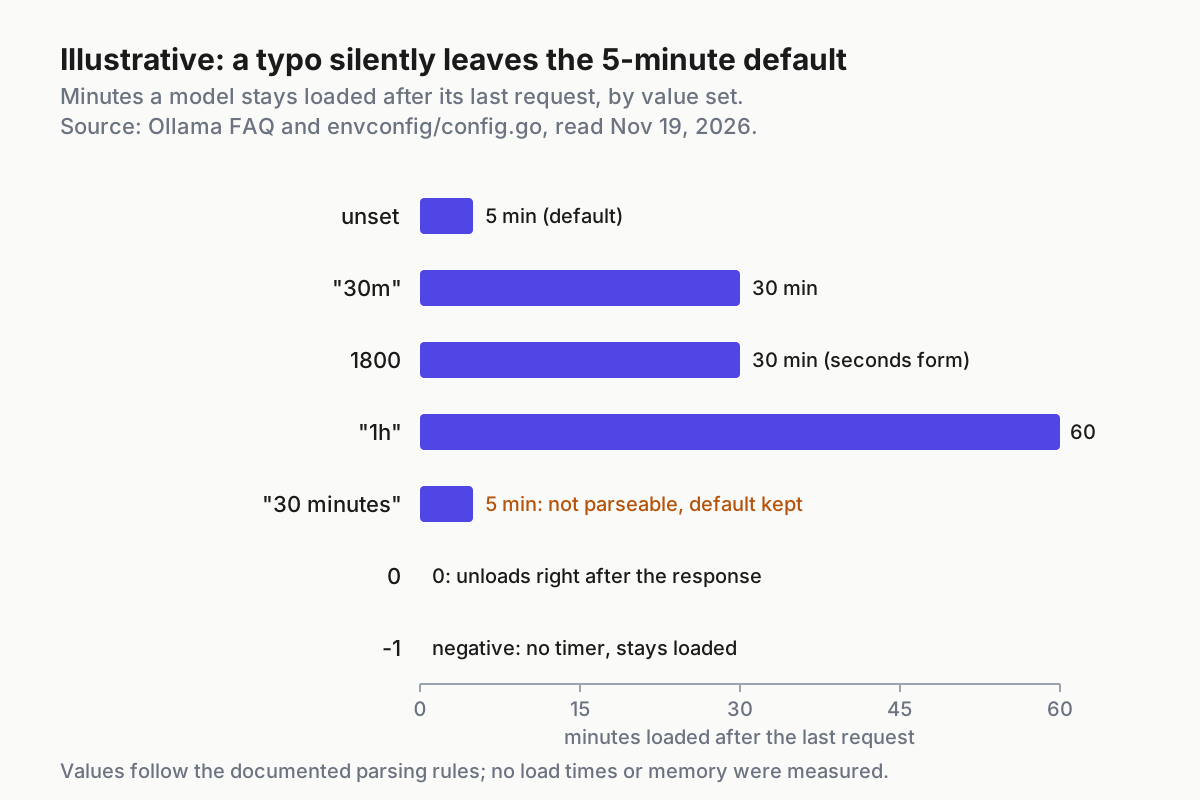
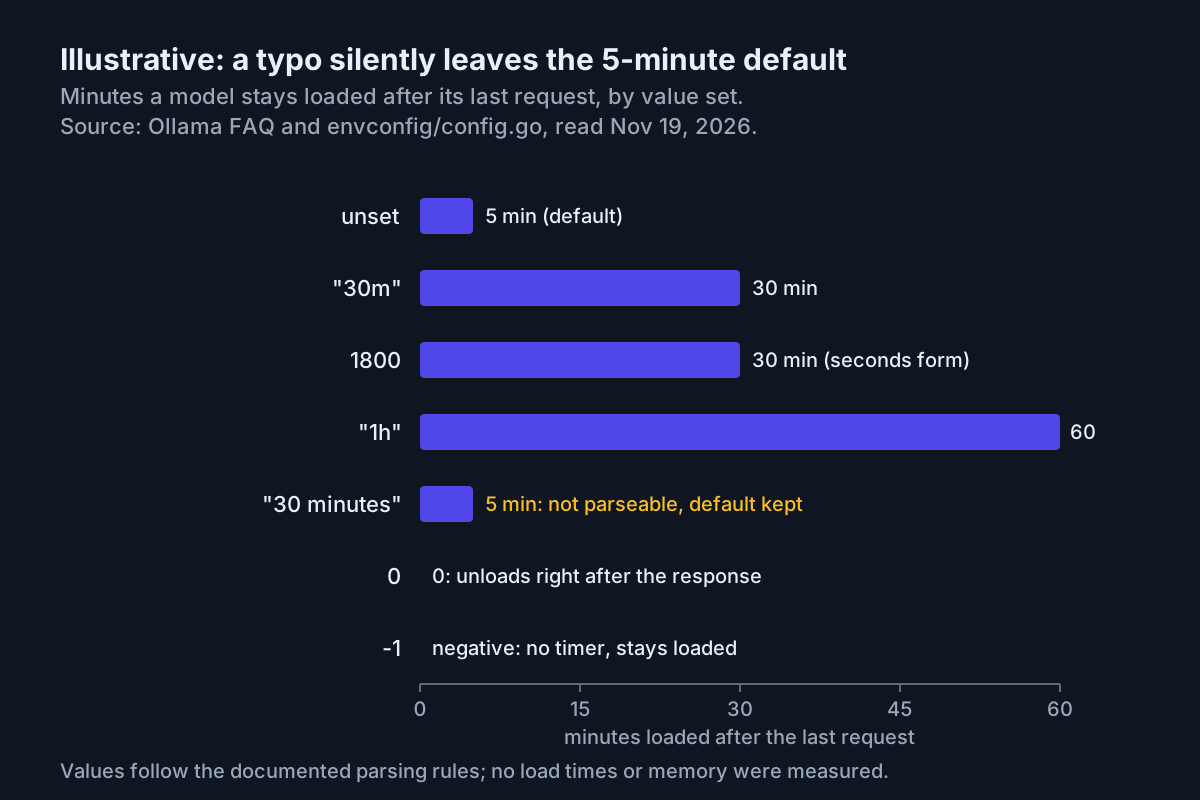
Both accept the same four kinds of value, according to the FAQ:
| Value you write | Example | What the server does |
|---|---|---|
| Duration string | "10m", "24h", "30m" |
Keeps the model loaded that long after the request |
| Number of seconds | 3600 |
Same, expressed in seconds |
| Any negative number | -1 or "-1m" |
Keeps the model loaded with no timer |
| Zero | 0 |
Unloads the model immediately after the response |
The source code adds one rule the FAQ does not spell out, and it explains a lot of “nothing changed” reports. The KeepAlive() function first tries to parse the variable as a Go duration string, then as a whole number of seconds. If neither works, it keeps the 5-minute default and moves on. Nothing in that function rejects the value or stops the server, so OLLAMA_KEEP_ALIVE=30 minutes behaves exactly like not setting the variable at all. The same function treats negative values as effectively infinite and zero as no keep-alive. A separate helper strips leading and trailing spaces and quote characters from every variable, so the quotes in a systemd Environment= line or a launchctl setenv call do no harm. Stick to the plain forms the FAQ uses, such as 30m, 1h or 1800.
The second rule is about scope rather than syntax. Environment variables are read by the server process, and a process only sees the environment it was started with. Setting a variable in your shell profile changes nothing for a systemd service, or for a tray app launched by the login session. That is why each operating system has its own documented procedure, and why each one ends with a restart.
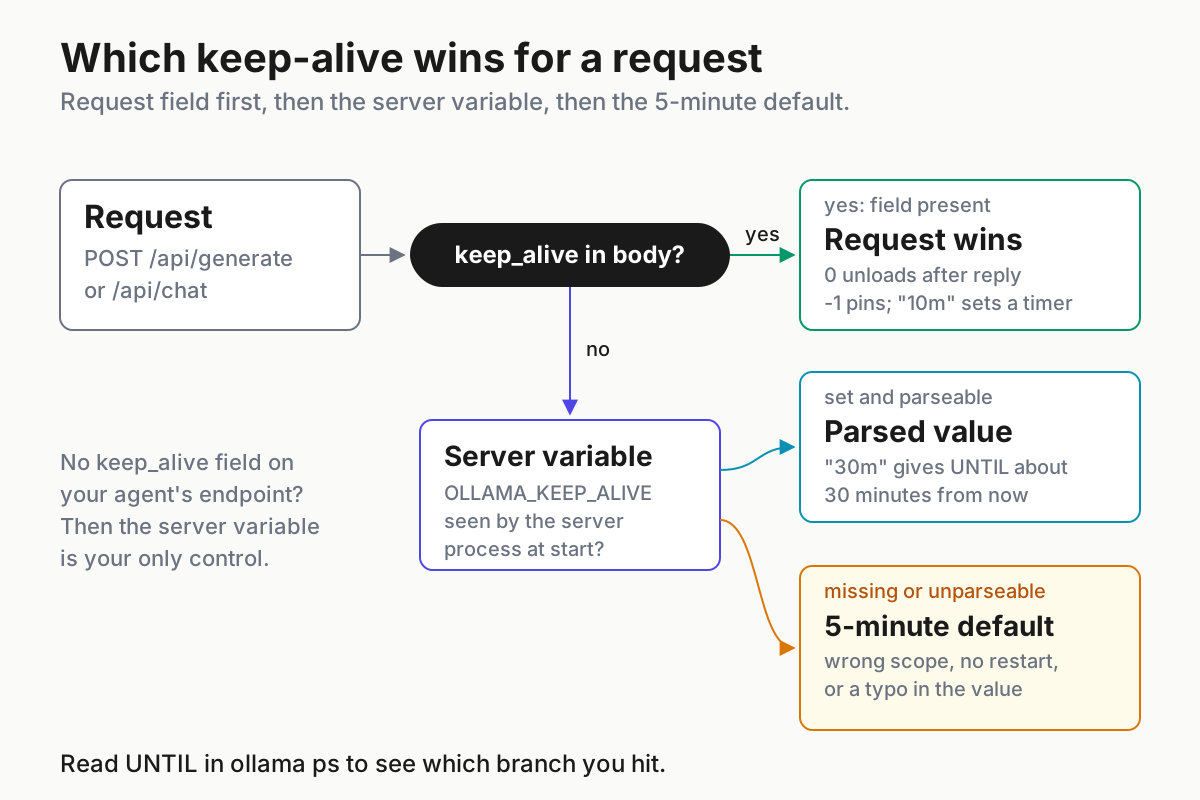
One practical consequence for coding agents: keep_alive is documented on the native /api/generate and /api/chat endpoints. Many agents talk to Ollama through its OpenAI-compatible endpoint instead, configured as in the OpenAI-compatible API guide. Check whether your agent can send the field at all. If it cannot, the server variable is the only keep-alive control you have, which is one more reason to make it stick.
The worked example: task:ollama-settings-01
The case used throughout is a single workstation running Linux with the standard installer’s ollama.service. The system drive is nearly full, a second drive is mounted at /data, and a coding agent calls llama3.2 in bursts separated by several minutes of tool execution. The goals are a 30-minute keep-alive, models stored under /data/ollama/models, and the API pinned to loopback. The macOS and Windows sections give the equivalent steps with /Volumes/Work/ollama/models and D:\ollama\models as the target paths.
The table lists illustrative expected observations for this case. They are what the official documentation and source code predict, not output captured from a test run, so compare them with your own terminal rather than treating them as recorded results.
| Input | Action | Expected result |
|---|---|---|
task:ollama-settings-01, Linux, Environment="OLLAMA_KEEP_ALIVE=30m" in the ollama.service override |
sudo systemctl daemon-reload, sudo systemctl restart ollama, then curl http://localhost:11434/api/generate -d '{"model": "llama3.2"}' and ollama ps |
llama3.2 appears in ollama ps with UNTIL about 30 minutes from now, not the 4 to 5 minutes the default gives |
task:ollama-settings-01, Environment="OLLAMA_MODELS=/data/ollama/models" after copying the store and running sudo chown -R ollama:ollama /data/ollama |
Restart the service, then ollama list |
The same model names and sizes as before the move, with no download started; journalctl -e -u ollama shows no permission errors |
task:ollama-settings-01, Environment="OLLAMA_HOST=127.0.0.1:11434" |
curl http://127.0.0.1:11434/api/generate -d '{"model": "llama3.2"}' on the workstation, then the same request to the workstation’s LAN address from a laptop |
The local request returns a JSON response; the laptop’s request is refused or times out because nothing listens on the LAN interface |
task:ollama-settings-01, request body {"model": "llama3.2", "keep_alive": -1} |
curl http://localhost:11434/api/generate -d '{"model": "llama3.2", "keep_alive": -1}', then ollama ps |
The model stays listed, with UNTIL far beyond the 30-minute server setting |
task:ollama-settings-01, request body {"model": "llama3.2", "keep_alive": 0} |
curl http://localhost:11434/api/generate -d '{"model": "llama3.2", "keep_alive": 0}', then ollama ps |
llama3.2 is no longer listed and its GPU or system memory is released |
task:ollama-settings-01, /api/chat request carrying "keep_alive": "10m" |
Send the chat request shown later in this guide, then ollama ps |
UNTIL about 10 minutes out: the request field overrode the 30-minute server value |
task:ollama-settings-01 failure case, Environment="OLLAMA_KEEP_ALIVE=30 minutes" |
Reload, restart, preload with curl, then ollama ps |
UNTIL about 5 minutes out: the value was not parseable, so the default stayed |
Linux: write a systemd override, reload, restart
The Linux install page and the FAQ both route server settings through systemd. The service runs as a dedicated ollama user whose home is /usr/share/ollama, which is why the default model store on Linux is /usr/share/ollama/.ollama/models rather than a directory in your own home.
- Open an override for the unit. systemd stores it as
/etc/systemd/system/ollama.service.d/override.conf, the path the Linux page names, and leaves the packaged unit file untouched.
sudo systemctl edit ollama.service
- In the editor, add one
Environment=line per variable under a[Service]header. For task:ollama-settings-01 the complete override is:
[Service]
Environment="OLLAMA_KEEP_ALIVE=30m"
Environment="OLLAMA_MODELS=/data/ollama/models"
Environment="OLLAMA_HOST=127.0.0.1:11434"
- Save and exit, then reload systemd and restart the service.
sudo systemctl daemon-reload
sudo systemctl restart ollama
sudo systemctl status ollama
- If
statusdoes not report the unit as active, read the log before changing anything else.
journalctl -e -u ollama
- Load the model and read the timer.
curl http://localhost:11434/api/generate -d '{"model": "llama3.2"}'
ollama ps
Writing OLLAMA_HOST out even though it equals the default is deliberate. It records the intended bind address in the same file as everything else, so a later change to 0.0.0.0 shows up as an edit to an existing line rather than a new one someone added quietly. Leave the OLLAMA_MODELS line out until you have done the storage move below, or the server starts against an empty or unreadable directory.
The FAQ’s sample ollama ps output has the columns NAME, ID, SIZE, PROCESSOR and UNTIL, with UNTIL written as a relative time such as “4 minutes from now.” With the override live you should see roughly 30 minutes there. The PROCESSOR column tells you where the memory went: 100% GPU, 100% CPU, or a split such as 48%/52% CPU/GPU. If you prefer files to editors, the Linux page also documents writing override.conf by hand with the same [Service] and Environment= lines; the reload and restart steps do not change.
macOS: launchctl setenv, then restart the app
When Ollama runs as the macOS application, the FAQ says to set server variables with launchctl and then restart the app. A variable exported in ~/.zshrc reaches programs you start from that shell, not an app launched from the Dock or at login.
- Set each variable for the launchd session. As on Linux, set
OLLAMA_MODELSonly after copying the store.
launchctl setenv OLLAMA_KEEP_ALIVE "30m"
launchctl setenv OLLAMA_HOST "127.0.0.1:11434"
launchctl setenv OLLAMA_MODELS "/Volumes/Work/ollama/models"
- Quit Ollama from its menu bar item. Closing a window is not enough, because the server keeps running behind the menu bar icon.
- Open Ollama again from Applications.
- Verify from Terminal.
curl http://localhost:11434/api/generate -d '{"model": "llama3.2"}'
ollama ps
The FAQ does not say whether values set with launchctl setenv survive a logout or reboot, so do not assume they do. After the next restart of the Mac, run the two verification commands again before you rely on the 30-minute window. If UNTIL has dropped back to about five minutes, repeat steps 1 to 3.
Windows: account environment variables and a full tray restart
The FAQ says Ollama on Windows inherits your user and system environment variables, and the Windows page gives the same procedure for OLLAMA_MODELS. The order matters: quit first, edit, then start again.
- Quit Ollama by clicking its icon in the taskbar and choosing Quit.
- Open Settings on Windows 11 or Control Panel on Windows 10 and search for environment variables.
- Click Edit environment variables for your account.
- Create or edit
OLLAMA_KEEP_ALIVEwith the value30m,OLLAMA_HOSTwith127.0.0.1:11434, and, after the copy described below,OLLAMA_MODELSwithD:\ollama\models. - Click OK or Apply to save.
- Start Ollama from the Start menu.
- Open a new PowerShell window and send a request in the format the Windows docs use, twice, about a minute apart.
(Invoke-WebRequest -method POST -Body '{"model":"llama3.2", "prompt":"Reply with OK", "stream": false}' -uri http://localhost:11434/api/generate ).Content | ConvertFrom-json
ollama ps
The Windows page adds a detail that catches people: a terminal that was already open when you saved the variables still has the old environment. Use a fresh window for anything that should see the new values.
The JSON that comes back includes load_duration, which the API reference defines as the time spent loading the model, in nanoseconds. The first call after a restart pays for loading. The second, inside the keep-alive window, should show a far smaller load_duration. That pair of numbers is the most direct evidence that warm calls really are warm, and it works the same way with curl on Linux and macOS.
If something looks wrong, the Windows page lists server.log and app.log under %LOCALAPPDATA%\Ollama, and models plus configuration under %HOMEPATH%\.ollama.
Move the model store to a second drive without re-pulling
The FAQ lists the default stores: ~/.ollama/models on macOS, /usr/share/ollama/.ollama/models on Linux and C:\Users\%username%\.ollama\models on Windows. Setting OLLAMA_MODELS points the server at a different directory, and the configuration code returns that path verbatim whenever the variable is non-empty.
What the documentation does not describe is a migration. If you set the variable and restart, the server looks at the new, empty directory and your models appear to be gone until you pull them again. The procedure below copies the existing store first. It is an operator practice built on the documented variable, not an official command, so keep the original until the new location checks out.
One detail from the source argues for copying the whole directory rather than hand-picking files: the server prunes model blobs on startup unless OLLAMA_NOPRUNE is set. A partial copy is not a safe intermediate state.
On Linux:
- Note the current inventory with
ollama list, then stop the service so nothing writes during the copy:sudo systemctl stop ollama. - Copy the complete store and hand it to the service user.
sudo mkdir -p /data/ollama
sudo cp -a /usr/share/ollama/.ollama/models /data/ollama/
sudo chown -R ollama:ollama /data/ollama
- Add the
OLLAMA_MODELSline to the override, then runsudo systemctl daemon-reloadandsudo systemctl start ollama. - Run
ollama listand compare it with the inventory from step 1.
The FAQ is specific that with the standard installer the ollama user needs read and write access to the new directory, and gives sudo chown -R ollama:ollama <directory> as the fix. The parent directories also have to be traversable by that user.
On macOS, quit the app, run mkdir -p /Volumes/Work/ollama && cp -R ~/.ollama/models /Volumes/Work/ollama/, set the variable with launchctl setenv, and reopen the app. On Windows, quit the tray app, then in PowerShell run New-Item -ItemType Directory -Force D:\ollama followed by Copy-Item -Recurse "$env:USERPROFILE\.ollama\models" "D:\ollama\", set the user variable, and start Ollama from the Start menu.
When ollama list matches and a model loads from the new location, you can reclaim the space on the system drive. The Windows page notes one more consequence: once OLLAMA_MODELS has been changed, the uninstaller will not remove your downloaded models, so a later uninstall leaves D:\ollama\models for you to delete by hand.
Override per request: pin with -1, release with 0, preload with an empty request
The server variable is the default. The keep_alive field is the exception you reach for when one model should behave differently, and per the FAQ it wins over OLLAMA_KEEP_ALIVE.
- Preload before a session. The FAQ documents sending a request with only the model name to either endpoint; from the CLI the equivalent is
ollama run llama3.2 "".
curl http://localhost:11434/api/generate -d '{"model": "llama3.2"}'
- Pin the model for a long agent run, so no gap between tool calls ever costs a reload. The docs do not show what UNTIL prints for a pinned model; expect a time far beyond the 30-minute server value rather than a specific string.
curl http://localhost:11434/api/generate -d '{"model": "llama3.2", "keep_alive": -1}'
- Release the memory when the run ends, without stopping the server. From the CLI,
ollama stop llama3.2does the same. Either way the model should disappear fromollama ps.
curl http://localhost:11434/api/generate -d '{"model": "llama3.2", "keep_alive": 0}'
- Set a different window on a chat request, which is how an agent wrapper would do it.
curl http://localhost:11434/api/chat -d '{
  "model": "llama3.2",
  "messages": [{"role": "user", "content": "Reply with OK"}],
  "keep_alive": "10m",
  "stream": false
}'
After step 4, ollama ps should show about ten minutes for that model even with the server set to 30, because the request field takes precedence. A pinned model holds its memory until you release it, stop it or restart the server, so a wrapper that pins at session start should also release at session end. Write both calls into the same script so one cannot exist without the other.
Size the window against OLLAMA_NUM_PARALLEL and OLLAMA_MAX_LOADED_MODELS
Keep-alive decides how long memory stays allocated; two other server variables decide how much is allocated. The FAQ describes them, and the configuration code carries the same defaults:
OLLAMA_MAX_LOADED_MODELScaps how many models can be loaded at once, provided they fit. The default is three times the number of GPUs, or three for CPU inference. Windows with Radeon GPUs currently defaults to one.OLLAMA_NUM_PARALLELis how many requests each model processes at the same time, default 1. Parallel requests multiply the context: the FAQ’s example is a 2K context with four parallel requests becoming an 8K context, and it states that required RAM scales withOLLAMA_NUM_PARALLELtimesOLLAMA_CONTEXT_LENGTH.OLLAMA_MAX_QUEUE, default 512, is how many requests wait before the server answers with a 503 overloaded error.
When a new model does not fit, the FAQ says requests queue while idle models are unloaded to make room, and on GPUs a model must fit completely in VRAM to load alongside others. That eviction is triggered by Ollama’s own load requests. Nothing in the documentation says Ollama gives memory back because a browser, IDE or game wants it; for that, the keep-alive timer or an explicit stop is your lever. The memory arithmetic for large quantized models is worked through in the q2_0 GGUF import guide. Context length itself is a separate setting, OLLAMA_CONTEXT_LENGTH server-wide or num_ctx per request, documented in the same FAQ; change it deliberately, because it multiplies with parallelism.
| Your situation | Keep-alive choice | Related settings |
|---|---|---|
| One coding model, dedicated GPU, agent pauses minutes between calls | OLLAMA_KEEP_ALIVE=30m server-wide |
Leave OLLAMA_NUM_PARALLEL at 1 unless several agents share the model |
| GPU shared with other heavy apps during the day | A short server value such as 5m, plus keep_alive: 0 or ollama stop when a run ends |
Lower OLLAMA_MAX_LOADED_MODELS so idle models cannot stack up |
| Two agents, two different models, each in long sessions | Per-request keep_alive: -1 at session start and 0 at session end |
Confirm both fit in VRAM together; otherwise requests queue while one unloads |
| Several parallel agents on one model | 30m server-wide |
Raise OLLAMA_NUM_PARALLEL only after checking memory at your context length |
| Laptop on battery or a CPU-only box | 0 or a short duration |
ollama ps should read 100% CPU; the memory comes from system RAM |
Keep OLLAMA_HOST on 127.0.0.1 and reach the server another way
The FAQ states the default: Ollama binds 127.0.0.1 on port 11434, and OLLAMA_HOST changes the bind address. Its own examples use 0.0.0.0:11434, which makes the server listen on every interface. Those instructions change only where the server listens; they add no credential. Anyone who can route to the port gets the same API your agent uses.
The configuration code shows two details worth knowing before you touch this variable. First, OLLAMA_HOST accepts an optional scheme and falls back to 127.0.0.1 and port 11434 for missing parts, and an invalid port is replaced with the default and logged as a warning. Second, a helper swaps 0.0.0.0 for 127.0.0.1 whenever a client connects, because an unspecified address works for binding but not for connecting, which fails on Windows. That is why the local CLI keeps working after you expose the server, and why local success tells you nothing about who else can reach it.
| Need | Recommended setting | Why |
|---|---|---|
| Agent and Ollama on the same machine | Keep OLLAMA_HOST=127.0.0.1:11434 |
Nothing outside the machine can connect |
| Reach the server from your own laptop | Keep loopback and use an SSH tunnel or a private network service, the pattern in the llama-server remote access guide | The server never listens on a shared interface |
| Share it behind a web server you control | Keep loopback and proxy to http://localhost:11434 with Nginx, setting the Host header as the FAQ shows |
Your proxy becomes the place where access control lives |
| A short demo through a tunnel | The FAQ’s ngrok http 11434 --host-header="localhost:11434" or cloudflared tunnel --url http://localhost:11434 --http-host-header="localhost:11434" |
Treat the tunnel URL as a secret and close it afterwards |
| You must bind a LAN interface | Bind that single LAN address rather than 0.0.0.0, and firewall the port to known hosts |
Limits exposure to one interface you chose |
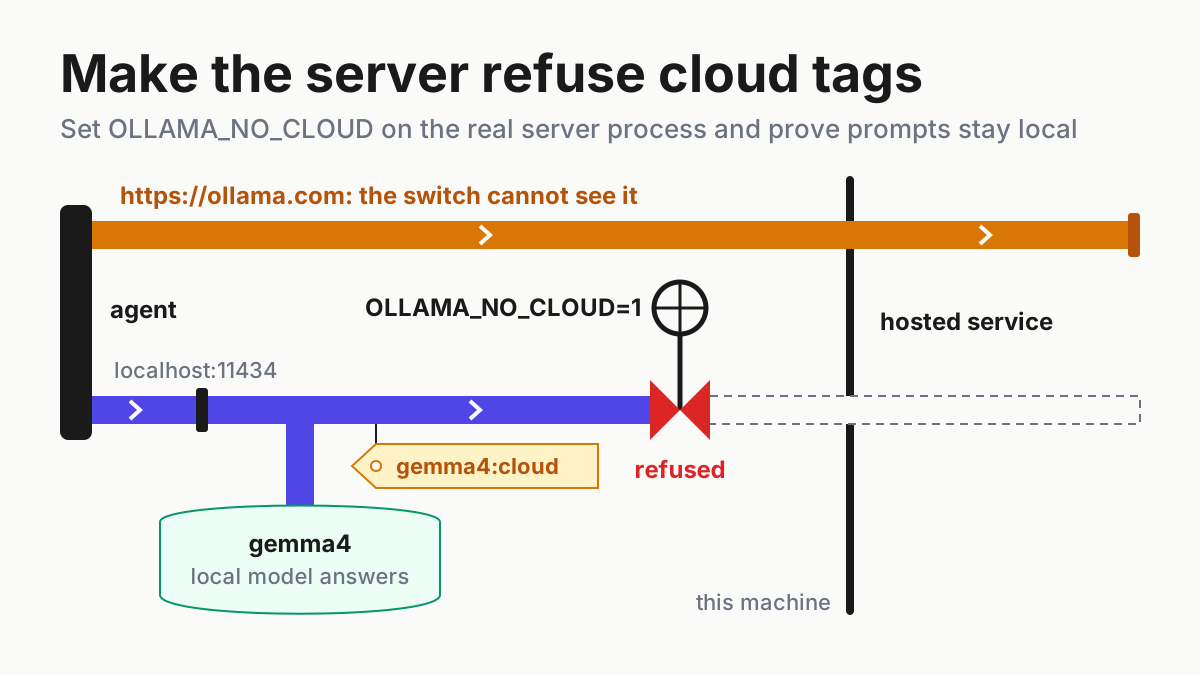
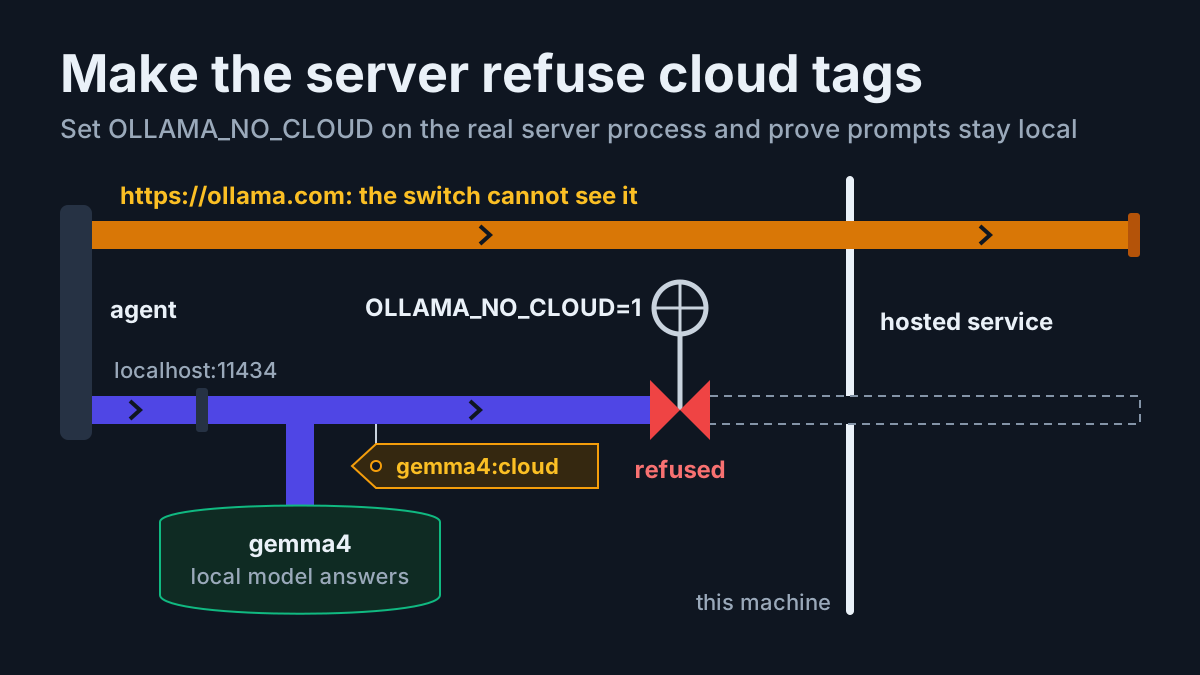
Two neighbouring controls live in the same FAQ. OLLAMA_ORIGINS adds browser origins beyond the defaults, which already include 127.0.0.1 and 0.0.0.0; widen it only for a specific extension or app. And if the goal is guaranteeing that model traffic stays on the machine, local-only mode with OLLAMA_NO_CLOUD=1 is the setting to pair with a loopback bind.
When a setting did nothing: troubleshooting by symptom
Work down the table in order. Most reports end at one of the first four rows, because the variable either never reached the server process or reached it in a form the parser ignored.
| Symptom | Likely cause | Check | Fix |
|---|---|---|---|
| UNTIL still shows about 5 minutes on Linux | The variable was exported in a shell profile, which the systemd service never reads | Reopen sudo systemctl edit ollama.service and look for the Environment= line under [Service] |
Add the line there, then sudo systemctl daemon-reload and sudo systemctl restart ollama |
| UNTIL still about 5 minutes on macOS | Set in ~/.zshrc, or the app was never fully quit |
Did you quit from the menu bar item before reopening? | launchctl setenv, quit, reopen |
| UNTIL still about 5 minutes on Windows | The tray app kept running while you edited, or the variable was set for another account | Run echo $env:OLLAMA_KEEP_ALIVE in a new PowerShell window |
Quit from the tray, save the user variable, start from the Start menu |
| UNTIL about 5 minutes although the variable is visible | The value is not parseable, such as 30 minutes |
Compare the value with the four forms in the FAQ table above | Use 30m or 1800 |
| UNTIL shorter or longer than the server value | The client sends its own keep_alive |
Inspect the request body your agent or wrapper sends | Remove the field, or set the value you want there |
| A model never unloads | A negative value, server-wide or from a pin request | ollama ps |
ollama stop <model> or a request with keep_alive: 0, then fix the source of the negative value |
ollama list is empty after the move |
OLLAMA_MODELS points at a directory the store was never copied into |
List the new directory | Stop the server, copy the full store, start again |
| The Linux service fails or logs errors after the move | The ollama user cannot read or write the new path |
journalctl -e -u ollama |
sudo chown -R ollama:ollama /data/ollama, check parent directories, restart |
| The server will not start, or your settings never appear | Another Ollama server already holds port 11434, such as a forgotten ollama serve in a terminal |
sudo systemctl status ollama, then look for other terminals or a tray app running the server |
Stop the extra server so only one owns the port, then restart the configured one |
| Requests fail with 503 | The request queue is full | Count the agents sending at once | Reduce concurrency or raise OLLAMA_MAX_QUEUE |
If you run several local and hosted agents side by side, fold these checks into the routine described in the AgentOps guide, so a stale keep-alive or an exposed port surfaces in a regular review rather than in a slow afternoon.
Roll back every change
Each change in this guide is reversible on its own, and the storage move stays safe as long as you kept the original copy until ollama list matched.
- [ ] Linux, all settings:
sudo rm /etc/systemd/system/ollama.service.d/override.conf, thensudo systemctl daemon-reloadandsudo systemctl restart ollama. To undo a single variable, reopensudo systemctl edit ollama.serviceand delete only that line. - [ ] macOS: set the documented default back with
launchctl setenv OLLAMA_KEEP_ALIVE "5m", or remove a variable with launchctl’s ownunsetenvsubcommand, which the Ollama FAQ does not cover; then quit and reopen the app. - [ ] Windows: quit from the tray, delete the user variables in Edit environment variables for your account, and start Ollama from the Start menu.
- [ ] Model store: remove
OLLAMA_MODELSand restart, and the server reads the default store again. If you already deleted the original, copy the store back before removing the variable. - [ ] Per-request pins: send
keep_alive: 0or runollama stop <model>; restarting the server also unloads everything. - [ ] Confirm the rollback:
ollama psshows UNTIL about five minutes after a request,ollama listshows your models, and the API still answers on127.0.0.1:11434.
Sources
- CM Davidson on X, reply about OLLAMA_KEEP_ALIVE, November 18, 2026
- Ollama, Local FAQ
- Ollama, Linux install and systemd customization
- Ollama, Windows
- Ollama API reference, Generate a response (/api/generate)
- Ollama API reference, Generate a chat message (/api/chat)
- ollama/ollama on GitHub, envconfig/config.go