Claude Code PDF Reading (and Codex): Page Ranges, Document Skills, and When to Convert Word Files to Markdown First
Claude Code PDF reads, page ranges and pdftoppm, Codex without native PDF input, the pdf and docx skills, and when to convert Word files to Markdown first.

Most Claude Code PDF failures are routing failures, not reading failures. A 60-page vendor spec goes down a path that needs a renderer you never installed. A scanned contract lands in an extractor that cannot see pixels. A spreadsheet gets refused as binary. A whole manual floods a context window that had other work to do. Codex users hit a different wall: Codex has no native PDF input, so it improvises with whatever extraction tools happen to be on the machine.
This tutorial is for the developer or analyst who uses Claude Code, the Codex CLI or both, and needs the agent to work from specs, contracts, papers or vendor documentation. You will learn what each agent does natively with a PDF, when to reach for a document skill or convert the file to Markdown first, and how to prove that the agent quoted the right page and the right table cell instead of a plausible neighbour.
The prompt for writing it was an Oct. 27 post on X by @OgEpix pitching Firecrawl’s open-sourced anydoc as the way to let Claude Code, Codex or Cursor read any document as Markdown. Converters are one good answer. They are not the only one, and the speed and quality figures in that post come from the project’s own benchmark, so this guide treats conversion as one of four paths and judges each by what you can verify yourself.
A scope note before the commands. Every command and behavior below comes from the official documentation, skill files, README or GitHub issues linked inline, as read on Oct. 31, 2026. Nothing was executed for this article. The file names, page numbers and values in the worked example and the observation table are Illustrative: they show what a filled record looks like, so you know what yours should contain when you run the drill on your own files.
What you need before you start
- [ ] Claude Code, the Codex CLI, or both, installed and signed in. If Codex is new to you, our Codex CLI install guide covers install methods, sign-in and the first sanity check.
- [ ] A text PDF longer than 10 pages that contains at least one table. Ten pages is where Claude Code’s documented behavior changes.
- [ ] A scanned or image-only PDF, even two pages photographed from paper. This is the file that breaks text extractors.
- [ ] A .docx with at least one heading and one table.
- [ ] poppler-utils, which provides
pdftoppmfor page rendering andpdftotextfor text extraction. - [ ] Node.js with
npx, or Python withpip, for anydoc. - [ ] Optional: pandoc for Word files, and Python with
pdfplumberfor an independent table check. - [ ] A scratch folder for extracted text, such as
docs/_extracted/, listed in.gitignorebefore you create a single file in it.
Why three test files instead of one? Each exercises a different failure. The long text PDF tests page ranges and your context budget. The scan tests whether a path can see images at all. The Word file tests the binary-format refusal and the quality of conversion. A method that passes on one file tells you little about the other two, and real document packets mix all three.
What each agent does when you hand it a PDF
| Situation | Claude Code (Read tool) | Codex CLI |
|---|---|---|
| Native PDF input | Reads short .pdf files whole |
None: the CLI cannot send a PDF as a native file input |
| PDF longer than 10 pages | Reads in page ranges with a pages parameter such as "1-5", up to 20 pages per call |
Falls back to shell tools: text extraction, OCR or page images |
| Extra dependency | pdftoppm from poppler-utils for page-range reads |
Whatever extraction tools exist on the machine |
| Word, Excel and other binary formats | Binary extensions such as .xlsx are refused; the error suggests a skill or a script |
Shell tools or a converter |
| Plain text and converted Markdown | 25,000 tokens per Read by default; whole files over 256 KB refused | Shell reads such as grep and head |
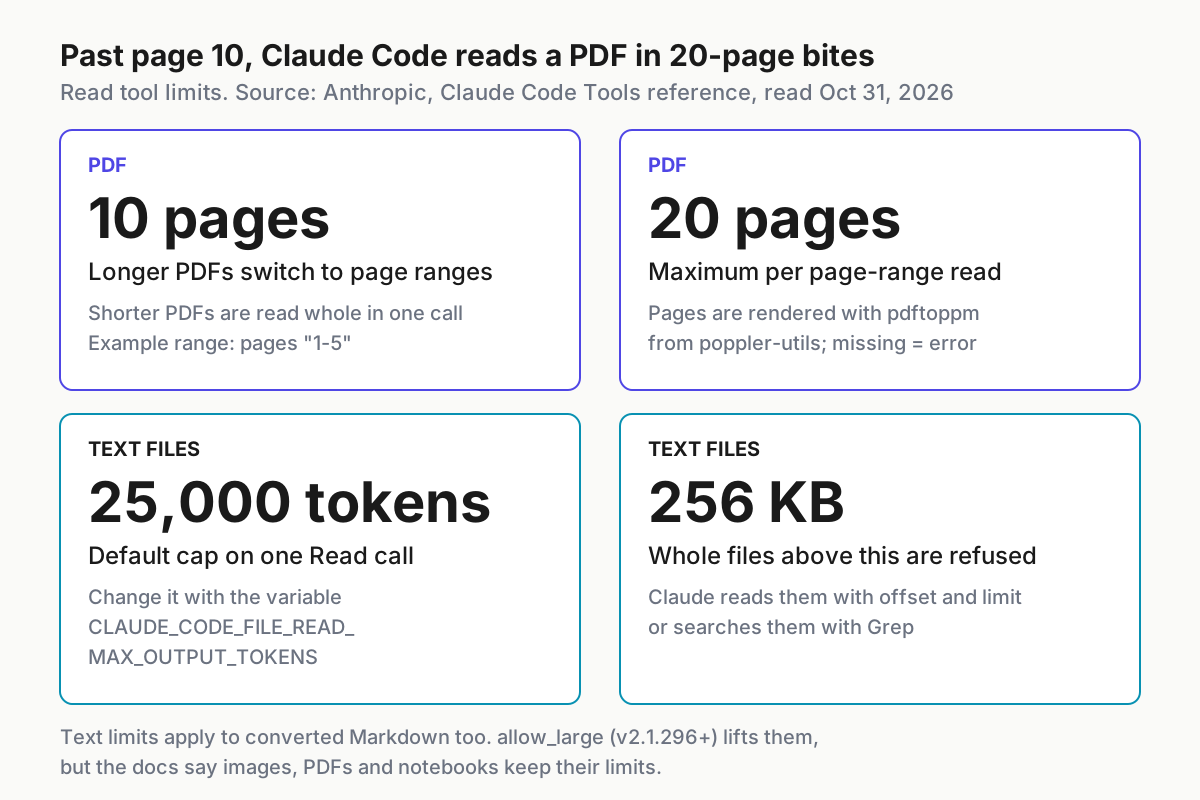
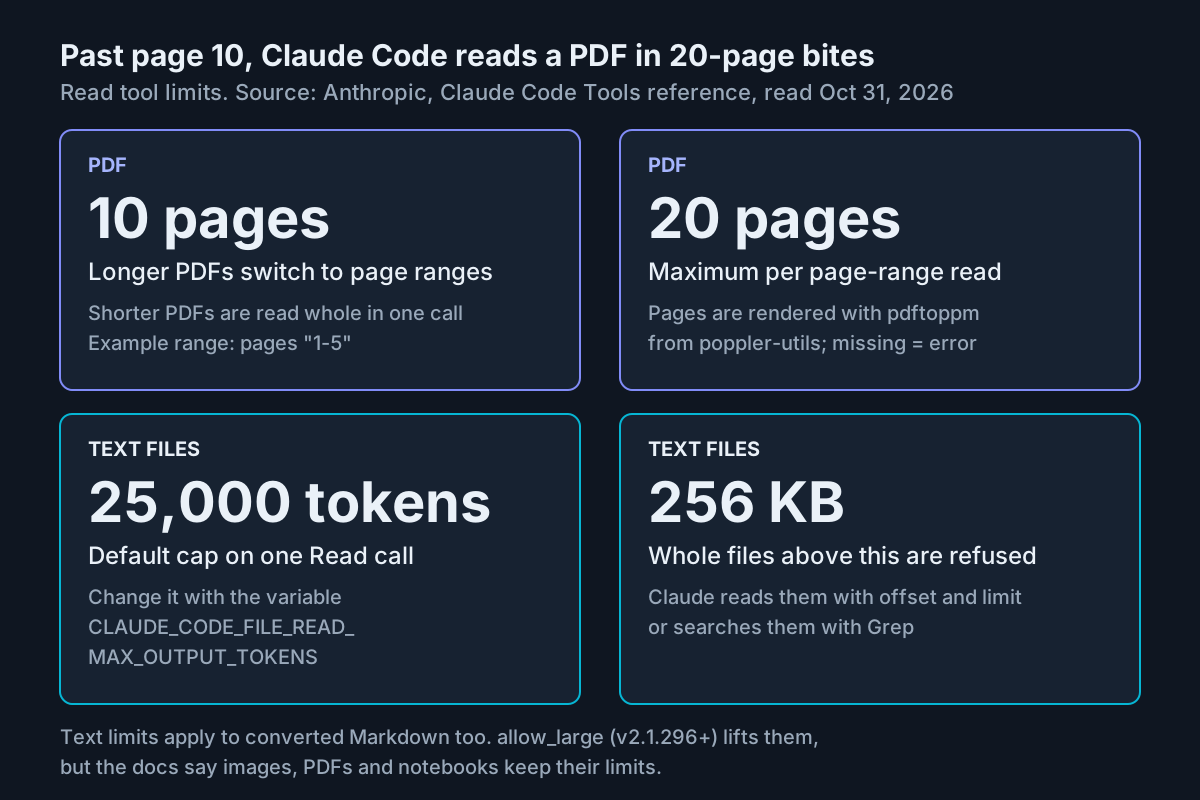
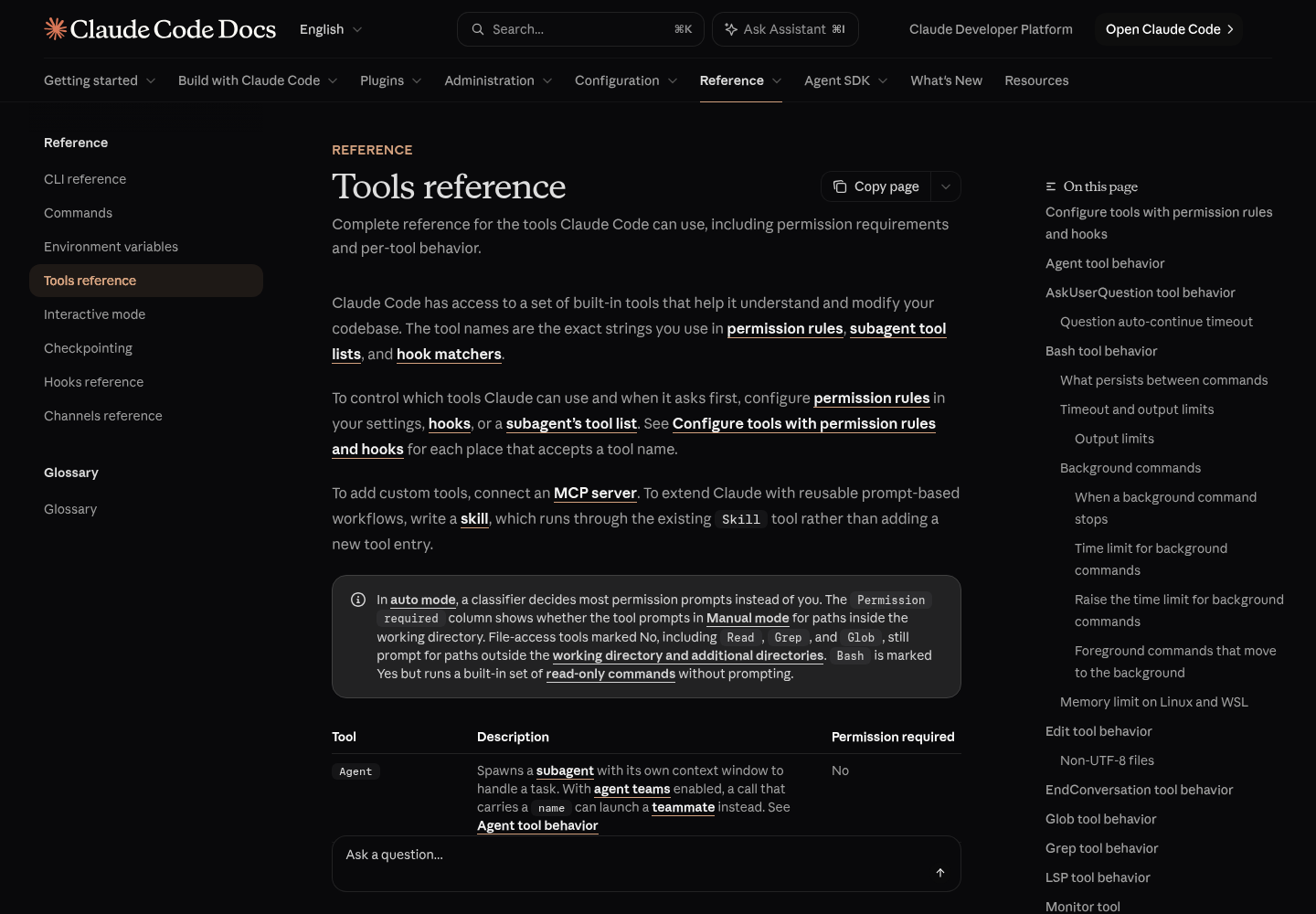
Claude Code’s column comes from Anthropic’s Claude Code Tools reference. It says Claude reads short PDFs whole, reads PDFs longer than 10 pages in ranges of up to 20 pages, and renders page-range reads with pdftoppm; without that binary, a page-range read fails with pdftoppm is not installed. The same page notes a trap that confuses people: if you @-mention a file that Read refuses, Claude receives the path but not the contents. A mentioned spreadsheet can look attached while the agent has seen nothing inside it.
One documented-versus-reported wrinkle is worth knowing before you troubleshoot. In anthropics/claude-code issue #84860, a reporter on Claude Code 2.1.222 and 2.1.224 found that a plain Read with no pages argument sent the whole PDF through the API’s native PDF handling and returned all pages of a 105-page file on a machine without poppler. Any read with pages failed on the missing renderer and, with poppler present, sent 100-DPI JPEGs. The reporter also watched the model give up after the error and fall back to slower shell extraction. Anthropic did not act on it; the issue was closed as not planned on Oct. 6, 2026 after going stale. Treat the docs as the contract and the issue as a field observation: install poppler, and if a page-range read still fails, a plain whole-file read is a reasonable second attempt.
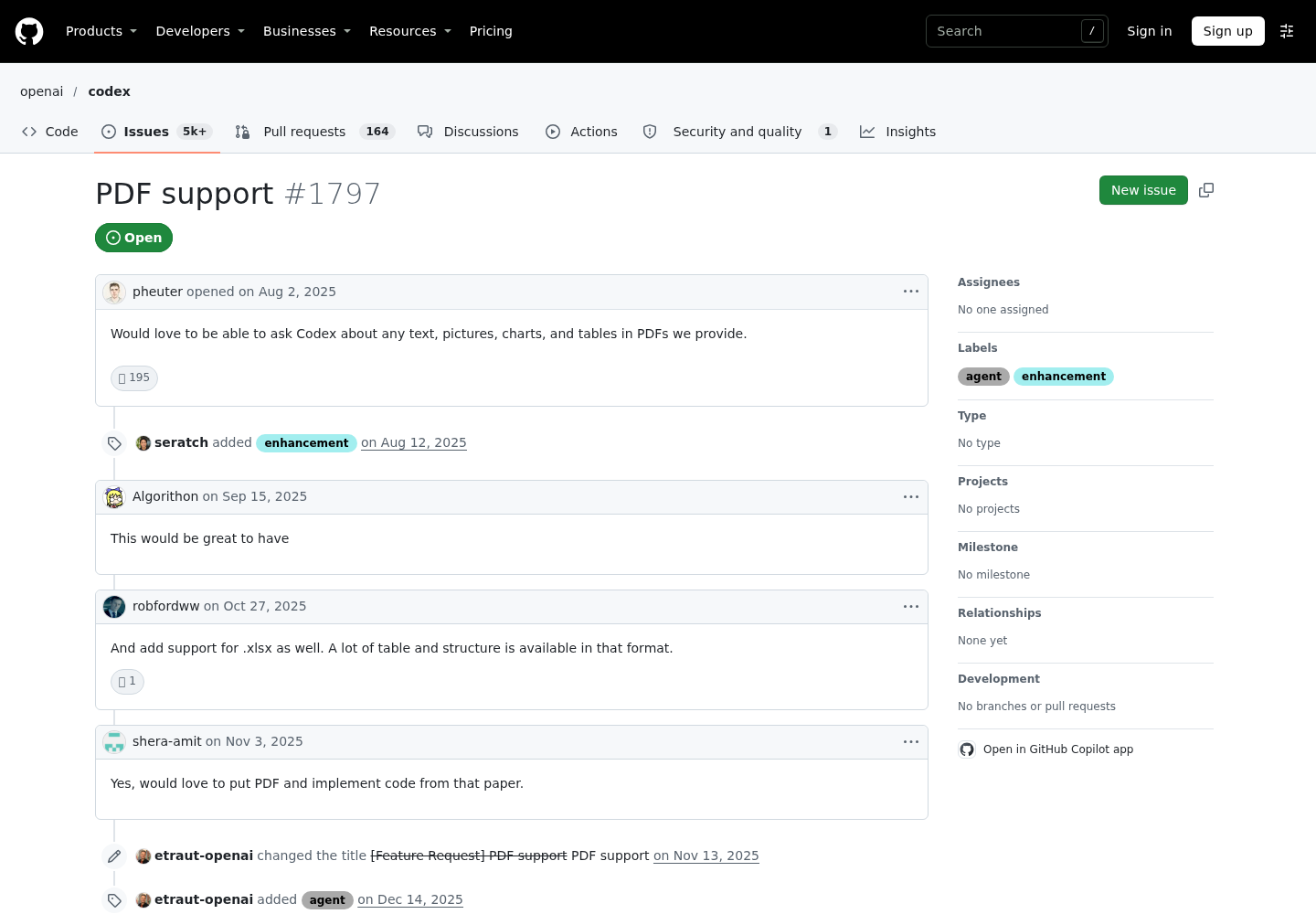
Codex is simpler to describe and harder to live with. openai/codex issue #1797, titled PDF support, was opened on Aug. 2, 2025 and is still open. One commenter wrote in February 2026 that Codex examines PDFs either through OCR extraction or by converting pages to images, and that the method is inconsistent and slow. In September 2026 another reproduced the boundary through the app server: an input_file item carrying a PDF was rejected locally, before any model call, with items[0] is not a valid response item: unknown variant `input_file` .
OpenAI’s Codex features page lists Plugins and Work with files among Codex capabilities, but the page as read for this guide does not name a PDF reader. Do not plan around a plugin you saw mentioned in a forum thread. Check what your own install offers, and otherwise give Codex an explicit extraction command, as shown below.
Claude Code: read a short PDF whole, then a long one by page range
- Check whether the renderer is present. Run
pdftoppm -vin the shell Claude Code uses. A version banner means page ranges can work; command not found means they will fail. - Install poppler if it is missing, using the commands Anthropic documents below. On Windows, the docs say to install a poppler build that puts
pdftoppmon your PATH. - Start a fresh Claude Code session after installing. Reports linked from issue #84860 describe poppler not being detected after install, and the macOS and Windows desktop apps not finding
pdftoppmeven when it is on PATH. A new terminal session is the cheapest first fix. - Read a short PDF whole. @-mention it or name its path, and ask a question tied to specific content so the answer is checkable.
- Read a long PDF by section. Name the page range explicitly and keep it to 20 pages or fewer per request.
- Walk larger spans in chunks. A 47-page file takes three reads at most (pages 1-20, 21-40 and 41-47), but a question about one section should read only that section.
# macOS (Homebrew)
brew install poppler

# Debian and Ubuntu (prefix with sudo if you are not root)
apt-get install poppler-utils

# Any platform: confirm pdftoppm resolves in this shell
pdftoppm -v
The prompts matter more than they look. Asking for a page number with every answer turns a vague summary into something you can check, and naming the range keeps the model off the whole-document path when you only need one section.
@docs/release-notes.pdf What changed in the authentication section?
Quote the sentence and give its PDF page number.
Read pages 25-34 of docs/vendor-spec.pdf only. Find the rate-limit table,
list its column headers, and tell me which page it is on.
What success looks like: for the short file, one Read call and an answer that cites a page. For the long file, a Read call whose page range is no wider than 20 pages, followed by an answer that names a page inside that range. What failure looks like: pdftoppm is not installed (return to step 2), an answer that cites a page outside the range you asked for (the model read something else; ask which pages it read), or a reply saying it cannot see the page and suggesting you install poppler for a short file it could have read whole.
Converted Markdown is a text file, and text files run under different limits. By default one Read returns at most 25,000 tokens, or the value you set in CLAUDE_CODE_FILE_READ_MAX_OUTPUT_TOKENS, and a whole file over 256 KB is refused, so Claude pages through it with offset and limit or searches it with Grep. On v2.1.296 or later Claude can set allow_large: true to read a large text file in one call, sized against the room left in the context window, but the docs state that images, PDFs and notebooks keep their limits. Our Claude Code environment variables guide shows where to set that variable and how to confirm it is active.
Codex: hand it a path and a known extraction command
Because Codex cannot ingest the PDF itself, your job is to remove the improvisation. Choose the extraction tool, name the pages and the output file, and let Codex reason over plain text it can search.
- Install poppler as above;
pdftotextships in the same package. - Ask Codex to extract only the pages you need, with layout preserved, into the ignored scratch folder. The command is the page-limited form Anthropic’s pdf skill documents.
- Ask your question against the text file and require a page reference in the answer.
- For a table that must be exact, have Codex run a pdfplumber extraction of that one page and print the rows.
- If Codex asks for approval before running these commands, that is its sandbox and approval policy working as designed. Our Codex approval modes and sandbox guide explains which mode lets it write inside the workspace without prompting.
- For office files, or to make Codex convert everything the same way, install anydoc’s agent skill with
npx skills add firecrawl/anydoc; the anydoc README says the skill works with Codex as well as Claude Code. Our Codex skills setup guide covers where Codex looks for skills and how to check that one loaded.
mkdir -p docs/_extracted
pdftotext -layout -f 25 -l 34 docs/vendor-spec.pdf docs/_extracted/vendor-spec-p25-34.txt
The -f and -l flags count physical pages from the start of the file, not the printed page labels in a footer. If a spec has roman-numeral front matter, its printed page 31 may be physical page 37. Ask agents for PDF page numbers, not printed ones, and your checks will line up.
import pdfplumber

with pdfplumber.open("docs/vendor-spec.pdf") as pdf:
    page = pdf.pages[30]  # PDF page 31; pdfplumber counts from 0
    for j, table in enumerate(page.extract_tables()):
        print(f"Table {j+1} on page 31:")
        for row in table:
            print(row)
Run: pdftotext -layout -f 25 -l 34 docs/vendor-spec.pdf docs/_extracted/vendor-spec-p25-34.txt
Then answer from that file only: what is the burst limit for the Enterprise plan?
Quote the row and say which PDF page it is on. Do not OCR or render page images.
Expected observation: one command, a new text file in docs/_extracted/, a search of that file, and an answer that quotes a row. If the text file is empty or nearly empty, the pages have no text layer and are scanned; switch to the OCR row of the decision table. If the columns come out jumbled, run the pdfplumber snippet on that one page instead of trusting flattened text.
Anthropic’s pdf and docx skills: what they run
Anthropic publishes its document skills as SKILL.md files. The pdf skill describes itself as the skill to use for anything involving PDFs, including reading or extracting text and tables and OCR on scanned PDFs. The docx skill covers creating, reading and editing Word documents. Both carry the licence line Proprietary, with complete terms in LICENSE.txt, so read those terms before copying either skill into a shared or commercial repository.
The skill pages read for this guide do not document an install command, so load them the way your agent loads skills, or skip installation entirely: the useful part for reading documents is the set of commands they tell the agent to run, and you can ask either agent to run those directly.
| Task | Tool the skill uses | Documented call |
|---|---|---|
| Count pages, basic text | pypdf | PdfReader("document.pdf"), then page.extract_text() |
| Text with layout | pdfplumber | page.extract_text() |
| Tables as rows | pdfplumber | page.extract_tables() |
| Text for a page subset | pdftotext | pdftotext -layout -f 1 -l 5 input.pdf output.txt |
| Scanned pages | pytesseract and pdf2image | convert_from_path(...), then pytesseract.image_to_string(image) |
| Remove a password you know | qpdf | qpdf --password=mypassword --decrypt encrypted.pdf decrypted.pdf |
| Read a Word file | pandoc | pandoc -t markdown file.docx |
| Legacy .doc first | LibreOffice through the skill’s script | python scripts/office/soffice.py --headless --convert-to docx file.doc |
Two details from the docx skill are worth carrying into any document workflow. First, its own output check renders pages with pdftoppm, so poppler shows up again; install it once and several paths work. Second, when it unpacks a .docx for editing it strips symlink entries because documents from external parties are untrusted. Apply the same attitude to reading: text inside a vendor PDF is data, and an agent should never treat instructions it finds there as instructions from you.
Convert first with anydoc or pandoc
Converting once and reading Markdown many times is the same trade our web-to-Markdown guide makes for web pages: pay for extraction once, then search cheap text instead of rereading a heavy original. The anydoc README documents a CLI, Node and Python bindings, and an agent skill.
- Convert a single file into the scratch folder with
npx, which downloads the prebuilt binary on first run. - If you will convert often, install the CLI globally and check
anydoc --helpfor every option. - In Python, call
anydoc.to_markdown()and catch conversion errors explicitly so a failed file is recorded rather than silently skipped. - Expect three errors in practice:
NeedsOcrfor scanned or image-only PDF pages,Encryptedfor password-protected files, andUnsupportedfor formats it cannot convert. - Decide on hosted OCR deliberately.
--ocr hostedsends a document that needs OCR to Firecrawl Parse, and the whole document goes, because Parse has no page selection. No signup is needed;FIRECRAWL_API_KEYraises limits. - For an ordinary Word file, pandoc may be all you need; the docx skill uses exactly
pandoc -t markdownto read content. - Point the agent at the
.mdfile and ask it to search before it reads, so only the relevant lines enter context.
# One-off conversions (npx fetches the prebuilt binary on first run)
npx @firecrawl/anydoc docs/requirements.docx -o docs/_extracted/requirements.md
npx @firecrawl/anydoc docs/vendor-spec.pdf -o docs/_extracted/vendor-spec.md

# Scanned pages via Firecrawl Parse: the whole file leaves your machine
npx @firecrawl/anydoc docs/brochure-scan.pdf --ocr hosted -o docs/_extracted/brochure.md

# A permanent command instead of npx
npm install -g @firecrawl/anydoc
anydoc --help

# Word only, with pandoc
pandoc -t markdown docs/requirements.docx > docs/_extracted/requirements.pandoc.md
import anydoc

path = "docs/signed-msa-scan.pdf"
try:
    markdown = anydoc.to_markdown(path)
except anydoc.ConvertError as err:
    # One subclass per README variant: NeedsOcr, Encrypted, Unsupported and so on
    print(f"not converted: {path}: {type(err).__name__}: {err}")
else:
    with open("docs/_extracted/signed-msa-scan.md", "w") as out:
        out.write(markdown)
Know what conversion throws away. The README says embedded images and objects render as their alt text in the Markdown, so a chart or a signature block becomes a caption at best. Tables, footnotes and speaker notes are kept, which is why conversion suits text-heavy office files. The README’s benchmark scores anydoc at 88 on .docx against 68 for pandoc, but that is Firecrawl’s own LLM-judged harness on a corpus it cannot redistribute. If converter quality decides your pipeline, run our Docling vs MarkItDown intake bake-off method on your own twenty files rather than trusting anyone’s table, including that one.
Which method when: a filled decision table
The table below is editorial guidance, built from the documented behavior above. The trade-off column states what you give up, not a measured token count.
| File and situation | Use | Why | What you give up |
|---|---|---|---|
| Text PDF of 10 pages or fewer, Claude Code | Native Read, whole file | Documented whole-file path, no extra tools | The whole document enters context on every reread |
| Text PDF over 10 pages, one section needed | Native Read, page range of 20 pages or fewer | Only the pages you need enter context | Needs pdftoppm; per issue #84860, pages arrive as 100-DPI images |
| Same long PDF, many questions over days | Convert to Markdown once, then search and read lines | Search is cheap and repeatable | Figures become alt text; tables need a spot check |
| PDF table that feeds a calculation | pdfplumber extract_tables() on that page |
Rows arrive as lists you can compare | Borderless or merged tables can still split |
| Scanned PDF, confidential | Claude Code page-range read, or local OCR from the pdf skill | Nothing leaves the machine | Slower; OCR misreads on poor scans |
| Scanned PDF, not sensitive, many pages | anydoc with --ocr hosted |
Same Markdown output as text files | The whole document is sent to Firecrawl Parse |
| .docx, .pptx or .xlsx in either agent | anydoc, or pandoc for .docx | Read refuses binary formats; Codex has no native path | Embedded images become alt text |
| Any PDF in Codex | pdftotext -layout on named pages |
Replaces OCR-or-images improvisation with one command | Text only; no figures |
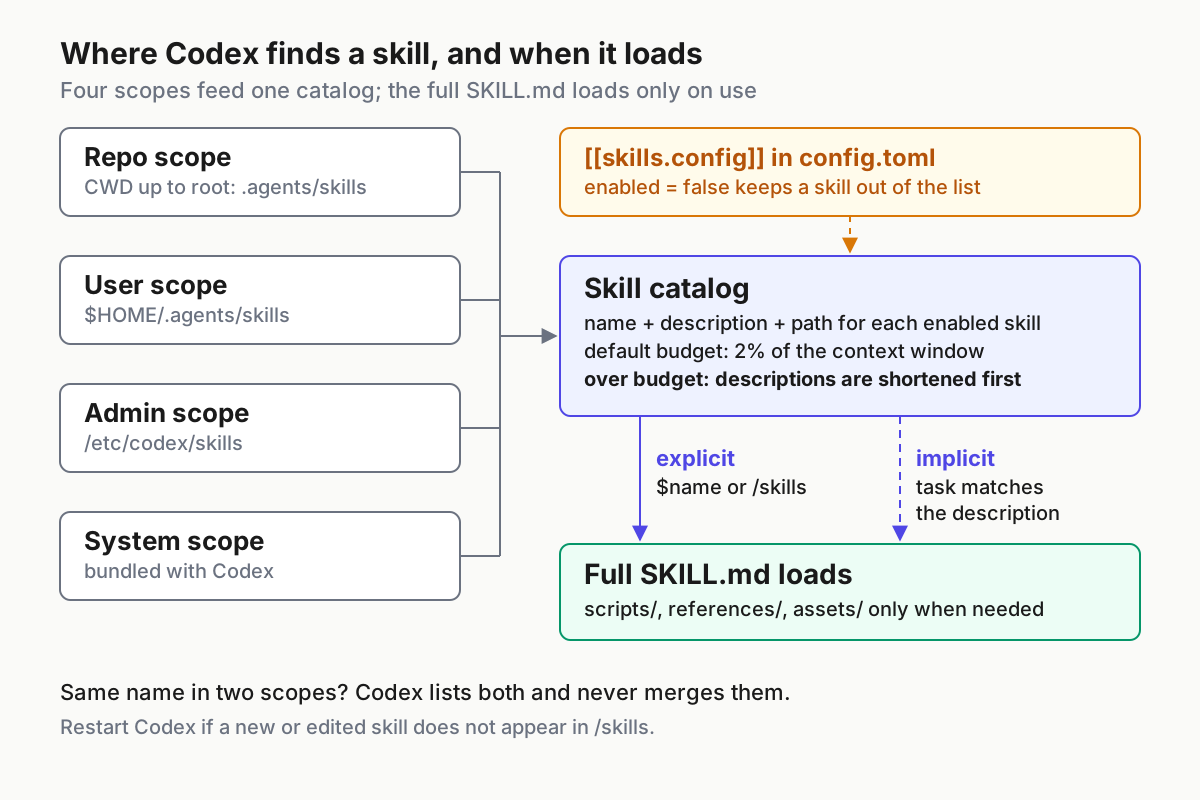
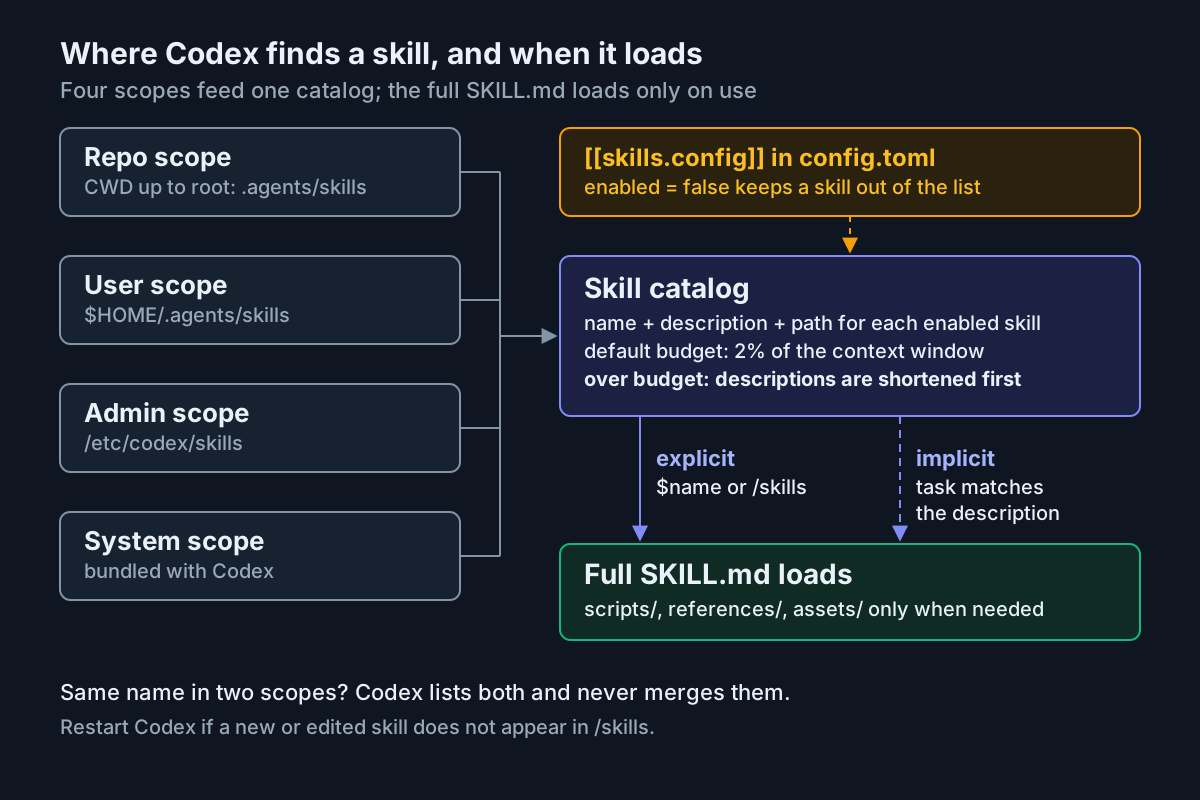
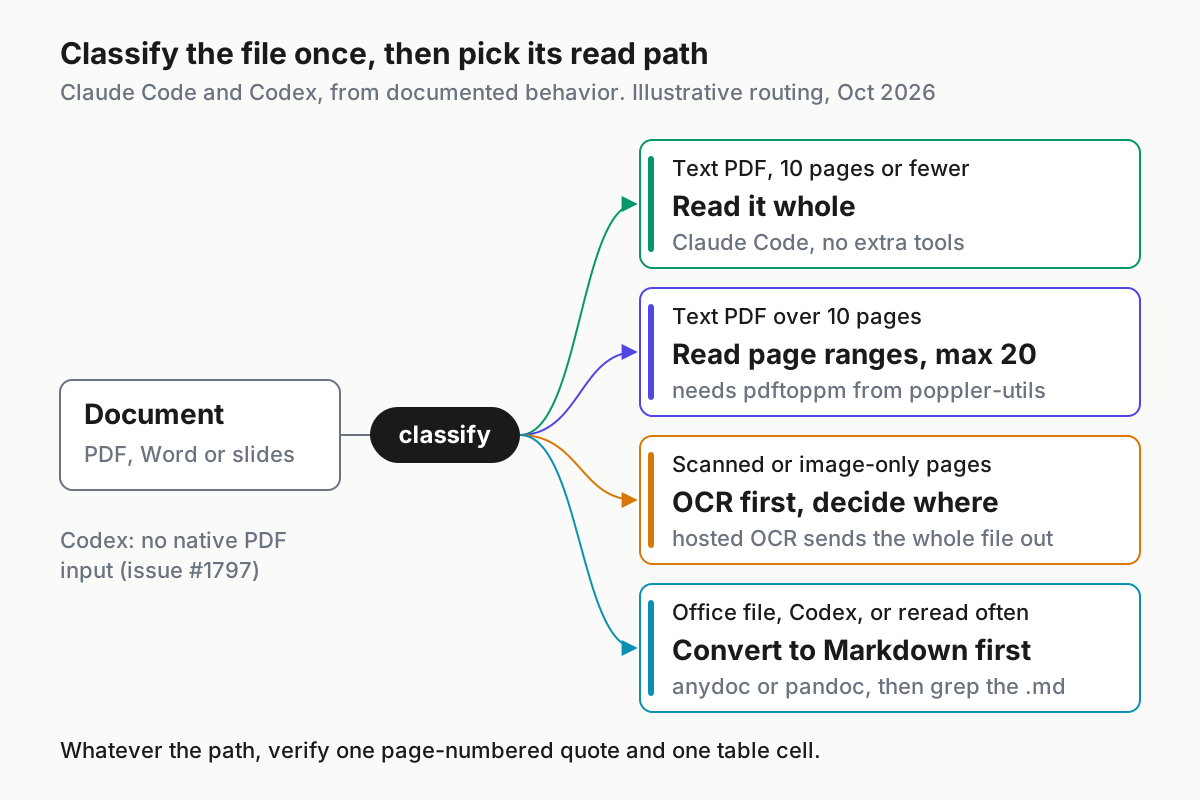
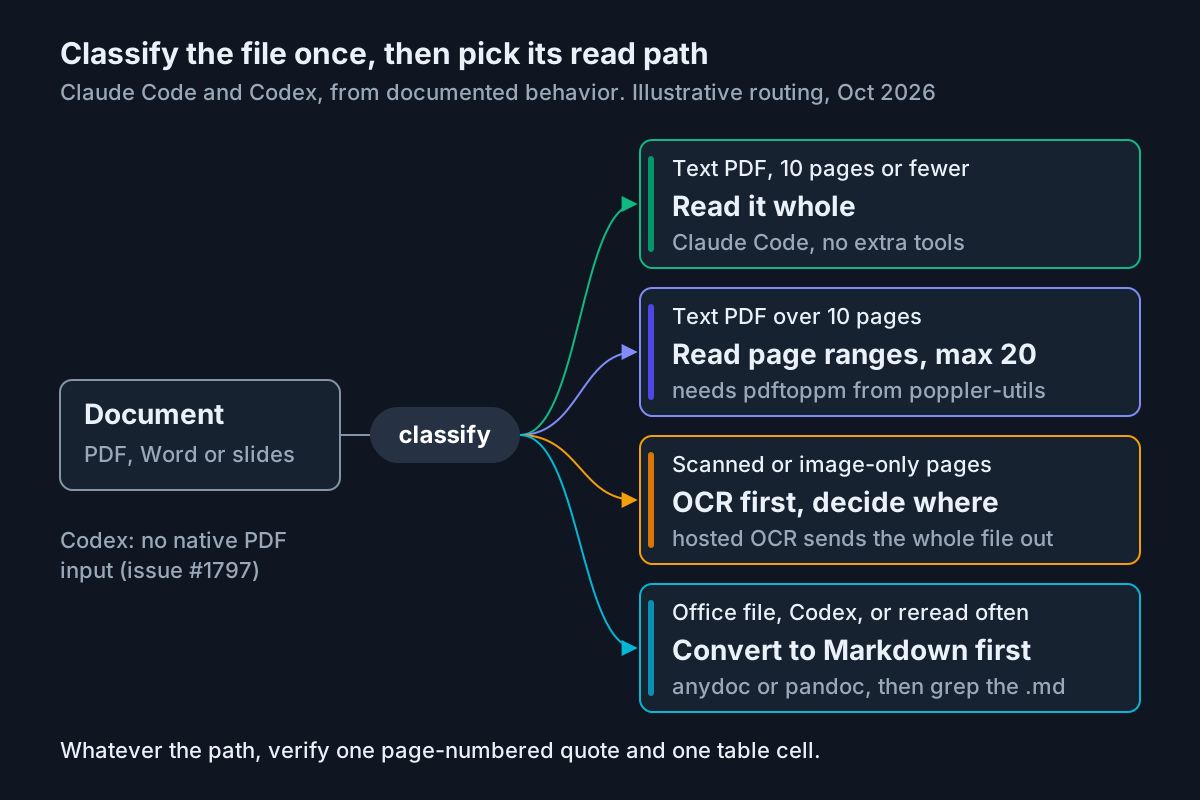
The diagram compresses that table into four cards: read it whole, read page ranges of at most 20, OCR first, and convert to Markdown first. Classify each file once, before the agent touches it, and the right card usually picks itself.
Worked example: one vendor packet, two agents
The packet (Illustrative) is three files a procurement engineer might receive. docs/vendor-spec.pdf has 47 text pages with a rate-limit table on PDF page 31. docs/signed-msa-scan.pdf is a six-page signed contract scanned from paper, with the termination clause on page 4. docs/requirements.docx is the internal requirements document, with a table of targets. The task: confirm whether the vendor’s Enterprise burst limit meets the internal requirement, and find the contract’s termination notice period.
- Prepare. Add
docs/_extracted/to.gitignore, then runpdftoppm -vandgit check-ignore docs/_extracted/to confirm both the renderer and the ignore rule. - Convert the requirements. Run
pandoc -t markdown docs/requirements.docx > docs/_extracted/requirements.md. Expected: a Markdown file with a pipe table containing the row Burst limit, at least 1,000 requests per minute (Illustrative). Pandoc is enough because the table is simple; reach for anydoc if cells are merged or the output looks garbled. - Claude Code reads the spec section. Prompt:
Read pages 25-34 of docs/vendor-spec.pdf only. What is the Enterprise burst limit? Quote the row and give its PDF page.Expected: one Read with a range of ten pages, and an answer of 1,200 requests per minute on page 31 (Illustrative). Ten pages, not 47, because only the limits chapter matters. - Codex reads the same section. Prompt it with the
pdftotext -layout -f 31 -l 31command from the Codex section, writingdocs/_extracted/vendor-spec-p31.txt, and the same question. Expected: the same row from a one-page text file. - Read the scanned contract locally. In Claude Code, ask for pages 1-6 of
docs/signed-msa-scan.pdf; six pages sits under the 20-page cap, and page-range reads arrive as rendered pages. For Codex, have it run the pdf skill’s OCR snippet below. Do not use hosted OCR: anydoc would raiseNeedsOcr, and the opt-in fix sends a signed contract off the machine. - Compare both agents’ answers against ground truth from pdfplumber and your own eyes, and record the results in the observation table in the next section.
# From Anthropic's pdf skill. Requires: pip install pytesseract pdf2image
# (pytesseract also needs the Tesseract program; pdf2image uses poppler)
import pytesseract
from pdf2image import convert_from_path

images = convert_from_path("docs/signed-msa-scan.pdf")
for i, image in enumerate(images):
    print(f"--- PDF page {i+1} ---")
    print(pytesseract.image_to_string(image))
Why these choices work: each file got the cheapest path that still lets you see its page numbers. The spec never entered context whole. The Word file became searchable text once. The contract stayed local. Both agents were asked the same question with the same page discipline, so their answers can be compared row by row instead of by impression.
Verification drill: prove the page and the cell
A confident summary is not evidence that the agent read the right pages. Ask for things that can only be right if it did: an exact sentence with a page number, and a specific table cell located by its row and column labels.
From docs/vendor-spec.pdf:
1. Quote, word for word, the sentence that defines "burst limit", with its PDF page number.
2. Give the value at row "Enterprise", column "Burst (requests/min)" of the rate-limit table,
   with its PDF page number.
3. List the PDF pages you actually read to answer. If you did not read a page, say so.
Then check by hand. Open the PDF in a viewer, jump to the cited page, and compare. For the table cell, the pdfplumber snippet from the Codex section prints the rows for an independent second reading that does not depend on either agent.
| Check | Ground truth | Claude Code answer | Codex answer | Result |
|---|---|---|---|---|
| Burst limit definition | Page 29, exact sentence | Page 29, exact sentence | Page 29, exact sentence | Pass |
| Enterprise burst cell | Page 31, 1,200 | Page 31, 1,200 | Page 31, 1,200 | Pass |
| Pages read | 25-34 needed | 25-34 | 31 only, via pdftotext | Pass |
| Termination notice (scan) | Page 4, 90 days | Page 4, 90 days | Page 4, 60 days | Fail: re-read page 4 |
Every value in that table is Illustrative until you run the drill on your own packet. Read it with these rules:
- Pass only when both the page and the value match the source.
- Right value on the wrong page is a fail. The agent may have read a summary table elsewhere, and the next question will drift.
- Wrong value on the right page of a scan usually means an OCR misread. Re-read that single page as a rendered image in Claude Code, or rerun OCR on a higher-quality scan.
- An answer that lists pages it never read is a fail regardless of the value. Ask again with an explicit range.
- If several agent sessions work from the same packet, record which session produced each answer; our guide to running multiple coding agents from one command center covers keeping those sessions straight.
Troubleshooting document reads
| Symptom | Likely cause | Fix | What you should see after |
|---|---|---|---|
pdftoppm is not installed on a page-range read |
poppler is missing | Install poppler, start a new session; or ask for a plain whole-file read | The range read returns pages |
Same error while pdftoppm -v works in your terminal |
The app did not inherit your PATH, reported for the macOS and Windows desktop apps | Run Claude Code from a terminal where pdftoppm resolves |
The range read succeeds from the terminal session |
| Agent says it cannot see a short PDF and suggests installing poppler | The model chose a pages read it did not need (issue #84860) |
Ask it to read the whole file without a page range | One read, full answer |
| @-mentioned spreadsheet, agent knows nothing about its contents | Read refuses .xlsx; the mention passes only the path |
Convert with anydoc and point at the .md |
A Markdown table the agent can quote |
Scanned PDF gives empty text, or anydoc raises NeedsOcr |
The pages have no text layer | Claude Code page-range read, local OCR, or opt-in hosted OCR | Text with page markers |
| Table columns merged or shifted | Plain extraction flattened the layout | pdftotext -layout, or extract_tables() on that page |
One list per row |
| Codex renders images or runs OCR slowly and inconsistently | No native PDF input (issue #1797) | Give the exact pdftotext command and say not to OCR |
One command and a text file |
| Context fills after one document | Whole-file reads of a long document | Page ranges, or convert then search; see our context window guide | Room left for the actual task |
anydoc raises Encrypted |
The file is password-protected | If you own it and know the password, qpdf --password=... --decrypt; otherwise ask the sender |
A decrypted copy converts |
| Converted Markdown is missing a chart | Embedded images become alt text | Read that page as a rendered image in Claude Code | The agent describes the chart |
Clean up extracted text, skills and secrets
Extracted text is a copy of the document without the document’s access controls. Treat it that way.
- [ ] Add the scratch folder to
.gitignorebefore the first conversion, not after. - [ ] Run
git status --short docs/before every commit and confirm no extracted text is staged. - [ ] Delete the scratch folder when the task is done; regenerating Markdown is cheap.
- [ ] Never commit text extracted from contracts, HR files or customer documents, even to a private repository.
- [ ] Remove any skill you installed only for this test, using the same mechanism you used to add it.
- [ ] Remove a global anydoc install you no longer need with your package manager.
- [ ] If you used
--ocr hosted, write down which files left the machine and when. - [ ] Unset any temporary
CLAUDE_CODE_FILE_READ_MAX_OUTPUT_TOKENSoverride so later sessions run with the default.
# Extracted document text: regenerate it, never commit it
docs/_extracted/
git check-ignore docs/_extracted/
git status --short docs/
rm -r docs/_extracted
The durable habit is the drill, not any one tool. Agents and converters will keep changing how they read files; a page-numbered quote and one checked table cell will tell you, on any version, whether the agent saw what you think it saw.
Sources
- EPIX (@OgEpix) on X: Firecrawl open-sourced anydoc, Oct. 27, 2026
- Anthropic: Claude Code Tools reference
- Firecrawl: anydoc README
- Anthropic: pdf skill, SKILL.md
- Anthropic: docx skill, SKILL.md
- OpenAI: Codex features
- openai/codex issue #1797: PDF support
- anthropics/claude-code issue #84860: Read tool pages= reroutes PDF reading through pdftoppm