OpenCode Server Troubleshooting in V2: Find the Server a Client Hit, Force --standalone and Fix a Stuck Service
Diagnose which OpenCode server a client hit, force a private --standalone server per project, reach a remote server with a password and fix a stuck service.

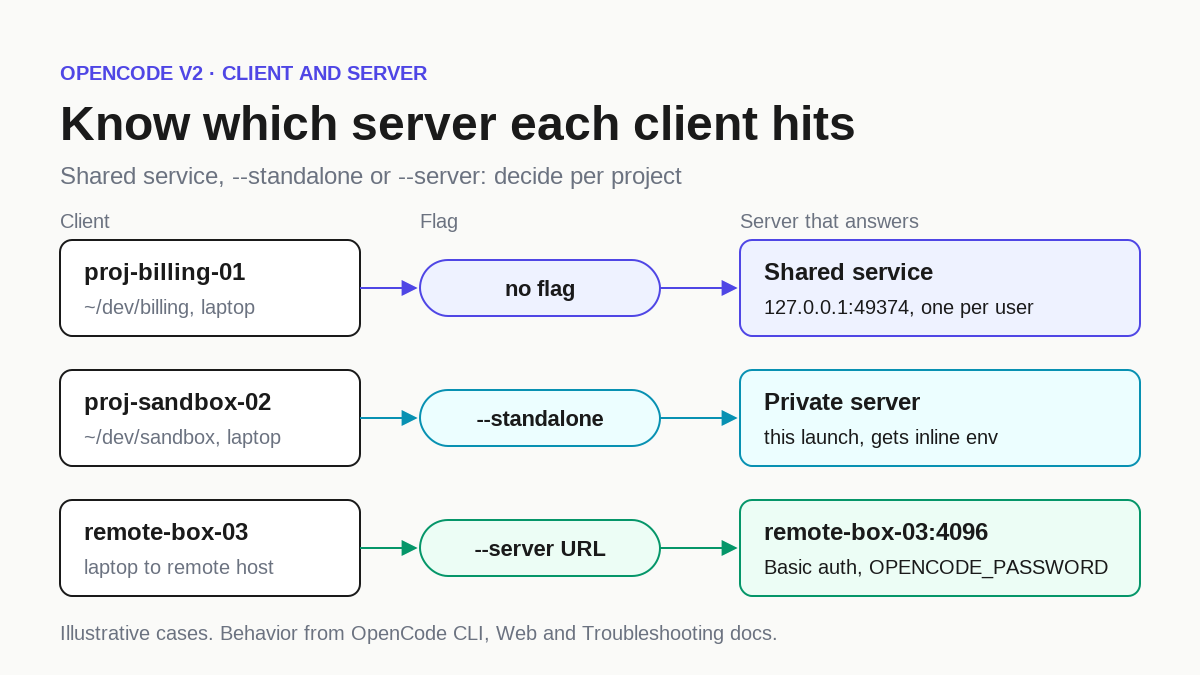
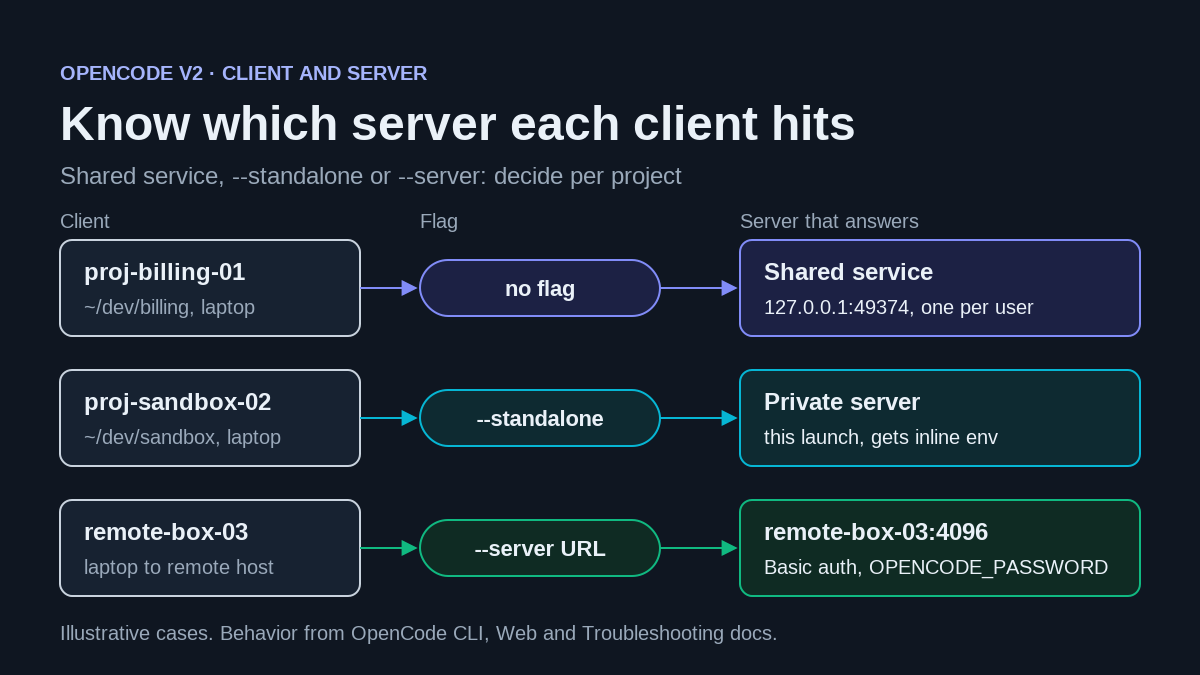
You open a terminal in a sandbox repository, export a throwaway provider key, type opencode, and the session list is full of last week’s billing work. The key you just exported does nothing. Nothing is broken. In OpenCode V2, the OpenCode server a client talks to is, by default, one shared background service for your whole user account. That service was started long before your new shell existed.
This catches enough people that on Nov 24, 2026, developer Arnav Gupta asked on X how to make OpenCode always run standalone in ~/dev/myproj, instead of connecting to a server that might already be running somewhere else. OpenCode’s CLI intro explains the cause. By default OpenCode discovers or starts one shared background server per user account, and every local client connects to it. That server owns sessions, configuration, integrations, permissions and tool execution.
This guide is for developers who run OpenCode V2 in more than one project or terminal, sometimes with a second machine reachable over SSH or a private network. You need OpenCode V2 installed, a terminal and two local project folders. For the remote case you also need a host you can log in to. By the end you will be able to name the server behind any client and choose, per project, between the shared service, a private --standalone server and an explicit --server URL. You will also put a password on anything reachable from the network and bring back a service that stopped answering. Configuration files, providers, permission rules and MCP servers are covered in the OpenCode V2 setup guide. This guide covers which process answers your client.
Why your client landed on the wrong server
V2 splits OpenCode into clients and a server. The full-screen TUI, opencode mini, opencode run and the web UI are clients. The server is the process that holds your sessions, loads configuration, runs tools and enforces permissions. The troubleshooting page tells you to start by working out whether a problem is in a client, in the shared server or in one project. Most confusing behavior follows from that split. If you read the OpenCode 2.0 launch coverage, this is the background service it announced.
Three consequences match the complaints people post.
The shared server has its own environment. If you export ANTHROPIC_API_KEY in a fresh terminal, that terminal changes, but a service started an hour ago from a different terminal does not. The CLI commands reference implies this in its CI example. It passes the provider key as a secret and uses standalone mode so that the private server receives the key. For the shared service, the documented way to pass environment variables is opencode service set env.
Every local client sees the same server. One client can show sessions that another project created. That is how the design works. It is not a leak between installs.
The service has its own settings. Hostname, port, password, CORS origins, environment variables and a disabled switch are stored separately from your project files. Changing any of them stops the service until it starts again. The Web docs and the troubleshooting page both say that setting or unsetting a value stops the background server, and its next start uses the new configuration. If you have fought a model server that reads environment variables only at startup, the Ollama host settings guide covers the same problem with a different daemon.
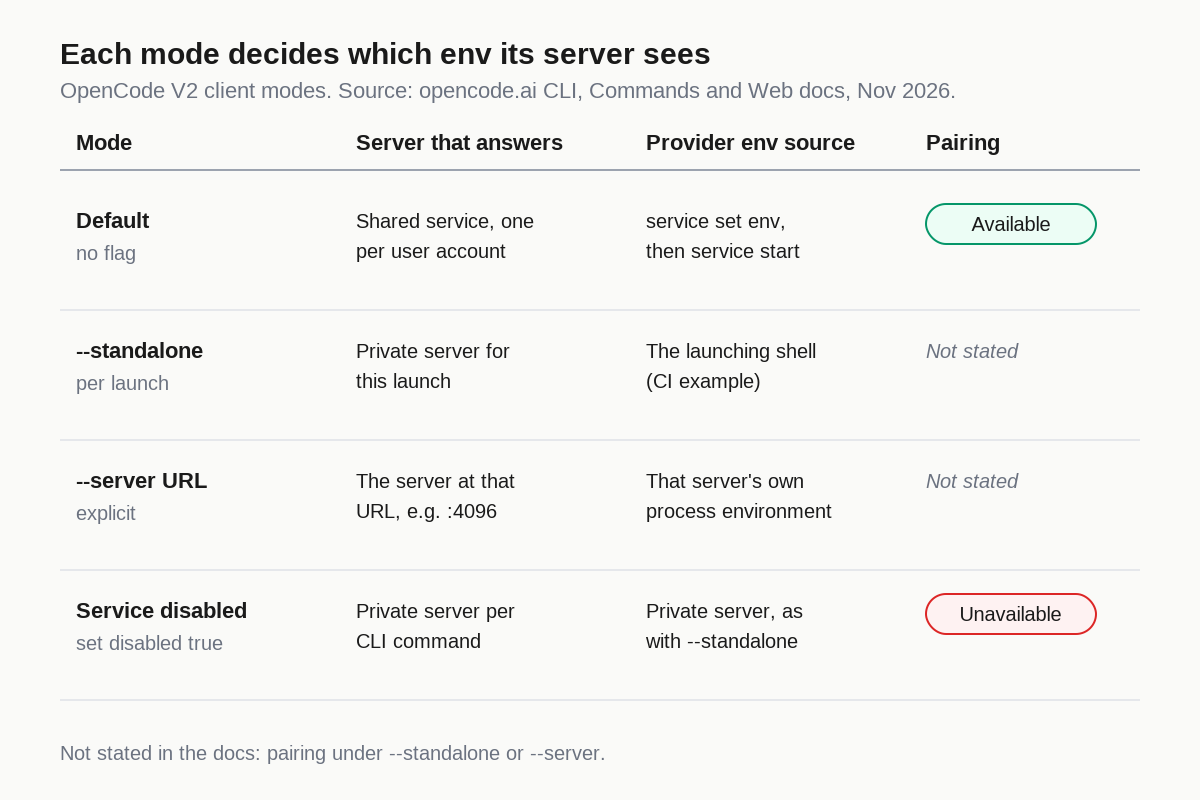
Each client launch ends up on one of four servers. Which one depends on the flag you pass and on whether the shared service is disabled.
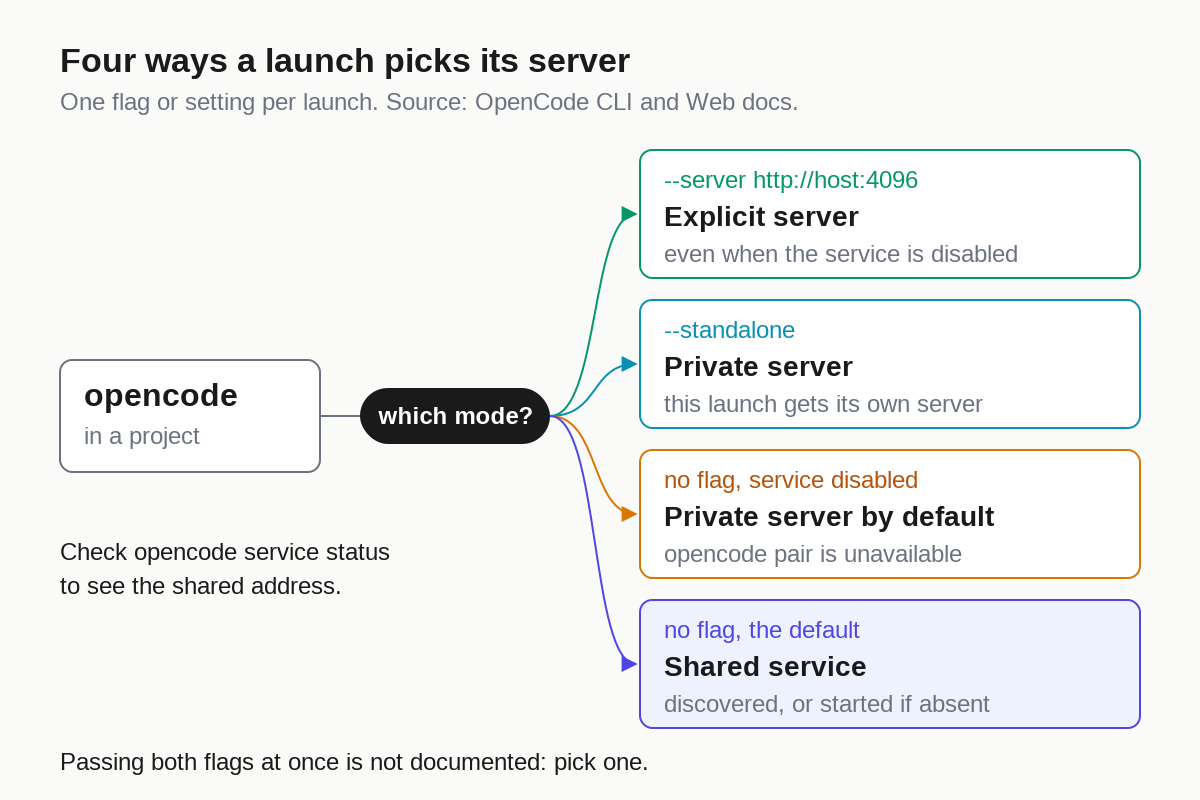
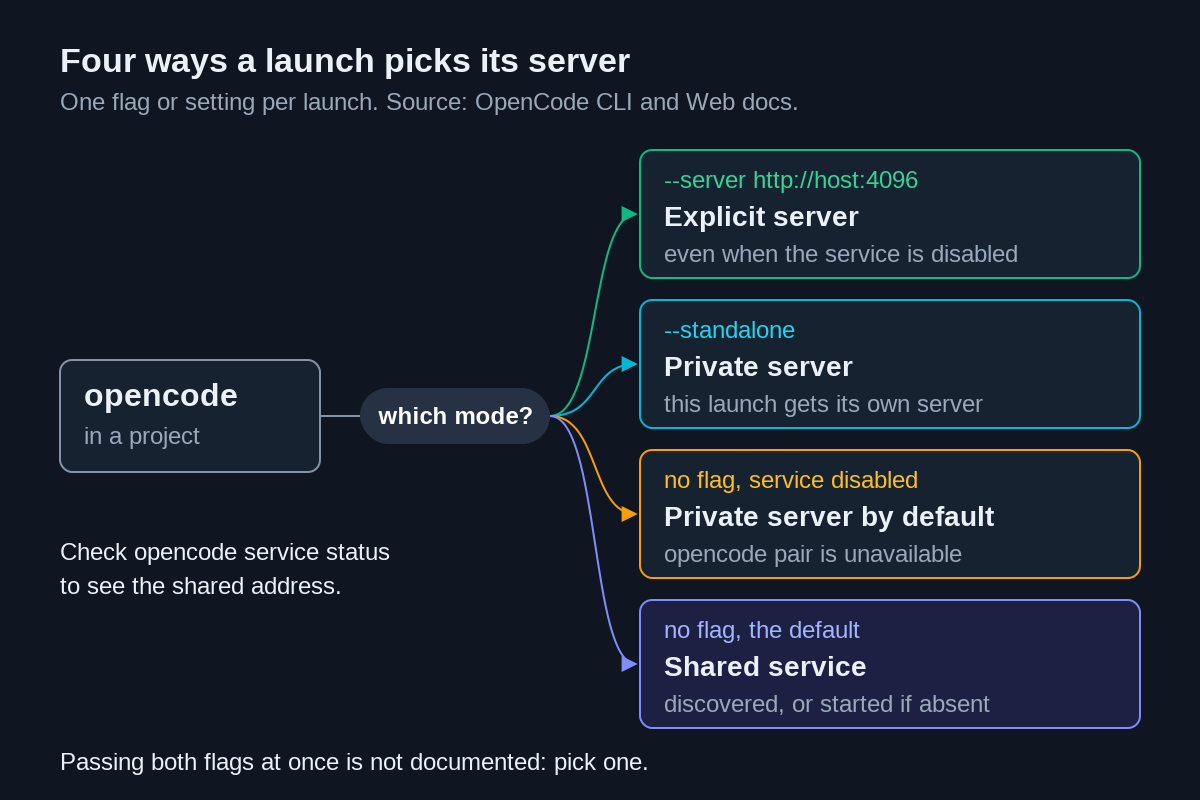
The docs present --standalone and --server as alternatives. They do not say what happens when you pass both, so pass one per launch. Background work that the server runs, such as the subagents in the background subagents guide, runs on whichever server your client reached, because tool execution belongs to the server.
Before you start: three cases and what you need
The worked example uses three illustrative cases with fixed labels, so each command lines up with its expected observation. Replace the paths and host names with your own.
| Case | Where | Mode | What you need |
|---|---|---|---|
| server:proj-billing-01 | ~/dev/billing on your laptop |
Shared background service on 127.0.0.1, default port |
A working V2 install and saved credentials |
| server:proj-sandbox-02 | ~/dev/sandbox on your laptop |
Private server through --standalone, with an inline API key |
A disposable provider key you are willing to type on one command line |
| server:remote-box-03 | A Linux host named remote-box-03 |
Foreground opencode serve on port 4096, reached with --server and OPENCODE_PASSWORD |
SSH access or a private network route, plus V2 installed on that host |
The default port depends on the platform. The Web docs give 49374 for macOS, Linux and WSL, and 28894 for Windows, because Windows reserves ports from 49152 upward. The examples assume Linux or macOS.
Check these before step 1:
- [ ]
opencode --versionreports a V2 build on every machine you will use. - [ ] You have decided which projects should share state and which must not.
- [ ] You have a long random password ready for anything that will listen beyond localhost.
- [ ] You will not edit
~/.local/state/opencode/service.json,~/.config/opencode/service.jsonor the database by hand. The troubleshooting page says to manage the daemon only through service commands and to back up persistent data before inspecting it with other tools.
Step 1: Identify the server a client is talking to
Run these checks first whenever something looks wrong. They take seconds and confirm that you are debugging the right process.
opencode --version
opencode service status
opencode api get /api/info
opencode debug config
opencode debug paths
- Run
opencode --versionand expect a V2 version string. If you get a V1 build, read the migration guide first. V1 and V2 both use theopencodecommand, and by default they are no longer installed side by side. - Run
opencode service status. On Linux and macOS the Web docs show the output as a single address,http://127.0.0.1:49374. That is the shared service your plainopencodeclients reach. - Run
opencode api get /api/info. The request goes through local service discovery and authentication, then asks the server for its info. The troubleshooting page reads the server’spidfrom this endpoint, so expect JSON with apidfield. The page does not document the other fields, so read what comes back instead of assuming. - Run
opencode debug configto list the configuration sources the server sees. If a client picked up the wrong config, this shows which file won. - Run
opencode debug pathsto see the labelled data, config, state and log locations. The CLI intro says this command does not start a server or open the database, so it is a safe probe.
Watch for one trap. The troubleshooting page warns that opencode api may start the background service when no compatible healthy service is running. If you stopped the service on purpose, check opencode service status and the log first. Run api get only when you want an answer from a running server.
How to read the results: if two terminals print the same address from service status, both are using the shared service. If api get returns a different pid from the one you saw earlier, the service restarted at some point.
Step 2: Keep the billing project on the shared service
server:proj-billing-01 is the ordinary case. You want the TUI in one terminal, a scripted opencode run in another and perhaps the web UI on a phone, all showing the same sessions. The shared service exists for this.
- Change into the project and launch with no flags:
cd ~/dev/billing, thenopencode. The client finds the shared service, or starts it if none is running. - Store provider credentials on the server, not in a shell variable. The documented command is
opencode auth login anthropic. Runopencode auth listto confirm it worked. - When the server process needs an environment variable, set it on the service and then start the service. The docs use the log level as their example:
opencode service set env OPENCODE_LOG_LEVEL DEBUG
opencode service status
opencode service start
opencode service get hostname
- Expect the
setcommand to stop the background service. That is documented behavior, not a crash.opencode service startbrings it back with the new environment. - Read a setting back with
opencode service getand its name. Unless you changed it,hostnameshould still be the localhost default. - After you edit
opencode.jsonc, runopencode reload. The commands reference says it reloads configuration without restarting the server, and running sessions pick up fresh services at the next step boundary.
This case succeeds when opencode service status prints http://127.0.0.1:49374, api get /api/info returns a pid, and every client in the billing project shows the same sessions. It has failed when a variable you exported does nothing until the service restarts. When you see that, move the variable into service set env or auth login instead of exporting it.
Step 3: Force a private server for the sandbox project
server:proj-sandbox-02 is the case from the X post. You want this project to ignore any shared server that is running, and you want to use a throwaway key without saving it into the shared service.
cd ~/dev/sandbox
# Placeholder key for illustration; use a disposable key of your own.
ANTHROPIC_API_KEY="sk-ant-sandbox-example" opencode --standalone

# Non-interactive variant, mirroring the documented CI pattern
ANTHROPIC_API_KEY="sk-ant-sandbox-example" opencode run --standalone --model anthropic/claude-sonnet-5-5 "Summarize this repository"
- Launch with
--standalone. The CLI intro describes this flag as running with a private server. - Put the key on the same command line. The CI job in the commands reference sets
ANTHROPIC_API_KEYin the step environment and runsopencode run --standalone, so that the private server receives the key. - In a second terminal, run
opencode service status. The shared service should report the same address as before. The sandbox launch did not change it. - Not every subcommand accepts these flags. The commands page says some server-backed commands accept
--standaloneor--server, and tells you to check each command’s--help.
The docs do not document a per-project setting that makes --standalone automatic. Two documented routes come close to what the X post asked for, and a shell function covers the rest.
The global route turns off the shared service for your account:
opencode service set disabled true
opencode
# later, to return to automatic shared-service use
opencode service unset disabled
According to the CLI intro, this stops the running service and makes private servers the default for CLI commands. --server still connects to a server you select explicitly, and opencode service start still starts the shared service if you ask for it. Pairing is unavailable while the service is disabled. That trade-off matters if you pair a phone or browser with this machine.
The per-project option is a shell function. It is not an OpenCode feature. It adds the documented flag only when you launch the TUI with no arguments inside one folder:
# Illustrative: add to ~/.bashrc or ~/.zshrc. Not an OpenCode setting.
opencode() {
  case "$PWD/" in
    "$HOME/dev/sandbox/"*)
      if [ "$#" -eq 0 ]; then
        command opencode --standalone
        return
      fi
      ;;
  esac
  command opencode "$@"
}
Because the function passes any arguments straight through, subcommands such as opencode service status still describe the shared service, which is what you want them to do. In that folder, add --standalone to opencode run yourself.
The docs leave one question open. They do not say where a private server stores sessions, or whether its session list is separate from the shared one. opencode debug paths db prints the database path, and the CLI intro says that path respects OPENCODE_DB. Check both before you count on separate session storage. A private server process is not the same thing as a private session store.
Step 4: Connect to a remote box with --server and a password
server:remote-box-03 runs a server on another machine, for example an always-on host like the one in the Mac mini host guide. The Web docs name this as a use for opencode serve: run OpenCode on a shared, always-on or remote host, and connect clients with opencode --server and a URL. They list running under a supervisor such as systemd or Docker as another reason to use a foreground server.
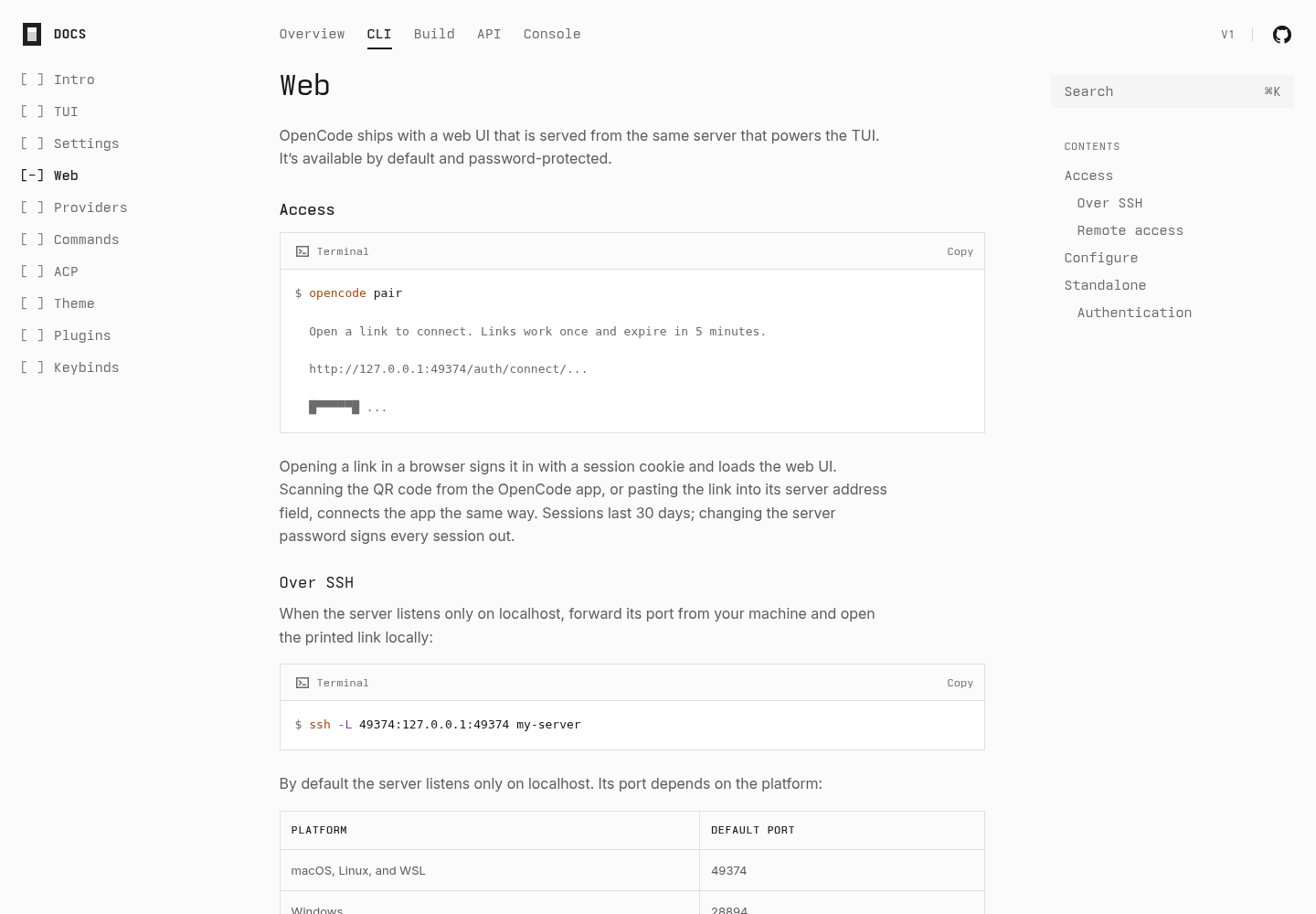
On the remote host, start a foreground server with a fixed password. Binding to loopback and connecting through an SSH tunnel is the cautious choice:
# On remote-box-03
OPENCODE_PASSWORD="a-long-secret" opencode serve --hostname 127.0.0.1 --port 4096
On your laptop, forward the port and connect:
ssh -L 4096:127.0.0.1:4096 remote-box-03

# In another laptop terminal
curl -u opencode:a-long-secret http://127.0.0.1:4096/api/info
OPENCODE_PASSWORD="a-long-secret" opencode --server http://127.0.0.1:4096
- Start
opencode servewithOPENCODE_PASSWORDset. The Web docs say this variable fixes the password instead of letting the server generate one. Without it, serve prints a generated password. For the all-interfaces form, the documented output isserver listening on http://0.0.0.0:4096followed byserver passwordand the value. - Forward the port with
ssh -L. The Web docs show this pattern for the default port when the server listens only on localhost. - Test the connection with
curl -u opencode:followed by the password and the/api/infoURL. HTTP clients other than OpenCode use Basic auth, and the username is alwaysopencode. A request without credentials should be refused. The docs do not show the exact response. - Connect the TUI with
opencode --server http://127.0.0.1:4096and the sameOPENCODE_PASSWORD. According to the Web docs, that one variable supplies the password to both the server and the client.
If the host is on a private network you trust, you can bind to all interfaces with --hostname 0.0.0.0 and connect to http://remote-box-03:4096. The docs do not mention TLS for this listener, so treat it as plain HTTP and keep it off untrusted networks. The llama-server remote access guide works through the same choice between a tunnel and a private network for another local server.
You can also expose the remote host’s shared service instead of running a foreground process. Run opencode service set hostname 0.0.0.0, then opencode service set port 49374 and opencode service set password "a-long-secret", then opencode service start. Changing the server password signs out every web session. Each set stops the service, so finish all three before you start it again.
The worked example in one table
Each expected result below is an illustrative observation based on the documented outputs. None of it is a transcript of a test run.
| Input | Action | Expected result |
|---|---|---|
server:proj-billing-01: laptop on Linux, ~/dev/billing, no flags |
opencode service status |
Illustrative: prints http://127.0.0.1:49374, the shared service that every plain client on this account reaches |
| server:proj-billing-01: same terminal | opencode api get /api/info |
Illustrative: JSON from the shared server with a pid field. Note the pid for log and signal work |
| server:proj-billing-01: add debug logging to the service | opencode service set env OPENCODE_LOG_LEVEL DEBUG, then opencode service start |
Illustrative: the set stops the service. After start, grep 'role=server' on opencode.log shows new server lines |
server:proj-sandbox-02: laptop, ~/dev/sandbox, placeholder key sk-ant-sandbox-example |
ANTHROPIC_API_KEY="sk-ant-sandbox-example" opencode --standalone |
Illustrative: the TUI opens on a private server that received the inline key. opencode service status in another terminal still prints the shared address |
| server:proj-sandbox-02: scripted summary, same inline key | opencode run --standalone --model anthropic/claude-sonnet-5-5 "Summarize this repository" |
Illustrative: the reply prints in the terminal and the shared service settings are unchanged |
server:remote-box-03: Linux host, port 4096, password a-long-secret |
OPENCODE_PASSWORD="a-long-secret" opencode serve --hostname 127.0.0.1 --port 4096 |
Illustrative: a foreground process that reports listening on http://127.0.0.1:4096 and stays attached to the terminal |
server:remote-box-03: laptop after ssh -L 4096:127.0.0.1:4096 remote-box-03 |
curl -u opencode:a-long-secret http://127.0.0.1:4096/api/info |
Illustrative: JSON info from the remote server. The same request without -u is refused |
| server:remote-box-03: laptop TUI through the tunnel | OPENCODE_PASSWORD="a-long-secret" opencode --server http://127.0.0.1:4096 |
Illustrative: the TUI shows the remote host’s sessions, not the laptop’s shared service |
| service:stuck-04: the laptop’s shared service stops answering | opencode service restart, then opencode api get /api/info |
Illustrative: info returns again with a new pid, because a new process started, and new log lines carry a new run= ID |
| account:disabled-05: laptop, no pairing needed | opencode service set disabled true, then opencode pair |
Illustrative: the running service stops and pairing is unavailable until opencode service unset disabled |
Read the table by case. If every row for one case behaves as described, that case is configured correctly. A row that disagrees tells you where to look. If the shared address changes after a standalone launch, something reconfigured the service. If curl succeeds without credentials, the remote server is not protected the way you think.
Choosing a mode per project
The four modes differ mainly in which process answers and where that process gets its environment. The matrix below puts them side by side, and the decision table after it turns that into a choice per project.
| Situation | Use | Command | What you give up |
|---|---|---|---|
| Several terminals and the web UI on one project, with shared history | Shared service | opencode |
Environment variables in a new shell are ignored until you set them on the service and start it |
| One project must not touch the shared server, or needs a throwaway key | Private server | opencode --standalone |
The docs do not cover pairing in this mode or say where sessions are stored, so check opencode debug paths db |
| CI job or one-off script | Private server | opencode run --standalone with the key as a secret |
Nothing is shared with your laptop’s service, by design |
| The server lives on another host or under a supervisor | Explicit server | opencode serve on the host, opencode --server with its URL on the client |
You are responsible for the password, port and network exposure |
| You never want a background daemon on this account | Disabled service | opencode service set disabled true |
No pairing, and opencode service start can still bring the service back |
A useful default for most people: leave daily projects on the shared service, use --standalone only for projects with separate credentials or experiments you will throw away, and reserve --server for hosts you run deliberately. If you run many agents at once across tools, the multi-agent command center guide covers the operating habits that keep track of who is talking to what, and AgentOps covers the wider monitoring layer.
Read the service log while you reproduce
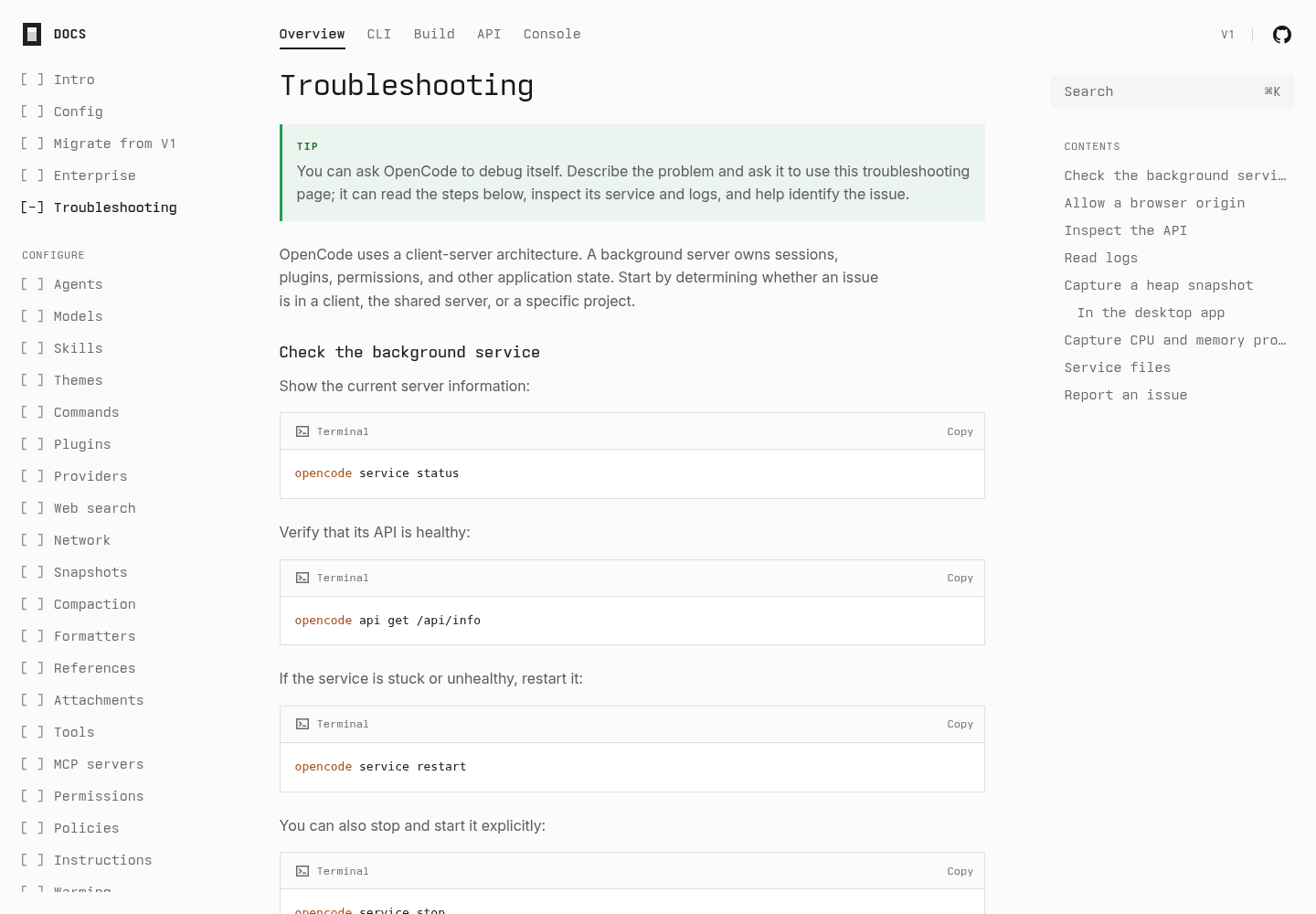
When the status checks look fine but behavior is still wrong, the log is the next stop. The troubleshooting page documents its location, its fields and the commands for reading it.
opencode debug paths log
tail -f ~/.local/share/opencode/log/opencode.log
grep 'role=server' ~/.local/share/opencode/log/opencode.log
grep 'run=8fc3b1d5' ~/.local/share/opencode/log/opencode.log
opencode debug heap-dump
- Confirm the location with
opencode debug paths log. Installed builds write to~/.local/share/opencode/log/opencode.log. - Run
tail -fon the log in one terminal while you reproduce the problem in another. - Filter for
role=server. The troubleshooting page says these lines cover session, provider, plugin, permission and tool activity, which is where server-side problems show up. - Every line carries a process run ID. Grep for one run to follow a single process.
8fc3b1d5is the docs’ example, so substitute your own. If you see two run IDs taking turns, two server processes are writing to the log. - For more detail, set the service log level as in step 2 and start the service again.
- If memory keeps growing, capture a heap dump with
opencode debug heap-dumpbefore you restart. It uses only a server that is already running, and it never starts or restarts one. For a remote foreground server, add--serverwith its URL and setOPENCODE_PASSWORD. In that case--directoryrefers to a path on the server’s machine. - On macOS and Linux you can also signal the pid returned by
/api/info.kill -SIGPROFcaptures a ten-second CPU profile andkill -SIGUSR1writes a heap snapshot. Wait until the log reports that the profile or snapshot was written before you open the file.
Two cautions apply. Writing a heap snapshot pauses the server and briefly raises its memory use. The snapshot can contain prompts, file contents and credentials, so never share it publicly. Before you post log lines in an issue, remove API keys, authorization headers, prompts and file contents. A useful bug report includes opencode --version, opencode service status, the smallest steps that reproduce the problem, whether it affects the shared service, one client or one project, and the relevant log lines with their run and role fields.
Troubleshooting the failures you will actually see
| Symptom | Likely cause | Check | Fix |
|---|---|---|---|
| A key or variable you just exported does nothing | The shared service started earlier from another environment and never saw your shell | opencode service status, then think about when the service last started |
Launch with --standalone and the variable inline, or save it with opencode auth login or opencode service set env, then opencode service start |
| The session list shows another project’s work | Every local client connects to the same shared server, which owns sessions | Both terminals print the same address from opencode service status |
This is expected. Use --standalone for that project and check opencode debug paths db before assuming separate storage |
| The wrong configuration is in effect | A higher-precedence source won, or the server has not reloaded your edit | opencode debug config. The migration guide says system config and macOS managed preferences outrank global and project files |
Edit the file that wins, then run opencode reload |
| The service will not come up after you changed the port | The port is taken, or the service has not been started since the change | opencode service get port, then grep 'role=server' in the log. The docs do not describe the collision error |
Choose a free port with opencode service set port, then opencode service start. For a foreground server, change --port |
| The server listens on all interfaces when you meant localhost | hostname set to 0.0.0.0, or a foreground serve bound to every interface |
opencode service get hostname. A curl without -u should be refused |
opencode service unset hostname, set a long password and reach the server through ssh -L |
opencode pair does not work |
The shared service is disabled, and pairing requires it | opencode service get disabled |
opencode service unset disabled, then opencode service start |
Clients hang or api get /api/info never returns |
The service is stuck | Run tail -f on the log and note the last run= ID |
opencode service restart, or stop then start. Capture opencode debug heap-dump first if memory looks high |
| A diagnostic command brought back a service you stopped | opencode api may start the service when no healthy one is running |
opencode service status |
Use status and the log as probes while the service is stopped, and disable it if you never want it |
| Terminal client preferences look ignored by the server | ~/.config/opencode/cli.json belongs to the terminal client, and the service does not load it |
Check that the file exists | This is expected. Keep client settings in cli.json and server settings in your OpenCode config |
Most of these share one cause: an assumption about which process is answering. When you are unsure, start again at step 1. Run status and the info endpoint, then decide whether the shared service, a private server or a remote server is the one misbehaving.
For a hung service, follow this order:
- Run
opencode service statusand note the address. - If memory looks high, capture
opencode debug heap-dump. - Run
opencode service restart. - Run
opencode api get /api/infoand confirm a newpid. - If restart does not help, run
opencode service stopandopencode service startseparately, and watch the log between the two commands.
Rollback: return to automatic shared-service use
Undo the changes in the reverse order you made them. Each service unset stops the service, so start it once at the end.
- Re-enable automatic use with
opencode service unset disabled. The CLI intro documents this as the way back. - Put the listener back on localhost with
opencode service unset hostname. - Remove extra browser origins with
opencode service unset cors. - To go back to a generated password, apply the documented unset pattern to the password setting:
opencode service unset password. Confirm the setting name withopencode service --helpfirst. Changing the password signs out every web session. - The docs show
opencode service set envwith a name and value, but give no example of removing an entry. Checkopencode service --helpfor the removal form rather than editingservice.json. - Start the service with
opencode service start, then confirm withopencode service statusandopencode api get /api/info. - On the remote host, stop the foreground
opencode serveprocess from its terminal or supervisor, and close the SSH tunnel on your laptop. - Delete the illustrative shell function from your shell profile. In the current shell, run
unset -f opencode.
You are finished when this checklist is complete:
- [ ]
opencode service statusprints the default localhost address. - [ ]
opencode api get /api/inforeturns apid. - [ ]
opencode pairworks again, if you use pairing. - [ ] A
curlto any former remote address no longer connects.
Searching for serve and attach from V1
If you arrived here searching for V1 commands, this table maps them to V2. The migration guide says the server API and clients have new contracts, which is one of V2’s three intentional breaking changes.
| V1 habit | V2 equivalent | Note |
|---|---|---|
opencode serve to run a server |
opencode serve still runs a foreground server |
Plain clients use the shared background service by default, so you need serve only for dedicated or remote servers |
OPENCODE_SERVER_USERNAME=alice OPENCODE_SERVER_PASSWORD=secret opencode serve |
OPENCODE_PASSWORD=secret opencode serve |
The username is always opencode. OPENCODE_SERVER_PASSWORD still works, and OPENCODE_SERVER_USERNAME is no longer supported |
| Attaching a client to a running server | opencode --server with the server URL |
The V2 pages cited here do not list an attach subcommand. --server is the documented way to connect |
A server block in config |
opencode service set for the shared service, --server and serve flags for others |
V2 ignores the V1 server field and logs a warning |
logLevel in config |
OPENCODE_LOG_LEVEL at startup, or opencode service set env OPENCODE_LOG_LEVEL DEBUG |
V2 ignores the field and logs a warning |
Layered tui.json files |
One global ~/.config/opencode/cli.json |
Migrated automatically on first V2 client start, and not loaded by the background service |
| Integrations that call the V1 server API | The V2 API through the @opencode/client package |
These must be ported; old calls are not compatible |
One practical point about migration: keep your V1 setup until you have confirmed the V2 behavior you depend on, and do not point V1 at configuration you have converted to the native V2 format. The migration guide recommends both.
Sources
- Arnav Gupta on X, Nov 24, 2026: how to make OpenCode always run standalone in one project
- OpenCode: CLI intro, including the background service section
- OpenCode: Troubleshooting
- OpenCode: CLI commands
- OpenCode: Web
- OpenCode: Migrate from V1