Mac mini for Claude Code and Codex: Keep It Awake, Reach It Over SSH and Remote Control, Survive Reboots
Set up a Mac mini for Claude Code and Codex: stop sleep, allow SSH for one agent user, run a named Remote Control server, sign Codex in headless, test reboots.

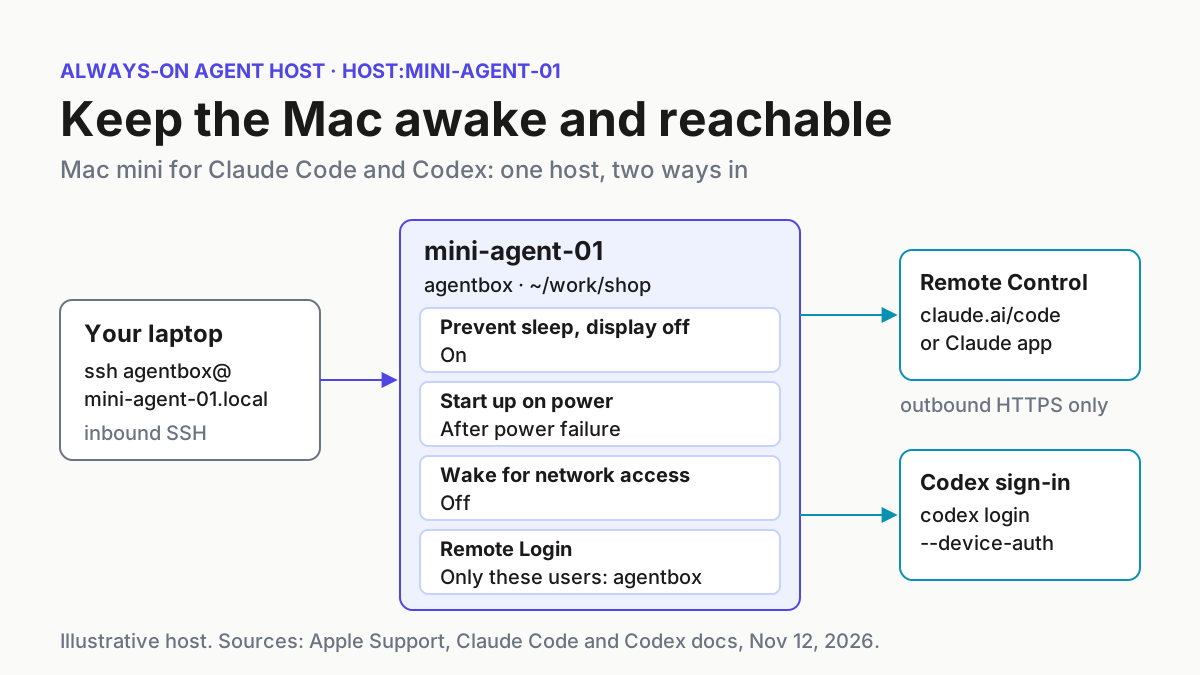
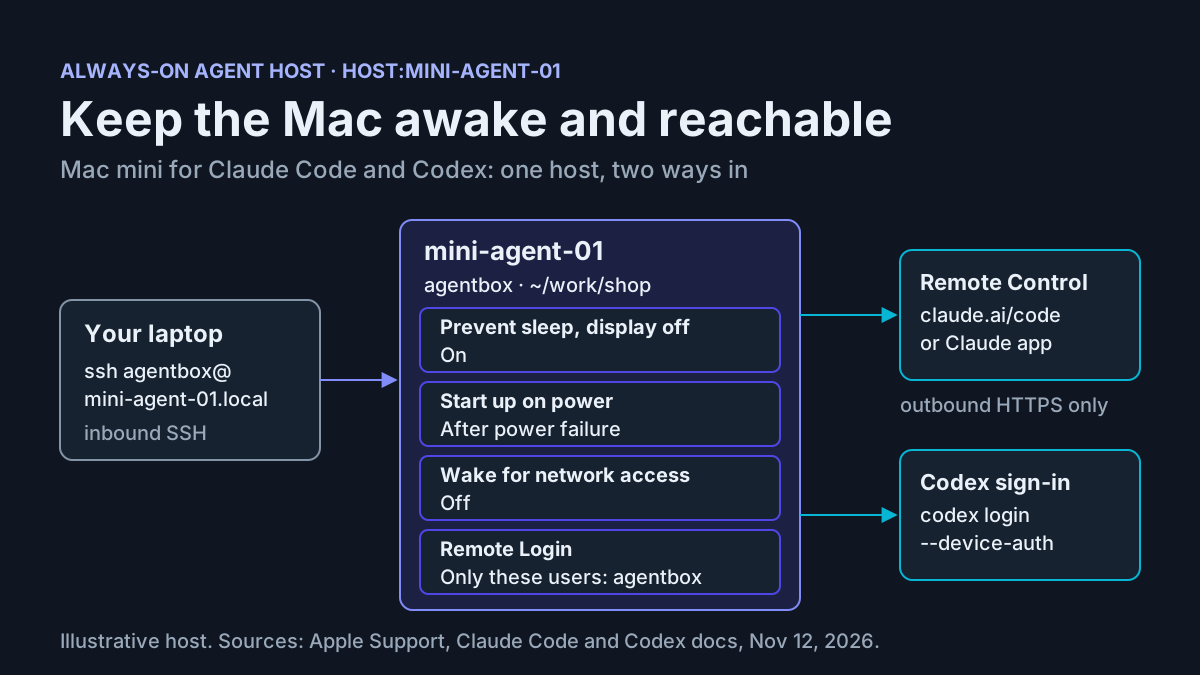
You start a refactor in Claude Code at six in the evening, point Codex at a flaky test in a second terminal, and leave. At ten you open the Claude app on your phone and the machine shows offline: the laptop went to sleep forty minutes after you walked away. A Mac mini for Claude Code and Codex fixes that only when it is set up as a host. It has to stay awake with the display off, accept SSH for one agent account, serve a named Remote Control session, hold a Codex sign-in made without a browser, and behave predictably after a power cut. This guide builds that host step by step, says what you should see at each step, and ends with a complete rollback.
The question is circulating right now. On November 11, 2026, Atique Firoz posted on X: “I almost bought a Mac mini to run my coding agents overnight. Then I closed my MacBook instead.” His post describes Night Crew, a menu bar app he built that keeps a Mac awake only while Claude Code, Codex or Cursor is working, lid closed, and then lets it sleep. We have not tested that app and nothing below depends on it. The post is a good prompt, though: whichever Mac you pick, three things decide whether your agents are still working when you check in. Does the Mac stay awake, can you reach it, and what happens after it restarts?
The worked example uses one illustrative host throughout: host:mini-agent-01, a dedicated Apple silicon Mac mini; a standard (non-admin) account named agentbox that runs the agents; and a repository at ~/work/shop. Swap in your own names. Every macOS setting comes from Apple’s Mac User Guide and support pages, every Claude command from Anthropic’s Remote Control documentation, and every Codex command from OpenAI’s authentication page. Where those pages are silent, the guide says so instead of guessing.
What you need before you start
The host has two separate ways in, and they behave differently. SSH is inbound: your laptop opens a connection to the Mac through macOS Remote Login. Remote Control is outbound. Anthropic’s Remote Control documentation says the local Claude Code session “makes outbound HTTPS requests only and never opens inbound ports”: it registers with the Anthropic API and polls for work, and your phone or browser reaches it through Anthropic’s servers. Both paths need the Mac awake and online. Only SSH needs your laptop on the same network.
Tick these off before you change anything:
- [ ] An Apple silicon Mac on a recent macOS, plus an admin account for the setup. Apple notes that some Energy options “may not be available, depending on your Mac”, so expect small menu differences.
- [ ] A display, keyboard and mouse connected to the Mac for setup, for starting the Remote Control server and for the restart test. This guide starts the server in a Terminal window at the Mac.
- [ ] Claude Code and Codex installed and working for the account that will run them. If Codex is not installed yet, follow How to Install Codex CLI on Mac, Windows and Linux first.
- [ ] A claude.ai Pro, Max, Ultra, Team or Enterprise plan. Remote Control does not accept API keys, and on Team and Enterprise an Owner must first enable the Remote Control toggle in Claude Code admin settings.
- [ ] A ChatGPT sign-in or an OpenAI API key for Codex.
- [ ] A second computer on the same network, and your phone with the Claude app if you want mobile access.
- [ ] A settings sheet copied from the worked example below, with its Before column filled in from your own Mac before you change each setting. For Remote Login that means the on/off state, the Allow access for mode, every user or group already in the list, and the full disk access switch. Rollback restores those recorded values, not guesses.
- [ ] Optional: tmux or screen, already installed, if you want to start the server over SSH instead of at the Mac. Use it only if you already know how to start, detach and reattach a session with it; this guide does not teach those commands.
Create the standard account agentbox in System Settings > Users & Groups before you begin. Apple documents account creation on its “Add a user or group” page, which is outside this guide’s selected sources, so follow it there. The reason for a separate standard account is containment: the agents run shell commands as whoever launched them, and SSH logs in as a named user. Keeping both on an account without admin rights means a confused agent or a leaked password does not come with the power to change system settings.
Step 1: Keep the Mac awake with the display off
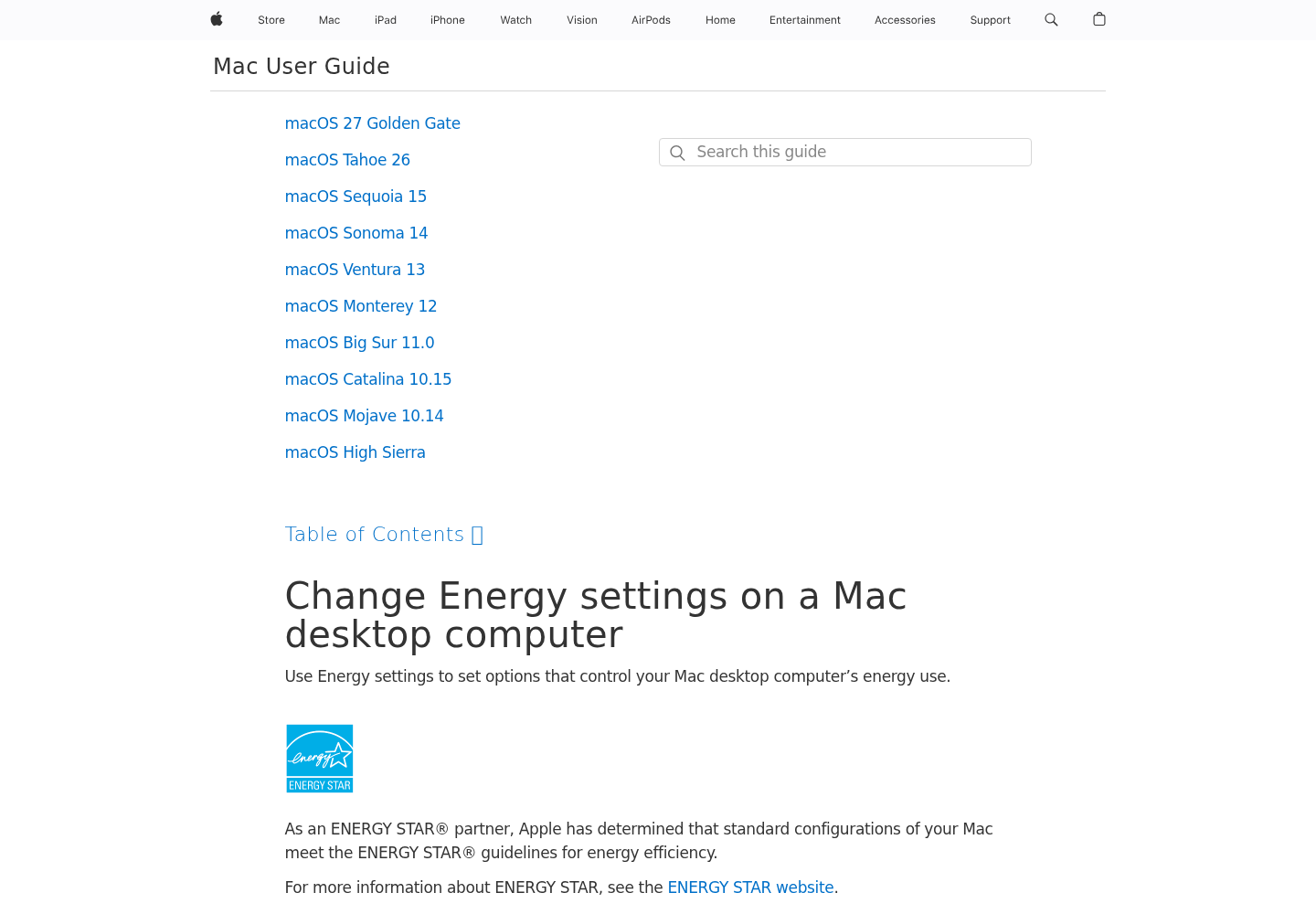
On a desktop Mac the controls live in one pane. Apple’s Energy settings page lists each option and what it does; the steps below set the ones that matter for a host and explain each choice. Before touching any toggle, write its current value into the Before column of your sheet.
- Log in with your admin account, choose Apple menu > System Settings, then click Energy in the sidebar. You may need to scroll down to find it.
- Turn on Prevent automatic sleeping when the display is off. Apple’s description is the whole point of the host: it prevents “your Mac from going to sleep automatically when its display is off.” The screen can go dark while the computer keeps running.
- Set Start up when power is connected to After power failure. The menu offers Never (press the power button), After power failure (turn on when reconnected if the Mac was on before the failure) and Always (turn on whenever power is connected). After power failure matches a host: it comes back after an outage but stays off if you deliberately shut it down and plug it in later. Older Macs show Start up automatically after a power failure instead; turn that on.
- Turn Wake for network access off. Apple describes it as waking a sleeping Mac “to provide access to shared resources, such as shared printers or Music playlists.” Your host is configured never to sleep, and Remote Control does not rely on inbound wakeups because its traffic is outbound. Leaving it off removes one source of surprise wakes, which Apple’s sleep troubleshooting page lists as “other users may be waking your Mac remotely.” If you turn it on for a reason of your own, record that reason.
- Decide on Low Power Mode. Apple says it reduces energy usage “for computers that are always on (such as those used as servers)” and reduces fan noise. That describes this host. This guide does not measure its effect on agent run times, so if long builds feel slower with it on, switch it off and compare.
- Leave Enable Power Nap as it is. It covers mail and iCloud checks during sleep, and this Mac should not be sleeping.
- Open Lock Screen in the sidebar. Apple’s sleep and wake page puts Turn display off on power adapter when inactive there. Choose a short value such as 10 minutes. With step 2 on, the display turns off and the Mac keeps working.
Apple adds a fair warning: “Delaying, preventing, or allowing disruption of sleep may increase power consumption.” That is the trade you are making on purpose.
What you should observe: after the Lock Screen timer, the display goes dark. An SSH session opened afterwards (Step 2) still connects. If it does not, jump to the troubleshooting table before going further, because every later step assumes an awake Mac.
Laptop variant: a lid-closed MacBook on power
If you take the route from the X post and use a MacBook, the settings move to the Battery pane. Apple documents them on the same sleep and wake page:
- Connect the power adapter. The setting you are about to change is scoped to it.
- Choose Apple menu > System Settings, click Battery in the sidebar, then click Options. Record the current values in the Before column.
- Turn on Prevent automatic sleeping on power adapter when the display is off.
- Click the pop-up menu next to Wake for network access and choose Never, the same choice Apple’s troubleshooting page gives for stopping remote wakes on a laptop.
- In Lock Screen, set Turn display off on power adapter when inactive to a short value. The separate battery timer does not affect this setup.
Three caveats keep this honest. First, the setting’s name says power adapter, so assume it does not hold on battery; an unplugged laptop is not a host. Second, the selected Apple pages do not describe what closing the lid does to a running Mac, which is exactly the gap Firoz’s app targets. Treat lid-closed operation as unverified until the one-hour idle test later in this guide passes with the lid shut. Third, the Battery steps include no start-up-after-power-failure option. A laptop rides through a short outage on its battery, but what it does after the battery runs flat is not covered by these pages.
Step 2: Allow SSH for agentbox only
Remote Login is macOS’s SSH server. Apple’s Remote Login instructions let you limit it to named users, and that limit is the main security control in this guide. It also means you are about to overwrite someone’s existing access list, so record the whole Remote Login configuration first, not just whether it is on.
- On the Mac, choose Apple menu > System Settings, click General in the sidebar, then click Sharing.
- Click the info button next to Remote Login. Before changing anything, write four values into the Before column: whether Remote Login is on, the Allow access for choice (All users or Only these users), every user and group currently in the list, and whether Allow full disk access for remote users is on. If the list is long, a photo of the panel next to your sheet works too.
- Turn Remote Login on.
- Leave Allow full disk access for remote users off. Agents working in
~/work/shopdo not need the whole disk. - Click the Allow access for pop-up menu and choose Only these users. Click the add button at the bottom of the list, select
agentboxfrom Users & Groups, then click Select. Then delete every other entry from the list by selecting it and clicking the remove button, as Apple describes; you already recorded each one in step 2, so rollback can put them back. - Read the SSH command shown under the Remote Login: On indicator. On the illustrative host it reads
ssh agentbox@mini-agent-01.local; yours shows your own hostname or address. Apple notes the hostname can be an IP address or a domain name. - On the laptop, open Terminal and run the two connections in the block below: first the allowed account, then a different account such as your admin user.
- Judge the second attempt by its outcome rather than its wording. The exact error text comes from ssh rather than from Apple’s page; what matters is that no shell opens even with the correct password.
# From the laptop. Copy the exact command your Sharing pane shows.
ssh agentbox@mini-agent-01.local
# Expected: a password prompt for agentbox, then a shell prompt in agentbox's home folder. Type exit to leave.
ssh owner@mini-agent-01.local
# Expected: no shell, even with owner's correct password, because owner is not on the Only these users list.
Apple states plainly that “allowing remote login to your Mac can make it less secure.” Scoping it to one standard account is how you keep the exposure small. One side effect matters for testing: Apple’s troubleshooting page says people using shared services on your Mac can prevent it from sleeping, and Remote Login is a Sharing service. Close every SSH session before the idle test, or the test can pass for the wrong reason.
Step 3: Run a named Remote Control server
Remote Control has more preconditions than SSH, and most failures trace back to one of them. Do this preparation once, sitting at the Mac and logged in as agentbox:
- [ ] Run
claudeand use/loginto sign in through claude.ai. Without an eligible login,claude remote-controlexits with an error. - [ ] Make sure nothing in the shell environment or a settings file’s
envblock setsANTHROPIC_API_KEY,ANTHROPIC_AUTH_TOKENor anapiKeyHelper. Anthropic’s docs say these take precedence and produce “Remote Control requires claude.ai subscription auth.” - [ ] Make sure the session talks to api.anthropic.com directly: no Amazon Bedrock, Google Cloud’s Agent Platform or Microsoft Foundry routing, and no
ANTHROPIC_BASE_URLpointing at a gateway or proxy. - [ ] Make sure
CLAUDE_CODE_DISABLE_NONESSENTIAL_TRAFFICandCLAUDE_CODE_DISABLE_FEATURE_FLAGSare unset. Either one makes Remote Control unavailable. - [ ] Do not authenticate with a long-lived token from
claude setup-tokenorCLAUDE_CODE_OAUTH_TOKEN. Those can only make model requests and cannot establish Remote Control sessions.
The server is an ordinary process, and Anthropic’s limitations section is blunt about it: if you close the terminal or otherwise stop the claude process, “the session goes offline until you bring it back.” The supported path in this guide therefore starts the server in a Terminal window at the Mac, where nothing disconnects it, and leaves that window open:
- At the Mac, logged in as
agentbox, open the Terminal app. - Change into the project and start the server with a name, as shown in the block below.
- Answer the trust question with
y. In an untrusted directory the command asksTrust <directory>? [y/N]and saves ay, except in your home directory, where trust is never saved and the question returns on every run. Always start the server from the project folder. - Answer
Enable Remote Control? (y/n)withy. This one-time confirmation appears until you accept it. - Read the URL the server prints, or press the spacebar to show a QR code for your phone.
- On the phone, open the Claude app, tap Code, and find
mini-agent-01in the session list. Anthropic says Remote Control sessions show “a computer icon with a green status dot when online.” On the laptop, the same list is at claude.ai/code. - Send a harmless prompt, such as asking for a summary of the README. The server terminal shows connection status and tool activity while a remote session is active.
- Leave the Terminal window open and walk away. Do not quit Terminal or log out of
agentbox; either one stops the process. With Step 1 in place the display turns off and the server keeps running.
# At the Mac, as agentbox, in a Terminal window you will leave open.
cd ~/work/shop
claude remote-control --name "mini-agent-01" --spawn worktree
# First run only: answer y to the Trust prompt, then y to Enable Remote Control.
# Expected: a connection URL; spacebar toggles a QR code.
# The phone's session list shows mini-agent-01 with a green dot.
If you would rather start the server from your laptop, that works only inside a persistent terminal. Anthropic says that if you run claude from a terminal on a remote machine, you should “start it inside tmux or screen to keep the session running after you disconnect from SSH.” A server started in a plain SSH session stops the moment that SSH session closes. Treat this as an option for readers who already run tmux or screen, per the prerequisite above; the commands are the same cd and claude remote-control lines, typed inside your multiplexer session.
The name matters on a host. Without --name, Claude Code generates titles from the machine’s hostname, in the docs’ example myhost-graceful-unicorn, which is harder to spot on a phone at night. Two other flags are worth a deliberate choice. --spawn controls how on-demand sessions are created: the default same-dir mode puts every session in the same working directory, which the docs warn “can conflict if editing the same files,” while worktree gives each on-demand session its own git worktree and requires a git repository. That is why the example passes --spawn worktree; drop it if ~/work/shop is not a git repository. --permission-mode sets the starting permission mode for the server’s sessions. Run claude remote-control --help on the host to see every flag your installed version accepts.
Remote Control runs on a handful of clocks, and they explain most morning-after surprises. The chart shows them on one scale.
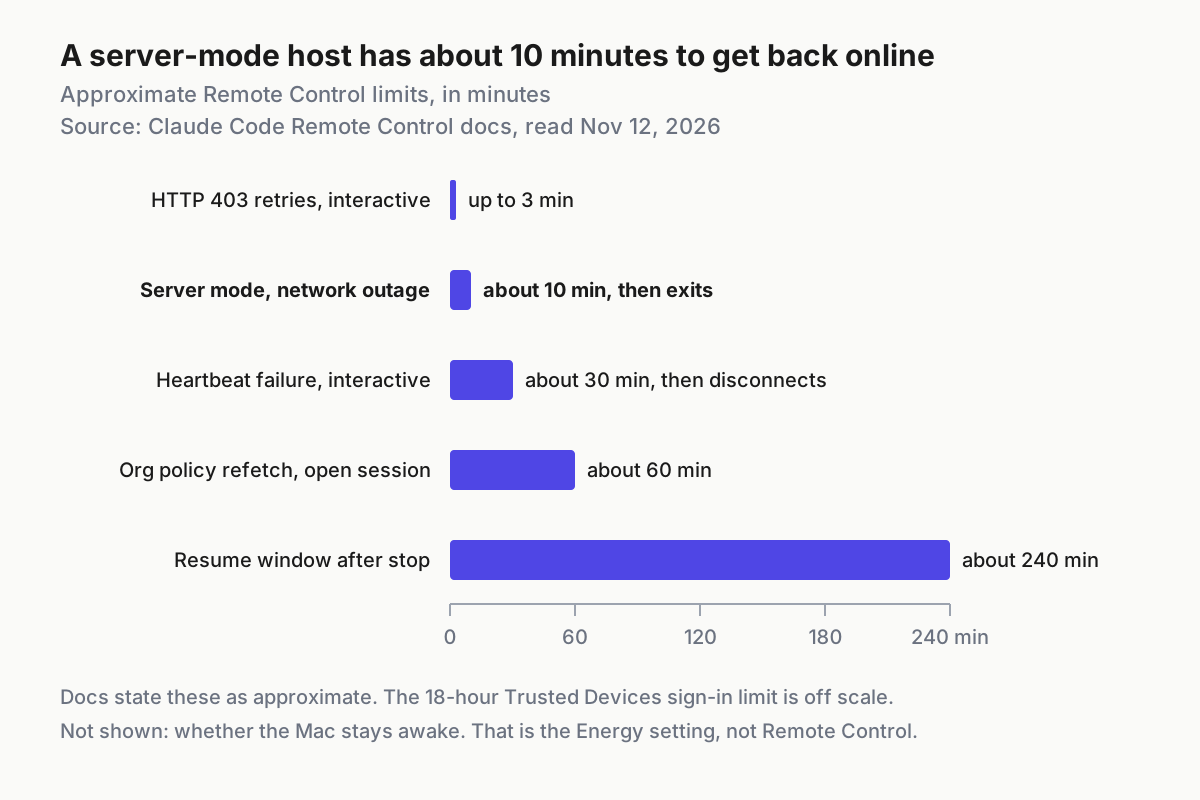
The most important bar is the second one. In server mode, if the machine is awake but cannot reach the network, Claude Code “gives up after roughly 10 minutes and the claude remote-control process exits.” An interactive session started with claude --remote-control instead retries for as long as the outage lasts. So an awake Mac is not enough: a Wi-Fi drop of fifteen minutes at 3 a.m. ends a server-mode host. A wired network connection removes one common cause. That is our recommendation, not a documented requirement.
When the server is gone
You know the process has stopped when the phone shows mini-agent-01 offline and the Terminal window at the Mac has returned to a shell prompt or is closed (or, on the SSH option, your multiplexer no longer lists the session). Recover in the same directory:
- Run
claude remote-control --continue. Anthropic says this “brings back only the session the server started with” and works “for about four hours after the server stopped.” - Check the phone. If
mini-agent-01is back with its earlier conversation, you are done. - If no earlier session comes back, run
claude remote-control --name "mini-agent-01" --spawn worktree, the same command without--continue. Within the four-hour window it brings back every session the server was serving; after the window it starts a new session, and the old conversation is not restored.
cd ~/work/shop
claude remote-control --continue   # first try: the session the server started with
claude remote-control --name "mini-agent-01" --spawn worktree   # only if nothing came back
The docs describe resuming after a Ctrl+C stop; whether --continue finds the session after a crash or power cut is not spelled out, which is why the command without --continue is the explicit fallback. To diagnose eligibility problems, run claude doctor; to see connection detail, restart with claude remote-control --verbose. If your organization requires Trusted Devices, expect a Face ID, Touch ID or passkey prompt on your phone when your sign-in is more than 18 hours old.
Two related guides cover the edges of this step. The phone side of Remote Control, including disconnect messages, is in Claude Code Remote Control: Set It Up From Your Phone and Fix Disconnects. What Anthropic stores while a session is connected, the transcript included, is covered in Runs Locally Is Not Stays Local.
Step 4: Sign Codex in without a local browser
Codex’s normal ChatGPT sign-in opens a browser and receives the credentials on a localhost callback. Over SSH there is no browser on your side of that callback. OpenAI’s Codex authentication page recommends device code authentication, currently marked beta, for exactly this case. Unlike the Remote Control server, the sign-in is a one-off command, so a plain SSH session is fine: the credentials stay cached after you disconnect.
- Enable device code login first: in your ChatGPT security settings for a personal account, or in ChatGPT workspace permissions if you are a workspace admin. If your workspace does not allow it, skip to the fallbacks below.
- SSH in as
agentboxand run the device code login, shown in the first block below. - Open the printed link in a browser on your laptop or phone, sign in, then enter the one-time code.
- Back on the host, confirm the result with
codex login status, which OpenAI says shows “the active authentication method.”
# On the host, as agentbox.
codex login --device-auth
# Expected: a link and a one-time code. Finish sign-in on another device.
codex login status
# Expected: the active method is the ChatGPT sign-in you just completed.
If you prefer usage-based billing, sign in with an API key instead. OpenAI bills it at standard API rates rather than included ChatGPT plan credits:
printenv OPENAI_API_KEY | codex login --with-api-key
When device code login is unavailable, OpenAI documents two fallbacks. The first copies a working login cache from a machine with a browser. Run codex login on your laptop, confirm ~/.codex/auth.json exists, then copy it:
# From the laptop, after a normal codex login there.
ssh agentbox@mini-agent-01.local 'mkdir -p ~/.codex'
scp ~/.codex/auth.json agentbox@mini-agent-01.local:~/.codex/auth.json
Treat that file like a password, because it contains access tokens. If your laptop keeps Codex credentials in the operating system’s credential store rather than in auth.json, this method may not apply. The cli_auth_credentials_store setting in config.toml accepts file, keyring, auto or ephemeral; keyring fails when the store is unavailable, and auto falls back to auth.json.
The second fallback tunnels the browser callback. Start ssh -L 1455:localhost:1455 agentbox@mini-agent-01.local from the laptop, run codex login inside that session, and open the printed address on your laptop. Either way, OpenAI says sign-in-with-ChatGPT sessions refresh their tokens automatically during use, and direct codex login runs write a codex-login.log file under your configured log directory for debugging.
Step 5: Choose your reboot behavior before the power cut
Two decisions shape what happens when the power comes back: which Mac you use, and whether FileVault or automatic login wins. Make both on purpose, then test them.
| Question | Dedicated Mac mini | Lid-closed MacBook on power |
|---|---|---|
| Stay-awake setting | Energy > Prevent automatic sleeping when the display is off | Battery > Options > Prevent automatic sleeping on power adapter when the display is off |
| After a power cut | Start up when power is connected: After power failure | Battery carries short outages; no start-up option in the selected Battery steps |
| Lid closed | Not applicable | Not documented in the selected Apple pages; prove it with the idle test |
| Also your daily laptop | No, so settings stay put | Yes: every unplug or trip changes the host |
| Choose it when | You want an overnight host you stop thinking about | You run agents occasionally and accept more checks |
The second decision is a real trade-off. Apple’s automatic login article says that when the automatic login menu is dimmed, manual login is required, and the first example it gives is “FileVault is turned on.” You cannot have both. Turning FileVault off does not log anyone in by itself, either: automatic login happens only after you choose an account from the Automatically log in as menu in Users & Groups and enter its password, and it stays unavailable when a supervision profile prohibits it or the account uses an Apple Account password to log in.
| Choice | What happens at startup | Main risk | Pick it when |
|---|---|---|---|
| FileVault on, manual login | The Mac waits for someone to log in at the Mac | A power cut at night means no agents until you sign in | The Mac holds your Claude and Codex logins and is not in a locked room |
| FileVault off and Automatically log in as set to agentbox | macOS logs in to agentbox during startup | Anyone with physical access gets a logged-in session holding those credentials | The Mac sits somewhere physically secured and unattended recovery matters more |
| FileVault off but automatic login not set, or blocked | The Mac waits at the login window, as with FileVault on | You lose disk encryption without gaining unattended login | Avoid: it combines the drawbacks of both rows above |
Apple also notes that even with automatic login you may still need a password after waking from sleep or when the screen saver stops; the Lock Screen setting “Require password after screen saver begins or display is turned off” controls that. Neither choice starts the agents: after any login, someone still has to run claude remote-control again. For mini-agent-01 we kept FileVault on and accepted a manual sign-in after outages, because the Mac stores two sets of access tokens and the server is started at the Mac anyway.
One gap to test rather than assume: the selected Apple pages do not say whether SSH reaches a FileVault-protected Mac before anyone logs in at startup. Find out during the restart test, not during an outage.
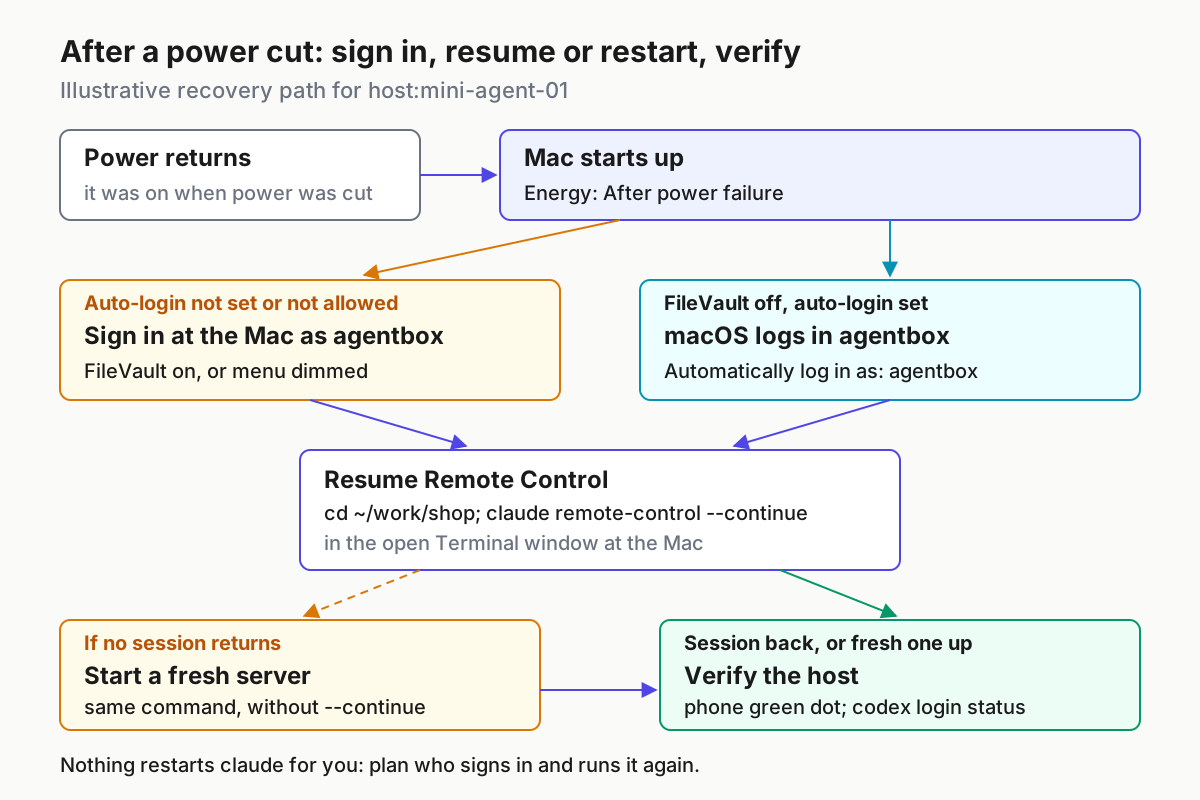
Run the restart test once while you are at home:
- Confirm the server is online in the phone’s session list and
codex login statuslooks right. - With the Mac running, disconnect its power cord, wait about a minute, then reconnect it. If you would rather not cut power to a running Mac, use Apple menu > Restart instead; that tests the login half but not the power-on half.
- Watch the Mac start by itself. With FileVault on, it stops at the login window until you sign in at the Mac. From the laptop, try
ssh agentbox@mini-agent-01.localat this point and write down whether it connects. - Sign in at the Mac as
agentbox(or, if you configured automatic login, confirm it logged in), open Terminal, runcd ~/work/shop, thenclaude remote-control --continue. - If the phone shows the earlier
mini-agent-01session again, note “resumed”. If no session comes back, runclaude remote-control --name "mini-agent-01" --spawn worktreeand note “fresh start”. - From the laptop, SSH in and run
codex login status; check the phone for the green dot. - Write the outcome and the time each step took into your settings sheet.
Nothing in this setup restarts the agents for you. A launchd job could, but launchd is outside the selected documentation and this guide does not cover it.
Worked example: the mini-agent-01 settings sheet and run
Here is the filled settings sheet for the illustrative host. The Before column is illustrative too: it shows what one Mac reported before setup, and yours will differ. Fill your own Before value immediately before each change; rollback reads from that column. If your Allow access for value was already Only these users, write out every entry, for example Only these users: owner, buildbot, so each one can be added back.
| Setting | Where | Before (illustrative) | mini-agent-01 value | Why |
|---|---|---|---|---|
| Prevent automatic sleeping when the display is off | Energy | Off | On | Display sleeps, Mac keeps working |
| Start up when power is connected | Energy | Never | After power failure | Returns after outages, stays off after a deliberate shutdown |
| Wake for network access | Energy | On | Off | Host never sleeps; removes remote wakes |
| Low Power Mode | Energy | Off | On | Quiet room; switch off if builds feel slow |
| Turn display off on power adapter when inactive | Lock Screen | 20 minutes | 10 minutes | Saves the screen, not the session |
| Remote Login | General > Sharing | Off | On | SSH is the inbound path |
| Allow access for | Remote Login options | All users | Only these users: agentbox | One standard account over SSH |
| Allow full disk access for remote users | Remote Login options | Off | Off | The repo does not need the whole disk |
| FileVault | Privacy and security settings | On | On | Two sets of tokens live on this Mac |
| Automatically log in as | Users & Groups | Off (dimmed) | Off (dimmed) | Consequence of FileVault on |
| Remote Control | ~/work/shop | Not running | claude remote-control --name "mini-agent-01" --spawn worktree in a Terminal window at the Mac, left open |
Named server that no SSH disconnect can stop |
| Codex sign-in | CLI | Not signed in | codex login --device-auth, ChatGPT |
No browser on the host |
And here is the run, row by row. Every expected result is an illustrative expected observation based on the documentation, not a captured test log.
| Input | Action | Expected result |
|---|---|---|
| host:mini-agent-01 case energy-01: Mac mini, signed in as the admin user, Energy values written in the Before column (Off, Never, On, Off) | In Energy, turn on Prevent automatic sleeping when the display is off, set Start up when power is connected to After power failure, turn off Wake for network access | The pane shows the three new values; after the Lock Screen timer the display goes dark and the Mac keeps running |
| host:mini-agent-01 case lock-02: Lock Screen, Turn display off on power adapter when inactive recorded as 20 minutes | Change it to 10 minutes | Ten idle minutes later the display turns off while the agent output in the Terminal window keeps advancing |
| host:mini-agent-01 case ssh-03: Remote Login recorded as Off, Allow access for recorded as All users, full disk access recorded as Off, standard account agentbox exists | General > Sharing > Remote Login on, full disk access off, Allow access for: Only these users, add agentbox, remove every other entry | Remote Login: On appears with ssh agentbox@mini-agent-01.local shown beneath it and agentbox as the only list entry |
| host:mini-agent-01 case ssh-04: laptop on the same network | Run ssh agentbox@mini-agent-01.local and enter agentbox’s password |
A shell prompt in agentbox’s home folder |
| host:mini-agent-01 case ssh-05: same laptop, admin account named owner | Run ssh owner@mini-agent-01.local with owner’s correct password |
No shell: owner is not on the Only these users list |
| host:mini-agent-01 case rc-06: agentbox signed in to Claude Code with a claude.ai Max plan, at the Mac in a Terminal window, in ~/work/shop, first run | Run claude remote-control --name "mini-agent-01" --spawn worktree, answer y to Trust and y to Enable Remote Control |
A URL prints, spacebar shows a QR code, and the phone lists mini-agent-01 with a computer icon and green dot |
| host:mini-agent-01 case rc-07: server from rc-06 running in its open Terminal window, every SSH session closed, display off | Wait 60 minutes, then ask from the phone for a summary of the README | The reply arrives on the phone; the Terminal window at the Mac shows the tool activity when you next look |
| host:mini-agent-01 case codex-08: device code login enabled in ChatGPT security settings | Over SSH as agentbox, run codex login --device-auth, open the link on the laptop, enter the one-time code |
codex login status reports the ChatGPT sign-in as the active method |
| host:mini-agent-01 case boot-09: FileVault on, power cord pulled for 60 seconds, then reconnected | Wait for startup, sign in at the Mac as agentbox, open Terminal, run claude remote-control --continue in ~/work/shop |
The Mac powers on by itself and waits at the login window; after sign-in, the earlier mini-agent-01 session shows a green dot on the phone again if --continue finds it |
| host:mini-agent-01 case boot-10: same restart, but the phone shows no earlier mini-agent-01 session after boot-09 | Run claude remote-control --name "mini-agent-01" --spawn worktree in ~/work/shop |
mini-agent-01 appears with a green dot; past the four-hour window it is a new session without the old conversation |
| host:mini-agent-01 case rb-11: rollback day, Before column filled (Remote Login Off, All users, full disk access Off) | Ctrl+C the server, run codex logout, set Allow access for back to All users and full disk access to Off, turn Remote Login off, then set each Energy and Lock Screen value back to its Before entry |
ssh is refused, codex login status no longer reports the ChatGPT sign-in, the Remote Login options read All users with full disk access Off, and the panes show Off, Never, On, Off and 20 minutes again |
Success checks after an hour idle
The host is done when all of these pass on the same evening:
- [ ] After one hour with the display off and no SSH session open,
ssh agentbox@mini-agent-01.localconnects on the first try. - [ ] The phone’s session list shows
mini-agent-01with a green dot, and a prompt sent from the phone gets a reply. - [ ]
codex login statusshows the method you chose: ChatGPT sign-in or API key. - [ ] An SSH attempt as any account other than
agentboxfails. - [ ] For a MacBook: the same three checks pass with the lid closed and the adapter connected.
- [ ] The restart test is done, the result is marked resumed or fresh start, and the FileVault or automatic-login decision is written in the settings sheet.
If you also want a ping when a long task ends, Remote Control can send phone push notifications once you enable them with /config; Claude Code Notification Setup (and Codex) covers that alongside Codex alerts.
Troubleshooting: when the host sleeps, refuses or signs out
Match the symptom, then apply the fix. Apple’s causes come from its sleep troubleshooting page; Claude and Codex messages are quoted from their documentation.
| Symptom | Likely cause | Fix |
|---|---|---|
| Mac sleeps anyway | Prevent automatic sleeping is off, or on a laptop the adapter was disconnected | Recheck Energy or Battery > Options; check the Lock Screen timers Apple lists first |
| Idle test passes only while you are logged in over SSH | Shared services in use can prevent sleep, so your open session masked the problem | Close every SSH session and repeat the hour |
| Mac wakes or will not settle | A background process, Spotlight indexing, a disk-reading app or a faulty USB or Thunderbolt device | Check Activity Monitor’s CPU view, wait for indexing, unplug devices one at a time; on Apple silicon, restarting resets the SMC |
| Automatically log in as menu is dimmed | FileVault is on, a supervision profile prohibits it, or the account uses an Apple Account password | Keep FileVault and plan a manual sign-in, or change the blocking condition knowingly |
| SSH refused for one user | That user is not on the Only these users list | Use agentbox, or add the user deliberately |
| Someone else lost SSH access after setup | Their entry was removed from the Only these users list in Step 2 | Add them back from the Before column, or restore the full list during rollback |
| “You must be logged in to use Remote Control” | No claude.ai sign-in for agentbox | Run claude auth login and choose the claude.ai option |
| “Remote Control requires claude.ai subscription auth” naming ANTHROPIC_API_KEY | An API key or token takes precedence | Remove the variable from the shell or the settings env block |
| “Remote Control is only available when using Claude via api.anthropic.com” | Bedrock, another cloud provider or a custom ANTHROPIC_BASE_URL | Unset the named variable and restart the session |
| “Remote Control requires a full-scope login token” | A claude setup-token or CLAUDE_CODE_OAUTH_TOKEN credential |
Run claude auth login |
| “Workspace not trusted” | The server started without a terminal, so it could not ask | Run it once interactively in the project and answer y |
| “Remote Control is disabled by your organization’s policy” | Owner toggle off, HIPAA or Zero Data Retention, a role gap, or a stale Team login on a personal plan | Run /status, then claude auth logout and claude auth login, or ask an Owner |
| Host offline in the morning | Server mode exited after about 10 minutes without network, the Terminal window was closed, or the server ran in a plain SSH session that ended | Follow “When the server is gone”: --continue first, the same command without --continue if nothing returns |
| Device code option missing or rejected | Device code login not enabled in ChatGPT settings or workspace permissions | Enable it, or use the auth.json copy or port-forward fallback |
| Codex logs you out and exits | Credentials do not match an admin’s forced login method or workspace | Sign in with the method and workspace your admin requires |
| Copied auth.json stops working | Stale or mismatched cache, or a keyring store expected | Run codex logout, then codex login --device-auth again; check cli_auth_credentials_store |
When several things fail at once, return to Step 1. Most cascades on a fresh host start with an unexpected sleep.
Rollback: return the Mac to a normal desktop
Work from the Before column of your settings sheet. Stop the agents first, then restore remote access exactly as you found it, then restore power settings, so nothing keeps running against a Mac you believe is idle:
- Stop the server. At the Mac, in the
agentboxTerminal window (or inside your multiplexer session if you used the SSH option), press Ctrl+C. Sessions stop responding on the phone; they are not archived and can be resumed for about four hours. To turn Remote Control off entirely, use thedisableRemoteControlsetting. - Run
codex logoutas agentbox to clear the stored credentials. If you copiedauth.jsonfrom the laptop, confirm the file is gone afterwards. - In General > Sharing, click the info button next to Remote Login and restore the access settings before you touch the on/off switch. Set Allow access for back to its Before value. If that value was Only these users, use the add button to put back every user and group you recorded, then select
agentboxand click the remove button unless it was on the original list. Set Allow full disk access for remote users back to its Before value. - Set Remote Login itself back to its Before value: Off on the illustrative host. If it was already on before this guide, leave it on; step 3 has already returned the original users their access and removed
agentbox. - In Energy, set Prevent automatic sleeping when the display is off, Start up when power is connected, Wake for network access and Low Power Mode to their Before values. On a MacBook, restore the two Battery > Options entries from the sheet.
- Set Turn display off on power adapter when inactive back to its Before value.
- If you enabled automatic login, set Automatically log in as back to its Before value. If you turned FileVault off to allow it, turn FileVault back on.
- Delete or keep the
agentboxaccount, depending on whether you plan to rebuild the host.
Verify the rollback against the sheet rather than against memory: the Remote Login options show the recorded Allow access for mode, list and full disk access value; ssh from the laptop is refused when Remote Login’s Before value was Off, and each originally allowed account connects again when it was On; codex login status no longer reports a stored sign-in; and each Energy and Lock Screen pane shows its Before value. Whether the Mac now sleeps on its own depends on those restored values; with the illustrative ones, it sleeps after the 20-minute display timer.
Where this host fits next
Once the Mac stays up, the work you send it can grow. Scripted, non-interactive runs fit Claude Code Headless Mode (claude -p). If your always-on machine runs Windows instead, the recovery questions differ, and Cold Restarts on Windows walks through them. And when one host becomes three, the questions shift from settings to operations: who owns each session, how you notice stalls and how you replay a bad night, which AgentOps: Running a Fleet of AI Agents lays out.
Sources
- Atique Firoz on X, November 11, 2026: post about running coding agents overnight on a Mac
- Apple Support: Change Energy settings on a Mac desktop computer
- Apple Support: Set sleep and wake settings for your Mac
- Apple Support: If your Mac sleeps or wakes unexpectedly
- Apple Support: Allow a remote computer to access your Mac
- Apple Support: How to log in automatically to a Mac user account
- Anthropic, Claude Code Docs: Continue local sessions from any device with Remote Control
- OpenAI: Codex Authentication