Foundry MCP Gateway: Route and Verify a Tool Call in Azure API Management
Configure a Foundry MCP gateway route for one read-only order lookup, approve the tool call, and verify the request in Azure API Management logs using KQL.

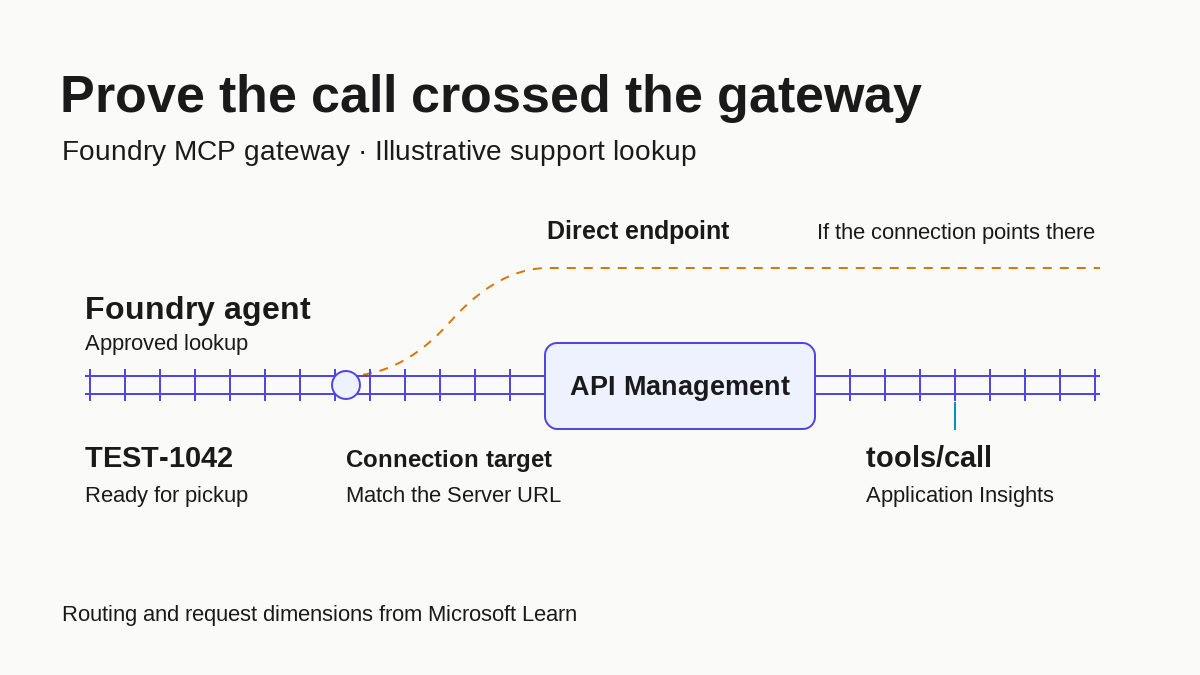
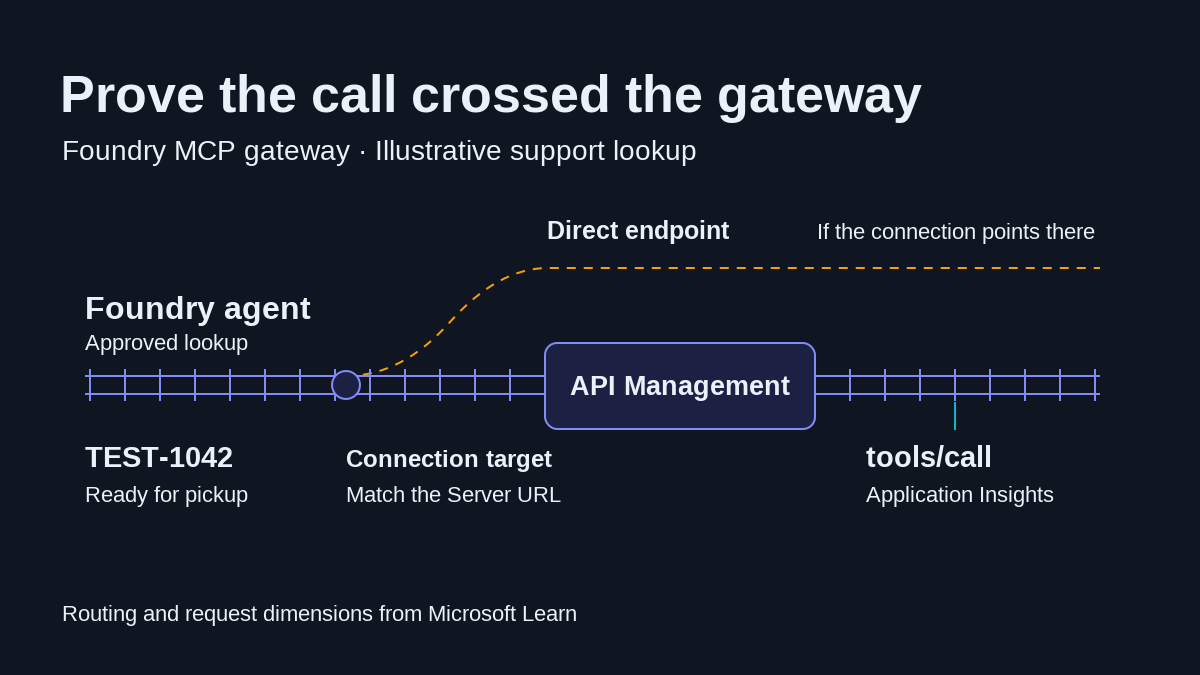
Your Foundry agent returns the right order status after you add a gateway. Did the request actually go through it? A Foundry MCP gateway test needs two observations. The agent invoked the intended tool with the intended argument, and Azure API Management recorded that invocation on the intended MCP server. A correct answer can survive an endpoint misconfiguration, particularly when an existing project connection still points at a direct MCP endpoint.
Use this tutorial if you manage a nonproduction Foundry project and an MCP-capable Azure API Management instance with Application Insights already linked. You’ll expose one read-only operation, attach it to a disposable prompt agent, approve one lookup, and check the gateway’s own request record. The example values and expected observations are illustrative. Follow them in your own test scope to collect a result.
The Azure Updates link associated with the November 24, 2026 public-preview listing returns the general updates index in the available capture. Microsoft’s November 17 Foundry governance reference documents the configuration used here. Register the route in the gateway first, then supply the complete gateway MCP endpoint in Foundry. Creating the gateway route leaves existing tool endpoints as configured. Azure Updates · Microsoft Learn gateway governance reference
Establish the order lookup baseline
Start with a nonproduction HTTP-compatible REST API managed by API Management. The example assumes its test backend implements GET /orders/{orderId} and lets you seed a synthetic record. For a backend you already operate but haven’t imported, use APIs → APIs → OpenAPI, select Full, supply the backend’s OpenAPI definition, and choose a unique API suffix such as support-orders-test with HTTPS as the scheme. Check the Web service URL and the operation template after import. API Management uses the operation path against the backend URL, so a mismatch there can produce a routing error before MCP enters the picture. Microsoft Learn API import and test procedure
- Seed the test record below using the existing backend’s fixture mechanism. Use exactly the seeded status, including its spelling. The fixture contains the only two fields this exercise needs. Keep the answer out of the agent instructions and prompt so you have an independent value to check at the end.
- In API Management, open the managed REST API and select Test, then choose
GET /orders/{orderId}. EnterTEST-1042as the path argument and select Send. Expect HTTP 200 and the two fixture values in the response. If the backend includes other synthetic fields, compare the order ID and status explicitly. - Record the REST result before creating the MCP server. A portal REST test can use the built-in all-access subscription key by default. It establishes the backend result and the managed REST operation’s behavior under that test credential. You will separately configure the narrower credential that Foundry will use for the MCP endpoint.
{
  "orderId": "TEST-1042",
  "status": "Ready for pickup"
}
If the REST request returns 404, inspect the operation path and the backend base URL together. A correct path template paired with the wrong base URL can send the lookup to a different deployment. If you get a successful response for the wrong order, correct the fixture or operation test before proceeding. Carrying that mismatch forward makes it hard to tell whether the agent supplied the wrong argument or the backend already served the wrong data.
Pick a quiet test scope. The walkthrough uses the API Management server name support-order-mcp-test and a fresh Foundry conversation. Give this test server its own name and avoid other calls to it during the measured attempt. The gateway metadata used below records the tool name and MCP session, while the order argument stays out of the default telemetry. Isolation and timing therefore provide the link between the reviewed Foundry invocation and the gateway row.
Expose the single read-only operation
- In the Azure portal, open the API Management instance at the service level. Under APIs, choose MCP Servers → + Create MCP server → Expose an API as an MCP server. This path uses a supported service tier and a managed REST API. Microsoft’s REST-to-MCP documentation lists supported tiers and says MCP server capabilities are unavailable in API Management workspaces.
- In Backend MCP server, select the test REST API or its intended API version. Select only the order lookup operation. Under New MCP server, enter
Support order lookup testas the display name andsupport-order-mcp-testas the name. If your test access is managed via a product, associate the server with the corresponding test product and use its scoped subscription. - Choose Create. Open the server’s Tools blade and confirm the lookup is the only exposed operation. Record the actual exposed tool name for the Foundry allowlist and the KQL filter. The examples below use
lookupOrderas that name. Substitute the name you see if it differs. - Copy the complete value in the Server URL column. The gateway hostname, the managed REST URL used in the baseline, and the MCP Server URL are different inputs. The last one includes the MCP route and is the value Foundry needs. Copy it from the server’s configuration so the example never depends on guessing the suffix.
Selecting one operation also makes the first approval easier to interpret. An approval showing a status update or a different lookup is a reason to stop and inspect the selected operations. If you accidentally exposed the full REST API, reopen the server’s Tools blade, reduce the selection to the lookup, and verify the resulting list before attaching it to Foundry. Microsoft Learn REST-to-MCP setup
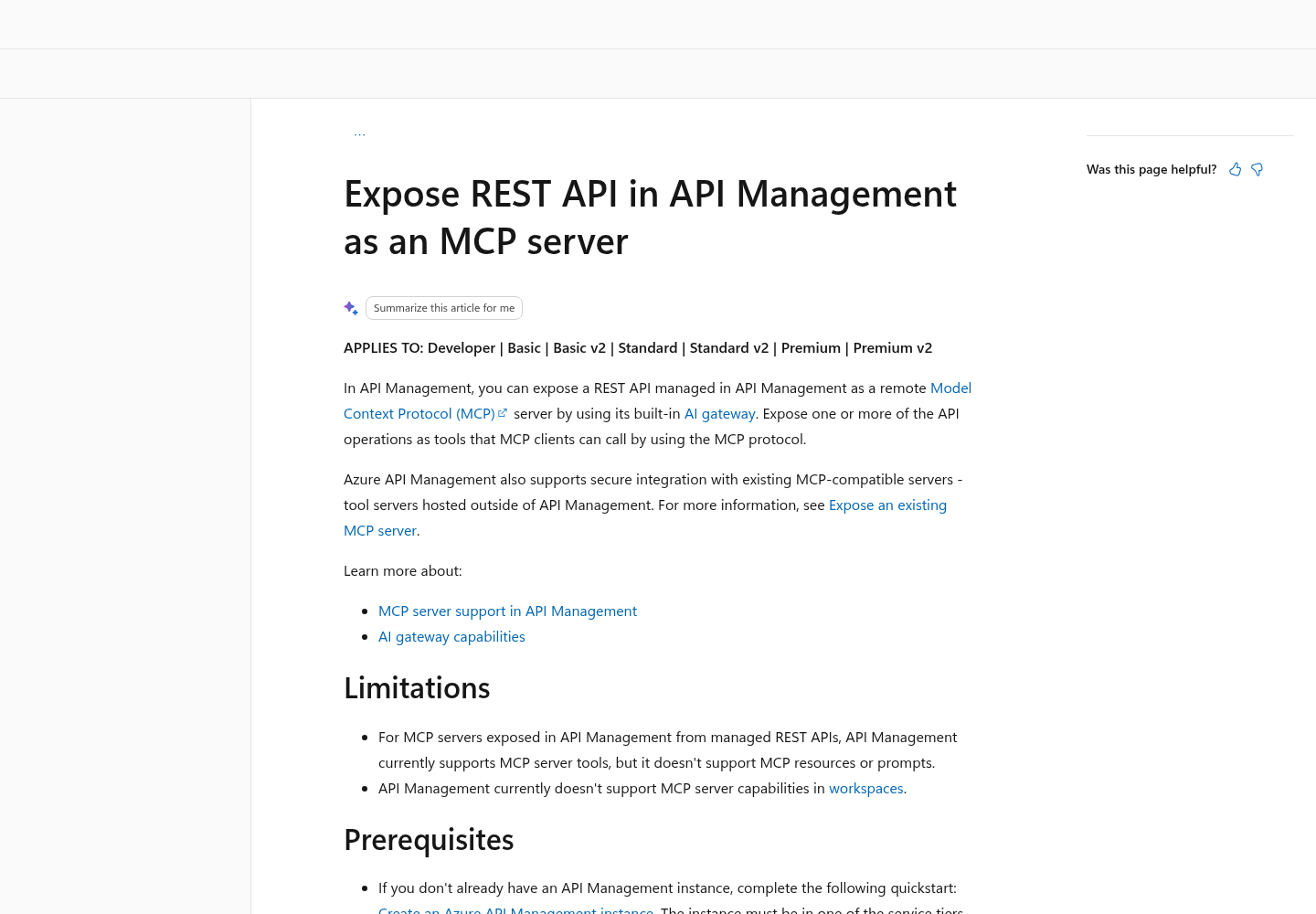
For this example, use a test MCP route configured to require an API Management subscription key. Choose a key whose scope covers the test server. The gateway expects Ocp-Apim-Subscription-Key on the inbound request. Treat backend authorization as a separate check. A valid subscription key authorizes the inbound request. Reuse the already working backend authorization for the gateway’s request to the managed backend in the test scope. Microsoft Learn guidance for securing MCP servers
Before making the timed call, open MCP Servers, select the test server, and inspect Settings → Diagnostic Logs. Confirm the intended Application Insights resource, and open that resource’s Logs view so you can run the requests query in the proper scope. Keep payload logging disabled. If API Management has global diagnostic logging enabled, check that frontend response payload bytes are set to zero at the All APIs scope. Microsoft documents that response-body logging can interfere with MCP streaming. For missing request rows, the Application Insights integration reference explains the difference between a linked logger and enabled diagnostics, and how sampling affects request visibility. MCP monitoring reference · Application Insights integration
Set the Foundry tool and connection to the same URL
- Open the intended nonproduction project. In the Foundry portal, go to Build → Tools → Custom → Model Context Protocol. Enter the complete MCP Server URL from API Management and select key-based authentication. Supply
Ocp-Apim-Subscription-Keyas the credential name and the scoped test key as the credential value. Foundry’s portal setup creates a project connection for the MCP tool. Keep the key in the connection and out of prompts, test notes, and copied configuration. - Record the test connection’s name and confirm its target uses the same scheme, host and complete MCP path as the tool’s
server_url. If a previously configured project connection is in use, inspect the named connection it actually references. When the connection target andserver_urldiffer, Foundry uses the connection endpoint. Point the disposable agent at the new gateway-targeted connection if the old connection is used elsewhere. - Attach only this custom MCP tool to a new prompt agent,
support-order-route-check. Restrict the tool selection to the exposed lookup and keep per-call approval enabled. For an SDK-managed agent the corresponding setting isrequire_approvalset toalways. A nonemptyallowed_toolslist restricts the tools by exact name. An empty list allows all exposed tools. Foundry MCP setup and approval reference
If you use the SDK to define the prompt agent, these are the values that matter at runtime. The URL here illustrates its shape. Enter the actual copied Server URL and the actual name of the key-based connection created for your test.
from azure.ai.projects.models import MCPTool

lookup = MCPTool(
    server_label="support-orders",
    server_url="https://example-test.azure-api.net/support-order-mcp-test/mcp",
    project_connection_id="support-order-route-check-conn",
    allowed_tools=["lookupOrder"],
    require_approval="always",
)
The MCP-specific Foundry setup reference calls for Foundry User to create and test agents and Foundry Project Manager when you create a project connection for MCP authentication. Access to the Foundry project and permission to use the downstream service are separate. If you updated a key-based connection during setup, the authentication reference documents a default connection cache duration of two minutes. After a key update, allow the cache to expire and test in a fresh conversation. Foundry MCP authentication and endpoint precedence
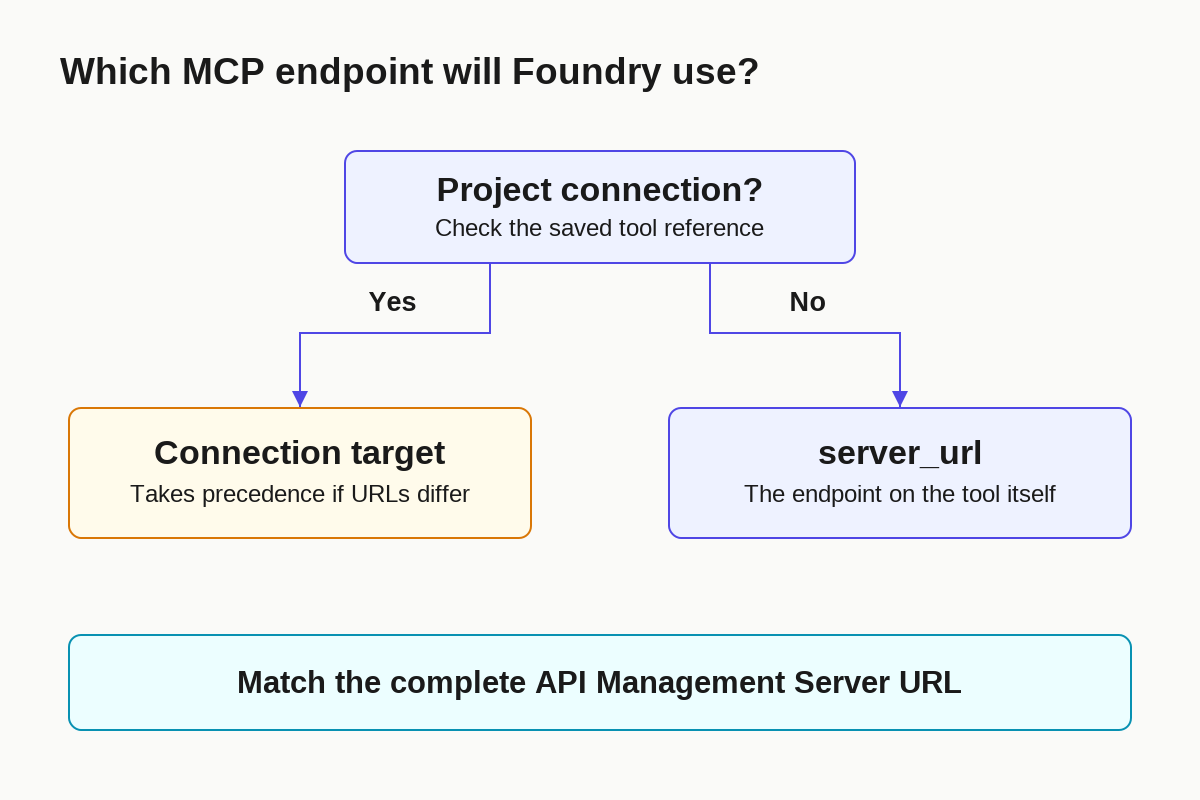
There is a practical reason to give the disposable connection a new name. A cloned agent can still reference the same shared connection as its predecessor. Changing that target would change the endpoint selection for other consumers of the connection. Checking the agent’s actual reference before editing gives you an isolated test and a specific resource to remove afterward. For a separate look at checking the agent before deployment, see Foundry Agent Local Testing.
Approve one order lookup and read the tool result
- Start a fresh conversation on the disposable agent. Record the UTC start time and use the prompt below. Keep open the same conversation while you review and approve. If you’re using the Responses API, the approval appears as
mcp_approval_request. Review its server label, tool and arguments. Submit anmcp_approval_responsewith the request item ID asapproval_request_id, in the same conversation. - Approve only the configured lookup with the synthetic ID
TEST-1042in the field corresponding to the REST operation’sorderIdparameter. Match the actual argument schema advertised by the tool. Reject a different order ID, a second operation, or a request on a different server. If the model answers directly and never requests the call, prompt again in a fresh conversation after checking that the tool is attached and its exposed name matches the allowlist. - After approval, inspect the tool result in the response or trace available to your client. Compare the returned order ID and status with the baseline, then confirm the assistant’s wording faithfully reflects the result. Record the UTC finish time. If the reply is correct but you can’t establish that the tool was invoked, keep the result open and inspect the call record before running a second attempt.
Use the support order lookup tool to look up order TEST-1042. Report the order ID and its current status from the tool result.
| Input | Action | Expected result |
|---|---|---|
task:order-lookup-01, order TEST-1042, seeded status Ready for pickup, test MCP server support-order-mcp-test |
Send the supplied prompt in a fresh Foundry conversation. Approve only the lookupOrder request for TEST-1042, then run the Application Insights query for that server and attempt window. |
The lookup returns TEST-1042 with Ready for pickup. A matching tools/call row for lookupOrder in the isolated window shows that API Management handled the MCP invocation. |
A human-approved request ties the arguments to this run. Save the approval item ID or the equivalent record your client exposes alongside the UTC window. That identifier helps you find the Foundry side of the test again. The Application Insights gen_ai.conversation.id field is the MCP session ID. Keep it separately from the Foundry conversation ID or approval item ID. The supplied schema gives each of those fields a different role. For an adjacent example of verifying the arguments even when an answer looks plausible, see Backtesting a Wrong Order Lookup.
Find the invocation in Application Insights
- In the Application Insights resource linked to API Management, open Logs. Use the resource context where the documented
requeststable is available. Replace the sample timestamps with a short UTC interval around your actual invocation. Keep the server value exactly as configured in API Management. The server label you entered in Foundry is a separate identifier. - Run the query below. It is adapted from Microsoft’s MCP monitoring query for listing tool calls, with an explicit time window and exact tool filter. Retain both successful and failed requests so you can see whether the gateway observed an attempt that returned an error.
- Compare the timestamp and tool against the recorded Foundry invocation. Check the
successand error fields alongside the actual tool result. If several candidate rows remain and you cannot attribute one to the approved test, repeat once in a quiet window with the dedicated server and no competing client traffic. Keep the first attempt marked unverified.
requests
| where timestamp between (datetime(2026-11-25T16:02:00Z) .. datetime(2026-11-25T16:04:00Z))
| where customDimensions["api.type"] == "Mcp"
  and customDimensions["service.name"] == "support-order-mcp-test"
  and customDimensions["gen_ai.operation.name"] == "tools/call"
  and customDimensions["gen_ai.tool.name"] == "lookupOrder"
| project timestamp,
          tool = tostring(customDimensions["gen_ai.tool.name"]),
          session = tostring(customDimensions["gen_ai.conversation.id"]),
          durationMs = duration,
          success,
          errorType = tostring(customDimensions["error.type"]),
          errorMessage = tostring(customDimensions["error.message"])
| order by timestamp desc
The API type check selects MCP records. The server and operation filters distinguish the exact MCP server from other servers and tools/call from discovery. The tool name filter narrows the records to the lookup. The interval belongs around the approved invocation. If you used the REST test console a few minutes earlier, its successful response belongs to the baseline. Microsoft Learn MCP telemetry schema and query examples
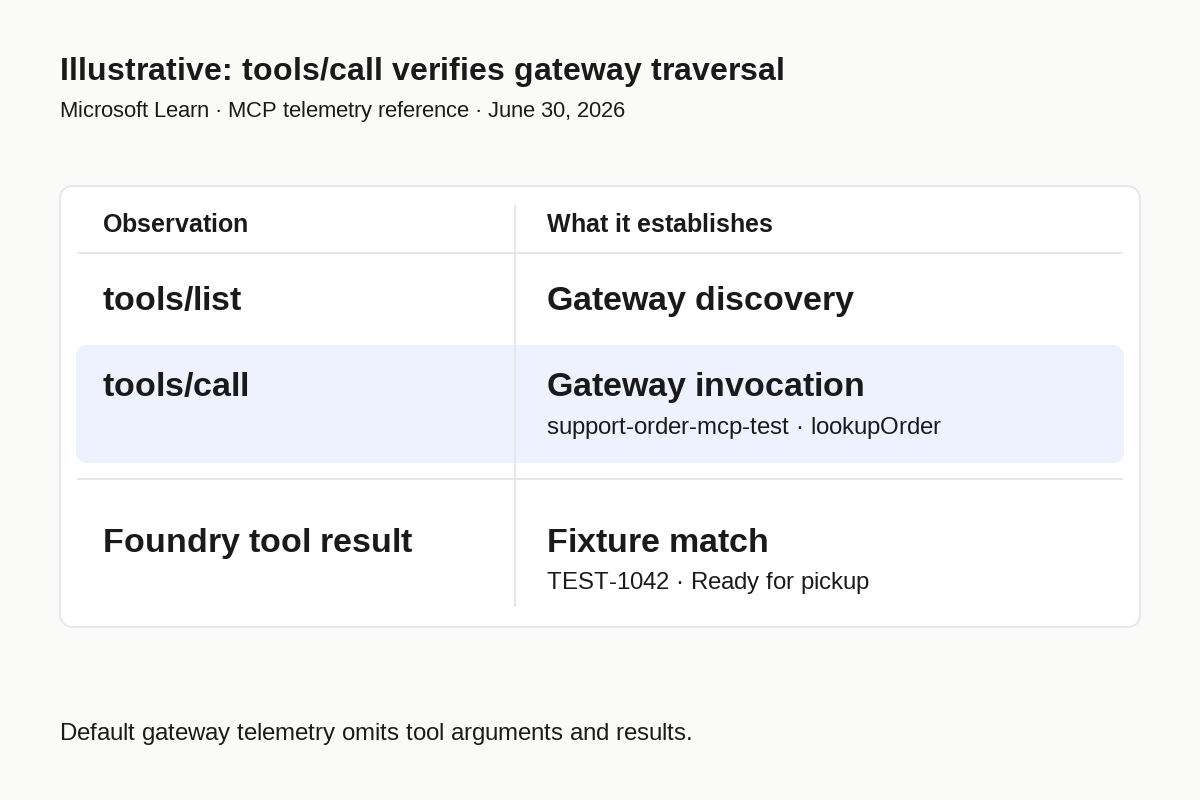
Treat a matching tools/call row with gateway success as evidence that API Management handled the lookup in the isolated attempt. Check the response against the fixture even when that gateway status is successful. The approved arguments and the returned tool data supply the checks for order ID and status while payload logging is off. If you see only tools/list, discovery reached the gateway and the invocation remains unverified. If you see a matching failed call, the gateway observed it and the lookup still needs repair.
Save the result in a compact note with the test case, server name, actual tool name, approved order argument, returned status, UTC window, gateway timestamp, session ID if present, and decision. Include whether any other caller used that server during the interval. You can repeat the test after a change using the same synthetic input and a fresh window. For the wider operating practice of retaining enough context to reconstruct agent actions, see AgentOps and You Can’t Replay What You Can’t See.
Diagnose an unverified route or restore the test policy
| Observation | Check | Next action |
|---|---|---|
| Correct tool result, zero matching rows | Inspect the resolved project connection target, the logger destination, and the UTC window | Mark the route unverified until a fresh approved invocation has a corresponding gateway record |
Gateway shows tools/list only |
Check the approval output and the response after approval | Continue in the same conversation with the correct approval request item ID, or restart the test with a fresh window |
| Matching failed call after an MCP policy edit | Inspect error.type and error.message and compare the saved policy XML |
Restore the prior test-scope policy and rerun with the same order and connection |
For a correct result with no rows, start with the configuration that can redirect the entire invocation. Reopen the saved tool and the connection it references. A direct target in that connection takes precedence even when the tool already shows a gateway URL. Correct the dedicated connection or attach a new one targeting the copied Server URL. Then confirm that Application Insights is receiving records for the intended API Management instance. A logger can be linked to one resource while you are querying another, and a more granular logger can override the global destination. If sampling can omit the single success you are looking for, review the diagnostics setting for the isolated test scope with its owner.
If both the endpoint and the destination line up, widen the time interval briefly and remove the exact tool-name filter, keeping the server predicate. This can surface an unexpected operation name or an invocation you excluded with the wrong time window. To check discovery, temporarily remove the tools/call predicate as well and project customDimensions["gen_ai.operation.name"]. Use the result to correct the query, then restore the narrow invocation filters for the verification attempt. If the lone matching record still cannot be attributed to the approved call, keep the unverified verdict.
For a failure after a policy change, keep endpoints, credentials and the fixture fixed as you roll back. Open APIs → MCP Servers, select the test MCP server, and choose MCP → Policies. Restore the policy XML saved before the change, at the same scope, and save. Retest TEST-1042 in a fresh conversation with the same approval check and a new query window. A successful invocation after restore gives you a concrete before-and-after comparison to inspect. If it still fails, check inherited policies and authentication before another edit. In particular, inspect added rate limits or IP conditions and check whether any new header handling interferes with a required credential. Keep response-body access out of MCP policies because reading it can break streaming. MCP server policy setup · API Management policy editing and inheritance
Remove the disposable agent and connection
- Save the test verdict and relevant identifiers without credentials or additional payload data. Delete the test conversation and the disposable agent version using your Foundry client’s cleanup operations. In Microsoft’s Python prompt-agent example these are
openai.conversations.delete(conversation_id=conversation.id)andproject.agents.delete_version(agent_name=agent.name, agent_version=agent.version). - Check that no other agent or toolbox references the test connection. If you can establish that it was created solely for this attempt, remove it from the intended project. With the intended project active in Azure Developer CLI and the connection name confirmed, the documented removal command for this example is
azd ai connection delete support-order-route-check-conn --force --no-prompt. If another resource references it, leave it available until that dependency is resolved. Microsoft Learn prompt-agent and connection cleanup - If you changed test diagnostics or policies for the exercise, restore the prior settings at that scope. Retain the lookup route only if it is still needed by your nonproduction integration. The result to carry forward is the verified server and tool for this attempt, together with the evidence linking the invocation to the gateway. For decisions about where this gateway fits in the rest of the stack, see The Agent Gateway Is the Control Plane for Enterprise Agents.
Sources
- Microsoft Learn — Govern MCP tools by using a gateway
- Microsoft Azure — Azure Updates index for update ID 581498
- Microsoft Learn — Expose REST API in API Management as an MCP server
- Microsoft Learn — Connect agents to Model Context Protocol servers
- Microsoft Learn — Set up authentication for MCP tools
- Microsoft Learn — Monitor MCP server traffic
- Microsoft Learn — Secure access to MCP servers
- Microsoft Learn — Integrate API Management with Application Insights
- Microsoft Learn — Import and publish your first API
- Microsoft Learn — Set or edit Azure API Management policies