Gemini in Apps Script and clasp With Claude Code or Codex: Build a Weekly Overdue-Rows Email, Check OAuth Scopes and Test on a Copy
Use Gemini in Apps Script or clasp with Claude Code or Codex to build a weekly overdue-rows email, pin OAuth scopes, add one trigger and test on a sheet copy.

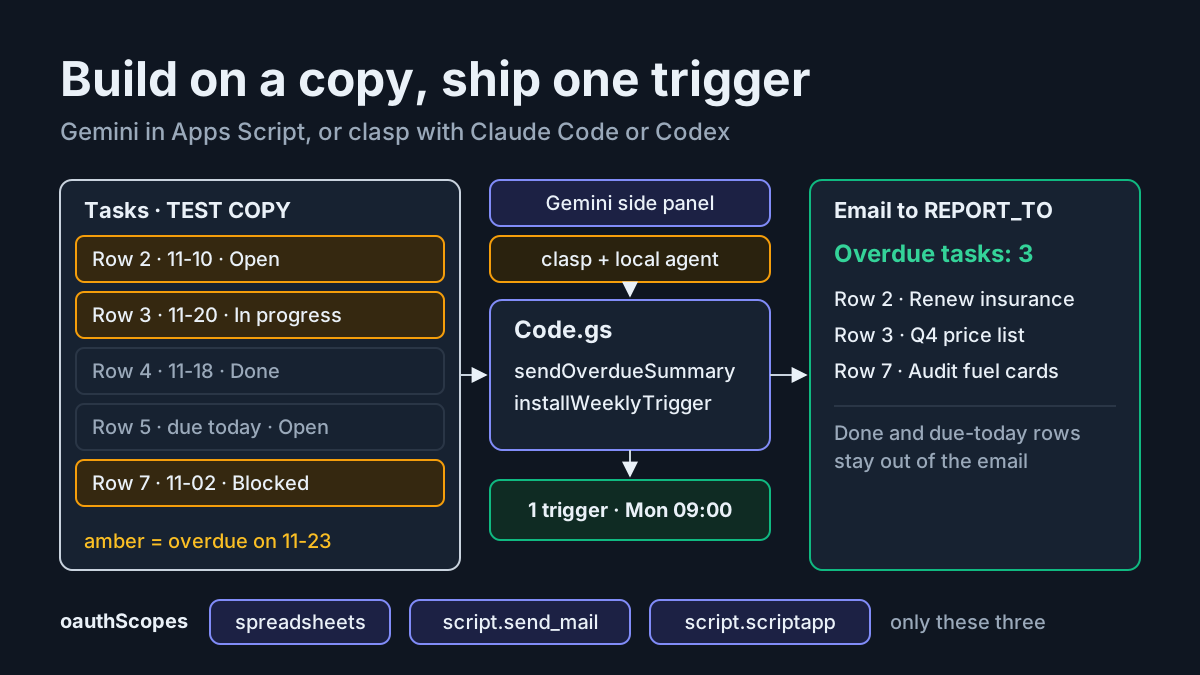
Gemini in Apps Script can now write the script that ends the Monday-morning scroll through your task tracker looking for rows past their due date. If you would rather work in a terminal, the open-source clasp CLI lets Claude Code or Codex edit the same project locally. Either way, the code is rarely what goes wrong. The risky moments are the first run, when the script asks for permission to read your spreadsheets and send mail as you, and the week after, when a time-driven trigger runs with nobody watching.
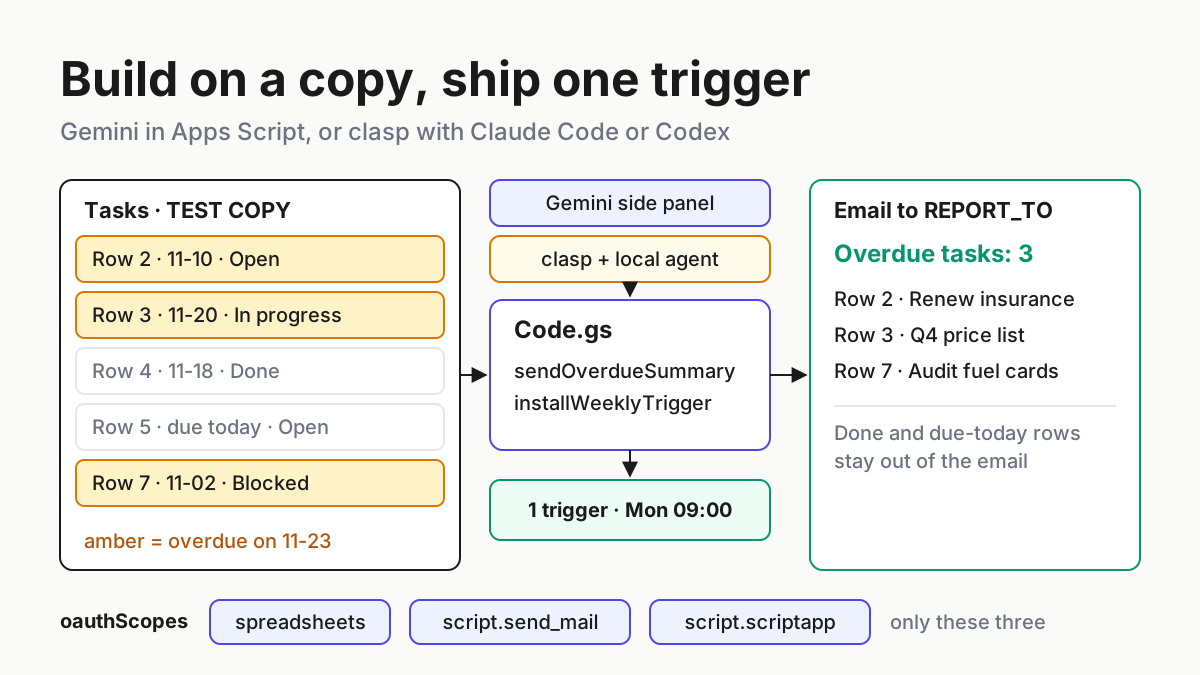
This guide builds one concrete automation two ways and ships it the same careful way. The result is a script that reads a test copy of a Google Sheet, finds every row whose due date has passed and whose status is not Done, and emails a plain-text summary once a week. You will pin its OAuth scopes in the manifest so the consent screen asks for exactly three permissions, install exactly one weekly trigger, verify the output against a fixture where you already know the right answer, and keep a rollback that leaves nothing running.
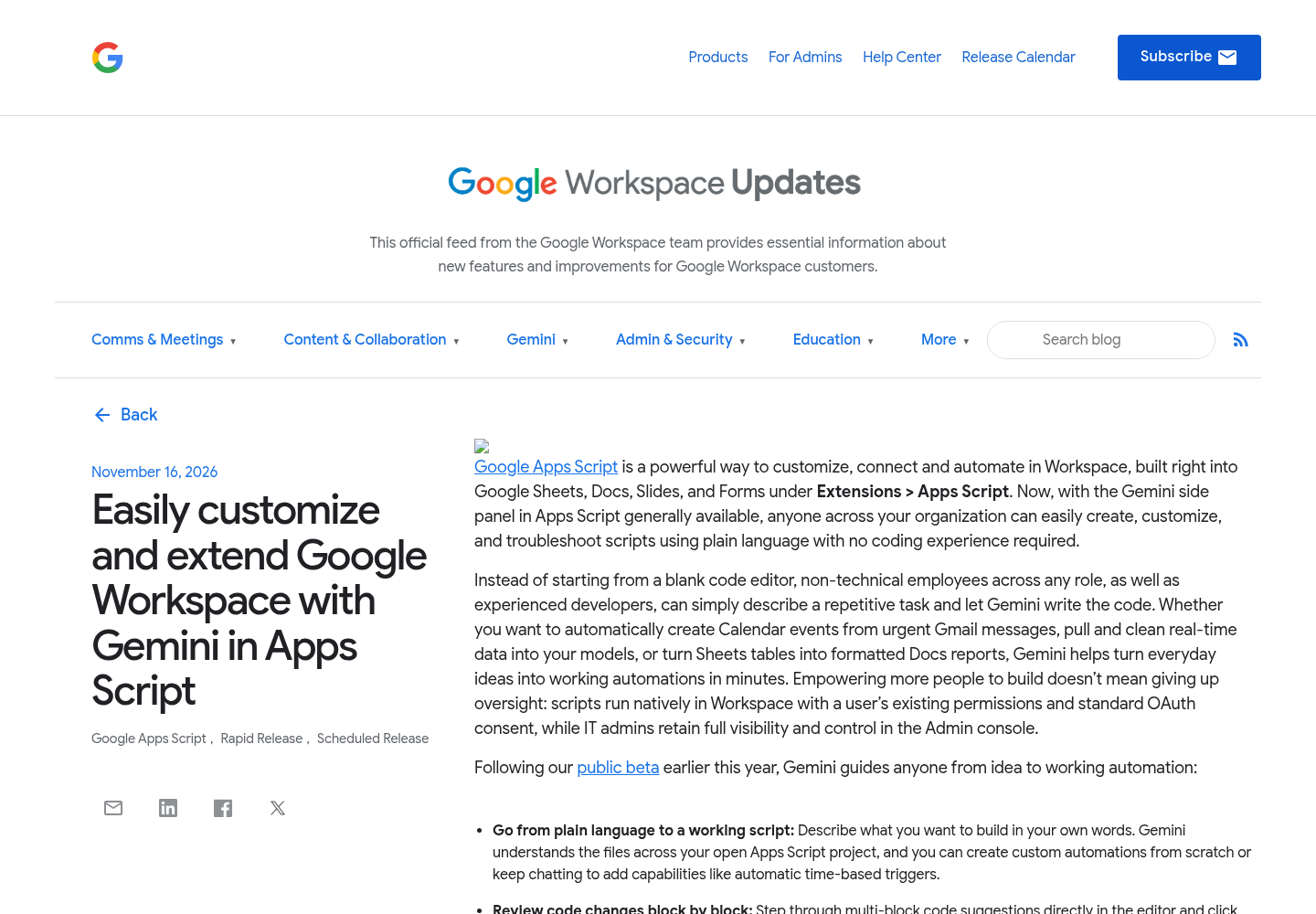
The timing reason is narrow. Google’s Workspace Updates post dated November 16, 2026, says the Gemini side panel in the Apps Script editor is generally available, with a gradual rollout of up to 15 days that started November 12, and Google Workspace Developers repeated the announcement on X on November 17. Everything below still applies if you never open the panel.
What you need before you start
The reader this guide has in mind is an operations lead or developer who lives in Sheets, wants an AI to write the automation, and needs to show a colleague afterwards exactly what the script can touch. You do not need prior Apps Script experience for Route A. Route B assumes you are comfortable in a terminal and with git.
- [ ] A spreadsheet you own with a header row and a due-date column. You will copy it before anything runs.
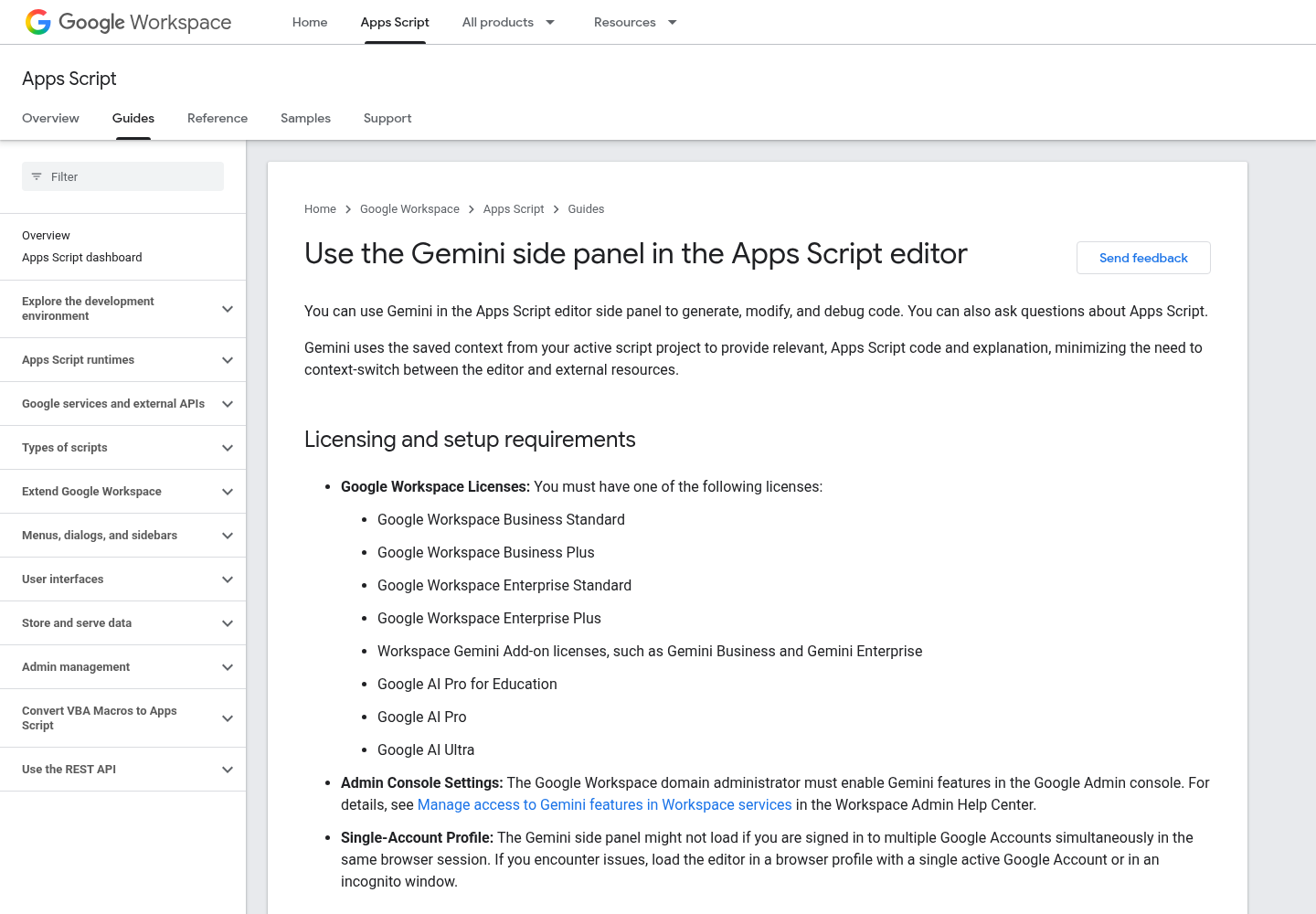
- [ ] Apps Script enabled for your account. In a Workspace domain the admin controls this; Google’s post notes that Gemini in the editor respects the existing Apps Script service settings and generative AI access controls in the Admin console.
- [ ] For Route A only, an eligible license. The Gemini side panel guide lists Business Standard and Plus, Enterprise Standard and Plus, Gemini add-on licenses, Google AI Pro for Education, Google AI Pro and Google AI Ultra, and it requires the domain admin to enable Gemini features.
- [ ] For Route B only, Node.js 20.0.0 or later. The clasp guide states that requirement in its body (its auto-generated summary still mentions an older version; follow the body and the codelab, which both say 20).
- [ ] For Route B only, the Apps Script API turned on at script.google.com/home/usersettings. Both the clasp guide and the clasp codelab make this a prerequisite.
- [ ] An inbox you control to receive the test summaries. Use your own address first, not a team list.
Build the test copy and its fixture rows
Every decision in this guide hangs on one rule: the script never touches the real tracker until it has passed on a copy. Make a copy of the spreadsheet (File > Make a copy), name it something unmistakable such as Tasks (TEST COPY), and replace its rows with a fixture whose correct answer you already know. A fixture turns “the email looks plausible” into “the email lists rows 2, 3 and 7 and nothing else”.
The worked case in this guide is task:overdue-email-01. Put these illustrative rows on a sheet named Tasks, with the Due column formatted as a date. Assume the run happens on Monday, November 23, 2026.
| Row | Task | Owner | Due | Status | Should it appear? |
|---|---|---|---|---|---|
| 2 | Renew vendor insurance | Priya | 2026-11-10 | Open | Yes, past due and open |
| 3 | Ship Q4 price list | Marco | 2026-11-20 | In progress | Yes, past due and not done |
| 4 | Close October books | Dana | 2026-11-18 | Done | No, already done |
| 5 | Update safety binder | Lee | 2026-11-23 | Open | No, due today is not overdue |
| 6 | Order pallets | Sam | 2026-11-30 | Open | No, due next week |
| 7 | Audit fuel cards | Priya | 2026-11-02 | Blocked | Yes, past due and not done |
| 8 | Draft holiday rota | Lee | (blank) | Open | No, no due date to compare |
Three rows qualify. Rows 4, 5, 6 and 8 each test a different edge: a finished task, the boundary at today, a future date and a missing date. If your real tracker uses other status words such as Complete or Cancelled, add a fixture row for each before you trust the filter.
While you are in the copy, note its spreadsheet ID from the URL (the long string between /d/ and /edit). You will store it as a Script Property rather than in code.
Choose a route: Gemini side panel or clasp with a local agent
Both routes end in the same container-bound project on the test copy, running the same reviewed code. They differ in where the AI works and where your undo history lives.
| Situation | Pick | Why |
|---|---|---|
| You have an eligible license and want to stay in the browser | Route A, Gemini side panel | Gemini reads the saved project files and proposes diffs you accept or reject per block |
| You already use Claude Code or Codex daily and want git history | Route B, clasp plus your agent | clasp pulls the project to disk, so your agent edits plain files and you push when satisfied |
| Your license is not eligible or the panel has not rolled out yet | Route B, or paste the reference code by hand | The reference Code.gs below works without any AI in the loop |
| Several people will maintain the script | Route B | A repository becomes the record of who changed what; the clasp guide warns that clasp push and clasp pull overwrite each other |
| You need to fix a runtime error quickly in the editor | Route A’s Fix with Gemini button | Gemini uses the error and surrounding code to propose a fix in the diff view |
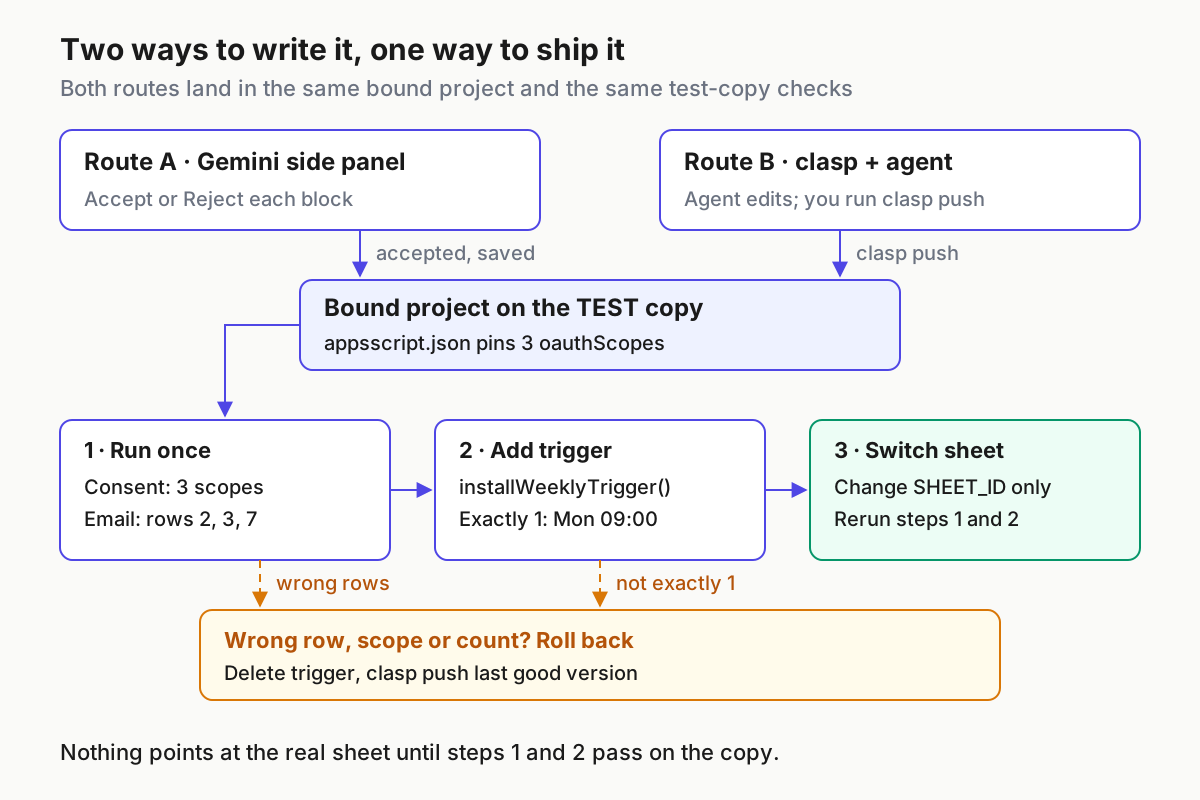
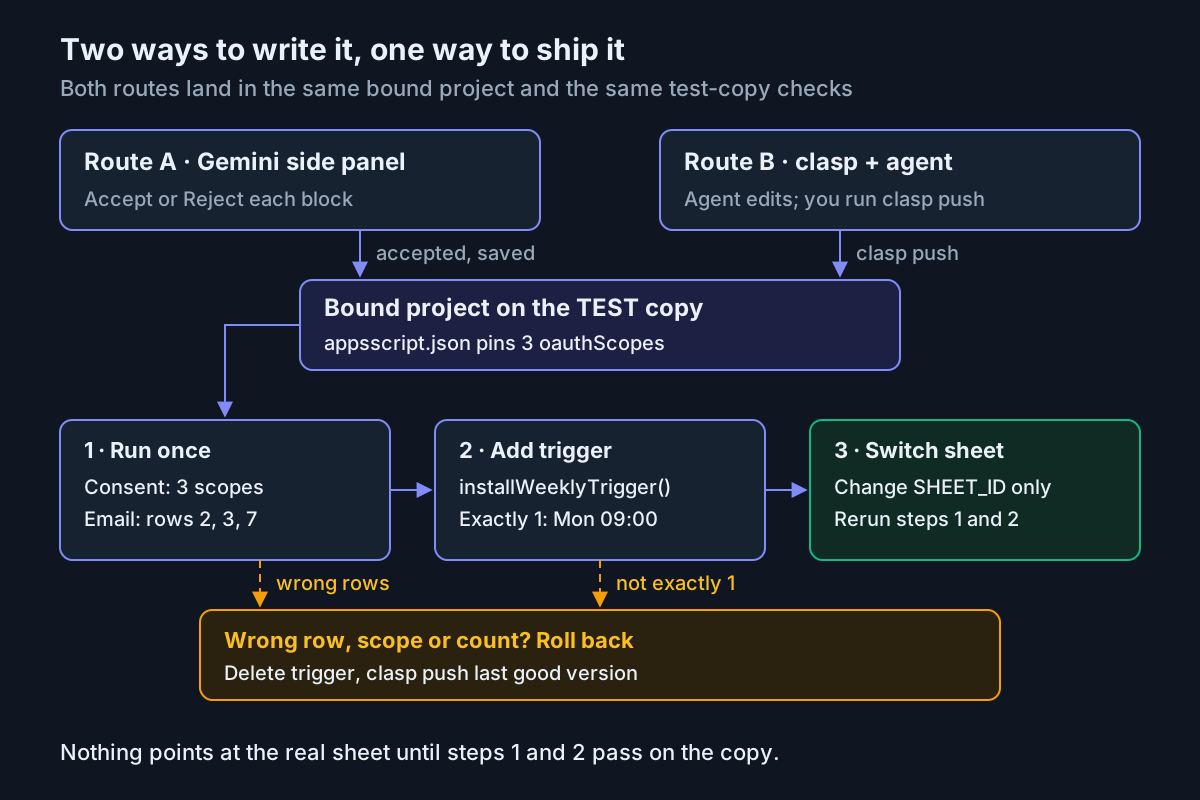
You can mix them, with one caution from the codelab: clasp push replaces the code on script.google.com and clasp pull replaces all local files, so never edit in both places at once. Pick one side as the source of truth for each session and pull or push before switching.
Route A: prompt the Gemini side panel and review each block
Gemini works on the active file open in the editor and only on projects you own or can edit, so start from the copy, not the original.
- Open
Tasks (TEST COPY)and click Extensions > Apps Script. This creates a project bound to the copy. Google says the side panel opens automatically on new scripts; otherwise click the Ask Gemini spark icon in the top right of the editor. - If the panel does not load, check the browser first. The Gemini guide warns that it might not load when several Google Accounts are signed in to the same browser session, and suggests a profile with a single account or an incognito window. The panel also appears only when your language is English or the default setting.
- With
Code.gsopen, paste the prompt below into the box at the bottom of the panel and press Enter. - Step through the proposed code. The diff view highlights additions and removals, and a preview bar has arrows to move between suggestions. Use Accept or Reject on each block rather than Accept all, and compare each block against the review checklist that follows the prompt.
- Save, then open Project Settings and select Show “appsscript.json” manifest file in editor. Replace the manifest with the reference version later in this guide, so the scope list is explicit instead of inferred.
- Still in Project Settings, under Script Properties, add
SHEET_ID(the copy’s ID),SHEET_NAME(Tasks) andREPORT_TO(your own address), then click Save script properties. - Continue at “Run once on the copy” below. If a run fails, click Fix with Gemini in the execution log (Google’s announcement calls the same control Fix errors), review the diff and run again.
The prompt, written so that Gemini produces something close to the reference code:
In this spreadsheet-bound project, write sendOverdueSummary() that:
- opens the spreadsheet whose ID is in Script Property SHEET_ID and the sheet
  named in Script Property SHEET_NAME (default "Tasks")
- treats row 1 as headers: Task, Owner, Due, Status
- collects rows where Due is a date before the start of today and Status is not
  "Done" (ignore case and surrounding spaces); skip rows with no Due date
- sends one plain-text email with MailApp, not GmailApp, to the address in
  Script Property REPORT_TO, one line per row: row number, task, owner, due
  date (YYYY-MM-DD) and status; send nothing when no rows are overdue
Also write installWeeklyTrigger() that calls ScriptApp.requireScopes with the
spreadsheets, script.send_mail and script.scriptapp scopes, deletes every
existing project trigger, then creates one time-driven trigger for
sendOverdueSummary every Monday at 9. Never hard-code IDs or email addresses.
Reject any block that does one of these, even if it would work:
- Uses GmailApp to send. The MailApp reference explains that MailApp can only send and cannot read the inbox, and that changes to GmailApp scripts are more likely to trigger re-authorization.
- Hard-codes the spreadsheet ID or recipient. Those belong in Script Properties so the promotion step later changes a property, not code.
- Creates a trigger inside sendOverdueSummary. That multiplies triggers on every run.
- Adds a scope or service you did not ask for, such as Drive or Calendar calls.
One more panel quirk worth knowing: the Gemini guide notes that it occasionally omits URLs from generated code for security reasons. This script needs none, but if you extend it later and a link disappears, put the exact URL in your prompt.
Route B: clone with clasp and let Claude Code or Codex edit locally
Route B moves the project onto disk so a coding agent edits ordinary files and you keep the history in git. It is the same export, edit and re-import shape this library used for Excel VBA modules, with Google’s own CLI doing the transfer.
- Create the bound project first: open the copy, click Extensions > Apps Script, then in Project Settings under IDs, copy the Script ID.
- Install and sign in, using the commands from the clasp guide:
node --version            # expect v20.0.0 or later
npm install @google/clasp -g
clasp login               # use clasp login --no-localhost over SSH
mkdir overdue-email && cd overdue-email
clasp clone <scriptId>    # writes .clasp.json and appsscript.json
git init
printf '.clasp.json\n.clasprc.json\n' >> .gitignore
git add -A && git commit -m "Baseline from Apps Script"
- Add the rules file below at the repository root and commit it. Name it for the tool that will read it,
AGENTS.mdfor Codex andCLAUDE.mdfor Claude Code; the content can be identical. The longer argument for stop rules in these files is in our AGENTS.md run-contract guide. - Ask your agent to implement
sendOverdueSummaryandinstallWeeklyTriggeragainst those rules, or to review the reference Code.gs below and adapt it. - Read the diff with
git diff, then push it yourself and open the editor:
clasp push                # uploads every project file, including appsscript.json
clasp open-script         # opens the project in the browser editor
- Set the three Script Properties in the editor exactly as in Route A step 6, and continue at “Run once on the copy”.
The rules file:
# Apps Script rules for this repository

- Runtime is V8 ("runtimeVersion": "V8" in appsscript.json). Plain modern
  JavaScript only; no npm packages at runtime.
- appsscript.json declares oauthScopes explicitly. Never add, remove or
  broaden a scope without asking. Send mail with MailApp, never GmailApp.
- No IDs, addresses or keys in code. Read SHEET_ID, SHEET_NAME and REPORT_TO
  from PropertiesService.getScriptProperties().
- Exactly one installable trigger. Only installWeeklyTrigger() may create
  triggers, and it deletes existing project triggers first.
- Do not run clasp push, clasp pull, clasp deploy or any --force flag.
  The human runs them.
- Stop after editing and report: files changed, scopes touched, functions
  added, and the exact command for the human to run next.
The push stays with you on purpose. clasp holds a refresh token that the clasp guide describes as a credential granting access to your Apps Script projects, so an agent that can run clasp can overwrite any of them. Keep the agent in an approval mode that asks before shell commands; our guides to Codex approval modes and sandboxing and permission modes as fleet policy cover the settings.
The reference Code.gs and appsscript.json
Whichever route you take, compare the result with this code. It is a complete, illustrative implementation of the worked case; we have not executed it in your account, so treat the observations later in this guide as expected, not measured.
/**
 * Weekly summary of overdue rows on a test copy of the Tasks sheet.
 * Configuration lives in Script Properties: SHEET_ID, SHEET_NAME, REPORT_TO.
 */
const SCOPES = [
  'https://www.googleapis.com/auth/spreadsheets',
  'https://www.googleapis.com/auth/script.send_mail',
  'https://www.googleapis.com/auth/script.scriptapp',
];

function getConfig_() {
  const props = PropertiesService.getScriptProperties();
  const config = {
    sheetId: props.getProperty('SHEET_ID'),
    sheetName: props.getProperty('SHEET_NAME') || 'Tasks',
    reportTo: props.getProperty('REPORT_TO'),
  };
  if (!config.sheetId || !config.reportTo) {
    throw new Error('Set SHEET_ID and REPORT_TO in Project Settings > Script Properties.');
  }
  return config;
}

function formatDay_(date) {
  const mm = String(date.getMonth() + 1).padStart(2, '0');
  const dd = String(date.getDate()).padStart(2, '0');
  return date.getFullYear() + '-' + mm + '-' + dd;
}

function findOverdueRows_(values, today) {
  const startOfToday = new Date(today.getFullYear(), today.getMonth(), today.getDate());
  const overdue = [];
  for (let i = 1; i < values.length; i++) { // values[0] is the header row
    const [task, owner, due, status] = values[i];
    if (!task || !(due instanceof Date)) continue;
    if (String(status).trim().toLowerCase() === 'done') continue;
    if (due < startOfToday) {
      overdue.push({ row: i + 1, task, owner, due: formatDay_(due), status });
    }
  }
  return overdue;
}

function sendOverdueSummary() {
  const config = getConfig_();
  const sheet = SpreadsheetApp.openById(config.sheetId).getSheetByName(config.sheetName);
  if (!sheet) throw new Error('No sheet named ' + config.sheetName);
  const values = sheet.getDataRange().getValues();
  const today = new Date();
  const overdue = findOverdueRows_(values, today);
  console.log('Overdue rows: ' + (overdue.map(r => r.row).join(', ') || 'none'));
  if (overdue.length === 0) return;
  if (MailApp.getRemainingDailyQuota() < 1) {
    throw new Error('Email recipient quota is used up for today.');
  }
  const lines = overdue.map(r =>
    `Row ${r.row}: ${r.task} (${r.owner}), due ${r.due}, status ${r.status}`);
  MailApp.sendEmail(
    config.reportTo,
    `Overdue tasks: ${overdue.length} as of ${formatDay_(today)}`,
    lines.join('\n'),
  );
}

function installWeeklyTrigger() {
  // Ask for every scope the trigger will need before it exists.
  ScriptApp.requireScopes(ScriptApp.AuthMode.FULL, SCOPES);
  ScriptApp.getProjectTriggers().forEach(t => ScriptApp.deleteTrigger(t));
  ScriptApp.newTrigger('sendOverdueSummary')
    .timeBased()
    .onWeekDay(ScriptApp.WeekDay.MONDAY)
    .atHour(9)
    .create();
  console.log('Project triggers now: ' + ScriptApp.getProjectTriggers().length);
}

function removeAllTriggers() {
  ScriptApp.getProjectTriggers().forEach(t => ScriptApp.deleteTrigger(t));
  console.log('Project triggers now: ' + ScriptApp.getProjectTriggers().length);
}
And the manifest, with your own time zone:
{
  "timeZone": "America/New_York",
  "dependencies": {},
  "exceptionLogging": "STACKDRIVER",
  "runtimeVersion": "V8",
  "oauthScopes": [
    "https://www.googleapis.com/auth/spreadsheets",
    "https://www.googleapis.com/auth/script.send_mail",
    "https://www.googleapis.com/auth/script.scriptapp"
  ]
}
Why each choice is there:
- Explicit oauthScopes. The Authorization Scopes guide says Apps Script normally detects scopes by scanning code and sometimes assigns permissive ones; setting the
oauthScopesarray replaces that guess with your list. The spreadsheets scope is read and write, per the same guide. The guide’s own manifest example showsspreadsheets.readonly, but its SpreadsheetApp.openById example pairs with the full spreadsheets scope, so this guide uses that documented pairing. If you try readonly, test it on the copy first. - MailApp and script.send_mail. Every MailApp method in the reference lists
script.send_mailas its scope, and MailApp cannot read your inbox. - script.scriptapp only for triggers. The scopes guide’s trigger-installation example requires this scope next to the data scopes.
- requireScopes before creating the trigger. Installable triggers run without you and cannot prompt for missing permissions. The scopes guide says such a run fails with “Authorization is required to perform that action.” and recommends calling
requireScopesduring trigger setup so all permissions are granted first. - Delete, then create. The installable triggers guide says a trigger cannot be modified programmatically, only deleted and recreated. Clearing the project’s triggers first makes the setup safe to rerun and keeps the count at one. It removes every trigger in the project, which is right only because this project does one job.
- Script Properties. The Properties Service guide describes script properties as configuration shared by all users of a script, editable by hand in Project Settings for up to fifty properties, and never shared between scripts.
- Start of today as the boundary. Comparing against midnight keeps row 5, due today, out of the report. Change that line if your team counts due-today as late.
The SpreadsheetApp range calls (getDataRange and getValues) come from the Spreadsheet service reference rather than the pages cited here. The fixture is how you confirm them: if date cells arrive as text, rows will be skipped and the count will be wrong.
Run once on the copy and read the consent screen
Run the function by hand before any trigger exists. In the editor, select sendOverdueSummary in the function list and click Run. The Gemini guide notes that the first run of saved code triggers the standard Workspace OAuth prompts and asks you to review them before clicking Allow. With explicit scopes, the prompt should describe three permissions and nothing else. The scopes guide adds that the editor shows a granular consent screen, so you can untick individual permissions; for this test, grant all three and remember that a colleague might not.
The table below is the complete worked example for task:overdue-email-01. Every result is an illustrative expected observation for the fixture above, not a recorded run.
| Input | Action | Expected result |
|---|---|---|
| task:overdue-email-01: Tasks (TEST COPY) rows 2 to 8 as listed, SHEET_NAME=Tasks, REPORT_TO set to your address, run on 2026-11-23 | Run sendOverdueSummary from the editor and complete the consent prompt |
Consent lists three permissions matching the three scopes; the execution log shows Overdue rows: 2, 3, 7; one email arrives titled Overdue tasks: 3 as of 2026-11-23 with three lines |
| task:overdue-email-01 after the first run | Open Overview and read Project OAuth Scopes | Exactly spreadsheets, script.send_mail and script.scriptapp; any fourth entry means code or manifest drifted |
| task:overdue-email-01 with consent granted | Run installWeeklyTrigger, then open Triggers in the left bar |
Log line Project triggers now: 1; one time-driven trigger for sendOverdueSummary, weekly on Monday in the 9am hour |
| task:overdue-email-01 with row 4 changed from Done to Open | Run sendOverdueSummary again |
Log shows Overdue rows: 2, 3, 4, 7; the email subject says 4 |
| task:overdue-email-01 with REPORT_TO deleted from Script Properties | Run sendOverdueSummary |
Execution fails with Set SHEET_ID and REPORT_TO in Project Settings > Script Properties.; no email is sent |
| task:overdue-email-01 with row 7 status set to done (lowercase, trailing space) | Run sendOverdueSummary |
Log shows Overdue rows: 2, 3; the trim and lowercase comparison treats it as Done |
Restore the fixture after each variation. The row 4 and REPORT_TO checks are the important ones: they prove the filter reacts to data and that a misconfigured project fails loudly instead of emailing someone else.
Install exactly one weekly trigger
Only install the schedule once the manual run matches the table.
- Run
installWeeklyTriggerfrom the editor. If any permission is missing,requireScopesstops and shows the authorization prompt instead of creating a trigger that would fail later. - Open Triggers and confirm one row. Run
installWeeklyTriggera second time and confirm it is still one; that proves the delete-then-create step works. - Expect the Monday run somewhere between 9 and 10 in the morning. The installable triggers guide says a recurring 9 AM trigger fires at a slightly randomized time within that hour, in the script’s time zone, which is why the manifest’s
timeZonematters. - Know who the email comes from. Installable triggers always run under the account of the person who created them, so the report is sent as you, and another account cannot see your triggers.
- Know how failures reach you. When a trigger run throws, Apps Script sends an email from noreply-apps-scripts-notifications@google.com titled “Summary of failures for Apps Script”, with links to reconfigure or deactivate the trigger. The details are in Executions in the editor.
The weekly job sits far inside the published limits, which is worth confirming rather than assuming once you widen the recipient list.
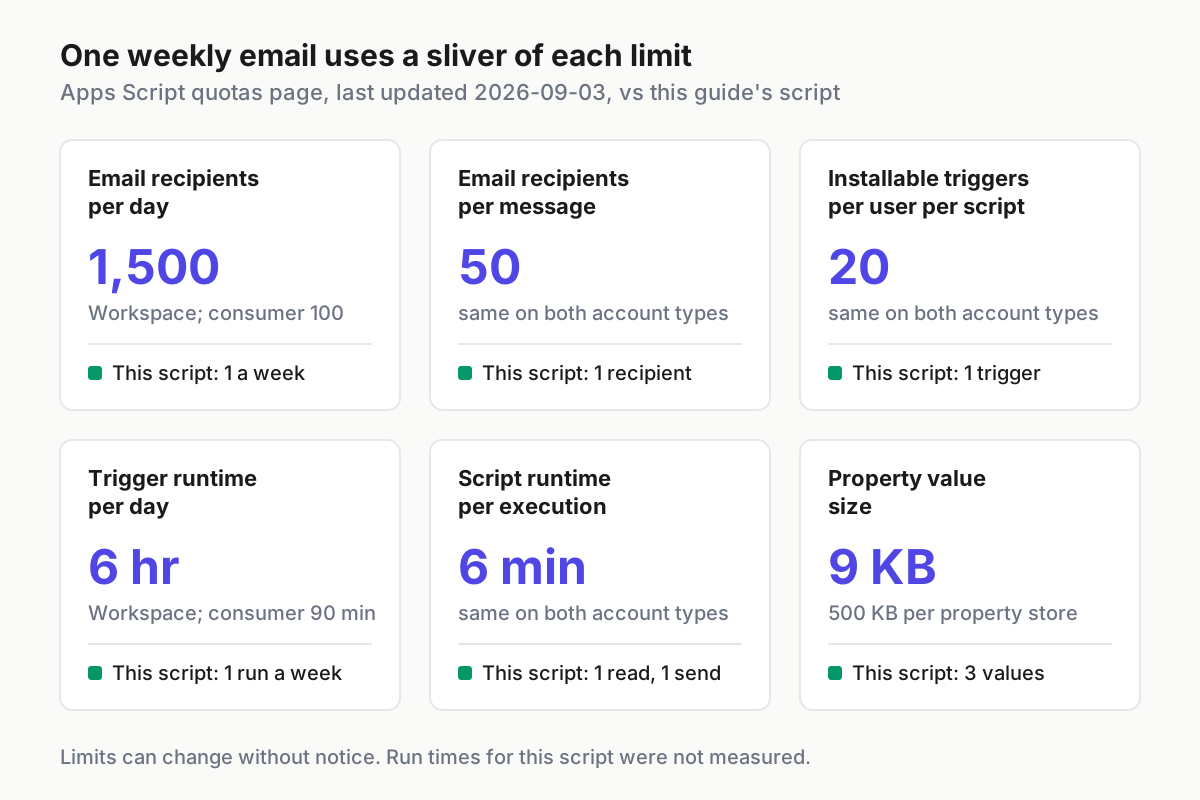
The quotas page lists 1,500 email recipients per day on Workspace accounts and 100 on consumer accounts, 50 recipients per message, 20 triggers per user per script, a six-minute limit per execution and a daily trigger runtime of six hours on Workspace or 90 minutes on consumer accounts. Quotas are per user, reset 24 hours after the first request and can change without notice. MailApp.getRemainingDailyQuota() returns how many recipients you can still send to today, which is why the script checks it before sending.
Troubleshooting the panel, clasp, scopes and quotas
Most failures in this setup leave a specific message. Match it here before asking any AI to rewrite code.
| Symptom | Likely cause | Fix |
|---|---|---|
| No spark icon or the Gemini panel stays blank | Several accounts signed in, non-English UI language, ineligible license, admin has not enabled Gemini, or the rollout has not reached you | Use a single-account profile or incognito window, switch language to English, check the license list, ask the admin; the rollout can take up to 15 days from November 12 |
| Gemini will not act on the project | It only works on projects you own or can edit, and on the active file | Open the bound project from your own copy and keep Code.gs active while prompting |
| clasp clone or clasp push reports that the Script API is not enabled | Apps Script API is off for your account | Turn it on at script.google.com/home/usersettings and retry |
| clasp returns 401 Unauthorized | Expired or revoked login | Run clasp login again |
| Push succeeds but the editor shows old code | .clasp.json points at another project |
Compare its scriptId with Project Settings > IDs, then reload the editor |
| Trigger runs fail with “Authorization is required to perform that action.” | A scope was declined on the granular screen or later revoked | Run installWeeklyTrigger again and grant all three permissions |
| “Service invoked too many times” or “Limit exceeded” | A daily quota or per-message limit was hit | Check MailApp.getRemainingDailyQuota(), reduce recipients, wait for the 24-hour reset |
| Done rows appear in the email | Status text differs, such as Completed or Closed | Add those words to the filter and a fixture row for each |
| Count is lower than expected | Due cells are text, not dates | Format the Due column as a date and rerun the fixture |
Roll back without leaving anything running
A scheduled script is only rolled back when nothing will fire on Monday. Work through these in order.
- Stop the schedule. Run
removeAllTriggers, or go to script.google.com, click My Triggers, and on the trigger row choose More > Delete trigger. The triggers guide notes that deleting the trigger also stops its failure emails. - Confirm it is gone. The Triggers page for the project shows no rows, and My Triggers no longer lists it.
- Restore the code. On Route B, check out the last good commit and run
clasp push; take a snapshot first withclasp version "before rollback"and list snapshots withclasp versions(the codelab spells the same stepclasp create-version, so use whichever your installed clasp accepts). On Route A, reject Gemini suggestions before saving; once saved, paste the reference code back in. Our checkpoint and rewind guide covers undo on the agent side, which does not reach code already pushed. - Withdraw access if you are abandoning the project. Remove the project’s access from your Google Account’s security settings. Any trigger still left behind will then fail with the authorization error above rather than run.
- Delete the test copy last, after you have kept the fixture somewhere for the next change.
Promote from the copy to the real sheet
Promotion should be a configuration change, not a code change. That is the payoff of keeping the spreadsheet ID and recipient in Script Properties.
- [ ] The fixture table passed in full on the copy, including the row 4 and missing-REPORT_TO checks.
- [ ] Project OAuth Scopes still lists exactly three scopes.
- [ ] The Triggers page shows exactly one trigger, and a second
installWeeklyTriggerrun kept it at one. - [ ] The real tracker’s status words are all covered by fixture rows.
- [ ] You changed
SHEET_IDto the real spreadsheet and leftREPORT_TOas your own address for the first live Monday. - [ ] After one correct live email, you changed
REPORT_TOto the team address and noted the change in the repository or a project comment. - [ ] Someone other than you knows where the trigger lives and how to delete it.
One structural note: a project bound to the copy reads the real sheet through openById, which works, but the code then lives inside a file you may later delete. If the script is permanent, recreate it bound to the real spreadsheet with the same files and properties, rerun the fixture once on a fresh copy, and delete the old project’s trigger. Treating every scheduled script as a small service with an owner, a rollback and a visible schedule is the same operating habit we argue for across agent operations.
Sources
- Google Workspace Updates: Easily customize and extend Google Workspace with Gemini in Apps Script (November 16, 2026)
- Google for Developers: Use the Gemini side panel in the Apps Script editor
- Google for Developers: Use the command-line interface with clasp
- Google Codelabs: clasp, the Apps Script CLI
- Google for Developers: Authorization Scopes
- Google for Developers: Installable Triggers
- Google for Developers: Quotas for Google Services
- Google Workspace Developers on X (November 17, 2026)
- Google for Developers: Class MailApp
- Google for Developers: Properties Service