Strix Halo llama.cpp Setup: Raise the GPU Memory Limit, Pick ROCm or Vulkan, Avoid the ROCm 10.2 WSL2 Trap and Serve a Coding Model
Strix Halo llama.cpp setup: raise the shared GTT memory limit with amd-ttm, build for ROCm gfx1151 or Vulkan, dodge the ROCm 10.2 WSL2 bug and serve a model.

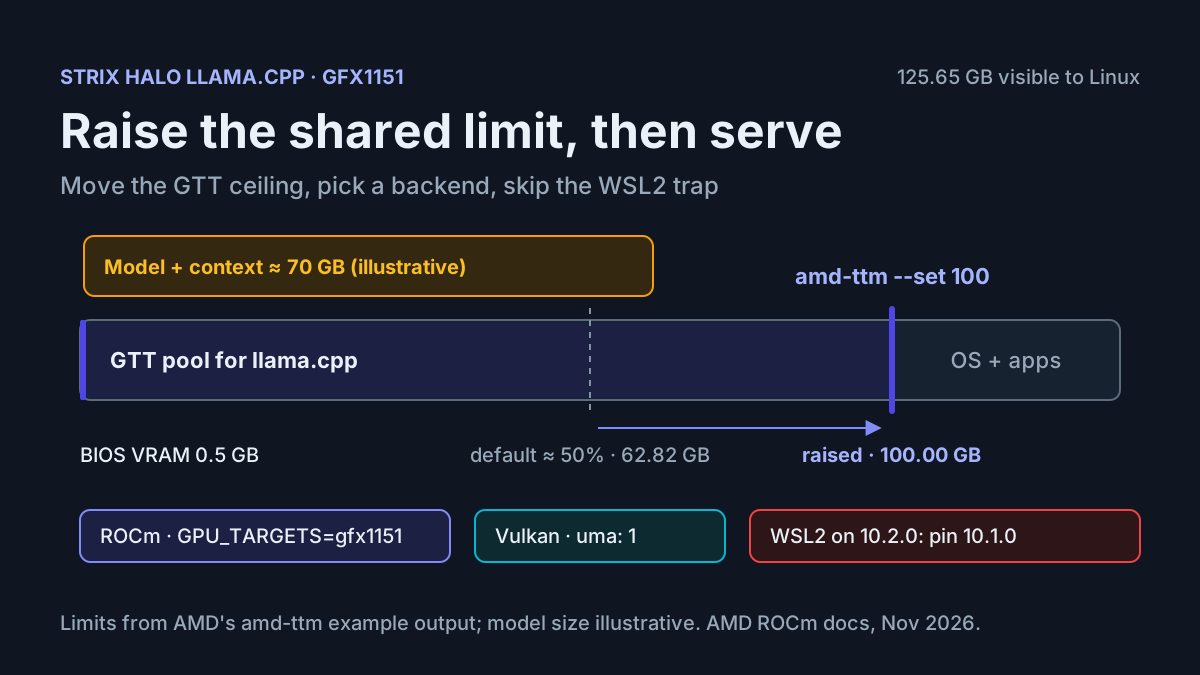
Your Ryzen AI Max+ 395 mini PC has 128 GB of memory, the coding model you downloaded needs about 70 GB once its context is allocated, and llama.cpp still will not put it on the GPU. Nothing is broken. The Linux driver lets the integrated GPU map only part of system RAM, and on a fresh install that part is roughly half. This Strix Halo llama.cpp tutorial takes one machine from that failure to a working llama-server endpoint: raise the shared memory limit, install ROCm for gfx1151, build llama.cpp for ROCm or Vulkan, and stay clear of a WSL2 bug in the newest ROCm release.
When you finish you will have three things: a llama-server process whose model sits entirely in GPU-visible memory, a short written record of the kernel, ROCm version, memory limit and backend you chose, and a tested way to undo each change. The record is the part people skip, and it is what saves you the next time an update quietly changes one of those four values.
The news that prompted this guide is narrow. AMD released ROCm Core SDK 10.2.0 on November 18, 2026, according to its ROCm release history, which also dates ROCm 10.1.0 to October 5, 2026. The ROCm 10.2.0 install page calls WSL2 support a Technology Preview and warns that AI workloads, naming PyTorch and llama.cpp, running on Ryzen APUs under WSL2 might fail with an illegal memory access error. Its workaround is ROCm 10.1.0 or the latest ROCm 10.3.0 nightly build. A Voltgrid News post on X relayed that warning to Strix Halo owners the next day. That note only changes your plan if you run under WSL2. The memory and build procedure below stays useful after 10.3 ships.
One honesty note before the commands. We did not run this procedure on hardware for this article, and nothing here is a benchmark. Every command and option comes from AMD’s ROCm documentation or llama.cpp’s build guide. Where we quote output, it is output AMD or llama.cpp printed in their own docs, and we say so. Everything else in the worked example is an illustrative expected observation. If you are still choosing a machine rather than configuring one, start with our local AI workstation comparison.
What you need on the desk before you start
The prerequisites are short, but two of them decide whether anything later works: the GPU target and the kernel.
- [ ] A gfx1151 APU. AMD’s ROCm 10.2.0 compatibility matrix lists the Ryzen AI Max 300 series (codename Strix Halo, Radeon 8060S, 8050S and 8040S graphics) and the Ryzen AI Max PRO 400 series under the LLVM target gfx1151. That string is what you will pass to the compiler.
- [ ] A supported OS. For these APUs the matrix lists Ubuntu 26.04.1 (GA 7.0 kernel), Ubuntu 24.04.5 (HWE 7.0 kernel) and Windows 11 25H2, with the inbox kernel driver of the supported Ubuntu release. This guide’s main path is Ubuntu 26.04.1.
- [ ] sudo and a network connection for the ROCm repository, pipx and the llama.cpp source.
- [ ] git, CMake and a C/C++ toolchain for the llama.cpp build.
- [ ] A GGUF coding model and enough disk for it plus two llama.cpp build directories.
- [ ] Firmware access so you can set the dedicated VRAM reservation to its minimum.
- [ ] Two reboots of downtime, one after ROCm and group changes, one after the memory limit change.
If you plan to point a coding agent at the result, also decide now whether the endpoint stays on this machine or must be reachable from a laptop. Remote exposure is its own decision, covered in our llama-server remote access guide.
Choose the OS path and ROCm version first
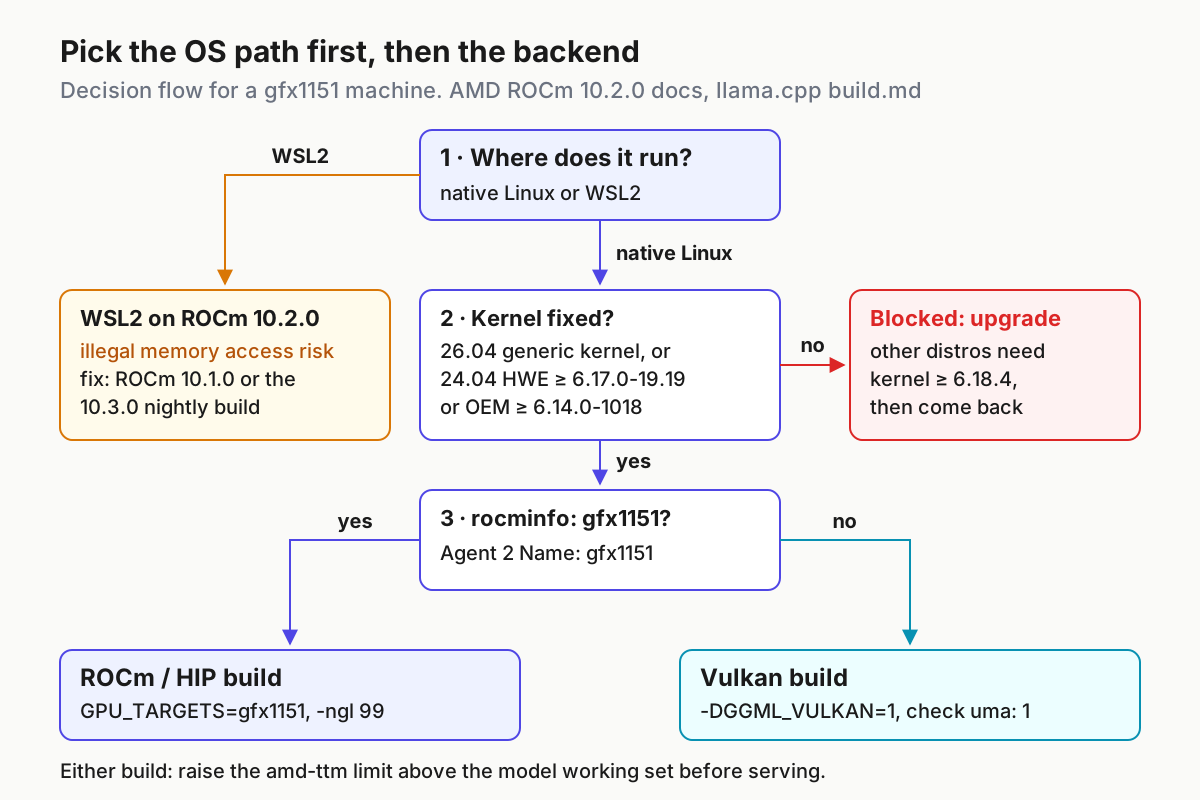
Most Strix Halo setups that fail do so because the OS layer was wrong before llama.cpp was ever compiled. Make these choices in this order.
| Your situation | Path to take | Why |
|---|---|---|
| Native Linux, Ubuntu 26.04.1 | ROCm 10.2.0 from AMD’s apt repository | AMD’s RDNA3.5 optimization page says Ubuntu 26.04 ships the required kernel fixes in its native packaging |
| Native Linux, Ubuntu 24.04.5 | Install the OEM kernel first, then ROCm 10.2.0 | The install page says Ryzen APUs require OEM kernel 6.14 or newer on 24.04 |
| Another distribution | Confirm kernel 6.18.4 or later before installing anything | AMD lists 6.18.4 as the minimum for other distributions |
| Windows with WSL2 and ROCm 10.2.0 | Do not run llama.cpp on the GPU there; use ROCm 10.1.0 or the 10.3.0 nightly | The 10.2.0 install page warns of illegal memory access errors for llama.cpp on Ryzen APUs under WSL2 |
| ROCm installs but rocminfo shows no gfx1151 agent | Fix ROCm, and build the Vulkan backend meanwhile | Vulkan does not depend on the ROCm compute stack |
The kernel requirement deserves a closer look. AMD’s RDNA3.5 page says Ryzen AI Max series support needs two specific Linux kernel commits that fix queue creation and memory availability checks, and that without them GPU compute workloads might fail to initialize or behave unpredictably. It gives the minimum versions as Ubuntu 24.04 HWE 6.17.0-19.19~24.04.2 or later, Ubuntu 24.04 OEM 6.14.0-1018 or later, and Linux 6.18.4 or later on other distributions. It also names Fedora 43, Ubuntu 26.04 and Arch Linux 2026.02.01 as carrying the fixes in their own packaging.
On WSL2 there is a second reason to be careful even after the illegal-access bug is fixed. The 10.2.0 install page lists profiling, GPU debugging and tools that depend on /dev/kfd or amdgpu sysfs topology as unsupported under WSL2. If you want to diagnose a slow model on this machine, native Linux gives you the tools.
Install ROCm 10.2.0 for gfx1151 on Ubuntu
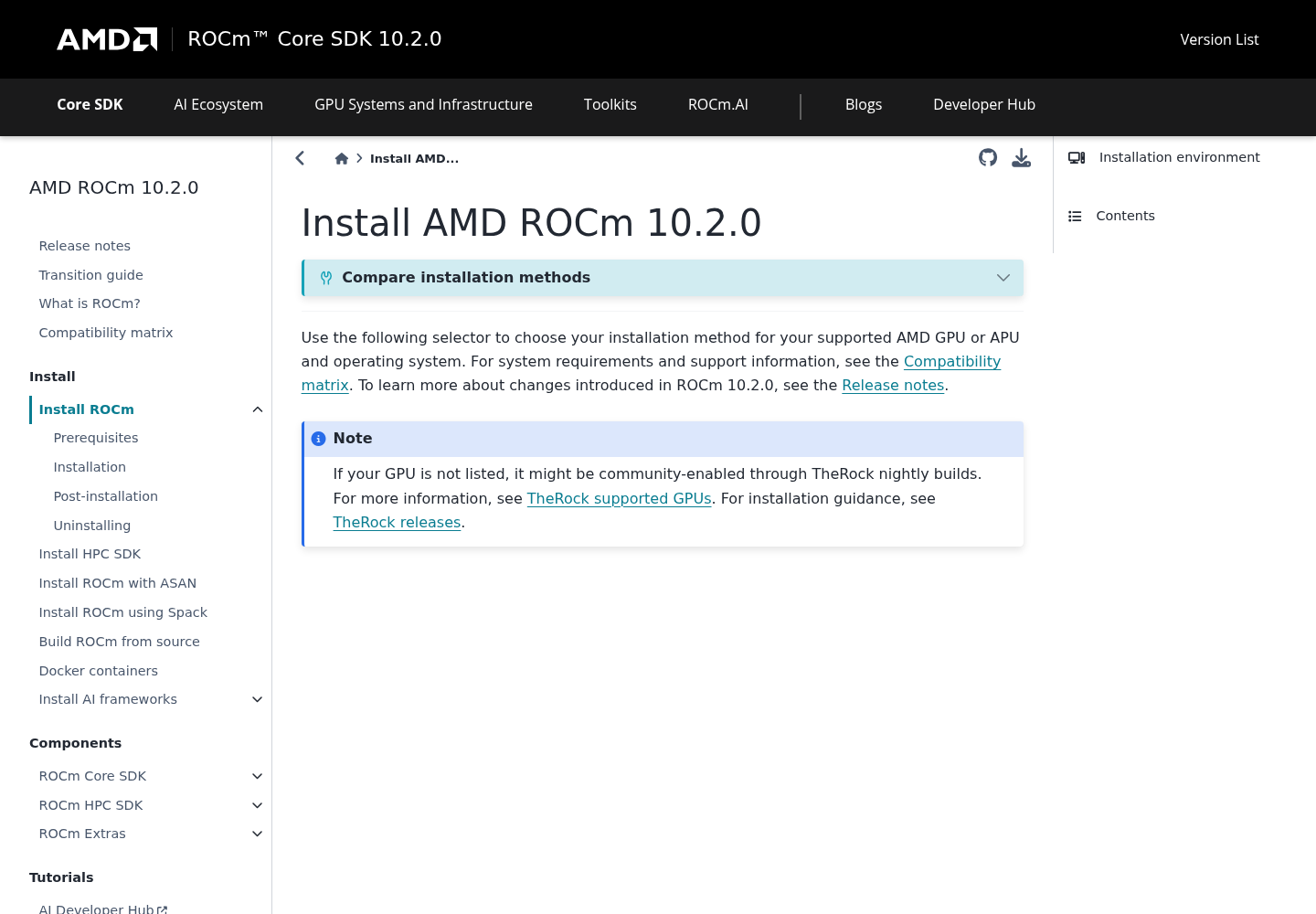
AMD offers five installation methods on the ROCm 10.2.0 page. The package manager route is the one AMD suggests if you are unsure on Linux, and it keeps ROCm removable with one apt command, which matters for rollback. These steps follow the Ubuntu 26.04 variant of that page.
-
Install the libraries some ROCm tools need:
sudo apt install libatomic1 libquadmath0 -
Register AMD’s signing key and the ROCm repository. This is the Ubuntu 26.04 block from the install page; on 24.04 the page uses
ubuntu2404in the URI instead ofubuntu2604:sudo mkdir --parents --mode=0755 /etc/apt/keyrings wget https://stable.repo.amd.com/rocm/gpg/packages.gpg -O - | \ gpg --dearmor | sudo tee /etc/apt/keyrings/amdrocm.gpg > /dev/null sudo tee /etc/apt/sources.list.d/amdrocm-stable.sources << EOF X-Repo-Id: amdrocm-stable Types: deb URIs: https://stable.repo.amd.com/rocm/core/packages/ubuntu2604/ Suites: stable Components: main Architectures: amd64 Signed-By: /etc/apt/keyrings/amdrocm.gpg Enabled: yes EOF sudo apt update -
Install the gfx1151 runtime and, because you are compiling llama.cpp, the developer tier. The install page’s meta package table describes
amdrocm10.2-gfx1151as the core runtime and the Developer Essentials tier as that plus compilers, CMake configurations and headers, listed asamdrocm-core-dev10.2-gfx1151(the table also shows anamdrocm-core-devel10.2-gfx1151spelling):sudo apt install amdrocm10.2-gfx1151 sudo apt install amdrocm-core-dev10.2-gfx1151 -
Give your user GPU access through the render and video groups, then reboot:
sudo usermod -a -G render,video $LOGNAME sudo reboot -
Verify. Run
rocminfoand look for a GPU agent named gfx1151. AMD’s Ryzen install guide shows the expected shape: anAgent 2block withName: gfx1151and a Radeon marketing name. Then runamd-smi version; the install page’s example line includes a field readingROCm version: 10.2.0. Copy that line into your record.
On Ubuntu 24.04.5, do one thing first: the 10.2.0 install page says Ryzen APUs require the OEM kernel 6.14 or newer and gives sudo apt update && sudo apt install linux-oem-24.04d, followed by a reboot. Check the running kernel afterwards with uname -r and compare it against the 6.14.0-1018 minimum from AMD’s RDNA3.5 page. AMD’s older Ryzen guide names a different package, linux-oem-24.04c; follow the 10.2.0 page for a 10.2.0 install.
If you prefer AMD’s bundled script, the 10.2.0 page also documents sudo amdgpu-install --usecase=rocm --gfxversion=auto --no-dkms for Ryzen APUs. The --no-dkms flag matters: Ryzen APUs use the inbox kernel driver, and the Ryzen guide tells you to remove amdgpu-dkms if it gets installed by accident.
Raise the shared GPU memory limit with amd-ttm
This is the step that turns a 128 GB machine from a 64 GB GPU into something closer to a 100 GB GPU. It helps to know what you are changing.
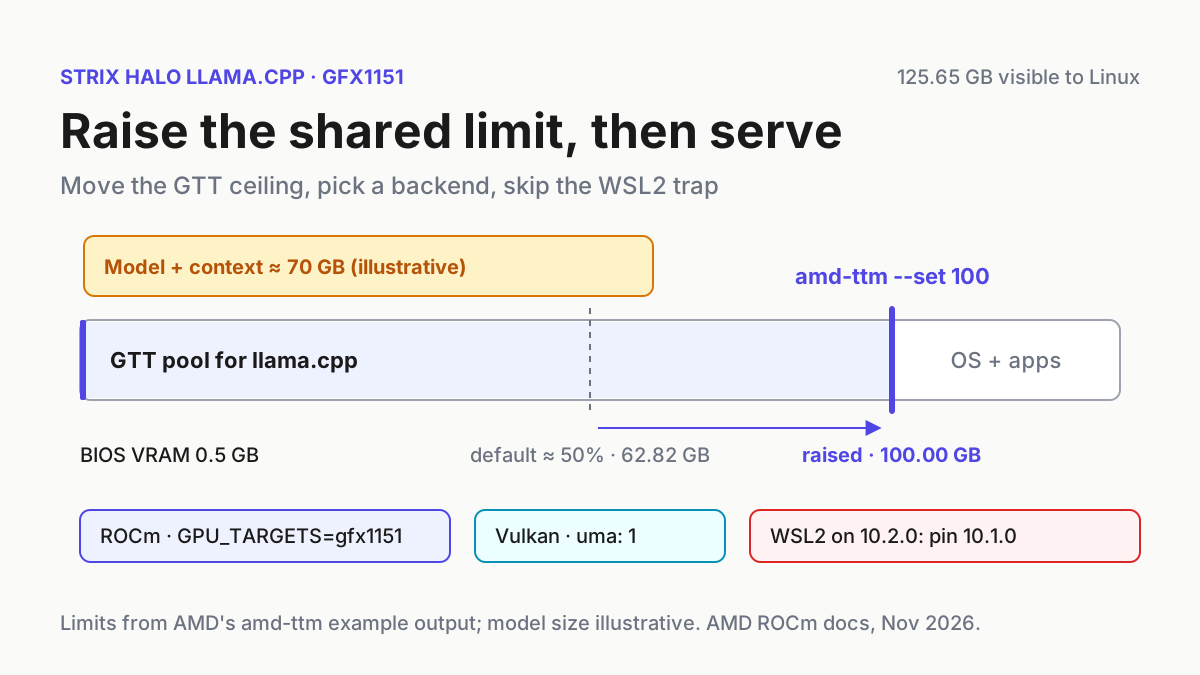
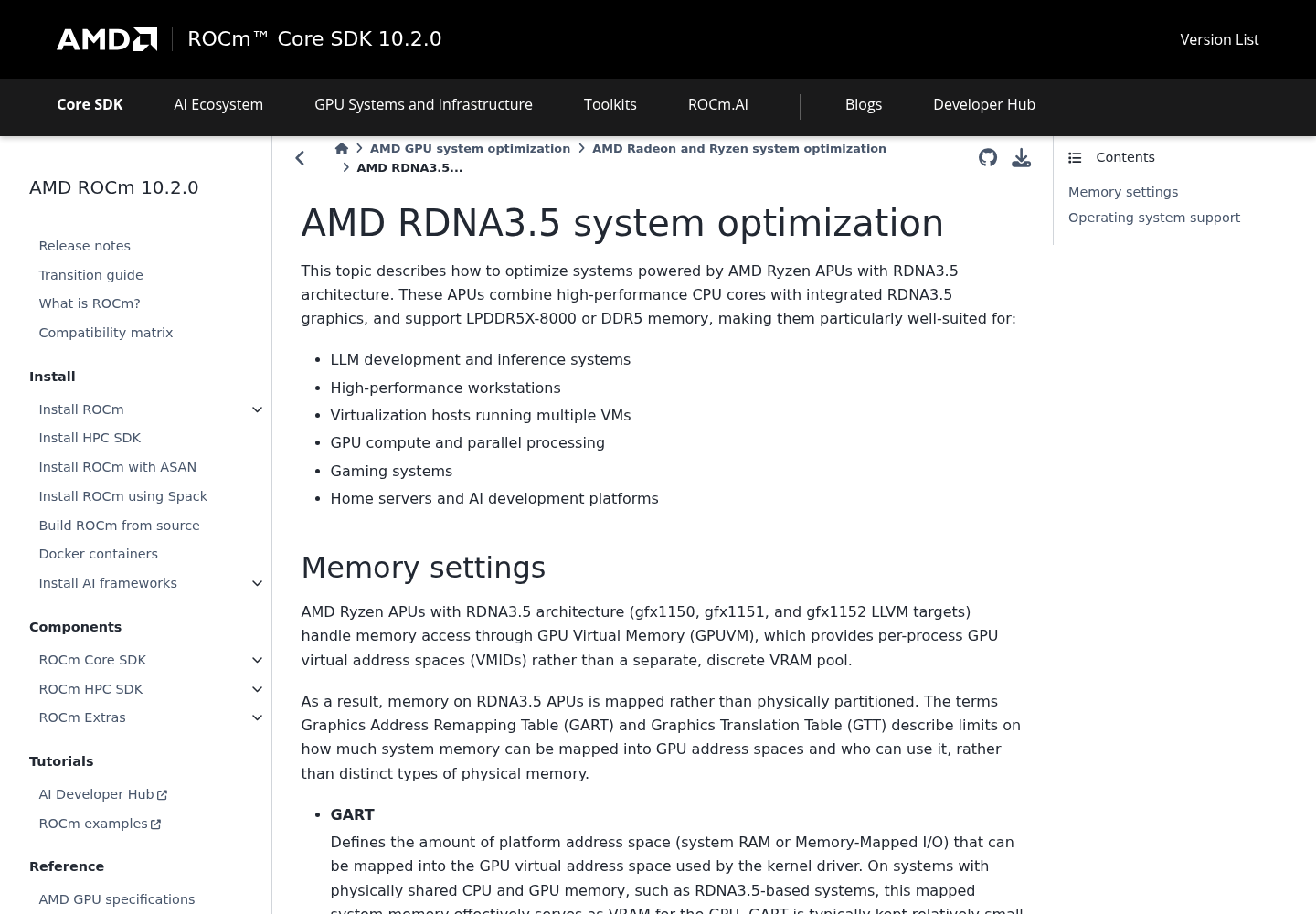
AMD’s RDNA3.5 page explains that gfx1150, gfx1151 and gfx1152 APUs reach memory through GPU virtual memory, so memory is mapped rather than physically partitioned. Two limits govern the mapping. GART covers a small amount of address space the kernel driver uses for its own work. GTT is the amount of system RAM user processes can map into GPU address spaces, and it is the pool AI workloads draw from. GTT allocations are dynamic, so the OS can reclaim memory when the GPU is not using it. By default the GTT limit is about 50 percent of system RAM. AMD publishes the same guidance on a develop-branch copy of the page, which is worth checking before the next release in case the advice changes.
You could raise GPU memory by reserving more VRAM in firmware, but AMD recommends the opposite: keep the dedicated reservation small, around 0.5 GB, and raise the shared TTM/GTT limit instead. Its reasoning is that memory is physically shared, so a firmware carve-out gives no speed advantage while permanently taking RAM away from the OS. When the GTT size exceeds the VRAM reservation, the driver serves VRAM allocations from GTT.
The kernel exposes the limit at /sys/module/ttm/parameters/pages_limit, counted in pages rather than gigabytes. AMD’s helper, amd-ttm, does the conversion for you.
-
Install pipx and add its directory to your PATH, then open a new shell:
sudo apt install pipx pipx ensurepath -
Install AMD’s debug tools, which provide amd-ttm:
pipx install amd-debug-tools -
Read the current limit and write it down:
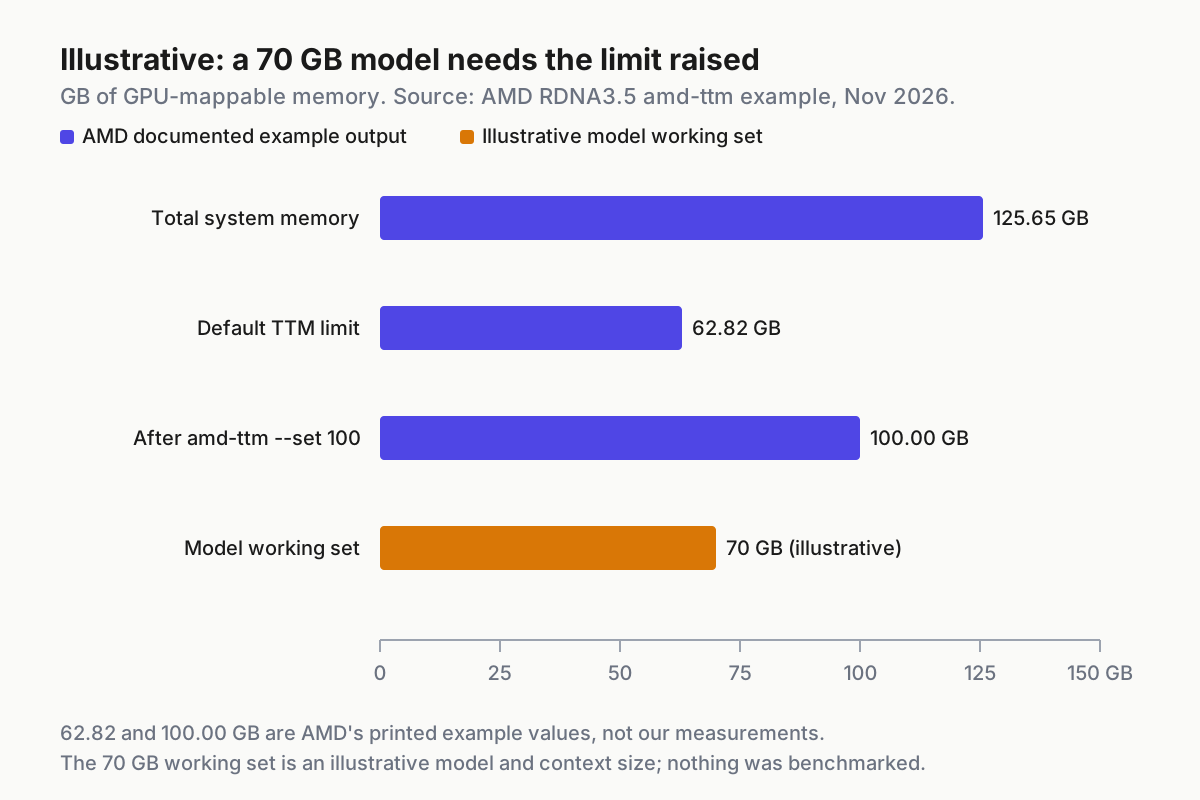
amd-ttmAMD’s documented example, from a machine reporting 125.65 GB of total memory, prints
Current TTM pages limit: 16469033 pages (62.82 GB). -
Set the new limit in gigabytes:
amd-ttm --set 100AMD’s example output reads
Successfully set TTM pages limit to 26214400 pages (100.00 GB)andConfiguration written to /etc/modprobe.d/ttm.conf, then asks whether to reboot. -
Reboot, then confirm the kernel picked it up:
amd-ttm
cat /sys/module/ttm/parameters/pages_limit
The second command should print the page count amd-ttm reported. AMD’s two example figures imply 4 KiB pages: 26214400 pages times 4096 bytes is exactly 100 GiB.
How high should you go? There is no AMD formula, so treat this as a working rule rather than documented guidance. The limit must exceed the model’s working set (weights plus KV cache for your chosen context), and it should leave the OS enough for everything else on the box: your editor, the coding agent, a build or two, a browser. AMD’s own example leaves about 25 GB of a 125.65 GB system outside the pool. On a 64 GB machine the default is roughly 32 GB, and a target in the mid-40s keeps a similar margin. If you later see the system swapping or processes killed for memory, lower the number before you blame llama.cpp.
The rollback is one command and a reboot. amd-ttm --clear removes /etc/modprobe.d/ttm.conf and the kernel returns to its default limit after the restart.
Build llama.cpp with HIP for gfx1151
With ROCm working and the memory ceiling raised, compile llama.cpp’s HIP backend. The llama.cpp build guide gives a Linux command for a gfx1030 GPU and tells you to adapt GPU_TARGETS to your architecture; here it becomes gfx1151. Using a separate build directory per backend keeps the two builds from overwriting each other.
-
Fetch the source:
git clone https://github.com/ggml-org/llama.cpp cd llama.cpp -
Confirm the target string the runtime reports, using the pipeline from the build guide:
rocminfo | grep gfx | head -1 | awk '{print $2}'Expect
gfx1151. If you see nothing, stop and fix ROCm first; the troubleshooting table below covers the usual causes. -
Configure and build:
HIPCXX="$(hipconfig -l)/clang" HIP_PATH="$(hipconfig -R)" \ cmake -S . -B build-rocm -DGGML_HIP=ON -DGPU_TARGETS=gfx1151 -DCMAKE_BUILD_TYPE=Release \ && cmake --build build-rocm --config Release -- -j 16 -
Record the commit you built, so a future regression can be traced:
git rev-parse HEAD.
Three choices in that command are worth understanding. GPU_TARGETS is optional in the build guide, which says omitting it builds for all GPUs in the current system; naming gfx1151 makes the build explicit and shorter. HIPCXX and HIP_PATH point CMake at ROCm’s clang and installation root through hipconfig, so if hipconfig is not found, the developer package did not land or its directory is not on your PATH. And -j 16 is just a parallel job count; set it to what your CPU and memory can absorb while a large model is not loaded.
The build guide documents one common failure: clang: error: cannot find ROCm device library. The fix is to find the directory under HIP_PATH that contains oclc_abi_version_400.bc and prefix the command with HIP_DEVICE_LIB_PATH=<that directory>.
The same guide mentions GGML_CUDA_ENABLE_UNIFIED_MEMORY=1 for the HIP backend on Linux, which lets an integrated GPU share main memory with the CPU and, it says, hurts performance on non-integrated GPUs. Because the driver already backs VRAM allocations with GTT once the TTM limit is raised, start without it. Treat it as a documented option to test if allocations still fail below your new limit, and compare results before keeping it. You will not need HSA_OVERRIDE_GFX_VERSION; that override exists for GPUs ROCm does not list, and gfx1151 is listed.
Add a Vulkan build as the second backend
Vulkan is worth building even if ROCm works. It gives you a second path that does not depend on the ROCm compute stack, which is useful when a ROCm update breaks something, and it lets you compare two backends on your own model instead of trusting forum numbers.
-
Install the Vulkan development packages the build guide names for Debian and Ubuntu:
sudo apt-get install libvulkan-dev glslc spirv-headers -
Confirm the driver stack answers. The guide says to run
vulkaninfoand proceed only if it reports no errors. If the command is missing, install your distribution’s Vulkan tools package or the LunarG SDK. -
Build into its own directory:
cmake -B build-vulkan -DGGML_VULKAN=1 cmake --build build-vulkan --config Release -
Smoke-test it with the build guide’s pattern, replacing the model path:
./build-vulkan/bin/llama-cli -m ~/models/coder.gguf -p "Write a C function that reverses a string" -ngl 99The guide says to look for a
ggml_vulkanline naming your GPU. Its example comes from an Intel integrated GPU and readsggml_vulkan: Using Intel(R) Graphics (ADL GT2) | uma: 1 | fp16: 1 | warp size: 32. On a Strix Halo machine, expect your Radeon device name in that position; theuma: 1field is how the integrated example marks a unified-memory device.
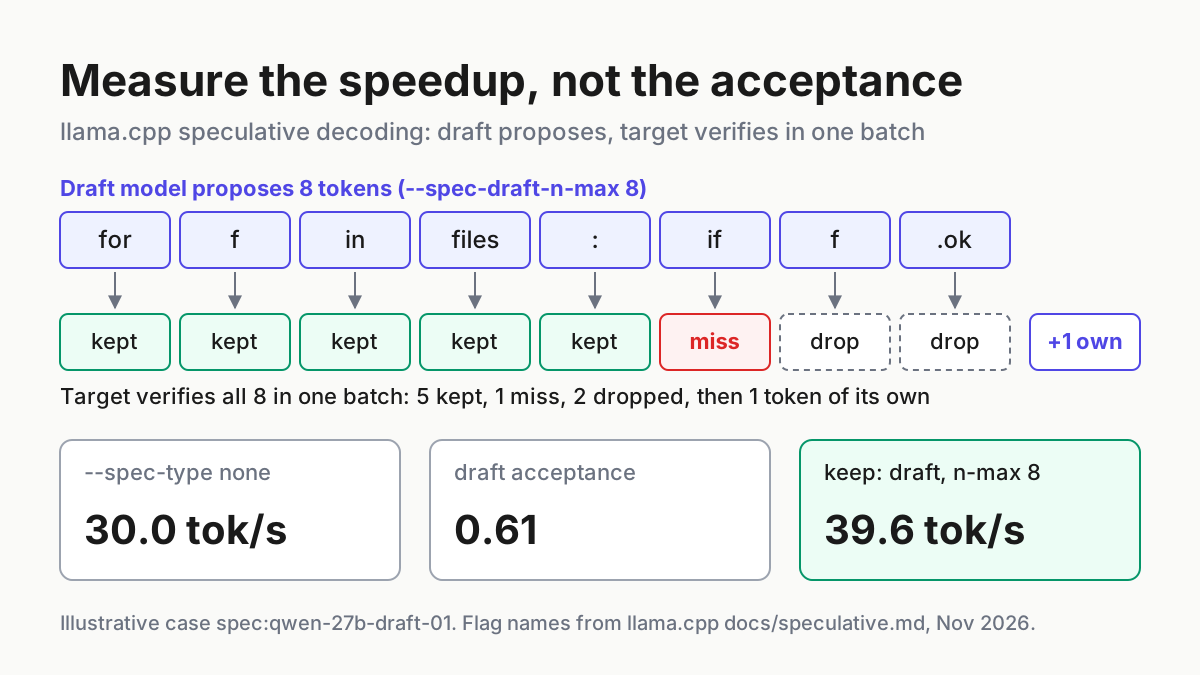
Which backend should you keep? The official docs do not say which is faster on gfx1151, and we did not measure it. Run the same prompt with the same context on both builds, note the tokens per second llama.cpp prints, and keep the one that wins on your model. Our speculative decoding guide shows a disciplined way to measure before trusting a speedup.
Serve the model and confirm the offload
The build guide notes that you can build several backends and choose at runtime: --list-devices shows what a binary can see and --device selects one. It also warns that the GPU may still accelerate parts of a run even with -ngl 0, and that --device none disables GPU acceleration entirely. Use those options to prove the GPU is doing the work rather than assuming it.
-
List devices from the ROCm build:
./build-rocm/bin/llama-server --list-devicesExpect one GPU entry for the integrated Radeon. If the list is empty, the problem is ROCm, groups or kernel, not the model.
-
Run a short generation as a smoke test before starting a long-lived server:
./build-rocm/bin/llama-cli -m ~/models/coder.gguf -p "Write a C function that reverses a string" -ngl 99 -n 64The build guide says
-ngl 99should offload all layers for most models. Watch the load log: the guide’s CANN example shows a backend-named line such asCANN model buffer size = 13313.00 MiBas the sign that backend holds the model. Expect an equivalent buffer line naming your GPU backend rather than only CPU. The exact label for ROCm is not given in the build guide, so read what your binary prints. -
Start the server:
./build-rocm/bin/llama-server --model ~/models/coder.gguf -ngl 99 -c 16384 -
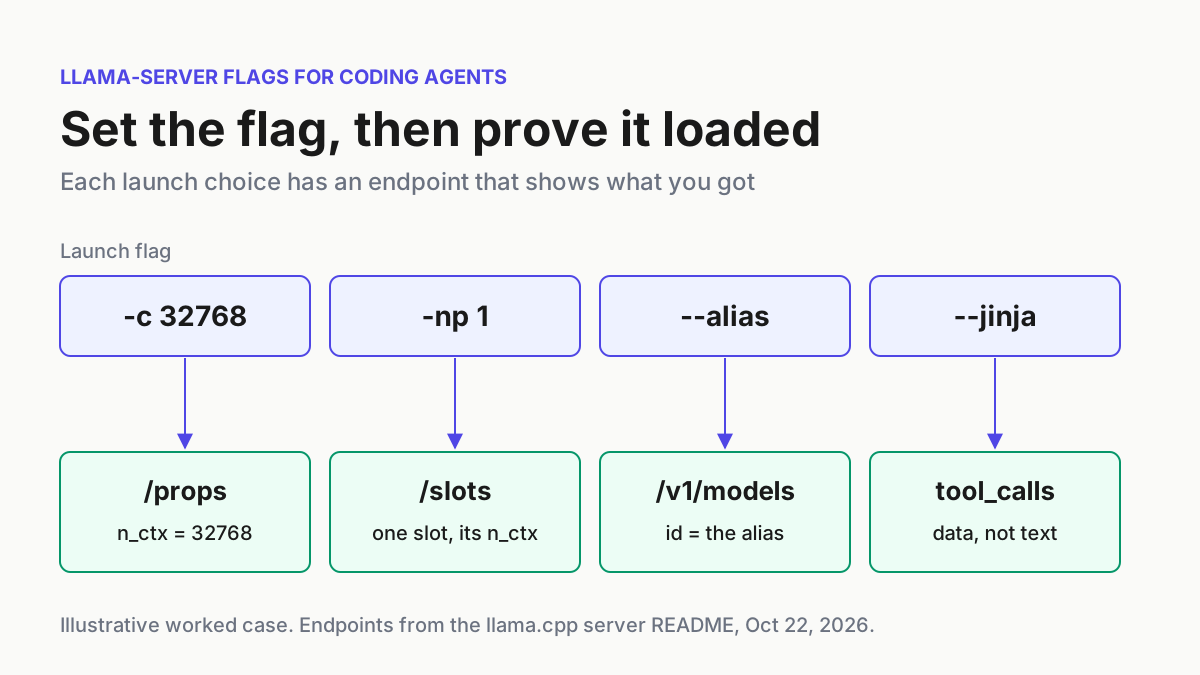
Send one request from the client your agent will use and confirm a completion comes back. llama-server is the project’s OpenAI-compatible HTTP server; host, port, slot and KV cache settings are covered in our llama-server flags guide for coding agents, and the request pattern most agents share is the same one shown in our Ollama OpenAI-compatible API guide.
Context size is the lever that moves the working set after the model is chosen. If the model loads at a short context and fails at a long one, the weights fit but the KV cache does not; lower -c or raise the TTM limit, and recheck the limit math rather than retrying blindly.
Worked example: case strix:128gb-ttm-01
Here is the full procedure as one illustrative case. The machine is a 128 GB Ryzen AI Max+ 395 box on Ubuntu 26.04.1. The model’s working set at a 16384-token context is assumed to be about 70 GB. Quoted outputs marked as AMD’s come from AMD’s documentation; every other expected result is an illustrative observation, not something we ran.
| Input | Action | Expected result |
|---|---|---|
| strix:128gb-ttm-01, firmware dedicated VRAM at its minimum, Ubuntu 26.04.1 freshly installed | Set the firmware reservation to the smallest value (AMD suggests about 0.5 GB), boot, run uname -r |
The generic 26.04 kernel string, which AMD says carries the gfx1151 fixes; the OS sees nearly all 128 GB |
| strix:128gb-ttm-01, ROCm 10.2.0 apt repo registered, user added to render and video, rebooted | rocminfo then amd-smi version |
An agent block with Name: gfx1151; a version line containing ROCm version: 10.2.0 (format from AMD’s example) |
| strix:128gb-ttm-01, pipx and amd-debug-tools installed, limit untouched | amd-ttm |
AMD’s example on a 125.65 GB system: Current TTM pages limit: 16469033 pages (62.82 GB) |
| strix:128gb-ttm-01, ~70 GB working set (illustrative), default 62.82 GB limit | llama-server --model ~/models/coder.gguf -ngl 99 -c 16384 from build-rocm |
Illustrative: a GPU allocation failure during load, because 70 GB exceeds the 62.82 GB ceiling |
| strix:128gb-ttm-01, same model, decision to leave ~25 GB for the OS | amd-ttm --set 100, answer the reboot prompt |
AMD’s example: Successfully set TTM pages limit to 26214400 pages (100.00 GB), config written to /etc/modprobe.d/ttm.conf |
| strix:128gb-ttm-01, after reboot | cat /sys/module/ttm/parameters/pages_limit and amd-ttm |
26214400 and a reported limit of 100.00 GB |
strix:128gb-ttm-01, llama.cpp built with -DGPU_TARGETS=gfx1151 |
./build-rocm/bin/llama-server --list-devices |
Illustrative: one GPU device listed for the integrated Radeon |
| strix:128gb-ttm-01, raised limit, same model and context | Start llama-server with -ngl 99 -c 16384, send one request from the agent’s client |
Illustrative: the load log shows a GPU-backed model buffer, the server accepts the request and returns a completion |
The artifact this case leaves behind is a setup record. Keep it beside the machine, in a repository or wherever your team tracks hosts. Every value in it is something you can re-check with a command.
host: strix-128 (illustrative)
case: strix:128gb-ttm-01
os: Ubuntu 26.04.1, generic kernel (paste uname -r here)
firmware_dedicated_vram: minimum, about 0.5 GB
rocm: 10.2.0 (from amd-smi version)
ttm_limit: 26214400 pages = 100.00 GB (amd-ttm, checked after reboot)
backend_primary: ROCm/HIP, GPU_TARGETS=gfx1151, directory build-rocm
backend_fallback: Vulkan, -DGGML_VULKAN=1, directory build-vulkan
llama_cpp_commit: a1b2c3d (illustrative; from git rev-parse HEAD)
model: ~/models/coder.gguf, working set about 70 GB at 16384 context (illustrative)
serve: llama-server --model ~/models/coder.gguf -ngl 99 -c 16384
wsl2: not used; if moved to WSL2, pin ROCm 10.1.0 or the 10.3.0 nightly
rollback: amd-ttm --clear, reboot; sudo apt autoremove amdrocm10.2-gfx1151
Why these choices hold up: the firmware reservation stays small because AMD says it buys nothing on shared memory; the limit stops at 100 GB because that is AMD’s own example on the same memory size and leaves the OS a margin; the ROCm build is primary because rocminfo confirmed gfx1151, with Vulkan ready if a ROCm update misbehaves; and the WSL2 line exists because the version that is safe on native Linux is the one AMD warns about under WSL2.
Troubleshooting and rollback
Most failures map to one layer. Find the symptom, check the layer, then change one thing at a time.
| Symptom | Likely layer | What to do |
|---|---|---|
| llama.cpp under WSL2 fails with an illegal memory access error on ROCm 10.2.0 | ROCm version | Move to ROCm 10.1.0 or the latest 10.3.0 nightly, as AMD’s install page advises, or run on native Linux |
rocminfo under WSL2 prints WSL2 environment detected and profiling tools do nothing |
Expected limitation | AMD lists profiling, GPU debugging and KFD-dependent tools as unsupported on WSL2 in 10.2.0 |
| rocminfo shows no gfx1151 agent on native Linux | Groups, kernel or driver | Confirm groups includes render and video and that you rebooted; compare uname -r with AMD’s kernel minimums |
cannot find ROCm device library during the HIP build |
Build environment | Set HIP_DEVICE_LIB_PATH to the directory holding oclc_abi_version_400.bc |
Model fails to allocate after you ran amd-ttm --set |
Limit not applied | Reboot; check pages_limit matches; confirm the working set is below the new limit |
| Model loads at short context, fails at long context | KV cache size | Lower -c or raise the limit, then re-check the math |
| Desktop stalls or processes are killed after raising the limit | Limit too close to RAM | Set a lower value with amd-ttm --set, or run amd-ttm --clear and reboot |
vulkaninfo reports errors |
Vulkan driver stack | Fix the driver install before building build-vulkan |
To undo the whole setup in a clean order:
- Stop llama-server and delete
build-rocmandbuild-vulkanif you no longer need them. - Run
amd-ttm --clearand reboot; confirmamd-ttmshows the default limit again. - Remove ROCm with
sudo apt autoremove amdrocm10.2-gfx1151, plus the developer package if you installed it. - Remove the repository with
sudo rm /etc/apt/sources.list.d/amdrocm-stable.sources, then run AMD’s documented cache cleanup:sudo rm -rf /var/cache/apt/*,sudo apt clean,sudo apt update. - If you used the amdgpu-install script instead, AMD’s uninstall path is
sudo amdgpu-uninstall, and its Ryzen guide notes that upgrades mean uninstalling first rather than updating in place.
To roll back from ROCm 10.2.0 to 10.1.0 under WSL2, follow the version-specific 10.1.0 documentation linked from the release history page rather than editing version numbers in the 10.2.0 commands. Package names and repository paths can change between releases.
Running Ollama on gfx1151 instead
If your agent already speaks to Ollama, you can keep it, but check coverage instead of assuming it. Ollama’s hardware support page is specific about what it lists.
- [ ] Confirm your exact chip appears. On Linux the ROCm list names the Ryzen AI Max+ 395, Ryzen AI Max 390 and Ryzen AI Max 385, and the LLVM target table includes gfx1151 with the Ryzen AI Max+ 395 as its example. The Windows ROCm list contains no Ryzen AI parts.
- [ ] Check the driver requirement. The page says Ollama requires the AMD ROCm v7 driver on Linux and points to amdgpu-install. It does not say how that maps onto ROCm 10.x releases, so verify on your machine.
- [ ] Raise the TTM limit exactly as above. AMD describes GTT as the pool user processes map, so the same ceiling applies to Ollama’s runners.
- [ ] If you use Ollama’s Vulkan path on Linux, add the ollama user to the render group, and consider
sudo setcap cap_perfmon+ep /usr/local/bin/ollamaso it can read available VRAM instead of estimating model sizes. - [ ] Know the off switches:
OLLAMA_VULKAN=0orGGML_VK_VISIBLE_DEVICES=-1disables Vulkan GPUs, andROCR_VISIBLE_DEVICESlimits which AMD GPUs Ollama uses.
One trap specific to agents: a model that loads fine can still refuse tool calls. If your agent reports that the model does not support tools, the cause is the model’s capabilities, not the GPU; see our Ollama tools error guide.
What the official docs leave open
The procedure above is fully sourced, but several gaps remain, and it is better to know them before something surprises you.
- AMD’s kernel compatibility table on the RDNA3.5 page lists ROCm releases up to 10.0.0 and 10.1.0; it does not yet show a row for 10.2.0.
- The ROCm 10.2.0 install page uses
linux-oem-24.04dand amdgpu-install 31.70, while AMD’s older Ryzen guide useslinux-oem-24.04cand amdgpu-install 7.2.1. - The WSL2 note says llama.cpp might fail; it does not name kernels, llama.cpp versions or a fix date beyond pointing to the 10.3.0 nightly.
- llama.cpp’s build guide gives no performance guidance for gfx1151 and does not print the exact ROCm device log line.
- Ollama’s page says ROCm v7 driver without relating it to ROCm 10.x, and lists only three Ryzen AI Max parts.
When any of these matters to you, test on your machine and write the result into the setup record. Once the endpoint is serving an agent, treat it like any other dependency in your fleet, with an owner and a health check; our agentic ops guide covers that operating layer.
Sources
- Install AMD ROCm 10.2.0, AMD ROCm documentation: WSL2 Technology Preview note, gfx1151 packages, OEM kernel, groups, verification and uninstall.
- ROCm release history, AMD ROCm documentation: 10.2.0 on November 18, 2026 and 10.1.0 on October 5, 2026.
- AMD RDNA3.5 system optimization, AMD ROCm documentation: GART and GTT, amd-ttm, pages_limit and kernel minimums.
- AMD RDNA3.5 system optimization, develop branch, AMD ROCm documentation: the same memory and kernel guidance on the develop docs.
- Install Ryzen Software for Linux with ROCm, AMD: expected rocminfo output for gfx1151,
--no-dkms, shared memory steps. - ROCm 10.2.0 compatibility matrix, AMD ROCm documentation: gfx1151 parts and supported OS versions.
- Build llama.cpp locally, ggml-org on GitHub: HIP and Vulkan build commands, device options and troubleshooting.
- Hardware support, Ollama documentation: AMD ROCm and Vulkan coverage.
- Voltgrid News post on X, November 19, 2026: relay of the ROCm 10.2 WSL2 warning to Strix Halo owners.