Verify Inkling 2 Mini Ollama Tool Calls Before Using OpenCode
Run a two-request Inkling 2 Mini Ollama test on your Mac, then verify a read-only OpenCode task and check how much context Ollama allocated for the session.

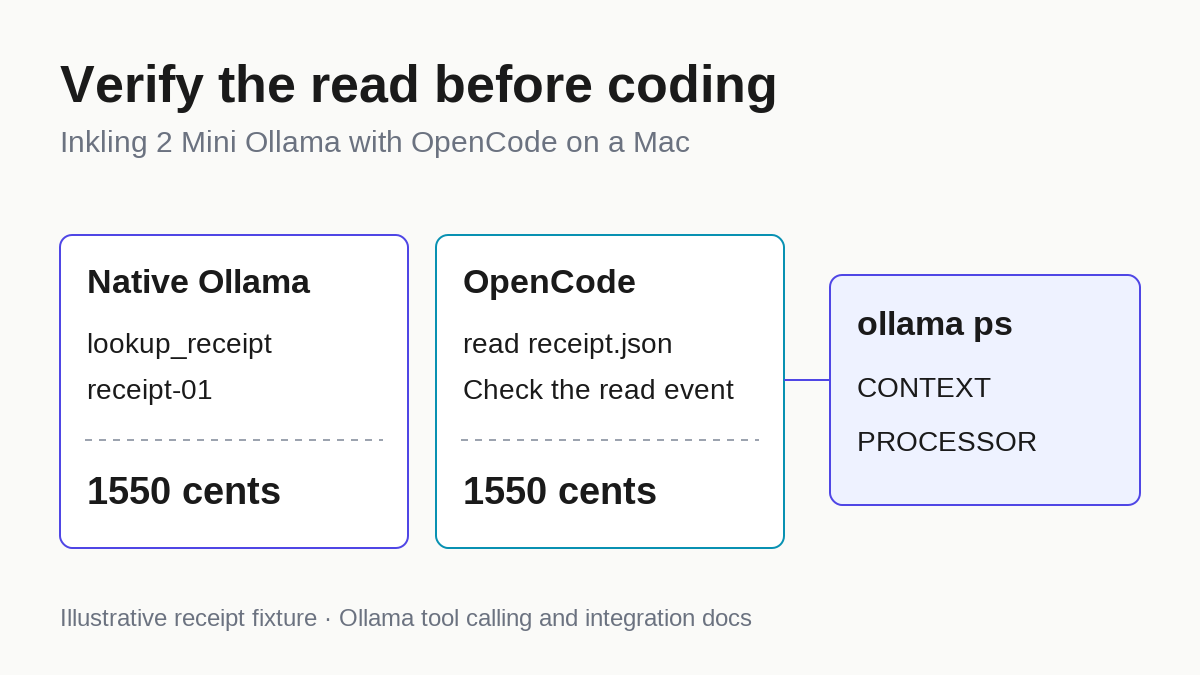
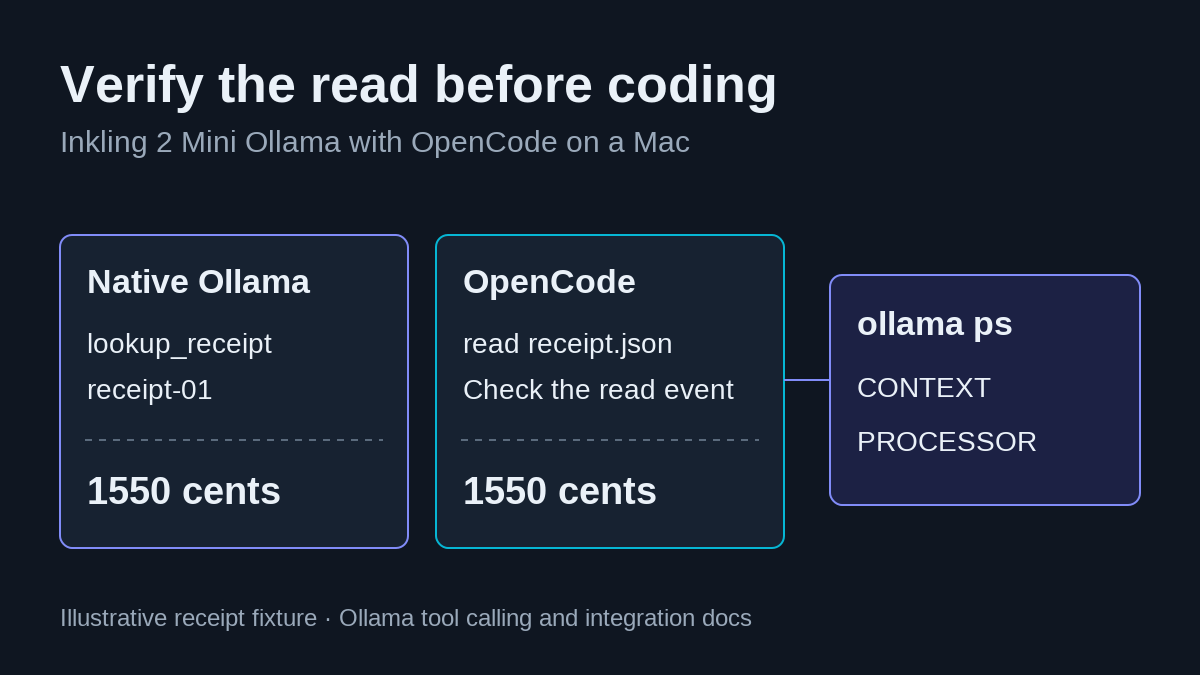
If Inkling 2 Mini Ollama answers a chat prompt on your Mac, you know inference works. Before opening a repository in OpenCode, check whether the model can request a tool, use the result, and do the same kind of work through your coding agent. A synthetic receipt gives you a known answer and a file you can inspect afterward. It also gives you a short task to run while you check how much context Ollama actually allocates.
The case is task:receipt-total-01. The prompts give the model the receipt ID and withhold the amounts. The native test succeeds when the model returns a structured lookup_receipt call for receipt-01, then answers 1550 cents after receiving both amounts. The OpenCode test succeeds when you see a completed read of receipt.json, the expected total, and the intended model running on the local server. The outputs and scenarios below are illustrative expected observations. Run the fixture to see what your installations and Mac actually do.
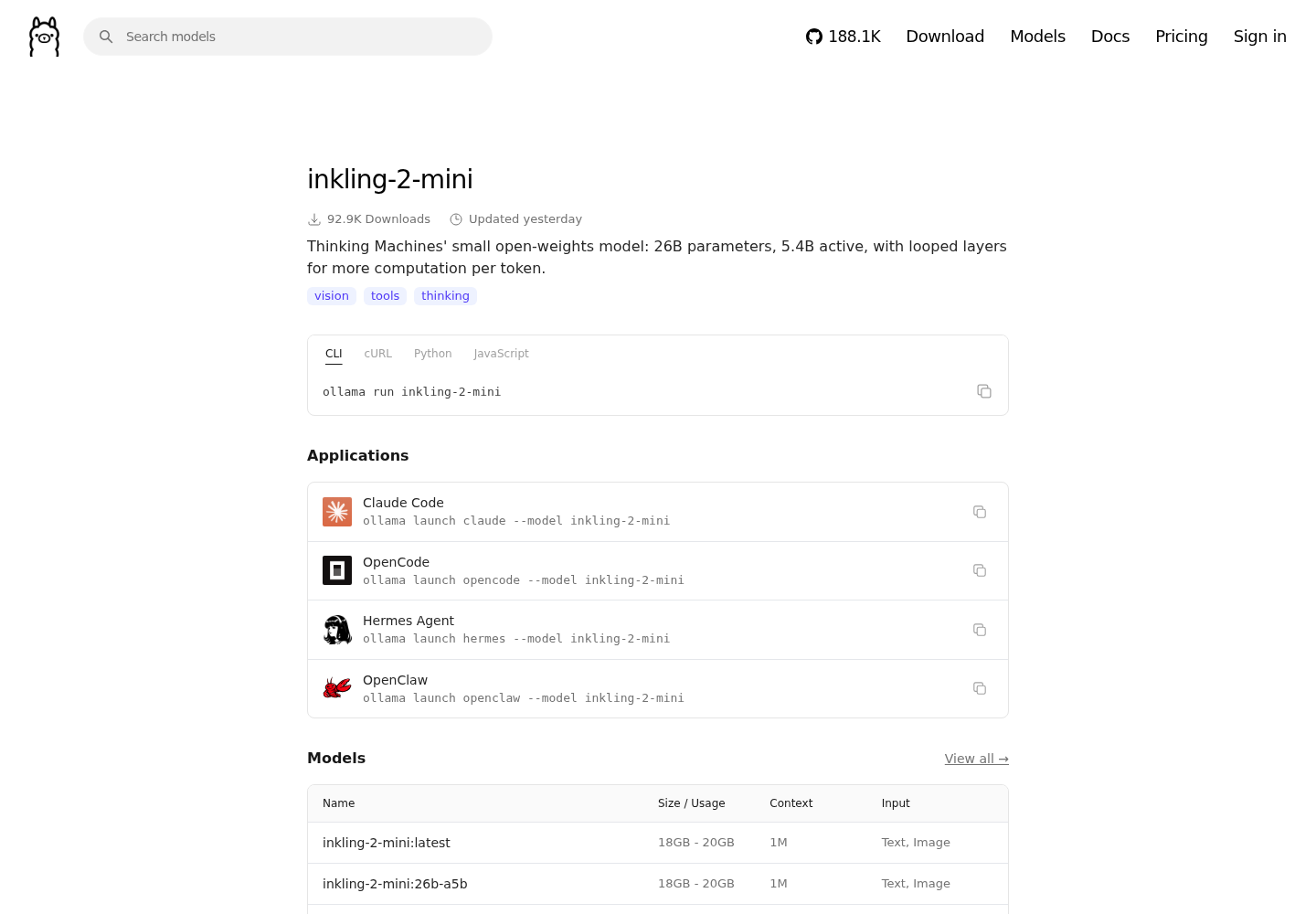
Thinking Machines Lab released Inkling 2 Mini with open weights on November 20, 2026. Its model card lists Ollama support on Apple silicon devices with at least 32 GB of memory. Ollama’s catalog marks the model as tool-capable and lists the default tag at 18–20 GB. Use that range to plan the download, then inspect the running model to judge what fits on your Mac. Thinking Machines Lab announcement · Publisher model card · Ollama model listing
Establish a local Ollama baseline
- Use an Apple silicon Mac with at least 32 GB of unified memory, sufficient free disk space, Python 3, a working Ollama server at
localhost:11434, and OpenCode V2. Open two terminals. Use one for the Python script and OpenCode and the other for Ollama commands. A foreground Ollama server needs its own terminal. - Before changing context, record the current slider setting in the Ollama app. If you manage the server in a terminal, save the original launch command and note any context override. Keep that setting for the native check so you have a baseline from before the OpenCode change.
- Run the listing commands below. Run the pull only if the model is missing. If the CLI cannot reach the server, start your usual Ollama app or service first. For a terminal-managed setup, start it with
ollama servein a separate terminal. Ollama CLI reference
ollama ls
ollama pull inkling-2-mini
ollama ls
ollama ps
Look for inkling-2-mini in the installed list. It may appear as inkling-2-mini:latest. If the pull fails or the tag never appears, finish resolving the download before changing prompts or provider settings. ollama ls shows what is installed. ollama ps shows what is running. An empty running list before the first prompt is a normal starting point. Save that distinction for troubleshooting because an installed model can still fail when Ollama tries to load it.
Make a new empty folder outside your normal repositories and open the terminal there. The Python script uses the standard library and keeps the receipt in memory. For OpenCode, you will create a JSON file in that same folder. Before running the test, check your global and agent permissions for rules that would change the intended read restriction. OpenCode appends those rules after lower-priority rules and uses the last match. Even in the empty test folder, a later rule can change whether the read succeeds. OpenCode permissions
Make Ollama request the receipt and use the result
- Save the following complete script as
check_receipt.py. The prompt exposes the receipt ID. The tool definition gives the model a function name and an argument shape. The two amounts stay in the local Python record until the script has validated the call. - From the disposable directory, run
python3 check_receipt.py. Watch for the call, fixture output, and final answer in that order. If the script stops, keep the error with the last checkpoint that printed. - In your other terminal, run
ollama pswhile the native request is active or promptly after it finishes. Record the model name,CONTEXT, andPROCESSORif the row is available. If you miss the loaded interval, repeat the same fixture and check during the request. The native context is a baseline and can differ from the target you will set for OpenCode. Ollama context length
import json
import urllib.error
import urllib.request

MODEL = "inkling-2-mini"
URL = "http://localhost:11434/api/chat"
RECEIPT_ID = "receipt-01"
EXPECTED_ANSWER = "1550 cents"
RECEIPTS = {RECEIPT_ID: [1200, 350]}
USER = {
    "role": "user",
    "content": (
        "Use lookup_receipt once for receipt ID receipt-01. "
        "After receiving the result, sum its amounts_cents and answer "
        "in the form <integer> cents, with no other text."
    ),
}
TOOLS = [{
    "type": "function",
    "function": {
        "name": "lookup_receipt",
        "description": "Read the synthetic line-item amounts in cents for a receipt ID.",
        "parameters": {
            "type": "object",
            "required": ["receipt_id"],
            "properties": {"receipt_id": {"type": "string"}},
        },
    },
}]


def chat(stage, messages, tools=None):
    payload = {"model": MODEL, "messages": messages, "stream": False}
    if tools is not None:
        payload["tools"] = tools
    request = urllib.request.Request(
        URL,
        data=json.dumps(payload).encode("utf-8"),
        headers={"Content-Type": "application/json"},
    )
    try:
        with urllib.request.urlopen(request, timeout=300) as response:
            body = json.load(response)
    except urllib.error.HTTPError as error:
        detail = error.read().decode("utf-8", errors="replace")
        raise SystemExit(f"{stage} HTTP {error.code}: {detail}") from error
    except (OSError, ValueError) as error:
        raise SystemExit(f"{stage} transport or JSON error: {error}") from error
    if not isinstance(body, dict) or not isinstance(body.get("message"), dict):
        raise SystemExit(f"{stage} missing assistant message: {body!r}")
    return body["message"]


def lookup_receipt(receipt_id):
    return {"receipt_id": receipt_id, "amounts_cents": RECEIPTS[receipt_id]}


assistant = chat("request 1", [USER], TOOLS)
calls = assistant.get("tool_calls") or []
if not isinstance(calls, list) or len(calls) != 1:
    raise SystemExit(f"request 1 expected one structured call, got: {calls!r}")
call = calls[0]
function = call.get("function", {}) if isinstance(call, dict) else {}
if (
    not isinstance(call, dict)
    or call.get("type", "function") != "function"
    or not isinstance(function, dict)
    or function.get("name") != "lookup_receipt"
    or function.get("arguments") != {"receipt_id": RECEIPT_ID}
):
    raise SystemExit(f"request 1 unexpected lookup: {call!r}")
print(f"request 1: lookup_receipt({RECEIPT_ID})")

result = lookup_receipt(RECEIPT_ID)
print(f"fixture: {result['amounts_cents']} cents")
answer = chat("request 2", [USER, assistant, {
    "role": "tool",
    "tool_name": "lookup_receipt",
    "content": json.dumps(result),
}])
content = answer.get("content")
if answer.get("tool_calls") or not isinstance(content, str) or content.strip() != EXPECTED_ANSWER:
    raise SystemExit(
        f"request 2 expected {EXPECTED_ANSWER!r}, got: {content!r}; "
        f"calls: {answer.get('tool_calls')!r}"
    )
print(f"request 2: {content.strip()}")
A successful run would print these three lines.
request 1: lookup_receipt(receipt-01)
fixture: [1200, 350] cents
request 2: 1550 cents
The first response must contain one structured tool_calls entry. The script checks the function name and requires exactly {"receipt_id":"receipt-01"} as the argument object. The model proposes the call and the Python program executes the function after validation. A reply describing a lookup will leave the structured call missing. A call with a typo in the receipt ID will fail before Python reads the record. Both observations tell you more than a wrong total alone because they show where the intended exchange stopped.
For the second request, the program sends the original user message, the actual assistant message from request 1, and a role: tool message whose tool_name matches the function. Ollama documents this message sequence and shows a single-result follow-up that omits the tool definitions. Keeping the assistant message intact preserves the structured call and any other fields the server returned. The final check reads content, strips surrounding whitespace, and requires 1550 cents with no further call. Ollama tool calling documentation
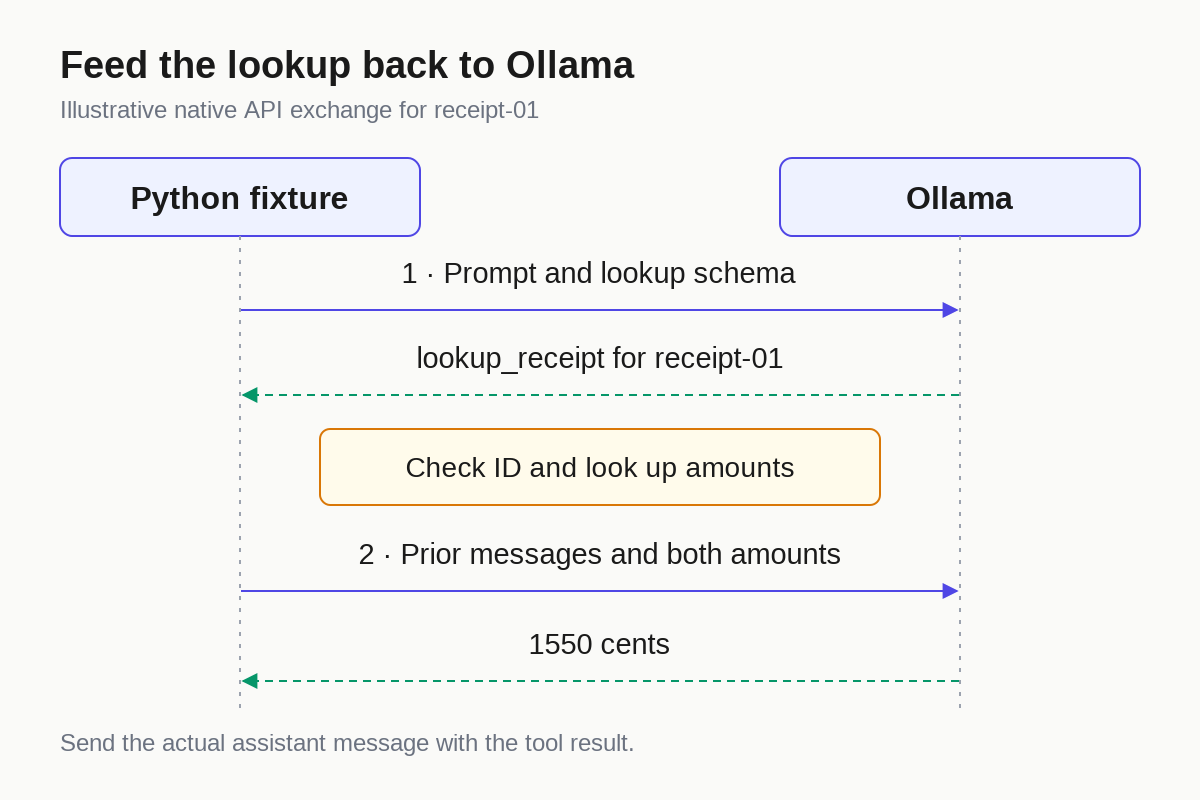
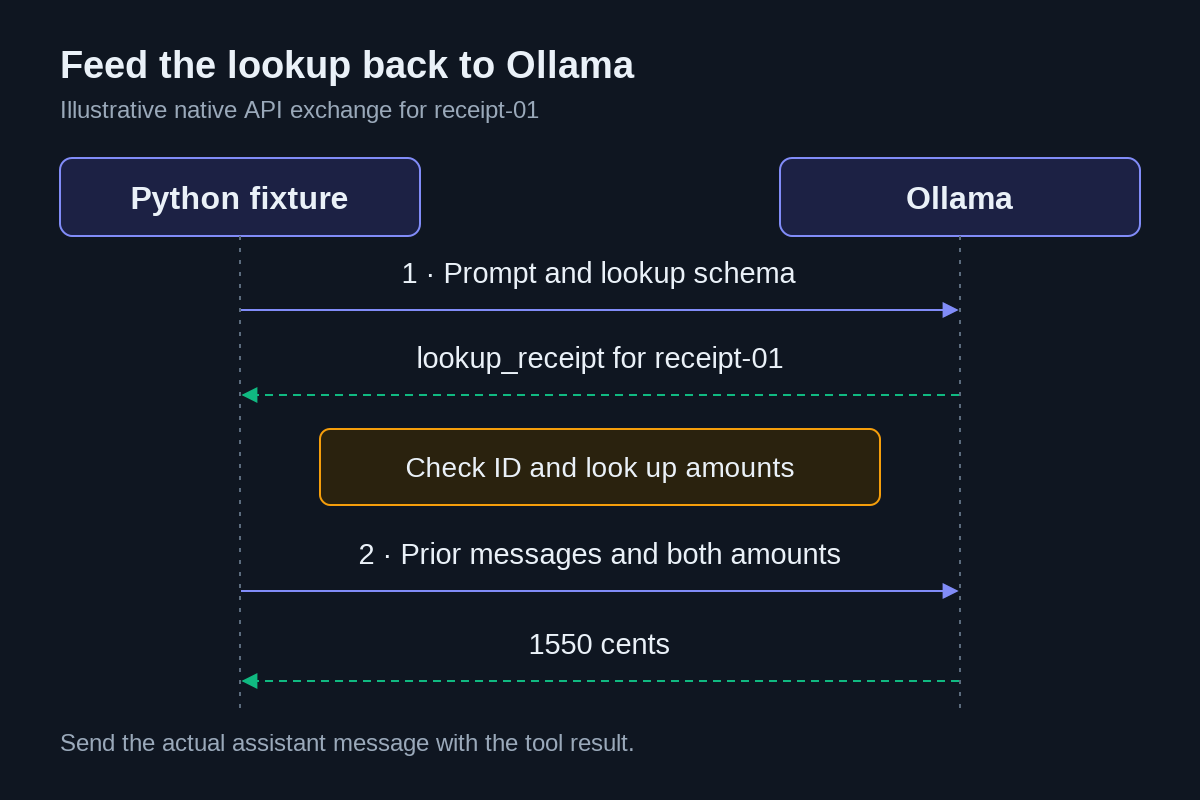
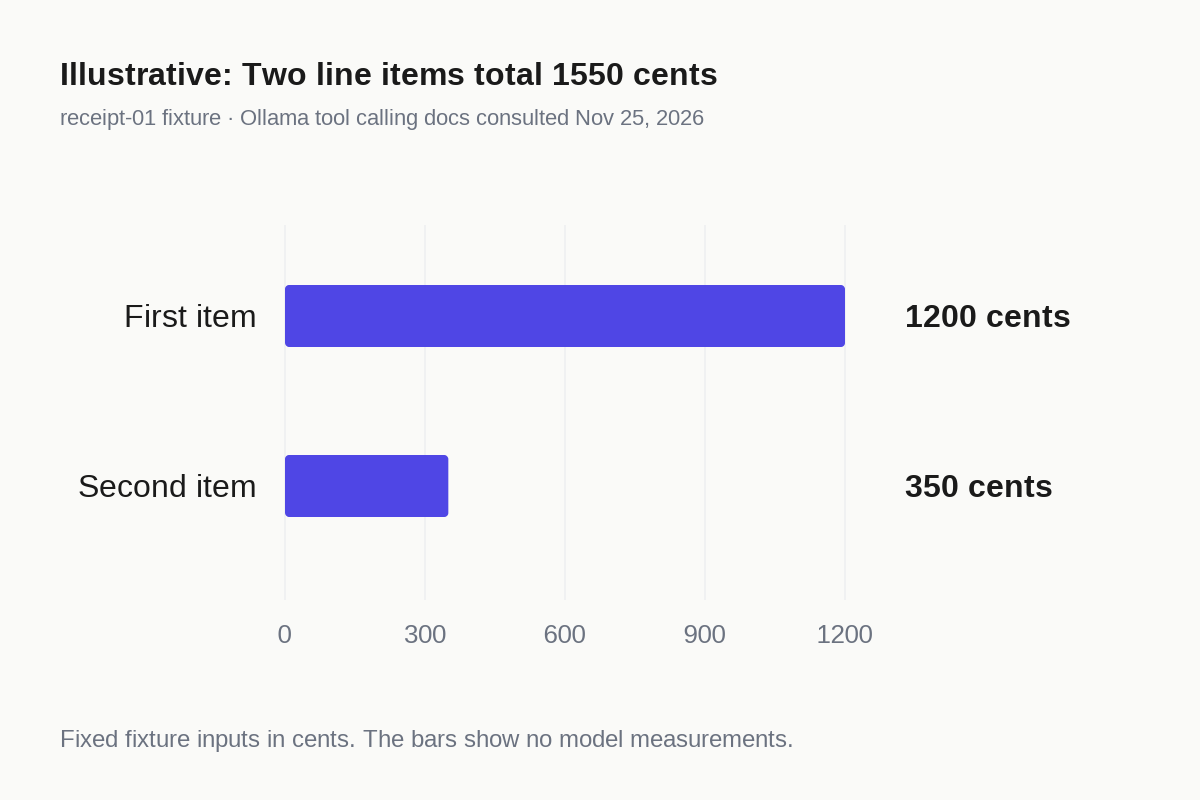
Integer cents keep rounding out of the diagnosis. The local function returns the component amounts so the second response has to produce the total. The exact string check is a fixture choice. If content says The total is 1550 cents, the arithmetic is correct and the requested output format failed. Keep the same criterion while comparing runs. You can decide separately whether the software you actually plan to build would accept a sentence.
A timeout after the middle line puts the failure on the follow-up path. That line shows Python had both amounts and was ready to send them. Check the follow-up response or error to tell how far the second request got. Keep the first request unchanged when investigating the follow-up. Moving the amounts into the first prompt would let the model calculate the total without consuming a tool result and would invalidate the test.
| Input | Action | Expected result |
|---|---|---|
task:receipt-total-01, ID receipt-01, synthetic line items 1200 and 350 cents |
Run python3 check_receipt.py against local inkling-2-mini |
Illustrative. Request 1 returns exactly one structured lookup_receipt call for receipt-01. Python supplies both amounts as the tool result and request 2 ends with 1550 cents. |
task:receipt-total-01, receipt.json with amounts_cents set to [1200, 350], provider and model ollama/inkling-2-mini |
Start opencode in the fixture directory, choose the model with /models, and submit the file-read prompt below |
Illustrative. The session shows a completed read of receipt.json, followed by 1550 cents. The file matches the original. The local ollama ps output identifies the running model and allocation. |
Set the context and run the OpenCode file read
- Set Ollama to at least 64k context for OpenCode after recording the native baseline. In the Ollama app, choose 64k or the next available value above it with the context slider in Settings. If you manage the foreground server, stop your existing instance when idle and use the command below to start its temporary replacement. Keep the intended server listening on port 11434. Make the change when you can interrupt other local sessions that depend on that server. Ollama OpenCode integration · Ollama context length
- Save
receipt.jsonandopencode.jsonin the disposable directory using the blocks below. Save the receipt before starting OpenCode. Keeping the files directly in the working directory makes the permission resource easy to check against the requested filename. - Run
opencodefrom that directory. Start a fresh session with/newif needed. Use/modelsto select Inkling 2 Mini under the Ollama provider and verify the selection before submitting the prompt. OpenCode terminal interface - Submit the plain-text prompt below. Observe the tool activity and check the live runner from your other terminal. When the turn ends, reopen
receipt.jsonin your editor and compare its contents with the original block.
Start a foreground server with the temporary context setting.
OLLAMA_CONTEXT_LENGTH=64000 ollama serve
Save receipt.json with these contents.
{
  "receipt_id": "receipt-01",
  "amounts_cents": [1200, 350]
}
Save opencode.json with these contents.
{
  "$schema": "https://opencode.ai/config.json",
  "model": "ollama/inkling-2-mini",
  "provider": {
    "ollama": {
      "npm": "@ai-sdk/openai-compatible",
      "name": "Ollama",
      "options": {"baseURL": "http://localhost:11434/v1"},
      "models": {
        "inkling-2-mini": {"name": "Inkling 2 Mini", "tool_call": true}
      }
    }
  },
  "permissions": [
    {"action": "*", "resource": "*", "effect": "deny"},
    {"action": "read", "resource": "receipt.json", "effect": "allow"}
  ]
}
Ollama’s manual setup documents the singular provider form, the adapter package, and the /v1 base URL. The V2 OpenCode schema still lists this compatibility form, including tool_call, and marks the provider form deprecated. The root model joins the provider ID ollama to the model key inkling-2-mini. It supplies the default when the session or agent has no model selection. The name field is the display label. When two entries have similar names, check which provider owns the entry before sending the turn. Ollama OpenCode integration · OpenCode JSON schema
The last matching permission rule wins. Within this array the broad rule denies tool actions and the later rule permits read on receipt.json. OpenCode matches an internal read against its location-relative path. If another rule applies later, inspect the effective settings before interpreting a result. The permitted operation for this example is the single fixture read. An unexpected allowed action makes the run unsuitable for judging the intended read-only configuration. OpenCode permissions
Start OpenCode from the folder containing both JSON files.
opencode
Paste the following as plain text. Leave @ out of the filename so the contents enter the conversation through a tool read. OpenCode’s @ syntax attaches a file directly to the prompt. OpenCode terminal interface
For task:receipt-total-01, use the read tool to open receipt.json in this directory. Sum the amounts_cents for receipt-01. Use only that file. Do not edit anything or run shell commands. Reply with the total as <integer> cents.
Look for a completed read of receipt.json followed by 1550 cents. If the answer mentions the correct filename and total but you see no completed read, the run is inconclusive. The filename comes from the prompt, and the answer by itself leaves the origin of the numbers unknown. If you accidentally attached the file, pasted its contents or reused the conversation, start a new session so the read supplies the amounts for the first time.
If the read completes and the model returns 1200 cents, check that the read result includes the second line item and that the fixture has the expected field name, values and receipt ID. With both values visible in the read result, you have a result-use failure. If the file changed, stop, inspect the session for the action that changed it, and restore it from the block. Check for later permission rules before testing again. A correct reply and a matching file are separate observations, so record the read event and inspect the file even if the response sounds convincing.
Diagnose the first missing observation
| Observation | What to check next |
|---|---|
The model appears in ollama ls, but request 1 fails before any assistant message |
Read the script error. A refused connection points to the server or address. An Ollama error reporting a load problem points to the runner. Use ollama ps during the request to check for a loaded model. |
| Request 1 returns a message without a structured call or calls the wrong tool or ID | Compare the call with the schema and exact receipt ID. Repeat the original script using the local catalog tag. Keep the amounts out of the prompt. |
| Request 1 passes, but request 2 errors, returns the wrong format, or asks for a further call | Inspect the follow-up error or answer. If you changed the example, restore the original assistant message and the named tool result before retrying. |
| Native passes, but the Ollama model is missing from the OpenCode picker | Check that OpenCode started in the fixture directory, that opencode.json is spelled correctly, and that the provider and model keys match the example. |
| OpenCode reports a read attempt with a denial or a missing file | Compare the requested resource with receipt.json, the active working directory, and the effective rule order. |
| OpenCode reads and answers, but allocated context falls short or the Mac struggles | Compare the live row with the server setting. Repeat only after finding the right server and restoring a comparable workload. |
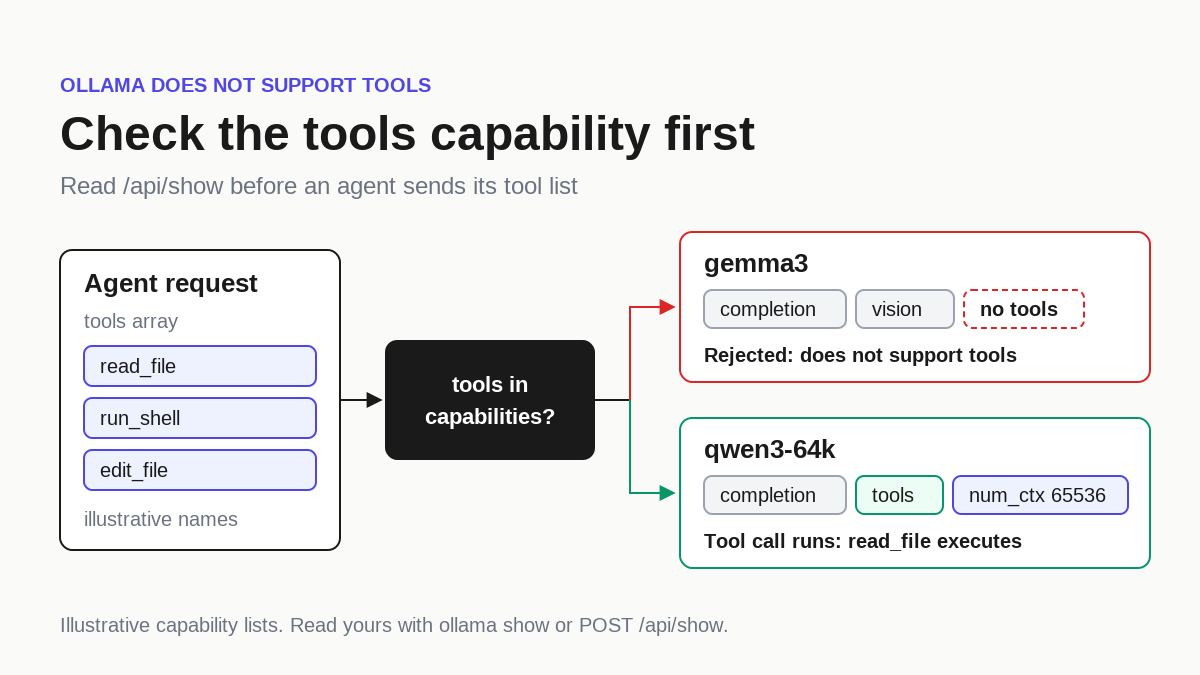
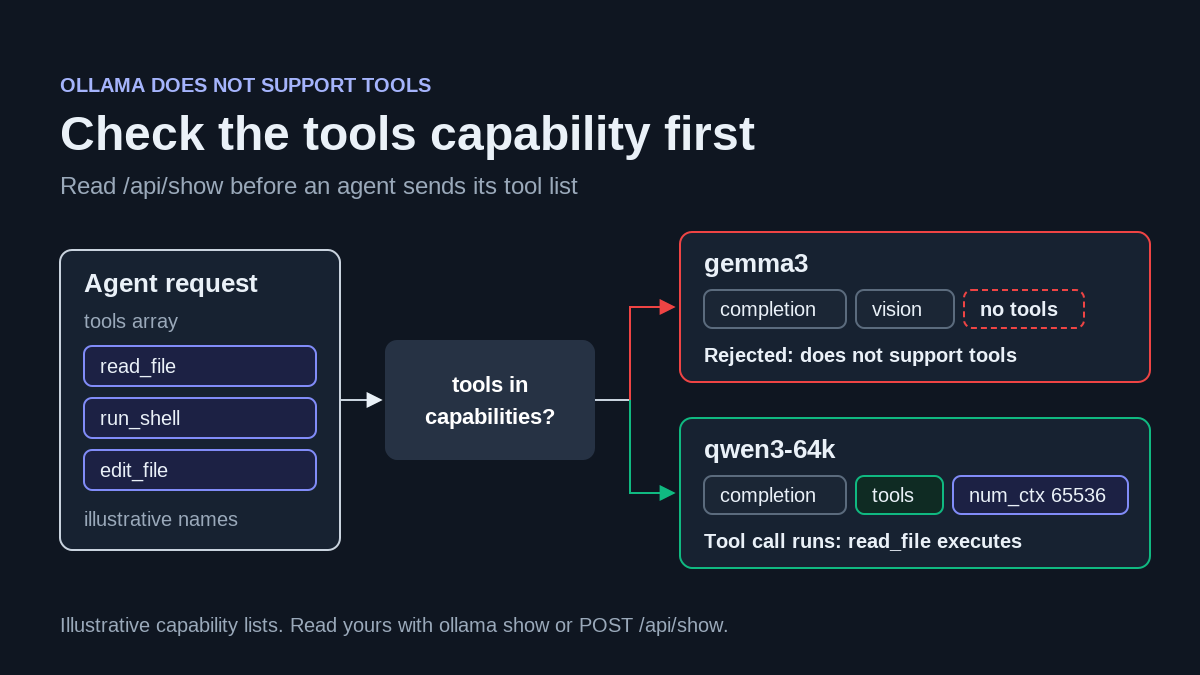
If you see a connection error, check that the local server is running before changing the model tag or tool definition. If Ollama returns a model error, compare MODEL with the installed name and check the server output for a load failure. An absent row after the fact can also mean the model has already unloaded. Try observing during the request when you need to resolve that ambiguity. For examples involving other models or clients, see the broader tool support troubleshooting guide. Ollama tool support troubleshooting
If the native script passes and the OpenCode model is missing, begin with project configuration and selection. The script talks to /api/chat. OpenCode’s adapter uses the OpenAI-compatible base at /v1. Success on the native endpoint establishes that the model can complete this particular exchange there. Provider discovery, compatibility, and OpenCode tool dispatch still have to work for the file-read turn. Check baseURL exactly and reopen OpenCode in the fixture directory after editing the config so you can check the new selection in a fresh session. Ollama OpenAI-compatible API setup
A read denial gives you a specific operation and resource to inspect. Check that the file is directly inside the active directory and that the requested resource matches the position and name used in the example. If a managed or inherited restriction is responsible, use another permitted setup for the example. A shell fallback would test another operation. For details on where OpenCode gets its settings and how ordered rules apply, see the V2 setup guide. OpenCode V2 setup
A completed read followed by a stall also narrows the diagnosis. Preserve the read event and check the running model while the reply is pending. You already have evidence of file access. Repeatedly changing permissions at that point makes the next run harder to compare. If a warm repeat finishes quickly after a slow first turn, record the difference as a local observation and check whether the model was already loaded before each prompt. That comparison helps you decide whether startup accounts for a delay you would otherwise attribute to the read.
Read the live allocation and restore your settings
- Run
ollama pswhile the OpenCode request is active or soon after it returns. Find Inkling inNAMEand recordCONTEXTandPROCESSORfrom the same row. Before submitting the OpenCode prompt, you can clear a row left over from the native test withollama stop inkling-2-miniwhen no other session is using it. Confirm the row is gone and run the OpenCode prompt with other clients idle. If the model unloads before inspection, repeat the prompt in a fresh session and check while it is running. Ollama CLI reference - Compare the live allocation with the context you set. For the foreground command, look for
64000or higher. For the app, compare with the slider target you selected. If the allocation falls short, verify that the process serving the request is the one you configured, then check again after a fresh load. Read the processor split on the same row and judge it alongside response time and how responsive the Mac was during the read. - Close the disposable OpenCode session and remove the
opencode.jsonyou created in that folder. Use Finder to move the folder to Trash if you are finished with the receipt and script too. If you want to repeat the native check later, keepcheck_receipt.py. Its inputs are already in the script. - Restore the context slider to its recorded value in the Ollama app. If you used the temporary foreground server, stop it with Ctrl+C and restart Ollama with the original command and environment. If the original command had no context override, restart it without the temporary prefix. When the model next loads, inspect
ollama psto confirm the allocation matches the restored setup.
The publisher’s 1M-token window is a model ceiling. The integration’s 64k minimum is a configuration requirement. The number in CONTEXT is the capacity Ollama allocated to the running model. A short receipt turn can succeed with a live allocation below the target, because the prompt and receipt are small. Record that as a successful read with a configuration shortfall. A larger context increases memory requirements even though the receipt stays the same size. The model card’s hardware floor is a starting point for choosing a machine. Judge the intended configuration using the live row and how the Mac responds. Publisher model card · Ollama OpenCode integration · Ollama context length
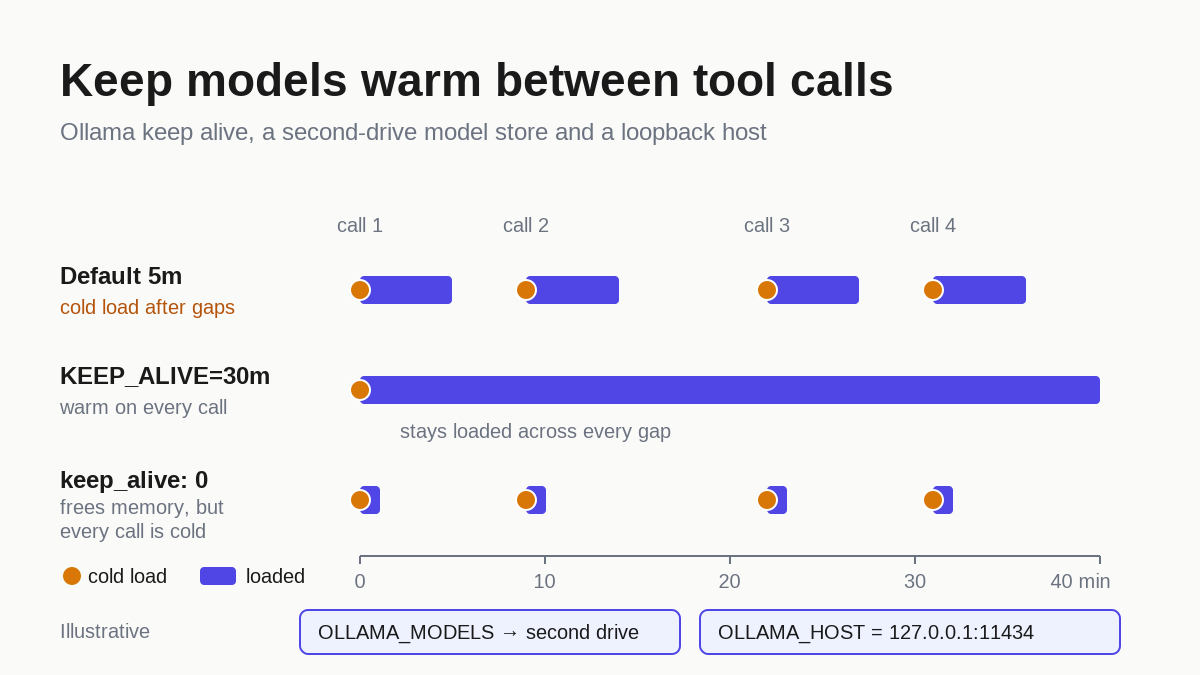
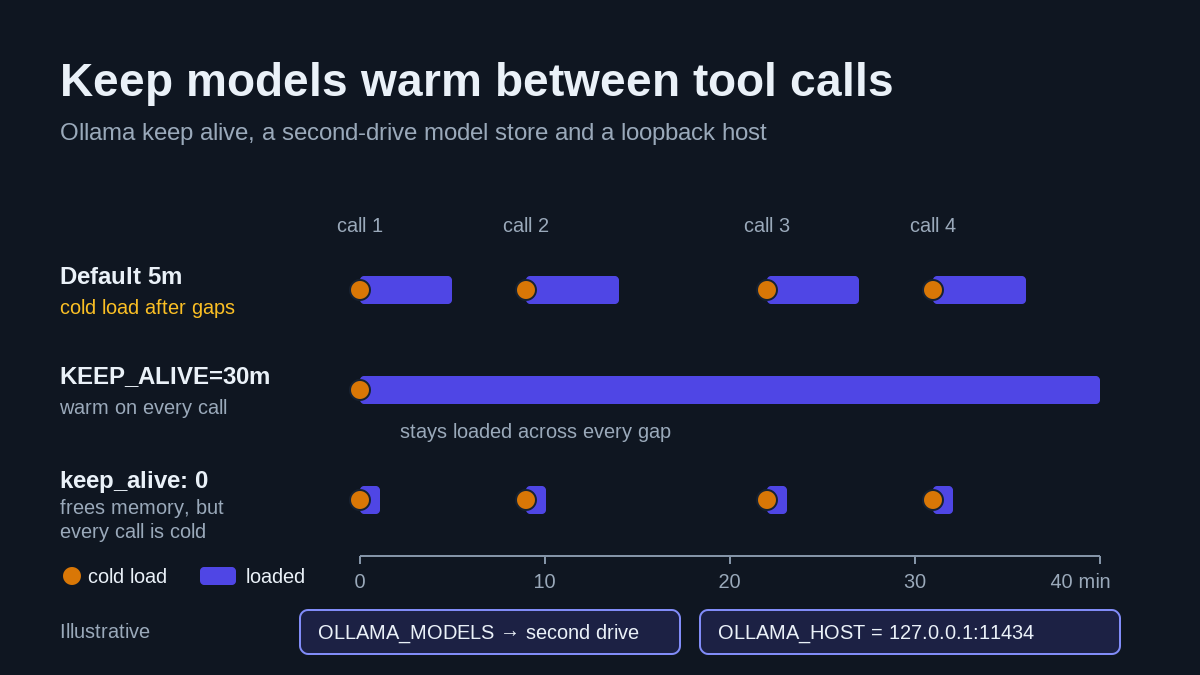
An all-GPU row is one possible observation. If the row shows a mixed CPU/GPU split and the task still completes in a time you can work with, keep the split and response time together in your notes. If the Mac becomes sluggish after the change, repeat the same OpenCode turn after closing other substantial workloads you can safely interrupt. Keep the fixture, model and config fixed for that comparison. A second slow run under lighter load, or a failure to load at the target, gives you a reason to restore the earlier setting and keep the native result as evidence for the smaller task. The model residency guide explains why some checks start cold or disappear from the running list between requests. Ollama keep-alive and host settings
For an illustrative comparison, suppose the native script prints all three expected lines and OpenCode reads the fixture and answers correctly, but the CONTEXT column during OpenCode shows 32768. The native exchange and file-read result both pass. The allocation falls below the integration target. Check the server setting and which process received the request before changing anything about the model or prompt. If the next attempt reaches the target but is too slow for you, the live row and the terminal transcript give you evidence that the file-read capability and the runtime fit led to different decisions.
Keep the native output, OpenCode read event and answer, and live ollama ps row together if you plan to revisit the setup after changing machines or software. Include the selected provider and model so a later comparison can identify the route you intended. With those observations together, a later reader can work back from a changed reply to the read event and check whether the runner allocation changed too. Why agent session replay needs evidence
A full pass requires the validated native lookup and answer, an OpenCode read of the same fixture through the selected Ollama model, a final total of 1550 cents, matching fixture contents afterward, and a live allocation at the target with acceptable response time. That gives you evidence for a small local read task on this Mac. Apply the same distinction between tool activity, answer quality and runtime behavior when you move to a larger project.
Sources
- Thinking Machines Lab – Introducing Inkling 2 Mini
- Thinking Machines Lab – Inkling 2 Mini model card
- Ollama – Inkling 2 Mini model listing
- Ollama – Tool calling
- Ollama – Context length
- Ollama – OpenCode integration
- Ollama – CLI reference
- OpenCode – Permissions
- OpenCode – JSON schema
- OpenCode – Terminal interface