Claude Desktop MCP Setup: Find claude_desktop_config.json, Add Local Servers or .mcpb Extensions, and Fix Servers That Won't Connect
Claude Desktop MCP setup: find claude_desktop_config.json, add a local server or .mcpb bundle, add remote connectors, and fix servers using the mcp*.log files.

You saved the config, closed the Claude window, opened it again, and the server still isn’t in the connectors menu. That is the most common Claude Desktop MCP failure, and it rarely has anything to do with the server. This tutorial is for developers and technical power users running the Claude Desktop chat app on macOS or Windows who want to add Model Context Protocol servers and have one that shows as failed, disconnected or simply absent. You’ll finish with a working local server defined in claude_desktop_config.json, a rule for when an .mcpb bundle or a remote custom connector is the better route, and a log-first loop for anything that refuses to connect.
On October 30, 2026, developer Mehdi Mohseni compressed the two facts that fix most of these cases into one reply on X: after a config fix, Claude Desktop “needs a full quit to reread it; closing the window isn’t enough,” and “the error itself lands in ~/Library/Logs/Claude/mcp*.log.” The Model Context Protocol project’s Debugging guide gives the same instruction for server code changes: for Claude Desktop, “fully quit and reopen; closing the window is not enough.” Those two habits, quitting properly and reading the per-server log, carry the rest of this guide.
This guide is about the chat app. If you work in the terminal CLI, the Claude Code MCP setup guide covers claude mcp add, scopes and connection fixes there. The two products meet in one place, covered in its own section below. For the protocol itself, with hosts, clients, servers and transports, start with MCP explained.
Before you start: what this setup needs
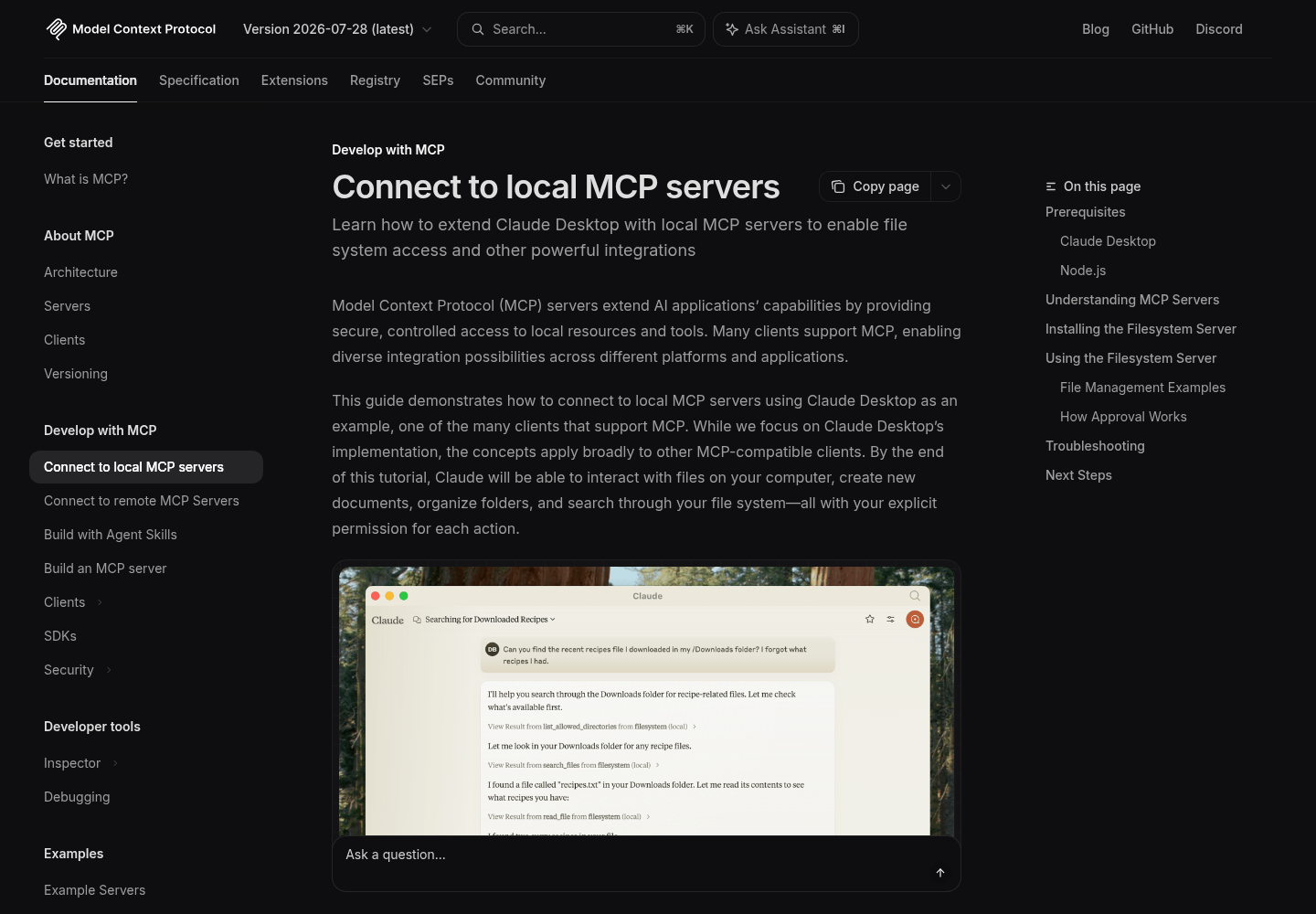
Claude Desktop launches local servers as child processes on your machine, so most prerequisites are about what that process can find once it starts. Tick these off first:
- [ ] Claude Desktop, current and signed in. The Connect to local MCP servers guide lists macOS, Windows and Linux builds and suggests the Claude menu’s “Check for Updates…” item to confirm you’re on the latest version.
- [ ] Node.js, preferably the LTS line. The filesystem server used below runs through
npx. Confirm withnode --versionin a terminal; if that errors, install Node from nodejs.org. - [ ] Python and uv, only if you plan to run Python servers.
- [ ] An editor that highlights JSON errors. A single trailing comma stops the whole file from loading.
- [ ] Terminal on macOS or PowerShell on Windows for reading logs and running server commands by hand.
- [ ] The absolute paths of every folder you intend to expose.
- [ ] API keys kept outside version control. Anything you put in the config’s
envblock sits in plain text in your user profile.
One security fact to hold onto: the filesystem server “runs with your user account permissions,” per the MCP guide, so it can perform any file operation you can. Grant only directories you’d be comfortable letting Claude read and modify, and treat every new server as code you are choosing to run on your account. The MCP hardening guide covers the production version of that discipline.
Where Claude Desktop keeps its MCP files
Before editing anything, know where the files live. The paths below come from the MCP project’s connect and debugging guides. Neither guide lists Linux paths, so on Linux open the config through the menu steps after the table rather than guessing a location.
| What | macOS | Windows | Purpose |
|---|---|---|---|
| Config file | ~/Library/Application Support/Claude/claude_desktop_config.json |
%APPDATA%\Claude\claude_desktop_config.json |
Defines the local servers Desktop starts |
| Log folder | ~/Library/Logs/Claude |
%APPDATA%\Claude\logs |
Holds every MCP log file |
mcp.log |
In the log folder | In the log folder | General MCP connection events and connection failures |
mcp-server-SERVERNAME.log |
In the log folder | In the log folder | That server’s stderr output, routine logging included |
developer_settings.json |
~/Library/Application Support/Claude/developer_settings.json |
%APPDATA%\Claude\developer_settings.json |
Turns on Chrome DevTools with allowDevTools |
Open the config through the app rather than hunting for it in a file browser:
- Click the Claude menu in your operating system’s menu bar, not the settings inside the chat window, and choose Settings…. This window is Claude Desktop’s application configuration, separate from your account settings.
- Select the Developer tab in the left sidebar.
- Click Edit Config. Desktop creates the file if it doesn’t exist and opens it if it does.
%APPDATA% is a Windows environment variable. Command Prompt expands it as written; in PowerShell the same folder is $env:AppData, which is why the debugging guide’s PowerShell commands use that spelling. Mixing the two forms in the wrong shell is a quiet source of “file not found” errors when you go looking for logs.
Write a working claude_desktop_config.json
The worked example defines two servers: the documented filesystem server with two allowed folders, and a second entry that passes an API key through an env block. The second entry reuses the server shape the MCP guide shows in its Windows troubleshooting section. Substitute whichever key-based server you actually run; the structure is the lesson, not that particular package.
- Back up the current file. These are ordinary shell commands rather than anything the MCP docs prescribe, but a dated copy turns rollback into a one-line restore.
# macOS
cp ~/Library/Application\ Support/Claude/claude_desktop_config.json \
   ~/Library/Application\ Support/Claude/claude_desktop_config.$(date +%Y%m%d).bak
# Windows PowerShell
Copy-Item "$env:AppData\Claude\claude_desktop_config.json" `
  "$env:AppData\Claude\claude_desktop_config.$(Get-Date -Format yyyyMMdd).bak"
- Open the file with Settings > Developer > Edit Config.
- Paste the configuration. The MCP tutorial replaces the whole file. If yours already defines servers you want to keep, add the new entries inside the existing
mcpServersobject instead of overwriting it. - Replace
usernamewith your actual account name and...with your key. - Check that the JSON parses before you restart. Your editor’s error highlighting is enough; on macOS,
python3 -m json.toolfollowed by the file path prints the file back or names the line of the syntax error. That is a general Python utility, not part of the MCP docs. - Save, then follow the reload section below. Saving alone changes nothing in a running app.
The macOS version:
{
  "mcpServers": {
    "filesystem": {
      "command": "npx",
      "args": [
        "-y",
        "@modelcontextprotocol/server-filesystem",
        "/Users/username/Desktop",
        "/Users/username/Downloads"
      ]
    },
    "brave-search": {
      "command": "npx",
      "args": ["-y", "@modelcontextprotocol/server-brave-search"],
      "env": {
        "BRAVE_API_KEY": "..."
      }
    }
  }
}
The Windows version, with doubled backslashes because JSON treats a single backslash as an escape character. The APPDATA line is the documented fix for the Windows path error covered in the troubleshooting table; leave it out until you need it.
{
  "mcpServers": {
    "filesystem": {
      "command": "npx",
      "args": [
        "-y",
        "@modelcontextprotocol/server-filesystem",
        "C:\\Users\\username\\Desktop",
        "C:\\Users\\username\\Downloads"
      ]
    },
    "brave-search": {
      "command": "npx",
      "args": ["-y", "@modelcontextprotocol/server-brave-search"],
      "env": {
        "APPDATA": "C:\\Users\\user\\AppData\\Roaming\\",
        "BRAVE_API_KEY": "..."
      }
    }
  }
}
What each field does, because JSON leaves no room for comments inside the file:
| Field | Example value | Why it is there |
|---|---|---|
mcpServers |
Object | Top-level key; each property inside it is one server |
"filesystem" |
Server key | The friendly name Desktop shows in its connector list |
command |
npx |
Node’s package runner, which fetches and starts the server package |
First args entry |
-y |
Confirms the package install automatically, so nothing waits on a prompt nobody can see |
Second args entry |
@modelcontextprotocol/server-filesystem |
The server package itself |
Remaining args |
Absolute folder paths | The only directories the server may touch |
env |
BRAVE_API_KEY and, on Windows, APPDATA |
Variables handed to that one server process |
Two choices in that file deserve the reasoning, not just the syntax. Paths are absolute because, per the debugging guide, the working directory for a server launched from the client’s config “may be undefined (like / on macOS)”, since the client could be started from anywhere. A relative path that works when you test in a terminal resolves against your shell’s current folder; inside Desktop it resolves against nothing useful. The env block exists because stdio servers “inherit only a limited subset of environment variables automatically,” and the exact set depends on the platform. A key exported in your shell profile does not reach a server Desktop launches.
The env block is also the weak spot. The key sits in plain text in a file in your profile, so never copy this file into a dotfiles repository, a ticket or a chat. If you’re handing a server to other people, the bundle route below gives them a masked input field instead.
The reload rule: quit the app, not the window
Desktop reads the config and starts its servers when the application launches; the MCP guide describes the file as telling Claude Desktop to start the server “whenever you launch the application.” Closing the chat window leaves the application running, so nothing is reread. That is exactly the failure Mohseni’s post describes, and it is why an edit often seems to do nothing at all.
- Save the config.
- Quit the application. On macOS, use Claude menu > Quit or Command-Q. On Windows, quit from the app itself, and if a change still doesn’t take, check Task Manager for a leftover Claude process before reopening. Those operating-system steps are general practice; the docs say only to “completely quit.”
- Reopen Claude Desktop.
- Open the connectors menu. Click the “Add files, connectors, and more /” indicator at the bottom-left of the conversation input, hover over Connectors, and click Manage connectors.
- Select
filesystemto see its tools. The MCP guide lists what to expect: reading file contents and directory structures, creating files and directories, moving and renaming files, and searching by name or content. - Run a test prompt such as “What work-related files are in my downloads folder?” Claude requests your approval before executing any file system operation; approve it and read the result.
Success means three things are true together: the server appears with its tools listed, a test prompt triggers an approval request and returns real data from the folder, and mcp-server-filesystem.log shows startup lines without an error. If the server is absent, resist the urge to edit again. Go straight to the logs section; a second blind edit turns one problem into two.
Local JSON, an .mcpb bundle or a remote connector?
Claude Desktop has three routes for MCP servers, and choosing the wrong one produces some of the strangest “it just doesn’t show up” reports. The deciding question is where the server process runs and who opens the connection to it.
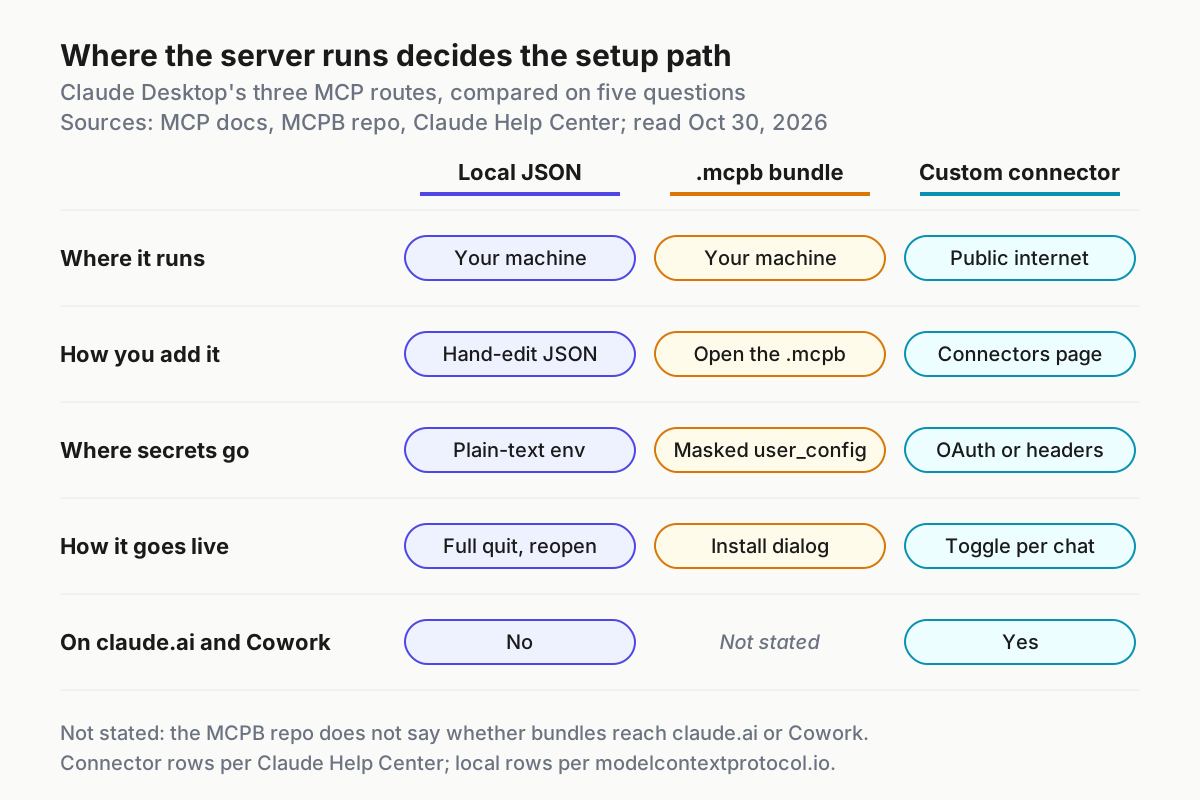
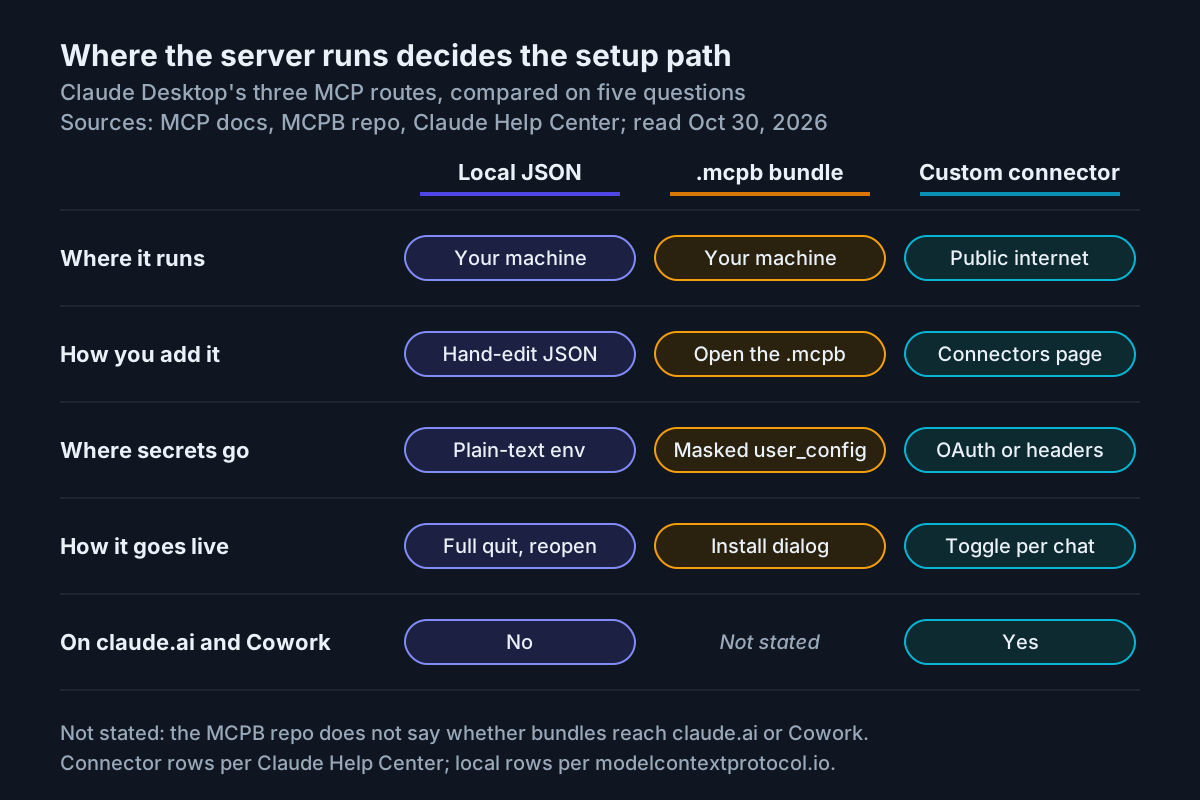
| Question | Local JSON entry | .mcpb bundle | Remote custom connector |
|---|---|---|---|
| Where the server runs | Your machine, launched by Desktop | Your machine, unpacked from a zip archive | A host on the public internet |
| Who connects to it | Desktop, locally | Desktop, locally | Anthropic’s cloud infrastructure |
| How you add it | Settings > Developer > Edit Config | Open the .mcpb file for an install dialog |
Customize > Connectors |
| Where secrets go | env block, in plain text |
A user_config field marked sensitive, masked and stored securely |
OAuth sign-in, or request headers stored encrypted |
| Available on claude.ai and Cowork | No | Not stated | Yes |
| Best fit | Your own tools and quick tests | Handing a local server to someone who shouldn’t edit JSON | Hosted services and team-shared servers |
Run this decision procedure for each new server:
- Does the server need local files, a localhost database or tools on this computer? Use a local route. Hand-edit JSON for your own use; build a bundle if someone else will install it.
- Is the server already hosted at an https URL? Add it as a custom connector. Claude’s help center says the connection “originates from Anthropic’s servers, not from your machine’s network interface,” even in Desktop.
- Is that hosted server behind a VPN or corporate firewall? A connector won’t reach it until Anthropic’s IP ranges are allowlisted. If you can’t arrange that, run the server locally instead.
- Do you need the same server in claude.ai or Cowork? Only the connector route is documented to work there; the help center states that local servers configured through
claude_desktop_config.jsonaren’t available in Cowork or claude.ai.
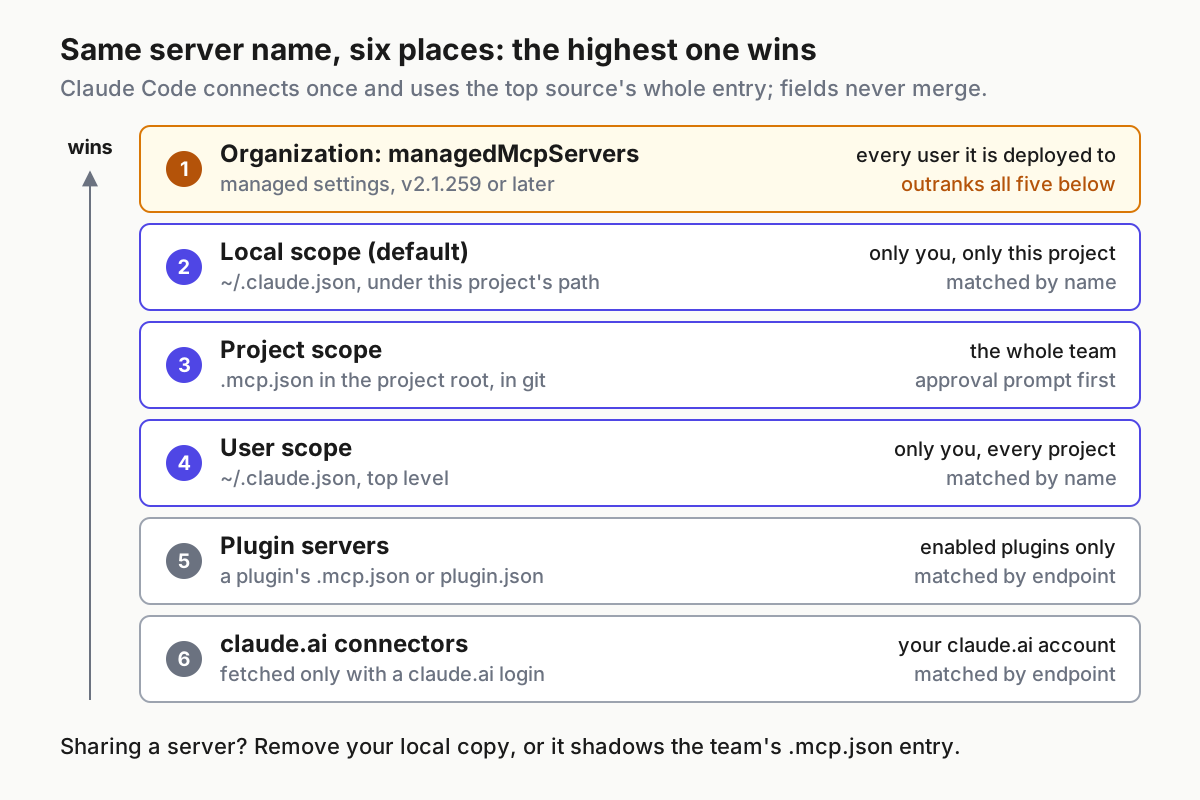
Don’t paste a remote URL into claude_desktop_config.json and expect it to connect. Every Desktop example in the MCP docs is a command that Desktop launches, and the help center documents remote servers through the Connectors page, brokered through your Claude account. A URL entry in the Desktop config is a route these docs never describe, so treat any remote server as a connector by default.
Package a server as an .mcpb bundle
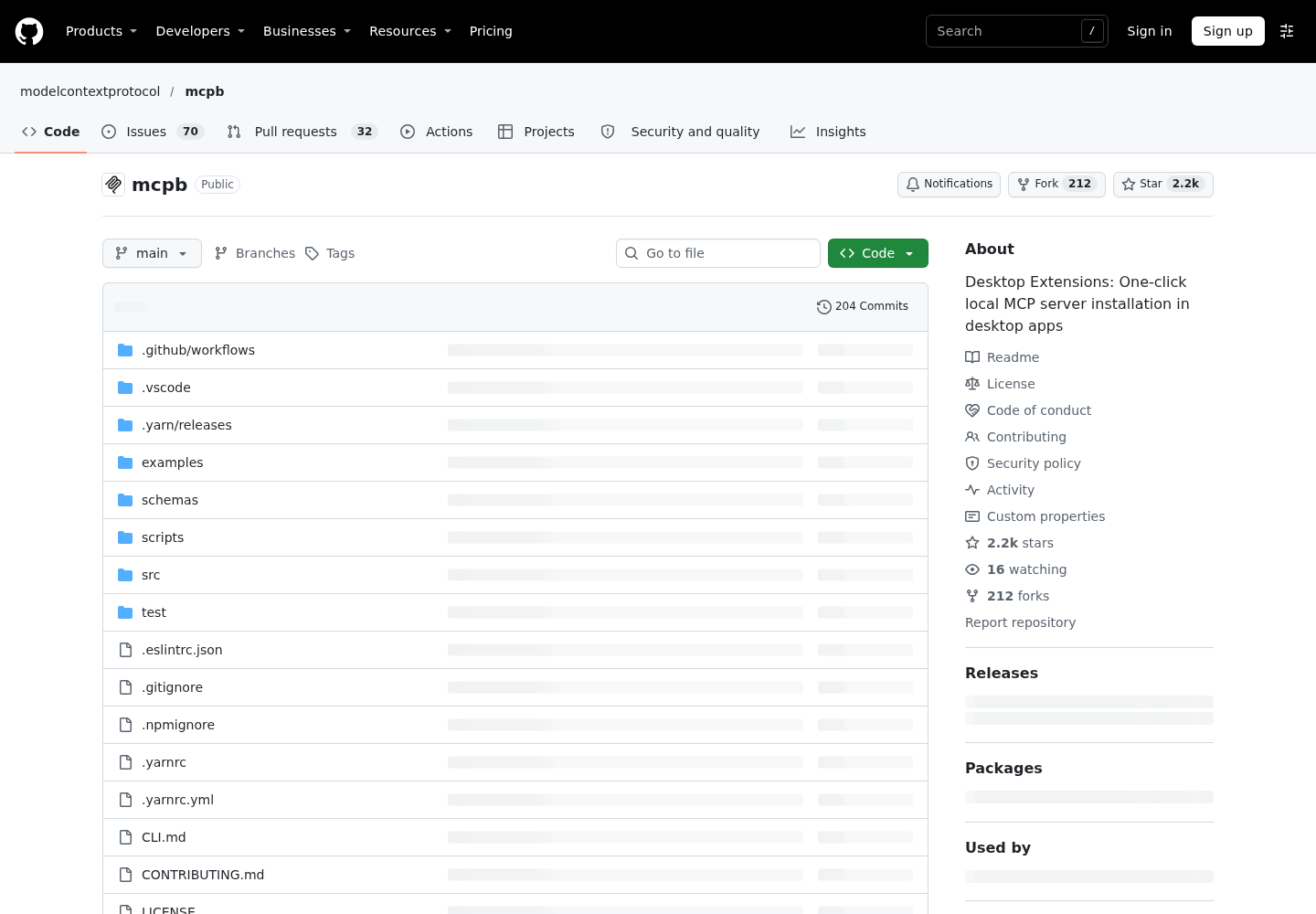
MCP Bundles are zip archives “containing a local MCP server and a manifest.json,” according to the mcpb repository, and they’re the format behind single-click installs in Claude for macOS and Windows. The project was renamed from Desktop Extensions: the dxt CLI is now mcpb and .dxt files are now .mcpb files, so older tutorials that mention DXT describe the same mechanism. The repository also lists what Desktop adds for bundles: automatic updates, configuration of the variables and parameters a server needs, and a curated directory.
Building one for a Node server:
- Install the CLI with
npm install -g @anthropic-ai/mcpb. - In the folder containing your server, run
mcpb init. It walks you through creatingmanifest.json. - Edit the manifest so secrets arrive through
user_configrather than a hand-pastedenvvalue, as in the example below. - Run
npm install --productionsonode_modulesexists, because the repository says Node bundles must ship their dependencies. - Run
mcpb packto produce the.mcpbfile. - Open that file with Claude for macOS or Windows. The repository says this shows an installation dialog.
- Fill in the requested fields, then confirm the server under Manage connectors exactly as you did for the JSON entry.
npm install -g @anthropic-ai/mcpb
cd my-server
mcpb init
npm install --production
mcpb pack
A manifest that collects an API key at install time, taken from the spec’s own example:
{
  "manifest_version": "0.3",
  "name": "my-extension",
  "version": "1.0.0",
  "description": "A simple MCP extension",
  "author": {
    "name": "Extension Author"
  },
  "server": {
    "type": "node",
    "entry_point": "server/index.js",
    "mcp_config": {
      "command": "node",
      "args": ["${__dirname}/server/index.js"],
      "env": {
        "API_KEY": "${user_config.api_key}"
      }
    }
  },
  "user_config": {
    "api_key": {
      "type": "string",
      "title": "API Key",
      "description": "Your API key for authentication",
      "sensitive": true,
      "required": true
    }
  }
}
The manifest specification explains why this beats the JSON route for sharing. ${__dirname} is replaced with the absolute path to the installed bundle, so the server never depends on a working directory. ${user_config.api_key} is filled from the install dialog, and "sensitive": true tells the host to mask the input and store it securely. The spec adds that when an extension is installed, apps “automatically generate the appropriate MCP server configuration and add it to the user’s settings,” which is precisely the hand-editing step the bundle removes. Only manifest_version, name, version, description, author and server are required; everything else is optional.
Two packaging choices matter. The repository recommends Node over Python because Node.js ships with Claude for macOS and Windows, so users need nothing extra installed. For Python, the uv server type, introduced in manifest version 0.4, declares dependencies in pyproject.toml and lets the host manage Python; that sidesteps the traditional Python bundle’s limitation that compiled dependencies such as pydantic can’t be bundled portably. A Node bundle’s layout looks like this:
bundle.mcpb (ZIP file)
├── manifest.json
├── server/
│   └── index.js
├── node_modules/
├── package.json
└── icon.png
Add a remote server as a custom connector
Remote servers belong on the Connectors page. The custom connectors help article lists them for Free, Pro, Max, Team and Enterprise plans on Claude, Cowork and Claude Desktop, with Free users limited to one custom connector.
On an individual Pro or Max plan:
- Go to Customize > Connectors.
- Click + Add, then Add custom connector.
- Enter a name; this is what appears in the connectors list.
- Paste the remote MCP server URL and click Continue.
- Review the authentication settings Claude detected, change them if your server needs something different, and click Continue.
- Under Authentication, choose “Sign in now”, “Sign in when needed” or “No sign in”.
- If people will sign in, choose the OAuth client: “Use Claude’s published identity (Recommended)”, “Register automatically” or “Use your own OAuth client”.
- If the server takes an API key or bearer token instead of OAuth, add it under Request headers.
- Click Add, then enable the connector per conversation from the “+” button and the Connectors toggles.
On Team and Enterprise plans, an Owner or Primary Owner adds the connector under Organization settings > Connectors (Add, then Custom, then Web), and each member finds it under Customize > Connectors and clicks Connect. A shared request-header credential gives everyone who uses the connector that credential’s access, so the help article advises one limited to what members should reach.
Debugging works differently here. Because the connection comes from Anthropic’s cloud, your server must be reachable from Anthropic’s IP ranges, and a server you can open from your laptop over a VPN can still fail. The debugging guide notes that for Streamable HTTP servers, stderr “is not captured by the client”; use your server’s own logs and standard HTTP tooling such as curl to see what actually arrived. The local mcp*.log files are the tool for stdio servers that Desktop launched itself.
Share servers between Claude Desktop and Claude Code
If you also run Claude Code, the Claude Code MCP documentation supports bridges in both directions.
| Goal | Command or config | Constraints the docs state |
|---|---|---|
| Reuse Desktop’s servers in Claude Code | claude mcp add-from-claude-desktop, then claude mcp list |
macOS and WSL only; names may contain only letters, numbers, hyphens and underscores; clashing names get a numeric suffix such as server_1 |
| Copy one Desktop entry into Claude Code | claude mcp add-json <name> '<entry JSON>' |
Pass the object inside mcpServers, not the wrapper |
| Use Claude Code’s tools from Desktop | claude mcp serve defined as a server in Desktop’s config |
Use the full path to claude if Desktop can’t find it |
The import is interactive: you pick which servers to bring over, add --scope user to make them available across projects, and confirm with claude mcp list. A Desktop server whose name contains a space is reported and skipped while the others still import, so rename it in Desktop’s config first.
The reverse direction adds this entry to Desktop’s mcpServers object:
{
  "mcpServers": {
    "claude-code": {
      "type": "stdio",
      "command": "claude",
      "args": ["mcp", "serve"],
      "env": {}
    }
  }
}
Run which claude to find the full path for command if the bare name doesn’t resolve; the docs name spawn claude ENOENT as the error you’ll see otherwise. Note the caveat on the same page: this server exposes Claude Code’s tools to your client, and your client is responsible for confirming individual tool calls. If you’d rather run one containerized set of servers for several coding CLIs, the Docker MCP Gateway guide covers that pattern. If Desktop is one of several agent clients on your machine, running many assistants under one operator covers keeping their setups from drifting apart.
Read the logs before you change anything
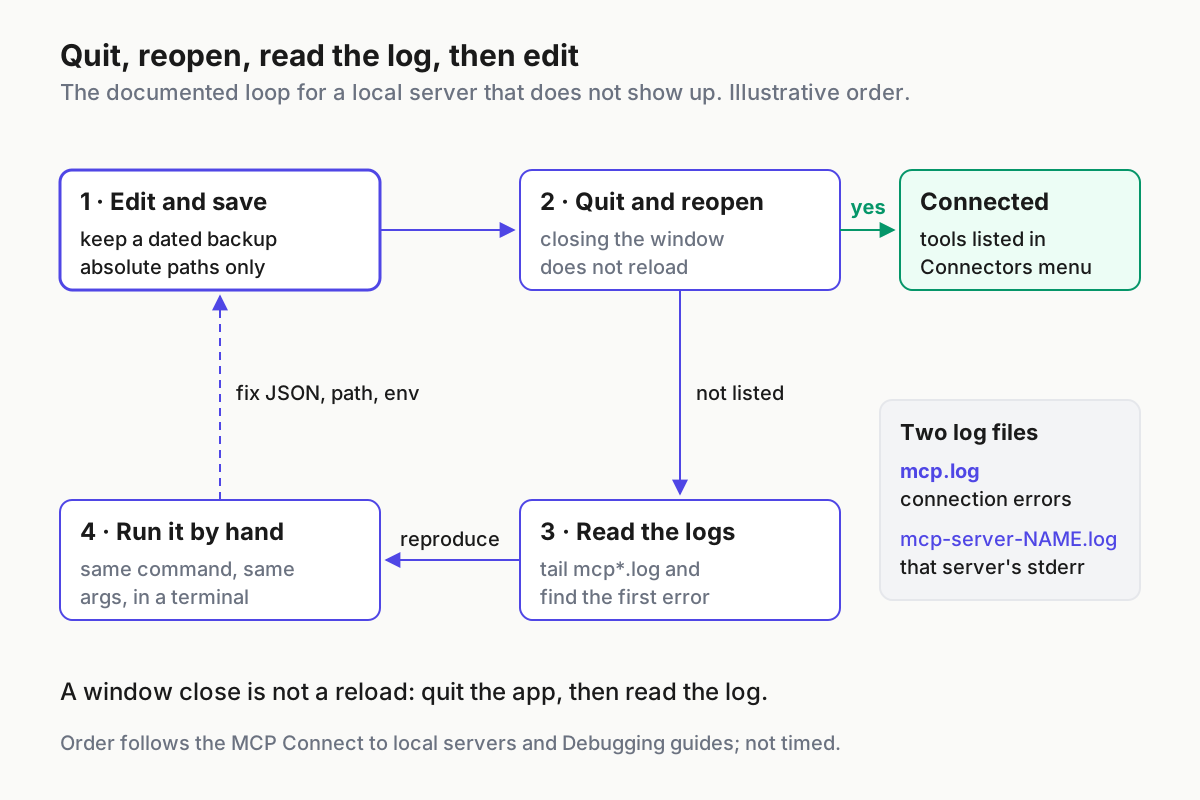
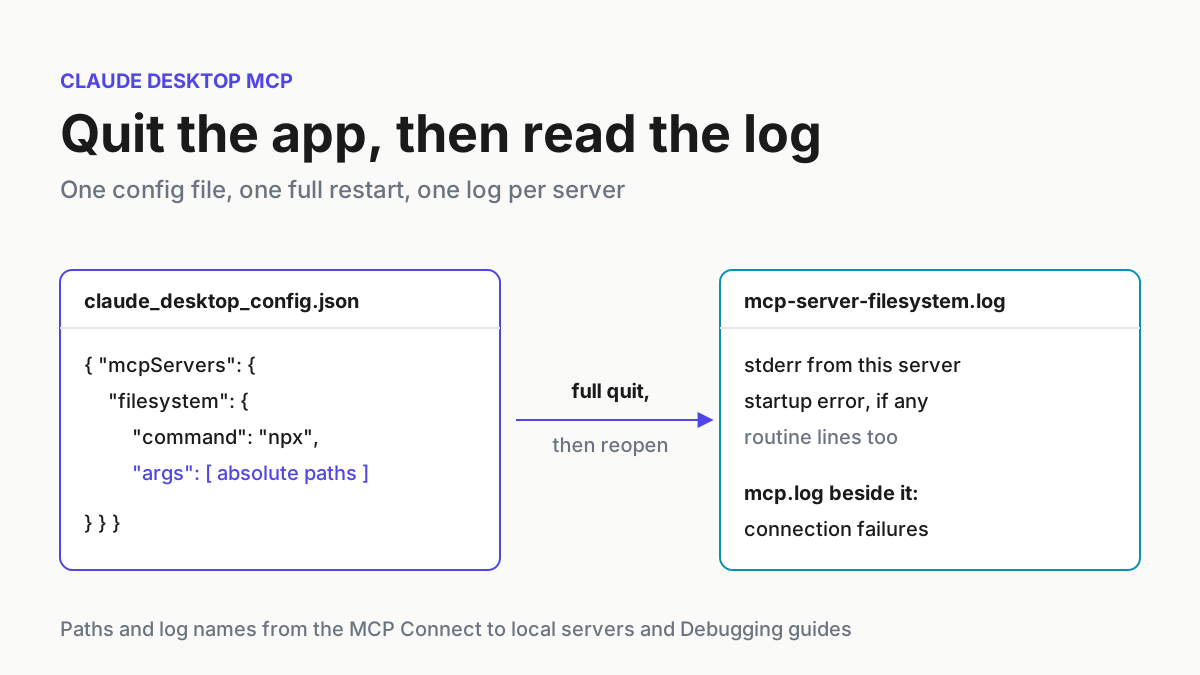
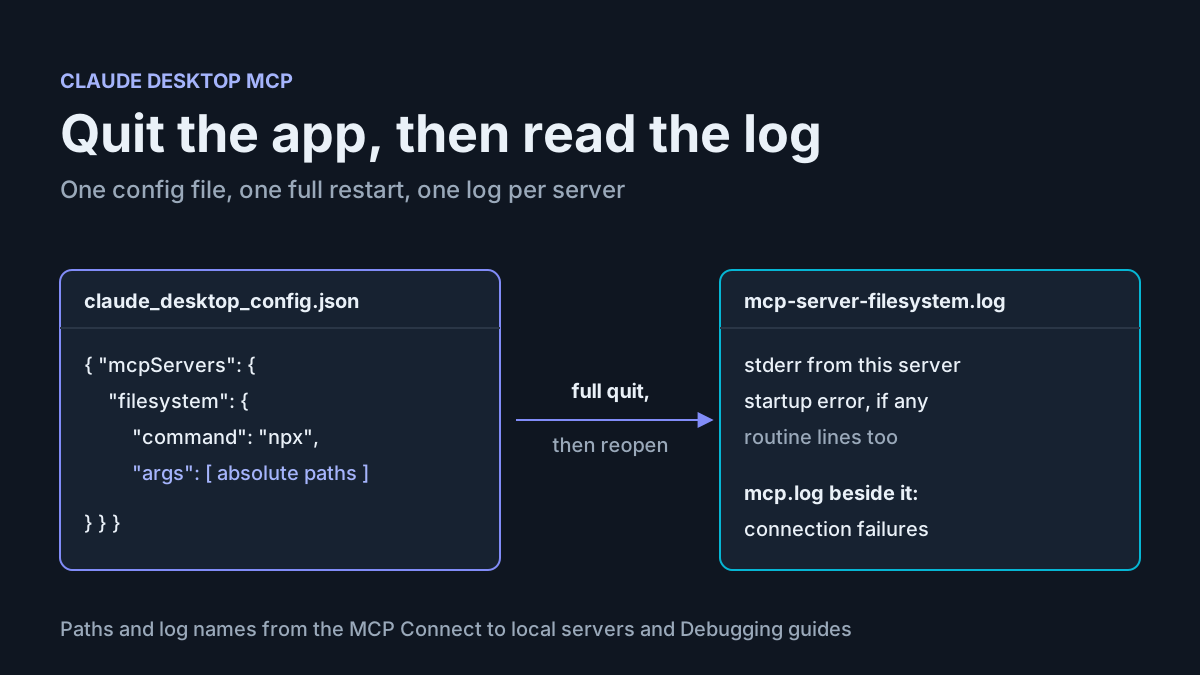
The diagram shows the loop. Each step answers a different question, and skipping straight back to the config is how a one-character fix becomes an afternoon.
- Follow the MCP logs. On macOS, this lists recent lines and follows new ones:
tail -n 20 -F ~/Library/Logs/Claude/mcp*.log
On Windows, these show recent entries but don’t follow new ones, so rerun them after each restart:
type "%APPDATA%\Claude\logs\mcp*.log"
type "$env:AppData\Claude\logs\mcp*.log"
- Read
mcp.logfirst. It records general connection events and connection failures, which tells you whether Desktop tried to start the server at all. - Then read
mcp-server-SERVERNAME.log, shortened tomcp-server-NAME.login the diagram. It holds that server’s stderr. Stdio servers may send all their logging to stderr, so routine lines appear too; scan for the first error after the most recent startup. - Run the exact command by hand in a terminal, using the same
commandandargs:
# macOS
npx -y @modelcontextprotocol/server-filesystem /Users/username/Desktop /Users/username/Downloads
rem Windows
npx -y @modelcontextprotocol/server-filesystem C:\Users\username\Desktop C:\Users\username\Downloads
If it fails here too, the problem is the server, its package or its arguments. If it starts here but not in Desktop, suspect what differs between your shell and Desktop: the working directory, the PATH and the inherited environment variables.
- If you wrote the server, check where it prints. The debugging guide is blunt: local servers “should not log messages to stdout,” because stdout carries the protocol itself. Send logs to stderr and they land in the per-server log file instead of corrupting the connection.
- Test outside Desktop. The guide calls the MCP Inspector, an interactive testing UI for stdio and Streamable HTTP servers, “your first stop” while developing.
- For client-side errors, turn on DevTools by creating
developer_settings.json:
# macOS
echo '{"allowDevTools": true}' > ~/Library/Application\ Support/Claude/developer_settings.json
# Windows PowerShell
'{"allowDevTools": true}' | Set-Content "$env:AppData\Claude\developer_settings.json"
Then press Command-Option-I on macOS or Ctrl+Alt+I on Windows. Two DevTools windows open, one for the main content and one for the app title bar. Use the Console panel for client-side errors and the Network panel for message payloads and connection timing. Remove the file when you’re done, so DevTools isn’t left switched on by accident.
Troubleshooting table: symptom, cause, fix
Every row comes from the MCP connect and debugging guides, the Claude help center or the Claude Code docs. “What you should see” describes the documented healthy state, not output observed for this article.
| Symptom | Likely cause | Fix | What you should see |
|---|---|---|---|
| Server missing after an edit | The app is still running from before the edit | Fully quit and reopen, not just close the window | Server listed under Manage connectors |
| Server missing and your editor flags the file | Invalid JSON, such as a trailing comma or missing brace | Fix the syntax, validate, quit and reopen | File parses and the server is listed |
| Works when you run it in a terminal, fails in Desktop | Relative path resolved against an undefined working directory | Use absolute paths in args and in any .env file |
Clean startup in the per-server log |
| Connects, then fails or behaves erratically | The server writes logs to stdout, which carries protocol traffic | Log to stderr only | Log lines appear in mcp-server-SERVERNAME.log and tools respond |
ENOENT or command not found for npx, node or claude |
Desktop can’t find the executable | Put the executable’s absolute path in command |
The server process starts |
| Server starts but fails for a missing key | Shell variables aren’t inherited by stdio servers | Add the variable to that server’s env block |
Authenticated responses |
Windows log shows ENOENT with ${APPDATA} in a path |
APPDATA isn’t expanded for the server |
Add the expanded APPDATA value to env; confirm %APPDATA%\npm exists or run npm install -g npm |
Server loads on the next launch |
| Tools listed but calls fail silently | A runtime error inside the server | Read the logs, confirm the server builds and runs, restart Desktop | Calls return results |
| Remote URL in the config never appears | The Desktop config documents launched local servers | Remove the entry and add the URL under Customize > Connectors | Connector in the list |
| Connector fails though your laptop reaches the server | Server sits on a private network, VPN or behind a firewall | Allowlist Anthropic’s IP ranges or host it publicly | Connector connects |
claude mcp add-from-claude-desktop skips a server |
Its name contains a space or another disallowed character | Rename it in Desktop’s config and import again | Server in claude mcp list |
If you’ve worked through every row and the per-server log is still empty, the server process likely never started. Go back to mcp.log, which records the launch attempt even when the server itself prints nothing.
Roll back a server, bundle or connector
Rollback is the same loop in reverse: change, full quit, confirm.
- Local JSON entry: restore the dated backup, or delete the server’s property from
mcpServersand save. - Bundle: remove or disable it in Claude Desktop’s settings. The mcpb repository documents installing bundles but not the removal screen, so confirm the exact control in your build.
- Custom connector: go to Customize > Connectors and click Remove or the three dots next to it. Team and Enterprise Owners do this in Organization settings > Connectors. To change a connector’s URL or authentication, remove it and add it again, which is how the help center says editing works. You can also revoke a connector’s permissions in the third-party service’s security settings.
- Fully quit and reopen Claude Desktop.
- Confirm it’s gone: the server no longer appears under Manage connectors, and its
mcp-server-SERVERNAME.loggets no new startup lines. - Rotate any key that sat in a plain-text
envblock if the file was ever copied, shared or synced somewhere you don’t control.
Before you call the setup finished, run the closing checklist:
- [ ] The server shows as connected with its tools listed under Manage connectors.
- [ ] A test prompt triggers an approval request and returns real results.
- [ ] The per-server log shows a clean startup.
- [ ] You fully quit the app after the last edit, rather than closing the window.
- [ ] No API key from the config lives in a repository, ticket or shared note.
- [ ] Each server’s allowed paths or credentials are the narrowest that work; a read-only database role is the model for anything that touches data.
- [ ] The server is on your list of approved local servers, which a weekly MCP server inventory keeps current.
Sources
- Mehdi Mohseni (@mehdidotnet), post on X about fully quitting Claude Desktop and mcp*.log, October 30, 2026.
- Model Context Protocol, Connect to local MCP servers, docs version 2026-07-28.
- Model Context Protocol, Debugging, docs version 2026-07-28.
- Model Context Protocol on GitHub, mcpb: MCP Bundles.
- Model Context Protocol on GitHub, MCPB manifest.json specification.
- Claude Help Center, Get started with custom connectors using remote MCP.
- Claude Code Docs, Connect Claude Code to tools via MCP.