Docker MCP Gateway Setup: Run One Containerized MCP Profile for Claude Code, Codex and Cursor
Set up the Docker MCP Gateway once: build a profile from catalog servers, keep keys out of client configs, and connect Claude Code, Codex and Cursor to it.

Go deeper. Build your own.
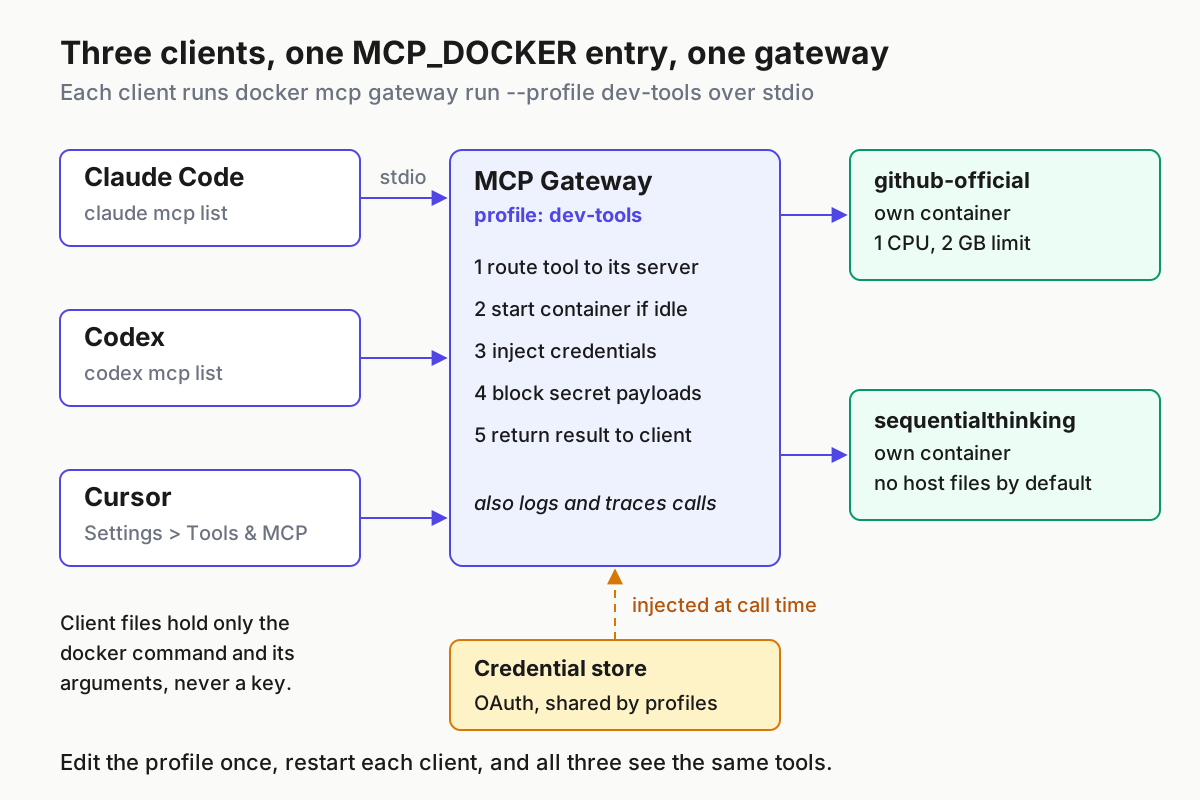
You use Claude Code in one terminal, Codex in another and Cursor when you want an editor, and each one carries its own MCP configuration: a JSON block, a TOML table, an npx command that pulls a server onto your laptop, and the same GitHub token pasted in three places. The Docker MCP Gateway collapses that into a single entry. You collect servers into a named profile, the gateway starts each server in its own container when a tool is called, and every client launches the same command: docker mcp gateway run --profile dev-tools.
This guide builds that setup end to end with a two-server profile called dev-tools, connects it to all three clients, checks that each client sees the same tools, trims the tool list, and shows how to take everything back out. The prompt for it was a post from developer @NaveenS16 on X on October 24, 2026, describing docker mcp as a way to pick integrations from a catalog and run them in isolated containers with one command. That is the promise. The rest of this page is the wiring, the checks and the exits, ending in a complete setup script, a filled run sheet and a rollback script you can copy.
A note on evidence. Every command below is syntax documented on Docker’s pages, in the docker/mcp-gateway README, or in the Claude Code and Codex configuration references. Output lines marked documented example are copied from Docker’s own verification section. We did not execute these commands for this article, and your plugin version may print different columns.
What you get, and what to have ready
The finished setup has four parts, and each one is checkable:
- one profile,
dev-tools, holding two catalog servers:github-officialandsequentialthinking - one MCP server entry named
MCP_DOCKERin Claude Code, Codex and Cursor, each launching the gateway with--profile dev-tools - GitHub access authorized once, through Docker, instead of a personal token in every client file
- a saved baseline of each client’s MCP list, so rollback has something to be compared against
Before you start, tick these off:
- [ ] Docker Desktop 4.63 or later with the MCP Toolkit beta enabled, or Docker Engine (Docker CE, WSL2) with the
docker-mcpCLI plugin installed - [ ] At least one of Claude Code, Codex or Cursor installed; having all three is what makes the cross-client check meaningful
- [ ] A GitHub account for the
github-officialserver’s OAuth flow - [ ] A scratch Git repository at
~/code/mcp-test, because some connect commands write files into the current project - [ ] A baseline of your current MCP state: the output of
claude mcp listandcodex mcp listsaved to files, plus a screenshot of Cursor’s Tools & MCP settings page
Why 4.63 and not an earlier build: Docker’s Use MCP Toolkit from the CLI page says the docker mcp commands are available from Docker Desktop 4.62, while the MCP Profiles page labels profiles Early Access and lists 4.63 as the requirement. The README lists 4.59 as a plugin prerequisite. When version notes disagree, use the highest one, because profile commands are the backbone of everything that follows.
Step 1: Confirm the plugin and turn on profiles
The goal of this step is a terminal where docker mcp profile list runs without error. How you get there depends on whether Docker Desktop is involved.
On Docker Desktop, the Get started guide lists the switch:
- Open Docker Desktop settings and select Beta features.
- Select Enable Docker MCP Toolkit, then Apply.
- In a terminal, run
docker mcp --helpand confirm it prints the command list. - Run
docker mcp profile list. Profiles are enabled automatically in Docker Desktop, so this should return a list rather than an unknown-command error.
On Docker Engine without Desktop, Docker’s MCP Gateway page and the README describe a manual install:
- Download the latest
docker-mcpbinary from the project’s GitHub releases page. - Place it at
~/.docker/cli-plugins/docker-mcpon Linux or macOS, or in%USERPROFILE%\.docker\cli-pluginson Windows. - Make it executable with
chmod +x ~/.docker/cli-plugins/docker-mcp. - Enable profiles, which are not on by default outside Desktop:
docker mcp feature enable profiles. - If commands complain that Docker Desktop is not running while your daemon is clearly up, export
DOCKER_MCP_IN_CONTAINER=1, which the README documents for WSL2, containers and Docker CE.
# Docker Engine / WSL2 path (documented in Docker docs and the docker/mcp-gateway README)
chmod +x ~/.docker/cli-plugins/docker-mcp
docker mcp --help
docker mcp feature enable profiles
export DOCKER_MCP_IN_CONTAINER=1   # only if you see "Docker Desktop is not running"
docker mcp profile list
What to expect: profile list may already show a profile named default. If you used an earlier MCP Toolkit release, your existing servers were migrated into it. Keep one rule from the Profiles page in mind for later: when the gateway runs without --profile, it uses the profile named default, or an empty configuration if none exists. That single default explains the most confusing failure in the troubleshooting table, where a client connects happily but shows the wrong tools.
The README notes that feature flags live in ~/.docker/config.json. If a teammate’s machine behaves differently from yours, compare that file before anything else.
Step 2: Build the dev-tools profile from catalog references
A profile is a named collection of servers with their configuration. The catalog is the library you pick from; the profile is the toolbox you hand to clients. Build it in five commands:
# 1. Fetch the default Docker catalog (README: pull it before creating profiles)
docker mcp catalog pull mcp/docker-mcp-catalog

# 2. See server IDs you can reference
docker mcp catalog server ls mcp/docker-mcp-catalog

# 3. Create the empty profile
docker mcp profile create --name dev-tools

# 4. Add two servers by catalog URI
docker mcp profile server add dev-tools \
  --server catalog://mcp/docker-mcp-catalog/github-official \
  --server catalog://mcp/docker-mcp-catalog/sequentialthinking

# 5. Confirm what the profile holds
docker mcp profile server ls --filter profile=dev-tools
docker mcp profile show dev-tools
The URI after --server is the part worth understanding. In catalog://mcp/docker-mcp-catalog/github-official, the middle segment is the catalog reference and the last segment is the server ID shown by catalog server ls or in Docker Desktop under MCP Toolkit, Catalog, Server ID. Docker documents four URI forms, and choosing between them is a real decision:
| URI form | Where the server comes from | Use it when |
|---|---|---|
catalog:// plus catalog reference and server ID |
An OCI catalog, such as Docker’s default | You want a curated server from Docker’s catalog or your team’s custom catalog |
docker:// plus image and tag |
A container image | You packaged an internal server as an image |
https:// registry URL ending in /v0/servers/ and a UUID |
The MCP community registry | The server is listed in the community registry rather than Docker’s catalog |
file:// plus a path |
A local YAML or JSON definition | You are prototyping a server definition before publishing it |
Why these two servers. github-official is the server Docker uses in its own verification prompts, so its behavior is the best documented, and it exercises the OAuth path. sequentialthinking appears in Docker’s own custom-catalog example and gives you a second server so you can prove that the profile, not a single server, controls what clients see. Before trusting either, read its catalog entry: docker mcp catalog server inspect mcp/docker-mcp-catalog github-official prints the definition the README describes, including what configuration it expects.
Expected observations after step 5: profile server ls lists exactly two rows for dev-tools. If a third appears, you added it by mistake; remove it with docker mcp profile server remove dev-tools --name followed by its server name. In Docker Desktop, a server that still needs settings shows a Configuration Required badge next to its name, and Docker states you must complete that configuration before the server can be used.
On provenance: the Docker MCP Toolkit page says images under mcp/ in the catalog are built and signed by Docker and ship with an SBOM. That covers Docker-built images, not every community registry entry. Treat other sources with the intake discipline in our MCP marketplace hygiene guide.
Step 3: Configure servers and authorize GitHub through Docker
Servers take two kinds of input: plain settings, which live in the profile, and credentials, which Docker manages outside it. Keep them separate and you never have to paste a token into a client file.
Plain settings use one command family. Start by reading what is already set:
docker mcp profile config dev-tools --get-all
To change a value, the documented form is docker mcp profile config dev-tools --set followed by server-id.key=value, and --del with server-id.key removes it. The keys are defined by each server, not by Docker. Find them in the server’s catalog entry, either with catalog server inspect or in Docker Desktop under MCP Toolkit, Catalog, the server, then Configuration. Do not guess key names from another server’s README; a misspelled key is stored without complaint and the server still lacks the value it needs. Neither server in this example needs a plain setting to make the read-only GitHub test pass once OAuth is done, so if --get-all shows nothing and Docker Desktop shows no Configuration Required badge, move on.
GitHub access goes through OAuth instead. The Toolkit page describes the flow:
- In Docker Desktop, open MCP Toolkit and find
github-officialin the Catalog or in yourdev-toolsprofile. - Open the server’s Configuration tab and choose the OAuth authentication method.
- Follow the link; your browser opens GitHub’s authorization page.
- Approve, then return to Docker Desktop.
- Open the OAuth tab and confirm GitHub is listed as authorized.
- From the terminal,
docker mcp oauth --helpshows the OAuth subcommands your plugin version supports, which matters on Docker Engine where there is no Desktop UI.
Two behaviors shape how you use this. First, OAuth is shared across every profile. The Profiles page calls this an exception to profile isolation: authorize GitHub once and every profile with a GitHub server uses that account. If you need a work account in one profile and a personal account in another, you must revoke and re-authorize when you switch. Second, profiles you export or push to a registry carry no credentials, so a teammate who imports dev-tools repeats this step with their own account.
For servers that need an API key rather than OAuth, the README points to docker mcp secret --help and states the design goal: keep secrets out of environment variables by using Docker’s secrets management. The MCP Gateway page explains where those secrets go: when a client calls a tool, the gateway finds the server, starts its container if needed, injects the required credentials, applies security restrictions and then forwards the request. The Toolkit page adds the guard on the other side: requests to and from tools that contain sensitive information such as secrets are blocked. The practical consequence is that a token belongs in Docker’s store, never in a prompt, a tool argument or a client config.
Step 4: Connect Claude Code, Codex and Cursor to one entry
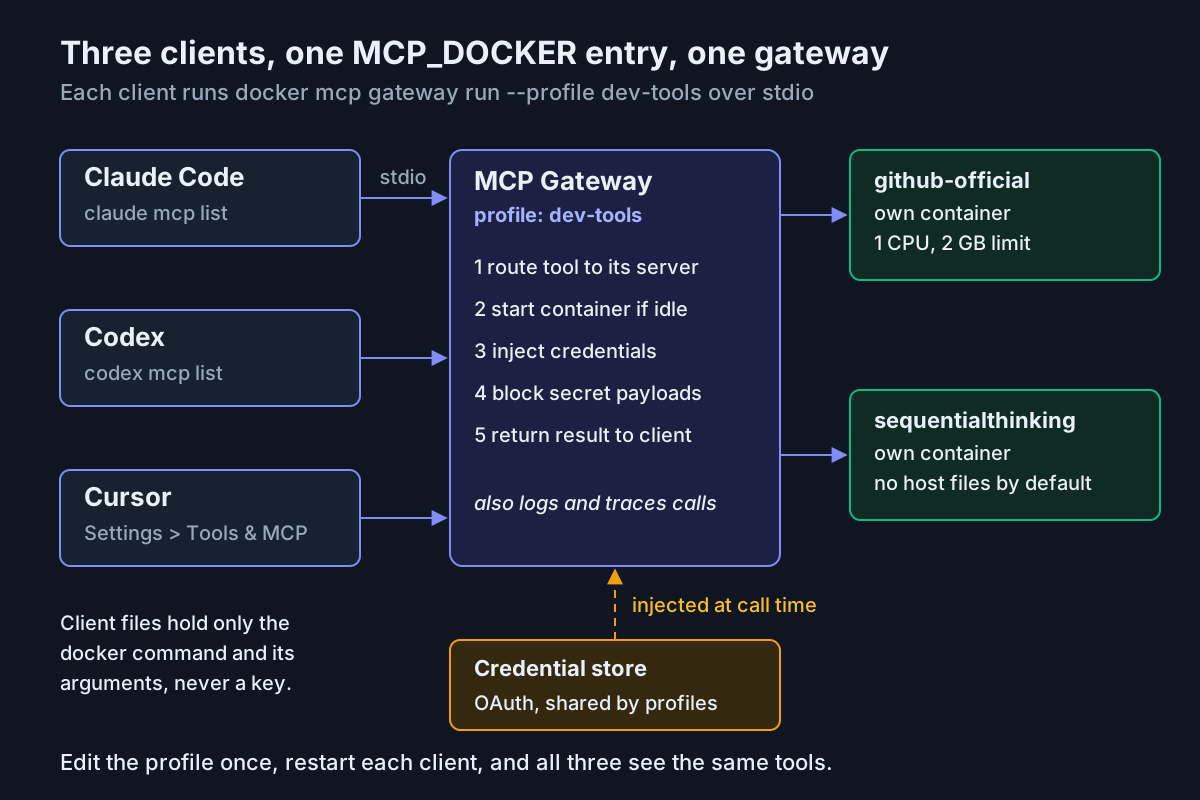
The diagram is the whole design. Each client knows one thing, how to start the gateway with a profile, and the gateway knows everything else.
Move into your scratch repository first, because connect commands can write project files:
cd ~/code/mcp-test

docker mcp client connect claude-code --profile dev-tools
docker mcp client connect codex --profile dev-tools
docker mcp client connect cursor --profile dev-tools

# What did that change?
docker mcp client ls
git status --short
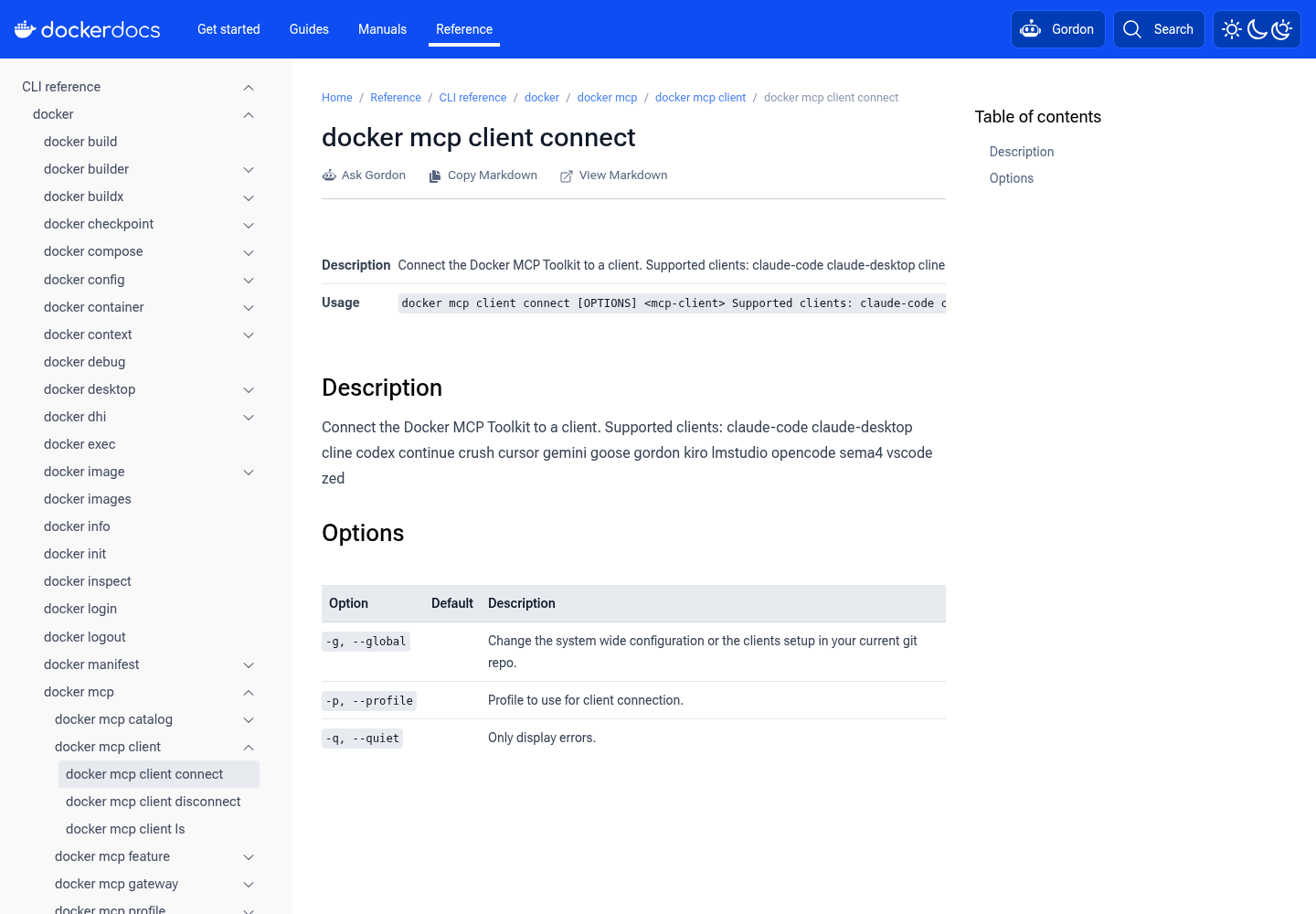
The docker mcp client connect reference lists the supported client names, including claude-code, codex and cursor, and three options: -p/--profile, -q/--quiet, and -g/--global, which it describes as choosing between the system-wide configuration and the client’s setup in your current Git repository. Docker’s VS Code example shows the project-level behavior concretely: without --global, the connect command writes .vscode/mcp.json into the current directory, and Docker tells you to add it to .gitignore because it is user-specific. Apply the same caution to any file a project-level connect creates for other clients: check git status after connecting and ignore what does not belong in the repository.
Decide scope per client with this rule of thumb:
| Situation | Connect with | Result to check |
|---|---|---|
You want dev-tools in every project you open |
--global |
Client shows MCP_DOCKER from any directory |
| Only this repository should get the tools | no --global, run inside the repo |
Client shows MCP_DOCKER only inside the repo; git status shows any new file |
| You keep separate Claude Code configs for work and personal use | export CLAUDE_CONFIG_DIR=/path/to/config then connect with --global |
README: Claude Code reads $CLAUDE_CONFIG_DIR/.claude.json instead of ~/.claude.json |
Restart each client after connecting. A running session will not pick up a new server entry it has already loaded.
Manual entries for clients you configure by hand
If you prefer to own the config, or your client isn’t on the supported list, the entry is always the same stdio command. For Claude Code, the Claude Code MCP reference syntax is claude mcp add [options] <name> -- <command> [args...], where everything after -- passes to the server untouched:
# User scope: available in all your projects
claude mcp add --scope user MCP_DOCKER -- docker mcp gateway run --profile dev-tools
claude mcp get MCP_DOCKER
For Codex, the Codex configuration reference documents command, args and startup_timeout_sec under mcp_servers.<id> in ~/.codex/config.toml:
# ~/.codex/config.toml
[mcp_servers.MCP_DOCKER]
command = "docker"
args = ["mcp", "gateway", "run", "--profile", "dev-tools"]
startup_timeout_sec = 60   # default is 10; the gateway can take 15-25 s to start
For any JSON-configured client, Docker’s documented shape is:
{
  "servers": {
    "MCP_DOCKER": {
      "command": "docker",
      "args": ["mcp", "gateway", "run", "--profile", "dev-tools"],
      "type": "stdio"
    }
  }
}
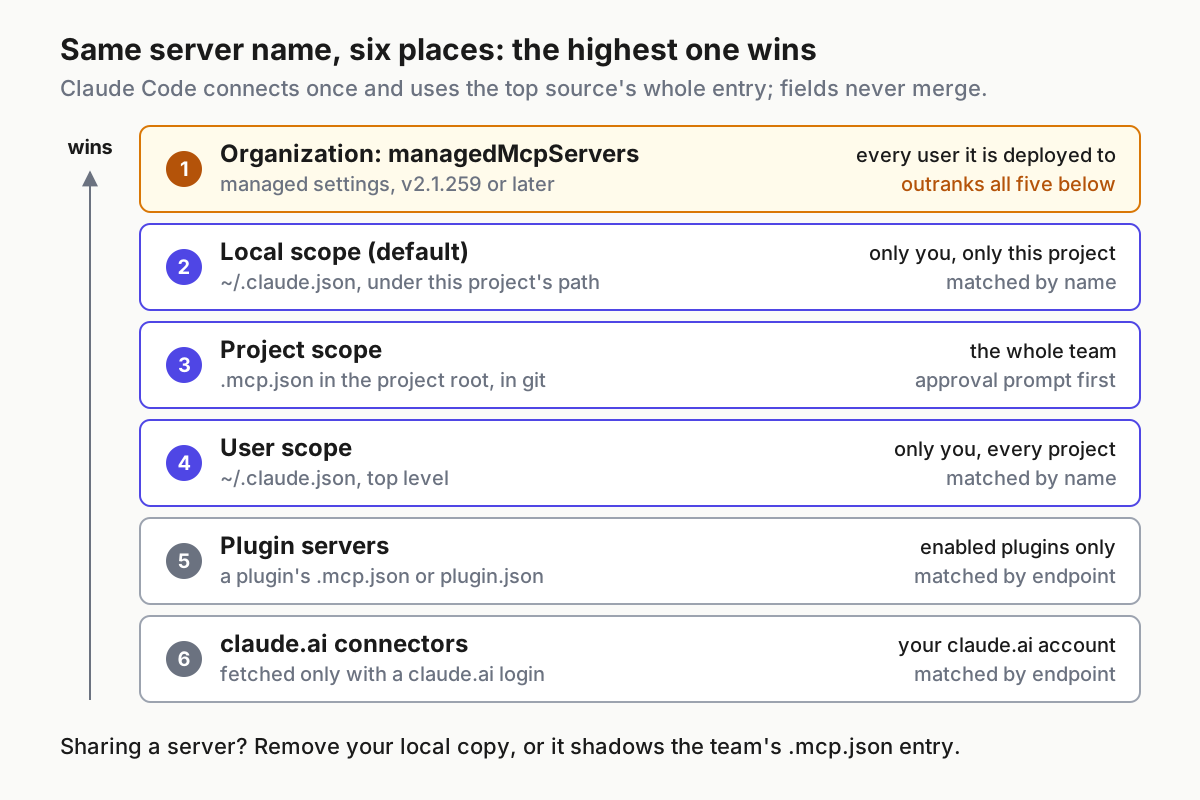
Notice what is absent from all three: no env block, no header, no token. That absence is the security property you are buying. Our Claude Code MCP setup guide covers how local, project and user scopes interact if you need to move the entry later.
Step 5: Verify every client sees the same profile
Check from the outside in: Docker first, then each client, then a real tool call, then the config files.
# Docker's view
docker mcp profile show dev-tools
docker mcp profile config dev-tools --get-all
docker mcp client ls
docker mcp tools count
docker mcp tools ls
The README documents tools count and tools ls for listing available tools. In Docker Desktop, the profile’s Tools tab is the authoritative list of tools from that profile’s servers; use it to confirm which tools the CLI listing reflects on your version.
Then each client, from the same directory you connected in:
| Client | Where to look | Healthy observation (documented example) | If it differs |
|---|---|---|---|
| Claude Code | claude mcp list |
MCP_DOCKER: docker mcp gateway run - ✓ Connected |
! Needs authentication, ✘ Failed to connect or ⏸ Pending approval each map to a row in the troubleshooting table |
| Codex | codex mcp list |
MCP_DOCKER docker mcp gateway run - - enabled Unsupported |
Missing row means the entry was written elsewhere or the session predates it |
| Cursor | Cursor Settings, Tools & MCP | MCP_DOCKER under Installed MCP Servers |
Open the project directory if you connected without --global |
The Unsupported in Codex’s Auth column is expected: Codex is not doing the authentication, the gateway is. Note too that both documented outputs show the args as mcp gateway run without the profile. Do not read that as proof the profile is set. Run claude mcp get MCP_DOCKER or open ~/.codex/config.toml and confirm --profile dev-tools is in the args. Without it, the gateway serves the default profile.
Now make one read-only call in each client using Docker’s own test prompt:
claude "Use the GitHub MCP server to show me my open pull requests"
codex "Use the GitHub MCP server to show me my open pull requests"
# Cursor: paste the same prompt into the agent chat
Success looks like a list of your open pull requests, or an explicit statement that you have none, in all three clients. A request for credentials means OAuth is not finished.
Finally, prove the secret stayed out of the clients:
grep -n -A4 "MCP_DOCKER" ~/.codex/config.toml
claude mcp get MCP_DOCKER
grep -niE "token|authorization|api_key" ~/.codex/config.toml
The MCP_DOCKER blocks should contain only docker and its arguments. Matches elsewhere in a file belong to other servers or the client’s own sign-in and are not from this setup; what matters is that nothing credential-shaped sits under MCP_DOCKER.
The complete dev-tools run in one file
Here is the whole worked example as one script you can copy, followed by a filled run sheet that records what each step takes in, what it does and what you should see. The script stops once, at the point where GitHub authorization has to happen in a browser, because OAuth is the one step Docker documents only through its UI. Every command is from the selected Docker, Claude Code and Codex documentation; we have not run this script, so treat the observations as the documented targets to check against.
#!/usr/bin/env bash
# setup-dev-tools.sh
# Builds the dev-tools profile, connects Claude Code, Codex and Cursor,
# and runs the Docker-side checks. Documented commands; not executed for this article.
set -euo pipefail

PROFILE="dev-tools"
REPO="$HOME/code/mcp-test"
BASELINE="$HOME/mcp-baseline"

# 0. Save the before state so rollback can be compared against it
mkdir -p "$BASELINE"
claude mcp list > "$BASELINE/claude-before.txt" 2>&1 || true
codex mcp list  > "$BASELINE/codex-before.txt"  2>&1 || true

# 1. Plugin and profiles available (Docker Engine users: enable profiles first)
docker mcp --help > /dev/null
docker mcp profile list

# 2. Catalog and server definitions
docker mcp catalog pull mcp/docker-mcp-catalog
docker mcp catalog server inspect mcp/docker-mcp-catalog github-official
docker mcp catalog server inspect mcp/docker-mcp-catalog sequentialthinking

# 3. Profile with exactly two servers
docker mcp profile create --name "$PROFILE"
docker mcp profile server add "$PROFILE" \
  --server catalog://mcp/docker-mcp-catalog/github-official \
  --server catalog://mcp/docker-mcp-catalog/sequentialthinking
docker mcp profile server ls --filter profile="$PROFILE"
docker mcp profile config "$PROFILE" --get-all

# 4. Manual step: authorize GitHub for github-official
echo "Docker Desktop > MCP Toolkit > github-official > Configuration > OAuth."
echo "Finish the browser flow, confirm GitHub appears in the OAuth tab."
read -r -p "Press Enter when GitHub is authorized... "

# 5. Connect all three clients from inside the test repo
cd "$REPO"
docker mcp client connect claude-code --profile "$PROFILE"
docker mcp client connect codex --profile "$PROFILE"
docker mcp client connect cursor --profile "$PROFILE"

# 6. Docker-side verification
docker mcp client ls
docker mcp tools count
docker mcp tools ls
git status --short

echo "Now restart Claude Code, Codex and Cursor, then run:"
echo "  claude mcp list"
echo "  codex mcp list"
echo "  Cursor: Settings > Tools & MCP"
If Codex times out on first start, add the startup_timeout_sec = 60 line from Step 4 under [mcp_servers.MCP_DOCKER] in ~/.codex/config.toml. If you connected Codex with docker mcp client connect and the table already exists, edit it in place rather than adding a second one.
The run sheet below is the same example, filled in. Use it as your checklist while the script runs; a row passes only when the last column is true.
| # | Input | Action | Expected observation | Pass when |
|---|---|---|---|---|
| 1 | Docker Desktop 4.63+ with MCP Toolkit enabled | docker mcp profile list |
A list, possibly containing default |
No unknown-command error |
| 2 | Catalog mcp/docker-mcp-catalog |
catalog pull, then catalog server inspect for both servers |
Each inspect prints a server definition | Both inspects succeed |
| 3 | Profile name dev-tools |
profile create, profile server add with two catalog:// URIs |
profile server ls shows the profile’s servers |
Exactly github-official and sequentialthinking |
| 4 | Your GitHub account | OAuth flow in Docker Desktop | GitHub listed in the OAuth tab | No Configuration Required badge on github-official |
| 5 | Repository ~/code/mcp-test |
Three client connect ... --profile dev-tools commands |
client ls reports the client configurations |
git status --short shows only files you expected, which you then ignore |
| 6 | Restarted clients | claude mcp list, codex mcp list, Cursor Tools & MCP |
✓ Connected, enabled, MCP_DOCKER installed |
claude mcp get MCP_DOCKER and config.toml include --profile dev-tools |
| 7 | Prompt “Use the GitHub MCP server to show me my open pull requests” | Run in each client | Your open pull requests, or a statement that there are none | Same result in all three, no credential prompt |
| 8 | Client config files | grep -n -A4 "MCP_DOCKER" ~/.codex/config.toml, claude mcp get MCP_DOCKER |
Only docker and its arguments under MCP_DOCKER |
No token, header or key under MCP_DOCKER |
Why the script is ordered this way: the baseline comes first because rollback is meaningless without it; inspect comes before server add so you read a definition before trusting it; OAuth comes before client connect so the first tool call in step 7 has credentials waiting; and git status sits right after connecting, while you still remember which files were yours.
Keep the tool list small
One gateway entry still exposes every enabled tool from every server in the profile. More servers means more tool definitions for each client to load or search. Claude Code’s MCP reference says tool search defers definitions by default and the practical limit is your context budget, but other clients may load tools upfront, so the profile is where to trim.
- List what the profile exposes: Docker Desktop, Profiles,
dev-tools, Tools tab, ordocker mcp tools ls. - Disable tools you will not use. The README documents dot notation, server name then tool name:
docker mcp profile tools dev-tools --disablefollowed byserver.tool, using a name exactly astools lsprints it. - For an allowlist approach, disable a server’s tools wholesale with
--disable-alland the server name, then--enablethe few you want. - Restart one client and confirm the shorter list.
- Split lanes into profiles instead of growing one. A review lane that only needs GitHub should not carry the reasoning server.
The lane split is fully concrete, so it is the trim to try first:
# A second, smaller profile for review sessions: GitHub only
docker mcp profile create --name review-ro
docker mcp profile server add review-ro \
  --server catalog://mcp/docker-mcp-catalog/github-official
docker mcp profile server ls --filter profile=review-ro

# Point a review-only Claude Code entry at it
claude mcp add --scope user MCP_DOCKER_REVIEW -- docker mcp gateway run --profile review-ro
Because OAuth is shared across profiles, review-ro uses the GitHub authorization you already granted; there is nothing new to authorize. Then use the profile’s Tools tab to switch off the write tools in review-ro, so the name means what it says.
Codex adds a second, client-side filter: enabled_tools and disabled_tools under [mcp_servers.MCP_DOCKER]. Use it only for a Codex-specific restriction; if you trim in both places, the two lists will drift.
One caution: the Toolkit page describes Dynamic MCP, where an agent connected to the gateway can search the catalog and add servers during a conversation. That is convenient and makes a carefully trimmed list less fixed than it looks. The CLI page notes that running the gateway with a custom catalog limits what agents can find to your curated set. Re-check the profile on a schedule, the way our MCP server inventory ritual recommends, rather than assuming Tuesday’s list is Friday’s.
If you run several agents side by side, profiles per lane also make the multi-agent command center pattern easier: each lane’s tool surface is a named, exportable object rather than a set of edits scattered across configs.
Gateway or direct server: a filled decision table
The gateway is not always the right call. This table works through common cases with the inputs that decide them: isolation, where the secret lives, how many clients need the tools, and whether Docker can run on the machine at all.
| Situation | Isolation | Secret handling | Tool overhead | Choice |
|---|---|---|---|---|
| GitHub tools needed in Claude Code, Codex and Cursor daily | Container per tool, 1 CPU and 2 GB limits per the Toolkit page | One OAuth grant in Docker, none in client files | One trimmed profile shared by three clients | Gateway profile |
| A vendor-hosted remote HTTP server used only in Claude Code | Runs on the vendor’s side either way | Claude Code’s own OAuth via /mcp |
One client, one entry | Direct claude mcp add --transport http |
| A local server that must read your repository files | Gateway servers get no host filesystem by default; you must grant mounts deliberately | Either path | Same | Gateway with an explicit mount, or direct if you accept host access |
| An internal API server your team built | Package as an image, publish in a custom catalog | Docker secrets | Curated catalog limits discovery | Gateway with docker:// or a custom catalog |
| A locked-down laptop where Docker cannot run | Not available | Client config | Per client | Direct, and keep the token out of shared repos |
| A one-off experiment with a server you may delete tomorrow | Low stakes | Short-lived | Single client | Direct; promote to the profile if it survives a week |
The gateway also gives you built-in logging and call tracing, according to Docker’s gateway page, which a set of per-client npx installs does not. If the question is whether to run your own gateway at all or buy one, the trade-offs are in our gateway buy-or-build guide, and the architecture argument for keeping gateways stateless is in stateless MCP gateways. This guide isolates the MCP servers; isolating the coding agent itself is a separate job, covered in Docker Sandboxes for coding agents.
Troubleshooting: symptom, cause, fix
The failure most people hit first is a timeout on the gateway’s cold start, so it gets a chart. Docker states in its client notes that the gateway takes roughly 15 to 25 seconds to start, and recommends a 60-second startup timeout because the 10-second default is not enough. Codex’s reference shows the same 10-second default for startup_timeout_sec, and a separate 1-second mcp_optional_startup_grace_ms for how long Codex waits for optional servers while building its first tool catalog.
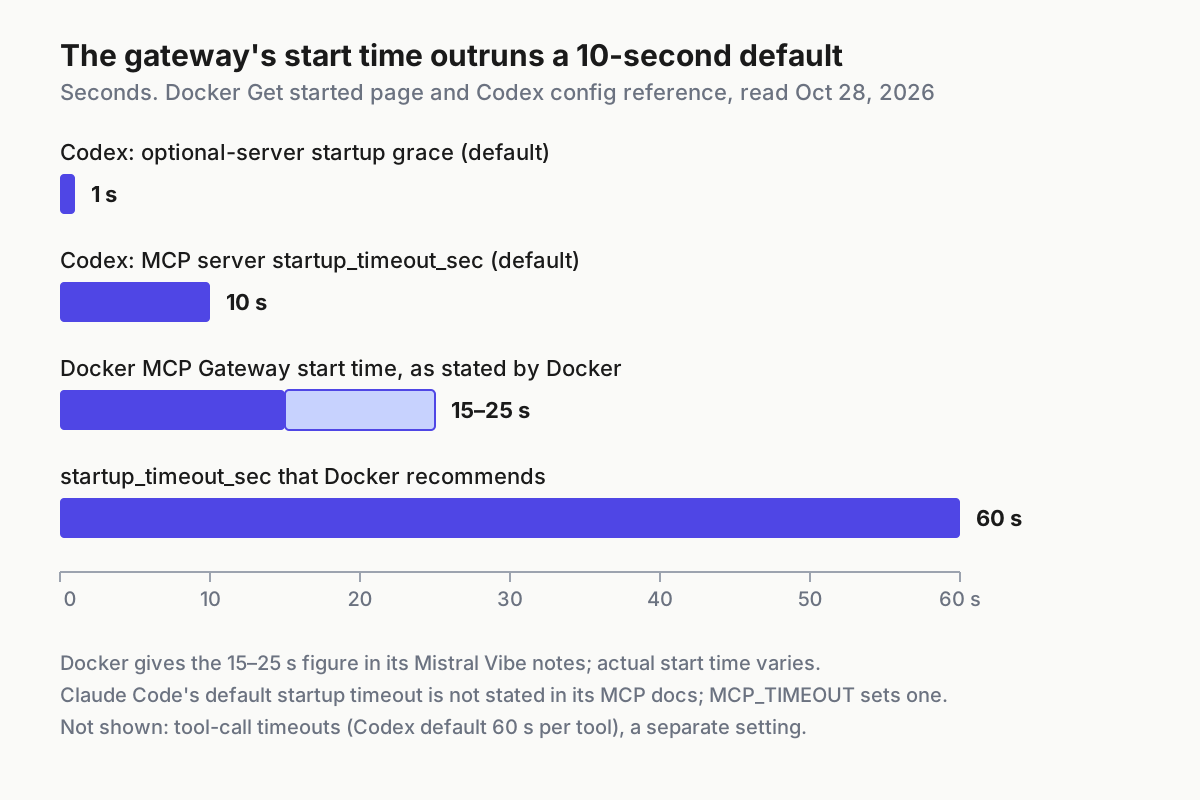
For Codex, set startup_timeout_sec = 60 on MCP_DOCKER. If the gateway’s tools are missing from the first turn but appear later, set mcp_optional_startup_grace_ms = 0 at the top level, which the reference says makes Codex wait for each server’s startup timeout instead. For Claude Code, the MCP reference documents MCP_TIMEOUT in milliseconds, for example MCP_TIMEOUT=60000 claude.
The full table:
| Symptom | Likely cause | Fix | What you should see after |
|---|---|---|---|
No MCP_DOCKER in a client after connect |
Client still running with old config; connected in a different repo; CLAUDE_CONFIG_DIR points elsewhere |
Restart the client; rerun connect in the right directory or with --global; echo $CLAUDE_CONFIG_DIR |
MCP_DOCKER listed in claude mcp list, codex mcp list or Tools & MCP |
docker mcp profile is an unknown command |
Desktop older than 4.63, or profiles not enabled on Docker Engine | Upgrade Desktop; run docker mcp feature enable profiles |
docker mcp profile list returns |
| “Docker Desktop is not running” on WSL2 or Docker CE | Plugin checking Desktop feature flags | export DOCKER_MCP_IN_CONTAINER=1 |
Commands proceed against the daemon |
MCP_DOCKER connects but shows the wrong tools |
Entry lacks --profile, so the gateway serves default |
Add --profile dev-tools to the args |
Tools match the profile’s Tools tab |
| Server listed but its tools fail | Required configuration missing or OAuth not finished | profile config dev-tools --get-all; set the key; authorize in Docker Desktop |
Read-only GitHub call returns your pull requests |
| Startup timeout in Codex or Claude Code | Gateway cold start exceeds the 10-second default | startup_timeout_sec = 60; MCP_TIMEOUT=60000 |
enabled in Codex, ✓ Connected in Claude Code |
Claude Code shows ⏸ Pending approval |
Entry landed in a project .mcp.json that you have not approved |
Run claude interactively in the repo and approve the server |
✓ Connected |
| GitHub calls act as the wrong account | OAuth is shared by every profile | Revoke in Docker Desktop’s OAuth tab, re-authorize with the right account | Pull requests from the expected account |
| A tool call is refused when a token appears in the request | The gateway blocks requests containing secrets | Remove the token from the prompt or argument; rely on OAuth or Docker secrets | Call completes without the token |
| You want specific servers without a profile | --servers is documented with --catalog, the profile-less path |
Choose one model: --profile, or --catalog with --servers |
Gateway starts with the intended set |
Roll back without leaving residue
Rollback is the test of whether the setup was clean. Run it once on the scratch repository before you rely on the profile.
- Back up the profile first:
mkdir -p .docker && docker mcp profile export dev-tools .docker/mcp-profile.json. Exports carry server definitions and settings, not credentials. - Disconnect each client, from the same directory you connected in:
docker mcp client disconnect claude-code, thencodex, thencursor. - Remove any manual entries:
claude mcp remove MCP_DOCKER --scope user; delete the[mcp_servers.MCP_DOCKER]table from~/.codex/config.toml, or setenabled = falsethere to park it; delete the JSON block from other clients. - Empty or delete the profile:
docker mcp profile server remove dev-tools --name github-official --name sequentialthinking, ordocker mcp profile remove dev-tools. The CLI page warns that removing a profile deletes its configuration and cannot be undone. - Revoke GitHub in Docker Desktop’s OAuth tab if no other profile needs it. Because OAuth is shared, revoking here affects every profile.
- Compare against your baseline:
claude mcp list,codex mcp listand Cursor’s Tools & MCP should match what you saved before Step 1, andgit statusin the repository should show nothing the connect command created.
The same steps as a copyable script, paired with the setup script above:
#!/usr/bin/env bash
# rollback-dev-tools.sh
# Reverses setup-dev-tools.sh and diffs against the saved baseline.
# Documented commands; not executed for this article.
set -uo pipefail

PROFILE="dev-tools"
REPO="$HOME/code/mcp-test"
BASELINE="$HOME/mcp-baseline"

cd "$REPO"

# 1. Keep a credential-free backup of the profile
mkdir -p .docker
docker mcp profile export "$PROFILE" .docker/mcp-profile.json

# 2. Disconnect every client connected by the setup script
docker mcp client disconnect claude-code
docker mcp client disconnect codex
docker mcp client disconnect cursor

# 3. Remove the manual Claude Code entries, if you added them
claude mcp remove MCP_DOCKER --scope user
claude mcp remove MCP_DOCKER_REVIEW --scope user

# 4. Delete the profiles (cannot be undone; the export above is your copy)
docker mcp profile remove "$PROFILE"
docker mcp profile remove review-ro

# 5. Compare with the before state
claude mcp list > "$BASELINE/claude-after.txt" 2>&1
codex mcp list  > "$BASELINE/codex-after.txt"  2>&1
diff "$BASELINE/claude-before.txt" "$BASELINE/claude-after.txt" && echo "Claude Code: back to baseline"
diff "$BASELINE/codex-before.txt"  "$BASELINE/codex-after.txt"  && echo "Codex: back to baseline"
git status --short

echo "Manual: remove any [mcp_servers.MCP_DOCKER] table left in ~/.codex/config.toml,"
echo "check Cursor Settings > Tools & MCP, and revoke GitHub in Docker Desktop's OAuth tab."
The script uses set -uo pipefail without -e on purpose: if you never added MCP_DOCKER_REVIEW or review-ro, those removals fail and the rest should still run. Expected result: both diff commands print nothing and echo “back to baseline”, and git status --short is empty or shows only .docker/mcp-profile.json, which you can keep or delete. A diff that prints lines is the signal to investigate, not to ignore. Note that Codex’s documented codex mcp list output has a Status column, so if you parked the entry with enabled = false instead of deleting it, the after file will differ from the before file by that row, which is expected.
To restore later from the backup:
docker mcp profile import .docker/mcp-profile.json
docker mcp client connect claude-code --profile dev-tools
# then re-authorize GitHub in Docker Desktop
If any client still lists MCP_DOCKER after rollback, the entry was written at a scope or path you did not disconnect. For Claude Code, claude mcp list warns when the same server name is defined in more than one scope; remove each leftover with claude mcp remove MCP_DOCKER --scope followed by local, project or user, and check the repository’s .mcp.json for a project entry. For Codex, search ~/.codex/config.toml and any trusted project .codex/config.toml. Once rollback leaves no trace, the setup is something you can hand to a teammate: they import the profile, authorize their own GitHub account, run three connect commands, and get the same tools you have.
Sources
- @NaveenS16 on X: post about docker mcp, catalog integrations and isolated containers (Oct 24, 2026)
- Use MCP Toolkit from the CLI (Docker Docs)
- Get started with Docker MCP Toolkit (Docker Docs)
- MCP Profiles (Docker Docs)
- MCP Gateway (Docker Docs)
- docker mcp client connect reference (Docker Docs)
- Docker MCP Toolkit (Docker Docs)
- docker/mcp-gateway README (GitHub)
- Connect Claude Code to tools via MCP (Anthropic)
- Codex configuration reference (OpenAI)