Chrome DevTools MCP Setup for Claude Code, Codex and Cursor: Pick a Connection Mode, Run a Real Debug Loop
Set up Chrome DevTools MCP in Claude Code, Codex or Cursor, choose isolated, browser-url or autoConnect mode, run a real browser debug loop, then roll back.

Go deeper. Build your own.
Your coding agent reads the stylesheet, decides a selector is too specific, rewrites forty lines of CSS, and the page still renders as plain unstyled text. The real cause was a 404 on the stylesheet itself, which the browser reported in one console line the agent never saw. Chrome DevTools MCP closes that gap. It gives Claude Code, Codex, Cursor or any other MCP client a live Chrome to drive and inspect, so the agent can read console errors, failed requests, performance traces and Lighthouse audits before it edits your source.
This guide is for a web developer who already runs one of those agents and wants it to debug from browser evidence instead of guessing from code. By the end you will have the server installed in at least one client, with a connection mode you chose on purpose and the privacy flags you want. You will also have a finished debug loop that fixes a planted bug, a set of safety flags matched to the sites you visit, and a removal path you have tested. Commands come from the project’s own documentation and from each client’s MCP reference. Prompts and expected observations are labeled as things to look for; none of them is output recorded for this article.
One paragraph of background. ChromeDevTools published chrome-devtools-mcp v1.11.0 on GitHub Releases on October 15, 2026. The release adds a --file-navigations flag that rejects file: URL navigations, enforces the URL policy across redirects, rejects unrestricted paths when an explicit workspace is set, stops closing a healthy browser when a tool call outlasts 60 seconds, returns failing Lighthouse audits and DOM nodes inline, and enables tool categories by default. Each change shows up below where it affects setup. A developer’s post on X on October 22 shows the one-line Codex install many readers start from; this guide starts there and goes further.
What you need before you install
The project README lists three requirements: a Node.js LTS release, the current stable Chrome or newer, and npm. The checks below add the details that cause most first-run failures.
- [ ] Node.js LTS with
npxon PATH. Runnode --versionandnpx --versionin the terminal you will use later. - [ ] The same Node and npm inside your client. The troubleshooting guide says to make sure your MCP client uses the same npm and node version as your terminal. IDE clients started from a dock or launcher often inherit a different PATH from your shell, and a version manager can widen that gap.
- [ ] Google Chrome or Chrome for Testing. The README says the project officially supports only these two; other Chromium browsers may work but are not guaranteed. The configuration reference requires Chrome 144 or newer for
--autoConnectand Chrome 149 or newer for--allowed-url-pattern. - [ ] A non-root user. Chrome does not start as root, and the troubleshooting guide calls this a common container and CI failure.
- [ ] One coding agent: Claude Code, the Codex CLI or IDE extension, or Cursor.
- [ ] A local project you can serve on
localhost. The worked example brings its own two-file fixture if you would rather not experiment on a real repository.
Before installing, decide what data you are willing to let leave the machine. The README is direct about it: the server exposes the content of the browser to the MCP client, which can inspect, debug and modify any data in the browser or DevTools. Google collects usage statistics by default, such as tool success rates, latency and environment details, unless you pass --no-usage-statistics or set CHROME_DEVTOOLS_MCP_NO_USAGE_STATISTICS or CI. Performance tools may send trace URLs to the Chrome UX Report API for real-user field data unless you pass --no-performance-crux. Separately, the server checks the npm registry for updates unless CHROME_DEVTOOLS_MCP_NO_UPDATE_CHECKS is set. Every install command in this guide carries both opt-out flags. Remove them only after deciding you want that data shared.
Pick a connection mode before you pick a client
The setting that matters most is not the client’s scope. It is how the server reaches Chrome, because that decides which cookies, tabs and logins the agent can touch. The configuration reference describes four arrangements.
| Mode | Flag | Profile the agent drives | Choose it when |
|---|---|---|---|
| Default launch | none | A persistent profile at $HOME/.cache/chrome-devtools-mcp/chrome-profile, reused across sessions |
You want logins made in that profile to survive restarts and you accept that they accumulate |
| Isolated launch | --isolated |
A temporary user-data-dir, cleaned up when the browser closes | Localhost debugging, untrusted pages, anything you want forgotten afterward |
| Attach by URL | --browser-url=http://127.0.0.1:9222 |
Whatever --user-data-dir you started Chrome with |
The client sandboxes MCP servers, Chrome runs on another host or VM, or you want a debugging profile you control |
| Auto-connect | --autoConnect |
Your running everyday Chrome, stable channel unless --channel says otherwise |
You need a logged-in state you cannot reproduce in a test profile, and you accept that the agent sees it |
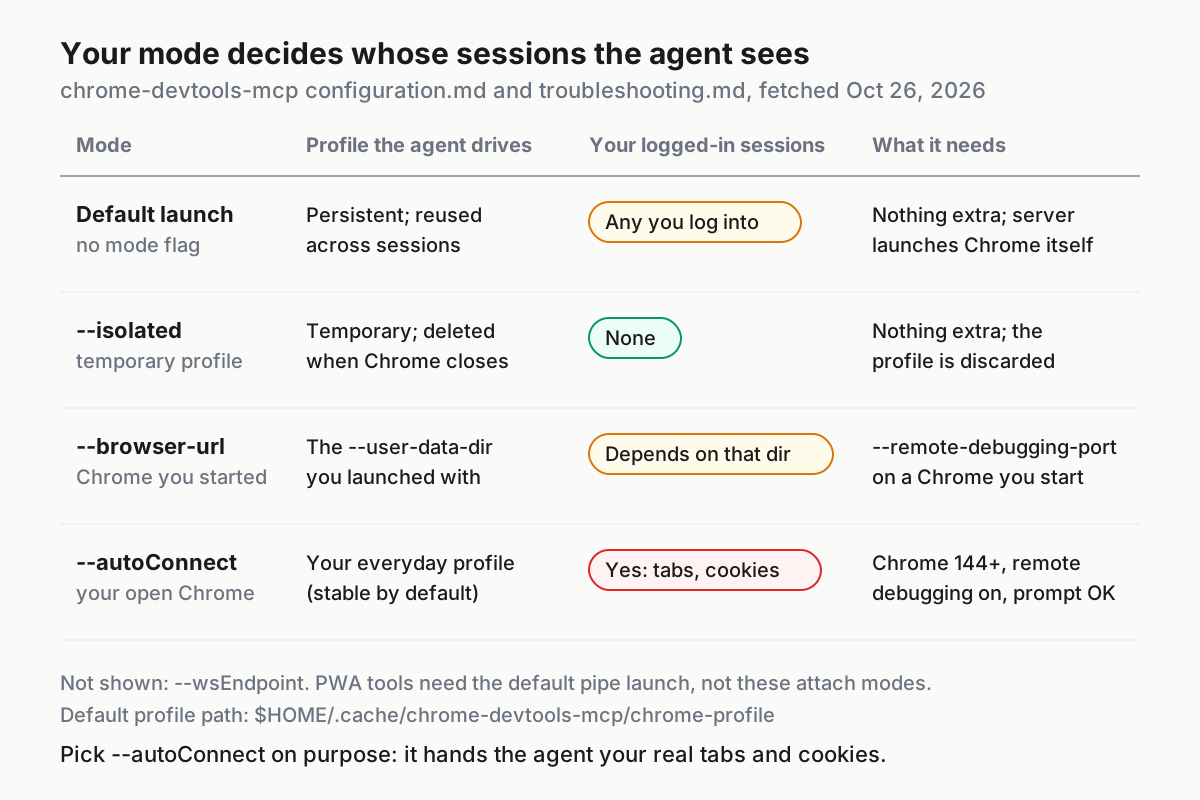
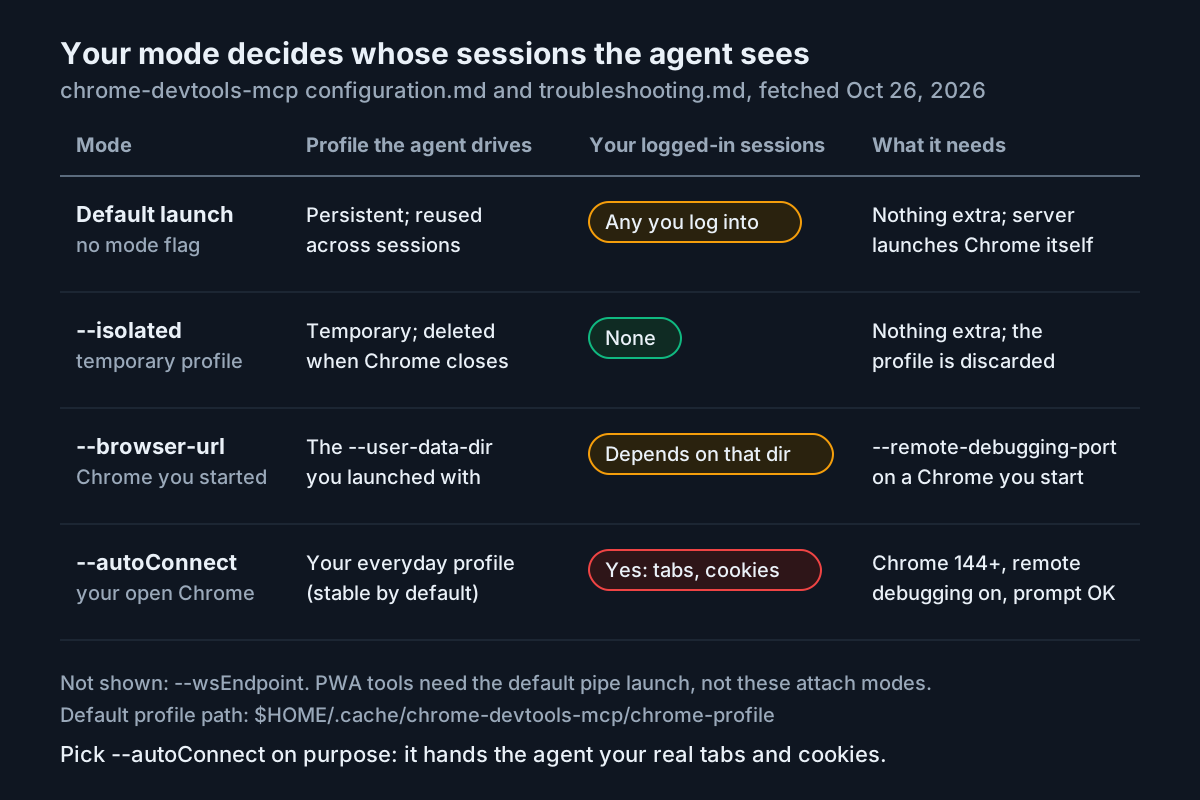
The default is easy to misread. It does not use your everyday profile, but it is not throwaway either: anything you sign into there stays signed in for the next session and the next agent. That is why every install command below adds --isolated.
Work through the choice in this order:
- Only debugging
localhostor a public page? Use--isolated. Nothing persists, and nothing from your real browser is visible. - Does your client run MCP servers inside an OS sandbox such as macOS Seatbelt or a Linux container? The troubleshooting guide says the server then cannot start Chrome, which needs permission to create its own sandboxes. Either turn the sandbox off for this server or use
--browser-urlagainst a Chrome you start outside the sandbox. - Need to be signed in? Prefer
--browser-urlwith a dedicated debugging profile and a test account. Reach for--autoConnectonly when that is impossible, and only while you are watching. - Need the Progressive Web App tools? The PWA category works only over the default pipe connection;
--autoConnect,--browser-urland--wsEndpointare not supported for it.
To prepare an attach-by-URL session, start Chrome yourself with a debugging port and a separate profile directory. The troubleshooting guide’s WSL section shows the Windows form, chrome.exe --remote-debugging-port=9222 --user-data-dir=C:\path\to\dir. On macOS or Linux, substitute your own Chrome executable path:
# Replace CHROME_PATH with the path to your Chrome executable
CHROME_PATH --remote-debugging-port=9222 --user-data-dir="$HOME/cdmcp-debug-profile"

# In another terminal: confirm the debugging endpoint answers
curl -s http://127.0.0.1:9222/json/version
Expected observation: a JSON object containing a webSocketDebuggerUrl field, which the configuration reference names as the value to use if you ever switch to --wsEndpoint. If curl cannot connect, Chrome was probably already running with that profile and ignored the port flag; close it or pick a new directory. Then put --browser-url=http://127.0.0.1:9222 in the server arguments in place of --isolated.
For --autoConnect, open chrome://inspect/#remote-debugging in a running Chrome 144 or newer and start its remote debugging server, launch the MCP server with --autoConnect, and accept the connection prompt Chrome shows. The MCP security hardening guide explains why a server holding your sessions deserves the same scrutiny as any privileged credential.
Install Chrome DevTools MCP in Claude Code
Claude Code runs this as a local stdio server. The Claude Code MCP reference says the -- separator divides Claude’s own options from the server command, and everything after it passes to the server untouched:
claude mcp add --transport stdio --scope local chrome-devtools -- \
  npx -y chrome-devtools-mcp@latest --isolated --no-usage-statistics --no-performance-crux
- Choose the scope deliberately.
localis the default and keeps the entry private to you in this project, stored in~/.claude.json.usermakes it available in every project.projectwrites.mcp.jsonat the repository root so the whole team gets the same flags, and Claude Code asks for approval before using a project-scoped server. - Run the command. Expected observation: an
Added ...line, which means the configuration was written, not that it connected. - Run
claude mcp get chrome-devtools. Expected: a✔ Connectedstatus. A✘ Failed to connectstatus comes with anIssue:line carrying the detail. - Inside a session, run
/mcp. Expected:chrome-devtoolswith a tool count beside it.
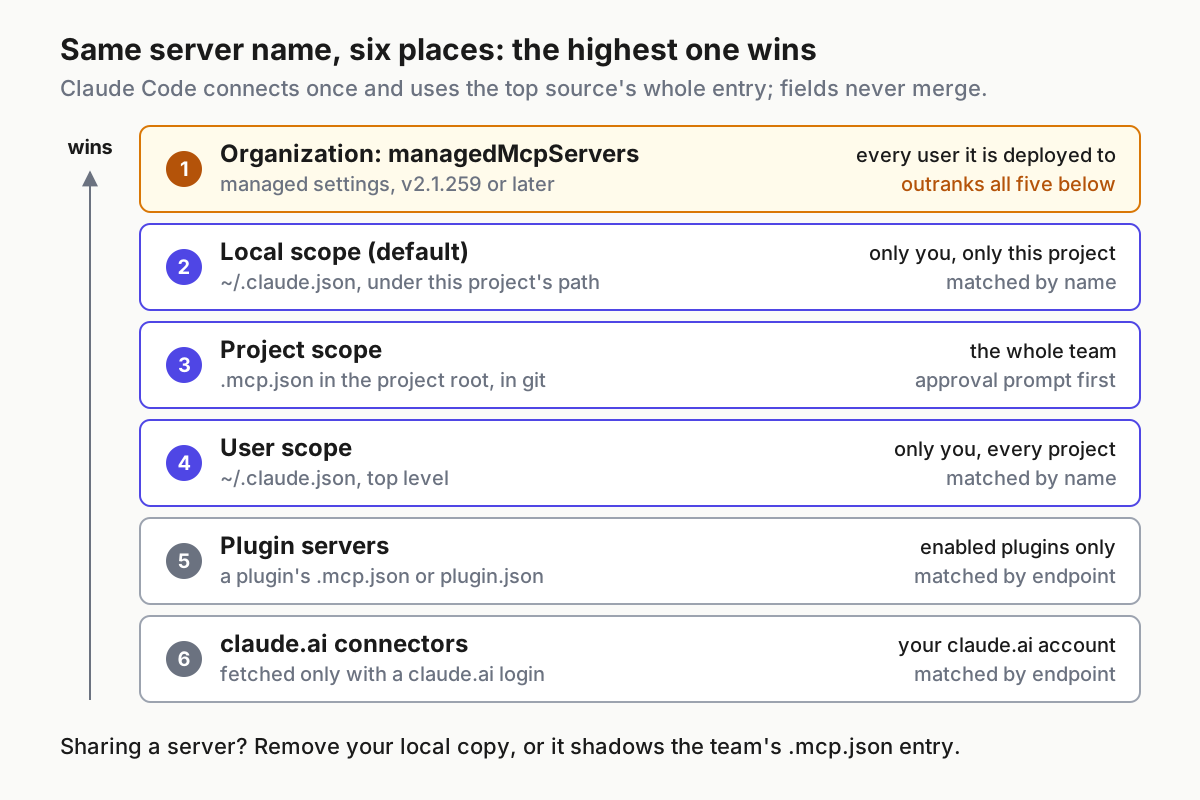
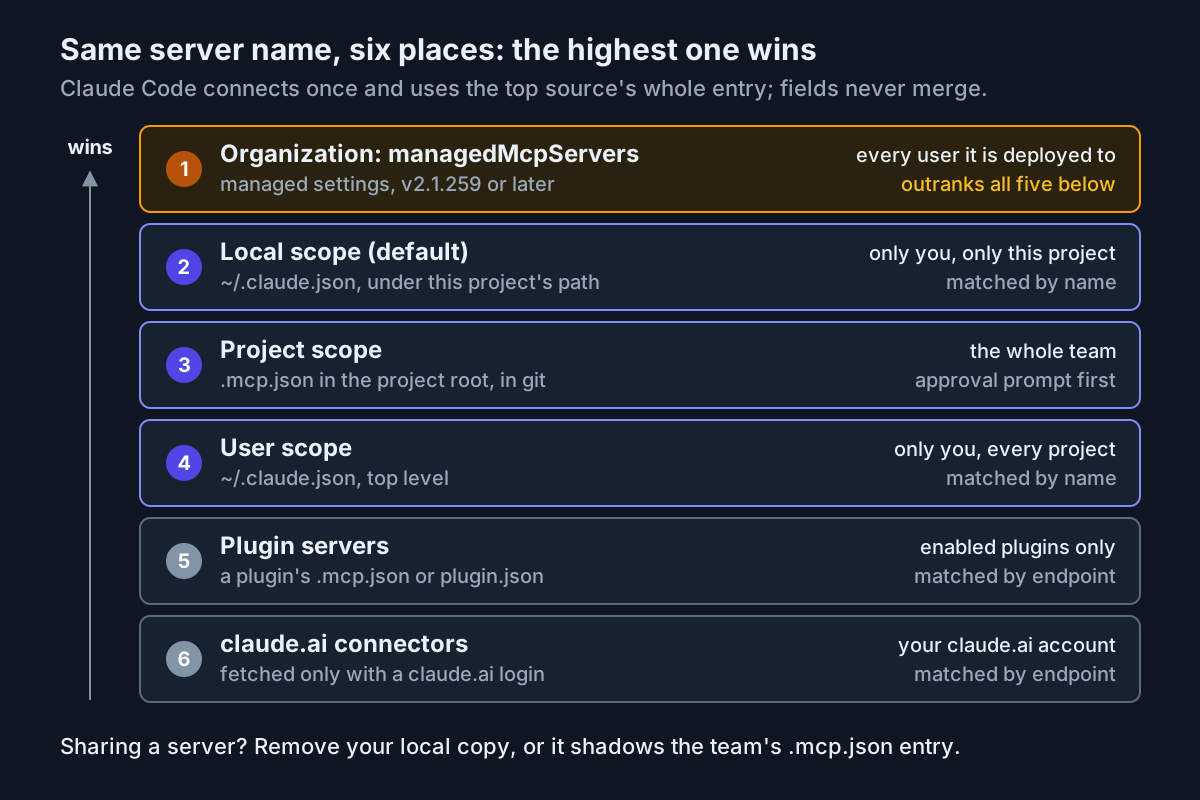
-y auto-accepts the npx installation prompt, which the troubleshooting guide recommends because a client cannot answer an interactive prompt. Keep --scope on the command even when you mean the default, so anyone reading your shell history knows where the entry went. If a chrome-devtools entry already exists in another scope, Claude Code connects the highest-precedence definition and merges nothing, a trap the Claude Code MCP scopes guide walks through.
For a team, commit the project-scoped form so the privacy flags travel with the repository, and give the server a longer per-call limit for traces and audits. The reference documents a per-server timeout field in milliseconds:
{
  "mcpServers": {
    "chrome-devtools": {
      "type": "stdio",
      "command": "npx",
      "args": ["-y", "chrome-devtools-mcp@latest", "--isolated", "--no-usage-statistics", "--no-performance-crux"],
      "timeout": 180000
    }
  }
}
Claude Code also moves a main-conversation MCP call that runs past two minutes into a background task, so a slow audit does not freeze the session.
The README offers a plugin route too: /plugin marketplace add ChromeDevTools/chrome-devtools-mcp, then /plugin install chrome-devtools-mcp@chrome-devtools-plugins. It installs the server plus the bundled skills, including chrome-devtools, a11y-debugging and debug-optimize-lcp. Because you do not write the plugin’s arguments, set your opt-outs in a configuration file instead. The configuration reference says the server reads cd4a.config.json in $PLUGIN_DATA when running as a plugin, otherwise the global file at ~/.config/cd4a/config.json on macOS and Linux, using camelCase keys such as "usageStatistics": false, "performanceCrux": false and "isolated": true. If the plugin install fails with Failed to connect to github.com port 443, the troubleshooting guide’s fallback is claude mcp add chrome-devtools --scope user npx chrome-devtools-mcp@latest, which installs the server without the skills.
Install it in Codex with the CLI or config.toml
The Codex MCP documentation uses the same -- separator. The command in the X post omits -y; add it, along with the opt-outs:
codex mcp add chrome-devtools -- npx -y chrome-devtools-mcp@latest --isolated --no-usage-statistics --no-performance-crux
codex mcp list
Codex stores MCP servers in ~/.codex/config.toml, or in a project’s .codex/config.toml for trusted projects. The ChatGPT desktop app, the Codex CLI and the IDE extension share that configuration, so one entry serves all three. Editing the file directly gives you settings the one-liner cannot:
[mcp_servers.chrome-devtools]
command = "npx"
args = ["-y", "chrome-devtools-mcp@latest", "--isolated", "--no-usage-statistics", "--no-performance-crux"]
startup_timeout_sec = 30
tool_timeout_sec = 180
default_tools_approval_mode = "prompt"
- Raise
startup_timeout_secfrom its default of 10 seconds. The firstnpxrun downloads the package, which can outlast ten seconds on a slow connection. - Raise
tool_timeout_secfrom its default of 60 seconds. v1.11.0 stopped the server from closing a healthy browser when a call outlasts 60 seconds, but Codex still enforces its own limit, so a trace around a reload can be cut off on the client side. - Set
default_tools_approval_mode = "prompt"while you learn what the agent calls. Codex also acceptsauto,writesandapprove;writesprompts only for tools not marked read-only. - Run
codex mcp list, then open thecodexTUI and type/mcp. Expected observation:chrome-devtoolslisted among the active servers.
On Windows, if discovery fails with MCP error -32000: Connection closed, the troubleshooting guide’s documented fix is to launch npx through cmd /c. Its example is a JSON block; this is the same command and arguments placed in Codex’s fields:
[mcp_servers.chrome-devtools]
command = "cmd"
args = ["/c", "npx", "-y", "chrome-devtools-mcp@latest", "--isolated", "--no-usage-statistics", "--no-performance-crux"]
startup_timeout_sec = 30
tool_timeout_sec = 180
The guide’s second option is to point command at the absolute path of your npx executable instead of adding a shell layer. The Linear MCP setup guide uses the same three-client pattern for a remote server, which is useful if you want to compare stdio and HTTP entries side by side.
Add it to Cursor or any mcpServers client
Most other clients accept the README’s standard block. Here it is with the same flags:
{
  "mcpServers": {
    "chrome-devtools": {
      "command": "npx",
      "args": ["-y", "chrome-devtools-mcp@latest", "--isolated", "--no-usage-statistics", "--no-performance-crux"]
    }
  }
}
- Open Cursor’s MCP settings. The Playwright MCP README describes the manual route for its own server as Cursor Settings, then MCP, then Add new MCP Server with the command type; this server goes in the same place. The chrome-devtools-mcp README links a Client Configurations Guide for exact per-editor locations, and the repository ships a
.cursor-pluginfolder. - Paste the block, or enter
npxas the command and the five arguments. - Reload the client’s MCP servers, then open its MCP panel. Expected:
chrome-devtoolsenabled with its tools listed. - On Windows, use the troubleshooting guide’s form,
"command": "cmd"with"args": ["/c", "npx", "-y", "chrome-devtools-mcp@latest"], and append your flags to that array.
When a client tells you nothing useful on failure, turn on the server’s own log. The troubleshooting guide documents adding "--log-file", "/path/to/chrome-devtools-mcp.log" to args and "env": {"NODE_DEBUG": "*"} to the entry. Remove both once it works, because a verbose log can capture page content you did not mean to keep.
Verify the server before you trust it
Verify in two layers: the package runs on your machine, and the client can reach it. The README notes that connecting to the server does not start the browser. Chrome launches only when a tool needs it, so a connected server with no window open is normal.
| Check | Command or action | Expected observation | If it fails |
|---|---|---|---|
| Package runs | npx chrome-devtools-mcp@latest --help |
An option list including --isolated, --browser-url and --file-navigations |
ERR_MODULE_NOT_FOUND points to an unsupported Node or a corrupted npx cache |
| Claude Code config | claude mcp list |
✔ Connected beside chrome-devtools |
✘ Failed to connect with detail; compare Node versions |
| Claude Code session | /mcp |
A tool count beside the server | A missing row means the client never loaded the entry |
| Codex config | codex mcp list, then /mcp in the TUI |
The server listed as active | Raise startup_timeout_sec and retry |
| First browser launch | Prompt: “Open http://localhost:5173/ and take a screenshot” | A Chrome window opens and a screenshot comes back | Target closed means Chrome could not start |
| Privacy flags | Read the entry back with claude mcp get chrome-devtools or open config.toml |
--no-usage-statistics and --no-performance-crux present in the arguments |
Re-add the server with both flags |
The README’s own smoke-test prompt is “Check the performance of https://developers.chrome.com”, which should open the browser and record a performance trace. Use it if you want to see a trace on a real site, and keep --isolated on so nothing sticks to a profile.
Run the debug loop on a planted bug
The fixture has two defects the browser can see and the source hides well: the page links a stylesheet by a file name that does not exist, and a text input has no label. It needs no JavaScript, so nothing in it executes. Create a folder with two files.
index.html. The planted bug is the href: it asks for style.css, but the file on disk is styles.css.
<!doctype html>
<html lang="en">
<head>
  <meta charset="utf-8" />
  <title>Price list fixture</title>
  <link rel="stylesheet" href="style.css" />
</head>
<body>
  <h1>Today's prices</h1>
  <input id="filter" placeholder="Filter" />
  <ul class="prices">
    <li>Coffee: $3.50</li>
    <li>Bagel: $2.75</li>
  </ul>
</body>
</html>
styles.css:
body { font-family: system-ui, sans-serif; margin: 2rem; }
.prices { list-style: none; padding: 0; }
.prices li { padding: 0.5rem 0; border-bottom: 1px solid #ddd; }
Serve the folder with any static server. This example uses Python’s built-in module, python3 -m http.server 5173; on a real project, use whatever your framework’s dev command starts. The server answers the request for style.css with a 404, so the page renders in the browser’s default styles: bulleted list, serif font, no spacing. Read the two files side by side and you might decide the selectors are wrong or the rules are being overridden, and start rewriting CSS that is already correct. The browser points somewhere else.
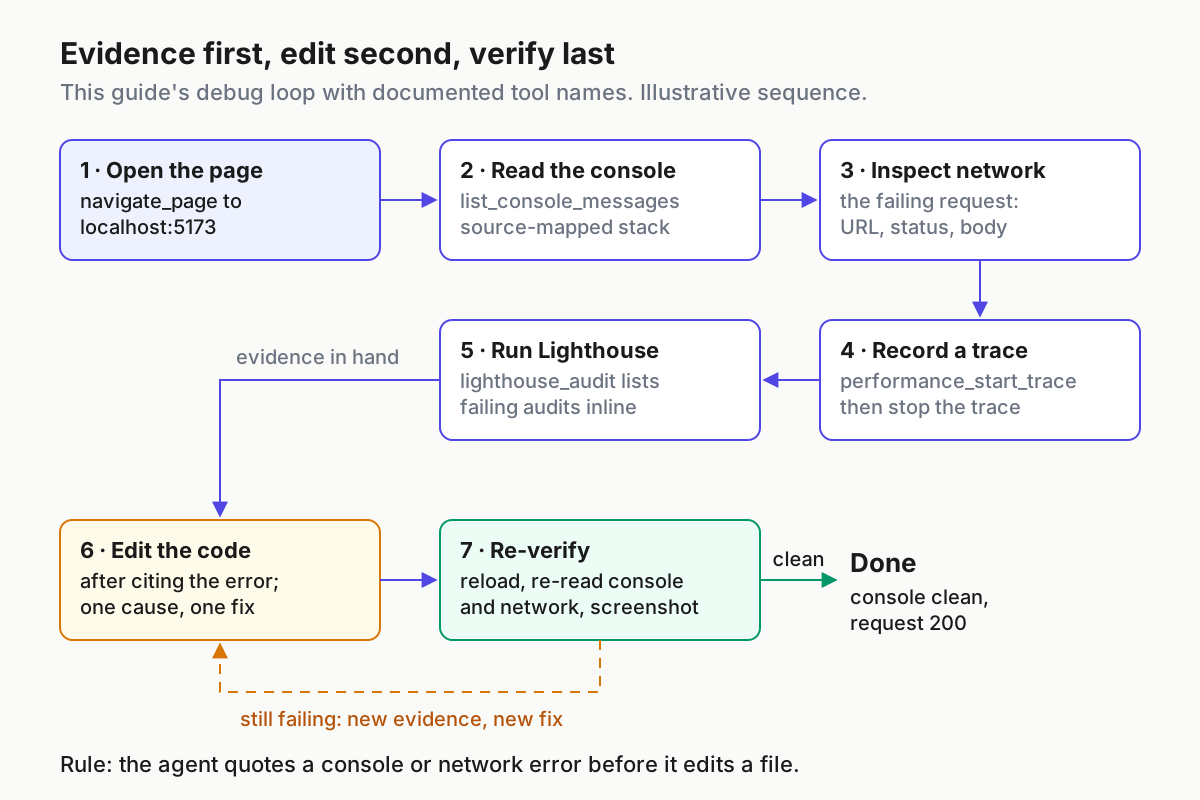
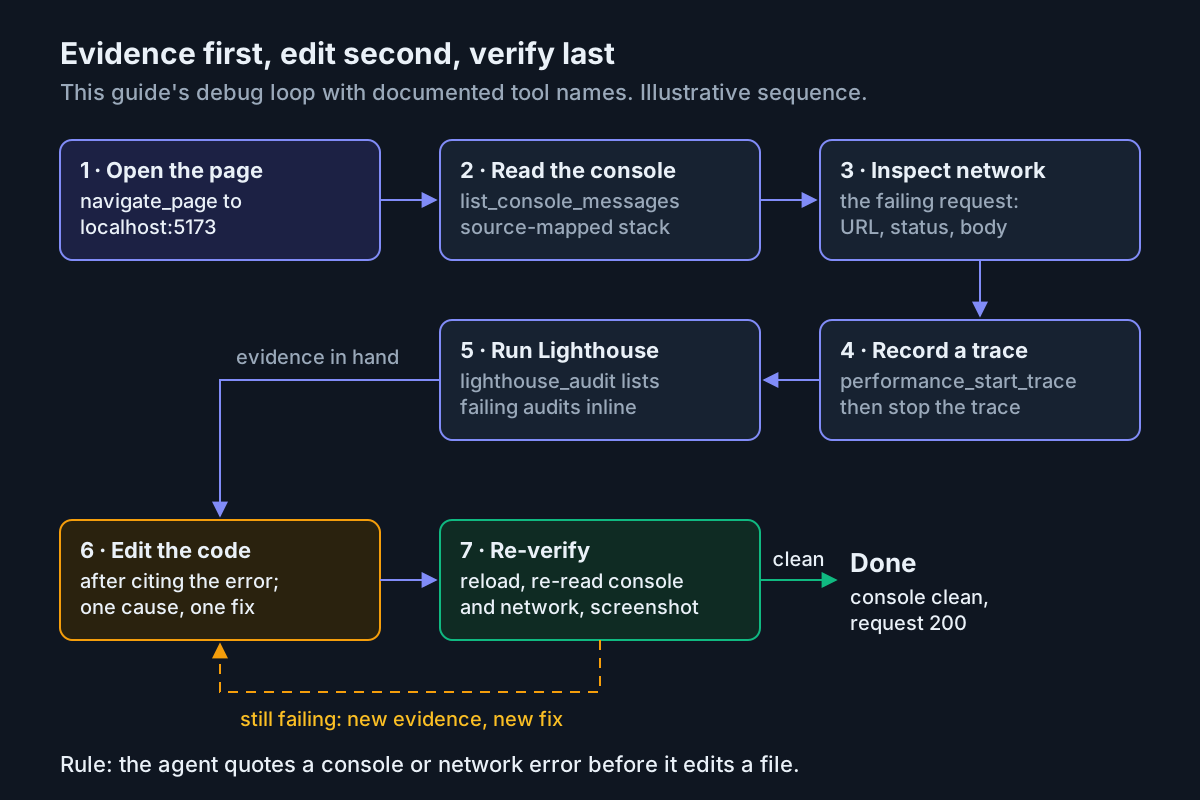
- Gather evidence, no edits. Prompt (illustrative): “Using the Chrome DevTools MCP tools, open http://localhost:5173/, then list the console messages and the network requests for that page. Do not edit any files. Quote the exact error text, the failing request URL and its status code.” Look for calls to
navigate_pageornew_page, thenlist_console_messages, then the network-request tools. What you should see: a failed-resource error in the console that names a 404, and a request to/style.csswith status 404. - Check the agent’s reading. It should connect the two findings: the stylesheet never loaded, so none of its rules apply. If it proposes changing selectors or adding
!important, it has gone back to reasoning from source; send it to the failing request. - Measure before fixing anything else. Prompt: “Reload the page while recording a performance trace, then run a Lighthouse audit. Summarise the failing audits and the DOM nodes they name.” Look for
performance_start_trace,performance_stop_traceandlighthouse_audit. Since v1.11.0,performance_start_traceaccepts anignoreCacheoption for a cold load, andlighthouse_auditreturns failing audits and DOM nodes inline. Expect the accessibility results to flag the unlabeledfilterinput. On a two-file page the trace will be short and uneventful, and that is a result in itself: the broken layout is not a performance problem. - Fix the cited causes. Prompt: “Fix the two problems you cited. Correct the reference in index.html rather than renaming the file on disk, and tell me which line you changed.” A good fix changes exactly the two lines shown below.
- Re-verify in the browser. Prompt: “Reload the page, list the console messages and network requests again, re-run the Lighthouse audit and take a screenshot.” Expected: no failed-resource error,
/styles.csswith status 200, a screenshot showing the sans-serif font and the unbulleted, divided list, and the missing-label finding gone. - If anything is still failing, return to step 4 with the new evidence instead of starting again from source.
The corrected stylesheet link:
<link rel="stylesheet" href="styles.css" />
And the labeled input:
<label for="filter">Filter</label>
<input id="filter" placeholder="Filter" />
Asking the agent to fix the reference rather than the file name is a small choice with a long payoff. Renaming styles.css to style.css would also clear the 404, but it moves the typo into the file system, where the next person who searches for the stylesheet by its intended name will not find it. Telling the agent which side to change, and asking it to report the line, keeps the fix reviewable. The success check for the whole loop has two parts. The agent quoted a real console or network error before it opened an editor, and the browser, not the agent’s summary, confirmed the fix.
Read what each tool hands back
Each tool returns a different kind of evidence, and each has a reading trap.
| Tool | What comes back | How to read it |
|---|---|---|
navigate_page, new_page |
The loaded page and its page ID | Page-ID routing is on by default, so page-scoped tools target a specific page; since v1.11.0 the server also reports pages opened by input actions, so a click that opens a tab is not invisible |
list_console_messages |
Console messages with source-mapped stack traces | Read the first error, not the last; later errors are often fallout. Google’s New in DevTools October 2026 post adds optional stack traces when listing messages |
| Network-request tools | Request URL, status, headers and, for recent navigations, bodies | --max-navigation-saved keeps 3 navigations by default, between 1 and 25; for older ones the server keeps URL, status and headers, but bodies are generally gone |
performance_start_trace, performance_stop_trace |
A trace with performance insights | Calling stop with no active trace now returns an error rather than empty data; field data appears only if CrUX is left on |
lighthouse_audit |
Category scores, failing audits and their DOM nodes | Since v1.11.0, scores are rounded and unscored categories show n/a |
take_screenshot |
An image of the page | Image size costs context; --screenshot-max-width downscales and --screenshot-format=webp shrinks the file |
evaluate_script |
The result of JavaScript run in the page | Broad power; --no-javascript-evaluation turns it off when you only need to observe |
Watch output size as well as content. Claude Code warns when an MCP tool result exceeds 10,000 tokens and limits results to 25,000 tokens by default, adjustable with MAX_MCP_OUTPUT_TOKENS; Codex lets you set an output_token_limit per tool under the server’s tools table. A full network list on a busy app can exceed either. Ask for filtered results, such as only failed requests, rather than raising the limit first. For basic page tasks the --slim flag exposes just three tools, navigation, script execution and screenshots, which is too thin for this loop but useful for a narrow helper.
Lock it down: profiles, URL policy and file access
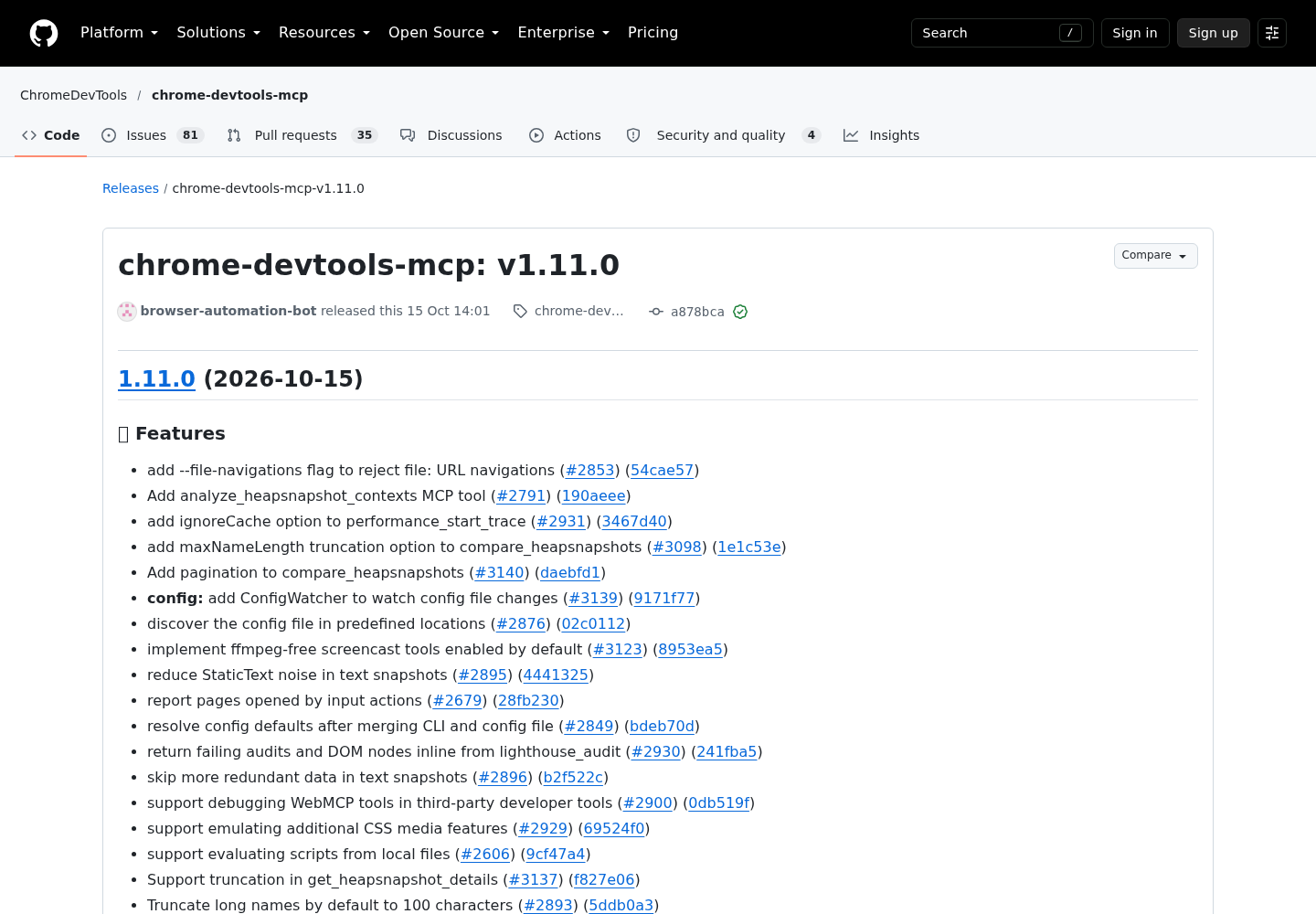
The server’s controls narrow what the browser and the agent can reach. None of them is a sandbox, and the configuration reference says so for several of them. Treat them as guardrails layered on top of the profile choice you already made.
- [ ] Isolate for untrusted pages. Use
--isolatedfor any page you did not write. A page can carry text aimed at the agent; the agentic browsers review covers that injection problem in consumer browser agents, and it applies here too. - [ ] Allow only your dev origin.
--allowed-url-pattern=http://localhost:5173/*(Chrome 149+) blocks navigations and subresources to everything else, and v1.11.0 enforces the policy across redirects. Patterns follow URL Pattern defaults: omitting the port matches only the scheme’s default port, sohttp://localhost/*would not match port 5173. Regexp groups, named groups such as:nameand partial IPv4 wildcards are rejected outright. - [ ] Block known-sensitive hosts with
--blocked-url-pattern, for examplehttps://internal.corp:*/*to cover every port on that host. - [ ] Refuse
file:navigation with--file-navigations=false.new_page,navigate_pageand the slim navigate tool then rejectfile:URLs, includingview-source:URLs that target them. It does not affect pages already open and is not a filesystem sandbox. - [ ] Turn off script evaluation with
--no-javascript-evaluationwhen you only observe. It disablesevaluate_script, theinitScriptparameter andjavascript:,data:andvbscript:navigations. Page scripts still run, and enabling--experimental-devtoolswould reopen a path through the DevTools Console. - [ ] Keep file tools in a workspace. Without MCP roots, tools that read or write files are confined to the OS temp directory. Claude Code answers
roots/listwith its session directories. Pass--workspace=/path/to/projectfor an explicit root and avoid--allow-unrestricted-paths; v1.11.0 rejects unrestricted paths when an explicit workspace is set. - [ ] Redact headers with
--redact-network-headers, which removes some headers considered sensitive before results reach the client. - [ ] Protect the config file. The reference warns that the agent must not be able to write the configuration file or its directory, because that file can set
executablePath,chromeArgand the URL patterns. - [ ] Keep
--autoConnectattended. It hands the agent your real tabs and sessions; never leave it on for an unattended run.
A locked-down launch for the fixture combines these:
npx -y chrome-devtools-mcp@latest --isolated \
  --no-usage-statistics --no-performance-crux \
  --file-navigations=false --redact-network-headers \
  --allowed-url-pattern='http://localhost:5173/*'
Expected observations with the allow pattern: the fixture loads normally, and a request to open https://developer.chrome.com is blocked. On a real app, any font or script pulled from a CDN is blocked too, so check the allow list first if a page looks broken only when the agent drives it. For fleet-wide permission defaults, see the restricted-mode fleet policy guide; to keep track of which machines run this server, fold it into the MCP server inventory ritual. For OS-level confinement the flags cannot give you, the Docker Sandboxes guide covers running the agent inside a sandbox, and the troubleshooting rows below cover the --browser-url workaround that confinement requires.
When it will not connect
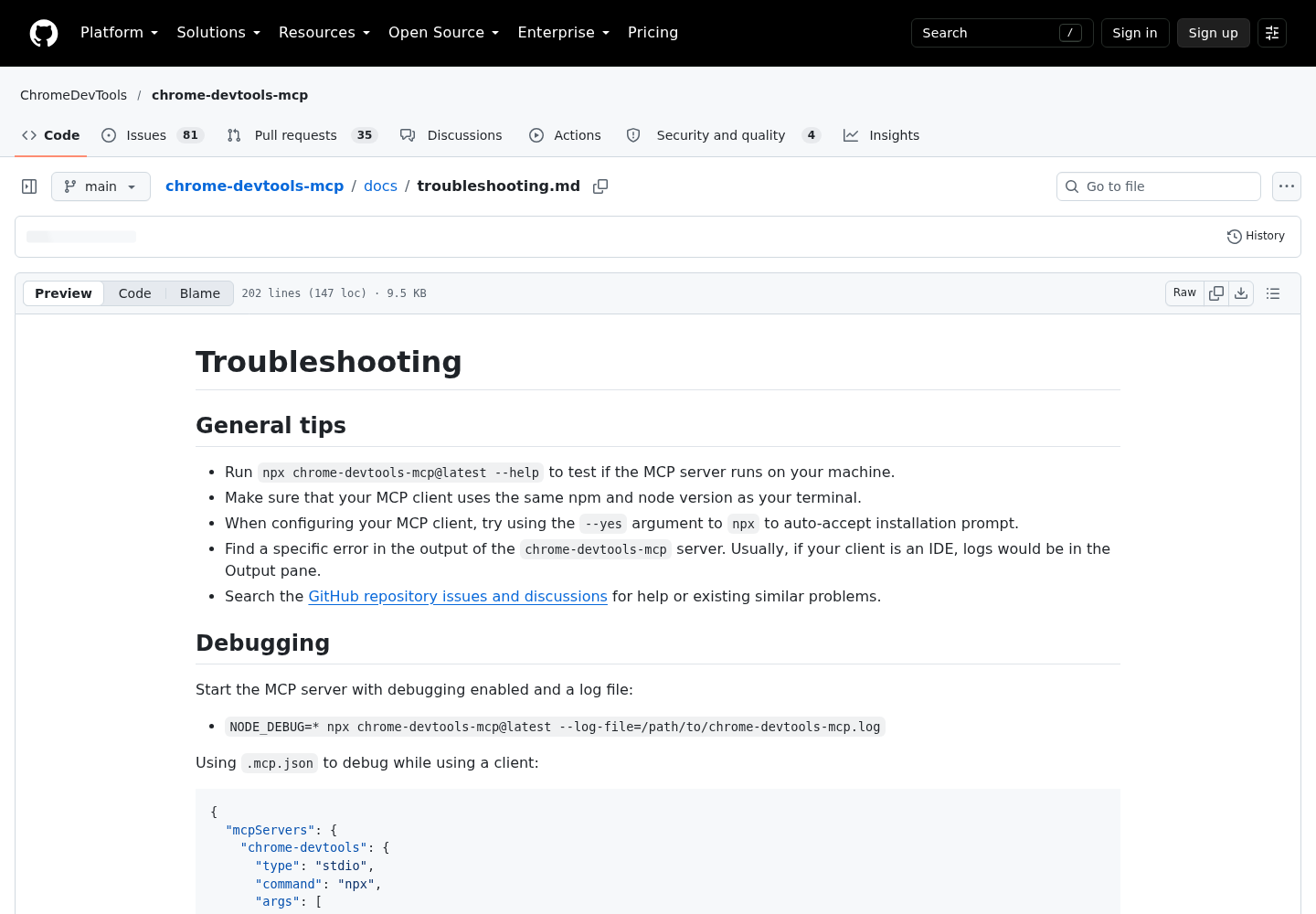
Every row below comes from the troubleshooting guide. Find the symptom, apply the fix, and confirm the observation in the last column before moving on.
| Symptom | Likely cause | Fix | What you should see after |
|---|---|---|---|
| Server never launches Chrome in a client that sandboxes MCP servers | Seatbelt or a container stops Chrome creating its own sandboxes | Disable sandboxing for this server, or start Chrome outside and use --browser-url |
Tool calls attach to the Chrome you started |
ProtocolError: Network.enable timed out or The socket connection was closed unexpectedly with --autoConnect |
The handshake with the running Chrome failed | Confirm Chrome 144+ is already running, remote debugging is on at chrome://inspect/#remote-debugging, and no other MCP server or tool is connecting to the same debugging port |
list_pages returns your tabs |
| Connection stalls waiting for the browser | The remote debugging prompt was not accepted | Retry and allow the remote debugging connection prompt in Chrome | The call proceeds after you allow it |
Could not find DevToolsActivePort or EPERM: operation not permitted on macOS |
macOS blocks the host app from reading Chrome’s profile folder | Grant the terminal or client access to Google Chrome in System Settings, Privacy & Security, Files & Folders | Works immediately, without a restart |
| Works in the terminal, fails in the client | The client launches a different Node or npm | Align versions, or give the client an absolute npx path |
--help behaves the same in both |
Error [ERR_MODULE_NOT_FOUND] |
Unsupported Node or corrupted npx cache | rm -rf ~/.npm/_npx (this can remove other npx executables), then npm cache clean --force |
--help prints the option list |
Target closed |
The browser could not start | Close other Chrome instances; install the latest stable Chrome | A window opens on the first tool call |
| Timeouts while attached to a browser with many tabs | In Chrome up to 149, frozen or unloaded tabs; the server forces all tabs to load | Close tabs and free resources; do not attach to hundreds of tabs | Calls return normally |
MCP error -32000: Connection closed on Windows 10 |
npx not launched correctly from another process |
Use cmd /c or the absolute npx path |
The server is discovered |
| Chrome exits immediately in a container | Running as root | Run as an unprivileged user via USER |
Chrome stays up |
| A VM cannot reach Chrome on the host | Host header validation | In the VM, ssh -N -L 127.0.0.1:9222:127.0.0.1:9222 USER@HOST_IP |
--browser-url http://127.0.0.1:9222 attaches |
If none of these match, start the server by hand with NODE_DEBUG=* npx chrome-devtools-mcp@latest --log-file=/path/to/chrome-devtools-mcp.log, reproduce the failure, and read the specific error in the log. In IDE clients the server’s output usually appears in the Output pane.
Chrome DevTools MCP or Playwright MCP
Both servers drive a browser, and both install with one npx command. They answer different questions. Use the dominant need of the task to choose.
| If the task is to… | Use | Basis in each project’s documentation |
|---|---|---|
| Read console errors with source-mapped stacks and inspect failed requests | Chrome DevTools MCP | Its README lists network analysis, screenshots and console messages with source-mapped stack traces |
| Record performance traces, run Lighthouse or inspect heap snapshots | Chrome DevTools MCP | Trace insights, lighthouse_audit and the memory tools |
| Test in Firefox or WebKit | Playwright MCP | --browser accepts chrome, firefox, webkit and msedge; Chrome DevTools MCP officially supports only Chrome and Chrome for Testing |
| Act on pages through accessibility snapshots without a vision model | Playwright MCP | Its README centres on structured accessibility snapshots and browser_snapshot |
| Mock API responses or simulate offline | Playwright MCP | --caps=network adds browser_route and browser_network_state_set |
| Generate locators or Playwright test code | Playwright MCP | --caps=testing and --codegen |
| Reuse a logged-in browser | Either, deliberately | --autoConnect here; the Playwright browser extension there |
| Keep a coding agent’s context small | Either project’s CLI | The Playwright README recommends its CLI plus skills for coding agents; chrome-devtools-mcp ships a chrome-devtools CLI and skills |
One difference matters for safety settings. Playwright’s README says its --allowed-origins and --blocked-origins lists do not serve as a security boundary and do not affect redirects, and it states that Playwright MCP is not a security boundary. Chrome DevTools MCP’s URL patterns apply to redirects as of v1.11.0, though the configuration reference still treats OS sandboxing as the real confinement. Playwright also keeps a persistent profile per workspace by default, so pass --isolated there as well when you install both. They coexist under different server names. If the task only needs page text, no browser at all may be the better tool; the web-to-Markdown guide makes that case for research jobs.
Remove it cleanly and prove it is gone
Test the removal path once, while you still remember what you installed.
- Claude Code: run
claude mcp remove chrome-devtools. If the same name exists in more than one scope, repeat with--scope local,--scope projector--scope userfor each one that holds it. For a project entry, delete it from.mcp.jsonand commit. Plugin installs come out through the plugin manager rather than/mcp. - Codex: delete the
[mcp_servers.chrome-devtools]table fromconfig.toml, or setenabled = falseto keep it but stop it loading.codex mcp --helplists the CLI’s management subcommands if you prefer to remove it there. - Cursor and other clients: delete the
chrome-devtoolsentry from themcpServersblock and reload the client’s MCP servers. - Browser state: close any Chrome you started with
--remote-debugging-portand delete its--user-data-dir.--isolatedprofiles clean themselves up. If you ever ran without a mode flag, delete$HOME/.cache/chrome-devtools-mcp/chrome-profile, which holds whatever that profile signed into. - Auto-connect: turn the remote debugging server off again at
chrome://inspect/#remote-debugging. - Config files: remove
~/.config/cd4a/config.jsonor the plugin’scd4a.config.jsonif you created one. - Confirm: run
claude mcp listorcodex mcp listand check thatchrome-devtoolsis gone, then open a new session and run/mcp. Ask the agent to list browser pages; it should report that no such tool is available.
The success criteria for the whole guide fit in three lines. The client lists the chrome-devtools tools when installed and none after removal. The agent cited a real console or network error before editing, and the browser confirmed the fix. The two failure signals to watch for are an agent connected to your everyday logged-in profile without a decision you made, and usage statistics left on because a flag went missing from one client’s entry.
Sources
- ChromeDevTools: chrome-devtools-mcp v1.11.0 release notes (GitHub Releases, Oct 15, 2026)
- ChromeDevTools: chrome-devtools-mcp README
- ChromeDevTools: chrome-devtools-mcp configuration reference
- ChromeDevTools: chrome-devtools-mcp troubleshooting guide
- Chrome for Developers: New in DevTools, October 2026
- Anthropic: Connect Claude Code to tools via MCP
- OpenAI: Model Context Protocol in Codex
- Arjun Shah on X: Chrome DevTools MCP install for Codex (Oct 22, 2026)
- Microsoft: Playwright MCP README