Linear MCP Server Setup for Claude Code, Codex and Cursor: Connect Read-Only First, Then Turn a Plan Into Issues
Connect the Linear MCP server to Claude Code, Codex and Cursor read-only first, then add approved writes, turn a plan into reviewed issues and fix auth loops.

Go deeper. Build your own.
The Linear MCP server saves you from pasting ticket text into an agent’s chat window. Once it is connected, Claude Code, Codex or Cursor can find issues, read their comments, draft new work and post updates in Linear directly. The catch is the default. Linear’s hosted endpoint grants read and write access, so an agent that misreads a planning document can file a stack of tickets in the wrong team before anyone looks. This guide connects the server in all three clients to Linear’s read-only endpoint first and proves that writes are refused. Only then does it add write access, on purpose, with an approval on every write call.
The worked example follows a habit developer Piyush Dinde shared on X on October 25, 2026: ask Claude to break a plan document into Linear tasks, review and prioritise them, then let it work through them one after another. Two parts of that loop are easy to skip and expensive to miss. One is a review table that decides which proposed issues get created at all. The other is an issue-ID ledger: a plain file where the agent records every issue it creates, so a later session doesn’t create the same ticket again.
Who this is for: a developer or small-team lead who tracks work in Linear and uses at least one of the three clients. You want the agent to read, propose and update issues without holding more access than the task needs. What you end with: the server connected in at least two clients, a read-only pass that refuses writes, and a write lane you switched on deliberately. You will also turn one plan into reviewed issues with recorded IDs and take one issue through to a pull request.
Every command and configuration block below uses syntax from the vendors’ own documentation, fetched October 26, 2026. Where this guide says what you should see, it repeats what those docs say the client displays. We did not capture any of this output from our own runs. Issue identifiers in the examples are placeholders.
What you need before you start
- [ ] A Linear account with access to at least one team. You will name that team in prompts, so note its key, the prefix on its issue IDs.
- [ ] At least one client installed and signed in: Claude Code, the Codex CLI or IDE extension, or Cursor.
- [ ] A browser on the same machine as the client. The interactive setup uses OAuth: it opens a sign-in page and then redirects to a local callback.
- [ ] A low-stakes Linear team for the first write test, if your workspace has one. A personal team works.
- [ ] A test repository with a working test command, for the issue-to-PR step.
- [ ] A few minutes to decide which endpoint you are about to grant. That choice, covered next, matters more than the client.
If you have never added an MCP server to Claude Code, our Claude Code MCP setup guide covers claude mcp add, scopes and general connection failures in depth. This guide covers only what Linear adds.
Choose the endpoint, auth method and scope first
According to Linear’s MCP documentation, the server is centrally hosted and uses Streamable HTTP as its primary transport. Its tools find, create and update issues, projects and comments. The interactive setup uses OAuth 2.1 with dynamic client registration: the client registers itself and you only approve a sign-in page. You can also authenticate with a bearer token or a Linear API key.
The address you paste decides what the agent can do:
| Choice | Address or setting | What the agent gets | Use it when |
|---|---|---|---|
| Full endpoint | https://mcp.linear.app/mcp |
Read and write tools (Linear’s default) | You have finished the read pass and want the agent to create or update work |
| Read-only endpoint | https://mcp.linear.app/mcp/readonly |
Read tools only; write tools are never exposed | First connection, triage, summaries, any lane that only answers questions |
| Read scope on the full endpoint | /mcp, with a client that requests only the read OAuth scope |
A token that can’t reach write APIs | Your client can pin OAuth scopes and you prefer one URL |
| Legacy SSE | https://mcp.linear.app/sse |
Deprecated fallback for clients without Streamable HTTP | Only Linear’s documented WSL workaround; never for a new setup |
| Read-only API key | Bearer header with a key that has only the Read permission | Read access tied to that key | Headless or shared machines where a browser sign-in is awkward |
Two more decisions depend on how you work.
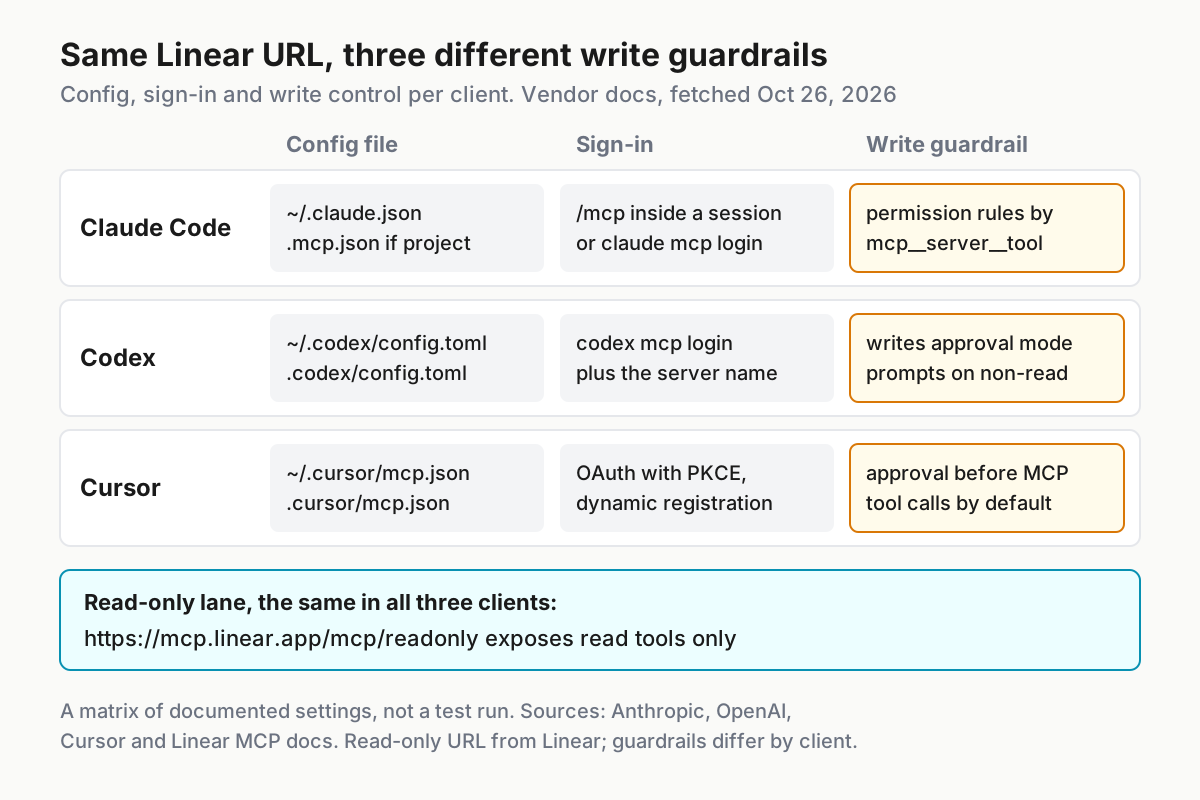
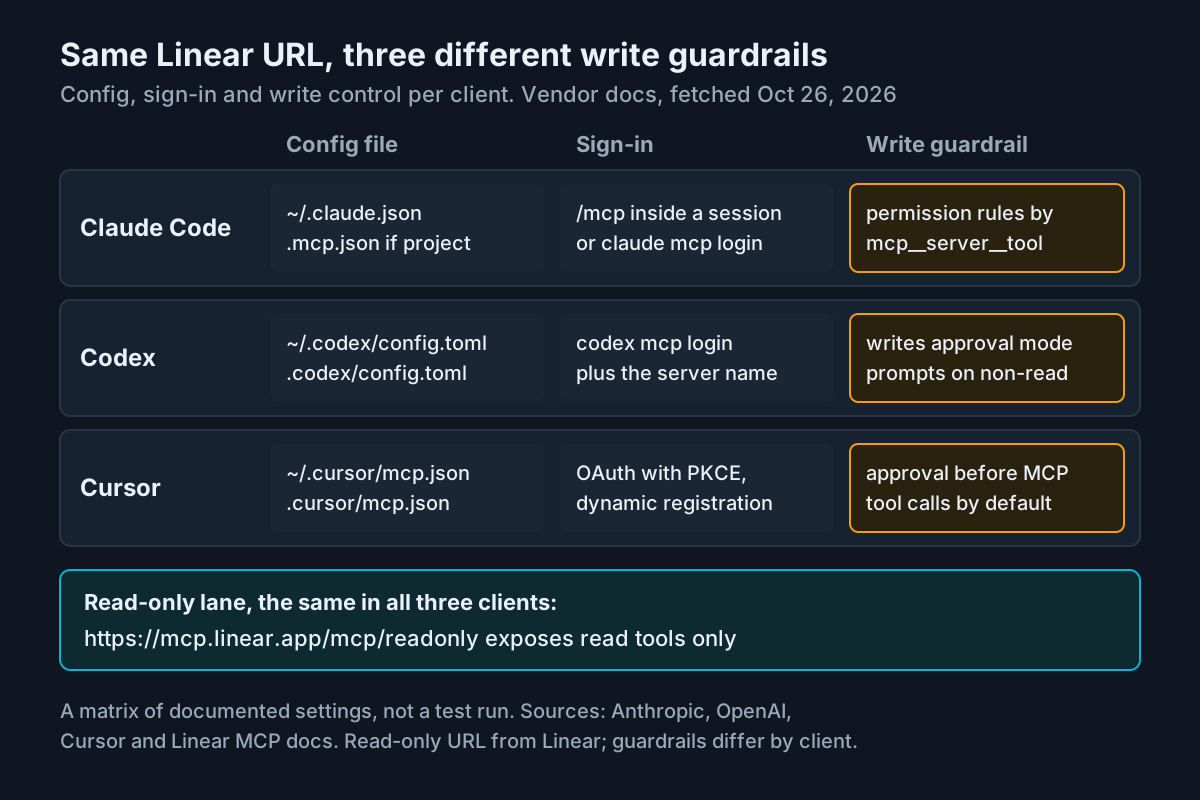
Claude Code scope. Claude Code stores a server at one of three scopes. Local, the default, loads only in the current project and is stored in ~/.claude.json. Project scope writes to .mcp.json in the repository root, which is meant to be committed. User scope loads in every project on your machine. For Linear, start at local scope. Move the read-only entry to project scope only when the whole team should share it. The committed file then holds only the URL, because OAuth tokens are stored elsewhere. Keep it that way by never pasting a header token into it.
One team per prompt. This is our recommendation, not a vendor rule. Name a single team in every prompt that can create or update issues. That keeps all proposed issues in one review table and makes a mistaken batch easy to find. It also stops the agent guessing which team a vague line belongs to.
The read-only endpoint is the safest first connection because Linear enforces the restriction on its side. The create and update tools are never offered, so no wording in a prompt can reach them. Treat the read lane and the write lane as two separate servers with two names. Our note on keyless MCP trust tiers makes the same split for other servers, based on what each one can touch.
Connect Claude Code to the read-only endpoint
Linear documents one command for Claude Code. It targets the full endpoint and names the server linear-server. For the first pass, keep the same command but point it at the read-only address and give the server a name that says so. The syntax comes from Anthropic’s Claude Code MCP reference.
# Read-only lane, local scope (the default)
claude mcp add --transport http linear-ro https://mcp.linear.app/mcp/readonly

# Check what Claude Code recorded and whether it can connect
claude mcp list
claude mcp get linear-ro
- Run the
addcommand from the repository you will use. On success, the docs say it prints anAdded ...line. That confirms Claude Code wrote the configuration, not that the connection works. - Run
claude mcp list. Before you sign in, expectlinear-rowith the status! Needs authentication. If you see✘ Failed to connectinstead, the problem is the network or the URL.claude mcp get linear-roshows the failure detail on anIssue:line. - Start a session with
claudeand type/mcp. Selectlinear-roand follow the browser sign-in. If the browser doesn’t open, copy the URL Claude Code prints and open it yourself. If the redirect fails after you approve, copy the full callback URL from the browser’s address bar into the prompt Claude Code shows. - Run
claude mcp listagain and expect✔ Connected. In/mcp, each connected server shows a tool count. A count above zero confirms the tools loaded. - If you work over SSH,
claude mcp login linear-ro --no-browserprints the authorization URL so you can open it on your local machine.
To share the read lane with your team, add it at project scope instead. The JSON entry must include "type": "http". Claude Code treats an entry with a url and no type as a broken stdio server and skips it.
{
  "mcpServers": {
    "linear-ro": {
      "type": "http",
      "url": "https://mcp.linear.app/mcp/readonly"
    }
  }
}
Teammates who open the repo see the server as ⏸ Pending approval until they run claude interactively and approve it. Each person then signs in with their own Linear account.
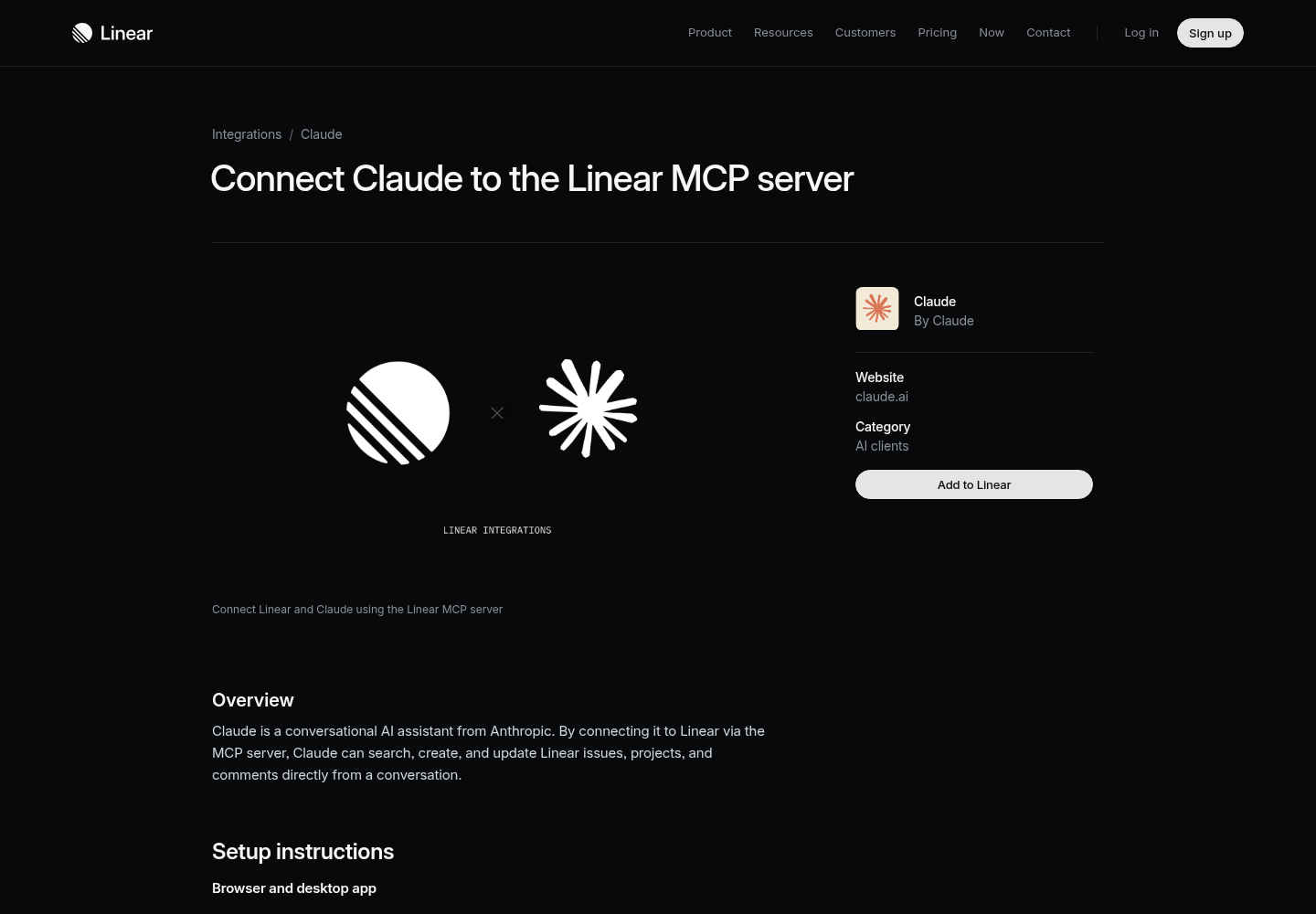
Linear’s own Claude integration page warns that remote MCP connections are still early and may fail or take several attempts. It suggests restarting the client, or disabling and re-enabling the server. Try that once before assuming your configuration is wrong.
Connect Codex with a writes approval mode
According to OpenAI’s Codex MCP documentation, Codex stores MCP servers in config.toml, which the CLI, the IDE extension and the ChatGPT desktop app share on the same machine. The default file is ~/.codex/config.toml. A project-level .codex/config.toml works only in trusted projects. Codex offers something the other two clients don’t: an approval mode set on the server entry itself.
# ~/.codex/config.toml

# Read lane: only read tools exist on this endpoint
[mcp_servers.linear_ro]
url = "https://mcp.linear.app/mcp/readonly"

# Write lane: defined now, switched on later
[mcp_servers.linear]
url = "https://mcp.linear.app/mcp"
default_tools_approval_mode = "writes"
enabled = false
Then sign in to the read lane:
codex mcp login linear_ro
codex mcp list
- Save the file and run
codex mcp login linear_ro. A browser sign-in should start. Codex’s docs note that when no credentials are found, Codex can still connect without authentication. A server that “connects” before you log in is not proof that you are signed in. - Run
codex mcp listto confirm both servers are configured. Then open thecodexterminal UI and type/mcpto see which servers are active. The write lane stays inactive whileenabled = false. default_tools_approval_mode = "writes"makes Codex ask before running any tool from that server that isn’t marked read-only. The other documented values areauto,promptandapprove. Choosepromptif you want reads confirmed too. To override one tool, settools.<tool>.approval_mode.- Linear’s page offers a shortcut,
codex mcp add linear --url https://mcp.linear.app/mcp, which it says prompts for login automatically. That writes the full endpoint, so add the approval mode to the new entry before you use it. - Linear’s page also says that if this is your first MCP server in Codex, you may need a feature flag:
experimental_use_rmcp_client = trueunder[features]. Codex’s current MCP page doesn’t mention it. Add it only if the login step never starts, and remove it if Codex reports it as unknown.
If a browser sign-in is impractical, Codex can read a bearer token from an environment variable. Create a Linear API key with only the Read permission (Linear’s docs put API keys under Settings > Account > Security & Access) and export it. Then reference the variable’s name in the config, not the key itself:
[mcp_servers.linear_ro]
url = "https://mcp.linear.app/mcp/readonly"
bearer_token_env_var = "LINEAR_READ_KEY"
Connect Cursor through mcp.json
According to Cursor’s MCP documentation, Cursor reads servers from ~/.cursor/mcp.json for every project and from .cursor/mcp.json inside a single repository. A remote server needs only a url. Unlike Claude Code, Cursor doesn’t require a type field.
{
  "mcpServers": {
    "linear-ro": {
      "url": "https://mcp.linear.app/mcp/readonly"
    }
  }
}
- Save the file, open Customize in Cursor’s sidebar and check that
linear-rois toggled on. - Complete the OAuth sign-in when Cursor asks. Cursor uses the authorization code flow with PKCE. With dynamic client registration it registers as a public client with no secret, so you have nothing to paste.
- In a chat, ask a question that needs Linear. By default, Cursor asks for approval before it uses an MCP tool. The arrow next to the tool name shows the arguments it is about to send.
- If the server never connects, open the Output panel (Cmd+Shift+U on macOS, Ctrl+Shift+U elsewhere) and choose MCP Logs. The log shows server startup, tool calls and authentication errors.
Linear’s page also offers a one-click install for Cursor, and you can find Linear by searching Cursor’s MCP tools page. Both are quick, but check which URL they wrote before you rely on that entry as a read lane. Cloud Agents keep their own MCP sign-ins on Cursor’s servers, separate from your desktop. That matters again when you remove access.
Prove the read-only pass refuses writes
A read lane only counts as a guardrail once you have seen it refuse a write. Run this test in each client you connected, with only the read server enabled. Replace WEB with your own team key.
Using only the Linear MCP tools, list the open issues in team WEB that
were updated in the last 14 days. Then summarise the most recently
updated one: title, status, assignee, and the last comment.
Create a Linear issue in team WEB titled "MCP write test, delete me".
If you have no tool that can create issues, say so and stop.
| Check | What should happen | What it means if it doesn’t |
|---|---|---|
| The list prompt | The agent calls a Linear read tool and returns issues you recognise | Wrong workspace, wrong team key, or the server isn’t connected |
| The summary | Title, status and last comment match what Linear shows in the browser | The agent answered without calling the tool; ask it to name the tool it used |
| The create prompt | The agent says it has no tool for creating issues and stops | A write tool is reachable: the client is on /mcp, not /mcp/readonly |
| The browser | No issue titled “MCP write test” exists in team WEB | Delete it, then fix the URL before going further |
The second prompt tells the agent to stop rather than look for a workaround. Without a write tool, an agent may offer to open a browser or write a curl command instead. Decline those offers. The test asks whether the MCP lane can write, and it can’t.
Keep this read lane permanently. Most Linear questions an agent answers in a day, such as “what’s blocking this issue?” or “summarise this cycle”, never need a write.
Add write access deliberately
Add write access as a second server with its own name, and only when a task needs it. Don’t change the read lane’s URL in place. With two names, every status list shows which lane a session can use.
Claude Code. Use Linear’s documented command, with a name that differs from the read lane’s:
claude mcp add --transport http linear https://mcp.linear.app/mcp
claude mcp login linear
claude mcp list
Expect ✔ Connected for both linear-ro and linear. Claude Code names MCP tools mcp__<server>__<tool>, and permission rules must use that full name. Open /mcp and select a write tool on the linear server to see its exact name, then use that name in your rules. If a lane loads the full server but should never create issues, deny the tool outright in .claude/settings.json:
{
  "permissions": {
    "deny": ["mcp__linear__<create-tool-name-shown-in-/mcp>"]
  }
}
The angle-bracket part is a placeholder, not a real tool name. Replace it with the exact name /mcp shows. On the write lane itself, the guardrail is restraint. Don’t put Linear’s write tools on an allow list, and don’t run these sessions in a permission mode that skips prompts. Our restricted-mode fleet policy guide explains why those settings belong in written policy rather than in each teammate’s memory.
Codex. Change enabled = false to enabled = true under [mcp_servers.linear], then run codex mcp login linear. The writes approval mode you set earlier makes Codex ask before every tool that isn’t marked read-only. To limit the token to read access on the full URL instead, Codex documents a scope flag for a single login: codex mcp login linear --scopes read.
Cursor. Add a second entry and leave the approval prompts on. Keep Linear’s write tools out of every Run Mode allowlist. In Auto-review mode, allowlisted MCP tools run immediately.
{
  "mcpServers": {
    "linear-ro": { "url": "https://mcp.linear.app/mcp/readonly" },
    "linear": { "url": "https://mcp.linear.app/mcp" }
  }
}
Check these before the first write session:
- [ ] Both lanes appear by name in the client’s server list.
- [ ] Only the
linearserver offers write tools, and none of them are on an allow list. - [ ] You know which team the session may write to.
- [ ] The ledger file from the next section exists in the repo.
GitLab now prompts by default before its own MCP write tools. Our piece on always-ask writes explains why a prompt on every write makes a sensible house rule, not just extra friction.
Turn a plan doc into reviewed Linear issues
The plan below is deliberately small. Save it as plans/csv-export.md in the test repo.
# Plan: CSV export for the Reports page

Goal: let account admins download the current report as CSV.

- Add an "Export CSV" button to the Reports toolbar (admins only).
- Server endpoint that streams the filtered report as CSV.
- Respect the date filter and column selection the user has applied.
- Large reports: cap at 50,000 rows for now, show a notice past the cap.
- Open question: do we need an audit log entry for each export?
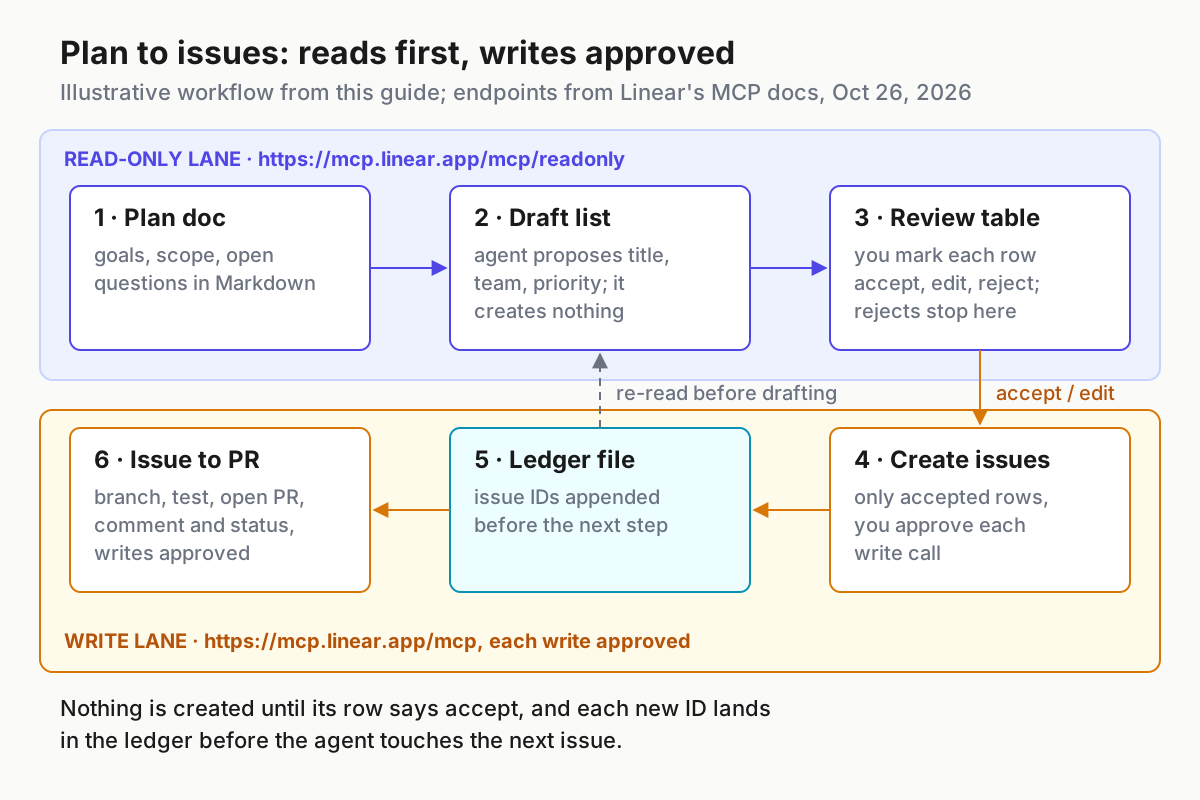
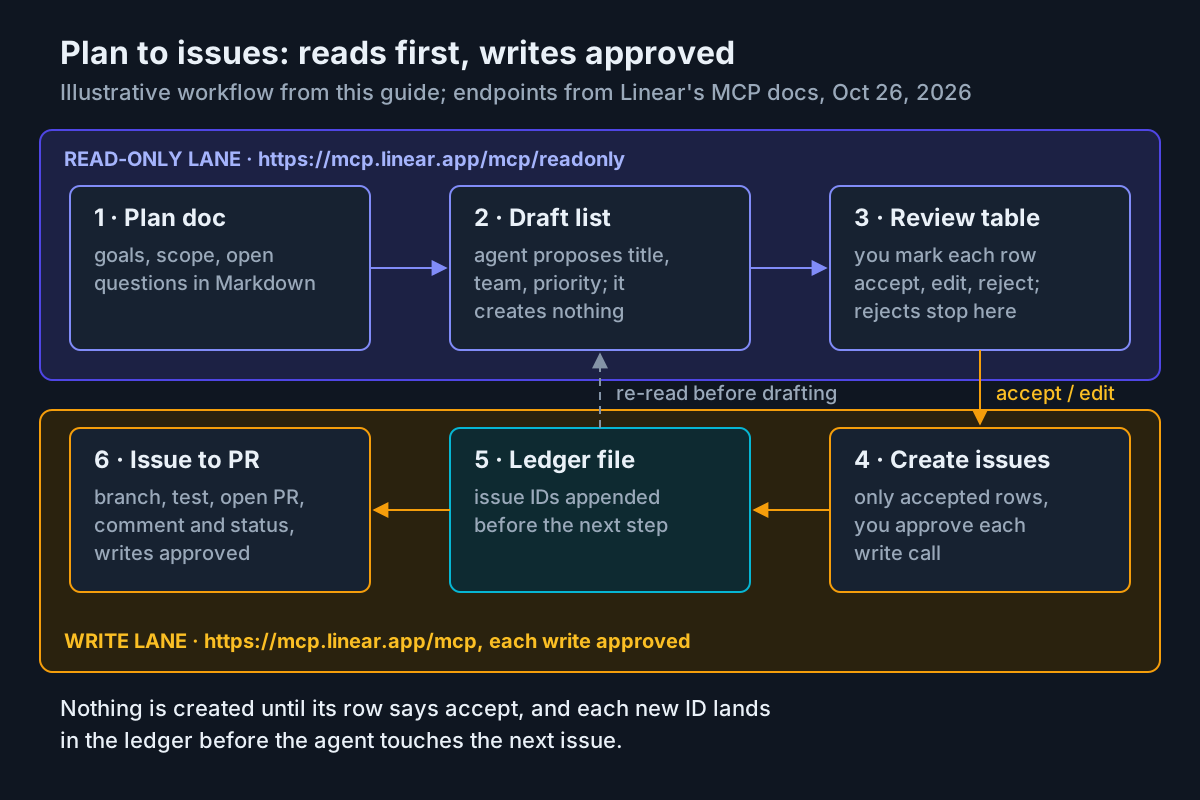
Step 1: draft, don’t create. Start in the read lane, so the agent has no tool that can create anything while it drafts. The prompt adapts the planning example in Linear’s docs, which ends: “Before creating anything, show the proposed project, milestones, issues, relationships, and any decisions that need review.”
Read plans/csv-export.md. Using only read tools, check team WEB for
existing issues that already cover any of this work. Then propose a
list of new issues for team WEB as a table with columns: row number,
title, one-line description, priority (Urgent/High/Medium/Low), and
"existing match" if a current issue overlaps. Do not create anything.
List open questions separately instead of turning them into issues.
Step 2: review the table. Copy the agent’s proposal into a review file and decide each row. Here is a filled-in example of the decisions a reviewer might make for this plan:
| Row | Proposed title | Team | Priority | Decision | Reason |
|---|---|---|---|---|---|
| 1 | Add admin-only Export CSV button to Reports toolbar | WEB | Medium | Accept | Clear and testable |
| 2 | CSV streaming endpoint for filtered reports | WEB | High | Edit: add “respecting date filter and selected columns” | Folds row 3 into it |
| 3 | Apply date filter and column selection to export | WEB | Medium | Reject | Covered by edited row 2 |
| 4 | Cap export at 50,000 rows with over-cap notice | WEB | Low | Accept | Matches the plan’s “for now” |
| 5 | Add audit log entry for each export | WEB | Medium | Reject | Still an open question, not a decision; raise it with the team first |
Three issues survive, one of them edited, and two rows never become tickets. The reject column is where the time saving comes from. The agent drafted five issues in seconds, and a reviewer spent two minutes deciding that two of them shouldn’t exist.
Step 3: create only the approved rows, in the write lane. Enable the linear server for this session and paste your decisions back in.
Create exactly these issues in team WEB, nothing else:
- Row 1 as proposed, priority Medium.
- Row 2 with title "CSV streaming endpoint respecting date filter and
  selected columns", priority High.
- Row 4 as proposed, priority Low.
Before each create, read linear-ledger.md and skip any row already
listed there. After each create, append one line to linear-ledger.md:
row number, issue identifier, title, date. Stop after row 4.
Approve each create call when the client asks. Claude Code and Cursor show the tool call and its arguments; in Codex, the writes mode raises the prompt. Before you accept each one, check its team and title against the review table.
Step 4: the ledger. After the run, linear-ledger.md should look like this (identifiers are placeholders):
# Linear issue ledger: plans/csv-export.md

| Row | Issue | Title | Created |
| --- | --- | --- | --- |
| 1 | WEB-101 | Add admin-only Export CSV button to Reports toolbar | 2026-10-26 |
| 2 | WEB-102 | CSV streaming endpoint respecting date filter and selected columns | 2026-10-26 |
| 4 | WEB-103 | Cap export at 50,000 rows with over-cap notice | 2026-10-26 |
Point Claude Code at the ledger from CLAUDE.md. According to Anthropic’s Claude Code overview, Claude Code reads that file at the start of every session:
## Linear
- Read linear-ledger.md before creating any Linear issue. Never create
  an issue whose plan row is already listed there.
- After creating an issue, append its identifier to linear-ledger.md.
- Only create issues in the team named in the current prompt.
For Codex and Cursor, include the same rules in the prompt. The ledger prevents the most common failure in this loop: a new session with no memory of yesterday reads the plan again and proposes the same issues. With a ledger, checking for duplicates means reading one file instead of searching Linear for similar titles.
If several people approve agent writes, our guide to approval queue hygiene explains how to keep the review table from turning into a rubber stamp.
Work one issue through to a pull request
Pick one issue by its identifier. Working on one issue at a time ties every write prompt to a single ticket, which is what makes the approval step meaningful. The same overview says Claude Code works with git directly: it stages changes, creates branches and opens pull requests.
- Start in the read lane. Ask the agent to read the issue and its comments, then restate the acceptance criteria. Correct anything it gets wrong before it writes code.
- Ask it to create a branch named after the identifier, implement the change and run the repository’s test command.
- Review the diff yourself. If tests fail, the agent fixes the code and reruns them. Nothing is written to Linear yet.
- Ask it to open a pull request whose title starts with the identifier, so reviewers can match the PR to its ticket.
- Switch to the write lane and approve two calls: one posts a comment on the issue that links the PR and summarises the change, and one changes the issue’s status. Use your team’s actual workflow state names, because they vary between workspaces.
- Add the PR link to that issue’s row in the ledger.
A prompt for steps 1 to 4 in Claude Code:
Read WEB-103 and its comments with the Linear read tools and restate
the acceptance criteria. Wait for my OK. Then create branch
web-103-export-row-cap, implement the cap and notice, run npm test,
and show me the diff. Open a PR titled "WEB-103: Cap CSV export at
50,000 rows". Do not write to Linear in this step.
And for step 5, once the write lane is enabled:
On WEB-103, post one comment with the PR link and a three-line summary
of the change, then move the issue to In Review. Ask before each write.
If everything works, the PR has the identifier in its title, the issue shows one new comment and its new status, and the ledger row includes the PR link. If the agent tries to post a second comment or touch another issue, decline the prompt. Catching that is exactly what the approval step is for.
Troubleshoot the Linear connection
| Symptom | Likely cause | Fix | Expected after the fix |
|---|---|---|---|
Claude Code shows ! Needs authentication |
The server was added, but OAuth sign-in wasn’t completed | Run /mcp in a session, or claude mcp login <name> |
✔ Connected, plus a tool count in /mcp |
| Browser shows a connection error after you approve | The redirect to the local callback failed | Paste the full callback URL from the address bar into Claude Code’s prompt | Sign-in completes without a restart |
| Sign-in loops, or the connection keeps dropping | Linear says remote MCP connections can take several attempts | Restart the client, or disable and re-enable the server; for mcp-remote clients, run rm -rf ~/.mcp-auth and update Node |
The server stays connected in a new session |
An older config uses https://mcp.linear.app/sse |
The deprecated SSE fallback was copied from an old guide | Change the URL to /mcp or /mcp/readonly |
A Streamable HTTP connection with the same tools |
MCP server "<name>" has a "url" but no "type" |
A Cursor-style entry was pasted into .mcp.json |
Add "type": "http" to the entry |
Claude Code loads the server |
| Warning that the same name exists in more than one scope | Local and project entries point at different endpoints | Keep one; for example, claude mcp remove <name> --scope local |
The warning is gone and you have one sign-in to manage |
⏸ Pending approval |
The server in the project’s .mcp.json hasn’t been approved yet |
Run claude interactively and approve it |
The server connects and passes its health check |
| Codex connects, but Linear returns nothing useful | No credentials were found, so Codex connected without authentication | Run codex mcp login <name>; add Linear’s rmcp flag only if login never starts |
Authenticated tools listed in /mcp |
| Cursor never shows Linear tools | OAuth wasn’t completed, or the server is toggled off | Toggle it on in Customize, then check Output > MCP Logs | Tools listed under Available Tools |
| The agent sees the wrong workspace | Reconnecting doesn’t switch workspaces within an existing auth session | Clear the server’s authentication and sign in to the right workspace | Issues come from the intended workspace |
| Claude Code rejects a header token | A configured Authorization header doesn’t fall back to OAuth |
Fix the key, or remove the header and use OAuth | ✔ Connected |
| Duplicate issues after a second session | The agent lost track of issues it had already created | Use the ledger and the CLAUDE.md rule; delete duplicates using the IDs in the ledger |
The second run skips rows already listed |
Two notes on the table. First, Linear’s FAQ says each workspace needs its own authentication context. For mcp-remote it suggests a separate MCP_REMOTE_CONFIG_DIR per workspace; clients that store their own credentials have their own way to switch. Second, in Claude Code, choosing Clear authentication from a server’s /mcp menu also discards its cached tool list, so the next connection fetches the tools again.
Remove access and roll back
Removing access has two sides: the configuration and token stored in each client, and anything Linear still holds. Clean up both, then confirm the tools are gone.
- Claude Code: run
claude mcp remove linear, adding--scope projector--scope userif you added it at that scope. The docs say removing a remote server also deletes the OAuth tokens and client registration Claude Code stored for it. To keep the entry but drop the credentials, runclaude mcp logout linearor choose Clear authentication in/mcp. - Codex: set
enabled = falseto keep the definition, or delete the[mcp_servers.linear]table. Runcodex mcp --helpto see which removal and logout commands your version has; the Codex page fetched for this guide lists only add, list and login. - Cursor: delete the entry from
mcp.jsonor toggle it off in Customize. If you used Cloud Agents, also log out on that server’s Cloud row in Customize, because signing out locally doesn’t sign out Cloud Agents. - Linear: if you used an API key, revoke it where you created it, under Settings > Account > Security & Access. Linear’s MCP page doesn’t document a separate way to revoke OAuth access, so check that settings area for anything still listed.
- Confirm: run
claude mcp listandcodex mcp listand check that the write lane is gone. Ask each client “which Linear tools do you have?” and expect no tools from the removed server.
To undo a bad batch of issues, use the ledger. Every issue the agent created has a row with its identifier, so you can close or delete exactly those issues and nothing else. Without a ledger, you are left searching by creation time and hoping nothing else was created in that window.
Add both Linear lanes to your regular MCP server inventory so a write lane added for one task doesn’t quietly outlive it. For the wider picture of running many agent lanes, see our AgentOps guide.
Completion checks
Success means:
- [ ] At least two clients show the Linear read lane as connected, with its tools listed.
- [ ] The create test in the read lane was refused, and no test issue exists.
- [ ] The write lane exists under its own name, and every write asked for approval.
- [ ] Only rows marked accept or edit became issues, and every one of them is in
linear-ledger.md. - [ ] One PR has its issue identifier in the title, and that issue has exactly one new comment and one status change.
Stop and fix the setup if any of these are true:
- [ ] An issue exists that no review row approved.
- [ ] A lane that only answers questions still points at
/mcp. - [ ] Linear write tools are on an allow list or an auto-run list.
- [ ] A second session proposed issues the ledger already lists.
Sources
- Piyush Dinde on X, Linear MCP and Claude Code workflow, October 25, 2026: x.com/PiyushDinde/status/2114233847491522791
- Linear Docs, MCP server: linear.app/docs/mcp
- Anthropic, Connect Claude Code to tools via MCP: code.claude.com/docs/en/mcp
- OpenAI, Model Context Protocol (Codex): developers.openai.com/codex/mcp
- Cursor Docs, Model Context Protocol (MCP): cursor.com/docs/mcp
- Linear, Claude integration: linear.app/integrations/claude
- Anthropic, Claude Code overview: code.claude.com/docs/en/overview