Claude Code Xcode Plugin Setup: Install It, Allow External Agents and Run a Build, Test and Preview Loop
Install the Claude Code Xcode plugin, allow external agents in Xcode Intelligence settings, verify the tools, then build, test and preview a SwiftUI app.

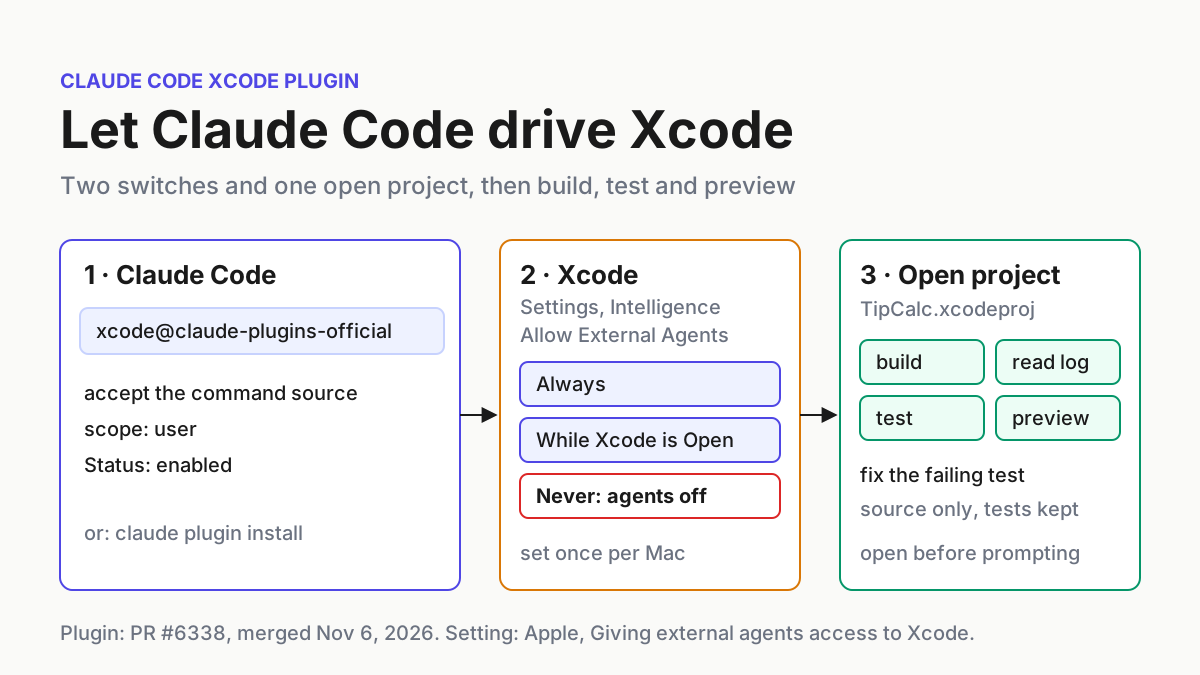
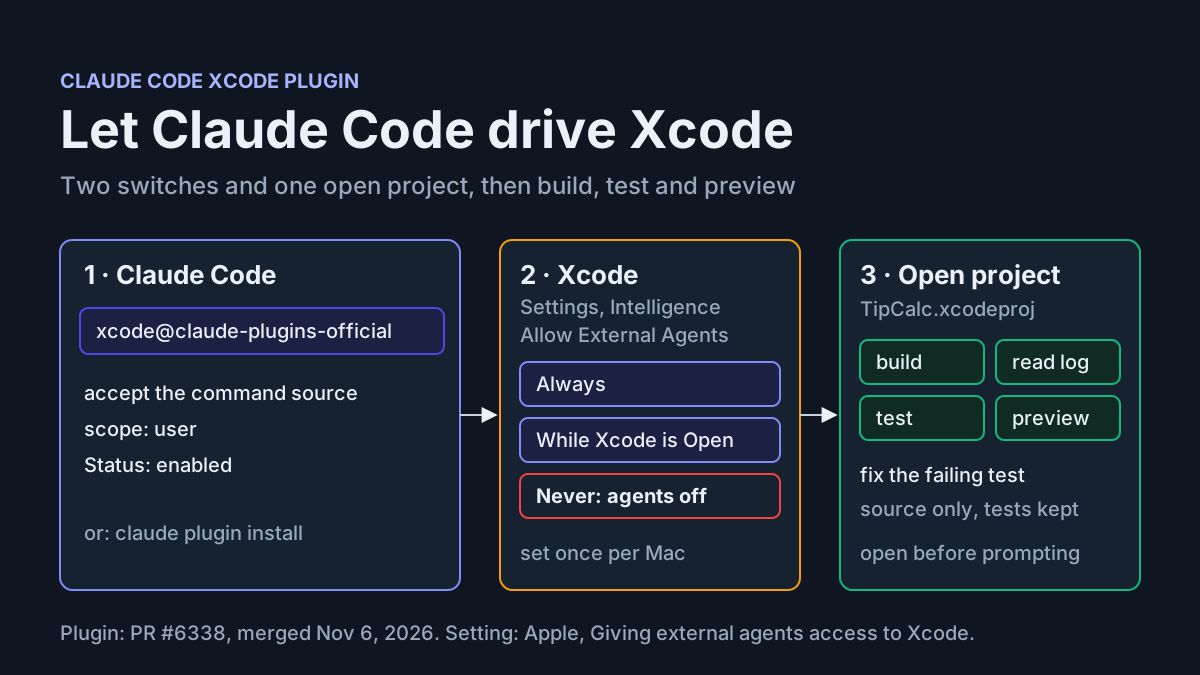
You have a SwiftUI app open in Xcode and Claude Code running in a terminal beside it, and the agent is working half-blind. It edits a view, cannot tell whether the scheme still compiles, and asks you to paste the build log back into the chat. The Claude Code Xcode plugin removes that relay step. It connects Claude Code to tools that Xcode itself exposes over the Model Context Protocol, so the agent can build a scheme, run tests, read diagnostics and render SwiftUI previews against the project you already have open.
This tutorial is for an iOS or macOS developer on a Mac who already uses Claude Code. By the end you will have the plugin installed and verified, one Xcode setting switched on, a CLAUDE.md block that tells the agent how your project is laid out, and a completed loop on a small illustrative project called TipCalc: build, read the log, fix a failing unit test, rerun the tests and render the preview. You will also know how to fall back to Apple’s manual bridge, and how to undo all of it.
The news behind this is short. On November 6, 2026, Anthropic merged pull request #6338 into the official Claude Code plugin marketplace, adding an xcode plugin. Everything after this paragraph would still apply if you had never heard about the merge.
What the Xcode plugin installs, and what it does not
The change itself is small. The files changed in #6338 add 15 lines to the marketplace catalog: a plugin named xcode, display name Xcode, author Apple Inc., category development, and a homepage pointing at Apple’s Xcode site. Its description promises that you can “build, run, and test schemes, render SwiftUI previews, drive simulators and devices, read build logs and diagnostics, and search Apple developer documentation.”
The interesting line is the source. Most marketplace entries point at a Git repository that Claude Code clones. This one is a command source: Claude Code runs xcrun agent plugin path --plugin-format claude on your Mac, with mode set to link. Nothing about the plugin’s behavior is downloaded from GitHub. The catalog entry tells Claude Code to ask your local Xcode where its Claude-format plugin lives and to link that location. The plugin you get is the one that shipped with the Xcode on your machine, so on a Mac without a suitable Xcode the source command has nothing to resolve.
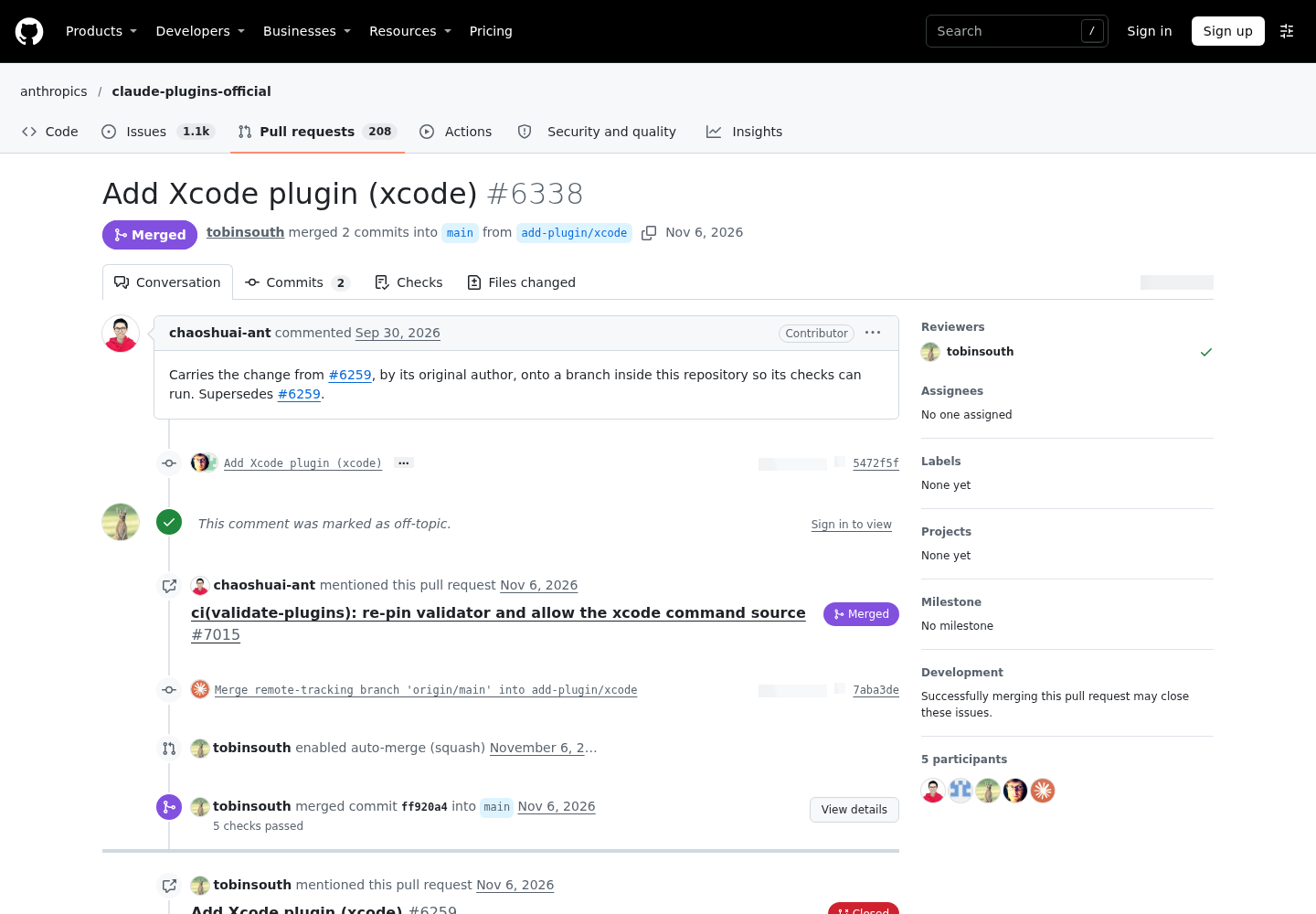
That design needed special handling in Anthropic’s own checks. Pull request #7015, merged the same day, explains that the marketplace validator failed the Xcode entry in three places: it had no commit sha, the spaces in its command counted as shell metacharacters, and there was no URL to clone. The fix lists xcode as exempt from those command-source checks. The original pull request records that claude plugin validate . passed and that the change was tested with a local marketplace.
One comment on the pull request asks a fair question: Xcode’s MCP support already existed, so what is new? Apple’s own documentation (page, documentation data) describes registering Xcode’s bridge by hand with xcrun mcpbridge. The plugin is the packaged route to the same Xcode capability: one install line, scopes, enable and disable switches, and removal handled by Claude Code’s plugin system. The evidence does not show the plugin adding features beyond what the bridge exposes, so treat the choice below as a management decision, not a capability race.
Prerequisites before you touch settings
Work through this checklist first. Each item maps to a failure you would otherwise meet later.
- [ ] A Mac with an Xcode that offers external-agent access. Open Xcode > Settings > Intelligence and look for a Model Context Protocol section containing the “Allow External Agents to Use Xcode Tools” pop-up menu. Apple’s page does not state a minimum Xcode version, so the presence of that menu is your test. No menu, no plugin.
- [ ] Claude Code installed, signed in, and opened interactively at least once. Claude Code registers the official marketplace the first time you start an interactive terminal session, unless a managed policy or the
CLAUDE_CODE_DISABLE_OFFICIAL_MARKETPLACE_AUTOINSTALLvariable blocks it. If you have only ever used the VS Code extension, that registration has not happened yet. - [ ] One Xcode, configured. If several Xcode copies live on the Mac, change the setting in the copy your command-line tools use, because the plugin’s source command runs through
xcrun. - [ ] No organization block on command sources. If your company manages Claude Code settings,
disableCommandPluginSourcesrefuses any plugin produced by a marketplace command, and this plugin is exactly that kind. - [ ] A project to practice on. The worked example uses an illustrative SwiftUI app, TipCalc, with an app target, a
TipCalcTestsunit-test target and a scheme named TipCalc. Any small project with a test target works the same way.
If Claude Code is out of date, update it before starting; the update and rollback guide covers each install method.
Choose one install path: plugin or mcpbridge
Two routes are documented for putting Xcode’s tools in front of Claude Code: the official plugin and Apple’s manual bridge. Pick one and stick with it; running both at once can give the agent two copies of the same tools.
| Your situation | Path | Why it fits |
|---|---|---|
| You use only Claude Code on this Mac and want install, update and removal handled for you | Official plugin, xcode@claude-plugins-official |
Recorded under enabledPlugins in a settings file at a scope you choose, toggled with claude plugin enable and disable |
| You also run Codex, or a policy blocks command-source plugins | Manual bridge, claude mcp add --transport stdio xcode -- xcrun mcpbridge |
Apple documents the same bridge for Codex, and it is an ordinary MCP server entry |
| Your team wants everyone on the repository to get it | Plugin at project scope | The entry lands in the committed .claude/settings.json, but each collaborator still installs once per clone |
You may also know Claude Code’s --plugin-dir flag, which loads a plugin from disk for one session. The selected sources do not document what xcrun agent plugin path prints or how Xcode’s plugin directory is laid out, so this guide does not treat that as a supported way to load the Xcode plugin. Use one of the two routes above.
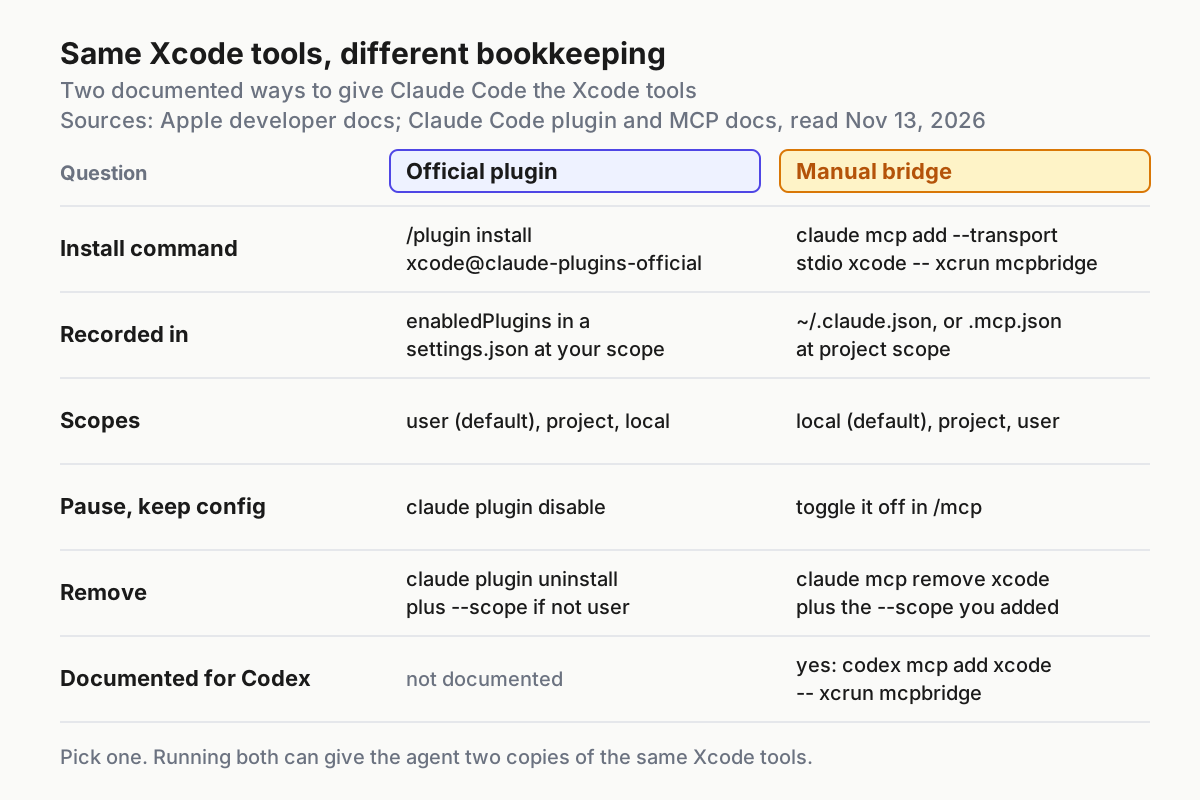
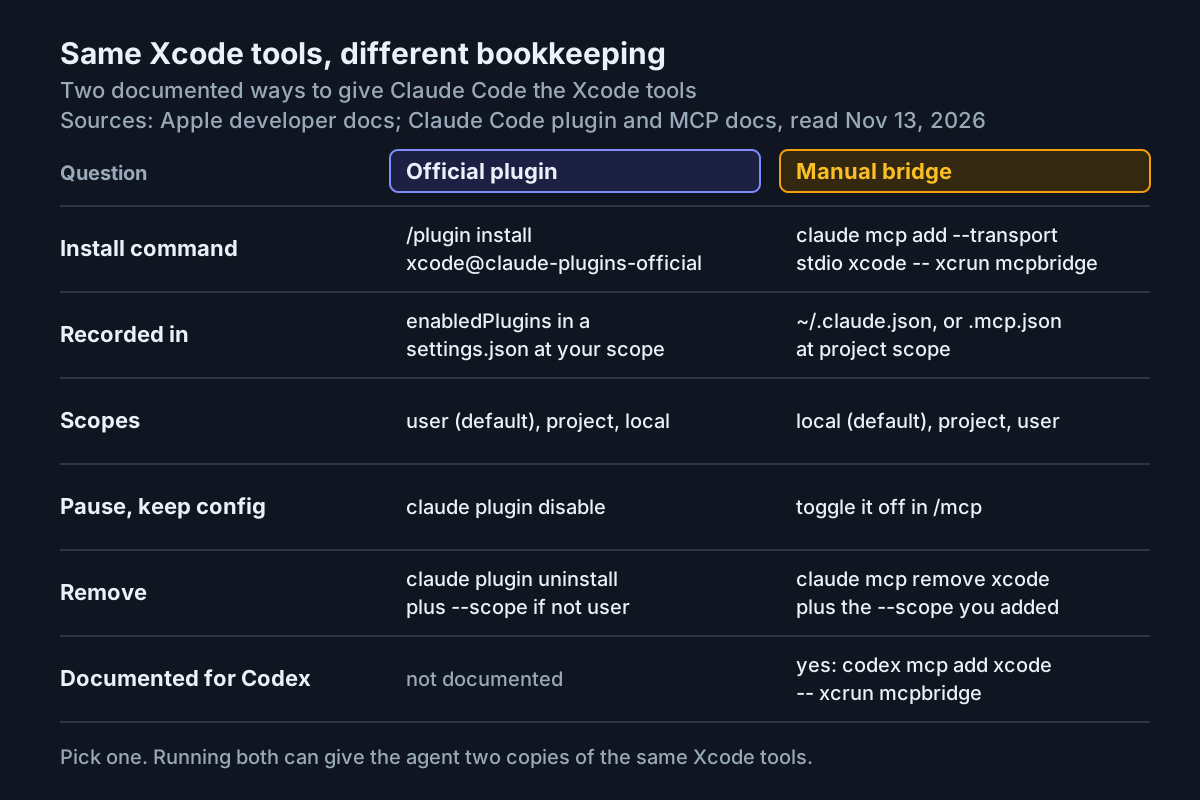
The project-scope row deserves a caution. The plugin install docs say committing a project-scope entry turns the plugin on for collaborators but does not download it; each person still runs claude plugin install <name>@<marketplace> --scope project. A teammate on Linux would see a plugin that cannot load. For most people user scope is the right default because Xcode is a property of the machine, not of one repository.
Step 1: Allow external agents in Xcode’s Intelligence settings
Xcode refuses outside agents until you say otherwise. Apple’s instructions are explicit, and the order matters less than finishing all of it before you prompt.
- Open Xcode and choose Xcode > Settings.
- Select Intelligence in the sidebar.
- Under Model Context Protocol, open the “Allow External Agents to Use Xcode Tools” pop-up menu.
- Choose “While Xcode is Open” or Always.
- Open the TipCalc project in Xcode and leave it open.
The two allowing options trade convenience for exposure. “While Xcode is Open” ties access to an application you can see running, which suits a laptop where you sometimes run agents on unrelated work. Always suits a dedicated build Mac. Never turns the feature off, and it is your fastest kill switch later.
Expect Xcode to tell you when something connects. Apple states that Xcode alerts you when the external agent connects and when it is active. That alert is your first piece of evidence that the Claude Code side is wired correctly, so read it rather than dismissing it.
Step 2: Install the Claude Code Xcode plugin
Start a fresh Claude Code session in the TipCalc folder. Installing at the start of a session matters here, for a reason explained in the expected observations below.
In a session
- Run
claudein the project folder. - At the prompt, type the install command shown below. In a session, it does not install immediately; it opens the
/pluginpanel on the plugin’s details. - Read the details pane. For official-marketplace plugins it shows a Will install list (commands, agents, skills, hooks, MCP and LSP servers), a Last updated date and two Context cost estimates: Every turn and When invoked.
- When Claude Code shows the command source
xcrun agent plugin path --plugin-format claudeand asks before running it, accept it. - Choose a scope. Pick “Install for you (user scope)” unless you have a reason not to.
- Read the last sentence of the install summary.
/plugin install xcode@claude-plugins-official
The summary ends in one of four ways, per the install docs. “Plugin is now active.” means you are done. “Run /reload-plugins to apply.” means Claude Code will reload for you when the panel closes. A bundled-server configuration message means you need Configure on the Installed tab. “The plugin couldn’t be loaded.” sends you to the Errors tab. Because this plugin brings MCP tools, the reload can warn that it changes MCP tools and that your next message will re-read the whole conversation instead of using the cache. In a new session that cost is negligible, so run /reload-plugins --force.
From the shell
The same install works without a session, which is what you want in a dotfiles script. Shell installs default to user scope, and the plugin loads the next time Claude Code starts.
claude plugin install xcode@claude-plugins-official
# expected format: Successfully installed plugin: xcode@claude-plugins-official (scope: user)
On a fresh Mac, scripted
A machine where nobody has opened an interactive session has no official marketplace registered, and the claude plugin shell commands never register it for you. A setup script therefore adds the marketplace first. Because a script cannot answer the command-source prompt, pass --yes to accept it.
#!/bin/sh
set -e
claude plugin marketplace add anthropics/claude-plugins-official
# expected: Successfully added marketplace: claude-plugins-official
claude plugin install xcode@claude-plugins-official --yes
claude plugin list
# expected: an xcode@claude-plugins-official entry with Version, Scope and Status lines
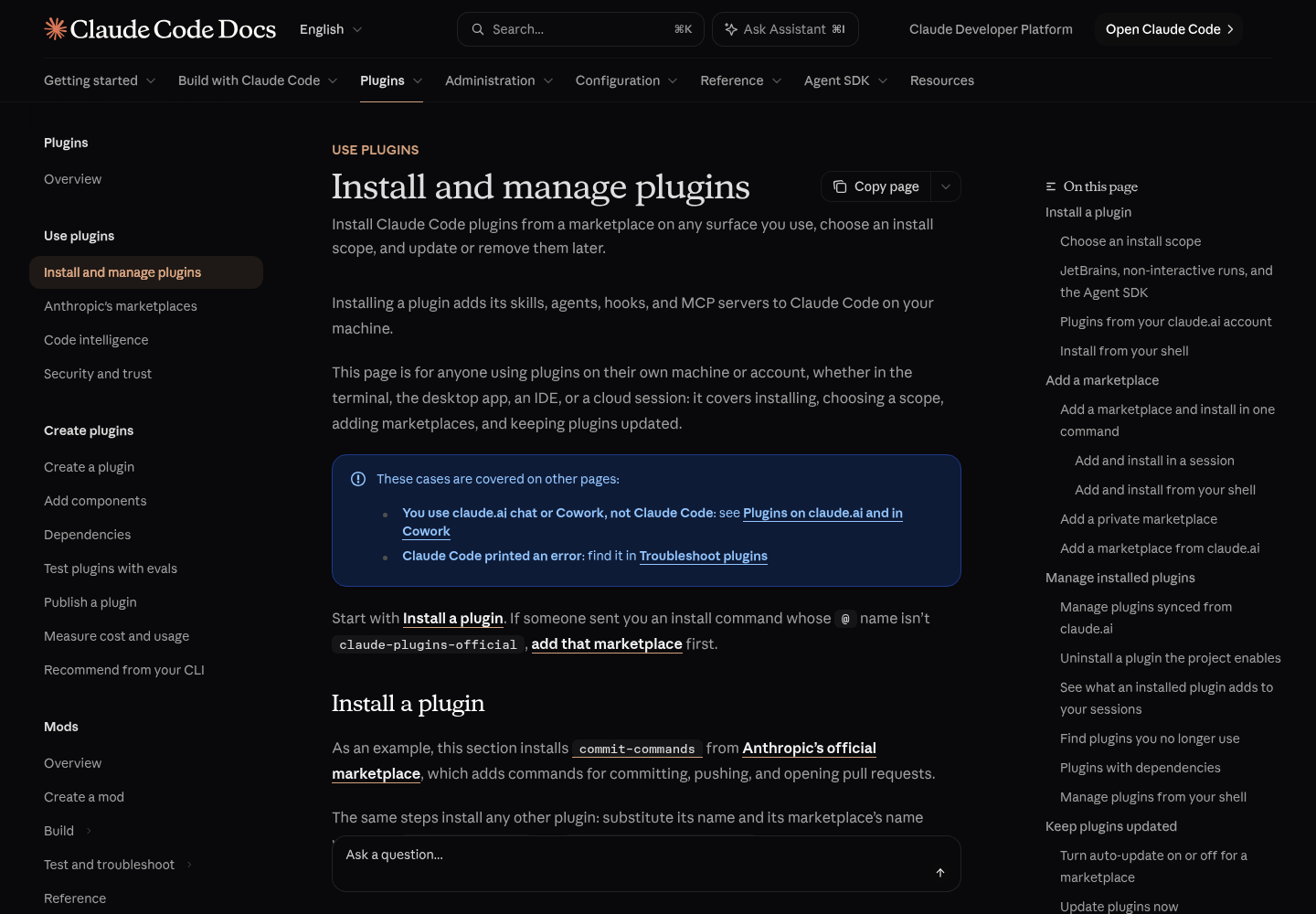
Only use --yes in a script you control. Accepting a command source means letting the marketplace run a command on your machine. Here that command is an Xcode tool, which is exactly what you want, but blind acceptance is a bad habit. The README of the official marketplace repository carries the same warning: make sure you trust a plugin before installing, updating or using it.
Step 3: Prove the Xcode tools are listed before you prompt
Do not judge the install by the success message. Judge it by whether the agent can see tools. Run these checks in order and stop at the first that fails.
- Shell: run
claude plugin list. The xcode entry should show a Scope line andStatus: ✔ enabled. - Session: run
/plugin, press Tab to reach Installed, and open the xcode details. The pane lists what the plugin contains. - Session: run
/mcp. Plugin servers appear with an indicator that they come from a plugin, and each connected server shows a tool count. The panel also flags a server that advertises the tools capability but exposes none. - Shell, optional:
claude mcp listprints a status per server, such as✔ Connectedor✘ Failed to connect. - Xcode: confirm the connection alert appeared.
- Context cost: in the shell,
claude plugin details xcodereports an Always-on token figure for every session where the plugin is enabled.
Note the tool names you see in /mcp. Tools from a plugin-bundled server are named mcp__plugin_<plugin-name>_<server-name>__<tool-name>, per the Claude Code MCP reference. That full name is what you use in permission rules, a skill’s allowed-tools list or a hook matcher; a matcher written against a bare server key never fires for a plugin server. This guide deliberately does not list Apple’s tool names, because the selected sources do not publish them. Read them from your own /mcp output; they come from your Xcode.
Step 4: Give Claude Code project hints in CLAUDE.md
Apple suggests adding hints about Xcode and your project to the configuration file the agent reads, such as CLAUDE.md. The goal is to stop the agent reaching for the wrong path, for instance falling back to a command-line build when a connected Xcode tool exists, or editing a test to make it pass. Put this in the project’s CLAUDE.md and adjust the names.
## Xcode project hints (TipCalc)

- Xcode project: TipCalc.xcodeproj, opened in Xcode before any session starts.
- Scheme: TipCalc. Unit-test target: TipCalcTests. App target: TipCalc.
- Use the Xcode tools listed under the xcode plugin in /mcp for building,
  running tests, reading build logs and rendering SwiftUI previews.
  Do not substitute shell builds when those tools are connected.
- If no Xcode tools are listed, stop and tell me. Do not guess build results.
- Never edit files under TipCalcTests/ to make a failing test pass unless I ask.
- After any change to the TipCalc sources, build the TipCalc scheme, then run
  TipCalcTests, then report the exact failing test names and messages.
- Preview to check after UI changes: ContentView.
Why each line earns its place:
- The project and scheme names remove a question the agent would otherwise answer by searching the folder.
- Naming the plugin’s tools steers the agent to Xcode’s own build and test results instead of a parallel path you have not configured.
- “Stop and tell me” turns a silent failure into a visible one. Without it, an agent with no Xcode tools may describe a build it never ran.
- The test-file rule protects the evidence. A test that passes because its expectation changed proves nothing.
- The ordered build, test, report rule makes the loop repeatable, and asking for exact failing test names gives you something to check against Xcode’s test navigator.
Worked example: fix the failing TipCalc test and render the preview
TipCalc is an illustrative project; the code below is ours, written to produce one realistic failure. The model computes a tip from a bill and a whole-number percentage.
// TipCalc/TipCalculator.swift  (illustrative, contains a bug)
import Foundation

struct TipCalculator {
    func tip(bill: Decimal, percent: Int) -> Decimal {
        bill * Decimal(percent / 100)   // integer division: 15 / 100 == 0
    }
}
// TipCalcTests/TipCalculatorTests.swift
import XCTest
@testable import TipCalc

final class TipCalculatorTests: XCTestCase {
    func testFifteenPercentOfFifty() {
        XCTAssertEqual(TipCalculator().tip(bill: 50, percent: 15), Decimal(string: "7.5"))
    }
}
// TipCalc/ContentView.swift
import SwiftUI

struct ContentView: View {
    @State private var bill: Decimal = 50
    private let calculator = TipCalculator()

    var body: some View {
        VStack(spacing: 12) {
            Text("Bill: \(bill.formatted(.currency(code: "USD")))")
            Text("15% tip: \(calculator.tip(bill: bill, percent: 15).formatted(.currency(code: "USD")))")
        }
        .padding()
    }
}

#Preview {
    ContentView()
}
The project compiles, so the bug is invisible to an agent that only reads code and is careless about integer arithmetic. The test fails because 15 / 100 is zero in integer division, so every tip comes out as zero. That makes it a good probe: the agent has to run the test, read the real failure and fix the source rather than the expectation.
Give Claude Code one prompt that names each stage, with the project open in Xcode:
Using the Xcode tools: build the TipCalc scheme and summarize the build log.
Run TipCalcTests and quote the failing test and its message.
Fix the cause in TipCalc/TipCalculator.swift without editing the test.
Rerun TipCalcTests, then render the ContentView preview and describe it.
The table records the case. Every expected result is an illustrative expected observation, written from the plugin’s published description and the code above, not a log from a run we performed. Your tool names and wording will differ.
| Input | Action | Expected result |
|---|---|---|
| task:tipcalc-tools-01, session started in TipCalc/, Xcode open, setting “While Xcode is Open” | Run /mcp and open the plugin’s Xcode server entry |
Server shown as connected with a nonzero tool count; Xcode shows that an external agent connected |
| task:tipcalc-build-02, scheme TipCalc, unmodified sources | Agent calls the Xcode build tool for the TipCalc scheme, then reads the build log | Build succeeds; the summary reports no errors, because the bug is a logic error, not a compile error |
task:tipcalc-test-03, target TipCalcTests, testFifteenPercentOfFifty |
Agent runs the tests through the Xcode test tool | One failure: testFifteenPercentOfFifty, with an XCTAssertEqual message showing 0 against the expected 7.5 |
task:tipcalc-fix-04, line bill * Decimal(percent / 100) in TipCalculator.swift |
Agent edits the source only, to bill * Decimal(percent) / 100 |
Diff touches TipCalc/TipCalculator.swift alone; TipCalcTests/ is unchanged, as CLAUDE.md requires |
| task:tipcalc-retest-05, same scheme and test target after the fix | Agent rebuilds and reruns TipCalcTests | All tests pass, including testFifteenPercentOfFifty; the agent quotes the passing result |
task:tipcalc-preview-06, #Preview { ContentView() } in ContentView.swift |
Agent asks Xcode to render the ContentView preview | Preview renders; the agent reports a $50.00 bill and a $7.50 tip, matching the fixed calculator |
Read the result like a reviewer, not a spectator. Check the diff yourself in Xcode or with git. Run the test once in Xcode’s own test navigator to confirm the agent’s report. If the agent claims a pass but the diff touches the test file, the CLAUDE.md rule failed and the run does not count.
Read the observations: success, failure and what each means
Most confusion comes from mistaking one healthy layer for the whole chain. Keep this table open while the loop runs.
| What you see | What it likely means | What to do next |
|---|---|---|
claude plugin list shows xcode enabled and /mcp shows it connected with tools |
Both sides are wired | Prompt the agent |
Plugin enabled, but /mcp flags the server as advertising tools while exposing none |
Claude Code is fine; Xcode is probably not handing over tools | Check the Intelligence setting and that the project is open, then reconnect from /mcp |
/mcp shows the server failed to connect |
The plugin’s server did not start | Capture the startup error with the debug procedure in the troubleshooting section, including the Reconnect step |
/mcp shows connected, but Xcode never shows an alert |
Possibly a different Xcode from the one you configured | Close other Xcode copies and recheck the setting in the one xcrun uses |
| Agent describes a build with no tool call in the transcript | It is guessing | Stop it; the CLAUDE.md “stop and tell me” rule was ignored or missing |
Agent edits TipCalcTests/ to make a test pass |
The evidence was changed | Revert the test change and rerun |
A note on multiple projects: Apple’s page tells you to open your project in Xcode before prompting, but the selected sources do not describe how Xcode chooses between several open projects. Until you have seen how your Xcode behaves, keep one project window open while the agent works and name the project in your prompt. That is a precaution, not documented behavior.
Troubleshooting the most common install and connection errors
Match the exact message first. Claude Code’s plugin troubleshooting page lists errors by the stage that produces them, and the right fix depends on the words.
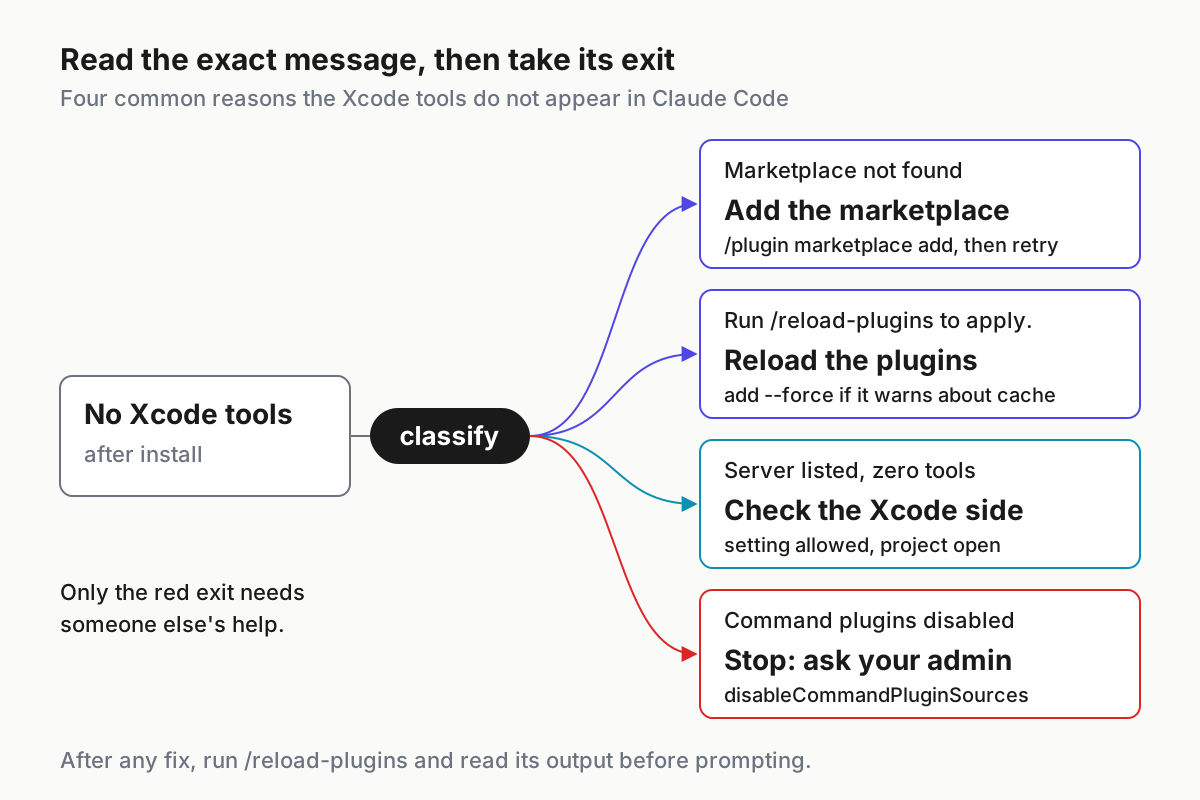
| Message or symptom | Cause | Fix and success signal |
|---|---|---|
Marketplace "claude-plugins-official" not found |
Official marketplace not registered yet, for example after VS Code-only use | /plugin marketplace add anthropics/claude-plugins-official, then retry; expect Successfully added marketplace: claude-plugins-official |
Plugin "xcode" not found in marketplace "claude-plugins-official" |
Local catalog copy predates the November 6 merge | /plugin marketplace update claude-plugins-official, then retry; expect ✔ Updated 1 marketplace |
zsh: no such file or directory: /plugin |
You typed a session command at the shell | Run claude first, or use claude plugin install |
Run /reload-plugins to apply. followed by a cache warning |
Adding MCP tools invalidates the prompt cache | /reload-plugins --force; expect a Reloaded: line with counts |
Command-sourced plugins are disabled by your organization's managed settings |
disableCommandPluginSources is set |
Ask your administrator, or use the manual bridge if policy permits it |
| Server listed, zero tools | Xcode not allowing agents, or no project open | Set the pop-up to Always or “While Xcode is Open”, open the project, reconnect from /mcp |
| Server configured, never connects | Startup error on the server side | Follow the debug procedure below; the debug log names the error |
When the server never connects, capture its startup error in this order. The Reconnect step matters: if a plugin’s stdio server failed to connect less than 15 minutes before you start the debug session, Claude Code does not start it again on its own, and the log would contain no startup error at all.
- Quit the current session and start a new one with
claude --debug. The flag writes to a file, not to the terminal. - Run
/mcpand open the Xcode server’s menu. - If the server shows as failed, or if it failed within the last 15 minutes, select Reconnect so the server actually starts in this debug session.
- Open
~/.claude/debug/<session-id>.txtand search for the server’s name to read the error it printed while starting. - Fix what the log names, then reconnect once more from
/mcpand check for a tool count.
Two habits shorten every incident. First, after any fix run /reload-plugins and read its output rather than assuming it worked. Second, change one thing at a time; flipping the Xcode setting, reinstalling and switching scopes in one go leaves you unable to tell which change mattered.
The manual alternative: register xcrun mcpbridge yourself
Apple’s documented route registers Xcode’s bridge as a stdio MCP server. Use it when you also run Codex, when policy blocks command-source plugins, or when you want a plain MCP entry you can read in a config file.
- If you installed the plugin, uninstall it first so the agent does not see two Xcode servers.
- Run the Claude Code add command below from the project folder.
- Run
claude mcp listand confirm the xcode server reports a healthy status. - Start a session, run
/mcpand confirm a tool count, as in Step 3. - If you use Codex, run the two Codex commands Apple documents.
# Claude Code: local scope by default (this project only, stored in ~/.claude.json)
claude mcp add --transport stdio xcode -- xcrun mcpbridge
claude mcp list
# expected: xcode with a health status such as ✔ Connected

# Codex, per Apple's documentation
codex mcp add xcode -- xcrun mcpbridge
codex mcp list
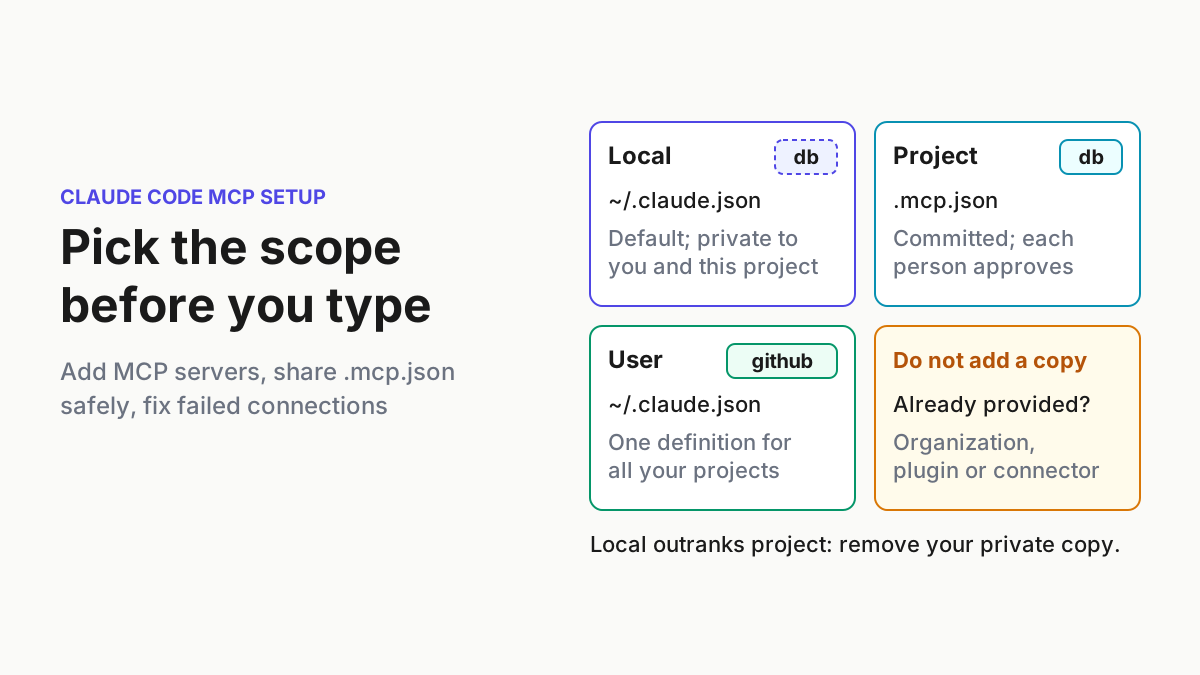
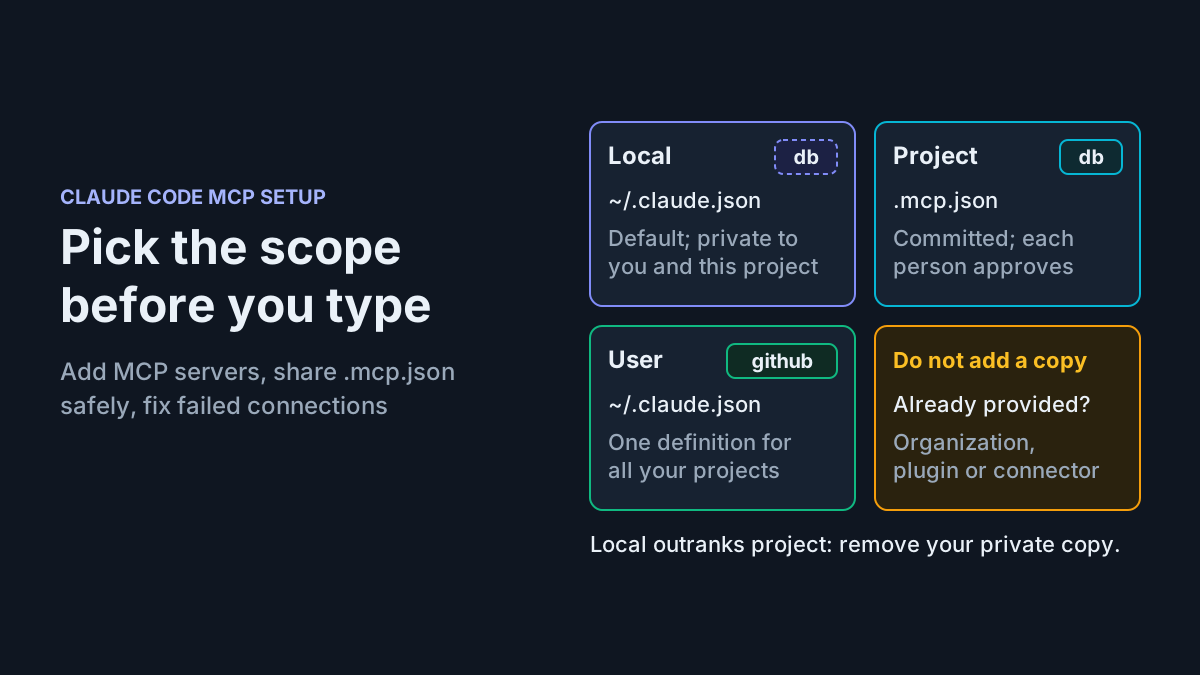
The -- separator matters. Everything after it is passed to the server untouched, so xcrun mcpbridge runs as written and Claude Code does not try to parse the bridge’s arguments as its own. The MCP reference explains the separator and the scopes: add --scope user to make the bridge available in every project on the Mac, or --scope project to write it into a committed .mcp.json. A project-scoped server waits for your approval in an interactive session before it is used.
Do not run the bridge and the plugin side by side. Claude Code matches duplicates across the local, project and user scopes by name, and it treats a plugin as a duplicate only when it points at the same URL or command as an enabled server above it. The plugin’s internal server command is not published in the selected sources, so you cannot rely on that automatic de-duplication. Remove the manual entry before installing the plugin, or skip the plugin.
Roll back the Xcode connection cleanly
Rollback runs in the opposite order of setup, and each action has its own success signal. Pausing is not removing, so do not expect a paused plugin to disappear from the list.
- Pause the plugin without removing it: run
claude plugin disable xcode@claude-plugins-official. Re-enable it later withclaude plugin enable xcode@claude-plugins-official. - Remove the plugin: run
claude plugin uninstall xcode@claude-plugins-official. Uninstall acts on user scope by default, so add--scope projectfor a project-scope install or--scope localfor a local-scope install. In a session where the repository’s settings enable it, Claude Code asks whether to disable it for you (y) or uninstall it for everyone (u). - Remove the manual bridge: run
claude mcp remove xcode, adding the same--scopeyou used to add it. If you only want to pause the bridge, toggle the server off in/mcpinstead; Claude Code keeps its configuration and lists it as disabled. For Codex, follow Codex’s own MCP documentation; Apple’s page shows only the add and list commands. - Close the door in Xcode: set “Allow External Agents to Use Xcode Tools” to Never.
- Clean CLAUDE.md: delete the Xcode hints block so a future agent does not wait for tools that are gone.
- Verify each action you took against the table below, in a fresh session.
| Action you took | Expected verification |
|---|---|
claude plugin disable |
claude plugin list still lists xcode, but its Status line no longer reads enabled; on the /plugin Installed tab it sits in the disabled group; a new session’s /mcp lists no Xcode tools |
claude plugin uninstall with the matching --scope |
claude plugin list no longer shows xcode at that scope; a new session’s /mcp lists no Xcode server from the plugin |
claude mcp remove xcode with the matching --scope |
claude mcp list no longer shows an xcode server |
| Xcode setting changed to Never | Any remaining connection attempt returns no Xcode tools, and Xcode shows no connection alert |
Updates are a related chore. Per the install docs, a plugin with a command source is not refreshed by the marketplace’s Update marketplace action; update it from its view on the Installed tab or with claude plugin update xcode@claude-plugins-official. Because the entry links the plugin shipped inside Xcode, updating Xcode is likely what changes the plugin’s contents. The sources do not state this, so check /plugin after each Xcode update.
Where this fits in a larger agent setup
Once one Mac can build and test through Xcode, the next problems are operational: which sessions are running, which one is waiting on a permission prompt, and which machine did the build. The multi-agent command center guide covers running several agents without losing track of them. If the Mac is a dedicated build box, the always-on Mac mini guide covers keeping it awake and reachable; pair it with the Always option in Xcode.
For a React Native or Expo app rather than native Xcode, use the Expo setup guide, and for MCP scopes in general the MCP setup guide. The Python stop-hook guide shows how a hook can force tests before a turn ends, a pattern worth borrowing once you know your Xcode tool names. If you want the loop unattended, headless mode explains what claude -p can and cannot do; /plugin does not run there, so install from the shell first.
Sources
- Add Xcode plugin (xcode), pull request #6338, anthropics/claude-plugins-official (GitHub, merged November 6, 2026)
- Giving external agents access to Xcode (Apple Developer Documentation)
- Giving external agents access to Xcode, documentation data (Apple)
- Files changed in pull request #6338: the xcode marketplace entry (GitHub)
- ci(validate-plugins): re-pin validator and allow the xcode command source, pull request #7015 (GitHub)
- Install and manage plugins (Claude Code Docs)
- Anthropic’s marketplaces (Claude Code Docs)
- Troubleshoot plugins (Claude Code Docs)
- Connect Claude Code to tools via MCP (Claude Code Docs)
- anthropics/claude-plugins-official repository (GitHub)