Codex Usage Limits After the GPT-6.2 Billing Fix: Re-Baseline Your Week and Stretch Your Allowance
Codex usage limits tightened after the GPT-6.2 billing fix. Re-measure your week with /status and /usage, then set model, effort and speed for each task.

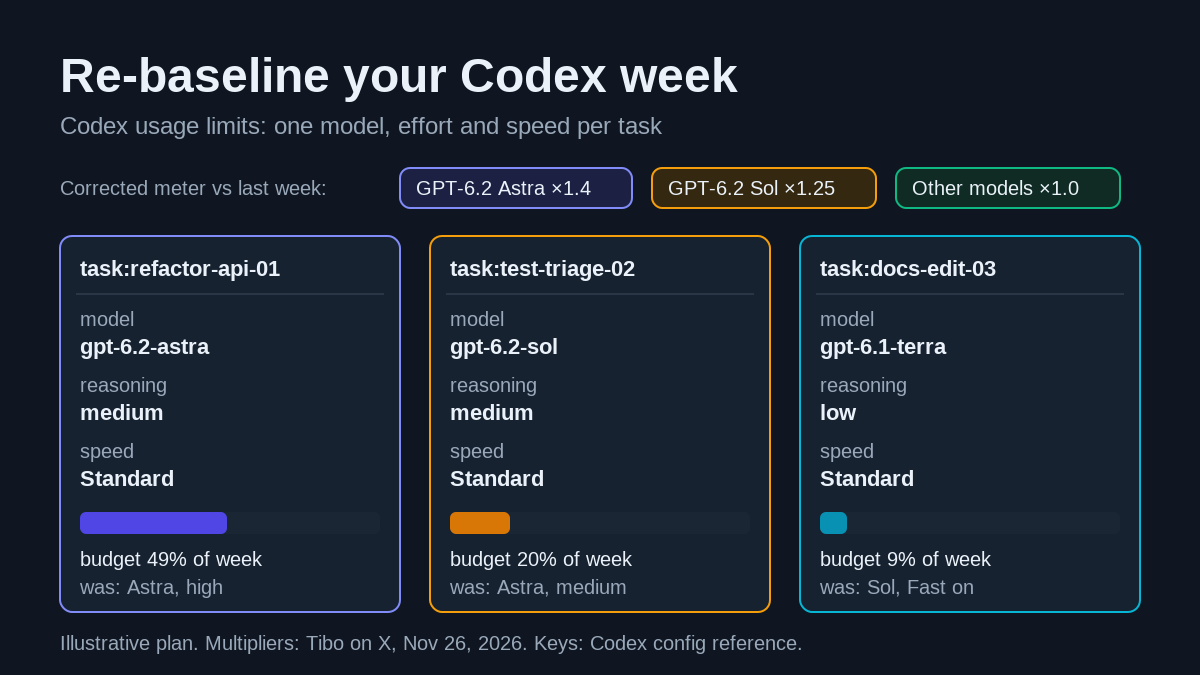
If your Codex week now runs out on Wednesday instead of Friday, the meter changed, not your habits. Codex usage limits on GPT-6.2 Astra and GPT-6.2 Sol drain faster this week than last, because OpenAI corrected a launch billing mistake that had been discounting both models. The same refactor, the same test triage and the same docs pass now take a bigger share of the same allowance.
This guide is for a Plus, Pro or Business developer who uses Codex CLI or the desktop app every day on GPT-6.2 and keeps running out of allowance mid-week. You will finish with three things: a re-measured weekly budget, a model, reasoning effort and speed assigned to each recurring task, and a set of profile files that make those assignments the default whenever you start a session. The worked example follows one illustrative developer week with three tasks, task:refactor-api-01, task:test-triage-02 and task:docs-edit-03. Every command and configuration key in it comes from OpenAI’s Codex documentation, and every number that was not measured is labelled illustrative.
If you are actually deciding between Plus and the Pro tiers, start with the ChatGPT Pro Codex tier picker. This guide assumes you are staying on your current plan for now and want the week to fit it again.
What changed on the meter
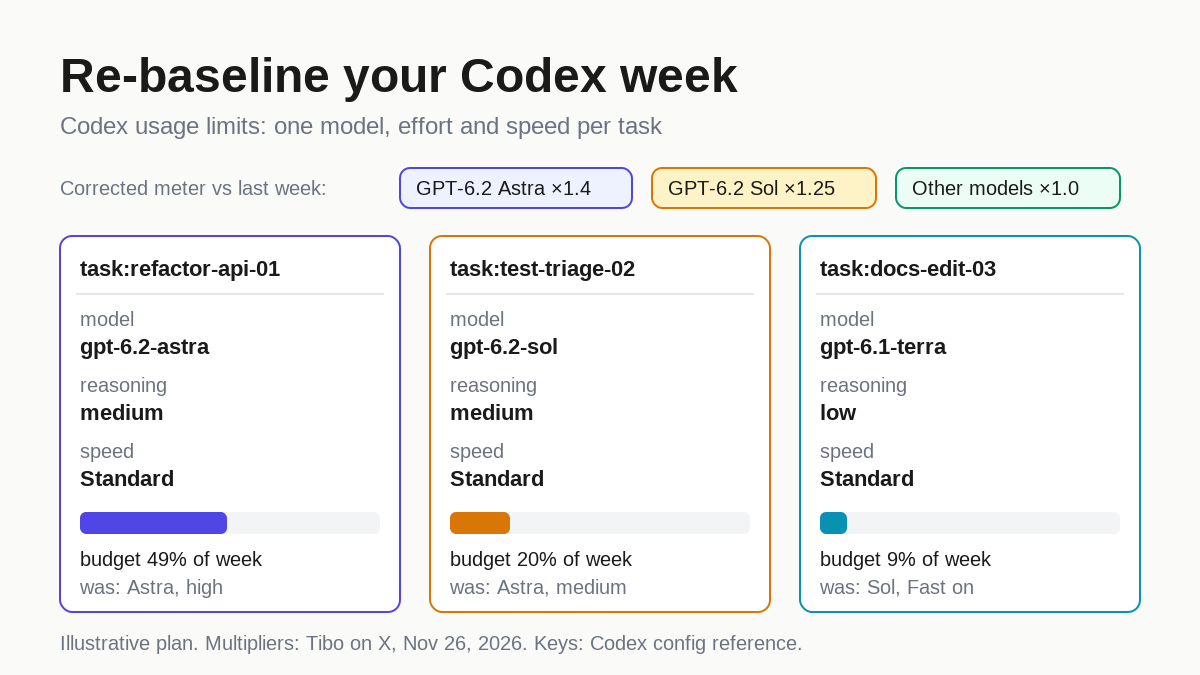
On November 26, 2026, Tibo, who leads Codex at OpenAI, posted on X that a billing mistake at the GPT-6.2 launch had incorrectly discounted GPT-6.2 Astra and Sol usage for most users. With the fix in place, the same work uses more of your plan’s allowance. Compared with the previous week, users reach their limits 40% faster on GPT-6.2 Astra and 25% faster on GPT-6.2 Sol. Four further details from the same post shape the plan:
- Both GPT-6.2 models should still go further than GPT-6 Astra and GPT-6.1 Sol did.
- Other models were not affected, so GPT-6.1 Terra, GPT-6.1 Sol and GPT-6 Luna keep the metering they already had.
- OpenAI will not charge for the difference on past usage.
- Everyone on Go, Plus, Pro and Business gets one banked reset as an apology.
The post does not define “40% faster” precisely. This guide models it as a multiplier: work that took 10% of your week on Astra last week is projected to take about 14% now, and the same Sol work about 12.5%. Treat those multipliers as a starting projection. Your own measurements replace them after the first day.
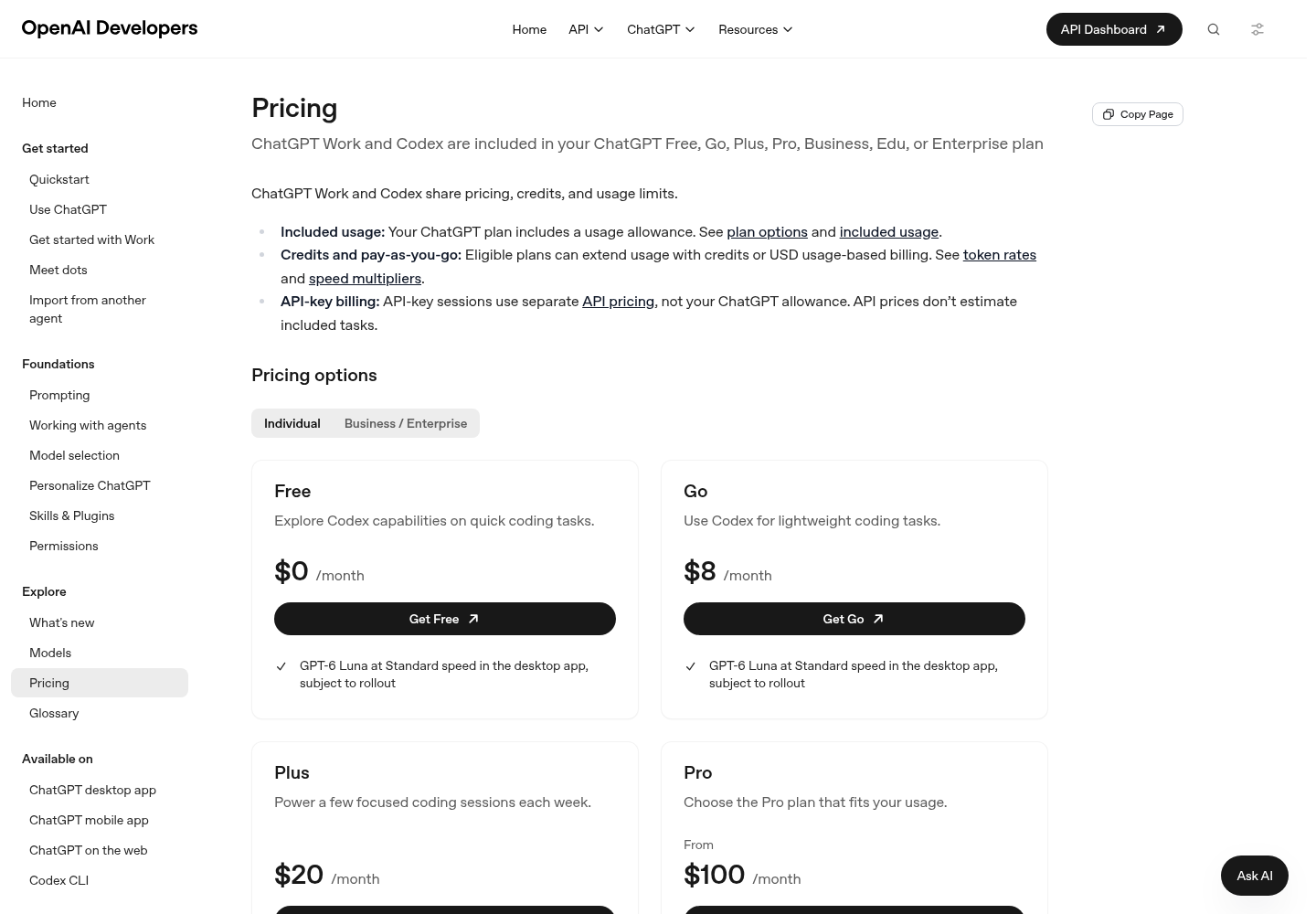
Keep the size of the meter in view as well. OpenAI’s Codex pricing page estimates 6 to 50 local messages per five-hour period on Plus for GPT-6.2 Astra and 17 to 180 for GPT-6.2 Sol, and calls those estimates rather than fixed limits. Pro plans currently have no five-hour limit, weekly limits may apply, and cloud tasks can use more of the allowance than local messages. The same page says model choice, context, reasoning, tool use, retrieval and caching all affect usage, so prompt length alone is not a reliable guide to what a task will cost.
Before you start: what you need on hand
- [ ] A ChatGPT sign-in for Codex rather than an API key. The
/usagecommand shows a sign-in requirement when the session lacks Codex service account auth, and API-key sessions bill at API rates outside your plan. - [ ] A Codex CLI build recent enough to accept arguments on
/model, for example/model gpt-6.2-sol --reasoning=low. If you plan to use GPT-6.1 Terra, you need CLI 0.159.0 or later; the Codex CLI install and update guide covers upgrading. - [ ] Access to the usage dashboard at
chatgpt.com/codex/settings/usage, which shows current limits and reset times. - [ ] A short list of the work you repeat every week. Three to five task types is plenty.
- [ ] A text file or spreadsheet for the numbers you record in the next step.
Nothing here requires admin rights. If you are in a Business workspace and an administrator manages your defaults, read the effort failure check later in this guide before you write profiles, because managed defaults interact with explicit overrides.
Step 1: Capture a baseline with /status, /usage and the dashboard
You cannot re-plan a meter you have not read. Do this at the start of a working day, before you run anything heavy.
- Start a session with
codexin the repository you work in most. - Type
/status. The Codex slash command reference says it prints the active model, approval policy, writable roots and current token usage, and the pricing page says/statusis how you see remaining limits during an active CLI session. Copy the five-hour and weekly figures into your file. - Type
/usage weekly, then/usage daily. These open account token activity for the selected view. The weekly view is your history; the daily view shows which days were heavy and which task you were doing on them. - Open the usage dashboard and record the weekly percentage used and the reset time for each meter. When the dashboard and the CLI disagree, trust the dashboard and note the difference.
- Type
/statuslineand enable the rate-limits item and the model-with-reasoning item. The picker writes your choice totui.status_lineinconfig.toml, so later sessions keep showing them in the footer. - Write down which model, effort and speed each recurring task used last week. If you are unsure,
/resumean older session for that task and run/statusinside it.
Expected observation: the footer now shows the model, its reasoning level and your remaining limits, and your file holds today’s weekly percentage, both reset times and a line per task describing last week’s settings. If /usage asks you to sign in, you are in an API-key session; sign in with ChatGPT before continuing, or the rest of the measurements describe the wrong bill.
Step 2: Project last week onto the corrected meter
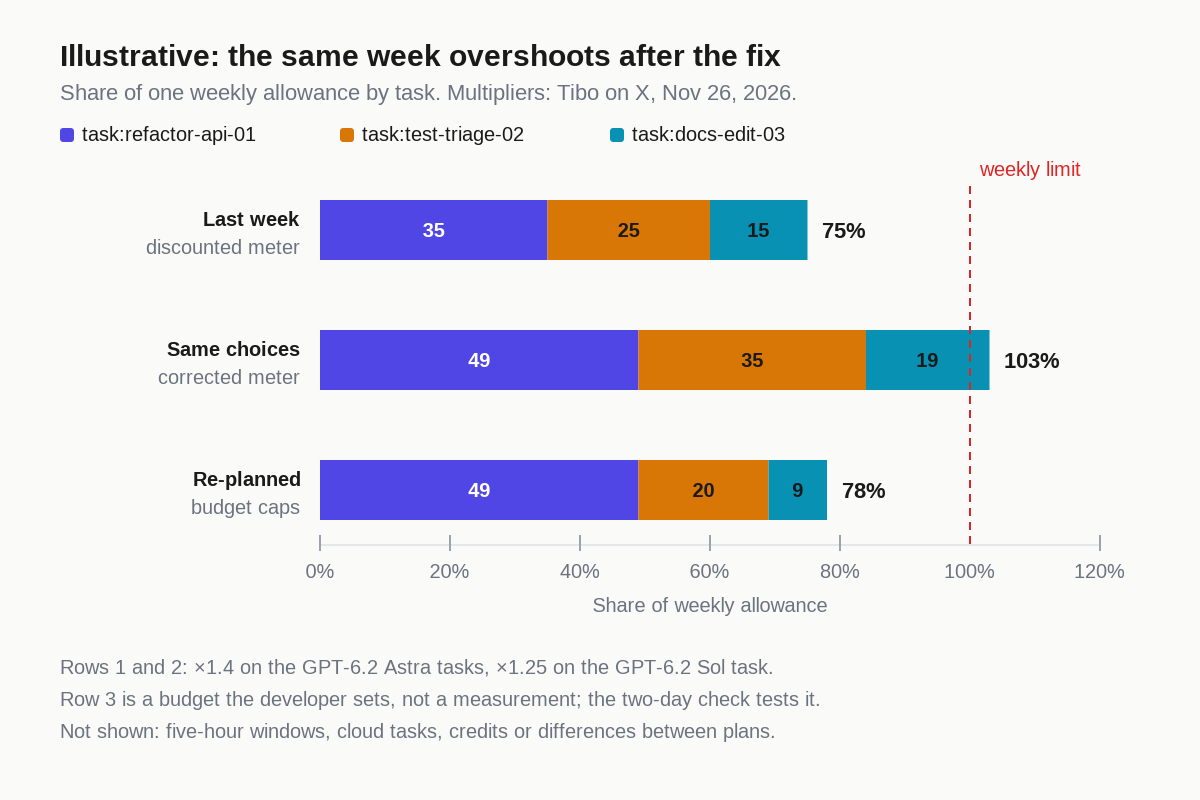
Now apply the multipliers to the tasks that ran on GPT-6.2. The shares below are the illustrative developer’s estimates of how much of one weekly allowance each task used last week, read from /usage weekly and the dashboard. Yours come from Step 1.
| Task | Last week’s setting | Share of week, last week | Multiplier after the fix | Projected share now |
|---|---|---|---|---|
task:refactor-api-01 |
GPT-6.2 Astra, high effort, Standard | 35% | ×1.4 | 49% |
task:test-triage-02 |
GPT-6.2 Astra, medium effort, Standard | 25% | ×1.4 | 35% |
task:docs-edit-03 |
GPT-6.2 Sol, Fast mode on | 15% | ×1.25 | about 19% |
| Total | 75% | about 103% |
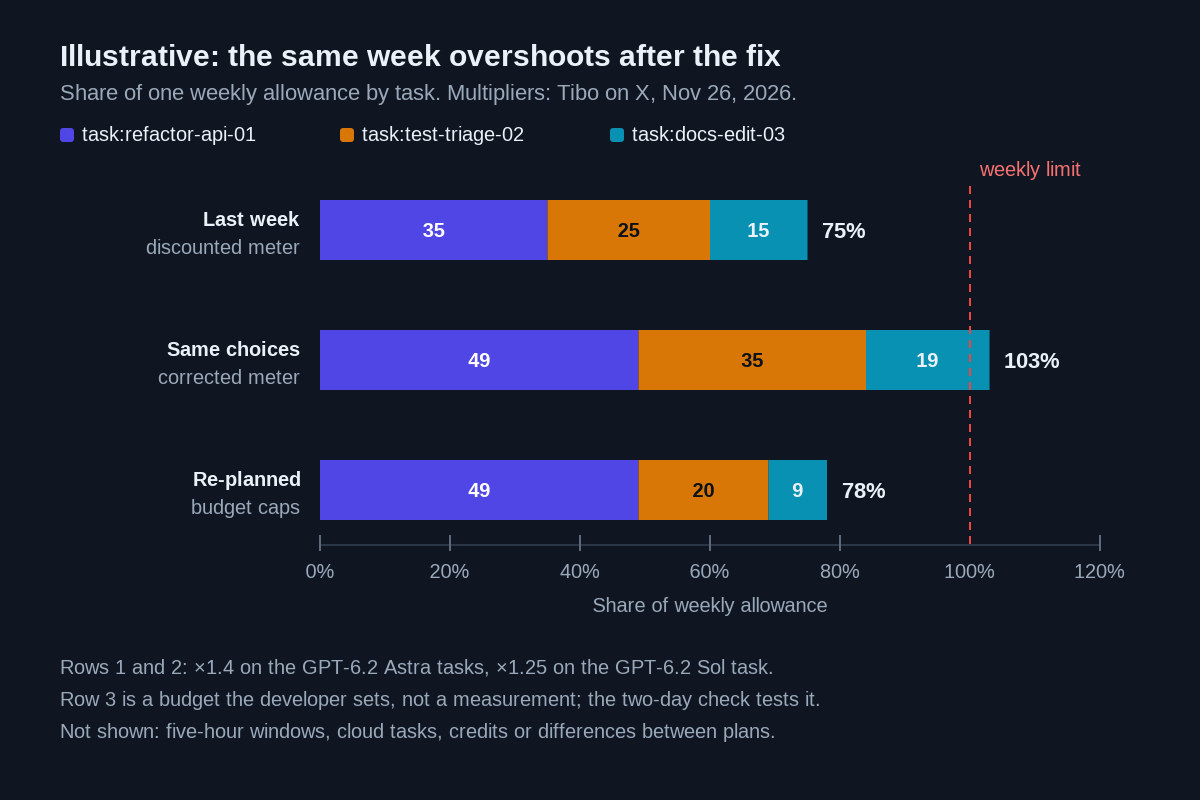
The last row is the problem in one number. Last week this developer finished with a quarter of the allowance spare. Repeating the same choices this week overruns the allowance before Friday, with nothing held back for an unplanned debugging session.
Two details keep the projection honest. Only rows that ran on GPT-6.2 get a multiplier; a task that already ran on Terra or Luna keeps its share. And the Fast multiplier is already inside the docs figure, because the 15% was measured with Fast on. Turning Fast off later is a real saving, not double counting.
Step 3: Assign a model, effort and speed to each task
Each task has three dials. The Codex models guide and the pricing page describe each one.
Model. OpenAI recommends GPT-6.2 Astra for demanding work, such as tracing a bug across services, and GPT-6.2 Sol for everyday coding. GPT-6.1 Terra is described as a fast, efficient choice for writing, and GPT-6 Luna as the option for focused, repeatable tasks such as extraction and structured summaries. At Standard speed, the pricing page lists GPT-6.2 Astra at 200 credits per million input tokens, 10 per million cached input tokens and 1,000 per million output tokens; GPT-6.2 Sol at 50, 2.5 and 250; GPT-6.1 Terra at 25, 1.25 and 125. The page also says credit prices alone do not determine included subscription usage, so read those numbers as a weight ratio, not a forecast.
Reasoning effort. Higher effort can improve results on complex tasks, but it takes longer and uses more tokens. For GPT-6.2 Astra and Sol, the models guide says to start with the effort your client selects and adjust from there. The Codex best practices guide maps Low to faster, well-scoped tasks, Medium or High to complex changes and debugging, and Extra High to long, agentic, reasoning-heavy work. Max and Ultra exist for the hardest problems, and Ultra runs subagents in parallel, which multiplies the work done per request.
Speed. Speed multipliers apply to included usage relative to Standard mode for the same model. Fast costs 2x for GPT-6.2 Astra and Sol and 2.5x for GPT-6.1 and GPT-6 models. Ultrafast costs 6x for the GPT-6.2 models and 8x for GPT-6 Astra and GPT-6.1 Sol. A Fast toggle left on a GPT-6.2 model doubles that task’s burn for as long as it stays on.
Here is the illustrative developer’s re-plan:
| Task | Model | Effort | Speed | Weekly budget cap | Why this choice |
|---|---|---|---|---|---|
task:refactor-api-01 |
gpt-6.2-astra |
medium (was high) |
Standard | 49% | Cross-service change, the work Astra is for; the cap absorbs the full ×1.4 |
task:test-triage-02 |
gpt-6.2-sol |
medium |
Standard | 20% | Debugging one package does not need Astra; Sol is the recommended everyday model |
task:docs-edit-03 |
gpt-6.1-terra |
low |
Standard | 9% | A writing task on a model the fix did not touch, with the Fast multiplier removed |
| Reserve | n/a | n/a | n/a | 22% | Unplanned debugging, reviews and one bad day |
The refactor keeps its projected 49% on purpose. When one task genuinely needs the strongest model, protect it and take the savings from tasks that do not. The triage and docs caps are budgets the developer sets, not measurements; Step 5 tests whether they hold. If they do not, change the cap or the setting, not your memory of what the task cost.
Two further levers are worth knowing. GPT-6 Luna is the lightest option for extraction or classification chores, and the models guide suggests starting Luna at High effort. If you lean on subagents, the Codex configuration reference documents agents.default_subagent_model and agents.default_subagent_reasoning_effort, so spawned helpers do not inherit Astra by default. For a deeper treatment of effort as a cost lever, see pricing effort per completed task; for speed, see writing a speed budget.
Step 4: Write the profile files
The configuration reference says profile files live next to config.toml as $CODEX_HOME/profile-name.config.toml, and you select one with --profile profile-name. With the default home directory that means ~/.codex/. Project-scoped .codex/config.toml files cannot select or define profiles, so these files belong in your user directory.
The four files below are illustrative and limited to documented keys. Confirm each model appears in your /model picker before you save it, because availability depends on your plan and workspace.
# ~/.codex/config.toml  (base defaults for every session)
#:schema https://developers.openai.com/codex/config-schema.json
model = "gpt-6.2-sol"
model_reasoning_effort = "medium"
# No service_tier line: new turns start at Standard speed.
# ~/.codex/refactor.config.toml  (codex --profile refactor)
model = "gpt-6.2-astra"
model_reasoning_effort = "medium"

[agents]
default_subagent_model = "gpt-6.2-sol"
default_subagent_reasoning_effort = "medium"
# ~/.codex/triage.config.toml  (codex --profile triage)
model = "gpt-6.2-sol"
model_reasoning_effort = "medium"
# ~/.codex/docs.config.toml  (codex --profile docs)
model = "gpt-6.1-terra"
model_reasoning_effort = "low"
Apply them in this order:
- Open
~/.codex/config.tomland look for aservice_tierline. The configuration reference saysfastmaps to the priority request tier; remove that line so new turns default to Standard. - Create the three profile files with the contents above, adjusting model slugs to what your picker offers.
- Start a triage session with
codex --profile triagein the repository and glance at the footer before typing a prompt. - Type
/debug-config. It prints config layers in precedence order, lowest first, so you can see the profile file sitting above your base config. - When a triage session turns out to be a cross-service bug, change the session directly with
/model gpt-6.2-astra --reasoning=medium. The slash command reference documents this inline form, which changes the current session without editing any file.
Expected observation: with --profile triage the footer reads gpt-6.2-sol with medium reasoning; with --profile docs it reads gpt-6.1-terra with low reasoning. If Terra does not offer low, the /model picker lists the levels it does support, because available levels depend on the model and client.
Step 5: Run the two-day check
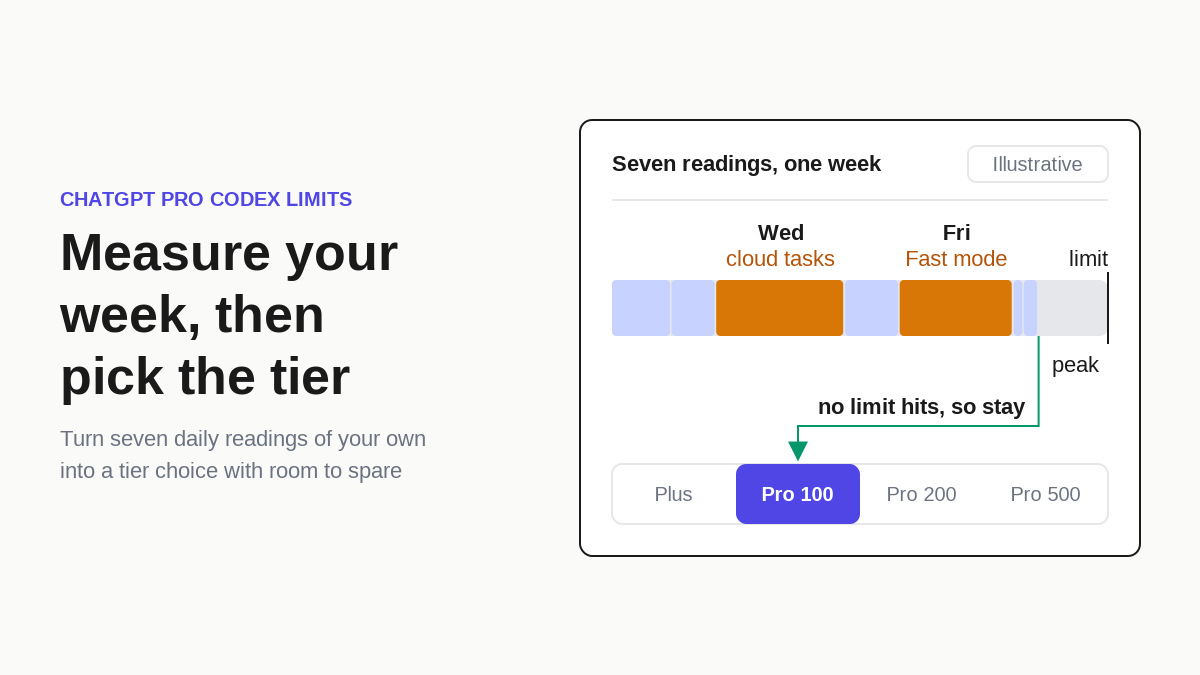
A plan is only a hypothesis until the meter agrees. The illustrative developer planned 78% of the week across five working days, so the pace to hit is roughly 16% of the weekly meter per day. The rows below are illustrative expected observations for this case, not results from a test that was run.
| Input | Action | Expected result |
|---|---|---|
task:refactor-api-01, Monday 09:00, weekly meter freshly reset, profile refactor |
Run codex --profile refactor, then /status before the first prompt |
Illustrative: footer shows gpt-6.2-astra with medium reasoning; after the morning session the weekly meter has moved about 10 points, one fifth of the 49% cap |
task:test-triage-02, failing test in packages/billing, profile triage |
Run codex --profile triage, scope the prompt to the failing test file, then /usage daily after the fix lands |
Illustrative: footer shows gpt-6.2-sol with medium reasoning; the day’s triage share stays near 4 points, one fifth of the 20% cap |
task:docs-edit-03, README and changelog update, profile docs |
Run codex --profile docs, check that the footer has no Fast item, then edit |
Illustrative: footer shows gpt-6.1-terra with low reasoning and no Fast indicator; the edit costs about 2 points of the weekly meter |
| End of day one, all three tasks run once | Open the dashboard and compare weekly used with the plan | Illustrative: weekly used reads about 16%; the five-hour meter shows its own reset time and has no effect on the weekly number |
| End of day two, same task mix | Run /status and /usage weekly, then compare with the day-one figure |
Illustrative: weekly used reads about 32%; anything above roughly 36% sends you to the failure checks below |
Read the result as a pace, not a pass mark. Landing within a few points of the plan means the caps are realistic. Overshooting means one task is heavier than budgeted, and /usage daily alongside your notes shows which one. Undershooting is fine; carry the spare into the reserve rather than raising effort everywhere at once.
After two clean days, stop checking every session. Look at the dashboard once a day, and the pricing page’s advice to review it every week or two becomes enough once the plan is stable.
When the numbers drift: five failure checks
Most overruns after a re-plan come from one of five causes. Work down the table from the top.
| Symptom | Likely cause | Check | Fix |
|---|---|---|---|
| Effort looks unchanged after an override | The override went to a different session, or a managed default is in play | Read the model-with-reasoning footer item, then /debug-config for layer order |
Re-apply with /model --reasoning=<level> in the live session; set both model and model_reasoning_effort in each profile |
A Business workspace default stops applying when you pass --profile |
Managed [models.new_thread] defaults are ignored once you explicitly override model or effort |
/debug-config shows the policy sources |
The configuration reference says an explicit --model, --config or --profile override makes Codex ignore both model and model_reasoning_effort in [models.new_thread]; put both keys in your profile |
| Burn roughly doubles on one task | Fast left on, or Ultrafast selected | Footer Fast item, /status, and any service_tier line in config.toml |
Type /fast to toggle it off; it saves the selection, so check again in the next session |
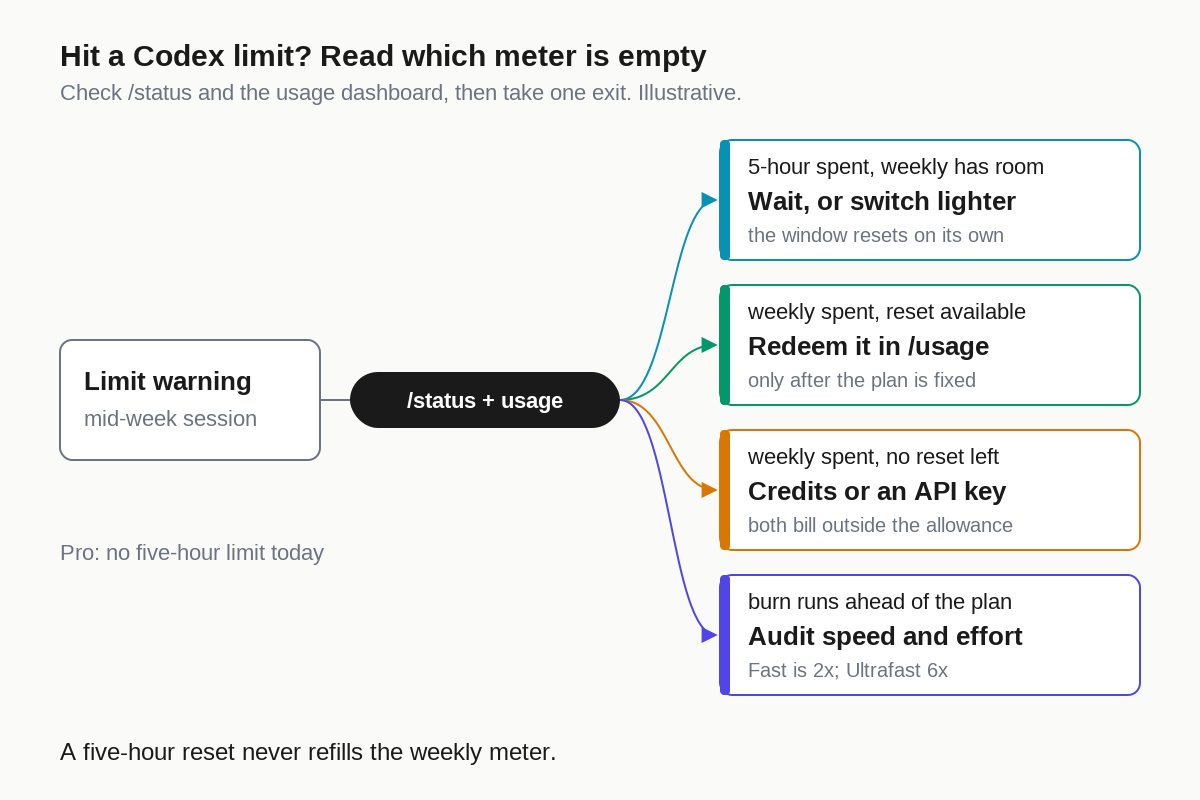
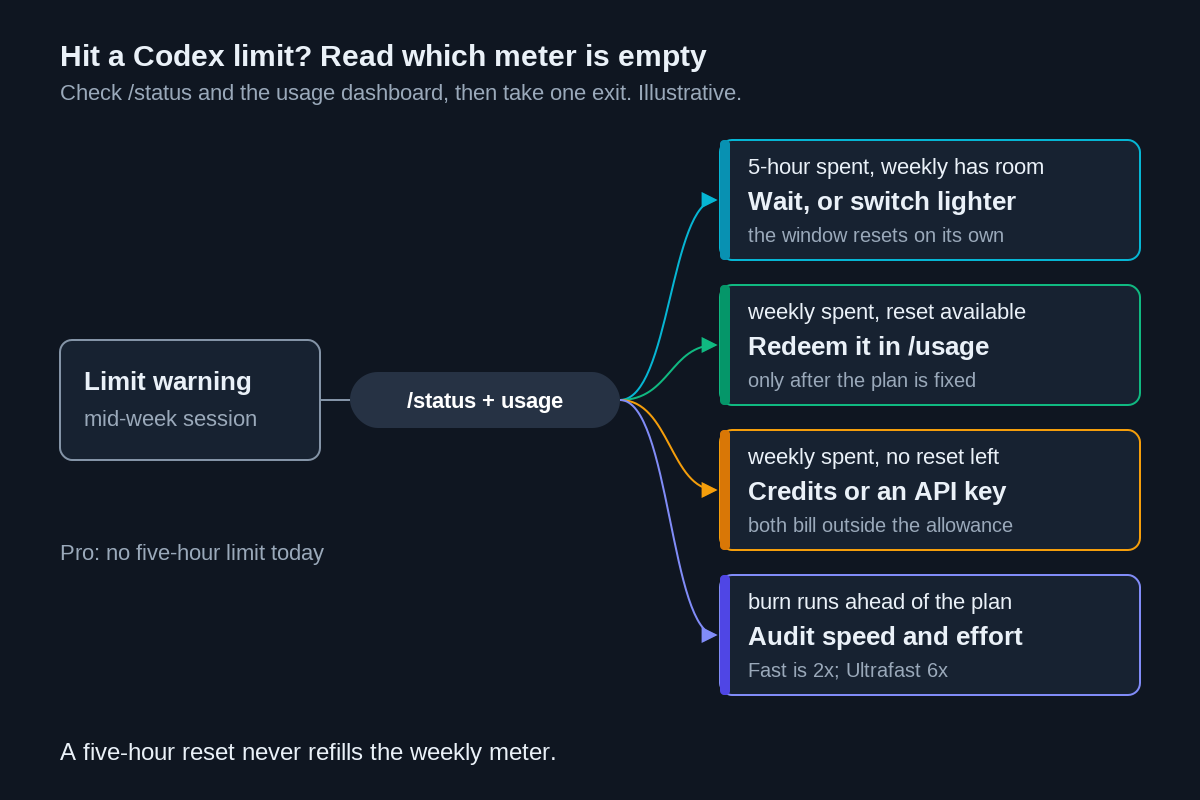
| Weekly limit exhausted although the five-hour window just reset | The two meters are separate | Dashboard shows both meters and both reset times | A five-hour reset never refills the weekly meter; go to the next section for weekly options |
| Spikes with no obvious task change | Cloud tasks, image generation or a growing context | /status token usage and /mcp for active servers |
Prefer local runs where either works; image generation uses included limits 3 to 5 times faster on average than similar turns without it |
The second row catches people who configure carefully. If an administrator supplies a default model and effort for new threads, and you add a profile that sets only the model, the managed effort is dropped along with the managed model. The fix is to treat every profile as complete: name both the model and the effort, even when the effort matches what you had before.
Banked reset, credits or a bigger plan
When the weekly meter is empty, you have three ways forward and one way to waste money. Choose with this table.
| Situation | Do | Why |
|---|---|---|
| Weekly meter empty, a reset available, plan already re-baselined | Type /usage and choose the option to redeem an available reset |
The CLI documents redeeming an earned reset from the /usage menu; spending it after the re-plan buys days the plan already accounts for |
| Weekly meter empty, plan not re-baselined yet | Hold the reset; finish Steps 1 to 3 on a lighter model first | Spending it on the old settings refills a meter that will empty again at the same speed |
| Weekly meter empty, no reset, two days of work left | Buy credits on Plus or Pro, or use workspace credits on Business with flexible pricing | The pricing page says Plus and Pro users can buy credits to keep working without upgrading |
| Overruns three weeks running after a clean re-plan | Revisit the plan tier | The allowance, not the settings, is now the constraint |
The post does not say where its apology reset appears, so check both /usage and the dashboard before assuming it is missing. Treat it as perishable insurance, the idea behind keeping a reset ledger, and write down when you spent it and why.
Credits are easier to judge with arithmetic. OpenAI’s Codex rate card gives the formula: input tokens divided by a million times the input rate, plus cached input times its rate, plus output times its rate. An illustrative GPT-6.2 Sol turn with 50,000 uncached input tokens, 150,000 cached input tokens and 10,000 output tokens costs 2.5 + 0.375 + 2.5, about 5.4 credits. The same turn on GPT-6.2 Astra costs 10 + 1.5 + 10, or 21.5 credits, four times as much. With purchased credits, Fast doubles either figure. The rate card, written for Business and Enterprise credit billing, puts a typical GPT-6.2 Sol Codex task at 2 to 15 credits, which matches this scale.

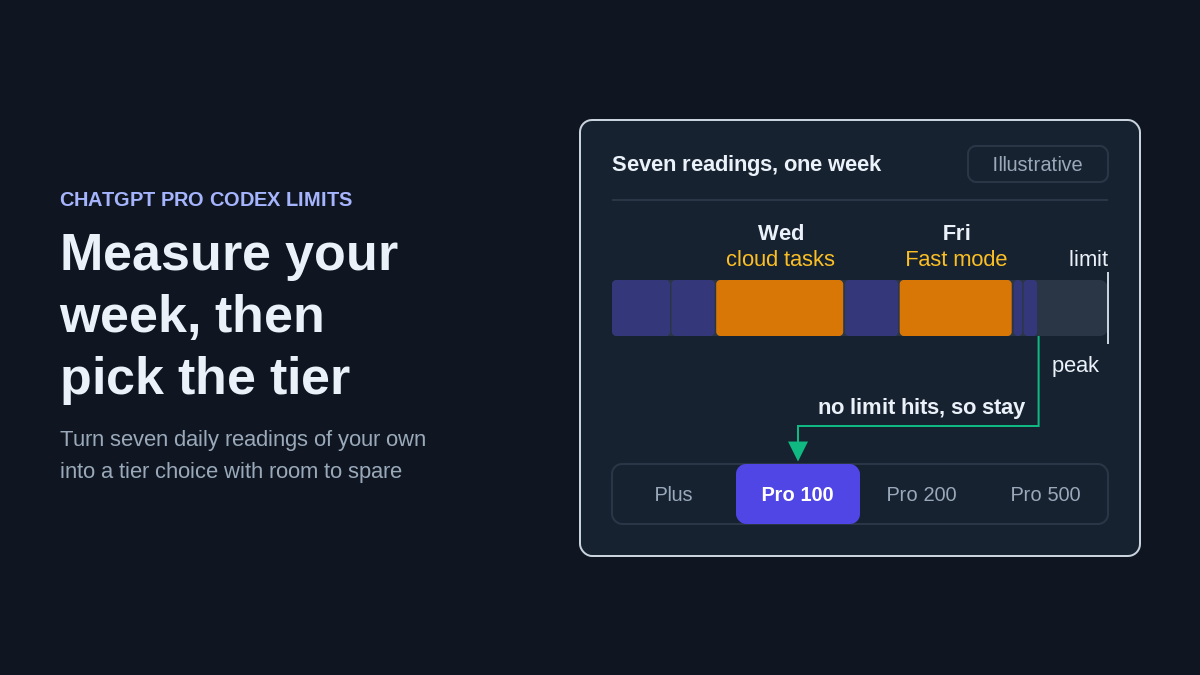
If you are regularly buying credits for work you could plan around, the tier picker linked at the top is the better tool. Plan pricing, the Pro tiers at $100, $200 and $500 a month, and the December move to a shared ChatGPT and Codex token allowance all change that decision, and none of them change the per-task settings in this guide.
Thread hygiene that cuts re-reads
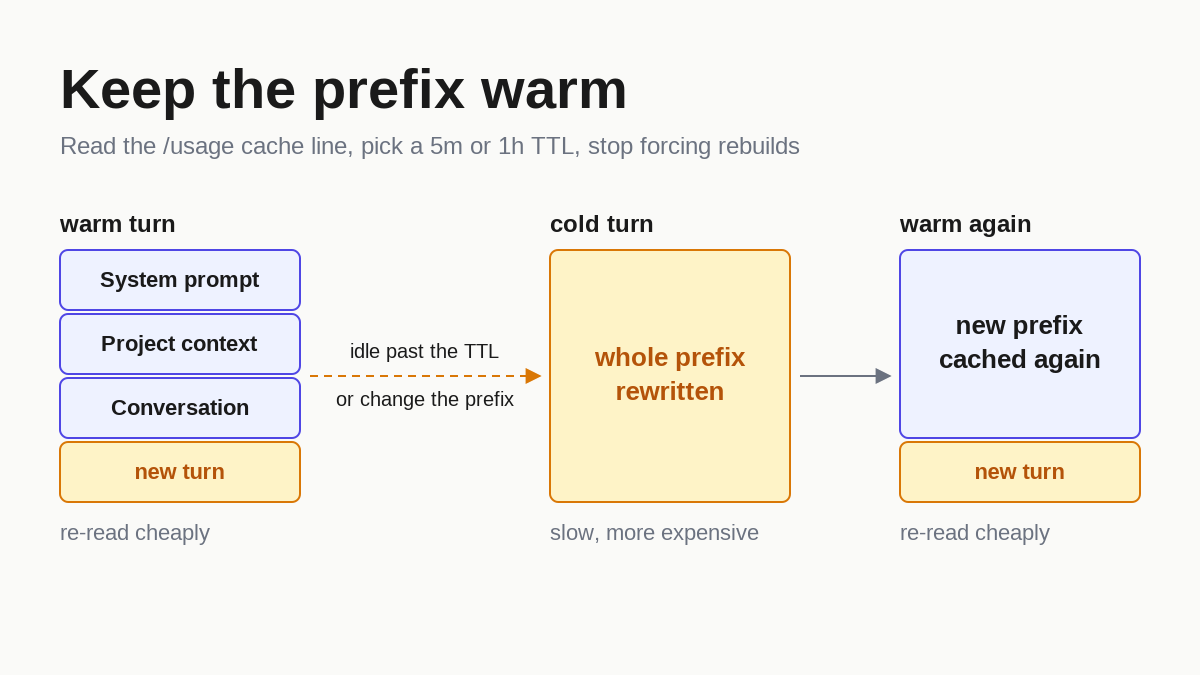
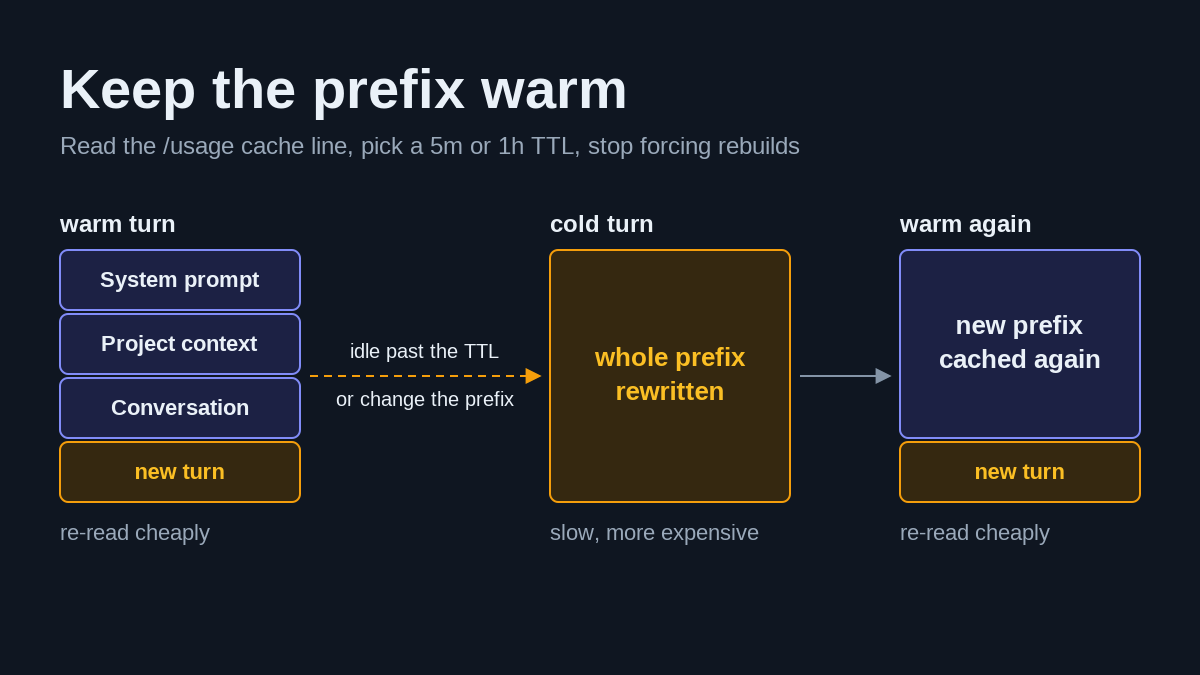
Every turn re-sends context. A thread that has accumulated three unrelated tasks charges you for all three on every message. These habits come straight from OpenAI’s guidance and cost nothing to adopt.
- [ ] Keep one chat per coherent unit of work. Start the next task with
/new, or/clearwhen you also want a clean terminal. The best practices guide warns that one chat for an entire project bloats context and worsens results. - [ ] Use
/compactafter a long run so Codex keeps a summary instead of the full transcript. - [ ] Write scoped prompts with four parts: goal, context, constraints and a done-when line, such as “done when
npm test -- billingpasses”. - [ ] Point at specific files with
@or/mentionrather than describing a whole directory. - [ ] Keep
AGENTS.mdshort. Nest task-specific files in subdirectories and reference longer documents instead of pasting them;project_doc_max_bytescaps how much Codex reads. - [ ] Disable MCP servers you are not using with
mcp_servers.<id>.enabled = false. The pricing page notes every MCP server adds context to your messages; the Codex MCP setup guide shows where those entries live. - [ ] Fork with
/forkonly when the work truly branches, so one investigation does not drag another’s history along.
For task:refactor-api-01, hygiene matters most. A cross-service refactor that runs all week in one Astra thread pays the corrected Astra rate on an ever-growing context. Splitting it into one thread per service, each opened with codex --profile refactor and a done-when line, keeps each turn small. If you run several agents in parallel, the same discipline applies across the whole set; AgentOps for agent fleets covers that wider view.
Rollback and the API-key overflow path
Profiles change defaults, not your base configuration, so rolling back is quick. Overflow onto an API key is the escape hatch when the week is gone and the work is not.
- To return to your old behaviour, start Codex without
--profile. Sessions then use~/.codex/config.tomlalone. - To retire a profile entirely, rename it, for example
triage.config.tomltotriage.config.toml.bak. Codex looks for the exactprofile-name.config.tomlfile name. - Run
/debug-configin a new session to confirm that no profile layer is loaded. - For overflow, the pricing page says all users may run extra local chats with an API key, charged at standard API rates.
codex loginauthenticates with a ChatGPT account, an API key or an access token; checkcodex login --helpon your build for the API-key option, then confirm withcodex login status, which exits with 0 when credentials are present. - While on the key, expect differences: model availability follows the API models your key can use, and cloud features such as GitHub code review and Slack are not available.
- To switch back, run
codex logout, which removes saved credentials for both API-key and ChatGPT authentication, thencodex loginwith no flags to open the browser ChatGPT sign-in.
Expected observation after step 6: /usage opens token activity again instead of a sign-in requirement, and the footer’s rate-limit item returns to your plan’s meters. If the footer still shows no limits, you are still on the key.
The useful part of this guide outlasts the correction itself. Any time a vendor changes how a model is metered, the same loop applies: read both meters, project last week onto the new rates, give each task a deliberate model, effort and speed, write those choices into profiles, and check the pace for two days before trusting it.
Sources
- Tibo (OpenAI Codex), post on X about the GPT-6.2 billing fix, November 26, 2026.
- OpenAI, Codex pricing: included usage, speed multipliers, token rates and usage FAQ.
- OpenAI, Codex slash commands and CLI reference.
- OpenAI, Codex configuration reference.
- OpenAI, Codex models.
- OpenAI, Codex best practices.
- OpenAI Help Center, ChatGPT rate card for Business and Enterprise/Edu credit-based pricing.