Jira MCP Setup for Claude Code, Codex and Cursor: Connect Atlassian's Rovo Server on v2, Pick OAuth or an API Token, Gate Writes
Jira MCP setup for Claude Code, Codex and Cursor: connect Atlassian's Rovo server on the v2 endpoint, choose OAuth or an API token, and gate ticket writes.

Go deeper. Build your own.
You open a Jira ticket and copy its description into your coding agent. Then you open the linked Confluence spec and copy that too. When the work is done, you go back to Jira to move the ticket and leave a comment. Jira MCP removes the copying. Atlassian’s remote MCP server lets Claude Code, Codex CLI and Cursor read Jira issues and Confluence pages themselves, and update tickets when you allow it. This tutorial connects that server on the current v2 endpoint in all three clients. It also makes you pick an authentication method on purpose, proves the connection with a read-only query and puts every ticket write behind an approval prompt. It finishes with a disconnect-and-revoke procedure you can test.
It’s written for a developer or small-team lead on Atlassian Cloud who wants an agent to work from the real ticket without getting unscoped write access. When you finish, the Atlassian server will be connected on https://mcp.atlassian.com/v2/mcp in at least one client and signed in with an identity you chose. A read-only question will return a real issue, an update will wait for your approval, and removing the server will leave no Atlassian tools behind.
This guide started with a question that developer @MechanicalTwrk posted on X on October 23, 2026: does Rovo MCP behave differently with Claude and Codex than with ChatGPT, and why can’t those clients reach several sites in different orgs? Atlassian’s documentation answers the second part more precisely than you might expect. The answer depends on how the agent authenticates, not on which client it runs in. The section on sites and projects works through it.
If you’ve followed the guide to Linear’s remote MCP server in the same three clients, the overall shape will look familiar. Four things are specific to Atlassian:
- an org admin can switch authentication methods on and off;
- the domain allowlist and the IP allowlist apply differently to OAuth and to tokens;
- permission groups keep delete and manage tools switched off by default;
- every call spends Rovo credits.
A note on evidence: every command and config block below is documented syntax from the Atlassian, Anthropic, OpenAI or Cursor pages listed under Sources. The expected observations describe what those pages say should happen. None of them is output captured for this article. Issue keys and page titles in the worked example are illustrative.
What you need before you connect Jira MCP
Atlassian’s official MCP server README describes a cloud-hosted bridge to Jira, Confluence, Jira Service Management, Bitbucket, Compass and Loom. It also says v2 is now the recommended version and that new setups should use https://mcp.atlassian.com/v2/mcp. Because nothing runs on your machine, the prerequisites are mostly about identity and permission, not packages.
- [ ] An Atlassian Cloud site with Jira, Confluence or both. The server reaches only the cloud products you already use.
- [ ] A named org admin you can ask. The Control Atlassian MCP server settings page puts the controls under Atlassian Administration, then Connectors, then Atlassian MCP server. The README gives the authentication setting as Atlassian Administration, then Rovo, then Rovo MCP server, then Authentication. Ask your admin which label your org shows, and confirm whether API token authentication is on.
- [ ] A current Claude Code, Codex CLI or Cursor install. You need only one of them to finish this guide.
- [ ] A browser on the same machine for OAuth 2.1, or API token credentials. The README lists a modern browser for the OAuth flow, or token credentials for headless setups.
- [ ] A throwaway test issue. Pick one you’re allowed to comment on and move, such as a sandbox project ticket. The worked example calls it
PROJ-1234. - [ ] Awareness of Rovo credits. Atlassian’s Get started with the Atlassian MCP server page says MCP calls consume Rovo credits from the same shared pool used by Rovo Chat, Studio and Agents. Larger context and deeper reasoning cost more.
- [ ] Network allowances if your agent is sandboxed. The Atlassian developer getting-started guide lists
api.media.atlassian.comand*.frontend.public.atl-paas.netfor whiteboard and attachment tools. For Claude Code it points you at thenetwork.allowedDomainssetting.
The developer guide also says most enriched calls cost 1 to 10 Rovo credits each. That’s cheap for a single lookup, but it adds up when an agent repeats searches. The README suggests pinning defaults in your agent instructions so the agent stops rediscovering sites and projects:
## Atlassian MCP

When connected to the atlassian MCP server:
- **MUST** use Jira project key = PROJ
- **MUST** use Confluence spaceId = "123456"
- **MUST** use cloudId = "https://yoursite.atlassian.net" (do NOT call getAccessibleAtlassianResources)
- **MUST** use `maxResults: 10` or `limit: 10` for ALL Jira JQL and Confluence CQL search operations.
Replace the project key, space ID and site with your own values. The README puts this block in AGENTS.md. If your client reads a different project instructions file, put the same lines there.
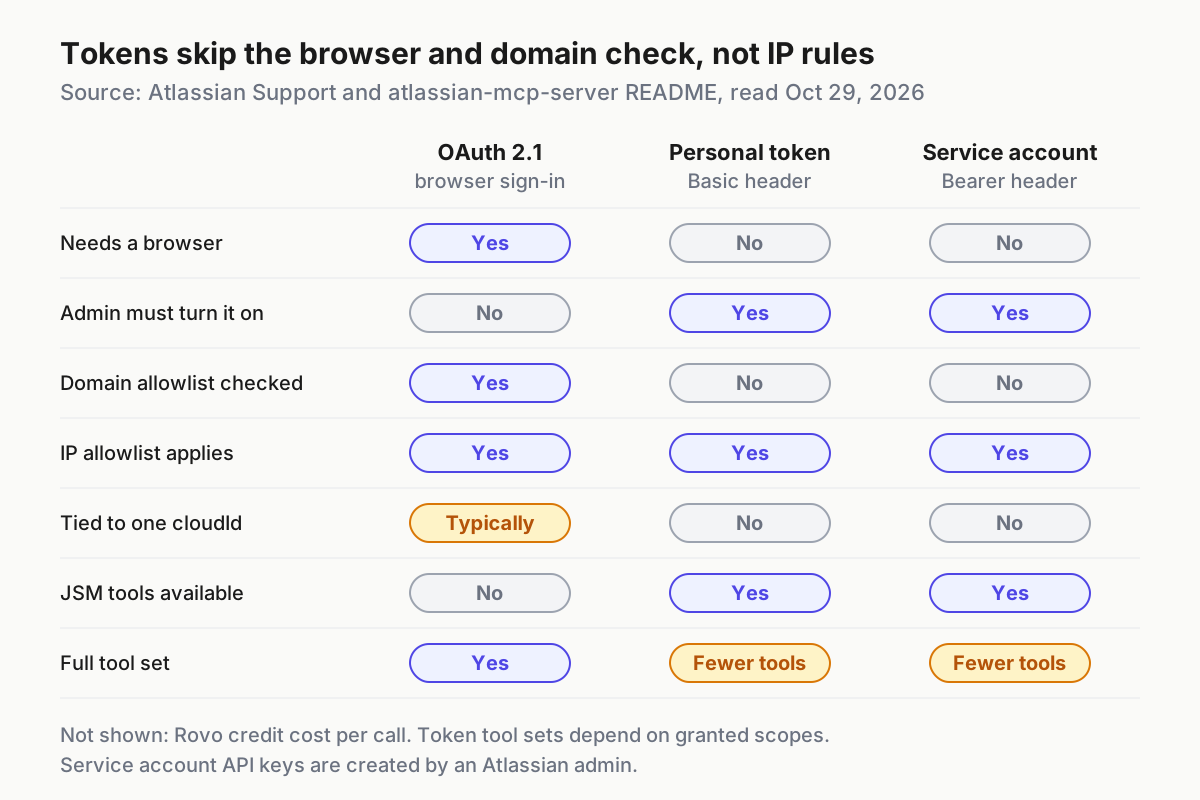
Pick OAuth 2.1, a personal API token or a service-account key
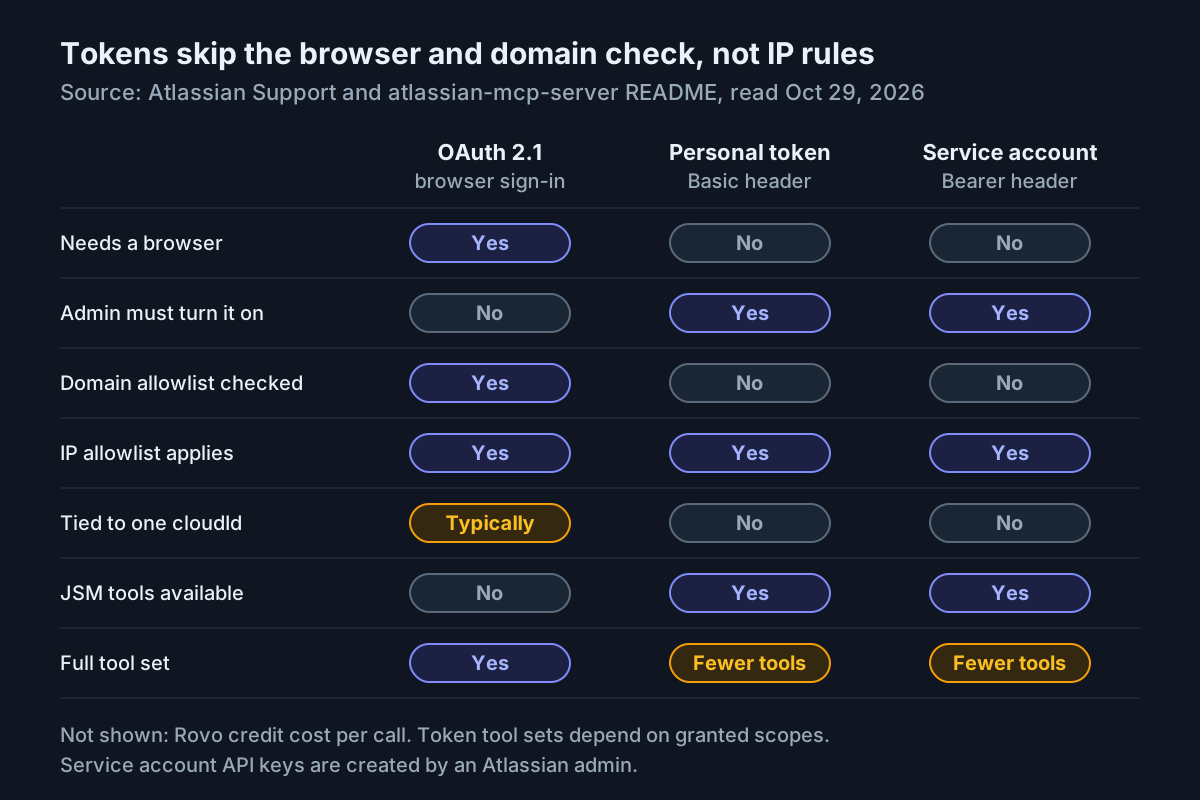
Make this choice before you type any add command, because it decides what the admin must enable, which checks apply to your requests and how many sites a session can reach. The getting-started page calls OAuth 2.1 the default and API token authentication an option. The Configure authentication via API token page documents two token mechanisms and their limits.
| Method | What the client sends | Fits | Admin prerequisite | Watch for |
|---|---|---|---|---|
| OAuth 2.1 | Nothing in config; you sign in through a browser consent screen | An interactive laptop session | None by default; admins can block or add domains | Tokens are typically consented for a specific cloudId; the domain allowlist applies |
| Personal API token (Basic) | Authorization: Basic <base64(email:api_token)> |
A browserless host or SSH box where you act as yourself | An org admin must turn on API token authentication | Some tools are unavailable; tokens aren’t bound to a cloudId, so pass the right one |
| Service account API key (Bearer) | Authorization: Bearer <api_key> |
Shared automation and CI acting as a service identity | An admin creates the service account and key, and token auth must be on | Store it in a secret manager; it’s governed only by scopes and the IP allowlist |
Use this decision procedure:
- Interactive work on your own machine: use OAuth 2.1. It needs no admin change, and every action uses your existing Atlassian permissions.
- A machine with no browser, where you still want to act as yourself: use a personal API token, if your admin has enabled token auth. Otherwise, try the browserless OAuth flow your client supports. Claude Code’s is covered below.
- A pipeline or shared bot that shouldn’t hold a human’s identity: ask the admin for a service account API key.
- You need Jira Service Management tools: you need a token. The README marks JSM tools as API-token only, available only when an organization admin has enabled API token authentication.
- You need Compass tools: use OAuth. The README marks Compass as OAuth only, and the token page says some Compass tools are disabled because the scopes aren’t available for tokens.
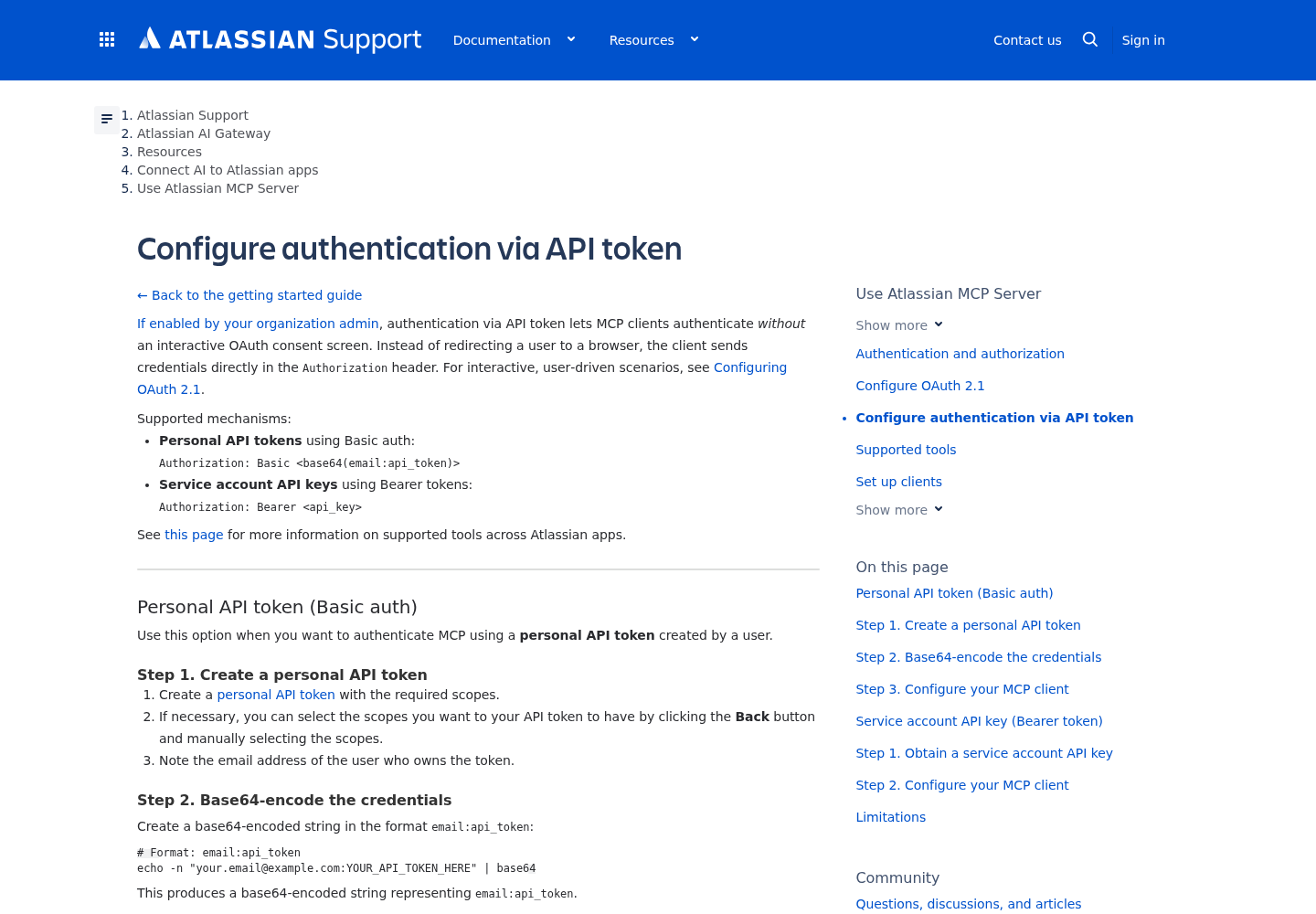
Two token behaviors catch people out. First, the token page says tokens don’t use an OAuth redirect URI, so “tools using API tokens are not restricted by domain allowlists”. The IP allowlist still applies. Second, it says tokens “are not bound to a specific cloudId”, which enables cross-site work but makes the agent responsible for passing the correct one.
To build a personal token header, follow the token page’s three steps:
- Create a personal API token with the scopes the tools need, and note the email address of the account that owns it.
- Base64-encode
email:api_tokenwith the documented command.-nstopsechofrom adding a newline to the encoded value. - Put the result after
Basicin your client’s header configuration. Each per-client block below says whether theBasicprefix is written in the config file or stored inside the environment variable, so read that line before you set the variable.
# Format: email:api_token
echo -n "your.email@example.com:YOUR_API_TOKEN_HERE" | base64
Check that the encoded string sits on a single line with no stray whitespace before you paste it. Keep it out of shell history and out of any committed file. Store it in an environment variable or a secret manager and refer to it by name.
Client setup at a glance
This table is the whole setup on one screen. Each row uses documented syntax only. The sections after it explain the choices and what you should see at each step.
| Client | Add it | Where it lands | Sign in | Verify |
|---|---|---|---|---|
| Claude Code | claude mcp add --transport http atlassian https://mcp.atlassian.com/v2/mcp |
~/.claude.json (local scope, the default); .mcp.json with --scope project |
/mcp in a session, or claude mcp login atlassian in your shell |
claude mcp list shows ✔ Connected; claude mcp get atlassian |
| Codex CLI | codex mcp add atlassian --url https://mcp.atlassian.com/v2/mcp |
[mcp_servers.atlassian] in ~/.codex/config.toml, or .codex/config.toml in a trusted project |
codex mcp login atlassian |
codex mcp list; /mcp inside the codex TUI |
| Cursor | Add to Cursor from the Atlassian plugin on the Cursor Marketplace, or a url entry in mcp.json |
~/.cursor/mcp.json (global) or .cursor/mcp.json (project) |
OAuth prompt when the server needs it | The server appears in Customize; Output panel, then MCP Logs |
Keep the server name atlassian in every client. You’ll write permission rules and remove commands against that name, and a matching name makes them easy to audit.
Connect Claude Code to the v2 endpoint
Atlassian’s getting-started page gives the Claude Code command directly and says to run /mcp in a session to authenticate. Anthropic’s Claude Code MCP reference explains the scopes, statuses and failure messages around it. For a broader tour of scopes and connection fixes, see the Claude Code MCP setup guide.
-
Add the server at local scope, the default. This writes the entry into
~/.claude.jsonunder your current project, so nothing is committed.claude mcp add --transport http atlassian https://mcp.atlassian.com/v2/mcpExpected: an
Added ...line, which the reference says means the configuration was written. It doesn’t mean you’re connected yet. -
Check the status.
claude mcp listExpected:
atlassianwith! Needs authentication, because you haven’t signed in. -
Sign in. Start
claude, run/mcp, choose the server and finish the browser consent. You can also runclaude mcp login atlassianfrom your shell. On an SSH box with no browser, runclaude mcp login atlassian --no-browser. Claude Code prints the authorization URL. Open it on your local machine, then paste the full redirect URL back at the prompt. Connect withssh -tso the paste step has a terminal. -
Run
claude mcp listagain. Expected:✔ Connected. If it shows✘ Failed to connect, the reference says the failure detail is appended, andclaude mcp get atlassianshows it on anIssue:line.
If you want the whole team to get the server, add it at project scope instead:
claude mcp add --transport http atlassian --scope project https://mcp.atlassian.com/v2/mcp
That writes a .mcp.json you commit. It contains no credentials, because each teammate signs in with their own OAuth identity:
{
  "mcpServers": {
    "atlassian": {
      "type": "http",
      "url": "https://mcp.atlassian.com/v2/mcp"
    }
  }
}
The "type": "http" line matters. Atlassian’s Claude Desktop example is a bare url. Anthropic’s reference says Claude Code reads an entry with a url but no type as a configuration error, and skips it with the message MCP server "<name>" has a "url" but no "type". Each teammate’s first interactive session also asks them to approve the project server before it loads.
To use a personal token instead of OAuth, keep the secret in an environment variable and refer to it by name. Claude Code expands ${VAR} in a remote server’s url and headers. Here the Basic prefix is written in the config, so ATLASSIAN_MCP_BASIC holds only the base64 string:
{
  "mcpServers": {
    "atlassian": {
      "type": "http",
      "url": "https://mcp.atlassian.com/v2/mcp",
      "headers": {
        "Authorization": "Basic ${ATLASSIAN_MCP_BASIC}"
      }
    }
  }
}
For a service account key, the value becomes "Bearer ${ATLASSIAN_MCP_KEY}". Two documented behaviors change how this fails. If you configure an Authorization header and the server rejects it with a 401 or 403, Claude Code reports a failed connection instead of falling back to OAuth. And it warns, without echoing the value, when headers.Authorization has hidden leading or trailing whitespace, which usually means a pasted newline.
Connect Codex CLI with codex mcp add or config.toml
OpenAI’s Codex MCP documentation says the CLI, the IDE extension and the ChatGPT desktop app share MCP configuration on the same Codex host, so one setup covers all three. Atlassian’s page gives the add command.
-
Add the server.
codex mcp add atlassian --url https://mcp.atlassian.com/v2/mcp -
Sign in. The Codex docs say that if no credential source resolves, Codex can connect without authentication, and that you run
codex mcp login <server-name>separately to start OAuth.codex mcp login atlassian -
Verify with
codex mcp list, then open thecodexTUI and run/mcp. Expected:atlassianamong your active servers. -
Open
~/.codex/config.tomland add the approval line before you ask for anything. The next section explains it.
[mcp_servers.atlassian]
url = "https://mcp.atlassian.com/v2/mcp"
default_tools_approval_mode = "writes"
For a personal token, Codex maps a header name to an environment variable with env_http_headers. Put the full header value, including the Basic prefix, in the variable:
[mcp_servers.atlassian]
url = "https://mcp.atlassian.com/v2/mcp"
env_http_headers = { "Authorization" = "ATLASSIAN_MCP_AUTHORIZATION" }
default_tools_approval_mode = "writes"
For a service account key, bearer_token_env_var = "ATLASSIAN_MCP_KEY" sends Authorization: Bearer with the variable’s value. The docs say explicit bearer tokens and OAuth credentials take precedence over a header helper. A project-scoped .codex/config.toml loads only in trusted projects, so keep personal credentials in the user file. To pause the server without deleting it, set enabled = false.
Connect Cursor through the marketplace or mcp.json
Atlassian’s page recommends the Atlassian plugin on the Cursor Marketplace: select Add to Cursor. Cursor’s MCP documentation says a marketplace install also authenticates with OAuth. If you’d rather keep the server in a file you control, use mcp.json:
-
Choose the location:
~/.cursor/mcp.jsonfor every project, or.cursor/mcp.jsonfor one project. -
Add the remote entry:
{ "mcpServers": { "atlassian": { "url": "https://mcp.atlassian.com/v2/mcp" } } } -
Open Customize in the sidebar and confirm the server is listed and enabled. Expected: Cursor starts OAuth when the server asks for it. Per its docs, it uses the authorization code flow with PKCE and reads the server’s protected resource metadata to find the authorization server.
-
If nothing happens, open the Output panel and choose MCP Logs. Cursor says the logs show server initialization, tool calls and errors.
Cursor resolves ${env:NAME} inside url and headers values, so a token can stay in your shell environment. Write the Basic prefix into the header value itself, as below, and store only the base64 string from the encoding step in ATLASSIAN_MCP_BASIC. If the variable already contains Basic , the server receives the prefix twice and rejects the header:
{
  "mcpServers": {
    "atlassian": {
      "url": "https://mcp.atlassian.com/v2/mcp",
      "headers": {
        "Authorization": "Basic ${env:ATLASSIAN_MCP_BASIC}"
      }
    }
  }
}
For a service account key, the value becomes "Bearer ${env:ATLASSIAN_MCP_KEY}", the same pattern Cursor’s docs show for a bearer token, with only the raw key in the variable.
Cursor Cloud Agents keep their MCP sign-ins on Cursor’s servers, separate from your machine, so signing out locally doesn’t sign them out. Remember this when you get to the revoke step.
Gate writes before the agent touches a ticket
Atlassian’s disclaimer is direct: MCP clients can act on all connected products with your existing permissions, so use least privilege and review high-impact changes before confirming. Gating happens in two places. Your Atlassian org decides which tools exist, and your client decides which calls need a person.
On the Atlassian side. The README groups tools into permission groups that admins grant or revoke: read_jira, write_jira and search_jira for Jira, and the same pattern for Confluence. delete_jira and manage_jira are disabled by default and need an admin to enable them. That gives you a resource-side floor that no client config can raise, the same idea as the read-only database role behind a Postgres MCP server. If you only need reads for a quarter, ask the admin to leave write_jira unassigned and skip client-side gating entirely.
On the client side, check reads first, then writes:
- Find the real tool names. Atlassian exposes a small set of primary tools and lets clients discover the rest on demand, so tool names can change without a reconnect. In Claude Code, run
/mcp, select the server and read each tool’s full name, which has the formmcp__atlassian__<tool>. In Codex, check/mcp. In Cursor, expand the server in Customize. - Run the read-only phase with writes blocked. Ask read questions only, and keep the write tools you found in a deny list until the worked example’s last step.
- Open writes to a prompt, never to auto-approval. Remove the block for the single write tool you need, and make sure it still needs your approval.
In Claude Code, a project .claude/settings.json can hold a deny list. The reference shows the permissions.deny shape and says permission rules use a tool’s full callable name. Replace the placeholder with the names you read in /mcp:
{
  "permissions": {
    "deny": [
      "mcp__atlassian__<write-tool-name>"
    ]
  }
}
When you open writes, remove that entry. Don’t add Atlassian write tools to allow rules, and don’t run ticket-updating sessions in auto or bypassPermissions mode, where you won’t get the approval prompt this guide relies on. Our comparison of permission modes across Claude Code and Codex covers those modes side by side.
In Codex, default_tools_approval_mode = "writes" is the core control. The docs say the writes mode “prompts for tools that aren’t marked read-only”. During the read-only phase, add disabled_tools = ["<write-tool-name>"]. Afterwards, you can pin one tool with a per-tool block:
[mcp_servers.atlassian.tools.<write-tool-name>]
approval_mode = "prompt"
In Cursor, the documented default already does what you want: “Cursor asks for approval before using MCP tools by default.” The risk is Run Mode. In Auto-review mode, allowlisted MCP tools run immediately. Keep Atlassian write tools off that allowlist. Before you approve a call, click the arrow next to the tool name to read its arguments.
GitLab’s server reaches the same reads-allow, writes-ask split from the server side. If you run both, the GitLab MCP always-ask writes guide shows how the two policies line up. For a fleet that runs Claude Code in more than one mode, the restricted-mode fleet policy explains why a write gate belongs in policy, not in each person’s habits.
Worked example: from PROJ-1234 to an approved update
This example runs one full loop: read a ticket, pull its spec, plan a branch, then update the ticket only after you approve. The prompts come from Atlassian’s own examples, such as “What’s the status of PROJ-1234?” and “Move PROJ-456 to ‘In Review’ and add a comment that the PR is up.” The issue key, page title and branch name are illustrative. Substitute your test issue, and don’t treat the expected observations as captured output.
| Step | You type | Expected observation | If it differs |
|---|---|---|---|
| 1. Read the issue | What's the status of PROJ-1234? Summarize the acceptance criteria. Do not change anything. |
A read or search tool call against your site, then a summary using the issue’s real status and fields | Wrong site or “not found”: see the sites section; nothing at all: see troubleshooting |
| 2. Pull the linked spec | Open the Confluence page linked from PROJ-1234 and list the requirements it adds. |
A Confluence read call and a list that cites the page title, here “Refund webhook retry spec” | No link found: name the page or space explicitly |
| 3. Plan the branch | Propose a git branch name for PROJ-1234 and a three-step implementation plan. Do not create the branch or edit Jira. |
A name such as feature/PROJ-1234-refund-retry and a plan; no Atlassian write call |
A write attempt here means your block isn’t in place; stop and fix it |
| 4. Test the gate | Add a comment to PROJ-1234 with this plan. |
An approval prompt naming an Atlassian write tool, with the comment text in its arguments; decline it | The comment appears without a prompt: a failure check; remove allow rules and leave auto modes |
| 5. Approve the update | Repeat step 4, read the arguments, approve | One comment on PROJ-1234 in Jira |
Two comments: you approved twice; delete one in Jira |
| 6. Move the issue | Move PROJ-1234 to 'In Review' and add a comment that the PR is up. |
A second approval prompt for the transition | 403: your identity can’t transition in that project |
| 7. Check the record | Open Insights, then Audit log, in Atlassian Administration (or ask your admin) | Events under Rovo MCP User Actions for each tool call | No events: the call went to a different org or site |
A few notes on why the steps are ordered this way:
- Steps 1 and 2 test the read path on its own. A failure there is a connection, authentication or permission problem, not a gating problem, and it’s easier to fix while nothing has been written.
- Step 3 asks for the plan with an explicit “do not”. If the agent tries to write anyway, your deny or disabled list caught a real case, which is exactly what you were testing.
- Step 4 is meant to be declined. A gate you’ve only ever approved hasn’t been tested. Declining shows that nothing reaches Jira without you.
- Step 7 uses the README’s audit note: every MCP tool use is recorded in the org’s audit log, filterable by Rovo MCP User Actions or by searching MCP. That record lets you confirm the agent used the identity you expected.
You’re done when four things are true: a read returned a real issue, a write waited for approval, a declined write left Jira unchanged, and the audit log shows the calls.
Check which sites and projects the agent can reach
This section answers the question from the X post. The selected Atlassian pages don’t describe different behavior for ChatGPT, Claude or Codex. They describe a difference by authentication method. The token page says OAuth tokens are typically consented for a specific cloudId, while API tokens aren’t bound to one, which “enables cross-site workflows” as long as the client passes the right cloudId. Every page also repeats that access never exceeds what the signed-in identity can already see.
- [ ] Ask the agent to list its sites.
Which Atlassian sites and Jira projects can you access?should trigger resource discovery. The README tip refers to agetAccessibleAtlassianResourcescall, which is the call it tells you to skip once you’ve pinned a cloudId. - [ ] Compare the list with what you expect. A missing site under OAuth often means the consent covered a different site. Sign out and sign in again from the client, and choose the site deliberately.
- [ ] For multiple orgs, check each org’s settings. The admin pages tell you to select your organization if you have more than one, so domain, IP and token settings are per org. A site in an org with a stricter IP allowlist will refuse calls that another org accepts.
- [ ] Pin the cloudId per repository. Use the AGENTS.md block from the prerequisites so a token-based session, which can reach any of your sites, can’t guess the wrong one.
- [ ] Confirm the project role. If reads work but a transition fails, the identity probably lacks the project permission, not the MCP tool. The README says all actions respect existing project and space roles.
- [ ] Note what’s visual-only. The admin page says interactive Jira and Confluence widgets need
*.atlassian.netreachable. Strict egress filtering can make the server look down in clients that render widgets, even when tool calls work.
Retire a stale /v1/sse or v1 entry
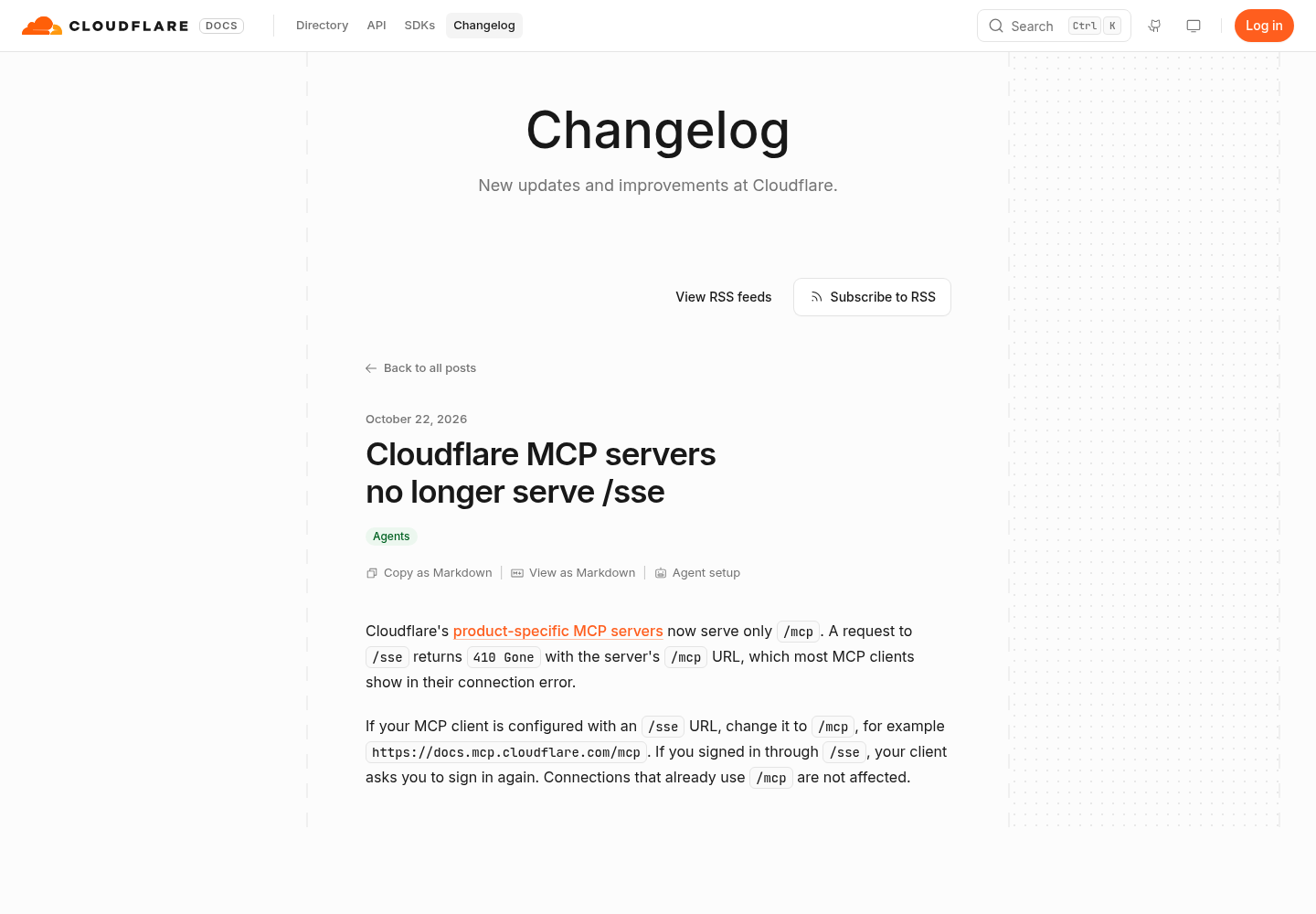
The README warns that after June 30, 2026 the legacy endpoint https://mcp.atlassian.com/v1/sse is no longer supported. It says custom clients should point at /mcp, preferably https://mcp.atlassian.com/v2/mcp. The v1 HTTP endpoints, v1/mcp/authv2 and v1/mcp, remain supported, and the getting-started page says existing v1 use automatically starts using v2 tools on March 1, 2027. Clients that can’t authenticate after that may need to clear cached client IDs or .well-known credentials. Cloudflare’s servers made the same move, covered in the Cloudflare /sse-to-/mcp migration guide.
-
Find the old entry:
claude mcp get atlassian, the[mcp_servers.atlassian]table in Codex, and theatlassiankey in Cursor’smcp.json. Look for/v1/sseor/v1/mcpin the URL. -
In Claude Code, sign out first so the old tokens are revoked where the server supports it, then remove the server and add it again:
claude mcp logout atlassian
claude mcp remove atlassian
claude mcp add --transport http atlassian https://mcp.atlassian.com/v2/mcp
If the same name exists in more than one scope, Claude Code warns about the conflict. Remove the stale one with
claude mcp remove atlassian --scope <scope>. -
In Codex, change
urlin the table to the v2 endpoint and runcodex mcp login atlassianagain. -
In Cursor, change the
urlvalue and toggle the server off and on in Customize. -
If sign-in still fails, clear the stored authentication. In Claude Code, use Clear authentication in the server’s
/mcpmenu, then sign in fresh.
Troubleshooting Jira MCP connections
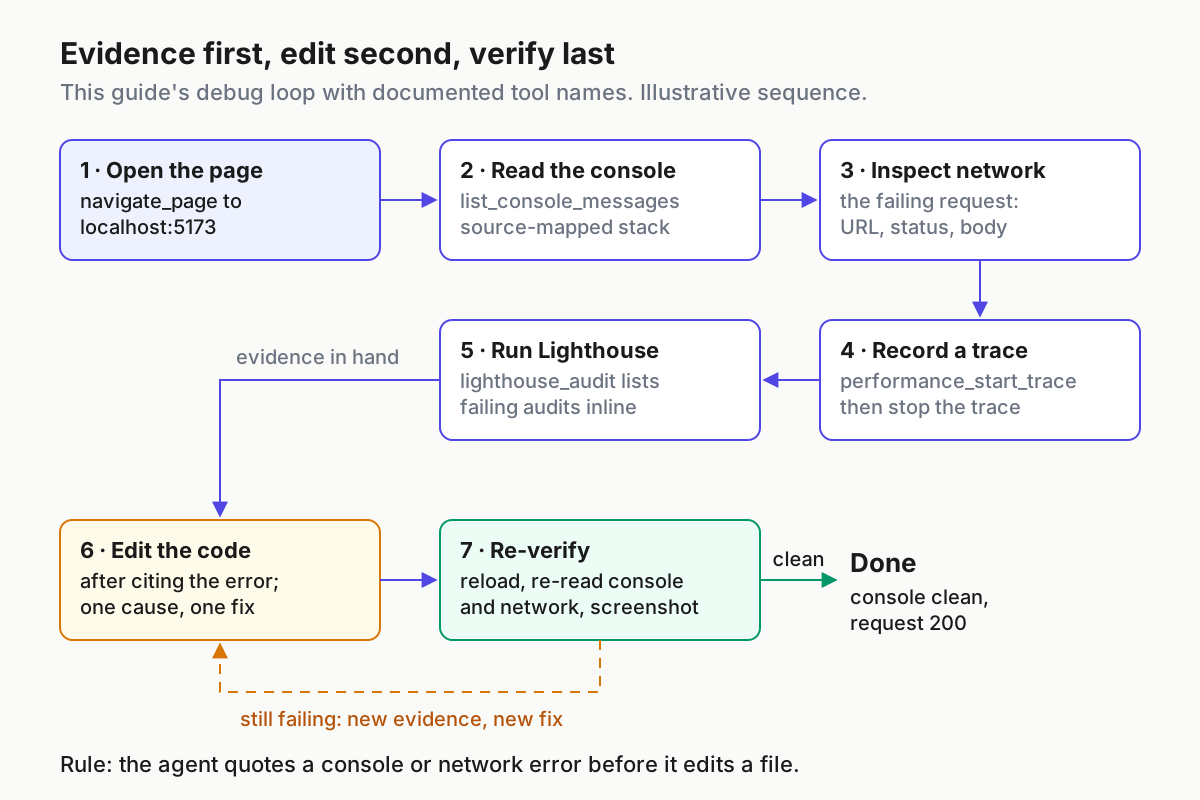
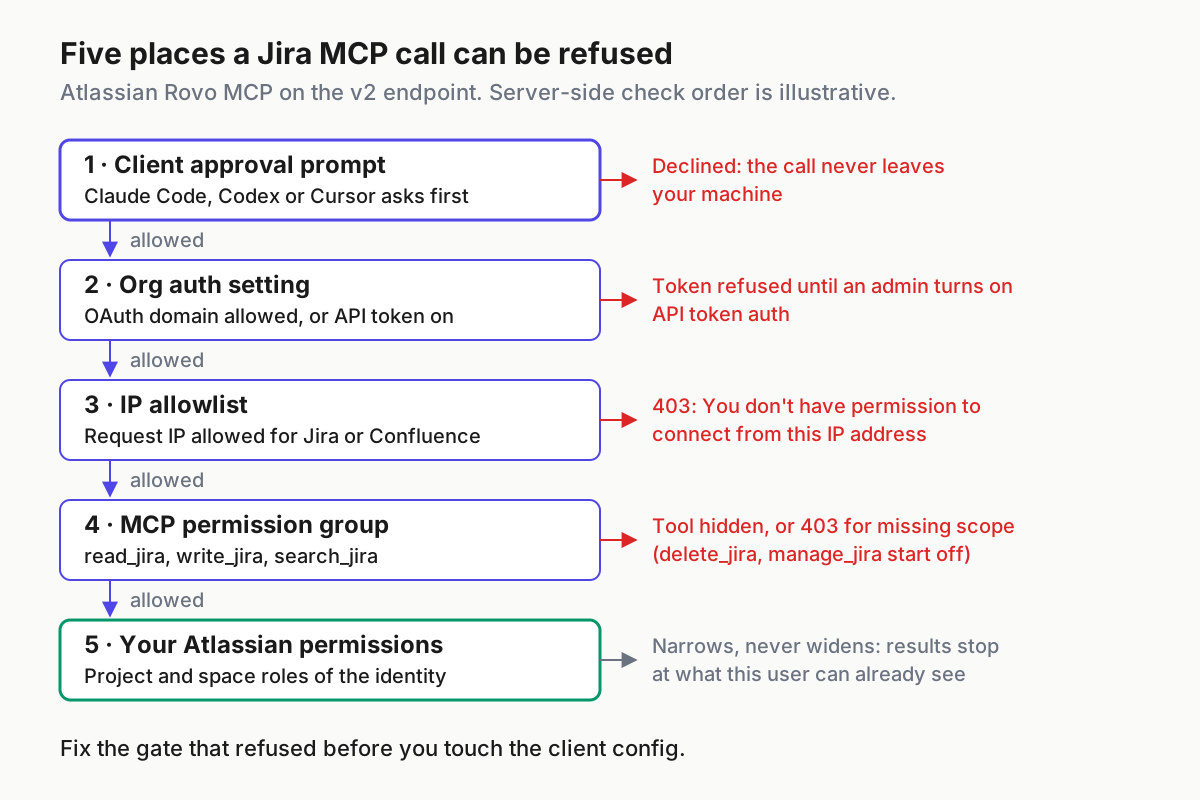
Most failures map to one of the five gates in the diagram above. Find your symptom, apply the fix, then confirm with the observation in the last column.
| Symptom | Likely cause | Fix | You should then see |
|---|---|---|---|
! Needs authentication in claude mcp list |
Not signed in yet | /mcp in a session, or claude mcp login atlassian |
✔ Connected |
| Token connection refused and you’re told to contact your admin | API token authentication is off for the org | Admin turns on API token in the Authentication section | Tool calls succeed with the token |
| “You don’t have permission to connect from this IP address. Please ask your admin for access.” | IP allowlisting blocks the source IP | Admin reviews the allowlist; hosted clients use the provider’s outbound IPs, so being on a VPN may not be enough | Calls pass from the approved network |
| OAuth sign-in succeeds but tool calls return 403 | IP rules, insufficient scopes, app permissions or another policy | Confirm the denial reason before changing any allowlist | The specific call succeeds |
Old URL ending in /v1/sse fails |
Endpoint unsupported after June 30, 2026 | Re-add with the v2 URL | Connected on /v2/mcp |
MCP server "atlassian" has a "url" but no "type" |
Claude Desktop JSON copied into .mcp.json |
Add "type": "http" |
Server loads after approval |
| Header configured, Claude Code shows failed rather than needs authentication | The server rejected your configured Authorization header, and Claude Code doesn’t fall back to OAuth |
Fix the token, or remove the header to use OAuth | ✔ Connected |
| Token header rejected in Cursor or Codex | The Basic prefix is missing or doubled between the config and the variable |
Cursor: prefix in the config, base64 only in the variable; Codex env_http_headers: full value in the variable |
Tool calls succeed with the token |
Warning names headers.Authorization whitespace |
A newline was pasted with the encoded value | Re-encode with echo -n and paste one line |
Warning clears |
| No browser on the host | OAuth needs a redirect | claude mcp login atlassian --no-browser over ssh -t, or use a token |
Signed in |
| Codex connects but the tools fail authentication | No credential source resolved | codex mcp login atlassian, or set the env var |
Tools return data |
| Tool list crowds the context | Using ?tools=all meant for gateways |
Use the plain v2 URL; in Codex, narrow with enabled_tools |
Fewer tool definitions loaded |
| Whiteboard or attachment tools fail in a sandbox | Extra Atlassian domains blocked | Allow api.media.atlassian.com and *.frontend.public.atl-paas.net |
Those tools work |
| Cursor shows nothing useful | Error hidden in logs | Output panel, then MCP Logs | Initialization or auth error named |
The ?tools=all row is worth a second look. The getting-started page offers https://mcp.atlassian.com/v2/mcp?tools=all for MCP gateways that need a flat, paginated tool list. The README explains that the default URL keeps your client’s context free by exposing a small set of tools and discovering the rest on demand. Don’t use the override in a coding client unless you have a gateway reason.
Disconnect, revoke and confirm the tools are gone
Rollback has three parts: remove the client entry, revoke the credential, and confirm nothing is left. Run all three, because removing a config entry doesn’t always revoke what it stored.
- Claude Code. Run
claude mcp logout atlassian, thenclaude mcp remove atlassian, adding--scope projector--scope userif that’s where you added it. The reference saysremovedeletes the stored OAuth tokens and client registration but doesn’t revoke them at the authorization server. That’s whylogoutcomes first. Delete the entry from any committed.mcp.jsonas well. - Codex. Delete the
[mcp_servers.atlassian]table fromconfig.toml, or setenabled = falseto keep it parked. Runcodex mcp --helpto see whether your version has a logout or remove subcommand for stored OAuth credentials. - Cursor. Remove the server in Customize or delete its
mcp.jsonentry. For Cloud Agents, open Customize and log out on the server’s Cloud row, because Cloud sign-ins are separate. - Atlassian identity. You can revoke your own app authorizations from your profile settings. Admins can revoke the MCP app’s access under Manage your organization’s Marketplace and third-party apps. Delete any personal API token you created for this, and ask the admin to revoke the service account key.
- Confirm.
claude mcp listandcodex mcp listno longer showatlassian, Cursor’s Available Tools has no Atlassian tools, and a fresh request for a Jira issue gets no Atlassian tool call. The audit log should show no new Rovo MCP User Actions from that identity.
Treat two findings as failures that need fixing before you call this done: a token or Basic value committed in a project config file, and any write that ran without a prompt. Rotate the credential in the first case. Rerun the gating steps in the second.
Sources
- Mechanical Twerk on X: question about Rovo MCP across Claude, Codex and ChatGPT, and multiple sites (Oct 23, 2026)
- Atlassian Support: Get started with the Atlassian MCP server
- GitHub: atlassian/atlassian-mcp-server README
- Atlassian Support: Configure authentication via API token
- Atlassian Support: Control Atlassian MCP server settings
- Claude Code Docs: Connect Claude Code to tools via MCP
- OpenAI: Model Context Protocol for Codex
- Cursor Docs: Model Context Protocol (MCP)
- Atlassian Developer: Getting started with the Atlassian Rovo MCP Server