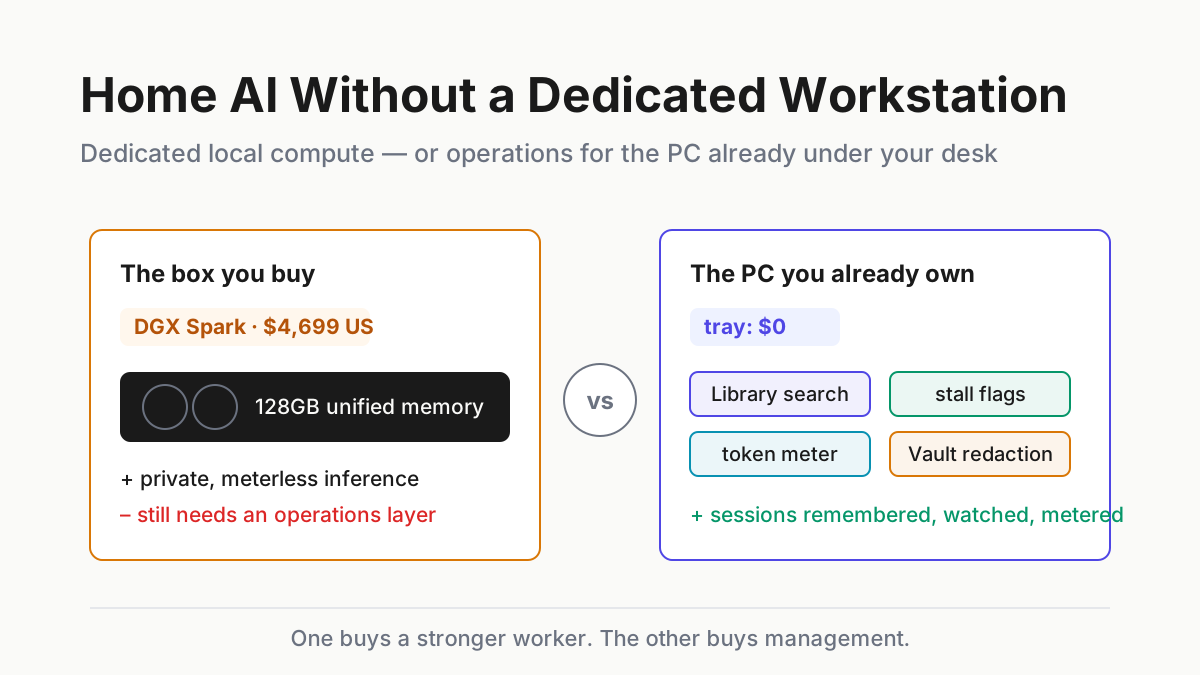
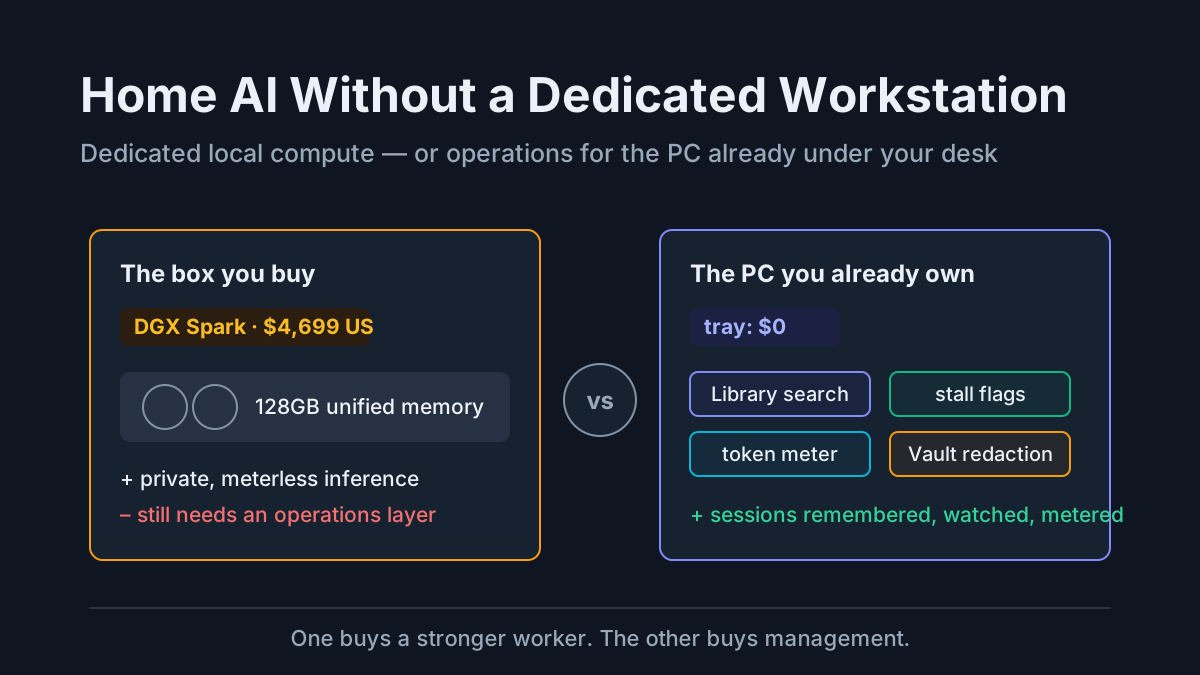
Tray Companion or Desktop AI Agent: The Decision Rule for Moving a Job
Which jobs should leave the tray for a desktop AI agent? A signal-by-signal decision table, what installs today, and a two-question exit test before any move.

Go deeper. Build your own.
Starting October 6, 2026, a new Cowork task on a Claude Pro or Max plan runs in Anthropic’s cloud, and the setting that kept it on your computer goes away. If Claude’s desktop app is your desktop AI agent, some of your work changes address overnight without anyone on your team deciding to move it.
That is the third relocation in four weeks, and none of the launch posts answers the question you have on a Tuesday: which of your jobs should leave the tray, and will you still notice when one of them stops to wait for you?
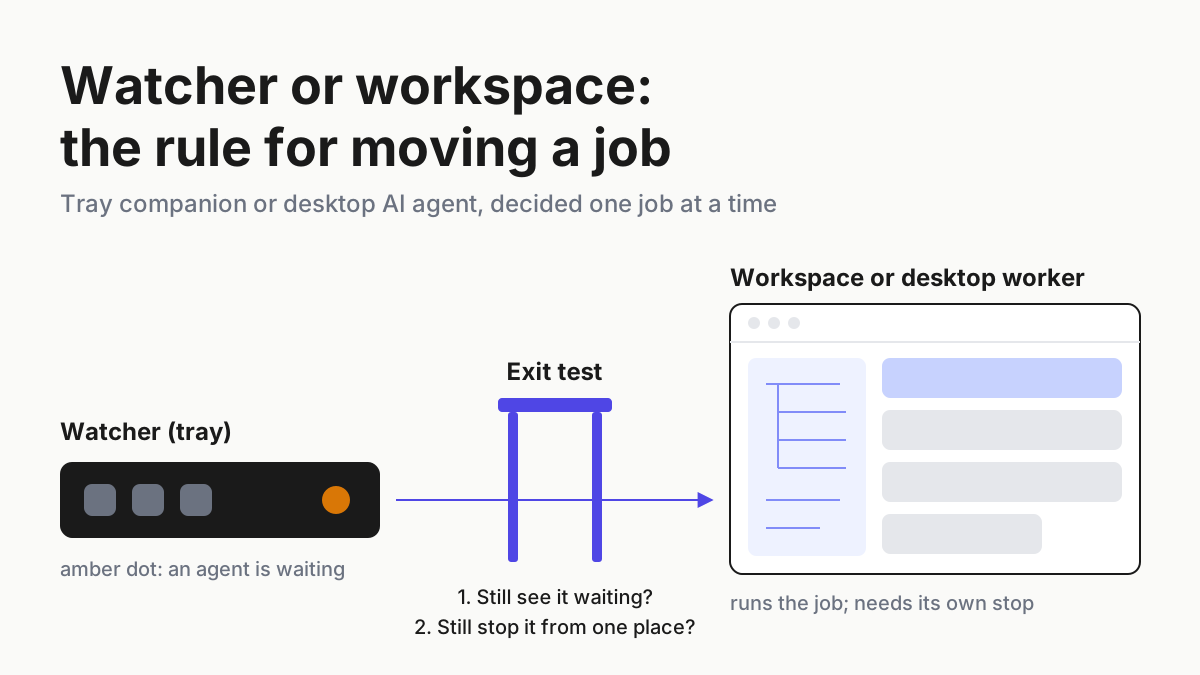
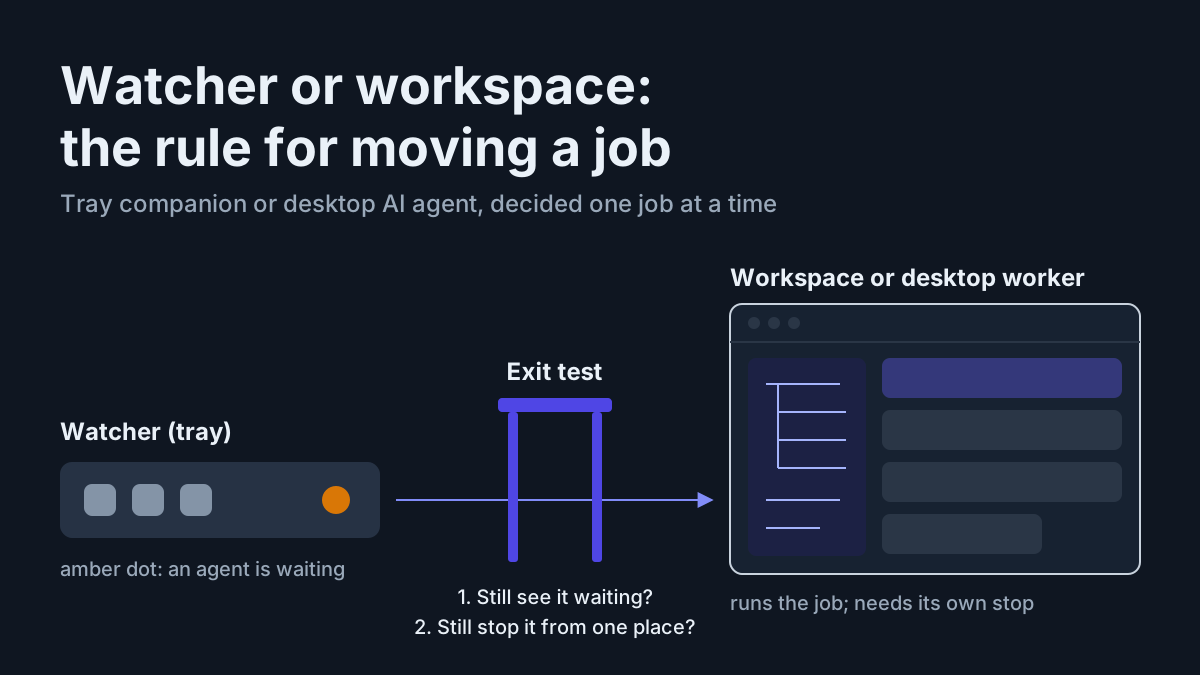
So here is a rule built to be pasted into a team doc. Each job gets one signal, and the signal picks a destination from a watcher → workspace decision table. An availability column says what a new teammate can install this week, not what a launch page implies. And a two-question exit test runs before any job moves: can you still see it waiting, and can you still stop it from one place?
A job that fails either question stays where you can see it.
Watcher, workspace, desktop worker, overlay: the four layers in one paragraph
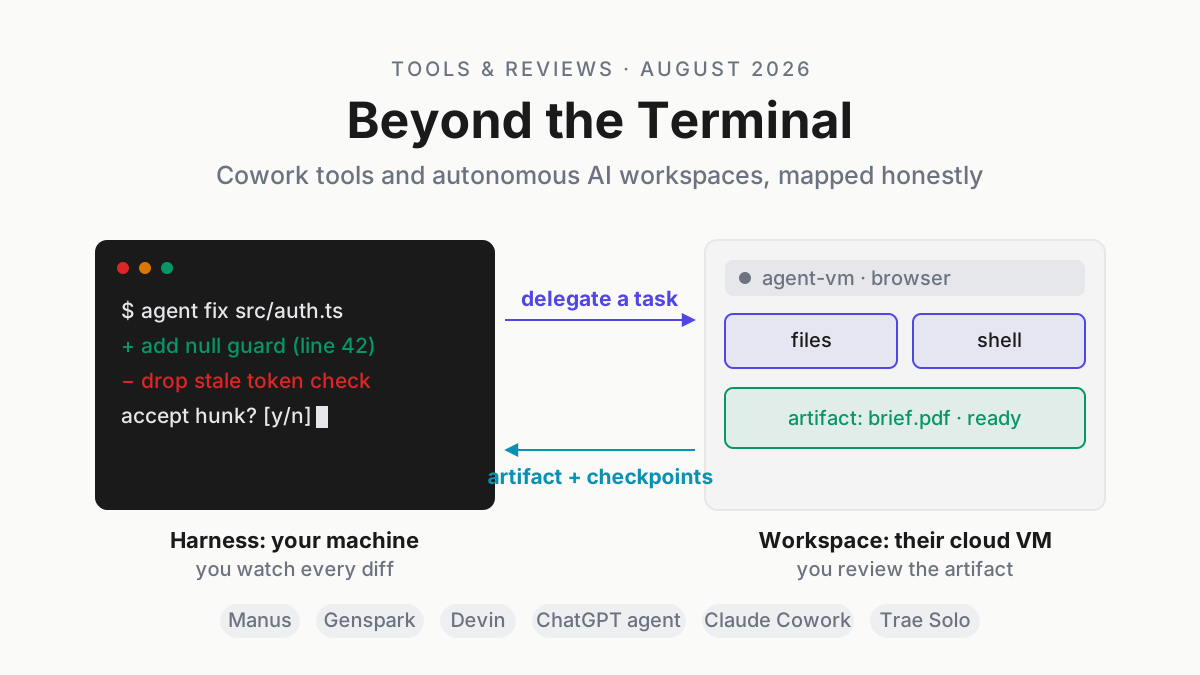
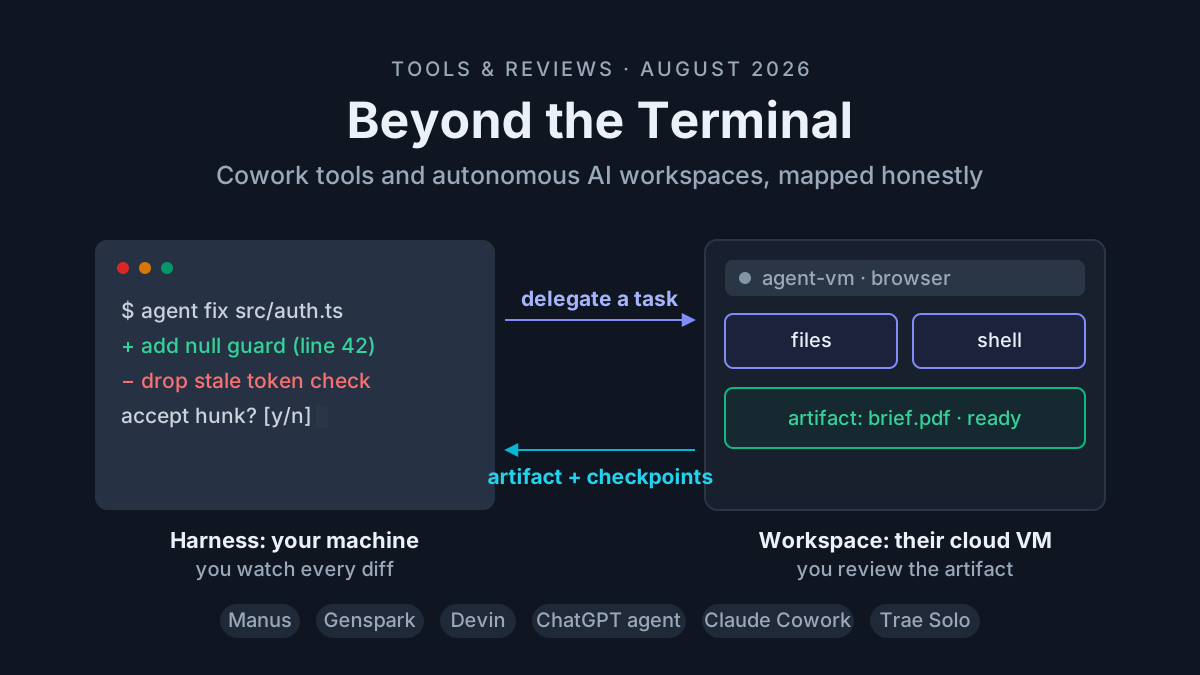
A watcher reads what your agents already write and tells you which one is waiting; it runs nothing. A workspace is an app you run agents inside, with hosts and runtimes in view, and a desktop worker is a vendor’s agent that takes a task and does it, on your machine or on the vendor’s servers. A companion overlay answers questions about whatever is on screen and hands the work back to you, and the tray watcher is a companion in the same sense, sitting beside the work rather than doing it. Companion vs Harness vs Computer defines these layers and who commands whom, so this piece borrows the vocabulary and spends its words on the move.
September’s three desktop AI agent moves, and the October 6 switch
September 10: Gemini on Windows. 9to5Google reported Google’s Gemini app for Windows, summoned with Alt+Space for “quick access… without interrupting your workflow” (9to5Google). It’s an overlay: you ask, it answers over your work.
September 14: Perplexity Portable Computer for Windows. Perplexity’s launch post says “Portable Computer runs the model, agent harness, orchestrator, and scheduler entirely on the Windows device,” and “When a task needs to send something from the device to the cloud, Portable first asks for the user’s permission” (Perplexity). It needs an NVIDIA RTX or RTX PRO card with at least 24 GB of VRAM and a Perplexity Pro or Max plan, on individual or enterprise plans. Perplexity Personal Computer vs a Windows Tray Companion compared role, data boundary and vendor risk before Portable shipped on Windows; the GPU floor is the new part.
September 16: Cowork becomes Claude. Anthropic’s post says “what Cowork and Design can do is available from any conversation, with the context, skills, and connectors you already have” (Claude blog). The worker stopped being a mode you pick. Claude decides per request whether you asked for an answer or a task.
October 6: new Cowork tasks go to the cloud. Claude’s Help Center says “On October 6, 2026, new Cowork tasks on Pro and Max plans run in the cloud,” and the “Only on your computer” option in Settings > General is removed. Tasks you already started on your computer stay there. Scheduled tasks move to the cloud too, “including ones that use files on your computer,” and “Tasks that use files on your computer need the desktop app open” (Claude Help Center). The same page lists Cowork as in beta on web and mobile for Pro, Max and Team plans, and on Enterprise plans where an admin has enabled it; the October 6 cloud switch is written for Pro and Max only.
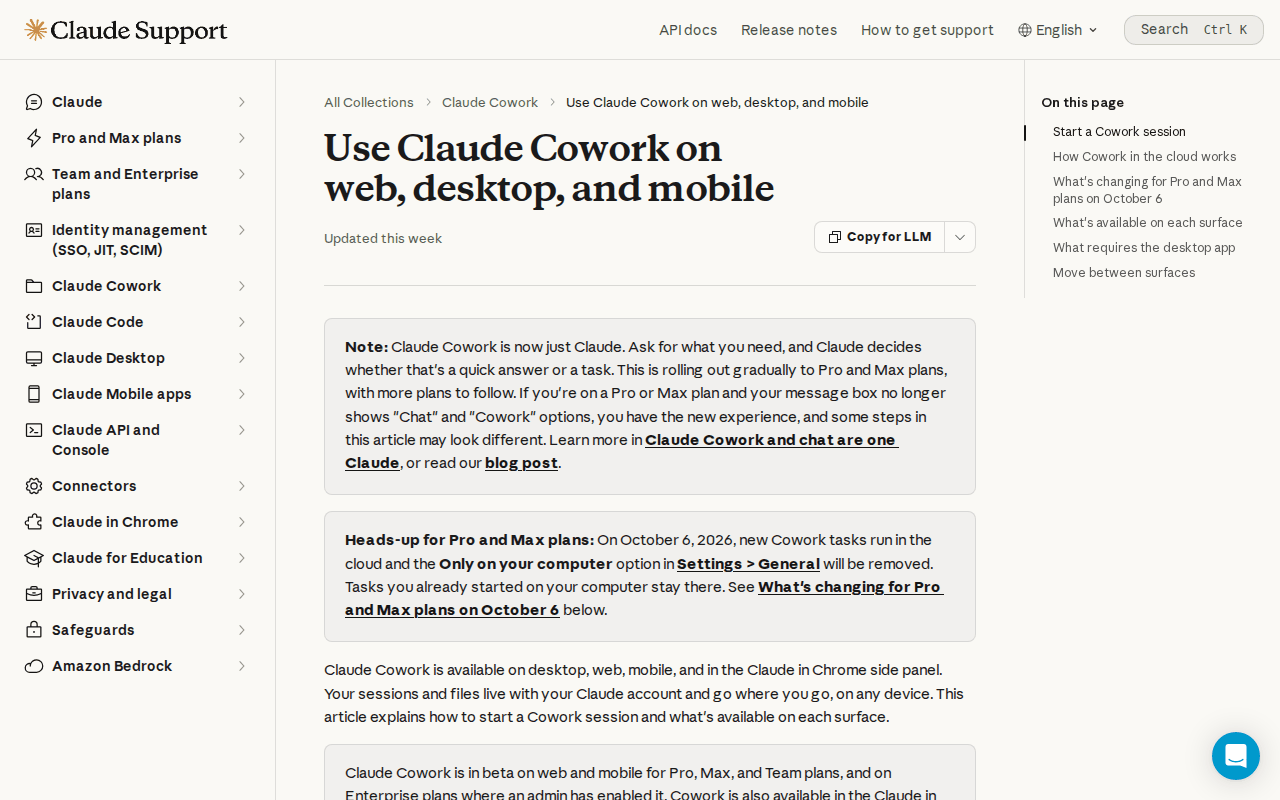 Screenshot: Claude Help Center, “Use Claude Cowork on web, desktop, and mobile” (page shows Updated this week), captured Oct 5, 2026.
Automater Desktop: paused for new installs. On automater.ai, Automater Desktop is “a separate app, in beta, for people who want a workspace instead of a tray,” and the page says: “Desktop downloads are paused for new installs while we finish a review. Existing installs keep updating.” (automater.ai/desktop)
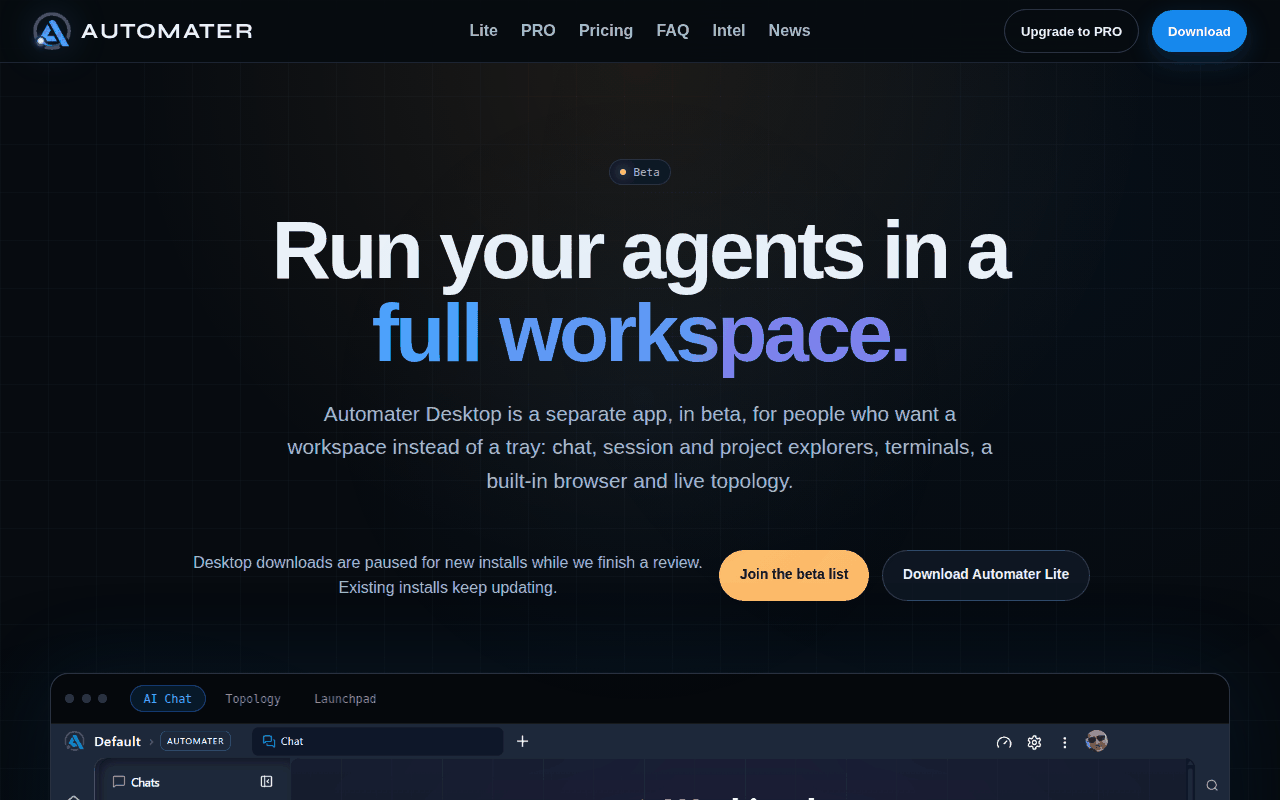 Screenshot: automater.ai, “Automater Desktop (beta): run agents in a workspace” (undated page), captured Oct 5, 2026.
Why an acting desktop AI agent moves the waiting signal too
An agent that only answers never waits on you. An agent that acts stops to ask: a permission prompt, an unclear spec, a file it can’t reach. Where that pause shows up is the part of a migration nobody writes down.
A watcher that reads transcripts on your disk can see a CLI session pause, because the pause is written there. It can’t see a job on a vendor’s servers unless something from that job still lands on your disk. Moving a job is therefore two moves: where the work runs, and where its waiting shows up. Plan only the first, and the second announces itself as a scheduled run that sat on a question all night.
The watcher → workspace decision rule: a seven-step runbook
Step 1: List jobs by the signal they send, not by the app you like
Open a sheet and write one row per recurring job, not per tool. For each, write the signal that would make you look at it: “I need to find it again”, “it’s waiting on me”, “will the quota last”, “it touches three runtimes”, “it runs on a schedule”, “the data can’t leave this machine”, or “I only have a question about the screen”. If a job sends two signals, write both; step 2 has a tie-break.
Keep product names out of this column. “Runs in Cowork” is an address, not a signal, and from October 6 that address can change without your input. A row that only says where a job runs today tells you nothing about where it should run next month.
Don’t be surprised if most rows say find, resume or “who’s waiting”, with only a few scheduled jobs and fewer that touch several runtimes. That shape is useful. It tells you how little actually needs to move.
Step 2: Route each signal through the decision table
| Signal from the job | What it looks like on a Tuesday | Where the job lives | Why |
|---|---|---|---|
| Find or resume an old session | “Which session fixed the flaky migration test last week?” | Watcher (tray) | The transcript already exists; you need search and a way back into the original CLI, not a new runtime |
| Who is waiting on me | Four terminals open, one paused on a permission prompt | Watcher (tray) | The waiting state is the whole signal, and reading it is what a watcher is for |
| Quota headroom | Will this provider’s window last until the run finishes | Watcher (tray) | A read-only check; a failed reading must say unknown, not zero |
| Spans WSL, Docker and several hosts | A fix that touches a container stack, a WSL distro and a staging box | Workspace | You need the runtime tree in view while the agent works |
| Queued or scheduled runs with history | A nightly dependency audit, a weekly status report | Workspace or vendor desktop worker, tiered like a headless lane | Unattended runs need a queue, a run record and a gate |
| Data must stay on the box | Client files that may not leave the laptop | Local worker with an explicit cloud-egress prompt, or stay CLI-native | The prompt is the boundary, as in Perplexity Portable’s pattern |
| Quick Q&A over the screen | “What does this error dialog mean?” | Companion overlay | No job to track and nothing to stop |
Two tie-breaks keep the table honest. When a job sends two signals, the more restrictive destination wins: “data must stay on the box” beats “scheduled”, so a nightly job over client files runs on a local worker with an egress prompt or stays CLI-native, and never on a cloud schedule. And “who is waiting on me” is never a reason to move a job anywhere. It is the reason to keep a watcher in place whatever the destination turns out to be.
A third rule covers the gaps. If a job’s signal isn’t in the table, it stays where it is until you can name one. Moving a job because a launch post made the destination sound capable is how you end up with work nobody can find.
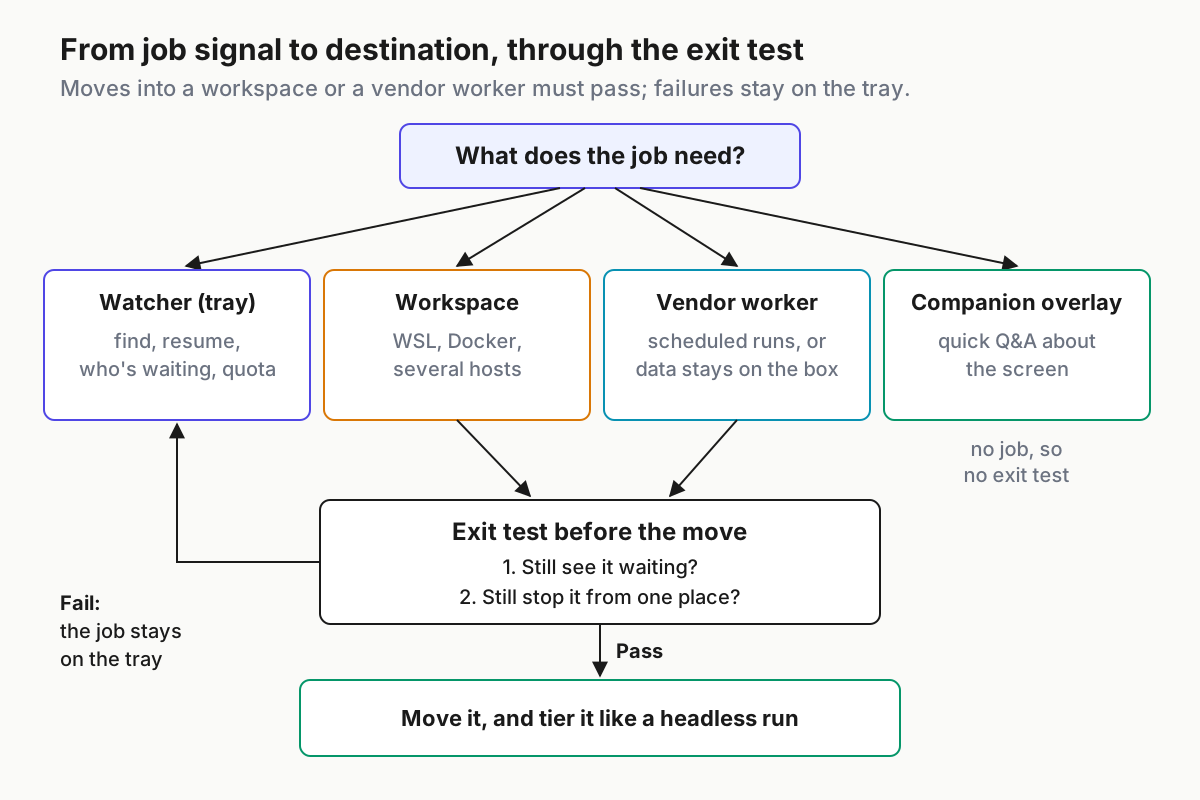
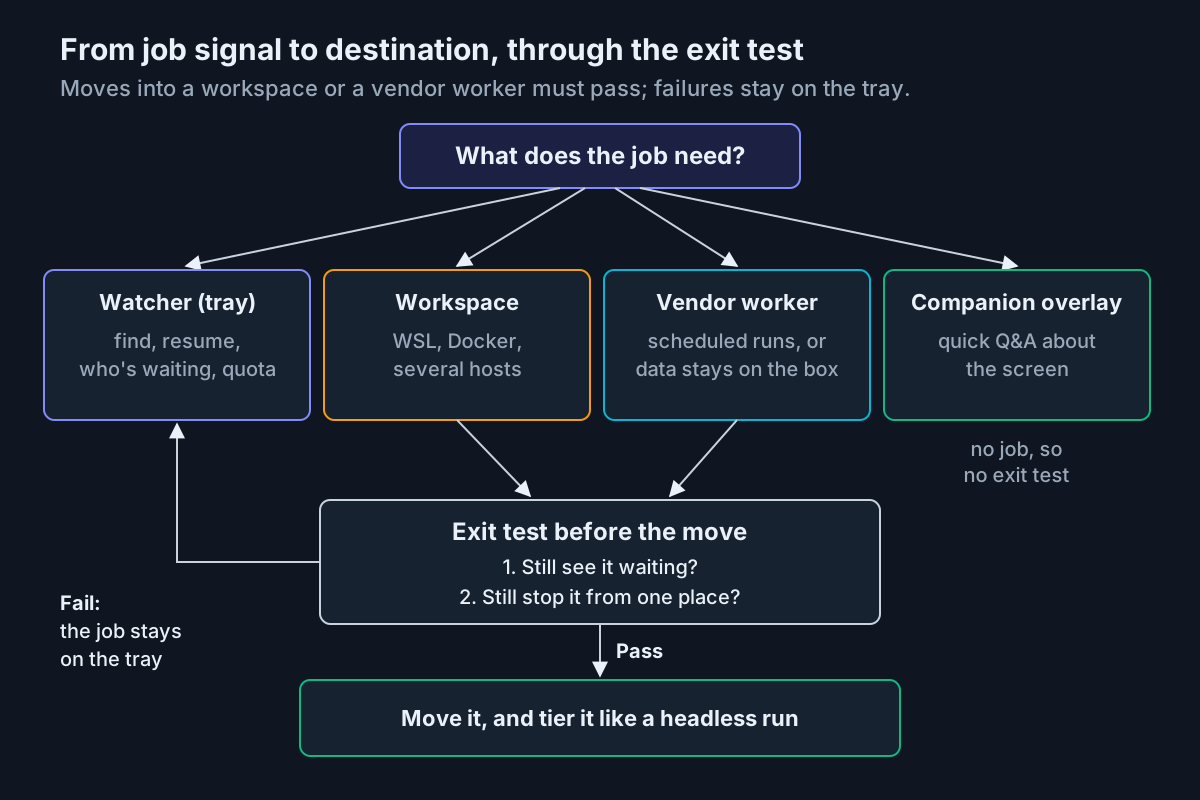 The flow: signal first, destination second, and every move into a workspace or a vendor worker passes the exit test or stays on the tray.
Step 3: Fill in the availability column for a new teammate
A decision table that routes jobs to something nobody can install is a wish list. Write availability the way a new teammate would meet it this week, with the requirement before the feature.
| Option | Status for a new user, Oct 5, 2026 | Requirements first | What it does not do |
|---|---|---|---|
| Automater Lite (tray watcher) | Free download today | Windows x64, macOS on Apple silicon, Linux x86_64 | Doesn’t run models, drive the computer or host workers; watches the sessions your CLIs write |
| Automater Desktop (beta workspace) | “Desktop downloads are paused for new installs while we finish a review. Existing installs keep updating.” | An existing install | Not available to a new teammate today |
| Claude, with Cowork merged in | Rolling out to Pro and Max since Sep 16 | A Claude plan; the desktop app open for tasks that use local files | New Pro and Max tasks don’t stay on your computer from Oct 6 |
| Perplexity Portable Computer | Pro and Max plans | Windows PC, NVIDIA RTX or RTX PRO, 24 GB+ VRAM | Doesn’t send data to the cloud without asking first |
| Gemini app for Windows | Shipped Sep 10 | Windows; Alt+Space to summon | Treat it as an overlay and route no jobs to it |
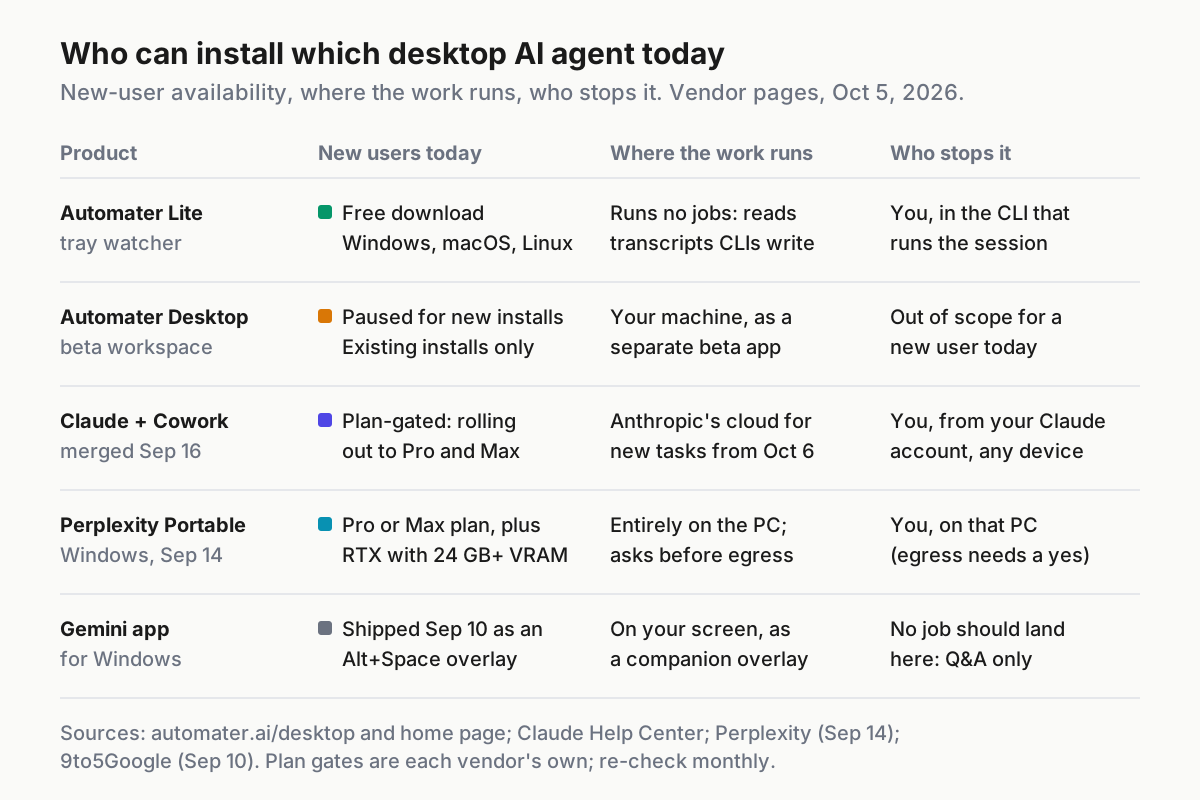
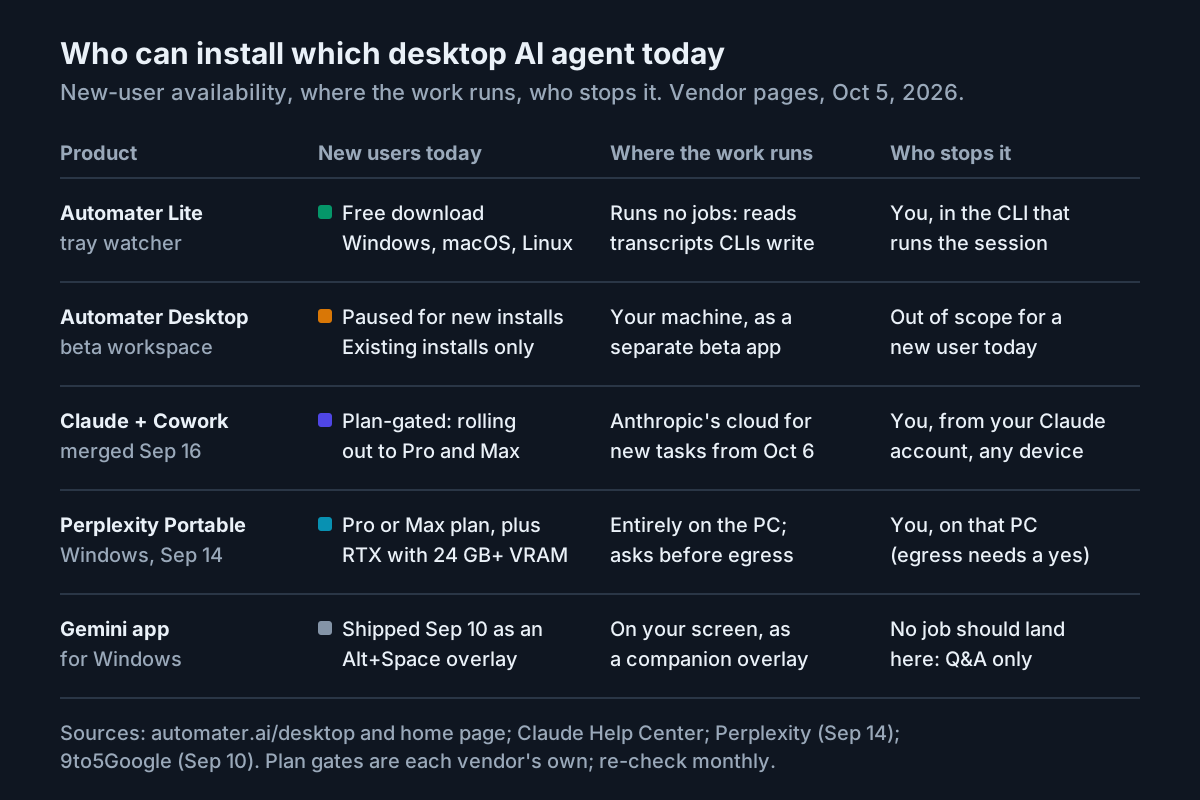 Availability as each vendor’s own page states it on Oct 5, 2026. Re-date it monthly (step 7).
Requirements first for the watcher row: Automater Lite is a free desktop tray app for Windows x64, macOS on Apple silicon and Linux x86_64 (automater.ai). It builds a local, searchable library from the session transcripts that dozens of AI CLIs and apps already write, and it lets you resume a session in its original CLI where that CLI supports it. It raises an amber Needs You flag when an agent waits on you and shows quota headroom for several providers, where a failed probe reads unknown, never zero. The site states that Needs You and approval visibility are never paywalled.
What it does not do decides which rows it covers. Lite doesn’t run models, doesn’t drive the computer and doesn’t host workers; it watches the sessions your CLIs write on that machine. That makes it an answer for the first three rows of the table and for none of the rows below them. Automater Lite is a free download for Windows, macOS and Linux at automater.ai/downloads.
For the workspace row, Automater Desktop is a separate beta workspace, and The Desktop ADE tours the beta. For a new teammate, though, the availability cell is the paused line and nothing more. Route the workspace row to a workspace your team can install today, or keep those jobs CLI-native until one exists.
Vendor desktop workers carry their own gates. Claude’s merged experience is rolling out to Pro and Max, with the cloud switch in the table above. Portable needs both a paid plan and a 24 GB GPU, so check the hardware before you put a job in its row. The Gemini overlay is a companion, so it gets questions and no jobs.
Step 4: Run the two-question exit test before any job moves
Both questions must pass on a dummy run before the real job moves. A dummy run is the same job pointed at a scratch branch or a throwaway folder, with nothing irreversible in it.
Can you still see it waiting? Name the surface that will show this job’s pauses after the move, and confirm it shows them where you already look. For a CLI session on your machine, a tray watcher does that. For a Claude task created after October 6 on Pro or Max, the task lives with your Claude account; the Help Center says your sessions and files “go where you go, on any device”, so the waiting surface is whichever Claude window you have open, not your tray. Write that down instead of discovering it.
Can you still stop it from one place? Name the single control that ends the job: the CLI’s interrupt, the vendor’s task view, Portable on that PC. Trigger it on the dummy run and note how long it took to find. If stopping means a hunt across a terminal, a vendor app and a browser tab, the test fails, however good the destination is at the work itself.
Then walk the checklist:
- The job’s waiting surface is named and visible from where you already look each morning.
- One stop control is named, and you used it once on the dummy run.
- You know who answers its prompts, including any cloud-egress prompt.
- If it reads local files from a cloud schedule, the machine and the desktop app will be on when it fires.
- A run record exists that you can read the next morning without asking anyone.
- You know how to put the job back on the CLI if the move goes wrong.
Record each move in a register that sits next to the decision table. One entry per job is enough; this one is illustrative:
job: weekly-dependency-report
signal: scheduled run with history
destination: vendor desktop worker
runs_on: vendor servers (task created after Oct 6)
reads_local_files: true   # desktop app must be open when it fires
waiting_surface: vendor app on any device, not the tray
stop_control: vendor task view (one place)
exit_test: { see_waiting: pass, one_stop: pass, tested: 2026-10-05 }
tier: unattended
rollback: cli-native schedule on the build box
Step 5: Tier every moved scheduled job like a headless run
A scheduled job on a desktop worker is unattended work with a friendly window around it. Give it the tier you give headless runs: an allowlist of what it may touch, no production credentials, a run record per execution, and a human gate before anything irreversible. Kimi Work scheduled tasks as unattended desktop cron lays out that tier for one vendor’s widget, and the same rows apply to any vendor’s scheduler.
The egress prompt deserves its own line in the tier. Portable asks before a task sends something from the device to the cloud, which is only a boundary if a person reads it. Decide in advance which jobs may ever answer yes, and treat an egress prompt from any other job as a stop.
Step 6: Settle the October 6 split on Claude before it settles itself
Run this now, while tasks started on your computer still sit beside the new cloud ones.
- Inventory your Cowork tasks and mark each one: started on this computer (stays local), scheduled (moves to the cloud), or created on or after October 6 (cloud).
- For each scheduled task that reads local files, pick one: keep the machine on with the desktop app open when it fires, move the job to a CLI-native schedule you own, or remove the local-file dependency.
- For each task that stays local, rerun the exit test after the change; it is now the exception, and exceptions are where waiting goes unseen.
- Update
runs_onandwaiting_surfacein the register for anything that moved.
Step 7: Re-date the availability column every month
Three cells in the availability column are volatile: the Desktop paused line, Claude’s rollout (the Help Center calls it “rolling out gradually to Pro and Max plans, with more plans to follow”), and Portable’s plan and GPU gates. Put a date on the column. Re-check each source on the first Monday of the month and whenever a vendor posts. Re-run step 2 for any job whose destination just became installable, or just stopped being so.
| Cell to re-date | Where to re-check it | What would change your routing |
|---|---|---|
| Automater Desktop status | The paused line on automater.ai/desktop | Any change to that line; until then the workspace row needs another installable option |
| Claude scope and location | The Help Center article on Cowork surfaces | More plans named in the rollout or the cloud default; new limits on local-file tasks |
| Portable gates | Perplexity’s launch post and release notes | A lower GPU floor or a different plan list, which changes who can use the local-worker row |
| Gemini overlay | Google’s announcement and app listing | Any task or schedule feature, which would move it out of the overlay row and through the exit test |
| Your register | The runs_on and waiting_surface fields |
Any job whose waiting surface no longer matches where you look each morning |
Failure modes after you move a job off the tray, and the signal for each
- The job drops out of your waiting view. Signal: a moved job never shows as waiting anywhere you look, and you learn it paused from its output the next morning. Fix: the register names its waiting surface; check it daily until it earns trust.
- Two copies of one job. Signal: the same report lands twice, or a branch gets two near-identical commits, typically a task started locally before October 6 plus a cloud copy created after it. Fix: one owner per job in the register; retire one copy on purpose.
- A cloud schedule reading local files on a sleeping laptop. Signal: runs fail or hang only on days the machine was closed when they fired. Fix: step 6, item 2.
- An egress prompt nobody reads. Signal: every egress prompt gets approved within seconds, including from jobs that never needed the cloud. Fix: the allowlist from step 5; anything off the list is a stop.
- Overlay creep. Signal: you paste answers from an Alt+Space overlay into a terminal by hand several times a day. That’s a job pretending to be a question, so route it through step 2.
- A plan built on an install nobody can get. Signal: an onboarding doc says “install the workspace” and a new teammate hits a paused download. Fix: the availability column, re-dated monthly.
One place to see every job wait: the fleet view after the move
The decision table spreads your jobs across several surfaces. That’s fine as long as waiting and stopping don’t spread with them. Ten Assistants, One Boss makes the case for one place where every agent’s state lands; the exit test is that case applied one job at a time, at the moment a job leaves.
Two pieces in this batch pick up where the table stops. The computer-use desk-job inventory decides which desk jobs deserve an agent that drives the screen at all, which is worth settling before a job reaches the vendor-worker row. Claude Code mods as a fleet extension manifest covers the opposite direction: code that runs inside the CLI session itself, which needs its own manifest before it reaches every machine.
FAQ
What is the difference between an AI companion and a desktop AI agent?
A companion sits beside your work: a tray watcher that shows which agent is waiting, or an overlay that answers questions about the screen. A desktop AI agent does the work itself, either on your PC, as Perplexity Portable does, or on vendor servers, as new Claude Cowork tasks do from October 6.
Do Claude Cowork tasks still run on my computer after October 6, 2026?
Tasks you already started on your computer stay there. New Cowork tasks on Pro and Max plans run in Anthropic’s cloud, the “Only on your computer” setting is removed, and scheduled tasks move to the cloud too. Tasks that use files on your computer still need the desktop app open.
Which desktop AI agent runs entirely on a Windows PC?
Perplexity says Portable Computer for Windows runs the model, agent harness, orchestrator and scheduler on the device, and asks before a task sends anything to the cloud. It needs an NVIDIA RTX or RTX PRO card with at least 24 GB of VRAM and a Perplexity Pro or Max plan.
Sources
- automater.ai, “Automater Desktop (beta): run agents in a workspace” (fetched Oct 5, 2026): https://automater.ai/desktop
- automater.ai, home page with the Automater Lite description (fetched Oct 5, 2026): https://automater.ai/
- Claude Help Center, “Use Claude Cowork on web, desktop, and mobile” (updated week of Oct 5, 2026): https://support.claude.com/en/articles/15520349-use-claude-cowork-on-web-desktop-and-mobile
- Anthropic, “Claude Cowork and chat are now one Claude” (Sep 16, 2026): https://claude.com/blog/cowork-is-now-claude
- Perplexity, “Portable Computer for Windows is here” (Sep 14, 2026): https://www.perplexity.ai/hub/blog/portable-computer-for-windows-is-here
- 9to5Google, Gemini app for Windows with Alt+Space (Sep 10, 2026): https://9to5google.com/2026/09/10/gemini-windows-app