Most Precise Tool First: A Desk-Job Inventory for Computer Use Agent Workflows
Half your desk jobs should never touch the mouse. Inventory each: precise path first, blast radius, kill switch and the evidence every computer-use run owes.

Go deeper. Build your own.
The screen is the last door, not the first. Claude Code’s own documentation ranks it that way: “Computer use is the broadest and slowest, so Claude tries the most precise tool first,” which means an MCP server, then a shell command, then a browser tool, and the mouse only when nothing else reaches the job. If the vendor that ships the capability files the screen last, your list of computer use agent workflows should too.
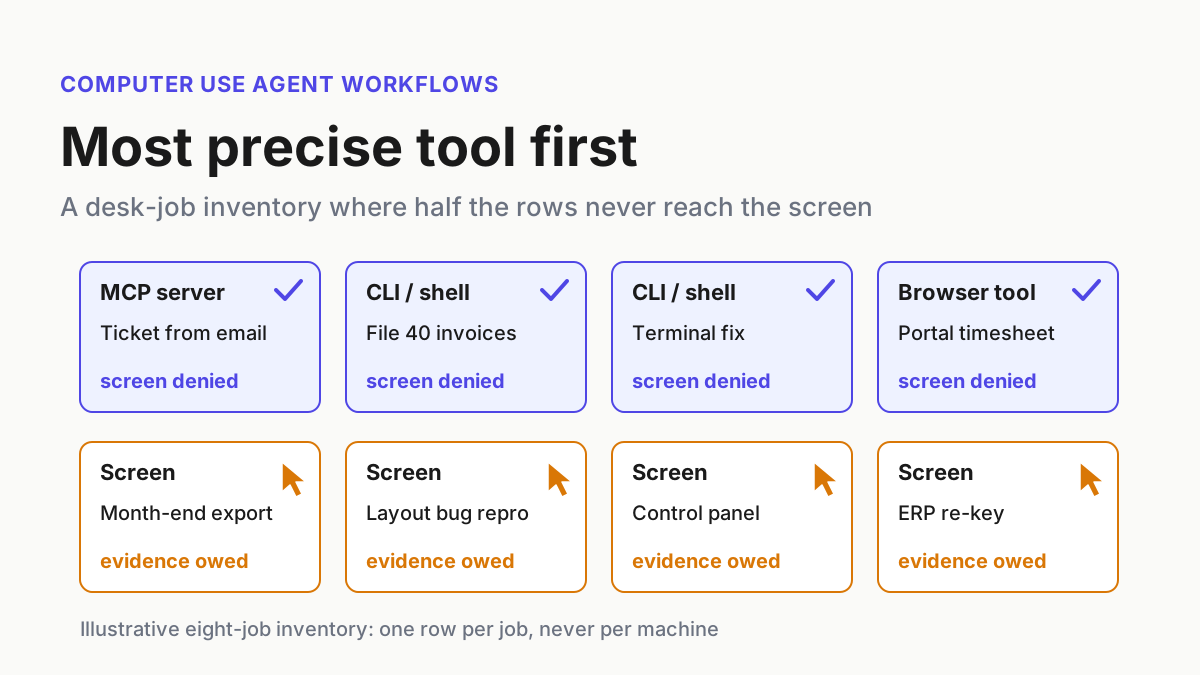
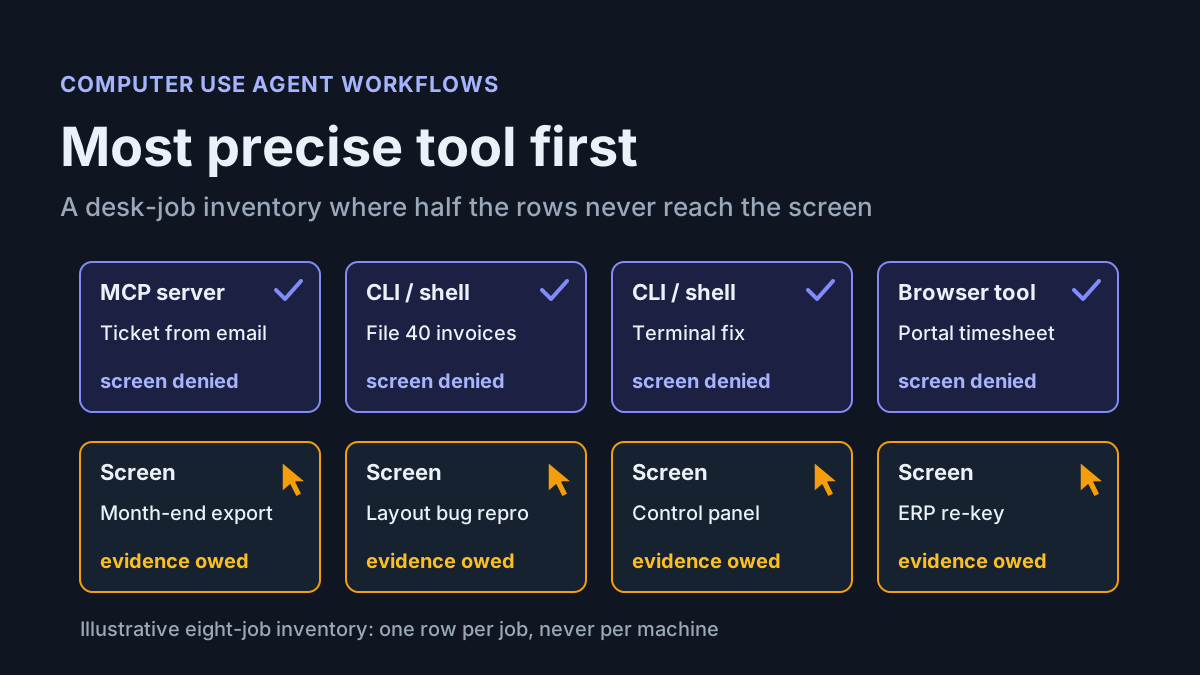
So before an agent clicks anything for you, write the inventory. One row per recurring desk job, never per machine: file 40 invoices, fill a vendor portal, collect ten prices, run a three-step terminal fix. The first column asks whether a precise path exists, and in the illustrative eight-job inventory below it denies computer use to half the list before anyone opens a settings pane.
The rows that survive get five more columns: surface, a blast-radius label, attended or away, a kill switch, and the evidence the run must leave. A job with an empty evidence column is not a computer-use job. It’s a demo you would have to watch every time.
Where computer use runs changed between Sep 16 and Oct 6
The capability launches came first. Anthropic shipped Claude Fable 5.1 at the start of September, and OpenAI’s GPT-6 Astra followed in the first week of September with computer use across the API, ChatGPT and Codex. Astra’s page names the target jobs plainly: “It can take care of tedious tasks like filling out online forms, updating customer records in a CRM, and organizing your calendar.” What that means per machine already has its own host ledger.
The fortnight after was about placement. On Sep 16 Anthropic announced that “Claude Cowork and chat are merging into one Claude”, Pro and Max first, with Claude still asking before it acts by default (“You keep the final say”). On Sep 21, Perplexity’s changelog described Portable Computer running the “orchestrator, models, tools, local search, and task queue all on device,” plus a Hybrid Compute mode that “delegates sensitive steps and private-file access to your Mac.” On Sep 25, Microsoft’s Source EMEA post introduced Copilot Autopilot: “Autopilot works as an agent that can continue working on tasks independently, even when the user is away.”
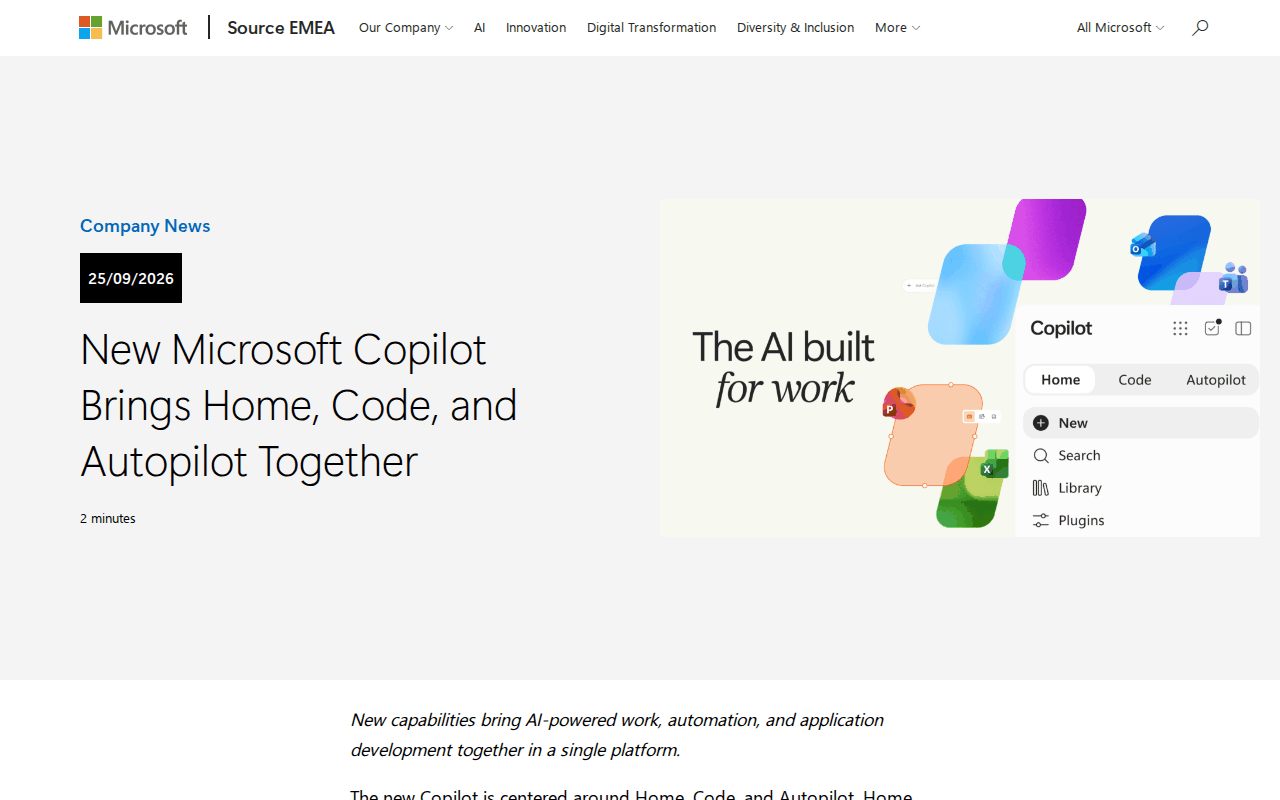 Screenshot: Microsoft Source EMEA, “New Microsoft Copilot Brings Home, Code, and Autopilot Together” (Sep 25, 2026), captured Oct 5, 2026.
Windows itself moves slower. Its experimental agentic features, meaning the agent workspace, agent accounts and Copilot Actions, stay off by default behind an administrator toggle, and once enabled the agent gets read and write access to six known folders such as Documents and Downloads. Microsoft’s principles for that workspace read like an evidence spec: “All actions of an agent are observable and distinguishable from those taken by a user,” and “Agents must be able to produce logs outlining their activities.”
Then tomorrow. A heads-up on Anthropic’s Cowork help page says that on October 6, 2026, new Cowork tasks on Pro and Max plans run in the cloud and the “Only on your computer” option in Settings > General is removed; tasks you already started on your computer stay there. Within two weeks, two vendors put the worker somewhere other than the desk you are sitting at. Most inventories have no column for that.
Why the screen is the last rung for computer use agent workflows
Claude Code’s computer-use documentation spells the order out as four if-statements (MCP server, Bash, Claude in Chrome, then the screen) and says screen control is “reserved for things nothing else can reach.” Its own examples of what’s left are telling: “design tools, hardware control panels, the iOS Simulator, or proprietary apps that have no CLI or API.”
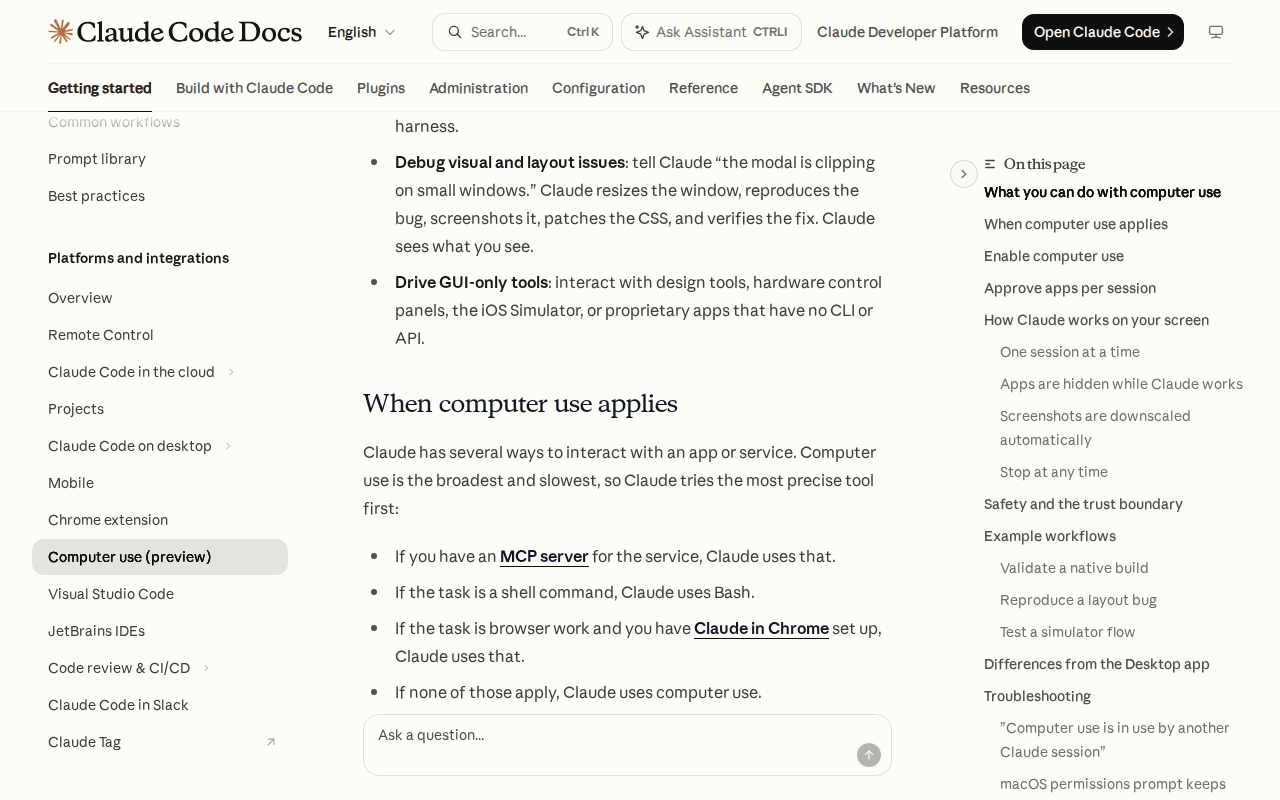 Screenshot: code.claude.com, “Let Claude use your computer from the CLI - Claude Code Docs” (undated docs page, “When computer use applies” section), captured Oct 5, 2026.
The same page hands you the vocabulary for a blast-radius column. Apps are approved per session, and some approvals carry warnings: terminals and IDEs are “Equivalent to shell access,” Finder “Can read or write any file,” and some apps “Can change system settings.” Browsers and trading platforms are view-only; terminals and IDEs are click-only. Esc aborts from anywhere, and “the key press is consumed so prompt injection can’t use it to dismiss dialogs.” One session holds the screen at a time. In the CLI the feature is a research preview for macOS on Pro and Max plans, not Team or Enterprise, and it stays off until you enable the computer-use server.
That is a vendor telling you the mouse is the most expensive tool in the drawer: slowest, widest, hardest to audit. Any job that fits a narrower door should use it.
Build the desk-job inventory: one row per job, eight columns
Open a spreadsheet, not a vendor console. The inventory is a document you keep, and it outlives whichever agent product you are trialing this month. The columns are fixed: Job · Precise path · Verdict · Surface · Blast radius · Attended or away · Kill switch · Evidence. The first three apply to every row. The last five apply only to rows that survive the second column.
Step 1: Write jobs, not hosts
Each row is a verb, an object and a cadence. “Rename and file the 40 vendor invoices that land every Friday” is a row; “the finance Mac” is not. Pull candidates from what people repeat: the month-end checklist, recurring calendar holds, tickets that say “manually”.
If a machine name or an account creeps into the Job column, move it out. Hosts belong in the host ledger linked above, and who may drive which endpoint belongs in your endpoint entitlement policy. This document answers a different question: should this job ever be done by moving a pointer?
Step 2: Walk the precise-tool ladder and deny on the first yes
Ask four questions in order and stop at the first yes:
- Does the service have an MCP server or an official API you can call?
- Is the job a shell command or a CLI call (including a plain HTTP fetch)?
- Is it browser work that a browser tool can do inside the page?
- Only if all three are no: the screen.
The rule is mechanical. A yes on rungs 1 to 3 writes Denied in the Verdict column for computer use, along with the path you found. You are not deciding whether the agent could click through it; you are recording the narrower door so nobody reaches for the wider one by habit.
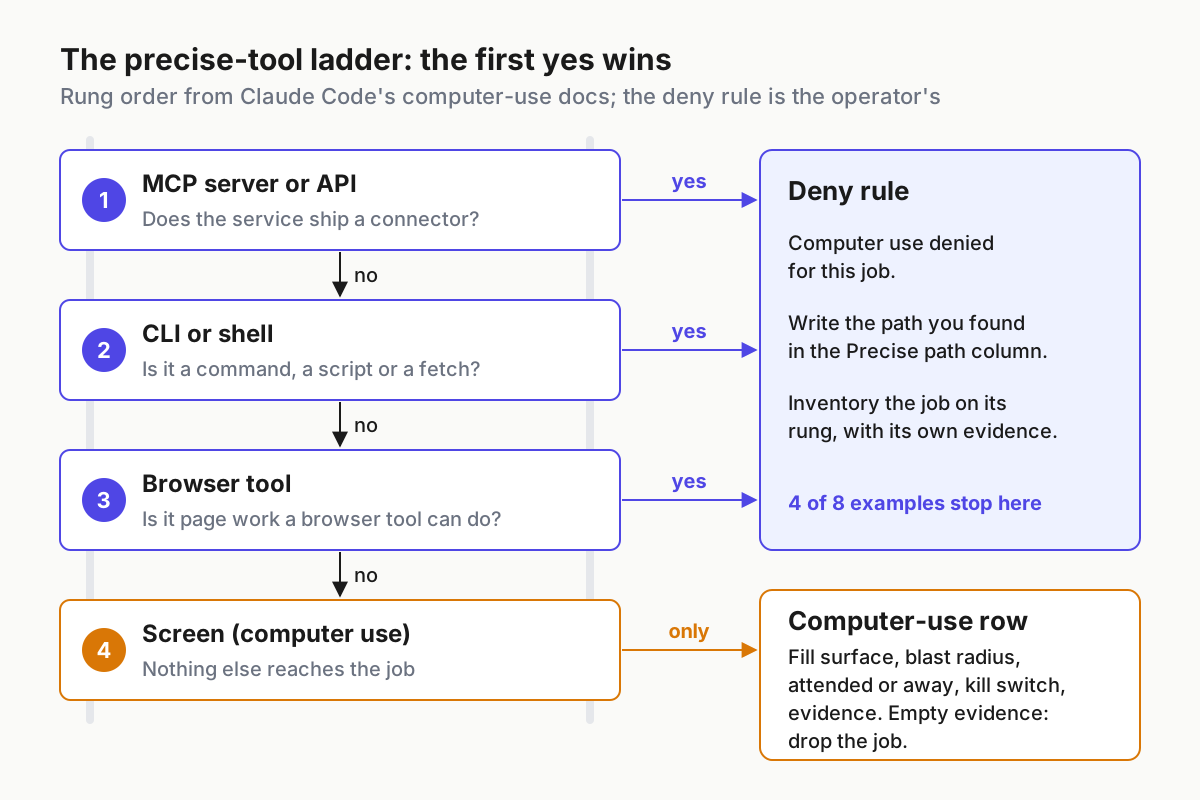
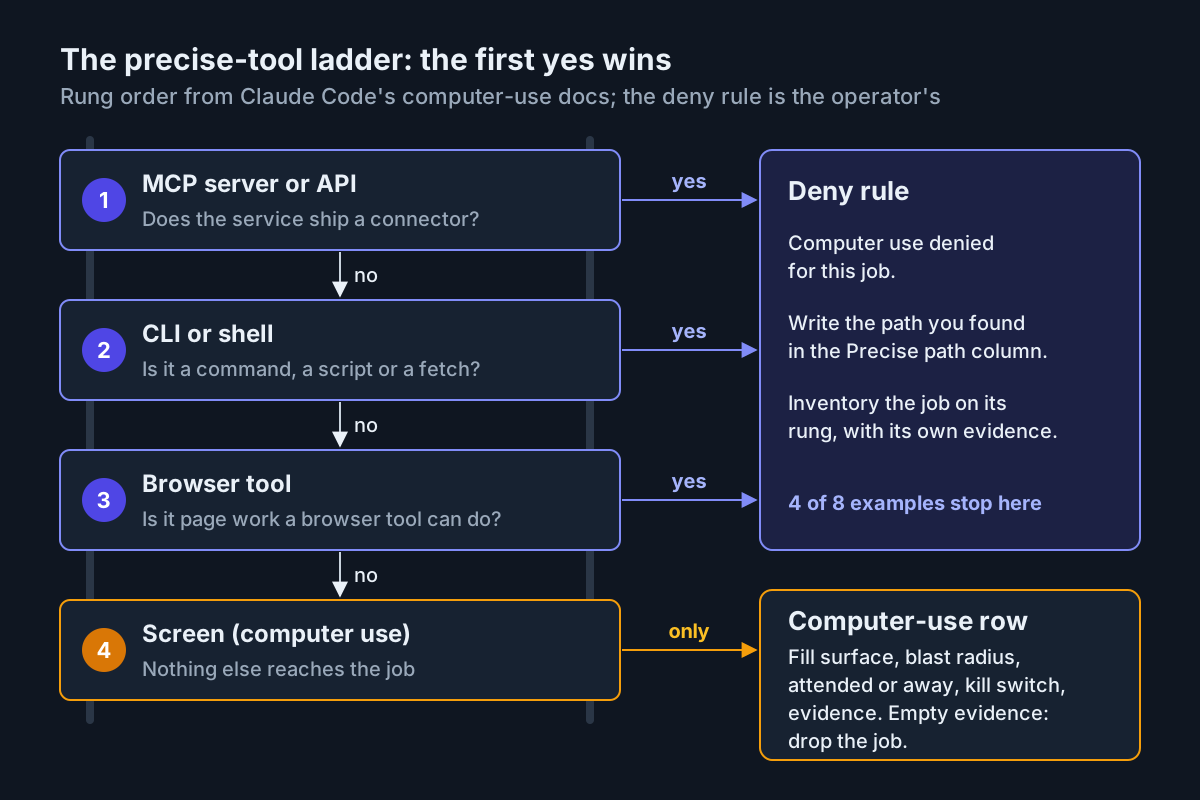 The precise-tool ladder: rung order from Claude Code’s computer-use docs; the deny rule and the computer-use row are the operator’s.
Read-only research jobs, such as collecting ten competitor prices or summarizing a docs page, almost always stop at rung 2, and the web-to-Markdown research table owns those rows. Give them one line here and move on.
Here is the ladder applied to eight illustrative desk jobs. The verdicts are a worked example, not survey data.
| # | Desk job (illustrative) | First rung that fits | Computer use |
|---|---|---|---|
| 1 | Open a tracker ticket for each flagged support email | MCP server (the tracker ships one) | Denied |
| 2 | Rename and file the 40 vendor invoices that land every Friday | CLI: PDF text extraction plus a rename script | Denied |
| 3 | Three-step terminal fix on a dev box: stop service, clear cache, restart | Shell | Denied |
| 4 | Fill the vendor portal’s weekly timesheet | Browser tool | Denied |
| 5 | Export the month-end aging report from a desktop-only accounting app | None | Row continues |
| 6 | Reproduce a layout bug in a native build or simulator | None | Row continues |
| 7 | Change a setting in a hardware control panel utility | None | Row continues |
| 8 | Re-key line items from scanned delivery notes into a legacy desktop ERP | None (no import, no API) | Row continues |
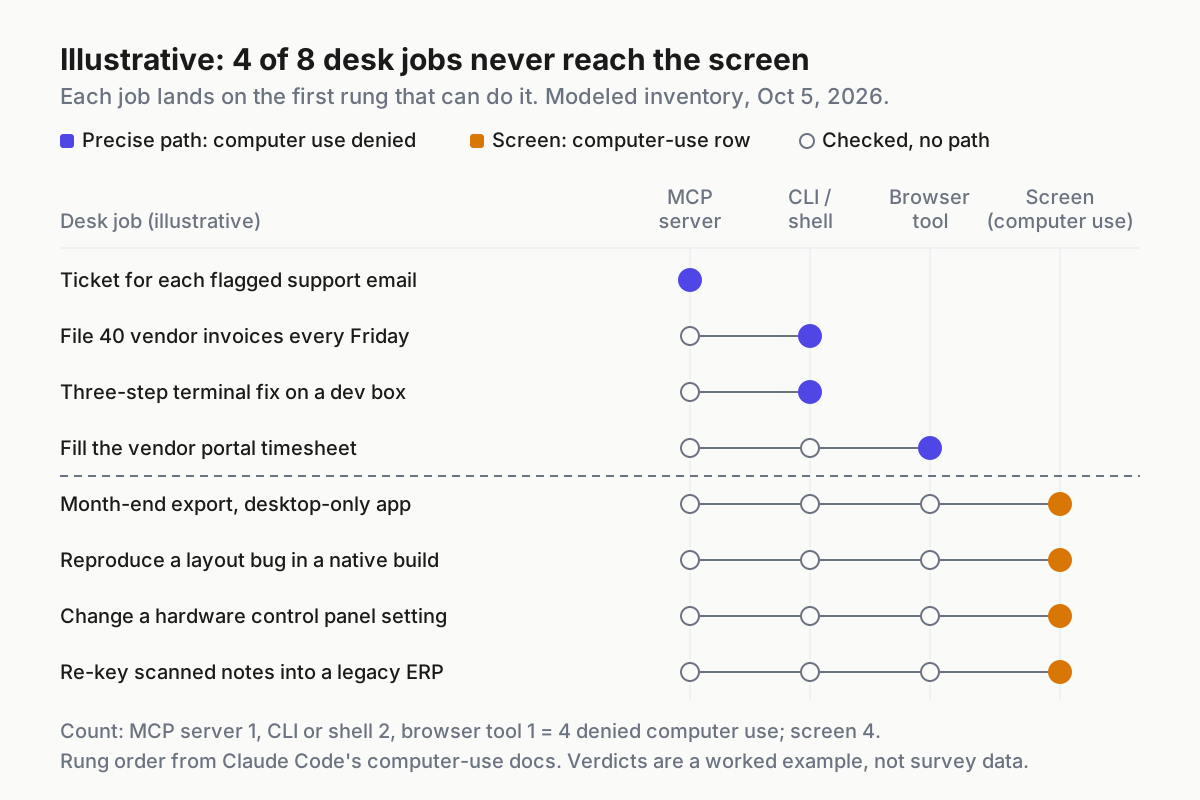
 Illustrative: each job lands on the first rung that can do it. Four of eight never reach the screen; the chart is a modeled inventory, not measured data.
Two of the denials surprise people. The invoice job feels like desk work, but the reading is a document-conversion step and the filing is a rename, so a script beats a pointer on speed and on the record it leaves. The timesheet job is a browser job, and a browser tool acting in the page is still an acting agent with its own injection problem; it gets inventoried on rung 3 with its own evidence, not waved through as computer use.
Step 3: Name the surface for every surviving row
For rows that reach the screen, write where the pointer actually goes: native app, save dialog, system settings, simulator. Be literal. “Accounting app plus the save dialog” is a different blast radius from “accounting app”, because the save dialog is a file manager in disguise.
If the surface you write down is a terminal, go back to Step 2. A job whose only surface is a terminal has a shell path by definition, and Claude Code labels the terminal “Equivalent to shell access” anyway.
Step 4: Copy the vendor’s warning into the blast-radius column
Use the approval warnings as your labels, so the word in your row matches the word in the prompt the operator sees. Add one label of your own for apps that carry no warning.
| Label | Where the vendor applies it | What the row then requires |
|---|---|---|
| Shell-equivalent | Terminals, IDEs (“Equivalent to shell access”) | Not a screen row; reroute to the shell rung under your normal permission mode |
| Any-file | File managers such as Finder (“Can read or write any file”) | One named folder, plus a before/after file list with hashes |
| System-settings | Apps that “Can change system settings” | Attended only; the changed value read back afterwards |
| View-only | Browsers and trading platforms | Observation only; acting in a page belongs to the browser rung |
| App-scoped (your label) | Apps with no warning | The app’s own receipt: record ID, export file, confirmation number |
When a row’s label and the approval prompt disagree, the job changed. Rewrite the row before the next run.
Step 5: Mark attended or away, and tier away rows like headless runs
This is the column the September news created. Autopilot is pitched on working “even when the user is away”, and from tomorrow new Cowork tasks on Pro and Max start in the cloud. An away row is an unattended run, so give it the same tier you give headless CLI runs: no production credentials, a narrow allowlist, and a record a reviewer can check without replaying the session.
Three rules keep the column honest:
- No away on system-settings rows, and any-file rows only inside one named folder. If nobody is watching, the widest labels stay off or stay fenced.
- Away rows need a stop the vendor enforces. OpenAI’s Astra page says its Auto-Review safeguards pause for confirmation in ChatGPT and Codex, but API tasks stop without confirmation options. Plan for the stop, and make the evidence column record where it happened.
- Promote, never assume. A row runs attended until it has four clean runs of evidence, then moves to away by a dated decision with an owner’s name on it.
Step 6: Write two kill switches per row
Every surviving row gets a vendor stop and an operator revoke, and both get tested.
The vendor stop is whatever ends the run now: Esc in Claude Code’s CLI, the stop or pause control in a task view, or ending the session that holds the one-session screen lock. The operator revoke is what keeps it ended: remove the driving app’s screen and input permissions at the operating system, revoke the per-session app approval, sign the driver account out of the target app, or turn off the administrator toggle for Windows’ experimental agentic features.
Write the revoke as a click path or a command someone else can follow at 2 a.m., then time it. A row whose revoke nobody has tried is a row with one kill switch.
Step 7: Fill the evidence column or drop the row
Evidence is what lets you believe a run you did not watch. Match it to the surface:
- File jobs: a before/after file list with hashes, so you can prove what moved and that nothing else changed.
- Form and record jobs: the confirmation ID or record ID, plus a checkpoint screenshot of the submitted state.
- Settings jobs: a before/after screenshot and the value read back by a separate check.
- Exports: the output path, its hash, and a row count compared against the total the app shows.
- Every job: the transcript, and an end-state check that does not depend on the agent saying it finished.
The file-job shape is three lines of shell: hash the folder before the run, hash it after, keep the diff (illustrative paths).
find ~/Exports -type f -print0 | xargs -0 shasum -a 256 | sort > before.sha256
find ~/Exports -type f -print0 | xargs -0 shasum -a 256 | sort > after.sha256
diff before.sha256 after.sha256 > run-delta.txt
A row’s full entry, kept in the same repo as the evidence it points at, looks like this (illustrative):
job: Export the month-end aging report from the desktop accounting app
cadence: monthly, first business day
precise_path:
  mcp_or_api: none
  cli: none
  browser_tool: not applicable (desktop-only app)
verdict: computer-use row
surface: native app plus save dialog
blast_radius: app-scoped; save dialog is any-file, scoped to ~/Exports
mode: attended (promotion review 2026-11-02)
kill_switch:
  vendor: Esc global abort; stop in the task view
  operator: revoke screen and input permissions for the driver app
evidence:
  - output file path and sha256
  - row count equals the on-screen report total
  - checkpoint screenshot of the report filter before export
  - transcript
owner: finance-ops
last_reviewed: 2026-10-05
If you cannot fill the evidence list, the job is not ready for computer use, whatever the demo looked like. How you grade a run against that list, with weighted end-state checkpoints and process questions, is the job of the trajectory-review sheet.
Here is the four-row remainder of the illustrative inventory, filled in:
| Job | Surface | Blast radius | Attended or away | Kill switch (vendor + yours) | Evidence the run must leave |
|---|---|---|---|---|---|
| Month-end export | Native app plus save dialog | App-scoped; save dialog any-file | Attended, promotion review after four clean runs | Esc or task stop; revoke the driver app’s permissions | Output hash, row count vs on-screen total, filter screenshot |
| Layout bug repro | Native build or simulator | App-scoped | Attended | Esc; quit the simulator | Screenshots at the failing size before and after, the patch diff |
| Control panel setting | Hardware utility | System-settings | Attended only | Esc; revoke the app approval | Value read back by a separate check, before/after screenshot |
| ERP re-key | Legacy desktop app | App-scoped, writes records | Attended until four clean runs | Task stop; sign the ERP driver account out | Record IDs created, count vs source, sampled field check |
Step 8: Review weekly and re-run rung 1 for every screen row
Connectors ship constantly, so the precise-path column goes stale fastest. Once a week, for every row that reached the screen:
- Re-ask rung 1 and rung 2: did the app’s vendor ship an MCP server, an API or a CLI?
- Compare last week’s runs against the evidence column; any run missing an item is a failed run.
- Check each vendor’s surface notes for a change to where tasks execute, and re-mark attended or away.
- Confirm the kill-switch drill date is under 30 days old.
- Retire rows nobody ran in a month; dormant approvals are still approvals.
How a desk-job inventory goes stale, and the signal for each
A screen row outlives its reason. The signal is a vendor shipping an MCP server or CLI for an app that still sits on the screen rung. The weekly rung-1 check catches it; when a row flips to Denied, retire its kill-switch drill along with it.
The Job column fills with machine names. The signal is rows like “closet Mac mini” or “finance laptop”. That is the host ledger leaking in, turning the document back into who can drive what instead of what should be driven at all.
Attended rows go away without anyone deciding. The signal is a run that finished with no human timestamp, or a task view that says cloud where your row says attended. Re-snapshot the column after every vendor surface change, starting with Oct 6.
Evidence degrades to the agent’s own summary. The signal is an evidence cell that reads “transcript” and nothing else, or an end-state check that is the agent writing “done”. Treat it as a failed run until a separate check passes.
The kill switch was never pulled. The signal is that nobody can say how long the revoke takes, or the steps live in one person’s head. Drill it monthly and write the time in the row.
An approval quietly widens the blast radius. The signal is a terminal or file manager showing up in the per-session approvals for a row labeled app-scoped. The label in the row and the warning in the prompt should match; when they don’t, stop the row and rewrite it.
A desk-job inventory belongs in the fleet ledger
Computer use is one more lane in a fleet you already run: CLI sessions, scheduled tasks, cloud workers, now a pointer. The inventory turns a capability into jobs with owners, and asks what you ask of every other session: who is driving, where is the record, how do I stop it?
If you run several assistants side by side under one boss, this inventory is the page that says which of them should ever touch a screen, and for which jobs. The tray-versus-desktop-worker rule is the same discipline one level up: decide where work runs before the vendor’s default decides for you.
FAQ
What are good computer use agent use cases?
Jobs whose only interface is a screen: desktop-only apps with no API or CLI, native builds and simulators you need to see, hardware control panels, and legacy systems without an import path. If the service has an MCP server, an API, a shell path or a browser tool, use that and keep computer use for the rest.
Should a computer use agent run while I’m away?
Only for rows with an app-scoped blast radius, a tested kill switch and evidence a reviewer can check without replaying the run. Treat away runs like headless runs: no system-settings rows, any-file rows fenced to one folder, no production credentials, and a stop condition the vendor enforces when nobody is there to confirm.
Is a browser agent the same as computer use?
No. A browser tool acts inside the page; computer use drives the whole screen with pointer and keyboard. Claude Code’s docs route browser work to Claude in Chrome before computer use and treat browsers as view-only under screen control. Inventory browser jobs on their own rung, with their own evidence and injection precautions.
Sources
- Claude Code Docs, “Let Claude use your computer from the CLI” (accessed Oct 5, 2026): https://code.claude.com/docs/en/computer-use
- Claude blog, “Cowork is now Claude” (Sep 16, 2026): https://claude.com/blog/cowork-is-now-claude
- Claude Help Center, “Use Claude Cowork on web, desktop, and mobile” (Oct 6 heads-up, accessed Oct 5, 2026): https://support.claude.com/en/articles/15520349
- Microsoft Source EMEA, “New Microsoft Copilot Brings Home, Code, and Autopilot Together” (Sep 25, 2026): https://news.microsoft.com/source/emea/2026/09/new-microsoft-copilot-brings-home-code-and-autopilot-together/
- Microsoft Support, “Experimental agentic features” (accessed Oct 5, 2026): https://support.microsoft.com/en-us/windows/ai/ai-features/experimental-agentic-features
- Perplexity changelog, “Effort Mode, GPT-6 Astra, and Skills Marketplace” (Sep 21, 2026): https://www.perplexity.ai/changelog/effort-mode-gpt-6-astra-and-skills-marketplace
- OpenAI, “GPT-6 Astra” (early Sep 2026; updated Sep 22 and Sep 29): https://openai.com/index/gpt-6-astra/
- Anthropic, “Introducing Claude Fable 5.1 and Claude Mythos 5.1” (early Sep 2026): https://www.anthropic.com/claude-fable-and-mythos-5-1