Verify Docker Sandboxes Network Policy With Two HTTPS Requests
Verify Docker Sandboxes network policy with two bounded HTTPS requests. Match each result to the proxy log and tell a policy block from an upstream failure.

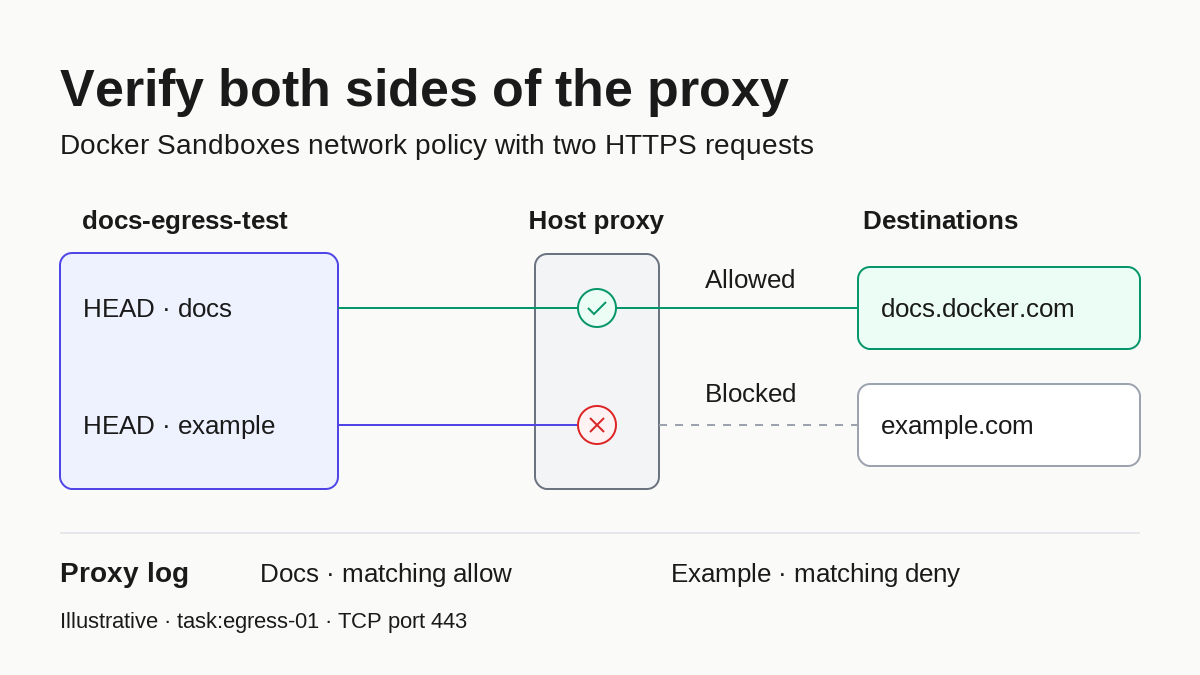
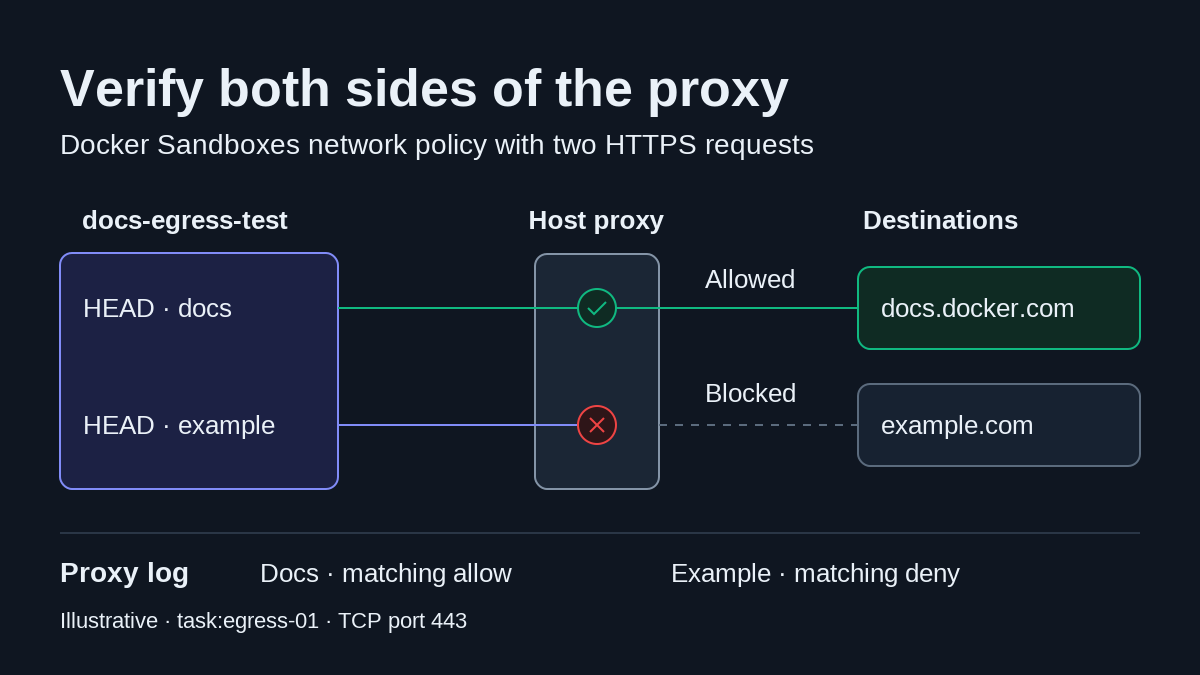
A coding agent says it cannot open the Docker documentation. You can see an allow rule for the site, and a second request to a denied hostname fails too. Before changing either rule, find out what the proxy did with each request. This Docker Sandboxes network policy check gives you a positive control that should reach a documentation site and a negative control that should be stopped by an explicit rule. You will end with two client results, two matching proxy decisions, and enough context to explain a mismatch.
Docker’s November 25, 2026 walkthrough pairs requests from inside a sandbox with the network log to verify enforcement. Here you will run the probes in a disposable local shell sandbox before giving a coding agent access. Docker’s guardrails walkthrough
If you still need to choose a workspace and set up an agent kit, start with the Docker Sandboxes setup guide. Use the procedure below when you need to explain what happened to a specific network request.
Fix the sandbox and the two destinations
- From a Mac or Linux host terminal with the
sbxCLI ready for local use, runsbx ls. Ifdocs-egress-testalready exists, confirm it is your disposable shell sandbox before reusing it. If the name is free, create the fixture with the commands below. Keep agents and other test clients out of it while you collect the observations. - Use
docs.docker.com:443as the approved documentation destination andexample.com:443as the explicitly denied comparison. The two requests will usehttps://docs.docker.com/andhttps://example.com/. Label the casetask:egress-01in your notes. - Inspect the baseline with
sbx policy ls --wide. Record any existing rules for either exact resource and whether governance applies. Runsbx policy log docs-egress-test --limit 0and keep the output so you can tell whether later rows are fresh.
If you need a fresh fixture, run this block from the host. Use the workspace path only if it is new or already an empty directory reserved for this exercise. Docker’s walkthrough uses the same named shell creation form with an explicit scratch workspace and runs curl in the resulting sandbox. Docker’s shell sandbox example
mkdir -p "$HOME/sbx-egress-01/workspace"
sbx create --name docs-egress-test shell "$HOME/sbx-egress-01/workspace"
For either a new or reused fixture, confirm the name with sbx ls and run sbx exec docs-egress-test curl --version. Expect curl to print its version information before you attempt either HTTPS request. If creation fails with a workspace policy decision, check which scratch path you are authorized to mount. If the sandbox exists but curl cannot start, resolve that prerequisite before collecting network evidence. Keep the host scratch directory distinct from the location where you will save your final log. Docker’s sbx exec reference
The two requests use the same sandbox, scheme, port and HTTP method. The destination and its applicable rules are the deliberate differences. The approved host checks that the client can make an HTTPS request in this environment. The denied host gives you a concrete rule to look for at enforcement time. If both probes fail, the positive control has failed and you still need to establish whether something as ordinary as a broken client or a bad network connection explains the result.
Use an existing local configuration where you are authorized to add sandbox-scoped rules. Local policy starts with the configured preset and combines applicable rules, including any from a kit. A deny can take precedence over an allow. An unmatched destination can require an approval under a restrictive preset. Record that case as approval-required if it occurs. The explicit deny in this example gives you a deliberate policy decision to verify even when a preset already limits access. Docker Docs on local policy
Keep the existing preset during the exercise. Changing it would alter the starting policy for other sandboxes and make it harder to attribute the outcome to the test rules. On a governed machine, the documentation destination needs the applicable organization permission. If it lacks that permission, use an authorized test environment where it can be approved. A local allow cannot grant extra organization access. Record an organization deny or approval requirement if it explains a preflight result. Docker’s explanation of organization governance
Install the scoped rules and predict the decisions
- Run the rule commands below for a fresh fixture with neither test rule present. If the documentation endpoint already has an effective allow, use it and skip the redundant rule. Record exactly which rules you add so you can remove just those rules afterward.
- Check each host with
--sandbox docs-egress-test. Read the decision and any associated reason or context. Proceed when the documentation host is allowed and the comparison host is explicitly denied. - If the preflight differs, compare the baseline policy and the new listing. Save the unexpected output and resolve the difference before using the paired probes as a verification test.
# On the host. Confirm the fixture and record the baseline.
sbx ls
sbx policy ls --wide
sbx policy log docs-egress-test --limit 0

# Add only the rules missing from the disposable local fixture.
sbx policy allow network --sandbox docs-egress-test docs.docker.com:443
sbx policy deny network --sandbox docs-egress-test example.com:443
sbx policy ls --wide

# Run these separately. Denied is expected for the second check.
sbx policy check network --sandbox docs-egress-test docs.docker.com:443
sbx policy check network --sandbox docs-egress-test example.com:443
The allow command accepts an exact hostname with an optional port and defaults to TCP. The deny command accepts the same destination forms and defaults to TCP and UDP, so it covers the TCP probe. Both commands default to global policy when the sandbox flag is absent. The exact host and port tie the exercise to the endpoints in the terminal output, while the sandbox name scopes the rule changes to the disposable fixture. Allow network reference · Deny network reference
If a rule command refuses an opposite decision at the same scope, inspect the conflicting entry. An earlier experiment may have used the same fixture name. Establish ownership before removing anything. A global rule and a sandbox-scoped rule can coexist, so read both scope and decision when two rows mention the same host. If the exact documentation allow exists and the scoped check still reports Denied, look for an applicable deny, including one expressed as a broader hostname pattern. Docker’s deny rule and conflict semantics
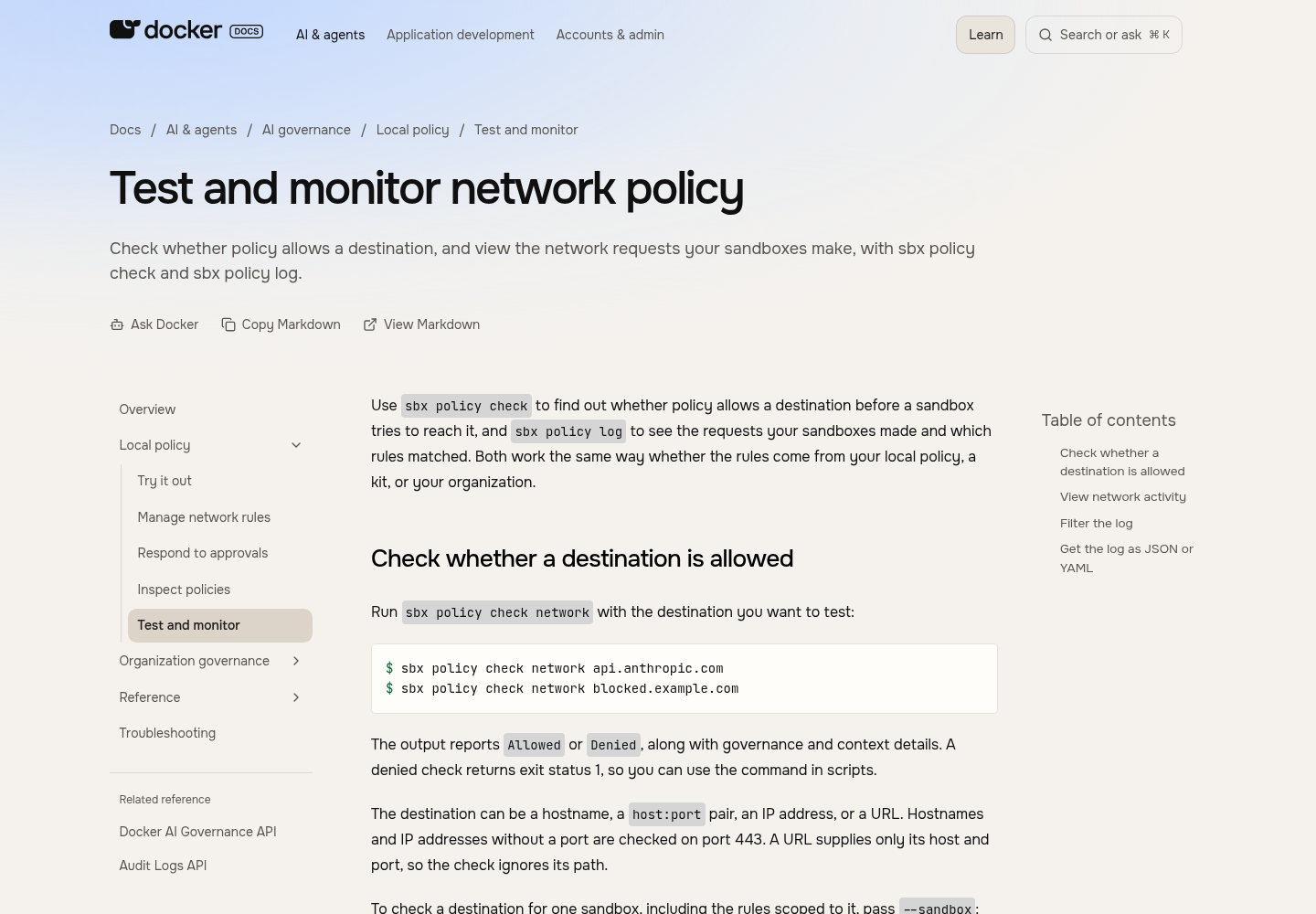
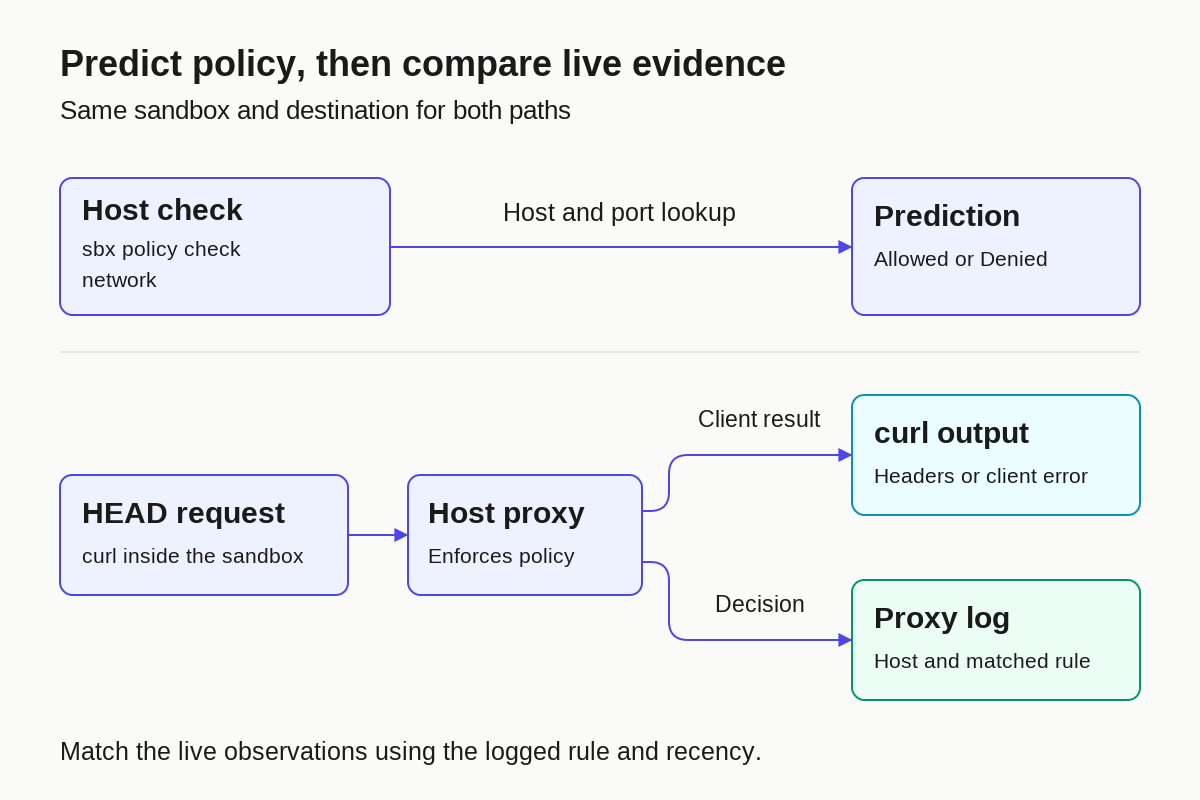
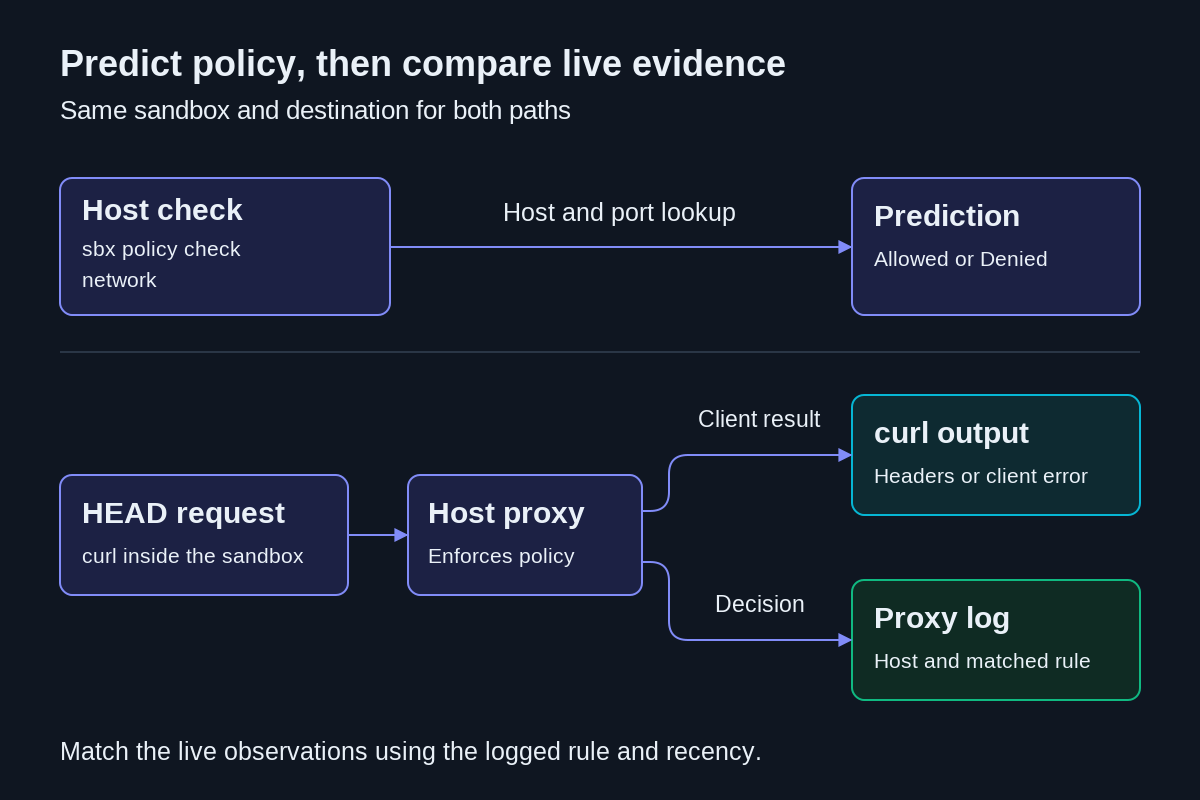
The network check evaluates the destination without sending a request or creating an approval request. A Denied result returns status 1. Pay attention to the reason, especially no matching allow rule (default deny) or a message that organizational policy requires approval. A URL supplied to this check contributes its host and port. Its path and the intended HTTP method need live request evidence, which matters if the sandbox inherits request-level restrictions. Docker Docs on testing destinations
Run both HTTPS requests from inside the sandbox
- Run the documentation probe and keep any headers, error text and exit status together. Run the denied probe in the same sandbox with the same policy still in effect.
- Read both outcomes even when one exits nonzero. Use an ordinary interactive shell without exit-on-error, or enter each request and its following
printfseparately in that shell. Chaining the requests with&&would hide the second observation if the first request failed. - Inspect the sandbox-filtered log before running more requests. If the expected deny instead returns destination headers, keep the client output and the log and investigate the rule before using the policy for an agent.
sbx exec docs-egress-test curl -fI --max-time 15 https://docs.docker.com/
printf 'docs.docker.com exit=%s\n' "$?"

sbx exec docs-egress-test curl -fI --max-time 15 https://example.com/
printf 'example.com exit=%s\n' "$?"

sbx policy log docs-egress-test --limit 0
Enter sbx exec on the host. It runs the command inside the named sandbox and starts the sandbox first if it was stopped. The local invocation returns the command’s exit status when the command runs. Status 125 means sbx could not run the command, for example because the sandbox does not exist. A missing command exits 127. If one of those appears with the corresponding launch error, fix the sandbox name or supply a fixture that contains curl before diagnosing egress. Docker’s sbx exec reference
-I makes the probe an HTTPS HEAD request for headers. With curl’s normal defaults, the commands leave redirects unfollowed so a Location header cannot silently bring another destination into the test. --max-time 15 gives curl a 15-second limit per transfer. Sandbox startup can happen before curl begins. The -f option makes curl treat applicable HTTP errors as failures. Docker’s example shows a 403 for its blocked request. Keep any status or message you see and use the proxy decision to determine whether policy blocked the request. Docker’s bounded HTTPS request example
The following outcomes are illustrative expectations for one run. Compare them with the output you actually capture.
| Input | Action | Expected result |
|---|---|---|
task:egress-01 in docs-egress-test, approved destination docs.docker.com:443 |
sbx policy check network --sandbox docs-egress-test docs.docker.com:443, then sbx exec docs-egress-test curl -fI --max-time 15 https://docs.docker.com/ |
Allowed at preflight, a response attributable to the destination, and a fresh matching row under ALLOWED REQUESTS in the sandbox log. |
task:egress-01 in docs-egress-test, explicitly denied destination example.com:443 |
sbx policy check network --sandbox docs-egress-test example.com:443, then sbx exec docs-egress-test curl -fI --max-time 15 https://example.com/ |
Denied at preflight, a failed live request, and a fresh BLOCKED REQUESTS entry that matches the explicit test deny. |
task:egress-01, both probes complete and baseline log saved |
sbx policy log docs-egress-test --limit 0 |
Correlate both destinations to the run using the decision group, host, rule and recency, even when the display groups repeated requests. |
Match the proxy rule before assigning a cause
- Find both destinations in the filtered log. For each, record the section (
ALLOWED REQUESTSorBLOCKED REQUESTS),HOST,RULEand any populatedREASON. Match the hostname and port as displayed to the request you issued. - Compare
LAST SEENandCOUNTwith your baseline. A previous block forexample.comcan remain visible after a later request behaves differently. Use recency or a changed count, along with the rule and decision group, to identify the observation that belongs to your attempt. - Pair each row with its curl output. Mark the documentation probe verified when you have both a response attributable to the destination and a corresponding allow. Mark the deny verified when the request fails and the current blocked entry matches the explicit test rule. Keep unexplained combinations open for diagnosis.
The log groups decisions by outcome and records the matching rule, proxy type and request count. REASON adds context when the daemon records it. A blank reason still leaves the decision group and the rule to inspect. Keep the RULE value as printed in your record. The PROXY field identifies the handling path. Docker documents forward and transparent as two paths that support policy enforcement. Policy log CLI reference · Docker Docs on log fields and proxy types
Docker’s host-level log omits HTTP methods and paths. Preserve the command with the relevant snapshot so a reviewer can see which path was tested and what request curl was supposed to make. A quiet sandbox, two distinct hosts and a before-and-after comparison help tie the request to the matching row. If several attempts share the same timestamp at the precision shown in the table, inspect the count and the structured timestamps. If attribution remains ambiguous, run one clean probe without other traffic and get the new snapshot before issuing the next request. The fleet replay guide discusses keeping evidence for later reconstruction, and the AgentOps guide places that evidence in the broader operation of agents. Fleet replay · AgentOps
When curl prints multiple header blocks, look for the destination response after any proxy tunnel negotiation. A tunnel acknowledgement by itself leaves the destination request still to be completed. A redirect from the documentation service can satisfy this hostname reachability test. Keep the Location value if the next task needs to follow it, then review that next hostname as a separate destination. A successful HEAD establishes reachability for the original hostname and the request you sent.
Diagnose mismatches without widening access
| Observation in the same run | Interpretation and next action |
|---|---|
| The example request fails and a fresh blocked row matches the explicit deny | Record the enforcement result and keep the client error with the log. |
| The example request fails and the current log shows default deny or an approval reason | Blocking occurred. Verify that the test rule was added, check the scope and confirm which rule matched. |
The documentation preflight says Allowed and a fresh row says blocked |
Start with the rule and reason from the live log. Check for a policy change or a restriction on the actual HTTP request. |
| The documentation row says allowed and curl reports a DNS, connection, TLS or timeout error | The proxy recorded an allow. Investigate the client error and leave reachability unresolved. |
| The documentation site returns a confirmed destination HTTP error with a matching allow | Record that the endpoint responded. Diagnose the HTTP status separately from host reachability. |
| A probe has no fresh corresponding row | Check the execution context and look for evidence that the request reached the proxy. Mark the probe inconclusive until you can correlate the observations. |
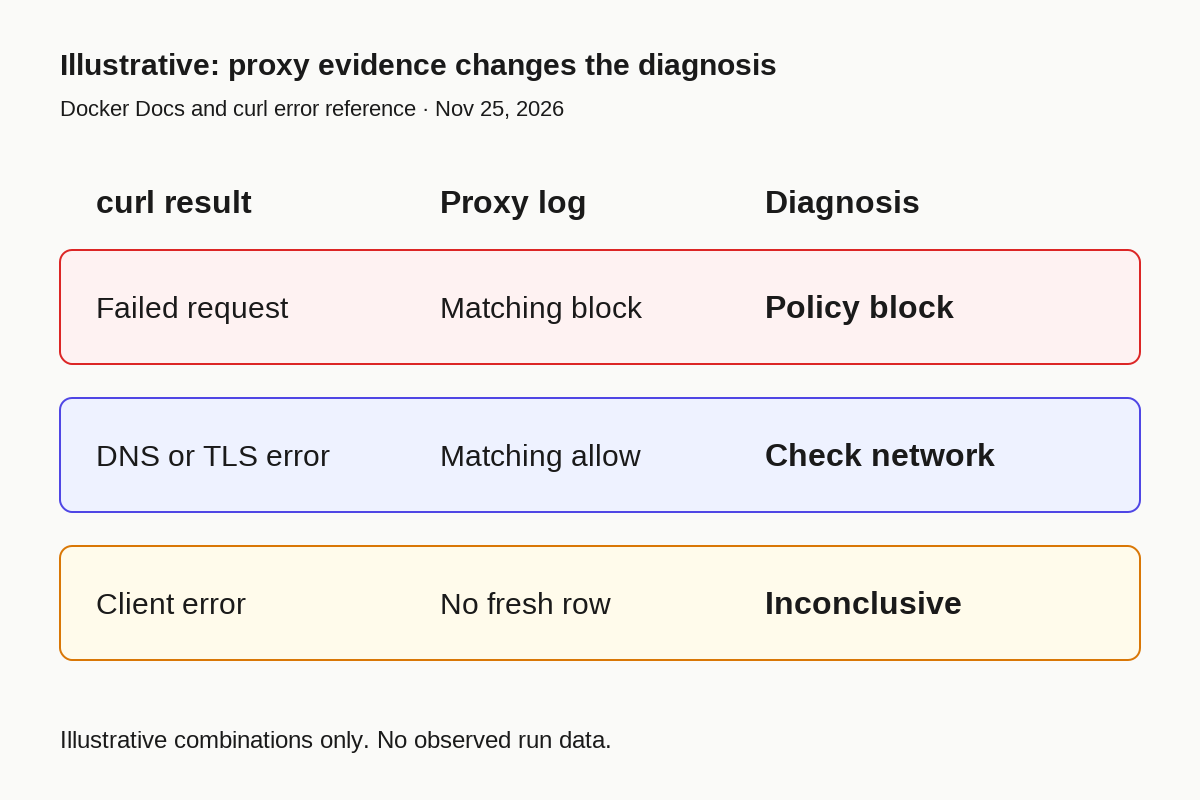
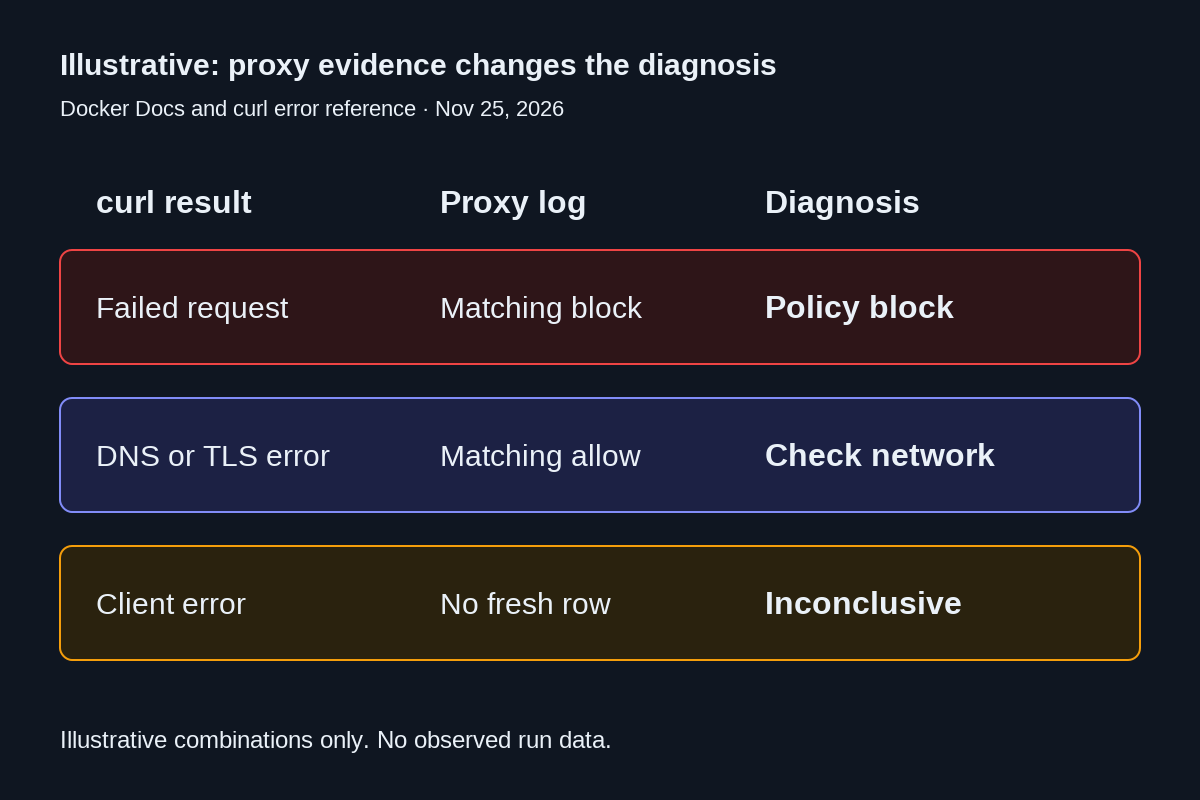
DNS and connection failures. A resolution message can refer to the proxy or the destination. The curl project documents error 5 for proxy resolution, 6 for host resolution and 7 for a failed connection to the host or proxy. Preserve the full message with the numeric status so the next person knows which name or connection to investigate. Check the exact hostname and which environment the client used. For a fresh allow alongside a resolution or connection error, take the pair of observations to whoever operates the resolver, host proxy or upstream network. When a lookup error arrives with no row, keep the question of whether the request reached enforcement open. curl project error reference
TLS and timeouts. The curl reference distinguishes a TLS handshake failure (35) from unsuccessful peer verification (60). Capture the detailed message and check the sandbox’s trust configuration through your normal certificate setup process. A timeout (28) tells you the configured time elapsed. Use the matching rule, if present, and the error text to decide where to investigate. If both probes time out, compare their rows separately. A matching block establishes what the proxy did on that path, while an allow still leaves open whether the documentation service ever responded. curl project error reference · Coding agents behind a corporate proxy
HTTP errors. With failure-on-HTTP-error enabled, curl can report 22 for an HTTP status of 400 or higher. A 403 can appear in a policy denial, and a remote service can also refuse a request. If curl identifies a failed proxy tunnel and the log shows the matching block, the evidence points to enforcement. If you can identify an HTTP response from the destination and the time-matched row shows allow, you have evidence of reachability and a separate application error to diagnose. For example, a confirmed destination response rejecting HEAD would establish reachability while leaving the coding agent’s eventual download untested. curl project error reference · Docker’s proxy block example
Missing or ambiguous log entries. First check the sbx exec prefix and sandbox name. A host-side curl command can work while contributing nothing to the sandbox log. A launch error or early client failure can also leave you without a useful proxy entry. Check the log filter, use --limit 0, and look in both decision groups. If stale traffic complicates the match, repeat one probe in the quiet sandbox and compare its two snapshots before trying the other. If the row still fails to appear, record the result as inconclusive and retain the client message. If the documentation request succeeded but its row is missing, preserve the headers as evidence of what curl observed and leave the proxy decision unverified. Docker Docs on sandbox log filtering and output
Save the result and remove the test rules
- Save both check outputs and the two curl results in host-side notes, including errors and exit statuses. Include the run time, sandbox name, expected outcome for each host and the actual rule shown in the matching log. If one half is inconclusive, identify the missing observation.
- Save the sandbox-filtered log before cleanup. The first command below writes JSON to a host file. Use a directory where you want to keep the record, choose a fresh filename if one already exists, and check that the file contains the expected log before proceeding.
- Remove only the rules you added to the disposable fixture. The resource-based example assumes each exact scoped resource was newly added and has only its single test rule in that scope. When the listing shows multiple rules for a resource, use
--idwith the actualRULE_IDfrom the wide listing and the same--sandboxscope. Check the listing after removing the rules. Then remove the disposable sandbox and verify it is absent fromsbx ls.
sbx policy log docs-egress-test --limit 0 --json > task-egress-01-proxy.json

# After checking the export, remove only newly added rules.
sbx policy rm network --sandbox docs-egress-test --resource docs.docker.com:443
sbx policy rm network --sandbox docs-egress-test --resource example.com:443
sbx policy ls --wide

# Confirm removal only for the disposable fixture.
sbx rm docs-egress-test
sbx ls
The JSON export lets another developer inspect allowed and blocked and compare first_seen, last_seen and count. The redirection writes on the host. Preserve the pre-cleanup export under its own filename. If the log export fails, keep the terminal output and correct the destination file or directory before deleting the fixture. The log’s rule label helps with attribution. For removal by ID, use the RULE_ID from the wide listing. If you reused an existing allow or deny, skip its removal. For a partially completed setup, remove only the rules the listing confirms you added. Docker Docs on JSON log output · Network rule removal reference
sbx rm docs-egress-test prompts for confirmation and deletes the sandbox’s local state. Check the name before confirming. Docker documents that the command keeps host-mount directories and persistent storage configured with retention. If you created $HOME/sbx-egress-01/workspace, review that scratch directory separately after removal and keep your evidence file before clearing any disposable files. Docker’s sbx rm reference
Use the record to decide whether the boundary is ready for the coding task. A destination response with a matching allow verifies the documentation half. A failed request with a fresh block attributable to the explicit deny verifies the comparison half. If the actual agent sandbox uses a different kit, scope or organization policy, run the checks in that sandbox before handing it the task. If the agent needs a specific API method or a redirected download, test that operation under the actual workload policy. Securing AI agents
Sources
- Docker, Prove your AI agent guardrails work
- Docker Docs, Test and monitor network policy
- Docker Docs, Local policy
- Docker Docs, sbx exec
- Docker Docs, sbx policy log
- Docker Docs, sbx policy rm network
- Docker Docs, sbx rm
- Docker Docs, sbx policy allow network
- Docker Docs, sbx policy deny network
- curl project, libcurl error codes