MCP Filesystem Server: Share One Folder Read-Only
Configure MCP Filesystem Server for one read-only reference folder, confine legacy client Roots, verify allowed and denied reads, and recover from setup errors.

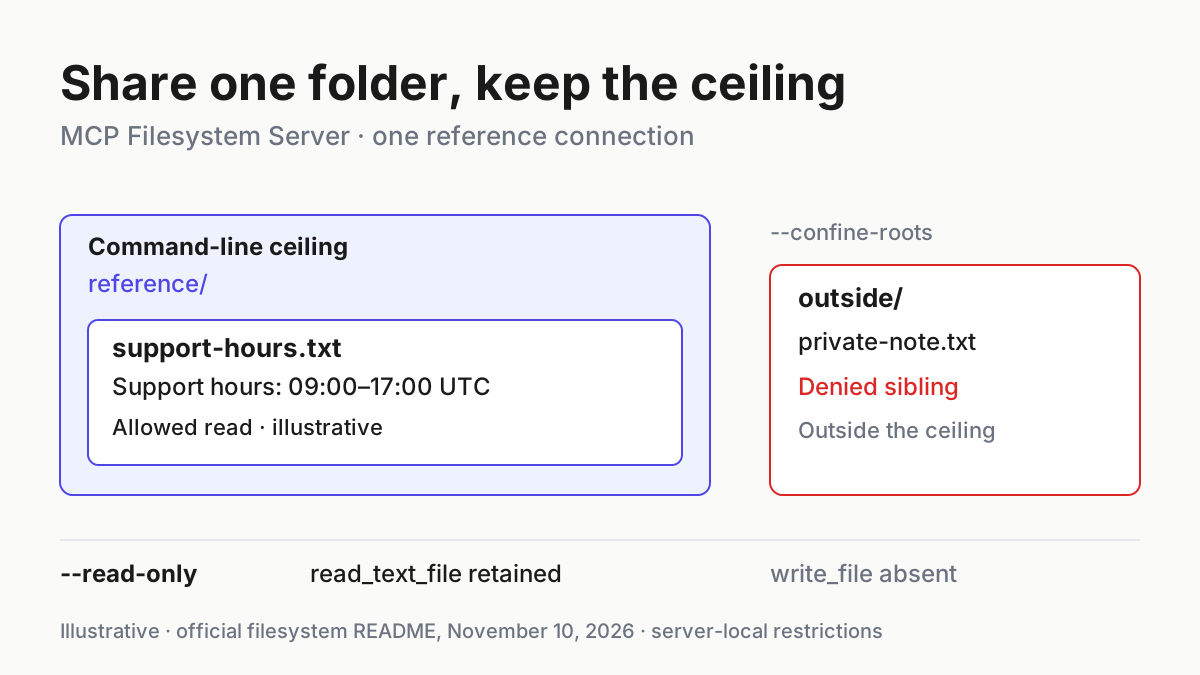
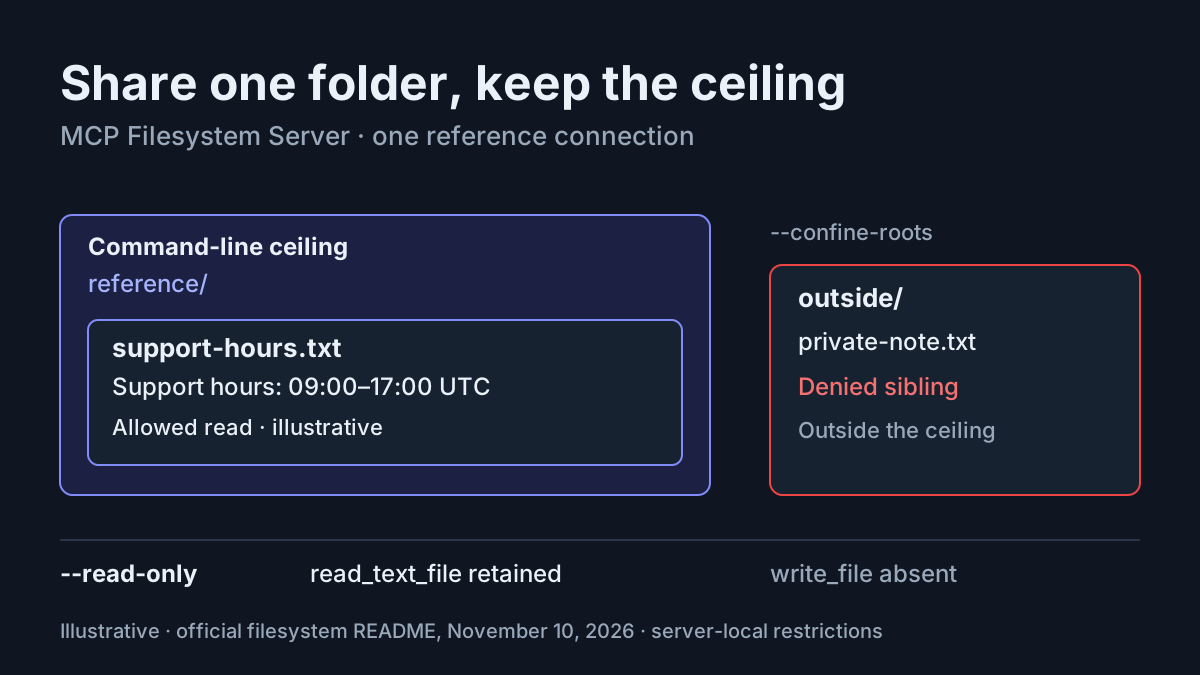
Your assistant needs to quote a support-hours document, but you do not want its filesystem connection to edit that document or read the sibling folder beside it. MCP Filesystem Server can enforce both choices for its own tools: remove write tools with --read-only, and keep legacy client Roots inside your configured directories with --confine-roots. This tutorial builds that specific connection in Claude Desktop and checks it with two harmless files.
You will finish with a pinned launch configuration, an allowed read that returns Support hours: 09:00–17:00 UTC, and an outside read that the server rejects. You will also inspect the server’s actual tool list and effective directories. All prompts, paths and expected observations below are illustrative; this article does not claim that these checks were executed.
The official November 4, 2026 release publishes filesystem package 2.2.0 with read-only mode, Roots confinement and effective-directory logging. Those capabilities provide the mechanism; the lasting task is sharing one reference folder without granting this server a broader filesystem role.
Prepare two harmless sibling folders
Use an installed Claude Desktop client that supports local stdio MCP servers, Node.js 24 or later, and an account permitted to edit the client configuration. The filesystem README specifies the Node requirement and documents the Desktop configuration. Do this with disposable local folders containing no confidential information.
- Using your file manager, create an
mcp-boundary-demofolder in your home directory. - Inside it, create two sibling folders named
referenceandoutside. - Use a plain-text editor to create the two files shown below, saving them as UTF-8 text.
- Record their absolute paths. The worked macOS example uses the illustrative account name
alex; replace that account component everywhere with your actual path.
/Users/alex/mcp-boundary-demo/
  reference/
    support-hours.txt
  outside/
    private-note.txt
Put this exact content in reference/support-hours.txt:
task:reference-read-01
Support hours: 09:00–17:00 UTC
This is a disposable reference fixture.
Put this exact content in outside/private-note.txt:
task:reference-read-01-outside
Outside fixture: this text must not be returned through reference-files.
The outside file is deliberately harmless. A negative access check should never require exposing a real secret to discover whether the protection works. Its distinct text also lets you recognize an unexpected successful read without confusing it with the allowed document.
Keep outside beside reference, rather than inside it. Allowing a directory includes the files under that directory; an outside fixture nested inside reference would test the wrong boundary. Likewise, do not configure the parent mcp-boundary-demo folder as allowed. That would intentionally admit both siblings and invalidate the example.
Use ordinary local folders for this first attempt. The README documents delays on cloud-backed folders and network mounts, including a 15-second filesystem-call timeout. A small local fixture removes that unrelated variable while you establish the access rule. You can investigate provider-backed storage after the same procedure works locally.
Before continuing, open both files locally and compare their names with the tree above. Some editors append a second extension or save rich text despite a plain-looking filename. The allowed read should return the fixture’s actual UTF-8 text. Correcting a mistaken filename now prevents a later missing-file response from being mistaken for evidence that directory confinement worked.
Add the pinned Desktop configuration
The official host-connection guide explains the relevant process model: the host launches a child process and communicates over its stdin and stdout. For this Node server, the command is npx; the arguments select the package, restrictions and directory. There is no HTTP endpoint to configure.
- Fully quit Claude Desktop before editing its configuration. Retain a separate copy of the existing file so you can restore it.
- Open
~/Library/Application Support/Claude/claude_desktop_config.jsonon macOS, or%APPDATA%\Claude\claude_desktop_config.jsonon Windows. - Add the
reference-filesentry below under the existingmcpServersobject. Preserve unrelated entries. If the file is new, the complete block is usable after replacing the illustrative absolute path. - Save valid JSON, then fully reopen Desktop. Closing and reopening only a window is insufficient when the application remains running.
For the worked macOS fixture:
{
  "mcpServers": {
    "reference-files": {
      "command": "npx",
      "args": [
        "-y",
        "@modelcontextprotocol/server-filesystem@2.2.0",
        "--read-only",
        "--confine-roots",
        "/Users/alex/mcp-boundary-demo/reference"
      ]
    }
  }
}
For a Windows fixture at C:\Users\alex\mcp-boundary-demo\reference, use the README’s cmd /c launch arrangement:
{
  "mcpServers": {
    "reference-files": {
      "command": "cmd",
      "args": [
        "/c",
        "npx",
        "-y",
        "@modelcontextprotocol/server-filesystem@2.2.0",
        "--read-only",
        "--confine-roots",
        "C:\\Users\\alex\\mcp-boundary-demo\\reference"
      ]
    }
  }
}
The doubled backslashes are JSON escaping: the actual Windows path has single backslashes. Do not paste a macOS path into the Windows configuration. Both blocks describe the same restriction, using the path syntax of their respective machines.
The package pin makes the intended filesystem version explicit. -y follows the documented npx configuration. --read-only applies across every directory this server admits. --confine-roots makes the command-line directory the ceiling for a legacy client’s Roots. The final argument is deliberately the narrow reference directory.
These are arguments to the filesystem process, rather than promises placed in a chat prompt. Asking an assistant to avoid edits is useful task direction, but does not remove tools. The server flag does: according to the README, write-capable tools are not registered, do not appear in its tool list, and fail as unknown tools if called.
When merging an existing configuration, add one sibling entry inside its current server object. Do not create two separate top-level objects or replace the entire file with this example if it already contains other connections. Retaining the prior file gives recovery a concrete destination: you can restore the configuration that existed before this particular change.
If you need help locating or merging the file, use the existing Claude Desktop MCP configuration guide. Keep this tutorial’s server name, pin, flags and narrow directory together while applying that general setup guidance.
Verify the boundary before requesting a summary
First establish which server is answering. A correct answer from a different file tool does not demonstrate this configuration. In the client’s available-tool view, select reference-files and inspect its discovered tools. Client interface wording varies, so use the tool names and server attribution as the stable identifiers.
- Confirm that
read_text_fileandlist_allowed_directoriesare available fromreference-files. - Check that this server does not expose
write_file,append_file,edit_file,create_directory,move_fileorcopy_file. - Ask for
list_allowed_directoriesfrom this server, with no input. Compare the returned directories with your recorded absolute path. - Read the allowed fixture through this server, then attempt the outside read through the same server.
The README’s tool-annotation table also identifies read operations such as directory listing, metadata and filename search. Do not interpret “read-only” as “only one read tool.” It removes filesystem-changing tools while retaining the documented read and list operations. Check the identities of tools rather than assuming a particular client-wide tool count.
Use these exact argument objects when inspecting the corresponding calls. They are tool inputs, not standalone JSON-RPC messages or shell commands.
Allowed read_text_file input:
{
  "path": "/Users/alex/mcp-boundary-demo/reference/support-hours.txt"
}
Outside read_text_file input:
{
  "path": "/Users/alex/mcp-boundary-demo/outside/private-note.txt"
}
A copyable prompt for the complete case is:
For task:reference-read-01, use only the reference-files MCP server.
First call list_allowed_directories and report its returned directories.
Then call read_text_file for:
/Users/alex/mcp-boundary-demo/reference/support-hours.txt
Quote the support-hours line exactly and summarize it in one sentence.
Finally call read_text_file for:
/Users/alex/mcp-boundary-demo/outside/private-note.txt
Report the tool's refusal if access is denied. Do not use another tool,
attachment, shell or filesystem connection to retrieve the outside file.
Distinguish tool responses from your interpretation.
Replace paths before submitting the prompt. Inspect the actual calls and responses; a fluent narrative saying the files were checked is insufficient. The following table contains illustrative expected observations for the supplied fixture, not recorded test results.
| Input | Action | Expected result |
|---|---|---|
task:reference-read-01; configured directory /Users/alex/mcp-boundary-demo/reference |
Call list_allowed_directories from reference-files without input. |
The effective directories stay within the configured reference folder; a resolved alias may also appear when the directory is reached through a symlink. |
task:reference-read-01; reference/support-hours.txt contains Support hours: 09:00–17:00 UTC |
Call read_text_file with the complete allowed absolute path shown above. |
The returned text includes the exact support-hours line, allowing a summary that support runs from 09:00 to 17:00 UTC. |
task:reference-read-01-outside; sibling outside/private-note.txt contains the outside-fixture sentence |
Call read_text_file with the complete sibling absolute path through the same server. |
An access error refuses the outside path; the outside-fixture sentence is not returned. |
task:reference-read-01; server launched with --read-only |
Inspect the discovered tool list specifically for reference-files. |
Read and list tools are present; the six write-capable tools named above are absent from this server. |
An outside read that returns the fixture text is a failed boundary check. Stop using this connection for real documents and inspect the effective directories and loaded configuration. A missing-file error is also inconclusive: it may indicate a mistyped fixture rather than a successful restriction. Confirm locally that the outside file exists at the path you supplied.
Keep the returned support-hours line separate from the assistant’s summary. The line demonstrates what text the tool supplied; the summary demonstrates whether the assistant interpreted it correctly. A summary that changes the time zone fails the useful reading task even if the filesystem boundary is correct. Conversely, a perfect summary alone cannot establish that the outside read was refused.
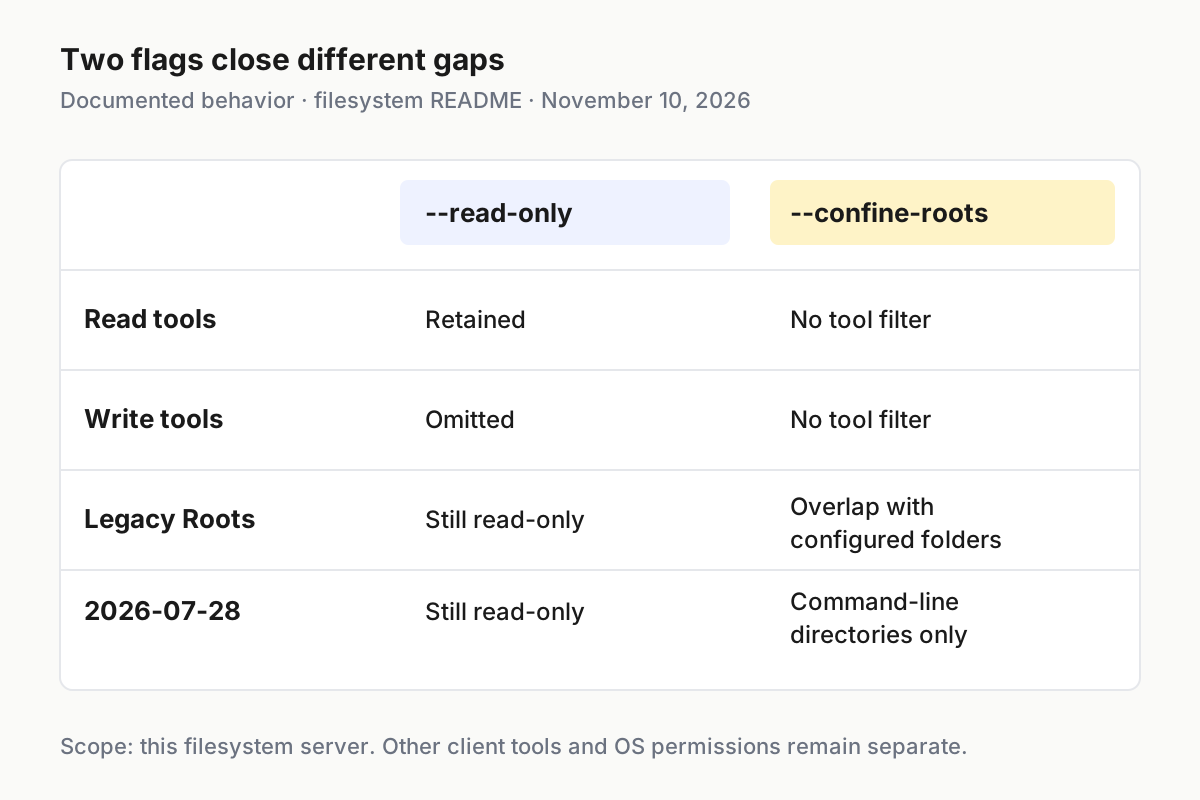
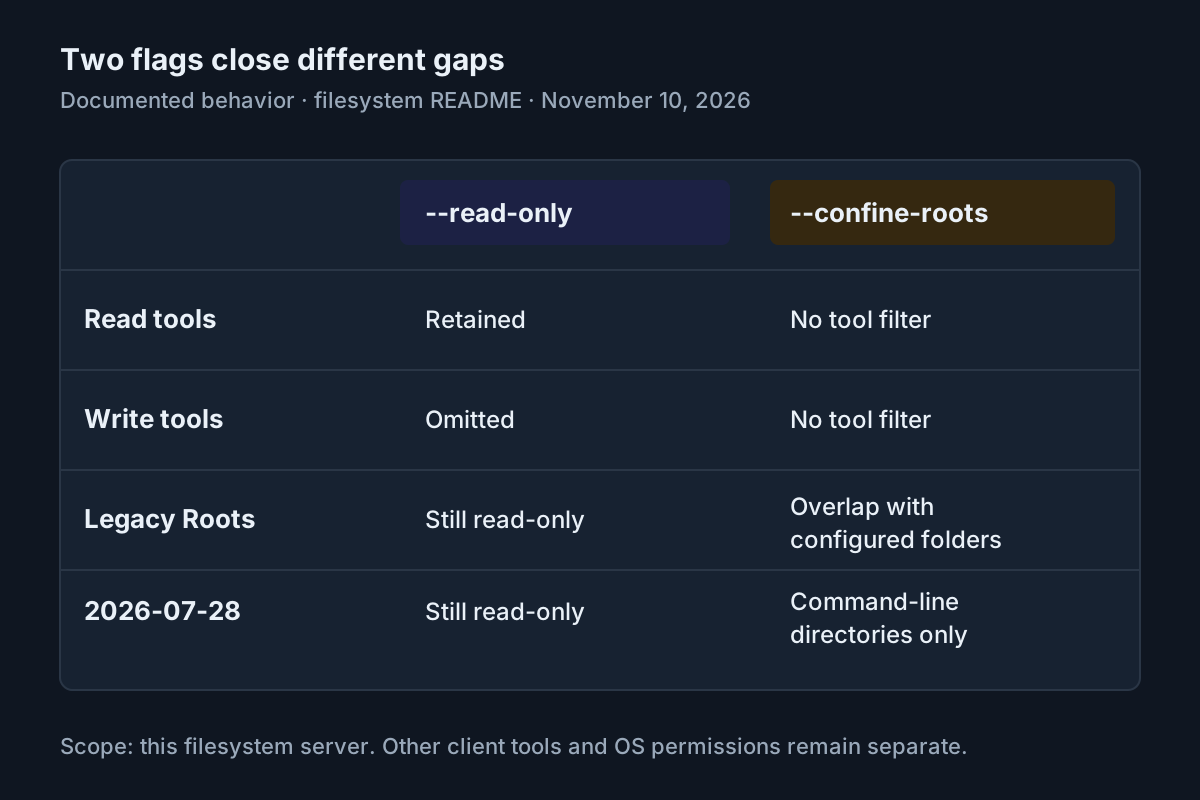
The flags solve different problems: tool registration and directory scope. Source: official filesystem README, read November 10, 2026. This is a behavior matrix, not measured test output.
Interpret Roots without widening the folder
The MCP client-concepts documentation describes Roots as coordination, not an operating-system security boundary, and deprecates them as of protocol revision 2026-07-28. The filesystem implementation supplies additional enforcement of its own, with behavior that depends on the connection’s protocol era.
- Keep the absolute directory argument in every configuration. It is the documented method that works across both protocol eras.
- Keep
--confine-rootswhen connecting clients that might use the legacy handshake. - Read the effective-directory log after connection and whenever access unexpectedly changes.
- If access narrows or disappears, investigate the client’s exposed Roots before broadening the server’s directory argument.
For a 2026-07-28 connection, the filesystem server uses command-line directories as the whole allow-list. It does not request client Roots. A legacy 2025-era connection that supports Roots can normally replace the command-line directories. With confinement enabled, it instead permits their overlap.
Apply that rule to the fixture. A legacy Root inside reference can narrow access to that subdirectory. A Root naming the parent mcp-boundary-demo, or even /, is narrowed to the configured reference directory. A Root wholly outside that directory is ignored and logged. None of these cases authorizes the sibling outside file.
There is a stateful detail worth recognizing when the allowed file suddenly stops working. Before any valid client Root has been in force, an update containing no valid Roots keeps the command-line directories. After client Roots have been in force, an update with no valid Roots revokes access until valid Roots return. The documented error is Access denied - no allowed directories. That is different from the server unexpectedly admitting a sibling.
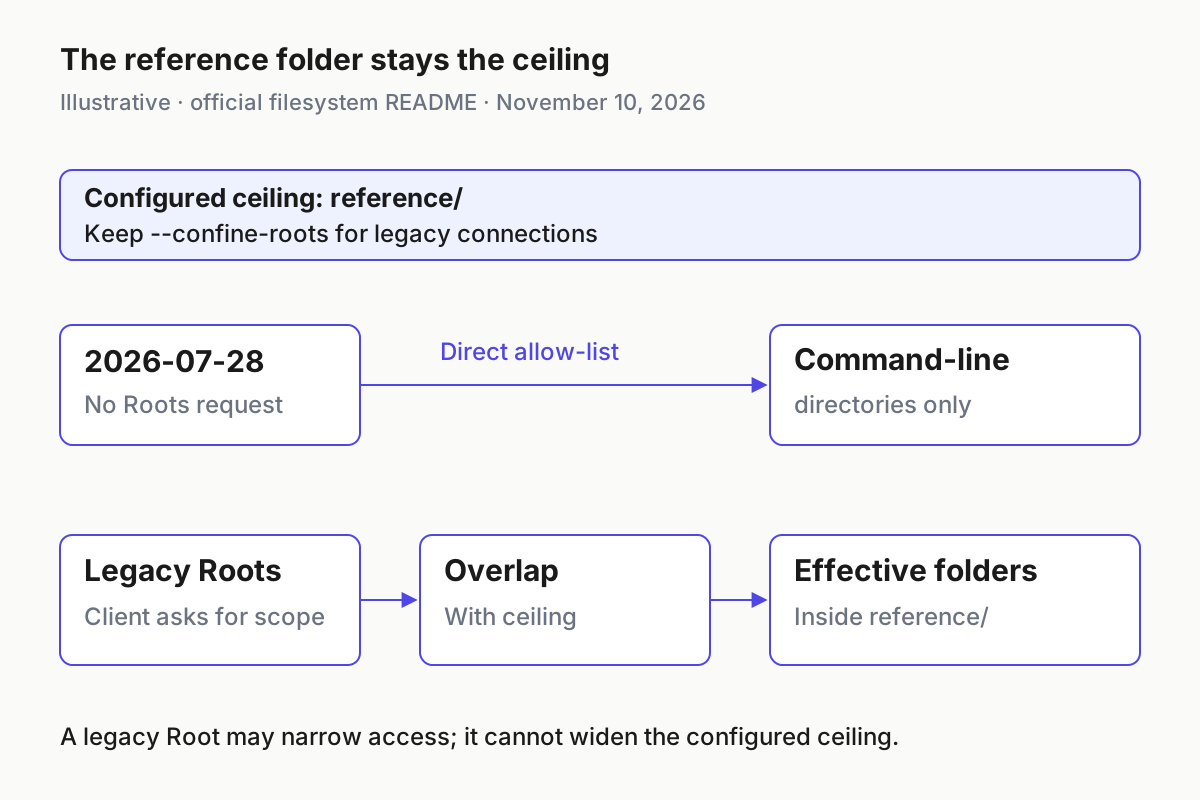
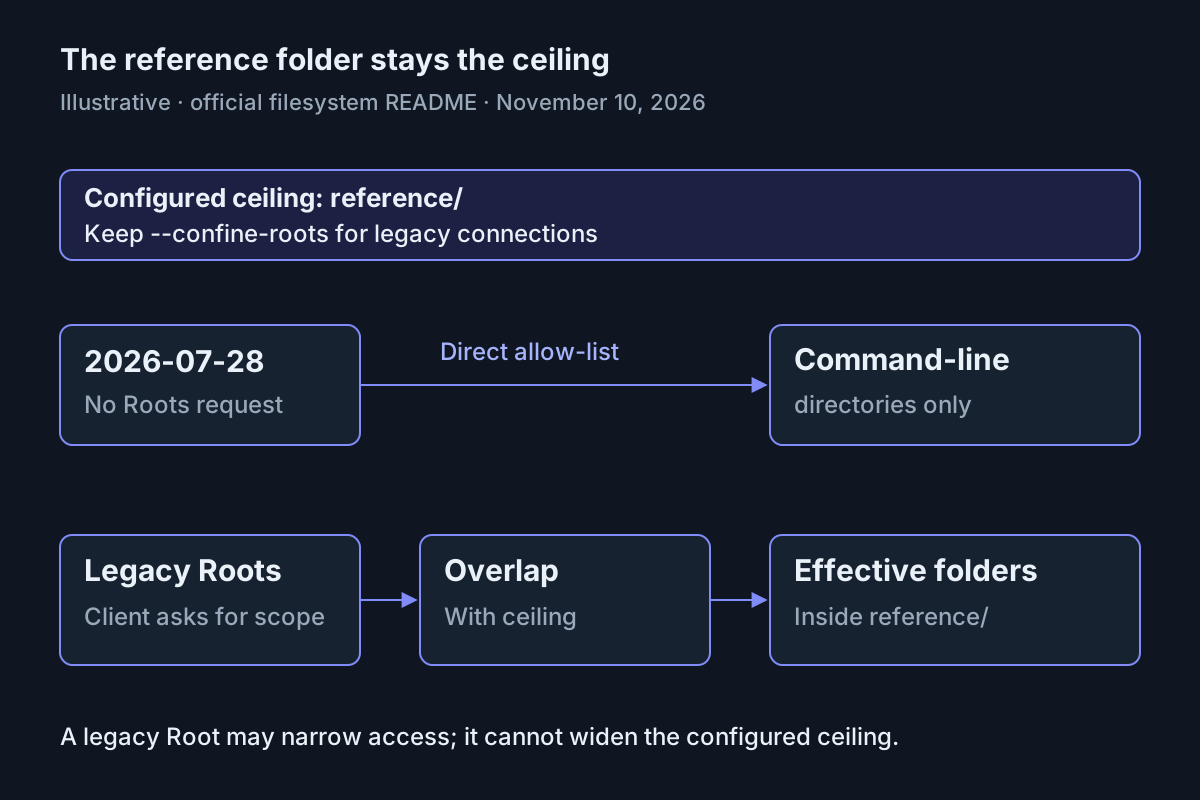
Illustrative mechanism for the documented protocol branches. Source: official filesystem README, read November 10, 2026. The diagram does not assert which protocol a particular Desktop installation negotiates.
The implementation resolves requested paths and checks resolved directories. Its README specifically says a symlink inside a Root that points outside is refused. When a configured directory itself has an advertised and resolved form, list_allowed_directories can show both. Recognize that documented aliasing before treating two displayed paths as proof that two unrelated folders were shared.
Do not remove confinement just because a client’s current working folder is broader than the reference folder. That mismatch is exactly the situation the overlap rule handles. Decide whether the reference material belongs in the client’s intended working scope, then adjust that scope where supported. Preserve the narrow server argument throughout the investigation so restoring convenience does not silently expand access.
Diagnose the failure you actually see
Use the smallest failing operation: first connection, then allowed-directory listing, then one text read. The Inspector troubleshooting tutorial is useful when you need to separate connection diagnosis from a tool failure; it does not replace this server’s directory checks.
- Locate Desktop’s server stderr log,
mcp-server-reference-files.log, next to the connection logmcp.log. The host guide places these under~/Library/Logs/Claudeon macOS and%APPDATA%\Claude\logson Windows. - Read startup failures before retrying the conversation. Check executable availability and the Node requirement when the process does not start.
- Once it starts, find the effective allowed directories and their reported source. Compare those with
list_allowed_directories. - Change one configuration defect, fully restart Desktop, and repeat the same fixture calls.
A missing executable is a process-launch problem. Desktop does not necessarily inherit your interactive shell’s environment. The host guide explains the minimal PATH issue, while the filesystem README documents the Windows cmd /c form. Confirm that the client can reach your intended Node/npx installation; do not assume that a working terminal proves the Desktop process can find it. Use the actual executable location when a bare command cannot be resolved.
A relative directory or the wrong account name is a path problem. Correct the configuration to your real absolute reference path and update both read inputs. Do not solve it by sharing your entire home directory. That changes the security objective while hiding the original mistake.
Write tools still visible under reference-files suggest that the intended read-only launch was not loaded. Fully quit Desktop, compare the saved entry with the block above, and reopen it. Tools under another server name require a separate investigation; this flag cannot remove another connection’s tools.
An allowed read rejected after successful startup calls for directory evidence. The server logs effective directories to stderr at startup and when they change, identifying whether they came from command-line arguments or client Roots. Check whether a legacy Root narrowed the fixture away or withdrew all access. Restore a valid in-bound Root through the client where supported, keeping the command-line ceiling intact.
A timeout naming a cloud-backed path has a different cause. The README documents Filesystem call timed out after 15000 ms: ... and advises narrowing the path or excluding slow folders in tree/search operations. For this example, move back to the ordinary local fixture rather than increasing unrelated client limits. A successful tiny text read is the appropriate next observation.
Register the same server in Claude Code, optionally
The Claude Code MCP reference documents local stdio registration, scope and the -- separator. This optional route reuses the filesystem restrictions; it does not make Claude Code itself read-only. Claude Code already has native file capabilities, which this separate MCP process does not govern.
- From the project where you want the connection, register it at local scope using the command below.
- Read back the entry and connection status. An
Added ...line establishes that configuration was written, not that the server connected. - Open
/mcpinside an interactive session and inspect the server’s tools. - Repeat the allowed and outside reads while checking that calls use
reference-files, without falling back to native file access.
# Illustrative expected observation: Added ... means the configuration was written.
claude mcp add --transport stdio --scope local reference-files -- npx -y @modelcontextprotocol/server-filesystem@2.2.0 --read-only --confine-roots /Users/alex/mcp-boundary-demo/reference
# Illustrative expected observation: inspect the connection status and any Issue detail.
claude mcp get reference-files
claude mcp list
Everything after -- is the server launch command. Local scope keeps this entry private to the current project; the Claude Code scopes guide explains the distinction from user and project scopes. If the same name exists in multiple scopes, inspect precedence before concluding that the flags were ignored.
Claude Code’s reference also documents legacy Roots derived from the launch directory and additional working directories. That makes confinement relevant when that protocol path is used. Do not change runtime selection merely to force a demonstration: inspect effective directories and evaluate the boundary on the connection you actually have.
If registration succeeds but connection fails, retain that distinction in your notes. The configuration command and the server process answer different questions. Use the reported connection detail to repair the launch, then inspect the tool list again. Only after the actual allowed read and sibling refusal should you regard this optional client connection as having completed the fixture procedure.
Remove the connection and retain the boundary
The completed result is intentionally narrow: this filesystem server can read the reference fixture, cannot expose its write tools, and refuses the outside fixture. It does not establish a sandbox around the whole application, prevent content from entering model context, or restrict every process running as your user.
- To undo the Desktop change, fully quit the application, remove only the added
reference-filesentry, and reopen it. Restore the retained prior configuration if the edited file is invalid. - If you added the optional local Claude Code entry, remove it with the documented command below from the same project.
- Confirm that the removed server no longer supplies tools in a fresh client session.
- Delete the disposable fixture folders through your normal file manager when finished, retaining any notes you need about the observed responses.
claude mcp remove reference-files --scope local
For real reference material, repeat the same allowed-read and sibling-denial procedure with harmless markers before introducing sensitive documents. Keep the actual paths, selected server and observed errors in your record. The fleet replay guide explains why retaining the session matters when later behavior differs from what someone remembers approving.
Operating-system file permissions and sandboxing remain separate controls. The filesystem README recommends OS-level read-only protection where another writable server could expose the same protected directory. The MCP security hardening guide provides the broader context; this tutorial proves only one server’s configured access behavior.
Finally, distinguish preventing modification from withholding information. Read-only access still permits the allowed file’s contents to reach the client. Choose the reference folder accordingly, inspect its contents before sharing it, and keep unrelated documents outside it. The useful outcome is a deliberately bounded reference connection whose success and refusal you can recognize from actual tool responses.
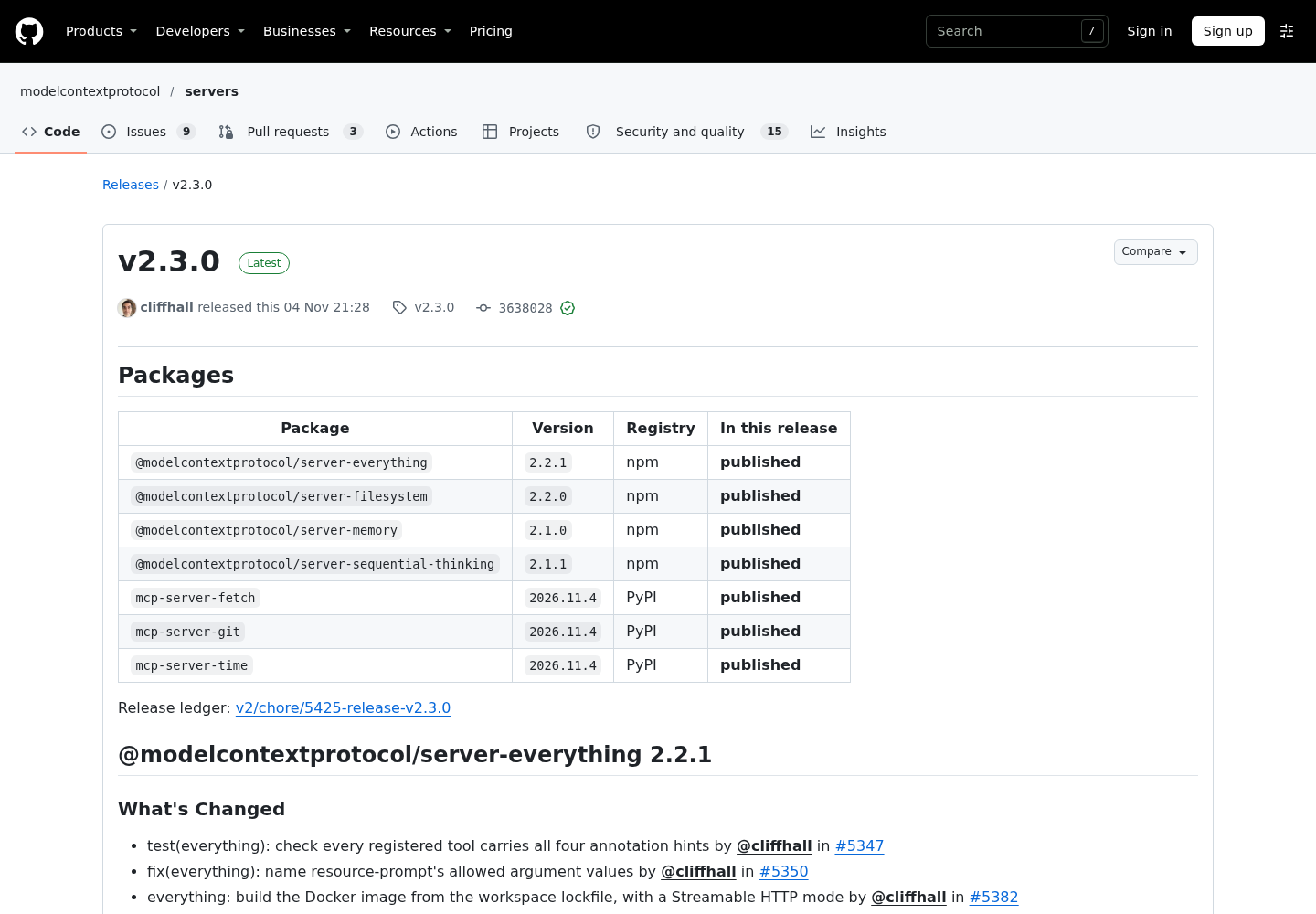
Source: modelcontextprotocol/servers on GitHub. The publisher release page documents the package release used for the version pin; it is not a capture of this tutorial being executed.
Sources
- Official servers v2.3.0 release, November 4, 2026.
- Filesystem server README, read November 10, 2026.
- Claude Code MCP reference, read November 10, 2026.
- MCP Python SDK: Connect to a real host, read November 10, 2026; used for Desktop paths, restart behavior and logs.
- MCP client concepts, protocol 2026-07-28, read November 10, 2026.