Browserbase Browse CLI: Give Each Agent Its Own Browser
Set up Browserbase Browse CLI with two named remote sessions, verify each browser's target and page, read fresh snapshots, and recover or close each session.

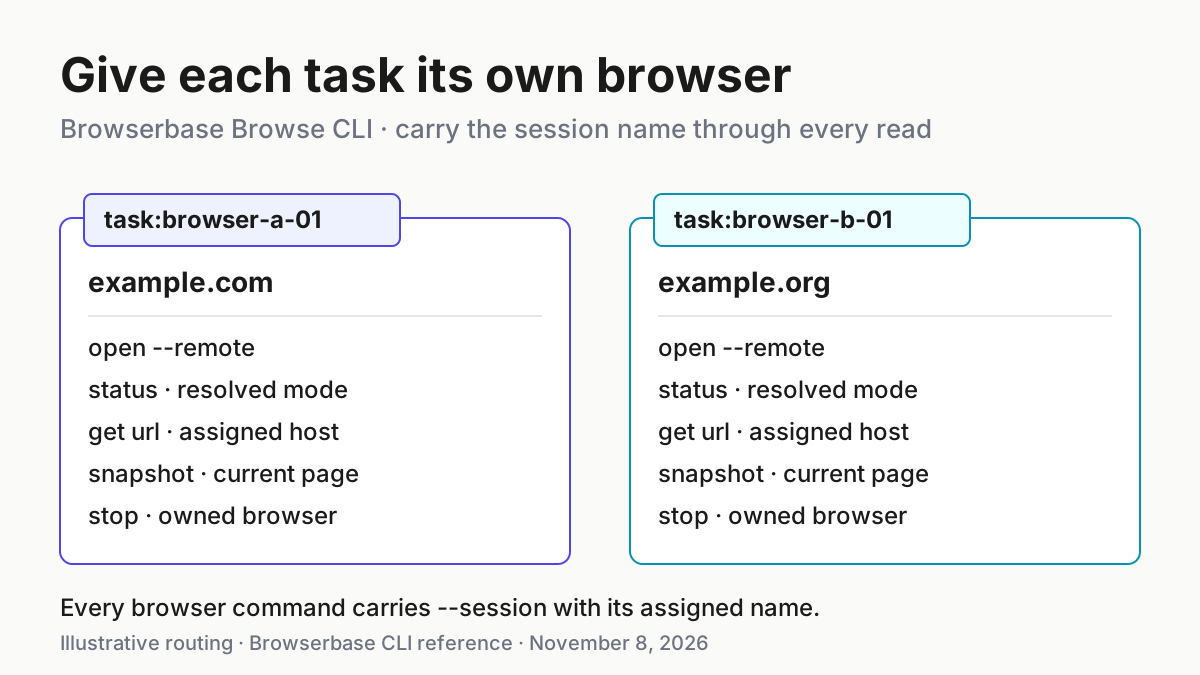
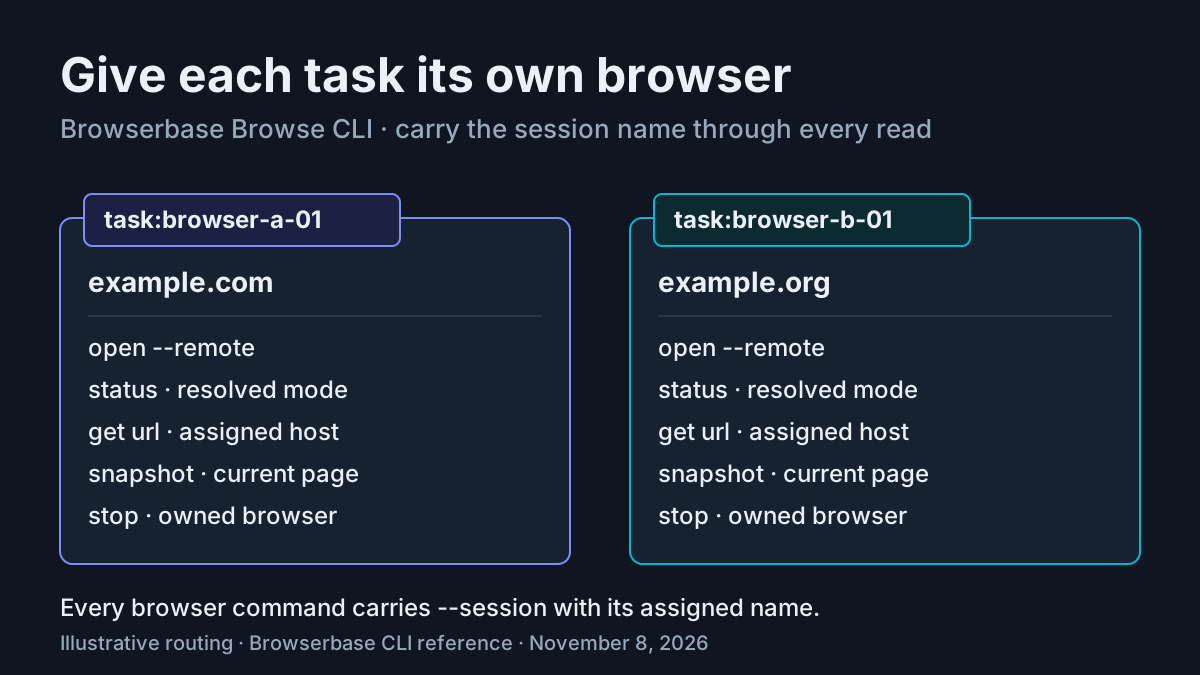
Two coding agents can work on different tasks and still interfere if their browser commands reach the same active page. Browserbase Browse CLI provides named sessions for concurrent browsers. The useful setup is to give each task a name, start its remote browser explicitly, and verify where subsequent commands land before trusting their observations.
This tutorial is for a developer who already has an authorized Browserbase account and API key, an environment that can run npm and npx, and permission to read public test pages. You will install the official skill and CLI, open two different example-page URLs, inspect their resolved targets, read their accessibility snapshots, and close both browsers. All expected observations below are illustrative; these commands were not executed for this article.
Brenden House’s November 7, 2026 walkthrough drew attention to Browserbase’s agent setup. It establishes a dated walkthrough, rather than a launch date. Implementation here follows the official repository documents. The durable lesson is command routing: every consequential browser command carries the task’s session name.
Choose the boundary before opening a page
- Assign
task:browser-a-01tohttps://example.com. - Assign
task:browser-b-01tohttps://example.org. - Reserve those names for this exercise. If another task already owns either name, arrange a different unused name before proceeding.
- Give each agent only its assigned sequence, including the explicit session flag.
The official CLI reference describes --session <name> as running commands against a named session, enabling multiple concurrent browsers. It also documents BROWSE_SESSION as an alternative default. Explicit flags make the target visible in a copied command, so this example does not depend on a shell’s session default.
Different terminal windows do not establish which named browser a command targets. Neither do task names written only in an agent’s conversation. The operative choice is the flag that accompanies the command. A terminal can issue commands for either named session; ownership therefore remains a coordination rule that the agents must follow. Naming is routing, not an access-control boundary between mutually untrusted processes.
Separate tabs are also insufficient for this lesson. The reference places tab creation, listing and switching within session management. A tab switch changes the page being addressed inside that session. Giving two tasks tabs in one session leaves them coordinating that session’s active tab. Independently named browsers avoid making tab selection the shared task switch.
This exercise checks independent navigation and command targeting. It does not claim to prove cookie isolation, separate accounts, tenant separation or the behavior of persistent contexts. Those require their own supported tests. If your actual goal is transferring an existing browser between workers, use the distinct Stagehand session-handoff guide. Here, each task keeps its own browser rather than inheriting another worker’s page.
Keep the assignments visible while reading the commands. The two example hosts are deliberately similar enough that page content may not distinguish them. That makes the URL check consequential: an agent that reports a familiar heading without checking its host has not completed the assigned read. The task names identify responsibility, while the host assignments give that responsibility a concrete navigation target.
Install the skill and confirm the executable
- Install the official collection using the repository’s documented skill installation command.
- Check for the executable in the environment where your coding agent actually runs.
- Install the CLI if that check cannot find it.
npx skills add browserbase/skills
which browse
# If the preceding check cannot find browse:
npm install -g browse
which browse
# Expected, illustrative: an executable path; its location varies by environment.
The Browserbase skills repository supplies the npx skills add browserbase/skills command for popular coding agents. The browser skill document separately requires the browse executable and documents its npm installation. Installing reusable instructions and installing the program are distinct parts of setup: a successful skill installation alone does not establish that the shell can invoke browse.
The expected observation from the executable check is a path. No particular path is promised because installation locations depend on the environment. If the terminal reports that the command is unavailable, stay at installation troubleshooting. Repeating browser navigation commands cannot repair executable discovery. Check the shell environment your agent uses rather than relying on a successful check in an unrelated terminal.
Browserbase’s CLI product page also documents npm install -g browse and describes the CLI as terminal-native for coding-agent workflows. This guide uses the repository’s explicit skill installation route instead of expanding the social walkthrough’s abbreviated setup into unsupported commands. It does not require a project-list command to establish browser routing.
For agent-side instruction discovery, the adjacent skills setup guide explains the general distinction between reusable instructions and the tools those instructions invoke. You do not need to build a new skill for this example. Use the official collection, then verify the actual browser commands below.
Treat installation failures separately from browser failures. If npm reports a failure, preserve that actual message and resolve the installation problem before handing the navigation sequence to an agent. If installation reports success but executable discovery still fails, the unresolved question is which environment can find the program. Neither outcome supplies evidence about Browserbase credentials or remote session behavior, because the browser procedure has not begun.
Start remote browsers deliberately
- Have your existing authorized
BROWSERBASE_API_KEYavailable in the execution environment through your normal approved credential setup. - Start task A with
--remoteand its session name. - Inspect its status before starting task B.
- Start task B with the same explicit mode choice and its different name.
browse open https://example.com --remote --session task:browser-a-01
browse status --session task:browser-a-01
# Expected, illustrative: A is running with a resolved remote mode and target.

browse open https://example.org --remote --session task:browser-b-01
browse status --session task:browser-b-01
# Expected, illustrative: B has its own running named remote session.
The skill document says an unspecified next session defaults to Browserbase when the API key is set and to local otherwise. The reference says mode flags apply when a session starts, and status shows the resolved mode and active target while its daemon runs. Explicit remote selection expresses the intended target without depending on that credential-driven default. It does not replace the credential requirement.
Before using either name, establish that it is unused or belongs to your exercise. An already-running named daemon matters because a startup mode flag is not documented as a universal retargeting command for an existing browser. If your status inspection reveals an unexpected existing task, stop and resolve ownership. Do not close another worker’s browser just to make the example match.
For a session you own, the supported reset is to stop it, then open it again with the desired startup flag. After stopping, the next start selects its mode from flags or environment. Repeat explicit remote selection on that new start. A remembered intention in a previous command is not a durable default after cleanup.
A successful open alone is too weak a check: a public page might be readable in local mode as well. Inspect status for the resolved remote mode and target, then inspect the page URL separately in the next section. Treat status output according to the installed CLI’s actual presentation; the documentation supports the information it exposes, but does not supply a fixed JSON schema to parse here.
Do not paste credential values into a completion report to demonstrate that setup worked. The useful evidence for this exercise is the resulting connection mode and page observation. If remote creation fails, report the actual failure and leave the read incomplete. Switching to a local browser could help a different task, but would change the commissioned outcome here: the reader is establishing two hosted browser sessions.
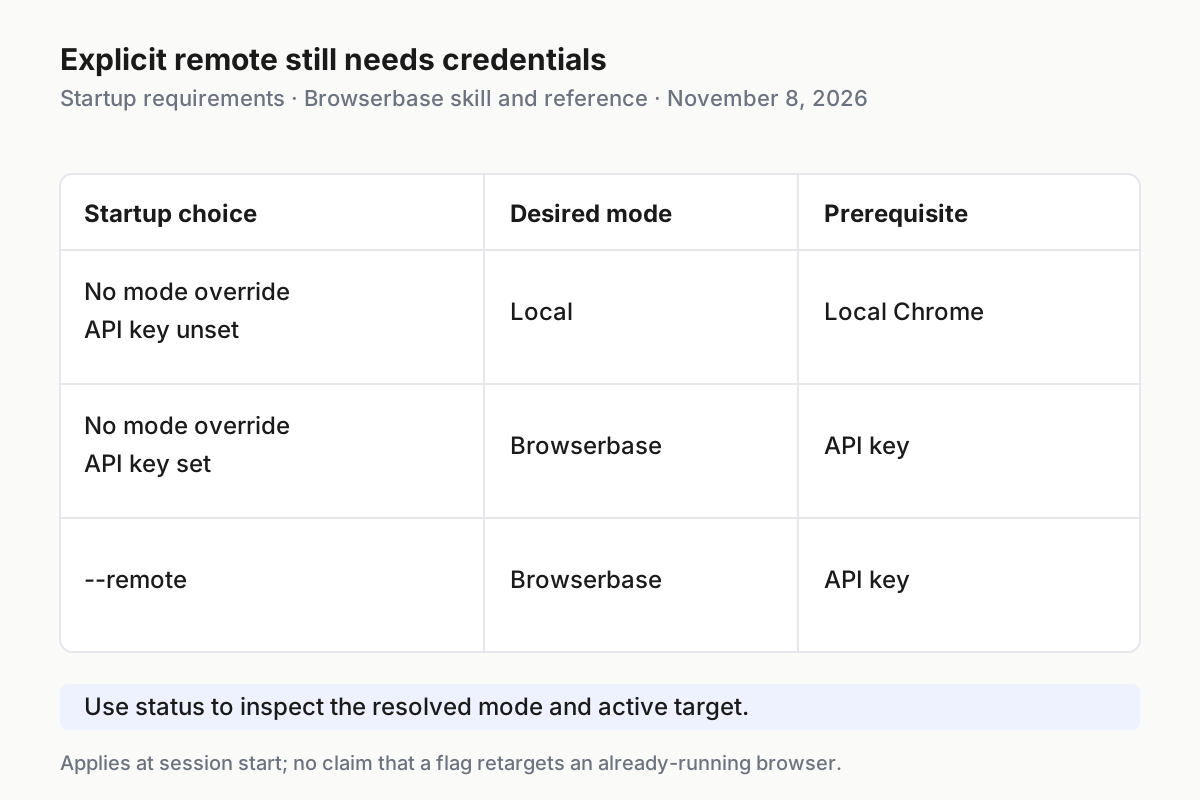
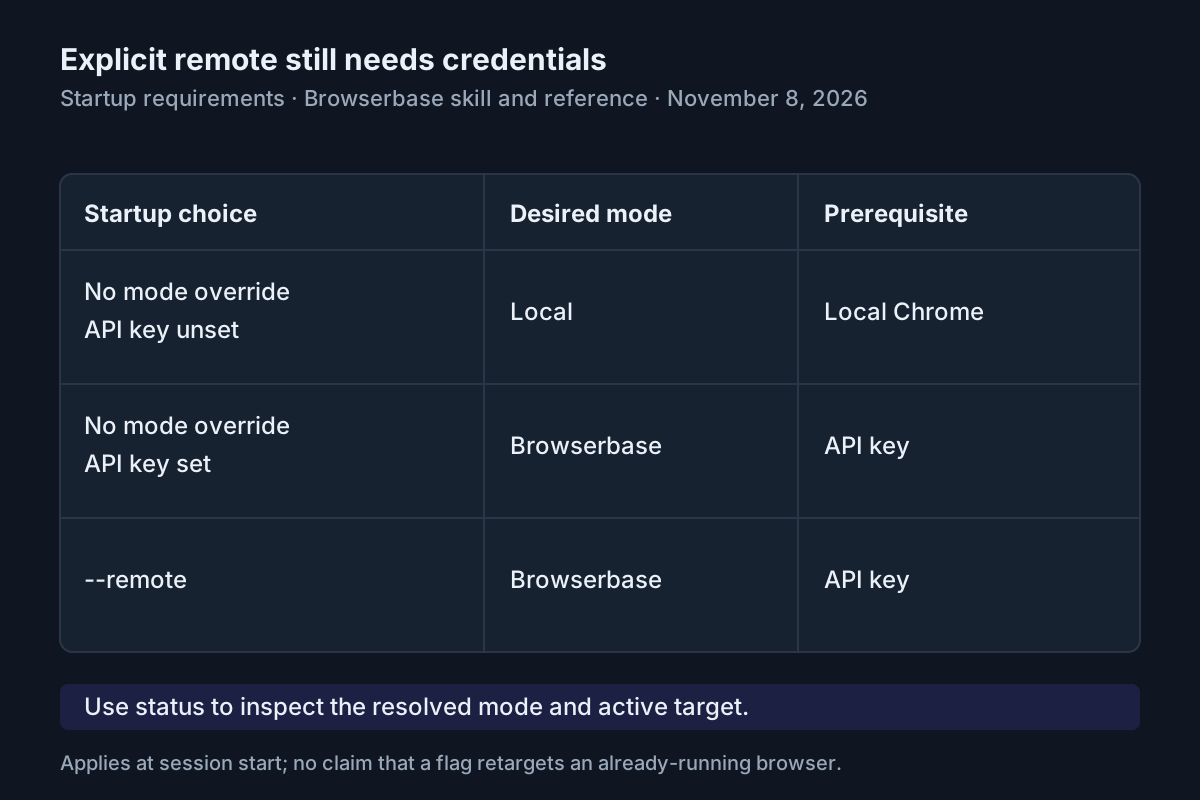
Browserbase’s skill and reference documents, read November 8, 2026. The matrix separates startup selection from credential requirements; it makes no performance comparison.
Read both pages without crossing sessions
- Get each session’s current URL. Compare the host with its assignment.
- Read a fresh accessibility snapshot from that same session.
- Read the title and readable Markdown if you need a concise content record.
- Return to task A after reading task B and confirm that A still addresses its assigned host.
browse get url --session task:browser-a-01
browse snapshot --session task:browser-a-01
browse get title --session task:browser-a-01
browse get markdown --session task:browser-a-01
# Expected, illustrative: example.com is the current host and its page is readable.

browse get url --session task:browser-b-01
browse snapshot --session task:browser-b-01
browse get title --session task:browser-b-01
browse get markdown --session task:browser-b-01
# Expected, illustrative: example.org is the current host and its page is readable.

browse get url --session task:browser-a-01
browse snapshot --session task:browser-a-01
# Expected, illustrative: A still addresses example.com after the reads in B.
The reference documents current URL, title, Markdown and accessibility snapshots. Markdown defaults to the body; text and HTML extraction require a selector. If you prefer the text extraction pattern in the official examples, the corresponding complete read is browse get text body --session task:browser-a-01. Keeping the selector explicit avoids confusing an extraction-argument error with a browser-session failure.
The illustrative expected observations are a URL on example.com for A, a URL on example.org for B, and readable example-page content in their respective snapshots. A trailing slash need not mean the wrong assignment. A different host does require investigation before accepting the read. These pages may have similar titles or text, which is precisely why title comparison alone cannot establish that commands reached distinct assigned targets.
Read each observation together with the command that produced it. A snapshot detached from its session flag loses the connection between task and page. Likewise, remote status establishes the connection mode, while the current URL establishes navigation state. Neither observation substitutes for the other. Taken together, they support the narrower conclusion that each named session is addressing its intended remote browser page.
The final A read is deliberate. It checks A after B has been opened and inspected, rather than checking A only before another session existed. If A now shows B’s host, inspect the commands actually issued and their flags. Do not rewrite the expected result to accept whichever page appeared. The exercise is complete only when both assignments remain intelligible and independently addressable.
If one read succeeds and the other fails, retain that distinction. For example, readable content from A does not establish that B started successfully, even if both commands were submitted in one agent turn. Diagnose B using its own status and URL checks. This prevents a partial result from becoming a misleading statement that both browsers worked. The same discipline applies when cleanup succeeds for only one name.
Use the complete example as your task card
The table below is the populated task card for this exercise. Its expected results are illustrative observations, not captured terminal output. It is useful alongside the copyable command blocks because it ties each concrete input to the exact action and the decision the observation permits.
| Input | Action | Expected result |
|---|---|---|
task:browser-a-01, URL https://example.com, authorized remote credentials already available |
Run browse open https://example.com --remote --session task:browser-a-01, then browse status --session task:browser-a-01 |
Illustrative: a running session reports a resolved remote mode and connection target. If mode or ownership is unexpected, pause before reading. |
task:browser-b-01, URL https://example.org, different unused session name |
Run browse open https://example.org --remote --session task:browser-b-01, then browse get url --session task:browser-b-01 |
Illustrative: B addresses the example.org host. A familiar title alone does not establish correct targeting. |
task:browser-a-01, after opening and reading B |
Run browse get url --session task:browser-a-01, then browse snapshot --session task:browser-a-01 |
Illustrative: A still addresses example.com and returns that page’s current accessibility tree, rather than inheriting B’s active page. |
| Both named tasks have finished their public-page reads | Run browse stop --session task:browser-a-01 and browse stop --session task:browser-b-01, then inspect each named status |
Illustrative: neither named daemon remains running. A stop error or still-running status requires recovery rather than an assertion of completion. |
For a coding agent, the task card can be accompanied by this complete scope statement. It is an illustrative instruction artifact, not a product feature or a claim that prose enforces permissions:
Task A: task:browser-a-01
Assigned URL: https://example.com
Task B: task:browser-b-01
Assigned URL: https://example.org

For your assigned task only:
- Use --session with your exact assigned name on every browser command.
- Start a new owned session with --remote.
- Read status, current URL, a fresh snapshot, title and Markdown.
- Compare the observed URL host with your assignment.
- Do not click, submit forms, log in or reuse another task's session.
- Report observations as observations; report missing output as missing.
- Stop your named browser when the read is complete.
This keeps the task small enough to diagnose. If remote startup fails, you have not also introduced login persistence, form submission or shared tab switching. The first useful artifact is a correctly routed page read. Extend the task only after you understand that result. Broader coordination belongs in the multi-agent command-center guide; adding more agents does not change which session flag each command needs.
When assigning the card, preserve its literal name and URL rather than asking the agent to choose them again. A generated replacement name might be valid in another exercise, but it would no longer match these verification commands. If a collision forces a different name, update that task’s entire command sequence consistently before execution. Check both its opening command and its cleanup command; a mismatch at the end can leave the intended browser running.
Refresh observations when page state changes
- Obtain a snapshot before choosing an interactive element.
- Use only a reference from that session’s current snapshot.
- After navigation or a page-changing action, obtain another snapshot before the next interaction.
- If an element reference fails, refresh the snapshot rather than guessing a replacement reference.
The official examples explicitly re-snapshot after navigation because element references change when pages update. The reference describes the refs command as the cached map from the last snapshot. Reading that cache is useful for looking up a recent reference; it does not make an old map current after the page changes.
The worked example intentionally needs no clicks. Its snapshots teach page inspection without inventing an element reference for a page that was not observed during authoring. A copied reference from a documentation example is not a verified reference for either of these sessions. If you later add interaction, discover the actual reference in the actual target session first.
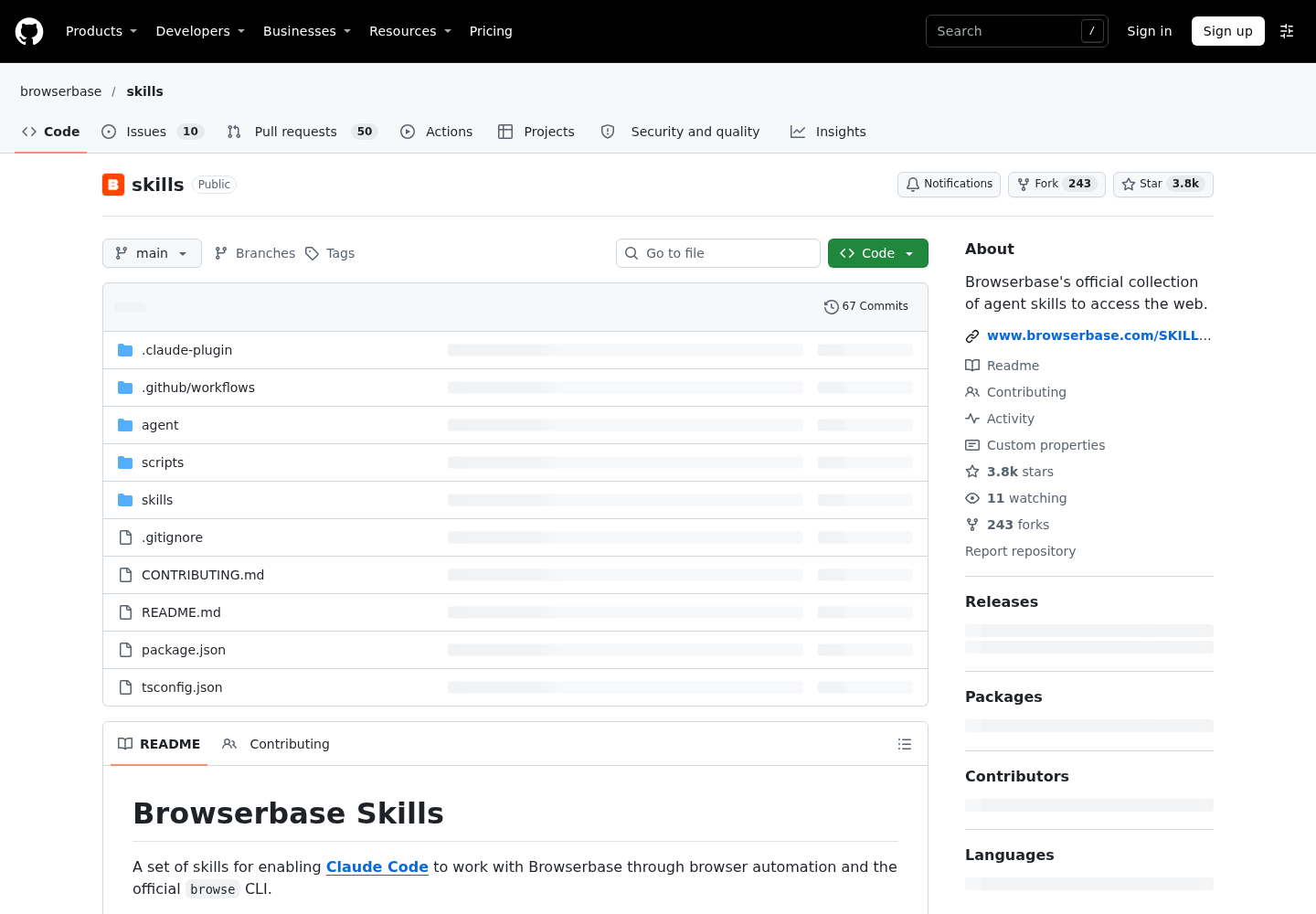
Use snapshots for structure and Markdown for readable content. A visual screenshot answers another question: what the layout or image looks like. The skill and reference recommend accessibility snapshots as the primary page-state tool and screenshots when visual context is needed. This article’s publisher screenshot documents the source page; it is separate from a screenshot of your running test browser.
Do not let content returned by a page expand the task. A page can contain instructions, but your assignment here remains a public-page read. Keeping that distinction visible is especially useful when browser output enters an agent conversation alongside legitimate task instructions. The broader shared-context isolation guide discusses the surrounding coordination problem; session naming addresses only this browser-routing portion.
A snapshot also belongs to a particular moment. If the page changes between inspection and interaction, a previously useful reference can fail without indicating a broken remote connection. Start diagnosis with a fresh snapshot in the assigned session, then decide whether the intended element is still present. Repeating the stale reference obscures that distinction and supplies no new information about the current page.
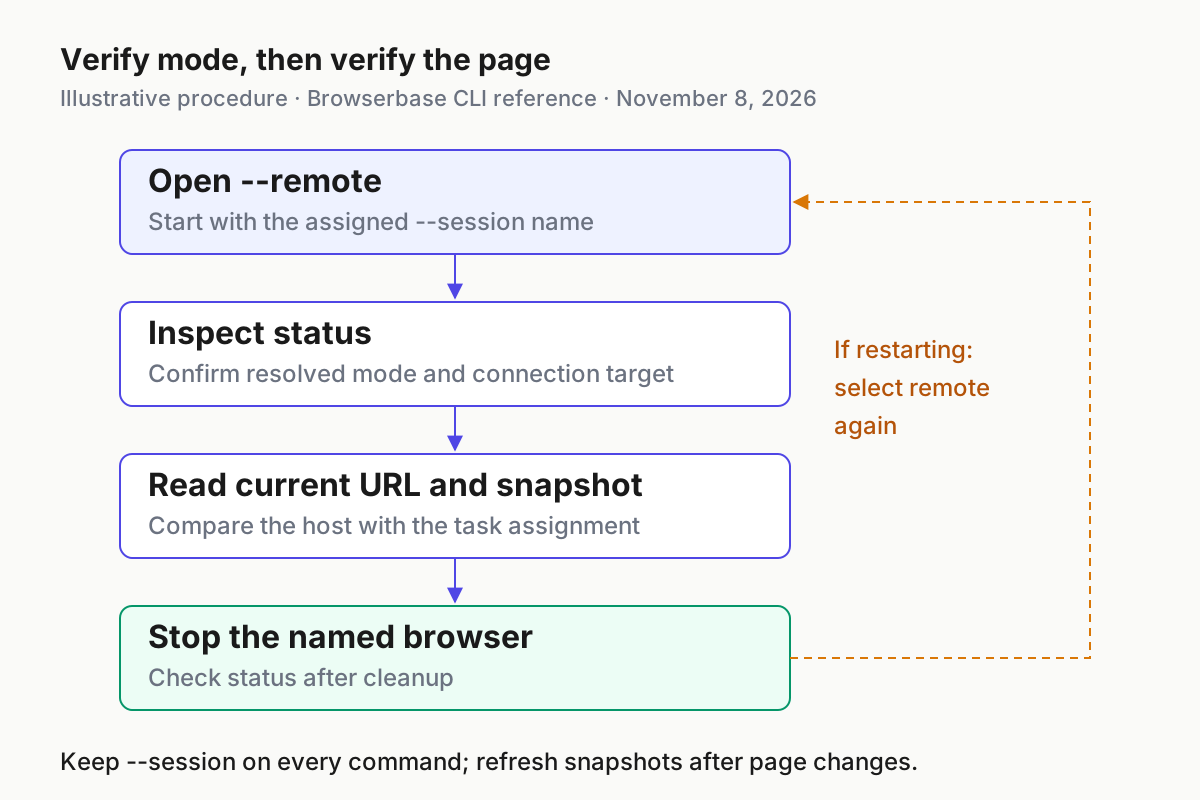
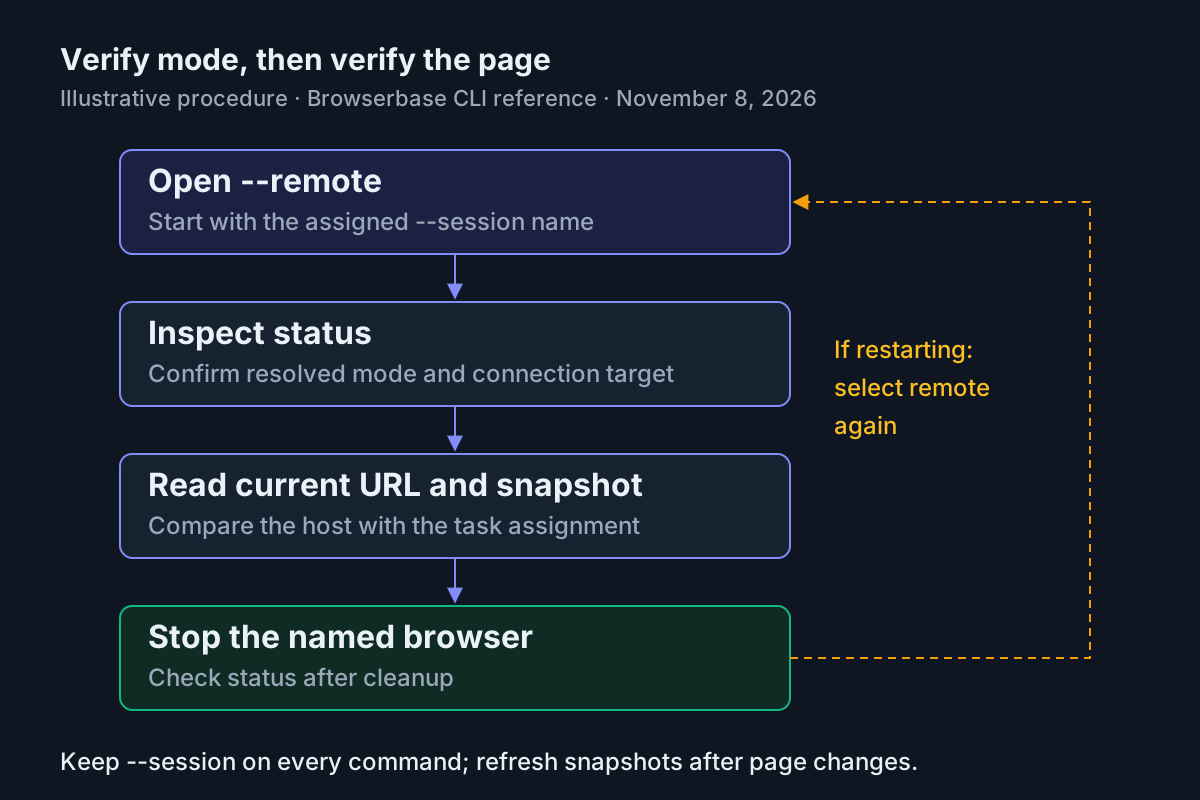
Illustrative procedure based on Browserbase’s CLI reference, read November 8, 2026. Verify mode and URL before accepting a read; a restart must explicitly select remote mode again.
Recover the owned session and close both browsers
| Observation | Supported next action | Interpretation |
|---|---|---|
browse cannot be found |
Repeat the executable check and documented installation steps in the agent’s environment | This is installation or executable discovery, before browser diagnosis. |
| Remote startup fails | Verify that the authorized API key is available to that environment | Remote mode requires credentials; do not accept local success as completion. |
| Resolved mode is wrong in an owned session | Stop that named session, then repeat its open command with --remote |
Startup selection must be applied to a new session. |
| Current URL belongs to the other task | Inspect the issued flags and both named URLs before further navigation | Treat this as a targeting mismatch until explained. |
| Element reference is missing | Take a fresh snapshot in the same named session | The page may have changed since the reference was generated. |
| Owned daemon is unresponsive | Use the documented stop --force with that session name |
Recheck status before deciding whether a fresh start is needed. |
For ordinary completion, close each named browser explicitly:
browse stop --session task:browser-a-01
browse status --session task:browser-a-01
browse stop --session task:browser-b-01
browse status --session task:browser-b-01
# Expected, illustrative: neither named daemon remains running.
The reference documents stop as stopping the daemon and closing the browser. It also documents force-stop for an unresponsive daemon. For example, if A is yours and ordinary stop fails:
browse stop --force --session task:browser-a-01
browse status --session task:browser-a-01
# Expected, illustrative: A no longer reports a running daemon.
The skill additionally documents a broad process-matching zombie-daemon recovery command. In a concurrent-browser exercise, prefer the named force-stop path documented by the reference. Broad process termination deserves particular care because its scope is not expressed by either task’s session flag. Do not make it the default cleanup command for one agent.
If an owned session needs restarting, repeat its original explicit remote open, status and URL checks, then obtain a fresh snapshot. Old page references are not a recovery artifact. For these public read-only examples, recovery means recreating the known navigation state; there are no form submissions or saved application edits to undo. Closing a browser would not, in a different workflow, undo an external action already submitted.
Finish with two separate conclusions: whether each page read matched its assignment, and whether both named browsers closed. Missing output supports neither conclusion. Preserve the actual observations with their commands if you need to diagnose a later discrepancy. The related fleet replay guide explains why retaining what happened is more useful than accepting an agent’s unsupported completion summary.
If the final status is ambiguous, report that uncertainty explicitly and keep the cleanup item open. Do not invent the exact success message that the installed version ought to print. The documentation establishes what status checks, while the actual terminal response determines what you can report. Once both named daemons are stopped, any later repeat of this exercise begins with fresh explicit remote startup and fresh page observations.
Sources
- Browserbase CLI reference.
- Browserbase official skills repository.
- Browserbase browser skill.
- Browserbase browser examples.
- Browserbase CLI product page.
- Brenden House’s November 7 walkthrough.