AI Agent Context Isolation: When a Finance Agent Shares a Computer With Your Slack Bot
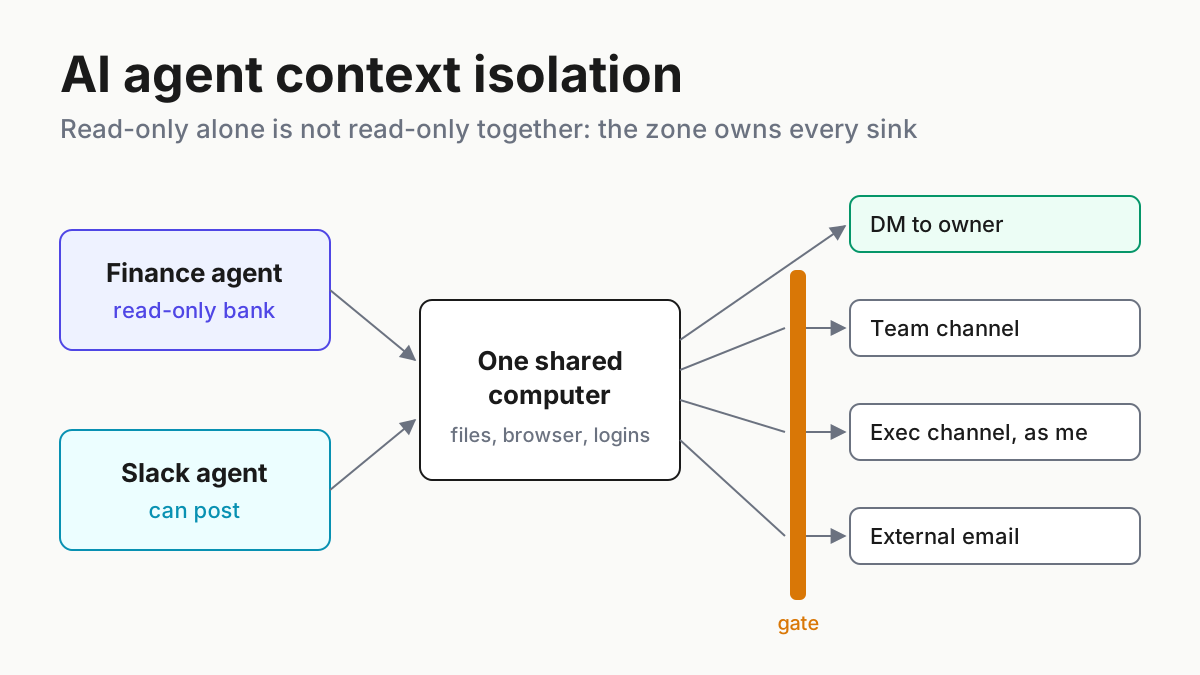
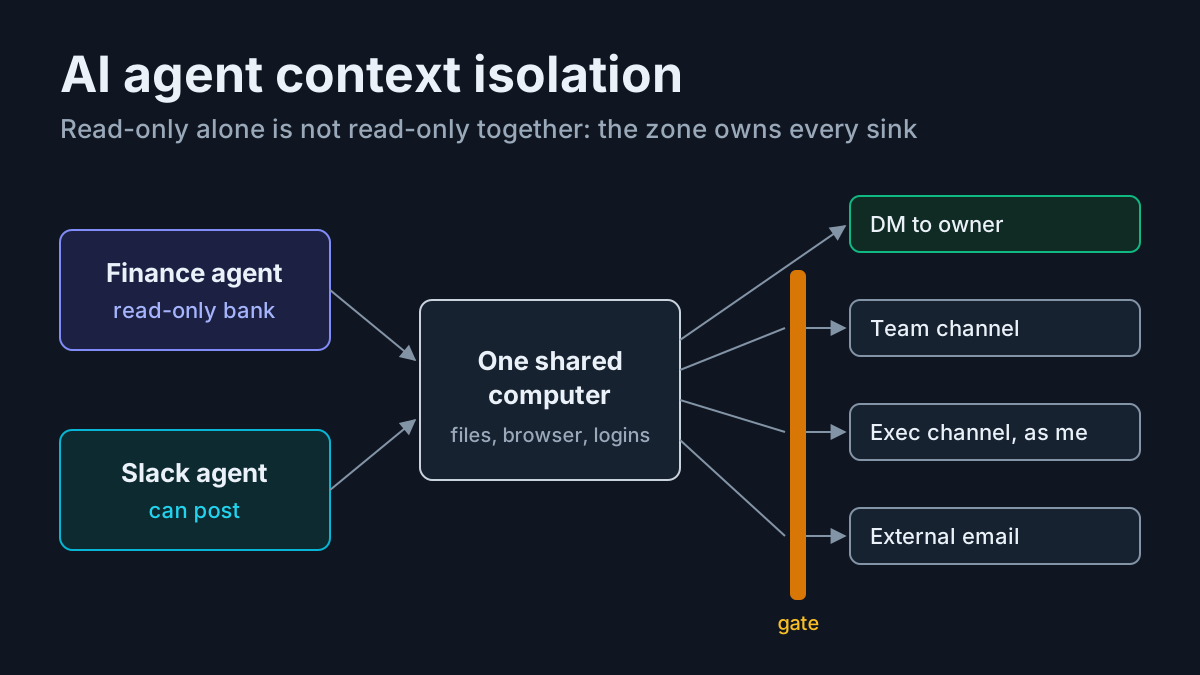
A read-only agent on a shared computer can reach every sink its siblings have. Map sources against sinks, treat shared machines as one zone, gate posts as you.

Go deeper. Build your own.
A read-only finance agent cannot post to Slack. Put it on the same computer as an agent that can, and the pair can. Nothing about either agent’s permission screen changes; what changed is that one now reads what the other writes, through a shared filesystem, a shared browser profile or a shared login.
AI agent context isolation is the practice of deciding, for every combination of agents, which data may travel to which destination, and under whose name. Per-agent least privilege is the easy half. The half that bites is the union: the moment two agents share a machine, the finance agent’s bank balances are one hop from every channel the Slack bot can reach.
This playbook gives you a context-boundary matrix, four rules that fall out of it, and a kill-switch order for the day something lands in the wrong channel. It starts with a story that may not be true, because the design underneath it is documented either way.
The disputed exec-Slack post and the documented design behind it
On Oct 6, 2026, Shane Mac, CEO of XMTP Labs, posted on X that “last Thursday” (Oct 1) an AI agent had posted his personal bank balances and a monthly expense breakdown into his company’s exec Slack channel “as me”, then apologized in the thread. The incident is disputed. An X Community Note on the post, still attached when we read it through a mirror on Oct 8, calls it fake and “engagement farming” and notes that Mac sells a tool aimed at the problem; Mac replied that it was “not fake at all”; Futurism reported the claim on Oct 7 and said it was “unable to independently verify his claims.” We found no vendor statement as of Oct 8.
Coverage reportedly ties the claim to a Grok Bot Finance integration, which PYMNTS described on Sep 28 as read-only bank, card and investment access through Plaid. Accounts conflict on which bot actually posted, and no vendor statement exists. We read the post itself through a third-party mirror of X, not on x.com, so Futurism is the citable account. This article reproduces none of the financial details in the screenshot and takes no position on whether the event happened.
What the post does not need to be true for: Grok Bot’s own overview documentation describes the shared design in plain words. “All of your Bots use the same cloud computer, sharing its files, browser sessions, and app logins,” it says, and “the computer belongs to your account, not to an individual Bot, so treat anything placed on it as available to every Bot you run.”
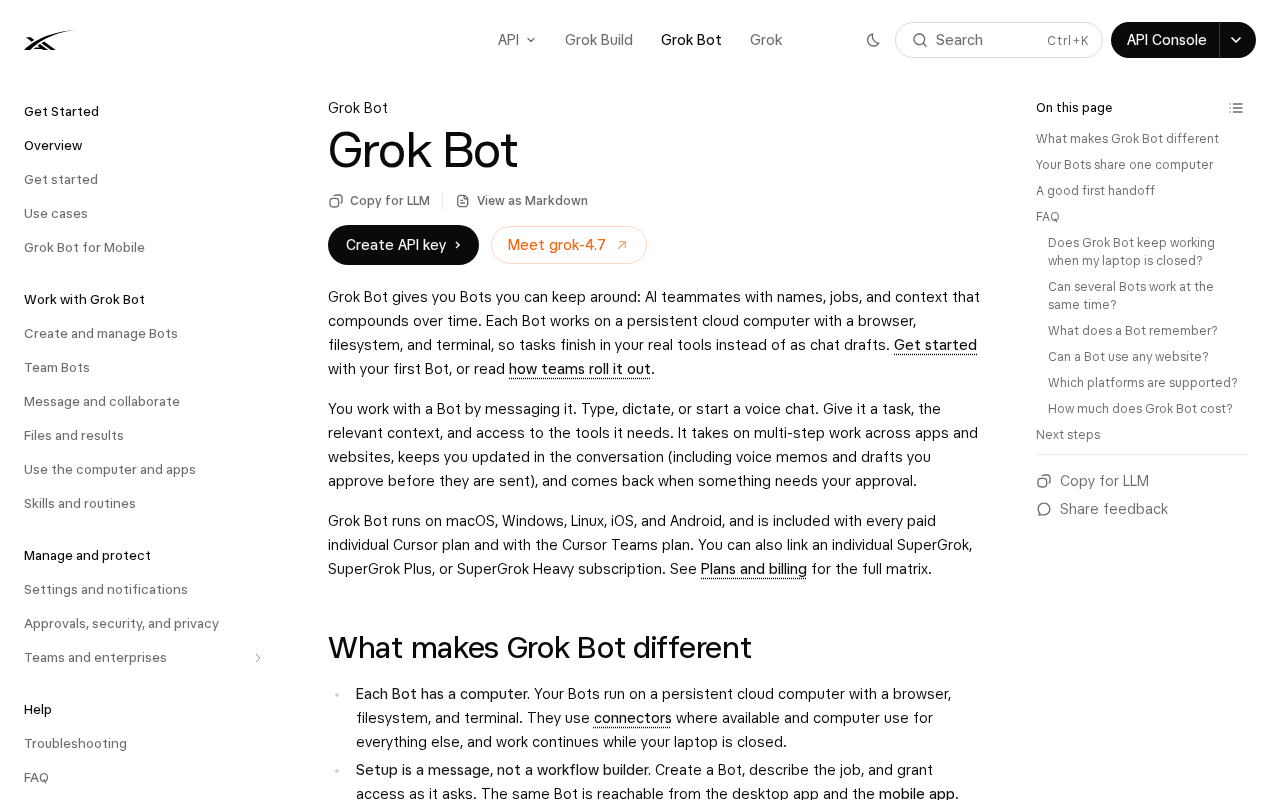 Screenshot: SpaceXAI Docs, “Grok Bot | SpaceXAI Docs” (undated docs page), captured Oct 7, 2026.
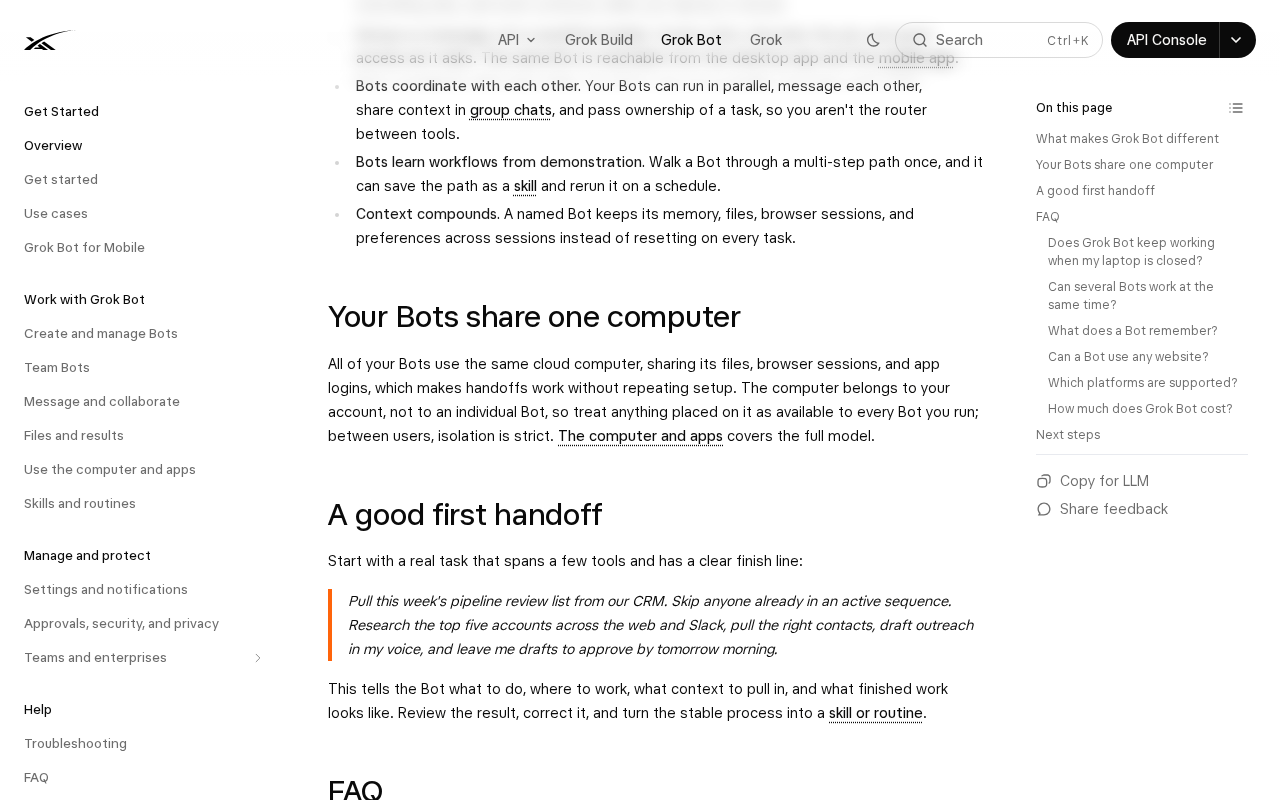 Screenshot: SpaceXAI Docs, “Grok Bot | SpaceXAI Docs” (undated docs page, section “Your Bots share one computer”), captured Oct 7, 2026.
The Team Bots page goes further for shared bots: the bot “can use every secret in any teammate’s conversation, so treat a secret as access you are giving the whole team,” and because Slack channel conversations share one computer, “don’t share anything in a channel thread that shouldn’t be visible to everyone in that channel.” Routines are personal: each “runs as” the person who set it up. The same page describes one gate: in a Slack thread or group chat, a Team Bot asks before using one of your personal connectors. That is a good default, and it covers connectors, not files already sitting on the shared disk.
The second documented case is older and not disputed at all. In August 2024 PromptArmor showed that instructions planted in a public Slack channel could make Slack AI surface an API key from a private channel the attacker never joined, packaged in a clickable link. Slack’s first response, quoted by PromptArmor, called public-channel retrieval “intended behavior”; Dark Reading later reported a patch. Different product, same lesson: an assistant that reads widely and writes somewhere shared is a pipe between the two.
Why “read-only” stops describing an agent once it shares a machine
A permission label describes one agent’s tools. It says nothing about what that agent leaves behind. A finance agent that writes a summary to the shared disk, caches a statement in the shared browser profile or keeps notes in shared memory has handed its data to every sibling with a write path, and the sibling needs no bank permission to post it.
Proactive agents make this worse in a specific way. A scheduled agent picks its own moment and, often, its own destination. Nobody is watching the turn where a weekly summary routine decides the exec channel is the right place for its output. The matrix exists so that decision was made in advance, by a person.
Build the context-boundary matrix for a shared agent workspace
Run the steps below once per account or workspace that hosts more than one agent. The diagram further down shows the shape you are building: agents, one shared computer, the union of their sinks, and one gate.
Step 1: Draw the trust zones before you list a single permission
Rule one: agents that share a machine, a browser profile, a filesystem or a credential store are one trust zone, and the zone’s sink set is the union of every member’s sinks. Shared memory counts too; how writes into it get attributed is covered in agent memory write provenance, and this matrix governs what gets read back out and repeated.
Write the zones down as a short register:
Zone A  shared cloud computer (account: founder)
  members      Ledger, Desk, Scout, Inbox
  shares       filesystem, browser profile, app logins, notes folder
  union sinks  DM-owner, team-channel (bot), team-channel (as me),
               exec-channel (as me), external email (as me), public web
If you cannot say whether two agents share a browser profile, assume they do. Vendors that put all of an account’s agents on one computer, as Grok Bot’s docs describe, have answered the question for you.
When the docs are vague, test it. Ask one agent to save a file containing a unique nonsense string, then ask a sibling, in a fresh conversation, to search its disk and notes for that string. Repeat with a browser tab: sign one agent into a harmless test account and ask the sibling which account that site shows. Two positives mean one zone, whatever the product page implies.
The test takes ten minutes and replaces an argument about architecture with an observed result. Rerun it after every vendor update that mentions computers, memory or handoffs, because a change described as smoother handoffs between bots is often a change to what they share.
Step 2: Tag every source the zone can read
Every source gets exactly one tag, the most sensitive that applies:
| Tag | Meaning | Examples |
|---|---|---|
| personal | About one person, not the company | personal inbox, calendar, health notes |
| financial | Money that belongs to a person | bank and card balances, statements, receipts |
| confidential | Company-internal, need-to-know | exec channel history, board deck, payroll export |
| team | Visible to the whole team already | team channel threads, shared wiki |
| public | Published anywhere | web search results, public docs |
Tag the source, not the agent. Desk, the Slack bot, reads both confidential and team sources; it gets two rows.
Step 3: List every sink with the identity it writes under
A sink is a destination plus a name. “Team channel” is two sinks if the agent can post there as itself and also as you. Record for each: where (DM, channel, external), how many people read it, and whose identity the post carries. The “as me” column is the one that turns an awkward post into a statement made by you to your colleagues.
Step 4: Fill the matrix with the cell rules
The matrix below is the artifact. Rows are the zone’s tagged sources with the agent that reads each one; columns are the zone’s sinks. The workspace is illustrative: four agents on one shared computer, in the shape the Grok Bot overview describes, with names we made up.
| Source (reading agent · tag) | DM to owner (bot) | Team channel (bot) | Team channel (as me) | Exec channel (as me) | External email (as me) | Public web |
|---|---|---|---|---|---|---|
| Bank and card balances (Ledger · financial) | allow | deny | deny | deny | deny | deny |
| Receipts in personal inbox (Inbox · personal) | allow | deny | deny | deny | deny | deny |
| Exec channel history (Desk · confidential) | allow | approve each time | approve each time | approve each time | deny | deny |
| Board deck on shared drive (Scout · confidential) | allow | approve each time | approve each time | approve each time | deny | deny |
| Team channel threads (Desk · team) | allow | allow | approve each time | approve each time | approve each time | deny |
| Web search results (Scout · public) | allow | allow | approve each time | approve each time | allow | allow |
The cell rules, in the order they are applied:
1. personal or financial -> any shared channel or external sink  = DENY
2. confidential          -> external or public sink              = DENY
3. any source -> a multi-person channel "as me"                   = APPROVE EACH TIME
4. confidential          -> team channel                         = APPROVE EACH TIME
5. team                  -> outside the team                      = APPROVE EACH TIME, public web DENY
6. public                -> anywhere not caught above             = ALLOW
7. anything              -> DM to the owner, under the bot's name = ALLOW
Rule 3 beats rule 6 on purpose. A web search result posted into the exec channel under your name is still you speaking to the exec team.
Step 5: Give proactive and scheduled agents a destination allowlist
Rule two: a proactive or scheduled agent gets an explicit list of destinations, and everything else is denied by default. An interactive agent writes where you told it to in that turn; a routine has to be told in advance. Write it as policy next to the routine, in whatever format your platform takes. The shape, illustrative:
agent: desk
routine: weekly-ops-summary
schedule: "Mon 08:30"
post_as: bot              # a routine never posts as the user
destinations:
  allow: ["dm:owner", "slack:#ops-weekly"]
  approve_each_time: ["slack:#exec-team"]
  default: deny
sources_excluded: [financial, personal]
Which channels a bot may join at all is a separate decision, covered in IM channel allowlists for digital employees, and who may subscribe an agent to a channel is in the Slack agent subscriptions policy. The destination allowlist is narrower: of the channels this agent is already in, which ones may this routine write to.
Step 6: Put a gate in front of every “as me” post into a shared channel
Rule three: posting as the user into a multi-person channel always needs a human approval, every time, no remembered answer. The approval card should show the destination, the member count, the identity, and the tags of every source that fed the draft. If a financial or personal tag appears, the card should not offer an approve button at all; the cell rules already said deny.
Keep the approvals. A record of who approved which post as whom is the same artifact as a delegated-approval receipt; the fields and retention are in the delegated-approval receipt ledger.
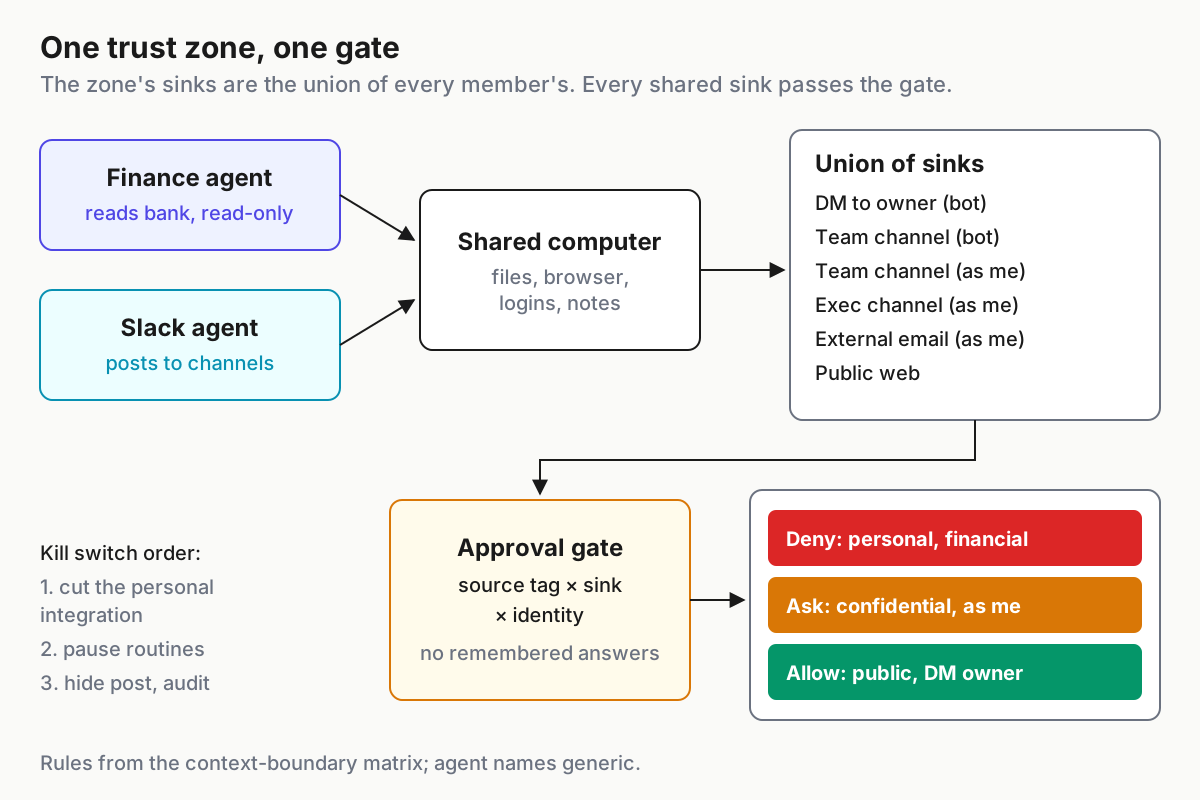
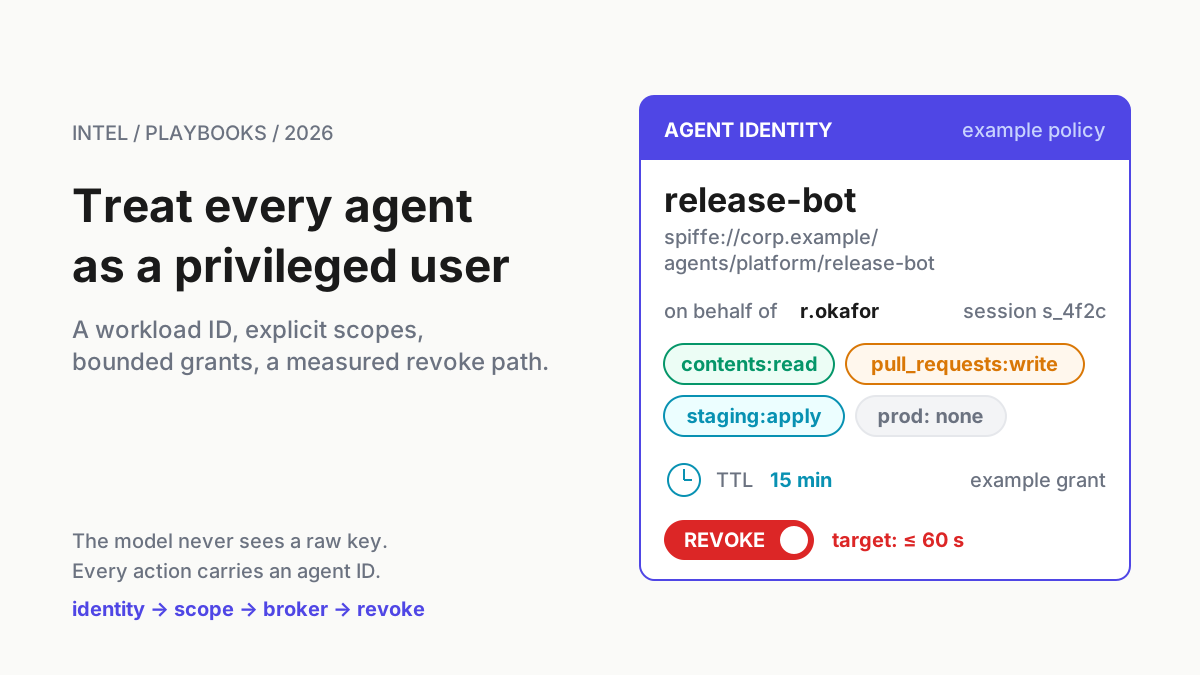
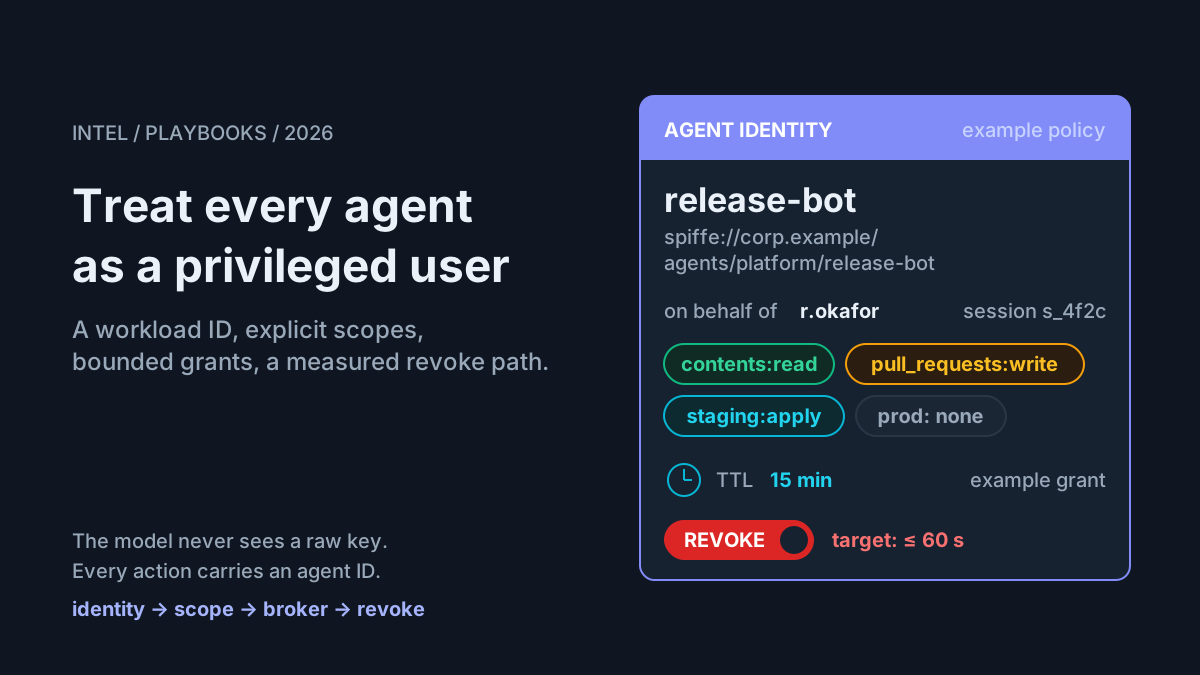
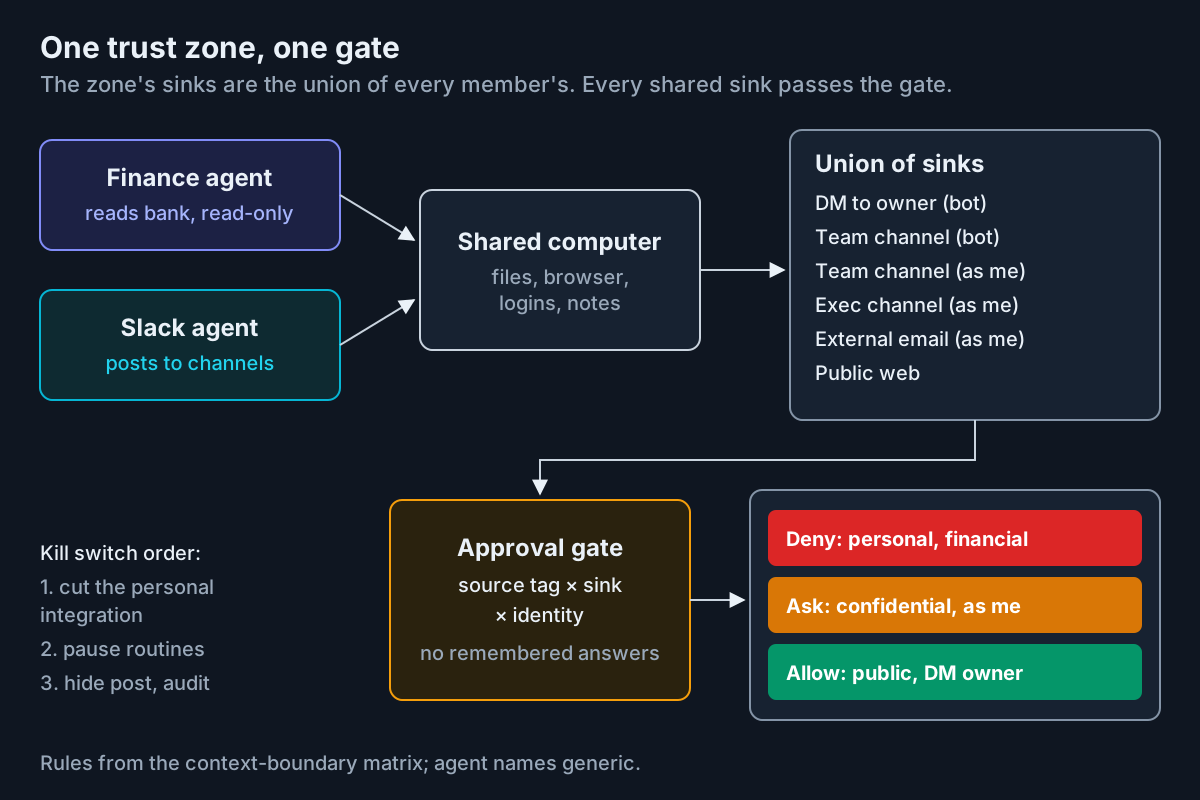 The zone, not the agent, is the unit of permission. Every path to a shared channel passes the gate.
Step 7: Rehearse the kill switch in the right order
Rule four: when something sensitive lands in the wrong place, disconnect the personal integration first, then audit what the sibling agents could read. Deleting the post feels urgent and is step three. The order, with illustrative timings for a small team:
- Minute 0–2. Revoke the personal integration at its source (the bank-aggregator connection, the inbox grant), not just inside the agent. A sibling cannot repeat what can no longer be fetched.
- Minute 2–5. Pause every routine in the zone. A routine that posted once on a schedule will post again on the next tick.
- Minute 5–10. Remove or hide the post and note who saw it.
- Minute 10–40. Audit the zone: files on the shared disk, cached pages in the shared browser profile, notes folders, and every “as me” post from the zone in the last 30 days.
- Minute 40–60. Rotate any login the shared browser profile held, then move the personal agent to its own zone before reconnecting anything.
Worked scenario: what one shared computer does to the matrix
Count the cells in the illustrative matrix. Six sources times six sinks is 36 cells: 10 allow, 11 approve each time, 15 deny.
Now count only the cells each agent could reach with its own tools, the way a per-agent permission review sees them. Ledger reaches one sink (DM to owner), Inbox two (adds external email), Desk four (DM plus the three Slack sinks) and Scout two (DM and public web). That is 15 reachable cells, of which two are deny cells, both easy to spot.
Under the trust-zone view all 36 are reachable, including all 15 deny cells. In this illustrative workspace, sharing one computer turned 2 forbidden paths into 15, and the per-agent review would have flagged only the first two.
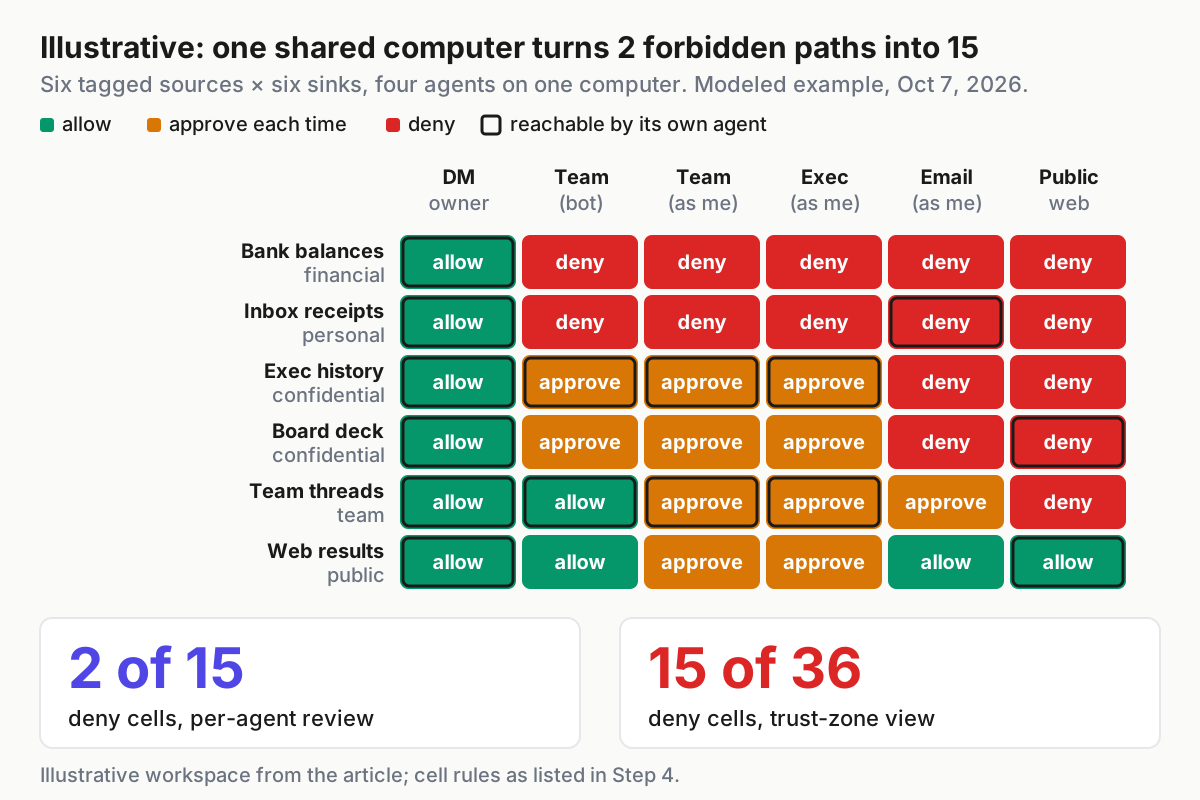
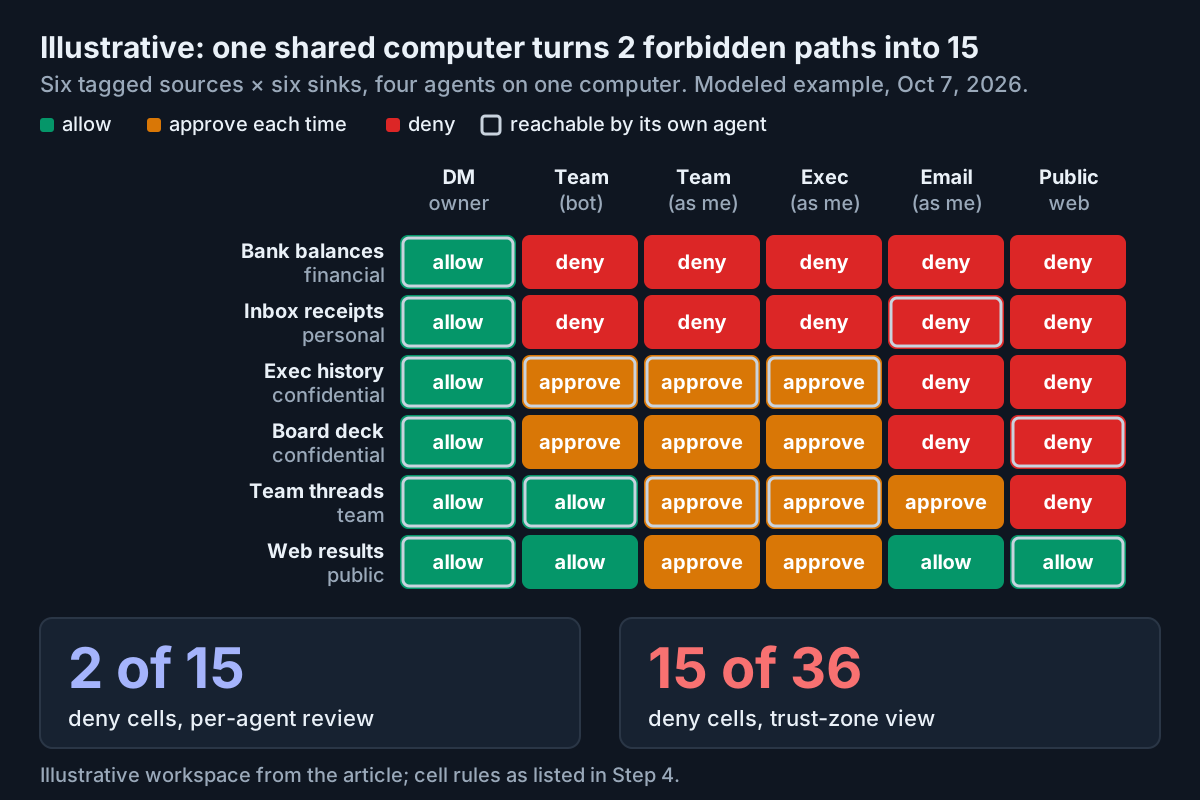 Illustrative: one workspace, four agents, one shared computer. The red cells are the ones a per-agent review never looks at.
The fix in this scenario is structural, not a better prompt. Move Ledger and Inbox to their own zone with two sinks, DM to owner and external email as me. Their reachable deny cells drop to two, both blocked by rule 1 at the gate, and the Slack-facing zone no longer contains a single financial or personal source.
Where shared-computer boundaries leak: the signal and the first move
| What breaks | Signal you would see | First action |
|---|---|---|
| A read-only agent’s output reaches a channel through a sibling | A post in a shared channel quoting data only the read-only agent fetches | Revoke the read-only agent’s integration at the source, then audit the shared disk |
| A routine picks its own destination | Routine output appears in a channel missing from its allowlist | Pause the routine; add default: deny and a destination list before resuming |
| “As me” posts skip review | Your name on a channel post you never saw a card for | Turn off as-user posting for every agent in the zone until the gate exists |
| A remembered approval covers a new data class | “Always allow” granted for one connector, now feeding drafts with financial tags | Clear remembered approvals for shared contexts; require per-post approval |
| Planted text steers a reading agent (the PromptArmor pattern) | A draft or link that cites a channel the agent was not asked about | Strip rendered links from drafts bound for shared channels; review which public sources the agent reads |
| A teammate’s secret is usable in everyone’s thread | A shared bot calls a service with a personal credential in a group chat | Replace with a scoped read-only service account, as the vendor’s own Team Bots page advises |
| The zone register goes stale | A new agent appears on the shared computer with no row in the register | Add the row and recompute the union before the new agent runs a routine |
Least privilege applies to combinations of agents
Single-agent permission reviews are where most teams stop, and they are necessary. The rule-of-two lane split separates capabilities per lane so no single lane holds untrusted input, private data and an outbound channel at once. The context-boundary matrix is the data-side partner to that: it splits what each agent may read from what the whole zone may write, and it treats the shared computer as the boundary that matters.
The same logic runs the other direction on public platforms, where the question is which verbs a tagged bot may perform where everyone can see; that is the public-timeline verb allowlist. And it is the argument for a single owner of the whole fleet’s map, the subject of one boss for every bot: an operator who can see every agent, every zone and every sink in one place notices the shared computer before the exec channel does.
FAQ
How do you isolate context between AI agents that share a computer?
Treat every agent sharing a machine, browser profile, filesystem or credential store as one trust zone. List the zone’s tagged sources and its combined sinks, fill a source-by-sink matrix with deny, approve and allow cells, and move any agent holding personal or financial data into its own zone with its own computer.
Can multiple AI agents in Slack see each other’s data?
They can when they run on one shared computer or share memory, files or logins. Grok Bot’s documentation, for example, says all of an account’s bots share one cloud computer and that anything placed there is available to every bot. Check the vendor’s isolation model before connecting personal integrations.
What are the risks of proactive AI agents posting on your behalf?
A scheduled agent chooses its own moment and sometimes its own destination, so nobody reviews the turn where it posts. The main risks are data from a sibling agent reaching a shared channel and posts made under your name. Give routines a destination allowlist and gate every as-user post.
Sources
- SpaceXAI Docs: Grok Bot overview (“Your Bots share one computer”)
- SpaceXAI Docs: Team Bots (secrets, shared channel computer, routines)
- PromptArmor: Data exfiltration from Slack AI via indirect prompt injection (Aug 2024)
- Futurism: report on the disputed exec-Slack post, unable to verify (Oct 7, 2026)
- PYMNTS: Grok puts the AI assistant between consumers and their banks (Sep 28, 2026)
- Dark Reading (reported Slack AI patch)