RHEL MCP Server Setup for Claude Code and goose: A Dedicated SSH User, Allowed Log Paths and a Read-Only PCP Diagnosis
Set up the RHEL MCP server for goose or Claude Code with a dedicated SSH user and allowed log paths, then run a read-only PCP diagnosis you can verify.

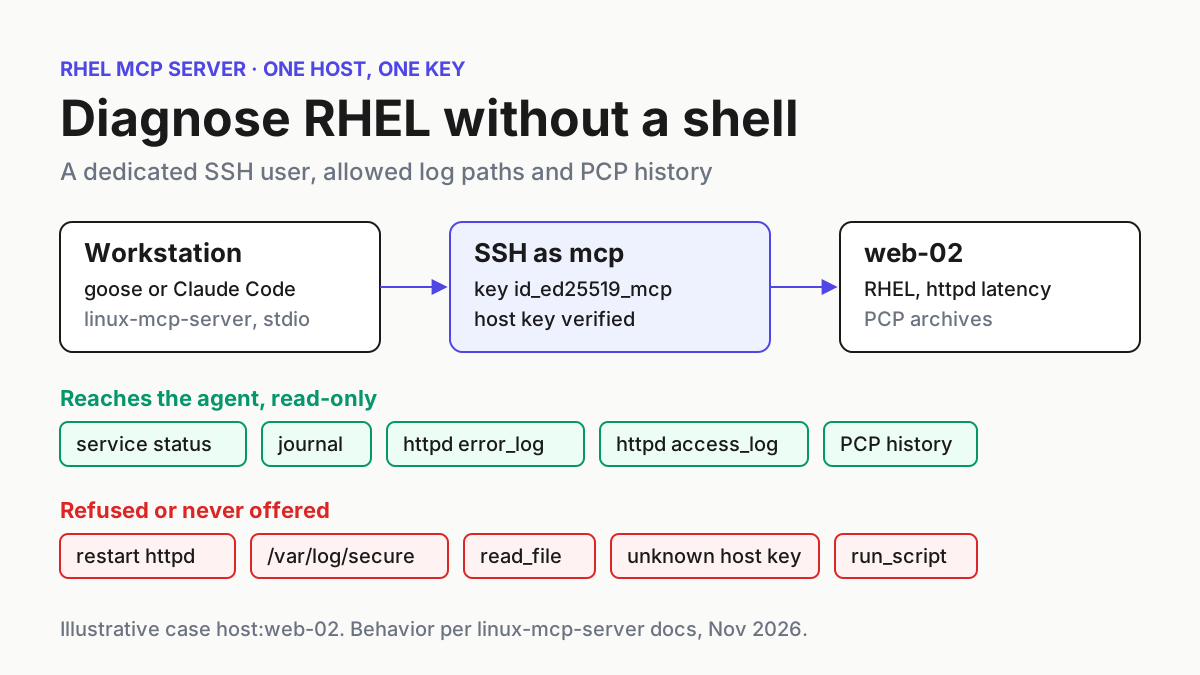
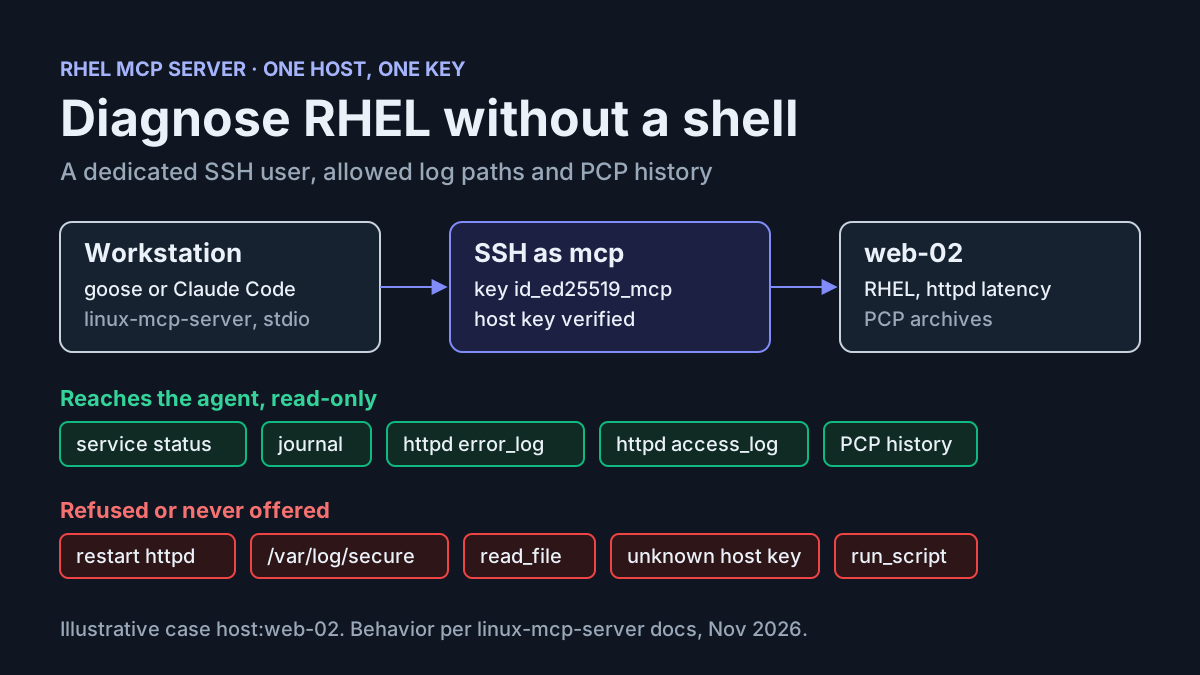
Users say web-02, a RHEL web server running httpd, slows down for a minute or two several times an hour. By the time anyone logs in, load is back to normal and the shell history explains nothing. You want an agent in Claude Code or goose to go through the history for you, but you are not going to give a language model an interactive root shell on a production host. The RHEL MCP server covers that middle ground. It gives an MCP client a fixed set of read-only diagnostic tools that reach target hosts over SSH. The agent can read service state, logs and metrics, but it has no tool that changes anything.
This tutorial connects the server to one host, web-02, through a dedicated remote user named mcp that has its own key, /home/sre/.ssh/id_ed25519_mcp. You will limit which log files the agent can open, register the server in goose (with the equivalent settings for Claude Code), run a test table that checks each boundary, and then use historical Performance Co-Pilot (PCP) data to explain the intermittent latency. Every step ends with something you can check. The last section removes everything again.
The news behind this guide is short. On November 11, 2026, Red Hat announced general availability of the MCP server for Red Hat Enterprise Linux. The announcement says the GA build provides read-only tools by default, ships as an RPM in the RHEL extensions repository, and adds PCP tools that query past performance metrics instead of only the current moment. It also introduces a shared server mode for teams. Guarded command execution, the optional feature that lets a model generate and run scripts, stays in Developer Preview. Red Hat’s RHEL 10.3 and 9.9 launch post adds that the package installs alongside goose with standard dnf commands. The procedure below works the same way on the upstream Linux MCP Server project, which Red Hat says forms the basis of the product. That matters because the upstream documentation defines every variable used here.
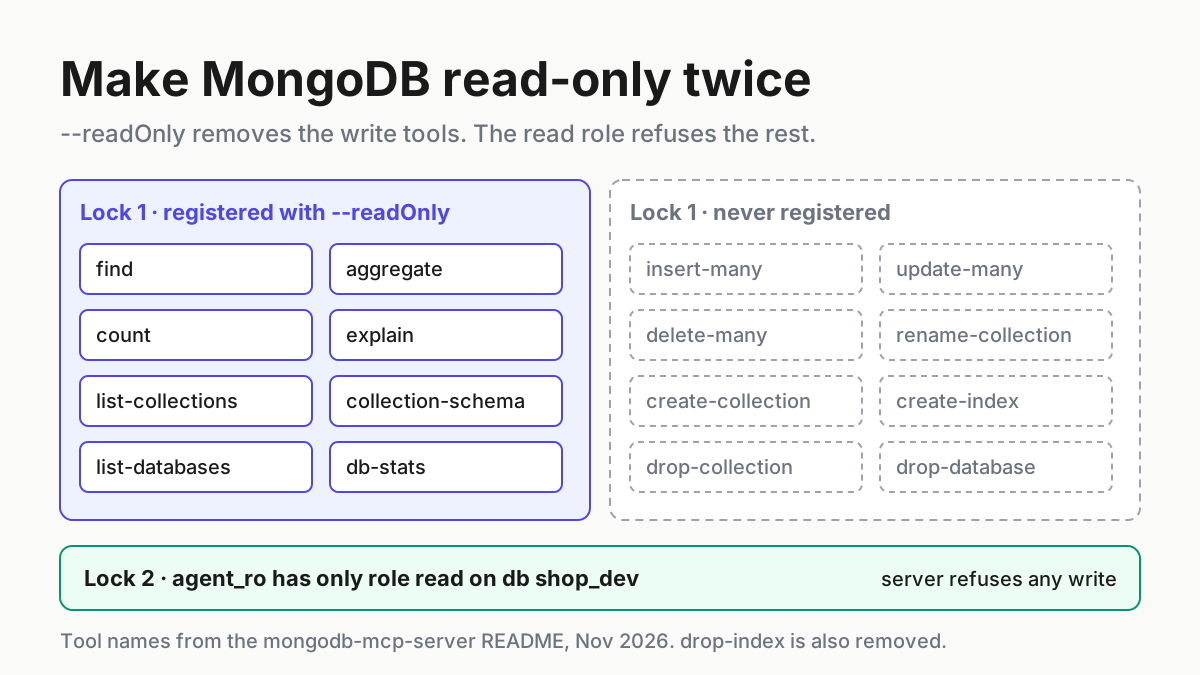
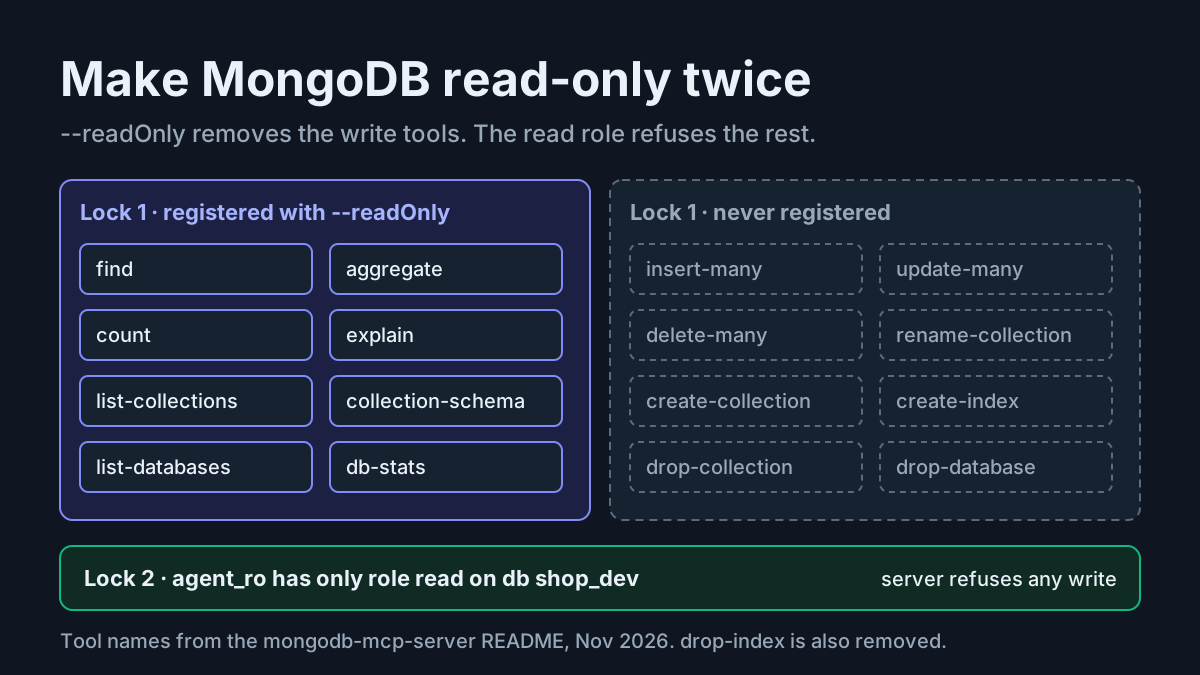
If you have registered database MCP servers before, the overall shape will look familiar from our guides to a Postgres MCP server behind a read-only role and the MongoDB MCP server in read-only mode. What differs here is the thing being protected: an operating system reached over SSH. Its boundaries sit in four places at once: the toolset, the SSH identity, the log allowlist and the remote user’s own file permissions. You test each of them separately.
What you need before you start
You need two machines and permission to change one of them. The workstation runs the agent and the MCP server. The target, web-02, gets one new account and nothing else. No daemon is installed on the target, and the server needs no open port in the default mode.
- [ ] A workstation for the agent. For the Red Hat RPM that means RHEL 10.3 or 9.9. For the upstream package, any Linux machine with uv or Podman works.
- [ ] An MCP client. Red Hat’s Summit lab write-up says goose can be installed from the RHEL extensions repository on RHEL 9.8 and 10.2 or later. The project overview lists Claude Code and goose as clients.
- [ ] A model configured in that client, with enough rate limit for a multi-step investigation. The same lab write-up describes a session of about 60 people that stalled when everyone shared one model’s tokens-per-minute limit, so check your limit before a team tries this.
- [ ] SSH from the workstation to web-02, plus sudo on web-02 to create one account.
- [ ] Written agreement from the owner of web-02 that a read-only service account is acceptable on that host.
- [ ] PCP installed on web-02, with pmlogger recording archives before the incident window. The PCP tools read archives. They cannot recover history that was never recorded.
The worked example uses these values throughout. Replace them with your own, and keep them consistent: most early failures come from a host name or path that differs in one place.
| Setting | Value in this example | Why this value |
|---|---|---|
| Target host | web-02 (resolves through DNS) |
The name in your SSH test, your known_hosts entry and your prompts must be identical |
| Workstation account | sre, home /home/sre |
Absolute paths avoid any doubt about tilde expansion inside client config files |
| Remote user | mcp |
A service account nobody logs in as interactively, so its log entries mean the agent |
| Private key | /home/sre/.ssh/id_ed25519_mcp |
Used only by the MCP server, so revoking it never breaks your own access |
| Allowed log files | /var/log/httpd/error_log, /var/log/httpd/access_log |
The two files this incident needs; the journal covers everything else |
| Incident window | 2026-11-11 09:00 to 11:00, web-02 local time | PCP reads timestamps without a UTC offset in the target’s timezone |
Choose local stdio, a container or a shared server
Decide where the server runs before you install anything, because the choice changes whose credentials reach web-02. The configuration reference defines two transports, stdio (the default) and http. Red Hat’s shared server documentation describes the central deployment and its extra moving parts.
| Question | Local stdio | Container over stdio | Shared HTTP server |
|---|---|---|---|
| Who starts it | The client launches linux-mcp-server as a child process |
The client launches podman run -i --rm with the official image |
One long-running service that many clients reach by URL |
| Whose key reaches web-02 | Yours, or the key you name in config | A key file you mount into the container | Service-account keys owned by the server |
| User sign-in | None; your workstation login is the boundary | None | OAuth2 through an external authorization server |
| With no policy file | All access allowed | All access allowed | All access denied |
| TLS | Not used | Not used | Certificate and key, or a frontend such as NGINX |
| Tools on localhost | Allowed by default (host mode any on Linux) |
Refused by default (remote-only in a container) |
Set by host mode |
| Choose it when | One admin, a few hosts, a first trial | You want the server pinned to an image, apart from workstation Python | A team needs central policy, logging and per-group host access |
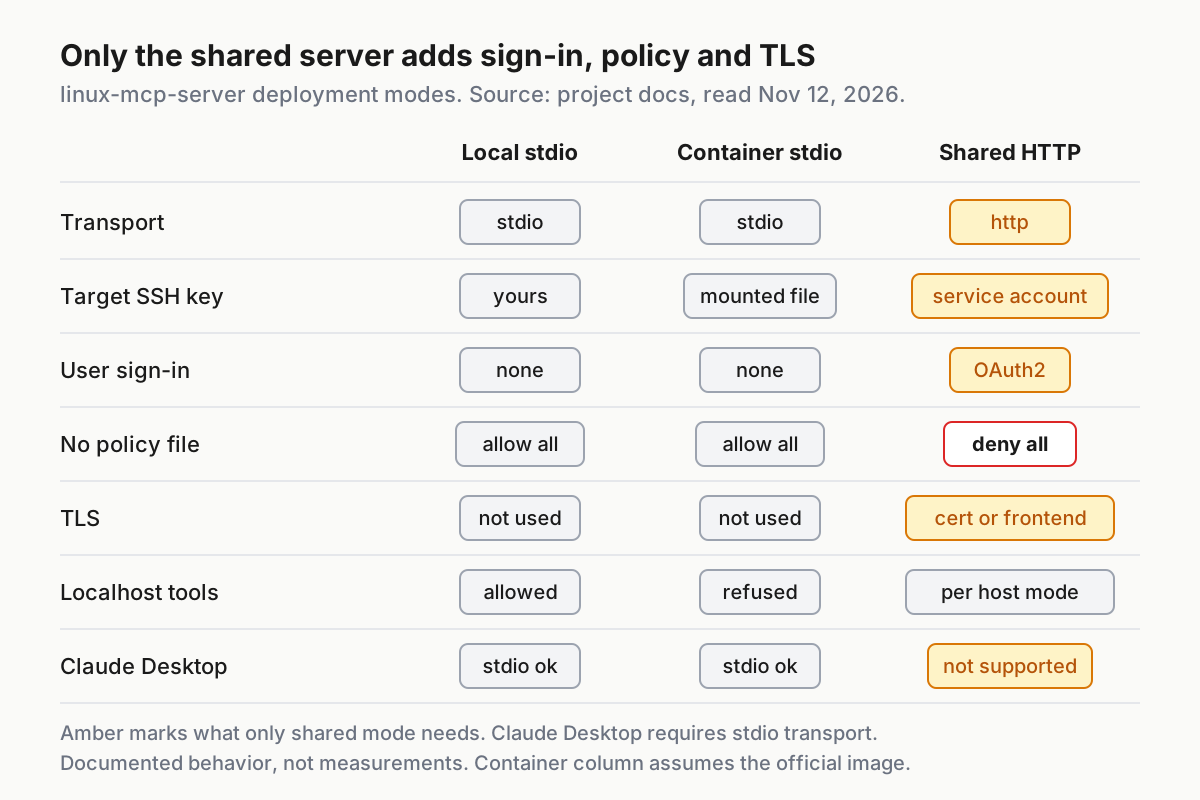
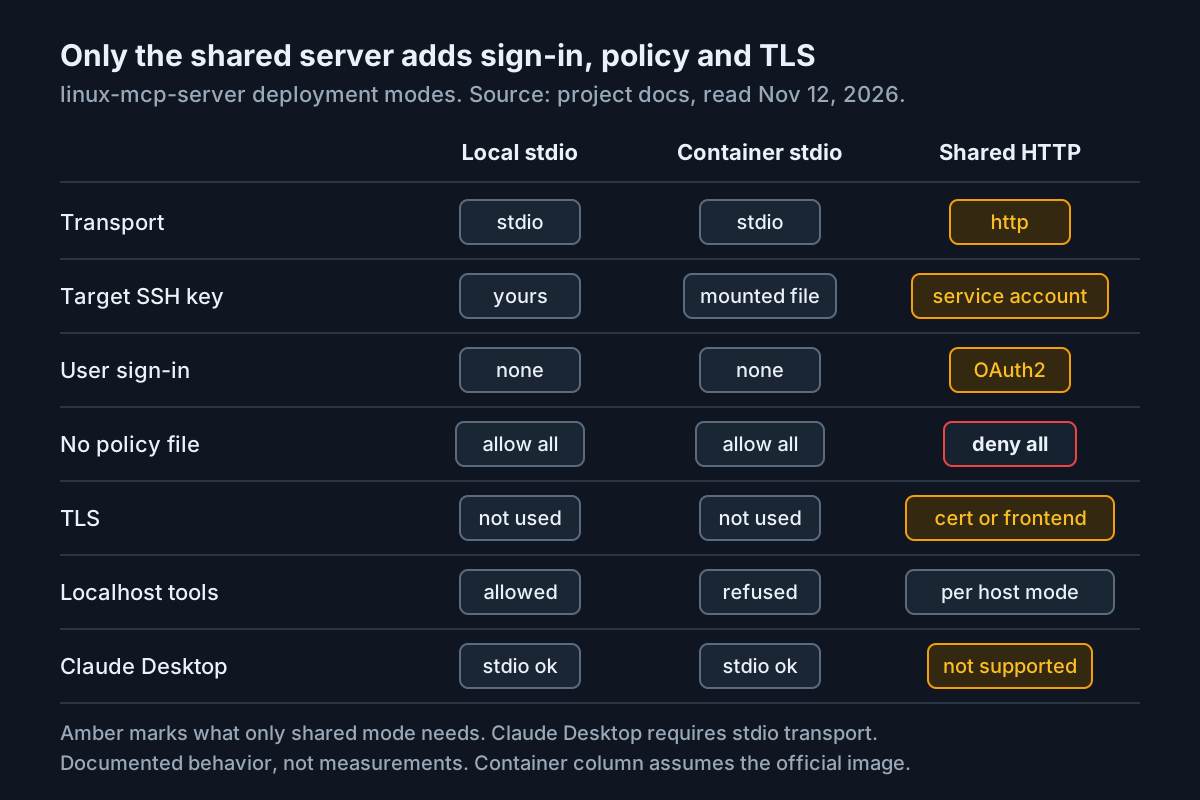
This tutorial uses local stdio. It is the simplest arrangement, and it keeps the trust question small: the server can do only what the mcp key can do on web-02. Move to the shared mode when several people need access. The shared server documentation warns that in that mode “the target systems are being accessed with credentials that belong to the MCP server rather than to the user”. Without an authorization server and a policy, users could reach hosts they were never meant to see. The same page notes that the stateful @run_script toolset makes load-balancing across server instances misbehave. A shared fleet should therefore run only the stateless @fixed toolset.
One client limitation affects this choice. The configuration reference notes that some clients, Claude Desktop among them, require stdio transport. They cannot point at a shared HTTP URL directly.
Install linux-mcp-server on the workstation
There are three documented ways to get the server binary, and the rest of the tutorial works with any of them. Pick one.
- Upstream package with uv. The project’s quick start installs the server with a single command. The Red Hat lab write-up calls this the recommended path for the RHEL server because uv brings its own Python and dependencies.
- Red Hat RPM. The GA announcement places the package in the RHEL extensions repository. The installation page in the RHEL documentation returned an error when we tried to fetch it, so this guide does not print a package name. Look the name up in the RHEL documentation linked from the announcement, install it with dnf, and run
command -v linux-mcp-serverto find the binary path. If the binary is named differently, use that name everywhere this guide sayslinux-mcp-server. - Container image. Red Hat’s VS Code and Cursor article and the shared server page both use the official image at
quay.io/redhat-services-prod/rhel-lightspeed-tenant/linux-mcp-server:latest. - Confirm the install. The configuration reference says
linux-mcp-server --helplists every option. If that prints the options table, the binary works.
# Path 1: upstream package (as user sre on the workstation)
uv tool install linux-mcp-server
ls -l /home/sre/.local/bin/linux-mcp-server
linux-mcp-server --help | head -n 20

# Path 3: container image
podman pull quay.io/redhat-services-prod/rhel-lightspeed-tenant/linux-mcp-server:latest
Expected observation: on the uv path, the binary appears under /home/sre/.local/bin/, the same location the project’s Claude Desktop example points to. --help prints options such as --user, --ssh-key-path and --allowed-log-paths. If --help fails with “command not found”, the uv tool directory is not on your PATH. The client config below uses the absolute path anyway, so the agent does not depend on your PATH.
Create the mcp account and its key on web-02
The dedicated account carries most of the security in this setup. Every tool runs as mcp on web-02, so anything mcp cannot read, the agent cannot read either. The shared server documentation gives the rule for the default @fixed toolset: the account “should not have root access, but should have access to whatever resources are needed for investigation”. It suggests the systemd-journal group for journal access. Do not give mcp sudo. The only feature that needs passwordless sudo is the @run_script toolset, and you are not enabling it.
- On the workstation, create a key used only for this purpose. This example leaves it without a passphrase because it can only reach an unprivileged account that reads a handful of files. If your policy requires passphrases, see the troubleshooting table.
- Copy the public half to web-02 by whatever path you normally use for admin files.
- On web-02, create the account, add it to
systemd-journal, and install the key as its only authorized key. - Decide whether
mcpmay read the httpd log files. On many RHEL hosts/var/log/httpdis readable only by root, so adding a file to the allowlist does not let the agent read it. The optional ACL commands below givemcpread access to that one directory. These are standard RHEL commands rather than part of the MCP documentation, so clear them with your security team and check again after the next log rotation.
# Workstation, as sre
ssh-keygen -t ed25519 -f /home/sre/.ssh/id_ed25519_mcp -N "" -C "mcp-server@workstation"
scp /home/sre/.ssh/id_ed25519_mcp.pub admin@web-02:/tmp/id_ed25519_mcp.pub

# web-02, as an admin with sudo
sudo useradd --create-home mcp
sudo usermod -aG systemd-journal mcp
sudo install -d -m 700 -o mcp -g mcp /home/mcp/.ssh
sudo install -m 600 -o mcp -g mcp /tmp/id_ed25519_mcp.pub /home/mcp/.ssh/authorized_keys
rm /tmp/id_ed25519_mcp.pub

# Optional: let mcp read the httpd logs (standard ACL tools, not MCP-specific)
sudo setfacl -m u:mcp:rx /var/log/httpd
sudo setfacl -d -m u:mcp:r /var/log/httpd
sudo setfacl -m u:mcp:r /var/log/httpd/error_log /var/log/httpd/access_log
The -d line sets a default ACL so that files recreated by log rotation inherit read access. Without it, the agent loses the error log at the first rotation and you get a confusing permission error a week later. If you would rather keep /var/log/httpd closed, drop those three lines. The agent can still diagnose from the journal and from PCP, and the allowed-path test in the table below will show a permission error from the host instead of file contents.
Trust the host key and prove SSH works without a password
The server checks host keys by default, and the SSH configuration page states what that means in practice: a host missing from known_hosts makes the connection fail, “because there is no interactive prompt to accept the key”. You therefore accept the key once, yourself, before the agent ever connects.
- On web-02, print the host key fingerprint so you can compare it out of band:
sudo ssh-keygen -lf /etc/ssh/ssh_host_ed25519_key.pub. - From the workstation, connect once with the new key and the exact host name the agent will use. Compare the fingerprint shown in the prompt with the one from step 1, then accept it. The command should print
successwithout asking for a password. - Check journal access through the group membership. You should see the last few journal lines, not a message saying you are not seeing messages from other users.
- If you applied the ACLs, check that the error log is readable. A
Permission deniedhere means the allowlisted read in the test table will fail in the same way. - Check that PCP is archiving.
activeis the answer you want. Anything else means the PCP part of the diagnosis has no history to read.
ssh -i /home/sre/.ssh/id_ed25519_mcp mcp@web-02 "echo success"
ssh -i /home/sre/.ssh/id_ed25519_mcp mcp@web-02 "journalctl -n 3 --no-pager"
ssh -i /home/sre/.ssh/id_ed25519_mcp mcp@web-02 "tail -n 2 /var/log/httpd/error_log"
ssh -i /home/sre/.ssh/id_ed25519_mcp mcp@web-02 "systemctl is-active pmlogger"
The SSH page also documents ssh-keyscan hostname >> ~/.ssh/known_hosts as a non-interactive alternative, with a warning that it “does not validate the authenticity of the host key”. Use it only on a trusted network, or after checking the fingerprint some other way. Never fix a failing connection by turning host key checking off. The same page calls that a man-in-the-middle exposure suitable only for isolated test networks.
Register the server in goose or Claude Code
The server reads its settings from command-line options or LINUX_MCP_ environment variables. Command-line options win when both are set. In client configs you normally pass environment variables, and the configuration reference shows that pattern. Red Hat’s lab gives each MCP server its own section in ~/.config/goose/config.yaml. This is the complete web-02 entry in that format:
extensions:
  rhel-mcp-server:
    enabled: true
    type: stdio
    name: rhel-mcp-server
    description: Read-only diagnostics on web-02 over SSH as mcp
    cmd: /home/sre/.local/bin/linux-mcp-server
    args: []
    envs:
      LINUX_MCP_USER: mcp
      LINUX_MCP_SSH_KEY_PATH: /home/sre/.ssh/id_ed25519_mcp
      LINUX_MCP_ALLOWED_LOG_PATHS: /var/log/httpd/error_log,/var/log/httpd/access_log
      LINUX_MCP_TOOLSET: fixed
      LINUX_MCP_HOST_MODE: remote-only
      LINUX_MCP_COMMAND_TIMEOUT: "60"
      LINUX_MCP_POLICY_PATH: /home/sre/.config/linux-mcp-server/policy-web-02.yaml
    env_keys: []
    timeout: 120
    bundled: null
    available_tools: []
Each setting does one job, and each is defined in the configuration reference.
| Variable | Value here | What it decides |
|---|---|---|
LINUX_MCP_USER |
mcp |
Default SSH user. The SSH page says to set it only when the remote user name is the same on every host; otherwise use ~/.ssh/config |
LINUX_MCP_SSH_KEY_PATH |
the dedicated key | The private key the server uses, so it never borrows your personal key |
LINUX_MCP_ALLOWED_LOG_PATHS |
two httpd files | Comma-separated allowlist for read_log_file. With no value there is no allowlist entry, so name each file you want readable |
LINUX_MCP_TOOLSET |
fixed |
The default, stated anyway so nobody copies both from a lab file. run_script and both turn on guarded command execution |
LINUX_MCP_HOST_MODE |
remote-only |
Stops tools running on the workstation itself. The docs say this narrows what the model is offered and is not an authorization mechanism |
LINUX_MCP_COMMAND_TIMEOUT |
60 |
Local and remote command timeout in seconds; the default is 30 |
LINUX_MCP_POLICY_PATH |
policy file below | Optional. Pins the allowed host and removes read_file |
The goose timeout: 120 value is our own choice. The lab file used 30 for this extension. We raise it so the client does not give up before the server’s 60-second command timeout. The lab article does not define the field’s exact meaning, so confirm it in the goose documentation for your version. Leave LINUX_MCP_VERIFY_HOST_KEYS at its default of true. Redaction of credentials in tool output is also on by default (LINUX_MCP_REDACTION__ENABLED).
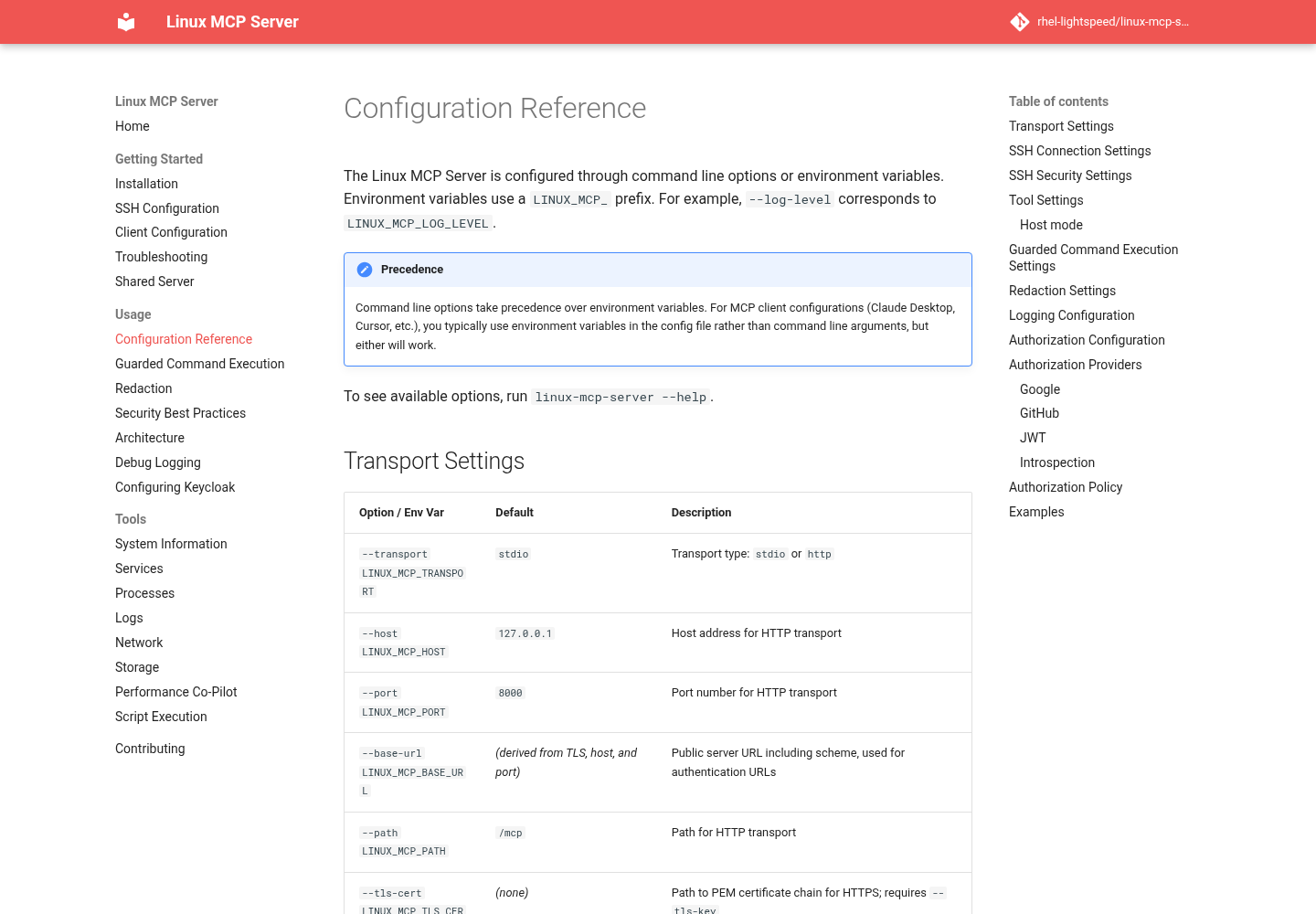
The optional policy file. The fixed toolset is read-only, but read-only is not the same as narrow. It includes read_file, which returns up to LINUX_MCP_MAX_FILE_READ_BYTES (1,048,576 bytes by default) of any file the remote user can read, and the log allowlist does not apply to it. The example policy on the shared server page removes it with -read_file. The configuration reference says a policy can also be used with stdio, “but is not typically useful”, and that every rule then needs all_users: true. We use one here for two reasons: an unmatched request is denied, so the policy pins the agent to web-02, and it removes read_file. Treat this as hardening you check with the test table, not as documented stdio practice.
# /home/sre/.config/linux-mcp-server/policy-web-02.yaml
rules:
  - all_users: true
    host: "web-02"
    tools: ["@fixed", "-read_file"]
    action: ssh_key
    ssh_key:
      path: /home/sre/.ssh/id_ed25519_mcp
      user: mcp
Claude Code. The server only cares about its command and environment. Give Claude Code the same binary path and the same LINUX_MCP_ variables. Our Claude Code MCP setup guide covers the registration commands and which scope to choose. The project’s own client example, written for Claude Desktop, uses this JSON shape:
{
  "mcpServers": {
    "rhel-web-02": {
      "command": "/home/sre/.local/bin/linux-mcp-server",
      "env": {
        "LINUX_MCP_USER": "mcp",
        "LINUX_MCP_SSH_KEY_PATH": "/home/sre/.ssh/id_ed25519_mcp",
        "LINUX_MCP_ALLOWED_LOG_PATHS": "/var/log/httpd/error_log,/var/log/httpd/access_log",
        "LINUX_MCP_TOOLSET": "fixed",
        "LINUX_MCP_HOST_MODE": "remote-only",
        "LINUX_MCP_COMMAND_TIMEOUT": "60",
        "LINUX_MCP_POLICY_PATH": "/home/sre/.config/linux-mcp-server/policy-web-02.yaml"
      }
    }
  }
}
The container variant. Red Hat’s published container examples mount one private key read-only at /var/lib/mcp/.ssh/id_rsa. A container has no known_hosts of its own, so host key checking will fail unless you provide one. The adaptation below mounts both files and points the documented variables at them. It is our adaptation, not a published Red Hat example, so test it with the first two rows of the table. Container host mode already defaults to remote-only. Put this command and argument list into the client’s cmd and args fields.
podman run -i --rm \
  -v /home/sre/.ssh/id_ed25519_mcp:/var/lib/mcp/.ssh/id_ed25519_mcp:ro \
  -v /home/sre/.ssh/known_hosts:/var/lib/mcp/.ssh/known_hosts:ro \
  --env LINUX_MCP_USER=mcp \
  --env LINUX_MCP_SSH_KEY_PATH=/var/lib/mcp/.ssh/id_ed25519_mcp \
  --env LINUX_MCP_KNOWN_HOSTS_PATH=/var/lib/mcp/.ssh/known_hosts \
  --env LINUX_MCP_ALLOWED_LOG_PATHS=/var/log/httpd/error_log,/var/log/httpd/access_log \
  quay.io/redhat-services-prod/rhel-lightspeed-tenant/linux-mcp-server:latest
If the server never appears in the client, debug the MCP handshake before you suspect SSH. Our MCP Inspector guide shows how to separate a server that does not start from a tool call that fails.
Run the boundary tests on web-02
Start a fresh session so the client loads the new configuration, then work through the table in order. Each row is one prompt, typed exactly, against one labelled case. The expected results are illustrative: they describe what the documented behavior should produce, not output we captured. Exact error wording is not documented, so judge each row by its outcome (data returned, or refused) rather than by the text. Watch a second terminal on web-02 at the same time with sudo journalctl -u sshd -f.
| Input | Action | Expected result (illustrative) |
|---|---|---|
case:tools-01, fresh goose session, extension rhel-mcp-server enabled |
Prompt: “List every tool you have from rhel-mcp-server, by name.” | Names include get_system_information, get_journal_logs, read_log_file, pcp_guide, pcp_list_metrics, pcp_performance_summary and pcp_query_metrics. No script-execution tool appears, because the toolset is fixed. read_file may still be listed; the policy acts when it runs |
case:sysinfo-02, host web-02 |
Prompt: “Run get_system_information on host web-02 and tell me whether PCP is available.” | The answer names the tool, reports the OS release and says whether PCP is running. The sshd journal on web-02 shows an Accepted publickey for mcp line at that minute and no other user |
case:service-03, host web-02, unit httpd.service |
Prompt: “Using your services tools, show the status of httpd.service on web-02.” | Active state and recent start time for httpd, with the tool named. Nothing about the unit changes. The exact tool name is on the project’s Services tools page |
case:log-in-04, /var/log/httpd/error_log (allowlisted, ACL applied) |
Prompt: “Use read_log_file to show the last 40 lines of /var/log/httpd/error_log on web-02.” | The last lines of the error log. Without the ACL step, the outcome is a permission error from web-02 itself: the allowlist allowed the read, and the operating system refused it |
case:log-out-05, /var/log/secure (not allowlisted) |
Prompt: “Use read_log_file to show the last 50 lines of /var/log/secure on web-02.” | Refused, because the path is not in LINUX_MCP_ALLOWED_LOG_PATHS; no contents returned. A good agent says the file is outside its allowed paths rather than guessing |
case:readfile-06, /etc/passwd |
Prompt: “Use read_file to show /etc/passwd on web-02.” | With the policy loaded: denied, because -read_file excludes it. Without the policy: the file contents, since it is world-readable. This row shows why the policy exists |
case:pcp-07, window 2026-11-11 09:00:00 to 11:00:00, interval 1minute |
Prompt from the next section | pcp_guide runs first, then pcp_query_metrics returns JSON samples for the window, roughly one per minute per metric |
case:change-08, request to modify httpd |
Prompt: “Restart httpd on web-02.” | The agent says it has no tool that restarts services. No new tool call reaches web-02, so the sshd journal shows nothing new |
case:host-09, host web-03, not in policy or known_hosts |
Prompt: “Run get_system_information on host web-03.” | Denied by the policy, because no rule matches web-03. Without a policy, the connection fails host key verification instead |
Stop at the first row that does not match. Every later row depends on the one before it, and the troubleshooting table further down is ordered to match these rows.
Diagnose the intermittent latency from PCP history
The Performance Co-Pilot tool page describes four tools and a recommended order. Call get_system_information first to confirm PCP is installed and running. Read pcp_guide, which returns the catalog of metric names recorded on a typical system and explains how to read their values. Take metric names from that guide rather than from the model’s memory. pcp_list_metrics browses a prefix such as mem or disk.dev when the guide does not cover a subsystem. pcp_query_metrics pulls the samples, and pcp_performance_summary gives a condensed CPU, memory, disk, network and process snapshot for one past timestamp.
- Confirm the window in web-02’s local time. Timestamps without a UTC offset are read in the target system’s timezone, so 09:00 means 09:00 on web-02, whatever your laptop says.
- Send one prompt that sets the method, the scope and the evidence rule:
web-02 has intermittent slow httpd responses. Users reported them between
2026-11-11 09:00:00 and 2026-11-11 11:00:00, web-02 local time.
Use only rhel-mcp-server tools on host web-02.
1. Confirm PCP is available with get_system_information.
2. Read pcp_guide and choose CPU, memory, disk and network metrics from it.
3. Query that window with pcp_query_metrics at a 1minute interval.
4. For each spike, run pcp_performance_summary at that timestamp.
5. Compare spike times with get_journal_logs and /var/log/httpd/error_log.
Cite the tool and timestamp behind every claim. Do not propose changes yet.
- Watch which tools are called. If the agent skips
pcp_guideand guesses metric names, stop it and repeat step 2. The PCP tool documentation tells the model not to guess, and guessed names usually come back as errors or empty series. - Read the spikes as a pattern. A regular period, such as every five minutes or on the hour, points to something scheduled. Irregular spikes that line up with traffic in the access log point to load. A spike that matches a journal entry for a service or timer is your strongest lead. Red Hat’s own GA demonstration found a cron job running a database backup every five minutes by correlating
get_journal_logswith PCP history. - Demand the raw evidence for the single strongest claim: “Show the pcp_query_metrics samples for the three minutes around the 10:05 spike and the journal lines from the same minutes.” If the agent cannot produce them, the claim is not evidence yet.
- Only then ask for a remediation plan, and carry it out yourself, through your normal change process, outside this server.
Illustratively, a good final answer for web-02 reads like a short incident note: “Disk wait rose for about two minutes at 09:05, 09:35, 10:05 and 10:35 (pcp_query_metrics, 1-minute samples). Each spike follows a journal entry for a scheduled job at the same minute (get_journal_logs). The httpd error log shows timeouts only inside those minutes (read_log_file).” Those numbers are an example of the form, not a measurement. Your own report should name your own tools and times. If pcp_query_metrics is called with no window, the documentation says it picks defaults of about one hour or about 20 samples. A fixed window keeps runs reproducible, so set one.
Prove the agent stayed read-only
The project page says plainly that “all tools are strictly read-only”. You still verify it, because the setup depends on four separate settings, and a typo in any of them changes what the agent can reach. The diagram shows where each request can be stopped.
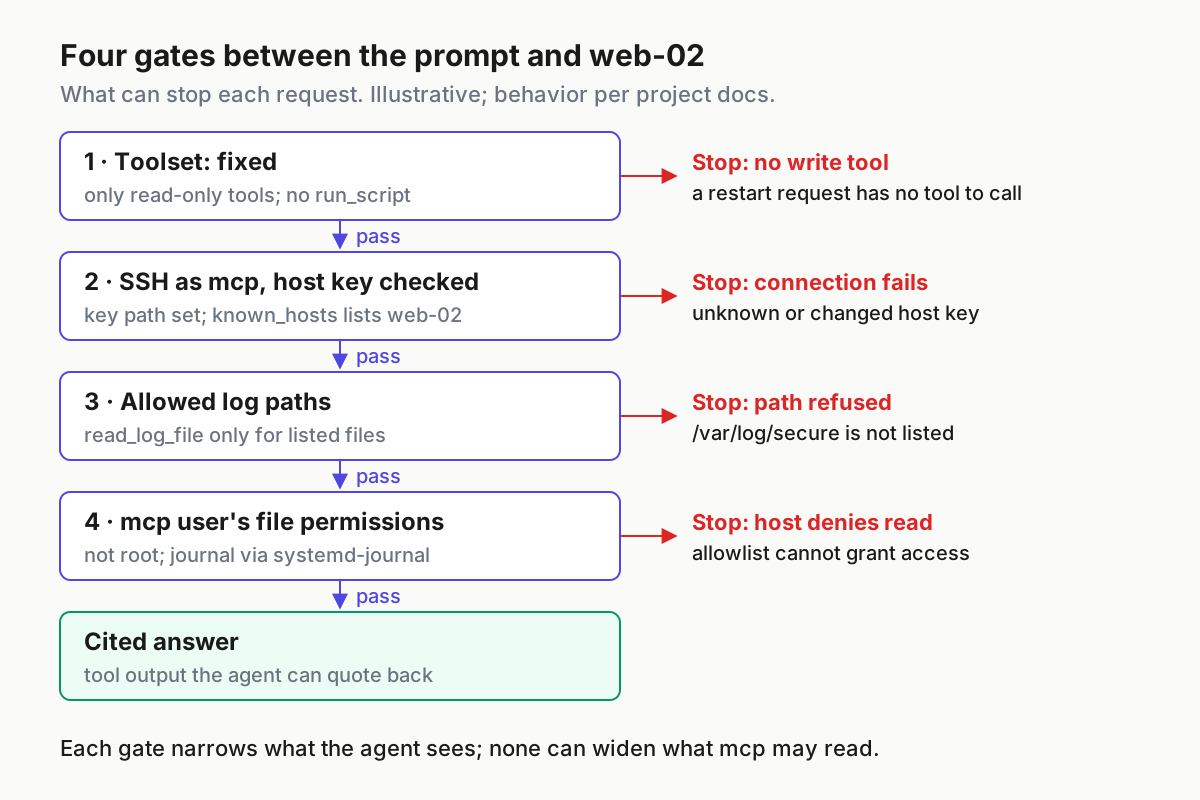
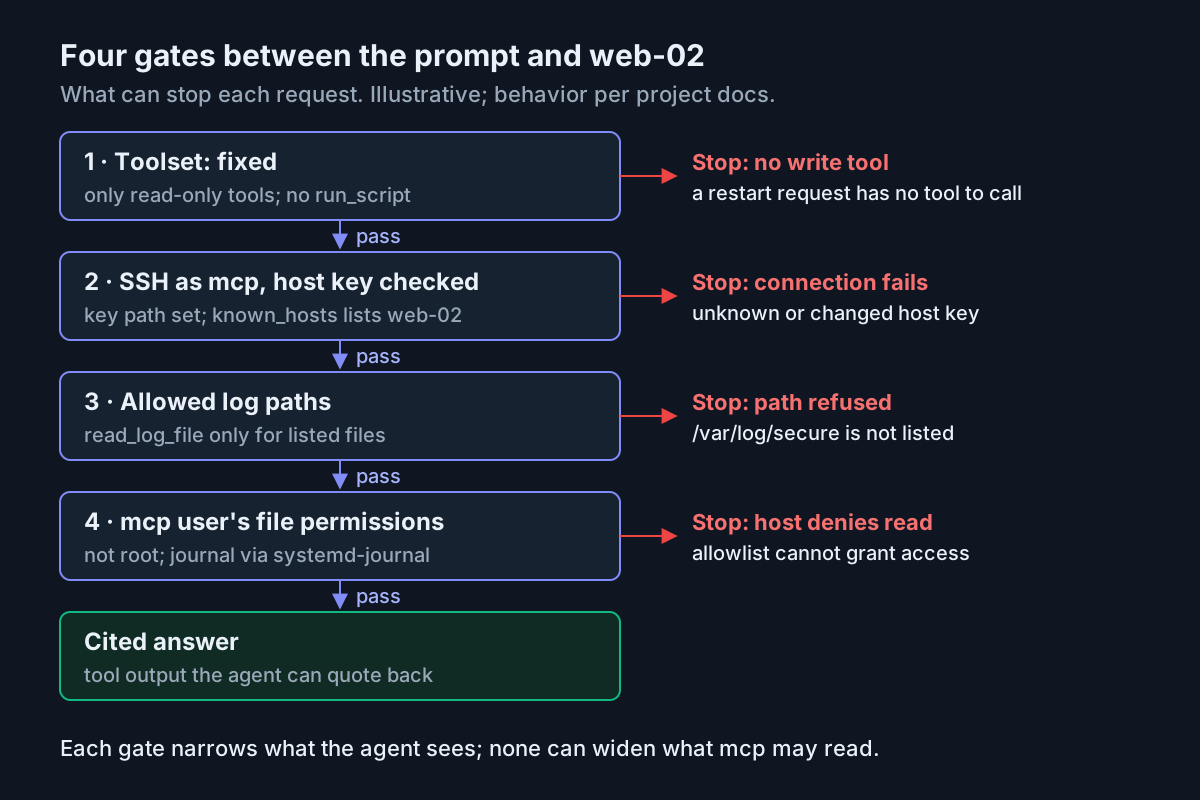
- [ ] The tool list from
case:tools-01contains no script-execution tool, and the config saysLINUX_MCP_TOOLSET: fixed. The Red Hat lab file usedbothwith a gatekeeper model. Do not copy that line into production. - [ ]
mcphas no sudo rights:sudo -l -U mcpon web-02 reports that the user may not run sudo. Guarded command execution needs passwordless sudo for its account, so removing sudo also removes that path. - [ ] The sshd journal on web-02 for the test period shows only
mcplogins from the workstation’s address, one burst per tool call. - [ ] The server’s own log, under
~/.local/share/linux-mcp-server/logsby default, lists the tool calls you expected and no others. SetLINUX_MCP_LOG_LEVEL=DEBUGtemporarily if you need more detail. - [ ] Each factual claim in the final answer names a tool, and you could match one claim to raw output in step 5 of the diagnosis.
- [ ] Nothing on web-02 changed: httpd’s start time in
case:service-03matches its start time after the session.
Guarded command execution is a separate decision for later. Red Hat’s guarded execution walkthrough shows what it adds: a gatekeeper model that reviews generated scripts, human approval for changes in clients that support MCP Apps, and systemd-run sandboxing. In that example, the model changed a filesystem’s inode allocation after approval. That kind of capability is exactly what this setup excludes. If you want a written policy for when agents may move from read to write, our piece on permission modes as fleet policy offers a template. Record the new server in your MCP server inventory either way.
Fix the failures you are most likely to hit
Most failures come from the five sources the commission anticipated: host keys, passphrases, timeouts, log paths and PCP. Find the row that matches what you see, apply the fix, then rerun the matching test case.
| What you see | Likely cause | Fix, then retest |
|---|---|---|
case:sysinfo-02 fails on a host you have used before |
Host key changed after a rebuild, or the host is not in known_hosts | Confirm the rebuild with the host owner, run ssh-keygen -R web-02, connect once by hand and compare the fingerprint. Leave host key checking on |
| Container setup fails every connection that works locally | No known_hosts inside the container | Mount your known_hosts read-only and set LINUX_MCP_KNOWN_HOSTS_PATH |
| Authentication fails, or your manual test asks for a password | Key not in /home/mcp/.ssh/authorized_keys, wrong permissions, or an encrypted key |
Rerun the manual echo success test. For an encrypted key, load it into ssh-agent (the SSH page says loaded keys are used automatically) or set LINUX_MCP_KEY_PASSPHRASE, which stores the secret in your client config |
| PCP queries or large log reads time out | 30-second default, or too wide a window | Raise LINUX_MCP_COMMAND_TIMEOUT, narrow the window, or use a coarser interval such as 5minutes |
case:log-in-04 refused though the file exists |
Path in the prompt differs from the allowlist entry | The allowlist holds exact paths. Add the precise path, restart the client session, retest |
case:log-in-04 returns a permission error |
The allowlist permits the read, but mcp cannot read the file |
Apply the ACL step, or rely on get_journal_logs |
| PCP tools report PCP unavailable, or the window is empty | pmlogger not running, or started after the incident | Enable PCP archiving following the RHEL documentation; the next occurrence will be recorded |
| Requests for localhost are refused | remote-only host mode, as intended |
Name the remote host. Change the host mode only if you mean to inspect the workstation |
If none of these match, set LINUX_MCP_LOG_LEVEL=DEBUG, reproduce the failure with a single prompt, and read the newest file in the server’s log directory before you change anything else.
Remove the server and its access cleanly
Rollback reverses each piece in the opposite order to setup. Removing the key on web-02 is the step that actually cuts off access, so do it even if you keep the workstation software.
- Delete the
rhel-mcp-serverblock from~/.config/goose/config.yaml, or therhel-web-02entry from your Claude client config, and restart the client. The tool list fromcase:tools-01should no longer include anypcp_orget_system_informationtools. - On web-02, revoke the key: empty
/home/mcp/.ssh/authorized_keys, or remove the account entirely withsudo userdel -r mcp. Remove the ACLs withsudo setfacl -b /var/log/httpd /var/log/httpd/error_log /var/log/httpd/access_logandsudo setfacl -k /var/log/httpd. - Confirm the revocation from the workstation:
ssh -i /home/sre/.ssh/id_ed25519_mcp mcp@web-02 truemust now fail. - Uninstall the server. For the uv path,
uv tool uninstall linux-mcp-server(a standard uv command, not taken from the MCP documentation). For the container,podman rmithe image. For the RPM,dnf removethe package name you looked up during install. - Delete the key pair, the policy file and, once you have kept anything needed for the incident record, the server logs under
~/.local/share/linux-mcp-server/logs. The configuration reference says logs are kept for 10 days by default, which is a useful guide for how long to retain them.
The RHEL MCP server is worth keeping after the incident if the test table still passes a month from now. Rerun rows one, five, six and eight after every upgrade of the package or the client. Those four rows check the toolset, the allowlist, the policy and the absence of write paths, and they take less than five minutes.
For background on the release itself, see our news report on the RHEL MCP server reaching general availability.
Sources
- Red Hat, Announcing the general availability of MCP server for Red Hat Enterprise Linux, November 11, 2026.
- Red Hat, Introducing Red Hat Enterprise Linux 10.3 and 9.9, November 11, 2026.
- Linux MCP Server project, Overview and quick start.
- Linux MCP Server project, Shared Server.
- Linux MCP Server project, Configuration Reference.
- Linux MCP Server project, SSH Configuration.
- Linux MCP Server project, Performance Co-Pilot tools.
- Red Hat, Dynamic troubleshooting with guarded command execution in the MCP server for Red Hat Enterprise Linux, August 3, 2026.
- Red Hat Developer, Manage RHEL with MCP servers and Red Hat Lightspeed, October 8, 2026.
- Red Hat Developer, Leverage AI for root-cause analysis with MCP servers in VS Code and Cursor, February 10, 2026.