NVIDIA App's New MCP Server for AI Agents Ships On by Default, Not Opt-In
NVIDIA App 11.0.9.565 adds a local MCP server letting agents like Hermes, OpenClaw and Perplexity control games, ShadowPlay and driver settings. Independent reports and viral posts show the agent-control toggle ships enabled automatically, not opt-in.
NVIDIA’s app for managing GeForce GPUs became the subject of overnight security chatter this week — not because of a disclosed vulnerability, but because of a feature NVIDIA shipped and left switched on without telling anyone.
A local control channel for agents
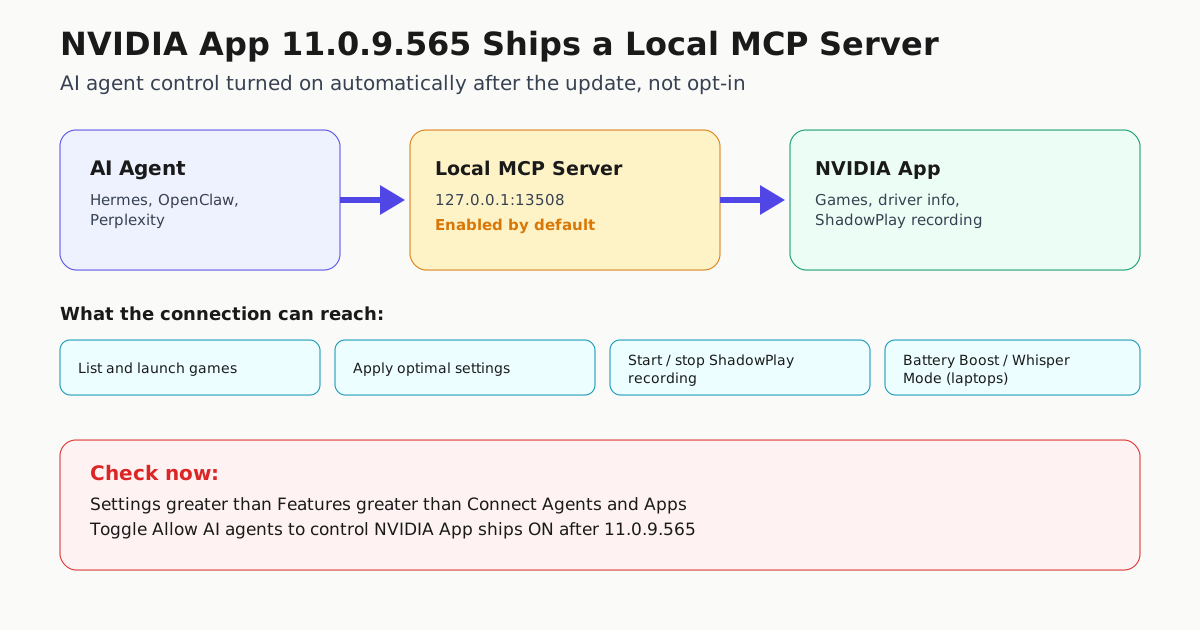
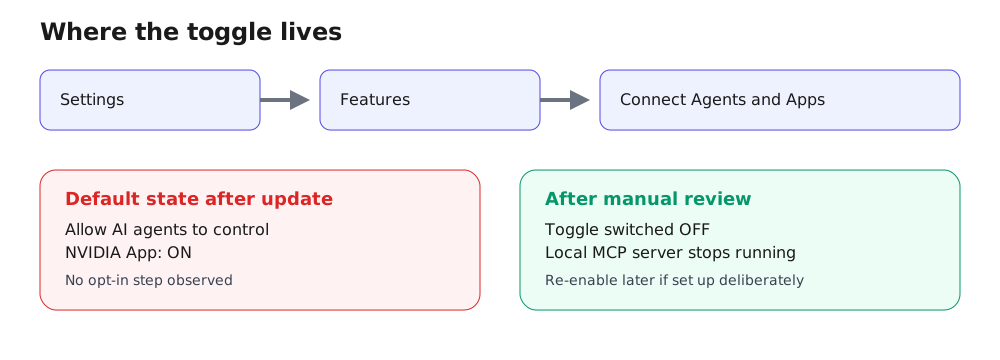
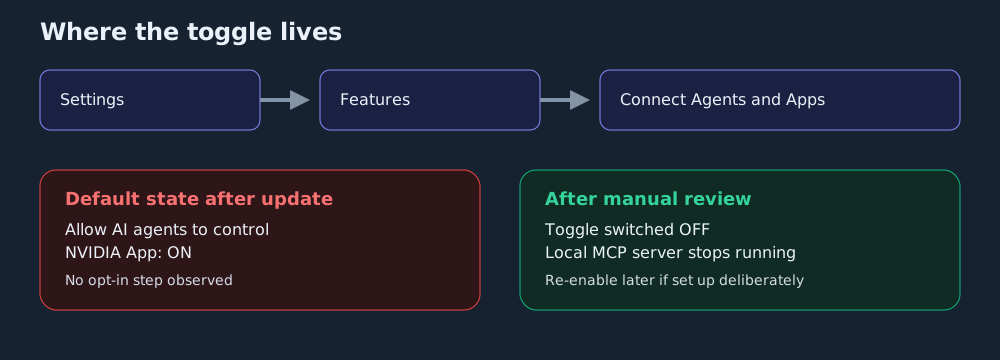
NVIDIA’s own release notes confirm that NVIDIA App 11.0.9.565 adds “AI Agent Support for Model Context Protocol (MCP) server.” The app now runs a local MCP server that lets a “compatible AI agent control the NVIDIA App using natural-language requests.” NVIDIA names Hermes, OpenClaw and Perplexity as example clients. Through that connection, an agent can see installed games and apply optimized settings, or enable ShadowPlay to record gameplay, turning a few menu clicks into a conversational request. NVIDIA tells users to manage the feature under Settings > Features > AI Agents and App Connections.
That capability is the headline. The practical story is what happens the moment the update installs.
Enabled, not requested
Tech outlet tbreak reported that VideoCardz found the agent-control toggle already switched on immediately after updating to 11.0.9.565, with other users confirming the same behavior. According to tbreak’s account of that testing, the connection runs through a persistent local server at loopback address 127.0.0.1 on port 13508. Beyond listing games and applying settings, the reachable controls include screenshots, Instant Replay, recording, RTX Dynamic Vibrance, the performance statistics overlay, read-only driver and game detection data, and on supported laptops, Battery Boost and Whisper Mode power settings.
Social reaction amplified the same finding. Game director Agustín Cordes posted a PSA on X confirming the app auto-updates and ships the agent-control setting enabled with, in his words, “very permissive rights,” calling it a privacy invasion and a high security risk; the post passed 129,000 views. A separate post from Pirat_Nation listed the same capability set — checking the current game, starting or stopping recordings, taking screenshots, controlling Instant Replay, toggling RTX Dynamic Vibrance, reading driver info, changing optimization settings, and adjusting laptop power modes — and told readers bluntly to turn it off.
Why the default matters
Running only at loopback keeps the server off the public internet, but it still creates a new local attack surface most users never asked for. Any process able to reach 127.0.0.1:13508 — a misconfigured agent, a plugin installed for an unrelated task, or malware already on the machine — can now issue natural-language commands to a component that touches drivers, screen recording and installed-game data. NVIDIA’s release notes confirm the MCP server exists but, per the evidence reviewed here, offer no explanation for why it ships active by default, and no NVIDIA statement addressing the criticism appears in any of the sources checked for this story.
For anyone already running coding or companion agents on a GeForce PC, that silence is the actionable part: the risk isn’t that NVIDIA built an MCP server, it’s that the control plane for it showed up pre-enabled, and most people who haven’t connected an agent to anything would have no reason to go looking for the toggle.
Where the toggle lives
The diagram below maps the settings path NVIDIA and tbreak both describe, and the before/after state once a reader checks it.
What to check right now
- Open NVIDIA App.
- Go to Settings > Features.
- Find the agent-connection section — NVIDIA’s release notes label it “AI Agents and App Connections”; tbreak’s walkthrough of the interface calls it “Connect Agents & Apps.”
- Check the status of “Allow AI agents to control NVIDIA App.”
- Switch it off if you have not deliberately connected an agent to it. You can turn it back on later if you set one up on purpose.
What the connection can reach
| Capability | Confirmed by |
|---|---|
| List installed games, apply optimized settings | NVIDIA release notes |
| Enable/control ShadowPlay recording | NVIDIA release notes |
| Screenshots, Instant Replay, RTX Dynamic Vibrance, overlay stats | tbreak, citing VideoCardz testing |
| Driver info, detected games (read-only) | tbreak, citing VideoCardz testing |
| Battery Boost, Whisper Mode (laptop power settings) | tbreak, citing VideoCardz testing; Pirat_Nation’s post |
Part of a bigger pattern
This is not an isolated NVIDIA problem — it’s the latest instance of a vendor shipping agent connectivity as an unconfigured default rather than a deliberate choice, a pattern worth tracking across every tool in your stack; see “Unconfigured” Is a Vendor Decision for a sweep method. A desktop app quietly running its own MCP endpoint is also a textbook case of what Shadow MCP covers: control surfaces that exist on a machine without IT, security, or even the user necessarily knowing. If your organization issues GeForce-equipped machines, treat the audit above as a one-line addition to existing endpoint policy rather than a one-off fire drill — the next vendor update is unlikely to be the last one that ships a local agent server switched on.
Sources
- Updates and Release Highlights | NVIDIA
- NVIDIA App AI server: how to disable the new connection
- AGTP on X: "The NVIDIA app just auto-updated and turned on AI agent control by default. Here's what you need to know. On Oct 16, 2026, user Agustín Cordes (@AgustinCordes) posted a PSA. He confirmed the NVIDIA app is updating automatically. The update has a setting, enabled by default, that lets A…
- Pirat_Nation 🔴 on X: "The latest NVIDIA App update (version 11.0.9.565) adds an AI agent MCP server, enabled by default, runs locally and lets AI tools interact with the NVIDIA App. It can: • Check the current game • Start/stop recordings • Take screenshots • Control Instant Replay and Highlight…