Playwright MCP Authentication: Reuse a Test Login in Isolation
Set up Playwright MCP authentication with saved browser state, verify the active test account in an isolated session, and recover when the saved login expires.

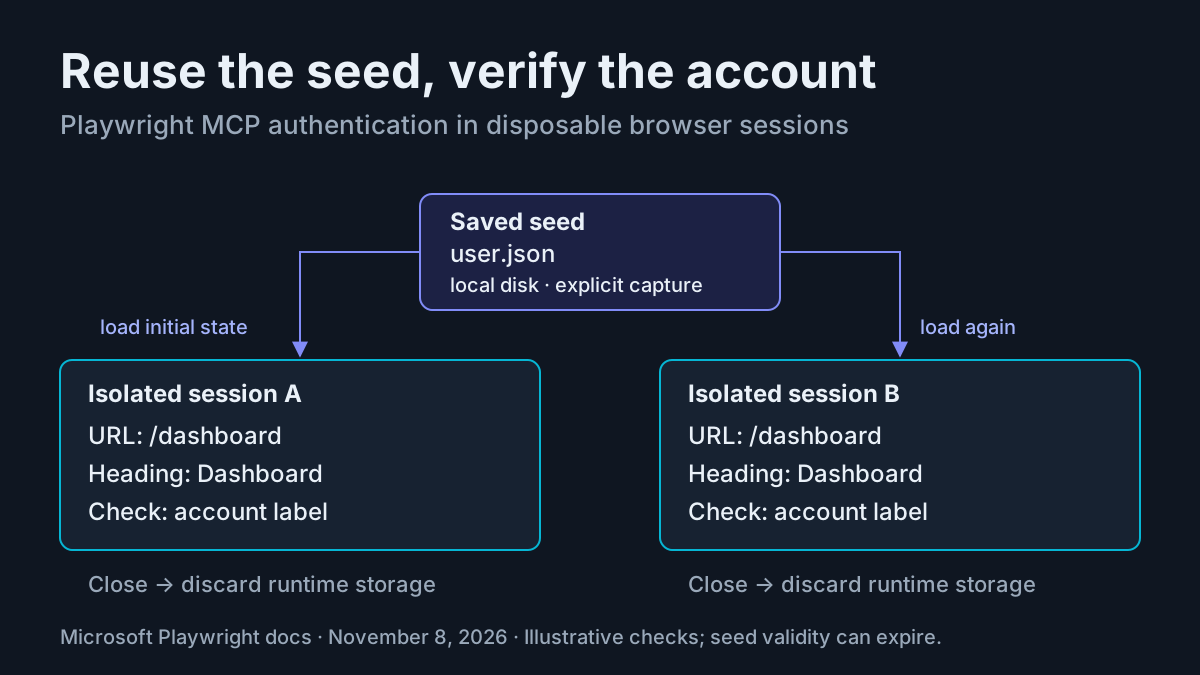
Your browser agent reaches the dashboard only after you repeat the same login. Keeping a browser profile forever avoids that interruption, but makes the next QA session depend on whatever the previous session left behind. Playwright MCP authentication offers a more deliberate arrangement: save a known test login, load that file into an isolated browser, and verify the account before inspecting the application.
This tutorial is for a developer or QA engineer who already has Node.js, a working MCP client, an authorized application running locally, and a dedicated nonproduction account. You will capture authentication once, configure its reuse, check an authenticated dashboard, and replace expired state. The commands and tool calls below are documented interfaces; the application, account labels, and expected observations are illustrative. Nothing here was executed against a live application.
The timely prompt was Decoded’s November 7, 2026 post, which proposed saved state for authenticated QA. Its abbreviated configuration leaves an important choice implicit. Microsoft documents --storage-state for isolated sessions, so this guide explicitly pairs it with --isolated. The durable lesson is the relationship between the saved file and the disposable browser that consumes it.
Define the dashboard check before capturing credentials
- Start your authorized local application using its existing development instructions.
- Confirm that the dedicated account can sign in manually.
- Establish the dashboard URL and the visible account label you expect.
- Keep this first check read-only: navigating and inspecting the dashboard should not change shared application settings.
Our filled case is task:auth-dashboard-01. The application origin is http://localhost:3000, its login route is /login, and its authenticated destination is /dashboard. The account is qa.reader@example.test; the dashboard exposes a heading named Dashboard and the visible text Signed in as qa.reader@example.test. These are concrete example requirements for an existing test application, not a claim about a supplied demo server. Use this case directly when your test application has that contract; otherwise substitute its actual routes and identity label consistently.
The outcome has two parts. The browser must reach http://localhost:3000/dashboard, and the page must identify the expected test account. A dashboard heading alone cannot distinguish the intended reader account from an administrator or a previous tester. A URL alone cannot establish that the application has finished loading authenticated content.
Microsoft’s authentication guide explains why reusable state suits tests that can share an account without affecting one another. Tests that change server-side state need different accounts when run concurrently. Separate browser contexts do not create separate database records or prevent two sessions from changing the same account settings. That distinction is why this worked example stops at an authenticated-page inspection.
If you are deciding how a browser tool should attach in the first place, the existing Chrome DevTools MCP connection guide covers that adjacent decision. Here, the browser starts independently and receives an explicit authentication seed. It does not attach to your everyday signed-in browser.
Prepare a private state location and working browser
- Use a project where the Playwright CLI is already available, alongside your existing MCP client. The MCP repository requires Node.js 18 or newer.
- Create the authentication directory and exclude it from version control before signing in.
- Confirm that the Playwright browser required by your installation is available.
The official authentication documentation supplies these Bash commands:
mkdir -p playwright/.auth
echo $'\nplaywright/.auth' >> .gitignore
The first command creates the directory even when its parent is absent. The second appends the exclusion to .gitignore; it does not encrypt the directory or remove a file already committed. Inspect the resulting ignore entry in your editor. Keep the actual JSON out of issue reports, shared chat transcripts, and screenshots of file contents.
A storage-state file can contain cookies and other sensitive material usable to impersonate the account. Microsoft discourages committing it to either private or public repositories. A nonproduction account limits the consequences of a mistake but does not make its session public information. Retain the file locally only while you need the reusable login.
If your existing Playwright setup lacks its browser binaries, the browser documentation documents the standard installation command:
npx playwright install
Run installation through your normal development process. Each Playwright version needs compatible browser binaries, and updating the package can require installing browsers again. A missing executable is a launch problem; it tells you nothing about whether the state file contains a valid login. Resolve browser startup before investigating authentication.
Installed Google Chrome is a documented compatibility choice. The MCP server accepts --browser=chrome, and Playwright supports branded Chrome available on the machine. It does not install Chrome by default, enterprise policies can affect automation, and branded Chrome is not a universal replacement for bundled Chromium. Keep the main example on your working browser configuration; add that option only when testing installed Chrome is an intentional requirement.
Capture the human login and prove the file reloads
- Run codegen with the save option shown below.
- Sign in manually as
qa.reader@example.test, including any required human authentication challenge. - Wait for
/dashboardand inspect the account label. - Close the browser so codegen finishes saving its state.
- Open a second codegen session using the load option and inspect the same destination.
npx playwright codegen http://localhost:3000/login --save-storage=playwright/.auth/user.json
The test-generator documentation describes two windows: the browser where you interact and the Playwright Inspector. Its save-storage workflow records state at the end of the session, after authentication and browser closure. Do not assume that opening the login page has already produced a useful authenticated file.
Complete the application’s redirect sequence before closing. Some applications set cookies over several redirects. Microsoft’s authentication examples wait for a final URL or an authenticated page element before saving. For this case, wait until the dashboard is loaded and the expected account label is visible. If the account is wrong, correct it before making the reusable seed.
Now test consumption separately:
npx playwright codegen --load-storage=playwright/.auth/user.json http://localhost:3000/dashboard
The illustrative expected observation is a dashboard that identifies qa.reader@example.test without another sign-in. This check separates capture problems from MCP configuration problems. If this standalone reload already returns to /login, adding the same file to MCP will not repair it. Recapture after a complete login, confirm the exact origin, and check whether the application’s authentication depends on storage outside this guide’s supported path.
Keep localhost consistent. The fixture uses one explicit origin throughout; do not capture against one hostname and casually navigate to another. A state file represents actual browser storage, rather than a general instruction to authenticate every application you visit.
During the reload check, resist the temptation to sign in immediately when the login form appears. That would establish new runtime authentication and obscure whether loading the saved file worked. First record the redirected route and the missing identity label. Close that probe, then begin a separate capture session if replacement is necessary. This keeps the evidence for consumption separate from the action that repairs it.
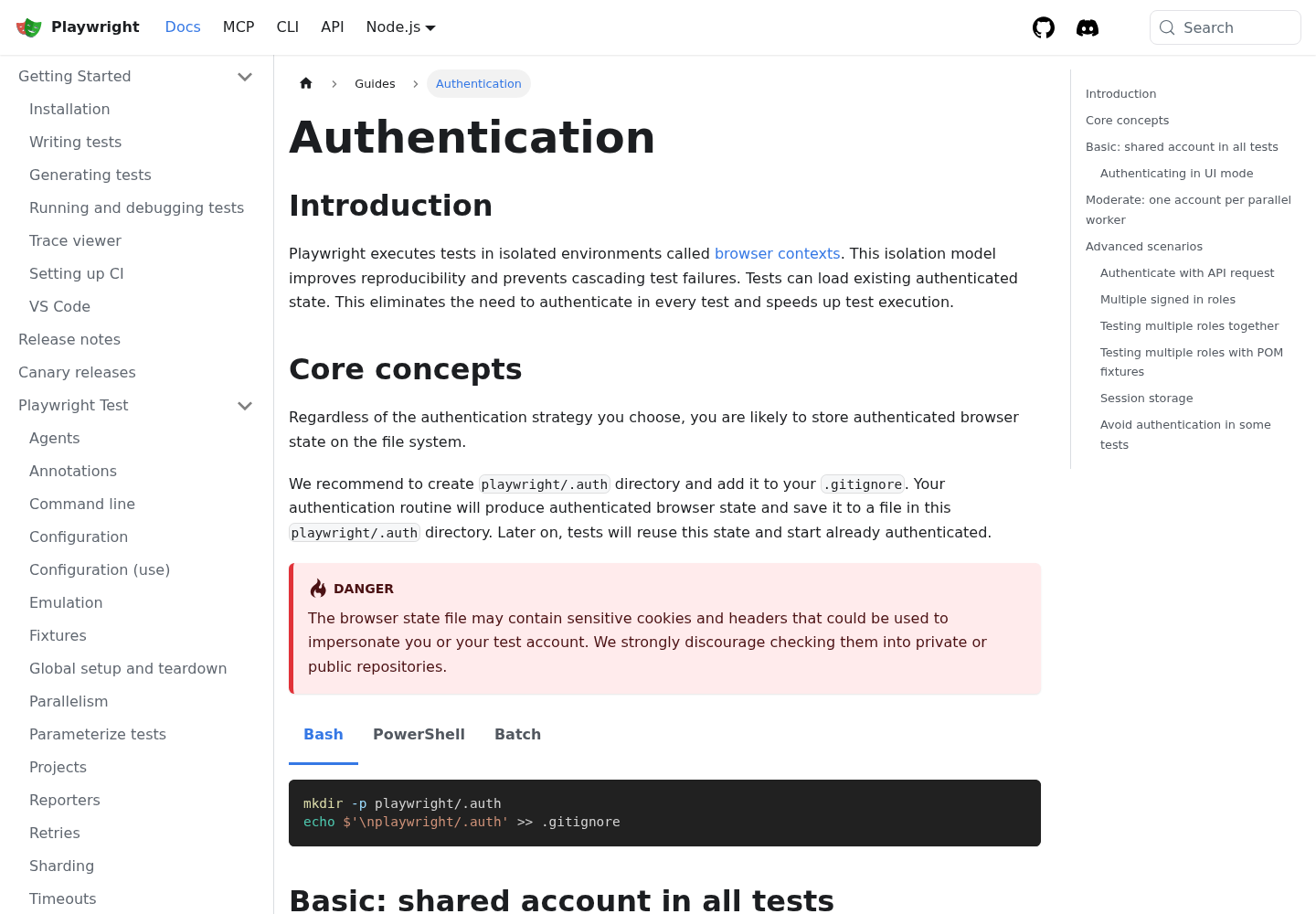
Source capture requested from Microsoft’s Playwright Authentication documentation. The documentation explains isolated contexts and reusable authenticated state; it is not a screenshot of this illustrative local dashboard.
Load the saved state into an isolated MCP browser
- Locate your client’s existing MCP configuration using its normal settings interface.
- Add the complete server entry below, adapting only the file path to your project.
- Restart or reconnect that MCP server through the client so its launch arguments take effect.
- Confirm that the client exposes Playwright browser tools before requesting the dashboard check.
{
  "mcpServers": {
    "playwright": {
      "command": "npx",
      "args": [
        "@playwright/mcp@latest",
        "--isolated",
        "--storage-state=playwright/.auth/user.json"
      ]
    }
  }
}
This is the standard client configuration shape from the official MCP repository, with its documented isolated-state arguments. Merge the entry into an existing configuration rather than replacing other server entries. Clients with a different wrapper need their documented configuration location and shape; the server arguments remain the relevant mechanism.
The relative path is a concrete example for a server launched from the project directory. If the client launches elsewhere, use the corresponding absolute path to this same local file. An absolute path is machine-specific, so avoid checking a personal path into shared client configuration without considering other developers. The requirement is that the launched server can read the intended file, not that every machine uses identical path text.
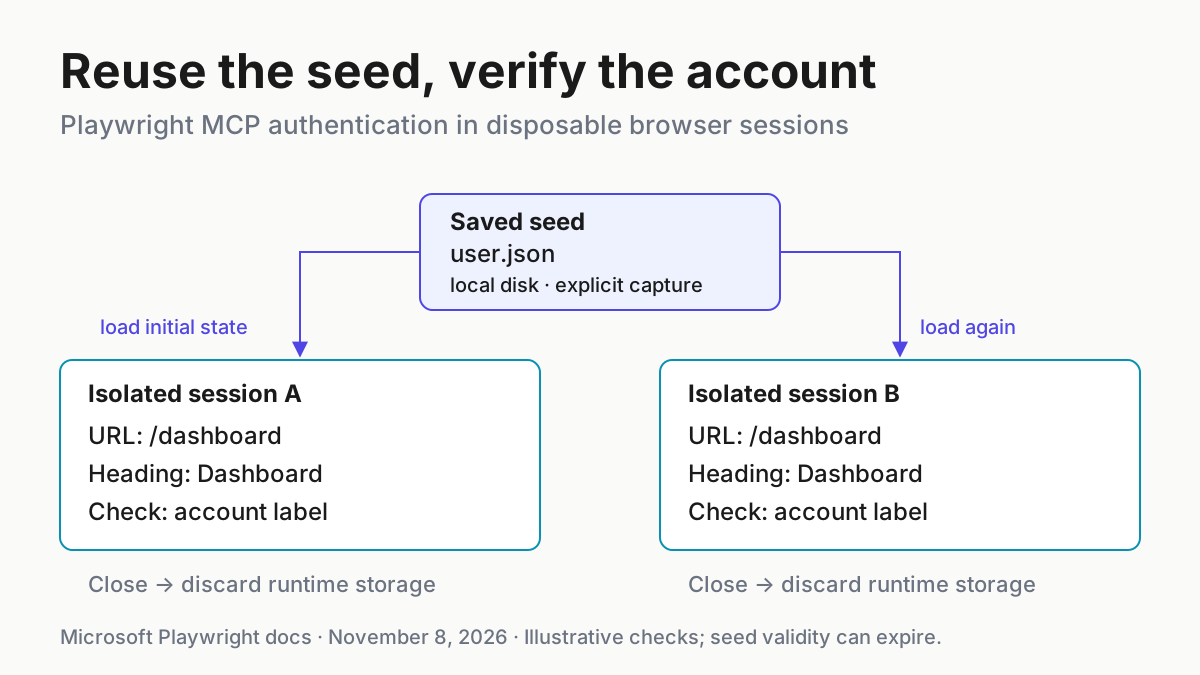
--isolated keeps the browser profile in memory. --storage-state supplies its initial saved state. These settings solve different parts of the task: one controls the session’s persistence, while the other supplies the initial authentication material. Neither verifies that the server still accepts the saved session.
The official Profile & State reference says that --isolated cannot be combined with --user-data-dir. Remove a persistent-profile argument from this entry if you previously configured one. Do not try to repair that conflict by pointing both modes at the same directory.
The default persistent profile is useful for other workflows, but only one browser instance can use a profile at a time. Parallel clients sharing it can conflict. Isolated sessions avoid that particular profile contention; they still share the application account represented by the seed. For a separate lesson about assigning distinct browser instances, see Browserbase browser isolation.
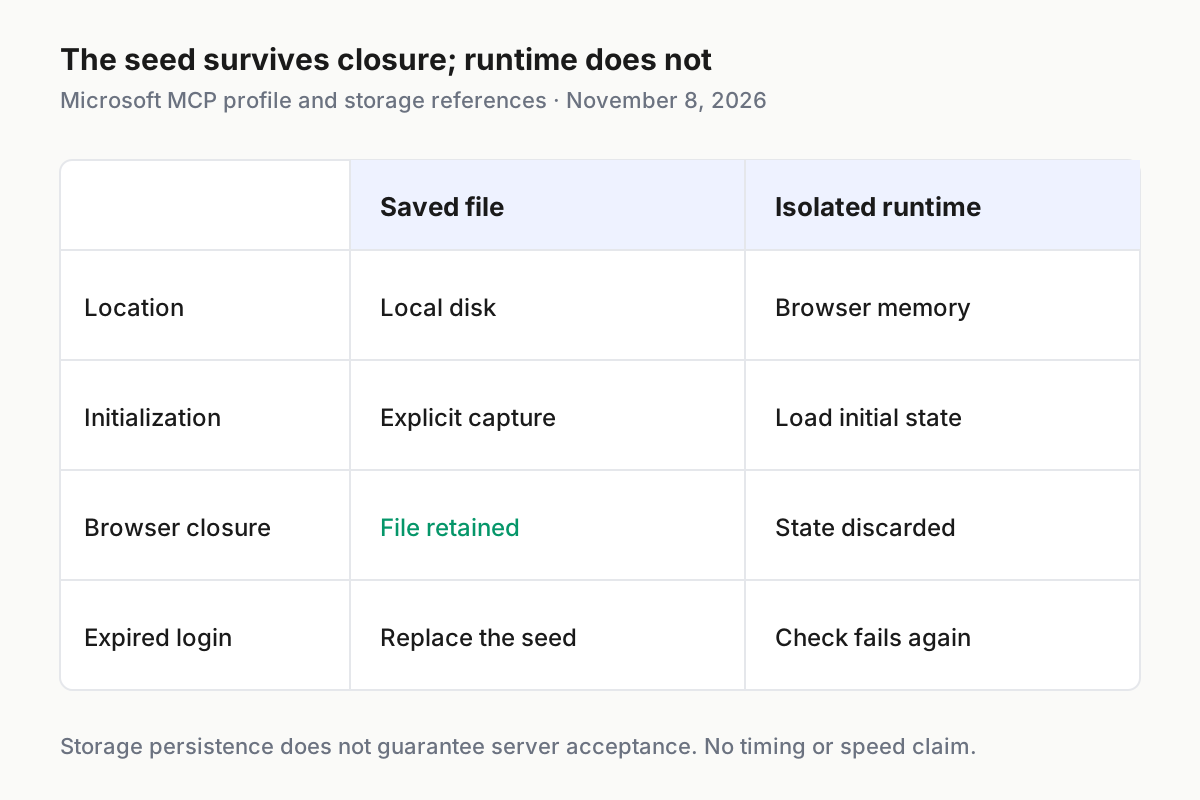
Microsoft’s MCP profile and storage references, read November 8, 2026. This comparison distinguishes the saved seed from runtime state; it does not promise that the server accepts an expired login.
Run task:auth-dashboard-01 without hiding a failed login
- Ask the agent to navigate directly to the dashboard.
- Inspect its current page URL and accessibility snapshot.
- Check the dashboard heading and exact account label.
- Report a redirect, wrong account, or missing identity label as a failed check. Do not let an automatic sign-in conceal the result.
Copy this task into your MCP client:
Run task:auth-dashboard-01 using Playwright MCP.
Navigate to http://localhost:3000/dashboard.
Inspect the current URL and the accessibility snapshot.
Check that the URL is http://localhost:3000/dashboard.
Check that the snapshot contains the heading Dashboard.
Check that it contains Signed in as qa.reader@example.test.
Report the observed URL and whether each check matched.
If redirected to login, if another account appears, or if the account
label cannot be found, stop and report that observation.
Do not sign in, change settings, or print cookies or storage values.
The official tool reference supports browser_navigate and browser_snapshot. The following are tool names with JSON arguments, not terminal commands:
browser_navigate {
  "url": "http://localhost:3000/dashboard"
}
browser_snapshot {}
Use the navigation result’s page information and snapshot to assess the three assertions. The snapshot supplies accessible page structure for inspection; this guide does not claim that this prompt creates a saved automated test. When a page lacks an accessible identity label, the result is inconclusive for identity even if its heading matches. Improve the application’s visible account identification or select its actual identity element before accepting the check.
All results in the table are illustrative expected observations, not recorded executions.
| Input | Action | Expected result |
|---|---|---|
| task:auth-dashboard-01: localhost:3000, saved user.json for qa.reader@example.test | Navigate with browser_navigate to http://localhost:3000/dashboard, then inspect browser_snapshot and the reported URL | URL remains /dashboard, heading Dashboard appears, and Signed in as qa.reader@example.test is present; accept this authenticated-page check |
| task:auth-dashboard-01: same file after the application session expires | Repeat the same direct navigation without signing in | If the application redirects to /login, mark authentication unavailable and regenerate the seed before retrying |
| task:auth-dashboard-01: state captured for another test account | Inspect the identity label before interacting with dashboard controls | A different email fails the identity assertion even when /dashboard and its heading match; recapture the intended account |
A useful report contains the observed route, heading, and account-label match. It should not contain the session cookie or the complete saved JSON. The report proves only what the browser displayed during this inspection. It does not establish coverage of every authenticated page or continued validity tomorrow.
Separate an absent label from a mismatched label in that report. An absent label means the chosen observation cannot establish identity; a different email supplies positive evidence that the wrong account is active. Both prevent acceptance, but they need different repairs. One requires a better application observation, while the other requires a correctly captured account. Changing the expected email to match whatever appears would defeat the original case.
Close the browser and repeat from the same seed
- Finish the read-only inspection.
- Ask MCP to close the browser using
browser_close. - Request the direct dashboard navigation again.
- Repeat the URL and identity checks in the fresh session.
browser_close {}
browser_navigate {
  "url": "http://localhost:3000/dashboard"
}
browser_snapshot {}
The repository explains that closing an isolated browser discards the session’s storage state. The saved file remains a separate artifact used to initialize a fresh context. Changes made inside the live session should not be treated as updates to that seed. If you need newly established authentication to become the next starting state, save or recapture it deliberately.
This repeat check is more informative than opening another tab in the same context. Tabs can share live authentication state, so another successful tab does not demonstrate that the saved file works after closure. The question here is whether a new isolated session can consume the seed and still satisfy the same account assertions.
Browser closure also differs from application logout. Closing discards local runtime state; the application’s own logout may invalidate a server-side session that the saved file references. If you intentionally logged out during a test, do not expect reloading the old file to reverse server-side invalidation.
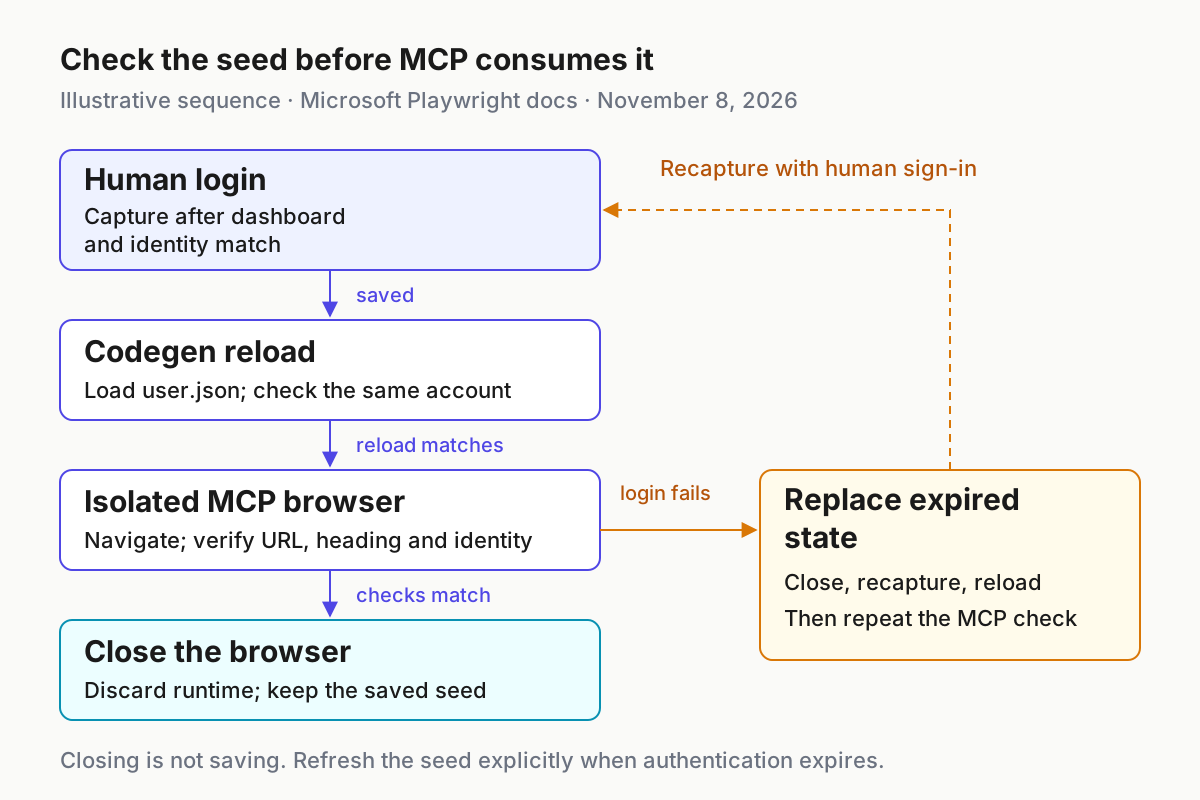
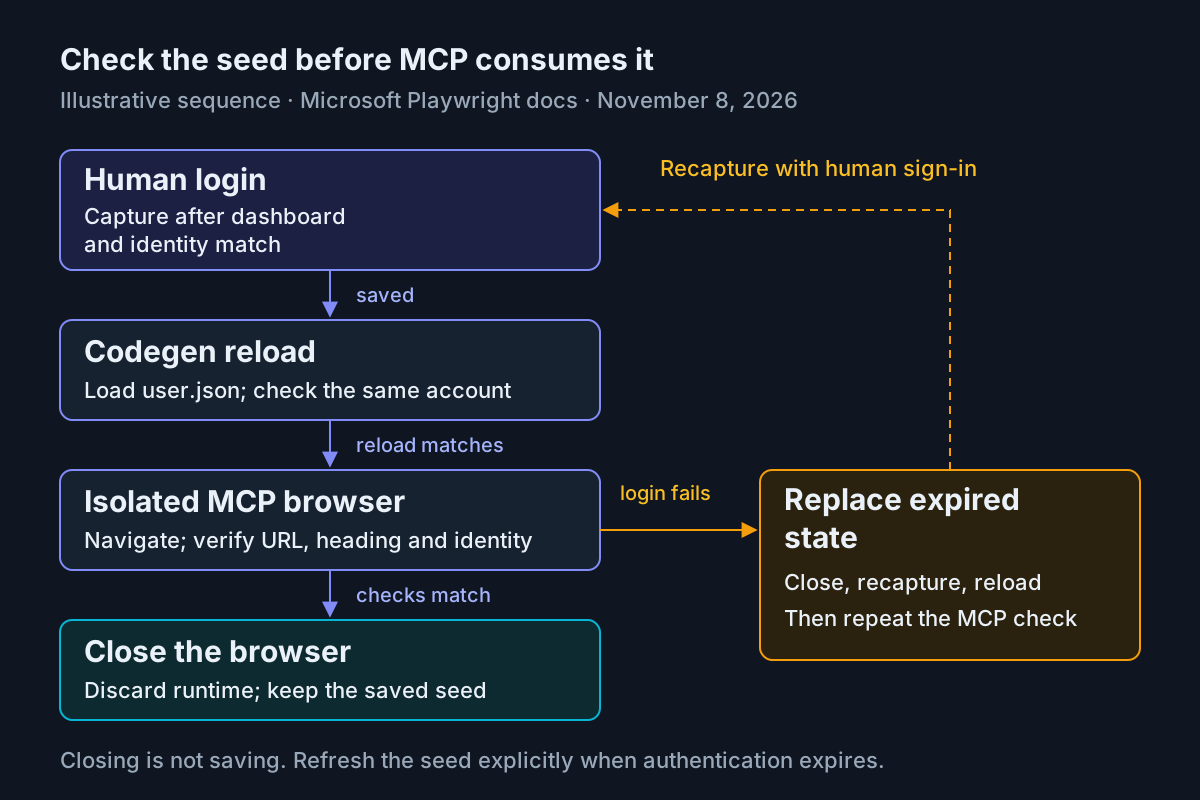
Illustrative lifecycle based on Microsoft’s codegen and MCP references, read November 8, 2026. Closing discards runtime state; replacing the local seed requires an explicit capture.
For workflows that transfer an existing live browser between workers, Stagehand session handoff addresses a different lifecycle. Here, repeatability comes from starting another context with a saved seed, rather than handing over the previous tab.
Diagnose the first failing boundary
| Observation | Next action | Interpretation |
|---|---|---|
| Browser cannot launch | Resolve the browser installation or intentional Chrome selection before loading the dashboard | Authentication has not yet been tested |
| Server cannot read the configured state file | Check the path, launch directory, and local file access; correct the configuration and restart | A missing file is not an expired application session |
| Codegen reload and MCP both return to login | Recapture after a complete human login and check the origin | Investigate the seed or application authentication requirements first |
| Codegen reload succeeds but MCP does not | Compare the exact file path, isolated arguments, and chosen browser | The consumers may be using different inputs or incompatible authentication conditions |
| Dashboard loads under a different account | Close the browser and replace the seed with the intended account | Route success does not satisfy the identity requirement |
Do not diagnose from a single generic error string. First decide whether the failure happened before browser launch, while reading the file, or after the application received navigation. That ordering prevents repeated login capture when the actual defect is a path typo. It also prevents configuration changes from disguising a genuinely expired server session.
Storage coverage deserves particular care. Codegen documents saving cookies, localStorage, and IndexedDB. The selected MCP storage reference describes its save/restore tools in terms of cookies and local storage. This tutorial therefore relies on a cookie/localStorage authentication path and the reload checks above. It does not guarantee every IndexedDB-dependent application works through every MCP state operation.
SessionStorage is another separate case. Microsoft’s authentication guide provides a custom save/load approach, while the MCP storage tools expose sessionStorage operations separately. Do not infer that ordinary storage-state loading restores sessionStorage. If your application needs it for authentication, stop treating the basic file as sufficient and consult the application’s supported setup. This narrower guide avoids inventing a universal restoration script.
Replace expired state or remove reuse completely
- Close the isolated MCP browser and stop using the old seed.
- Repeat the save-storage codegen command, signing in manually as the intended account.
- Close codegen, then run the load-storage check again.
- Restart the MCP server if its configuration changed and repeat task:auth-dashboard-01.
Use the same documented capture command to replace playwright/.auth/user.json. Microsoft advises deleting stored state when it expires. Remove the obsolete local file through your normal file-management process before recapturing if you want an unambiguous replacement. Do not retain multiple unlabeled copies and then guess which one the client loads.
The Storage & Authentication reference also documents explicit MCP save and restore tools behind --caps=storage. They are optional for a later workflow; startup loading does not require adding them to this example. Restore clears existing cookies and local storage first, which makes it a consequential replacement operation rather than an additive merge.
To roll back reuse entirely, close the browser, remove the --storage-state=playwright/.auth/user.json argument, and restart the MCP server. Keep --isolated if you still want disposable sessions. Delete the saved file when finished, and use the application’s session-management controls if you also need server-side revocation. Deleting a local copy cannot invalidate copies already exposed elsewhere.
Keep the final operating arrangement small: one identified seed, one explicit configuration, and one dashboard check that fails visibly when identity is wrong. When several agents are active, fleet oversight helps explain why each task still needs an identifiable owner. For preserving what a failing agent actually observed, fleet replay provides the adjacent transcript discipline. Neither replaces the account check at the browser boundary.
Sources
- Microsoft: Playwright MCP.
- Microsoft: Authentication.
- Microsoft: Test generator.
- Microsoft: Browsers.
- Microsoft: Storage & Authentication reference.
- Microsoft: Profile & State reference.
- Decoded: authenticated QA post, November 7, 2026.