Google Analytics MCP: Connect Claude Code and Verify a Report
Connect Google Analytics MCP to Claude Code, request an October GA4 country report, and verify its property, dates, headers and counts against Analytics UI.

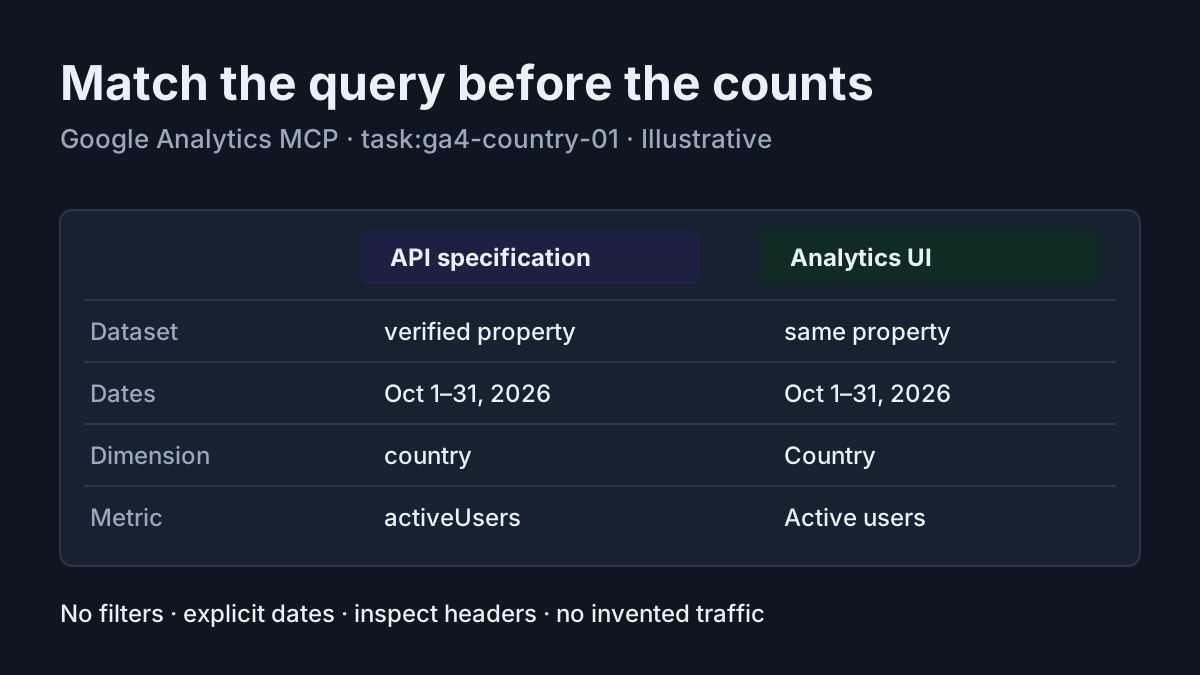
A traffic summary can sound convincing while answering the wrong question. If you own a GA4 property and already use Claude Code, Google Analytics MCP lets you request the underlying report through a conversation. The useful result is a table whose property, dates, dimension and metric you can independently identify and compare with Analytics.
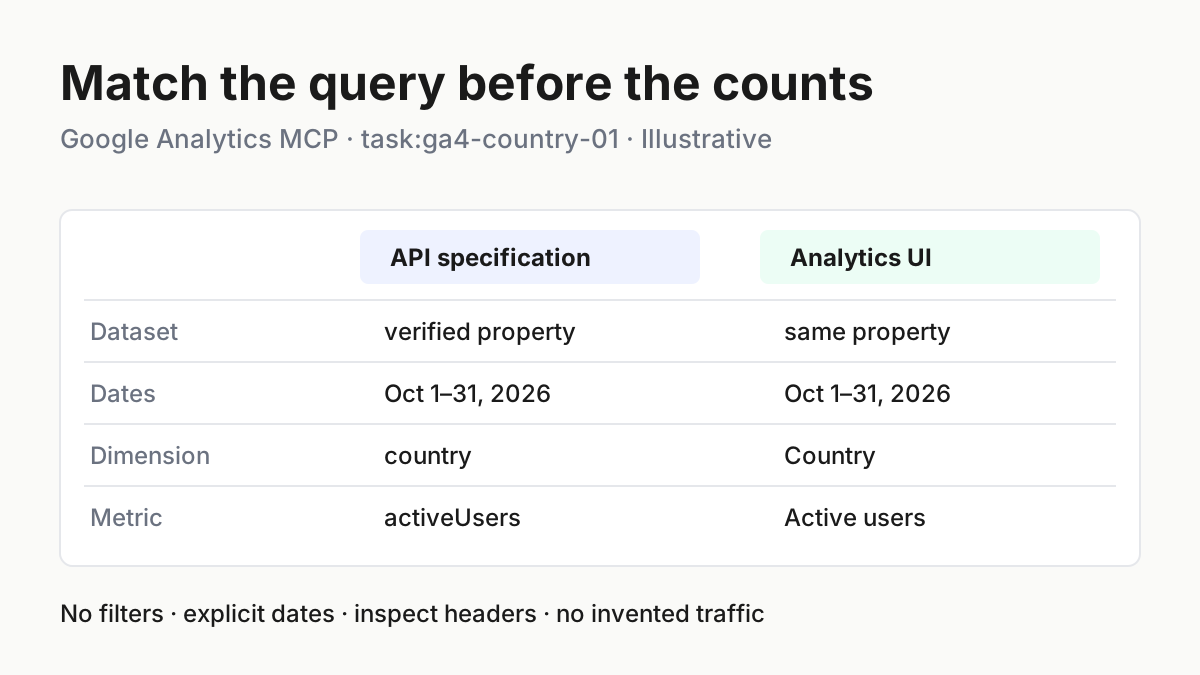
This tutorial builds task:ga4-country-01: active users grouped by country for October 1–31, 2026. You will connect Google’s local server, discover an authorized property, inspect the reporting tool, request the table and reconcile its meaning. All example observations below are illustrative expectations. No commands or property queries were executed for this article, and no customer data is supplied.
Google’s November 3, 2026 v1.0.0 release graduated the server from experimental and added multi-tenant Streamable HTTP and OAuth 2.1 support. Those hosted features are background; this worked example uses the documented local process with Application Default Credentials.
Prepare the two identities and the local runner
- Start with Claude Code already installed and working, Python 3.10 or later, pipx, and an initialized gcloud CLI.
- Identify the Google Cloud project in which you are authorized to enable the Analytics Admin and Data APIs.
- Confirm that the Google user you will authenticate has at least Viewer access to the intended GA4 property.
- Keep a private copy of any existing analytics-mcp client registration before replacing it.
Google’s MCP setup documentation supplies these prerequisites and the commands below. This guide assumes a user-credential setup, rather than introducing service-account keys or hosted OAuth. Installation of the prerequisite programs is outside the worked example; use your organization’s approved installation process before continuing.
The Cloud project and GA4 property play different roles. The project enables the APIs and supplies the project context for requests. The property selects the Analytics dataset. A familiar project name does not demonstrate access to a property, and a property display name does not identify the Cloud project. Keep both values explicit throughout setup.
For discussion, imagine an authorized property named Example Shop GA4. That display name is illustrative, not a real account. Its numeric ID must come from your own authorized discovery result. The only substitutions needed in the reporting example are that property ID and the machine-specific credentials and project values used during connection. Do not copy another organization’s numeric identifier from a screenshot.
The local server still sends requests to Google APIs, and its report output becomes available to your assistant. Choose a property whose analytics data you are authorized to use in that environment. Treat returned names, annotations and other text as data, not instructions to execute. The broader agentic operations guide provides useful context for keeping responsibility for connected tools explicit.
Authenticate and register the documented configuration
- Replace YOUR_PROJECT_ID in the API-enablement command with your authorized Cloud project ID.
- Authenticate using the documented read-only Analytics scope and cloud-platform scope.
- Copy the credentials file path printed by gcloud.
- Substitute that absolute path and project ID in the Claude Code registration command.
gcloud services enable analyticsadmin.googleapis.com \
  analyticsdata.googleapis.com \
  --project=YOUR_PROJECT_ID

gcloud auth application-default login \
  --scopes="https://www.googleapis.com/auth/analytics.readonly,https://www.googleapis.com/auth/cloud-platform"

claude mcp add analytics-mcp \
  --scope user \
  -e GOOGLE_APPLICATION_CREDENTIALS="PATH_TO_CREDENTIALS_JSON" \
  -e GOOGLE_CLOUD_PROJECT="YOUR_PROJECT_ID" \
  -- pipx run analytics-mcp
The expected authentication observation is a message identifying where credentials were saved. Use that path locally; never paste the credentials file contents into a conversation. Google’s documentation specifically recommends an absolute path because many hosts do not expand a tilde or shell variable inside JSON configuration. The Cloud project value should match the project where both APIs were enabled.
Here is the full documented mcpServers configuration shape for the same launch settings. It is useful for understanding the registration and for clients that accept this wrapper. For Claude Code, use the registration command above; do not overwrite its complete configuration file with this small example.
{
  "mcpServers": {
    "analytics-mcp": {
      "command": "pipx",
      "args": ["run", "analytics-mcp"],
      "env": {
        "GOOGLE_APPLICATION_CREDENTIALS": "PATH_TO_CREDENTIALS_JSON",
        "GOOGLE_CLOUD_PROJECT": "YOUR_PROJECT_ID"
      }
    }
  }
}
User scope makes the registration available to your user across projects. It does not mean project-only access. If you need to understand that persistence before proceeding, consult the existing Claude Code MCP scope guide. Keep credentials and personal paths out of shared repository configuration.
There is an important documentation distinction. Google’s setup page describes read-only operation, but the current repository README documents opt-in write tools, including annotations, custom dimensions and key events. Those require additional enablement and authorization. This tutorial omits --allow-write and analytics.edit. Also check that the inherited ANALYTICS_MCP_ALLOW_WRITE environment setting has not enabled writes; the repository documents its default as false. A read failure is not a reason to enable that setting.
The launch command follows the published package-runner example. It does not pin a package version, so the installed tool schema may evolve. Record the configuration you actually use and inspect the tools you actually receive instead of assuming the release announcement fixes every future invocation to one implementation.
Prove connection, then select the property
- Check the saved registration with the commands below.
- Open Claude Code and use /mcp to inspect analytics-mcp and its available tools.
- Ask for account and property discovery.
- Compare the returned numeric property ID and display name with the property you intended to query.
claude mcp list
claude mcp get analytics-mcp
Within the interactive Claude Code session:
/mcp
Anthropic’s MCP reference distinguishes configuration success from connection success. An Added line means the registration was written. A connected status demonstrates that the client can connect. Neither proves that your selected Analytics property is accessible or that a report has the right dimensions.
Use this discovery prompt before requesting traffic numbers:
For task:ga4-country-01, use analytics-mcp get_account_summaries
to list the accounts and properties accessible to the current credentials.
Show the returned property identifiers and display names.
Do not choose a property based only on a similar name.
Do not run a report yet and do not call any write tool.
Google documents get_account_summaries for accessible account and property discovery and get_property_details for property configuration. After identifying your intended entry, ask for its details and compare the identity again. If there are two similarly named production and test properties, resolve that ambiguity before continuing. More rows from the wrong property are still the wrong answer.
Next inspect the actual run_report tool definition available to Claude. Ask it to show the required fields and the argument shape it will use. The selected documentation establishes the tool’s purpose but does not supply a complete frozen MCP argument schema. Consequently, the REST request in the next section is a query specification, not an assertion that the tool accepts an identically shaped JSON object.
If run_report is missing or the schema cannot be inspected, stop the reporting step and resolve tool discovery. Do not ask the assistant to invent the parameter names. The MCP Inspector diagnostic guide explains why a successful handshake and a usable tool call establish separate facts.
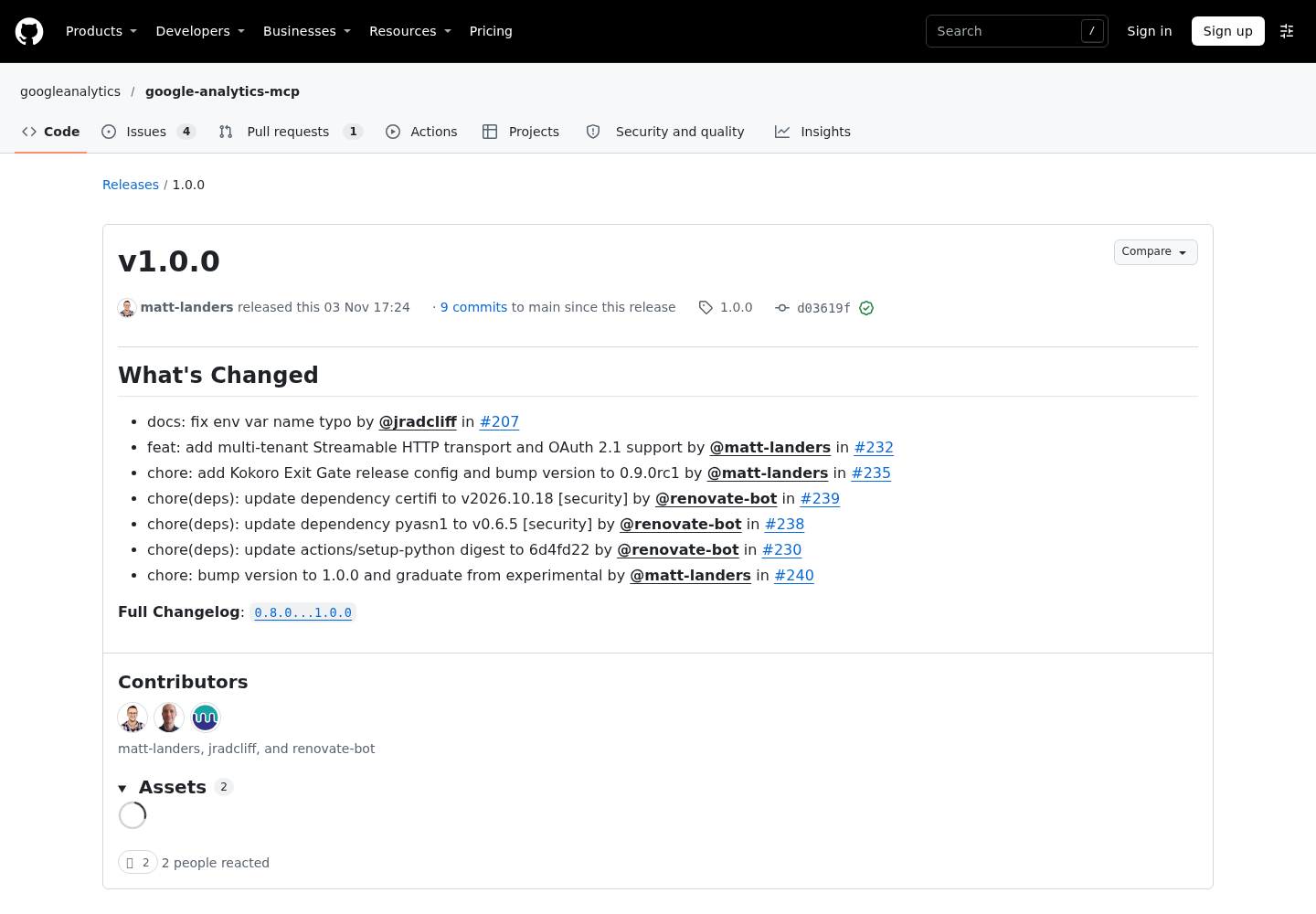
Source capture requested from Google’s googleanalytics repository on GitHub: the v1.0.0 release page. This is release provenance, not evidence that a local report ran.
Run the complete October country case
- Replace GA_PROPERTY_ID below with the numeric ID you just verified.
- Keep the dates, country dimension and activeUsers metric unchanged for the initial comparison.
- Ask Claude to map the specification to the actual run_report schema and show the proposed arguments.
- Review those arguments, then allow the bounded read request.
The complete Data API request body is deliberately small:
POST https://analyticsdata.googleapis.com/v1beta/properties/GA_PROPERTY_ID:runReport
Content-Type: application/json

{
  "dateRanges": [
    {
      "startDate": "2026-10-01",
      "endDate": "2026-10-31"
    }
  ],
  "dimensions": [{"name": "country"}],
  "metrics": [{"name": "activeUsers"}]
}
This is a request specification, not a standalone authenticated shell command. Google’s report basics use the same country and activeUsers pairing. The runReport reference places the property in the URL path, not the REST body. Do not insert a Cloud project identifier into that path.
Use this copyable reporting prompt after replacing the property placeholder:
Complete task:ga4-country-01 using only the analytics-mcp read tools.
The authorized GA4 property is properties/GA_PROPERTY_ID, verified through
get_account_summaries and get_property_details.

Inspect the actual run_report input schema. Map this report specification
to that schema and show the complete proposed arguments before calling:
startDate 2026-10-01; endDate 2026-10-31; dimension country;
metric activeUsers; no dimension filters, metric filters or comparisons.
Do not substitute sessions, totalUsers, realtime reporting or relative dates.

After I review the arguments, run the report. Return the actual property
identifier used, exact dates, dimensionHeaders, metricHeaders, rows,
rowCount and available response metadata. Preserve any error verbatim
with secrets omitted. Distinguish a successful empty report from a failed call.
Do not invent rows, explain missing metadata as absent rather than false,
and do not call write tools or change credentials or configuration.
Absolute dates make the same report repeatable tomorrow. One dimension avoids adding a second grouping that silently changes the comparison. No filters means there is no hidden exclusion to reconstruct in the UI. These are editorial choices for an understandable first report, not requirements that every future analysis remain this simple.
| Input | Action | Expected result |
|---|---|---|
| task:ga4-country-01; authorized property ID selected from discovery; 2026-10-01 through 2026-10-31; country; activeUsers; no filters | Inspect run_report schema, show the mapped arguments, then call the documented standard reporting tool for that exact property and specification | Illustrative expected observation: a successful response identifies country and activeUsers in its headers and supplies recorded rows, or a successful empty response; a permission error remains a failed query, never a zero-user result |
This filled case is complete without fabricated traffic values. Your authorized property is the input dataset, so its real values cannot be supplied by a public tutorial. The table defines the exact action and the observation you must inspect, while the request and prompt provide the usable artifacts.
Read headers before interpreting counts
- Confirm the dimension header says country.
- Confirm the metric header says activeUsers and inspect its reported type.
- Read each row’s dimension and metric values in the corresponding header order.
- Compare the returned row count with the rows actually available to you.
Google’s report basics explain that request columns, headers and row values preserve their ordering. For this one-dimension, one-metric query, the first dimension value is the country and the first metric value is its active-user value. If Claude presents a different metric label in its prose, use the returned header to catch the mismatch before forwarding the summary.
For a concrete reading exercise, Google’s documentation supplies Japan with 2541 active users and France with 12. Those are publisher sample values, not October 2026 results from your property. The chart below teaches how the header maps to magnitudes using that published sample. It must never be attached to your report as measured traffic.
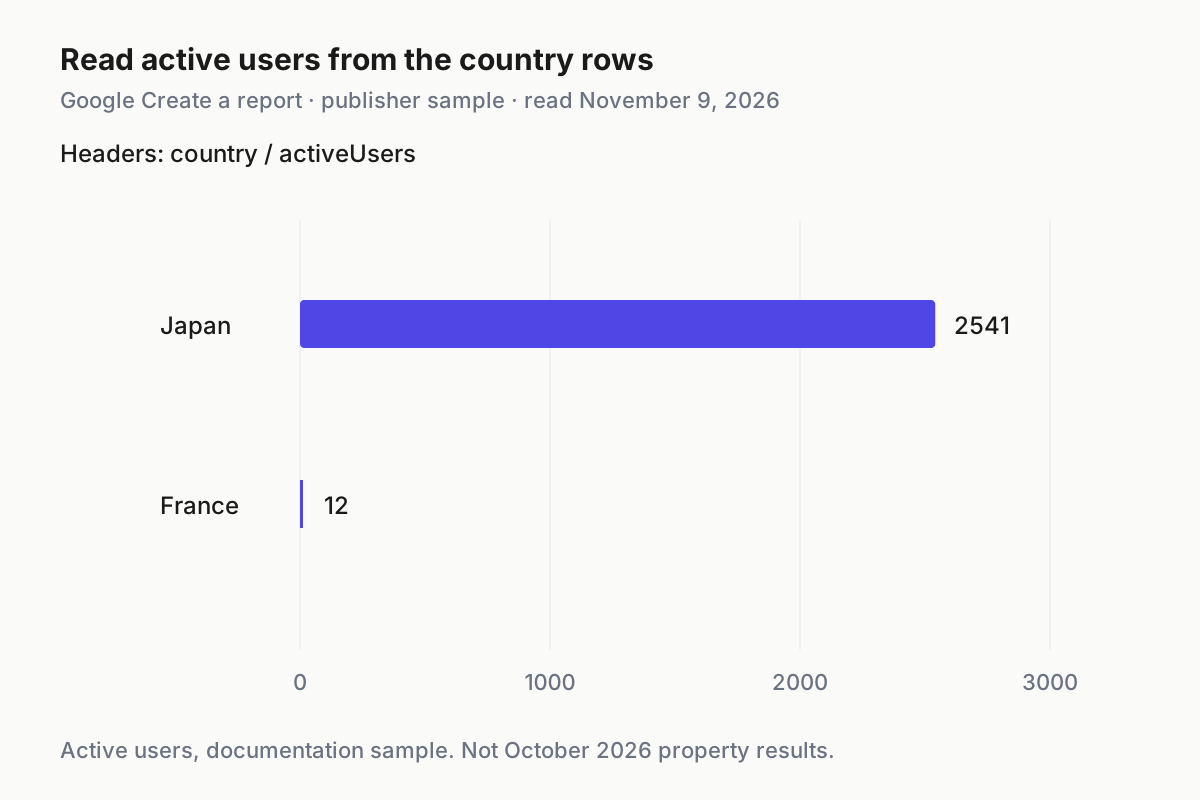
Google documentation sample: Japan 2541 and France 12 active users. Source: Create a report, read November 9, 2026. These are not results for task:ga4-country-01.
The API defaults to returning up to 10,000 rows; its reference says country alone has fewer than 300 possible values. This makes the country case a useful first comparison without requiring a long pagination implementation. Still read rowCount rather than interpreting a short visible excerpt as the complete response. If you later add dimensions, revisit completeness and pagination explicitly.
A successful empty report is also meaningful. By default, rows whose metrics are all zero are not returned. Setting keepEmptyRows cannot manufacture dimension values for data the property never recorded. If the call fails with an authorization error, however, you have learned nothing about the number of users. Preserve that distinction in every downstream summary.
Match the Analytics UI before diagnosing a discrepancy
- Open Analytics and select the same verified property.
- Use a report table that exposes Country and Active users.
- Set October 1–31, 2026 explicitly and remove unmatched filters or comparisons.
- Compare the same country rows and note when each result was retrieved.
- If the query settings differ, correct the comparison before explaining the counts.
This guide does not prescribe a particular menu path because the supplied evidence documents the comparison parameters, not a fixed current navigation sequence for every Analytics account. If your current report cannot display the required dimension and metric, choose an appropriate report view before comparing. Do not compare a headline user card with a country table merely because both contain a user count.
Google’s reporting data expectations names matching dates, dimensions, metrics and filters as the first defense against discrepancies. Adding dimensions can change the events included in calculations. That is why this case starts with country alone and why an extra device or campaign grouping is a consequential change.
Inspect available response metadata next. samplingMetadatas describes sampling when returned. subjectToThresholding indicates whether the report is subject to thresholding. dataLossFromOtherRow identifies data rolled into an other row. If the MCP output does not expose a field, record that limitation; the absence of visible metadata is not proof that every reporting limitation is absent.
Reporting identity determines how users are deduplicated. Google says the API and UI use the same property setting; a change between retrievals can produce different counts. Record the setting used for comparison rather than changing it to force agreement. Active-user counts also use HLL++ approximation, so avoid describing them as an exact census of people.
Recent data can change during processing and aggregation. A completed October range avoids a moving relative-date window, but it does not grant a universal guarantee of immutable results. Compare retrieval times and investigate the documented processing explanation when it applies. Never assign sampling or processing as the cause merely because a difference exists.
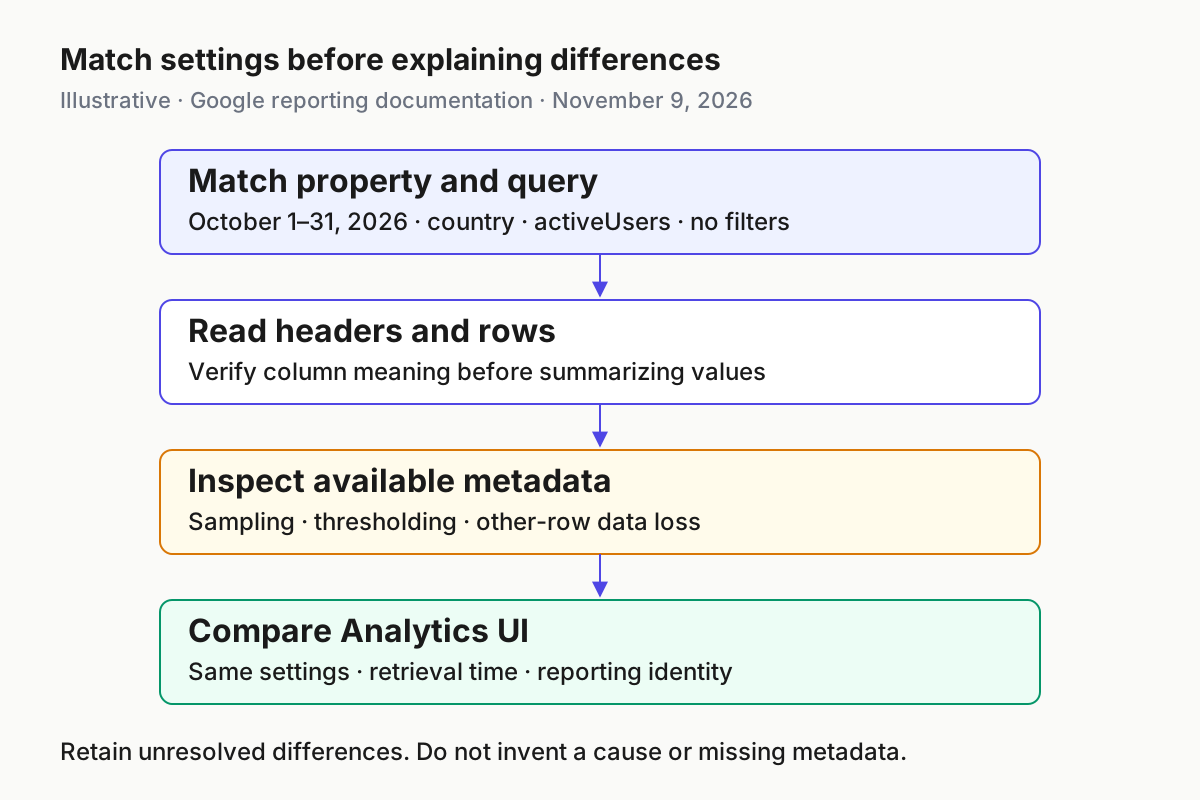
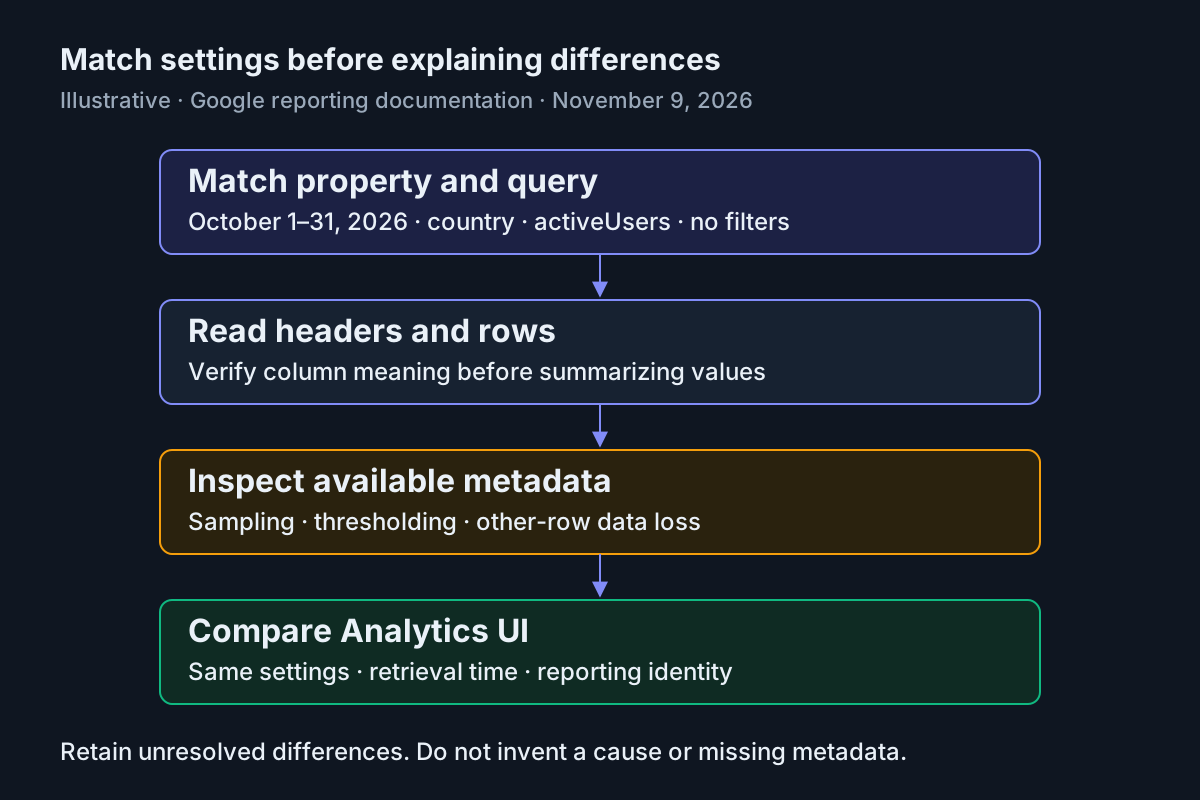
Illustrative reconciliation mechanism based on Google’s reporting expectations, read November 9, 2026. Matching the query comes before interpreting metadata; unresolved differences remain unresolved.
The same principle appears in the Grafana bounded-query guide: preserve what a query means before explaining its output. Here the matching fields are specifically GA4 property, dates, country and activeUsers.
Recover without widening access
| Observation | Next action | Interpretation |
|---|---|---|
| Server cannot launch | Check Python 3.10 or later and whether pipx is available to the client process | A process-launch problem precedes Analytics reporting |
| Credentials file not found or 401 | Check the absolute credentials path; repeat documented user authentication if expired | No valid report has been obtained |
| 403 or ACCESS_NOT_CONFIGURED | Check both APIs in the configured Cloud project and Viewer access on the selected property | API enablement and property authorization are separate checks |
| Insufficient authentication scopes | Restore the two documented setup scopes through the original authentication flow | Do not add analytics.edit or enable write tools |
| Successful response with no rows | Recheck property, October dates and recorded data before interpreting absence | An empty table is different from a denied request |
Google documents setting a quota project when user ADC requests lack one. If the configured project is the intended authorized project, the supported command is:
gcloud auth application-default set-quota-project YOUR_PROJECT_ID
For a particular macOS failure, the repository’s troubleshooting document describes API hostname resolution errors despite normal terminal resolution, often involving VPN or split DNS. Only for that symptom, add the documented environment entry to the registration:
GRPC_DNS_RESOLVER=native
Keep the prior configuration so this optional workaround can be removed. It chooses the native resolver; it does not repair property permissions or justify a different API endpoint. Reconnect the stdio server from /mcp after correcting launch configuration, as Anthropic documents. If organizational policy blocks the server, resolve that through the administrator instead of bypassing the restriction.
To remove the user-scoped registration created here:
claude mcp remove analytics-mcp --scope user
claude mcp list
Restore any previous registration from the private configuration you retained. Removal of this local client entry does not undo API enablement, delete Analytics data or erase the ADC file. Avoid changing shared Cloud settings as an improvised uninstall. For the broader distinction between permission and execution boundaries, see securing agents and their tools.
Close task:ga4-country-01 only when the actual property and submitted arguments are demonstrable, the headers match, the returned rows are understood, and the UI comparison either agrees or has a supported explanation. If the explanation remains uncertain, retain the result as unresolved. A confident paragraph and a connected status cannot supply the missing evidence.