GitHub Notification Filters: Build and Verify a Pull Request Review Queue
Use GitHub notification filters to build a repository review queue, test a review request and mention on one pull request, and verify both signals in email.

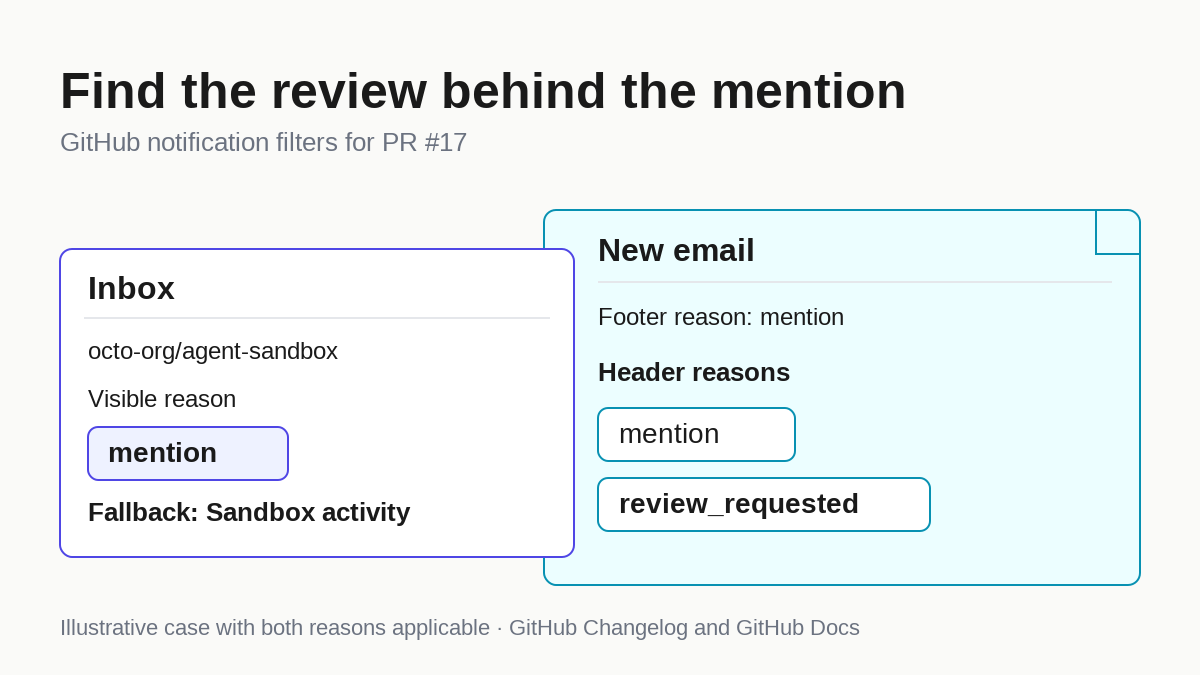
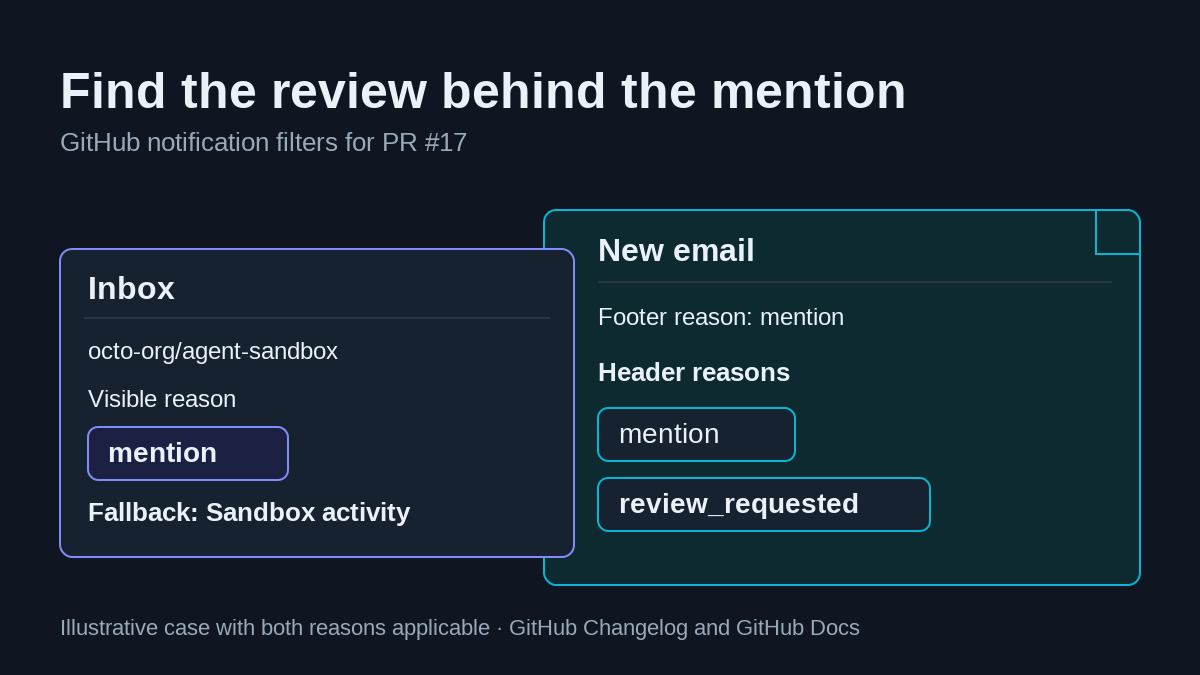
A collaborator asks you to review an agent-authored pull request. Later, they mention you on the same thread to explain a change. When you open your review queue, you need to know whether the original request is still visible. GitHub notification filters can give you a short list of review notifications for one repository. A second, broader filter gives you somewhere to look when that list is empty and you already know a request exists.
You’ll build both filters and verify them on a single disposable pull request. You’ll compare three observations from the same event: the inbox label, membership in your saved filter, and the reason addresses on an individual email. Then you’ll use the PR page to verify the reviewer and test which actions restore a subscription after you unsubscribe.
GitHub’s November 24, 2026 changelog says a weeklong GitHub.com rollout starts December 1. Under the announced behavior, priority determines the displayed reason in the inbox and email footer, email headers include all applicable reasons, and routine actions leave a manual unsubscribe in effect. Accounts can behave differently during the rollout, and previously delivered notifications retain their original behavior. GitHub scopes the change to GitHub.com. GitHub Changelog
Prepare one pull request and two delivery channels
The illustrative case is task:review-queue-17, a ready-for-review PR titled Document the dry-run output, numbered #17 in octo-org/agent-sandbox. Use an existing disposable PR in a repository you and your collaborator can access. Substitute its actual number and repository owner and name throughout. Give the PR a small documentation change so you can leave it open for the exercise without blocking anyone’s work. Your collaborator acts as the PR author and requests your review. You observe from the account whose inbox you are configuring.
- Open the notifications inbox. In the sidebar, use Manage notifications to open Notification settings. Write down your current Participating delivery selections, default notification address, any organization-specific routing for the sandbox, and any email activity preferences you intend to touch. Check the sandbox’s current Watch setting and record it if you plan to adjust it.
- Enable Email and On GitHub for the participating conversation exercise. Use a verified address you can access, and check which address the sandbox’s organization routes to. In your mail client, find the control that shows an individual message’s original headers. Opening the headers of an older GitHub message is enough to find that control before your collaborator sends anything.
- Start with a PR where your test reviewer has neither posted nor been mentioned. Ask the author to hold comments, pushes, and reviewer changes until each step calls for them. Leave the PR open and keep its page available in a tab. Open the inbox in a second tab and leave the mailbox available for comparison.
Delivery choices can apply to other conversations on the same account. If you already receive participating updates both ways, reuse those selections. For the cleanest baseline, choose a sandbox where you aren’t already watching all activity, or account for that watch setting when interpreting extra reasons. GitHub distinguishes watching a repository from receiving updates for a conversation you participate in. A repository filter changes the scope of the inbox view you’re looking at. Account settings and the repository’s Watch menu control what updates can reach you. Configuring notifications
Before generating the first request, agree on the order of the test with your collaborator. Start with the review request and capture its inbox label before the mention. Later, you will comment as the reviewer after manually unsubscribing. Using your own comment tests whether your participation reverses your unsubscribe. A comment from somebody else without a mention would test a different case.
Save a review filter and a repository fallback
Use the following queries one at a time in the GitHub notifications inbox. The first is the queue you’ll open to find review notifications. The second is your fallback when the reason shown on a thread differs from the one you expected. Keep the repository portion identical so you can compare the effect of the reason qualifier on the same repository notifications.
Sandbox reviews
repo:octo-org/agent-sandbox reason:review-requested
Sandbox activity
repo:octo-org/agent-sandbox
- Enter the first query in the inbox and click Save to open custom filter settings. Name it Sandbox reviews, check the query in the settings, and click Create.
- Repeat with the second query and name it Sandbox activity. Select each saved filter once to confirm it opens. An empty result at this point is normal if the sandbox has generated no notifications for your account.
- Use the inbox view that includes both read and unread notifications for the comparison. Keep the test notification in the inbox through the first two events. If you mark it Done, use Done in the sidebar to locate it while diagnosing an apparent miss. GitHub removes completed notifications from the main inbox. Managing notifications from your inbox
The repo: qualifier needs the owner and repository, even if the repository name looks unique to you. The reason:review-requested qualifier is documented for individual and team review requests. This exercise uses a direct request so you can check the recipient on the PR without also investigating team membership. Keep the fallback repository-only. GitHub documents that the is:pr, is:issue, and is:pull-request inbox queries all return issues and pull requests. Identify your test PR by opening the matching thread and checking its number. The inbox filter also lacks title text search. Inbox filters
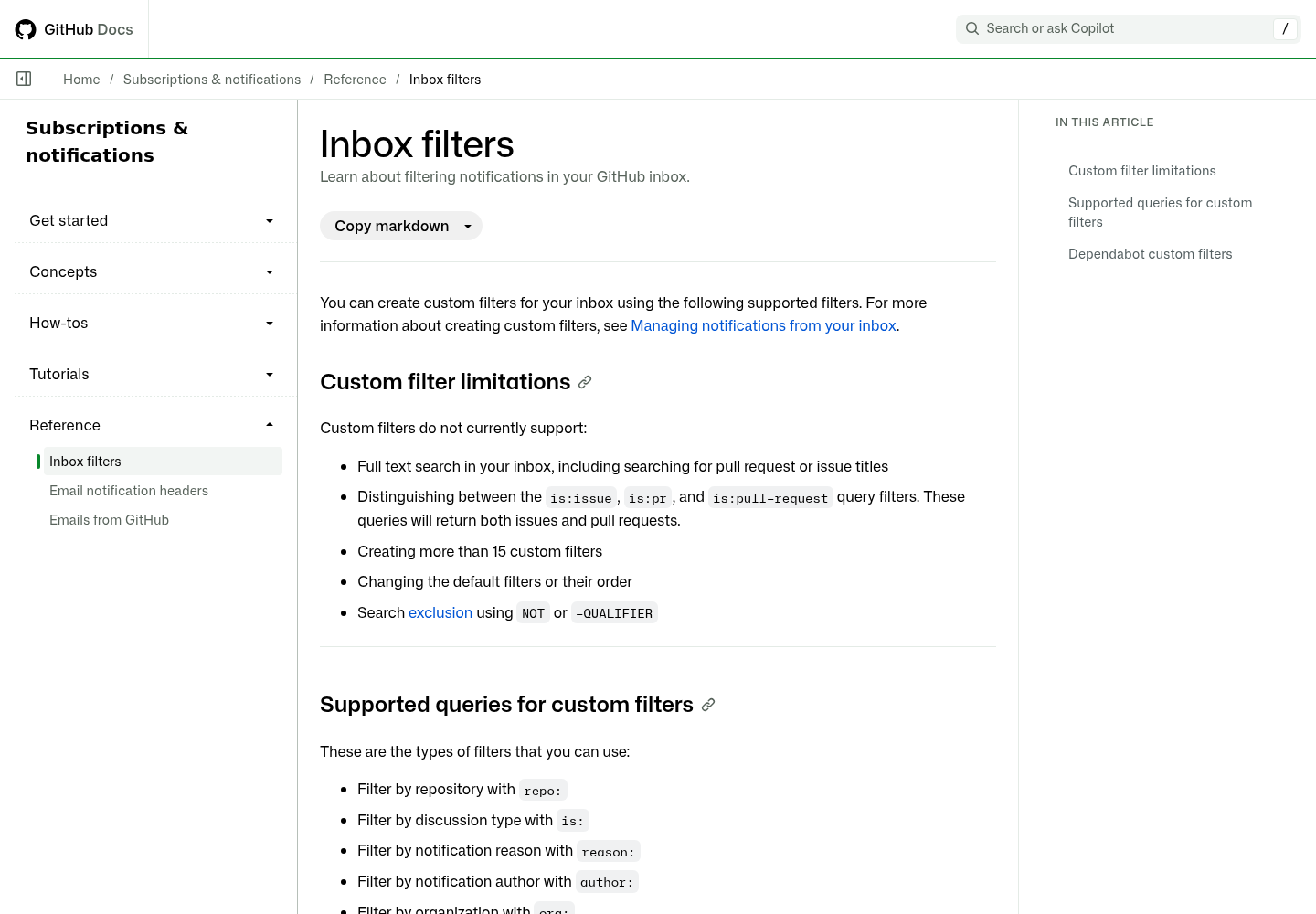
GitHub supports up to 15 custom filters. If you have fewer than two free slots, you can still walk through the exercise by entering the two queries directly in the inbox for each observation. That gives you the comparison without deleting an existing filter to make room. When you have the slots, saving the views lets you switch back and forth during normal review work without retyping qualifiers.
Compare the review request and the mention
Use the table as the script for task:review-queue-17. The observations are illustrative expectations. Capture what your account actually shows after each action, and ask the collaborator to wait while you do it. The first event establishes a working review signal. The second checks whether that signal remains easy to find once another reason applies. The last two rows test the effect of a manual unsubscribe.
| Input | Action | Expected result |
|---|---|---|
task:review-queue-17 · octo-org/agent-sandbox PR #17 · no prior mention or review request |
The author requests your individual review on PR #17. Select Sandbox reviews, then Sandbox activity, and inspect the new email for the request. | PR #17 appears in both saved views with the review-request reason in the clean case. A corresponding email carries review_requested@noreply.github.com as a reason address. |
task:review-queue-17 · PR #17 · the same review request is still pending |
The author posts @YOUR-LOGIN Please check the dry-run example on PR #17., using your actual GitHub login. Check both saved views and the new mention email. |
Under the announced priority rule, mention wins when both reasons apply. PR #17 remains findable in Sandbox activity while its notification is in the inbox. Record whether Sandbox reviews still includes it, and whether the new email includes both reason addresses. |
task:review-queue-17 · PR #17 · reviewer has manually unsubscribed |
Open PR #17 from its page and post Routine check for PR #17. The dry-run example is still present. as the reviewer with no mention. Check subscription state on the PR. |
Under the announced rules, your routine comment leaves the PR unsubscribed. A fresh subscription after the comment calls for checking the exact action and whether the change has reached your account. |
task:review-queue-17 · PR #17 · reviewer is unsubscribed before a new request |
Have the author remove the old request if it is still pending and then explicitly request your individual review again. Check the PR and Sandbox activity before comparing Sandbox reviews and newly delivered email. | The new request restores the subscription. Look for a new inbox update and a review reason in the corresponding email with delivery enabled. Record the visible inbox reason and actual narrow-filter result. |
For the first event, inspect Sandbox reviews before opening the email. GitHub can sync read state from email if the client loads images from the notifications sender. Looking at the inbox first and keeping the view on both read and unread items avoids treating that change in read state as a delivery problem. Note the exact PR link, the label beside the notification, and whether both views contain the thread. On the PR itself, check that the collaborator selected your account as reviewer. The reviewer displayed there gives you a direct check on the action that should have generated the notification. Configuring notifications
Now ask the author to post the direct mention without withdrawing the review request. Keep the mention on the same PR and leave the pending request in place so you can see how the two reasons are represented together. In Sandbox activity, locate PR #17 and write down the visible reason. Switch to Sandbox reviews and record whether that exact thread is present. An empty narrow view paired with a matching thread in the broader view is actionable even before you open email. You can go straight from the broader view to the PR and check the review request.
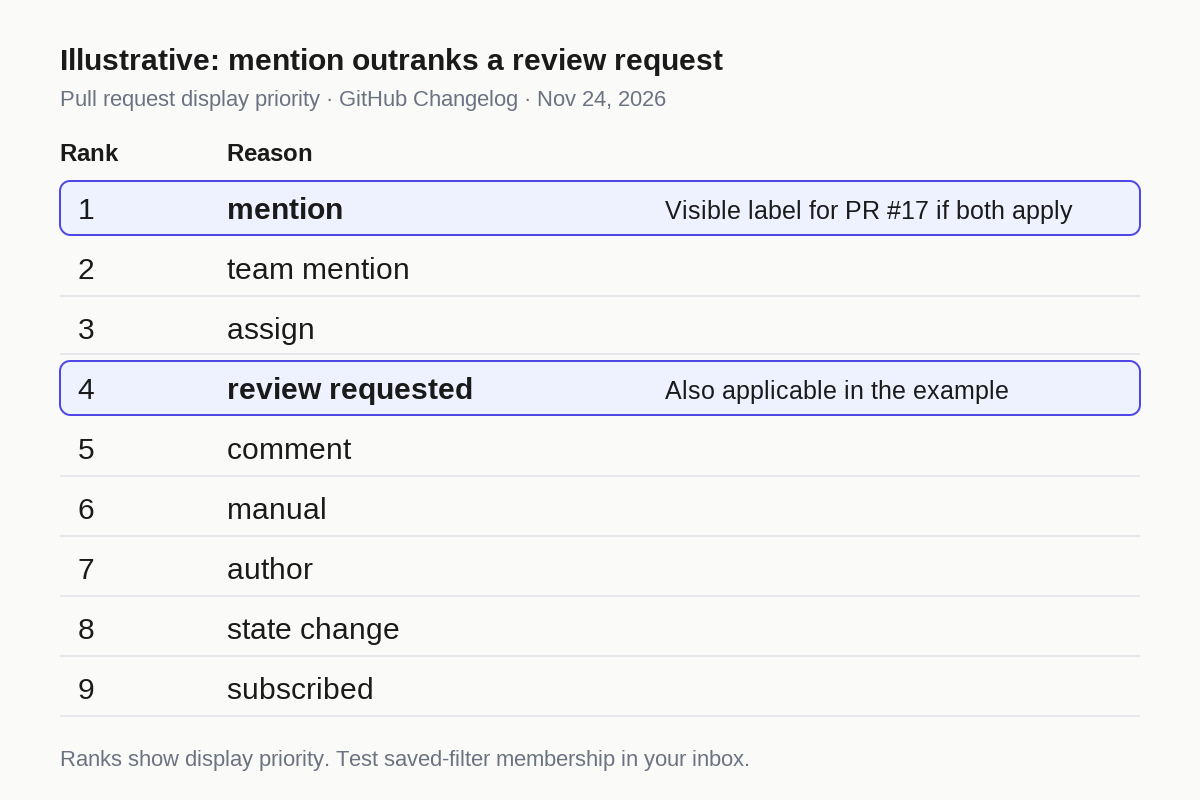
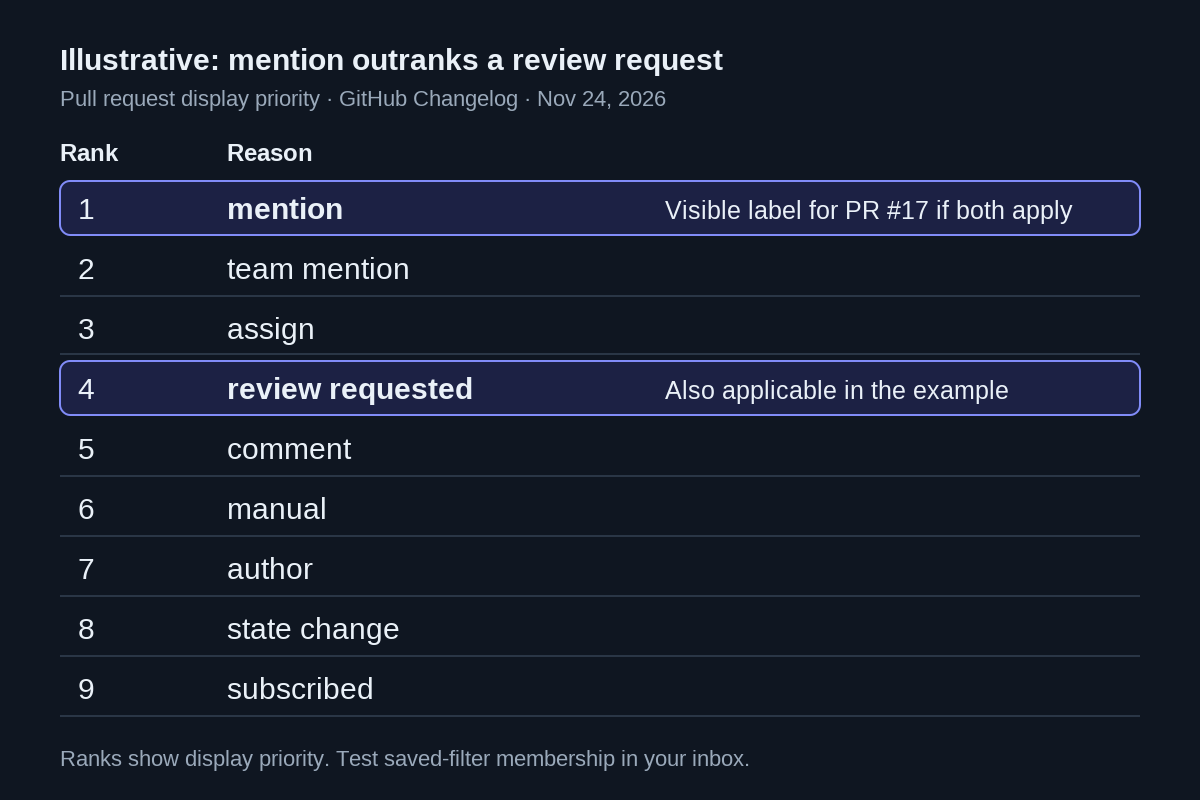
The priority chart shows why a mention can take the visible label when a review reason also applies. GitHub’s announcement describes label priority and the additional email header reasons. Its filter reference describes reason:review-requested. Those documents leave the matching behavior of the saved filter for this particular mixed-reason thread to your observation. If the filter still includes PR #17, record that result for this case. If it drops the thread while Sandbox activity still finds it, open the thread from that fallback. The label on an inbox row gives the reason for a notification. The PR page is where you confirm who has been asked to review. GitHub Changelog · About notifications
Read the headers of the new message
- Open the individual email for the first request and show its original headers. Check that the message links to PR #17 and that
List-Idnamesocto-org/agent-sandbox. If delivery was forwarded or the mailbox receives mail for several accounts, compareX-GitHub-RecipientandX-GitHub-Recipient-Addresswith the intended recipient. - Look in the
Ccheader forreview_requested@noreply.github.com. Then open the individual email delivered for the direct mention and inspect its headers the same way. For an account on the announced behavior, check formention@noreply.github.comandreview_requested@noreply.github.comwhen both reasons apply to that new message. Record the addresses you find without assuming an order for multiple reason addresses. - Compare the new message’s footer and the label you recorded in Sandbox activity. If both reasons apply, the announced display priority puts mention ahead of review requested. Record the footer, the header evidence, and narrow-filter membership separately. Email notification headers · GitHub Changelog
This illustrative record shows a mixed-reason result where the narrow view happened to miss the thread. Use it to see which bits of evidence belong together. The display priority comes from GitHub’s announcement. The narrow view’s result is a sample observation to compare with your own test.
task:review-queue-17 · octo-org/agent-sandbox · PR #17
Event: collaborator's direct mention with the review request still pending
PR reviewers: my login is still listed for review
Sandbox activity: PR #17 present, reason label mention
Sandbox reviews: PR #17 absent in this illustrative result
New mention message List-Id repository: octo-org/agent-sandbox
New mention message reason addresses:
  mention@noreply.github.com
  review_requested@noreply.github.com
New mention message footer reason: mention
Decision: open PR #17 from Sandbox activity and check the pending review
The inbox query takes a hyphen in review-requested. The mail address uses an underscore in review_requested. If you later build a mail rule, test it against a message that arrived after the event you’re investigating. A condition that finds the review reason address among multiple recipients can match when the full Cc line also contains other addresses. Confirm how your mail client handles that match before routing messages away from the inbox. For this exercise, examining the originals gives you the comparison without changing mail rules. Inbox filters · Email notification headers
If your mail client groups the review request and mention together, expand the individual messages and use the one containing the collaborator’s test mention for the second observation. The original review request email still tells you what GitHub sent for the baseline event. Comparing the current inbox row with the older email alone leaves open whether the newer email carried either reason. If you received the mention message and see only the mention reason, record that single address. The pending request on the PR still gives you a way to finish the review while you check the rollout timing and repeat the comparison with fresh events. GitHub Changelog
Unsubscribe, comment, and request review again
- Find PR #17 in Sandbox activity. Choose Unsubscribe on the notification. Check that the notification leaves the inbox, and open the PR directly to see the subscription control. Use this action for the test because it changes thread subscription. Done completes the notification for inbox triage. Managing notifications from your inbox
- As the reviewer, post the routine comment from the table on PR #17. Leave out direct mentions, team mentions, assignments, and reviewer changes. Check the subscription control again after the comment. The announced behavior leaves you unsubscribed after your own routine comment. Mail silence alone is weak evidence for this step because GitHub also lets you control email for your own updates. GitHub Changelog · Configuring notifications
- Have the author clear the previous pending request and tell you when that is done. Check that you are still unsubscribed before the new request. If the comment already restored your subscription, manually unsubscribe on the PR again so you can isolate the next event. Then have the author request your individual review afresh. Have them leave the comment thread alone while you check the subscription, both views, and the new request email.
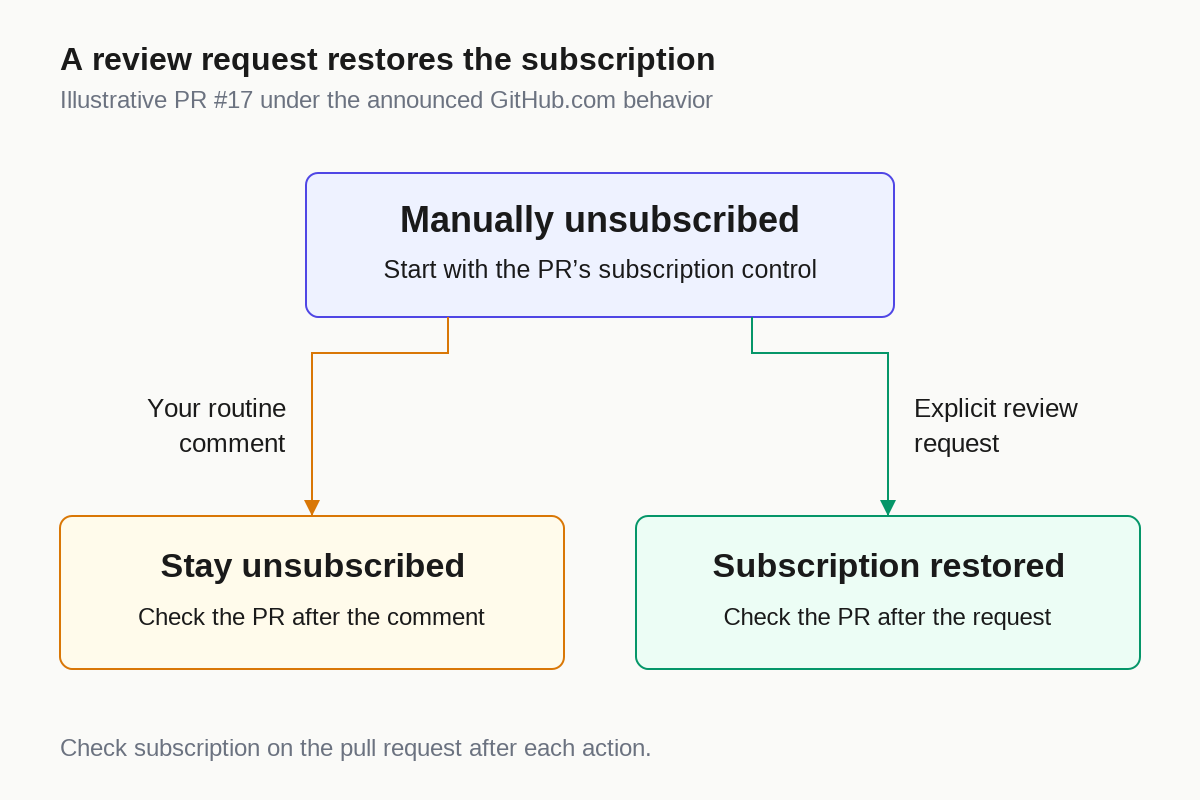
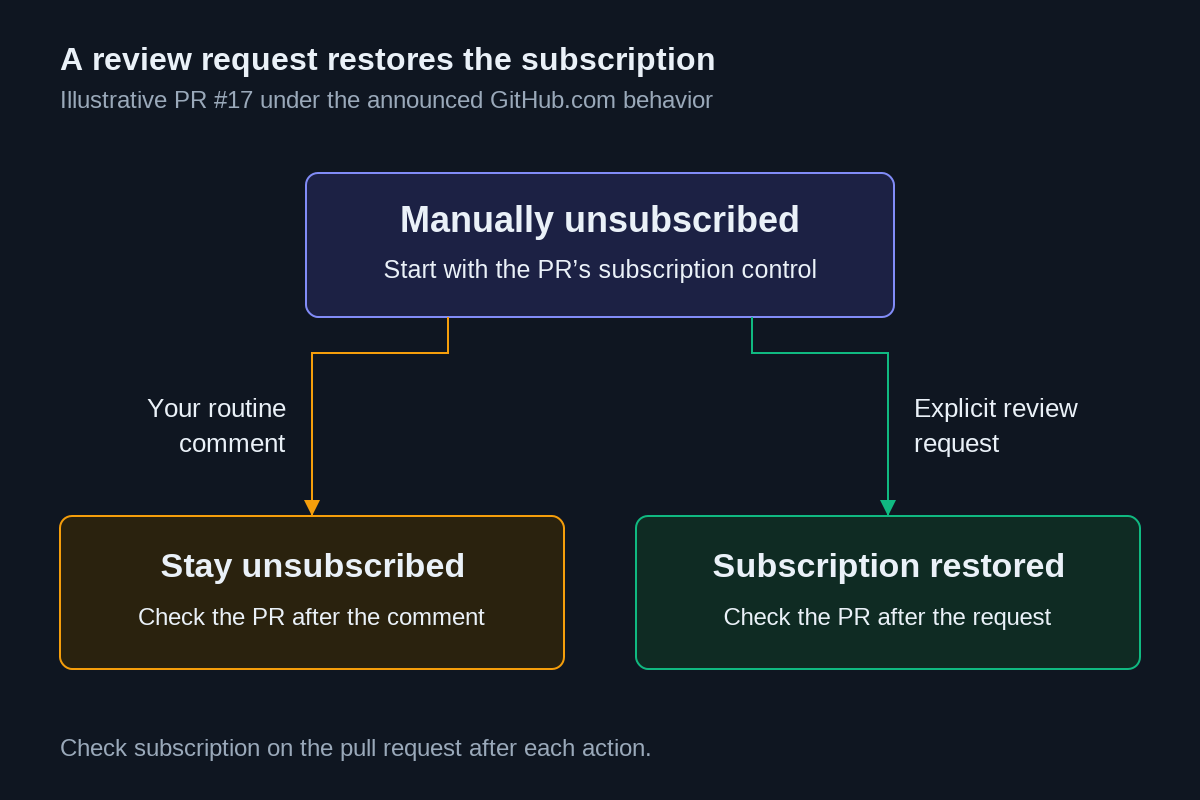
When the explicit request restores the subscription, inspect the PR page and the broader inbox view before interpreting the result from the narrow filter. PR #17 carries the earlier mention from the previous test step. If more than one reason applies to the new notification, use the displayed label and the newly delivered message to find out what GitHub represented for this event. The fresh review request is the action that should restore the subscription. Seeing the subscription return and seeing a particular label are distinct observations. GitHub Changelog
If your comment restored the subscription, keep that observation with the date you ran the exercise. During the rollout window, it may be consistent with GitHub’s description of the prior behavior. Check that nobody triggered a fresh mention, assignment, or review request between the unsubscribe and your observation before attributing it to the rollout. A test on a fresh sandbox PR with the same settings gives you a clean comparison if several actions happened close together.
Recover a missed request and leave the inbox usable
| What you see | What to check next |
|---|---|
| PR #17 appears in Sandbox activity and is missing from Sandbox reviews | Open the PR from Sandbox activity and confirm your pending review. Check the saved query’s exact owner, repository, and hyphenated reason. With the query correct, treat this as the filter result for that event and use the broader view for the handoff. |
| The narrow view finds PR #17 after the initial request, then a mention becomes the visible reason | Check the new email’s reason addresses. Compare the review request on the PR with the narrow-filter result after the mention. This distinguishes a display change from withdrawal of the request. |
| Email arrives for the event, but neither inbox view shows the thread | Verify that you are signed into the intended GitHub account, open the inbox view that includes read items, check Done, and confirm On GitHub delivery and the PR’s subscription state. |
| The inbox updates, but the corresponding email is missing | Check participating email delivery and the recipient address or organization routing. Look for the individual message in the destination mailbox, including where existing rules file notifications. Keep using the web view to reach the review while diagnosing mail delivery. |
| Neither channel shows the first request | Ask the author to confirm the reviewer login on the PR. Check both delivery channels and the repository Watch setting, then repeat with a fresh, explicit request on the sandbox after correcting any setup error. |
Start your daily review pass with the narrow filter. If a collaborator has handed you a specific PR and you can’t find it there, open the repository fallback. If the inbox has no matching notification, open the PR from the handoff and check its reviewer list. This last step also works for a known request whose notification you already triaged. The queue you configured is a view of notifications. Its empty state describes the notifications currently shown by the selected view. If the PR shows that the request has already been withdrawn, use that status when you respond to the handoff even if the email still contains a review reason from an earlier event.
Use the filters at the point where agent work reaches a human reviewer. To track the sessions upstream of that handoff, see the multi-agent command center. To follow delivery state, see the repository board with GitHub issue statuses. A coding agent waiting for a response can use the guide to waiting for pull request events with gh event listen. Once you open the PR, the AI PR review agent policy guide covers who makes the merge decision. If the request is ready but coverage evidence is missing, use the GitHub pull request coverage verification guide.
To finish the sandbox exercise, open custom filter settings beside Filters and remove Sandbox reviews and Sandbox activity if they were only for this test. If you made no saved filters, clear the active query. Reopen Notification settings and restore the snapshots of any email, web, or routing preferences you changed. Restore the repository’s Watch selection if you adjusted it. Ask the collaborator to clear the test review request before you finish managing the PR subscription so a new explicit request cannot immediately reintroduce it during cleanup.
Use Unsubscribe on PR #17 if you want to end sandbox conversation updates. If you began with a manually followed test PR and want ongoing updates again, use Subscribe on the thread. A filter deletion removes the saved view, and thread controls govern subscription. When you configure a real repository next, save the same two queries with that repository’s owner and name. The practical finish line is a clean review request you can find in the narrow view and a known route to the PR when the narrow view misses a mixed-reason notification. Managing notifications from your inbox · About notifications