Build a Repository Board with GitHub Issue Statuses
Use GitHub issue statuses to build a repository board, link a draft pull request, verify the review handoff, and recover when an issue card goes missing.

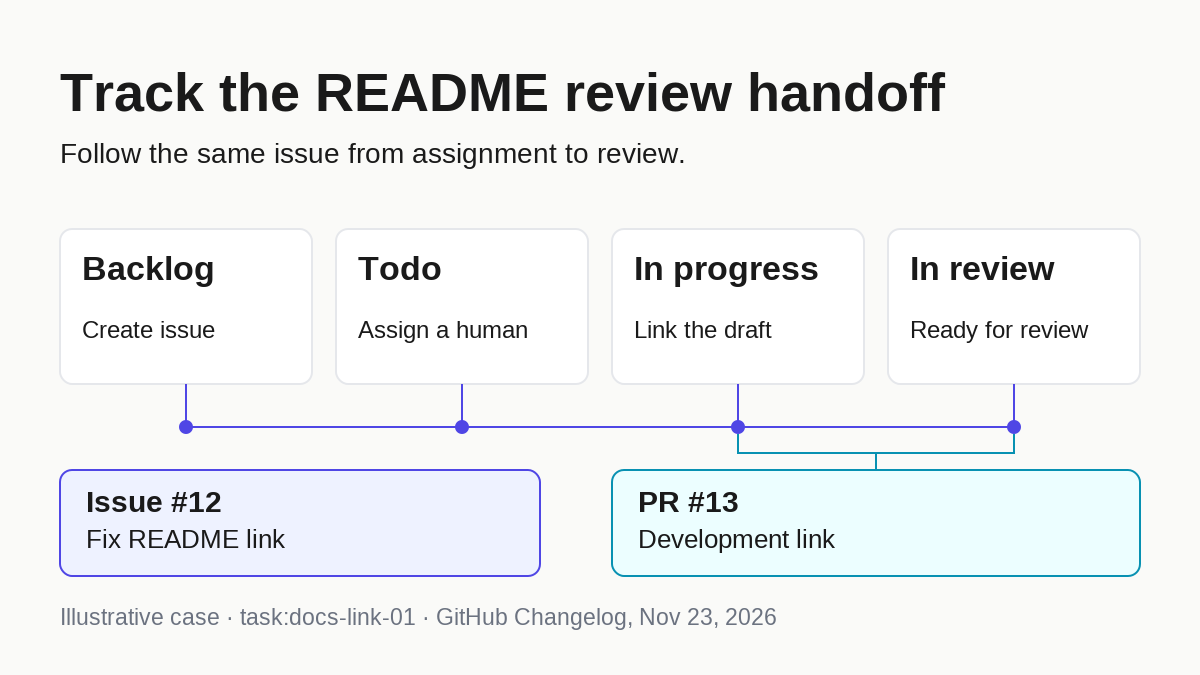
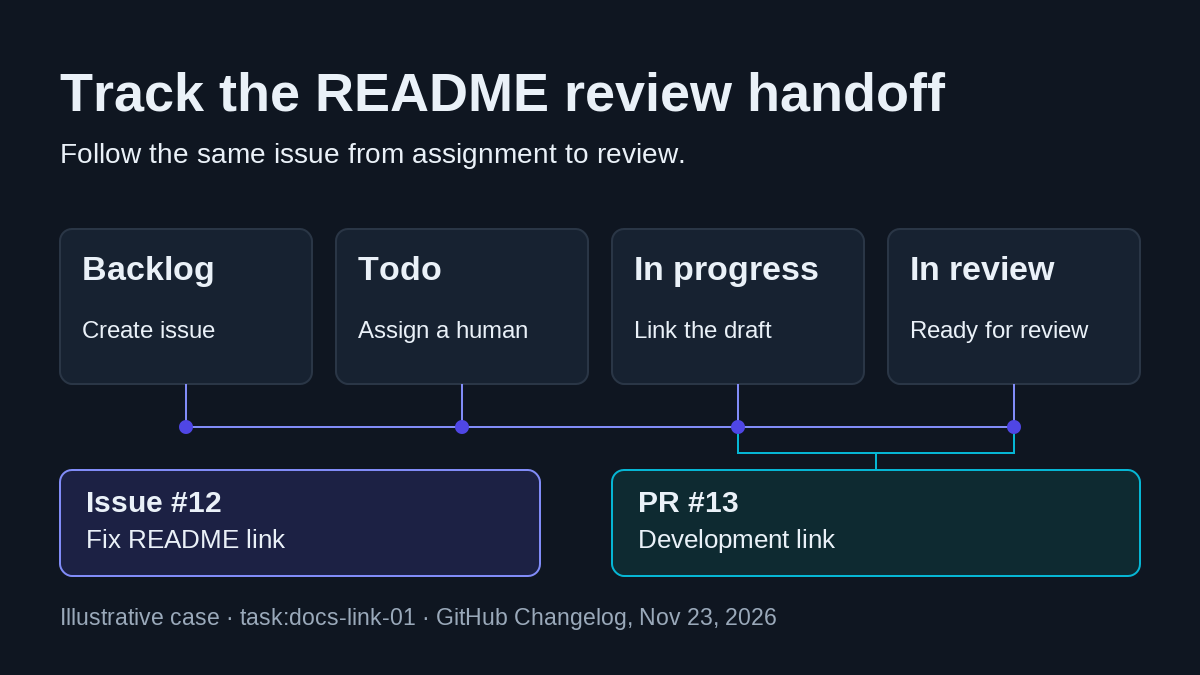
Your repository has three open documentation issues. One is still waiting to be picked up, another already has a draft fix, and the third needs a reviewer. A list of open issues makes you open every thread to find out which is which. With GitHub issue statuses, you can group those issues on a repository board and let a linked pull request move its issue through the handoff. Start with one README fix and verify the card after each change.
Use a disposable GitHub repository with Issues enabled, preview access, and a signed-in user with repository write permission. Keep the issue and pull request in the same repository. The example assumes the default branch is main. If yours has a different name, use that branch wherever the example says main. GitHub announced the repository board and issue status public preview on November 23, 2026. GitHub Docs describes access for accounts enrolled in the preview. GitHub Changelog · GitHub Docs on issue status access and permissions
The illustrative case is task:docs-link-01. It uses issue #12 and draft pull request #13. GitHub supplies the numbers when you create the records, so use the actual numbers from your repository. The observations below are expected observations for the example. At the finish, you should be able to open the same issue from its In review column, see In review in the issue header, and follow the Development link to the pull request you just marked ready.
Set up a board for the README issue
- On the default branch of your disposable repository, make sure
docs/getting-started.mdexists. For the fixture, its contents can be the heading# Getting startedfollowed byThis page is the target of the README setup guide link.In the rootREADME.md, put the line[Setup guide](docs/setup.md)and leavedocs/setup.mdabsent. Use the repository’s file editor to commit the fixture before creating the fix branch. The branch then has a real one-line change for GitHub to compare. GitHub pull request quickstart - Open the repository’s Issues page. Create a saved view or open an existing disposable saved view. In View options, switch the layout to Board and group by status. Open a fresh view if an existing one has filters for specific assignees, labels, or statuses. Keep the open issue statuses available as columns and leave the view broad enough to show both an unassigned issue and the same issue after it has an assignee. GitHub Changelog on repository board setup
- Keep the board in one browser tab and use another for the issue. From Issues, click New issue, choose a blank issue if your template chooser offers one, enter Fix the README setup guide link as the title, and paste the body below. Choose Backlog on creation if the control is available, then submit the issue. GitHub Docs gives Backlog as the default for new issues with statuses. If the header shows another status, you can set Backlog there. Leave the issue unassigned for the first comparison. GitHub Docs on creating an issue · GitHub Docs on initial status
Task: task:docs-link-01

## Problem
On the default branch, the root README's Setup guide link points to
`docs/setup.md`, which is absent in this exercise repository. The intended
page already exists at `docs/getting-started.md`.

## Acceptance criteria
- [ ] Change the README line from `[Setup guide](docs/setup.md)` to
      `[Setup guide](docs/getting-started.md)`.
- [ ] Keep the link text `Setup guide` and limit the PR diff to the README link.
- [ ] Open the rendered README on the PR branch and follow Setup guide.
      The link should open `docs/getting-started.md` on that branch.
- [ ] Link the draft PR to this issue through Development before marking
      it Ready for review. Leave the PR unmerged for the exercise.
The two checks in the middle of the issue body give the reviewer different evidence. The diff confirms that the author touched only the intended line. Clicking the rendered link confirms that the new relative path works from the README that readers will actually see. The task identifier stays in the body even if your issue number differs. That gives a maintainer or a coding agent one stable handle for the acceptance criteria. Spec-driven development and checkable contracts
Before branching, open the rendered README on the default branch and click Setup guide to confirm the broken starting point. Then open the intended destination directly from the repository file list. If the old link already works or the replacement file is absent, correct the fixture first. Those two observations establish which file is missing and which one the replacement link should open.
A private saved view works for a maintainer who wants a personal queue. Before using the board as a team destination, check which view you saved and whether teammates can open it. Teammates with access to the issue can still read its header from their own views. Each board card represents an existing issue, so match the issue number before comparing its column with the header. GitHub Changelog on private saved views
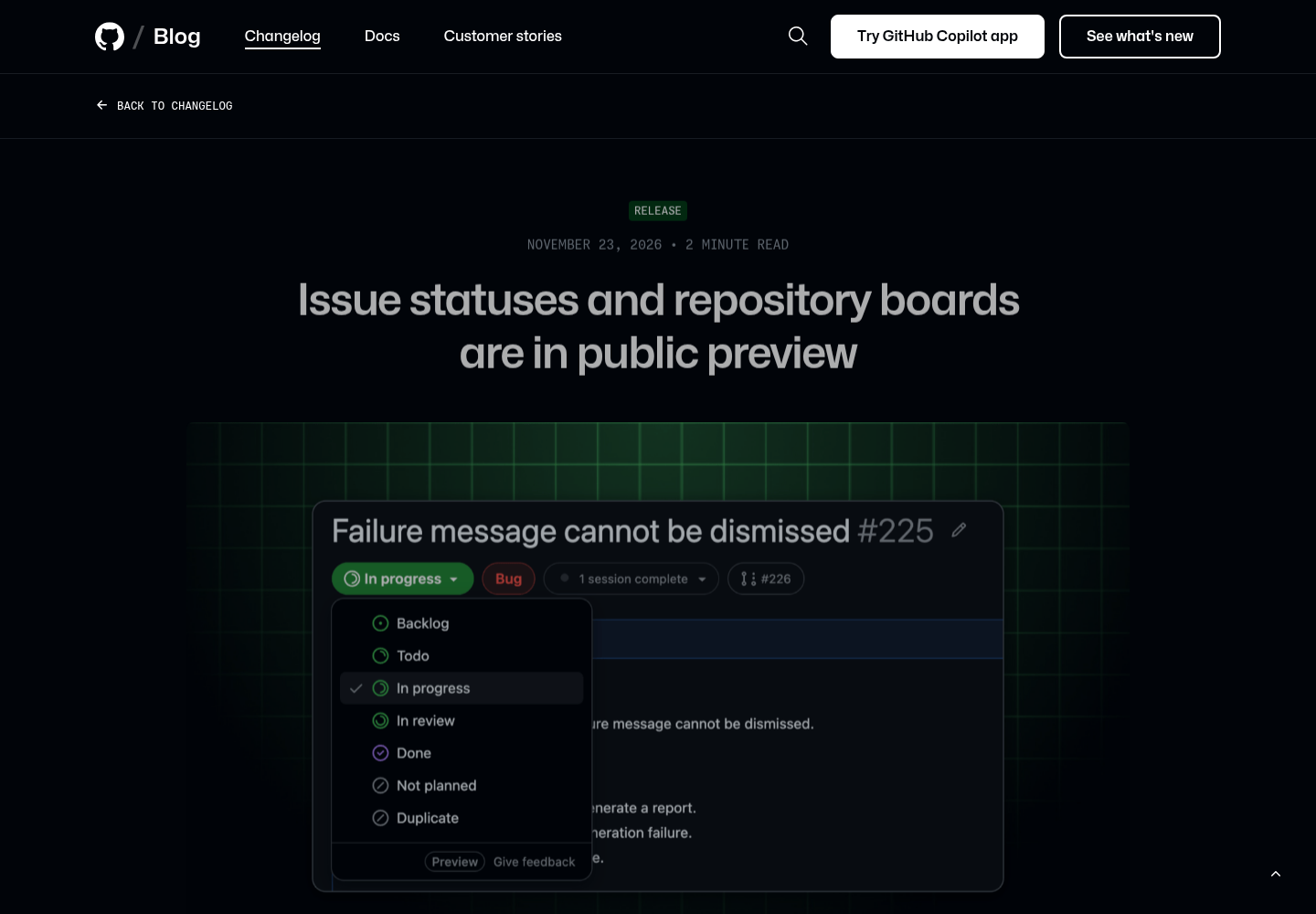
Move the issue from Backlog to Todo
- Read the status in the header of issue #12. Return to the board, reload the view if it was already open, and find #12 in Backlog. Check the number as well as the title. Two documentation tickets can have similar titles, and moving the wrong card would change a real issue.
- In the issue’s right sidebar, open Assignees, type the username of an eligible human, and click the matching name. Assign yourself if you are the person doing the exercise. Confirm that the user actually appears in the sidebar before you read the status. GitHub’s preview describes human assignment as a move to Todo and agent assignment as a move to In progress. Use a human here so that assignment and draft linking remain two separately visible changes. GitHub Docs on assigning issues · GitHub Changelog on automatic status changes
- Compare the header with the board again. In this exercise Todo means the assigned human can pick up the issue. Ask that person to open the issue body and check the proposed destination before editing. If the board card disappears at this stage, read the issue header before changing assignment again. An unassigned-only view can lose the card as soon as a human takes ownership. GitHub Docs on assignee filters
Use this table beside your two browser tabs. Each row changes one condition, and the last column gives the corresponding expected observation. During the check, leave the card where GitHub puts it until you have compared both surfaces. Dragging it writes a status and can obscure the effect of the action you just took. If the assignee appears and the header still shows Backlog, record those two observations independently. That tells you the assignment saved and gives you a specific transition to investigate. GitHub Changelog on board updates
| Input | Action | Expected result |
|---|---|---|
task:docs-link-01, issue #12, unassigned and open |
Choose Backlog in the issue header if needed, then reopen the saved Board grouped by status. | The header says Backlog and the board shows issue #12 in Backlog. |
task:docs-link-01, issue #12 in Backlog, signed-in maintainer with write access |
Open issue #12, choose Assignees, and select your human account. | The selected human appears in the sidebar. The header and board card for #12 show Todo. |
task:docs-link-01, issue #12 in Todo and same-repository PR #13 still a draft |
On #12, open Development, select the repository and PR #13, then click Apply. | Development lists PR #13, and #12 is expected in In progress on the issue and board. |
task:docs-link-01, issue #12 in In progress and PR #13 linked as a draft |
Open PR #13 from Development and click Ready for review in the merge box. | PR #13 leaves draft. The header and board card for issue #12 are expected to show In review. |
Link the draft in Development
- On the repository’s main page, use the branch selector to create
docs/fix-readme-setup-linkfrommain. OpenREADME.mdon the new branch. Replace the old line with[Setup guide](docs/getting-started.md)and commit the edit on the new branch. Open the rendered README there and follow Setup guide. On the default branch the old line should still be present. That comparison catches an edit committed to the wrong branch. GitHub pull request quickstart - Under Pull requests, click New pull request. Set the base to
mainand compare it withdocs/fix-readme-setup-link. Click Create pull request to open the form, title it Fix the README setup guide link, and use the dropdown to select Create draft pull request. A suitable description isPoint the README Setup guide at docs/getting-started.md. Related issue #12.Use the real issue number. That sentence supplies context while leaving the Development relationship for the next action. GitHub pull request quickstart on draft creation - Open issue #12. In the right sidebar, click Development, choose the repository containing the pull request, select draft PR #13, then click Apply. The issue sidebar can remember your last selected repository, so verify the selected repository and the PR title before applying the link. Once it is saved, follow the link from Development to confirm it opens the intended draft. GitHub Docs on linking a PR from the issue sidebar
- Read the issue header and reload the saved board. In progress is the expected preview result after the draft is linked. Find issue #12 under that heading, and confirm that the item you follow from the card is the same issue you linked. The card represents the README issue. The proposed edit and its draft stage belong to the pull request you reach from Development. GitHub Changelog on draft linking
A plain #12 mention in the PR description is a reference. If the only action you took was adding that mention, open issue #12 and check Development for PR #13. An empty section is a reason to add the manual link before moving on. GitHub also documents closing keywords such as Fixes #12 in a PR description targeting the default branch. That is another way to form the relationship, with a closure consequence on merge. GitHub ignores those keywords in a PR description when the PR targets another branch. A closing keyword in a commit message can close an issue when the commit is merged into the default branch while leaving the containing PR absent from the linked PR list. The manual sidebar route gives this exercise an explicit relationship you can inspect before requesting review. Merging the linked PR into the default branch can close the issue, so stop at review readiness for this exercise. GitHub Docs on links and closing keywords
Hand the linked draft to reviewers
- Open PR #13 from the issue’s Development section. Check the diff against the issue body. For this fixture, the only change is the destination within the README link. The proposed destination is an existing file, and the label remains Setup guide. If you find that the file still fails to open on the compare branch, keep the PR in draft and fix that branch before sending it to reviewers. If the compare view includes unrelated edits, check the base and compare selections before changing the README again. The two branches should differ only in the proposed link repair. GitHub pull request quickstart
- In the PR’s merge box, click Ready for review. The author or a user with repository write permission can change the PR stage. GitHub says this action requests reviews from any code owners, so use a disposable repository where that side effect is appropriate. Reopen issue #12 and reload the board. Compare the header and column, with In review as the expected status and the Development link still pointing to PR #13. GitHub Docs on changing PR stage · GitHub Changelog on the linked draft becoming ready
- For the next handoff, send the reviewer to PR #13. In review means the change is available to review in this example. The PR itself supplies review decisions and required check results. A reader can verify the distinction in the repository’s Pull requests search with
state:open is:pr review:nonefor open PRs with no review andstate:open is:pr review:approvedfor open PRs with approvals. A PR may be ready and still appear in the first search. If it appears in the second search, inspect the PR itself for approvals and required checks before making any merge decision. GitHub Docs on PR review filters
When a coding agent prepares the PR, give it the issue number and the acceptance criteria from the ticket. Use the card to find the proposed change when it is available, then ask the reviewer to record their decision on the PR. If an agent needs to wait for actual review or check activity, use the guide to waiting for GitHub PR events. For approval responsibilities and merge requirements, see the PR review agent policy and GitHub rulesets guide.
Find a missing card or repair the link
- The header has the expected status and the card is missing. Confirm you are in the same repository and saved view. Clear any status filter that matches the previous column only. A view limited to Todo excludes #12 once its status is In progress. Also check assignee and label filters, and whether the relevant column is configured to display. If the issue is closed, check whether the view is limited to open issues. Reload the broader view before touching the issue status. If the card reappears in the expected column, keep the issue status and adjust the saved view only if you want it to include cases like this one. GitHub Docs on issue filters · GitHub Changelog on board columns and status filtering
- The issue is still in Todo and Development does not show #13. Confirm the draft PR exists and that you copied the number from the correct repository. Go back to Development, select the right repository and PR, and click Apply. If you manually linked the wrong PR, unlink that relationship and add the correct one. When a wrong relationship came from a closing keyword in the PR description, edit the description to remove it. Verify that the resulting Development entry opens #13, then check the issue header before returning to the board. GitHub Docs on manual and keyword links
- Development is correct and the issue still has the earlier status. Check the PR stage and whether the actor who performed the link can choose a status for the issue. GitHub Docs says the status stays the same when the linker lacks that permission in its documented linking case. The webhook guide and the preview changelog describe linking an already-open PR differently, so this exercise follows the draft-first sequence explicitly described in the changelog. With the correct link and a draft PR, manually choose In progress if that accurately describes the work. If the linked PR is already ready and you have confirmed the handoff, choose In review from the issue header. Reload the board and record a manual correction if you are evaluating the automation. GitHub Docs on status permissions and linking events · GitHub Changelog on the preview transitions
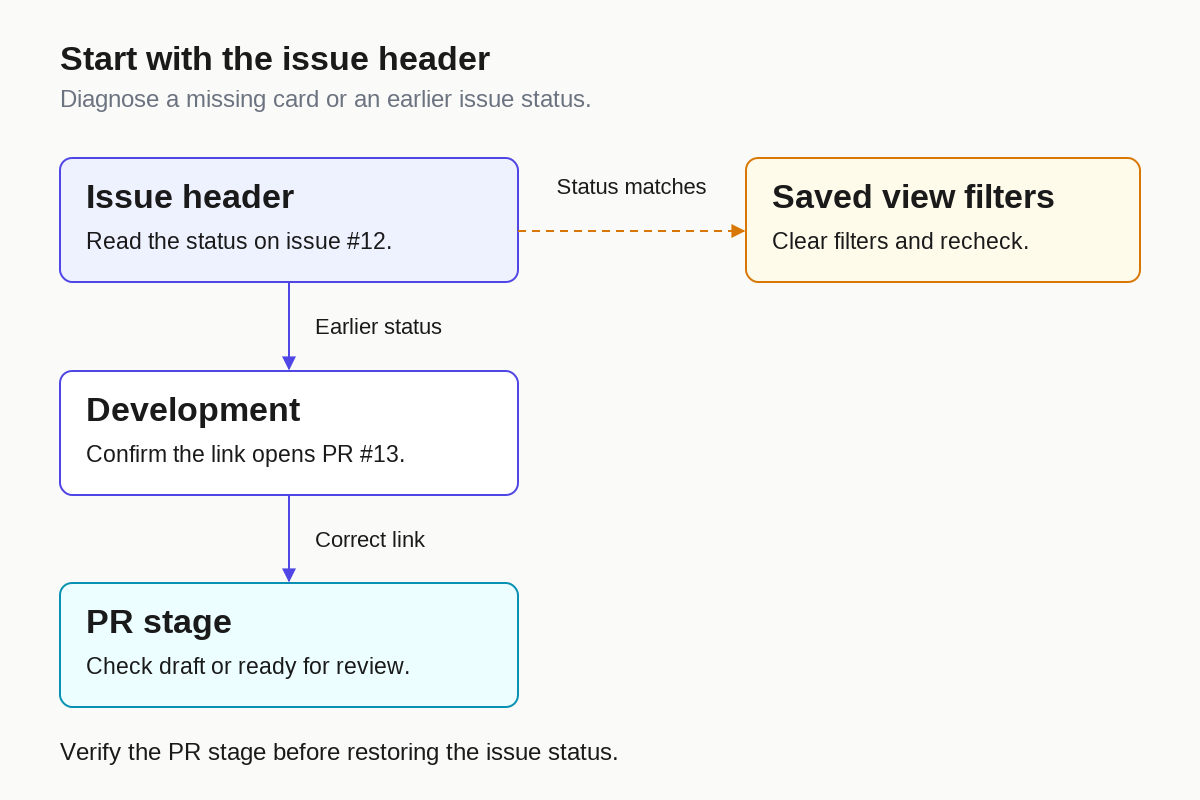
Keep the issue and PR together in a handoff note if several people or agents work in the repository. For this fixture the note can read task:docs-link-01 · issue #12 · PR #13 · ready for review · verify the README link on the PR branch. The board gives a teammate a place to find the issue. The note gives the reviewer enough context to start even if their saved view differs from yours. For larger groups that coordinate several coding assistants, see running multiple coding agents with one operator.
Reset the exercise without merging
- If you clicked Ready for review too early, open PR #13, find Reviewers in its sidebar, click Convert to draft, and confirm. Check the PR stage before touching the issue. Then inspect issue #12. If its status still says In review, use the issue header to restore In progress while you work on the linked draft. Reload the board to check the matching column. Converting to draft keeps existing PR subscribers subscribed, so update your handoff note if you already told a reviewer the change was ready. GitHub Docs on converting a PR to draft
- For a clean replay, remove the manual Development link, return the training issue to its unassigned baseline, and set Backlog from the header. Verify that the issue is open, that the old link is absent, and that the card has returned to Backlog. Keep the existing PR in draft for the next assignment and link check. This gives you a repeatable starting point and lets you replay the assignment and link events without opening another PR against the same change. GitHub Docs on unlinking · GitHub Changelog on changing issue status
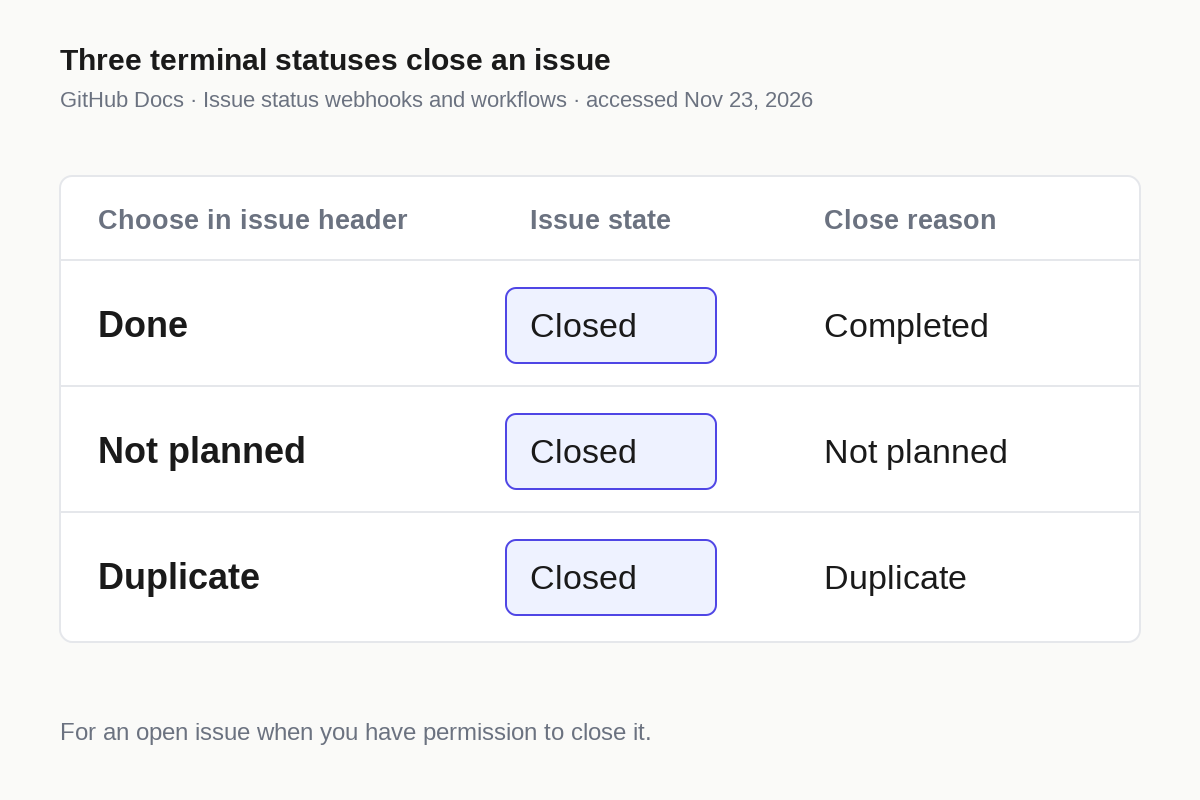
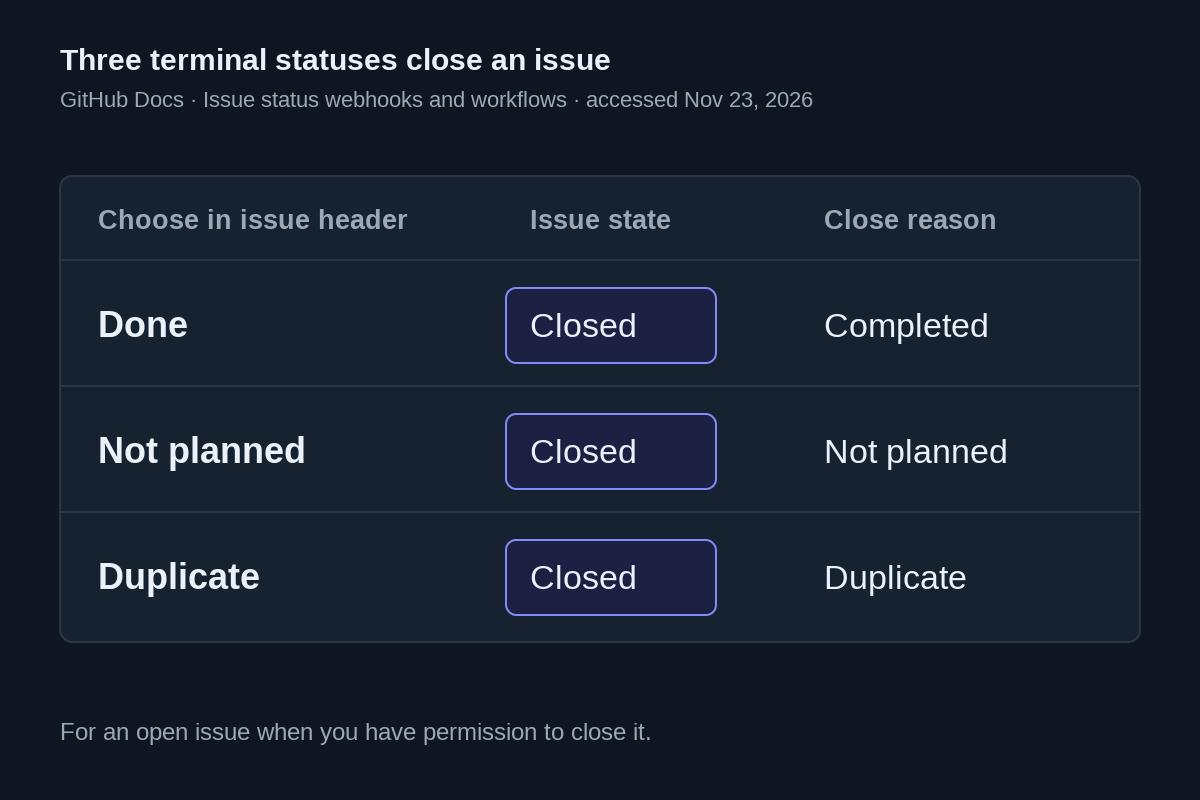
- To retire the fixture, close the PR without merging. For the issue, choose a terminal status when its meaning matches the outcome. Done closes an issue as completed. Not planned closes it as not planned, which fits an exercise you are abandoning with the default branch unchanged. Duplicate closes an issue as a duplicate and belongs on a redundant ticket. If you chose a terminal status accidentally, choose a nonterminal status to reopen the issue when you have permission to choose statuses and reopen it. Check the issue header and any open-only filter after either operation. GitHub pull request quickstart · GitHub Docs on closure, reopening and permissions
You can stop the exercise at the review handoff and keep the board for the next task. Open the view again from the repository, locate #12 in In review, follow the issue’s Development link, and read the target PR’s stage. That final click-through verifies that someone starting from the board can find the exact proposed change and decide what to review next.
Sources
- GitHub Changelog — Issue statuses and repository boards are in public preview
- GitHub Docs — Creating an issue
- GitHub Docs — Assigning issues and pull requests
- GitHub Docs — Quickstart for pull requests
- GitHub Docs — Linking a pull request to an issue
- GitHub Docs — Changing the stage of a pull request
- GitHub Docs — Filtering and searching issues and pull requests
- GitHub Docs — Issue status webhooks and workflows
- GitHub Changelog — Private saved views for repository issues