Kimi Pin to Desktop Allowlist: Always-Visible Agents Need a Gate
Kimi Pin to Desktop makes a widget always-visible. Write a pin allowlist like an MCP allowlist: who may pin, what data it may show, always-on-top and expiry.

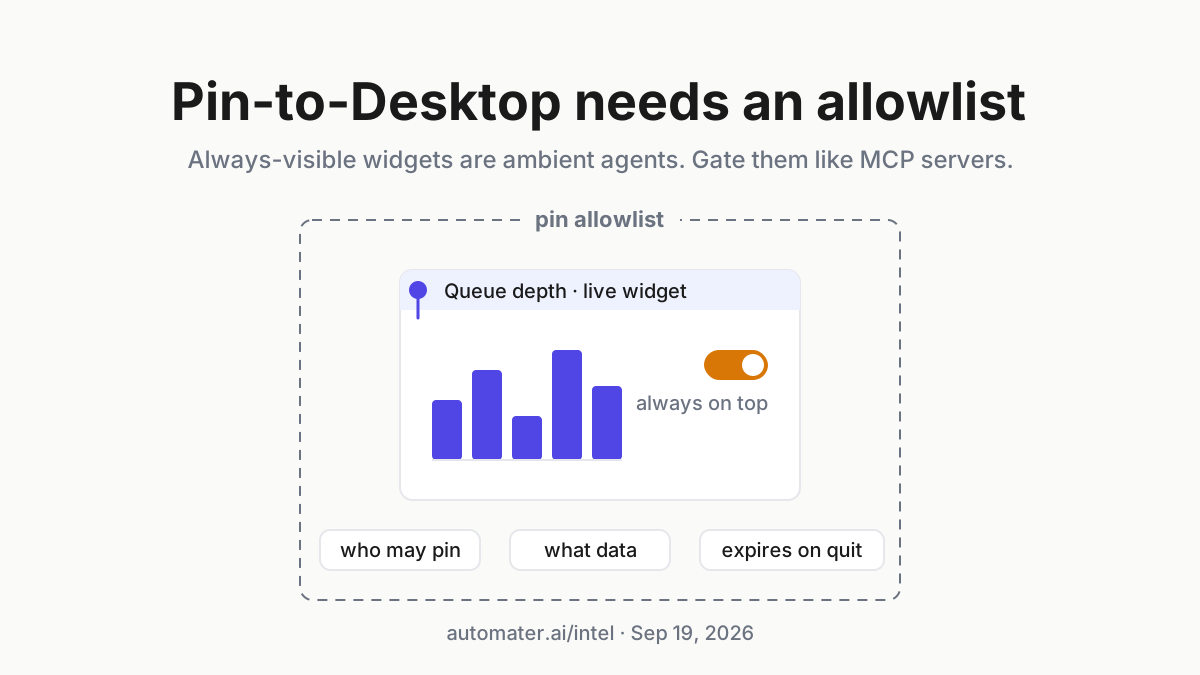
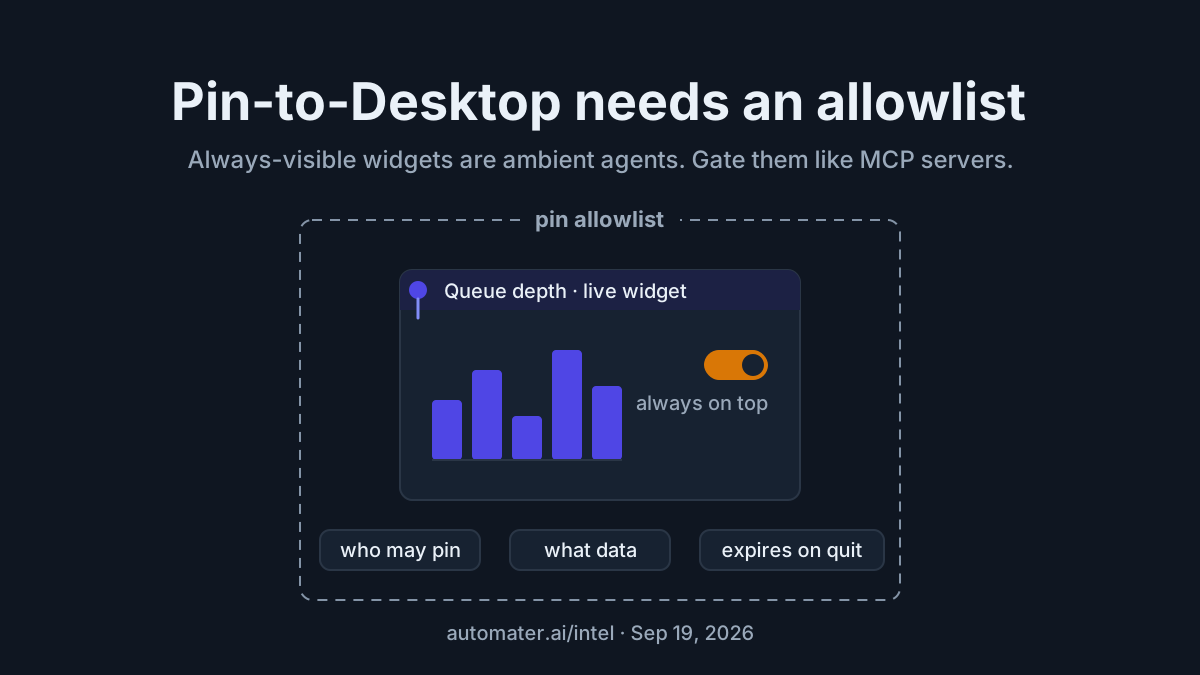
A pinned widget is the only agent on your desk that never leaves the screen. Since Kimi Work 3.1.8 on Aug 11, 2026 it can also sit on top of every other window, on purpose, behind a toggle. Picture a forty-minute screen-share that ends with someone asking what the pipeline numbers in the corner were, because the Kimi Pin to Desktop window you forgot about had been refreshing them for the whole call.
Nothing went wrong with the widget. It did what it was built to do: stay visible during other work, pull fresh data on its bound task’s schedule, and close when the client quit. What went wrong is that nobody had decided which widgets may be always-visible, who may pin them, what data class a pinned window may show, and when a pin expires.
That decision has a shape you already know. It is an allowlist, the same one you write for MCP servers, with the same fields and the same failure modes.
By Tuesday you should have a pin allowlist for every desktop agent that can float a window, with Kimi Work as the worked example because its documentation is precise enough to write policy against. Kimi’s pages get cited once, in the next section. The policy that follows is vendor-neutral.
Kimi Pin to Desktop, as the help pages describe it on Sep 19, 2026
The help page defines the feature in one sentence: “Pin to Desktop: pins the widget to your computer desktop as a standalone window with a customizable size; the window closes automatically when you quit the app.” (Dashboard help) The resource page, updated Sep 11, 2026, gives the intended use: “Pin it as an independent desktop window when you want it to remain visible during other work.” (Kimi Work Dashboard)
The always-on-top history is two steps, and the order matters for policy. In 3.1.7 (Aug 5, 2026): “Dashboard components using Pin To Desktop are no longer forced to stay on top” (release notes, 3.1.7). In 3.1.8 (Aug 11, 2026): “Dashboard components pinned to the desktop now have an always-on-top toggle” (release notes, 3.1.8). So a pin is no longer forced on top; always-on-top is a toggle since 3.1.8, per window, chosen by whoever pinned it.
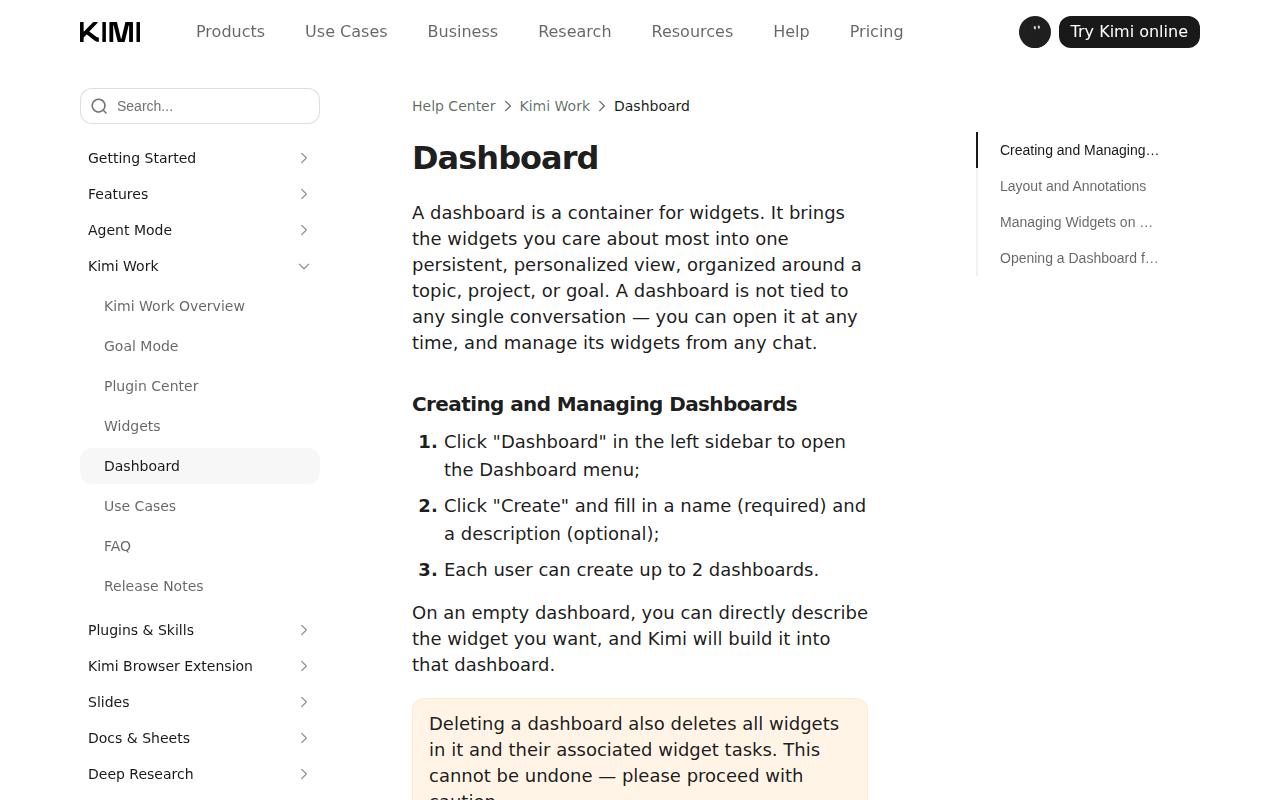 Screenshot: kimi.ai, “Kimi Work Dashboard - Kimi Help Center” (undated), captured Sep 19, 2026.
Three later releases widened what stays visible or keeps running. 3.2.7 (Sep 11, 2026) added a screenshot upgrade that lets you “pin screenshots to the desktop as always-on-top windows”, and in the same release “Windows auto-start now only stays in the system tray, no longer popping up the main window” (release notes, 3.2.7). 3.2.5 (Sep 4) added remote control of the desktop from your phone, and 3.2.7 made “sub-agent cards and deliverable cards aligned with the desktop” appear in remote control messages. 3.2.9 (Sep 14) added a power option so the screen can turn off while the system keeps running for remote control and background tasks (release notes, 3.2.9).
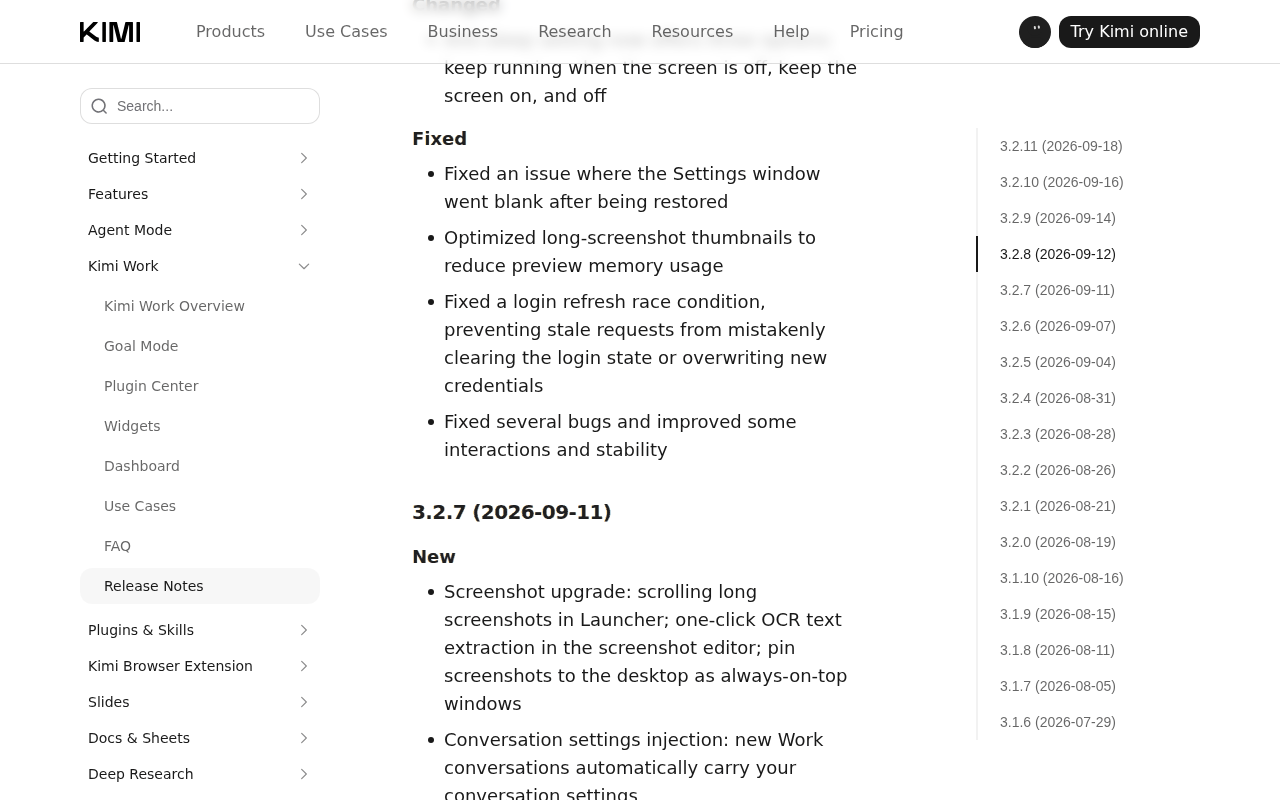 Screenshot: kimi.ai, “Kimi Work Release Notes - Kimi Help Center” (entry 3.2.7, Sep 11, 2026), captured Sep 19, 2026.
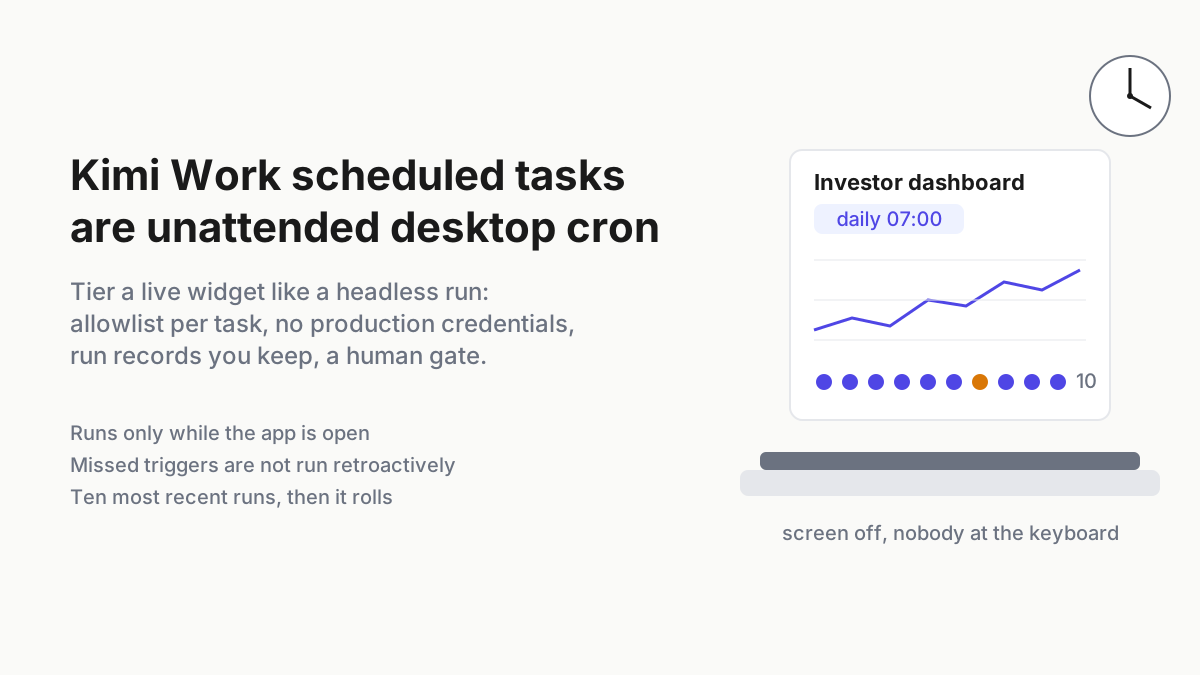
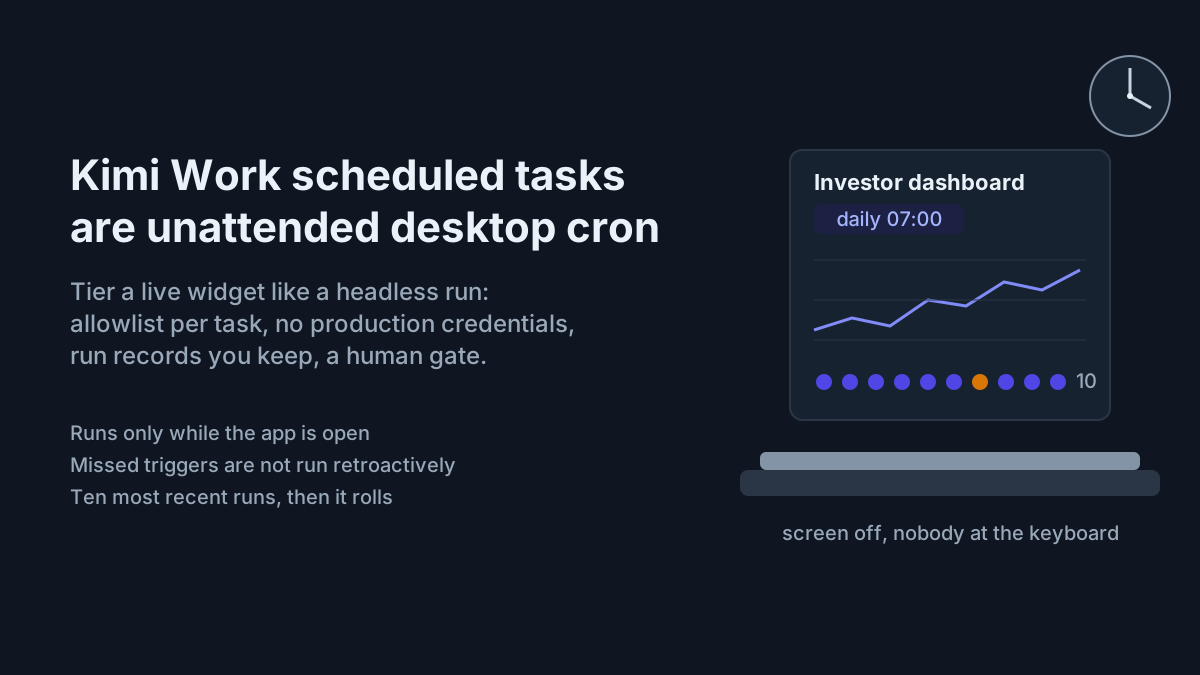
The thing being pinned is usually live. A live widget is “a widget bound to a widget task, whose content updates automatically with each run of the task”, and the number of tasks that may run at once “varies by plan” with no figure published (Widgets help). The FAQ says scheduled tasks run locally and only while the app is open, and that missed triggers are not run retroactively; it does not single out widget tasks, so plan as if the same holds (Kimi Work FAQ). Since 3.2.6 (Sep 7) the client asks you to confirm any still-running scheduled tasks before quitting (release notes, 3.2.6).
What the docs do not say is the gap this playbook fills. There is nothing about who may pin, what a pinned widget may display, or any administrative control over pins. There is no export of run history beyond the ten most recent runs shown per live widget. And there is no claim that pins survive a restart; the documented behavior is the opposite, the window closes when the app quits.
An always-visible widget is an ambient agent
A chat window is an agent you summon. A pinned live widget is an agent that stays: a window with screen real estate, a task with a schedule, and a data source it reads without asking again. Pinning it is approval that lasts until the client quits, which is the same shape as the approve-once problem in MCP tool approvals, moved from the tool call to the desktop.
Two things make it different from an ordinary dashboard tab. It is visible to anyone who can see the screen, including a projector, a recording, or a support session. And it keeps acting after you have stopped looking, which puts it in the same trust tier as the widget scheduled tasks that drive it. An allowlist is how you say, in advance, which of those you accept.
The permission mode will not do this for you. Kimi Work’s three levels, Default, Manual approval and Fully automatic, are described on the FAQ in terms of modifying files, running code and changing system configuration. The pages say nothing about pins, and a window staying on screen is none of those operations. Whatever level you run, the decision about what may float is yours to write down.
The pin allowlist, field by field
The MCP allowlist you already keep has a server, its tools, a scope, an approval mode, a lifetime and an audit trail. Map each to the pin.
| MCP allowlist field | Pin allowlist field | What Kimi gives you today |
|---|---|---|
| Server | Widget class (static, live, screenshot pin, remote card) | Widgets help defines widgets and live widgets; 3.2.7 adds screenshot pins and remote-control cards |
| Tool | Data source behind the widget (local file, plugin, web) | Widgets can connect to local data or external plugins |
| Scope (read or write) | Data class the pinned window may show (D0 to D3) | Not documented; yours to define |
| Approval mode | Who may pin, and whether always-on-top is allowed | Per-window toggle since 3.1.8; no admin control documented |
| Lifetime | Expiry: app quit, end of day, end of meeting | Window closes when the app quits; nothing shorter |
| Audit trail | Run records and a weekly copy | 10 most recent runs, on screen only |
The chart is an illustrative matrix, a policy I would start from on a machine that runs both personal widgets and work data. Your data classes and your meeting culture will move the cells.
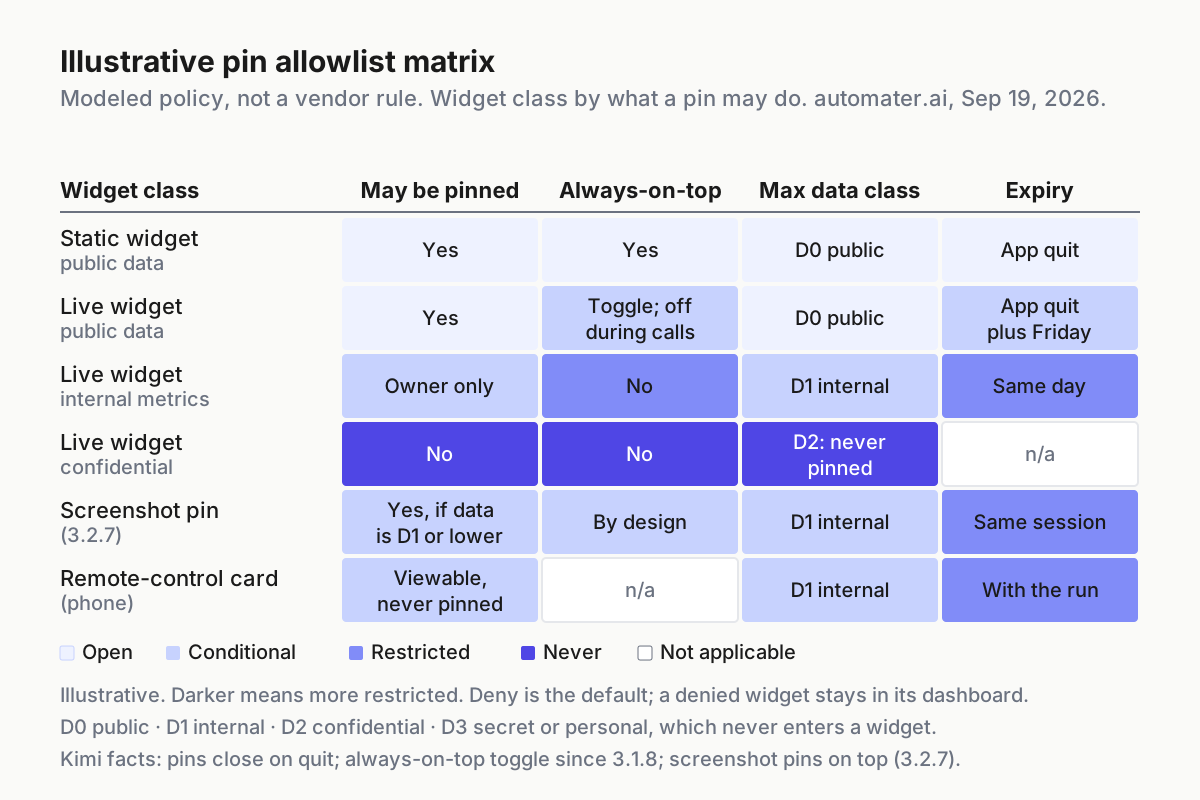
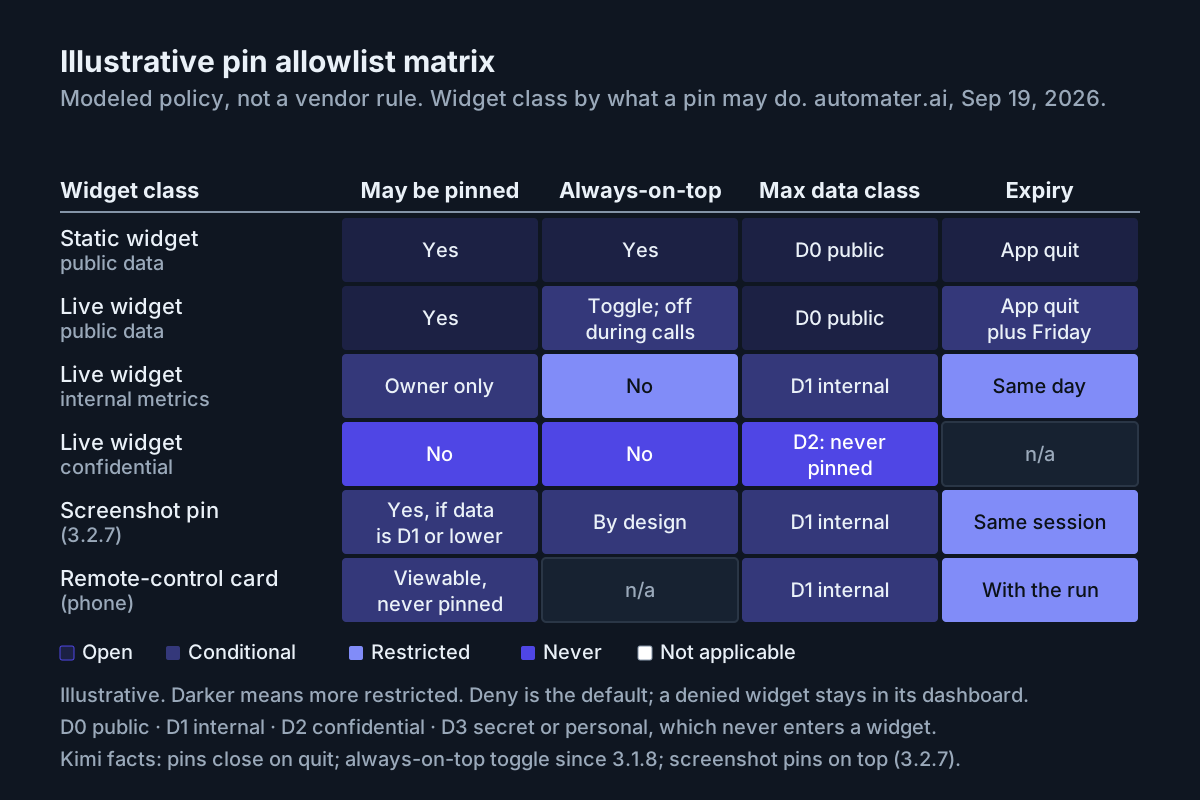 Illustrative. The shading is permissiveness, from open to never; the labels are the rule. Kimi documents none of this, which is why you write it.
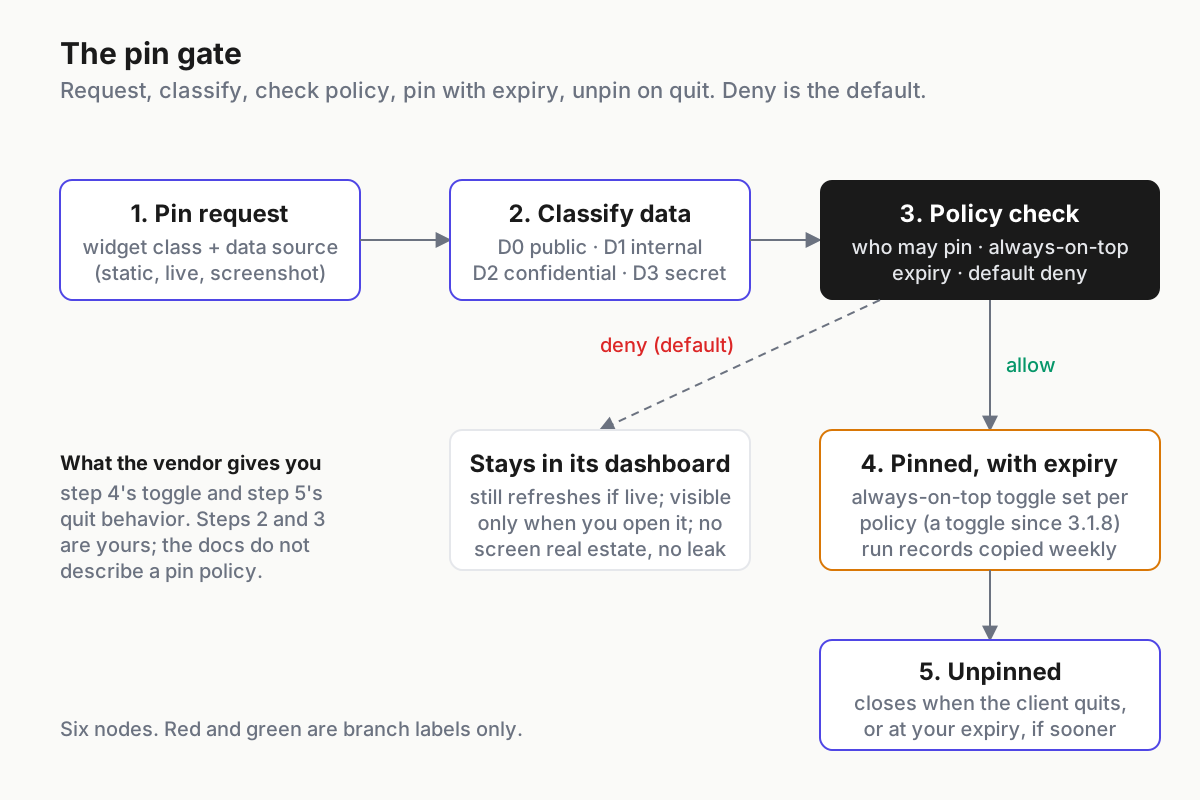
 The gate sits between the pin button and the screen. Deny is the default; the widget stays in its dashboard.
Write the pin allowlist in six steps
Budget ninety minutes, most of it in step 1. The policy file is illustrative; the ritual around it is the point.
Step 1: inventory every pinned window on the machine
Each Kimi pin is a standalone window, so a window list finds them. On Windows, list top-level windows whose owner process is the Kimi client and note which have always-on-top set; on macOS, walk the same process’s windows. Illustrative check on Windows, from PowerShell:
# the Windows client installs as Kimi.exe (process name Kimi); MainWindowTitle shows one window
# per process, so enumerate its other top-level windows with a window-list tool
Get-Process | Where-Object { $_.MainWindowTitle -and $_.ProcessName -eq "Kimi" } |
  Select-Object ProcessName, Id, MainWindowTitle
Then walk your dashboards in the client (there are at most two) and record, per widget: class (static or live), the data source, the last run time from the run list, and whether it is currently pinned. Do the same for screenshot pins, which are not widgets and appear in no dashboard. That last group is the one people forget, because a screenshot pin takes a moment to make and looks like any other floating image until a colleague reads the ticket number in it.
Write the inventory in the same folder as the policy file, dated. If the first pass turns up a pin whose data source nobody can name, unpin it before step 2 starts.
Step 2: classify the widget
Four classes, matching the chart. Static widgets show content generated once; live widgets have a bound task and refresh. Screenshot pins are images of whatever was on screen, always-on-top by design since 3.2.7. Remote-control cards are not pins, but a deliverable card on a phone is ambient in the same way and gets a row in the same file.
Step 3: classify the data, and set the ceiling per class
Use four classes and resist a fifth. D0 is public (market prices, weather, a public build status); D1 is internal but harmless if glimpsed (a queue depth, a sprint count). D2 is confidential (customer names, revenue, unreleased numbers); D3 is secret or personal (credentials, tokens, anything the local vault would redact).
D2 never pins. D3 never enters a widget at all, because a widget’s data source is a plugin or a file the model reads, and a redaction you did not do yourself is one you cannot rely on.
Step 4: decide always-on-top per class, and tie it to the calendar
Always-on-top is the property that turns a widget into a leak. Allow it only for D0, and even then turn it off while a screen is being shared. The practical rule is a toggle discipline: before any call that shares a screen, flip the always-on-top toggle off on every pinned window, or quit the client and let the pins close. The screenshot pin is the exception, because it is always-on-top by design; treat every screenshot pin as D1 at most and same-session only.
Step 5: set an expiry shorter than the vendor’s
Kimi’s expiry is app quit, and nothing on the help pages offers a shorter one. So your policy provides the clock. Same-day for D1 live widgets, end of meeting for anything pinned to follow a call, and a Friday quit for everything.
The 3.2.6 confirmation dialog, which asks about still-running scheduled tasks when you quit, is your reminder that quitting closes the pins and also stops the tasks behind them, which is usually what you want on a Friday. If you rely on the 3.2.9 option that keeps the system running with the screen off, note that the pins are still windows and the tasks are still running; a dark screen is no expiry.
Illustrative policy file:
# pin-allowlist.yaml: illustrative; one per machine that can float agent windows
defaults:
  may_pin: deny
  always_on_top: deny
  expiry: app_quit
  audit: copy_last_10_runs_weekly
classes:
  static_widget:
    may_pin: owner
    always_on_top: allow_if_data <= D0
    max_data: D1
    expiry: app_quit
  live_widget:
    may_pin: owner
    always_on_top: allow_if_data == D0 and not screen_sharing
    max_data: D1
    expiry: same_day
    requires: run_records_visible
  screenshot_pin:
    may_pin: owner
    always_on_top: by_design          # 3.2.7 pins them on top; no toggle documented, so limit data
    max_data: D1
    expiry: same_session
  remote_card:
    may_pin: not_applicable
    viewable_on_phone: D1
    expiry: with_the_run
never_pin:
  - D2
  - D3
Step 6: audit what the pin did while you were not looking
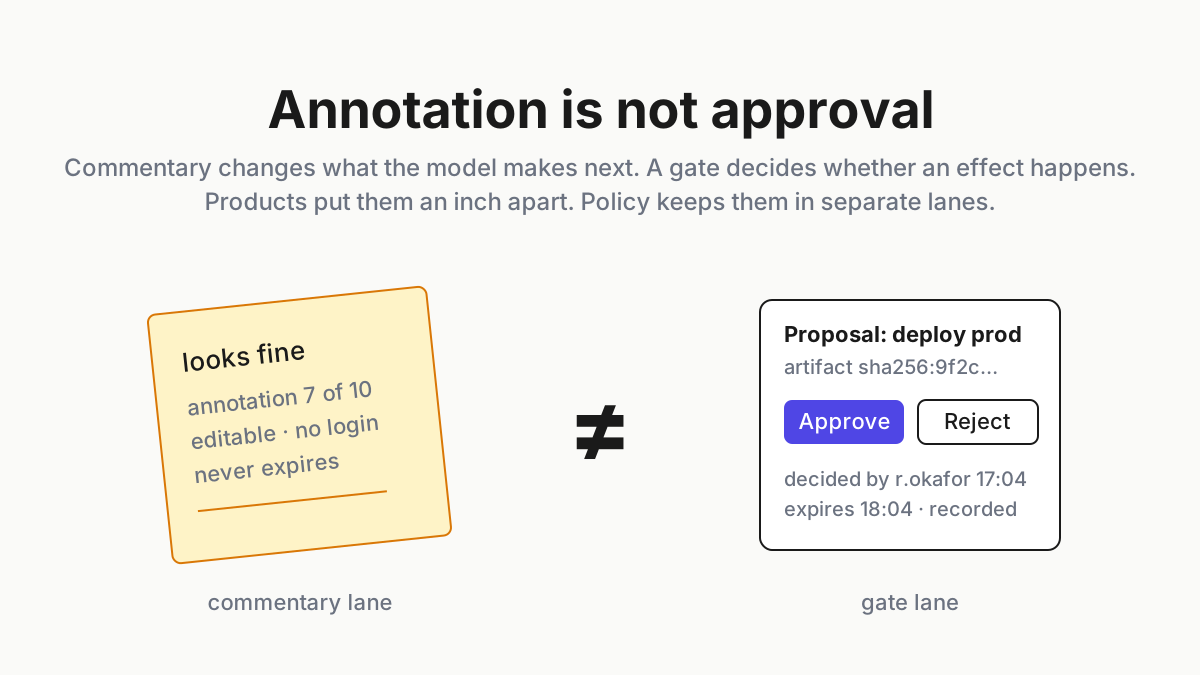
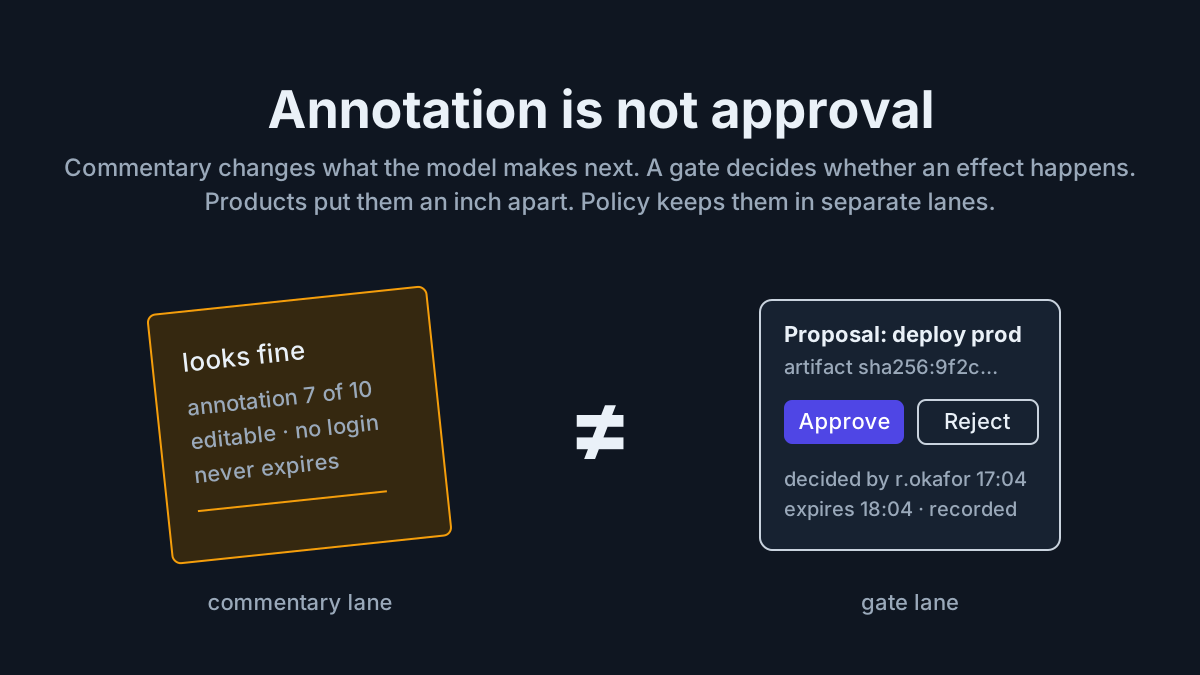
The only run history is the ten most recent runs per live widget, with run time and status. Copy them out weekly, by hand if you must, into the same folder as the policy file. A pinned widget whose last run is older than its schedule is a task that stalled or a plan limit that hit; either way the window is now a stale number pretending to be a live one. And when you annotate a widget to adjust it, remember that annotation is not approval: it is feedback for regeneration, and says nothing about whether the thing may stay pinned.
Five Kimi Pin to Desktop failures and the signal for each
The screen-share leak. Signal: a pinned window in a recording or a meeting screenshot. Cause: always-on-top was on and nobody flipped it. Fix: step 4, and a habit of quitting the client before calls that share a screen.
The stale pin. Signal: a live widget whose newest run record is older than its schedule, or shows a failed status, while the window still displays a confident number. Cause: the task hit the per-plan concurrency limit, the app was closed during the trigger, or the plugin behind it lost its connection. Fix: step 6; pause, and re-pin only after a fresh run.
The auto-start ambiguity. Signal: on Windows, the client is in the tray after login and you are unsure which pins came back. Cause: since 3.2.7 auto-start stays in the tray, and the docs do not say whether pins are restored. Fix: assume the help page’s rule, the window closes when the app quits, and confirm on your own machine after the next update.
The delete cascade. Signal: a pinned widget vanished along with its task. Cause: someone deleted the dashboard, which deletes its widgets and their tasks and cannot be undone. Fix: pause tasks, never delete, until the weekly copy of run records is done.
The phone card. Signal: a deliverable card on a phone shows D2 content because the desktop task produced it. Cause: remote control mirrors sub-agent and deliverable cards from the desktop, and the data class ceiling was set for the desktop only. Fix: the remote_card row in the policy file, with its own ceiling.
The gate belongs to the operating layer
A widget vendor will keep making pins easier, because a pinned window is the most visible thing the product does. That is fine. The gate belongs to the layer on the desk that knows what is running, what each thing may read, and when it must stop, which is the same layer that keeps the restricted-mode policy for CLIs and prefers gates before actions over dashboards after them. A pin allowlist is that layer’s policy for the one class of agent that never leaves the screen.
The sibling comparison of Kimi’s dashboard cards and a tray’s Home cards makes the same point from the other side: the pretty card is the deliverable, and the command center is whatever tells you the deliverable is still being made. Pin the first. Never mistake it for the second.
FAQ: Kimi Pin to Desktop
Does Kimi Pin to Desktop stay always on top?
Not by force. Since 3.1.7 (Aug 5, 2026) pinned dashboard components are no longer forced to stay on top, and since 3.1.8 (Aug 11, 2026) each pinned window has an always-on-top toggle. Screenshot pins, added in 3.2.7 on Sep 11, are pinned as always-on-top windows by design.
Do pinned Kimi Work widgets survive quitting the app?
No. The help page states the pinned window closes automatically when you quit the app, and the docs make no claim that pins are restored on restart. The FAQ says scheduled tasks also run only while the app is open, and triggers missed while it was closed are not run later.
What should a pin allowlist contain?
The same fields as an MCP allowlist: widget class, the data source behind it, the highest data class the pinned window may show, who may pin and whether always-on-top is allowed, an expiry shorter than app quit, and a weekly copy of the run records. Deny by default; the widget stays in its dashboard.
Sources
- Kimi Work help: Dashboard (Pin to Desktop definition, limits, delete warning)
- Kimi Work help: Release Notes, 3.1.7 (Aug 5, 2026), pins no longer forced on top
- Kimi Work help: Release Notes, 3.1.8 (Aug 11, 2026), always-on-top toggle
- Kimi Work help: Release Notes, 3.2.7 (Sep 11, 2026), screenshot pins, tray-only auto-start, remote-control cards
- Kimi Work help: Release Notes, 3.2.6 (Sep 7, 2026), quit confirmation for running tasks
- Kimi Work help: Release Notes, 3.2.9 (Sep 14, 2026), keep running with the screen off
- Kimi Work help: Widgets (live widgets, widget tasks, per-plan limit)
- Kimi Work help: FAQ (scheduled tasks run only while the app is open)
- Kimi Work Dashboard resource page (updated Sep 11, 2026)
- @Kimi_Moonshot on X: Remote Control is live (Sep 9, 2026)